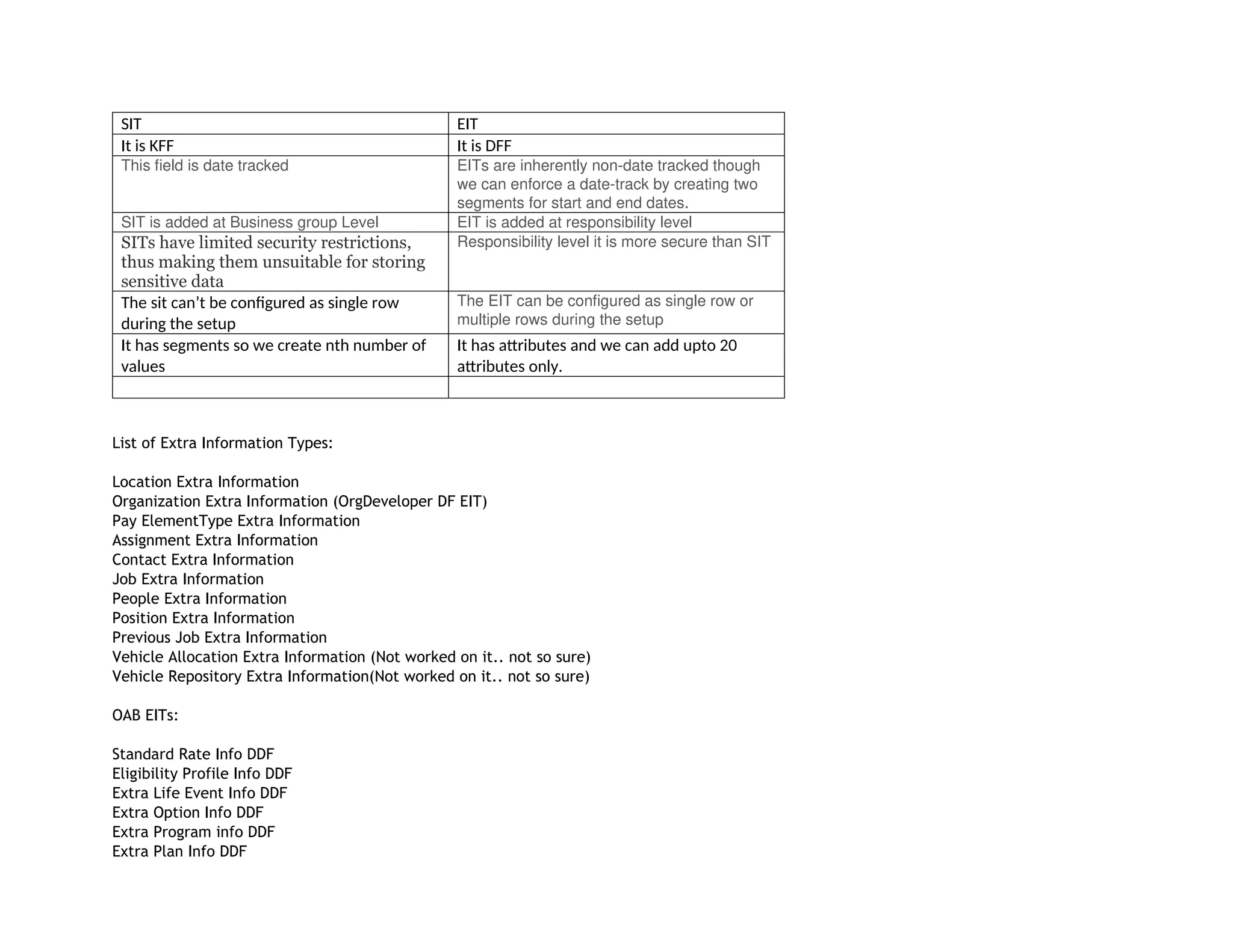
SIT EIT
It isKFF It is DFF
This field is date tracked EITs are inherently non-date tracked though
we can enforce a date-track by creating two
segments for start and end dates.
SIT is added at Business group Level EIT is added at responsibility level
SITs have limited security restrictions,
thus making them unsuitable for storing
sensitive data
Responsibility level it is more secure than SIT
The sit can’t be configured as single row
during the setup
The EIT can be configured as single row or
multiple rows during the setup
It has segments so we create nth number of
values
It has attributes and we can add upto 20
attributes only.
List of Extra Information Types:
Location Extra Information
Organization Extra Information (OrgDeveloper DF EIT)
Pay ElementType Extra Information
Assignment Extra Information
Contact Extra Information
Job Extra Information
People Extra Information
Position Extra Information
Previous Job Extra Information
Vehicle Allocation Extra Information (Not worked on it.. not so sure)
Vehicle Repository Extra Information(Not worked on it.. not so sure)
OAB EITs:
Standard Rate Info DDF
Eligibility Profile Info DDF
Extra Life Event Info DDF
Extra Option Info DDF
Extra Program info DDF
Extra Plan Info DDF
2.
Extra Information Types(EIT) in Oracle Applications
By Manoj Madhusoodanan on Jul 12, 2012
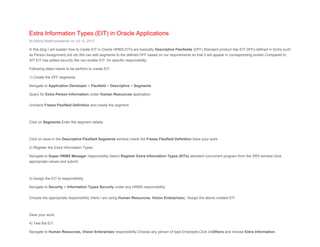
In this blog I will explain how to create EIT in Oracle HRMS.EITs are basically Descriptive Flexfields (DFF).Standard product has EIT DFFs defined in forms such
as Person,Assignment,Job etc.We can add segments to the defined DFF based on our requirements so that it will appear in corresponding screen.Compared to
SIT EIT has added security.We can enable EIT for specific responsibility.
Following steps needs to be perform to create EIT.
1) Create the DFF segments.
Navigate to Application Developer > Flexfield > Descriptive > Segments.
Query for Extra Person Information under Human Resources application.
Uncheck Freeze Flexfield Definition and create the segment.
Click on Segments.Enter the segment details.
Click on save.In the Descriptive Flexfield Segments window check the Freeze Flexfield Definition.Save your work.
2) Register the Extra Information Types.
Navigate to Super HRMS Manager responsibility.Select Register Extra Information Types (EITs) standard concurrent program from the SRS window.Give
appropriate values and submit.
3) Assign the EIT to responsibility.
Navigate to Security > Information Types Security under any HRMS responsibility.
Choose the appropriate responsibility (Here I am using Human Resources, Vision Enterprises). Assign the above created EIT.
Save your work.
4) Test the EIT.
Navigate to Human Resources, Vision Enterprises responsibility.Choose any person of type Employee.Click onOthers and choose Extra Information.
3.
Save your work.
Theabove entered information will get populated in PER_PEOPLE_EXTRA_INFO.
The API to create EIT information is HR_PERSON_EXTRA_INFO_API.
Special Information Types -SIT in HRMS
| Print
|
E-
mail
Written by Anil Passi
Wednesday, 15 November 2006
In this article, I will explain in steps :- How to create special information types in Oracle HRMS.
Once you have learnt the fundamentals of SIT, you can then also reference the article on migrating special information types into Oracle.
Before we dive into the special information type creation example, let’s first do some questions and answers.
Question: What is so special about special information types?
Answer : Nothing is special about SIT !!, it happens to be a Key FlexField, effectively a combination of segment/field values get attached to a
person/hr record. In plain English, SIT is a mechanism by which you can create new fields, to capture additional information against an HRMS
record.
Question : Why use an SIT when we can enable descriptive flexfields against the person record.
Answer : Various reasons, as listed below:-
A. Data in Descriptive Flexfield against an employee record will be visible to all the users that have access to the Employee creation/query screen.
On the contrary, using HR Workflow security, we can make SIT to become visible for the responsibility that we desire.
B. There is limited number of descriptive flex field columns available.
C. SIT let you logically group similar information together. For example, you may wish to capture "Medical illness history/details" and also
Citizenship/Country Residency History" of your employees. In this case, you will create two different SIT.
Question : So, can we create multiple Special Information Types?
Answer: Indeed, you can define as many contexts as you desire for special information type key Flexfield in Oracle Apps.
Question : What are the steps in brief for setting up an SIT
4.
Answer:
Analysis of sitrequirement, which includes
A. Find additional fields that are required for your HRMS screen, and can be logically grouped to be enterable from one window.
B. The validations that will be required against each of the SIT fields. Note: some people prefer to call them segments instead of fields. Anyway, for
these validations you will need to create value sets, or will have to find an existing value set that can be reused.
Implementation: of special information type
A. Configure the key Flexfield
B. Add segments to the key flex field
C. Assign value sets to segments. Skip this step if you want your key flexfled segment to be free text. Value sets are attached to each such segment
that requires validation.
D. In HRMS Superuser responsibility , enable the key flexfield context in screen "Define special information type"
Question : Give me the example of the SIT, to which we will migrate values.
Answer : For this training exercise, we will assume following SIT exists in Oracle Apps.
Sit name : "XX Medical History Of Person"
Sit Fields:
Medical Condition
Year of illness
Cured Flag (Yes/No)
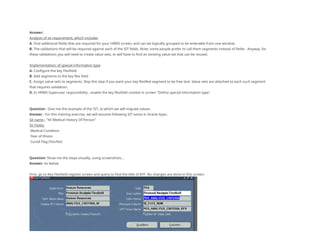
Question: Show me the steps visually, using screenshots...
Answer: As below
First, go to Key Flexfield register screen and query to find the title of KFF. No changes are done in this screen,
5.
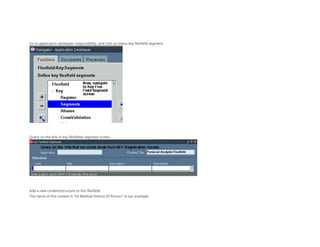
Go to applicationdeveloper responsibility, and click on menu key flexfield segment.
Query on the title in key flexfields segment screen.
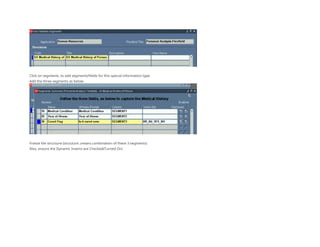
Add a new context/structure to this flexfield.
The name of this context is "XX Medical History Of Person" in our example.
6.
Click on segments,to add segments/fields for this special information type.
Add the three segments as below
Freeze the structure (structure ,means combination of these 3 segments)
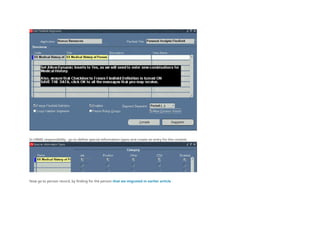
Also, ensure the Dynamic Inserts are Checked(Turned On)
7.
In HRMS responsibility, go to define special information types and create an entry for the context.
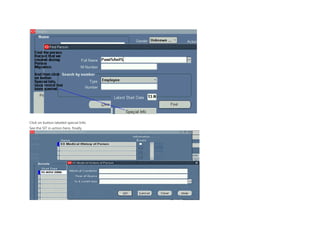
Now go to person record, by finding for the person that we migrated in earlier article .
8.
Click on buttonlabeled special Info
See the SIT in action here, finally