© 2007 Enerit Ltd.
© 2014 Enerit Ltd.
ENERIT
ISO 50001 ENERGY MAN PRO
SOFTWARE
TRAINING
Best viewed in slideshow mode
© 2007 Enerit Ltd.
© 2014 Enerit Ltd.
Overview
Day 1
Dashboard Overview
Energy Flow Assessor (EFA)
Creating Improvement Opportunities
Setting Objectives & Targets
Day 2
Document Control
Audits and Action Tracking
Meetings
Administration Take 10 minute breaks during sessions
Slides will be sent after sessions
© 2007 Enerit Ltd.
© 2014 Enerit Ltd.
ISO 50001
&
Enerit ISO 50001 Software
© 2007 Enerit Ltd.
© 2014 Enerit Ltd.
Enerit ISO 50001 Software
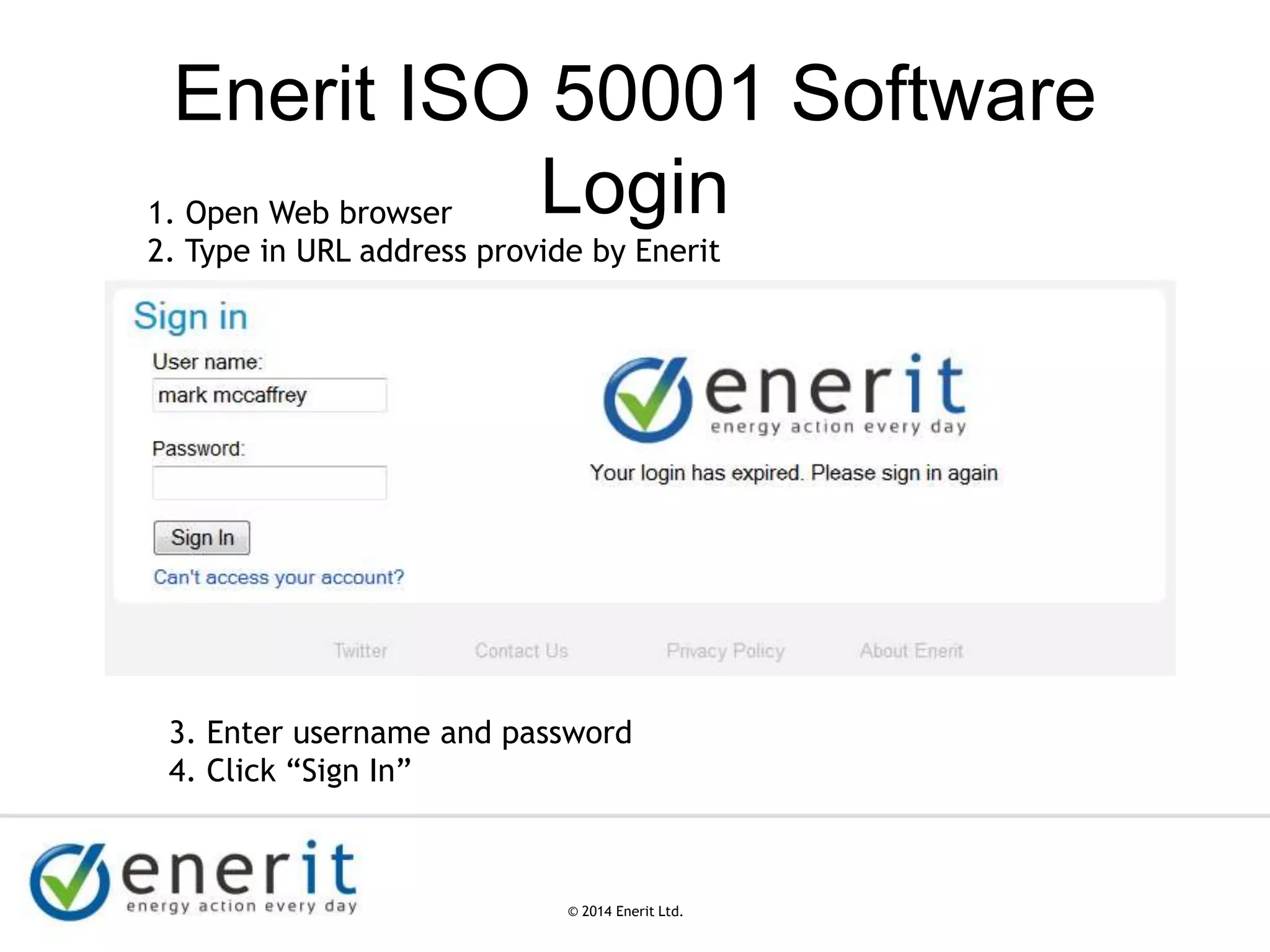
Login1. Open Web browser
2. Type in URL address provide by Enerit
3. Enter username and password
4. Click “Sign In”
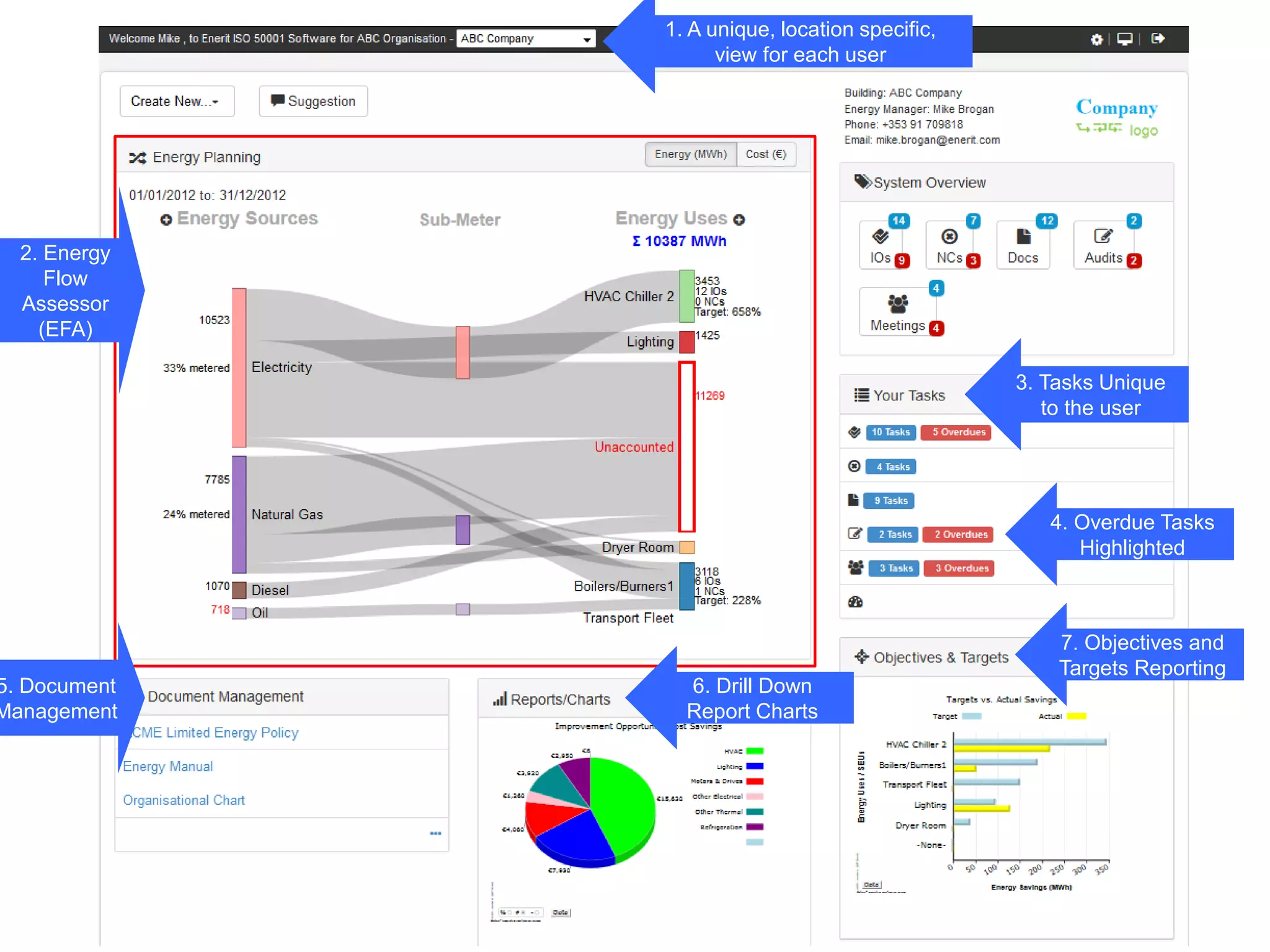
1. A unique, location specific,
view for each user
4. Overdue Tasks
Highlighted
3. Tasks Unique
to the user
2. Energy
Flow
Assessor
(EFA)
6. Drill Down
Report Charts
7. Objectives and
Targets Reporting
5. Document
Management
1.
Create
New…
2. Make a Suggestion
3. Admin -
Only
Available
to Full
Licence -
Admin
users
6. Only
available to
Full
Licence
Users
© 2007 Enerit Ltd.
© 2014 Enerit Ltd.
In Progress Items
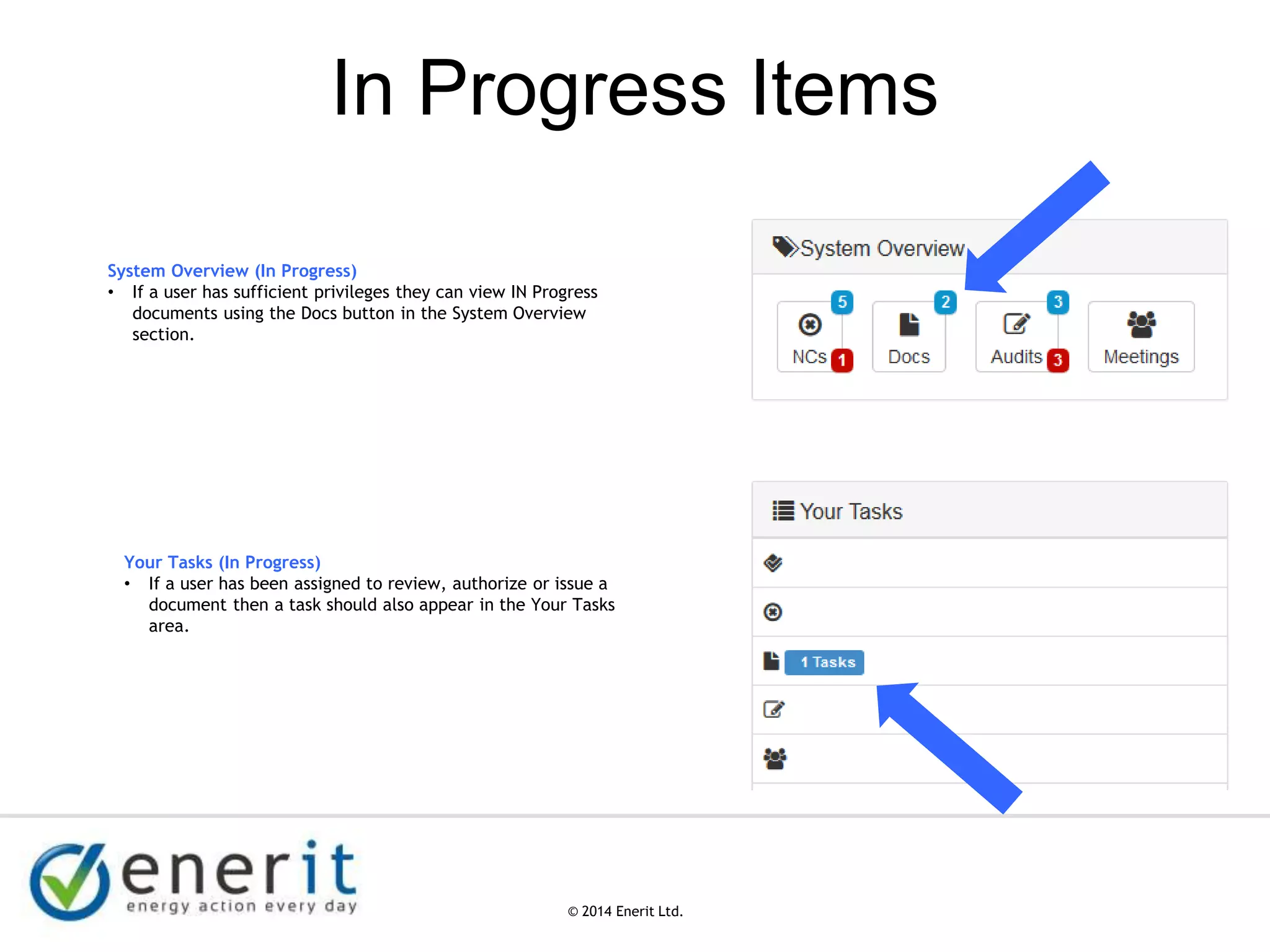
System Overview (In Progress)
• If a user has sufficient privileges they can view IN Progress
documents using the Docs button in the System Overview
section.
Your Tasks (In Progress)
• If a user has been assigned to review, authorize or issue a
document then a task should also appear in the Your Tasks
area.
© 2007 Enerit Ltd.
© 2014 Enerit Ltd.
Reports / Charts Widget
© 2007 Enerit Ltd.
© 2014 Enerit Ltd.
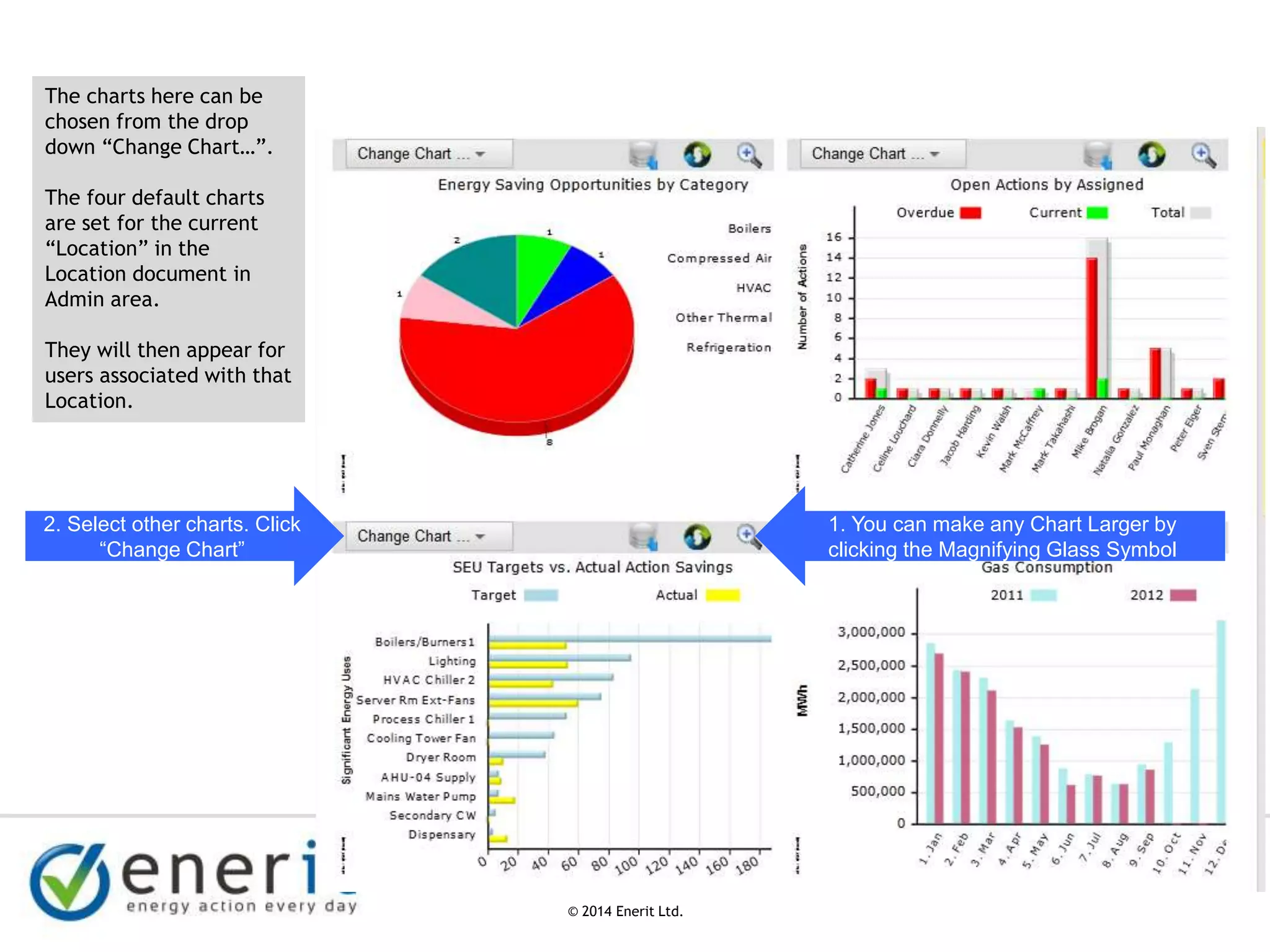
The charts here can be
chosen from the drop
down “Change Chart…”.
The four default charts
are set for the current
“Location” in the
Location document in
Admin area.
They will then appear for
users associated with that
Location.
2. Select other charts. Click
“Change Chart”
1. You can make any Chart Larger by
clicking the Magnifying Glass Symbol
© 2007 Enerit Ltd.
© 2014 Enerit Ltd.
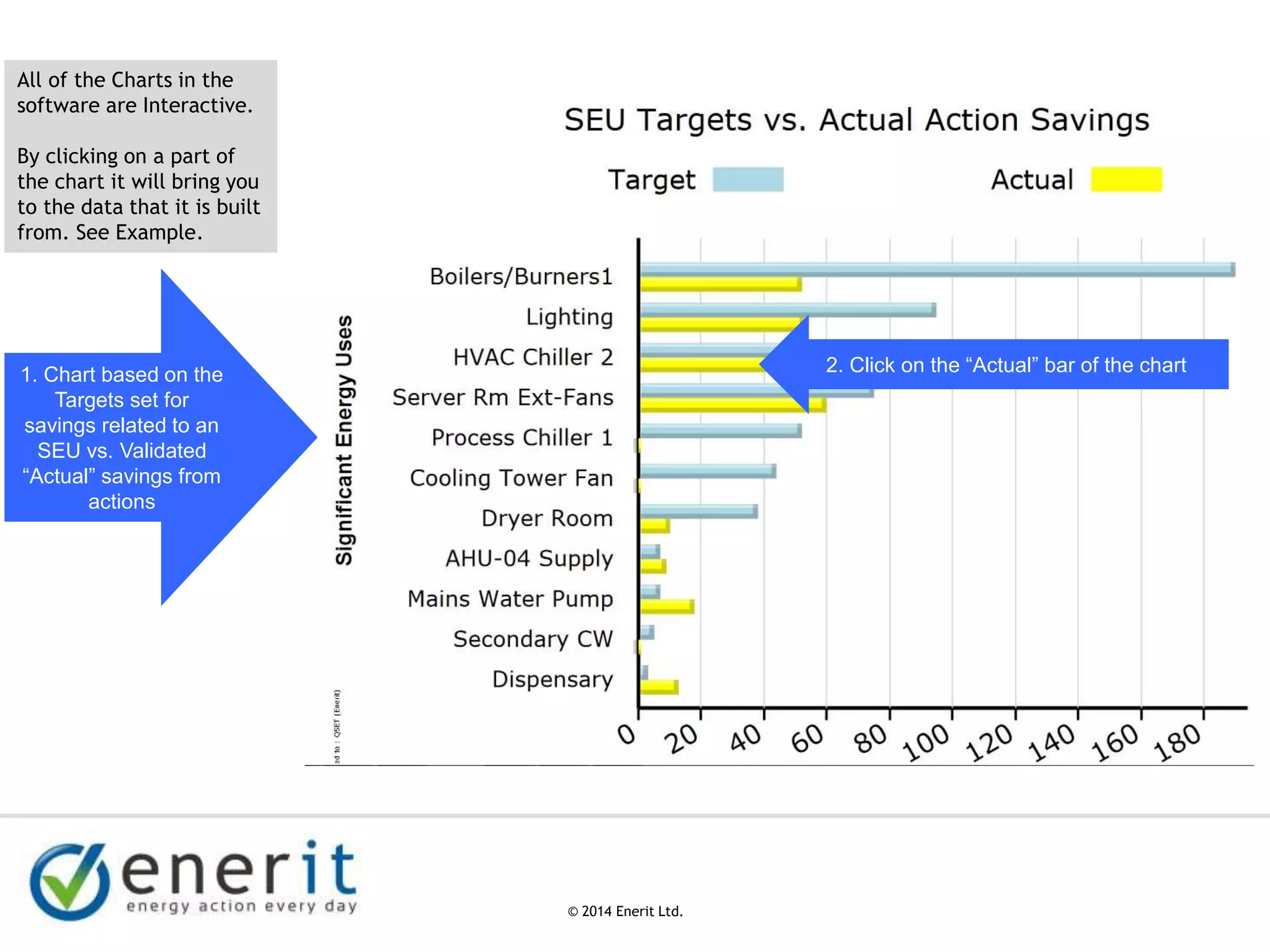
All of the Charts in the
software are Interactive.
By clicking on a part of
the chart it will bring you
to the data that it is built
from. See Example.
1. Chart based on the
Targets set for
savings related to an
SEU vs. Validated
“Actual” savings from
actions
2. Click on the “Actual” bar of the chart
© 2007 Enerit Ltd.
© 2014 Enerit Ltd.
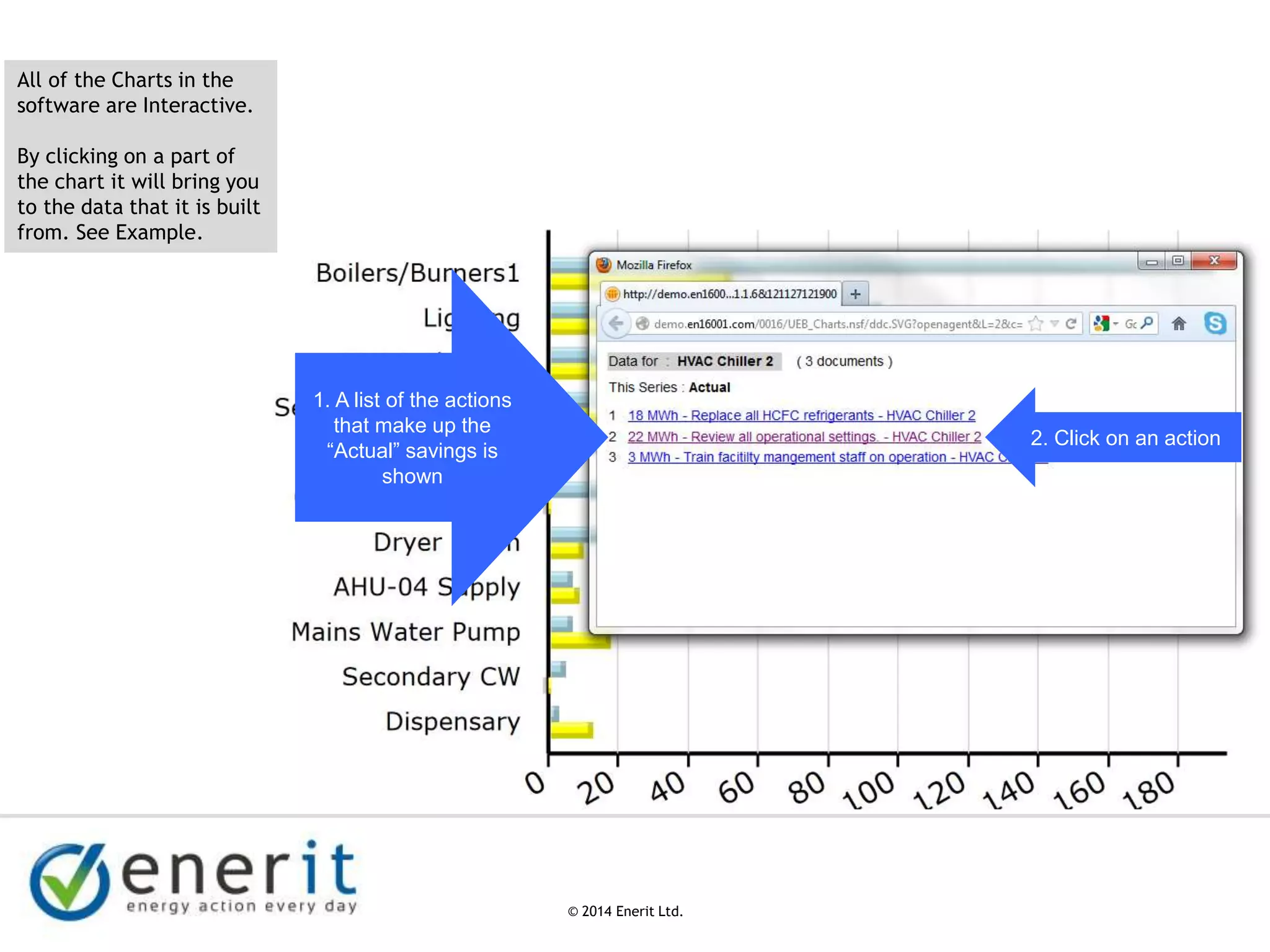
1. A list of the actions
that make up the
“Actual” savings is
shown
All of the Charts in the
software are Interactive.
By clicking on a part of
the chart it will bring you
to the data that it is built
from. See Example.
2. Click on an action
© 2007 Enerit Ltd.
© 2014 Enerit Ltd.
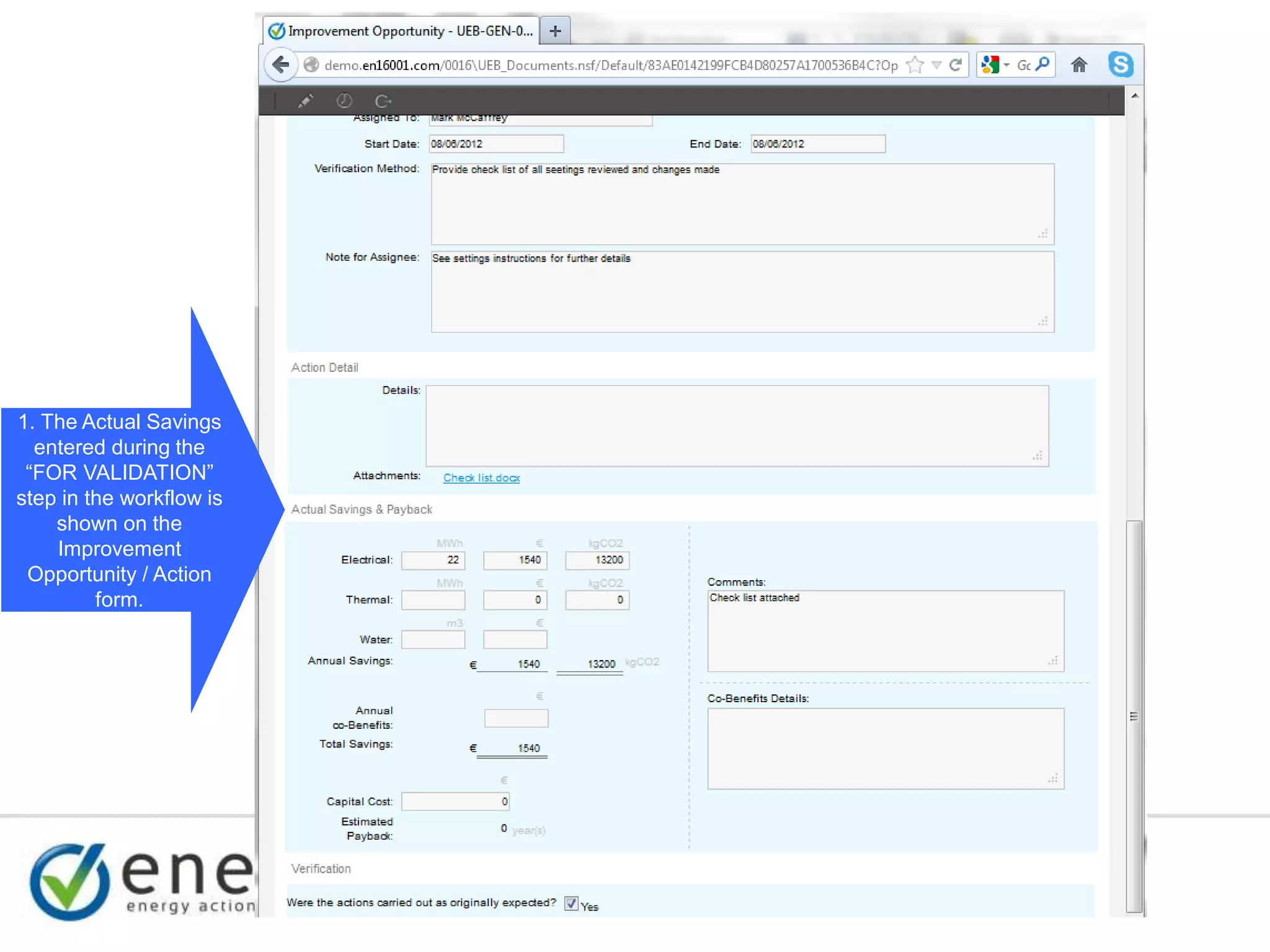
1. The Actual Savings
entered during the
“FOR VALIDATION”
step in the workflow is
shown on the
Improvement
Opportunity / Action
form.
© 2007 Enerit Ltd.
© 2014 Enerit Ltd.
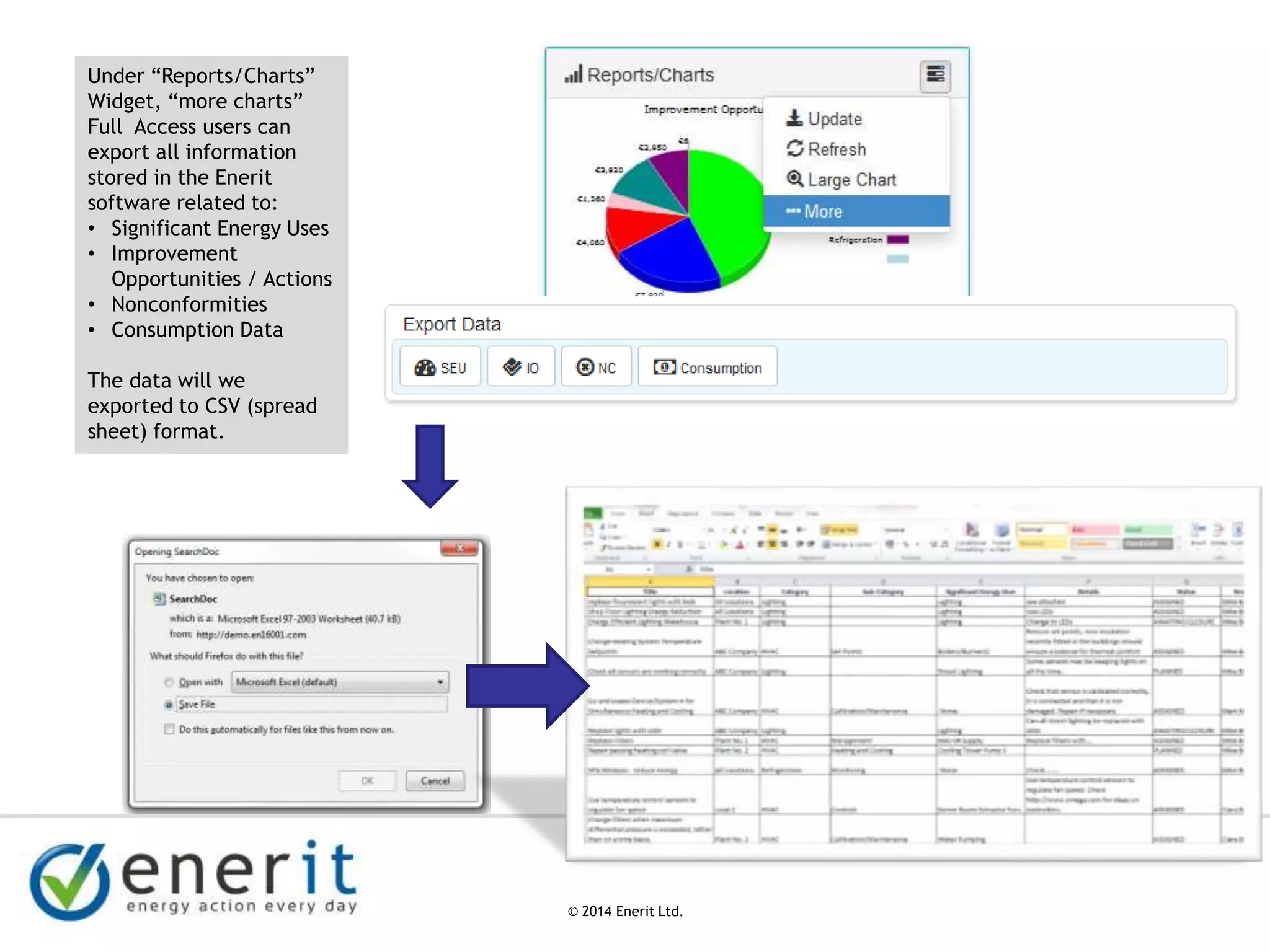
Under “Reports/Charts”
Widget, “more charts”
Full Access users can
export all information
stored in the Enerit
software related to:
• Significant Energy Uses
• Improvement
Opportunities / Actions
• Nonconformities
• Consumption Data
The data will we
exported to CSV (spread
sheet) format.
© 2007 Enerit Ltd.
© 2014 Enerit Ltd.
Enerit ISO 50001 Manager
Pro Access Levels
© 2007 Enerit Ltd.
© 2014 Enerit Ltd.
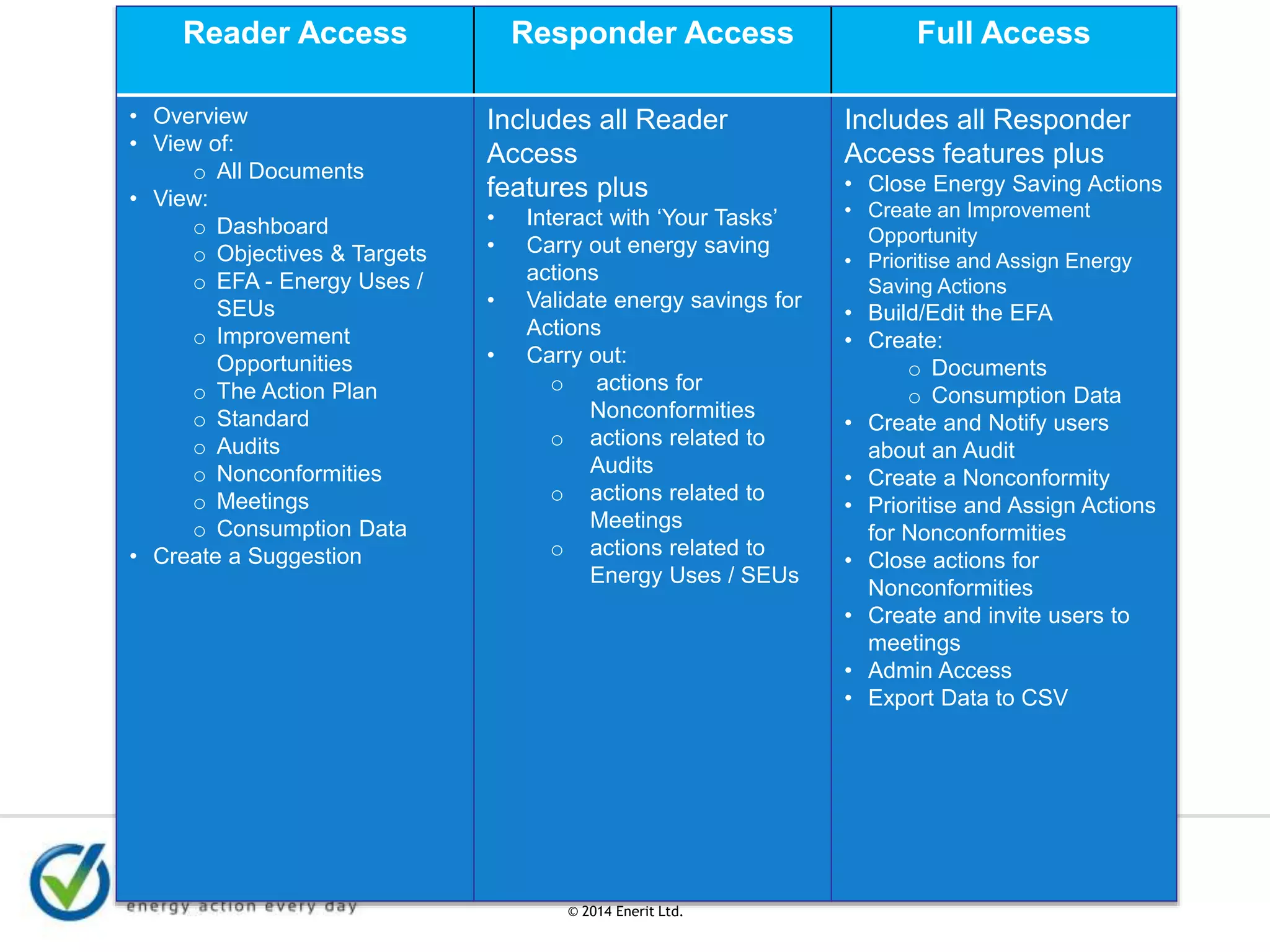
Reader Access Responder Access Full Access
• Overview
• View of:
o All Documents
• View:
o Dashboard
o Objectives & Targets
o EFA - Energy Uses /
SEUs
o Improvement
Opportunities
o The Action Plan
o Standard
o Audits
o Nonconformities
o Meetings
o Consumption Data
• Create a Suggestion
Includes all Reader
Access
features plus
• Interact with ‘Your Tasks’
• Carry out energy saving
actions
• Validate energy savings for
Actions
• Carry out:
o actions for
Nonconformities
o actions related to
Audits
o actions related to
Meetings
o actions related to
Energy Uses / SEUs
Includes all Responder
Access features plus
• Close Energy Saving Actions
• Create an Improvement
Opportunity
• Prioritise and Assign Energy
Saving Actions
• Build/Edit the EFA
• Create:
o Documents
o Consumption Data
• Create and Notify users
about an Audit
• Create a Nonconformity
• Prioritise and Assign Actions
for Nonconformities
• Close actions for
Nonconformities
• Create and invite users to
meetings
• Admin Access
• Export Data to CSV
© 2007 Enerit Ltd.
© 2014 Enerit Ltd.
Energy Flow Assessor
Training
See Slide Pack
(Note: Slides best used in presentation mode)
© 2007 Enerit Ltd.
© 2014 Enerit Ltd.
Systematic Energy Manager
Assigning IOs / Creating an Action
Plan
See Slide Pack
© 2007 Enerit Ltd.
© 2014 Enerit Ltd.
Objectives & Targets
© 2007 Enerit Ltd.
© 2014 Enerit Ltd.
Objectives & Targets
Monitoring Objectives & Targets is a key element of any energy
management system
Enerit ISO 50001 software Objectives & Targets view can be used by
managers, auditors and outside regulators alike.
It ensures that you are always up to date on what is happening, what
actions need to be carried out and how effective the actions have been
implemented.
It functions as an indicator of your organization’s compliance with
regulatory and energy standard performance requirements.
This specialised view populates automatically from the information
entered on Significant Energy Uses, and Improvement Opportunities as
they move through the workflow.
© 2007 Enerit Ltd.
© 2014 Enerit Ltd.
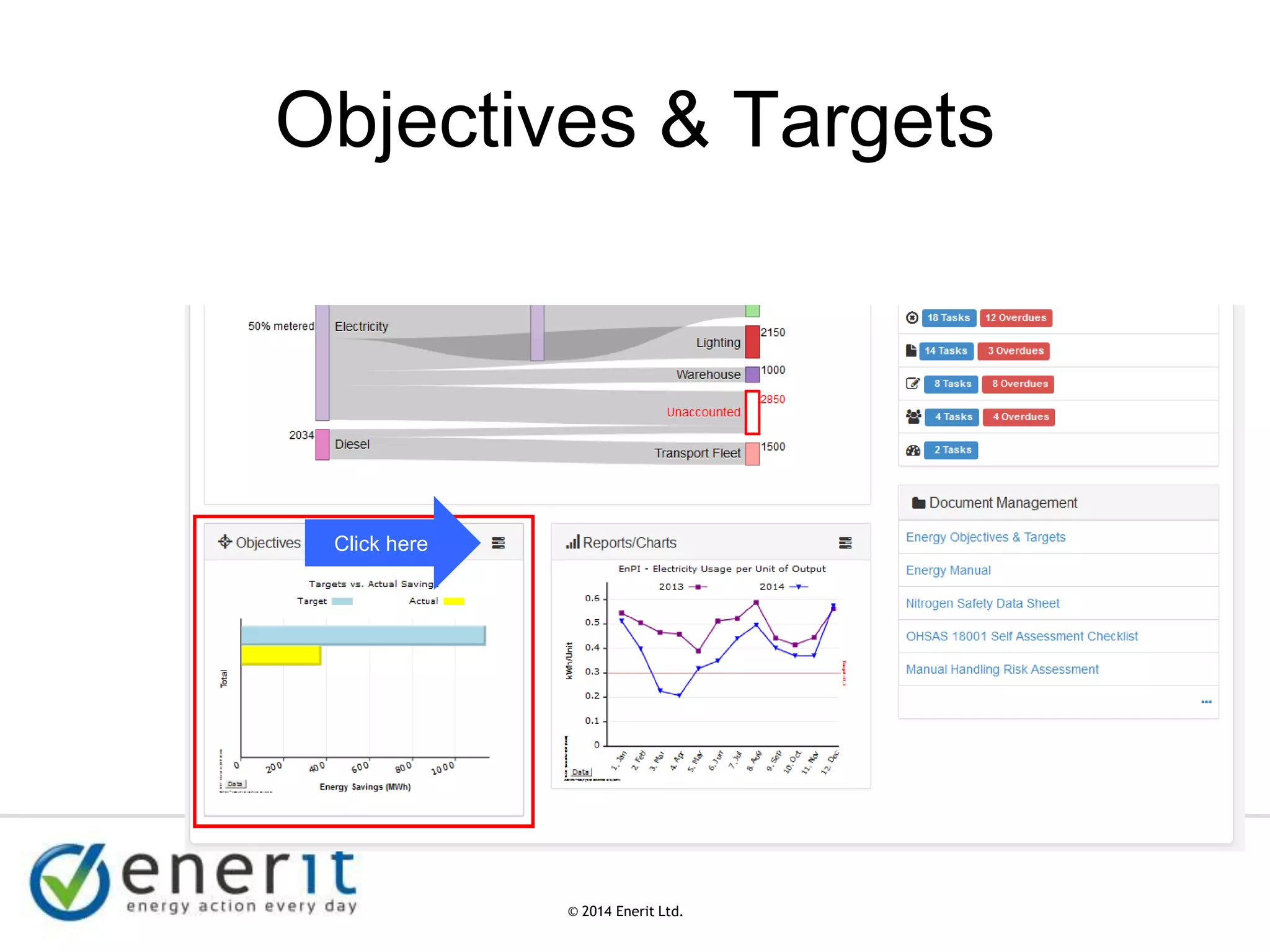
Objectives & Targets
Click here
© 2007 Enerit Ltd.
© 2014 Enerit Ltd.
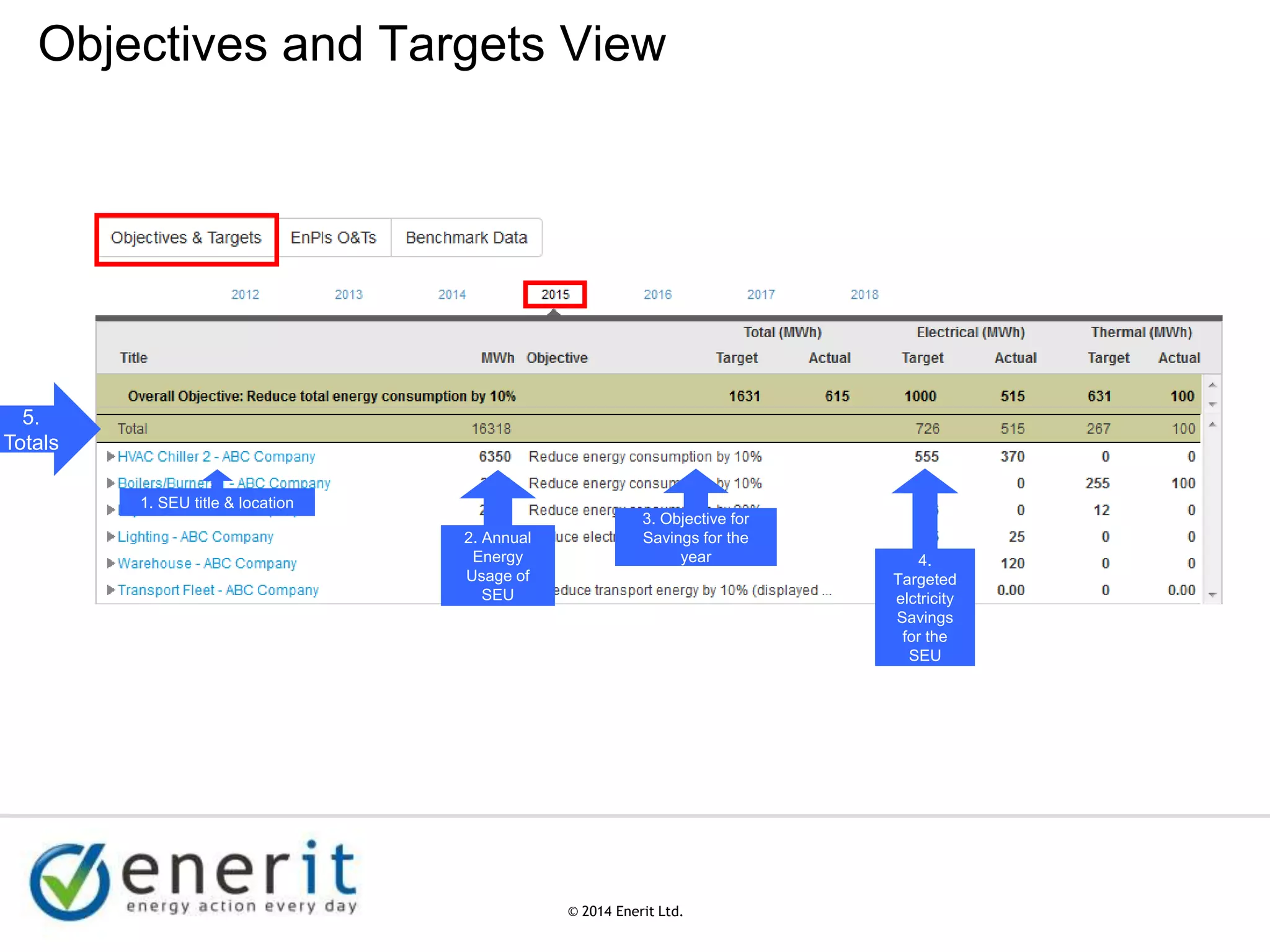
Objectives and Targets View
1. SEU title & location
2. Annual
Energy
Usage of
SEU
3. Objective for
Savings for the
year 4.
Targeted
elctricity
Savings
for the
SEU
5.
Totals
© 2007 Enerit Ltd.
© 2014 Enerit Ltd.
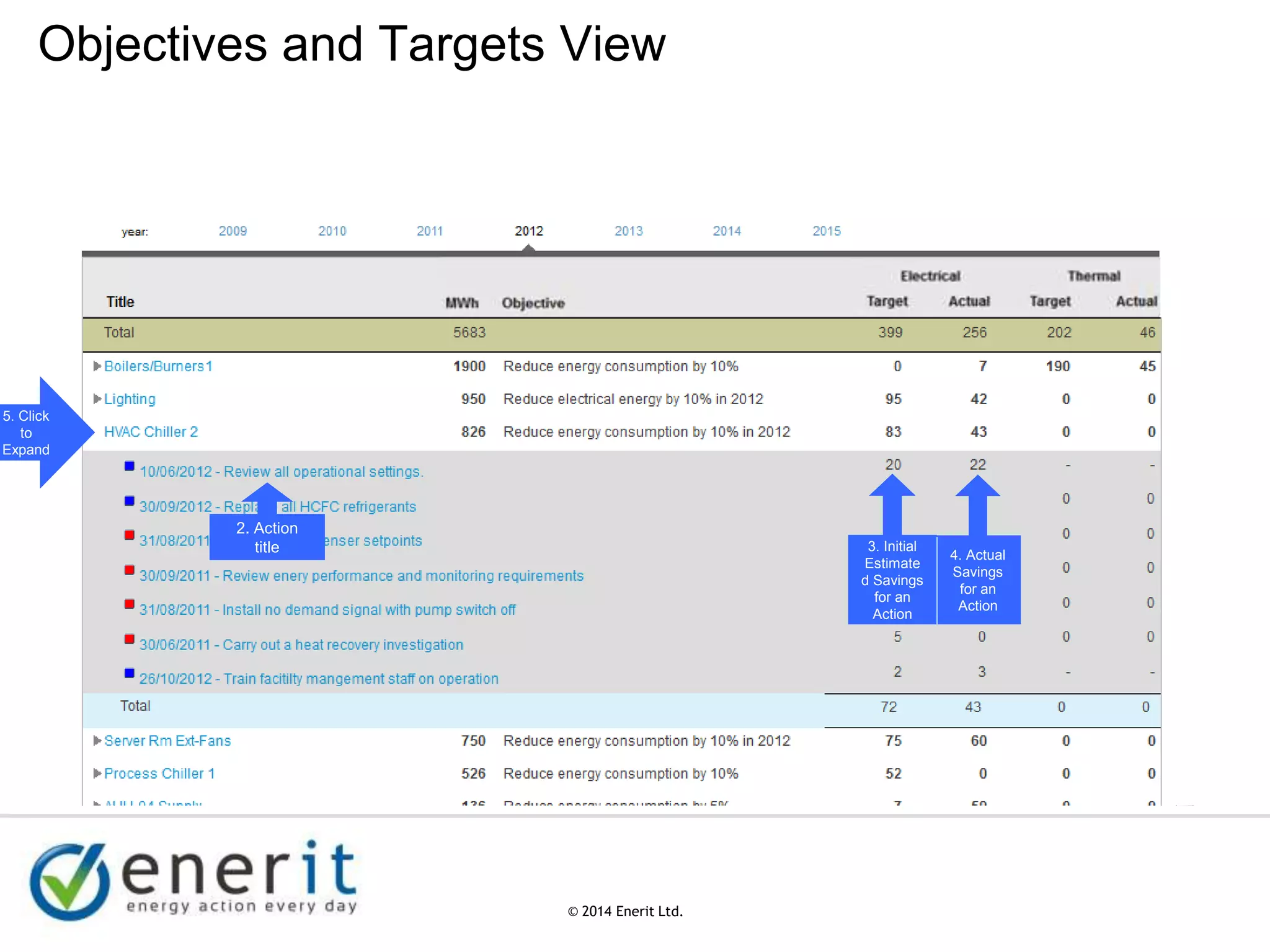
Objectives and Targets View
2. Action
title 4. Actual
Savings
for an
Action
3. Initial
Estimate
d Savings
for an
Action
5. Click
to
Expand
© 2007 Enerit Ltd.
© 2014 Enerit Ltd.
Document Management
See Slide Pack
© 2007 Enerit Ltd.
© 2014 Enerit Ltd.
Audit Management and Action
Tracking
See Slide Pack
© 2007 Enerit Ltd.
© 2014 Enerit Ltd.
Enerit ISO 50001 Meetings
Module
See Slide Pack
© 2007 Enerit Ltd.
© 2014 Enerit Ltd.
Enerit ISO 50001
Administration
See Slide Pack
© 2007 Enerit Ltd.
© 2014 Enerit Ltd.
Thank you
Help Desk
Help_desk@enerit.com
www.enerit.com

Enerit ISO 50001 Overview Training Presentation

  • 1.
    © 2007 EneritLtd. © 2014 Enerit Ltd. ENERIT ISO 50001 ENERGY MAN PRO SOFTWARE TRAINING Best viewed in slideshow mode
  • 2.
    © 2007 EneritLtd. © 2014 Enerit Ltd. Overview Day 1 Dashboard Overview Energy Flow Assessor (EFA) Creating Improvement Opportunities Setting Objectives & Targets Day 2 Document Control Audits and Action Tracking Meetings Administration Take 10 minute breaks during sessions Slides will be sent after sessions
  • 3.
    © 2007 EneritLtd. © 2014 Enerit Ltd. ISO 50001 & Enerit ISO 50001 Software
  • 4.
    © 2007 EneritLtd. © 2014 Enerit Ltd. Enerit ISO 50001 Software Login1. Open Web browser 2. Type in URL address provide by Enerit 3. Enter username and password 4. Click “Sign In”
  • 5.
    1. A unique,location specific, view for each user 4. Overdue Tasks Highlighted 3. Tasks Unique to the user 2. Energy Flow Assessor (EFA) 6. Drill Down Report Charts 7. Objectives and Targets Reporting 5. Document Management
  • 6.
    1. Create New… 2. Make aSuggestion 3. Admin - Only Available to Full Licence - Admin users 6. Only available to Full Licence Users
  • 7.
    © 2007 EneritLtd. © 2014 Enerit Ltd. In Progress Items System Overview (In Progress) • If a user has sufficient privileges they can view IN Progress documents using the Docs button in the System Overview section. Your Tasks (In Progress) • If a user has been assigned to review, authorize or issue a document then a task should also appear in the Your Tasks area.
  • 8.
    © 2007 EneritLtd. © 2014 Enerit Ltd. Reports / Charts Widget
  • 9.
    © 2007 EneritLtd. © 2014 Enerit Ltd. The charts here can be chosen from the drop down “Change Chart…”. The four default charts are set for the current “Location” in the Location document in Admin area. They will then appear for users associated with that Location. 2. Select other charts. Click “Change Chart” 1. You can make any Chart Larger by clicking the Magnifying Glass Symbol
  • 10.
    © 2007 EneritLtd. © 2014 Enerit Ltd. All of the Charts in the software are Interactive. By clicking on a part of the chart it will bring you to the data that it is built from. See Example. 1. Chart based on the Targets set for savings related to an SEU vs. Validated “Actual” savings from actions 2. Click on the “Actual” bar of the chart
  • 11.
    © 2007 EneritLtd. © 2014 Enerit Ltd. 1. A list of the actions that make up the “Actual” savings is shown All of the Charts in the software are Interactive. By clicking on a part of the chart it will bring you to the data that it is built from. See Example. 2. Click on an action
  • 12.
    © 2007 EneritLtd. © 2014 Enerit Ltd. 1. The Actual Savings entered during the “FOR VALIDATION” step in the workflow is shown on the Improvement Opportunity / Action form.
  • 13.
    © 2007 EneritLtd. © 2014 Enerit Ltd. Under “Reports/Charts” Widget, “more charts” Full Access users can export all information stored in the Enerit software related to: • Significant Energy Uses • Improvement Opportunities / Actions • Nonconformities • Consumption Data The data will we exported to CSV (spread sheet) format.
  • 14.
    © 2007 EneritLtd. © 2014 Enerit Ltd. Enerit ISO 50001 Manager Pro Access Levels
  • 15.
    © 2007 EneritLtd. © 2014 Enerit Ltd. Reader Access Responder Access Full Access • Overview • View of: o All Documents • View: o Dashboard o Objectives & Targets o EFA - Energy Uses / SEUs o Improvement Opportunities o The Action Plan o Standard o Audits o Nonconformities o Meetings o Consumption Data • Create a Suggestion Includes all Reader Access features plus • Interact with ‘Your Tasks’ • Carry out energy saving actions • Validate energy savings for Actions • Carry out: o actions for Nonconformities o actions related to Audits o actions related to Meetings o actions related to Energy Uses / SEUs Includes all Responder Access features plus • Close Energy Saving Actions • Create an Improvement Opportunity • Prioritise and Assign Energy Saving Actions • Build/Edit the EFA • Create: o Documents o Consumption Data • Create and Notify users about an Audit • Create a Nonconformity • Prioritise and Assign Actions for Nonconformities • Close actions for Nonconformities • Create and invite users to meetings • Admin Access • Export Data to CSV
  • 16.
    © 2007 EneritLtd. © 2014 Enerit Ltd. Energy Flow Assessor Training See Slide Pack (Note: Slides best used in presentation mode)
  • 17.
    © 2007 EneritLtd. © 2014 Enerit Ltd. Systematic Energy Manager Assigning IOs / Creating an Action Plan See Slide Pack
  • 18.
    © 2007 EneritLtd. © 2014 Enerit Ltd. Objectives & Targets
  • 19.
    © 2007 EneritLtd. © 2014 Enerit Ltd. Objectives & Targets Monitoring Objectives & Targets is a key element of any energy management system Enerit ISO 50001 software Objectives & Targets view can be used by managers, auditors and outside regulators alike. It ensures that you are always up to date on what is happening, what actions need to be carried out and how effective the actions have been implemented. It functions as an indicator of your organization’s compliance with regulatory and energy standard performance requirements. This specialised view populates automatically from the information entered on Significant Energy Uses, and Improvement Opportunities as they move through the workflow.
  • 20.
    © 2007 EneritLtd. © 2014 Enerit Ltd. Objectives & Targets Click here
  • 21.
    © 2007 EneritLtd. © 2014 Enerit Ltd. Objectives and Targets View 1. SEU title & location 2. Annual Energy Usage of SEU 3. Objective for Savings for the year 4. Targeted elctricity Savings for the SEU 5. Totals
  • 22.
    © 2007 EneritLtd. © 2014 Enerit Ltd. Objectives and Targets View 2. Action title 4. Actual Savings for an Action 3. Initial Estimate d Savings for an Action 5. Click to Expand
  • 23.
    © 2007 EneritLtd. © 2014 Enerit Ltd. Document Management See Slide Pack
  • 24.
    © 2007 EneritLtd. © 2014 Enerit Ltd. Audit Management and Action Tracking See Slide Pack
  • 25.
    © 2007 EneritLtd. © 2014 Enerit Ltd. Enerit ISO 50001 Meetings Module See Slide Pack
  • 26.
    © 2007 EneritLtd. © 2014 Enerit Ltd. Enerit ISO 50001 Administration See Slide Pack
  • 27.
    © 2007 EneritLtd. © 2014 Enerit Ltd. Thank you Help Desk Help_desk@enerit.com www.enerit.com