The Power of
Diversified Transportation Services
Diversified Transportation
Services Web Based TMS
This PowerPoint is an overview of how to get
rates from our Transportation Management
System (TMS). Once you have your login and
password provided to you by your Sales
Consultant you can get rates from our web
based platform at www.dtsone.com. If you
need one, call us at 310-521-1200 and ask for
one of our CS Team members.
On-Line Services
…Second To None
 Get a rate quote from multiple LTL companies with
only a few clicks of your mouse.
 You can pick the carrier that meets YOUR needs or
you can speak to a logistics professional who can
assist you.
 Schedule a pick-up.
 Create your shipping documents – BOL’s and Labels.
 Track a shipment.
 Review invoices.
 Obtain helpful forms
 Get customized reports
 Useful transportation links
Getting a Rate Quote
This is your main HOME screen when you login to www.dtsone.com
Getting a Rate Quote
In order to get a rate quote you can click CREATE SHIPMENTS AND
QUOTES SHORT FORM or COMPLETE FORM
Getting a Rate Quote
In order to get a rate quote you can click CREATE SHIPMENTS AND
QUOTES SHORT FORM or COMPLETE FORM
Short Form or Complete Form – What’s the difference?
Short Form
If time is a factor and you
need a quick freight
estimate, the short form is
for you! Simply type in the
origin and destination zip
codes, class and weight,
as well as any
supplementals such as
residential, liftgate, call
before delivery, and you
will have a rate in seconds.
If you have all of your
shipment information in
hand and want it saved in
the system for quick
access at a later time, the
complete form is the best
option for you. With this
option you can save all of
the information for a
completed bill of lading,
obtain your rate, and you
are ready to go when
your shipment is
available.
Complete Form
Enter origin zip, destination zip, pieces, handling unit (pallet, roll,
crate, etc) Class, Weight and any supplemental services that you
may need and click GET A QUOTE.
Getting a Rate Quote
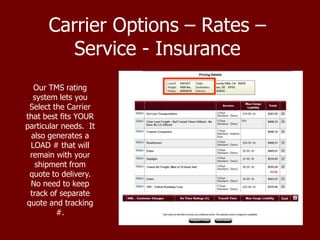
Our TMS rating
system lets you
Select the Carrier
that best fits YOUR
particular needs. It
also generates a
LOAD # that will
remain with your
shipment from
quote to delivery.
No need to keep
track of separate
quote and tracking
#.
Carrier Options – Rates –
Service - Insurance
This page allows you
to select the carrier
that will best serve
your needs on any
given shipment. If no
carrier is selected, the
system will revert to
the least cost option.
It is suggested that
you select a carrier
that best suits your
shipment
requirements. Once
you have selected your
carrier, click SAVE
QUOTE to return to
your shipment
Selecting Your Carrier
This is the top half of your shipment profile screen. The shipment profile
allows you to view the shipment information saved so far. It is important to
review this information and make any necessary changes to ensure that all
of your requirements are met. Note the pick up date and time frame in the
top left corner. Please ensure that this information is correct to avoid any
shipment delays.
Shipment Profile – Quoted Screen
This is the bottom half of your shipment profile screen that you see when
you click SAVE QUOTE. This shows details of the quote, any accessorial
that was added, and the total net charge due from the payor of the goods.
Shipment Profile – Quoted Screen
In order to update the shipping and receiving addresses, click on the
PENCIL next to shipper and consignee. Please be sure to add contact
information for each of them so that appointments for pick up and
delivery can be made in a timely manner.
Updating Shipping and
Receiving Information
Our interactive TMS system saves all of the data that you have previously
entered. This will save time when shipping to repeat customers by
allowing you to simply click on the saved address, under the PENCIL,
rather then entering it each time.
Updating Shipping and
Receiving Information
After you click the Pencil, just enter in
all the info as required. Contact
names, numbers and emails are
essential in ensuring that your pick up
is done timely with out any delays.
Updating Shipping and
Receiving Information
By clicking the EDIT COMMIDITY link at the bottom left of this screen
you will generate a pop up that allows you to update all of your shipment
information. See next slide.
Updating Commodity
Information
From left to right on this screen, you will enter the correct # of pcs on your
shipment, the commodity, NMFC # and class (actual class, please no FAKs), and
weight. In addition, this is where you will enter any reference #s required for
pick up, delivery or your companies reference. Finally, in the bill of lading
instructions box, you can add any notes that you would like the carrier to see.
Remember to press UPDATE at the bottom of the page to save all of your
changes.
Updating Commodity Info
On the right side you will find a box to enter the value of your shipment. This is
important so that we may ensure that your shipment is properly covered in the
event of loss or damage. Each LTL carrier has its own liability limitations so we
STRONGLY request that you enter in your shipment value. If you do not know
the value, click VALUE NOT SPECIFIED. If you have questions on coverage from
a particular carrier or general insurance questions, please call your DTS Sales
Consultant or one of our regional offices. It is the shippers responsibility to
properly notate and ask for the insurance coverage on each load.
Insurance Coverage
All products entered into
our system are saved
with their corresponding
NMFC# and class. Just
click FIND link next to
the product description
and a new window will
open. This allows you to
select from a product
catalog of items rather
than entering the
information manually
each time. If your
current quote has a new
commodity then all you
need to do is type its
description in the box
labeled PRODUCT
DESCRIPTION.
Updating Commodity Info
It is mission critical that you provide accurate pick up dates and time frames. If
you have any special notes to add, click in the BILL OF LADING INSTRUCTIONS
box and type them. Extra services such as call before delivery, liftgate, etc
MUST be added as line items and should not be placed here. Lastly, you must
click UPDATE to save the changes.
Pick Up Times and Dates
Now that you have entered all of your shipment information, you will be
returned to the SHIPMENT PROFILE. On the right side of the screen,
there is the ACTIONS toolbar. This is where you will find the tools
needed to send a document, request a pick up, view your rate, along
with other functions just by the touch of a button.
Actions Toolbar
If you changed the weight of the shipment or you changed the class at
all you must VIEW RATES again under the ACTIONS toolbar to update
our system with the correct details. This will initiate the quote process
again to ensure that you are provided the accurate cost for the
particular shipment.
Actions Toolbar
Under the ACTIONS tool bar on the right side is also where you can send
documents to your shippers or your warehouse such as Bill of Ladings –
BOLs, labels, etc. Click SEND DOCS to open up a new window – see next
page.
Sending Documents – BOLS
and Labels
Under the SEND DOCUMENTS LINK the above details are shown. If you
click the RECIPIENT drop down menu it will show your entire company
contacts as well as any of your shippers or consignees that you moved
freight for in the past.
Sending Documents – BOLS
and Labels
You can also manually type in any email address you want to send the
documents to as well. Click Send Email or Send Fax, and the documents
will be on their way. Click Close Window and you will be taken back to the
Shipment Profile screen.
Sending Documents – BOLS
and Labels
Since you are now ready to ship your goods, all you have to do is click
Request a Pickup. At this point the Shipment Profile changes from Quoted
to Booked Status at the top of the screen. Once this is done our Client
Services team will then automatically dispatch the carrier based on your
PU date and ready time.
Sending Documents – BOLS
and Labels
Note that the Shipment Profile now shows as Booked.
Sending Documents – BOLS
and Labels
Once a shipment is BOOKED, our professional Client Services team
members take care of everything from that point. They will:
•Perform a quality review of all information received for your
shipment.
•Clarify any possible discrepancies.
•Establish communication with the shipper, to ensure timely pick up
and provide necessary documents.
•We coordinate – Dispatch, the carrier via EDI, email, or phone,
depending on the carriers requirement and time of day.
•Schedule the pick up with the selected carrier either electronically or
by phone.
My Shipment is Booked –
What Happens Now?
You can track your shipments by clicking the SHIPMENT TRACKING
link on the HOME page. Once your shipment is scheduled and picked
up, we will automatically update our TMS that your shipment is in
TRANSIT to your customer.
Tracking Your Shipment
Do you already know your Load number? If so just go to the toolbar
at the top of the screen and in the TYPE TO SEARCH field just type
your load number.
Tracking Your Shipment
If you click the SHIPMENT TRACKING link, the page above is shown.
You can track your shipments by just clicking on the load number on
the left. You can also sort the shipments from the drop down menu
for quoted, booked, dispatched, in transit, delivered, completed or
cancelled.
Tracking Your Shipment
We have many options to track your shipments. If you click the
SHIPMENT TRACKING icon, a window will appear that will let you track by
the Load Number, the Shipper Number, P.O. Number or Pro Number.
Tracking Options
SHIPMENT TRACKING WINDOW – Track by Load Number, the Shipper
Number, P.O. Number or Pro Number -
Tracking
At DTS we provide options for our clients. We call them PREFERENCES.
Do you need to see an email copy of:
Every quote you get?
Every shipment that is booked?
Every shipment that is confirmed picked up?
Every shipment that is delivered?
If you need something specific to help YOU meet your needs, let us know
and we can work to provide a solution for you.
Preferences - Options
At DTS we pride ourselves on being innovators. Therefore we created our
GREEN Initiative in order to do our part in being a socially responsible
entity by reducing our carbon footprint.
We have had our E-Invoicing system in place for many years and in 2012
we will be working hard to get 95% of our clients set up with E-Invoicing.
We look forward to working with your company so that we may Email our
invoices to your accounts payable department or whoever you designate.
The goal of course is to minimize paper waste and also to help our clients
improve their own internal processing of invoices.
Less paper - E-Invoices moving through your logistics department for
approval, onto A/P for payment and processing, and ultimately with a check
out to our office.
E-Invoicing – DTS is GREEN
Please keep in mind that you have the option to use our online services at
www.dtsone.com or you can call one of four offices and ask to speak to a
DTS Sales Consultant to assist in your companies logistical needs.
Corporate Office – Torrance, CA. 800-460-8540
East Coast Regional office – Washington, DC. 703-237-3671
Pacific Northwest office – Whitefish, MT. 406-862-9067
Southern California Regional Office – Murrieta, CA. 951-699-3671
Michael Doyle – Vice President of Sales and Marketing – mdoyle@dtsone.com
610-348-5166
Diversified Transportation Services is here to provide the services that
you need - LTL, Volume, TL, Drayage, Cross-Dock, Expedited and Tradeshow.
Need Help or Info?

Diversified Transportation Services - TMS Tutorial

  • 1.
    The Power of DiversifiedTransportation Services
  • 2.
    Diversified Transportation Services WebBased TMS This PowerPoint is an overview of how to get rates from our Transportation Management System (TMS). Once you have your login and password provided to you by your Sales Consultant you can get rates from our web based platform at www.dtsone.com. If you need one, call us at 310-521-1200 and ask for one of our CS Team members.
  • 3.
    On-Line Services …Second ToNone  Get a rate quote from multiple LTL companies with only a few clicks of your mouse.  You can pick the carrier that meets YOUR needs or you can speak to a logistics professional who can assist you.  Schedule a pick-up.  Create your shipping documents – BOL’s and Labels.  Track a shipment.  Review invoices.  Obtain helpful forms  Get customized reports  Useful transportation links
  • 4.
    Getting a RateQuote This is your main HOME screen when you login to www.dtsone.com
  • 5.
    Getting a RateQuote In order to get a rate quote you can click CREATE SHIPMENTS AND QUOTES SHORT FORM or COMPLETE FORM
  • 6.
    Getting a RateQuote In order to get a rate quote you can click CREATE SHIPMENTS AND QUOTES SHORT FORM or COMPLETE FORM Short Form or Complete Form – What’s the difference? Short Form If time is a factor and you need a quick freight estimate, the short form is for you! Simply type in the origin and destination zip codes, class and weight, as well as any supplementals such as residential, liftgate, call before delivery, and you will have a rate in seconds. If you have all of your shipment information in hand and want it saved in the system for quick access at a later time, the complete form is the best option for you. With this option you can save all of the information for a completed bill of lading, obtain your rate, and you are ready to go when your shipment is available. Complete Form
  • 7.
    Enter origin zip,destination zip, pieces, handling unit (pallet, roll, crate, etc) Class, Weight and any supplemental services that you may need and click GET A QUOTE. Getting a Rate Quote
  • 8.
    Our TMS rating systemlets you Select the Carrier that best fits YOUR particular needs. It also generates a LOAD # that will remain with your shipment from quote to delivery. No need to keep track of separate quote and tracking #. Carrier Options – Rates – Service - Insurance
  • 9.
    This page allowsyou to select the carrier that will best serve your needs on any given shipment. If no carrier is selected, the system will revert to the least cost option. It is suggested that you select a carrier that best suits your shipment requirements. Once you have selected your carrier, click SAVE QUOTE to return to your shipment Selecting Your Carrier
  • 10.
    This is thetop half of your shipment profile screen. The shipment profile allows you to view the shipment information saved so far. It is important to review this information and make any necessary changes to ensure that all of your requirements are met. Note the pick up date and time frame in the top left corner. Please ensure that this information is correct to avoid any shipment delays. Shipment Profile – Quoted Screen
  • 11.
    This is thebottom half of your shipment profile screen that you see when you click SAVE QUOTE. This shows details of the quote, any accessorial that was added, and the total net charge due from the payor of the goods. Shipment Profile – Quoted Screen
  • 12.
    In order toupdate the shipping and receiving addresses, click on the PENCIL next to shipper and consignee. Please be sure to add contact information for each of them so that appointments for pick up and delivery can be made in a timely manner. Updating Shipping and Receiving Information
  • 13.
    Our interactive TMSsystem saves all of the data that you have previously entered. This will save time when shipping to repeat customers by allowing you to simply click on the saved address, under the PENCIL, rather then entering it each time. Updating Shipping and Receiving Information
  • 14.
    After you clickthe Pencil, just enter in all the info as required. Contact names, numbers and emails are essential in ensuring that your pick up is done timely with out any delays. Updating Shipping and Receiving Information
  • 15.
    By clicking theEDIT COMMIDITY link at the bottom left of this screen you will generate a pop up that allows you to update all of your shipment information. See next slide. Updating Commodity Information
  • 16.
    From left toright on this screen, you will enter the correct # of pcs on your shipment, the commodity, NMFC # and class (actual class, please no FAKs), and weight. In addition, this is where you will enter any reference #s required for pick up, delivery or your companies reference. Finally, in the bill of lading instructions box, you can add any notes that you would like the carrier to see. Remember to press UPDATE at the bottom of the page to save all of your changes. Updating Commodity Info
  • 17.
    On the rightside you will find a box to enter the value of your shipment. This is important so that we may ensure that your shipment is properly covered in the event of loss or damage. Each LTL carrier has its own liability limitations so we STRONGLY request that you enter in your shipment value. If you do not know the value, click VALUE NOT SPECIFIED. If you have questions on coverage from a particular carrier or general insurance questions, please call your DTS Sales Consultant or one of our regional offices. It is the shippers responsibility to properly notate and ask for the insurance coverage on each load. Insurance Coverage
  • 18.
    All products enteredinto our system are saved with their corresponding NMFC# and class. Just click FIND link next to the product description and a new window will open. This allows you to select from a product catalog of items rather than entering the information manually each time. If your current quote has a new commodity then all you need to do is type its description in the box labeled PRODUCT DESCRIPTION. Updating Commodity Info
  • 19.
    It is missioncritical that you provide accurate pick up dates and time frames. If you have any special notes to add, click in the BILL OF LADING INSTRUCTIONS box and type them. Extra services such as call before delivery, liftgate, etc MUST be added as line items and should not be placed here. Lastly, you must click UPDATE to save the changes. Pick Up Times and Dates
  • 20.
    Now that youhave entered all of your shipment information, you will be returned to the SHIPMENT PROFILE. On the right side of the screen, there is the ACTIONS toolbar. This is where you will find the tools needed to send a document, request a pick up, view your rate, along with other functions just by the touch of a button. Actions Toolbar
  • 21.
    If you changedthe weight of the shipment or you changed the class at all you must VIEW RATES again under the ACTIONS toolbar to update our system with the correct details. This will initiate the quote process again to ensure that you are provided the accurate cost for the particular shipment. Actions Toolbar
  • 22.
    Under the ACTIONStool bar on the right side is also where you can send documents to your shippers or your warehouse such as Bill of Ladings – BOLs, labels, etc. Click SEND DOCS to open up a new window – see next page. Sending Documents – BOLS and Labels
  • 23.
    Under the SENDDOCUMENTS LINK the above details are shown. If you click the RECIPIENT drop down menu it will show your entire company contacts as well as any of your shippers or consignees that you moved freight for in the past. Sending Documents – BOLS and Labels
  • 24.
    You can alsomanually type in any email address you want to send the documents to as well. Click Send Email or Send Fax, and the documents will be on their way. Click Close Window and you will be taken back to the Shipment Profile screen. Sending Documents – BOLS and Labels
  • 25.
    Since you arenow ready to ship your goods, all you have to do is click Request a Pickup. At this point the Shipment Profile changes from Quoted to Booked Status at the top of the screen. Once this is done our Client Services team will then automatically dispatch the carrier based on your PU date and ready time. Sending Documents – BOLS and Labels
  • 26.
    Note that theShipment Profile now shows as Booked. Sending Documents – BOLS and Labels
  • 27.
    Once a shipmentis BOOKED, our professional Client Services team members take care of everything from that point. They will: •Perform a quality review of all information received for your shipment. •Clarify any possible discrepancies. •Establish communication with the shipper, to ensure timely pick up and provide necessary documents. •We coordinate – Dispatch, the carrier via EDI, email, or phone, depending on the carriers requirement and time of day. •Schedule the pick up with the selected carrier either electronically or by phone. My Shipment is Booked – What Happens Now?
  • 28.
    You can trackyour shipments by clicking the SHIPMENT TRACKING link on the HOME page. Once your shipment is scheduled and picked up, we will automatically update our TMS that your shipment is in TRANSIT to your customer. Tracking Your Shipment
  • 29.
    Do you alreadyknow your Load number? If so just go to the toolbar at the top of the screen and in the TYPE TO SEARCH field just type your load number. Tracking Your Shipment
  • 30.
    If you clickthe SHIPMENT TRACKING link, the page above is shown. You can track your shipments by just clicking on the load number on the left. You can also sort the shipments from the drop down menu for quoted, booked, dispatched, in transit, delivered, completed or cancelled. Tracking Your Shipment
  • 31.
    We have manyoptions to track your shipments. If you click the SHIPMENT TRACKING icon, a window will appear that will let you track by the Load Number, the Shipper Number, P.O. Number or Pro Number. Tracking Options
  • 32.
    SHIPMENT TRACKING WINDOW– Track by Load Number, the Shipper Number, P.O. Number or Pro Number - Tracking
  • 33.
    At DTS weprovide options for our clients. We call them PREFERENCES. Do you need to see an email copy of: Every quote you get? Every shipment that is booked? Every shipment that is confirmed picked up? Every shipment that is delivered? If you need something specific to help YOU meet your needs, let us know and we can work to provide a solution for you. Preferences - Options
  • 34.
    At DTS wepride ourselves on being innovators. Therefore we created our GREEN Initiative in order to do our part in being a socially responsible entity by reducing our carbon footprint. We have had our E-Invoicing system in place for many years and in 2012 we will be working hard to get 95% of our clients set up with E-Invoicing. We look forward to working with your company so that we may Email our invoices to your accounts payable department or whoever you designate. The goal of course is to minimize paper waste and also to help our clients improve their own internal processing of invoices. Less paper - E-Invoices moving through your logistics department for approval, onto A/P for payment and processing, and ultimately with a check out to our office. E-Invoicing – DTS is GREEN
  • 35.
  • 36.
    Please keep inmind that you have the option to use our online services at www.dtsone.com or you can call one of four offices and ask to speak to a DTS Sales Consultant to assist in your companies logistical needs. Corporate Office – Torrance, CA. 800-460-8540 East Coast Regional office – Washington, DC. 703-237-3671 Pacific Northwest office – Whitefish, MT. 406-862-9067 Southern California Regional Office – Murrieta, CA. 951-699-3671 Michael Doyle – Vice President of Sales and Marketing – mdoyle@dtsone.com 610-348-5166 Diversified Transportation Services is here to provide the services that you need - LTL, Volume, TL, Drayage, Cross-Dock, Expedited and Tradeshow. Need Help or Info?