Dell G15 5530
Owner's Manual
Regulatory Model: P121F
Regulatory Type: P121F001
July 2023
Rev. A03
Notes, cautions, and warnings
NOTE: A NOTE indicates important information that helps you make better use of your product.
CAUTION: A CAUTION indicates either potential damage to hardware or loss of data and tells you how to avoid
the problem.
WARNING: A WARNING indicates a potential for property damage, personal injury, or death.
© 2023 Dell Inc. or its subsidiaries. All rights reserved. Dell Technologies, Dell, and other trademarks are trademarks of Dell Inc. or its
subsidiaries. Other trademarks may be trademarks of their respective owners.
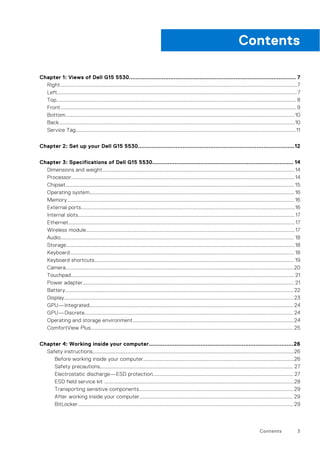
Chapter 1: Views of Dell G15 5530................................................................................................. 7
Right........................................................................................................................................................................................7
Left..........................................................................................................................................................................................7
Top.......................................................................................................................................................................................... 8
Front....................................................................................................................................................................................... 9
Bottom..................................................................................................................................................................................10
Back.......................................................................................................................................................................................10
Service Tag...........................................................................................................................................................................11
Chapter 2: Set up your Dell G15 5530...........................................................................................12
Chapter 3: Specifications of Dell G15 5530.................................................................................. 14
Dimensions and weight.....................................................................................................................................................14
Processor............................................................................................................................................................................. 14
Chipset................................................................................................................................................................................. 15
Operating system...............................................................................................................................................................16
Memory................................................................................................................................................................................ 16
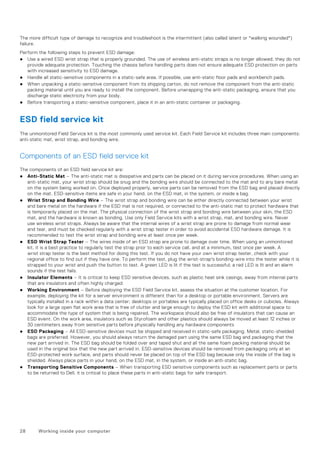
External ports......................................................................................................................................................................16
Internal slots........................................................................................................................................................................17
Ethernet................................................................................................................................................................................17
Wireless module..................................................................................................................................................................17
Audio..................................................................................................................................................................................... 18
Storage................................................................................................................................................................................. 18
Keyboard.............................................................................................................................................................................. 18
Keyboard shortcuts........................................................................................................................................................... 19
Camera.................................................................................................................................................................................20
Touchpad............................................................................................................................................................................. 21
Power adapter.................................................................................................................................................................... 21
Battery................................................................................................................................................................................. 22
Display..................................................................................................................................................................................23
GPU—Integrated.............................................................................................................................................................. 24
GPU—Discrete.................................................................................................................................................................. 24
Operating and storage environment.............................................................................................................................24
ComfortView Plus............................................................................................................................................................. 25
Chapter 4: Working inside your computer....................................................................................26
Safety instructions............................................................................................................................................................26
Before working inside your computer.....................................................................................................................26
Safety precautions...................................................................................................................................................... 27
Electrostatic discharge—ESD protection............................................................................................................. 27
ESD field service kit ...................................................................................................................................................28
Transporting sensitive components........................................................................................................................29
After working inside your computer....................................................................................................................... 29
BitLocker....................................................................................................................................................................... 29
Contents
Contents 3
Recommended tools.........................................................................................................................................................29
Screw list.............................................................................................................................................................................29
Major components of Dell G15 5530.............................................................................................................................31
Chapter 5: Removing and installing Customer Replaceable Units (CRUs).................................... 34
Base cover.......................................................................................................................................................................... 34
Removing the base cover..........................................................................................................................................34
Installing the base cover............................................................................................................................................ 37
Solid-state drive................................................................................................................................................................ 39
Removing the solid-state drive ...............................................................................................................................39
Installing the solid-state drive.................................................................................................................................. 40
Wireless card...................................................................................................................................................................... 42
Removing the wireless card......................................................................................................................................42
Installing the wireless card........................................................................................................................................ 43
Memory................................................................................................................................................................................44
Removing the memory module.................................................................................................................................44
Installing the memory module...................................................................................................................................44
Speakers..............................................................................................................................................................................45
Removing the speakers..............................................................................................................................................45
Installing the speakers................................................................................................................................................46
Rear cover...........................................................................................................................................................................47
Removing the rear cover........................................................................................................................................... 47
Installing the rear cover............................................................................................................................................. 48
Chapter 6: Removing and installing Field Replaceable Units (FRUs)............................................ 50
Battery.................................................................................................................................................................................50
Rechargeable Li-ion battery precautions.............................................................................................................. 50
Removing the battery................................................................................................................................................ 50
Installing the battery...................................................................................................................................................52
Touchpad.............................................................................................................................................................................53
Removing the touchpad.............................................................................................................................................53
Installing the touchpad...............................................................................................................................................54
Display assembly................................................................................................................................................................55
Removing the display assembly............................................................................................................................... 55
Installing the display assembly................................................................................................................................. 58
Keyboard-controller board...............................................................................................................................................61
Removing the keyboard-controller board...............................................................................................................61
Installing the keyboard-controller board.................................................................................................................61
Power-adapter port..........................................................................................................................................................62
Removing the power-adapter port......................................................................................................................... 62
Installing the power-adapter port............................................................................................................................63
System board..................................................................................................................................................................... 64
Removing the system board (Single-color keyboard)........................................................................................64
Installing the system board (Single-color keyboard).......................................................................................... 67
Removing the system board (Four-zone keyboard)...........................................................................................70
Installing the system board (Four-zone keyboard)............................................................................................. 73
USB board........................................................................................................................................................................... 76
Removing the USB board.......................................................................................................................................... 76
Installing the USB board.............................................................................................................................................77
4 Contents
Ethernet and audio board................................................................................................................................................78
Removing the ethernet and audio board............................................................................................................... 78
Installing the ethernet and audio board..................................................................................................................79
Fan and heat-sink assembly............................................................................................................................................80
Removing the fan and heat-sink assembly .......................................................................................................... 80
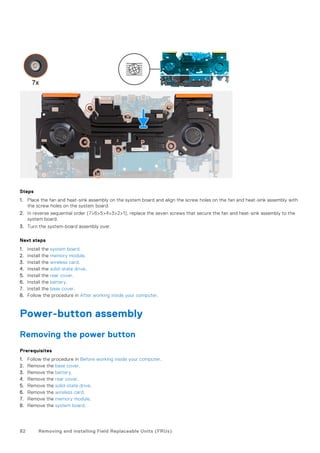
Installing the fan and heat-sink assembly ............................................................................................................. 81
Power-button assembly...................................................................................................................................................82
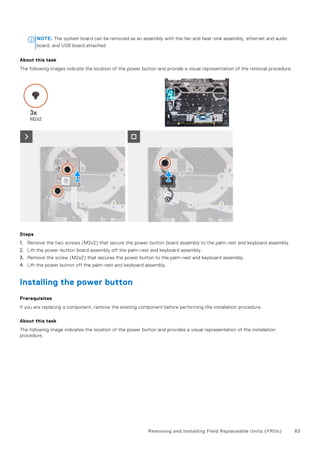
Removing the power button.....................................................................................................................................82
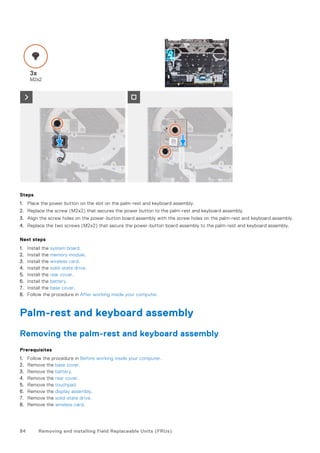
Installing the power button....................................................................................................................................... 83
Palm-rest and keyboard assembly.................................................................................................................................84
Removing the palm-rest and keyboard assembly................................................................................................84
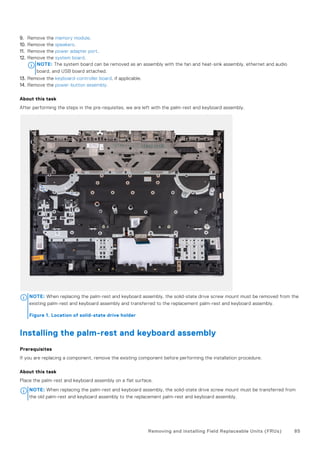
Installing the palm-rest and keyboard assembly..................................................................................................85
Chapter 7: Software.................................................................................................................... 87
Operating system.............................................................................................................................................................. 87
Drivers and downloads..................................................................................................................................................... 87
Chapter 8: Technology and components...................................................................................... 88
Chapter 9: BIOS setup.................................................................................................................89
Entering BIOS setup program........................................................................................................................................ 89
Navigation keys..................................................................................................................................................................89
One Time Boot menu........................................................................................................................................................89
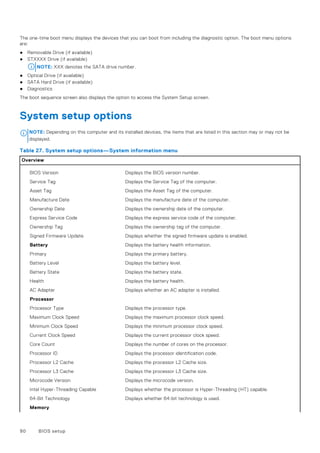
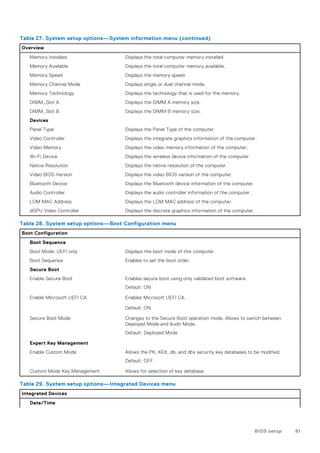
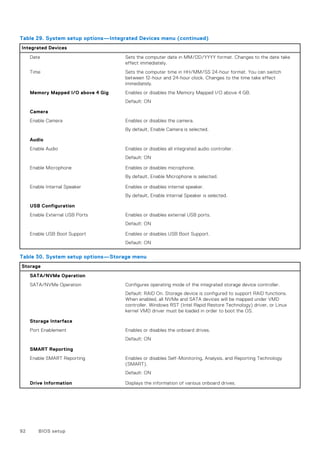
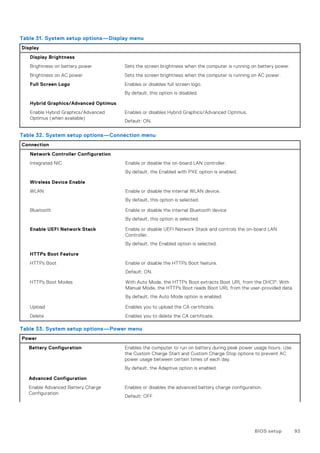
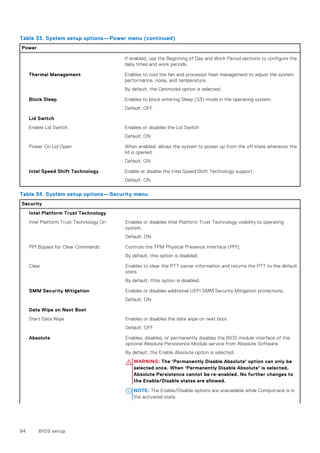
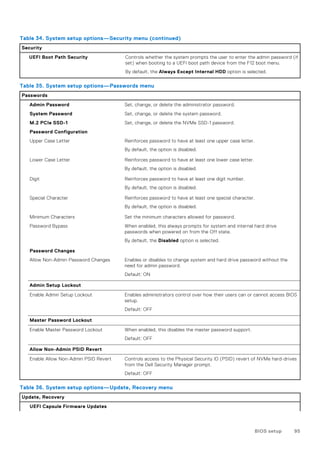
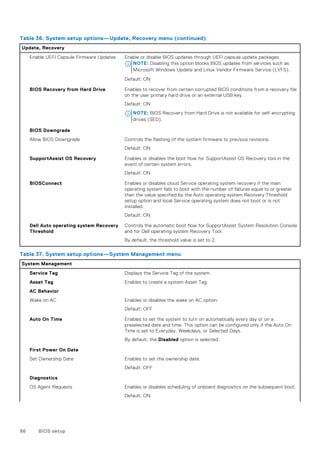
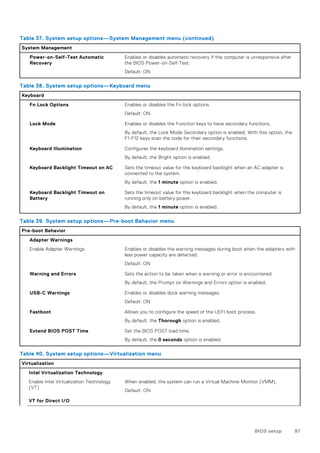
System setup options.......................................................................................................................................................90
Updating the BIOS............................................................................................................................................................99
Updating the BIOS in Windows................................................................................................................................99
Updating the BIOS using the USB drive in Windows..........................................................................................99
Updating the BIOS in Linux and Ubuntu.............................................................................................................. 100
Updating the BIOS from the F12 One Time Boot menu...................................................................................100
System and setup password..........................................................................................................................................101
Assigning a system setup password...................................................................................................................... 101
Deleting or changing an existing system setup password................................................................................101
Clearing CMOS settings.................................................................................................................................................102
Clearing BIOS (System Setup) and System passwords.........................................................................................102
Chapter 10: Troubleshooting...................................................................................................... 103
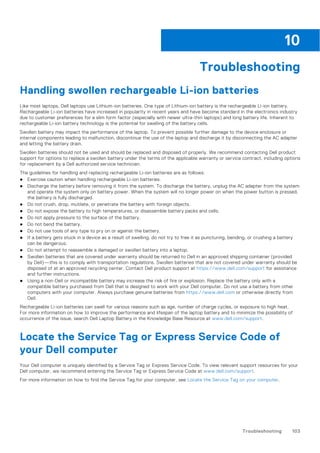
Handling swollen rechargeable Li-ion batteries........................................................................................................103
Locate the Service Tag or Express Service Code of your Dell computer ............................................103
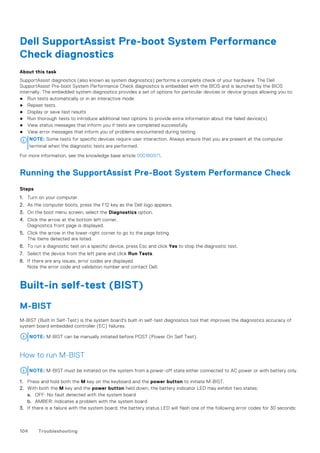
Dell SupportAssist Pre-boot System Performance Check diagnostics..............................................................104
Running the SupportAssist Pre-Boot System Performance Check.............................................................. 104
Built-in self-test (BIST)..................................................................................................................................................104
M-BIST......................................................................................................................................................................... 104
LCD Power rail test (L-BIST)................................................................................................................................. 105
LCD Built-in Self Test (BIST)................................................................................................................................. 105
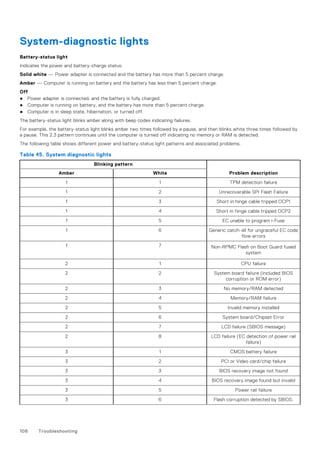
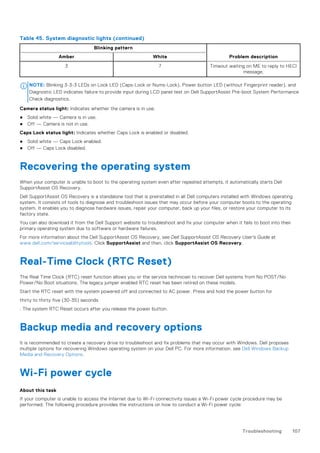
System-diagnostic lights................................................................................................................................................106
Recovering the operating system................................................................................................................................107
Real-Time Clock (RTC Reset)...................................................................................................................................... 107
Backup media and recovery options........................................................................................................................... 107
Wi-Fi power cycle............................................................................................................................................................ 107
Contents 5
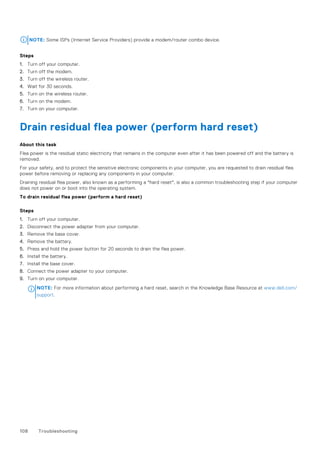
Drain residual flea power (perform hard reset)........................................................................................................108
Chapter 11: Getting help and contacting Dell..............................................................................109
6 Contents
Views of Dell G15 5530
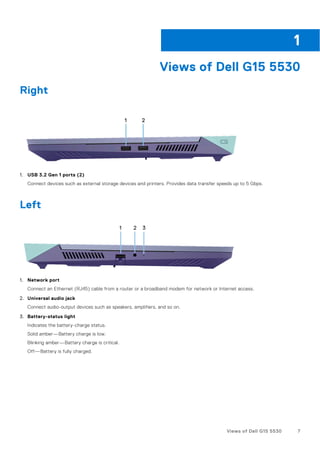
Right
1. USB 3.2 Gen 1 ports (2)
Connect devices such as external storage devices and printers. Provides data transfer speeds up to 5 Gbps.
Left
1. Network port
Connect an Ethernet (RJ45) cable from a router or a broadband modem for network or Internet access.
2. Universal audio jack
Connect audio-output devices such as speakers, amplifiers, and so on.
3. Battery-status light
Indicates the battery-charge status.
Solid amber—Battery charge is low.
Blinking amber—Battery charge is critical.
Off—Battery is fully charged.
1
Views of Dell G15 5530 7
Top
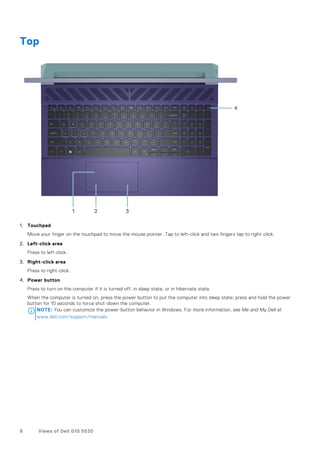
1. Touchpad
Move your finger on the touchpad to move the mouse pointer. Tap to left-click and two fingers tap to right-click.
2. Left-click area
Press to left-click.
3. Right-click area
Press to right-click.
4. Power button
Press to turn on the computer if it is turned off, in sleep state, or in hibernate state.
When the computer is turned on, press the power button to put the computer into sleep state; press and hold the power
button for 10 seconds to force shut-down the computer.
NOTE: You can customize the power-button behavior in Windows. For more information, see Me and My Dell at
www.dell.com/support/manuals.
8 Views of Dell G15 5530
Front
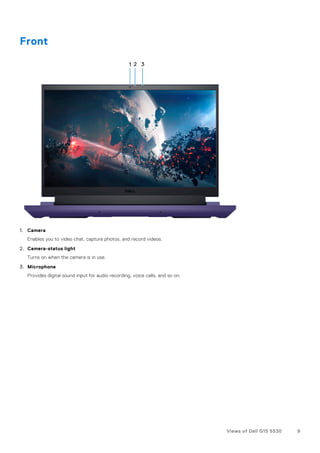
1. Camera
Enables you to video chat, capture photos, and record videos.
2. Camera-status light
Turns on when the camera is in use.
3. Microphone
Provides digital sound input for audio recording, voice calls, and so on.
Views of Dell G15 5530 9
Bottom
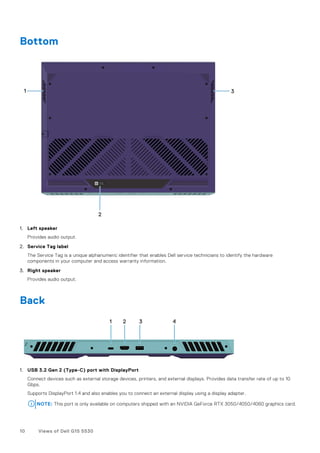
1. Left speaker
Provides audio output.
2. Service Tag label
The Service Tag is a unique alphanumeric identifier that enables Dell service technicians to identify the hardware
components in your computer and access warranty information.
3. Right speaker
Provides audio output.
Back
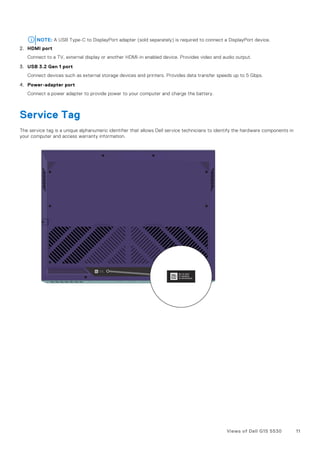
1. USB 3.2 Gen 2 (Type-C) port with DisplayPort
Connect devices such as external storage devices, printers, and external displays. Provides data transfer rate of up to 10
Gbps.
Supports DisplayPort 1.4 and also enables you to connect an external display using a display adapter.
NOTE: This port is only available on computers shipped with an NVIDIA GeForce RTX 3050/4050/4060 graphics card.
10 Views of Dell G15 5530
NOTE: A USB Type-C to DisplayPort adapter (sold separately) is required to connect a DisplayPort device.
2. HDMI port
Connect to a TV, external display or another HDMI-in enabled device. Provides video and audio output.
3. USB 3.2 Gen 1 port
Connect devices such as external storage devices and printers. Provides data transfer speeds up to 5 Gbps.
4. Power-adapter port
Connect a power adapter to provide power to your computer and charge the battery.
Service Tag
The service tag is a unique alphanumeric identifier that allows Dell service technicians to identify the hardware components in
your computer and access warranty information.
Views of Dell G15 5530 11
Set up your Dell G15 5530
About this task
NOTE: The images in this document may differ from your computer depending on the configuration you ordered.
Steps
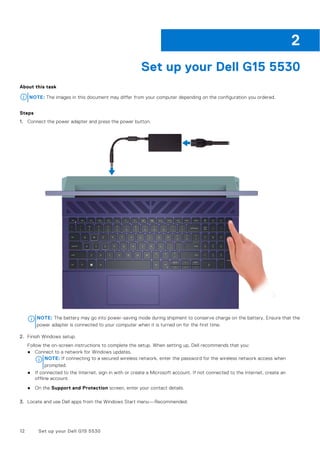
1. Connect the power adapter and press the power button.
NOTE: The battery may go into power-saving mode during shipment to conserve charge on the battery. Ensure that the
power adapter is connected to your computer when it is turned on for the first time.
2. Finish Windows setup.
Follow the on-screen instructions to complete the setup. When setting up, Dell recommends that you:
● Connect to a network for Windows updates.
NOTE: If connecting to a secured wireless network, enter the password for the wireless network access when
prompted.
● If connected to the Internet, sign in with or create a Microsoft account. If not connected to the Internet, create an
offline account.
● On the Support and Protection screen, enter your contact details.
3. Locate and use Dell apps from the Windows Start menu—Recommended.
2
12 Set up your Dell G15 5530
Table 1. Locate Dell apps
Resources Description
My Dell
Centralized location for key Dell applications, help articles, and other important information about
your computer. It also notifies you about the warranty status, recommended accessories, and
software updates if available.
SupportAssist
SupportAssist proactively and predictively identifies hardware and software issues on your
computer and automates the engagement process with Dell Technical support. It addresses
performance and stabilization issues, prevents security threats, monitors, and detects hardware
failures. For more information, see SupportAssist for Home PCs User's Guide at www.dell.com/
serviceabilitytools. Click SupportAssist and then, click SupportAssist for Home PCs.
NOTE: In SupportAssist, click the warranty expiry date to renew or upgrade your warranty.
Dell Update
Updates your computer with critical fixes and latest device drivers as they become available. For
more information on using Dell Update, search in the Knowledge Base Resource at www.dell.com/
support.
Dell Digital Delivery
Download software applications, which are purchased but not preinstalled on your computer.
For more information on using Dell Digital Delivery, search in the Knowledge Base Resource at
www.dell.com/support.
Set up your Dell G15 5530 13
Specifications of Dell G15 5530
Dimensions and weight
The following table lists the height, width, depth, and weight of your Dell G15 5530.
Table 2. Dimensions and weight
Description Values
Height:
Front height 21.28 mm (0.83 in.)
Rear height 26.15 mm (1.02 in.)
Width 357.26 mm (14.06 in.)
Depth 274.52 mm (10.80 in.)
Weight
NOTE: The weight of your computer depends on the
configuration ordered and manufacturing variability.
2.81 kg (6.20 lb)
Processor
The following table lists the details of the processors supported by your Dell G15 5530.
3
14 Specifications of Dell G15 5530
Table 3. Processor
Description Option one Option two Option three Option four
Processor type 13th Generation Intel
Core i5-13450HX
13th Generation Intel
Core i7-13650HX
13th Generation Intel
Core i7-13700HX
13th Generation Intel
Core i9-13900HX
Processor wattage 55 W 55 W 55 W 55 W
Processor total core
count
10 14 16 24
Performance-cores 6 6 8 8
Efficient-cores 4 8 8 16
Processor total thread
counts
16 20 24 32
NOTE: Intel® Hyper-Threading Technology is only available on Performance-cores.
Performance-cores frequency
Processor base
frequency
2.40 GHz 2.60 GHz 2.10 GHz 2.20 GHz
Maximum turbo
frequency
Up to 4.60 GHz Up to 4.90 GHz Up to 5 GHz Up to 5.40 GHz
Efficient-cores frequency
Processor base
frequency
1.80 GHz 1.90 GHz 1.50 GHz 1.60 GHz
Maximum turbo
frequency
3.40 GHz 3.60 GHz 3.70 GHz 3.90 GHz
NOTE: Processor clock speeds and thermal design power differ according to the thermal mode
selected in the My Dell app on your computer.
Processor cache 20 MB 24 MB 30 MB 36 MB
Integrated graphics Intel UHD Graphics Intel UHD Graphics Intel UHD Graphics Intel UHD Graphics
Chipset
The following table lists the details of the chipset supported by your Dell G15 5530.
Table 4. Chipset
Description Values
Chipset HM770
Processor 13th Generation Intel Core i5/i7/i9
DRAM bus width 64-bit
Flash EPROM 32 MB
PCIe bus Up to Gen4
Specifications of Dell G15 5530 15
Operating system
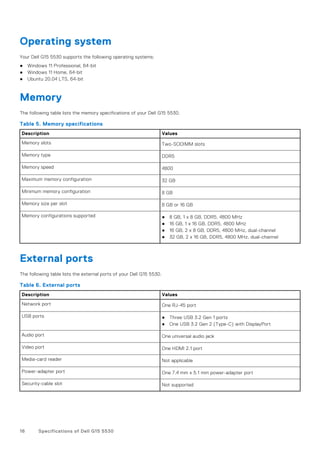
Your Dell G15 5530 supports the following operating systems:
● Windows 11 Professional, 64-bit
● Windows 11 Home, 64-bit
● Ubuntu 20.04 LTS, 64-bit
Memory
The following table lists the memory specifications of your Dell G15 5530.
Table 5. Memory specifications
Description Values
Memory slots Two-SODIMM slots
Memory type DDR5
Memory speed 4800
Maximum memory configuration 32 GB
Minimum memory configuration 8 GB
Memory size per slot 8 GB or 16 GB
Memory configurations supported ● 8 GB, 1 x 8 GB, DDR5, 4800 MHz
● 16 GB, 1 x 16 GB, DDR5, 4800 MHz
● 16 GB, 2 x 8 GB, DDR5, 4800 MHz, dual-channel
● 32 GB, 2 x 16 GB, DDR5, 4800 MHz, dual-channel
External ports
The following table lists the external ports of your Dell G15 5530.
Table 6. External ports
Description Values
Network port One RJ-45 port
USB ports ● Three USB 3.2 Gen 1 ports
● One USB 3.2 Gen 2 (Type-C) with DisplayPort
Audio port One universal audio jack
Video port One HDMI 2.1 port
Media-card reader Not applicable
Power-adapter port One 7.4 mm x 5.1 mm power-adapter port
Security-cable slot Not supported
16 Specifications of Dell G15 5530
Internal slots
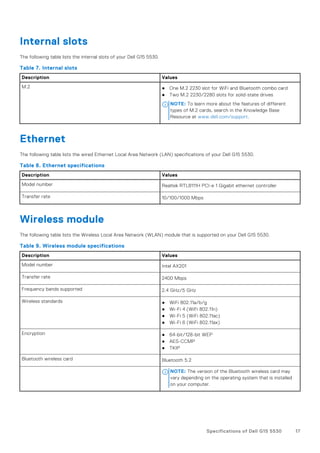
The following table lists the internal slots of your Dell G15 5530.
Table 7. Internal slots
Description Values
M.2 ● One M.2 2230 slot for WiFi and Bluetooth combo card
● Two M.2 2230/2280 slots for solid-state drives
NOTE: To learn more about the features of different
types of M.2 cards, search in the Knowledge Base
Resource at www.dell.com/support.
Ethernet
The following table lists the wired Ethernet Local Area Network (LAN) specifications of your Dell G15 5530.
Table 8. Ethernet specifications
Description Values
Model number Realtek RTL8111H PCI-e 1 Gigabit ethernet controller
Transfer rate 10/100/1000 Mbps
Wireless module
The following table lists the Wireless Local Area Network (WLAN) module that is supported on your Dell G15 5530.
Table 9. Wireless module specifications
Description Values
Model number Intel AX201
Transfer rate 2400 Mbps
Frequency bands supported 2.4 GHz/5 GHz
Wireless standards ● WiFi 802.11a/b/g
● Wi-Fi 4 (WiFi 802.11n)
● Wi-Fi 5 (WiFi 802.11ac)
● Wi-Fi 6 (WiFi 802.11ax)
Encryption ● 64-bit/128-bit WEP
● AES-CCMP
● TKIP
Bluetooth wireless card Bluetooth 5.2
NOTE: The version of the Bluetooth wireless card may
vary depending on the operating system that is installed
on your computer.
Specifications of Dell G15 5530 17
Audio
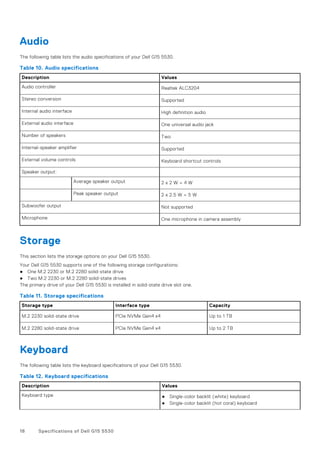
The following table lists the audio specifications of your Dell G15 5530.
Table 10. Audio specifications
Description Values
Audio controller Realtek ALC3204
Stereo conversion Supported
Internal audio interface High definition audio
External audio interface One universal audio jack
Number of speakers Two
Internal-speaker amplifier Supported
External volume controls Keyboard shortcut controls
Speaker output:
Average speaker output 2 x 2 W = 4 W
Peak speaker output 2 x 2.5 W = 5 W
Subwoofer output Not supported
Microphone One microphone in camera assembly
Storage
This section lists the storage options on your Dell G15 5530.
Your Dell G15 5530 supports one of the following storage configurations:
● One M.2 2230 or M.2 2280 solid-state drive
● Two M.2 2230 or M.2 2280 solid-state drives
The primary drive of your Dell G15 5530 is installed in solid-state drive slot one.
Table 11. Storage specifications
Storage type Interface type Capacity
M.2 2230 solid-state drive PCIe NVMe Gen4 x4 Up to 1 TB
M.2 2280 solid-state drive PCIe NVMe Gen4 x4 Up to 2 TB
Keyboard
The following table lists the keyboard specifications of your Dell G15 5530.
Table 12. Keyboard specifications
Description Values
Keyboard type ● Single-color backlit (white) keyboard
● Single-color backlit (hot coral) keyboard
18 Specifications of Dell G15 5530
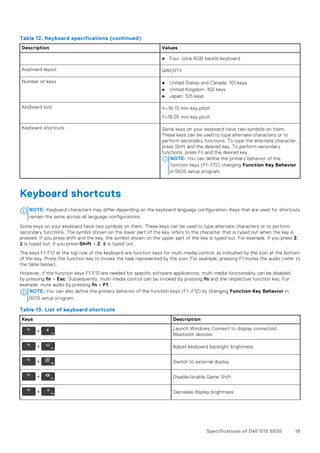
Table 12. Keyboard specifications (continued)
Description Values
● Four-zone RGB backlit keyboard
Keyboard layout QWERTY
Number of keys ● United States and Canada: 101 keys
● United Kingdom: 102 keys
● Japan: 105 keys
Keyboard size X=18.70 mm key pitch
Y=18.05 mm key pitch
Keyboard shortcuts Some keys on your keyboard have two symbols on them.
These keys can be used to type alternate characters or to
perform secondary functions. To type the alternate character,
press Shift and the desired key. To perform secondary
functions, press Fn and the desired key.
NOTE: You can define the primary behavior of the
function keys (F1–F12) changing Function Key Behavior
in BIOS setup program.
Keyboard shortcuts
NOTE: Keyboard characters may differ depending on the keyboard language configuration. Keys that are used for shortcuts
remain the same across all language configurations.
Some keys on your keyboard have two symbols on them. These keys can be used to type alternate characters or to perform
secondary functions. The symbol shown on the lower part of the key refers to the character that is typed out when the key is
pressed. If you press shift and the key, the symbol shown on the upper part of the key is typed out. For example, if you press 2,
2 is typed out; if you press Shift + 2, @ is typed out.
The keys F1-F12 at the top row of the keyboard are function keys for multi-media control, as indicated by the icon at the bottom
of the key. Press the function key to invoke the task represented by the icon. For example, pressing F1 mutes the audio (refer to
the table below).
However, if the function keys F1-F12 are needed for specific software applications, multi-media functionality can be disabled
by pressing fn + Esc. Subsequently, multi-media control can be invoked by pressing fn and the respective function key. For
example, mute audio by pressing fn + F1.
NOTE: You can also define the primary behavior of the function keys (F1–F12) by changing Function Key Behavior in
BIOS setup program.
Table 13. List of keyboard shortcuts
Keys Description
Launch Windows Connect to display connected
Bluetooth devices
Adjust keyboard backlight brightness
Switch to external display
Disable/enable Game Shift
Decrease display brightness
Specifications of Dell G15 5530 19
Table 13. List of keyboard shortcuts (continued)
Keys Description
Increase display brightness
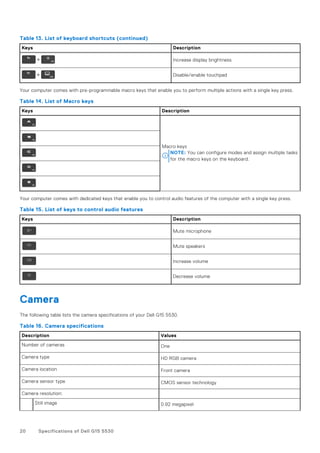
Disable/enable touchpad
Your computer comes with pre-programmable macro keys that enable you to perform multiple actions with a single key press.
Table 14. List of Macro keys
Keys Description
Macro keys
NOTE: You can configure modes and assign multiple tasks
for the macro keys on the keyboard.
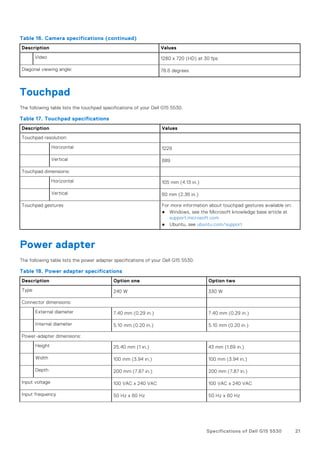
Your computer comes with dedicated keys that enable you to control audio features of the computer with a single key press.
Table 15. List of keys to control audio features
Keys Description
Mute microphone
Mute speakers
Increase volume
Decrease volume
Camera
The following table lists the camera specifications of your Dell G15 5530.
Table 16. Camera specifications
Description Values
Number of cameras One
Camera type HD RGB camera
Camera location Front camera
Camera sensor type CMOS sensor technology
Camera resolution:
Still image 0.92 megapixel
20 Specifications of Dell G15 5530
Table 16. Camera specifications (continued)
Description Values
Video 1280 x 720 (HD) at 30 fps
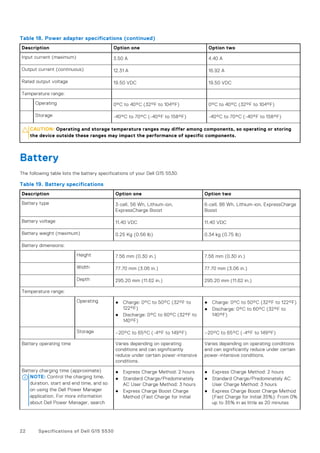
Diagonal viewing angle: 78.6 degrees
Touchpad
The following table lists the touchpad specifications of your Dell G15 5530.
Table 17. Touchpad specifications
Description Values
Touchpad resolution:
Horizontal 1229
Vertical 689
Touchpad dimensions:
Horizontal 105 mm (4.13 in.)
Vertical 60 mm (2.36 in.)
Touchpad gestures For more information about touchpad gestures available on:
● Windows, see the Microsoft knowledge base article at
support.microsoft.com
● Ubuntu, see ubuntu.com/support
Power adapter
The following table lists the power adapter specifications of your Dell G15 5530.
Table 18. Power adapter specifications
Description Option one Option two
Type 240 W 330 W
Connector dimensions:
External diameter 7.40 mm (0.29 in.) 7.40 mm (0.29 in.)
Internal diameter 5.10 mm (0.20 in.) 5.10 mm (0.20 in.)
Power-adapter dimensions:
Height 25.40 mm (1 in.) 43 mm (1.69 in.)
Width 100 mm (3.94 in.) 100 mm (3.94 in.)
Depth 200 mm (7.87 in.) 200 mm (7.87 in.)
Input voltage 100 VAC x 240 VAC 100 VAC x 240 VAC
Input frequency 50 Hz x 60 Hz 50 Hz x 60 Hz
Specifications of Dell G15 5530 21
Table 18. Power adapter specifications (continued)
Description Option one Option two
Input current (maximum) 3.50 A 4.40 A
Output current (continuous) 12.31 A 16.92 A
Rated output voltage 19.50 VDC 19.50 VDC
Temperature range:
Operating 0°C to 40°C (32°F to 104°F) 0°C to 40°C (32°F to 104°F)
Storage -40°C to 70°C (-40°F to 158°F) -40°C to 70°C (-40°F to 158°F)
CAUTION: Operating and storage temperature ranges may differ among components, so operating or storing
the device outside these ranges may impact the performance of specific components.
Battery
The following table lists the battery specifications of your Dell G15 5530.
Table 19. Battery specifications
Description Option one Option two
Battery type 3-cell, 56 Wh, Lithium-ion,
ExpressCharge Boost
6-cell, 86 Wh, Lithium-ion, ExpressCharge
Boost
Battery voltage 11.40 VDC 11.40 VDC
Battery weight (maximum) 0.25 Kg (0.56 lb) 0.34 kg (0.75 lb)
Battery dimensions:
Height 7.56 mm (0.30 in.) 7.56 mm (0.30 in.)
Width 77.70 mm (3.06 in.) 77.70 mm (3.06 in.)
Depth 295.20 mm (11.62 in.) 295.20 mm (11.62 in.)
Temperature range:
Operating ● Charge: 0°C to 50°C (32°F to
122°F)
● Discharge: 0°C to 60°C (32°F to
140°F)
● Charge: 0°C to 50°C (32°F to 122°F)
● Discharge: 0°C to 60°C (32°F to
140°F)
Storage –20°C to 65°C (-4°F to 149°F) –20°C to 65°C (-4°F to 149°F)
Battery operating time Varies depending on operating
conditions and can significantly
reduce under certain power-intensive
conditions.
Varies depending on operating conditions
and can significantly reduce under certain
power-intensive conditions.
Battery charging time (approximate)
NOTE: Control the charging time,
duration, start and end time, and so
on using the Dell Power Manager
application. For more information
about Dell Power Manager, search
● Express Charge Method: 2 hours
● Standard Charge/Predominately
AC User Charge Method: 3 hours
● Express Charge Boost Charge
Method (Fast Charge for Initial
● Express Charge Method: 2 hours
● Standard Charge/Predominately AC
User Charge Method: 3 hours
● Express Charge Boost Charge Method
(Fast Charge for Initial 35%): From 0%
up to 35% in as little as 20 minutes
22 Specifications of Dell G15 5530
Table 19. Battery specifications (continued)
Description Option one Option two
in the Knowledge Base Resource at
www.dell.com/support.
35%): From 0% up to 35% in as
little as 20 minutes
Coin-cell battery Not supported Not supported
CAUTION: Operating and storage temperature ranges may differ among components, so operating or storing
the device outside these ranges may impact the performance of specific components.
CAUTION: Dell recommends that you charge the battery regularly for optimal power consumption. If your
battery charge is completely depleted, connect the power adapter, turn on your computer, and then restart
your computer to reduce the power consumption.
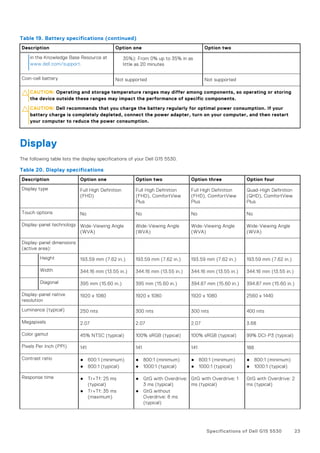
Display
The following table lists the display specifications of your Dell G15 5530.
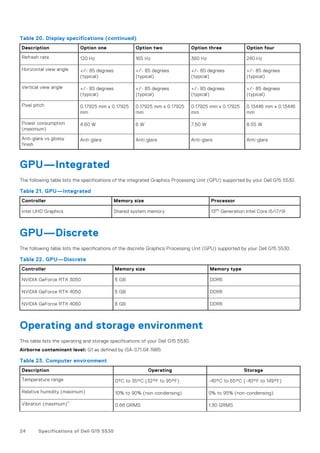
Table 20. Display specifications
Description Option one Option two Option three Option four
Display type Full High Definition
(FHD)
Full High Definition
(FHD), ComfortView
Plus
Full High Definition
(FHD), ComfortView
Plus
Quad-High Definition
(QHD), ComfortView
Plus
Touch options No No No No
Display-panel technology Wide-Viewing Angle
(WVA)
Wide-Viewing Angle
(WVA)
Wide-Viewing Angle
(WVA)
Wide-Viewing Angle
(WVA)
Display-panel dimensions
(active area):
Height 193.59 mm (7.62 in.) 193.59 mm (7.62 in.) 193.59 mm (7.62 in.) 193.59 mm (7.62 in.)
Width 344.16 mm (13.55 in.) 344.16 mm (13.55 in.) 344.16 mm (13.55 in.) 344.16 mm (13.55 in.)
Diagonal 395 mm (15.60 in.) 395 mm (15.60 in.) 394.87 mm (15.60 in.) 394.87 mm (15.60 in.)
Display-panel native
resolution
1920 x 1080 1920 x 1080 1920 x 1080 2560 x 1440
Luminance (typical) 250 nits 300 nits 300 nits 400 nits
Megapixels 2.07 2.07 2.07 3.68
Color gamut 45% NTSC (typical) 100% sRGB (typical) 100% sRGB (typical) 99% DCI-P3 (typical)
Pixels Per Inch (PPI) 141 141 141 188
Contrast ratio ● 600:1 (minimum)
● 800:1 (typical)
● 800:1 (minimum)
● 1000:1 (typical)
● 800:1 (minimum)
● 1000:1 (typical)
● 800:1 (minimum)
● 1000:1 (typical)
Response time ● Tr+Tf: 25 ms
(typical)
● Tr+Tf: 35 ms
(maximum)
● GtG with Overdrive:
3 ms (typical)
● GtG without
Overdrive: 8 ms
(typical)
GtG with Overdrive: 1
ms (typical)
GtG with Overdrive: 2
ms (typical)
Specifications of Dell G15 5530 23
Table 20. Display specifications (continued)
Description Option one Option two Option three Option four
Refresh rate 120 Hz 165 Hz 360 Hz 240 Hz
Horizontal view angle +/- 85 degrees
(typical)
+/- 85 degrees
(typical)
+/- 85 degrees
(typical)
+/- 85 degrees
(typical)
Vertical view angle +/- 85 degrees
(typical)
+/- 85 degrees
(typical)
+/- 85 degrees
(typical)
+/- 85 degrees
(typical)
Pixel pitch 0.17925 mm x 0.17925
mm
0.17925 mm x 0.17925
mm
0.17925 mm x 0.17925
mm
0.13446 mm x 0.13446
mm
Power consumption
(maximum)
4.60 W 6 W 7.60 W 8.55 W
Anti-glare vs glossy
finish
Anti-glare Anti-glare Anti-glare Anti-glare
GPU—Integrated
The following table lists the specifications of the integrated Graphics Processing Unit (GPU) supported by your Dell G15 5530.
Table 21. GPU—Integrated
Controller Memory size Processor
Intel UHD Graphics Shared system memory 13th Generation Intel Core i5/i7/i9
GPU—Discrete
The following table lists the specifications of the discrete Graphics Processing Unit (GPU) supported by your Dell G15 5530.
Table 22. GPU—Discrete
Controller Memory size Memory type
NVIDIA GeForce RTX 3050 6 GB DDR6
NVIDIA GeForce RTX 4050 6 GB DDR6
NVIDIA GeForce RTX 4060 8 GB DDR6
Operating and storage environment
This table lists the operating and storage specifications of your Dell G15 5530.
Airborne contaminant level: G1 as defined by ISA-S71.04-1985
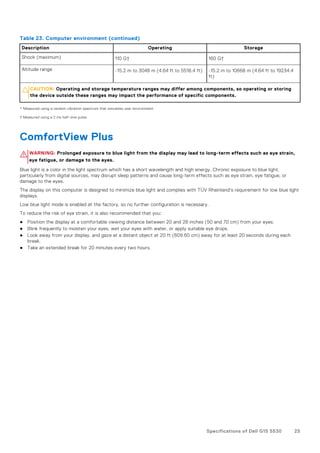
Table 23. Computer environment
Description Operating Storage
Temperature range 0°C to 35°C (32°F to 95°F) -40°C to 65°C (-40°F to 149°F)
Relative humidity (maximum) 10% to 90% (non-condensing) 0% to 95% (non-condensing)
Vibration (maximum)*
0.66 GRMS 1.30 GRMS
24 Specifications of Dell G15 5530
Table 23. Computer environment (continued)
Description Operating Storage
Shock (maximum) 110 G† 160 G†
Altitude range -15.2 m to 3048 m (4.64 ft to 5518.4 ft) -15.2 m to 10668 m (4.64 ft to 19234.4
ft)
CAUTION: Operating and storage temperature ranges may differ among components, so operating or storing
the device outside these ranges may impact the performance of specific components.
* Measured using a random vibration spectrum that simulates user environment.
† Measured using a 2 ms half-sine pulse.
ComfortView Plus
WARNING: Prolonged exposure to blue light from the display may lead to long-term effects such as eye strain,
eye fatigue, or damage to the eyes.
Blue light is a color in the light spectrum which has a short wavelength and high energy. Chronic exposure to blue light,
particularly from digital sources, may disrupt sleep patterns and cause long-term effects such as eye strain, eye fatigue, or
damage to the eyes.
The display on this computer is designed to minimize blue light and complies with TÜV Rheinland's requirement for low blue light
displays.
Low blue light mode is enabled at the factory, so no further configuration is necessary.
To reduce the risk of eye strain, it is also recommended that you:
● Position the display at a comfortable viewing distance between 20 and 28 inches (50 and 70 cm) from your eyes.
● Blink frequently to moisten your eyes, wet your eyes with water, or apply suitable eye drops.
● Look away from your display, and gaze at a distant object at 20 ft (609.60 cm) away for at least 20 seconds during each
break.
● Take an extended break for 20 minutes every two hours.
Specifications of Dell G15 5530 25
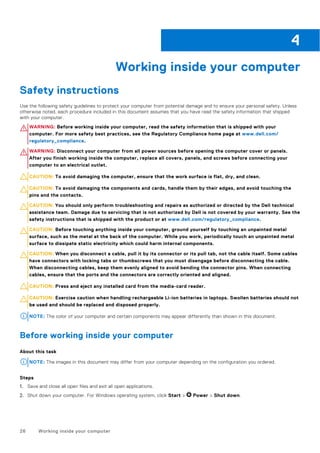
Working inside your computer
Safety instructions
Use the following safety guidelines to protect your computer from potential damage and to ensure your personal safety. Unless
otherwise noted, each procedure included in this document assumes that you have read the safety information that shipped
with your computer.
WARNING: Before working inside your computer, read the safety information that is shipped with your
computer. For more safety best practices, see the Regulatory Compliance home page at www.dell.com/
regulatory_compliance.
WARNING: Disconnect your computer from all power sources before opening the computer cover or panels.
After you finish working inside the computer, replace all covers, panels, and screws before connecting your
computer to an electrical outlet.
CAUTION: To avoid damaging the computer, ensure that the work surface is flat, dry, and clean.
CAUTION: To avoid damaging the components and cards, handle them by their edges, and avoid touching the
pins and the contacts.
CAUTION: You should only perform troubleshooting and repairs as authorized or directed by the Dell technical
assistance team. Damage due to servicing that is not authorized by Dell is not covered by your warranty. See the
safety instructions that is shipped with the product or at www.dell.com/regulatory_compliance.
CAUTION: Before touching anything inside your computer, ground yourself by touching an unpainted metal
surface, such as the metal at the back of the computer. While you work, periodically touch an unpainted metal
surface to dissipate static electricity which could harm internal components.
CAUTION: When you disconnect a cable, pull it by its connector or its pull tab, not the cable itself. Some cables
have connectors with locking tabs or thumbscrews that you must disengage before disconnecting the cable.
When disconnecting cables, keep them evenly aligned to avoid bending the connector pins. When connecting
cables, ensure that the ports and the connectors are correctly oriented and aligned.
CAUTION: Press and eject any installed card from the media-card reader.
CAUTION: Exercise caution when handling rechargeable Li-ion batteries in laptops. Swollen batteries should not
be used and should be replaced and disposed properly.
NOTE: The color of your computer and certain components may appear differently than shown in this document.
Before working inside your computer
About this task
NOTE: The images in this document may differ from your computer depending on the configuration you ordered.
Steps
1. Save and close all open files and exit all open applications.
2. Shut down your computer. For Windows operating system, click Start > Power > Shut down.
4
26 Working inside your computer
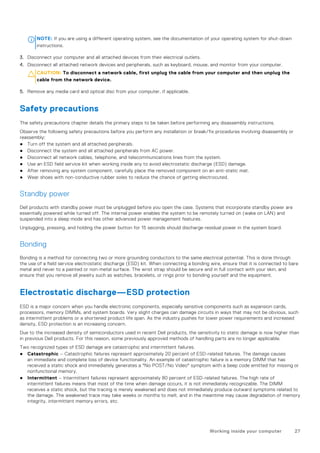
NOTE: If you are using a different operating system, see the documentation of your operating system for shut-down
instructions.
3. Disconnect your computer and all attached devices from their electrical outlets.
4. Disconnect all attached network devices and peripherals, such as keyboard, mouse, and monitor from your computer.
CAUTION: To disconnect a network cable, first unplug the cable from your computer and then unplug the
cable from the network device.
5. Remove any media card and optical disc from your computer, if applicable.
Safety precautions
The safety precautions chapter details the primary steps to be taken before performing any disassembly instructions.
Observe the following safety precautions before you perform any installation or break/fix procedures involving disassembly or
reassembly:
● Turn off the system and all attached peripherals.
● Disconnect the system and all attached peripherals from AC power.
● Disconnect all network cables, telephone, and telecommunications lines from the system.
● Use an ESD field service kit when working inside any to avoid electrostatic discharge (ESD) damage.
● After removing any system component, carefully place the removed component on an anti-static mat.
● Wear shoes with non-conductive rubber soles to reduce the chance of getting electrocuted.
Standby power
Dell products with standby power must be unplugged before you open the case. Systems that incorporate standby power are
essentially powered while turned off. The internal power enables the system to be remotely turned on (wake on LAN) and
suspended into a sleep mode and has other advanced power management features.
Unplugging, pressing, and holding the power button for 15 seconds should discharge residual power in the system board.
Bonding
Bonding is a method for connecting two or more grounding conductors to the same electrical potential. This is done through
the use of a field service electrostatic discharge (ESD) kit. When connecting a bonding wire, ensure that it is connected to bare
metal and never to a painted or non-metal surface. The wrist strap should be secure and in full contact with your skin, and
ensure that you remove all jewelry such as watches, bracelets, or rings prior to bonding yourself and the equipment.
Electrostatic discharge—ESD protection
ESD is a major concern when you handle electronic components, especially sensitive components such as expansion cards,
processors, memory DIMMs, and system boards. Very slight charges can damage circuits in ways that may not be obvious, such
as intermittent problems or a shortened product life span. As the industry pushes for lower power requirements and increased
density, ESD protection is an increasing concern.
Due to the increased density of semiconductors used in recent Dell products, the sensitivity to static damage is now higher than
in previous Dell products. For this reason, some previously approved methods of handling parts are no longer applicable.
Two recognized types of ESD damage are catastrophic and intermittent failures.
● Catastrophic – Catastrophic failures represent approximately 20 percent of ESD-related failures. The damage causes
an immediate and complete loss of device functionality. An example of catastrophic failure is a memory DIMM that has
received a static shock and immediately generates a "No POST/No Video" symptom with a beep code emitted for missing or
nonfunctional memory.
● Intermittent – Intermittent failures represent approximately 80 percent of ESD-related failures. The high rate of
intermittent failures means that most of the time when damage occurs, it is not immediately recognizable. The DIMM
receives a static shock, but the tracing is merely weakened and does not immediately produce outward symptoms related to
the damage. The weakened trace may take weeks or months to melt, and in the meantime may cause degradation of memory
integrity, intermittent memory errors, etc.
Working inside your computer 27
The more difficult type of damage to recognize and troubleshoot is the intermittent (also called latent or "walking wounded")
failure.
Perform the following steps to prevent ESD damage:
● Use a wired ESD wrist strap that is properly grounded. The use of wireless anti-static straps is no longer allowed; they do not
provide adequate protection. Touching the chassis before handling parts does not ensure adequate ESD protection on parts
with increased sensitivity to ESD damage.
● Handle all static-sensitive components in a static-safe area. If possible, use anti-static floor pads and workbench pads.
● When unpacking a static-sensitive component from its shipping carton, do not remove the component from the anti-static
packing material until you are ready to install the component. Before unwrapping the anti-static packaging, ensure that you
discharge static electricity from your body.
● Before transporting a static-sensitive component, place it in an anti-static container or packaging.
ESD field service kit
The unmonitored Field Service kit is the most commonly used service kit. Each Field Service kit includes three main components:
anti-static mat, wrist strap, and bonding wire.
Components of an ESD field service kit
The components of an ESD field service kit are:
● Anti-Static Mat – The anti-static mat is dissipative and parts can be placed on it during service procedures. When using an
anti-static mat, your wrist strap should be snug and the bonding wire should be connected to the mat and to any bare metal
on the system being worked on. Once deployed properly, service parts can be removed from the ESD bag and placed directly
on the mat. ESD-sensitive items are safe in your hand, on the ESD mat, in the system, or inside a bag.
● Wrist Strap and Bonding Wire – The wrist strap and bonding wire can be either directly connected between your wrist
and bare metal on the hardware if the ESD mat is not required, or connected to the anti-static mat to protect hardware that
is temporarily placed on the mat. The physical connection of the wrist strap and bonding wire between your skin, the ESD
mat, and the hardware is known as bonding. Use only Field Service kits with a wrist strap, mat, and bonding wire. Never
use wireless wrist straps. Always be aware that the internal wires of a wrist strap are prone to damage from normal wear
and tear, and must be checked regularly with a wrist strap tester in order to avoid accidental ESD hardware damage. It is
recommended to test the wrist strap and bonding wire at least once per week.
● ESD Wrist Strap Tester – The wires inside of an ESD strap are prone to damage over time. When using an unmonitored
kit, it is a best practice to regularly test the strap prior to each service call, and at a minimum, test once per week. A
wrist strap tester is the best method for doing this test. If you do not have your own wrist strap tester, check with your
regional office to find out if they have one. To perform the test, plug the wrist-strap's bonding-wire into the tester while it is
strapped to your wrist and push the button to test. A green LED is lit if the test is successful; a red LED is lit and an alarm
sounds if the test fails.
● Insulator Elements – It is critical to keep ESD sensitive devices, such as plastic heat sink casings, away from internal parts
that are insulators and often highly charged.
● Working Environment – Before deploying the ESD Field Service kit, assess the situation at the customer location. For
example, deploying the kit for a server environment is different than for a desktop or portable environment. Servers are
typically installed in a rack within a data center; desktops or portables are typically placed on office desks or cubicles. Always
look for a large open flat work area that is free of clutter and large enough to deploy the ESD kit with additional space to
accommodate the type of system that is being repaired. The workspace should also be free of insulators that can cause an
ESD event. On the work area, insulators such as Styrofoam and other plastics should always be moved at least 12 inches or
30 centimeters away from sensitive parts before physically handling any hardware components
● ESD Packaging – All ESD-sensitive devices must be shipped and received in static-safe packaging. Metal, static-shielded
bags are preferred. However, you should always return the damaged part using the same ESD bag and packaging that the
new part arrived in. The ESD bag should be folded over and taped shut and all the same foam packing material should be
used in the original box that the new part arrived in. ESD-sensitive devices should be removed from packaging only at an
ESD-protected work surface, and parts should never be placed on top of the ESD bag because only the inside of the bag is
shielded. Always place parts in your hand, on the ESD mat, in the system, or inside an anti-static bag.
● Transporting Sensitive Components – When transporting ESD sensitive components such as replacement parts or parts
to be returned to Dell, it is critical to place these parts in anti-static bags for safe transport.
28 Working inside your computer
ESD protection summary
It is recommended to use the traditional wired ESD grounding wrist strap and protective anti-static mat at all times when
servicing Dell products. In addition, it is critical to keep sensitive parts separate from all insulator parts while performing service
and that they use anti-static bags for transporting sensitive components.
Transporting sensitive components
When transporting ESD sensitive components such as replacement parts or parts to be returned to Dell, it is critical to place
these parts in anti-static bags for safe transport.
After working inside your computer
About this task
NOTE: Leaving stray or loose screws inside your computer may severely damage your computer.
Steps
1. Replace all screws and ensure that no stray screws remain inside your computer.
2. Connect any external devices, peripherals, or cables you removed before working on your computer.
3. Replace any media cards, discs, or any other parts that you removed before working on your computer.
4. Connect your computer and all attached devices to their electrical outlets.
5. Turn on your computer.
BitLocker
CAUTION: If BitLocker is not suspended before updating the BIOS, the next time you reboot the system it
will not recognize the BitLocker key. You will then be prompted to enter the recovery key to progress, and
the system will ask for this on each reboot. If the recovery key is not known this can result in data loss or
an unnecessary operating system reinstall. For more information about this subject, see Knowledge Article:
updating the BIOS on Dell systems with BitLocker enabled.
The installation of the following components triggers BitLocker:
● Hard disk drive or solid state drive
● System board
Recommended tools
The procedures in this document may require the following tools:
● Phillips screwdriver #0
● Phillips screwdriver #1
● Plastic scribe
Screw list
NOTE: When removing screws from a component, it is recommended to note the screw type, the quantity of screws, and
then place them in a screw storage box. This is to ensure that the correct number of screws and correct screw type is
restored when the component is replaced.
NOTE: Some computers have magnetic surfaces. Ensure that the screws are not left attached to such surfaces when
replacing a component.
Working inside your computer 29
NOTE: Screw color may vary with the configuration ordered.
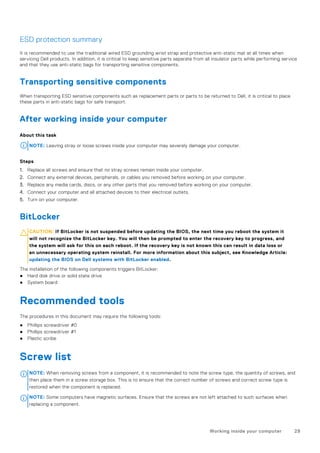
Table 24. Screw list
Component Screw type Quantity Screw image
Base cover M2x5 6
Battery M2x4 4
Solid-state drive (SSD slot 1) M2x4 2
Solid-state drive (SSD slot 2) M2x4 2
Wireless card M2x4 1
Touchpad bracket M2x2 3
Touchpad M2x2 4
Rear cover M2x4 2
Rear cover M2x5 4
Display hinges M2.5x4 8
Keyboard-controller board M2x2 1
Power-adapter port M2x5 2
System board M2x5 7
System board M2x4 1
USB board M2x4 2
USB board M2x3 1
Ethernet and audio board M2x4 2
Ethernet and audio board M2x3 1
30 Working inside your computer
Table 24. Screw list (continued)
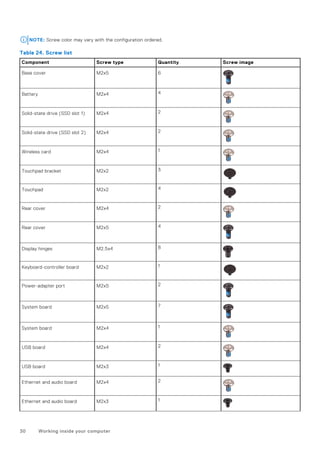
Component Screw type Quantity Screw image
Left fan (fan and heat-sink
assembly)
M2x4 1
Fan and heat-sink assembly M2x4 6
Power-button board bracket M2x2 2
Power button M2x2 1
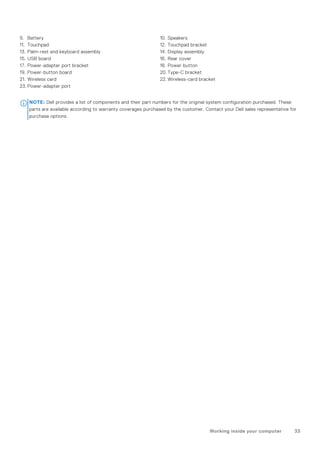
Major components of Dell G15 5530
The following image shows the major components of Dell G15 5530.
Working inside your computer 31
1. Base cover 2. Fan and heat-sink assembly
3. M.2 solid-state drive 4. M.2 solid-state drive thermal shield
5. M.2 solid-state drive 6. Memory module
7. Ethernet and audio board 8. System board
32 Working inside your computer
9. Battery 10. Speakers
11. Touchpad 12. Touchpad bracket
13. Palm-rest and keyboard assembly 14. Display assembly
15. USB board 16. Rear cover
17. Power-adapter port bracket 18. Power button
19. Power-button board 20. Type-C bracket
21. Wireless card 22. Wireless-card bracket
23. Power-adapter port
NOTE: Dell provides a list of components and their part numbers for the original system configuration purchased. These
parts are available according to warranty coverages purchased by the customer. Contact your Dell sales representative for
purchase options.
Working inside your computer 33
Removing and installing Customer
Replaceable Units (CRUs)
The replaceable components in this chapter are Customer Replaceable Units (CRUs).
CAUTION: Customers can replace only the Customer Replaceable Units (CRUs) following the safety precautions
and replacement procedures.
NOTE: The images in this document may differ from your computer depending on the configuration you ordered.
Base cover
Removing the base cover
Prerequisites
1. Follow the procedure in Before working inside your computer.
About this task
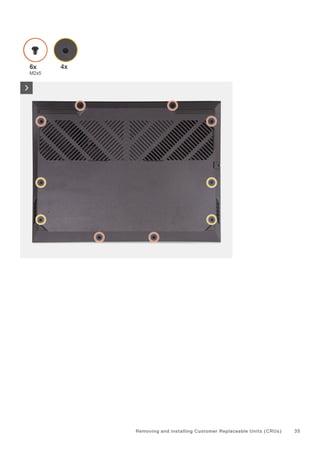
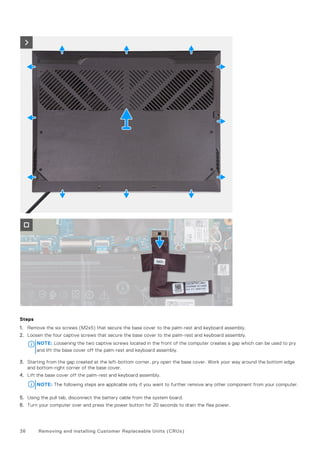
The following images indicate the location of the base cover and provide a visual representation of the removal procedure.
5
34 Removing and installing Customer Replaceable Units (CRUs)
Removing and installing Customer Replaceable Units (CRUs) 35
Steps
1. Remove the six screws (M2x5) that secure the base cover to the palm-rest and keyboard assembly.
2. Loosen the four captive screws that secure the base cover to the palm-rest and keyboard assembly.
NOTE: Loosening the two captive screws located in the front of the computer creates a gap which can be used to pry
and lift the base cover off the palm-rest and keyboard assembly.
3. Starting from the gap created at the left-bottom corner, pry open the base cover. Work your way around the bottom edge
and bottom-right corner of the base cover.
4. Lift the base cover off the palm-rest and keyboard assembly.
NOTE: The following steps are applicable only if you want to further remove any other component from your computer.
5. Using the pull tab, disconnect the battery cable from the system board.
6. Turn your computer over and press the power button for 20 seconds to drain the flea power.
36 Removing and installing Customer Replaceable Units (CRUs)
Installing the base cover
Prerequisites
If you are replacing a component, remove the existing component before performing the installation procedure.
About this task
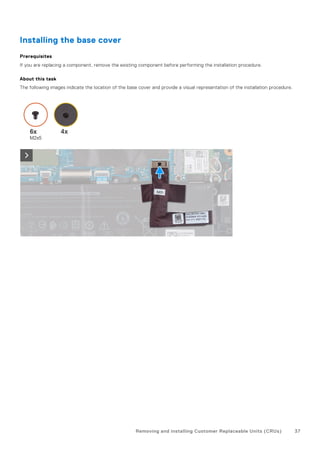
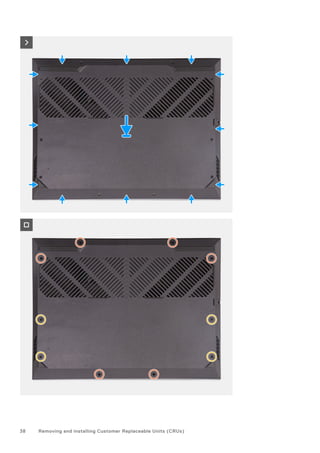
The following images indicate the location of the base cover and provide a visual representation of the installation procedure.
Removing and installing Customer Replaceable Units (CRUs) 37
38 Removing and installing Customer Replaceable Units (CRUs)
Steps
1. Connect the battery cable to the system board, if the battery cable had been previously disconnected.
2. Align the screw holes on the base cover with the screw holes on the palm-rest and keyboard assembly, and then snap the
base cover into place.
3. Replace the six screws (M2x5) that secure the base cover to the palm-rest and keyboard assembly.
4. Tighten the four captive screws that secure the base cover to the palm-rest and keyboard assembly.
Next steps
1. Follow the procedure in After working inside your computer.
Solid-state drive
Removing the solid-state drive
Prerequisites
1. Follow the procedure in Before working inside your computer.
2. Remove the base cover.
About this task
NOTE: Your computer has two M.2 solid-state drive slots, both located on the system board adjacent to the left fan. The
procedure to remove a solid-state drive from slot 1 and slot 2 are exactly the same.
NOTE: Depending on the configuration ordered, a 2230 or 2280 solid-state drive may be installed in your computer.
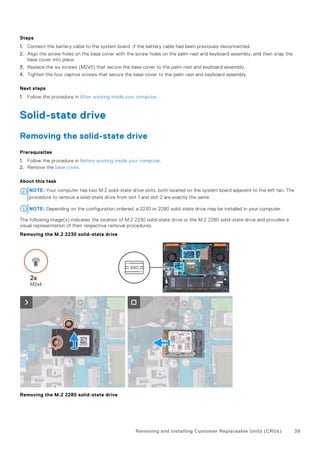
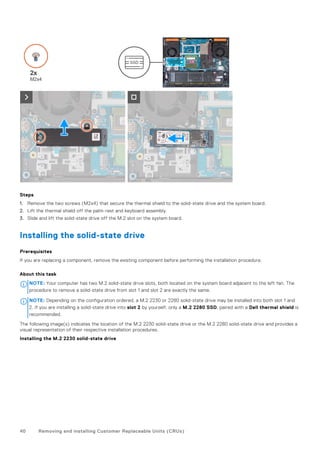
The following image(s) indicates the location of M.2 2230 solid-state drive or the M.2 2280 solid-state drive and provides a
visual representation of their respective removal procedures.
Removing the M.2 2230 solid-state drive
Removing the M.2 2280 solid-state drive
Removing and installing Customer Replaceable Units (CRUs) 39
Steps
1. Remove the two screws (M2x4) that secure the thermal shield to the solid-state drive and the system board.
2. Lift the thermal shield off the palm-rest and keyboard assembly.
3. Slide and lift the solid-state drive off the M.2 slot on the system board.
Installing the solid-state drive
Prerequisites
If you are replacing a component, remove the existing component before performing the installation procedure.
About this task
NOTE: Your computer has two M.2 solid-state drive slots, both located on the system board adjacent to the left fan. The
procedure to remove a solid-state drive from slot 1 and slot 2 are exactly the same.
NOTE: Depending on the configuration ordered, a M.2 2230 or 2280 solid-state drive may be installed into both slot 1 and
2. If you are installing a solid-state drive into slot 2 by yourself, only a M.2 2280 SSD, paired with a Dell thermal shield is
recommended.
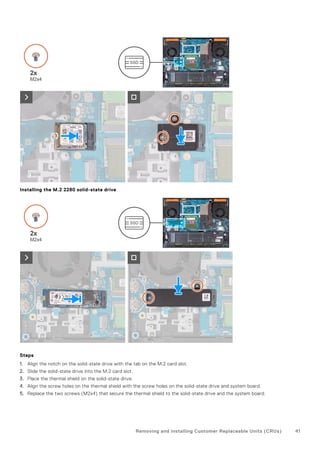
The following image(s) indicates the location of the M.2 2230 solid-state drive or the M.2 2280 solid-state drive and provides a
visual representation of their respective installation procedures.
Installing the M.2 2230 solid-state drive
40 Removing and installing Customer Replaceable Units (CRUs)
Installing the M.2 2280 solid-state drive
Steps
1. Align the notch on the solid-state drive with the tab on the M.2 card slot.
2. Slide the solid-state drive into the M.2 card slot.
3. Place the thermal shield on the solid-state drive.
4. Align the screw holes on the thermal shield with the screw holes on the solid-state drive and system board.
5. Replace the two screws (M2x4) that secure the thermal shield to the solid-state drive and the system board.
Removing and installing Customer Replaceable Units (CRUs) 41
Next steps
1. Install the base cover.
2. Follow the procedure in After working inside your computer.
Wireless card
Removing the wireless card
Prerequisites
1. Follow the procedure in Before working inside your computer.
2. Remove the base cover.
About this task
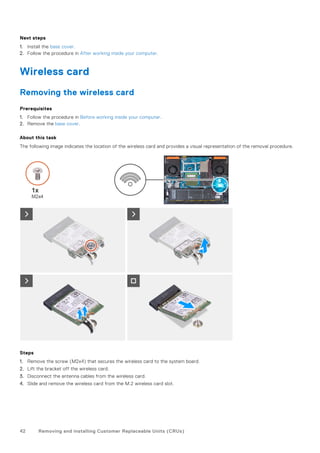
The following image indicates the location of the wireless card and provides a visual representation of the removal procedure.
Steps
1. Remove the screw (M2x4) that secures the wireless card to the system board.
2. Lift the bracket off the wireless card.
3. Disconnect the antenna cables from the wireless card.
4. Slide and remove the wireless card from the M.2 wireless card slot.
42 Removing and installing Customer Replaceable Units (CRUs)
Installing the wireless card
Prerequisites
If you are replacing a component, remove the existing component before performing the installation procedure.
About this task
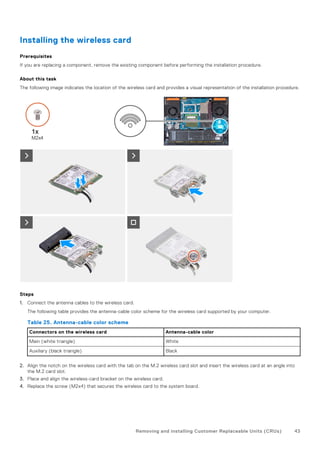
The following image indicates the location of the wireless card and provides a visual representation of the installation procedure.
Steps
1. Connect the antenna cables to the wireless card.
The following table provides the antenna-cable color scheme for the wireless card supported by your computer.
Table 25. Antenna-cable color scheme
Connectors on the wireless card Antenna-cable color
Main (white triangle) White
Auxiliary (black triangle) Black
2. Align the notch on the wireless card with the tab on the M.2 wireless card slot and insert the wireless card at an angle into
the M.2 card slot.
3. Place and align the wireless-card bracket on the wireless card.
4. Replace the screw (M2x4) that secures the wireless card to the system board.
Removing and installing Customer Replaceable Units (CRUs) 43
Next steps
1. Install the base cover.
2. Follow the procedure in After working inside your computer.
Memory
Removing the memory module
Prerequisites
1. Follow the procedure in Before working inside your computer.
2. Remove the base cover.
About this task
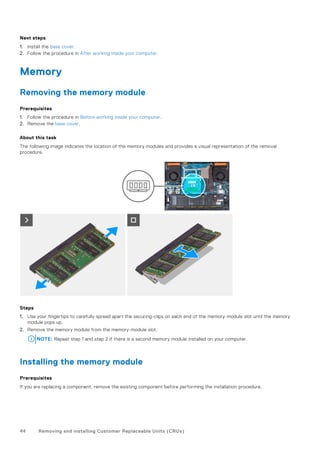
The following image indicates the location of the memory modules and provides a visual representation of the removal
procedure.
Steps
1. Use your fingertips to carefully spread apart the securing-clips on each end of the memory-module slot until the memory
module pops up.
2. Remove the memory module from the memory-module slot.
NOTE: Repeat step 1 and step 2 if there is a second memory module installed on your computer.
Installing the memory module
Prerequisites
If you are replacing a component, remove the existing component before performing the installation procedure.
44 Removing and installing Customer Replaceable Units (CRUs)
About this task
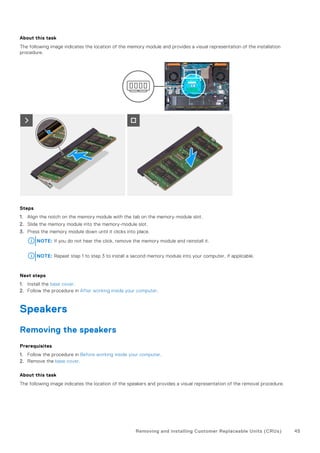
The following image indicates the location of the memory module and provides a visual representation of the installation
procedure.
Steps
1. Align the notch on the memory module with the tab on the memory-module slot.
2. Slide the memory module into the memory-module slot.
3. Press the memory module down until it clicks into place.
NOTE: If you do not hear the click, remove the memory module and reinstall it.
NOTE: Repeat step 1 to step 3 to install a second memory module into your computer, if applicable.
Next steps
1. Install the base cover.
2. Follow the procedure in After working inside your computer.
Speakers
Removing the speakers
Prerequisites
1. Follow the procedure in Before working inside your computer.
2. Remove the base cover.
About this task
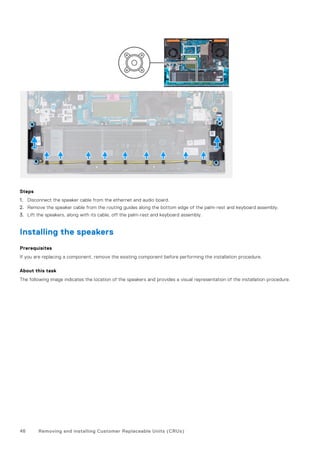
The following image indicates the location of the speakers and provides a visual representation of the removal procedure.
Removing and installing Customer Replaceable Units (CRUs) 45
Steps
1. Disconnect the speaker cable from the ethernet and audio board.
2. Remove the speaker cable from the routing guides along the bottom edge of the palm-rest and keyboard assembly.
3. Lift the speakers, along with its cable, off the palm-rest and keyboard assembly.
Installing the speakers
Prerequisites
If you are replacing a component, remove the existing component before performing the installation procedure.
About this task
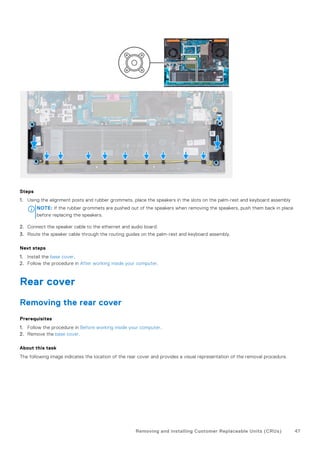
The following image indicates the location of the speakers and provides a visual representation of the installation procedure.
46 Removing and installing Customer Replaceable Units (CRUs)
Steps
1. Using the alignment posts and rubber grommets, place the speakers in the slots on the palm-rest and keyboard assembly
NOTE: If the rubber grommets are pushed out of the speakers when removing the speakers, push them back in place
before replacing the speakers.
2. Connect the speaker cable to the ethernet and audio board.
3. Route the speaker cable through the routing guides on the palm-rest and keyboard assembly.
Next steps
1. Install the base cover.
2. Follow the procedure in After working inside your computer.
Rear cover
Removing the rear cover
Prerequisites
1. Follow the procedure in Before working inside your computer.
2. Remove the base cover.
About this task
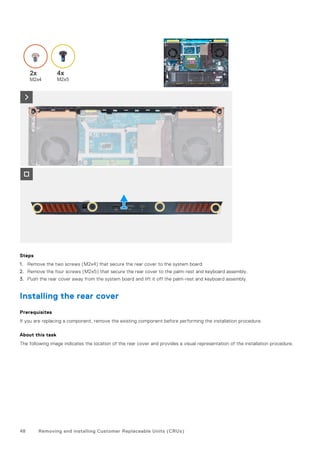
The following image indicates the location of the rear cover and provides a visual representation of the removal procedure.
Removing and installing Customer Replaceable Units (CRUs) 47
Steps
1. Remove the two screws (M2x4) that secure the rear cover to the system board.
2. Remove the four screws (M2x5) that secure the rear cover to the palm-rest and keyboard assembly.
3. Push the rear cover away from the system board and lift it off the palm-rest and keyboard assembly.
Installing the rear cover
Prerequisites
If you are replacing a component, remove the existing component before performing the installation procedure.
About this task
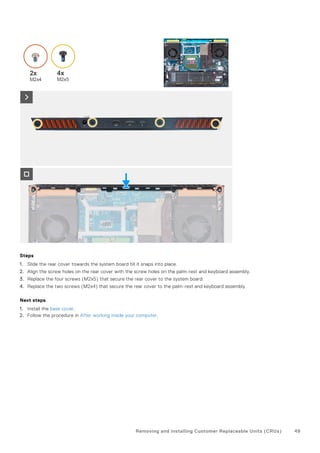
The following image indicates the location of the rear cover and provides a visual representation of the installation procedure.
48 Removing and installing Customer Replaceable Units (CRUs)
Steps
1. Slide the rear cover towards the system board till it snaps into place.
2. Align the screw holes on the rear cover with the screw holes on the palm-rest and keyboard assembly.
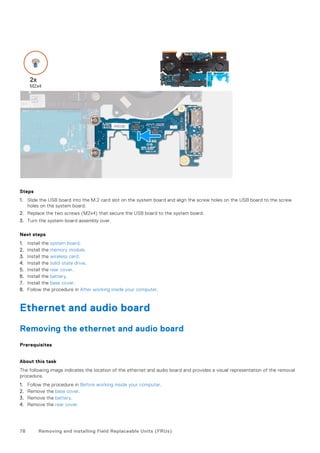
3. Replace the four screws (M2x5) that secure the rear cover to the system board.
4. Replace the two screws (M2x4) that secure the rear cover to the palm-rest and keyboard assembly.
Next steps
1. Install the base cover.
2. Follow the procedure in After working inside your computer.
Removing and installing Customer Replaceable Units (CRUs) 49
Removing and installing Field Replaceable
Units (FRUs)
The replaceable components in this chapter are Field Replaceable Units (FRUs).
CAUTION: The information in this section is intended for authorized service technicians only.
CAUTION: To avoid any potential damage to the component or loss of data, ensure that an authorized service
technician replaces the Field Replaceable Units (FRUs).
CAUTION: Dell Technologies recommends that this set of repairs, if needed, to be conducted by trained
technical repair specialists.
CAUTION: As a reminder, your warranty does not cover damages that may occur during the courses of FRU
repairs that are not authorized by Dell Technologies.
NOTE: The images in this document may differ from your computer depending on the configuration you ordered.
Battery
Rechargeable Li-ion battery precautions
CAUTION:
● Exercise caution when handling rechargeable Li-ion batteries.
● Discharge the battery completely before removing it. Disconnect the AC power adapter from the system and
operate the computer solely on battery power—the battery is fully discharged when the computer no longer
turns on when the power button is pressed.
● Do not crush, drop, mutilate, or penetrate the battery with foreign objects.
● Do not expose the battery to high temperatures, or disassemble battery packs and cells.
● Do not apply pressure to the surface of the battery.
● Do not bend the battery.
● Do not use tools of any kind to pry on or against the battery.
● Ensure any screws during the servicing of this product are not lost or misplaced, to prevent accidental
puncture or damage to the battery and other system components.
● If the battery gets stuck inside your computer as a result of swelling, do not try to release it as puncturing,
bending, or crushing a rechargeable Li-ion battery can be dangerous. In such an instance, contact Dell
technical support for assistance. See www.dell.com/contactdell.
● Always purchase genuine batteries from www.dell.com or authorized Dell partners and resellers.
● Swollen batteries should not be used and should be replaced and disposed properly. For guidelines on how to
handle and replace swollen rechargeable Li-ion batteries, see Handling swollen rechargeable Li-ion batteries.
Removing the battery
Prerequisites
1. Follow the procedure in Before working inside your computer.
2. Remove the base cover.
6
50 Removing and installing Field Replaceable Units (FRUs)
About this task
The following image indicates the location of the battery and provides a visual representation of the removal procedure.
Steps
1. Using the pull tab, disconnect the battery cable from the system board, if it is not previously disconnected.
2. Remove the four screws (M2x4) that secure the battery to the palm-rest and keyboard assembly.
Removing and installing Field Replaceable Units (FRUs) 51
3. Lift the battery at a 45 degree angle and remove it from the palm-rest and keyboard assembly.
Installing the battery
Prerequisites
If you are replacing a component, remove the existing component before performing the installation procedure.
About this task
The following image indicates the location of the battery and provides a visual representation of the installation procedure.
52 Removing and installing Field Replaceable Units (FRUs)
Steps
1. At a 45 degree angle, slide the battery into the slot on the palm-rest and keyboard assembly.
2. Align the screw holes on the battery with the screw holes on the palm-rest and keyboard assembly.
3. Replace the four screws (M2x4) that secure the battery to the palm-rest and keyboard assembly.
4. Connect the battery cable to the system board.
5. Adhere the tape to secure the battery cable to the system board.
Next steps
1. Install the base cover.
2. Follow the procedure in After working inside your computer.
Touchpad
Removing the touchpad
Prerequisites
1. Follow the procedure in Before working inside your computer.
2. Remove the base cover.
3. Remove the battery.
About this task
The following image indicates the location of the touchpad and provides a visual representation of the removal procedure.
Removing and installing Field Replaceable Units (FRUs) 53
Steps
1. Open the latch and disconnect the touchpad cable from the system board.
2. Remove the three (M2x2) screws that secure the touchpad bracket to the palm-rest and keyboard assembly.
3. Lift the touchpad bracket off the touchpad.
4. Remove the four (M2x2) screws that secure the touchpad to the palm-rest and keyboard assembly.
5. Lift the touchpad off the palm-rest and keyboard assembly.
Installing the touchpad
Prerequisites
If you are replacing a component, remove the existing component before performing the installation procedure.
About this task
The following image indicates the location of the touchpad and provides a visual representation of the installation procedure.
54 Removing and installing Field Replaceable Units (FRUs)
Steps
1. Align and place the touchpad into the slot on the palm-rest and keyboard assembly.
2. Replace the four (M2x2) screws that secure the touchpad to the palm-rest and keyboard assembly.
3. Align and place the touchpad bracket into the slot on the palm-rest and keyboard assembly.
4. Replace the three (M2x2) screws that secure the touchpad bracket to the palm-rest and keyboard assembly.
5. Connect the touchpad cable to the system board and close the latch.
Next steps
1. Install the battery.
2. Install the base cover.
3. Follow the procedure in After working inside your computer.
Display assembly
Removing the display assembly
Prerequisites
1. Follow the procedure in Before working inside your computer.
2. Remove the base cover.
3. Remove the rear cover.
Removing and installing Field Replaceable Units (FRUs) 55
About this task
The following images indicate the location of the display assembly and provide a visual representation of the removal procedure.
56 Removing and installing Field Replaceable Units (FRUs)
Removing and installing Field Replaceable Units (FRUs) 57
Steps
1. Peel that tape that secures the display-cable latch to the system board.
2. Open the latch and disconnect the display cable from the system board.
3. Disconnect the dynamic-display switch (DDS) cable from the system board.
NOTE: This step is applicable only for computers that are shipped with a 165 Hz or 240 Hz display.
4. Remove the antenna cables from the routing guides on the right fan.
5. Turn the computer over and place the computer on a clean and flat surface.
6. Remove the four screws (M2.5x4) that secure the left display-assembly hinge to the palm-rest and keyboard assembly.
7. Remove the antenna cables from the routing guides on the palm-rest and keyboard assembly, along the top side of the
computer.
8. Remove the four screws (M2.5x4) that secure the right display-assembly hinge to the palm-rest and keyboard assembly.
9. Remove the display cable from the routing guides on the palm-rest and keyboard assembly, along the top side of the
computer.
10. Gently lift the display assembly from the palm-rest and keyboard assembly.
Installing the display assembly
Prerequisites
If you are replacing a component, remove the existing component before performing the installation procedure.
About this task
The following image indicates the location of the display assembly and provides a visual representation of the installation
procedure.
58 Removing and installing Field Replaceable Units (FRUs)
Removing and installing Field Replaceable Units (FRUs) 59
Steps
1. Place the display assembly on the palm-rest and keyboard assembly.
2. Align the screw holes on the display hinges with screw holes on the palm-rest and keyboard assembly.
3. Replace the four screws (M2.5x4) that secure the left display-assembly hinge to the palm-rest and keyboard assembly.
4. Route the antenna cables through the routing guides on the palm-rest and keyboard assembly, along the top side of the
computer, and into the opening to the right of the power-adapter port.
5. Replace the four screws (M2.5x4) that secure the right display-assembly hinge to the palm-rest and keyboard assembly.
6. Route the display cable through the routing guides on the palm-rest and keyboard assembly, along the top side of the
computer, and into the opening to left of the USB 3.2 Gen 2 (Type-C) port.
7. Turn the computer over and place the computer on a clean and flat surface.
8. Route the antenna cables through the routing guides on the fan.
9. Connect the display cable to the connector on the system board and close the latch.
10. Adhere the tape that secures the display-cable connector latch to the system board.
11. Connect the dynamic-display switch (DDS) cable to the system board.
NOTE: This step is applicable only for computers that are shipped with a 165 Hz or 240 Hz display.
Next steps
1. Install the rear cover.
2. Install the base cover.
3. Follow the procedure in After working inside your computer.
60 Removing and installing Field Replaceable Units (FRUs)
Keyboard-controller board
Removing the keyboard-controller board
Prerequisites
1. Follow the procedure in Before working inside your computer.
2. Remove the base cover.
3. Remove the battery.
About this task
NOTE: The keyboard-controller board is only required for computers that are shipped with a 4-zone keyboard.
Steps
1. Open the latch and disconnect the keyboard-backlight cable from the keyboard-controller board.
2. Open the latch and disconnect the keyboard-controller board cable from the keyboard-controller board.
3. Remove the screw (M2x2) that secures the keyboard-controller board to the palm-rest and keyboard assembly.
4. Lift the keyboard-controller board off the palm-rest and keyboard assembly.
Installing the keyboard-controller board
Prerequisites
If you are replacing a component, remove the existing component before performing the installation process.
About this task
NOTE: The keyboard-controller board is only required for computers that are shipped with a 4-zone keyboard.
Removing and installing Field Replaceable Units (FRUs) 61
Steps
1. Using the alignment posts, place the keyboard-controller board into the slot on the palm-rest and keyboard assembly.
2. Replace the screw (M2x2) that secures the keyboard-controller board to the palm-rest and keyboard assembly.
3. Connect the keyboard-controller board cable to the keyboard-controller board and close the latch.
4. Connect the keyboard-backlight cable to the keyboard-controller board and close the latch.
Next steps
1. Install the battery.
2. Install the base cover.
3. Follow the procedure in After working inside your computer.
Power-adapter port
Removing the power-adapter port
Prerequisites
1. Follow the procedure in Before working inside your computer.
2. Remove the base cover.
3. Remove the rear cover.
About this task
The following image indicates the location of the power-adapter port and provides a visual representation of the removal
procedure.
62 Removing and installing Field Replaceable Units (FRUs)
Steps
1. Remove the two screws (M2x5) that secure the power-adapter port bracket to the palm-rest and keyboard assembly.
2. Lift the power-adapter port-bracket off the power-adapter port.
3. Peel the power-adapter port cable off the system board.
4. Disconnect the power-adapter port-cable from the system board.
5. Lift the power-adapter port and its cable off the palm-rest and keyboard assembly.
Installing the power-adapter port
Prerequisites
If you are replacing a component, remove the existing component before performing the installation procedure.
About this task
The following image indicates the location of the power-adapter port and provides a visual representation of the installation
procedure.
Removing and installing Field Replaceable Units (FRUs) 63
Steps
1. Place the power-adapter port into the slot and adhere the power-adapter port cable on the system board.
2. Connect the power-adapter port cable to the system board.
3. Place the power-adapter port bracket on the power-adapter port and align the screw holes on the power-adapter port
bracket to the screw holes on the palm-rest and keyboard assembly.
4. Replace the two screws (M2x5) that secure the power-adapter port bracket to the palm-rest and keyboard assembly.
Next steps
1. Install the rear cover.
2. Install the base cover.
3. Follow the procedure in After working inside your computer.
System board
Removing the system board (Single-color keyboard)
NOTE: This procedure is applicable only for computers that are shipped with a single-color keyboard.
Prerequisites
1. Follow the procedure in Before working inside your computer.
2. Remove the base cover.
3. Remove the battery.
4. Remove the rear cover.
5. Remove the solid-state drive.
6. Remove the wireless card.
7. Remove the memory module.
64 Removing and installing Field Replaceable Units (FRUs)
About this task
CAUTION: Before removing the system board, give sufficient time for the heat sink to cool down to avoid injury.
NOTE: Replacing the system board removes any changes that you have made to the BIOS using the BIOS setup program.
Make the appropriate changes again after you replace the system board.
The following image indicates the connectors on your system-board assembly.
1. Display cable
2. Dynamic-display switch (DDS) cable (applicable to computers with a 165 Hz or 240 Hz display)
3. Power-adapter port cable
4. Right-fan cable
5. Touchpad cable
6. Keyboard cable
7. Keyboard-backlight cable
8. Left-fan cable
The following image indicates the location of the system board and provides a visual representation of the removal procedure.
Removing and installing Field Replaceable Units (FRUs) 65
Steps
1. Peel the tape that secures the display-cable connector latch to the system board.
2. Open the latch and disconnect the display cable from the system board.
3. Disconnect the dynamic-display switch (DDS) cable from the system board.
66 Removing and installing Field Replaceable Units (FRUs)
NOTE: This step is applicable only for computers that are shipped with a 165 Hz or 240 Hz display.
4. Remove the two (M2x5) screws that secure the Type-C bracket to the system board and lift the bracket off the system
board.
5. Disconnect the power-adapter port cable from the system board.
6. Peel the power-adapter port cable off the system board.
7. Disconnect the right-fan cable from the system board.
8. Disconnect the speaker cable from the system board.
9. Open the latch and disconnect the touchpad cable from the system board.
10. Open the latch and disconnect the keyboard cable from the system board.
11. Open the latch and disconnect the keyboard-backlight cable from the system board.
12. Disconnect the left-fan cable from the system board.
13. Remove the five screws (M2x5) that secure the system board to the palm-rest and keyboard assembly.
14. Remove the screw (M2x3) that secures the USB board to the palm-rest and keyboard assembly.
15. Remove the screw (M2x3) that secures the ethernet and audio board to the palm-rest and keyboard assembly.
16. Remove the screw (M2x4) that secures the left fan to the palm-rest and keyboard assembly.
17. Lift the system-board assembly off the palm-rest and keyboard assembly.
NOTE: Ensure that you lift the system board from the top left and right sides of the heat sink.
18. Place the system-board assembly on a clean and flat surface.
19. Turn the system-board assembly over and remove the ethernet and audio board, USB board, and fan and heat-sink
assembly.
Installing the system board (Single-color keyboard)
NOTE: This procedure is applicable only for computers that are shipped with a single-color keyboard.
Prerequisites
If you are replacing a component, remove the existing component before performing the installation procedure.
NOTE: Replacing the system board removes any changes that you have made to the BIOS using the BIOS setup program.
Make the appropriate changes again after you replace the system board.
About this task
The following image indicates the connectors on your system board.
Removing and installing Field Replaceable Units (FRUs) 67
1. Display cable
2. Dynamic-display switch (DDS) cable
3. Power-adapter port cable
4. Right-fan cable
5. Touchpad cable
6. Keyboard cable
7. Keyboard-backlight cable
8. Left-fan cable
The following image indicates the location of the system board and provides a visual representation of the installation procedure.
68 Removing and installing Field Replaceable Units (FRUs)
Removing and installing Field Replaceable Units (FRUs) 69
Steps
1. Place the system board on a clean and flat surface.
2. Install the ethernet and audio board, USB board, and fan and heat-sink assembly.
3. Turn the system board over.
4. Using the alignment posts, place the system board on the palm-rest and keyboard assembly, ensuring that the heat sink is
aligned against the top edge of the palm-rest and keyboard assembly.
5. Align the screw holes on the system board with the screw holes on the palm-rest and keyboard assembly.
6. Replace the five screws (M2x5) that secure the system board to the palm-rest and keyboard assembly.
7. Replace the screw (M2x3) that secures the USB board to the palm-rest and keyboard assembly.
8. Replace the screw (M2x3) that secures the ethernet and audio board to the palm-rest and keyboard assembly.
9. Replace the screw (M2x4) that secures the left fan to the palm-rest and keyboard assembly.
10. Align the screw holes on the Type-C bracket with the screw holes on the system board.
11. Replace the two screws (M2x5) that secure the Type-C bracket to the system board.
12. Connect the DDS (Dynamic Display Switch) cable to the system board.
NOTE: This step is applicable only for computers that are shipped with a 165 Hz or 240 Hz display.
13. Connect the display cable to the system board and close the latch.
14. Adhere the tape that secures the display-cable connector latch to the system board.
15. Connect the power-adapter port cable to the system board.
16. Adhere the power-adapter port cable on the system board.
17. Connect the right-fan cable to the system board.
18. Connect the speaker cable to the system board.
19. Connect the touchpad cable to the system board and close the latch.
20. Connect the keyboard cable to the system board and close the latch.
21. Connect the keyboard-backlight cable to the system board and close the latch.
22. Connect the left-fan cable to the system board.
Next steps
1. Install the memory module.
2. Install the wireless card.
3. Install the solid-state drive.
4. Install the rear cover.
5. Install the battery.
6. Install the base cover.
7. Follow the procedure in After working inside your computer.
Removing the system board (Four-zone keyboard)
NOTE: This procedure is applicable only for computers that are shipped with a four-zone keyboard.
Prerequisites
1. Follow the procedure in Before working inside your computer.
2. Remove the base cover.
3. Remove the battery.
4. Remove the rear cover.
5. Remove the solid-state drive.
6. Remove the wireless card.
7. Remove the memory module.
70 Removing and installing Field Replaceable Units (FRUs)
About this task
CAUTION: Before removing the system board, give sufficient time for the heat sink to cool down to avoid injury.
NOTE: Replacing the system board removes any changes that you have made to the BIOS using the BIOS setup program.
Make the appropriate changes again after you replace the system board.
The following image indicates the connectors on your system-board assembly.
1. Display cable
2. Dynamic-display switch (DDS) cable
3. Power-adapter port cable
4. Right-fan cable
5. Touchpad cable
6. Keyboard cable
7. Keyboard-controller board cable
8. Left-fan cable
The following image indicates the location of the system board and provides a visual representation of the removal procedure.
Removing and installing Field Replaceable Units (FRUs) 71
Steps
1. Peel the tape that secures the display-cable connector latch to the system board.
2. Open the latch and disconnect the display cable from the system board.
3. Disconnect the dynamic-display switch (DDS) cable from the system board.
72 Removing and installing Field Replaceable Units (FRUs)
NOTE: This step is applicable only for computers that are shipped with a 165 Hz or 240 Hz display.
4. Remove the two (M2x5) screws that secure the Type-C bracket to the system board and lift the bracket off the system
board.
5. Disconnect the power-adapter port cable from the system board.
6. Peel the power-adapter port cable off the system board.
7. Disconnect the right-fan cable from the system board.
8. Disconnect the speaker cable from the system board.
9. Open the latch and disconnect the touchpad cable from the system board.
10. Open the latch and disconnect the keyboard cable from the system board.
11. Open the latch and disconnect the keyboard-controller board cable from the system board.
12. Disconnect the left-fan cable from the system board.
13. Open the latch and disconnect the power-button cable from the USB board.
14. Remove the five screws (M2x5) that secure the system board to the palm-rest and keyboard assembly.
15. Remove the screw (M2x3) that secures the USB board to the palm-rest and keyboard assembly.
16. Remove the screw (M2x3) that secures the ethernet and audio board to the palm-rest and keyboard assembly.
17. Remove the screw (M2x4) that secures the left fan to the palm-rest and keyboard assembly.
18. Lift the system-board assembly off the palm-rest and keyboard assembly.
NOTE: Ensure that you lift the system board from the top left and right sides of the heat sink.
19. Place the system-board assembly on a clean and flat surface.
20. Turn the system-board assembly over and remove the ethernet and audio board, USB board, and fan and heat-sink
assembly.
Installing the system board (Four-zone keyboard)
NOTE: This procedure is applicable only for computers that are shipped with a four-zone keyboard.
Prerequisites
If you are replacing a component, remove the existing component before performing the installation procedure.
NOTE: Replacing the system board removes any changes that you have made to the BIOS using the BIOS setup program.
Make the appropriate changes again after you replace the system board.
About this task
The following image indicates the connectors on your system board.
Removing and installing Field Replaceable Units (FRUs) 73
1. Display cable
2. Dynamic-display switch (DDS) cable
3. Power-adapter port cable
4. Right-fan cable
5. Touchpad cable
6. Keyboard cable
7. Keyboard-controller board cable
8. Power-button cable
9. Left-fan cable
The following image indicates the location of the system board and provides a visual representation of the installation procedure.
74 Removing and installing Field Replaceable Units (FRUs)
Removing and installing Field Replaceable Units (FRUs) 75
Steps
1. Place the system board on a clean and flat surface.
2. Install the ethernet and audio board, USB board, and fan and heat-sink assembly.
3. Turn the system board over.
4. Using the alignment posts, place the system board on the palm-rest and keyboard assembly, ensuring that the heat sink is
aligned against the top edge of the palm-rest and keyboard assembly.
5. Align the screw holes on the system board with the screw holes on the palm-rest and keyboard assembly.
6. Replace the five screws (M2x5) that secure the system board to the palm-rest and keyboard assembly.
7. Replace the screw (M2x3) that secures the USB board to the palm-rest and keyboard assembly.
8. Replace the screw (M2x3) that secures the ethernet and audio board to the palm-rest and keyboard assembly.
9. Replace the screw (M2x4) that secures the left fan to the palm-rest and keyboard assembly.
10. Align the screw holes on the Type-C bracket with the screw holes on the system board.
11. Replace the two screws (M2x5) that secure the Type-C bracket to the system board.
12. Connect the DDS (Dynamic Display Switch) cable to the system board.
NOTE: This step is applicable only for computers that are shipped with a 165 Hz or 240 Hz display.
13. Connect the display cable to the system board and close the latch.
14. Adhere the tape that secures the display-cable connector latch to the system board.
15. Connect the power-adapter port cable to the system board.
16. Adhere the power-adapter port cable on the system board.
17. Connect the right-fan cable to the system board.
18. Connect the speaker cable to the system board.
19. Connect the touchpad cable to the system board and close the latch.
20. Connect the keyboard cable to the system board and close the latch.
21. Connect the keyboard-controller board cable to the system board and close the latch.
22. Connect the power-button cable to the USB board and close the latch.
23. Connect the left-fan cable to the system board.
Next steps
1. Install the memory module.
2. Install the wireless card.
3. Install the solid-state drive.
4. Install the rear cover.
5. Install the battery.
6. Install the base cover.
7. Follow the procedure in After working inside your computer.
USB board
Removing the USB board
Prerequisites
1. Follow the procedure in Before working inside your computer.
2. Remove the base cover.
3. Remove the battery.
4. Remove the rear cover.
5. Remove the solid-state drive.
6. Remove the wireless card.
7. Remove the memory module.
8. Remove the system board.
76 Removing and installing Field Replaceable Units (FRUs)
NOTE: The system board can be removed as an assembly with the fan and heat-sink assembly, ethernet and audio
board, and USB board attached.
About this task
The following image indicates the location of the USB board and provides a visual representation of the removal procedure.
Steps
1. Turn the system-board assembly over.
2. Remove the two screws (M2x4) that secure the USB board to the system-board assembly.
3. Disconnect and remove USB board from the system-board assembly.
Installing the USB board
Prerequisites
If you are replacing a component, remove the existing component before performing the installation procedure.
About this task
The following image indicates the location of the USB board and provides a visual representation of the installation procedure.
Removing and installing Field Replaceable Units (FRUs) 77
Steps
1. Slide the USB board into the M.2 card slot on the system board and align the screw holes on the USB board to the screw
holes on the system board.
2. Replace the two screws (M2x4) that secure the USB board to the system board.
3. Turn the system-board assembly over.
Next steps
1. Install the system board.
2. Install the memory module.
3. Install the wireless card.
4. Install the solid-state drive.
5. Install the rear cover.
6. Install the battery.
7. Install the base cover.
8. Follow the procedure in After working inside your computer.
Ethernet and audio board
Removing the ethernet and audio board
Prerequisites
About this task
The following image indicates the location of the ethernet and audio board and provides a visual representation of the removal
procedure.
1. Follow the procedure in Before working inside your computer.
2. Remove the base cover.
3. Remove the battery.
4. Remove the rear cover.
78 Removing and installing Field Replaceable Units (FRUs)
5. Remove the solid-state drive.
6. Remove the wireless card.
7. Remove the memory module.
8. Remove the system board.
NOTE: The system board can be removed as an assembly with the fan and heat-sink assembly, ethernet and audio
board, and USB board attached.
Steps
1. Turn the system-board assembly over.
2. Remove the two screws (M2x4) that secure the ethernet and audio board to the system board.
3. Disconnect and remove the ethernet and audio board from the system board.
Installing the ethernet and audio board
Prerequisites
If you are replacing a component, remove the existing component before performing the installation procedure.
About this task
The following image indicates the location of the ethernet and audio board and provides a visual representation of the
installation procedure.
Removing and installing Field Replaceable Units (FRUs) 79
Steps
1. Slide the ethernet and audio board into the M.2 card slot on the system board.
2. Align the screw holes on the ethernet and audio board to the screw holes on the system board.
3. Replace the two screws (M2x4) that secure the ethernet and audio board to the system board.
4. Turn the system-board assembly over.
Next steps
1. Install the system board.
2. Install the memory module.
3. Install the wireless card.
4. Install the solid-state drive.
5. Install the rear cover.
6. Install the battery.
7. Install the base cover.
8. Follow the procedure in After working inside your computer.
Fan and heat-sink assembly
Removing the fan and heat-sink assembly
Prerequisites
1. Follow the procedure in Before working inside your computer.
CAUTION: For maximum cooling of the processor, do not touch the heat transfer areas on the heat sink. The
oils in your skin can reduce the heat transfer capability of the thermal grease.
NOTE: The heat sink may become hot during normal operation. Allow sufficient time for the heat sink to cool before you
touch it.
2. Remove the base cover.
3. Remove the battery.
4. Remove the rear cover.
80 Removing and installing Field Replaceable Units (FRUs)
5. Remove the solid-state drive.
6. Remove the wireless card.
7. Remove the memory module.
8. Remove the system board.
NOTE: The system board can be removed as an assembly with the fan and heat-sink assembly, ethernet and audio
board, and USB board attached.
About this task
The following image indicates the location of the fan and heat-sink assembly and provides a visual representation of the removal
procedure.
Steps
1. Turn the system-board assembly over.
2. In sequential order (1>2>3>4>5>6>7), remove the seven screws that secure the fan and heat-sink assembly to the system-
board assembly.
3. Lift the fan and heat-sink assembly off the system-board assembly.
Installing the fan and heat-sink assembly
Prerequisites
If you are replacing a component, remove the existing component before performing the installation procedure.
About this task
The following image indicates the location of the fan and heat-sink assembly and provides a visual representation of the
installation procedure.
NOTE: If either the system board or the heat sink is replaced, use the thermal pad that is provided in the kit to ensure that
thermal conductivity is achieved.
Removing and installing Field Replaceable Units (FRUs) 81
Steps
1. Place the fan and heat-sink assembly on the system board and align the screw holes on the fan and heat-sink assembly with
the screw holes on the system board.
2. In reverse sequential order (7>6>5>4>3>2>1), replace the seven screws that secure the fan and heat-sink assembly to the
system board.
3. Turn the system-board assembly over.
Next steps
1. Install the system board.
2. Install the memory module.
3. Install the wireless card.
4. Install the solid-state drive.
5. Install the rear cover.
6. Install the battery.
7. Install the base cover.
8. Follow the procedure in After working inside your computer.
Power-button assembly
Removing the power button
Prerequisites
1. Follow the procedure in Before working inside your computer.
2. Remove the base cover.
3. Remove the battery.
4. Remove the rear cover.
5. Remove the solid-state drive.
6. Remove the wireless card.
7. Remove the memory module.
8. Remove the system board.
82 Removing and installing Field Replaceable Units (FRUs)
NOTE: The system board can be removed as an assembly with the fan and heat-sink assembly, ethernet and audio
board, and USB board attached.
About this task
The following images indicate the location of the power button and provide a visual representation of the removal procedure.
Steps
1. Remove the two screws (M2x2) that secure the power-button board assembly to the palm-rest and keyboard assembly.
2. Lift the power-button board assembly off the palm-rest and keyboard assembly.
3. Remove the screw (M2x2) that secures the power button to the palm-rest and keyboard assembly.
4. Lift the power button off the palm-rest and keyboard assembly.
Installing the power button
Prerequisites
If you are replacing a component, remove the existing component before performing the installation procedure.
About this task
The following image indicates the location of the power button and provides a visual representation of the installation
procedure.
Removing and installing Field Replaceable Units (FRUs) 83
Steps
1. Place the power button on the slot on the palm-rest and keyboard assembly.
2. Replace the screw (M2x2) that secures the power button to the palm-rest and keyboard assembly.
3. Align the screw holes on the power-button board assembly with the screw holes on the palm-rest and keyboard assembly.
4. Replace the two screws (M2x2) that secure the power-button board assembly to the palm-rest and keyboard assembly.
Next steps
1. Install the system board.
2. Install the memory module.
3. Install the wireless card.
4. Install the solid-state drive.
5. Install the rear cover.
6. Install the battery.
7. Install the base cover.
8. Follow the procedure in After working inside your computer.
Palm-rest and keyboard assembly
Removing the palm-rest and keyboard assembly
Prerequisites
1. Follow the procedure in Before working inside your computer.
2. Remove the base cover.
3. Remove the battery.
4. Remove the rear cover.
5. Remove the touchpad.
6. Remove the display assembly.
7. Remove the solid-state drive.
8. Remove the wireless card.
84 Removing and installing Field Replaceable Units (FRUs)
9. Remove the memory module.
10. Remove the speakers.
11. Remove the power adapter port.
12. Remove the system board.
NOTE: The system board can be removed as an assembly with the fan and heat-sink assembly, ethernet and audio
board, and USB board attached.
13. Remove the keyboard-controller board, if applicable.
14. Remove the power-button assembly.
About this task
After performing the steps in the pre-requisites, we are left with the palm-rest and keyboard assembly.
NOTE: When replacing the palm-rest and keyboard assembly, the solid-state drive screw mount must be removed from the
existing palm-rest and keyboard assembly and transferred to the replacement palm-rest and keyboard assembly.
Figure 1. Location of solid-state drive holder
Installing the palm-rest and keyboard assembly
Prerequisites
If you are replacing a component, remove the existing component before performing the installation procedure.
About this task
Place the palm-rest and keyboard assembly on a flat surface.
NOTE: When replacing the palm-rest and keyboard assembly, the solid-state drive screw mount must be transferred from
the old palm-rest and keyboard assembly to the replacement palm-rest and keyboard assembly.
Removing and installing Field Replaceable Units (FRUs) 85
Next steps
1. Install the power-button assembly.
2. Install the system board.
NOTE: The system board can be installed as an assembly with the fan and heat-sink assembly, ethernet and audio
board, and USB board attached.
3. Install the keyboard-controller board, if applicable.
4. Install the power adapter port.
5. Install the speakers.
6. Install the memory module.
7. Install the wireless card.
8. Install the solid-state drive.
9. Install the display assembly.
10. Install the touchpad.
11. Install the rear cover.
12. Install the battery.
13. Install the base cover.
14. Follow the procedure in After working inside your computer.
86 Removing and installing Field Replaceable Units (FRUs)
Software
This chapter details the supported operating systems along with instructions on how to install the drivers.
Operating system
Your Dell G15 5530 supports the following operating systems:
● Windows 11 Professional, 64-bit
● Windows 11 Home, 64-bit
● Ubuntu 20.04 LTS, 64-bit
Drivers and downloads
When troubleshooting, downloading or installing drivers it is recommended that you read the Dell Knowledge Base article,
Drivers and Downloads FAQs 000123347.
7
Software 87
Technology and components
NOTE: Instructions provided in this section are applicable on computers shipped with Windows operating system. Windows
is factory-installed with this computer.
8
88 Technology and components
BIOS setup
CAUTION: Unless you are an expert computer user, do not change the settings in the BIOS Setup program.
Certain changes can make your computer work incorrectly.
NOTE: Depending on the computer and its installed devices, the items listed in this section may or may not be displayed.
NOTE: Before you change BIOS Setup program, it is recommended that you write down the BIOS Setup program screen
information for future reference.
Use the BIOS Setup program for the following purposes:
● Get information about the hardware installed in your computer, such as the amount of RAM and the size of the hard drive.
● Change the system configuration information.
● Set or change a user-selectable option, such as the user password, type of hard drive installed, and enabling or disabling
base devices.
Entering BIOS setup program
About this task
Turn on (or restart) your computer and press F2 immediately.
Navigation keys
NOTE: For most of the System Setup options, changes that you make are recorded but do not take effect until you restart
the system.
Table 26. Navigation keys
Keys Navigation
Up arrow Moves to the previous field.
Down arrow Moves to the next field.
Enter Selects a value in the selected field (if applicable) or follow
the link in the field.
Spacebar Expands or collapses a drop-down list, if applicable.
Tab Moves to the next focus area.
NOTE: For the standard graphics browser only.
Esc Moves to the previous page until you view the main screen.
Pressing Esc in the main screen displays a message that
prompts you to save any unsaved changes and restarts the
system.
One Time Boot menu
To enter One Time Boot menu, turn on your computer, and then press F12 immediately.
NOTE: It is recommended to shutdown the computer if it is on.
9
BIOS setup 89
The one-time boot menu displays the devices that you can boot from including the diagnostic option. The boot menu options
are:
● Removable Drive (if available)
● STXXXX Drive (if available)
NOTE: XXX denotes the SATA drive number.
● Optical Drive (if available)
● SATA Hard Drive (if available)
● Diagnostics
The boot sequence screen also displays the option to access the System Setup screen.
System setup options
NOTE: Depending on this computer and its installed devices, the items that are listed in this section may or may not be
displayed.
Table 27. System setup options—System information menu
Overview
BIOS Version Displays the BIOS version number.
Service Tag Displays the Service Tag of the computer.
Asset Tag Displays the Asset Tag of the computer.
Manufacture Date Displays the manufacture date of the computer.
Ownership Date Displays the ownership date of the computer.
Express Service Code Displays the express service code of the computer.
Ownership Tag Displays the ownership tag of the computer.
Signed Firmware Update Displays whether the signed firmware update is enabled.
Battery Displays the battery health information.
Primary Displays the primary battery.
Battery Level Displays the battery level.
Battery State Displays the battery state.
Health Displays the battery health.
AC Adapter Displays whether an AC adapter is installed.
Processor
Processor Type Displays the processor type.
Maximum Clock Speed Displays the maximum processor clock speed.
Minimum Clock Speed Displays the minimum processor clock speed.
Current Clock Speed Displays the current processor clock speed.
Core Count Displays the number of cores on the processor.
Processor ID Displays the processor identification code.
Processor L2 Cache Displays the processor L2 Cache size.
Processor L3 Cache Displays the processor L3 Cache size.
Microcode Version Displays the microcode version.
Intel Hyper-Threading Capable Displays whether the processor is Hyper-Threading (HT) capable.
64-Bit Technology Displays whether 64-bit technology is used.
Memory
90 BIOS setup
Table 27. System setup options—System information menu (continued)
Overview
Memory Installed Displays the total computer memory installed.
Memory Available Displays the total computer memory available.
Memory Speed Displays the memory speed.
Memory Channel Mode Displays single or dual channel mode.
Memory Technology Displays the technology that is used for the memory.
DIMM_Slot A Displays the DIMM A memory size.
DIMM_Slot B Displays the DIMM B memory size.
Devices
Panel Type Displays the Panel Type of the computer.
Video Controller Displays the integrate graphics information of the computer.
Video Memory Displays the video memory information of the computer.
Wi-Fi Device Displays the wireless device information of the computer.
Native Resolution Displays the native resolution of the computer.
Video BIOS Version Displays the video BIOS version of the computer.
Bluetooth Device Displays the Bluetooth device information of the computer.
Audio Controller Displays the audio controller information of the computer.
LOM MAC Address Displays the LOM MAC address of the computer.
dGPU Video Controller Displays the discrete graphics information of the computer.
Table 28. System setup options—Boot Configuration menu
Boot Configuration
Boot Sequence
Boot Mode: UEFI only Displays the boot mode of this computer.
Boot Sequence Enables to set the boot order.
Secure Boot
Enable Secure Boot Enables secure boot using only validated boot software.
Default: ON
Enable Microsoft UEFI CA Enables Microsoft UEFI CA.
Default: ON
Secure Boot Mode Changes to the Secure Boot operation mode. Allows to switch between
Deployed Mode and Audit Mode.
Default: Deployed Mode
Expert Key Management
Enable Custom Mode Allows the PK, KEK, db, and dbx security key databases to be modified.
Default: OFF
Custom Mode Key Management Allows for selection of key database.
Table 29. System setup options—Integrated Devices menu
Integrated Devices
Date/Time
BIOS setup 91
Table 29. System setup options—Integrated Devices menu (continued)
Integrated Devices
Date Sets the computer date in MM/DD/YYYY format. Changes to the date take
effect immediately.
Time Sets the computer time in HH/MM/SS 24-hour format. You can switch
between 12-hour and 24-hour clock. Changes to the time take effect
immediately.
Memory Mapped I/O above 4 Gig Enables or disables the Memory Mapped I/O above 4 GB.
Default: ON
Camera
Enable Camera Enables or disables the camera.
By default, Enable Camera is selected.
Audio
Enable Audio Enables or disables all integrated audio controller.
Default: ON
Enable Microphone Enables or disables microphone.
By default, Enable Microphone is selected.
Enable Internal Speaker Enables or disables internal speaker.
By default, Enable Internal Speaker is selected.
USB Configuration
Enable External USB Ports Enables or disables external USB ports.
Default: ON
Enable USB Boot Support Enables or disables USB Boot Support.
Default: ON
Table 30. System setup options—Storage menu
Storage
SATA/NVMe Operation
SATA/NVMe Operation Configures operating mode of the integrated storage device controller.
Default: RAID On. Storage device is configured to support RAID functions.
When enabled, all NVMe and SATA devices will be mapped under VMD
controller. Windows RST (Intel Rapid Restore Technology) driver, or Linux
kernel VMD driver must be loaded in order to boot the OS.
Storage Interface
Port Enablement Enables or disables the onboard drives.
Default: ON
SMART Reporting
Enable SMART Reporting Enables or disables Self-Monitoring, Analysis, and Reporting Technology
(SMART).
Default: ON
Drive Information Displays the information of various onboard drives.
92 BIOS setup
Table 31. System setup options—Display menu
Display
Display Brightness
Brightness on battery power Sets the screen brightness when the computer is running on battery power.
Brightness on AC power Sets the screen brightness when the computer is running on AC power.
Full Screen Logo Enables or disables full screen logo.
By default, this option is disabled.
Hybrid Graphics/Advanced Optimus
Enable Hybrid Graphics/Advanced
Optimus (when available)
Enables or disables Hybrid Graphics/Advanced Optimus.
Default: ON.
Table 32. System setup options—Connection menu
Connection
Network Controller Configuration
Integrated NIC Enable or disable the on-board LAN controller.
By default, the Enabled with PXE option is enabled.
Wireless Device Enable
WLAN Enable or disable the internal WLAN device.
By default, this option is selected.
Bluetooth Enable or disable the internal Bluetooth device
By default, this option is selected.
Enable UEFI Network Stack Enable or disable UEFI Network Stack and controls the on-board LAN
Controller.
By default, the Enabled option is selected.
HTTPs Boot Feature
HTTPs Boot Enable or disable the HTTPs Boot feature.
Default: ON.
HTTPs Boot Modes With Auto Mode, the HTTPs Boot extracts Boot URL from the DHCP. With
Manual Mode, the HTTPs Boot reads Boot URL from the user-provided data.
By default, the Auto Mode option is enabled.
Upload Enables you to upload the CA certificate.
Delete Enables you to delete the CA certificate.
Table 33. System setup options—Power menu
Power
Battery Configuration Enables the computer to run on battery during peak power usage hours. Use
the Custom Charge Start and Custom Charge Stop options to prevent AC
power usage between certain times of each day.
By default, the Adaptive option is enabled.
Advanced Configuration
Enable Advanced Battery Charge
Configuration
Enables or disables the advanced battery charge configuration.
Default: OFF
BIOS setup 93
Table 33. System setup options—Power menu (continued)
Power
If enabled, use the Beginning of Day and Work Period sections to configure the
daily times and work periods.
Thermal Management Enables to cool the fan and processor heat management to adjust the system
performance, noise, and temperature.
By default, the Optimized option is selected.
Block Sleep Enables to block entering Sleep (S3) mode in the operating system.
Default: OFF
Lid Switch
Enable Lid Switch Enables or disables the Lid Switch
Default: ON
Power On Lid Open When enabled, allows the system to power up from the off state whenever the
lid is opened.
Default: ON
Intel Speed Shift Technology Enable or disable the Intel Speed Shift Technology support.
Default: ON
Table 34. System setup options—Security menu
Security
Intel Platform Trust Technology
Intel Platform Trust Technology On Enables or disables Intel Platform Trust Technology visibility to operating
system.
Default: ON
PPI Bypass for Clear Commands Controls the TPM Physical Presence Interface (PPI).
By default, this option is disabled.
Clear Enables to clear the PTT owner information and returns the PTT to the default
state.
By default, tthis option is disabled.
SMM Security Mitigation Enables or disables additional UEFI SMM Security Mitigation protections.
Default: ON
Data Wipe on Next Boot
Start Data Wipe Enables or disables the data wipe on next boot.
Default: OFF
Absolute Enables, disables, or permanently disables the BIOS module interface of the
optional Absolute Persistence Module service from Absolute Software.
By default, the Enable Absolute option is selected.
WARNING: The 'Permanently Disable Absolute' option can only be
selected once. When 'Permanently Disable Absolute' is selected,
Absolute Persistence cannot be re-enabled. No further changes to
the Enable/Disable states are allowed.
NOTE: The Enable/Disable options are unavailable while Computrace is in
the activated state.
94 BIOS setup
Table 34. System setup options—Security menu (continued)
Security
UEFI Boot Path Security Controls whether the system prompts the user to enter the admin password (if
set) when booting to a UEFI boot path device from the F12 boot menu.
By default, the Always Except Internal HDD option is selected.
Table 35. System setup options—Passwords menu
Passwords
Admin Password Set, change, or delete the administrator password.
System Password Set, change, or delete the system password.
M.2 PCIe SSD-1 Set, change, or delete the NVMe SSD-1 password.
Password Configuration
Upper Case Letter Reinforces password to have at least one upper case letter.
By default, the option is disabled.
Lower Case Letter Reinforces password to have at least one lower case letter.
By default, the option is disabled.
Digit Reinforces password to have at least one digit number.
By default, the option is disabled.
Special Character Reinforces password to have at least one special character.
By default, the option is disabled.
Minimum Characters Set the minimum characters allowed for password.
Password Bypass When enabled, this always prompts for system and internal hard drive
passwords when powered on from the Off state.
By default, the Disabled option is selected.
Password Changes
Allow Non-Admin Password Changes Enables or disables to change system and hard drive password without the
need for admin password.
Default: ON
Admin Setup Lockout
Enable Admin Setup Lockout Enables administrators control over how their users can or cannot access BIOS
setup.
Default: OFF
Master Password Lockout
Enable Master Password Lockout When enabled, this disables the master password support.
Default: OFF
Allow Non-Admin PSID Revert
Enable Allow Non-Admin PSID Revert Controls access to the Physical Security ID (PSID) revert of NVMe hard-drives
from the Dell Security Manager prompt.
Default: OFF
Table 36. System setup options—Update, Recovery menu
Update, Recovery
UEFI Capsule Firmware Updates
BIOS setup 95
Table 36. System setup options—Update, Recovery menu (continued)
Update, Recovery
Enable UEFI Capsule Firmware Updates Enable or disable BIOS updates through UEFI capsule update packages.
NOTE: Disabling this option blocks BIOS updates from services such as
Microsoft Windows Update and Linux Vendor Firmware Service (LVFS).
Default: ON
BIOS Recovery from Hard Drive Enables to recover from certain corrupted BIOS conditions from a recovery file
on the user primary hard drive or an external USB key.
Default: ON
NOTE: BIOS Recovery from Hard Drive is not available for self-encrypting
drives (SED).
BIOS Downgrade
Allow BIOS Downgrade Controls the flashing of the system firmware to previous revisions.
Default: ON
SupportAssist OS Recovery Enables or disables the boot flow for SupportAssist OS Recovery tool in the
event of certain system errors.
Default: ON
BIOSConnect Enables or disables cloud Service operating system recovery if the main
operating system fails to boot with the number of failures equal to or greater
than the value specified by the Auto operating system Recovery Threshold
setup option and local Service operating system does not boot or is not
installed.
Default: ON
Dell Auto operating system Recovery
Threshold
Controls the automatic boot flow for SupportAssist System Resolution Console
and for Dell operating system Recovery Tool.
By default, the threshold value is set to 2.
Table 37. System setup options—System Management menu
System Management
Service Tag Displays the Service Tag of the system.
Asset Tag Enables to create a system Asset Tag.
AC Behavior
Wake on AC Enables or disables the wake on AC option.
Default: OFF
Auto On Time Enables to set the system to turn on automatically every day or on a
preselected date and time. This option can be configured only if the Auto On
Time is set to Everyday, Weekdays, or Selected Days.
By default, the Disabled option is selected.
First Power On Date
Set Ownership Date Enables to set the ownership date.
Default: OFF
Diagnostics
OS Agent Requests Enables or disables scheduling of onboard diagnostics on the subsequent boot.
Default: ON
96 BIOS setup
Table 37. System setup options—System Management menu (continued)
System Management
Power-on-Self-Test Automatic
Recovery
Enables or disables automatic recovery if the computer is unresponsive after
the BIOS Power-on-Self Test.
Default: ON
Table 38. System setup options—Keyboard menu
Keyboard
Fn Lock Options Enables or disables the Fn lock options.
Default: ON
Lock Mode Enables or disables the Function keys to have secondary functions.
By default, the Lock Mode Secondary option is enabled. With this option, the
F1-F12 keys scan the code for their secondary functions.
Keyboard Illumination Configures the keyboard illumination settings.
By default, the Bright option is enabled.
Keyboard Backlight Timeout on AC Sets the timeout value for the keyboard backlight when an AC adapter is
connected to the system.
By default, the 1 minute option is enabled.
Keyboard Backlight Timeout on
Battery
Sets the timeout value for the keyboard backlight when the computer is
running only on battery power.
By default, the 1 minute option is enabled.
Table 39. System setup options—Pre-boot Behavior menu
Pre-boot Behavior
Adapter Warnings
Enable Adapter Warnings Enables or disables the warning messages during boot when the adapters with
less power capacity are detected.
Default: ON
Warning and Errors Sets the action to be taken when a warning or error is encountered.
By default, the Prompt on Warnings and Errors option is enabled.
USB-C Warnings Enables or disables dock warning messages.
Default: ON
Fastboot Allows you to configure the speed of the UEFI boot process.
By default, the Thorough option is enabled.
Extend BIOS POST Time Set the BIOS POST load time.
By default, the 0 seconds option is enabled.
Table 40. System setup options—Virtualization menu
Virtualization
Intel Virtualization Technology
Enable Intel Virtualization Technology
(VT)
When enabled, the system can run a Virtual Machine Monitor (VMM).
Default: ON
VT for Direct I/O
BIOS setup 97
Table 40. System setup options—Virtualization menu (continued)
Virtualization
Enable Intel VT for Direct I/O When enabled, the system can perform Virtualization Technology for Direct I/O
(VT-d).
Default: ON
DMA Protection
Enable Pre-Boot DMA Support This setting controls Pre-boot DMA protection for both internal and external
ports.
Default: ON
Enable OS Kernel DMA Support This setting controls Kernel DMA protection for both internal and external
ports.
Default: ON
Table 41. System setup options—Performance menu
Performance
Multi Core Support
All Cores Enables to select all cores to be available to the operating system.
By default, this option is disabled.
Active Core Selection Enables to set the number of CPU cores available to the operating system.
By default, this option is disabled.
Multiple Atom Cores Enables to change the number of Atom cores available to the operating system.
By default, the All Cores option is enabled.
Intel SpeedStep
Enable Intel SpeedStep Technology Enables the system to dynamically adjust processor voltage and core
frequency, decreasing average power consumption and heat production.
Default: ON
C-States Control
Enable C-State Control Enables the ability of the CPU to enter and exit low power state. When
disabled, it disabled all C-states. When enabled, it enabled all C-states that
the chipset or platform allows.
Default: ON
Enable Adaptive C-States for Discrete
Graphics
Enables the ability of the CPU to dynamically detect high usage of a discrete
graphic and adjust system parameters for higher performance.
Default: ON
Intel Turbo Boost Technology
Enable Intel Turbo Boost Technology Enables or disables the Intel TurboBoost mode of the processor.
Default: ON
Intel Turbo Boost Maximum
Technology 3.0
Enable Intel Turbo Boost Maximum
Technology 3.0
Enables or disables the Intel TurboBoost maximum mode of the processor.
Default: ON
Intel Hyper-Threading Technology
Enable Intel Hyper-Threading Technology Enables or disables Hyper-Threading in the processor.
98 BIOS setup
Table 41. System setup options—Performance menu (continued)
Performance
Default: ON
OverClocking feature Enables or disables global OverClocking functions.
Default: OFF
When enabled, OverClocking settings are available for selection.
TCC Activation Offset Configures the CPU's TCC offset.
Table 42. System setup options—System Logs menu
System Logs
BIOS Event Log
Clear Bios Event Log Displays BIOS events.
By default, the Keep Log option is enabled.
Thermal Event Log
Clear Thermal Event Log Displays Thermal events.
By default, the Keep Log option is enabled.
Power Event Log
Clear Power Event Log Displays power events.
By default, the Keep Log option is enabled.
Updating the BIOS
Updating the BIOS in Windows
Steps
1. Go to www.dell.com/support.
2. Click Product support. In the Search support box, enter the Service Tag of your computer, and then click Search.
NOTE: If you do not have the Service Tag, use the SupportAssist feature to automatically identify your computer. You
can also use the product ID or manually browse for your computer model.
3. Click Drivers & Downloads. Expand Find drivers.
4. Select the operating system installed on your computer.
5. In the Category drop-down list, select BIOS.
6. Select the latest version of BIOS, and click Download to download the BIOS file for your computer.
7. After the download is complete, browse the folder where you saved the BIOS update file.
8. Double-click the BIOS update file icon and follow the on-screen instructions.
For more information about how to update the system BIOS, search in the Knowledge Base Resource at www.dell.com/
support.
Updating the BIOS using the USB drive in Windows
Steps
1. Follow the procedure from step 1 to step 6 in Updating the BIOS in Windows to download the latest BIOS setup program file.
2. Create a bootable USB drive. For more information, search the Knowledge Base Resource at www.dell.com/support.
BIOS setup 99
3. Copy the BIOS setup program file to the bootable USB drive.
4. Connect the bootable USB drive to the computer that needs the BIOS update.
5. Restart the computer and press F12 .
6. Select the USB drive from the One Time Boot Menu.
7. Type the BIOS setup program filename and press Enter.
The BIOS Update Utility appears.
8. Follow the on-screen instructions to complete the BIOS update.
Updating the BIOS in Linux and Ubuntu
To update the system BIOS on a computer that is installed with Linux or Ubuntu, see the knowledge base article 000131486 at
www.dell.com/support.
Updating the BIOS from the F12 One Time Boot menu
Update your computer BIOS using the BIOS update.exe file that is copied to a FAT32 USB drive and booting from the F12 One
Time Boot menu.
About this task
BIOS Update
You can run the BIOS update file from Windows using a bootable USB drive or you can also update the BIOS from the F12 One
Time Boot menu on the computer.
Most of the Dell computers built after 2012 have this capability, and you can confirm by booting your computer to the F12 One
Time Boot Menu to see if BIOS FLASH UPDATE is listed as a boot option for your computer. If the option is listed, then the
BIOS supports this BIOS update option.
NOTE: Only computers with BIOS Flash Update option in the F12 One Time Boot menu can use this function.
Updating from the One Time Boot menu
To update your BIOS from the F12 One Time Boot menu, you need the following:
● USB drive formatted to the FAT32 file system (key does not have to be bootable)
● BIOS executable file that you downloaded from the Dell Support website and copied to the root of the USB drive
● AC power adapter that is connected to the computer
● Functional computer battery to flash the BIOS
Perform the following steps to perform the BIOS update flash process from the F12 menu:
CAUTION: Do not turn off the computer during the BIOS update process. The computer may not boot if you turn
off your computer.
Steps
1. From a turn off state, insert the USB drive where you copied the flash into a USB port of the computer.
2. Turn on the computer and press F12 to access the One Time Boot Menu, select BIOS Update using the mouse or arrow
keys then press Enter.
The flash BIOS menu is displayed.
3. Click Flash from file.
4. Select external USB device.
5. Select the file and double-click the flash target file, and then click Submit.
6. Click Update BIOS. The computer restarts to flash the BIOS.
7. The computer will restart after the BIOS update is completed.
100 BIOS setup
System and setup password
Table 43. System and setup password
Password type Description
System password Password that you must enter to log in to your system.
Setup password Password that you must enter to access and make changes to
the BIOS settings of your computer.
You can create a system password and a setup password to secure your computer.
CAUTION: The password features provide a basic level of security for the data on your computer.
CAUTION: Anyone can access the data that is stored on your computer if it is not locked and left unattended.
NOTE: System and setup password feature is disabled.
Assigning a system setup password
Prerequisites
You can assign a new System or Admin Password only when the status is in Not Set.
About this task
To enter the system setup, press F12 immediately after a power-on or reboot.
Steps
1. In the System BIOS or System Setup screen, select Security and press Enter.
The Security screen is displayed.
2. Select System/Admin Password and create a password in the Enter the new password field.
Use the following guidelines to assign the system password:
● A password can have up to 32 characters.
● At least one special character: ! " # $ % & ' ( ) * + , - . / : ; < = > ? @ [  ] ^ _ ` { | }
● Numbers 0 through 9.
● Upper case letters from A to Z.
● Lower case letters from a to z.
3. Type the system password that you entered earlier in the Confirm new password field and click OK.
4. Press Esc and save the changes as prompted by the pop-up message.
5. Press Y to save the changes.
The computer restarts.
Deleting or changing an existing system setup password
Prerequisites
Ensure that the Password Status is Unlocked (in the System Setup) before attempting to delete or change the existing
System and/or Setup password. You cannot delete or change an existing System or Setup password, if the Password Status is
Locked.
About this task
To enter the System Setup, press F12 immediately after a power-on or reboot.
BIOS setup 101
Steps
1. In the System BIOS or System Setup screen, select System Security and press Enter.
The System Security screen is displayed.
2. In the System Security screen, verify that Password Status is Unlocked.
3. Select System Password, update, or delete the existing system password, and press Enter or Tab.
4. Select Setup Password, update, or delete the existing setup password, and press Enter or Tab.
NOTE: If you change the System and/or Setup password, reenter the new password when prompted. If you delete the
System and/or Setup password, confirm the deletion when prompted.
5. Press Esc and a message prompts you to save the changes.
6. Press Y to save the changes and exit from System Setup.
The computer restarts.
Clearing CMOS settings
About this task
CAUTION: Clearing CMOS settings will reset the BIOS settings on your computer.
Steps
1. Remove the base cover.
2. Disconnect the battery cable from the system board.
3. Wait for one minute.
4. Connect the battery cable to the system board.
5. Replace the base cover.
Clearing BIOS (System Setup) and System passwords
About this task
To clear the system or BIOS passwords, contact Dell technical support as described at www.dell.com/contactdell.
NOTE: For information on how to reset Windows or application passwords, refer to the documentation accompanying
Windows or your application.
102 BIOS setup
Troubleshooting
Handling swollen rechargeable Li-ion batteries
Like most laptops, Dell laptops use Lithium-ion batteries. One type of Lithium-ion battery is the rechargeable Li-ion battery.
Rechargeable Li-ion batteries have increased in popularity in recent years and have become standard in the electronics industry
due to customer preferences for a slim form factor (especially with newer ultra-thin laptops) and long battery life. Inherent to
rechargeable Li-ion battery technology is the potential for swelling of the battery cells.
Swollen battery may impact the performance of the laptop. To prevent possible further damage to the device enclosure or
internal components leading to malfunction, discontinue the use of the laptop and discharge it by disconnecting the AC adapter
and letting the battery drain.
Swollen batteries should not be used and should be replaced and disposed of properly. We recommend contacting Dell product
support for options to replace a swollen battery under the terms of the applicable warranty or service contract, including options
for replacement by a Dell authorized service technician.
The guidelines for handling and replacing rechargeable Li-ion batteries are as follows:
● Exercise caution when handling rechargeable Li-ion batteries.
● Discharge the battery before removing it from the system. To discharge the battery, unplug the AC adapter from the system
and operate the system only on battery power. When the system will no longer power on when the power button is pressed,
the battery is fully discharged.
● Do not crush, drop, mutilate, or penetrate the battery with foreign objects.
● Do not expose the battery to high temperatures, or disassemble battery packs and cells.
● Do not apply pressure to the surface of the battery.
● Do not bend the battery.
● Do not use tools of any type to pry on or against the battery.
● If a battery gets stuck in a device as a result of swelling, do not try to free it as puncturing, bending, or crushing a battery
can be dangerous.
● Do not attempt to reassemble a damaged or swollen battery into a laptop.
● Swollen batteries that are covered under warranty should be returned to Dell in an approved shipping container (provided
by Dell)—this is to comply with transportation regulations. Swollen batteries that are not covered under warranty should be
disposed of at an approved recycling center. Contact Dell product support at https://www.dell.com/support for assistance
and further instructions.
● Using a non-Dell or incompatible battery may increase the risk of fire or explosion. Replace the battery only with a
compatible battery purchased from Dell that is designed to work with your Dell computer. Do not use a battery from other
computers with your computer. Always purchase genuine batteries from https://www.dell.com or otherwise directly from
Dell.
Rechargeable Li-ion batteries can swell for various reasons such as age, number of charge cycles, or exposure to high heat.
For more information on how to improve the performance and lifespan of the laptop battery and to minimize the possibility of
occurrence of the issue, search Dell Laptop Battery in the Knowledge Base Resource at www.dell.com/support.
Locate the Service Tag or Express Service Code of
your Dell computer
Your Dell computer is uniquely identified by a Service Tag or Express Service Code. To view relevant support resources for your
Dell computer, we recommend entering the Service Tag or Express Service Code at www.dell.com/support.
For more information on how to find the Service Tag for your computer, see Locate the Service Tag on your computer.
10
Troubleshooting 103
Dell SupportAssist Pre-boot System Performance
Check diagnostics
About this task
SupportAssist diagnostics (also known as system diagnostics) performs a complete check of your hardware. The Dell
SupportAssist Pre-boot System Performance Check diagnostics is embedded with the BIOS and is launched by the BIOS
internally. The embedded system diagnostics provides a set of options for particular devices or device groups allowing you to:
● Run tests automatically or in an interactive mode
● Repeat tests
● Display or save test results
● Run thorough tests to introduce additional test options to provide extra information about the failed device(s)
● View status messages that inform you if tests are completed successfully
● View error messages that inform you of problems encountered during testing
NOTE: Some tests for specific devices require user interaction. Always ensure that you are present at the computer
terminal when the diagnostic tests are performed.
For more information, see the knowledge base article 000180971.
Running the SupportAssist Pre-Boot System Performance Check
Steps
1. Turn on your computer.
2. As the computer boots, press the F12 key as the Dell logo appears.
3. On the boot menu screen, select the Diagnostics option.
4. Click the arrow at the bottom left corner.
Diagnostics front page is displayed.
5. Click the arrow in the lower-right corner to go to the page listing.
The items detected are listed.
6. To run a diagnostic test on a specific device, press Esc and click Yes to stop the diagnostic test.
7. Select the device from the left pane and click Run Tests.
8. If there are any issues, error codes are displayed.
Note the error code and validation number and contact Dell.
Built-in self-test (BIST)
M-BIST
M-BIST (Built In Self-Test) is the system board's built-in self-test diagnostics tool that improves the diagnostics accuracy of
system board embedded controller (EC) failures.
NOTE: M-BIST can be manually initiated before POST (Power On Self Test).
How to run M-BIST
NOTE: M-BIST must be initiated on the system from a power-off state either connected to AC power or with battery only.
1. Press and hold both the M key on the keyboard and the power button to initiate M-BIST.
2. With both the M key and the power button held down, the battery indicator LED may exhibit two states:
a. OFF: No fault detected with the system board
b. AMBER: Indicates a problem with the system board
3. If there is a failure with the system board, the battery status LED will flash one of the following error codes for 30 seconds:
104 Troubleshooting
Table 44. LED error codes
Blinking Pattern Possible Problem
Amber White
2 1 CPU Failure
2 8 LCD Power Rail Failure
1 1 TPM Detection Failure
2 4 Memory/RAM failure
4. If there is no failure with the system board, the LCD will cycle through the solid color screens described in the LCD-BIST
section for 30 seconds and then power off.
LCD Power rail test (L-BIST)
L-BIST is an enhancement to the single LED error code diagnostics and is automatically initiated during POST. L-BIST will check
the LCD power rail. If there is no power being supplied to the LCD (that is if the L-BIST circuit fails), the battery status LED will
flash either an error code [2,8] or an error code [2,7].
NOTE: If L-BIST fails, LCD-BIST cannot function as no power will be supplied to the LCD.
How to invoke L-BIST Test:
1. Press the power button to start the system.
2. If the system does not start up normally, look at the battery status LED:
● If the battery status LED flashes an error code [2,7], the display cable may not be connected properly.
● If the battery status LED flashes an error code [2,8], there is a failure on the LCD power rail of the system board, hence
there is no power supplied to the LCD.
3. For cases, when a [2,7] error code is shown, check to see if the display cable is properly connected.
4. For cases when a [2,8] error code is shown, replace the system board.
LCD Built-in Self Test (BIST)
Dell laptops have a built-in diagnostic tool that helps you determine if the screen abnormality you are experiencing is an inherent
problem with the LCD (screen) of the Dell laptop or with the video card (GPU) and PC settings.
When you notice screen abnormalities like flickering, distortion, clarity issues, fuzzy or blurry image, horizontal or vertical lines,
color fade etc., it is always a good practice to isolate the LCD (screen) by running the Built-In Self Test (BIST).
How to invoke LCD BIST Test
1. Power off the Dell laptop.
2. Disconnect any peripherals that are connected to the laptop. Connect only the AC adapter (charger) to the laptop.
3. Ensure that the LCD (screen) is clean (no dust particles on the surface of the screen).
4. Press and hold D key and Power on the laptop to enter LCD built-in self test (BIST) mode. Continue to hold the D key, until
the system boots up.
5. The screen will display solid colors and change colors on the entire screen to white, black, red, green, and blue twice.
6. Then it will display the colors white, black and red.
7. Carefully inspect the screen for abnormalities (any lines, fuzzy color or distortion on the screen).
8. At the end of the last solid color (red), the system will shut down.
NOTE: Dell SupportAssist Pre-boot diagnostics upon launch, initiates an LCD BIST first, expecting a user intervention
confirm functionality of the LCD.
Troubleshooting 105
System-diagnostic lights
Battery-status light
Indicates the power and battery-charge status.
Solid white — Power adapter is connected and the battery has more than 5 percent charge.
Amber — Computer is running on battery and the battery has less than 5 percent charge.
Off
● Power adapter is connected, and the battery is fully charged.
● Computer is running on battery, and the battery has more than 5 percent charge.
● Computer is in sleep state, hibernation, or turned off.
The battery-status light blinks amber along with beep codes indicating failures.
For example, the battery-status light blinks amber two times followed by a pause, and then blinks white three times followed by
a pause. This 2,3 pattern continues until the computer is turned off indicating no memory or RAM is detected.
The following table shows different power and battery-status light patterns and associated problems.
Table 45. System diagnostic lights
Blinking pattern
Problem description
Amber White
1 1 TPM detection failure
1 2 Unrecoverable SPI Flash Failure
1 3 Short in hinge cable tripped OCP1
1 4 Short in hinge cable tripped OCP2
1 5 EC unable to program i-Fuse
1 6 Generic catch-all for ungraceful EC code
flow errors
1 7 Non-RPMC Flash on Boot Guard fused
system
2 1 CPU failure
2 2 System board failure (included BIOS
corruption or ROM error)
2 3 No memory/RAM detected
2 4 Memory/RAM failure
2 5 Invalid memory installed
2 6 System board/Chipset Error
2 7 LCD failure (SBIOS message)
2 8 LCD failure (EC detection of power rail
failure)
3 1 CMOS battery failure
3 2 PCI or Video card/chip failure
3 3 BIOS recovery image not found
3 4 BIOS recovery image found but invalid
3 5 Power rail failure
3 6 Flash corruption detected by SBIOS.
106 Troubleshooting
Table 45. System diagnostic lights (continued)
Blinking pattern
Problem description
Amber White
3 7 Timeout waiting on ME to reply to HECI
message.
NOTE: Blinking 3-3-3 LEDs on Lock LED (Caps-Lock or Nums-Lock), Power button LED (without Fingerprint reader), and
Diagnostic LED indicates failure to provide input during LCD panel test on Dell SupportAssist Pre-boot System Performance
Check diagnostics.
Camera status light: Indicates whether the camera is in use.
● Solid white — Camera is in use.
● Off — Camera is not in use.
Caps Lock status light: Indicates whether Caps Lock is enabled or disabled.
● Solid white — Caps Lock enabled.
● Off — Caps Lock disabled.
Recovering the operating system
When your computer is unable to boot to the operating system even after repeated attempts, it automatically starts Dell
SupportAssist OS Recovery.
Dell SupportAssist OS Recovery is a standalone tool that is preinstalled in all Dell computers installed with Windows operating
system. It consists of tools to diagnose and troubleshoot issues that may occur before your computer boots to the operating
system. It enables you to diagnose hardware issues, repair your computer, back up your files, or restore your computer to its
factory state.
You can also download it from the Dell Support website to troubleshoot and fix your computer when it fails to boot into their
primary operating system due to software or hardware failures.
For more information about the Dell SupportAssist OS Recovery, see Dell SupportAssist OS Recovery User's Guide at
www.dell.com/serviceabilitytools. Click SupportAssist and then, click SupportAssist OS Recovery.
Real-Time Clock (RTC Reset)
The Real Time Clock (RTC) reset function allows you or the service technician to recover Dell systems from No POST/No
Power/No Boot situations. The legacy jumper enabled RTC reset has been retired on these models.
Start the RTC reset with the system powered off and connected to AC power. Press and hold the power button for
thirty to thirty five (30-35) seconds
. The system RTC Reset occurs after you release the power button.
Backup media and recovery options
It is recommended to create a recovery drive to troubleshoot and fix problems that may occur with Windows. Dell proposes
multiple options for recovering Windows operating system on your Dell PC. For more information. see Dell Windows Backup
Media and Recovery Options.
Wi-Fi power cycle
About this task
If your computer is unable to access the Internet due to Wi-Fi connectivity issues a Wi-Fi power cycle procedure may be
performed. The following procedure provides the instructions on how to conduct a Wi-Fi power cycle:
Troubleshooting 107
NOTE: Some ISPs (Internet Service Providers) provide a modem/router combo device.
Steps
1. Turn off your computer.
2. Turn off the modem.
3. Turn off the wireless router.
4. Wait for 30 seconds.
5. Turn on the wireless router.
6. Turn on the modem.
7. Turn on your computer.
Drain residual flea power (perform hard reset)
About this task
Flea power is the residual static electricity that remains in the computer even after it has been powered off and the battery is
removed.
For your safety, and to protect the sensitive electronic components in your computer, you are requested to drain residual flea
power before removing or replacing any components in your computer.
Draining residual flea power, also known as a performing a "hard reset", is also a common troubleshooting step if your computer
does not power on or boot into the operating system.
To drain residual flea power (perform a hard reset)
Steps
1. Turn off your computer.
2. Disconnect the power adapter from your computer.
3. Remove the base cover.
4. Remove the battery.
5. Press and hold the power button for 20 seconds to drain the flea power.
6. Install the battery.
7. Install the base cover.
8. Connect the power adapter to your computer.
9. Turn on your computer.
NOTE: For more information about performing a hard reset, search in the Knowledge Base Resource at www.dell.com/
support.
108 Troubleshooting
Getting help and contacting Dell
Self-help resources
You can get information and help on Dell products and services using these self-help resources:
Table 46. Self-help resources
Self-help resources Resource location
Information about Dell products and services www.dell.com
My Dell app
Tips
Contact Support In Windows search, type Contact Support, and press
Enter.
Online help for operating system www.dell.com/support/windows
www.dell.com/support/linux
Access top solutions, diagnostics, drivers and downloads, and
learn more about your computer through videos, manuals and
documents.
Your Dell computer is uniquely identified by a Service Tag or
Express Service Code. To view relevant support resources for
your Dell computer, enter the Service Tag or Express Service
Code at www.dell.com/support.
For more information on how to find the Service Tag for your
computer, see Locate the Service Tag on your computer.
Dell knowledge base articles for a variety of computer
concerns
1. Go to www.dell.com/support.
2. On the menu bar at the top of the Support page, select
Support > Knowledge Base.
3. In the Search field on the Knowledge Base page, type the
keyword, topic, or model number, and then click or tap the
search icon to view the related articles.
Contacting Dell
To contact Dell for sales, technical support, or customer service issues, see www.dell.com/contactdell.
NOTE: Availability varies by country/region and product, and some services may not be available in your country/region.
NOTE: If you do not have an active Internet connection, you can find contact information about your purchase invoice,
packing slip, bill, or Dell product catalog.
11
Getting help and contacting Dell 109

Dell Gaming G15 5530 2023

  • 1.
    Dell G15 5530 Owner'sManual Regulatory Model: P121F Regulatory Type: P121F001 July 2023 Rev. A03
  • 2.
    Notes, cautions, andwarnings NOTE: A NOTE indicates important information that helps you make better use of your product. CAUTION: A CAUTION indicates either potential damage to hardware or loss of data and tells you how to avoid the problem. WARNING: A WARNING indicates a potential for property damage, personal injury, or death. © 2023 Dell Inc. or its subsidiaries. All rights reserved. Dell Technologies, Dell, and other trademarks are trademarks of Dell Inc. or its subsidiaries. Other trademarks may be trademarks of their respective owners.
  • 3.
    Chapter 1: Viewsof Dell G15 5530................................................................................................. 7 Right........................................................................................................................................................................................7 Left..........................................................................................................................................................................................7 Top.......................................................................................................................................................................................... 8 Front....................................................................................................................................................................................... 9 Bottom..................................................................................................................................................................................10 Back.......................................................................................................................................................................................10 Service Tag...........................................................................................................................................................................11 Chapter 2: Set up your Dell G15 5530...........................................................................................12 Chapter 3: Specifications of Dell G15 5530.................................................................................. 14 Dimensions and weight.....................................................................................................................................................14 Processor............................................................................................................................................................................. 14 Chipset................................................................................................................................................................................. 15 Operating system...............................................................................................................................................................16 Memory................................................................................................................................................................................ 16 External ports......................................................................................................................................................................16 Internal slots........................................................................................................................................................................17 Ethernet................................................................................................................................................................................17 Wireless module..................................................................................................................................................................17 Audio..................................................................................................................................................................................... 18 Storage................................................................................................................................................................................. 18 Keyboard.............................................................................................................................................................................. 18 Keyboard shortcuts........................................................................................................................................................... 19 Camera.................................................................................................................................................................................20 Touchpad............................................................................................................................................................................. 21 Power adapter.................................................................................................................................................................... 21 Battery................................................................................................................................................................................. 22 Display..................................................................................................................................................................................23 GPU—Integrated.............................................................................................................................................................. 24 GPU—Discrete.................................................................................................................................................................. 24 Operating and storage environment.............................................................................................................................24 ComfortView Plus............................................................................................................................................................. 25 Chapter 4: Working inside your computer....................................................................................26 Safety instructions............................................................................................................................................................26 Before working inside your computer.....................................................................................................................26 Safety precautions...................................................................................................................................................... 27 Electrostatic discharge—ESD protection............................................................................................................. 27 ESD field service kit ...................................................................................................................................................28 Transporting sensitive components........................................................................................................................29 After working inside your computer....................................................................................................................... 29 BitLocker....................................................................................................................................................................... 29 Contents Contents 3
  • 4.
    Recommended tools.........................................................................................................................................................29 Screw list.............................................................................................................................................................................29 Majorcomponents of Dell G15 5530.............................................................................................................................31 Chapter 5: Removing and installing Customer Replaceable Units (CRUs).................................... 34 Base cover.......................................................................................................................................................................... 34 Removing the base cover..........................................................................................................................................34 Installing the base cover............................................................................................................................................ 37 Solid-state drive................................................................................................................................................................ 39 Removing the solid-state drive ...............................................................................................................................39 Installing the solid-state drive.................................................................................................................................. 40 Wireless card...................................................................................................................................................................... 42 Removing the wireless card......................................................................................................................................42 Installing the wireless card........................................................................................................................................ 43 Memory................................................................................................................................................................................44 Removing the memory module.................................................................................................................................44 Installing the memory module...................................................................................................................................44 Speakers..............................................................................................................................................................................45 Removing the speakers..............................................................................................................................................45 Installing the speakers................................................................................................................................................46 Rear cover...........................................................................................................................................................................47 Removing the rear cover........................................................................................................................................... 47 Installing the rear cover............................................................................................................................................. 48 Chapter 6: Removing and installing Field Replaceable Units (FRUs)............................................ 50 Battery.................................................................................................................................................................................50 Rechargeable Li-ion battery precautions.............................................................................................................. 50 Removing the battery................................................................................................................................................ 50 Installing the battery...................................................................................................................................................52 Touchpad.............................................................................................................................................................................53 Removing the touchpad.............................................................................................................................................53 Installing the touchpad...............................................................................................................................................54 Display assembly................................................................................................................................................................55 Removing the display assembly............................................................................................................................... 55 Installing the display assembly................................................................................................................................. 58 Keyboard-controller board...............................................................................................................................................61 Removing the keyboard-controller board...............................................................................................................61 Installing the keyboard-controller board.................................................................................................................61 Power-adapter port..........................................................................................................................................................62 Removing the power-adapter port......................................................................................................................... 62 Installing the power-adapter port............................................................................................................................63 System board..................................................................................................................................................................... 64 Removing the system board (Single-color keyboard)........................................................................................64 Installing the system board (Single-color keyboard).......................................................................................... 67 Removing the system board (Four-zone keyboard)...........................................................................................70 Installing the system board (Four-zone keyboard)............................................................................................. 73 USB board........................................................................................................................................................................... 76 Removing the USB board.......................................................................................................................................... 76 Installing the USB board.............................................................................................................................................77 4 Contents
  • 5.
    Ethernet and audioboard................................................................................................................................................78 Removing the ethernet and audio board............................................................................................................... 78 Installing the ethernet and audio board..................................................................................................................79 Fan and heat-sink assembly............................................................................................................................................80 Removing the fan and heat-sink assembly .......................................................................................................... 80 Installing the fan and heat-sink assembly ............................................................................................................. 81 Power-button assembly...................................................................................................................................................82 Removing the power button.....................................................................................................................................82 Installing the power button....................................................................................................................................... 83 Palm-rest and keyboard assembly.................................................................................................................................84 Removing the palm-rest and keyboard assembly................................................................................................84 Installing the palm-rest and keyboard assembly..................................................................................................85 Chapter 7: Software.................................................................................................................... 87 Operating system.............................................................................................................................................................. 87 Drivers and downloads..................................................................................................................................................... 87 Chapter 8: Technology and components...................................................................................... 88 Chapter 9: BIOS setup.................................................................................................................89 Entering BIOS setup program........................................................................................................................................ 89 Navigation keys..................................................................................................................................................................89 One Time Boot menu........................................................................................................................................................89 System setup options.......................................................................................................................................................90 Updating the BIOS............................................................................................................................................................99 Updating the BIOS in Windows................................................................................................................................99 Updating the BIOS using the USB drive in Windows..........................................................................................99 Updating the BIOS in Linux and Ubuntu.............................................................................................................. 100 Updating the BIOS from the F12 One Time Boot menu...................................................................................100 System and setup password..........................................................................................................................................101 Assigning a system setup password...................................................................................................................... 101 Deleting or changing an existing system setup password................................................................................101 Clearing CMOS settings.................................................................................................................................................102 Clearing BIOS (System Setup) and System passwords.........................................................................................102 Chapter 10: Troubleshooting...................................................................................................... 103 Handling swollen rechargeable Li-ion batteries........................................................................................................103 Locate the Service Tag or Express Service Code of your Dell computer ............................................103 Dell SupportAssist Pre-boot System Performance Check diagnostics..............................................................104 Running the SupportAssist Pre-Boot System Performance Check.............................................................. 104 Built-in self-test (BIST)..................................................................................................................................................104 M-BIST......................................................................................................................................................................... 104 LCD Power rail test (L-BIST)................................................................................................................................. 105 LCD Built-in Self Test (BIST)................................................................................................................................. 105 System-diagnostic lights................................................................................................................................................106 Recovering the operating system................................................................................................................................107 Real-Time Clock (RTC Reset)...................................................................................................................................... 107 Backup media and recovery options........................................................................................................................... 107 Wi-Fi power cycle............................................................................................................................................................ 107 Contents 5
  • 6.
    Drain residual fleapower (perform hard reset)........................................................................................................108 Chapter 11: Getting help and contacting Dell..............................................................................109 6 Contents
  • 7.
    Views of DellG15 5530 Right 1. USB 3.2 Gen 1 ports (2) Connect devices such as external storage devices and printers. Provides data transfer speeds up to 5 Gbps. Left 1. Network port Connect an Ethernet (RJ45) cable from a router or a broadband modem for network or Internet access. 2. Universal audio jack Connect audio-output devices such as speakers, amplifiers, and so on. 3. Battery-status light Indicates the battery-charge status. Solid amber—Battery charge is low. Blinking amber—Battery charge is critical. Off—Battery is fully charged. 1 Views of Dell G15 5530 7
  • 8.
    Top 1. Touchpad Move yourfinger on the touchpad to move the mouse pointer. Tap to left-click and two fingers tap to right-click. 2. Left-click area Press to left-click. 3. Right-click area Press to right-click. 4. Power button Press to turn on the computer if it is turned off, in sleep state, or in hibernate state. When the computer is turned on, press the power button to put the computer into sleep state; press and hold the power button for 10 seconds to force shut-down the computer. NOTE: You can customize the power-button behavior in Windows. For more information, see Me and My Dell at www.dell.com/support/manuals. 8 Views of Dell G15 5530
  • 9.
    Front 1. Camera Enables youto video chat, capture photos, and record videos. 2. Camera-status light Turns on when the camera is in use. 3. Microphone Provides digital sound input for audio recording, voice calls, and so on. Views of Dell G15 5530 9
  • 10.
    Bottom 1. Left speaker Providesaudio output. 2. Service Tag label The Service Tag is a unique alphanumeric identifier that enables Dell service technicians to identify the hardware components in your computer and access warranty information. 3. Right speaker Provides audio output. Back 1. USB 3.2 Gen 2 (Type-C) port with DisplayPort Connect devices such as external storage devices, printers, and external displays. Provides data transfer rate of up to 10 Gbps. Supports DisplayPort 1.4 and also enables you to connect an external display using a display adapter. NOTE: This port is only available on computers shipped with an NVIDIA GeForce RTX 3050/4050/4060 graphics card. 10 Views of Dell G15 5530
  • 11.
    NOTE: A USBType-C to DisplayPort adapter (sold separately) is required to connect a DisplayPort device. 2. HDMI port Connect to a TV, external display or another HDMI-in enabled device. Provides video and audio output. 3. USB 3.2 Gen 1 port Connect devices such as external storage devices and printers. Provides data transfer speeds up to 5 Gbps. 4. Power-adapter port Connect a power adapter to provide power to your computer and charge the battery. Service Tag The service tag is a unique alphanumeric identifier that allows Dell service technicians to identify the hardware components in your computer and access warranty information. Views of Dell G15 5530 11
  • 12.
    Set up yourDell G15 5530 About this task NOTE: The images in this document may differ from your computer depending on the configuration you ordered. Steps 1. Connect the power adapter and press the power button. NOTE: The battery may go into power-saving mode during shipment to conserve charge on the battery. Ensure that the power adapter is connected to your computer when it is turned on for the first time. 2. Finish Windows setup. Follow the on-screen instructions to complete the setup. When setting up, Dell recommends that you: ● Connect to a network for Windows updates. NOTE: If connecting to a secured wireless network, enter the password for the wireless network access when prompted. ● If connected to the Internet, sign in with or create a Microsoft account. If not connected to the Internet, create an offline account. ● On the Support and Protection screen, enter your contact details. 3. Locate and use Dell apps from the Windows Start menu—Recommended. 2 12 Set up your Dell G15 5530
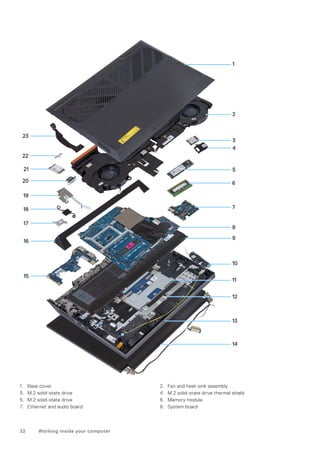
  • 13.
    Table 1. LocateDell apps Resources Description My Dell Centralized location for key Dell applications, help articles, and other important information about your computer. It also notifies you about the warranty status, recommended accessories, and software updates if available. SupportAssist SupportAssist proactively and predictively identifies hardware and software issues on your computer and automates the engagement process with Dell Technical support. It addresses performance and stabilization issues, prevents security threats, monitors, and detects hardware failures. For more information, see SupportAssist for Home PCs User's Guide at www.dell.com/ serviceabilitytools. Click SupportAssist and then, click SupportAssist for Home PCs. NOTE: In SupportAssist, click the warranty expiry date to renew or upgrade your warranty. Dell Update Updates your computer with critical fixes and latest device drivers as they become available. For more information on using Dell Update, search in the Knowledge Base Resource at www.dell.com/ support. Dell Digital Delivery Download software applications, which are purchased but not preinstalled on your computer. For more information on using Dell Digital Delivery, search in the Knowledge Base Resource at www.dell.com/support. Set up your Dell G15 5530 13
  • 14.
    Specifications of DellG15 5530 Dimensions and weight The following table lists the height, width, depth, and weight of your Dell G15 5530. Table 2. Dimensions and weight Description Values Height: Front height 21.28 mm (0.83 in.) Rear height 26.15 mm (1.02 in.) Width 357.26 mm (14.06 in.) Depth 274.52 mm (10.80 in.) Weight NOTE: The weight of your computer depends on the configuration ordered and manufacturing variability. 2.81 kg (6.20 lb) Processor The following table lists the details of the processors supported by your Dell G15 5530. 3 14 Specifications of Dell G15 5530
  • 15.
    Table 3. Processor DescriptionOption one Option two Option three Option four Processor type 13th Generation Intel Core i5-13450HX 13th Generation Intel Core i7-13650HX 13th Generation Intel Core i7-13700HX 13th Generation Intel Core i9-13900HX Processor wattage 55 W 55 W 55 W 55 W Processor total core count 10 14 16 24 Performance-cores 6 6 8 8 Efficient-cores 4 8 8 16 Processor total thread counts 16 20 24 32 NOTE: Intel® Hyper-Threading Technology is only available on Performance-cores. Performance-cores frequency Processor base frequency 2.40 GHz 2.60 GHz 2.10 GHz 2.20 GHz Maximum turbo frequency Up to 4.60 GHz Up to 4.90 GHz Up to 5 GHz Up to 5.40 GHz Efficient-cores frequency Processor base frequency 1.80 GHz 1.90 GHz 1.50 GHz 1.60 GHz Maximum turbo frequency 3.40 GHz 3.60 GHz 3.70 GHz 3.90 GHz NOTE: Processor clock speeds and thermal design power differ according to the thermal mode selected in the My Dell app on your computer. Processor cache 20 MB 24 MB 30 MB 36 MB Integrated graphics Intel UHD Graphics Intel UHD Graphics Intel UHD Graphics Intel UHD Graphics Chipset The following table lists the details of the chipset supported by your Dell G15 5530. Table 4. Chipset Description Values Chipset HM770 Processor 13th Generation Intel Core i5/i7/i9 DRAM bus width 64-bit Flash EPROM 32 MB PCIe bus Up to Gen4 Specifications of Dell G15 5530 15
  • 16.
    Operating system Your DellG15 5530 supports the following operating systems: ● Windows 11 Professional, 64-bit ● Windows 11 Home, 64-bit ● Ubuntu 20.04 LTS, 64-bit Memory The following table lists the memory specifications of your Dell G15 5530. Table 5. Memory specifications Description Values Memory slots Two-SODIMM slots Memory type DDR5 Memory speed 4800 Maximum memory configuration 32 GB Minimum memory configuration 8 GB Memory size per slot 8 GB or 16 GB Memory configurations supported ● 8 GB, 1 x 8 GB, DDR5, 4800 MHz ● 16 GB, 1 x 16 GB, DDR5, 4800 MHz ● 16 GB, 2 x 8 GB, DDR5, 4800 MHz, dual-channel ● 32 GB, 2 x 16 GB, DDR5, 4800 MHz, dual-channel External ports The following table lists the external ports of your Dell G15 5530. Table 6. External ports Description Values Network port One RJ-45 port USB ports ● Three USB 3.2 Gen 1 ports ● One USB 3.2 Gen 2 (Type-C) with DisplayPort Audio port One universal audio jack Video port One HDMI 2.1 port Media-card reader Not applicable Power-adapter port One 7.4 mm x 5.1 mm power-adapter port Security-cable slot Not supported 16 Specifications of Dell G15 5530
  • 17.
    Internal slots The followingtable lists the internal slots of your Dell G15 5530. Table 7. Internal slots Description Values M.2 ● One M.2 2230 slot for WiFi and Bluetooth combo card ● Two M.2 2230/2280 slots for solid-state drives NOTE: To learn more about the features of different types of M.2 cards, search in the Knowledge Base Resource at www.dell.com/support. Ethernet The following table lists the wired Ethernet Local Area Network (LAN) specifications of your Dell G15 5530. Table 8. Ethernet specifications Description Values Model number Realtek RTL8111H PCI-e 1 Gigabit ethernet controller Transfer rate 10/100/1000 Mbps Wireless module The following table lists the Wireless Local Area Network (WLAN) module that is supported on your Dell G15 5530. Table 9. Wireless module specifications Description Values Model number Intel AX201 Transfer rate 2400 Mbps Frequency bands supported 2.4 GHz/5 GHz Wireless standards ● WiFi 802.11a/b/g ● Wi-Fi 4 (WiFi 802.11n) ● Wi-Fi 5 (WiFi 802.11ac) ● Wi-Fi 6 (WiFi 802.11ax) Encryption ● 64-bit/128-bit WEP ● AES-CCMP ● TKIP Bluetooth wireless card Bluetooth 5.2 NOTE: The version of the Bluetooth wireless card may vary depending on the operating system that is installed on your computer. Specifications of Dell G15 5530 17
  • 18.
    Audio The following tablelists the audio specifications of your Dell G15 5530. Table 10. Audio specifications Description Values Audio controller Realtek ALC3204 Stereo conversion Supported Internal audio interface High definition audio External audio interface One universal audio jack Number of speakers Two Internal-speaker amplifier Supported External volume controls Keyboard shortcut controls Speaker output: Average speaker output 2 x 2 W = 4 W Peak speaker output 2 x 2.5 W = 5 W Subwoofer output Not supported Microphone One microphone in camera assembly Storage This section lists the storage options on your Dell G15 5530. Your Dell G15 5530 supports one of the following storage configurations: ● One M.2 2230 or M.2 2280 solid-state drive ● Two M.2 2230 or M.2 2280 solid-state drives The primary drive of your Dell G15 5530 is installed in solid-state drive slot one. Table 11. Storage specifications Storage type Interface type Capacity M.2 2230 solid-state drive PCIe NVMe Gen4 x4 Up to 1 TB M.2 2280 solid-state drive PCIe NVMe Gen4 x4 Up to 2 TB Keyboard The following table lists the keyboard specifications of your Dell G15 5530. Table 12. Keyboard specifications Description Values Keyboard type ● Single-color backlit (white) keyboard ● Single-color backlit (hot coral) keyboard 18 Specifications of Dell G15 5530
  • 19.
    Table 12. Keyboardspecifications (continued) Description Values ● Four-zone RGB backlit keyboard Keyboard layout QWERTY Number of keys ● United States and Canada: 101 keys ● United Kingdom: 102 keys ● Japan: 105 keys Keyboard size X=18.70 mm key pitch Y=18.05 mm key pitch Keyboard shortcuts Some keys on your keyboard have two symbols on them. These keys can be used to type alternate characters or to perform secondary functions. To type the alternate character, press Shift and the desired key. To perform secondary functions, press Fn and the desired key. NOTE: You can define the primary behavior of the function keys (F1–F12) changing Function Key Behavior in BIOS setup program. Keyboard shortcuts NOTE: Keyboard characters may differ depending on the keyboard language configuration. Keys that are used for shortcuts remain the same across all language configurations. Some keys on your keyboard have two symbols on them. These keys can be used to type alternate characters or to perform secondary functions. The symbol shown on the lower part of the key refers to the character that is typed out when the key is pressed. If you press shift and the key, the symbol shown on the upper part of the key is typed out. For example, if you press 2, 2 is typed out; if you press Shift + 2, @ is typed out. The keys F1-F12 at the top row of the keyboard are function keys for multi-media control, as indicated by the icon at the bottom of the key. Press the function key to invoke the task represented by the icon. For example, pressing F1 mutes the audio (refer to the table below). However, if the function keys F1-F12 are needed for specific software applications, multi-media functionality can be disabled by pressing fn + Esc. Subsequently, multi-media control can be invoked by pressing fn and the respective function key. For example, mute audio by pressing fn + F1. NOTE: You can also define the primary behavior of the function keys (F1–F12) by changing Function Key Behavior in BIOS setup program. Table 13. List of keyboard shortcuts Keys Description Launch Windows Connect to display connected Bluetooth devices Adjust keyboard backlight brightness Switch to external display Disable/enable Game Shift Decrease display brightness Specifications of Dell G15 5530 19
  • 20.
    Table 13. Listof keyboard shortcuts (continued) Keys Description Increase display brightness Disable/enable touchpad Your computer comes with pre-programmable macro keys that enable you to perform multiple actions with a single key press. Table 14. List of Macro keys Keys Description Macro keys NOTE: You can configure modes and assign multiple tasks for the macro keys on the keyboard. Your computer comes with dedicated keys that enable you to control audio features of the computer with a single key press. Table 15. List of keys to control audio features Keys Description Mute microphone Mute speakers Increase volume Decrease volume Camera The following table lists the camera specifications of your Dell G15 5530. Table 16. Camera specifications Description Values Number of cameras One Camera type HD RGB camera Camera location Front camera Camera sensor type CMOS sensor technology Camera resolution: Still image 0.92 megapixel 20 Specifications of Dell G15 5530
  • 21.
    Table 16. Cameraspecifications (continued) Description Values Video 1280 x 720 (HD) at 30 fps Diagonal viewing angle: 78.6 degrees Touchpad The following table lists the touchpad specifications of your Dell G15 5530. Table 17. Touchpad specifications Description Values Touchpad resolution: Horizontal 1229 Vertical 689 Touchpad dimensions: Horizontal 105 mm (4.13 in.) Vertical 60 mm (2.36 in.) Touchpad gestures For more information about touchpad gestures available on: ● Windows, see the Microsoft knowledge base article at support.microsoft.com ● Ubuntu, see ubuntu.com/support Power adapter The following table lists the power adapter specifications of your Dell G15 5530. Table 18. Power adapter specifications Description Option one Option two Type 240 W 330 W Connector dimensions: External diameter 7.40 mm (0.29 in.) 7.40 mm (0.29 in.) Internal diameter 5.10 mm (0.20 in.) 5.10 mm (0.20 in.) Power-adapter dimensions: Height 25.40 mm (1 in.) 43 mm (1.69 in.) Width 100 mm (3.94 in.) 100 mm (3.94 in.) Depth 200 mm (7.87 in.) 200 mm (7.87 in.) Input voltage 100 VAC x 240 VAC 100 VAC x 240 VAC Input frequency 50 Hz x 60 Hz 50 Hz x 60 Hz Specifications of Dell G15 5530 21
  • 22.
    Table 18. Poweradapter specifications (continued) Description Option one Option two Input current (maximum) 3.50 A 4.40 A Output current (continuous) 12.31 A 16.92 A Rated output voltage 19.50 VDC 19.50 VDC Temperature range: Operating 0°C to 40°C (32°F to 104°F) 0°C to 40°C (32°F to 104°F) Storage -40°C to 70°C (-40°F to 158°F) -40°C to 70°C (-40°F to 158°F) CAUTION: Operating and storage temperature ranges may differ among components, so operating or storing the device outside these ranges may impact the performance of specific components. Battery The following table lists the battery specifications of your Dell G15 5530. Table 19. Battery specifications Description Option one Option two Battery type 3-cell, 56 Wh, Lithium-ion, ExpressCharge Boost 6-cell, 86 Wh, Lithium-ion, ExpressCharge Boost Battery voltage 11.40 VDC 11.40 VDC Battery weight (maximum) 0.25 Kg (0.56 lb) 0.34 kg (0.75 lb) Battery dimensions: Height 7.56 mm (0.30 in.) 7.56 mm (0.30 in.) Width 77.70 mm (3.06 in.) 77.70 mm (3.06 in.) Depth 295.20 mm (11.62 in.) 295.20 mm (11.62 in.) Temperature range: Operating ● Charge: 0°C to 50°C (32°F to 122°F) ● Discharge: 0°C to 60°C (32°F to 140°F) ● Charge: 0°C to 50°C (32°F to 122°F) ● Discharge: 0°C to 60°C (32°F to 140°F) Storage –20°C to 65°C (-4°F to 149°F) –20°C to 65°C (-4°F to 149°F) Battery operating time Varies depending on operating conditions and can significantly reduce under certain power-intensive conditions. Varies depending on operating conditions and can significantly reduce under certain power-intensive conditions. Battery charging time (approximate) NOTE: Control the charging time, duration, start and end time, and so on using the Dell Power Manager application. For more information about Dell Power Manager, search ● Express Charge Method: 2 hours ● Standard Charge/Predominately AC User Charge Method: 3 hours ● Express Charge Boost Charge Method (Fast Charge for Initial ● Express Charge Method: 2 hours ● Standard Charge/Predominately AC User Charge Method: 3 hours ● Express Charge Boost Charge Method (Fast Charge for Initial 35%): From 0% up to 35% in as little as 20 minutes 22 Specifications of Dell G15 5530
  • 23.
    Table 19. Batteryspecifications (continued) Description Option one Option two in the Knowledge Base Resource at www.dell.com/support. 35%): From 0% up to 35% in as little as 20 minutes Coin-cell battery Not supported Not supported CAUTION: Operating and storage temperature ranges may differ among components, so operating or storing the device outside these ranges may impact the performance of specific components. CAUTION: Dell recommends that you charge the battery regularly for optimal power consumption. If your battery charge is completely depleted, connect the power adapter, turn on your computer, and then restart your computer to reduce the power consumption. Display The following table lists the display specifications of your Dell G15 5530. Table 20. Display specifications Description Option one Option two Option three Option four Display type Full High Definition (FHD) Full High Definition (FHD), ComfortView Plus Full High Definition (FHD), ComfortView Plus Quad-High Definition (QHD), ComfortView Plus Touch options No No No No Display-panel technology Wide-Viewing Angle (WVA) Wide-Viewing Angle (WVA) Wide-Viewing Angle (WVA) Wide-Viewing Angle (WVA) Display-panel dimensions (active area): Height 193.59 mm (7.62 in.) 193.59 mm (7.62 in.) 193.59 mm (7.62 in.) 193.59 mm (7.62 in.) Width 344.16 mm (13.55 in.) 344.16 mm (13.55 in.) 344.16 mm (13.55 in.) 344.16 mm (13.55 in.) Diagonal 395 mm (15.60 in.) 395 mm (15.60 in.) 394.87 mm (15.60 in.) 394.87 mm (15.60 in.) Display-panel native resolution 1920 x 1080 1920 x 1080 1920 x 1080 2560 x 1440 Luminance (typical) 250 nits 300 nits 300 nits 400 nits Megapixels 2.07 2.07 2.07 3.68 Color gamut 45% NTSC (typical) 100% sRGB (typical) 100% sRGB (typical) 99% DCI-P3 (typical) Pixels Per Inch (PPI) 141 141 141 188 Contrast ratio ● 600:1 (minimum) ● 800:1 (typical) ● 800:1 (minimum) ● 1000:1 (typical) ● 800:1 (minimum) ● 1000:1 (typical) ● 800:1 (minimum) ● 1000:1 (typical) Response time ● Tr+Tf: 25 ms (typical) ● Tr+Tf: 35 ms (maximum) ● GtG with Overdrive: 3 ms (typical) ● GtG without Overdrive: 8 ms (typical) GtG with Overdrive: 1 ms (typical) GtG with Overdrive: 2 ms (typical) Specifications of Dell G15 5530 23
  • 24.
    Table 20. Displayspecifications (continued) Description Option one Option two Option three Option four Refresh rate 120 Hz 165 Hz 360 Hz 240 Hz Horizontal view angle +/- 85 degrees (typical) +/- 85 degrees (typical) +/- 85 degrees (typical) +/- 85 degrees (typical) Vertical view angle +/- 85 degrees (typical) +/- 85 degrees (typical) +/- 85 degrees (typical) +/- 85 degrees (typical) Pixel pitch 0.17925 mm x 0.17925 mm 0.17925 mm x 0.17925 mm 0.17925 mm x 0.17925 mm 0.13446 mm x 0.13446 mm Power consumption (maximum) 4.60 W 6 W 7.60 W 8.55 W Anti-glare vs glossy finish Anti-glare Anti-glare Anti-glare Anti-glare GPU—Integrated The following table lists the specifications of the integrated Graphics Processing Unit (GPU) supported by your Dell G15 5530. Table 21. GPU—Integrated Controller Memory size Processor Intel UHD Graphics Shared system memory 13th Generation Intel Core i5/i7/i9 GPU—Discrete The following table lists the specifications of the discrete Graphics Processing Unit (GPU) supported by your Dell G15 5530. Table 22. GPU—Discrete Controller Memory size Memory type NVIDIA GeForce RTX 3050 6 GB DDR6 NVIDIA GeForce RTX 4050 6 GB DDR6 NVIDIA GeForce RTX 4060 8 GB DDR6 Operating and storage environment This table lists the operating and storage specifications of your Dell G15 5530. Airborne contaminant level: G1 as defined by ISA-S71.04-1985 Table 23. Computer environment Description Operating Storage Temperature range 0°C to 35°C (32°F to 95°F) -40°C to 65°C (-40°F to 149°F) Relative humidity (maximum) 10% to 90% (non-condensing) 0% to 95% (non-condensing) Vibration (maximum)* 0.66 GRMS 1.30 GRMS 24 Specifications of Dell G15 5530
  • 25.
    Table 23. Computerenvironment (continued) Description Operating Storage Shock (maximum) 110 G† 160 G† Altitude range -15.2 m to 3048 m (4.64 ft to 5518.4 ft) -15.2 m to 10668 m (4.64 ft to 19234.4 ft) CAUTION: Operating and storage temperature ranges may differ among components, so operating or storing the device outside these ranges may impact the performance of specific components. * Measured using a random vibration spectrum that simulates user environment. † Measured using a 2 ms half-sine pulse. ComfortView Plus WARNING: Prolonged exposure to blue light from the display may lead to long-term effects such as eye strain, eye fatigue, or damage to the eyes. Blue light is a color in the light spectrum which has a short wavelength and high energy. Chronic exposure to blue light, particularly from digital sources, may disrupt sleep patterns and cause long-term effects such as eye strain, eye fatigue, or damage to the eyes. The display on this computer is designed to minimize blue light and complies with TÜV Rheinland's requirement for low blue light displays. Low blue light mode is enabled at the factory, so no further configuration is necessary. To reduce the risk of eye strain, it is also recommended that you: ● Position the display at a comfortable viewing distance between 20 and 28 inches (50 and 70 cm) from your eyes. ● Blink frequently to moisten your eyes, wet your eyes with water, or apply suitable eye drops. ● Look away from your display, and gaze at a distant object at 20 ft (609.60 cm) away for at least 20 seconds during each break. ● Take an extended break for 20 minutes every two hours. Specifications of Dell G15 5530 25
  • 26.
    Working inside yourcomputer Safety instructions Use the following safety guidelines to protect your computer from potential damage and to ensure your personal safety. Unless otherwise noted, each procedure included in this document assumes that you have read the safety information that shipped with your computer. WARNING: Before working inside your computer, read the safety information that is shipped with your computer. For more safety best practices, see the Regulatory Compliance home page at www.dell.com/ regulatory_compliance. WARNING: Disconnect your computer from all power sources before opening the computer cover or panels. After you finish working inside the computer, replace all covers, panels, and screws before connecting your computer to an electrical outlet. CAUTION: To avoid damaging the computer, ensure that the work surface is flat, dry, and clean. CAUTION: To avoid damaging the components and cards, handle them by their edges, and avoid touching the pins and the contacts. CAUTION: You should only perform troubleshooting and repairs as authorized or directed by the Dell technical assistance team. Damage due to servicing that is not authorized by Dell is not covered by your warranty. See the safety instructions that is shipped with the product or at www.dell.com/regulatory_compliance. CAUTION: Before touching anything inside your computer, ground yourself by touching an unpainted metal surface, such as the metal at the back of the computer. While you work, periodically touch an unpainted metal surface to dissipate static electricity which could harm internal components. CAUTION: When you disconnect a cable, pull it by its connector or its pull tab, not the cable itself. Some cables have connectors with locking tabs or thumbscrews that you must disengage before disconnecting the cable. When disconnecting cables, keep them evenly aligned to avoid bending the connector pins. When connecting cables, ensure that the ports and the connectors are correctly oriented and aligned. CAUTION: Press and eject any installed card from the media-card reader. CAUTION: Exercise caution when handling rechargeable Li-ion batteries in laptops. Swollen batteries should not be used and should be replaced and disposed properly. NOTE: The color of your computer and certain components may appear differently than shown in this document. Before working inside your computer About this task NOTE: The images in this document may differ from your computer depending on the configuration you ordered. Steps 1. Save and close all open files and exit all open applications. 2. Shut down your computer. For Windows operating system, click Start > Power > Shut down. 4 26 Working inside your computer
  • 27.
    NOTE: If youare using a different operating system, see the documentation of your operating system for shut-down instructions. 3. Disconnect your computer and all attached devices from their electrical outlets. 4. Disconnect all attached network devices and peripherals, such as keyboard, mouse, and monitor from your computer. CAUTION: To disconnect a network cable, first unplug the cable from your computer and then unplug the cable from the network device. 5. Remove any media card and optical disc from your computer, if applicable. Safety precautions The safety precautions chapter details the primary steps to be taken before performing any disassembly instructions. Observe the following safety precautions before you perform any installation or break/fix procedures involving disassembly or reassembly: ● Turn off the system and all attached peripherals. ● Disconnect the system and all attached peripherals from AC power. ● Disconnect all network cables, telephone, and telecommunications lines from the system. ● Use an ESD field service kit when working inside any to avoid electrostatic discharge (ESD) damage. ● After removing any system component, carefully place the removed component on an anti-static mat. ● Wear shoes with non-conductive rubber soles to reduce the chance of getting electrocuted. Standby power Dell products with standby power must be unplugged before you open the case. Systems that incorporate standby power are essentially powered while turned off. The internal power enables the system to be remotely turned on (wake on LAN) and suspended into a sleep mode and has other advanced power management features. Unplugging, pressing, and holding the power button for 15 seconds should discharge residual power in the system board. Bonding Bonding is a method for connecting two or more grounding conductors to the same electrical potential. This is done through the use of a field service electrostatic discharge (ESD) kit. When connecting a bonding wire, ensure that it is connected to bare metal and never to a painted or non-metal surface. The wrist strap should be secure and in full contact with your skin, and ensure that you remove all jewelry such as watches, bracelets, or rings prior to bonding yourself and the equipment. Electrostatic discharge—ESD protection ESD is a major concern when you handle electronic components, especially sensitive components such as expansion cards, processors, memory DIMMs, and system boards. Very slight charges can damage circuits in ways that may not be obvious, such as intermittent problems or a shortened product life span. As the industry pushes for lower power requirements and increased density, ESD protection is an increasing concern. Due to the increased density of semiconductors used in recent Dell products, the sensitivity to static damage is now higher than in previous Dell products. For this reason, some previously approved methods of handling parts are no longer applicable. Two recognized types of ESD damage are catastrophic and intermittent failures. ● Catastrophic – Catastrophic failures represent approximately 20 percent of ESD-related failures. The damage causes an immediate and complete loss of device functionality. An example of catastrophic failure is a memory DIMM that has received a static shock and immediately generates a "No POST/No Video" symptom with a beep code emitted for missing or nonfunctional memory. ● Intermittent – Intermittent failures represent approximately 80 percent of ESD-related failures. The high rate of intermittent failures means that most of the time when damage occurs, it is not immediately recognizable. The DIMM receives a static shock, but the tracing is merely weakened and does not immediately produce outward symptoms related to the damage. The weakened trace may take weeks or months to melt, and in the meantime may cause degradation of memory integrity, intermittent memory errors, etc. Working inside your computer 27
  • 28.
    The more difficulttype of damage to recognize and troubleshoot is the intermittent (also called latent or "walking wounded") failure. Perform the following steps to prevent ESD damage: ● Use a wired ESD wrist strap that is properly grounded. The use of wireless anti-static straps is no longer allowed; they do not provide adequate protection. Touching the chassis before handling parts does not ensure adequate ESD protection on parts with increased sensitivity to ESD damage. ● Handle all static-sensitive components in a static-safe area. If possible, use anti-static floor pads and workbench pads. ● When unpacking a static-sensitive component from its shipping carton, do not remove the component from the anti-static packing material until you are ready to install the component. Before unwrapping the anti-static packaging, ensure that you discharge static electricity from your body. ● Before transporting a static-sensitive component, place it in an anti-static container or packaging. ESD field service kit The unmonitored Field Service kit is the most commonly used service kit. Each Field Service kit includes three main components: anti-static mat, wrist strap, and bonding wire. Components of an ESD field service kit The components of an ESD field service kit are: ● Anti-Static Mat – The anti-static mat is dissipative and parts can be placed on it during service procedures. When using an anti-static mat, your wrist strap should be snug and the bonding wire should be connected to the mat and to any bare metal on the system being worked on. Once deployed properly, service parts can be removed from the ESD bag and placed directly on the mat. ESD-sensitive items are safe in your hand, on the ESD mat, in the system, or inside a bag. ● Wrist Strap and Bonding Wire – The wrist strap and bonding wire can be either directly connected between your wrist and bare metal on the hardware if the ESD mat is not required, or connected to the anti-static mat to protect hardware that is temporarily placed on the mat. The physical connection of the wrist strap and bonding wire between your skin, the ESD mat, and the hardware is known as bonding. Use only Field Service kits with a wrist strap, mat, and bonding wire. Never use wireless wrist straps. Always be aware that the internal wires of a wrist strap are prone to damage from normal wear and tear, and must be checked regularly with a wrist strap tester in order to avoid accidental ESD hardware damage. It is recommended to test the wrist strap and bonding wire at least once per week. ● ESD Wrist Strap Tester – The wires inside of an ESD strap are prone to damage over time. When using an unmonitored kit, it is a best practice to regularly test the strap prior to each service call, and at a minimum, test once per week. A wrist strap tester is the best method for doing this test. If you do not have your own wrist strap tester, check with your regional office to find out if they have one. To perform the test, plug the wrist-strap's bonding-wire into the tester while it is strapped to your wrist and push the button to test. A green LED is lit if the test is successful; a red LED is lit and an alarm sounds if the test fails. ● Insulator Elements – It is critical to keep ESD sensitive devices, such as plastic heat sink casings, away from internal parts that are insulators and often highly charged. ● Working Environment – Before deploying the ESD Field Service kit, assess the situation at the customer location. For example, deploying the kit for a server environment is different than for a desktop or portable environment. Servers are typically installed in a rack within a data center; desktops or portables are typically placed on office desks or cubicles. Always look for a large open flat work area that is free of clutter and large enough to deploy the ESD kit with additional space to accommodate the type of system that is being repaired. The workspace should also be free of insulators that can cause an ESD event. On the work area, insulators such as Styrofoam and other plastics should always be moved at least 12 inches or 30 centimeters away from sensitive parts before physically handling any hardware components ● ESD Packaging – All ESD-sensitive devices must be shipped and received in static-safe packaging. Metal, static-shielded bags are preferred. However, you should always return the damaged part using the same ESD bag and packaging that the new part arrived in. The ESD bag should be folded over and taped shut and all the same foam packing material should be used in the original box that the new part arrived in. ESD-sensitive devices should be removed from packaging only at an ESD-protected work surface, and parts should never be placed on top of the ESD bag because only the inside of the bag is shielded. Always place parts in your hand, on the ESD mat, in the system, or inside an anti-static bag. ● Transporting Sensitive Components – When transporting ESD sensitive components such as replacement parts or parts to be returned to Dell, it is critical to place these parts in anti-static bags for safe transport. 28 Working inside your computer
  • 29.
    ESD protection summary Itis recommended to use the traditional wired ESD grounding wrist strap and protective anti-static mat at all times when servicing Dell products. In addition, it is critical to keep sensitive parts separate from all insulator parts while performing service and that they use anti-static bags for transporting sensitive components. Transporting sensitive components When transporting ESD sensitive components such as replacement parts or parts to be returned to Dell, it is critical to place these parts in anti-static bags for safe transport. After working inside your computer About this task NOTE: Leaving stray or loose screws inside your computer may severely damage your computer. Steps 1. Replace all screws and ensure that no stray screws remain inside your computer. 2. Connect any external devices, peripherals, or cables you removed before working on your computer. 3. Replace any media cards, discs, or any other parts that you removed before working on your computer. 4. Connect your computer and all attached devices to their electrical outlets. 5. Turn on your computer. BitLocker CAUTION: If BitLocker is not suspended before updating the BIOS, the next time you reboot the system it will not recognize the BitLocker key. You will then be prompted to enter the recovery key to progress, and the system will ask for this on each reboot. If the recovery key is not known this can result in data loss or an unnecessary operating system reinstall. For more information about this subject, see Knowledge Article: updating the BIOS on Dell systems with BitLocker enabled. The installation of the following components triggers BitLocker: ● Hard disk drive or solid state drive ● System board Recommended tools The procedures in this document may require the following tools: ● Phillips screwdriver #0 ● Phillips screwdriver #1 ● Plastic scribe Screw list NOTE: When removing screws from a component, it is recommended to note the screw type, the quantity of screws, and then place them in a screw storage box. This is to ensure that the correct number of screws and correct screw type is restored when the component is replaced. NOTE: Some computers have magnetic surfaces. Ensure that the screws are not left attached to such surfaces when replacing a component. Working inside your computer 29
  • 30.
    NOTE: Screw colormay vary with the configuration ordered. Table 24. Screw list Component Screw type Quantity Screw image Base cover M2x5 6 Battery M2x4 4 Solid-state drive (SSD slot 1) M2x4 2 Solid-state drive (SSD slot 2) M2x4 2 Wireless card M2x4 1 Touchpad bracket M2x2 3 Touchpad M2x2 4 Rear cover M2x4 2 Rear cover M2x5 4 Display hinges M2.5x4 8 Keyboard-controller board M2x2 1 Power-adapter port M2x5 2 System board M2x5 7 System board M2x4 1 USB board M2x4 2 USB board M2x3 1 Ethernet and audio board M2x4 2 Ethernet and audio board M2x3 1 30 Working inside your computer
  • 31.
    Table 24. Screwlist (continued) Component Screw type Quantity Screw image Left fan (fan and heat-sink assembly) M2x4 1 Fan and heat-sink assembly M2x4 6 Power-button board bracket M2x2 2 Power button M2x2 1 Major components of Dell G15 5530 The following image shows the major components of Dell G15 5530. Working inside your computer 31
  • 32.
    1. Base cover2. Fan and heat-sink assembly 3. M.2 solid-state drive 4. M.2 solid-state drive thermal shield 5. M.2 solid-state drive 6. Memory module 7. Ethernet and audio board 8. System board 32 Working inside your computer
  • 33.
    9. Battery 10.Speakers 11. Touchpad 12. Touchpad bracket 13. Palm-rest and keyboard assembly 14. Display assembly 15. USB board 16. Rear cover 17. Power-adapter port bracket 18. Power button 19. Power-button board 20. Type-C bracket 21. Wireless card 22. Wireless-card bracket 23. Power-adapter port NOTE: Dell provides a list of components and their part numbers for the original system configuration purchased. These parts are available according to warranty coverages purchased by the customer. Contact your Dell sales representative for purchase options. Working inside your computer 33
  • 34.
    Removing and installingCustomer Replaceable Units (CRUs) The replaceable components in this chapter are Customer Replaceable Units (CRUs). CAUTION: Customers can replace only the Customer Replaceable Units (CRUs) following the safety precautions and replacement procedures. NOTE: The images in this document may differ from your computer depending on the configuration you ordered. Base cover Removing the base cover Prerequisites 1. Follow the procedure in Before working inside your computer. About this task The following images indicate the location of the base cover and provide a visual representation of the removal procedure. 5 34 Removing and installing Customer Replaceable Units (CRUs)
  • 35.
    Removing and installingCustomer Replaceable Units (CRUs) 35
  • 36.
    Steps 1. Remove thesix screws (M2x5) that secure the base cover to the palm-rest and keyboard assembly. 2. Loosen the four captive screws that secure the base cover to the palm-rest and keyboard assembly. NOTE: Loosening the two captive screws located in the front of the computer creates a gap which can be used to pry and lift the base cover off the palm-rest and keyboard assembly. 3. Starting from the gap created at the left-bottom corner, pry open the base cover. Work your way around the bottom edge and bottom-right corner of the base cover. 4. Lift the base cover off the palm-rest and keyboard assembly. NOTE: The following steps are applicable only if you want to further remove any other component from your computer. 5. Using the pull tab, disconnect the battery cable from the system board. 6. Turn your computer over and press the power button for 20 seconds to drain the flea power. 36 Removing and installing Customer Replaceable Units (CRUs)
  • 37.
    Installing the basecover Prerequisites If you are replacing a component, remove the existing component before performing the installation procedure. About this task The following images indicate the location of the base cover and provide a visual representation of the installation procedure. Removing and installing Customer Replaceable Units (CRUs) 37
  • 38.
    38 Removing andinstalling Customer Replaceable Units (CRUs)
  • 39.
    Steps 1. Connect thebattery cable to the system board, if the battery cable had been previously disconnected. 2. Align the screw holes on the base cover with the screw holes on the palm-rest and keyboard assembly, and then snap the base cover into place. 3. Replace the six screws (M2x5) that secure the base cover to the palm-rest and keyboard assembly. 4. Tighten the four captive screws that secure the base cover to the palm-rest and keyboard assembly. Next steps 1. Follow the procedure in After working inside your computer. Solid-state drive Removing the solid-state drive Prerequisites 1. Follow the procedure in Before working inside your computer. 2. Remove the base cover. About this task NOTE: Your computer has two M.2 solid-state drive slots, both located on the system board adjacent to the left fan. The procedure to remove a solid-state drive from slot 1 and slot 2 are exactly the same. NOTE: Depending on the configuration ordered, a 2230 or 2280 solid-state drive may be installed in your computer. The following image(s) indicates the location of M.2 2230 solid-state drive or the M.2 2280 solid-state drive and provides a visual representation of their respective removal procedures. Removing the M.2 2230 solid-state drive Removing the M.2 2280 solid-state drive Removing and installing Customer Replaceable Units (CRUs) 39
  • 40.
    Steps 1. Remove thetwo screws (M2x4) that secure the thermal shield to the solid-state drive and the system board. 2. Lift the thermal shield off the palm-rest and keyboard assembly. 3. Slide and lift the solid-state drive off the M.2 slot on the system board. Installing the solid-state drive Prerequisites If you are replacing a component, remove the existing component before performing the installation procedure. About this task NOTE: Your computer has two M.2 solid-state drive slots, both located on the system board adjacent to the left fan. The procedure to remove a solid-state drive from slot 1 and slot 2 are exactly the same. NOTE: Depending on the configuration ordered, a M.2 2230 or 2280 solid-state drive may be installed into both slot 1 and 2. If you are installing a solid-state drive into slot 2 by yourself, only a M.2 2280 SSD, paired with a Dell thermal shield is recommended. The following image(s) indicates the location of the M.2 2230 solid-state drive or the M.2 2280 solid-state drive and provides a visual representation of their respective installation procedures. Installing the M.2 2230 solid-state drive 40 Removing and installing Customer Replaceable Units (CRUs)
  • 41.
    Installing the M.22280 solid-state drive Steps 1. Align the notch on the solid-state drive with the tab on the M.2 card slot. 2. Slide the solid-state drive into the M.2 card slot. 3. Place the thermal shield on the solid-state drive. 4. Align the screw holes on the thermal shield with the screw holes on the solid-state drive and system board. 5. Replace the two screws (M2x4) that secure the thermal shield to the solid-state drive and the system board. Removing and installing Customer Replaceable Units (CRUs) 41
  • 42.
    Next steps 1. Installthe base cover. 2. Follow the procedure in After working inside your computer. Wireless card Removing the wireless card Prerequisites 1. Follow the procedure in Before working inside your computer. 2. Remove the base cover. About this task The following image indicates the location of the wireless card and provides a visual representation of the removal procedure. Steps 1. Remove the screw (M2x4) that secures the wireless card to the system board. 2. Lift the bracket off the wireless card. 3. Disconnect the antenna cables from the wireless card. 4. Slide and remove the wireless card from the M.2 wireless card slot. 42 Removing and installing Customer Replaceable Units (CRUs)
  • 43.
    Installing the wirelesscard Prerequisites If you are replacing a component, remove the existing component before performing the installation procedure. About this task The following image indicates the location of the wireless card and provides a visual representation of the installation procedure. Steps 1. Connect the antenna cables to the wireless card. The following table provides the antenna-cable color scheme for the wireless card supported by your computer. Table 25. Antenna-cable color scheme Connectors on the wireless card Antenna-cable color Main (white triangle) White Auxiliary (black triangle) Black 2. Align the notch on the wireless card with the tab on the M.2 wireless card slot and insert the wireless card at an angle into the M.2 card slot. 3. Place and align the wireless-card bracket on the wireless card. 4. Replace the screw (M2x4) that secures the wireless card to the system board. Removing and installing Customer Replaceable Units (CRUs) 43
  • 44.
    Next steps 1. Installthe base cover. 2. Follow the procedure in After working inside your computer. Memory Removing the memory module Prerequisites 1. Follow the procedure in Before working inside your computer. 2. Remove the base cover. About this task The following image indicates the location of the memory modules and provides a visual representation of the removal procedure. Steps 1. Use your fingertips to carefully spread apart the securing-clips on each end of the memory-module slot until the memory module pops up. 2. Remove the memory module from the memory-module slot. NOTE: Repeat step 1 and step 2 if there is a second memory module installed on your computer. Installing the memory module Prerequisites If you are replacing a component, remove the existing component before performing the installation procedure. 44 Removing and installing Customer Replaceable Units (CRUs)
  • 45.
    About this task Thefollowing image indicates the location of the memory module and provides a visual representation of the installation procedure. Steps 1. Align the notch on the memory module with the tab on the memory-module slot. 2. Slide the memory module into the memory-module slot. 3. Press the memory module down until it clicks into place. NOTE: If you do not hear the click, remove the memory module and reinstall it. NOTE: Repeat step 1 to step 3 to install a second memory module into your computer, if applicable. Next steps 1. Install the base cover. 2. Follow the procedure in After working inside your computer. Speakers Removing the speakers Prerequisites 1. Follow the procedure in Before working inside your computer. 2. Remove the base cover. About this task The following image indicates the location of the speakers and provides a visual representation of the removal procedure. Removing and installing Customer Replaceable Units (CRUs) 45
  • 46.
    Steps 1. Disconnect thespeaker cable from the ethernet and audio board. 2. Remove the speaker cable from the routing guides along the bottom edge of the palm-rest and keyboard assembly. 3. Lift the speakers, along with its cable, off the palm-rest and keyboard assembly. Installing the speakers Prerequisites If you are replacing a component, remove the existing component before performing the installation procedure. About this task The following image indicates the location of the speakers and provides a visual representation of the installation procedure. 46 Removing and installing Customer Replaceable Units (CRUs)
  • 47.
    Steps 1. Using thealignment posts and rubber grommets, place the speakers in the slots on the palm-rest and keyboard assembly NOTE: If the rubber grommets are pushed out of the speakers when removing the speakers, push them back in place before replacing the speakers. 2. Connect the speaker cable to the ethernet and audio board. 3. Route the speaker cable through the routing guides on the palm-rest and keyboard assembly. Next steps 1. Install the base cover. 2. Follow the procedure in After working inside your computer. Rear cover Removing the rear cover Prerequisites 1. Follow the procedure in Before working inside your computer. 2. Remove the base cover. About this task The following image indicates the location of the rear cover and provides a visual representation of the removal procedure. Removing and installing Customer Replaceable Units (CRUs) 47
  • 48.
    Steps 1. Remove thetwo screws (M2x4) that secure the rear cover to the system board. 2. Remove the four screws (M2x5) that secure the rear cover to the palm-rest and keyboard assembly. 3. Push the rear cover away from the system board and lift it off the palm-rest and keyboard assembly. Installing the rear cover Prerequisites If you are replacing a component, remove the existing component before performing the installation procedure. About this task The following image indicates the location of the rear cover and provides a visual representation of the installation procedure. 48 Removing and installing Customer Replaceable Units (CRUs)
  • 49.
    Steps 1. Slide therear cover towards the system board till it snaps into place. 2. Align the screw holes on the rear cover with the screw holes on the palm-rest and keyboard assembly. 3. Replace the four screws (M2x5) that secure the rear cover to the system board. 4. Replace the two screws (M2x4) that secure the rear cover to the palm-rest and keyboard assembly. Next steps 1. Install the base cover. 2. Follow the procedure in After working inside your computer. Removing and installing Customer Replaceable Units (CRUs) 49
  • 50.
    Removing and installingField Replaceable Units (FRUs) The replaceable components in this chapter are Field Replaceable Units (FRUs). CAUTION: The information in this section is intended for authorized service technicians only. CAUTION: To avoid any potential damage to the component or loss of data, ensure that an authorized service technician replaces the Field Replaceable Units (FRUs). CAUTION: Dell Technologies recommends that this set of repairs, if needed, to be conducted by trained technical repair specialists. CAUTION: As a reminder, your warranty does not cover damages that may occur during the courses of FRU repairs that are not authorized by Dell Technologies. NOTE: The images in this document may differ from your computer depending on the configuration you ordered. Battery Rechargeable Li-ion battery precautions CAUTION: ● Exercise caution when handling rechargeable Li-ion batteries. ● Discharge the battery completely before removing it. Disconnect the AC power adapter from the system and operate the computer solely on battery power—the battery is fully discharged when the computer no longer turns on when the power button is pressed. ● Do not crush, drop, mutilate, or penetrate the battery with foreign objects. ● Do not expose the battery to high temperatures, or disassemble battery packs and cells. ● Do not apply pressure to the surface of the battery. ● Do not bend the battery. ● Do not use tools of any kind to pry on or against the battery. ● Ensure any screws during the servicing of this product are not lost or misplaced, to prevent accidental puncture or damage to the battery and other system components. ● If the battery gets stuck inside your computer as a result of swelling, do not try to release it as puncturing, bending, or crushing a rechargeable Li-ion battery can be dangerous. In such an instance, contact Dell technical support for assistance. See www.dell.com/contactdell. ● Always purchase genuine batteries from www.dell.com or authorized Dell partners and resellers. ● Swollen batteries should not be used and should be replaced and disposed properly. For guidelines on how to handle and replace swollen rechargeable Li-ion batteries, see Handling swollen rechargeable Li-ion batteries. Removing the battery Prerequisites 1. Follow the procedure in Before working inside your computer. 2. Remove the base cover. 6 50 Removing and installing Field Replaceable Units (FRUs)
  • 51.
    About this task Thefollowing image indicates the location of the battery and provides a visual representation of the removal procedure. Steps 1. Using the pull tab, disconnect the battery cable from the system board, if it is not previously disconnected. 2. Remove the four screws (M2x4) that secure the battery to the palm-rest and keyboard assembly. Removing and installing Field Replaceable Units (FRUs) 51
  • 52.
    3. Lift thebattery at a 45 degree angle and remove it from the palm-rest and keyboard assembly. Installing the battery Prerequisites If you are replacing a component, remove the existing component before performing the installation procedure. About this task The following image indicates the location of the battery and provides a visual representation of the installation procedure. 52 Removing and installing Field Replaceable Units (FRUs)
  • 53.
    Steps 1. At a45 degree angle, slide the battery into the slot on the palm-rest and keyboard assembly. 2. Align the screw holes on the battery with the screw holes on the palm-rest and keyboard assembly. 3. Replace the four screws (M2x4) that secure the battery to the palm-rest and keyboard assembly. 4. Connect the battery cable to the system board. 5. Adhere the tape to secure the battery cable to the system board. Next steps 1. Install the base cover. 2. Follow the procedure in After working inside your computer. Touchpad Removing the touchpad Prerequisites 1. Follow the procedure in Before working inside your computer. 2. Remove the base cover. 3. Remove the battery. About this task The following image indicates the location of the touchpad and provides a visual representation of the removal procedure. Removing and installing Field Replaceable Units (FRUs) 53
  • 54.
    Steps 1. Open thelatch and disconnect the touchpad cable from the system board. 2. Remove the three (M2x2) screws that secure the touchpad bracket to the palm-rest and keyboard assembly. 3. Lift the touchpad bracket off the touchpad. 4. Remove the four (M2x2) screws that secure the touchpad to the palm-rest and keyboard assembly. 5. Lift the touchpad off the palm-rest and keyboard assembly. Installing the touchpad Prerequisites If you are replacing a component, remove the existing component before performing the installation procedure. About this task The following image indicates the location of the touchpad and provides a visual representation of the installation procedure. 54 Removing and installing Field Replaceable Units (FRUs)
  • 55.
    Steps 1. Align andplace the touchpad into the slot on the palm-rest and keyboard assembly. 2. Replace the four (M2x2) screws that secure the touchpad to the palm-rest and keyboard assembly. 3. Align and place the touchpad bracket into the slot on the palm-rest and keyboard assembly. 4. Replace the three (M2x2) screws that secure the touchpad bracket to the palm-rest and keyboard assembly. 5. Connect the touchpad cable to the system board and close the latch. Next steps 1. Install the battery. 2. Install the base cover. 3. Follow the procedure in After working inside your computer. Display assembly Removing the display assembly Prerequisites 1. Follow the procedure in Before working inside your computer. 2. Remove the base cover. 3. Remove the rear cover. Removing and installing Field Replaceable Units (FRUs) 55
  • 56.
    About this task Thefollowing images indicate the location of the display assembly and provide a visual representation of the removal procedure. 56 Removing and installing Field Replaceable Units (FRUs)
  • 57.
    Removing and installingField Replaceable Units (FRUs) 57
  • 58.
    Steps 1. Peel thattape that secures the display-cable latch to the system board. 2. Open the latch and disconnect the display cable from the system board. 3. Disconnect the dynamic-display switch (DDS) cable from the system board. NOTE: This step is applicable only for computers that are shipped with a 165 Hz or 240 Hz display. 4. Remove the antenna cables from the routing guides on the right fan. 5. Turn the computer over and place the computer on a clean and flat surface. 6. Remove the four screws (M2.5x4) that secure the left display-assembly hinge to the palm-rest and keyboard assembly. 7. Remove the antenna cables from the routing guides on the palm-rest and keyboard assembly, along the top side of the computer. 8. Remove the four screws (M2.5x4) that secure the right display-assembly hinge to the palm-rest and keyboard assembly. 9. Remove the display cable from the routing guides on the palm-rest and keyboard assembly, along the top side of the computer. 10. Gently lift the display assembly from the palm-rest and keyboard assembly. Installing the display assembly Prerequisites If you are replacing a component, remove the existing component before performing the installation procedure. About this task The following image indicates the location of the display assembly and provides a visual representation of the installation procedure. 58 Removing and installing Field Replaceable Units (FRUs)
  • 59.
    Removing and installingField Replaceable Units (FRUs) 59
  • 60.
    Steps 1. Place thedisplay assembly on the palm-rest and keyboard assembly. 2. Align the screw holes on the display hinges with screw holes on the palm-rest and keyboard assembly. 3. Replace the four screws (M2.5x4) that secure the left display-assembly hinge to the palm-rest and keyboard assembly. 4. Route the antenna cables through the routing guides on the palm-rest and keyboard assembly, along the top side of the computer, and into the opening to the right of the power-adapter port. 5. Replace the four screws (M2.5x4) that secure the right display-assembly hinge to the palm-rest and keyboard assembly. 6. Route the display cable through the routing guides on the palm-rest and keyboard assembly, along the top side of the computer, and into the opening to left of the USB 3.2 Gen 2 (Type-C) port. 7. Turn the computer over and place the computer on a clean and flat surface. 8. Route the antenna cables through the routing guides on the fan. 9. Connect the display cable to the connector on the system board and close the latch. 10. Adhere the tape that secures the display-cable connector latch to the system board. 11. Connect the dynamic-display switch (DDS) cable to the system board. NOTE: This step is applicable only for computers that are shipped with a 165 Hz or 240 Hz display. Next steps 1. Install the rear cover. 2. Install the base cover. 3. Follow the procedure in After working inside your computer. 60 Removing and installing Field Replaceable Units (FRUs)
  • 61.
    Keyboard-controller board Removing thekeyboard-controller board Prerequisites 1. Follow the procedure in Before working inside your computer. 2. Remove the base cover. 3. Remove the battery. About this task NOTE: The keyboard-controller board is only required for computers that are shipped with a 4-zone keyboard. Steps 1. Open the latch and disconnect the keyboard-backlight cable from the keyboard-controller board. 2. Open the latch and disconnect the keyboard-controller board cable from the keyboard-controller board. 3. Remove the screw (M2x2) that secures the keyboard-controller board to the palm-rest and keyboard assembly. 4. Lift the keyboard-controller board off the palm-rest and keyboard assembly. Installing the keyboard-controller board Prerequisites If you are replacing a component, remove the existing component before performing the installation process. About this task NOTE: The keyboard-controller board is only required for computers that are shipped with a 4-zone keyboard. Removing and installing Field Replaceable Units (FRUs) 61
  • 62.
    Steps 1. Using thealignment posts, place the keyboard-controller board into the slot on the palm-rest and keyboard assembly. 2. Replace the screw (M2x2) that secures the keyboard-controller board to the palm-rest and keyboard assembly. 3. Connect the keyboard-controller board cable to the keyboard-controller board and close the latch. 4. Connect the keyboard-backlight cable to the keyboard-controller board and close the latch. Next steps 1. Install the battery. 2. Install the base cover. 3. Follow the procedure in After working inside your computer. Power-adapter port Removing the power-adapter port Prerequisites 1. Follow the procedure in Before working inside your computer. 2. Remove the base cover. 3. Remove the rear cover. About this task The following image indicates the location of the power-adapter port and provides a visual representation of the removal procedure. 62 Removing and installing Field Replaceable Units (FRUs)
  • 63.
    Steps 1. Remove thetwo screws (M2x5) that secure the power-adapter port bracket to the palm-rest and keyboard assembly. 2. Lift the power-adapter port-bracket off the power-adapter port. 3. Peel the power-adapter port cable off the system board. 4. Disconnect the power-adapter port-cable from the system board. 5. Lift the power-adapter port and its cable off the palm-rest and keyboard assembly. Installing the power-adapter port Prerequisites If you are replacing a component, remove the existing component before performing the installation procedure. About this task The following image indicates the location of the power-adapter port and provides a visual representation of the installation procedure. Removing and installing Field Replaceable Units (FRUs) 63
  • 64.
    Steps 1. Place thepower-adapter port into the slot and adhere the power-adapter port cable on the system board. 2. Connect the power-adapter port cable to the system board. 3. Place the power-adapter port bracket on the power-adapter port and align the screw holes on the power-adapter port bracket to the screw holes on the palm-rest and keyboard assembly. 4. Replace the two screws (M2x5) that secure the power-adapter port bracket to the palm-rest and keyboard assembly. Next steps 1. Install the rear cover. 2. Install the base cover. 3. Follow the procedure in After working inside your computer. System board Removing the system board (Single-color keyboard) NOTE: This procedure is applicable only for computers that are shipped with a single-color keyboard. Prerequisites 1. Follow the procedure in Before working inside your computer. 2. Remove the base cover. 3. Remove the battery. 4. Remove the rear cover. 5. Remove the solid-state drive. 6. Remove the wireless card. 7. Remove the memory module. 64 Removing and installing Field Replaceable Units (FRUs)
  • 65.
    About this task CAUTION:Before removing the system board, give sufficient time for the heat sink to cool down to avoid injury. NOTE: Replacing the system board removes any changes that you have made to the BIOS using the BIOS setup program. Make the appropriate changes again after you replace the system board. The following image indicates the connectors on your system-board assembly. 1. Display cable 2. Dynamic-display switch (DDS) cable (applicable to computers with a 165 Hz or 240 Hz display) 3. Power-adapter port cable 4. Right-fan cable 5. Touchpad cable 6. Keyboard cable 7. Keyboard-backlight cable 8. Left-fan cable The following image indicates the location of the system board and provides a visual representation of the removal procedure. Removing and installing Field Replaceable Units (FRUs) 65
  • 66.
    Steps 1. Peel thetape that secures the display-cable connector latch to the system board. 2. Open the latch and disconnect the display cable from the system board. 3. Disconnect the dynamic-display switch (DDS) cable from the system board. 66 Removing and installing Field Replaceable Units (FRUs)
  • 67.
    NOTE: This stepis applicable only for computers that are shipped with a 165 Hz or 240 Hz display. 4. Remove the two (M2x5) screws that secure the Type-C bracket to the system board and lift the bracket off the system board. 5. Disconnect the power-adapter port cable from the system board. 6. Peel the power-adapter port cable off the system board. 7. Disconnect the right-fan cable from the system board. 8. Disconnect the speaker cable from the system board. 9. Open the latch and disconnect the touchpad cable from the system board. 10. Open the latch and disconnect the keyboard cable from the system board. 11. Open the latch and disconnect the keyboard-backlight cable from the system board. 12. Disconnect the left-fan cable from the system board. 13. Remove the five screws (M2x5) that secure the system board to the palm-rest and keyboard assembly. 14. Remove the screw (M2x3) that secures the USB board to the palm-rest and keyboard assembly. 15. Remove the screw (M2x3) that secures the ethernet and audio board to the palm-rest and keyboard assembly. 16. Remove the screw (M2x4) that secures the left fan to the palm-rest and keyboard assembly. 17. Lift the system-board assembly off the palm-rest and keyboard assembly. NOTE: Ensure that you lift the system board from the top left and right sides of the heat sink. 18. Place the system-board assembly on a clean and flat surface. 19. Turn the system-board assembly over and remove the ethernet and audio board, USB board, and fan and heat-sink assembly. Installing the system board (Single-color keyboard) NOTE: This procedure is applicable only for computers that are shipped with a single-color keyboard. Prerequisites If you are replacing a component, remove the existing component before performing the installation procedure. NOTE: Replacing the system board removes any changes that you have made to the BIOS using the BIOS setup program. Make the appropriate changes again after you replace the system board. About this task The following image indicates the connectors on your system board. Removing and installing Field Replaceable Units (FRUs) 67
  • 68.
    1. Display cable 2.Dynamic-display switch (DDS) cable 3. Power-adapter port cable 4. Right-fan cable 5. Touchpad cable 6. Keyboard cable 7. Keyboard-backlight cable 8. Left-fan cable The following image indicates the location of the system board and provides a visual representation of the installation procedure. 68 Removing and installing Field Replaceable Units (FRUs)
  • 69.
    Removing and installingField Replaceable Units (FRUs) 69
  • 70.
    Steps 1. Place thesystem board on a clean and flat surface. 2. Install the ethernet and audio board, USB board, and fan and heat-sink assembly. 3. Turn the system board over. 4. Using the alignment posts, place the system board on the palm-rest and keyboard assembly, ensuring that the heat sink is aligned against the top edge of the palm-rest and keyboard assembly. 5. Align the screw holes on the system board with the screw holes on the palm-rest and keyboard assembly. 6. Replace the five screws (M2x5) that secure the system board to the palm-rest and keyboard assembly. 7. Replace the screw (M2x3) that secures the USB board to the palm-rest and keyboard assembly. 8. Replace the screw (M2x3) that secures the ethernet and audio board to the palm-rest and keyboard assembly. 9. Replace the screw (M2x4) that secures the left fan to the palm-rest and keyboard assembly. 10. Align the screw holes on the Type-C bracket with the screw holes on the system board. 11. Replace the two screws (M2x5) that secure the Type-C bracket to the system board. 12. Connect the DDS (Dynamic Display Switch) cable to the system board. NOTE: This step is applicable only for computers that are shipped with a 165 Hz or 240 Hz display. 13. Connect the display cable to the system board and close the latch. 14. Adhere the tape that secures the display-cable connector latch to the system board. 15. Connect the power-adapter port cable to the system board. 16. Adhere the power-adapter port cable on the system board. 17. Connect the right-fan cable to the system board. 18. Connect the speaker cable to the system board. 19. Connect the touchpad cable to the system board and close the latch. 20. Connect the keyboard cable to the system board and close the latch. 21. Connect the keyboard-backlight cable to the system board and close the latch. 22. Connect the left-fan cable to the system board. Next steps 1. Install the memory module. 2. Install the wireless card. 3. Install the solid-state drive. 4. Install the rear cover. 5. Install the battery. 6. Install the base cover. 7. Follow the procedure in After working inside your computer. Removing the system board (Four-zone keyboard) NOTE: This procedure is applicable only for computers that are shipped with a four-zone keyboard. Prerequisites 1. Follow the procedure in Before working inside your computer. 2. Remove the base cover. 3. Remove the battery. 4. Remove the rear cover. 5. Remove the solid-state drive. 6. Remove the wireless card. 7. Remove the memory module. 70 Removing and installing Field Replaceable Units (FRUs)
  • 71.
    About this task CAUTION:Before removing the system board, give sufficient time for the heat sink to cool down to avoid injury. NOTE: Replacing the system board removes any changes that you have made to the BIOS using the BIOS setup program. Make the appropriate changes again after you replace the system board. The following image indicates the connectors on your system-board assembly. 1. Display cable 2. Dynamic-display switch (DDS) cable 3. Power-adapter port cable 4. Right-fan cable 5. Touchpad cable 6. Keyboard cable 7. Keyboard-controller board cable 8. Left-fan cable The following image indicates the location of the system board and provides a visual representation of the removal procedure. Removing and installing Field Replaceable Units (FRUs) 71
  • 72.
    Steps 1. Peel thetape that secures the display-cable connector latch to the system board. 2. Open the latch and disconnect the display cable from the system board. 3. Disconnect the dynamic-display switch (DDS) cable from the system board. 72 Removing and installing Field Replaceable Units (FRUs)
  • 73.
    NOTE: This stepis applicable only for computers that are shipped with a 165 Hz or 240 Hz display. 4. Remove the two (M2x5) screws that secure the Type-C bracket to the system board and lift the bracket off the system board. 5. Disconnect the power-adapter port cable from the system board. 6. Peel the power-adapter port cable off the system board. 7. Disconnect the right-fan cable from the system board. 8. Disconnect the speaker cable from the system board. 9. Open the latch and disconnect the touchpad cable from the system board. 10. Open the latch and disconnect the keyboard cable from the system board. 11. Open the latch and disconnect the keyboard-controller board cable from the system board. 12. Disconnect the left-fan cable from the system board. 13. Open the latch and disconnect the power-button cable from the USB board. 14. Remove the five screws (M2x5) that secure the system board to the palm-rest and keyboard assembly. 15. Remove the screw (M2x3) that secures the USB board to the palm-rest and keyboard assembly. 16. Remove the screw (M2x3) that secures the ethernet and audio board to the palm-rest and keyboard assembly. 17. Remove the screw (M2x4) that secures the left fan to the palm-rest and keyboard assembly. 18. Lift the system-board assembly off the palm-rest and keyboard assembly. NOTE: Ensure that you lift the system board from the top left and right sides of the heat sink. 19. Place the system-board assembly on a clean and flat surface. 20. Turn the system-board assembly over and remove the ethernet and audio board, USB board, and fan and heat-sink assembly. Installing the system board (Four-zone keyboard) NOTE: This procedure is applicable only for computers that are shipped with a four-zone keyboard. Prerequisites If you are replacing a component, remove the existing component before performing the installation procedure. NOTE: Replacing the system board removes any changes that you have made to the BIOS using the BIOS setup program. Make the appropriate changes again after you replace the system board. About this task The following image indicates the connectors on your system board. Removing and installing Field Replaceable Units (FRUs) 73
  • 74.
    1. Display cable 2.Dynamic-display switch (DDS) cable 3. Power-adapter port cable 4. Right-fan cable 5. Touchpad cable 6. Keyboard cable 7. Keyboard-controller board cable 8. Power-button cable 9. Left-fan cable The following image indicates the location of the system board and provides a visual representation of the installation procedure. 74 Removing and installing Field Replaceable Units (FRUs)
  • 75.
    Removing and installingField Replaceable Units (FRUs) 75
  • 76.
    Steps 1. Place thesystem board on a clean and flat surface. 2. Install the ethernet and audio board, USB board, and fan and heat-sink assembly. 3. Turn the system board over. 4. Using the alignment posts, place the system board on the palm-rest and keyboard assembly, ensuring that the heat sink is aligned against the top edge of the palm-rest and keyboard assembly. 5. Align the screw holes on the system board with the screw holes on the palm-rest and keyboard assembly. 6. Replace the five screws (M2x5) that secure the system board to the palm-rest and keyboard assembly. 7. Replace the screw (M2x3) that secures the USB board to the palm-rest and keyboard assembly. 8. Replace the screw (M2x3) that secures the ethernet and audio board to the palm-rest and keyboard assembly. 9. Replace the screw (M2x4) that secures the left fan to the palm-rest and keyboard assembly. 10. Align the screw holes on the Type-C bracket with the screw holes on the system board. 11. Replace the two screws (M2x5) that secure the Type-C bracket to the system board. 12. Connect the DDS (Dynamic Display Switch) cable to the system board. NOTE: This step is applicable only for computers that are shipped with a 165 Hz or 240 Hz display. 13. Connect the display cable to the system board and close the latch. 14. Adhere the tape that secures the display-cable connector latch to the system board. 15. Connect the power-adapter port cable to the system board. 16. Adhere the power-adapter port cable on the system board. 17. Connect the right-fan cable to the system board. 18. Connect the speaker cable to the system board. 19. Connect the touchpad cable to the system board and close the latch. 20. Connect the keyboard cable to the system board and close the latch. 21. Connect the keyboard-controller board cable to the system board and close the latch. 22. Connect the power-button cable to the USB board and close the latch. 23. Connect the left-fan cable to the system board. Next steps 1. Install the memory module. 2. Install the wireless card. 3. Install the solid-state drive. 4. Install the rear cover. 5. Install the battery. 6. Install the base cover. 7. Follow the procedure in After working inside your computer. USB board Removing the USB board Prerequisites 1. Follow the procedure in Before working inside your computer. 2. Remove the base cover. 3. Remove the battery. 4. Remove the rear cover. 5. Remove the solid-state drive. 6. Remove the wireless card. 7. Remove the memory module. 8. Remove the system board. 76 Removing and installing Field Replaceable Units (FRUs)
  • 77.
    NOTE: The systemboard can be removed as an assembly with the fan and heat-sink assembly, ethernet and audio board, and USB board attached. About this task The following image indicates the location of the USB board and provides a visual representation of the removal procedure. Steps 1. Turn the system-board assembly over. 2. Remove the two screws (M2x4) that secure the USB board to the system-board assembly. 3. Disconnect and remove USB board from the system-board assembly. Installing the USB board Prerequisites If you are replacing a component, remove the existing component before performing the installation procedure. About this task The following image indicates the location of the USB board and provides a visual representation of the installation procedure. Removing and installing Field Replaceable Units (FRUs) 77
  • 78.
    Steps 1. Slide theUSB board into the M.2 card slot on the system board and align the screw holes on the USB board to the screw holes on the system board. 2. Replace the two screws (M2x4) that secure the USB board to the system board. 3. Turn the system-board assembly over. Next steps 1. Install the system board. 2. Install the memory module. 3. Install the wireless card. 4. Install the solid-state drive. 5. Install the rear cover. 6. Install the battery. 7. Install the base cover. 8. Follow the procedure in After working inside your computer. Ethernet and audio board Removing the ethernet and audio board Prerequisites About this task The following image indicates the location of the ethernet and audio board and provides a visual representation of the removal procedure. 1. Follow the procedure in Before working inside your computer. 2. Remove the base cover. 3. Remove the battery. 4. Remove the rear cover. 78 Removing and installing Field Replaceable Units (FRUs)
  • 79.
    5. Remove thesolid-state drive. 6. Remove the wireless card. 7. Remove the memory module. 8. Remove the system board. NOTE: The system board can be removed as an assembly with the fan and heat-sink assembly, ethernet and audio board, and USB board attached. Steps 1. Turn the system-board assembly over. 2. Remove the two screws (M2x4) that secure the ethernet and audio board to the system board. 3. Disconnect and remove the ethernet and audio board from the system board. Installing the ethernet and audio board Prerequisites If you are replacing a component, remove the existing component before performing the installation procedure. About this task The following image indicates the location of the ethernet and audio board and provides a visual representation of the installation procedure. Removing and installing Field Replaceable Units (FRUs) 79
  • 80.
    Steps 1. Slide theethernet and audio board into the M.2 card slot on the system board. 2. Align the screw holes on the ethernet and audio board to the screw holes on the system board. 3. Replace the two screws (M2x4) that secure the ethernet and audio board to the system board. 4. Turn the system-board assembly over. Next steps 1. Install the system board. 2. Install the memory module. 3. Install the wireless card. 4. Install the solid-state drive. 5. Install the rear cover. 6. Install the battery. 7. Install the base cover. 8. Follow the procedure in After working inside your computer. Fan and heat-sink assembly Removing the fan and heat-sink assembly Prerequisites 1. Follow the procedure in Before working inside your computer. CAUTION: For maximum cooling of the processor, do not touch the heat transfer areas on the heat sink. The oils in your skin can reduce the heat transfer capability of the thermal grease. NOTE: The heat sink may become hot during normal operation. Allow sufficient time for the heat sink to cool before you touch it. 2. Remove the base cover. 3. Remove the battery. 4. Remove the rear cover. 80 Removing and installing Field Replaceable Units (FRUs)
  • 81.
    5. Remove thesolid-state drive. 6. Remove the wireless card. 7. Remove the memory module. 8. Remove the system board. NOTE: The system board can be removed as an assembly with the fan and heat-sink assembly, ethernet and audio board, and USB board attached. About this task The following image indicates the location of the fan and heat-sink assembly and provides a visual representation of the removal procedure. Steps 1. Turn the system-board assembly over. 2. In sequential order (1>2>3>4>5>6>7), remove the seven screws that secure the fan and heat-sink assembly to the system- board assembly. 3. Lift the fan and heat-sink assembly off the system-board assembly. Installing the fan and heat-sink assembly Prerequisites If you are replacing a component, remove the existing component before performing the installation procedure. About this task The following image indicates the location of the fan and heat-sink assembly and provides a visual representation of the installation procedure. NOTE: If either the system board or the heat sink is replaced, use the thermal pad that is provided in the kit to ensure that thermal conductivity is achieved. Removing and installing Field Replaceable Units (FRUs) 81
  • 82.
    Steps 1. Place thefan and heat-sink assembly on the system board and align the screw holes on the fan and heat-sink assembly with the screw holes on the system board. 2. In reverse sequential order (7>6>5>4>3>2>1), replace the seven screws that secure the fan and heat-sink assembly to the system board. 3. Turn the system-board assembly over. Next steps 1. Install the system board. 2. Install the memory module. 3. Install the wireless card. 4. Install the solid-state drive. 5. Install the rear cover. 6. Install the battery. 7. Install the base cover. 8. Follow the procedure in After working inside your computer. Power-button assembly Removing the power button Prerequisites 1. Follow the procedure in Before working inside your computer. 2. Remove the base cover. 3. Remove the battery. 4. Remove the rear cover. 5. Remove the solid-state drive. 6. Remove the wireless card. 7. Remove the memory module. 8. Remove the system board. 82 Removing and installing Field Replaceable Units (FRUs)
  • 83.
    NOTE: The systemboard can be removed as an assembly with the fan and heat-sink assembly, ethernet and audio board, and USB board attached. About this task The following images indicate the location of the power button and provide a visual representation of the removal procedure. Steps 1. Remove the two screws (M2x2) that secure the power-button board assembly to the palm-rest and keyboard assembly. 2. Lift the power-button board assembly off the palm-rest and keyboard assembly. 3. Remove the screw (M2x2) that secures the power button to the palm-rest and keyboard assembly. 4. Lift the power button off the palm-rest and keyboard assembly. Installing the power button Prerequisites If you are replacing a component, remove the existing component before performing the installation procedure. About this task The following image indicates the location of the power button and provides a visual representation of the installation procedure. Removing and installing Field Replaceable Units (FRUs) 83
  • 84.
    Steps 1. Place thepower button on the slot on the palm-rest and keyboard assembly. 2. Replace the screw (M2x2) that secures the power button to the palm-rest and keyboard assembly. 3. Align the screw holes on the power-button board assembly with the screw holes on the palm-rest and keyboard assembly. 4. Replace the two screws (M2x2) that secure the power-button board assembly to the palm-rest and keyboard assembly. Next steps 1. Install the system board. 2. Install the memory module. 3. Install the wireless card. 4. Install the solid-state drive. 5. Install the rear cover. 6. Install the battery. 7. Install the base cover. 8. Follow the procedure in After working inside your computer. Palm-rest and keyboard assembly Removing the palm-rest and keyboard assembly Prerequisites 1. Follow the procedure in Before working inside your computer. 2. Remove the base cover. 3. Remove the battery. 4. Remove the rear cover. 5. Remove the touchpad. 6. Remove the display assembly. 7. Remove the solid-state drive. 8. Remove the wireless card. 84 Removing and installing Field Replaceable Units (FRUs)
  • 85.
    9. Remove thememory module. 10. Remove the speakers. 11. Remove the power adapter port. 12. Remove the system board. NOTE: The system board can be removed as an assembly with the fan and heat-sink assembly, ethernet and audio board, and USB board attached. 13. Remove the keyboard-controller board, if applicable. 14. Remove the power-button assembly. About this task After performing the steps in the pre-requisites, we are left with the palm-rest and keyboard assembly. NOTE: When replacing the palm-rest and keyboard assembly, the solid-state drive screw mount must be removed from the existing palm-rest and keyboard assembly and transferred to the replacement palm-rest and keyboard assembly. Figure 1. Location of solid-state drive holder Installing the palm-rest and keyboard assembly Prerequisites If you are replacing a component, remove the existing component before performing the installation procedure. About this task Place the palm-rest and keyboard assembly on a flat surface. NOTE: When replacing the palm-rest and keyboard assembly, the solid-state drive screw mount must be transferred from the old palm-rest and keyboard assembly to the replacement palm-rest and keyboard assembly. Removing and installing Field Replaceable Units (FRUs) 85
  • 86.
    Next steps 1. Installthe power-button assembly. 2. Install the system board. NOTE: The system board can be installed as an assembly with the fan and heat-sink assembly, ethernet and audio board, and USB board attached. 3. Install the keyboard-controller board, if applicable. 4. Install the power adapter port. 5. Install the speakers. 6. Install the memory module. 7. Install the wireless card. 8. Install the solid-state drive. 9. Install the display assembly. 10. Install the touchpad. 11. Install the rear cover. 12. Install the battery. 13. Install the base cover. 14. Follow the procedure in After working inside your computer. 86 Removing and installing Field Replaceable Units (FRUs)
  • 87.
    Software This chapter detailsthe supported operating systems along with instructions on how to install the drivers. Operating system Your Dell G15 5530 supports the following operating systems: ● Windows 11 Professional, 64-bit ● Windows 11 Home, 64-bit ● Ubuntu 20.04 LTS, 64-bit Drivers and downloads When troubleshooting, downloading or installing drivers it is recommended that you read the Dell Knowledge Base article, Drivers and Downloads FAQs 000123347. 7 Software 87
  • 88.
    Technology and components NOTE:Instructions provided in this section are applicable on computers shipped with Windows operating system. Windows is factory-installed with this computer. 8 88 Technology and components
  • 89.
    BIOS setup CAUTION: Unlessyou are an expert computer user, do not change the settings in the BIOS Setup program. Certain changes can make your computer work incorrectly. NOTE: Depending on the computer and its installed devices, the items listed in this section may or may not be displayed. NOTE: Before you change BIOS Setup program, it is recommended that you write down the BIOS Setup program screen information for future reference. Use the BIOS Setup program for the following purposes: ● Get information about the hardware installed in your computer, such as the amount of RAM and the size of the hard drive. ● Change the system configuration information. ● Set or change a user-selectable option, such as the user password, type of hard drive installed, and enabling or disabling base devices. Entering BIOS setup program About this task Turn on (or restart) your computer and press F2 immediately. Navigation keys NOTE: For most of the System Setup options, changes that you make are recorded but do not take effect until you restart the system. Table 26. Navigation keys Keys Navigation Up arrow Moves to the previous field. Down arrow Moves to the next field. Enter Selects a value in the selected field (if applicable) or follow the link in the field. Spacebar Expands or collapses a drop-down list, if applicable. Tab Moves to the next focus area. NOTE: For the standard graphics browser only. Esc Moves to the previous page until you view the main screen. Pressing Esc in the main screen displays a message that prompts you to save any unsaved changes and restarts the system. One Time Boot menu To enter One Time Boot menu, turn on your computer, and then press F12 immediately. NOTE: It is recommended to shutdown the computer if it is on. 9 BIOS setup 89
  • 90.
    The one-time bootmenu displays the devices that you can boot from including the diagnostic option. The boot menu options are: ● Removable Drive (if available) ● STXXXX Drive (if available) NOTE: XXX denotes the SATA drive number. ● Optical Drive (if available) ● SATA Hard Drive (if available) ● Diagnostics The boot sequence screen also displays the option to access the System Setup screen. System setup options NOTE: Depending on this computer and its installed devices, the items that are listed in this section may or may not be displayed. Table 27. System setup options—System information menu Overview BIOS Version Displays the BIOS version number. Service Tag Displays the Service Tag of the computer. Asset Tag Displays the Asset Tag of the computer. Manufacture Date Displays the manufacture date of the computer. Ownership Date Displays the ownership date of the computer. Express Service Code Displays the express service code of the computer. Ownership Tag Displays the ownership tag of the computer. Signed Firmware Update Displays whether the signed firmware update is enabled. Battery Displays the battery health information. Primary Displays the primary battery. Battery Level Displays the battery level. Battery State Displays the battery state. Health Displays the battery health. AC Adapter Displays whether an AC adapter is installed. Processor Processor Type Displays the processor type. Maximum Clock Speed Displays the maximum processor clock speed. Minimum Clock Speed Displays the minimum processor clock speed. Current Clock Speed Displays the current processor clock speed. Core Count Displays the number of cores on the processor. Processor ID Displays the processor identification code. Processor L2 Cache Displays the processor L2 Cache size. Processor L3 Cache Displays the processor L3 Cache size. Microcode Version Displays the microcode version. Intel Hyper-Threading Capable Displays whether the processor is Hyper-Threading (HT) capable. 64-Bit Technology Displays whether 64-bit technology is used. Memory 90 BIOS setup
  • 91.
    Table 27. Systemsetup options—System information menu (continued) Overview Memory Installed Displays the total computer memory installed. Memory Available Displays the total computer memory available. Memory Speed Displays the memory speed. Memory Channel Mode Displays single or dual channel mode. Memory Technology Displays the technology that is used for the memory. DIMM_Slot A Displays the DIMM A memory size. DIMM_Slot B Displays the DIMM B memory size. Devices Panel Type Displays the Panel Type of the computer. Video Controller Displays the integrate graphics information of the computer. Video Memory Displays the video memory information of the computer. Wi-Fi Device Displays the wireless device information of the computer. Native Resolution Displays the native resolution of the computer. Video BIOS Version Displays the video BIOS version of the computer. Bluetooth Device Displays the Bluetooth device information of the computer. Audio Controller Displays the audio controller information of the computer. LOM MAC Address Displays the LOM MAC address of the computer. dGPU Video Controller Displays the discrete graphics information of the computer. Table 28. System setup options—Boot Configuration menu Boot Configuration Boot Sequence Boot Mode: UEFI only Displays the boot mode of this computer. Boot Sequence Enables to set the boot order. Secure Boot Enable Secure Boot Enables secure boot using only validated boot software. Default: ON Enable Microsoft UEFI CA Enables Microsoft UEFI CA. Default: ON Secure Boot Mode Changes to the Secure Boot operation mode. Allows to switch between Deployed Mode and Audit Mode. Default: Deployed Mode Expert Key Management Enable Custom Mode Allows the PK, KEK, db, and dbx security key databases to be modified. Default: OFF Custom Mode Key Management Allows for selection of key database. Table 29. System setup options—Integrated Devices menu Integrated Devices Date/Time BIOS setup 91
  • 92.
    Table 29. Systemsetup options—Integrated Devices menu (continued) Integrated Devices Date Sets the computer date in MM/DD/YYYY format. Changes to the date take effect immediately. Time Sets the computer time in HH/MM/SS 24-hour format. You can switch between 12-hour and 24-hour clock. Changes to the time take effect immediately. Memory Mapped I/O above 4 Gig Enables or disables the Memory Mapped I/O above 4 GB. Default: ON Camera Enable Camera Enables or disables the camera. By default, Enable Camera is selected. Audio Enable Audio Enables or disables all integrated audio controller. Default: ON Enable Microphone Enables or disables microphone. By default, Enable Microphone is selected. Enable Internal Speaker Enables or disables internal speaker. By default, Enable Internal Speaker is selected. USB Configuration Enable External USB Ports Enables or disables external USB ports. Default: ON Enable USB Boot Support Enables or disables USB Boot Support. Default: ON Table 30. System setup options—Storage menu Storage SATA/NVMe Operation SATA/NVMe Operation Configures operating mode of the integrated storage device controller. Default: RAID On. Storage device is configured to support RAID functions. When enabled, all NVMe and SATA devices will be mapped under VMD controller. Windows RST (Intel Rapid Restore Technology) driver, or Linux kernel VMD driver must be loaded in order to boot the OS. Storage Interface Port Enablement Enables or disables the onboard drives. Default: ON SMART Reporting Enable SMART Reporting Enables or disables Self-Monitoring, Analysis, and Reporting Technology (SMART). Default: ON Drive Information Displays the information of various onboard drives. 92 BIOS setup
  • 93.
    Table 31. Systemsetup options—Display menu Display Display Brightness Brightness on battery power Sets the screen brightness when the computer is running on battery power. Brightness on AC power Sets the screen brightness when the computer is running on AC power. Full Screen Logo Enables or disables full screen logo. By default, this option is disabled. Hybrid Graphics/Advanced Optimus Enable Hybrid Graphics/Advanced Optimus (when available) Enables or disables Hybrid Graphics/Advanced Optimus. Default: ON. Table 32. System setup options—Connection menu Connection Network Controller Configuration Integrated NIC Enable or disable the on-board LAN controller. By default, the Enabled with PXE option is enabled. Wireless Device Enable WLAN Enable or disable the internal WLAN device. By default, this option is selected. Bluetooth Enable or disable the internal Bluetooth device By default, this option is selected. Enable UEFI Network Stack Enable or disable UEFI Network Stack and controls the on-board LAN Controller. By default, the Enabled option is selected. HTTPs Boot Feature HTTPs Boot Enable or disable the HTTPs Boot feature. Default: ON. HTTPs Boot Modes With Auto Mode, the HTTPs Boot extracts Boot URL from the DHCP. With Manual Mode, the HTTPs Boot reads Boot URL from the user-provided data. By default, the Auto Mode option is enabled. Upload Enables you to upload the CA certificate. Delete Enables you to delete the CA certificate. Table 33. System setup options—Power menu Power Battery Configuration Enables the computer to run on battery during peak power usage hours. Use the Custom Charge Start and Custom Charge Stop options to prevent AC power usage between certain times of each day. By default, the Adaptive option is enabled. Advanced Configuration Enable Advanced Battery Charge Configuration Enables or disables the advanced battery charge configuration. Default: OFF BIOS setup 93
  • 94.
    Table 33. Systemsetup options—Power menu (continued) Power If enabled, use the Beginning of Day and Work Period sections to configure the daily times and work periods. Thermal Management Enables to cool the fan and processor heat management to adjust the system performance, noise, and temperature. By default, the Optimized option is selected. Block Sleep Enables to block entering Sleep (S3) mode in the operating system. Default: OFF Lid Switch Enable Lid Switch Enables or disables the Lid Switch Default: ON Power On Lid Open When enabled, allows the system to power up from the off state whenever the lid is opened. Default: ON Intel Speed Shift Technology Enable or disable the Intel Speed Shift Technology support. Default: ON Table 34. System setup options—Security menu Security Intel Platform Trust Technology Intel Platform Trust Technology On Enables or disables Intel Platform Trust Technology visibility to operating system. Default: ON PPI Bypass for Clear Commands Controls the TPM Physical Presence Interface (PPI). By default, this option is disabled. Clear Enables to clear the PTT owner information and returns the PTT to the default state. By default, tthis option is disabled. SMM Security Mitigation Enables or disables additional UEFI SMM Security Mitigation protections. Default: ON Data Wipe on Next Boot Start Data Wipe Enables or disables the data wipe on next boot. Default: OFF Absolute Enables, disables, or permanently disables the BIOS module interface of the optional Absolute Persistence Module service from Absolute Software. By default, the Enable Absolute option is selected. WARNING: The 'Permanently Disable Absolute' option can only be selected once. When 'Permanently Disable Absolute' is selected, Absolute Persistence cannot be re-enabled. No further changes to the Enable/Disable states are allowed. NOTE: The Enable/Disable options are unavailable while Computrace is in the activated state. 94 BIOS setup
  • 95.
    Table 34. Systemsetup options—Security menu (continued) Security UEFI Boot Path Security Controls whether the system prompts the user to enter the admin password (if set) when booting to a UEFI boot path device from the F12 boot menu. By default, the Always Except Internal HDD option is selected. Table 35. System setup options—Passwords menu Passwords Admin Password Set, change, or delete the administrator password. System Password Set, change, or delete the system password. M.2 PCIe SSD-1 Set, change, or delete the NVMe SSD-1 password. Password Configuration Upper Case Letter Reinforces password to have at least one upper case letter. By default, the option is disabled. Lower Case Letter Reinforces password to have at least one lower case letter. By default, the option is disabled. Digit Reinforces password to have at least one digit number. By default, the option is disabled. Special Character Reinforces password to have at least one special character. By default, the option is disabled. Minimum Characters Set the minimum characters allowed for password. Password Bypass When enabled, this always prompts for system and internal hard drive passwords when powered on from the Off state. By default, the Disabled option is selected. Password Changes Allow Non-Admin Password Changes Enables or disables to change system and hard drive password without the need for admin password. Default: ON Admin Setup Lockout Enable Admin Setup Lockout Enables administrators control over how their users can or cannot access BIOS setup. Default: OFF Master Password Lockout Enable Master Password Lockout When enabled, this disables the master password support. Default: OFF Allow Non-Admin PSID Revert Enable Allow Non-Admin PSID Revert Controls access to the Physical Security ID (PSID) revert of NVMe hard-drives from the Dell Security Manager prompt. Default: OFF Table 36. System setup options—Update, Recovery menu Update, Recovery UEFI Capsule Firmware Updates BIOS setup 95
  • 96.
    Table 36. Systemsetup options—Update, Recovery menu (continued) Update, Recovery Enable UEFI Capsule Firmware Updates Enable or disable BIOS updates through UEFI capsule update packages. NOTE: Disabling this option blocks BIOS updates from services such as Microsoft Windows Update and Linux Vendor Firmware Service (LVFS). Default: ON BIOS Recovery from Hard Drive Enables to recover from certain corrupted BIOS conditions from a recovery file on the user primary hard drive or an external USB key. Default: ON NOTE: BIOS Recovery from Hard Drive is not available for self-encrypting drives (SED). BIOS Downgrade Allow BIOS Downgrade Controls the flashing of the system firmware to previous revisions. Default: ON SupportAssist OS Recovery Enables or disables the boot flow for SupportAssist OS Recovery tool in the event of certain system errors. Default: ON BIOSConnect Enables or disables cloud Service operating system recovery if the main operating system fails to boot with the number of failures equal to or greater than the value specified by the Auto operating system Recovery Threshold setup option and local Service operating system does not boot or is not installed. Default: ON Dell Auto operating system Recovery Threshold Controls the automatic boot flow for SupportAssist System Resolution Console and for Dell operating system Recovery Tool. By default, the threshold value is set to 2. Table 37. System setup options—System Management menu System Management Service Tag Displays the Service Tag of the system. Asset Tag Enables to create a system Asset Tag. AC Behavior Wake on AC Enables or disables the wake on AC option. Default: OFF Auto On Time Enables to set the system to turn on automatically every day or on a preselected date and time. This option can be configured only if the Auto On Time is set to Everyday, Weekdays, or Selected Days. By default, the Disabled option is selected. First Power On Date Set Ownership Date Enables to set the ownership date. Default: OFF Diagnostics OS Agent Requests Enables or disables scheduling of onboard diagnostics on the subsequent boot. Default: ON 96 BIOS setup
  • 97.
    Table 37. Systemsetup options—System Management menu (continued) System Management Power-on-Self-Test Automatic Recovery Enables or disables automatic recovery if the computer is unresponsive after the BIOS Power-on-Self Test. Default: ON Table 38. System setup options—Keyboard menu Keyboard Fn Lock Options Enables or disables the Fn lock options. Default: ON Lock Mode Enables or disables the Function keys to have secondary functions. By default, the Lock Mode Secondary option is enabled. With this option, the F1-F12 keys scan the code for their secondary functions. Keyboard Illumination Configures the keyboard illumination settings. By default, the Bright option is enabled. Keyboard Backlight Timeout on AC Sets the timeout value for the keyboard backlight when an AC adapter is connected to the system. By default, the 1 minute option is enabled. Keyboard Backlight Timeout on Battery Sets the timeout value for the keyboard backlight when the computer is running only on battery power. By default, the 1 minute option is enabled. Table 39. System setup options—Pre-boot Behavior menu Pre-boot Behavior Adapter Warnings Enable Adapter Warnings Enables or disables the warning messages during boot when the adapters with less power capacity are detected. Default: ON Warning and Errors Sets the action to be taken when a warning or error is encountered. By default, the Prompt on Warnings and Errors option is enabled. USB-C Warnings Enables or disables dock warning messages. Default: ON Fastboot Allows you to configure the speed of the UEFI boot process. By default, the Thorough option is enabled. Extend BIOS POST Time Set the BIOS POST load time. By default, the 0 seconds option is enabled. Table 40. System setup options—Virtualization menu Virtualization Intel Virtualization Technology Enable Intel Virtualization Technology (VT) When enabled, the system can run a Virtual Machine Monitor (VMM). Default: ON VT for Direct I/O BIOS setup 97
  • 98.
    Table 40. Systemsetup options—Virtualization menu (continued) Virtualization Enable Intel VT for Direct I/O When enabled, the system can perform Virtualization Technology for Direct I/O (VT-d). Default: ON DMA Protection Enable Pre-Boot DMA Support This setting controls Pre-boot DMA protection for both internal and external ports. Default: ON Enable OS Kernel DMA Support This setting controls Kernel DMA protection for both internal and external ports. Default: ON Table 41. System setup options—Performance menu Performance Multi Core Support All Cores Enables to select all cores to be available to the operating system. By default, this option is disabled. Active Core Selection Enables to set the number of CPU cores available to the operating system. By default, this option is disabled. Multiple Atom Cores Enables to change the number of Atom cores available to the operating system. By default, the All Cores option is enabled. Intel SpeedStep Enable Intel SpeedStep Technology Enables the system to dynamically adjust processor voltage and core frequency, decreasing average power consumption and heat production. Default: ON C-States Control Enable C-State Control Enables the ability of the CPU to enter and exit low power state. When disabled, it disabled all C-states. When enabled, it enabled all C-states that the chipset or platform allows. Default: ON Enable Adaptive C-States for Discrete Graphics Enables the ability of the CPU to dynamically detect high usage of a discrete graphic and adjust system parameters for higher performance. Default: ON Intel Turbo Boost Technology Enable Intel Turbo Boost Technology Enables or disables the Intel TurboBoost mode of the processor. Default: ON Intel Turbo Boost Maximum Technology 3.0 Enable Intel Turbo Boost Maximum Technology 3.0 Enables or disables the Intel TurboBoost maximum mode of the processor. Default: ON Intel Hyper-Threading Technology Enable Intel Hyper-Threading Technology Enables or disables Hyper-Threading in the processor. 98 BIOS setup
  • 99.
    Table 41. Systemsetup options—Performance menu (continued) Performance Default: ON OverClocking feature Enables or disables global OverClocking functions. Default: OFF When enabled, OverClocking settings are available for selection. TCC Activation Offset Configures the CPU's TCC offset. Table 42. System setup options—System Logs menu System Logs BIOS Event Log Clear Bios Event Log Displays BIOS events. By default, the Keep Log option is enabled. Thermal Event Log Clear Thermal Event Log Displays Thermal events. By default, the Keep Log option is enabled. Power Event Log Clear Power Event Log Displays power events. By default, the Keep Log option is enabled. Updating the BIOS Updating the BIOS in Windows Steps 1. Go to www.dell.com/support. 2. Click Product support. In the Search support box, enter the Service Tag of your computer, and then click Search. NOTE: If you do not have the Service Tag, use the SupportAssist feature to automatically identify your computer. You can also use the product ID or manually browse for your computer model. 3. Click Drivers & Downloads. Expand Find drivers. 4. Select the operating system installed on your computer. 5. In the Category drop-down list, select BIOS. 6. Select the latest version of BIOS, and click Download to download the BIOS file for your computer. 7. After the download is complete, browse the folder where you saved the BIOS update file. 8. Double-click the BIOS update file icon and follow the on-screen instructions. For more information about how to update the system BIOS, search in the Knowledge Base Resource at www.dell.com/ support. Updating the BIOS using the USB drive in Windows Steps 1. Follow the procedure from step 1 to step 6 in Updating the BIOS in Windows to download the latest BIOS setup program file. 2. Create a bootable USB drive. For more information, search the Knowledge Base Resource at www.dell.com/support. BIOS setup 99
  • 100.
    3. Copy theBIOS setup program file to the bootable USB drive. 4. Connect the bootable USB drive to the computer that needs the BIOS update. 5. Restart the computer and press F12 . 6. Select the USB drive from the One Time Boot Menu. 7. Type the BIOS setup program filename and press Enter. The BIOS Update Utility appears. 8. Follow the on-screen instructions to complete the BIOS update. Updating the BIOS in Linux and Ubuntu To update the system BIOS on a computer that is installed with Linux or Ubuntu, see the knowledge base article 000131486 at www.dell.com/support. Updating the BIOS from the F12 One Time Boot menu Update your computer BIOS using the BIOS update.exe file that is copied to a FAT32 USB drive and booting from the F12 One Time Boot menu. About this task BIOS Update You can run the BIOS update file from Windows using a bootable USB drive or you can also update the BIOS from the F12 One Time Boot menu on the computer. Most of the Dell computers built after 2012 have this capability, and you can confirm by booting your computer to the F12 One Time Boot Menu to see if BIOS FLASH UPDATE is listed as a boot option for your computer. If the option is listed, then the BIOS supports this BIOS update option. NOTE: Only computers with BIOS Flash Update option in the F12 One Time Boot menu can use this function. Updating from the One Time Boot menu To update your BIOS from the F12 One Time Boot menu, you need the following: ● USB drive formatted to the FAT32 file system (key does not have to be bootable) ● BIOS executable file that you downloaded from the Dell Support website and copied to the root of the USB drive ● AC power adapter that is connected to the computer ● Functional computer battery to flash the BIOS Perform the following steps to perform the BIOS update flash process from the F12 menu: CAUTION: Do not turn off the computer during the BIOS update process. The computer may not boot if you turn off your computer. Steps 1. From a turn off state, insert the USB drive where you copied the flash into a USB port of the computer. 2. Turn on the computer and press F12 to access the One Time Boot Menu, select BIOS Update using the mouse or arrow keys then press Enter. The flash BIOS menu is displayed. 3. Click Flash from file. 4. Select external USB device. 5. Select the file and double-click the flash target file, and then click Submit. 6. Click Update BIOS. The computer restarts to flash the BIOS. 7. The computer will restart after the BIOS update is completed. 100 BIOS setup
  • 101.
    System and setuppassword Table 43. System and setup password Password type Description System password Password that you must enter to log in to your system. Setup password Password that you must enter to access and make changes to the BIOS settings of your computer. You can create a system password and a setup password to secure your computer. CAUTION: The password features provide a basic level of security for the data on your computer. CAUTION: Anyone can access the data that is stored on your computer if it is not locked and left unattended. NOTE: System and setup password feature is disabled. Assigning a system setup password Prerequisites You can assign a new System or Admin Password only when the status is in Not Set. About this task To enter the system setup, press F12 immediately after a power-on or reboot. Steps 1. In the System BIOS or System Setup screen, select Security and press Enter. The Security screen is displayed. 2. Select System/Admin Password and create a password in the Enter the new password field. Use the following guidelines to assign the system password: ● A password can have up to 32 characters. ● At least one special character: ! " # $ % & ' ( ) * + , - . / : ; < = > ? @ [ ] ^ _ ` { | } ● Numbers 0 through 9. ● Upper case letters from A to Z. ● Lower case letters from a to z. 3. Type the system password that you entered earlier in the Confirm new password field and click OK. 4. Press Esc and save the changes as prompted by the pop-up message. 5. Press Y to save the changes. The computer restarts. Deleting or changing an existing system setup password Prerequisites Ensure that the Password Status is Unlocked (in the System Setup) before attempting to delete or change the existing System and/or Setup password. You cannot delete or change an existing System or Setup password, if the Password Status is Locked. About this task To enter the System Setup, press F12 immediately after a power-on or reboot. BIOS setup 101
  • 102.
    Steps 1. In theSystem BIOS or System Setup screen, select System Security and press Enter. The System Security screen is displayed. 2. In the System Security screen, verify that Password Status is Unlocked. 3. Select System Password, update, or delete the existing system password, and press Enter or Tab. 4. Select Setup Password, update, or delete the existing setup password, and press Enter or Tab. NOTE: If you change the System and/or Setup password, reenter the new password when prompted. If you delete the System and/or Setup password, confirm the deletion when prompted. 5. Press Esc and a message prompts you to save the changes. 6. Press Y to save the changes and exit from System Setup. The computer restarts. Clearing CMOS settings About this task CAUTION: Clearing CMOS settings will reset the BIOS settings on your computer. Steps 1. Remove the base cover. 2. Disconnect the battery cable from the system board. 3. Wait for one minute. 4. Connect the battery cable to the system board. 5. Replace the base cover. Clearing BIOS (System Setup) and System passwords About this task To clear the system or BIOS passwords, contact Dell technical support as described at www.dell.com/contactdell. NOTE: For information on how to reset Windows or application passwords, refer to the documentation accompanying Windows or your application. 102 BIOS setup
  • 103.
    Troubleshooting Handling swollen rechargeableLi-ion batteries Like most laptops, Dell laptops use Lithium-ion batteries. One type of Lithium-ion battery is the rechargeable Li-ion battery. Rechargeable Li-ion batteries have increased in popularity in recent years and have become standard in the electronics industry due to customer preferences for a slim form factor (especially with newer ultra-thin laptops) and long battery life. Inherent to rechargeable Li-ion battery technology is the potential for swelling of the battery cells. Swollen battery may impact the performance of the laptop. To prevent possible further damage to the device enclosure or internal components leading to malfunction, discontinue the use of the laptop and discharge it by disconnecting the AC adapter and letting the battery drain. Swollen batteries should not be used and should be replaced and disposed of properly. We recommend contacting Dell product support for options to replace a swollen battery under the terms of the applicable warranty or service contract, including options for replacement by a Dell authorized service technician. The guidelines for handling and replacing rechargeable Li-ion batteries are as follows: ● Exercise caution when handling rechargeable Li-ion batteries. ● Discharge the battery before removing it from the system. To discharge the battery, unplug the AC adapter from the system and operate the system only on battery power. When the system will no longer power on when the power button is pressed, the battery is fully discharged. ● Do not crush, drop, mutilate, or penetrate the battery with foreign objects. ● Do not expose the battery to high temperatures, or disassemble battery packs and cells. ● Do not apply pressure to the surface of the battery. ● Do not bend the battery. ● Do not use tools of any type to pry on or against the battery. ● If a battery gets stuck in a device as a result of swelling, do not try to free it as puncturing, bending, or crushing a battery can be dangerous. ● Do not attempt to reassemble a damaged or swollen battery into a laptop. ● Swollen batteries that are covered under warranty should be returned to Dell in an approved shipping container (provided by Dell)—this is to comply with transportation regulations. Swollen batteries that are not covered under warranty should be disposed of at an approved recycling center. Contact Dell product support at https://www.dell.com/support for assistance and further instructions. ● Using a non-Dell or incompatible battery may increase the risk of fire or explosion. Replace the battery only with a compatible battery purchased from Dell that is designed to work with your Dell computer. Do not use a battery from other computers with your computer. Always purchase genuine batteries from https://www.dell.com or otherwise directly from Dell. Rechargeable Li-ion batteries can swell for various reasons such as age, number of charge cycles, or exposure to high heat. For more information on how to improve the performance and lifespan of the laptop battery and to minimize the possibility of occurrence of the issue, search Dell Laptop Battery in the Knowledge Base Resource at www.dell.com/support. Locate the Service Tag or Express Service Code of your Dell computer Your Dell computer is uniquely identified by a Service Tag or Express Service Code. To view relevant support resources for your Dell computer, we recommend entering the Service Tag or Express Service Code at www.dell.com/support. For more information on how to find the Service Tag for your computer, see Locate the Service Tag on your computer. 10 Troubleshooting 103
  • 104.
    Dell SupportAssist Pre-bootSystem Performance Check diagnostics About this task SupportAssist diagnostics (also known as system diagnostics) performs a complete check of your hardware. The Dell SupportAssist Pre-boot System Performance Check diagnostics is embedded with the BIOS and is launched by the BIOS internally. The embedded system diagnostics provides a set of options for particular devices or device groups allowing you to: ● Run tests automatically or in an interactive mode ● Repeat tests ● Display or save test results ● Run thorough tests to introduce additional test options to provide extra information about the failed device(s) ● View status messages that inform you if tests are completed successfully ● View error messages that inform you of problems encountered during testing NOTE: Some tests for specific devices require user interaction. Always ensure that you are present at the computer terminal when the diagnostic tests are performed. For more information, see the knowledge base article 000180971. Running the SupportAssist Pre-Boot System Performance Check Steps 1. Turn on your computer. 2. As the computer boots, press the F12 key as the Dell logo appears. 3. On the boot menu screen, select the Diagnostics option. 4. Click the arrow at the bottom left corner. Diagnostics front page is displayed. 5. Click the arrow in the lower-right corner to go to the page listing. The items detected are listed. 6. To run a diagnostic test on a specific device, press Esc and click Yes to stop the diagnostic test. 7. Select the device from the left pane and click Run Tests. 8. If there are any issues, error codes are displayed. Note the error code and validation number and contact Dell. Built-in self-test (BIST) M-BIST M-BIST (Built In Self-Test) is the system board's built-in self-test diagnostics tool that improves the diagnostics accuracy of system board embedded controller (EC) failures. NOTE: M-BIST can be manually initiated before POST (Power On Self Test). How to run M-BIST NOTE: M-BIST must be initiated on the system from a power-off state either connected to AC power or with battery only. 1. Press and hold both the M key on the keyboard and the power button to initiate M-BIST. 2. With both the M key and the power button held down, the battery indicator LED may exhibit two states: a. OFF: No fault detected with the system board b. AMBER: Indicates a problem with the system board 3. If there is a failure with the system board, the battery status LED will flash one of the following error codes for 30 seconds: 104 Troubleshooting
  • 105.
    Table 44. LEDerror codes Blinking Pattern Possible Problem Amber White 2 1 CPU Failure 2 8 LCD Power Rail Failure 1 1 TPM Detection Failure 2 4 Memory/RAM failure 4. If there is no failure with the system board, the LCD will cycle through the solid color screens described in the LCD-BIST section for 30 seconds and then power off. LCD Power rail test (L-BIST) L-BIST is an enhancement to the single LED error code diagnostics and is automatically initiated during POST. L-BIST will check the LCD power rail. If there is no power being supplied to the LCD (that is if the L-BIST circuit fails), the battery status LED will flash either an error code [2,8] or an error code [2,7]. NOTE: If L-BIST fails, LCD-BIST cannot function as no power will be supplied to the LCD. How to invoke L-BIST Test: 1. Press the power button to start the system. 2. If the system does not start up normally, look at the battery status LED: ● If the battery status LED flashes an error code [2,7], the display cable may not be connected properly. ● If the battery status LED flashes an error code [2,8], there is a failure on the LCD power rail of the system board, hence there is no power supplied to the LCD. 3. For cases, when a [2,7] error code is shown, check to see if the display cable is properly connected. 4. For cases when a [2,8] error code is shown, replace the system board. LCD Built-in Self Test (BIST) Dell laptops have a built-in diagnostic tool that helps you determine if the screen abnormality you are experiencing is an inherent problem with the LCD (screen) of the Dell laptop or with the video card (GPU) and PC settings. When you notice screen abnormalities like flickering, distortion, clarity issues, fuzzy or blurry image, horizontal or vertical lines, color fade etc., it is always a good practice to isolate the LCD (screen) by running the Built-In Self Test (BIST). How to invoke LCD BIST Test 1. Power off the Dell laptop. 2. Disconnect any peripherals that are connected to the laptop. Connect only the AC adapter (charger) to the laptop. 3. Ensure that the LCD (screen) is clean (no dust particles on the surface of the screen). 4. Press and hold D key and Power on the laptop to enter LCD built-in self test (BIST) mode. Continue to hold the D key, until the system boots up. 5. The screen will display solid colors and change colors on the entire screen to white, black, red, green, and blue twice. 6. Then it will display the colors white, black and red. 7. Carefully inspect the screen for abnormalities (any lines, fuzzy color or distortion on the screen). 8. At the end of the last solid color (red), the system will shut down. NOTE: Dell SupportAssist Pre-boot diagnostics upon launch, initiates an LCD BIST first, expecting a user intervention confirm functionality of the LCD. Troubleshooting 105
  • 106.
    System-diagnostic lights Battery-status light Indicatesthe power and battery-charge status. Solid white — Power adapter is connected and the battery has more than 5 percent charge. Amber — Computer is running on battery and the battery has less than 5 percent charge. Off ● Power adapter is connected, and the battery is fully charged. ● Computer is running on battery, and the battery has more than 5 percent charge. ● Computer is in sleep state, hibernation, or turned off. The battery-status light blinks amber along with beep codes indicating failures. For example, the battery-status light blinks amber two times followed by a pause, and then blinks white three times followed by a pause. This 2,3 pattern continues until the computer is turned off indicating no memory or RAM is detected. The following table shows different power and battery-status light patterns and associated problems. Table 45. System diagnostic lights Blinking pattern Problem description Amber White 1 1 TPM detection failure 1 2 Unrecoverable SPI Flash Failure 1 3 Short in hinge cable tripped OCP1 1 4 Short in hinge cable tripped OCP2 1 5 EC unable to program i-Fuse 1 6 Generic catch-all for ungraceful EC code flow errors 1 7 Non-RPMC Flash on Boot Guard fused system 2 1 CPU failure 2 2 System board failure (included BIOS corruption or ROM error) 2 3 No memory/RAM detected 2 4 Memory/RAM failure 2 5 Invalid memory installed 2 6 System board/Chipset Error 2 7 LCD failure (SBIOS message) 2 8 LCD failure (EC detection of power rail failure) 3 1 CMOS battery failure 3 2 PCI or Video card/chip failure 3 3 BIOS recovery image not found 3 4 BIOS recovery image found but invalid 3 5 Power rail failure 3 6 Flash corruption detected by SBIOS. 106 Troubleshooting
  • 107.
    Table 45. Systemdiagnostic lights (continued) Blinking pattern Problem description Amber White 3 7 Timeout waiting on ME to reply to HECI message. NOTE: Blinking 3-3-3 LEDs on Lock LED (Caps-Lock or Nums-Lock), Power button LED (without Fingerprint reader), and Diagnostic LED indicates failure to provide input during LCD panel test on Dell SupportAssist Pre-boot System Performance Check diagnostics. Camera status light: Indicates whether the camera is in use. ● Solid white — Camera is in use. ● Off — Camera is not in use. Caps Lock status light: Indicates whether Caps Lock is enabled or disabled. ● Solid white — Caps Lock enabled. ● Off — Caps Lock disabled. Recovering the operating system When your computer is unable to boot to the operating system even after repeated attempts, it automatically starts Dell SupportAssist OS Recovery. Dell SupportAssist OS Recovery is a standalone tool that is preinstalled in all Dell computers installed with Windows operating system. It consists of tools to diagnose and troubleshoot issues that may occur before your computer boots to the operating system. It enables you to diagnose hardware issues, repair your computer, back up your files, or restore your computer to its factory state. You can also download it from the Dell Support website to troubleshoot and fix your computer when it fails to boot into their primary operating system due to software or hardware failures. For more information about the Dell SupportAssist OS Recovery, see Dell SupportAssist OS Recovery User's Guide at www.dell.com/serviceabilitytools. Click SupportAssist and then, click SupportAssist OS Recovery. Real-Time Clock (RTC Reset) The Real Time Clock (RTC) reset function allows you or the service technician to recover Dell systems from No POST/No Power/No Boot situations. The legacy jumper enabled RTC reset has been retired on these models. Start the RTC reset with the system powered off and connected to AC power. Press and hold the power button for thirty to thirty five (30-35) seconds . The system RTC Reset occurs after you release the power button. Backup media and recovery options It is recommended to create a recovery drive to troubleshoot and fix problems that may occur with Windows. Dell proposes multiple options for recovering Windows operating system on your Dell PC. For more information. see Dell Windows Backup Media and Recovery Options. Wi-Fi power cycle About this task If your computer is unable to access the Internet due to Wi-Fi connectivity issues a Wi-Fi power cycle procedure may be performed. The following procedure provides the instructions on how to conduct a Wi-Fi power cycle: Troubleshooting 107
  • 108.
    NOTE: Some ISPs(Internet Service Providers) provide a modem/router combo device. Steps 1. Turn off your computer. 2. Turn off the modem. 3. Turn off the wireless router. 4. Wait for 30 seconds. 5. Turn on the wireless router. 6. Turn on the modem. 7. Turn on your computer. Drain residual flea power (perform hard reset) About this task Flea power is the residual static electricity that remains in the computer even after it has been powered off and the battery is removed. For your safety, and to protect the sensitive electronic components in your computer, you are requested to drain residual flea power before removing or replacing any components in your computer. Draining residual flea power, also known as a performing a "hard reset", is also a common troubleshooting step if your computer does not power on or boot into the operating system. To drain residual flea power (perform a hard reset) Steps 1. Turn off your computer. 2. Disconnect the power adapter from your computer. 3. Remove the base cover. 4. Remove the battery. 5. Press and hold the power button for 20 seconds to drain the flea power. 6. Install the battery. 7. Install the base cover. 8. Connect the power adapter to your computer. 9. Turn on your computer. NOTE: For more information about performing a hard reset, search in the Knowledge Base Resource at www.dell.com/ support. 108 Troubleshooting
  • 109.
    Getting help andcontacting Dell Self-help resources You can get information and help on Dell products and services using these self-help resources: Table 46. Self-help resources Self-help resources Resource location Information about Dell products and services www.dell.com My Dell app Tips Contact Support In Windows search, type Contact Support, and press Enter. Online help for operating system www.dell.com/support/windows www.dell.com/support/linux Access top solutions, diagnostics, drivers and downloads, and learn more about your computer through videos, manuals and documents. Your Dell computer is uniquely identified by a Service Tag or Express Service Code. To view relevant support resources for your Dell computer, enter the Service Tag or Express Service Code at www.dell.com/support. For more information on how to find the Service Tag for your computer, see Locate the Service Tag on your computer. Dell knowledge base articles for a variety of computer concerns 1. Go to www.dell.com/support. 2. On the menu bar at the top of the Support page, select Support > Knowledge Base. 3. In the Search field on the Knowledge Base page, type the keyword, topic, or model number, and then click or tap the search icon to view the related articles. Contacting Dell To contact Dell for sales, technical support, or customer service issues, see www.dell.com/contactdell. NOTE: Availability varies by country/region and product, and some services may not be available in your country/region. NOTE: If you do not have an active Internet connection, you can find contact information about your purchase invoice, packing slip, bill, or Dell product catalog. 11 Getting help and contacting Dell 109