Cryoserver 
Certificate Fix 
Forensic & Compliance Systems Ltd 
+44 (0)800 280 0525 
info@cryoserver.com 
www.cryoserver.com 
January 2008
Cryoserver Certificate Fix 
This document describes how to install an SSL certificate for all users in a domain under 
MS Server 2003. 
1. Start Internet Explorer and go to the Cryoserver interface. 
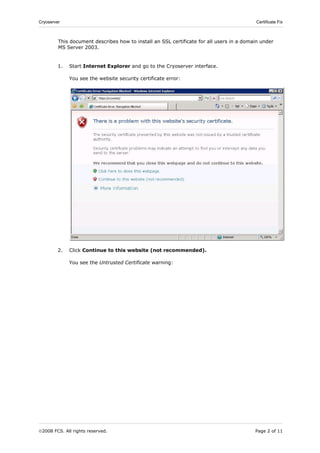
You see the website security certificate error: 
2. Click Continue to this website (not recommended). 
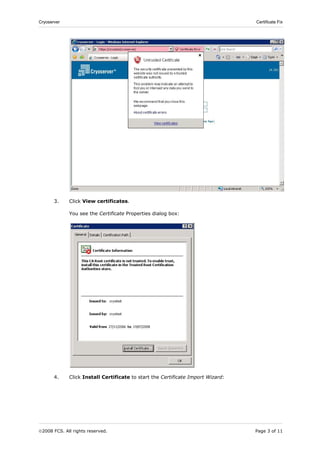
You see the Untrusted Certificate warning: 
2008 FCS. All rights reserved. Page 2 of 11
Cryoserver Certificate Fix 
3. Click View certificates. 
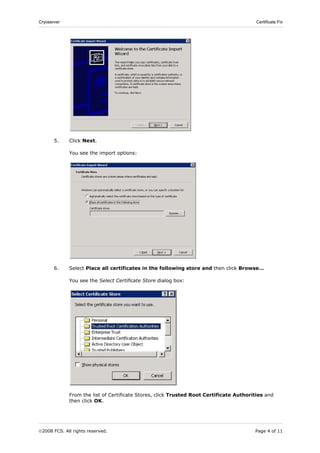
You see the Certificate Properties dialog box: 
4. Click Install Certificate to start the Certificate Import Wizard: 
2008 FCS. All rights reserved. Page 3 of 11
Cryoserver Certificate Fix 
5. Click Next. 
You see the import options: 
6. Select Place all certificates in the following store and then click Browse… 
You see the Select Certificate Store dialog box: 
From the list of Certificate Stores, click Trusted Root Certificate Authorities and 
then click OK. 
2008 FCS. All rights reserved. Page 4 of 11
Cryoserver Certificate Fix 
7. Click Next. 
8. Click Finish. 
You see a confirmation message stating that the import was successful: 
9. Close and then restart Internet Explorer. 
After restarting Internet Explorer 
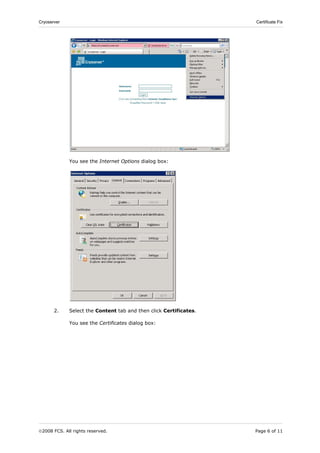
1. Click Tools, Internet Options: 
2008 FCS. All rights reserved. Page 5 of 11
Cryoserver Certificate Fix 
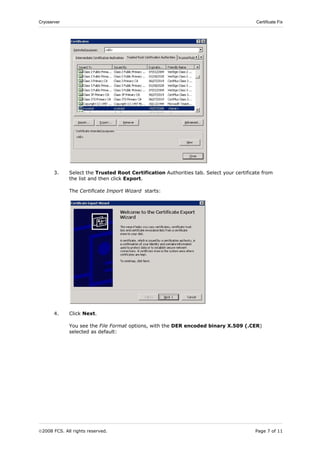
You see the Internet Options dialog box: 
2. Select the Content tab and then click Certificates. 
You see the Certificates dialog box: 
2008 FCS. All rights reserved. Page 6 of 11
Cryoserver Certificate Fix 
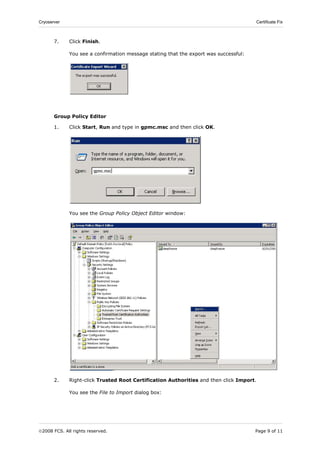
3. Select the Trusted Root Certification Authorities tab. Select your certificate from 
the list and then click Export. 
The Certificate Import Wizard starts: 
4. Click Next. 
You see the File Format options, with the DER encoded binary X.509 (.CER) 
selected as default: 
2008 FCS. All rights reserved. Page 7 of 11
Cryoserver Certificate Fix 
5. Click Next. 
You see the File to Export dialog box: 
6. Click Browse… to specify where you want the certificate to be exported to and then 
click Next. 
2008 FCS. All rights reserved. Page 8 of 11
Cryoserver Certificate Fix 
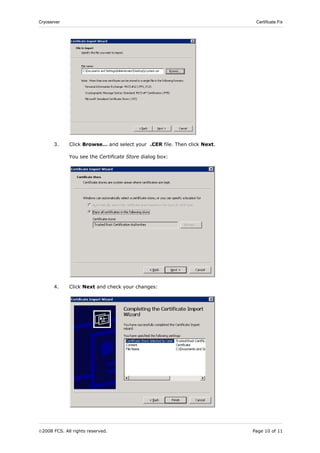
7. Click Finish. 
You see a confirmation message stating that the export was successful: 
Group Policy Editor 
1. Click Start, Run and type in gpmc.msc and then click OK. 
You see the Group Policy Object Editor window: 
2. Right-click Trusted Root Certification Authorities and then click Import. 
You see the File to Import dialog box: 
2008 FCS. All rights reserved. Page 9 of 11
Cryoserver Certificate Fix 
3. Click Browse… and select your .CER file. Then click Next. 
You see the Certificate Store dialog box: 
4. Click Next and check your changes: 
2008 FCS. All rights reserved. Page 10 of 11
Cryoserver Certificate Fix 
5. Click Finish. 
You see a confirmation message stating that the import was successful: 
6. Close all open windows and your group policy will be applied. This can take a while to 
filter down to domain users – maybe 15 minutes or more. 
NOTE: Domain users will have to log off and then log on again for the policy to take 
effect. 
2008 FCS. All rights reserved. Page 11 of 11

Cryoserver IIS Certificate Fix

  • 1.
    Cryoserver Certificate Fix Forensic & Compliance Systems Ltd +44 (0)800 280 0525 info@cryoserver.com www.cryoserver.com January 2008
  • 2.
    Cryoserver Certificate Fix This document describes how to install an SSL certificate for all users in a domain under MS Server 2003. 1. Start Internet Explorer and go to the Cryoserver interface. You see the website security certificate error: 2. Click Continue to this website (not recommended). You see the Untrusted Certificate warning: 2008 FCS. All rights reserved. Page 2 of 11
  • 3.
    Cryoserver Certificate Fix 3. Click View certificates. You see the Certificate Properties dialog box: 4. Click Install Certificate to start the Certificate Import Wizard: 2008 FCS. All rights reserved. Page 3 of 11
  • 4.
    Cryoserver Certificate Fix 5. Click Next. You see the import options: 6. Select Place all certificates in the following store and then click Browse… You see the Select Certificate Store dialog box: From the list of Certificate Stores, click Trusted Root Certificate Authorities and then click OK. 2008 FCS. All rights reserved. Page 4 of 11
  • 5.
    Cryoserver Certificate Fix 7. Click Next. 8. Click Finish. You see a confirmation message stating that the import was successful: 9. Close and then restart Internet Explorer. After restarting Internet Explorer 1. Click Tools, Internet Options: 2008 FCS. All rights reserved. Page 5 of 11
  • 6.
    Cryoserver Certificate Fix You see the Internet Options dialog box: 2. Select the Content tab and then click Certificates. You see the Certificates dialog box: 2008 FCS. All rights reserved. Page 6 of 11
  • 7.
    Cryoserver Certificate Fix 3. Select the Trusted Root Certification Authorities tab. Select your certificate from the list and then click Export. The Certificate Import Wizard starts: 4. Click Next. You see the File Format options, with the DER encoded binary X.509 (.CER) selected as default: 2008 FCS. All rights reserved. Page 7 of 11
  • 8.
    Cryoserver Certificate Fix 5. Click Next. You see the File to Export dialog box: 6. Click Browse… to specify where you want the certificate to be exported to and then click Next. 2008 FCS. All rights reserved. Page 8 of 11
  • 9.
    Cryoserver Certificate Fix 7. Click Finish. You see a confirmation message stating that the export was successful: Group Policy Editor 1. Click Start, Run and type in gpmc.msc and then click OK. You see the Group Policy Object Editor window: 2. Right-click Trusted Root Certification Authorities and then click Import. You see the File to Import dialog box: 2008 FCS. All rights reserved. Page 9 of 11
  • 10.
    Cryoserver Certificate Fix 3. Click Browse… and select your .CER file. Then click Next. You see the Certificate Store dialog box: 4. Click Next and check your changes: 2008 FCS. All rights reserved. Page 10 of 11
  • 11.
    Cryoserver Certificate Fix 5. Click Finish. You see a confirmation message stating that the import was successful: 6. Close all open windows and your group policy will be applied. This can take a while to filter down to domain users – maybe 15 minutes or more. NOTE: Domain users will have to log off and then log on again for the policy to take effect. 2008 FCS. All rights reserved. Page 11 of 11