Creating a New LibGuide and 
Accessing Edit Mode 
THE BASICS
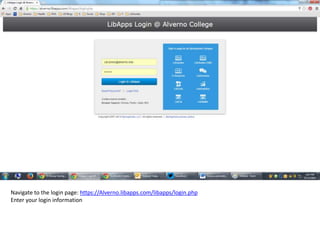
Navigate to the login page: https://Alverno.libapps.com/libapps/login.php 
Enter your login information
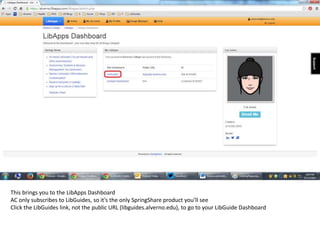
This brings you to the LibApps Dashboard 
AC only subscribes to LibGuides, so it’s the only SpringShare product you’ll see 
Click the LibGuides link, not the public URL (libguides.alverno.edu), to go to your LibGuide Dashboard
How to Create a New Guide 
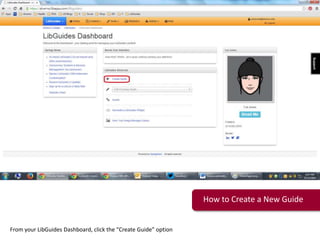
From your LibGuides Dashboard, click the “Create Guide” option
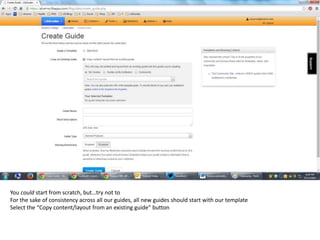
You could start from scratch, but…try not to 
For the sake of consistency across all our guides, all new guides should start with our template 
Select the “Copy content/layout from an existing guide” button
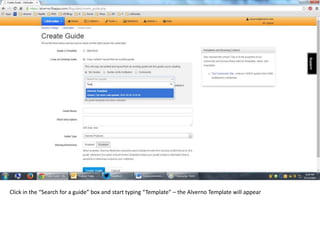
Click in the “Search for a guide” box and start typing “Template” – the Alverno Template will appear
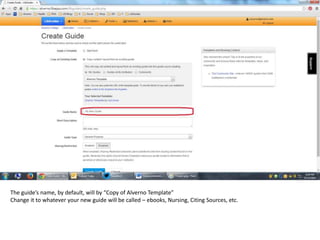
The guide’s name, by default, will by “Copy of Alverno Template” 
Change it to whatever your new guide will be called – ebooks, Nursing, Citing Sources, etc.
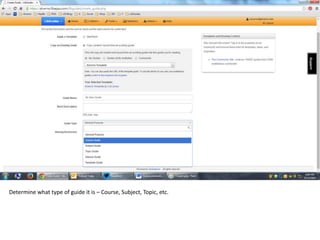
Determine what type of guide it is – Course, Subject, Topic, etc.
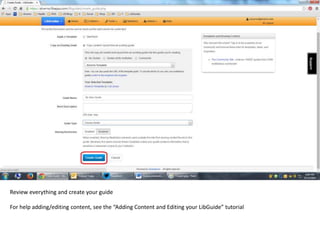
Review everything and create your guide 
For help adding/editing content, see the “Adding Content and Editing your LibGuide” tutorial
Accessing Edit Mode of a Preexisting Guide 
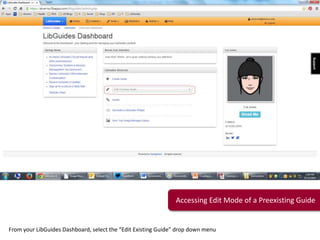
From your LibGuides Dashboard, select the “Edit Existing Guide” drop down menu
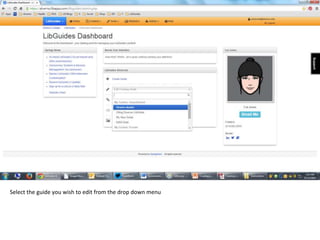
Select the guide you wish to edit from the drop down menu
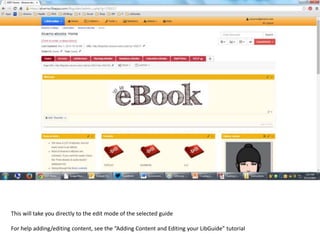
This will take you directly to the edit mode of the selected guide 
For help adding/editing content, see the “Adding Content and Editing your LibGuide” tutorial
More questions? 
Check back soon for more tutorials 
or contact me directly. 
Thanks!

Creating a new lib guide

  • 1.
    Creating a NewLibGuide and Accessing Edit Mode THE BASICS
  • 2.
    Navigate to thelogin page: https://Alverno.libapps.com/libapps/login.php Enter your login information
  • 3.
    This brings youto the LibApps Dashboard AC only subscribes to LibGuides, so it’s the only SpringShare product you’ll see Click the LibGuides link, not the public URL (libguides.alverno.edu), to go to your LibGuide Dashboard
  • 4.
    How to Createa New Guide From your LibGuides Dashboard, click the “Create Guide” option
  • 5.
    You could startfrom scratch, but…try not to For the sake of consistency across all our guides, all new guides should start with our template Select the “Copy content/layout from an existing guide” button
  • 6.
    Click in the“Search for a guide” box and start typing “Template” – the Alverno Template will appear
  • 7.
    The guide’s name,by default, will by “Copy of Alverno Template” Change it to whatever your new guide will be called – ebooks, Nursing, Citing Sources, etc.
  • 8.
    Determine what typeof guide it is – Course, Subject, Topic, etc.
  • 9.
    Review everything andcreate your guide For help adding/editing content, see the “Adding Content and Editing your LibGuide” tutorial
  • 10.
    Accessing Edit Modeof a Preexisting Guide From your LibGuides Dashboard, select the “Edit Existing Guide” drop down menu
  • 11.
    Select the guideyou wish to edit from the drop down menu
  • 12.
    This will takeyou directly to the edit mode of the selected guide For help adding/editing content, see the “Adding Content and Editing your LibGuide” tutorial
  • 13.
    More questions? Checkback soon for more tutorials or contact me directly. Thanks!