Common Computer System
BeepCodes and Diagnostic Tools
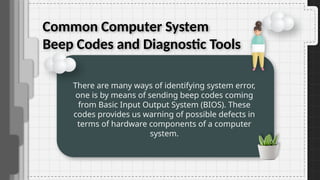
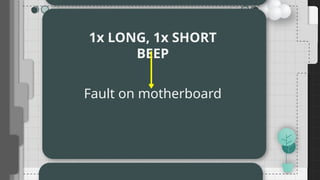
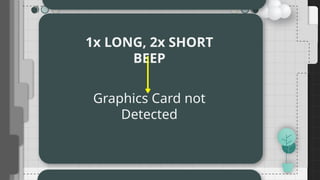
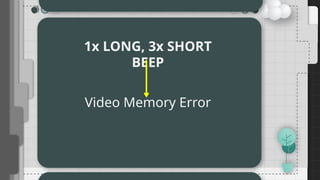
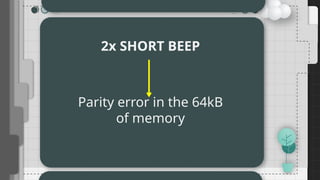
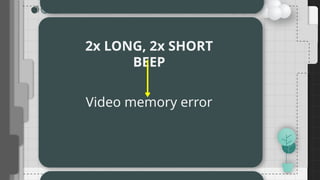
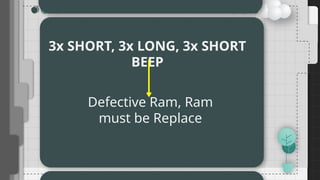
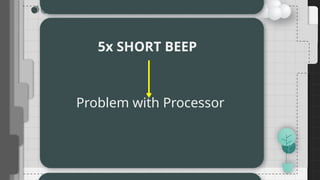
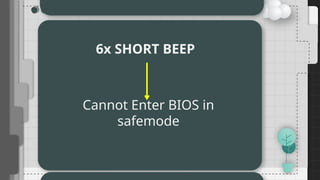
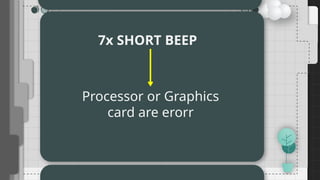
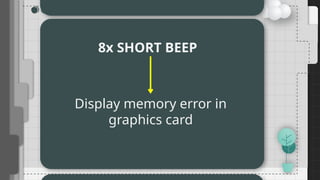
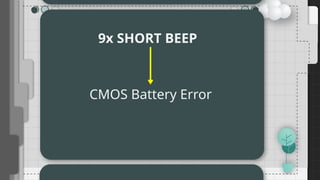
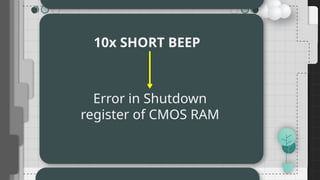
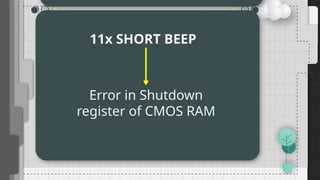
There are many ways of identifying system error,
one is by means of sending beep codes coming
from Basic Input Output System (BIOS). These
codes provides us warning of possible defects in
terms of hardware components of a computer
system.
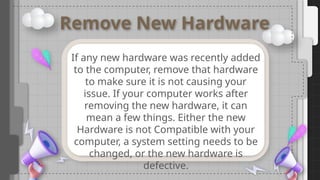
Remove New Hardware
Ifany new hardware was recently added
to the computer, remove that hardware
to make sure it is not causing your
issue. If your computer works after
removing the new hardware, it can
mean a few things. Either the new
Hardware is not Compatible with your
computer, a system setting needs to be
changed, or the new hardware is
defective.
20.
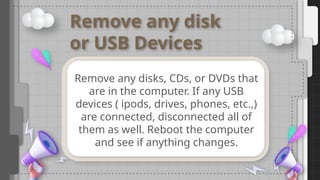
Remove any disk
orUSB Devices
Remove any disks, CDs, or DVDs that
are in the computer. If any USB
devices ( ipods, drives, phones, etc.,)
are connected, disconnected all of
them as well. Reboot the computer
and see if anything changes.
21.
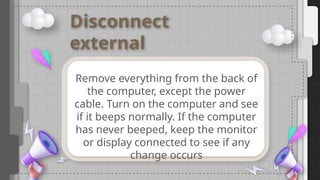
Disconnect
external
devices
Remove everything fromthe back of
the computer, except the power
cable. Turn on the computer and see
if it beeps normally. If the computer
has never beeped, keep the monitor
or display connected to see if any
change occurs
22.
Reconnect and
check powercords
If the computer is not getting enough
power or the power is getting
interrupted, the computer can
encounter problems. Disconnect your
power cables from any power strip or
UPS (uninterruptible power supply)
and connect the computer directly to
known good wall outlet
23.
Identify the beep
code
Ifyou are receiving a sequence of
beeps, you can also check your
motherboard or computer
documentation for information on
the beep codes. These beep codes
are meant to help identify which
computer component is failing or
bad. If your beep code is not listed,
continue troubleshooting.
24.
Check all fans
Makesure all fans are running on the
computer. If a fan has failed
( especially the heat sink fan for the
CPU), your computer could be
overheating or detecting the fan
failure, causing the computer not to
boot
25.
Check all cables
Verifyall the cables are securely
connected to the computer and that
there are no loose cables by firmly
pressing in each cable.
26.
Check all cables
Alldisk drives should have a data
cable and power cable connected to
them.
Your power supply should have at
least one cable going to the
motherboard. Many motherboards
may also have additional cables
connected to them to supply power
to the fans.
27.
Disconnect all
expansion cards
Ifthe above recommendation still
have not resolved the irregular POST
( Power on Self Test) , Disconnect the
riser board ( If Applicable) and each
of the expansion cards. If this fixes
the problem or allows the computer
to POST, connect one card at a time
until you determine which card is
causing the problem.
28.
Common error onnetwork
In the event that the system recognizes
error on the network it will immediately
prompt a message by showing notification
icons located at the bottom rightmost of
your screen. Most common errors that
prompts shows that there’s an IP conflict,
no internet connection and network cable
unplugged.
29.
Common error onnetwork
You can also check for the network status
using the command prompt and typing
ipconfig /all to show status of your network
or you may key in Windows + R then type
ncpa.cpl to proceed to the network and
internet connection to check for properties
and status of your network.
30.
Common error onnetwork
Some errors on both system and network
can be identified or caused by lacking
system drivers installed. These hardware
drivers needs to be installed in order for it to
work accordingly. It would be best if you
download the drivers of a specific devices
in its respective website to get the
appropriate drivers with support from the
manufacturer.
31.
Common error onnetwork
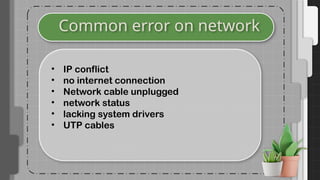
• IP conflict
• no internet connection
• Network cable unplugged
• network status
• lacking system drivers
• UTP cables
Let's Evaluate
Open theGoogle Chrome
app in the Tablet and go to
Blooket.com and tap the Join
the Game
35.
Let's Evaluate
Direction: Readthe situation below. Diagnose
the common faults under the given situation.
A prompt message popped up in your
screen saying that the network is
unplugged/plugged repeatedly, how will you
respond to this error. What are your steps to
resolve this issue