@remibergsma@neubauerf
Workshop 

Hands-on CloudStackJune 24th, 2015
Amsterdam, NL
@remibergsma@neubauerf
Infrastructure-as-a-Service (IaaS).
What is CloudStack?
@remibergsma@neubauerf
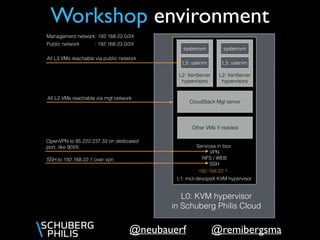
Workshop environment
L0: KVM hypervisor
in Schuberg Philis Cloud
L1: mct-devopsX KVM hypervisor
L2: XenServer
hypervisors
systemvm
L3: uservm
L2: XenServer
hypervisors
systemvm
L3: uservm
CloudStack Mgt server
Services in box:
VPN
NFS / WEB
SSH
OpenVPN to 85.222.237.33 on dedicated
port, like 90XX.
SSH to 192.168.22.1 over vpn
Management network: 192.168.22.0/24
Public network : 192.168.23.0/24
192.168.22.1
All L3 VMs reachable via public network
All L2 VMs reachable via mgt network
Other VMs if needed
@remibergsma@neubauerf
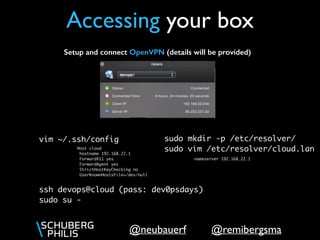
Setup and connect OpenVPN (details will be provided)
Accessing your box
ssh devops@cloud (pass: dev0psdays)
sudo su -
Host cloud
hostname 192.168.22.1
ForwardX11 yes
ForwardAgent yes
StrictHostKeyChecking no
UserKnownHostsFile=/dev/null
vim ~/.ssh/config sudo mkdir -p /etc/resolver/
sudo vim /etc/resolver/cloud.lan
nameserver 192.168.22.1
@remibergsma@neubauerf
Get a copy of the slides to copy/paste the commands
Getting the slides
Slides are here: http://www.slideshare.net/remibergsma/cloudstack-handson-workshop-
devopsdays-amsterdam
@remibergsma@neubauerf
[root@mct-devops1 ~]# cd /data/shared/deploy
[root@mct-devops1 deploy]# ./kvm_local_deploy.py -c devops_ams
processing option -c arg devops_ams
Welcome to KVM local Deploy for MCT
Note: We're connected to mct-devops1.localdomain
Note: You want to deploy a VM with cloud 'devops_ams'..
Note: deploying role cloudstack-mgt-dev
Note: Need a VM with name cs
Note: VM name cs1 is available.
Note: Running pre_boot script: virt-customize -d cs1 --firstboot /data/shared/deploy//firstboot/centos7-cloudstack-dev.sh
[ 0.0] Examining the guest ...
[ 58.0] Setting a random seed
[ 58.0] Installing firstboot script: [1] /data/shared/deploy//firstboot/centos7-cloudstack-dev.sh
[ 58.0] Finishing off
Note: Running postboot script: /data/shared/deploy//postboot/post_cs_centos7.sh cs1
Note: Waiting for the VM to boot...
Note: Ping result for cs1
PING cs1.cloud.lan (192.168.22.61) 56(84) bytes of data.
64 bytes from cs1.cloud.lan (192.168.22.61): icmp_seq=1 ttl=64 time=0.245 ms
--- cs1.cloud.lan ping statistics ---
1 packets transmitted, 1 received, 0% packet loss, time 0ms
rtt min/avg/max/mdev = 0.245/0.245/0.245/0.000 ms
Note: deploying role xenserver62_4GB
Note: Need a VM with name xen
Note: VM name xen1 is available.
WARNING: No firstboot script defined.
WARNING: No postboot script defined.
Note: deploying role xenserver62_4GB
Note: Need a VM with name xen
Note: VM name xen1 is already in use.
Note: VM name xen2 is available.
WARNING: No firstboot script defined.
WARNING: No postboot script defined.
Deploy your cloud
@remibergsma@neubauerf
[root@mct-devops1 deploy]# virsh list
Id Name State
----------------------------------------------------
3 cs1 running
4 xen1 running
5 xen2 running
Your cloud for today
XenServer cluster
CloudStack management
Give it some time to finish the setup..
@remibergsma@neubauerf
[root@mct-devops1 deploy]# ssh root@xen2
[root@xen2 ~]# xe pool-join master-address=xen1 
master-username=root master-password=password
[root@xen2 ~]# xe host-list
uuid ( RO) : da233ac0-61a2-47e9-8e6a-8ffa19ebc443
name-label ( RW): xen2
name-description ( RW): Default install of XenServer
uuid ( RO) : 1651accd-e05e-4a00-be7d-84263513d72e
name-label ( RW): xen1
name-description ( RW): Default install of XenServer
Prepare XenServer cluster
Should display 2 hosts
In reality, you’d also turn on poolHA
@remibergsma@neubauerf
[root@mct-devops1 deploy]# ssh root@cs1
[root@cs1 ~]# screen
[root@cs1 ~]# cd /data/shared/helper_scripts/cloudstack
[root@cs1 ~]# ./prepare_cloudstack_compile.sh
Prepare CloudStack mgt
This will setup all dependencies
@remibergsma@neubauerf
[root@cs1 ~]# cd /data/git/$HOSTNAME/cloudstack
[root@cs1 ~]# git checkout 4.4
[root@cs1 ~]# cd /data/shared/helper_scripts/cloudstack
[root@cs1 ~]# ./build_run.sh
Compile CloudStack mgt
Compile in progress…
The UI should be up after a few minutes, available from your laptop: http://cs1.cloud.lan:8080/client/ or
 http://192.168.22.61:8080/client/
@remibergsma@neubauerf
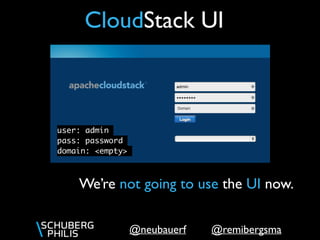
CloudStack UI
user: admin
pass: password
domain: <empty>
We’re not going to use the UI now.
@remibergsma@neubauerf
Deploy Data Center
[root@cs1 ~]# CTRL+a c
[root@cs1 ~]# cd /data/git/$HOSTNAME/cloudstack
[root@cs1 cloudstack]# mvn -P developer -pl :cloud-marvin
[root@cs1 cloudstack]# pip install --upgrade tools/marvin/dist/Marvin-*.tar.gz
--allow-external mysql-connector-python
Install Marvin:
Successfully installed Marvin-4.4.1 ddt-1.0.0 ecdsa-0.13 paramiko-1.15.2
@remibergsma@neubauerf
Deploy Data Center
[root@cs1 cloudstack]# ./scripts/storage/secondary/cloud-install-sys-tmplt
-m /data/storage/secondary/MCCT-SHARED-1/ -u http://
jenkins.buildacloud.org/view/4.4/job/cloudstack-4.4-systemvm64/
lastSuccessfulBuild/artifact/tools/appliance/dist/
systemvm64template-4.4-2015-06-23-xen.vhd.bz2
-h xenserver -o localhost -r root -e vhd
Install SystemVM template:
Get URL from: http://jenkins.buildacloud.org/view/4.4/job/
cloudstack-4.4-systemvm64/lastSuccessfulBuild/
Successfully installed system VM template to /data/storage/secondary/MCCT-SHARED-1/template/tmpl/1/1/
This will install systemVM template
@remibergsma@neubauerf
Deploy Data Center
[root@cs1 ~]# python /data/git/$HOSTNAME/cloudstack/tools/marvin/marvin/
deployDataCenter.py -i /data/shared/marvin/mct-zone1-xen1.cfg
Deploy DC using Marvin:
This will setup your data center using the two XenServers
@remibergsma@neubauerf
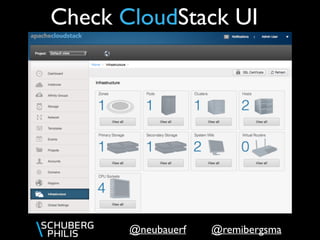
Check CloudStack UI
@remibergsma@neubauerf
Check CloudStack UI
Wait until the systemVMs are ready.This may take ~15 minutes.
[root@mct-devops1 ~]# ssh xen[12]
[root@xen1 ~]# ps aux | grep sparse_dd
root 1353 1.4 1.1 39432 9216 ? Ssl 20:24 0:05 /opt/xensource/libexec/sparse_dd -machine -src /dev/sm/backend/
78293f80-ab8d-441e-a4b9-2960d10fb8ac/c238e898-6f0e-408d-b1d2-75ab7b9cf0b4 -dest /dev/sm/backend/4e3a6b07-5c85-
b570-7a4c-8b5061a229fb/2ce15cf5-3d3a-42e4-946e-5a1fa832cbc9 -size 2621440000 -prezeroed
Systemvm template copy in progress
@remibergsma@neubauerf
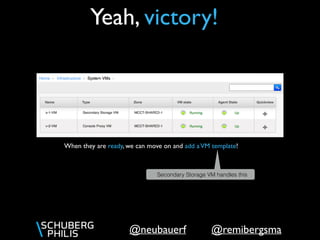
Yeah, victory!
When they are ready, we can move on and add aVM template!
Secondary Storage VM handles this
@remibergsma@neubauerf
Adding aVM template
When they are ready, we can move on and spin up someVMs!
[root@cs1 ~]# CTRL+a c
[root@cs1 ~]# cd /data/shared/helper_scripts/cloudstack/
[root@cs1 ~]# ./add_os_templates.sh
Secondary Storage VM download successfully
Using this Tiny template
@remibergsma@neubauerf
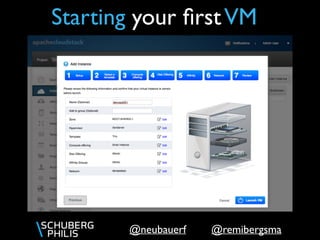
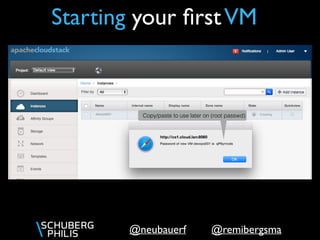
Starting your firstVM
@remibergsma@neubauerf
Copy/paste to use later on (root passwd)
Starting your firstVM
@remibergsma@neubauerf
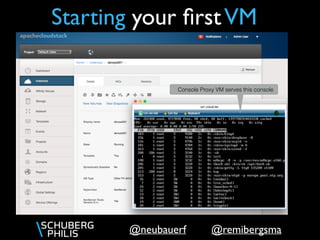
Console Proxy VM serves this console
Starting your firstVM
@remibergsma@neubauerf
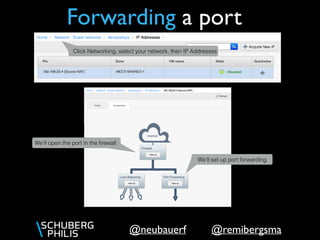
Forwarding a port
We’ll set up port forwarding
Click Networking, select your network, then IP Addresses
We’ll open the port in the firewall
@remibergsma@neubauerf
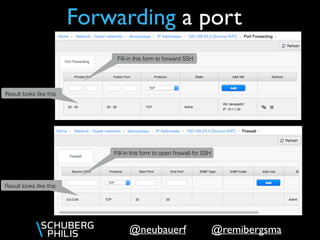
Forwarding a port
Fill-in this form to forward SSH
Result looks like this
Fill-in this form to open firewall for SSH
Result looks like this
@remibergsma@neubauerf
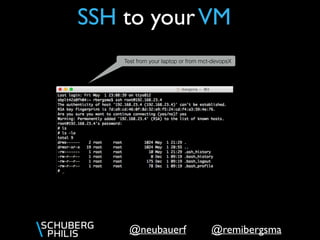
SSH to yourVM
Test from your laptop or from mct-devopsX
@remibergsma@neubauerf
Using the API
@remibergsma@neubauerf
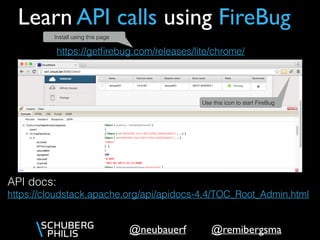
Learn API calls using FireBug
API docs:

https://cloudstack.apache.org/api/apidocs-4.4/TOC_Root_Admin.html
https://getfirebug.com/releases/lite/chrome/
Use this icon to start FireBug
Install using this page
@remibergsma@neubauerf
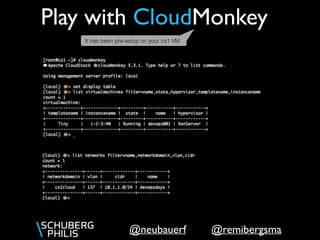
Play with CloudMonkey
It has been pre-setup on your cs1 VM
@remibergsma@neubauerf
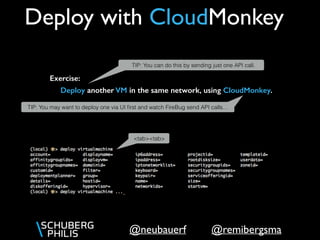
Deploy with CloudMonkey
Deploy another VM in the same network, using CloudMonkey.
Exercise:
TIP: You may want to deploy one via UI first and watch FireBug send API calls…
TIP: You can do this by sending just one API call.
<tab><tab>
@remibergsma@neubauerf
CloudStackOps:
Operating
CloudStack
made easy.
https://github.com/schubergphilis/cloudstackOps
@remibergsma@neubauerf
CloudStackOps
[root@cs1 ~]# CTRL+a c
[root@cs1 ~]# cd /data/shared/helper_scripts/
[root@cs1 cloudstack]# ./setup_cloudstackOps.sh
[root@cs1 cloudstack]# source /data/git/cs1/python_cloud/bin/activate
(python_cloud)[root@cs1 cloudstack]# cd /data/git/cs1/cloudstackOps
(python_cloud)[root@cs1 cloudstack]# python listVirtualMachines.py -o MCCT-XEN-1
@remibergsma@neubauerf
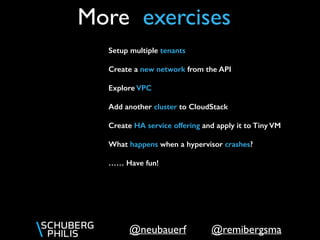
More exercises
Setup multiple tenants
Create a new network from the API
Explore VPC
Add another cluster to CloudStack
Create HA service offering and apply it to Tiny VM
What happens when a hypervisor crashes?
…… Have fun!
Get in touch!
blog.remibergsma.com
rbergsma@schubergphilis.com
@remibergsma
fneubauer@schubergphilis.com
@neubauerf

CloudStack hands-on workshop @ DevOpsDays Amsterdam 2015

  • 1.
  • 2.
  • 3.
    @remibergsma@neubauerf Workshop environment L0: KVMhypervisor in Schuberg Philis Cloud L1: mct-devopsX KVM hypervisor L2: XenServer hypervisors systemvm L3: uservm L2: XenServer hypervisors systemvm L3: uservm CloudStack Mgt server Services in box: VPN NFS / WEB SSH OpenVPN to 85.222.237.33 on dedicated port, like 90XX. SSH to 192.168.22.1 over vpn Management network: 192.168.22.0/24 Public network : 192.168.23.0/24 192.168.22.1 All L3 VMs reachable via public network All L2 VMs reachable via mgt network Other VMs if needed
  • 4.
    @remibergsma@neubauerf Setup and connectOpenVPN (details will be provided) Accessing your box ssh devops@cloud (pass: dev0psdays) sudo su - Host cloud hostname 192.168.22.1 ForwardX11 yes ForwardAgent yes StrictHostKeyChecking no UserKnownHostsFile=/dev/null vim ~/.ssh/config sudo mkdir -p /etc/resolver/ sudo vim /etc/resolver/cloud.lan nameserver 192.168.22.1
  • 5.
    @remibergsma@neubauerf Get a copyof the slides to copy/paste the commands Getting the slides Slides are here: http://www.slideshare.net/remibergsma/cloudstack-handson-workshop- devopsdays-amsterdam
  • 6.
    @remibergsma@neubauerf [root@mct-devops1 ~]# cd/data/shared/deploy [root@mct-devops1 deploy]# ./kvm_local_deploy.py -c devops_ams processing option -c arg devops_ams Welcome to KVM local Deploy for MCT Note: We're connected to mct-devops1.localdomain Note: You want to deploy a VM with cloud 'devops_ams'.. Note: deploying role cloudstack-mgt-dev Note: Need a VM with name cs Note: VM name cs1 is available. Note: Running pre_boot script: virt-customize -d cs1 --firstboot /data/shared/deploy//firstboot/centos7-cloudstack-dev.sh [ 0.0] Examining the guest ... [ 58.0] Setting a random seed [ 58.0] Installing firstboot script: [1] /data/shared/deploy//firstboot/centos7-cloudstack-dev.sh [ 58.0] Finishing off Note: Running postboot script: /data/shared/deploy//postboot/post_cs_centos7.sh cs1 Note: Waiting for the VM to boot... Note: Ping result for cs1 PING cs1.cloud.lan (192.168.22.61) 56(84) bytes of data. 64 bytes from cs1.cloud.lan (192.168.22.61): icmp_seq=1 ttl=64 time=0.245 ms --- cs1.cloud.lan ping statistics --- 1 packets transmitted, 1 received, 0% packet loss, time 0ms rtt min/avg/max/mdev = 0.245/0.245/0.245/0.000 ms Note: deploying role xenserver62_4GB Note: Need a VM with name xen Note: VM name xen1 is available. WARNING: No firstboot script defined. WARNING: No postboot script defined. Note: deploying role xenserver62_4GB Note: Need a VM with name xen Note: VM name xen1 is already in use. Note: VM name xen2 is available. WARNING: No firstboot script defined. WARNING: No postboot script defined. Deploy your cloud
  • 7.
    @remibergsma@neubauerf [root@mct-devops1 deploy]# virshlist Id Name State ---------------------------------------------------- 3 cs1 running 4 xen1 running 5 xen2 running Your cloud for today XenServer cluster CloudStack management Give it some time to finish the setup..
  • 8.
    @remibergsma@neubauerf [root@mct-devops1 deploy]# sshroot@xen2 [root@xen2 ~]# xe pool-join master-address=xen1 master-username=root master-password=password [root@xen2 ~]# xe host-list uuid ( RO) : da233ac0-61a2-47e9-8e6a-8ffa19ebc443 name-label ( RW): xen2 name-description ( RW): Default install of XenServer uuid ( RO) : 1651accd-e05e-4a00-be7d-84263513d72e name-label ( RW): xen1 name-description ( RW): Default install of XenServer Prepare XenServer cluster Should display 2 hosts In reality, you’d also turn on poolHA
  • 9.
    @remibergsma@neubauerf [root@mct-devops1 deploy]# sshroot@cs1 [root@cs1 ~]# screen [root@cs1 ~]# cd /data/shared/helper_scripts/cloudstack [root@cs1 ~]# ./prepare_cloudstack_compile.sh Prepare CloudStack mgt This will setup all dependencies
  • 10.
    @remibergsma@neubauerf [root@cs1 ~]# cd/data/git/$HOSTNAME/cloudstack [root@cs1 ~]# git checkout 4.4 [root@cs1 ~]# cd /data/shared/helper_scripts/cloudstack [root@cs1 ~]# ./build_run.sh Compile CloudStack mgt Compile in progress… The UI should be up after a few minutes, available from your laptop: http://cs1.cloud.lan:8080/client/ or  http://192.168.22.61:8080/client/
  • 11.
    @remibergsma@neubauerf CloudStack UI user: admin pass:password domain: <empty> We’re not going to use the UI now.
  • 12.
    @remibergsma@neubauerf Deploy Data Center [root@cs1~]# CTRL+a c [root@cs1 ~]# cd /data/git/$HOSTNAME/cloudstack [root@cs1 cloudstack]# mvn -P developer -pl :cloud-marvin [root@cs1 cloudstack]# pip install --upgrade tools/marvin/dist/Marvin-*.tar.gz --allow-external mysql-connector-python Install Marvin: Successfully installed Marvin-4.4.1 ddt-1.0.0 ecdsa-0.13 paramiko-1.15.2
  • 13.
    @remibergsma@neubauerf Deploy Data Center [root@cs1cloudstack]# ./scripts/storage/secondary/cloud-install-sys-tmplt -m /data/storage/secondary/MCCT-SHARED-1/ -u http:// jenkins.buildacloud.org/view/4.4/job/cloudstack-4.4-systemvm64/ lastSuccessfulBuild/artifact/tools/appliance/dist/ systemvm64template-4.4-2015-06-23-xen.vhd.bz2 -h xenserver -o localhost -r root -e vhd Install SystemVM template: Get URL from: http://jenkins.buildacloud.org/view/4.4/job/ cloudstack-4.4-systemvm64/lastSuccessfulBuild/ Successfully installed system VM template to /data/storage/secondary/MCCT-SHARED-1/template/tmpl/1/1/ This will install systemVM template
  • 14.
    @remibergsma@neubauerf Deploy Data Center [root@cs1~]# python /data/git/$HOSTNAME/cloudstack/tools/marvin/marvin/ deployDataCenter.py -i /data/shared/marvin/mct-zone1-xen1.cfg Deploy DC using Marvin: This will setup your data center using the two XenServers
  • 15.
  • 16.
    @remibergsma@neubauerf Check CloudStack UI Waituntil the systemVMs are ready.This may take ~15 minutes. [root@mct-devops1 ~]# ssh xen[12] [root@xen1 ~]# ps aux | grep sparse_dd root 1353 1.4 1.1 39432 9216 ? Ssl 20:24 0:05 /opt/xensource/libexec/sparse_dd -machine -src /dev/sm/backend/ 78293f80-ab8d-441e-a4b9-2960d10fb8ac/c238e898-6f0e-408d-b1d2-75ab7b9cf0b4 -dest /dev/sm/backend/4e3a6b07-5c85- b570-7a4c-8b5061a229fb/2ce15cf5-3d3a-42e4-946e-5a1fa832cbc9 -size 2621440000 -prezeroed Systemvm template copy in progress
  • 17.
    @remibergsma@neubauerf Yeah, victory! When theyare ready, we can move on and add aVM template! Secondary Storage VM handles this
  • 18.
    @remibergsma@neubauerf Adding aVM template Whenthey are ready, we can move on and spin up someVMs! [root@cs1 ~]# CTRL+a c [root@cs1 ~]# cd /data/shared/helper_scripts/cloudstack/ [root@cs1 ~]# ./add_os_templates.sh Secondary Storage VM download successfully Using this Tiny template
  • 19.
  • 20.
    @remibergsma@neubauerf Copy/paste to uselater on (root passwd) Starting your firstVM
  • 21.
    @remibergsma@neubauerf Console Proxy VMserves this console Starting your firstVM
  • 22.
    @remibergsma@neubauerf Forwarding a port We’llset up port forwarding Click Networking, select your network, then IP Addresses We’ll open the port in the firewall
  • 23.
    @remibergsma@neubauerf Forwarding a port Fill-inthis form to forward SSH Result looks like this Fill-in this form to open firewall for SSH Result looks like this
  • 24.
    @remibergsma@neubauerf SSH to yourVM Testfrom your laptop or from mct-devopsX
  • 25.
  • 26.
    @remibergsma@neubauerf Learn API callsusing FireBug API docs:
 https://cloudstack.apache.org/api/apidocs-4.4/TOC_Root_Admin.html https://getfirebug.com/releases/lite/chrome/ Use this icon to start FireBug Install using this page
  • 27.
    @remibergsma@neubauerf Play with CloudMonkey Ithas been pre-setup on your cs1 VM
  • 28.
    @remibergsma@neubauerf Deploy with CloudMonkey Deployanother VM in the same network, using CloudMonkey. Exercise: TIP: You may want to deploy one via UI first and watch FireBug send API calls… TIP: You can do this by sending just one API call. <tab><tab>
  • 29.
  • 30.
    @remibergsma@neubauerf CloudStackOps [root@cs1 ~]# CTRL+ac [root@cs1 ~]# cd /data/shared/helper_scripts/ [root@cs1 cloudstack]# ./setup_cloudstackOps.sh [root@cs1 cloudstack]# source /data/git/cs1/python_cloud/bin/activate (python_cloud)[root@cs1 cloudstack]# cd /data/git/cs1/cloudstackOps (python_cloud)[root@cs1 cloudstack]# python listVirtualMachines.py -o MCCT-XEN-1
  • 31.
    @remibergsma@neubauerf More exercises Setup multipletenants Create a new network from the API Explore VPC Add another cluster to CloudStack Create HA service offering and apply it to Tiny VM What happens when a hypervisor crashes? …… Have fun!
  • 32.