
CloudHub
Networking Guide
SHANKY GUPTA
Overview
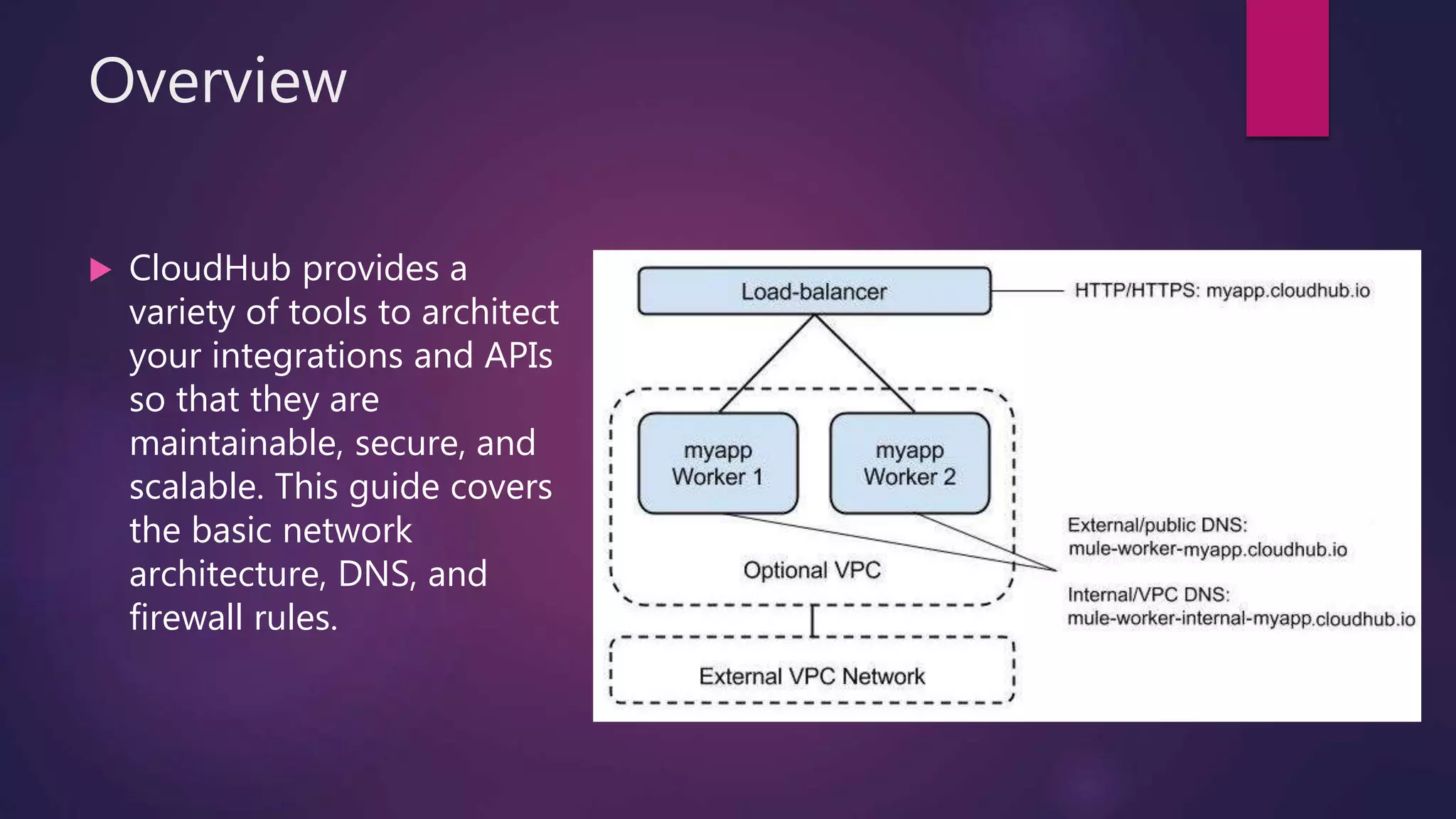
 CloudHub provides a
variety of tools to architect
your integrations and APIs
so that they are
maintainable, secure, and
scalable. This guide covers
the basic network
architecture, DNS, and
firewall rules.
Load Balancing
 CloudHub provides a load balancing service for all integrations. This service does
round robin load distribution across workers, allowing workers to scale linearly as
they receive more requests as well as providing transparent switchover when an
application is upgraded.
 Each application deployed on CloudHub has a CNAME record that refers to the
load balancer - example: myapp.cloudhub.io. Mule applications deployed on
CloudHub must listen on 0.0.0.0 and ports assigned by CloudHub for HTTP and
HTTPS. The load balancer then forwards requests from port 80 and 443 (SSL) to
these ports on the Mule worker.
 These ports can be referenced via the expressions ${http.port} and ${https.port} ,
respectively. Here is an example of a Mule configuration that utilizes this to expose
an HTTPS endpoint:
<https:endpoint address="http://0.0.0.0:${https.port}"/>
*** Important ***
 On the Mule worker, the CloudHub load balancer proxies port :80 to :8081
for HTTP and proxies port :443 to :8082 for HTTPS. The http.portvalue must
be set to port 8081 for HTTP, and the https.port value must be set to port
8082 for HTTPS. No other port numbers are supported.
DNS Records
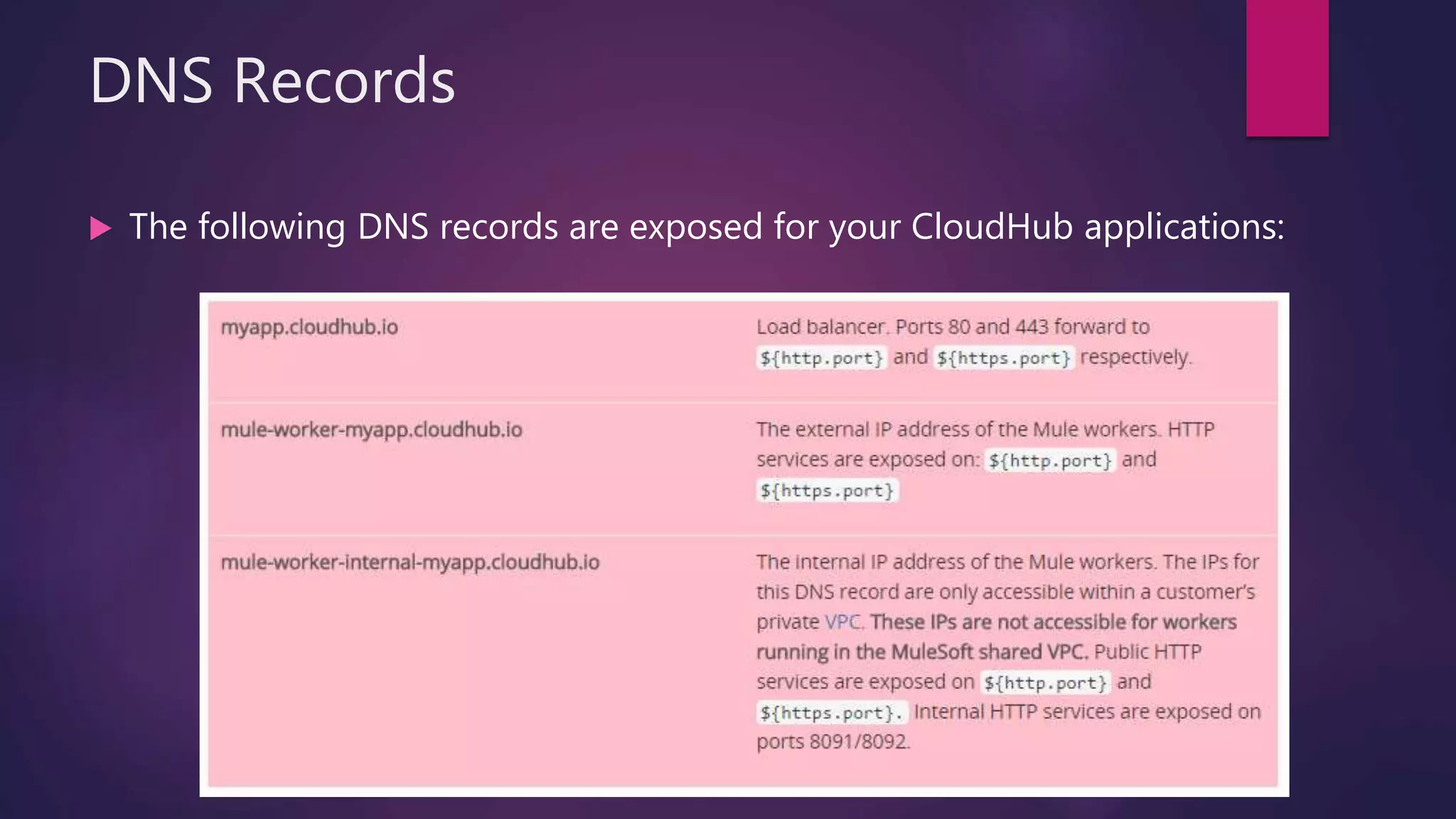
 The following DNS records are exposed for your CloudHub applications:
DNS Records …continued
 In certain situations, you may want to know an application’s internal IPs:
 When communicating with the worker directly within the customer’s VPC without
sending data over the public internet
 When you wish to setup your own load balancer
 These IP addresses can be accessed through the mule-worker-internal-
myapp.cloudhub.io record, from within the customer’s VPC. If you access the
workers directly, any load distribution benefits from the CloudHub load
balancing layer are lost.
Firewall Rules and Port Access
 The only two ports exposed externally are ${http.port} and ${https.port}. If you wish
to access other ports, you can do so through the CloudHub Virtual Private Cloud
(VPC) offering.
 If you wish to expose HTTP services only inside a VPC, these services can be
exposed on ports 8091 and 8092, which are open by default on the internal
network. In this case, these services are not accessible on the public IPs or the
load-balancer, ensuring that they can be accessed securely.
 Additional ports can be opened inside the VPC, for example, for JMX based
monitoring. You can file a MuleSoft support ticket requesting the ports you want
opened.
IP Ranges and Static IPs
 As CloudHub deploys on Amazon EC2, IP addresses are chosen from the Amazon EC2 IP
pool.
 CloudHub supports allocating a static IP for applications so that they can be whitelisted
for other services. To enable a static IP for your application, go to the Static IPs tab in the
application settings page on the Runtime Manager UI, then enable the Use Static IP
checkbox. By default, you are allocated a number of static IPs equal to twice the number
of Production vCores in your subscription. To increase this limit, please contact MuleSoft
Support. After a static IP has been allocated for your application, it is visible in the Static
IPs tab in the application settings.
 Static IPs are not supported for private IP addresses inside a CloudHub VPC and it is only
supported for applications with 1 worker.
 Sometimes firewalls or infrastructure settings don’t let Mule Runtimes reach the Runtime
Manager’s public services. This might be an issue when registering a Mule Runtime or
when starting it and registering it to work with Runtime Manager.
Regional Services
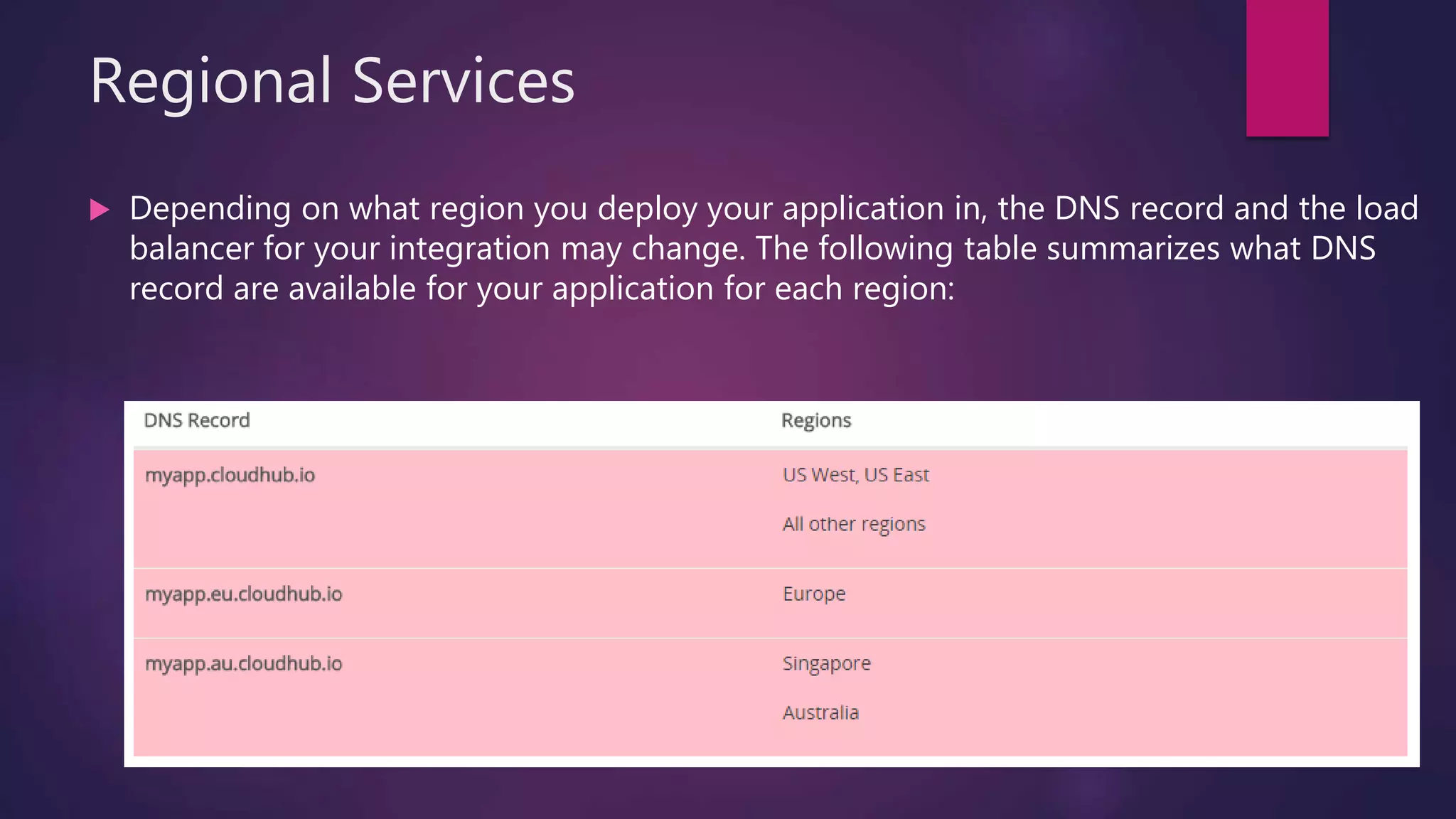
 Depending on what region you deploy your application in, the DNS record and the load
balancer for your integration may change. The following table summarizes what DNS
record are available for your application for each region:
Custom Load Balancing Configurations
 Under certain circumstances you may want to set up a custom load balancing layer for
your Mule workers. For example, if you want to provide a custom domain name or SSL
certificates.
 Traffic can be routed from your load balancer to CloudHub workers through the internal or
external DNS record for your workers. This record contains an IP address for every worker
in the application. Your load balancer must support dynamic DNS resolution for this
approach to work. It is recommended that you set your DNS timeout to between 20-60
seconds so that any DNS changes are propagated quickly and minimize impact.
 Zero downtime deploys are not fully supported in this situation. If you set your DNS
timeout low enough, you should not notice any interruptions in services while updating
workers. However, since CloudHub is not aware of your load balancer setup, it cannot
check to see if the DNS record has been updated and if requests are being propagated
correctly. This means there is a small window where it is theoretically possible for service
to be interrupted.

CloudHub networking guide

  • 1.
  • 2.
    Overview  CloudHub providesa variety of tools to architect your integrations and APIs so that they are maintainable, secure, and scalable. This guide covers the basic network architecture, DNS, and firewall rules.
  • 3.
    Load Balancing  CloudHubprovides a load balancing service for all integrations. This service does round robin load distribution across workers, allowing workers to scale linearly as they receive more requests as well as providing transparent switchover when an application is upgraded.  Each application deployed on CloudHub has a CNAME record that refers to the load balancer - example: myapp.cloudhub.io. Mule applications deployed on CloudHub must listen on 0.0.0.0 and ports assigned by CloudHub for HTTP and HTTPS. The load balancer then forwards requests from port 80 and 443 (SSL) to these ports on the Mule worker.  These ports can be referenced via the expressions ${http.port} and ${https.port} , respectively. Here is an example of a Mule configuration that utilizes this to expose an HTTPS endpoint: <https:endpoint address="http://0.0.0.0:${https.port}"/>
  • 4.
    *** Important *** On the Mule worker, the CloudHub load balancer proxies port :80 to :8081 for HTTP and proxies port :443 to :8082 for HTTPS. The http.portvalue must be set to port 8081 for HTTP, and the https.port value must be set to port 8082 for HTTPS. No other port numbers are supported.
  • 5.
    DNS Records  Thefollowing DNS records are exposed for your CloudHub applications:
  • 6.
    DNS Records …continued In certain situations, you may want to know an application’s internal IPs:  When communicating with the worker directly within the customer’s VPC without sending data over the public internet  When you wish to setup your own load balancer  These IP addresses can be accessed through the mule-worker-internal- myapp.cloudhub.io record, from within the customer’s VPC. If you access the workers directly, any load distribution benefits from the CloudHub load balancing layer are lost.
  • 7.
    Firewall Rules andPort Access  The only two ports exposed externally are ${http.port} and ${https.port}. If you wish to access other ports, you can do so through the CloudHub Virtual Private Cloud (VPC) offering.  If you wish to expose HTTP services only inside a VPC, these services can be exposed on ports 8091 and 8092, which are open by default on the internal network. In this case, these services are not accessible on the public IPs or the load-balancer, ensuring that they can be accessed securely.  Additional ports can be opened inside the VPC, for example, for JMX based monitoring. You can file a MuleSoft support ticket requesting the ports you want opened.
  • 8.
    IP Ranges andStatic IPs  As CloudHub deploys on Amazon EC2, IP addresses are chosen from the Amazon EC2 IP pool.  CloudHub supports allocating a static IP for applications so that they can be whitelisted for other services. To enable a static IP for your application, go to the Static IPs tab in the application settings page on the Runtime Manager UI, then enable the Use Static IP checkbox. By default, you are allocated a number of static IPs equal to twice the number of Production vCores in your subscription. To increase this limit, please contact MuleSoft Support. After a static IP has been allocated for your application, it is visible in the Static IPs tab in the application settings.  Static IPs are not supported for private IP addresses inside a CloudHub VPC and it is only supported for applications with 1 worker.  Sometimes firewalls or infrastructure settings don’t let Mule Runtimes reach the Runtime Manager’s public services. This might be an issue when registering a Mule Runtime or when starting it and registering it to work with Runtime Manager.
  • 9.
    Regional Services  Dependingon what region you deploy your application in, the DNS record and the load balancer for your integration may change. The following table summarizes what DNS record are available for your application for each region:
  • 10.
    Custom Load BalancingConfigurations  Under certain circumstances you may want to set up a custom load balancing layer for your Mule workers. For example, if you want to provide a custom domain name or SSL certificates.  Traffic can be routed from your load balancer to CloudHub workers through the internal or external DNS record for your workers. This record contains an IP address for every worker in the application. Your load balancer must support dynamic DNS resolution for this approach to work. It is recommended that you set your DNS timeout to between 20-60 seconds so that any DNS changes are propagated quickly and minimize impact.  Zero downtime deploys are not fully supported in this situation. If you set your DNS timeout low enough, you should not notice any interruptions in services while updating workers. However, since CloudHub is not aware of your load balancer setup, it cannot check to see if the DNS record has been updated and if requests are being propagated correctly. This means there is a small window where it is theoretically possible for service to be interrupted.