Graphical User
Interface (GUI)
Objectives
 After you have read and studied this chapter, you should
be able to
 Define a subclass of JFrame to implement a customized frame
window.
 Write event-driven programs using Java's delegation-based event
model
 Arrange GUI objects on a window using layout managers and
nested panels
 Write GUI application programs using
JButton, JLabel, ImageIcon, JTextField, JTextArea, JCheckBox, JR
adioButton, JComboBox, JList, and JSlider objects from the
javax.swing package
 Write GUI application programs with menus
Graphical User Interface
 In Java, GUI-based programs are
implemented by using classes from the
javax.swing and java.awt packages.
 The Swing classes provide greater
compatibility across different operating
systems. They are fully implemented in
Java, and behave the same on different
operating systems.
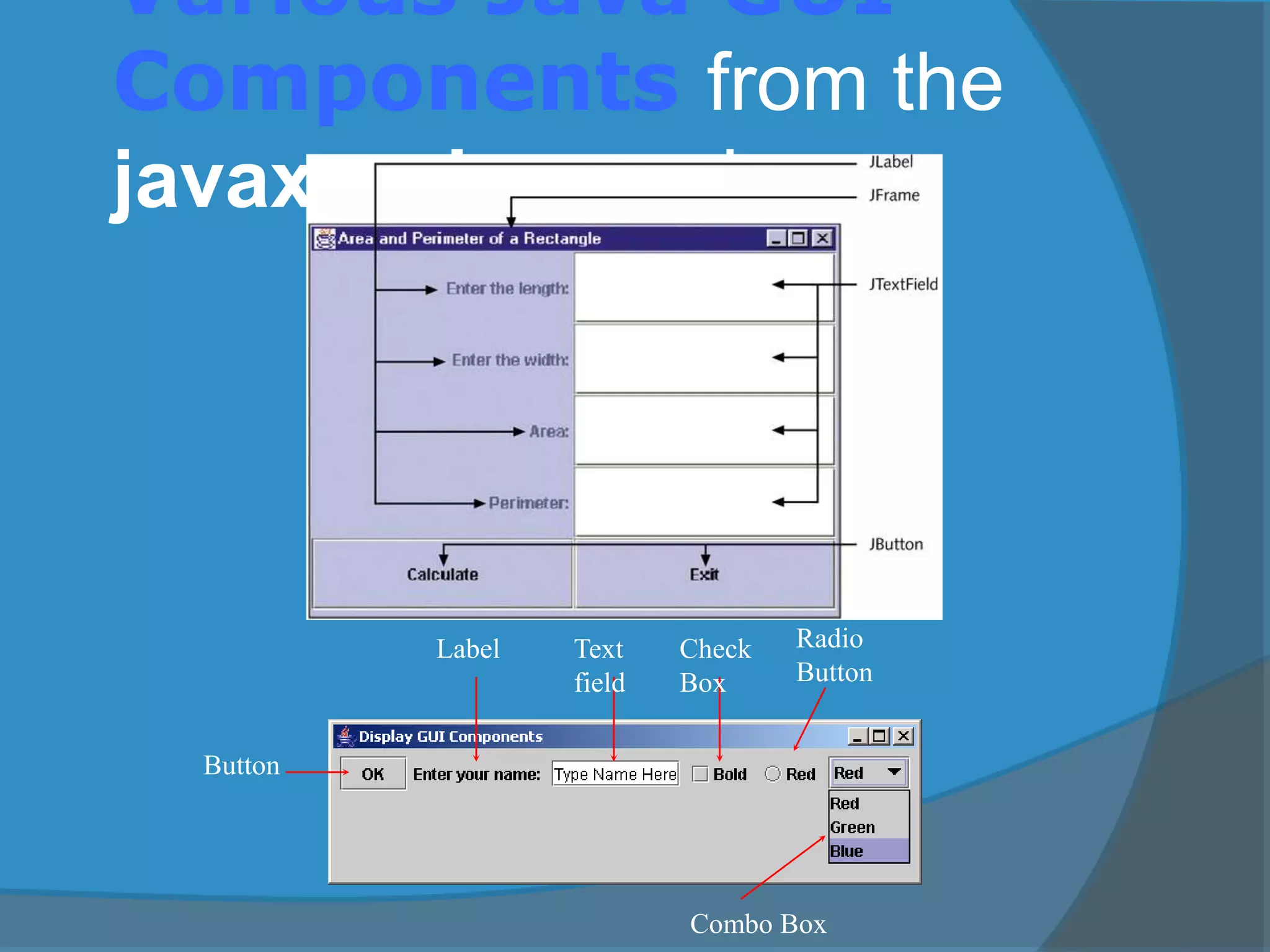
Various Java GUI
Components from the
javax.swing package
Button
Label Text
field
Check
Box
Radio
Button
Combo Box
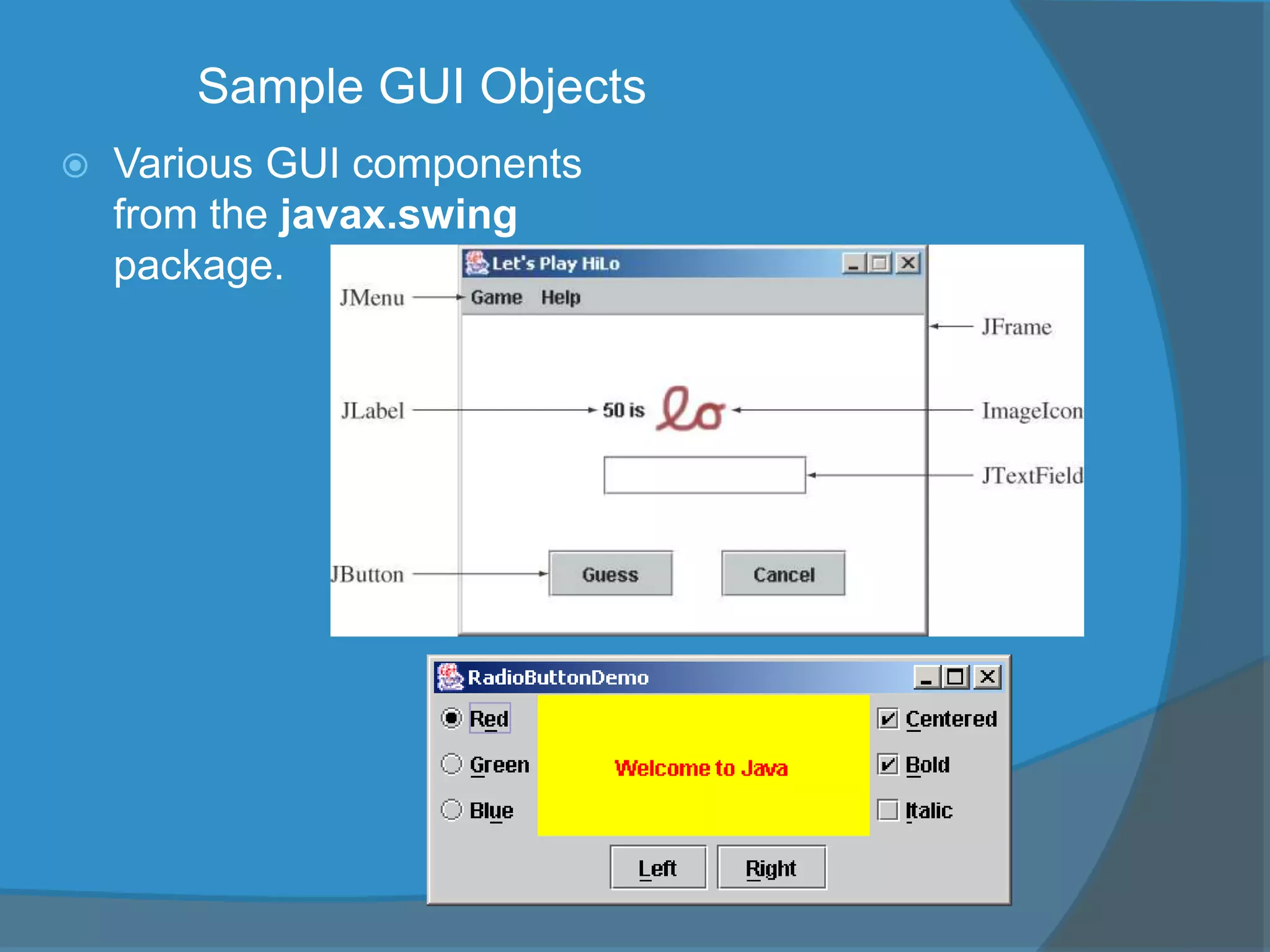
Sample GUI Objects
 Various GUI components
from the javax.swing
package.
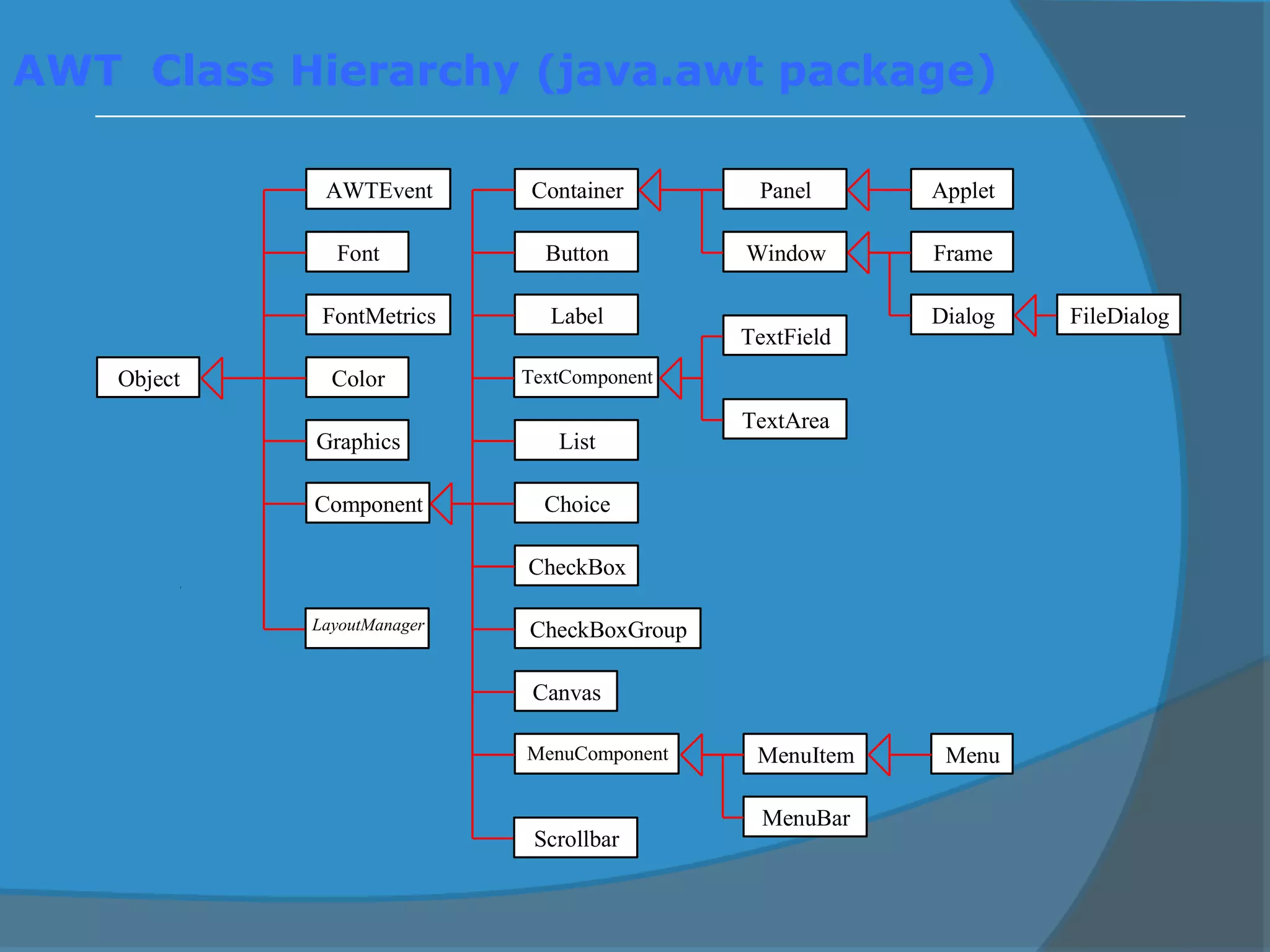
AWT Class Hierarchy (java.awt package)
AWTEvent
Font
FontMetrics
Component
Graphics
Object Color
Canvas
Button
TextComponent
Label
List
CheckBoxGroup
CheckBox
Choice
Container Panel Applet
Frame
Dialog FileDialog
Window
TextField
TextArea
MenuComponent MenuItem
MenuBar
Menu
Scrollbar
LayoutManager
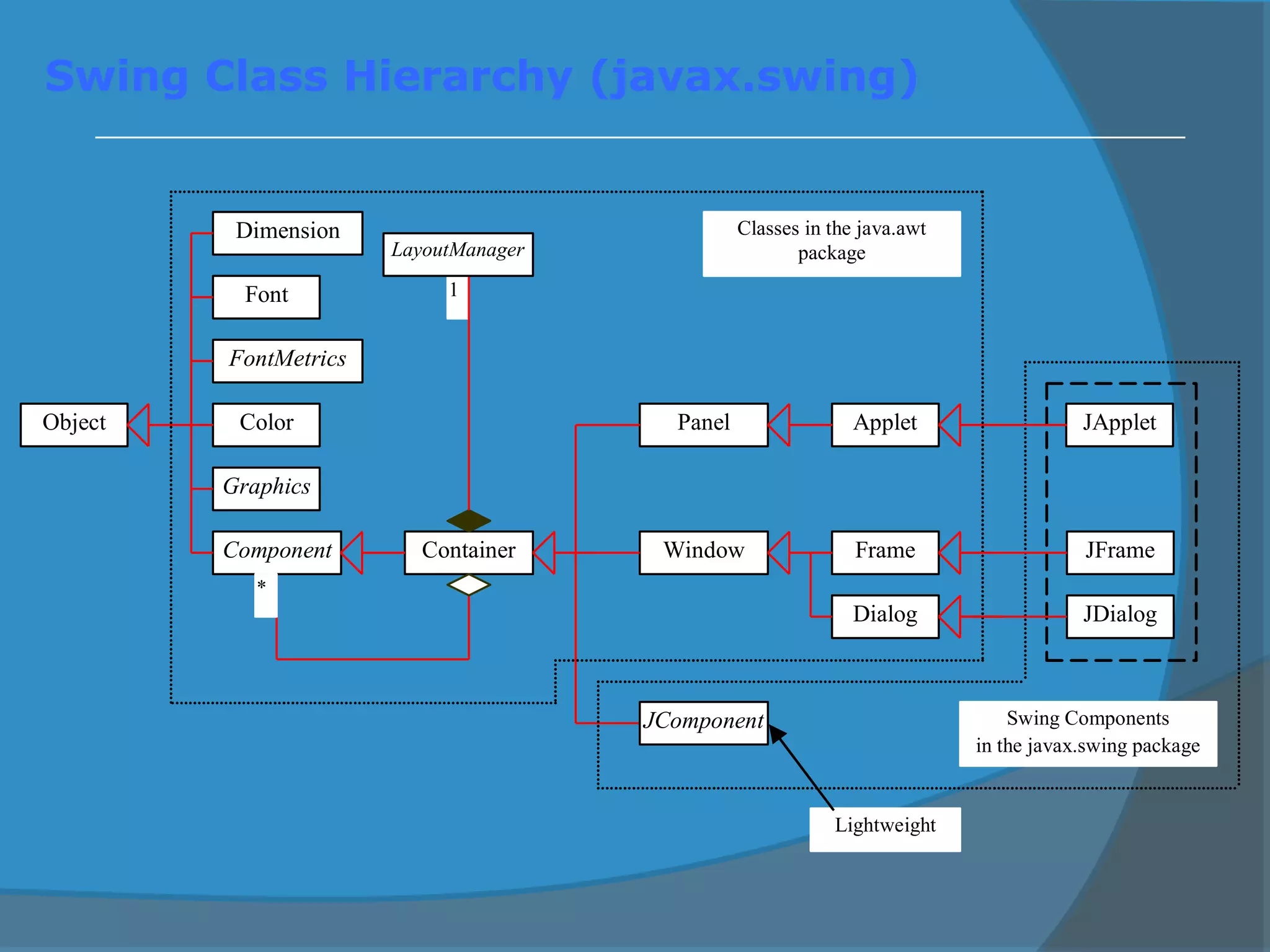
Swing Class Hierarchy (javax.swing)
Dimension
Font
FontMetrics
Component
Graphics
Object Color
Container
Panel Applet
Frame
Dialog
Window
JComponent
JApplet
JFrame
JDialog
Swing Components
in the javax.swing package
Lightweight
Classes in the java.awt
package
1
LayoutManager
*
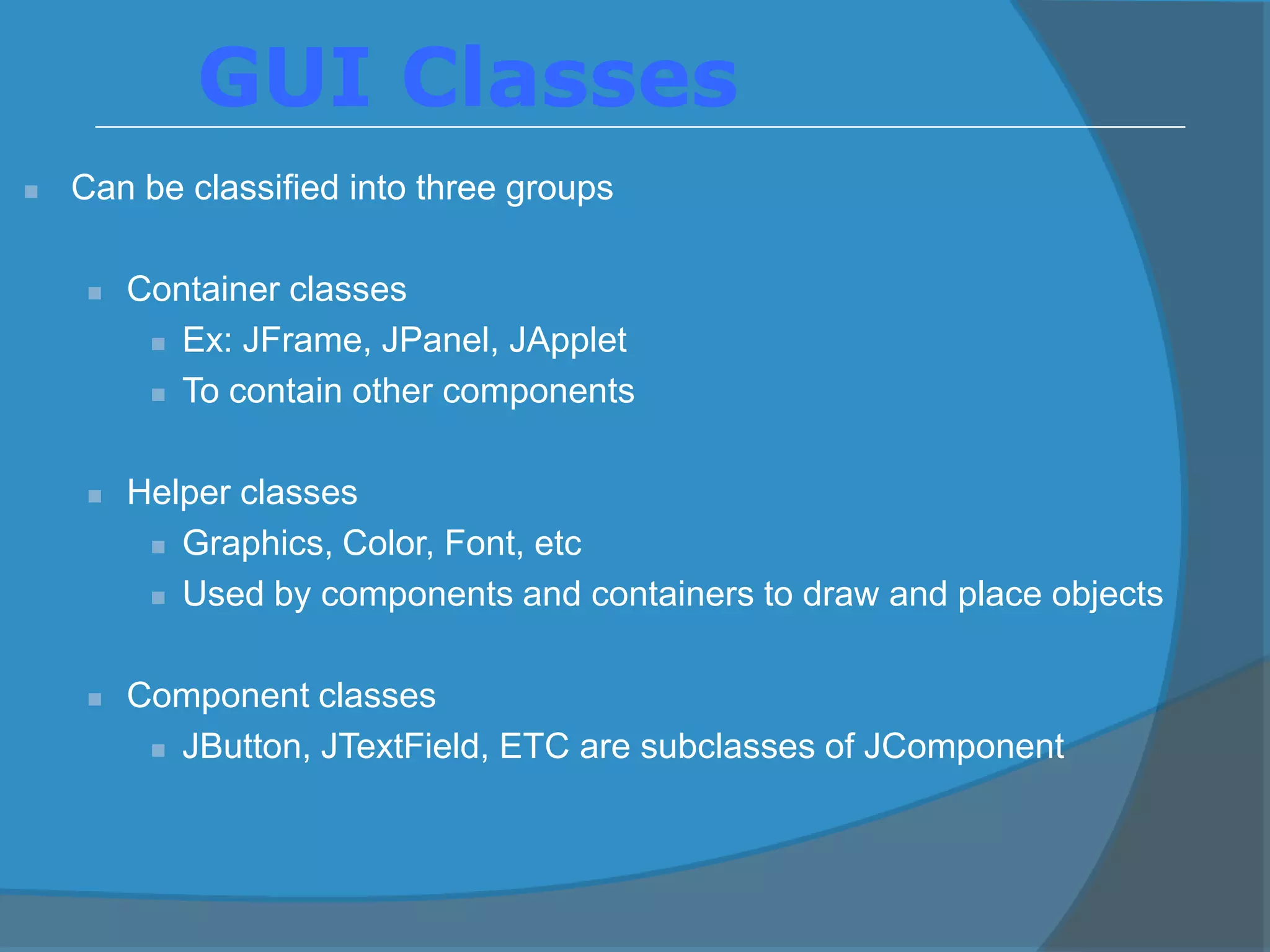
 Can be classified into three groups
 Container classes
 Ex: JFrame, JPanel, JApplet
 To contain other components
 Helper classes
 Graphics, Color, Font, etc
 Used by components and containers to draw and place objects
 Component classes
 JButton, JTextField, ETC are subclasses of JComponent
GUI Classes
Container Classes
Dimension
Font
FontMetrics
Component
Graphics
Object Color
Container
Panel Applet
Frame
Dialog
Window
JComponent
JApplet
JFrame
JDialog
Swing Components
in the javax.swing package
Lightweight
Heavyweight
Classes in the java.awt
package
1
LayoutManager
*
JPanel
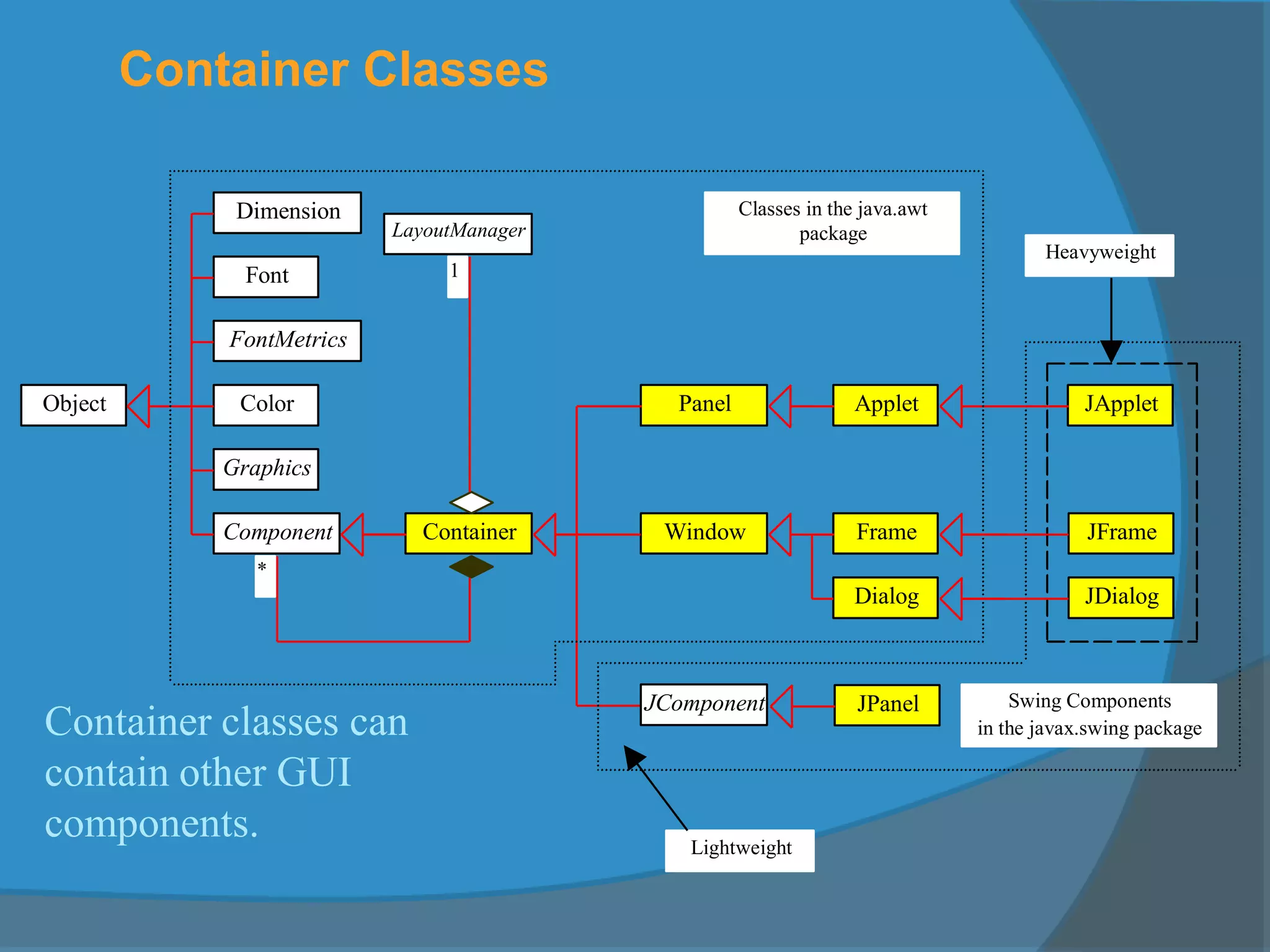
Container classes can
contain other GUI
components.
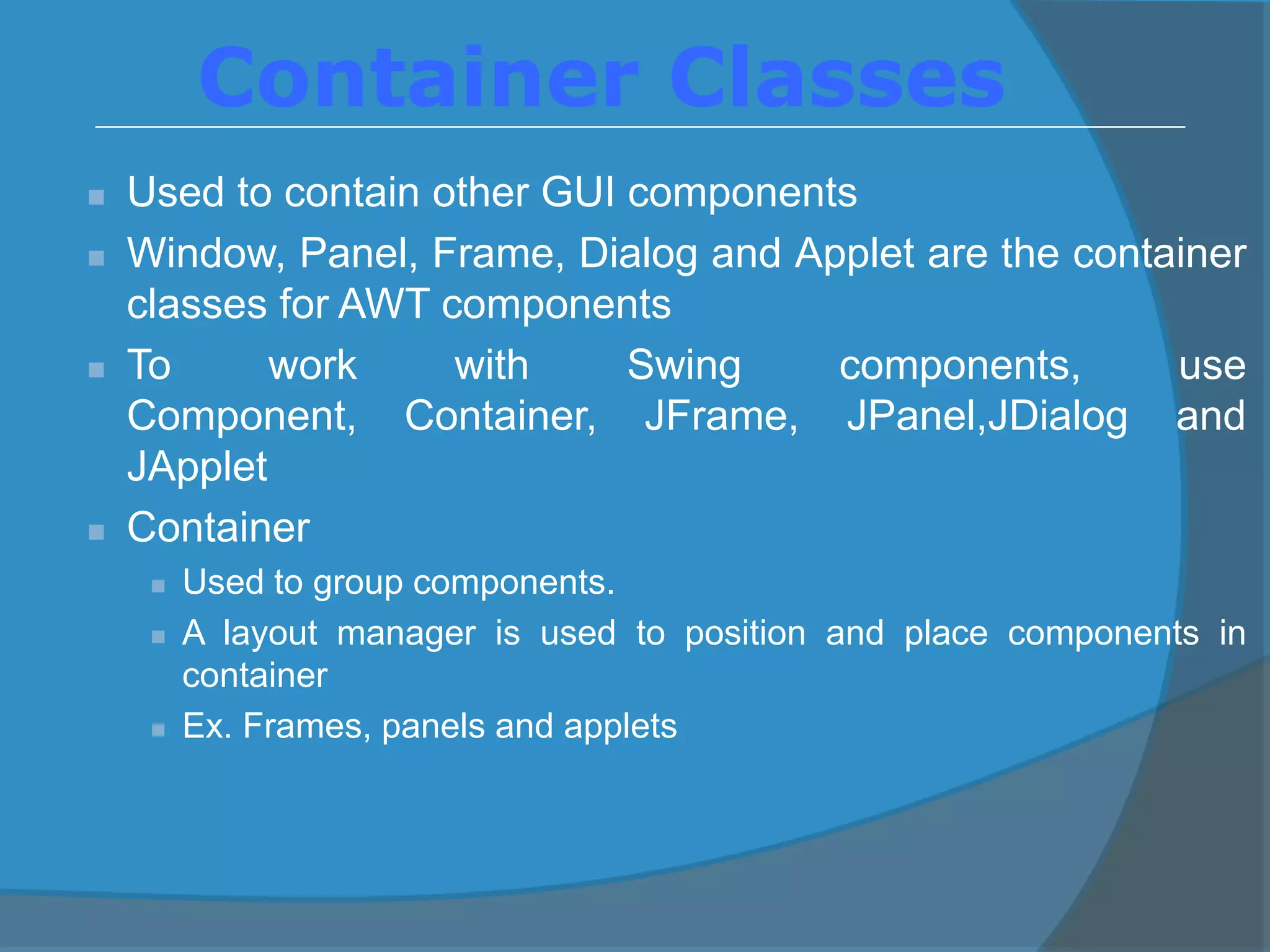
 Used to contain other GUI components
 Window, Panel, Frame, Dialog and Applet are the container
classes for AWT components
 To work with Swing components, use
Component, Container, JFrame, JPanel,JDialog and
JApplet
 Container
 Used to group components.
 A layout manager is used to position and place components in
container
 Ex. Frames, panels and applets
Container Classes
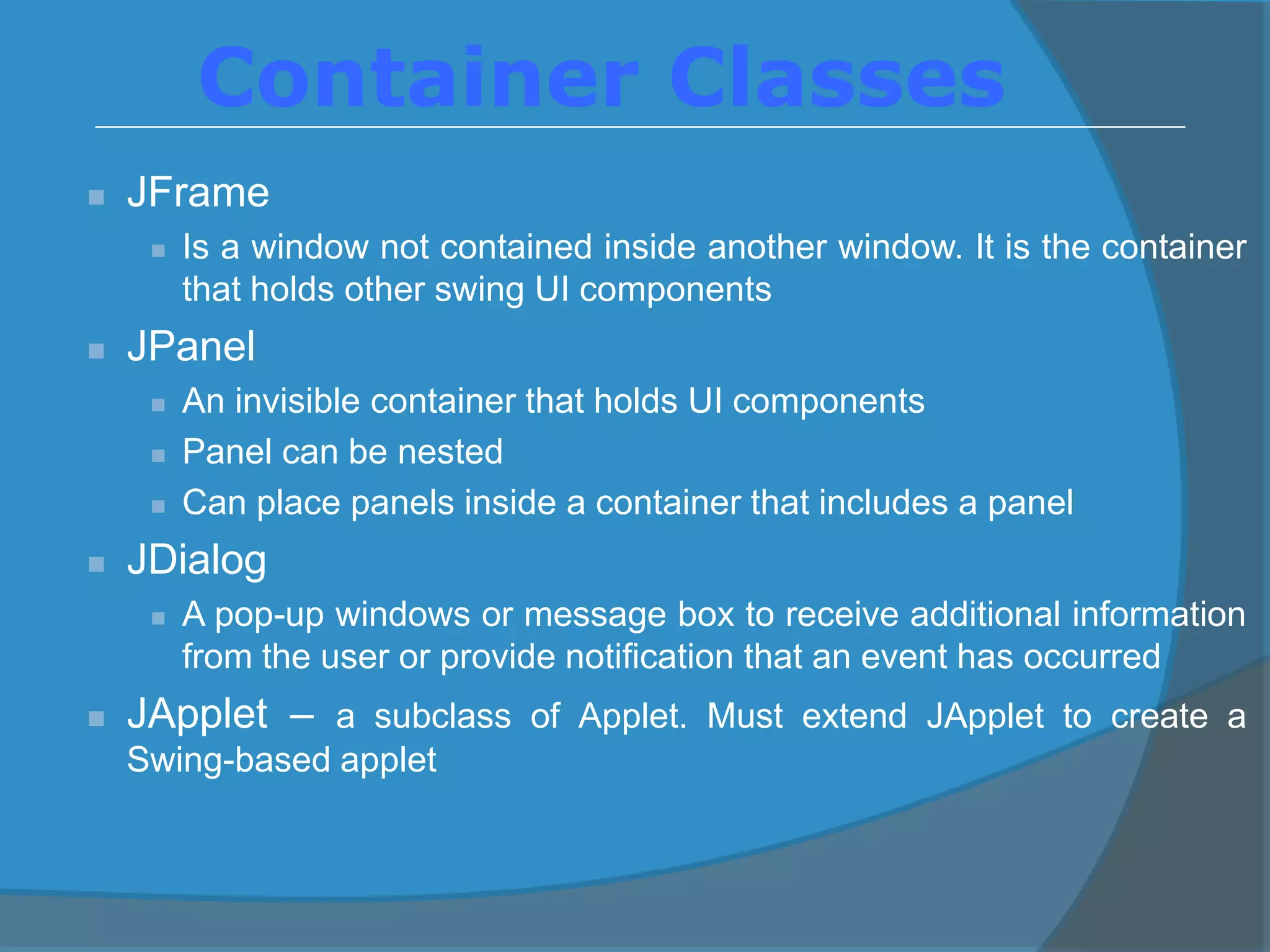
 JFrame
 Is a window not contained inside another window. It is the container
that holds other swing UI components
 JPanel
 An invisible container that holds UI components
 Panel can be nested
 Can place panels inside a container that includes a panel
 JDialog
 A pop-up windows or message box to receive additional information
from the user or provide notification that an event has occurred
 JApplet – a subclass of Applet. Must extend JApplet to create a
Swing-based applet
Container Classes
GUI Helper Classes
Dimension
Font
FontMetrics
Component
Graphics
Object Color
Container
Panel Applet
Frame
Dialog
Window
JComponent
JApplet
JFrame
JDialog
Swing Components
in the javax.swing package
Lightweight
Heavyweight
Classes in the java.awt
package
1
LayoutManager
*
JPanel
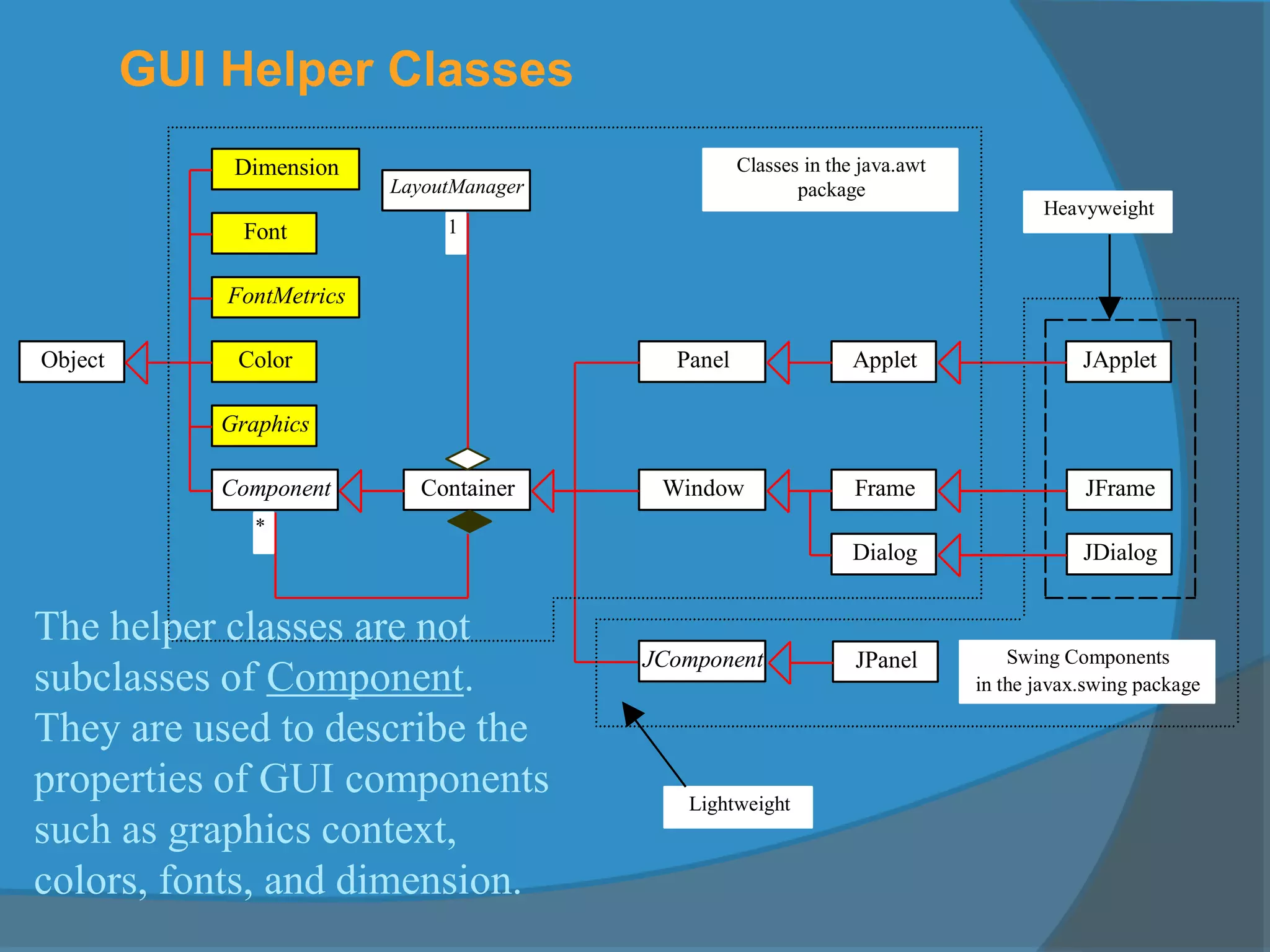
The helper classes are not
subclasses of Component.
They are used to describe the
properties of GUI components
such as graphics context,
colors, fonts, and dimension.
 Component is a superclass of all the UI classes
 JComponent is a superclass of all the lightweight Swing
components
 JComponent is an abstract class, cannot use new
JComponent to create an instance of JComponent
 Use the constructor of subclasses of JComponent to create
JComponent instances.
 An instance of a subclass can invoke the accessible
method defined in its superclass
Swing GUI Components
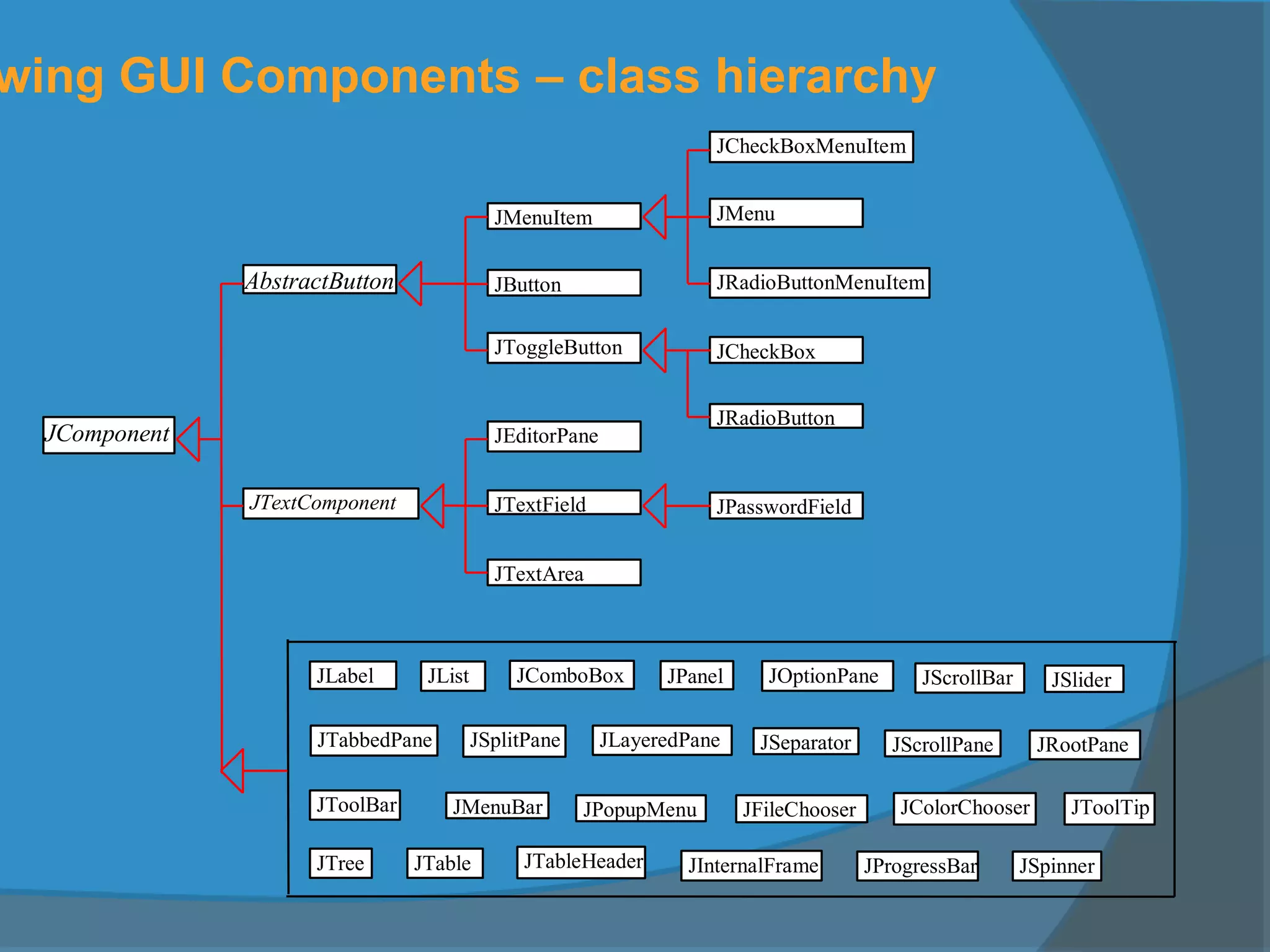
wing GUI Components – class hierarchy
JMenuItem
JCheckBoxMenuItem
AbstractButton
JComponent
JMenu
JRadioButtonMenuItem
JToggleButton JCheckBox
JRadioButton
JComboBox
JInternalFrame
JLayeredPane
JList
JMenuBar
JOptionPane
JPopupMenu
JProgressBar
JFileChooser
JScrollBar
JScrollPaneJSeparatorJSplitPane
JSlider
JTabbedPane
JTable JTableHeader
JTextFieldJTextComponent
JTextArea
JToolBar JToolTip
JTree
JRootPane
JPanel
JPasswordField
JColorChooser
JLabel
JEditorPane
JSpinner
JButton
Frames
 Frame is a window that is not contained inside
another window.
 Frame is the basis to contain other user interface
components in Java GUI applications.
 The Frame class can be used to create windows. The
Frame class contains rudimentary functionalities to
support features found in any frame window.
 For Swing GUI programs, use JFrame class to create
windows.
Two Ways to Create a
Window Using JFrame
 First approach
 Declare & Create object of type JFrame
 Use various methods to manipulate window
 Second approach
 Create class containing application program by extending
definition of class JFrame
 Utilizes mechanism of inheritance
Creating Frames
1) First approach:
import javax.swing.*;
public class MyFrame
{
public static void main(String[] args)
{
JFrame frame = new JFrame(“MyFrame");
frame.setSize(400, 300);
frame.setVisible(true);
frame.setDefaultCloseOperation(
JFrame.EXIT_ON_CLOSE);
}
}
Creating Frames
import javax.swing.*;
public class MyFrame
{
public static void main(String[] args)
{
JFrame frame = new JFrame(“MyFrame");
frame.setSize(400, 300);
frame.setVisible(true);
frame.setDefaultCloseOperation(JFrame.EXIT_ON_CLOSE);
}
}
300
400
setVisible() and setSize() –
methods in Component class
setDefaultCloseOperation
(EXIT_ON_CLOSE)
- terminate when the frame is
closed
Creating Frames
2) Second approach :
import javax.swing.*;
public class MyFrame extends JFrame
{
public MyFrame()
{
setTitle(“MyFrame");
setSize(400, 300);
setVisible(true);
setDefaultCloseOperation(EXIT_ON_CLOSE);
}
public static void main(String[] args)
{
MyFrame myFrame = new MyFrame();
}
}
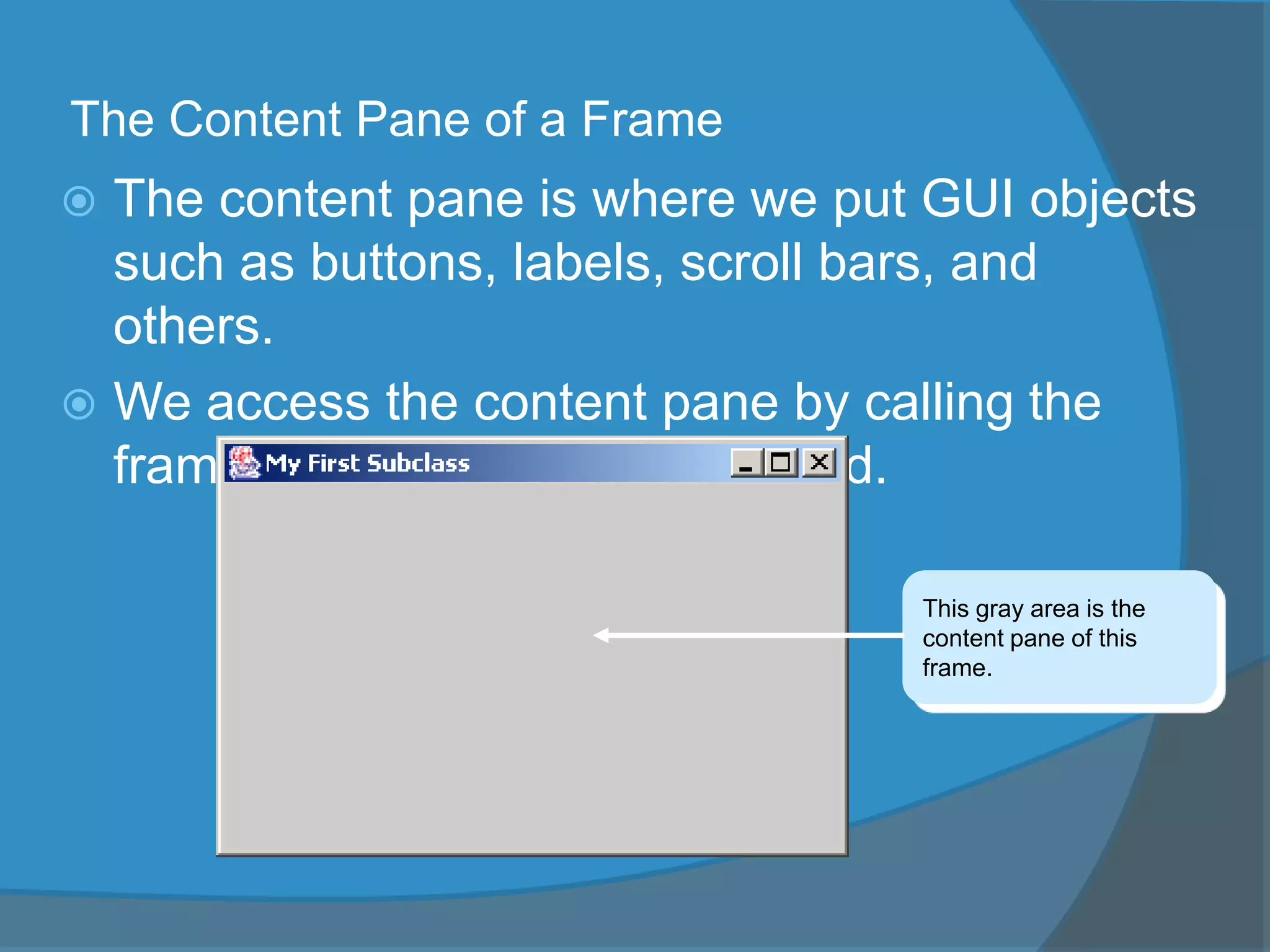
The Content Pane of a Frame
 The content pane is where we put GUI objects
such as buttons, labels, scroll bars, and
others.
 We access the content pane by calling the
frame’s getContentPane method.
This gray area is the
content pane of this
frame.
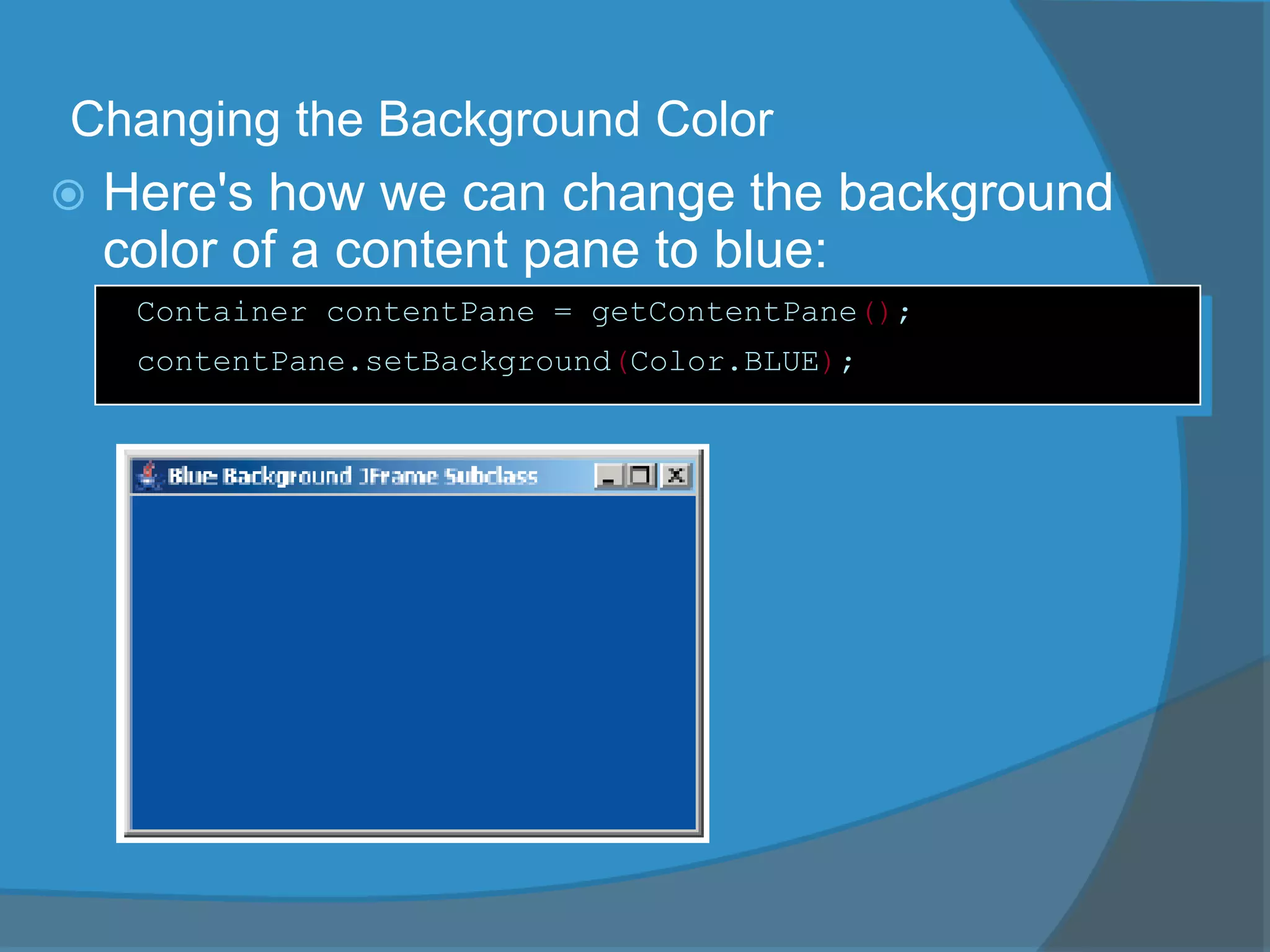
Changing the Background Color
 Here's how we can change the background
color of a content pane to blue:
Container contentPane = getContentPane();
contentPane.setBackground(Color.BLUE);
Placing GUI Objects on a Frame
There are two ways to put GUI objects on the
content pane of a frame:
 Use a layout manager
○ FlowLayout
○ BorderLayout
○ GridLayout
○ others
 Use absolute positioning
○ null layout manager
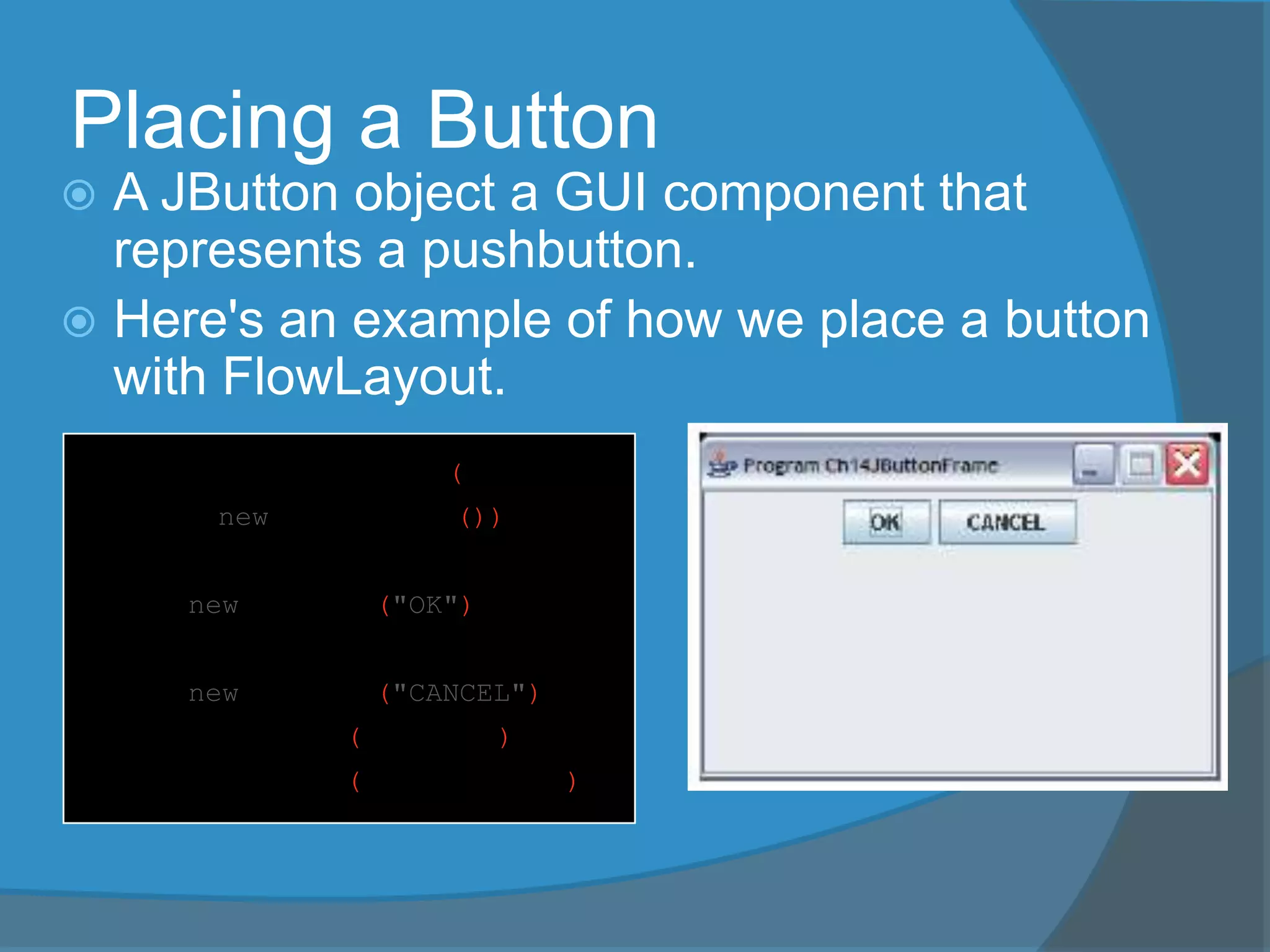
Placing a Button
 A JButton object a GUI component that
represents a pushbutton.
 Here's an example of how we place a button
with FlowLayout.
contentPane.setLayout(
new FlowLayout());
JButton okButton
= new JButton("OK");
JButton cancelButton
= new JButton("CANCEL");
contentPane.add(okButton);
contentPane.add(cancelButton);
Layout Managers
 The layout manager determines how the GUI
components are added to the container (such
as the content pane of a frame)
 Layout managers are set in containers using
the setLayout(LayoutManager) method in a
container
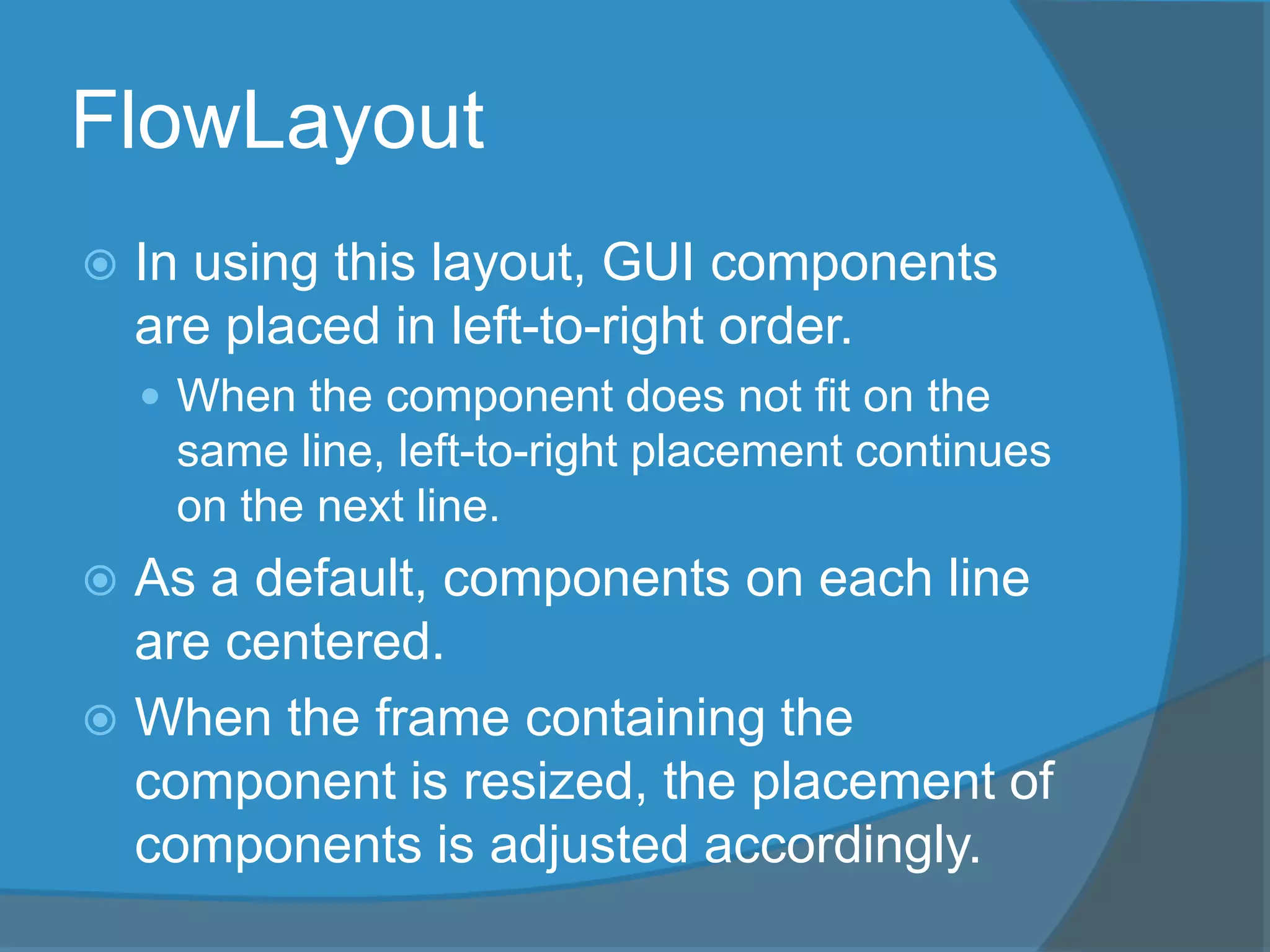
FlowLayout
 In using this layout, GUI components
are placed in left-to-right order.
 When the component does not fit on the
same line, left-to-right placement continues
on the next line.
 As a default, components on each line
are centered.
 When the frame containing the
component is resized, the placement of
components is adjusted accordingly.
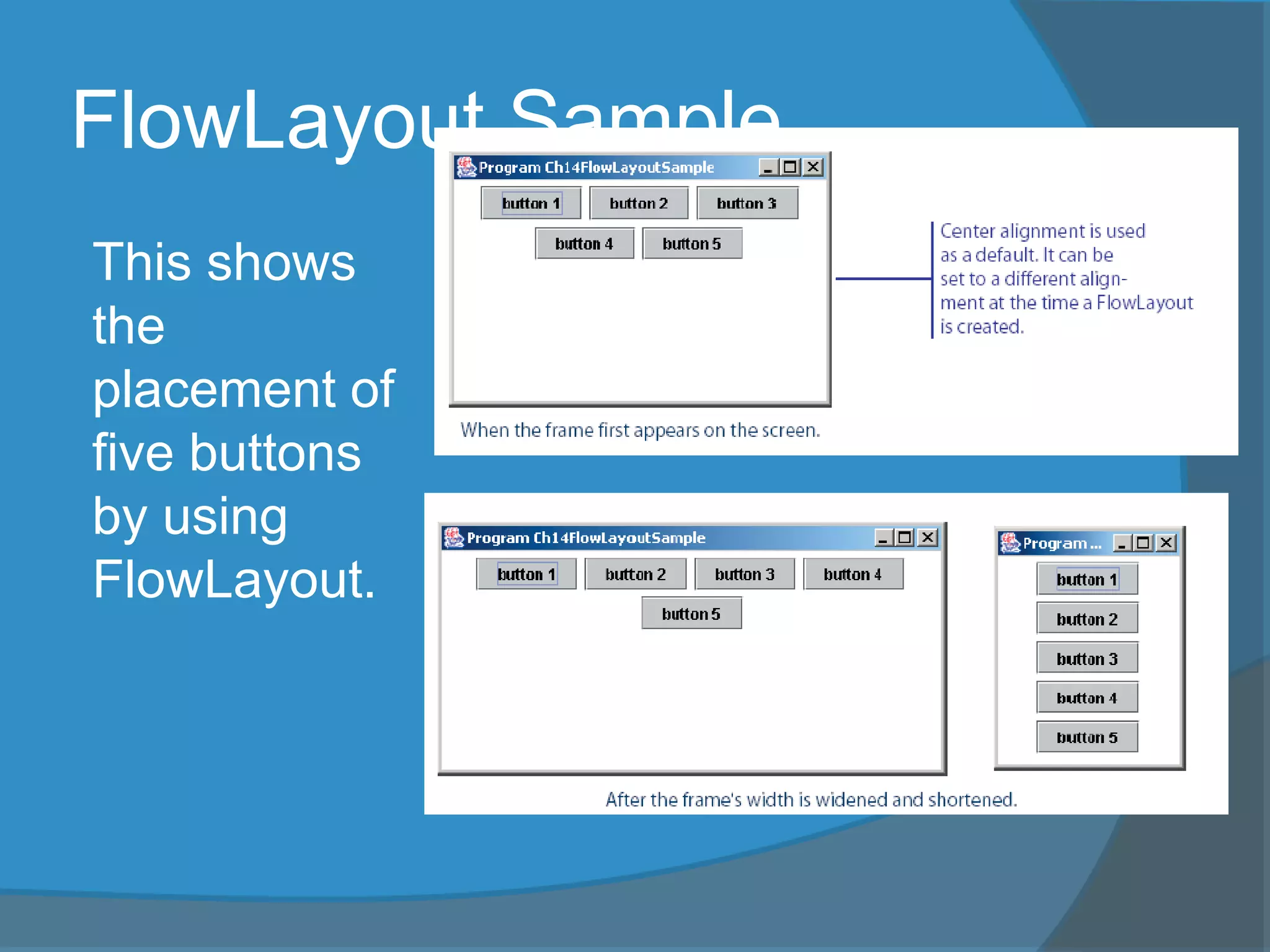
FlowLayout Sample
This shows
the
placement of
five buttons
by using
FlowLayout.
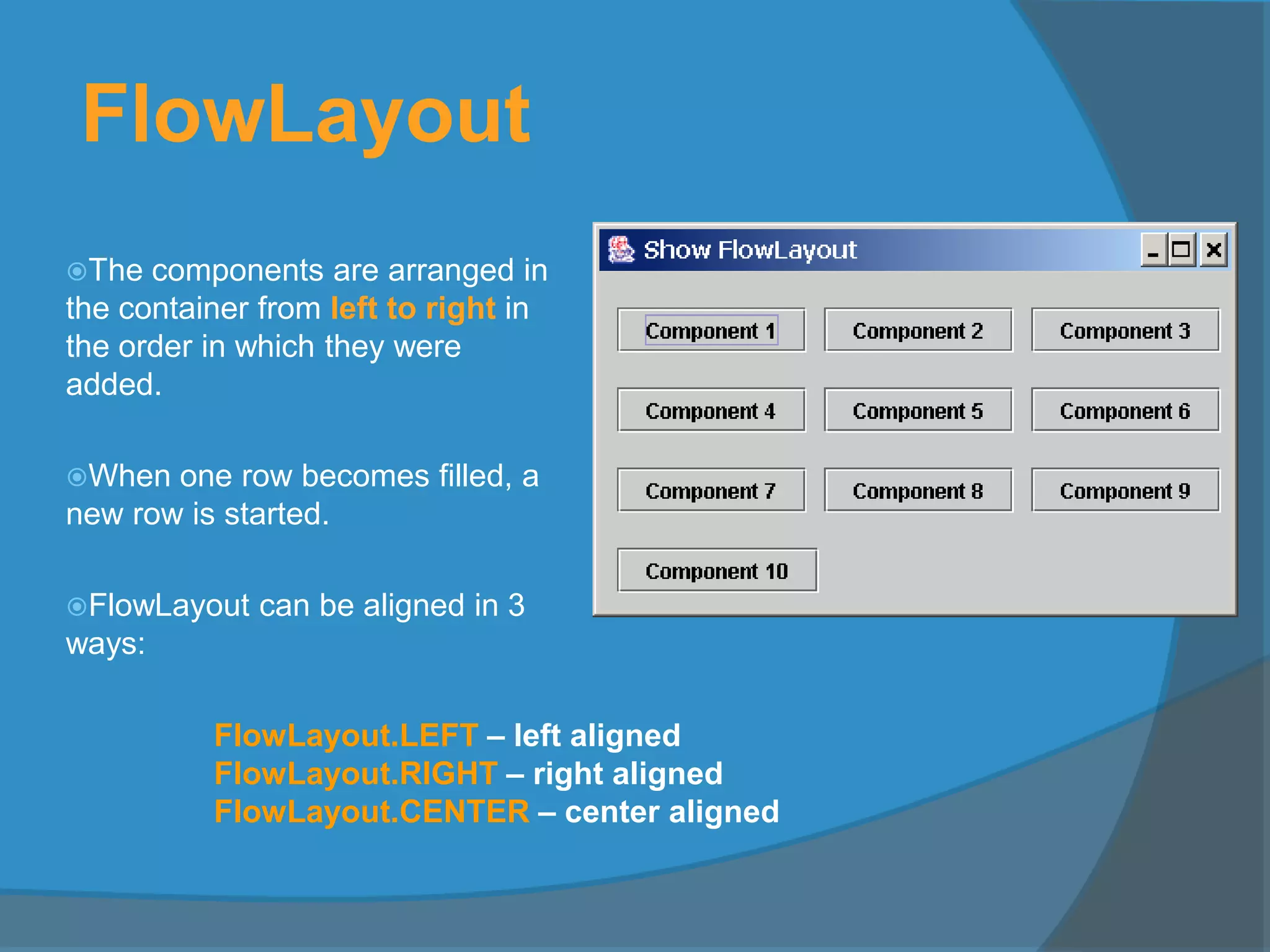
FlowLayout
The components are arranged in
the container from left to right in
the order in which they were
added.
When one row becomes filled, a
new row is started.
FlowLayout can be aligned in 3
ways:
FlowLayout.LEFT – left aligned
FlowLayout.RIGHT – right aligned
FlowLayout.CENTER – center aligned
FlowLayout Constructors
 public FlowLayout(int align, int hGap, int vGap)
Constructs a new FlowLayout with a specified alignment, horizontal
gap, and vertical gap. The gaps are the distances in
pixel between components.
 public FlowLayout(int alignment)
Constructs a new FlowLayout with a specified alignment and a default gap
of five pixels for both horizontal and vertical.
 public FlowLayout()
Constructs a new FlowLayout with a default center alignment and a default
gap of five pixels for both horizontal and vertical.
import java.awt.*;
import javax.swing.*;
//import java.awt.event.*;
public class TestFlowLayout extends JFrame
{
public TestFlowLayout()
{
super(“Using flowLayout");
Container cpane = getContentPane();
cpane.setLayout(new FlowLayout(FlowLayout.LEFT,20,10));
for (int i=1; i<7;i++)
cpane.add(new JButton("button "+i));
setSize(300,200);
setVisible(true);
}
public static void main(String[] arg)
{
TestFlowLayout teks = new TestFlowLayout();
teks.setDefaultCloseOperation(JFrame.EXIT_ON_CLOSE);
}
}
10
20
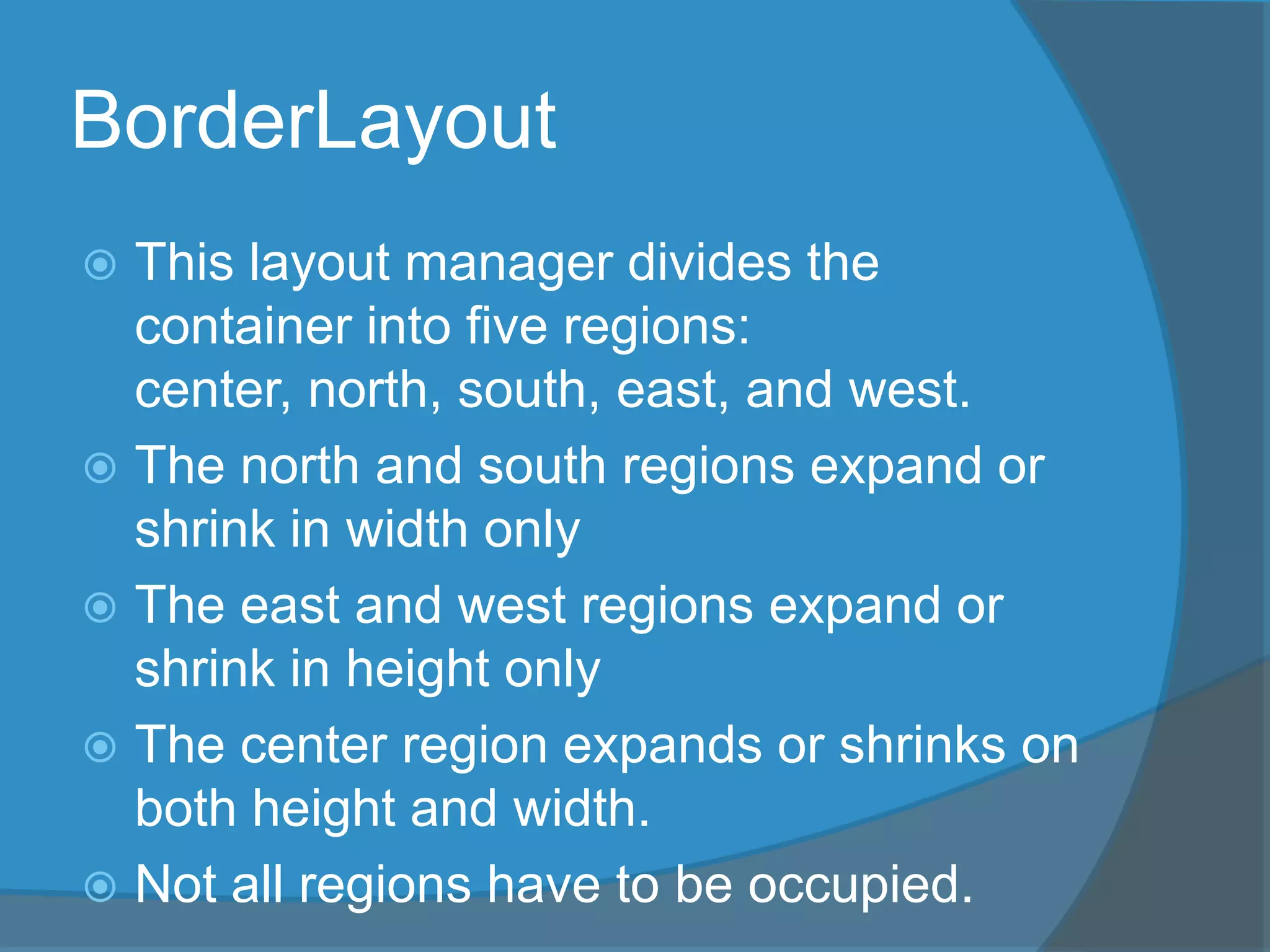
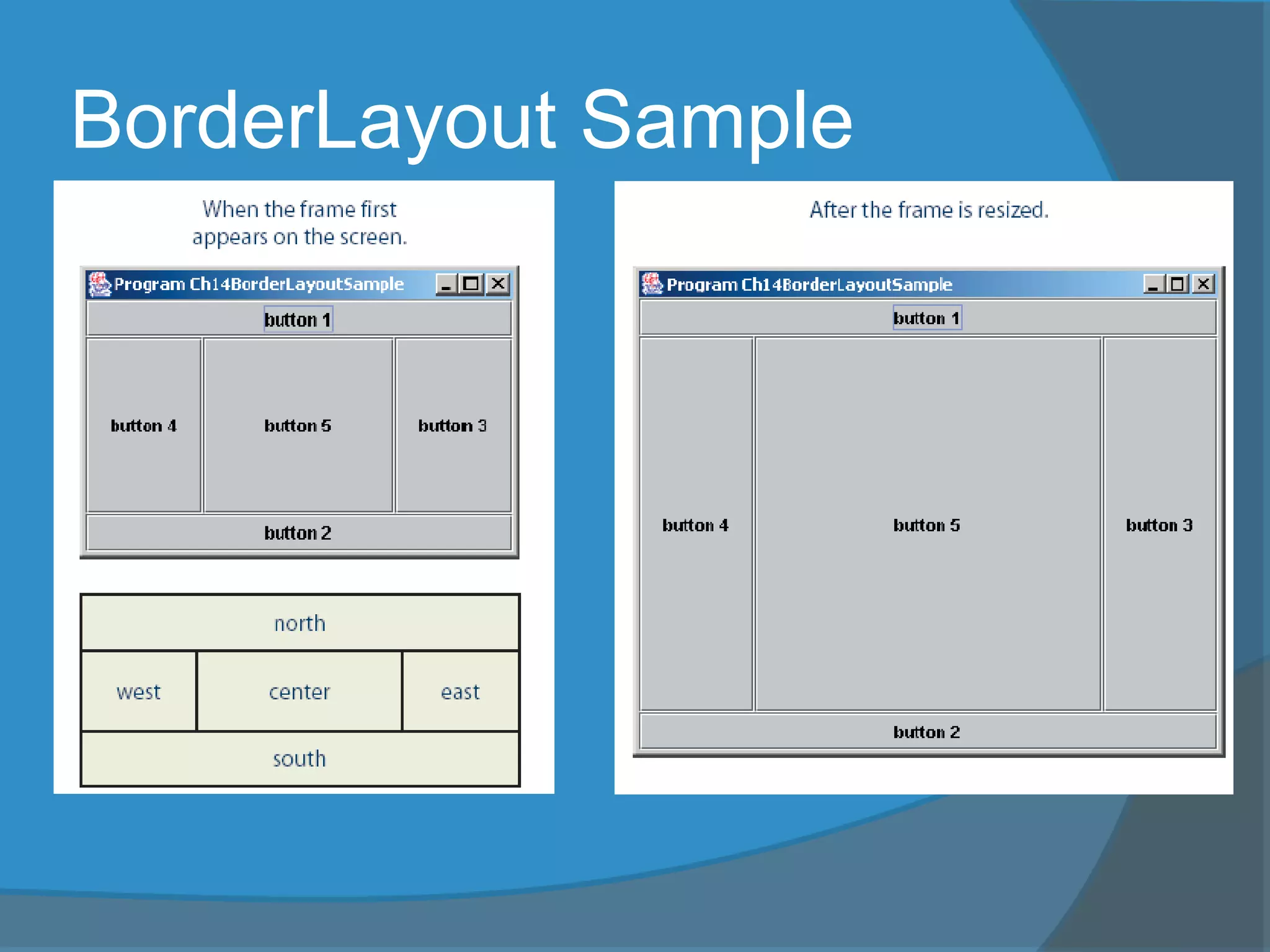
BorderLayout
 This layout manager divides the
container into five regions:
center, north, south, east, and west.
 The north and south regions expand or
shrink in width only
 The east and west regions expand or
shrink in height only
 The center region expands or shrinks on
both height and width.
 Not all regions have to be occupied.
BorderLayout Sample
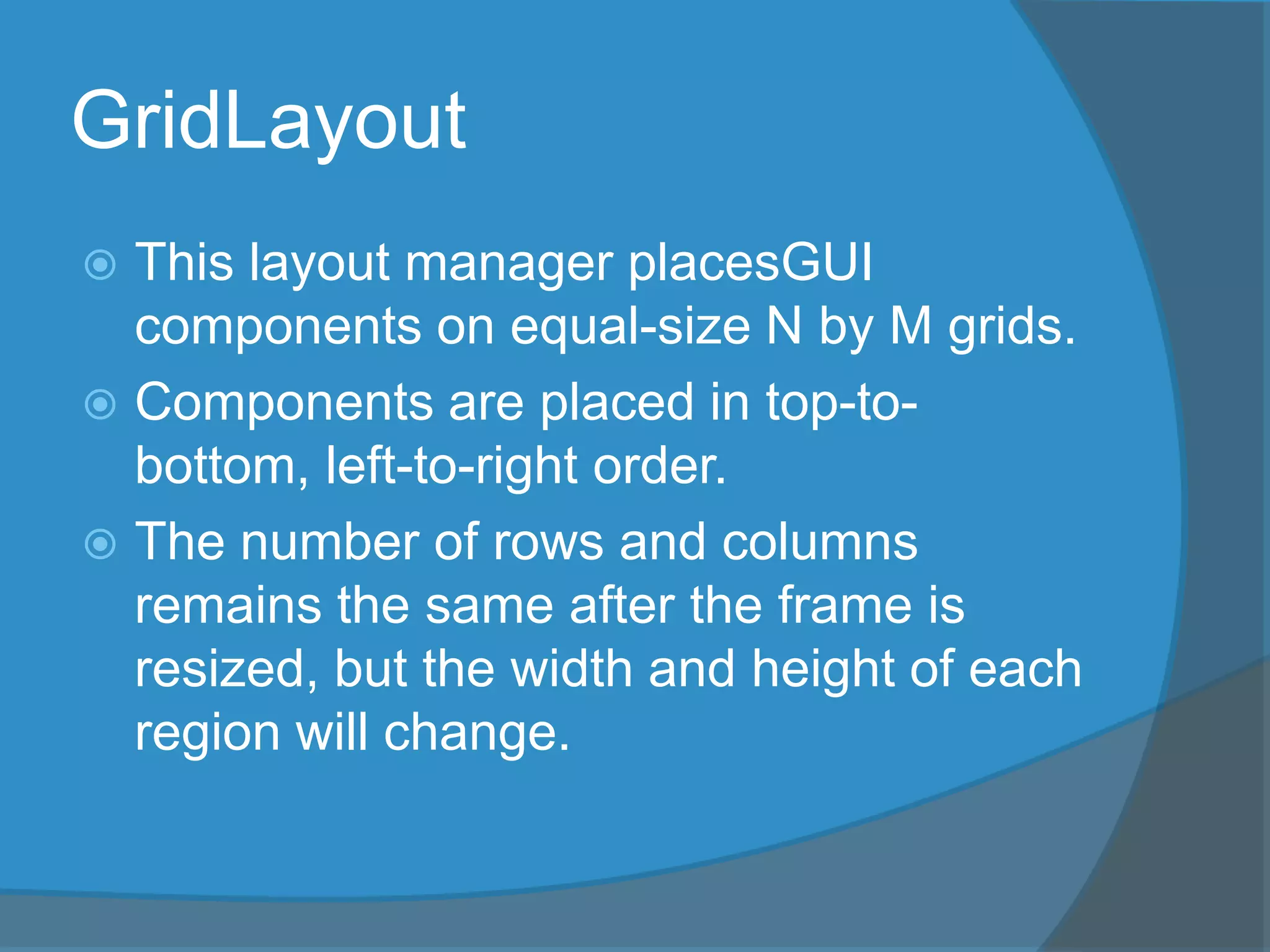
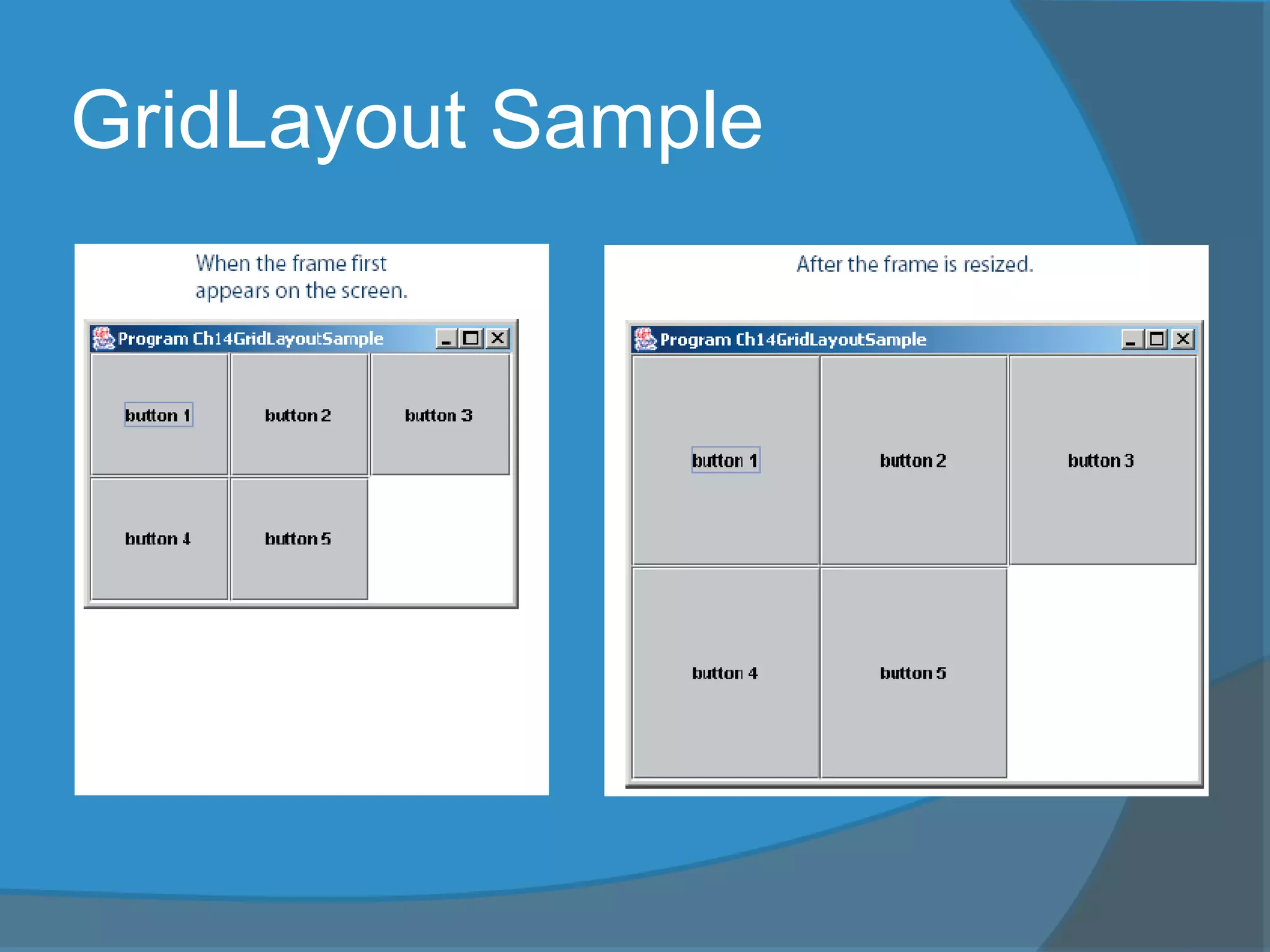
GridLayout
 This layout manager placesGUI
components on equal-size N by M grids.
 Components are placed in top-to-
bottom, left-to-right order.
 The number of rows and columns
remains the same after the frame is
resized, but the width and height of each
region will change.
GridLayout Sample
Using Panels as Containers
 Panels act as smaller containers for grouping user interface
components.
 It is recommended that you place the user interface components
in panels and place the panels in a frame. You can also place
panels in a panel.
 To add a component to JFrame, you actually add it to the content
pane of JFrame. To add a component to a panel, you add it
directly to the panel using the add method.
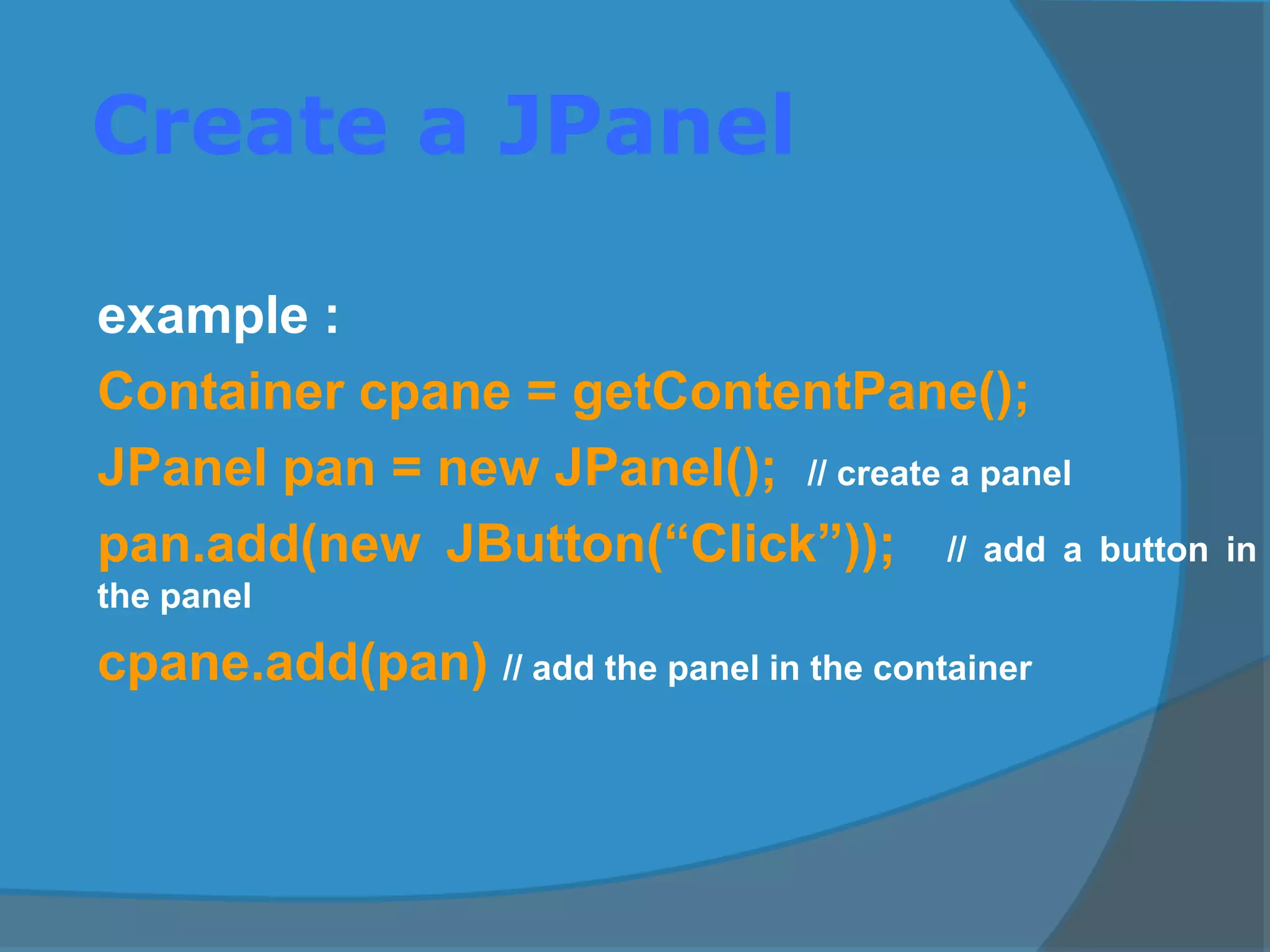
Create a JPanel
example :
Container cpane = getContentPane();
JPanel pan = new JPanel(); // create a panel
pan.add(new JButton(“Click”)); // add a button in
the panel
cpane.add(pan) // add the panel in the container
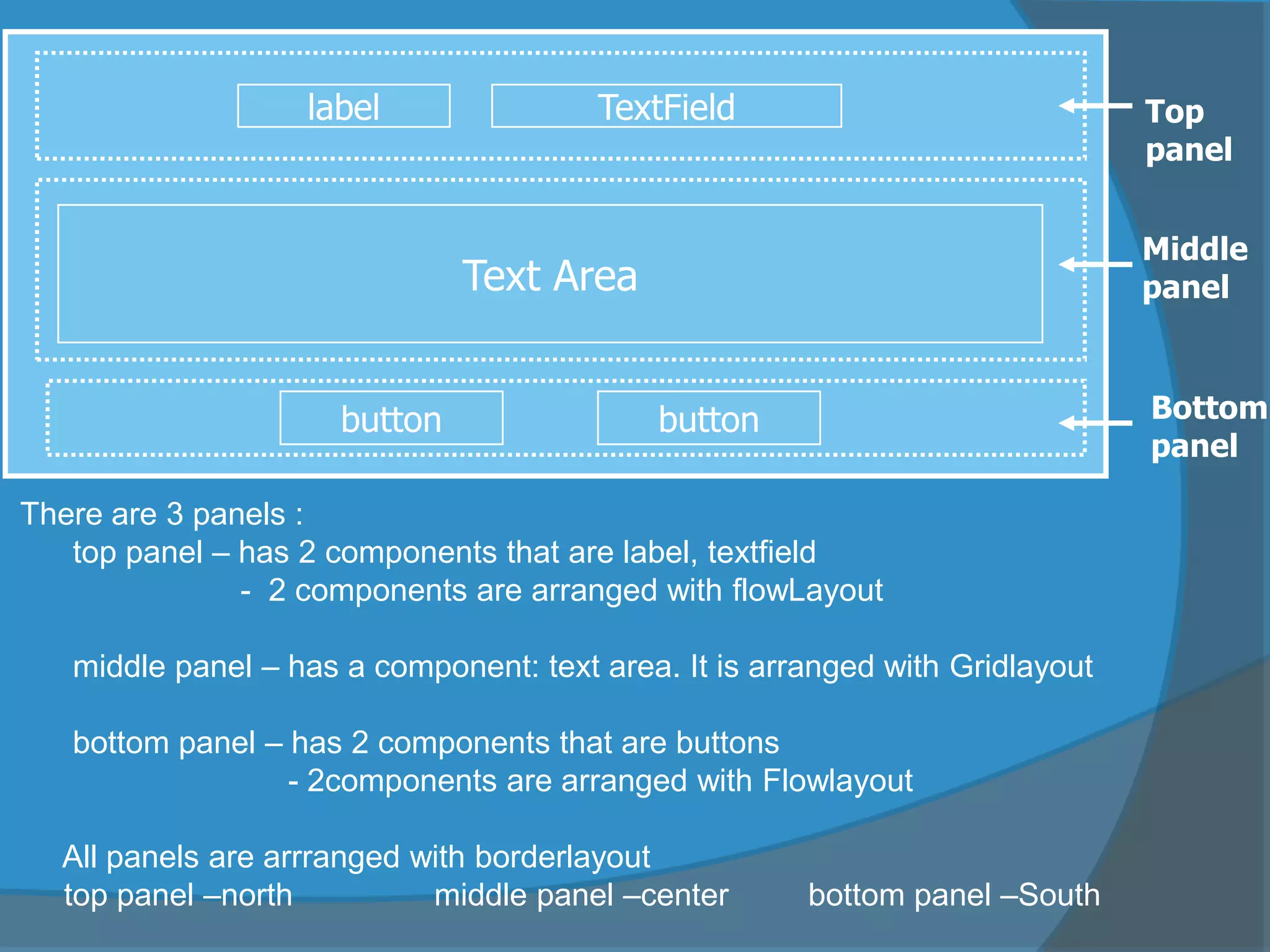
label TextField
Text Area
button button
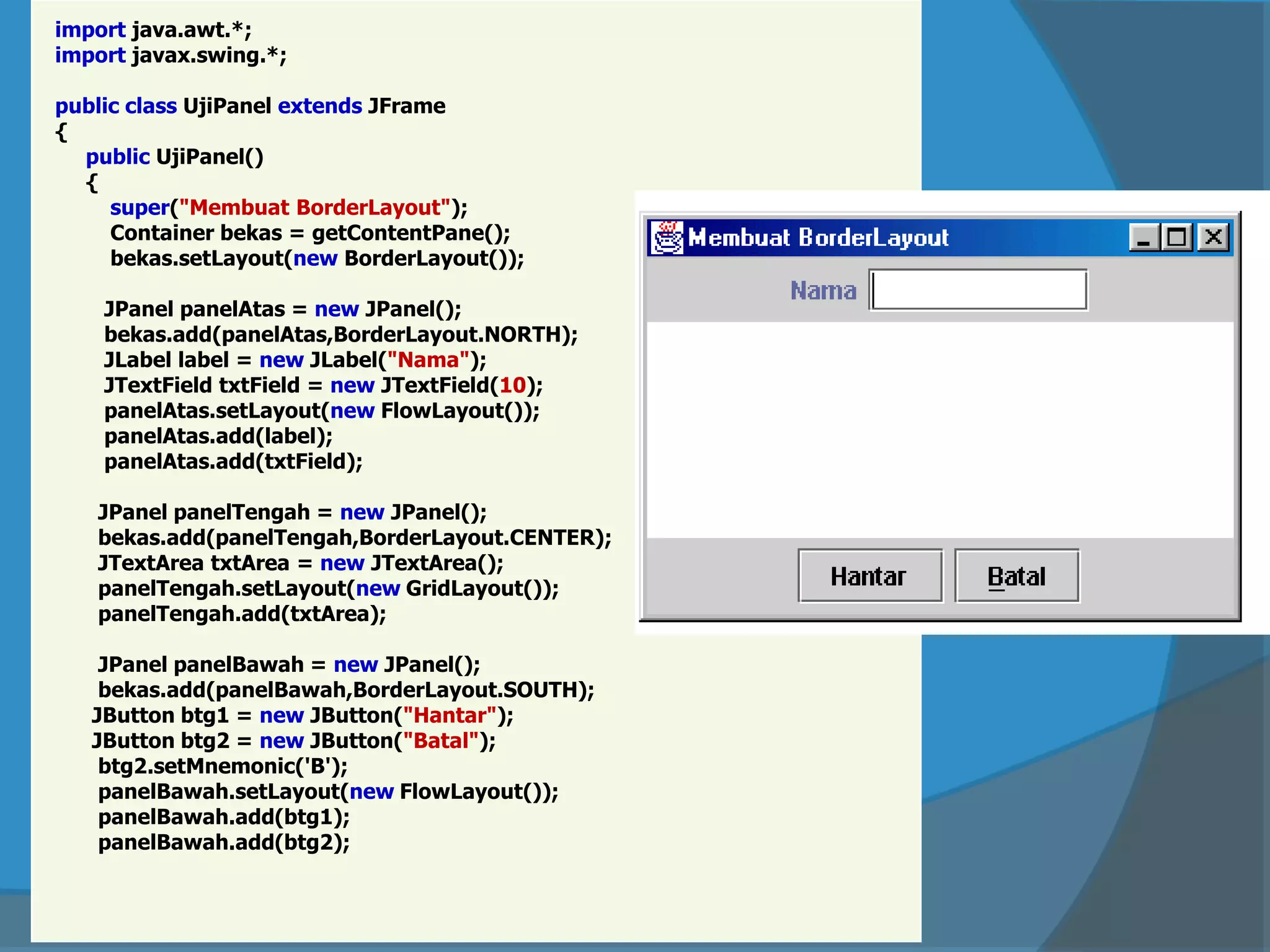
There are 3 panels :
top panel – has 2 components that are label, textfield
- 2 components are arranged with flowLayout
middle panel – has a component: text area. It is arranged with Gridlayout
bottom panel – has 2 components that are buttons
- 2components are arranged with Flowlayout
All panels are arrranged with borderlayout
top panel –north middle panel –center bottom panel –South
Top
panel
Middle
panel
Bottom
panel
import java.awt.*;
import javax.swing.*;
public class UjiPanel extends JFrame
{
public UjiPanel()
{
super("Membuat BorderLayout");
Container bekas = getContentPane();
bekas.setLayout(new BorderLayout());
JPanel panelAtas = new JPanel();
bekas.add(panelAtas,BorderLayout.NORTH);
JLabel label = new JLabel("Nama");
JTextField txtField = new JTextField(10);
panelAtas.setLayout(new FlowLayout());
panelAtas.add(label);
panelAtas.add(txtField);
JPanel panelTengah = new JPanel();
bekas.add(panelTengah,BorderLayout.CENTER);
JTextArea txtArea = new JTextArea();
panelTengah.setLayout(new GridLayout());
panelTengah.add(txtArea);
JPanel panelBawah = new JPanel();
bekas.add(panelBawah,BorderLayout.SOUTH);
JButton btg1 = new JButton("Hantar");
JButton btg2 = new JButton("Batal");
btg2.setMnemonic('B');
panelBawah.setLayout(new FlowLayout());
panelBawah.add(btg1);
panelBawah.add(btg2);
setSize(300,200);
setVisible(true);
} // konstruktor
public static void main(String[] arg)
{
UjiPanel teks = new UjiPanel();
teks.setDefaultCloseOperation(JFrame.EXIT_ON_CLOSE);
}
}
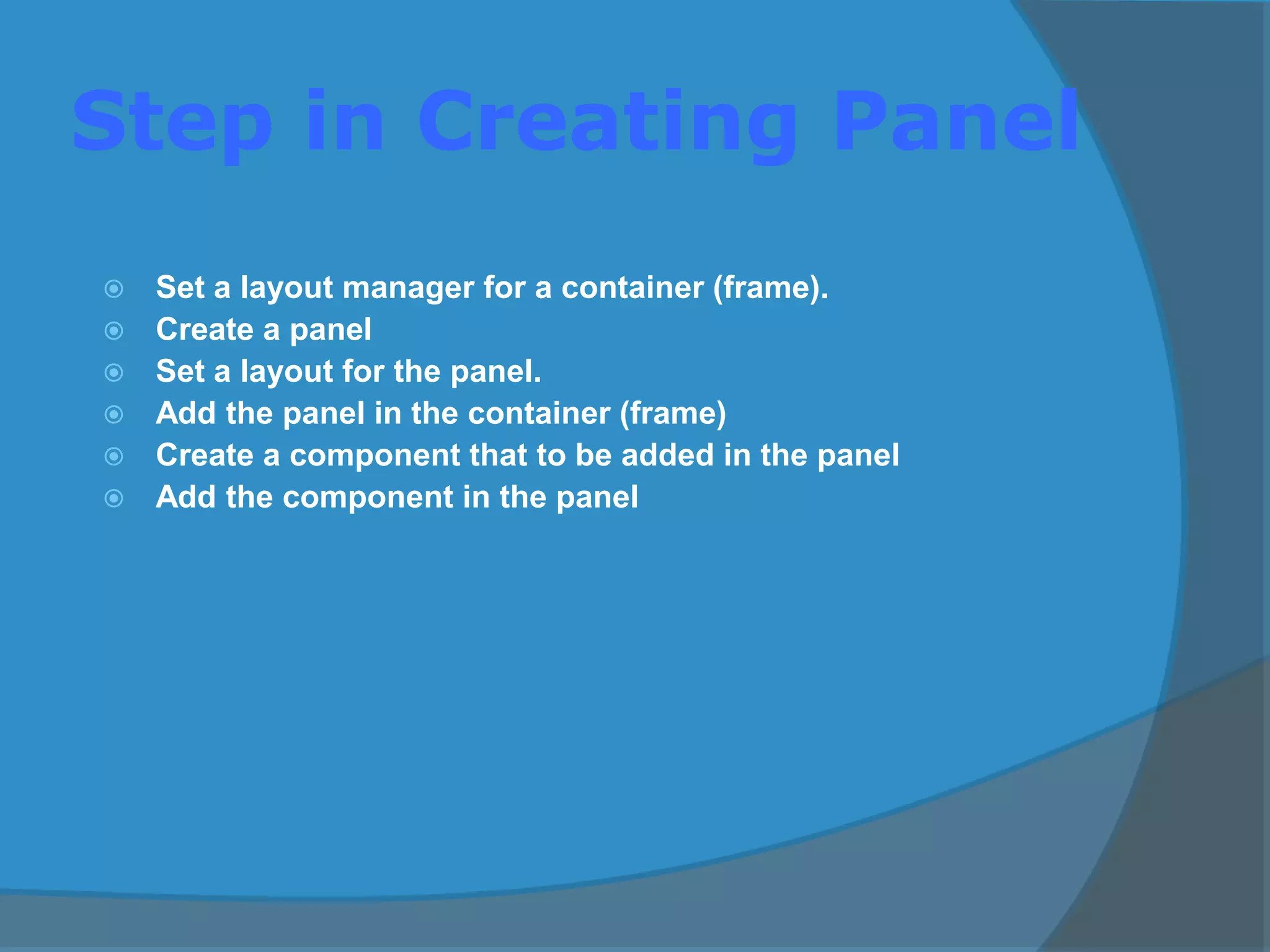
Step in Creating Panel
 Set a layout manager for a container (frame).
 Create a panel
 Set a layout for the panel.
 Add the panel in the container (frame)
 Create a component that to be added in the panel
 Add the component in the panel
GUI Classes for Handling Text
 The Swing GUI classes
JLabel, JTextField, and JTextArea deal
with text.
 A JLabel object displays uneditable text (or
image).
 A JTextField object allows the user to enter a
single line of text.
 A JTextArea object allows the user to enter
multiple lines of text. It can also be used for
displaying multiple lines of uneditable text.
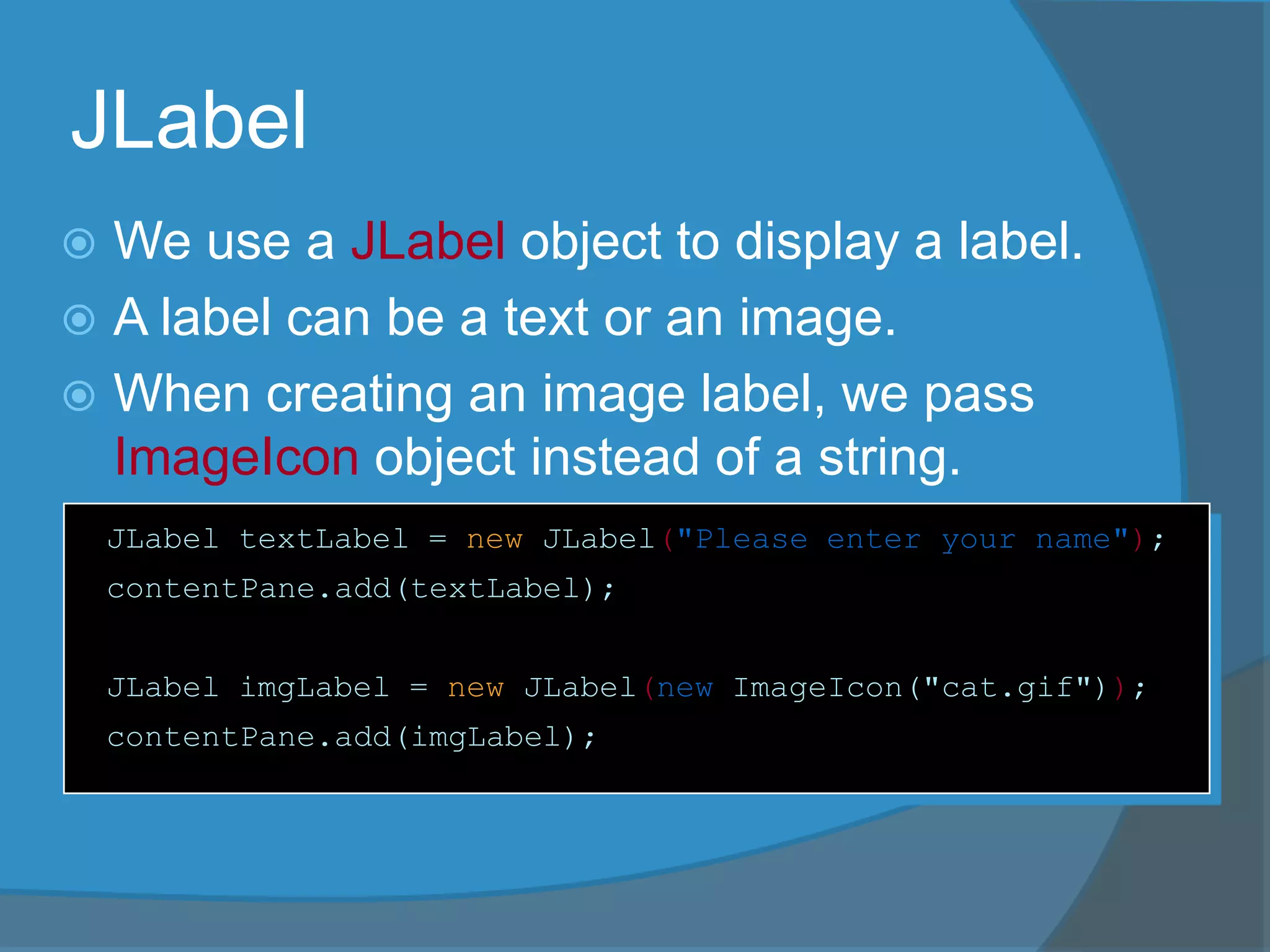
JLabel
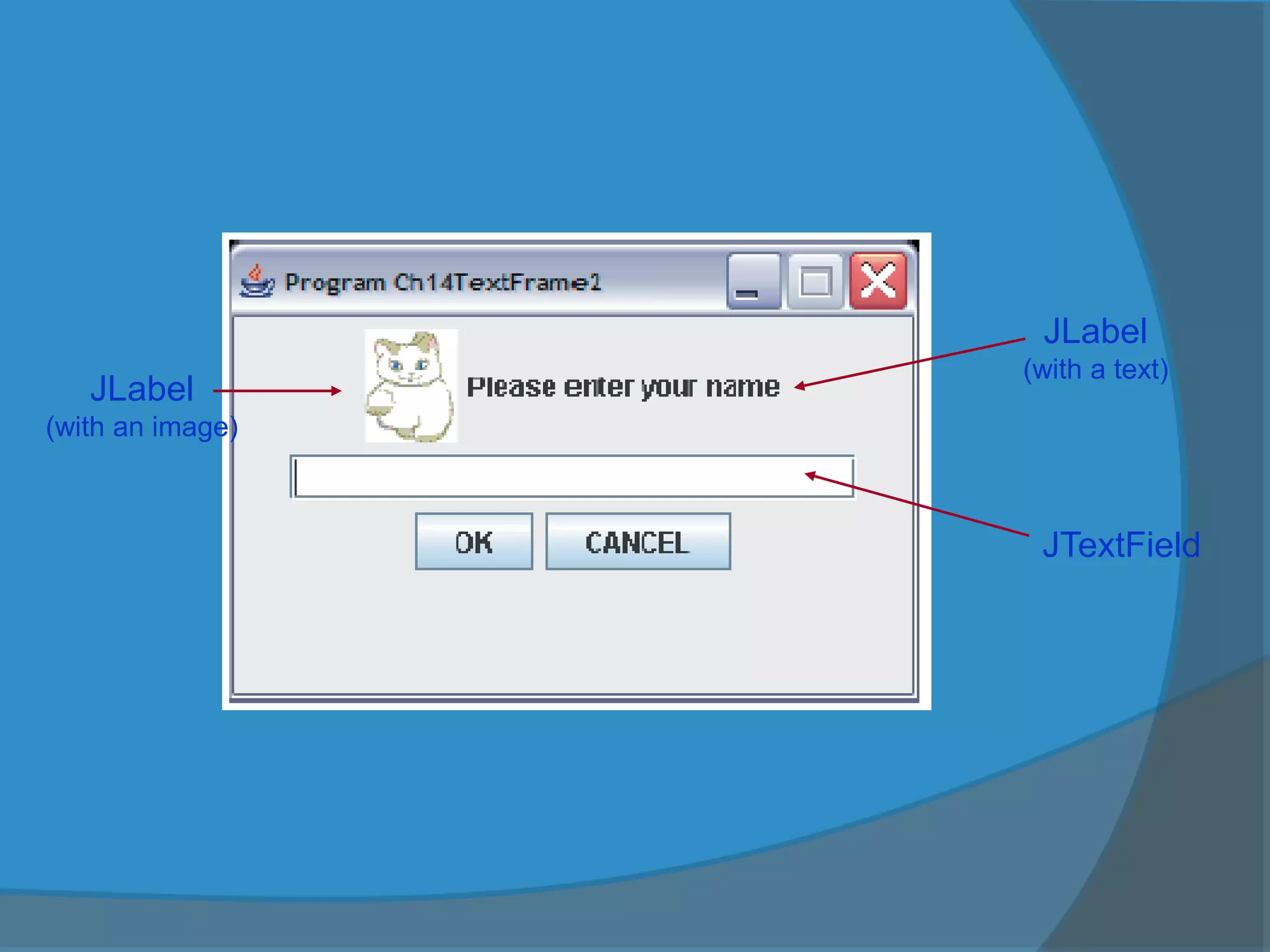
 We use a JLabel object to display a label.
 A label can be a text or an image.
 When creating an image label, we pass
ImageIcon object instead of a string.
JLabel textLabel = new JLabel("Please enter your name");
contentPane.add(textLabel);
JLabel imgLabel = new JLabel(new ImageIcon("cat.gif"));
contentPane.add(imgLabel);
JTextField
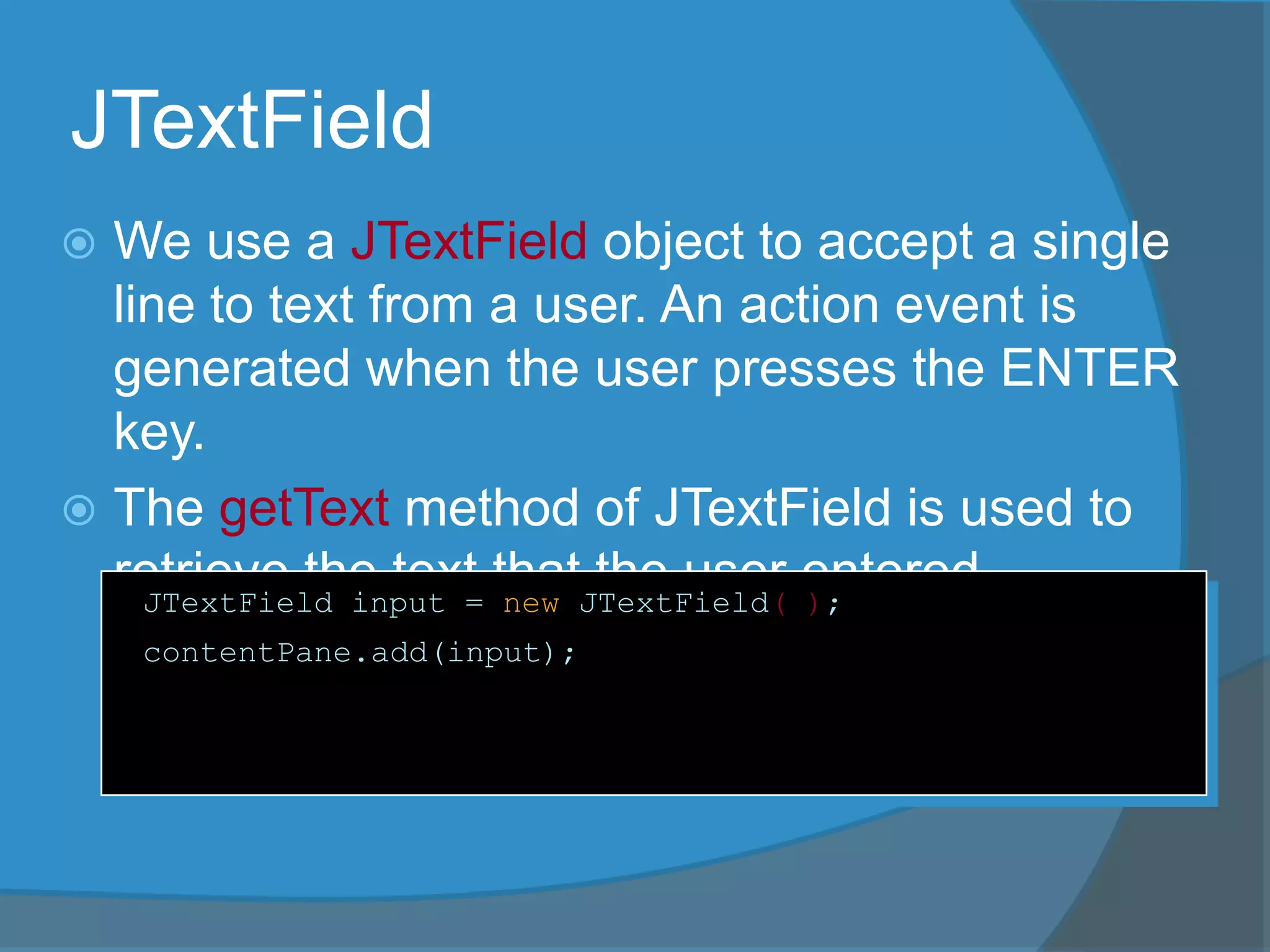
 We use a JTextField object to accept a single
line to text from a user. An action event is
generated when the user presses the ENTER
key.
 The getText method of JTextField is used to
retrieve the text that the user entered.JTextField input = new JTextField( );
contentPane.add(input);
JLabel
(with an image)
JLabel
(with a text)
JTextField
JTextArea
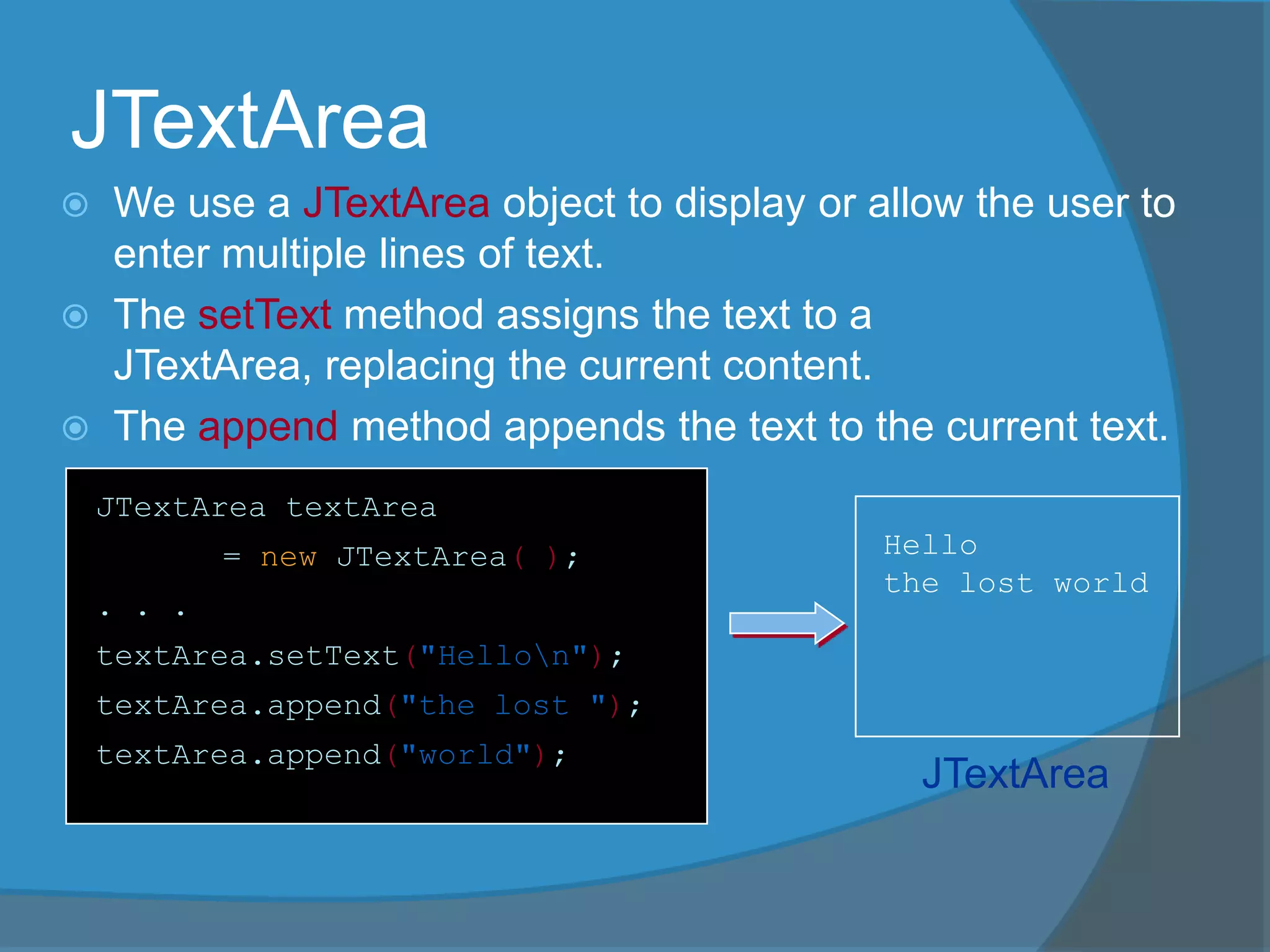
 We use a JTextArea object to display or allow the user to
enter multiple lines of text.
 The setText method assigns the text to a
JTextArea, replacing the current content.
 The append method appends the text to the current text.
JTextArea textArea
= new JTextArea( );
. . .
textArea.setText("Hellon");
textArea.append("the lost ");
textArea.append("world");
Hello
the lost world
JTextArea
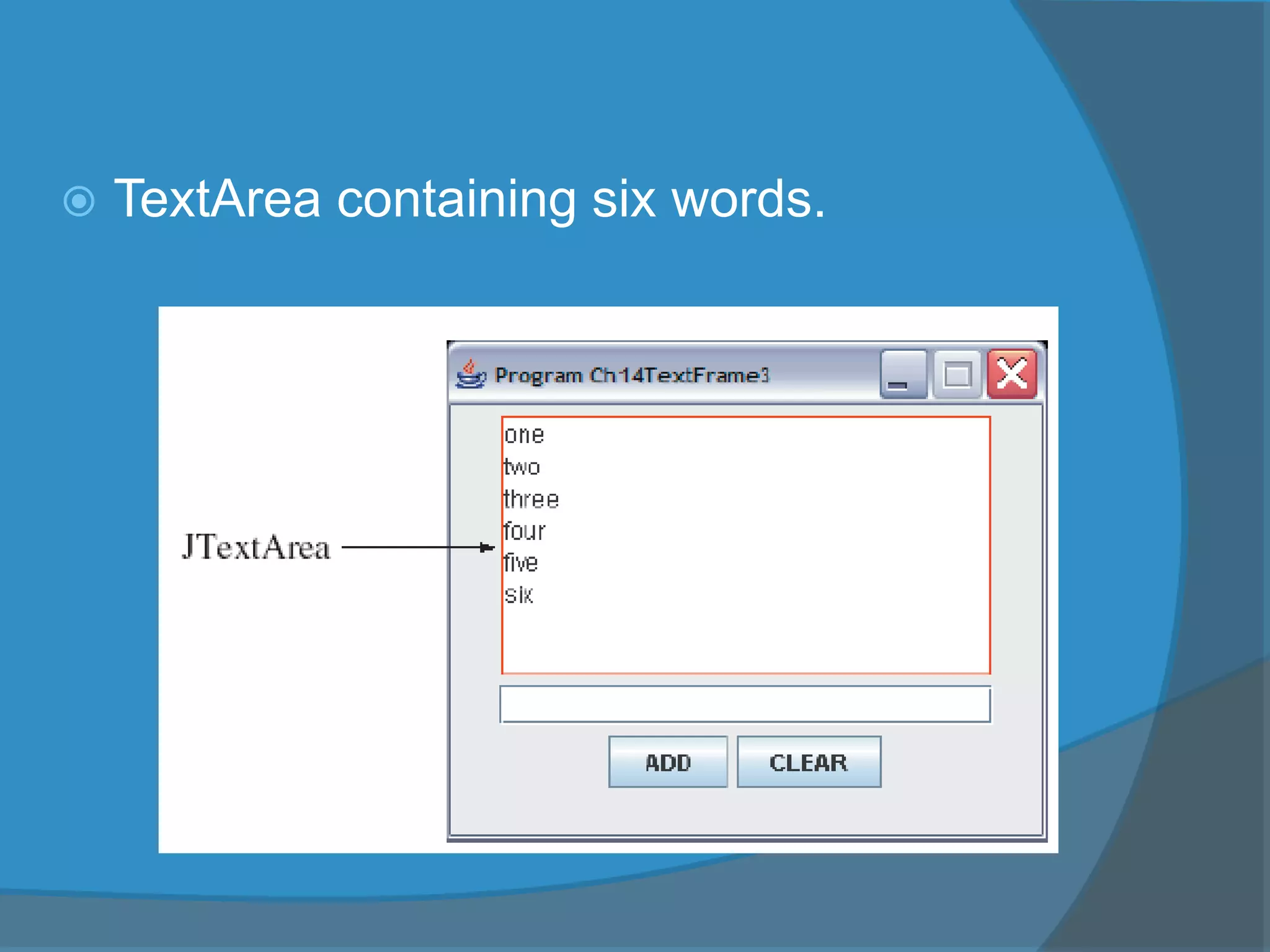
 TextArea containing six words.
Adding Scroll Bars to
JTextArea
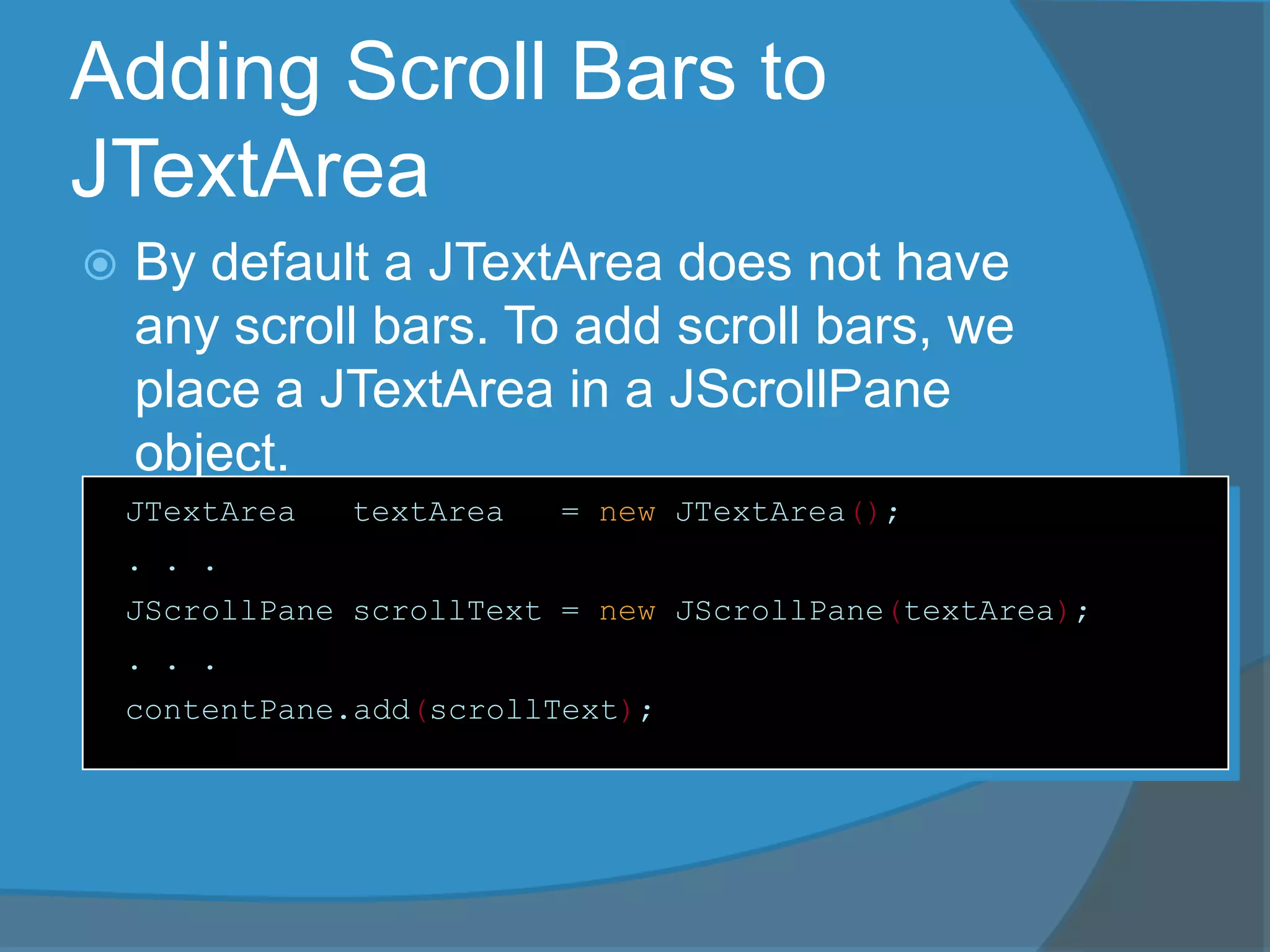
 By default a JTextArea does not have
any scroll bars. To add scroll bars, we
place a JTextArea in a JScrollPane
object.
JTextArea textArea = new JTextArea();
. . .
JScrollPane scrollText = new JScrollPane(textArea);
. . .
contentPane.add(scrollText);
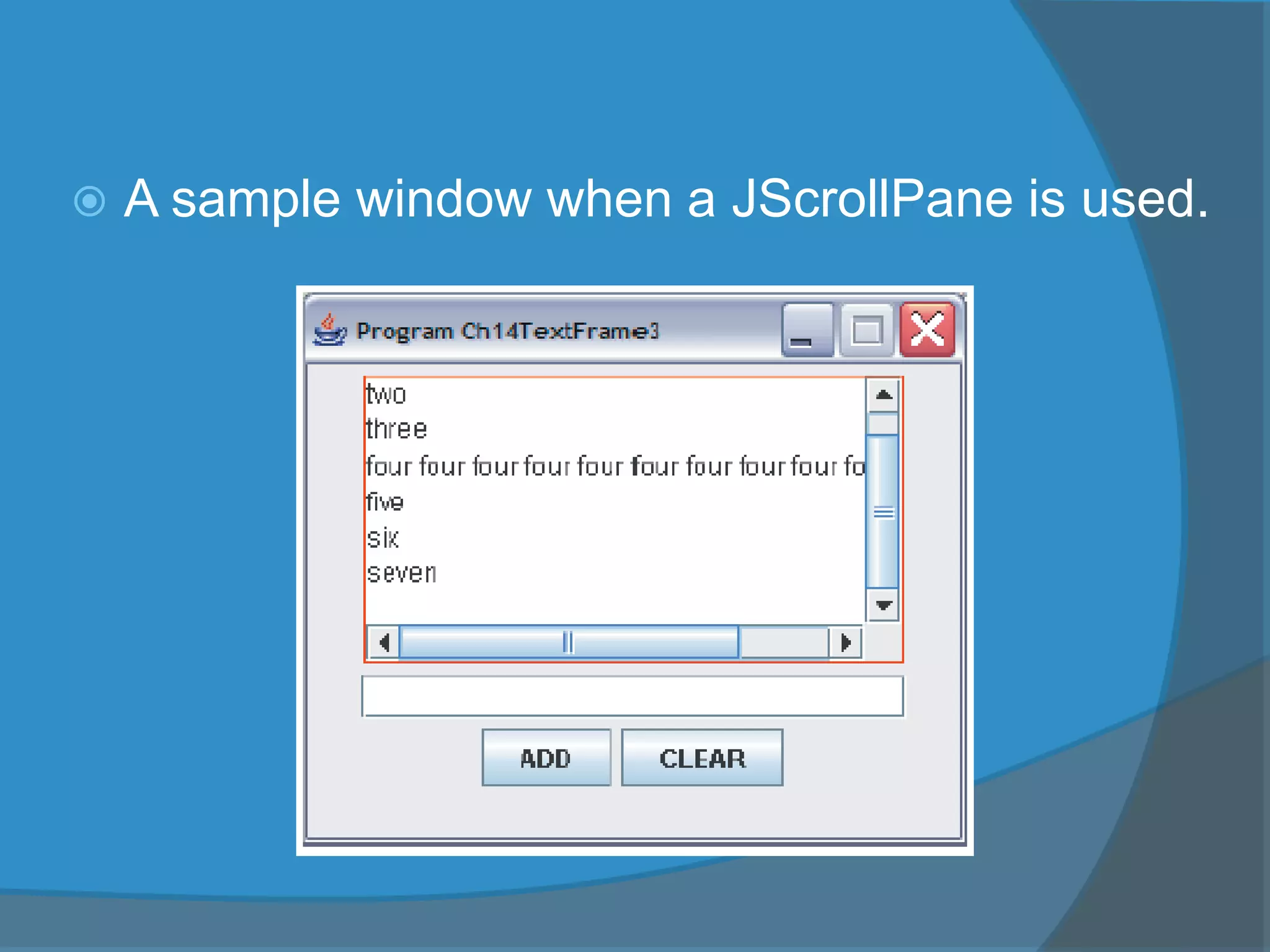
 A sample window when a JScrollPane is used.
Other Common GUI
Components
 JCheckBox
 JRadioButton
 JComboBox
 JList
Menus
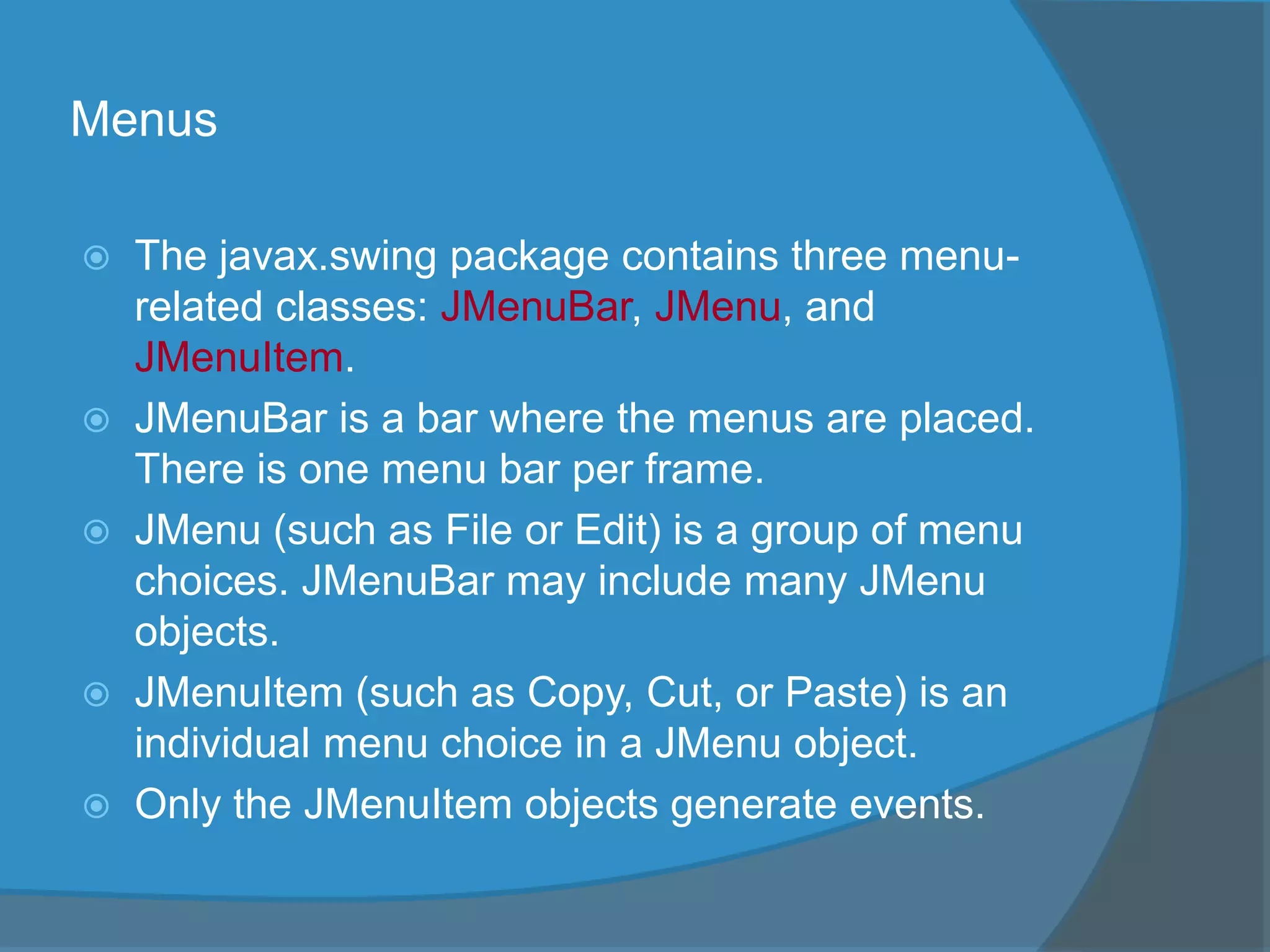
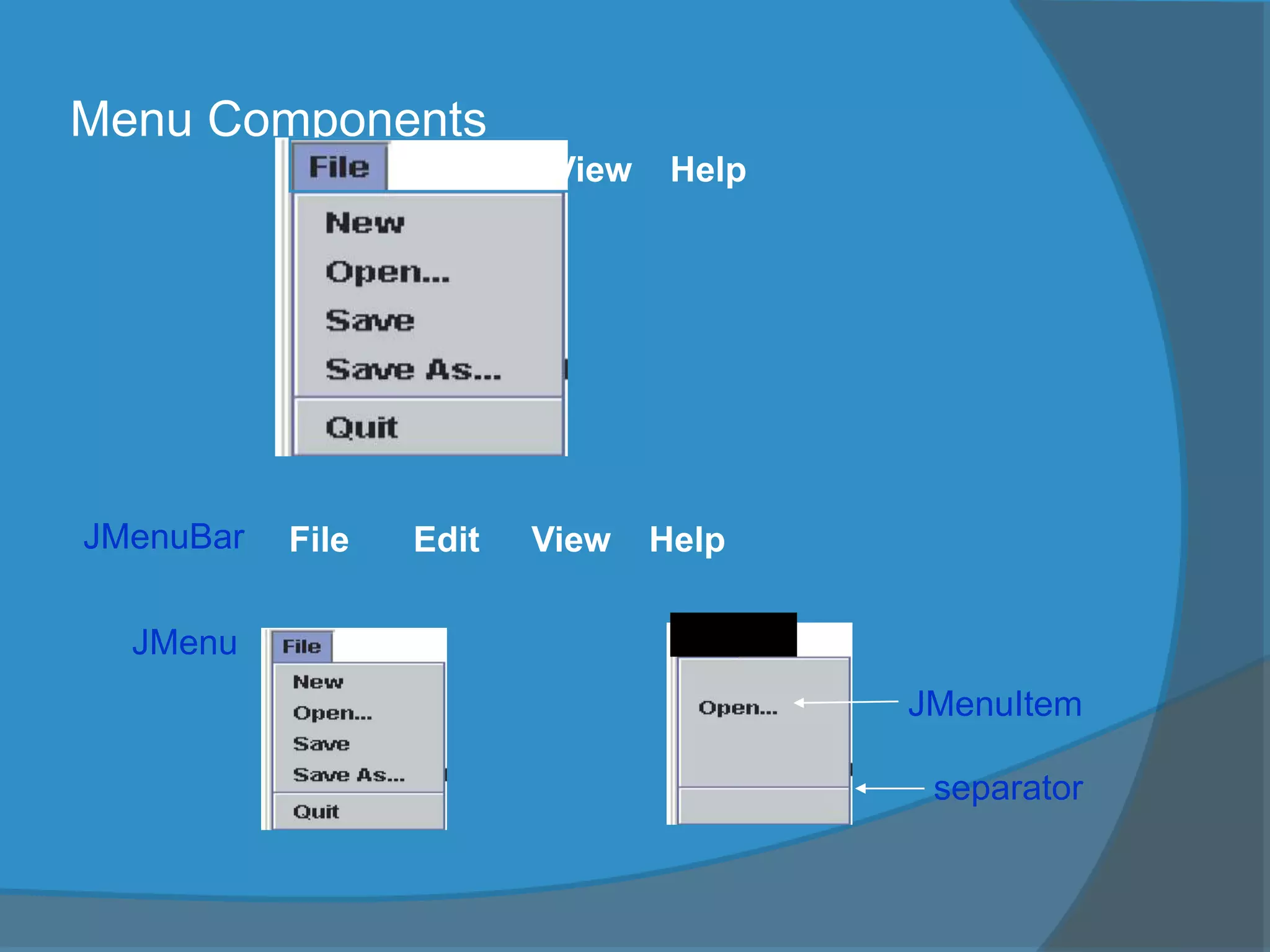
 The javax.swing package contains three menu-
related classes: JMenuBar, JMenu, and
JMenuItem.
 JMenuBar is a bar where the menus are placed.
There is one menu bar per frame.
 JMenu (such as File or Edit) is a group of menu
choices. JMenuBar may include many JMenu
objects.
 JMenuItem (such as Copy, Cut, or Paste) is an
individual menu choice in a JMenu object.
 Only the JMenuItem objects generate events.
Menu Components
Edit View Help
JMenuBar Edit View HelpFile
JMenu
JMenuItem
separator
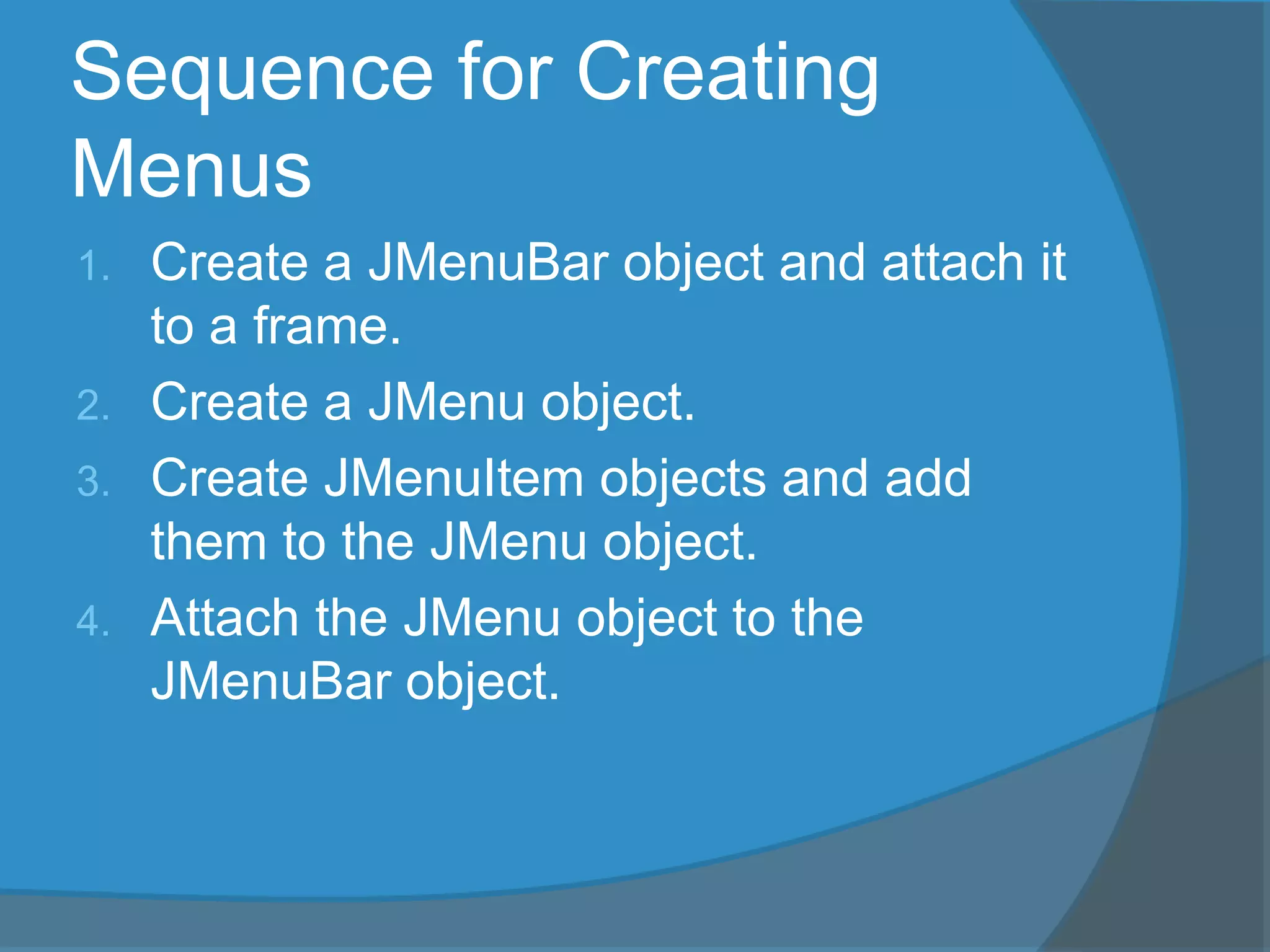
Sequence for Creating
Menus
1. Create a JMenuBar object and attach it
to a frame.
2. Create a JMenu object.
3. Create JMenuItem objects and add
them to the JMenu object.
4. Attach the JMenu object to the
JMenuBar object.

Graphical User Interface (GUI) - 1

  • 1.
  • 2.
    Objectives  After youhave read and studied this chapter, you should be able to  Define a subclass of JFrame to implement a customized frame window.  Write event-driven programs using Java's delegation-based event model  Arrange GUI objects on a window using layout managers and nested panels  Write GUI application programs using JButton, JLabel, ImageIcon, JTextField, JTextArea, JCheckBox, JR adioButton, JComboBox, JList, and JSlider objects from the javax.swing package  Write GUI application programs with menus
  • 3.
    Graphical User Interface In Java, GUI-based programs are implemented by using classes from the javax.swing and java.awt packages.  The Swing classes provide greater compatibility across different operating systems. They are fully implemented in Java, and behave the same on different operating systems.
  • 4.
    Various Java GUI Componentsfrom the javax.swing package Button Label Text field Check Box Radio Button Combo Box
  • 5.
    Sample GUI Objects Various GUI components from the javax.swing package.
  • 6.
    AWT Class Hierarchy(java.awt package) AWTEvent Font FontMetrics Component Graphics Object Color Canvas Button TextComponent Label List CheckBoxGroup CheckBox Choice Container Panel Applet Frame Dialog FileDialog Window TextField TextArea MenuComponent MenuItem MenuBar Menu Scrollbar LayoutManager
  • 7.
    Swing Class Hierarchy(javax.swing) Dimension Font FontMetrics Component Graphics Object Color Container Panel Applet Frame Dialog Window JComponent JApplet JFrame JDialog Swing Components in the javax.swing package Lightweight Classes in the java.awt package 1 LayoutManager *
  • 8.
     Can beclassified into three groups  Container classes  Ex: JFrame, JPanel, JApplet  To contain other components  Helper classes  Graphics, Color, Font, etc  Used by components and containers to draw and place objects  Component classes  JButton, JTextField, ETC are subclasses of JComponent GUI Classes
  • 9.
    Container Classes Dimension Font FontMetrics Component Graphics Object Color Container PanelApplet Frame Dialog Window JComponent JApplet JFrame JDialog Swing Components in the javax.swing package Lightweight Heavyweight Classes in the java.awt package 1 LayoutManager * JPanel Container classes can contain other GUI components.
  • 10.
     Used tocontain other GUI components  Window, Panel, Frame, Dialog and Applet are the container classes for AWT components  To work with Swing components, use Component, Container, JFrame, JPanel,JDialog and JApplet  Container  Used to group components.  A layout manager is used to position and place components in container  Ex. Frames, panels and applets Container Classes
  • 11.
     JFrame  Isa window not contained inside another window. It is the container that holds other swing UI components  JPanel  An invisible container that holds UI components  Panel can be nested  Can place panels inside a container that includes a panel  JDialog  A pop-up windows or message box to receive additional information from the user or provide notification that an event has occurred  JApplet – a subclass of Applet. Must extend JApplet to create a Swing-based applet Container Classes
  • 12.
    GUI Helper Classes Dimension Font FontMetrics Component Graphics ObjectColor Container Panel Applet Frame Dialog Window JComponent JApplet JFrame JDialog Swing Components in the javax.swing package Lightweight Heavyweight Classes in the java.awt package 1 LayoutManager * JPanel The helper classes are not subclasses of Component. They are used to describe the properties of GUI components such as graphics context, colors, fonts, and dimension.
  • 13.
     Component isa superclass of all the UI classes  JComponent is a superclass of all the lightweight Swing components  JComponent is an abstract class, cannot use new JComponent to create an instance of JComponent  Use the constructor of subclasses of JComponent to create JComponent instances.  An instance of a subclass can invoke the accessible method defined in its superclass Swing GUI Components
  • 14.
    wing GUI Components– class hierarchy JMenuItem JCheckBoxMenuItem AbstractButton JComponent JMenu JRadioButtonMenuItem JToggleButton JCheckBox JRadioButton JComboBox JInternalFrame JLayeredPane JList JMenuBar JOptionPane JPopupMenu JProgressBar JFileChooser JScrollBar JScrollPaneJSeparatorJSplitPane JSlider JTabbedPane JTable JTableHeader JTextFieldJTextComponent JTextArea JToolBar JToolTip JTree JRootPane JPanel JPasswordField JColorChooser JLabel JEditorPane JSpinner JButton
  • 15.
    Frames  Frame isa window that is not contained inside another window.  Frame is the basis to contain other user interface components in Java GUI applications.  The Frame class can be used to create windows. The Frame class contains rudimentary functionalities to support features found in any frame window.  For Swing GUI programs, use JFrame class to create windows.
  • 16.
    Two Ways toCreate a Window Using JFrame  First approach  Declare & Create object of type JFrame  Use various methods to manipulate window  Second approach  Create class containing application program by extending definition of class JFrame  Utilizes mechanism of inheritance
  • 17.
    Creating Frames 1) Firstapproach: import javax.swing.*; public class MyFrame { public static void main(String[] args) { JFrame frame = new JFrame(“MyFrame"); frame.setSize(400, 300); frame.setVisible(true); frame.setDefaultCloseOperation( JFrame.EXIT_ON_CLOSE); } }
  • 18.
    Creating Frames import javax.swing.*; publicclass MyFrame { public static void main(String[] args) { JFrame frame = new JFrame(“MyFrame"); frame.setSize(400, 300); frame.setVisible(true); frame.setDefaultCloseOperation(JFrame.EXIT_ON_CLOSE); } } 300 400 setVisible() and setSize() – methods in Component class setDefaultCloseOperation (EXIT_ON_CLOSE) - terminate when the frame is closed
  • 19.
    Creating Frames 2) Secondapproach : import javax.swing.*; public class MyFrame extends JFrame { public MyFrame() { setTitle(“MyFrame"); setSize(400, 300); setVisible(true); setDefaultCloseOperation(EXIT_ON_CLOSE); } public static void main(String[] args) { MyFrame myFrame = new MyFrame(); } }
  • 20.
    The Content Paneof a Frame  The content pane is where we put GUI objects such as buttons, labels, scroll bars, and others.  We access the content pane by calling the frame’s getContentPane method. This gray area is the content pane of this frame.
  • 21.
    Changing the BackgroundColor  Here's how we can change the background color of a content pane to blue: Container contentPane = getContentPane(); contentPane.setBackground(Color.BLUE);
  • 22.
    Placing GUI Objectson a Frame There are two ways to put GUI objects on the content pane of a frame:  Use a layout manager ○ FlowLayout ○ BorderLayout ○ GridLayout ○ others  Use absolute positioning ○ null layout manager
  • 23.
    Placing a Button A JButton object a GUI component that represents a pushbutton.  Here's an example of how we place a button with FlowLayout. contentPane.setLayout( new FlowLayout()); JButton okButton = new JButton("OK"); JButton cancelButton = new JButton("CANCEL"); contentPane.add(okButton); contentPane.add(cancelButton);
  • 24.
    Layout Managers  Thelayout manager determines how the GUI components are added to the container (such as the content pane of a frame)  Layout managers are set in containers using the setLayout(LayoutManager) method in a container
  • 25.
    FlowLayout  In usingthis layout, GUI components are placed in left-to-right order.  When the component does not fit on the same line, left-to-right placement continues on the next line.  As a default, components on each line are centered.  When the frame containing the component is resized, the placement of components is adjusted accordingly.
  • 26.
    FlowLayout Sample This shows the placementof five buttons by using FlowLayout.
  • 27.
    FlowLayout The components arearranged in the container from left to right in the order in which they were added. When one row becomes filled, a new row is started. FlowLayout can be aligned in 3 ways: FlowLayout.LEFT – left aligned FlowLayout.RIGHT – right aligned FlowLayout.CENTER – center aligned
  • 28.
    FlowLayout Constructors  publicFlowLayout(int align, int hGap, int vGap) Constructs a new FlowLayout with a specified alignment, horizontal gap, and vertical gap. The gaps are the distances in pixel between components.  public FlowLayout(int alignment) Constructs a new FlowLayout with a specified alignment and a default gap of five pixels for both horizontal and vertical.  public FlowLayout() Constructs a new FlowLayout with a default center alignment and a default gap of five pixels for both horizontal and vertical.
  • 29.
    import java.awt.*; import javax.swing.*; //importjava.awt.event.*; public class TestFlowLayout extends JFrame { public TestFlowLayout() { super(“Using flowLayout"); Container cpane = getContentPane(); cpane.setLayout(new FlowLayout(FlowLayout.LEFT,20,10)); for (int i=1; i<7;i++) cpane.add(new JButton("button "+i)); setSize(300,200); setVisible(true); } public static void main(String[] arg) { TestFlowLayout teks = new TestFlowLayout(); teks.setDefaultCloseOperation(JFrame.EXIT_ON_CLOSE); } } 10 20
  • 30.
    BorderLayout  This layoutmanager divides the container into five regions: center, north, south, east, and west.  The north and south regions expand or shrink in width only  The east and west regions expand or shrink in height only  The center region expands or shrinks on both height and width.  Not all regions have to be occupied.
  • 31.
  • 32.
    GridLayout  This layoutmanager placesGUI components on equal-size N by M grids.  Components are placed in top-to- bottom, left-to-right order.  The number of rows and columns remains the same after the frame is resized, but the width and height of each region will change.
  • 33.
  • 34.
    Using Panels asContainers  Panels act as smaller containers for grouping user interface components.  It is recommended that you place the user interface components in panels and place the panels in a frame. You can also place panels in a panel.  To add a component to JFrame, you actually add it to the content pane of JFrame. To add a component to a panel, you add it directly to the panel using the add method.
  • 35.
    Create a JPanel example: Container cpane = getContentPane(); JPanel pan = new JPanel(); // create a panel pan.add(new JButton(“Click”)); // add a button in the panel cpane.add(pan) // add the panel in the container
  • 36.
    label TextField Text Area buttonbutton There are 3 panels : top panel – has 2 components that are label, textfield - 2 components are arranged with flowLayout middle panel – has a component: text area. It is arranged with Gridlayout bottom panel – has 2 components that are buttons - 2components are arranged with Flowlayout All panels are arrranged with borderlayout top panel –north middle panel –center bottom panel –South Top panel Middle panel Bottom panel
  • 37.
    import java.awt.*; import javax.swing.*; publicclass UjiPanel extends JFrame { public UjiPanel() { super("Membuat BorderLayout"); Container bekas = getContentPane(); bekas.setLayout(new BorderLayout()); JPanel panelAtas = new JPanel(); bekas.add(panelAtas,BorderLayout.NORTH); JLabel label = new JLabel("Nama"); JTextField txtField = new JTextField(10); panelAtas.setLayout(new FlowLayout()); panelAtas.add(label); panelAtas.add(txtField); JPanel panelTengah = new JPanel(); bekas.add(panelTengah,BorderLayout.CENTER); JTextArea txtArea = new JTextArea(); panelTengah.setLayout(new GridLayout()); panelTengah.add(txtArea); JPanel panelBawah = new JPanel(); bekas.add(panelBawah,BorderLayout.SOUTH); JButton btg1 = new JButton("Hantar"); JButton btg2 = new JButton("Batal"); btg2.setMnemonic('B'); panelBawah.setLayout(new FlowLayout()); panelBawah.add(btg1); panelBawah.add(btg2);
  • 38.
    setSize(300,200); setVisible(true); } // konstruktor publicstatic void main(String[] arg) { UjiPanel teks = new UjiPanel(); teks.setDefaultCloseOperation(JFrame.EXIT_ON_CLOSE); } }
  • 39.
    Step in CreatingPanel  Set a layout manager for a container (frame).  Create a panel  Set a layout for the panel.  Add the panel in the container (frame)  Create a component that to be added in the panel  Add the component in the panel
  • 40.
    GUI Classes forHandling Text  The Swing GUI classes JLabel, JTextField, and JTextArea deal with text.  A JLabel object displays uneditable text (or image).  A JTextField object allows the user to enter a single line of text.  A JTextArea object allows the user to enter multiple lines of text. It can also be used for displaying multiple lines of uneditable text.
  • 41.
    JLabel  We usea JLabel object to display a label.  A label can be a text or an image.  When creating an image label, we pass ImageIcon object instead of a string. JLabel textLabel = new JLabel("Please enter your name"); contentPane.add(textLabel); JLabel imgLabel = new JLabel(new ImageIcon("cat.gif")); contentPane.add(imgLabel);
  • 42.
    JTextField  We usea JTextField object to accept a single line to text from a user. An action event is generated when the user presses the ENTER key.  The getText method of JTextField is used to retrieve the text that the user entered.JTextField input = new JTextField( ); contentPane.add(input);
  • 43.
  • 44.
    JTextArea  We usea JTextArea object to display or allow the user to enter multiple lines of text.  The setText method assigns the text to a JTextArea, replacing the current content.  The append method appends the text to the current text. JTextArea textArea = new JTextArea( ); . . . textArea.setText("Hellon"); textArea.append("the lost "); textArea.append("world"); Hello the lost world JTextArea
  • 45.
  • 46.
    Adding Scroll Barsto JTextArea  By default a JTextArea does not have any scroll bars. To add scroll bars, we place a JTextArea in a JScrollPane object. JTextArea textArea = new JTextArea(); . . . JScrollPane scrollText = new JScrollPane(textArea); . . . contentPane.add(scrollText);
  • 47.
     A samplewindow when a JScrollPane is used.
  • 48.
    Other Common GUI Components JCheckBox  JRadioButton  JComboBox  JList
  • 49.
    Menus  The javax.swingpackage contains three menu- related classes: JMenuBar, JMenu, and JMenuItem.  JMenuBar is a bar where the menus are placed. There is one menu bar per frame.  JMenu (such as File or Edit) is a group of menu choices. JMenuBar may include many JMenu objects.  JMenuItem (such as Copy, Cut, or Paste) is an individual menu choice in a JMenu object.  Only the JMenuItem objects generate events.
  • 50.
    Menu Components Edit ViewHelp JMenuBar Edit View HelpFile JMenu JMenuItem separator
  • 51.
    Sequence for Creating Menus 1.Create a JMenuBar object and attach it to a frame. 2. Create a JMenu object. 3. Create JMenuItem objects and add them to the JMenu object. 4. Attach the JMenu object to the JMenuBar object.