Linux For Embedded Systems
ForArabs
Ahmed ElArabawy
Course 102:
UnderstandingLinux
Lecture 8:
Composite Commands
Linux Command Philosophy
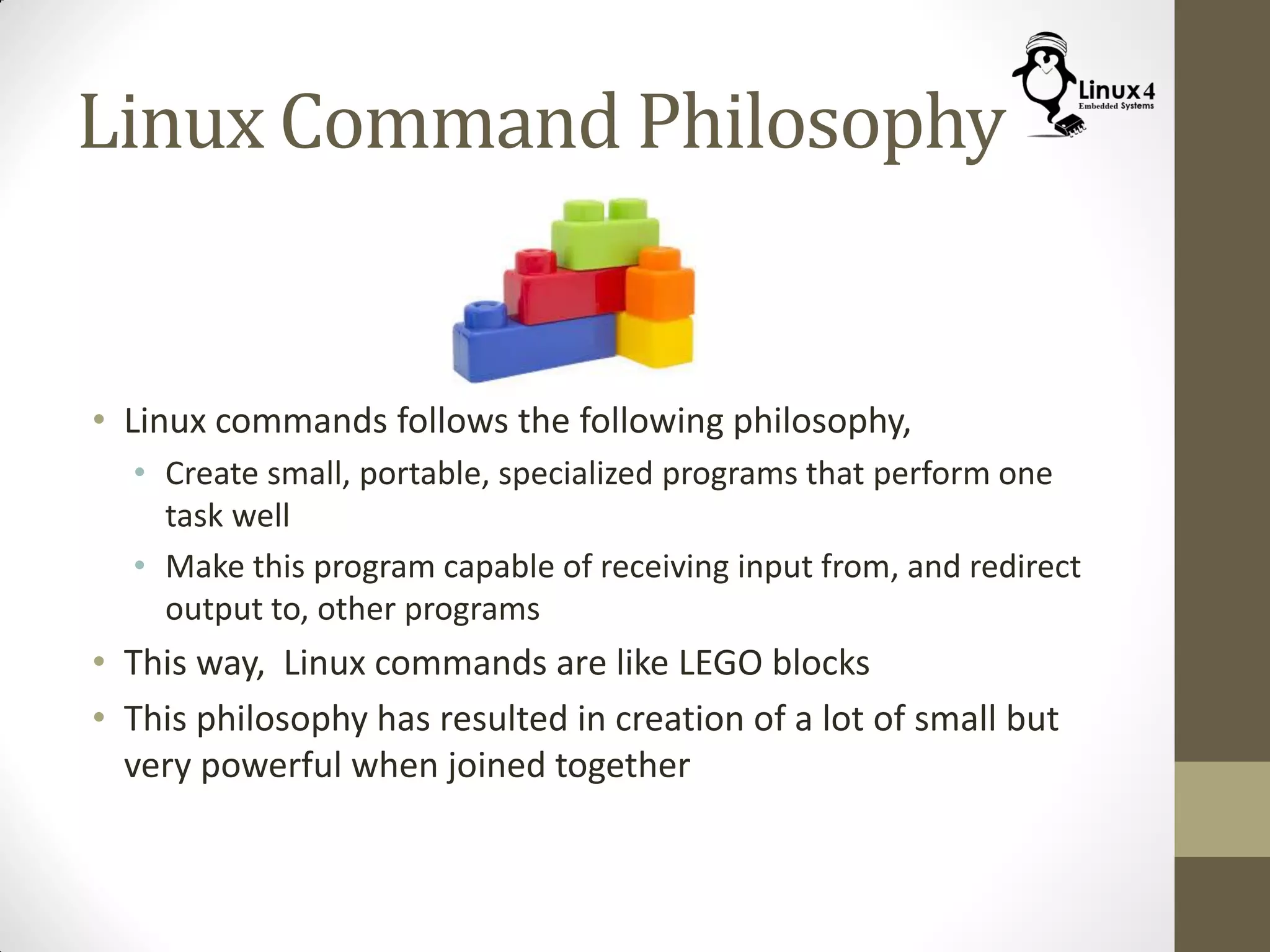
• Linux commands follows the following philosophy,
• Create small, portable, specialized programs that perform one
task well
• Make this program capable of receiving input from, and redirect
output to, other programs
• This way, Linux commands are like LEGO blocks
• This philosophy has resulted in creation of a lot of small but
very powerful when joined together
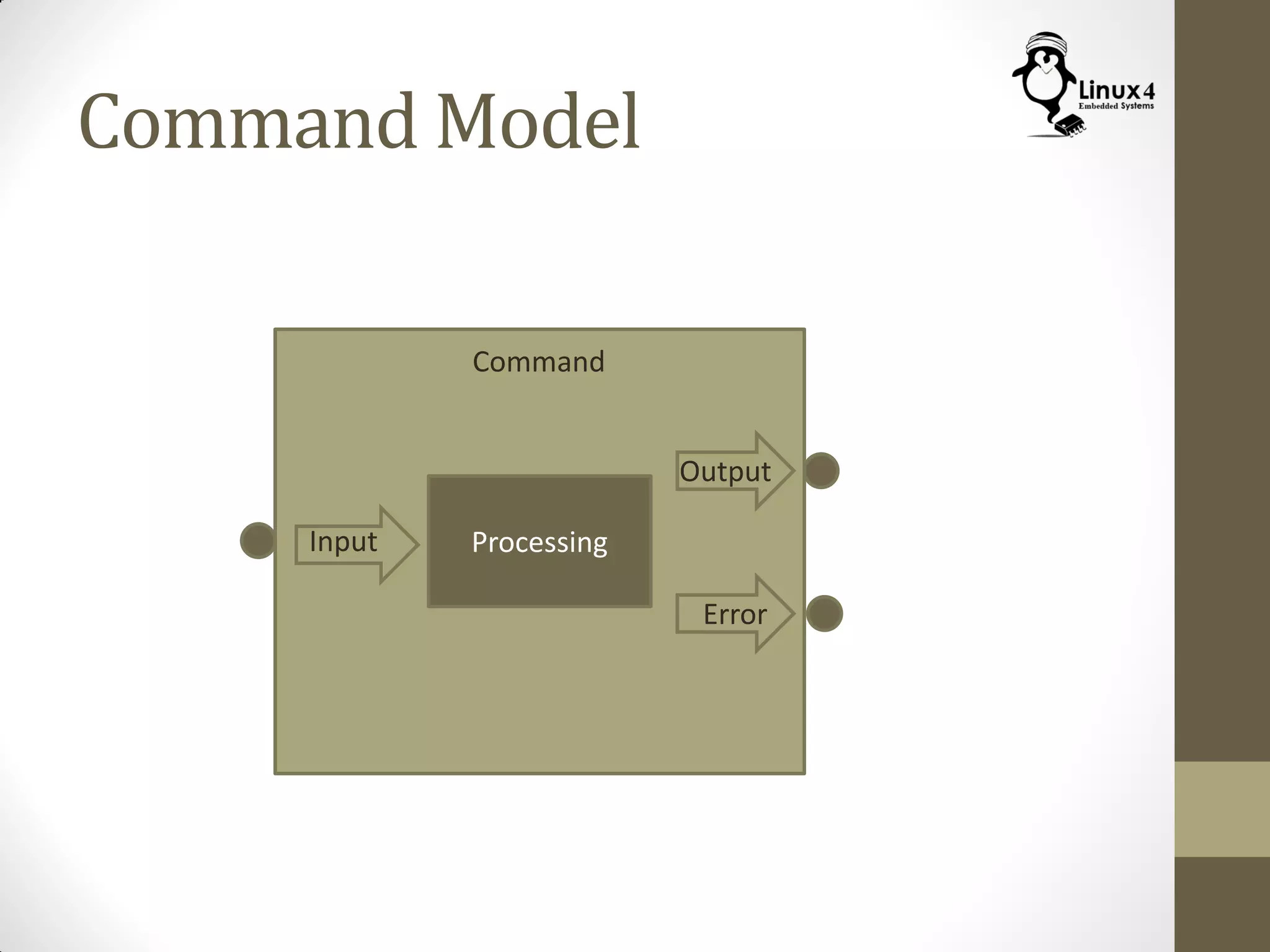
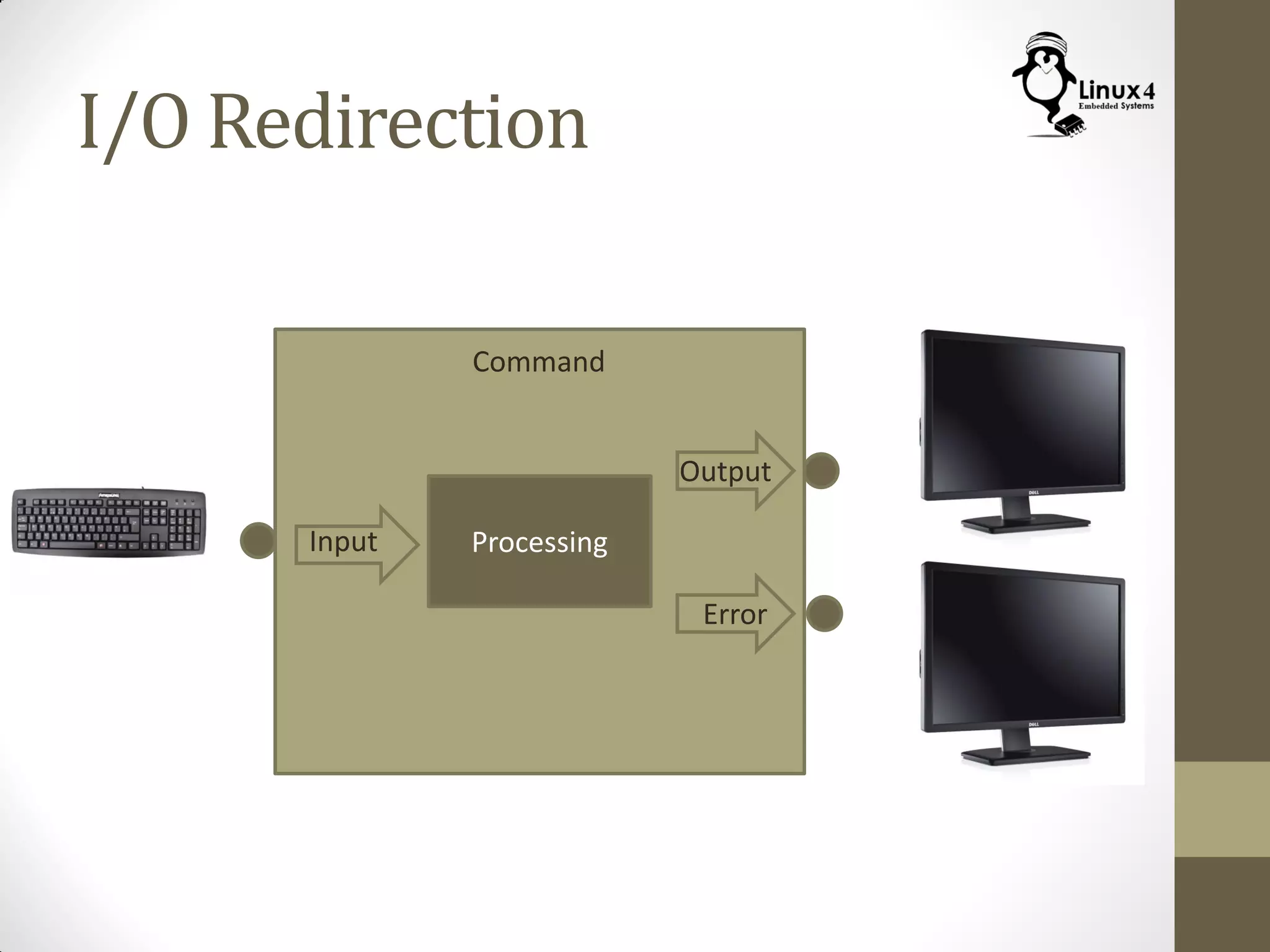
Command Model
Command
ProcessingInput
Output
Error
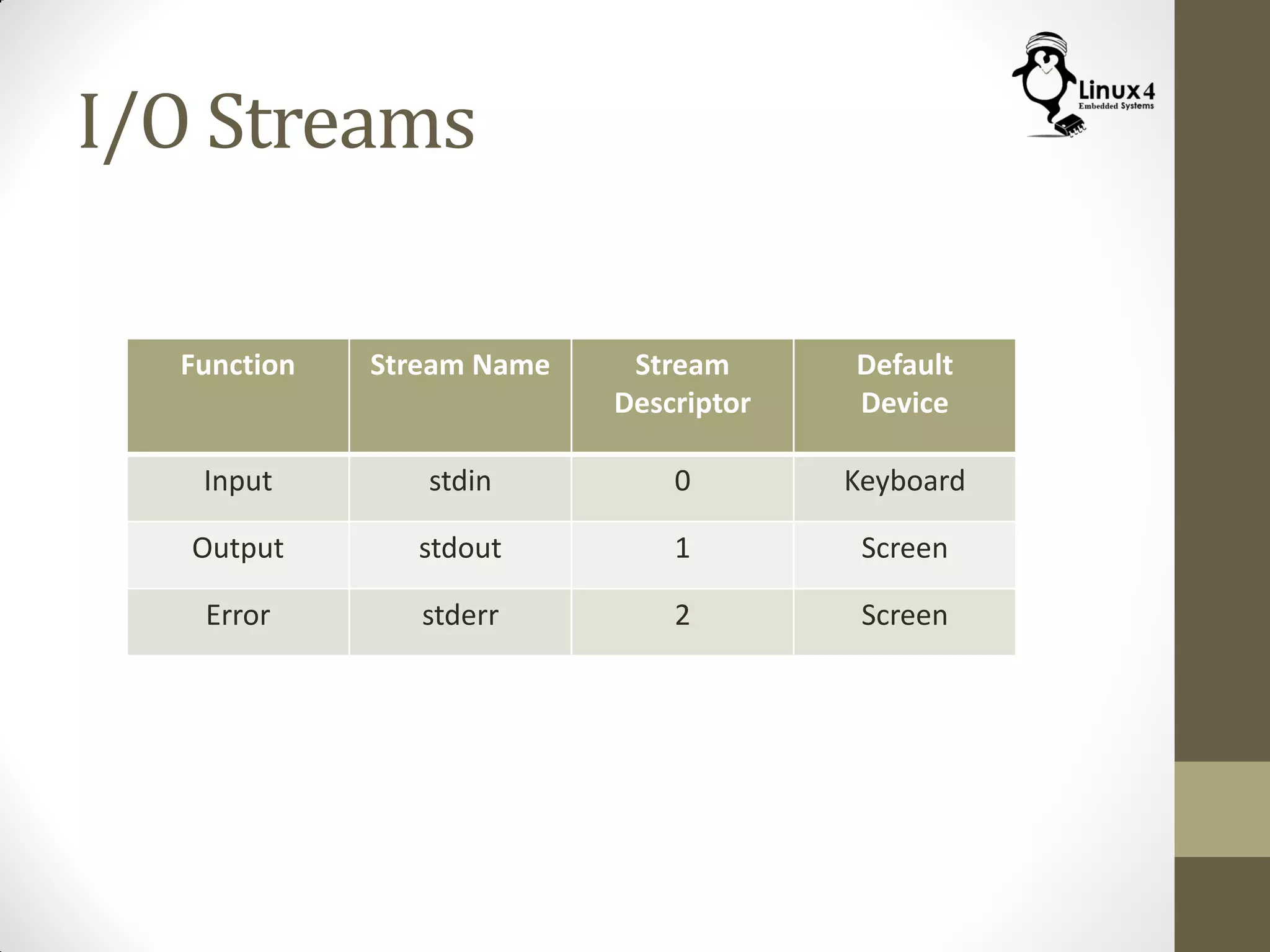
I/O Streams
Function Stream Name Stream
Descriptor
Default
Device
Input stdin 0 Keyboard
Output stdout 1 Screen
Error stderr 2 Screen
Composite Commands
We can build Composite Commands through the
following:
• Sequential Commands
• Conditional Commands
• Command Loops
• Input/Output Redirection
• Pipes
• Command Argument Expansion
• Command Argument Quoting
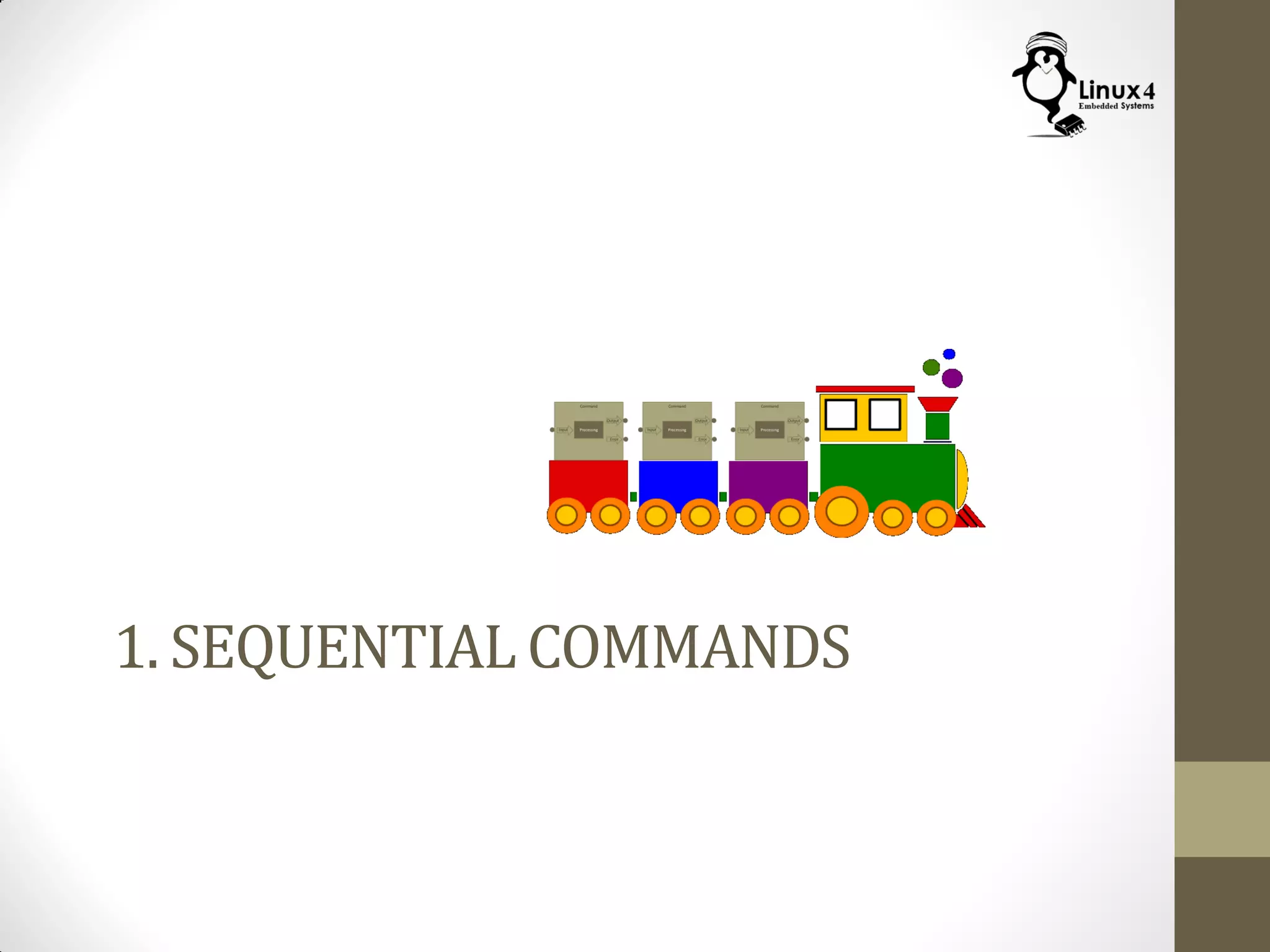
1. SEQUENTIAL COMMANDS
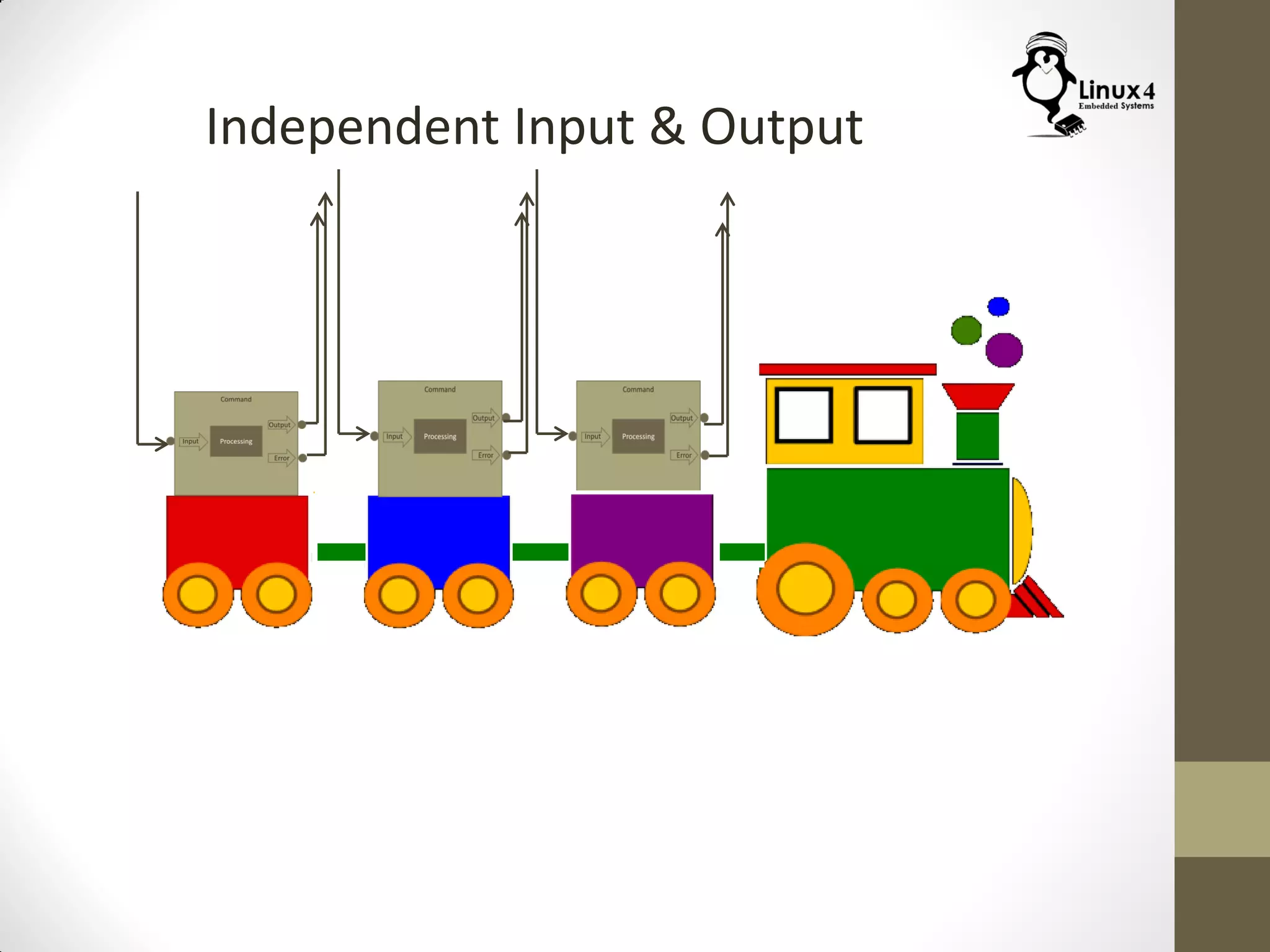
Independent Input & Output
Sequential Commands
We can have multiple commands in the same line as follows
$ <first Command> ; <second Command> ; <third Command>
$ echo “One” ; sleep 10; echo “Two”
Using sequential commands is useful when the first command
takes long time to execute and we don’t want to wait until it is
complete
$ make ; sudo make install
Note:
The Sequential Commands just run after each other,
they have independent Input & Output
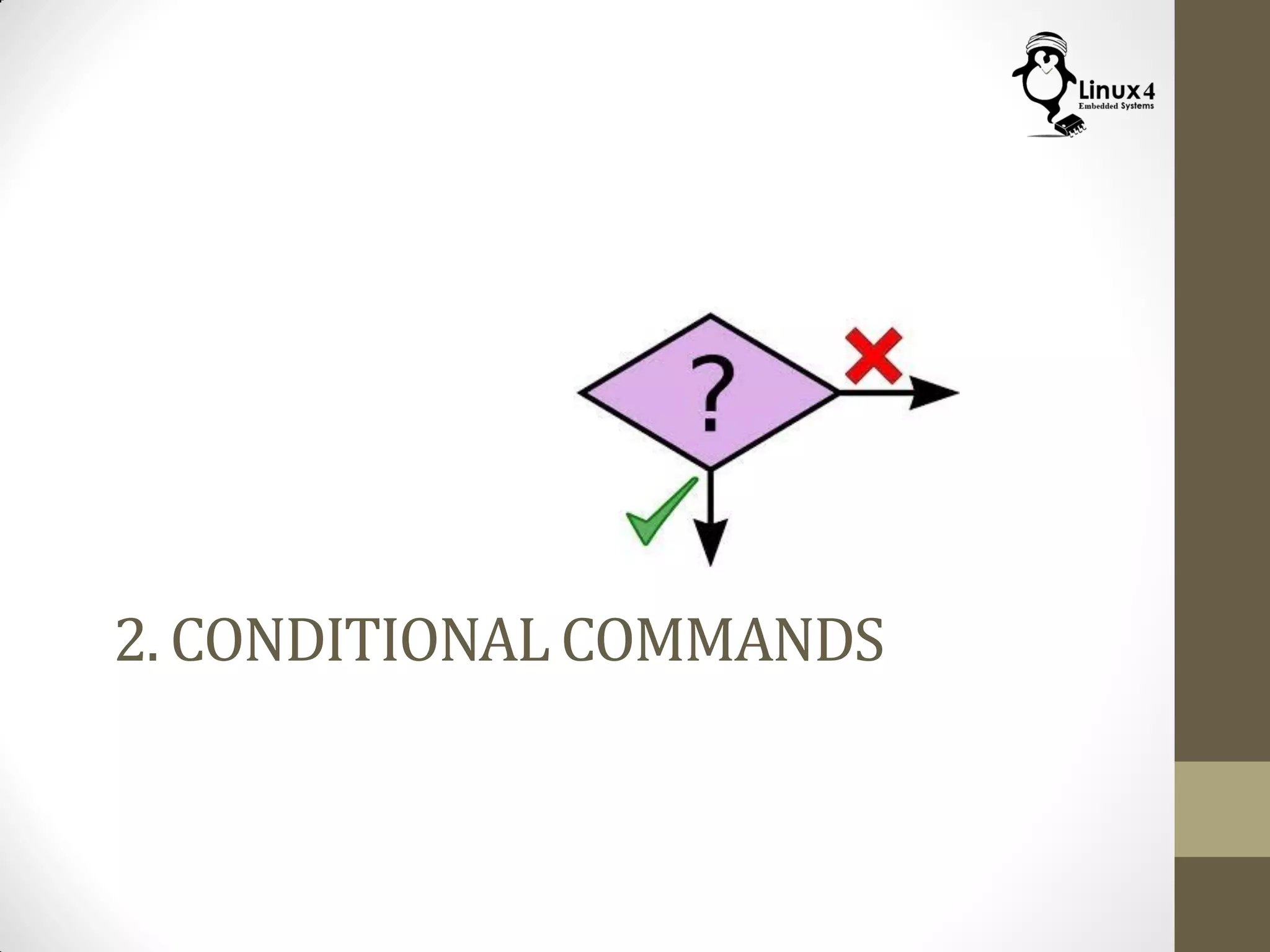
2. CONDITIONAL COMMANDS
Conditional Commands
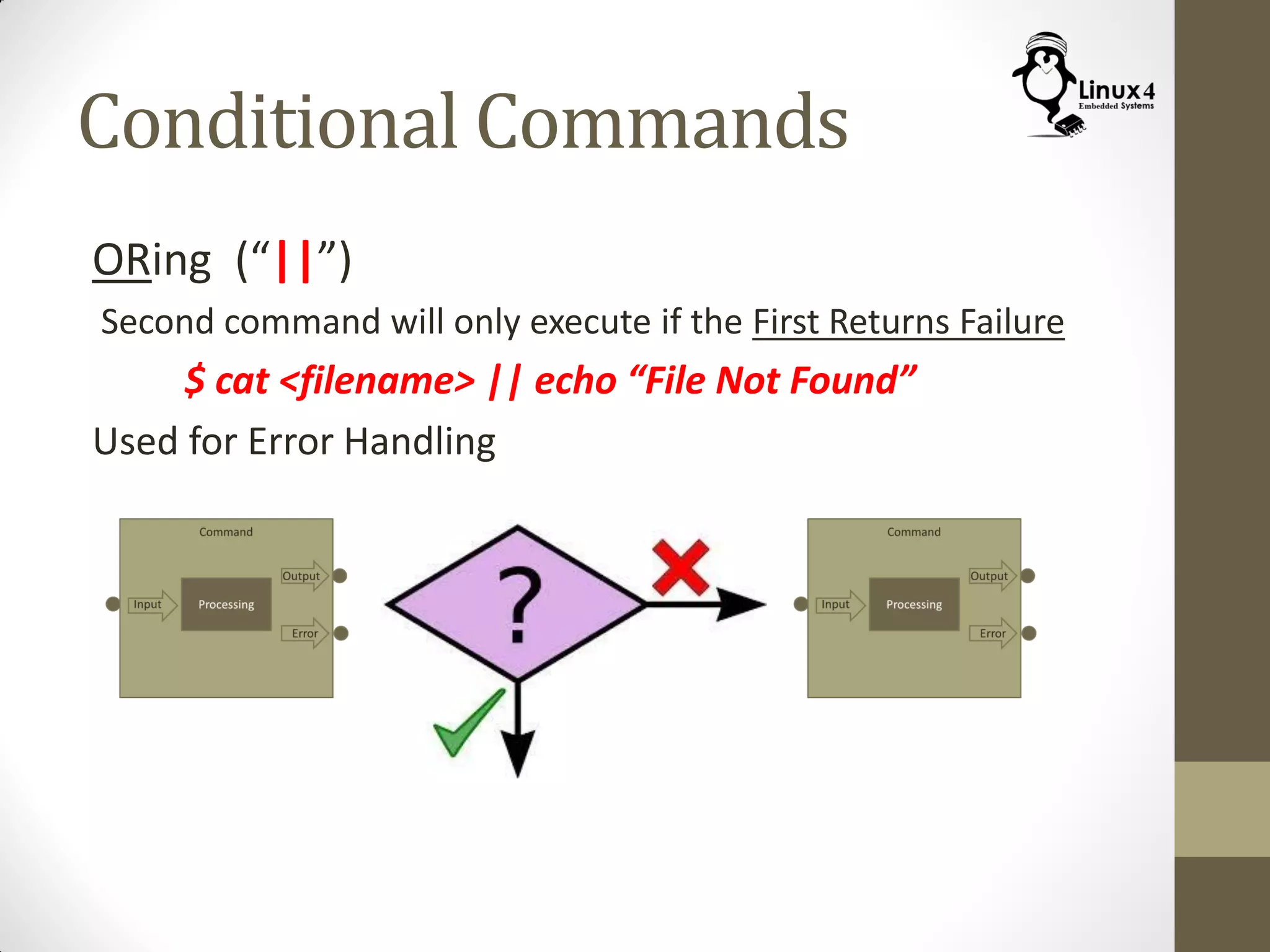
ORing (“||”)
Second command will only execute if the First Returns Failure
$ cat <filename> || echo “File Not Found”
Used for Error Handling
Conditional Commands
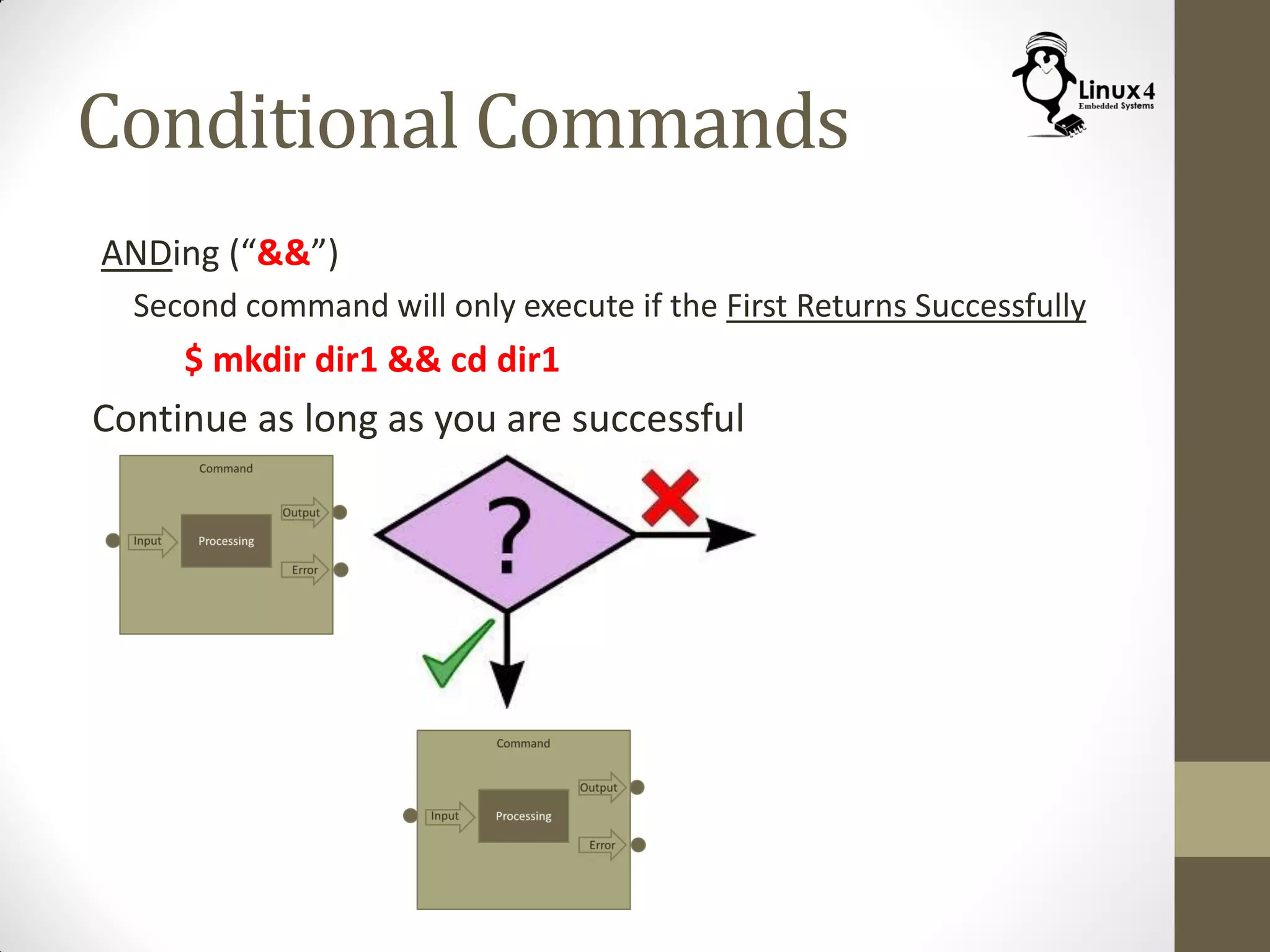
ANDing (“&&”)
Second command will only execute if the First Returns Successfully
$ mkdir dir1 && cd dir1
Continue as long as you are successful
3. COMMAND LOOPS
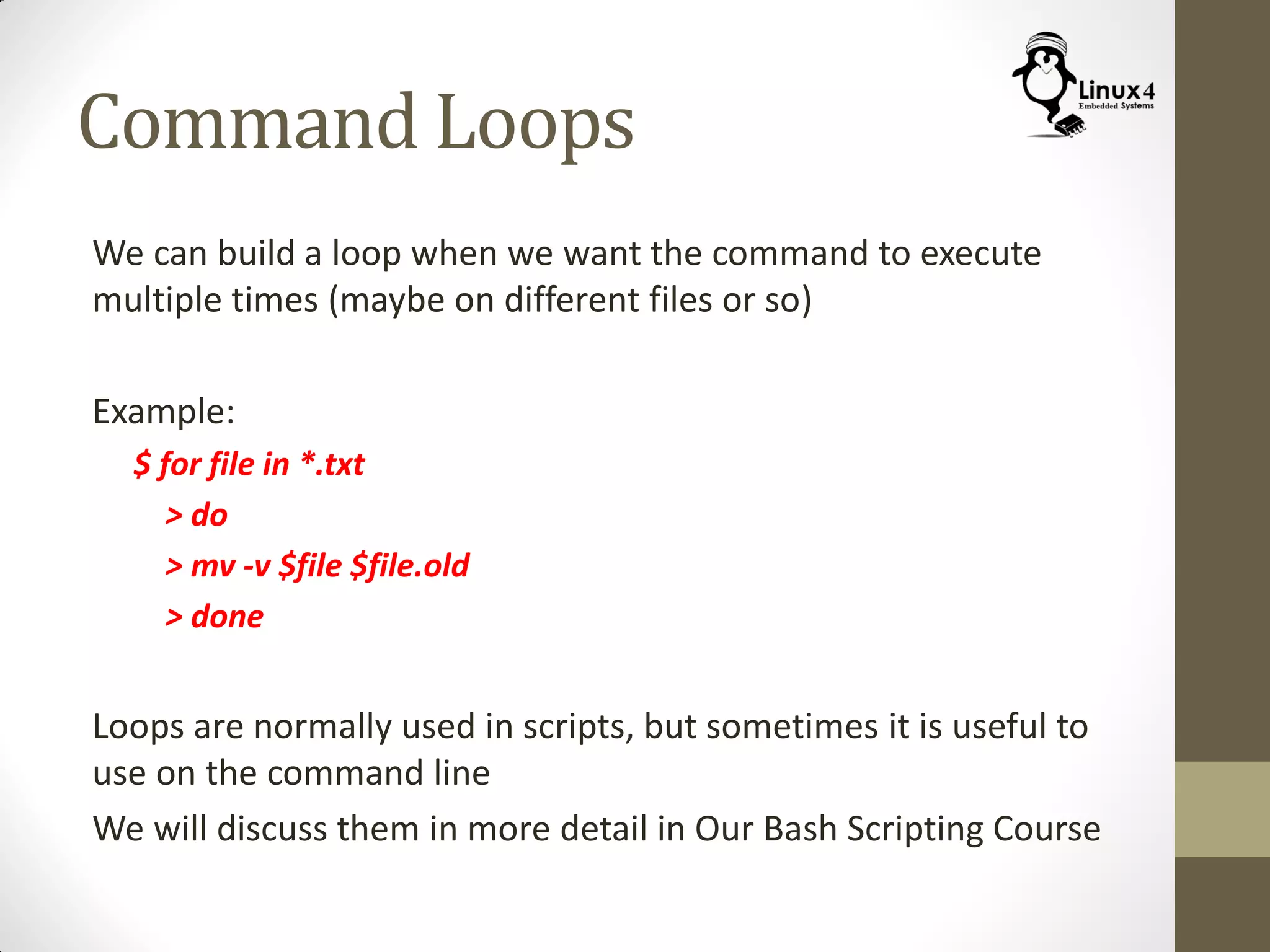
Command Loops
We can build a loop when we want the command to execute
multiple times (maybe on different files or so)
Example:
$ for file in *.txt
> do
> mv -v $file $file.old
> done
Loops are normally used in scripts, but sometimes it is useful to
use on the command line
We will discuss them in more detail in Our Bash Scripting Course
4. INPUT/OUTPUT REDIRECTION
I/O Redirection
Command
ProcessingInput
Output
Error
I/O Redirection
Command
ProcessingInput
Output
Error
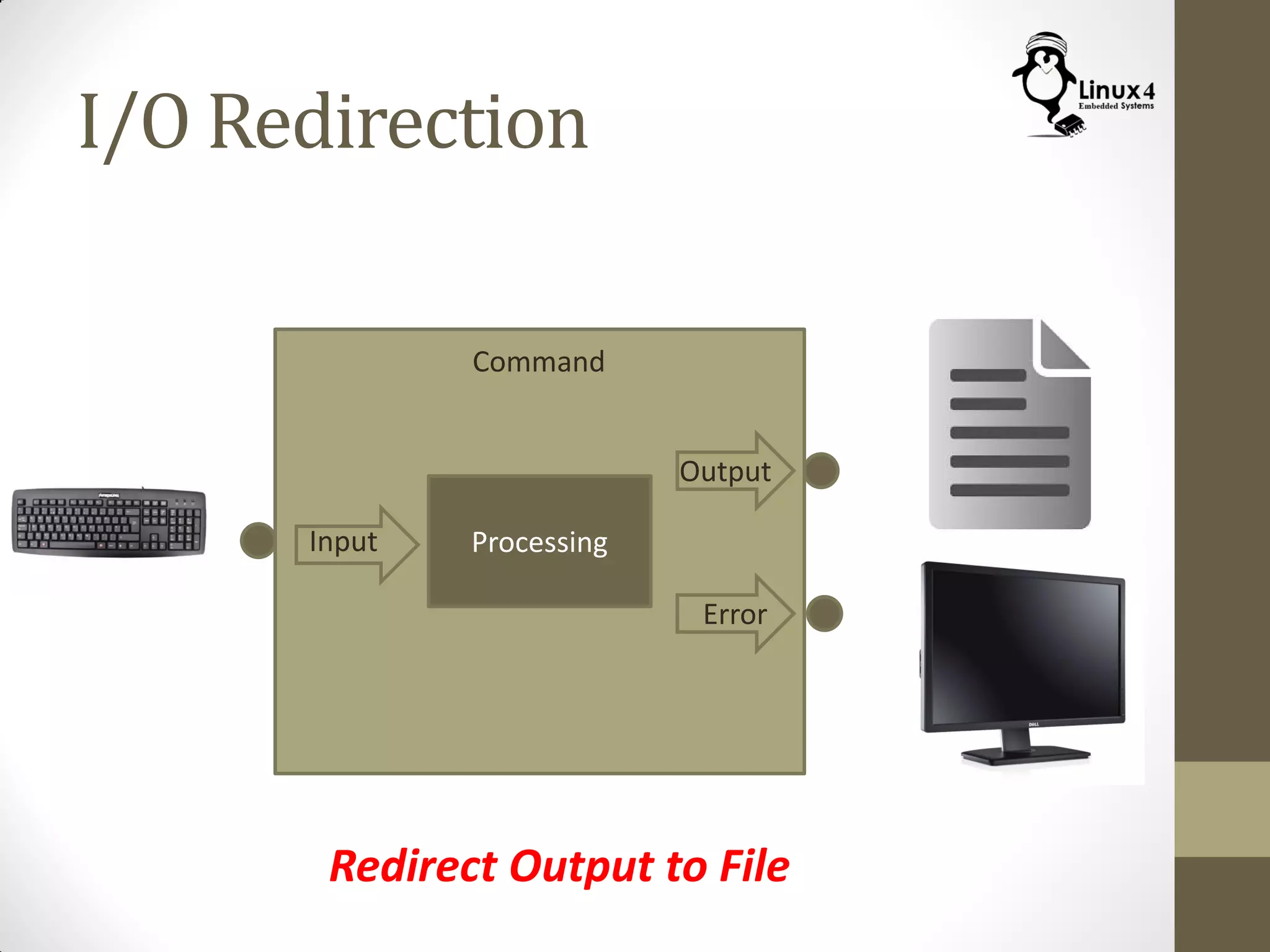
Redirect Output to File
I/O Redirection
Command
ProcessingInput
Output
Error
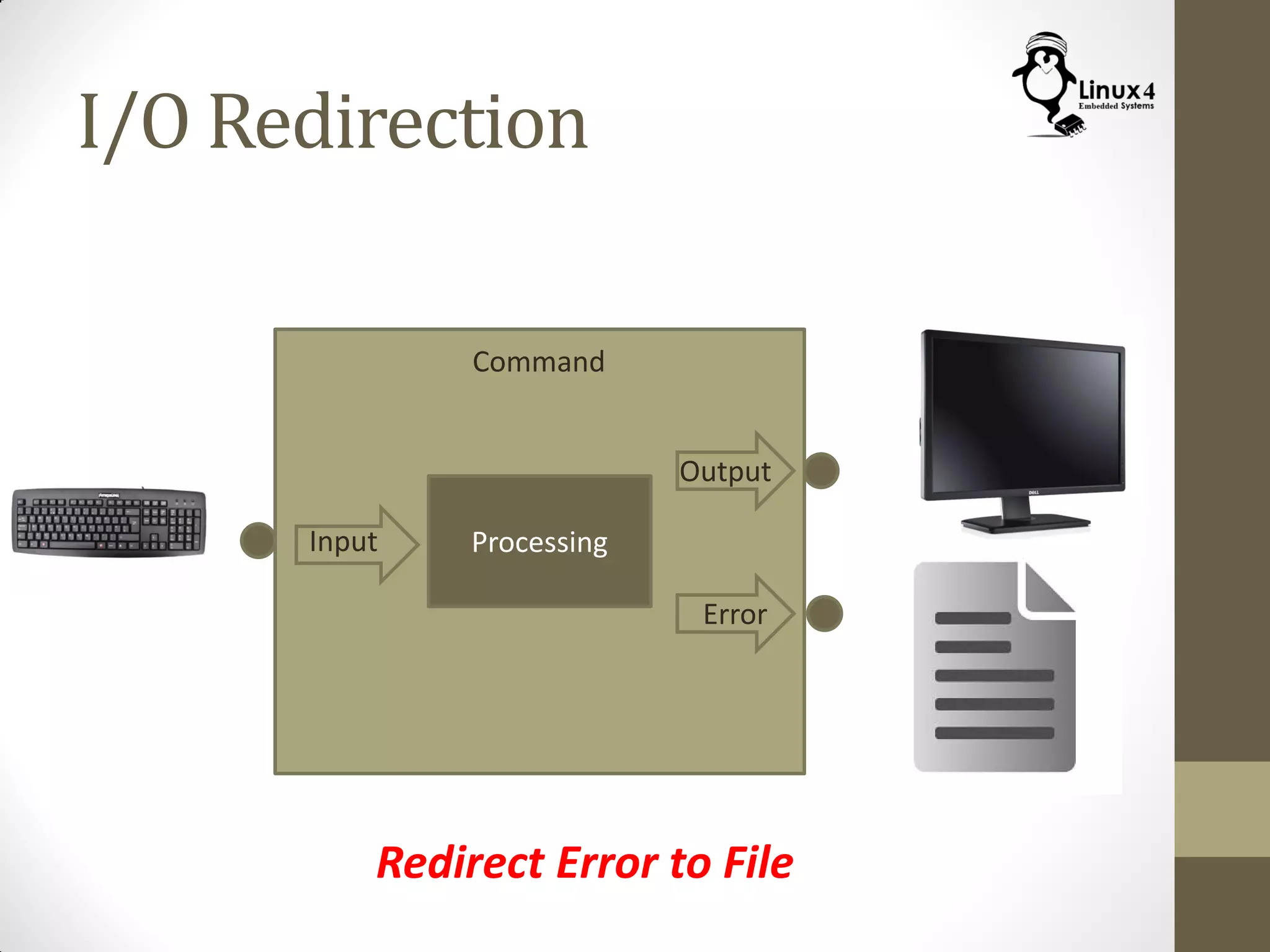
Redirect Error to File
I/O Redirection
Command
ProcessingInput
Output
Error
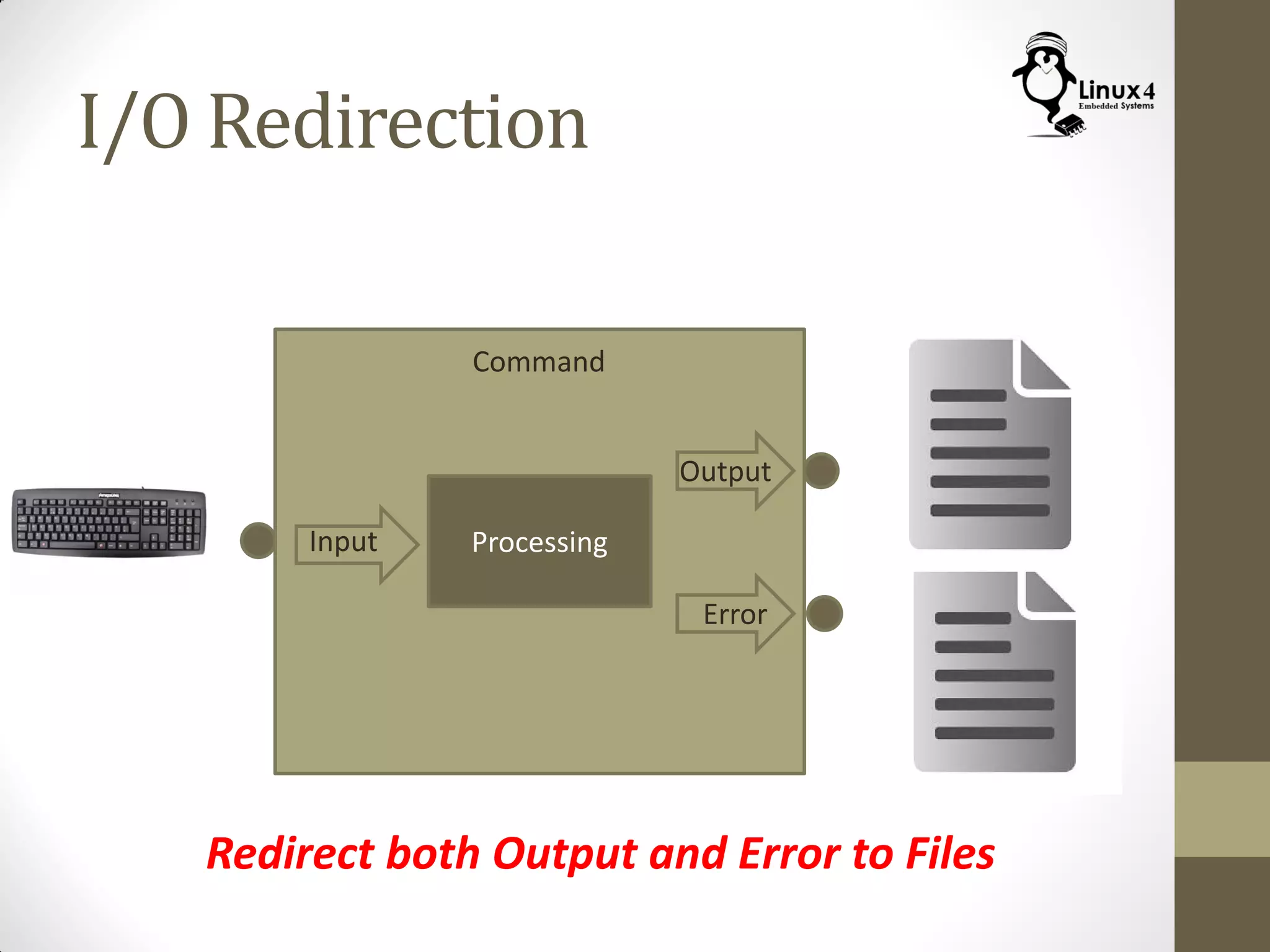
Redirect both Output and Error to Files
I/O Redirection
Command
ProcessingInput
Output
Error
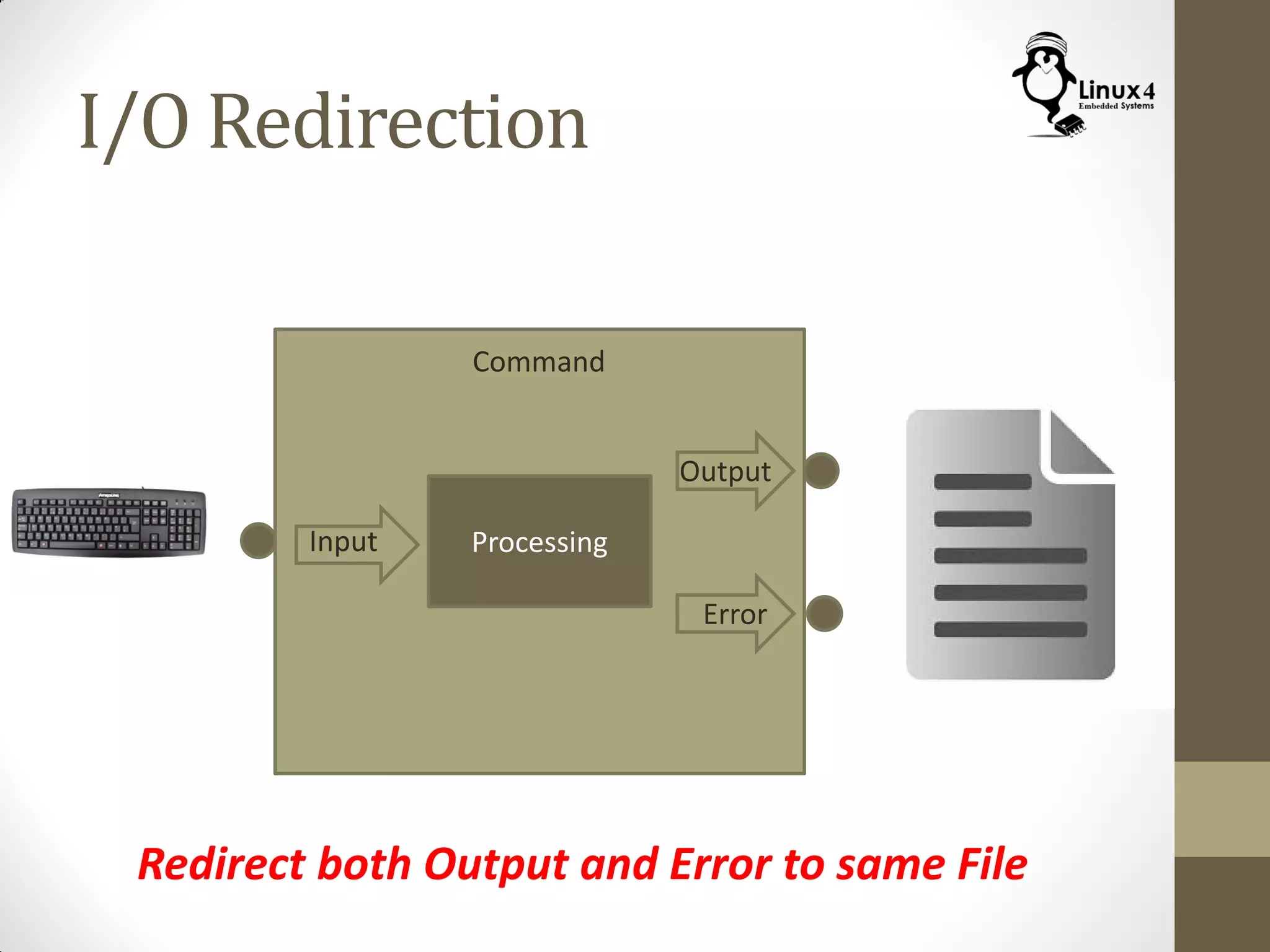
Redirect both Output and Error to same File
I/O Redirection
Command
ProcessingInput
Output
Error
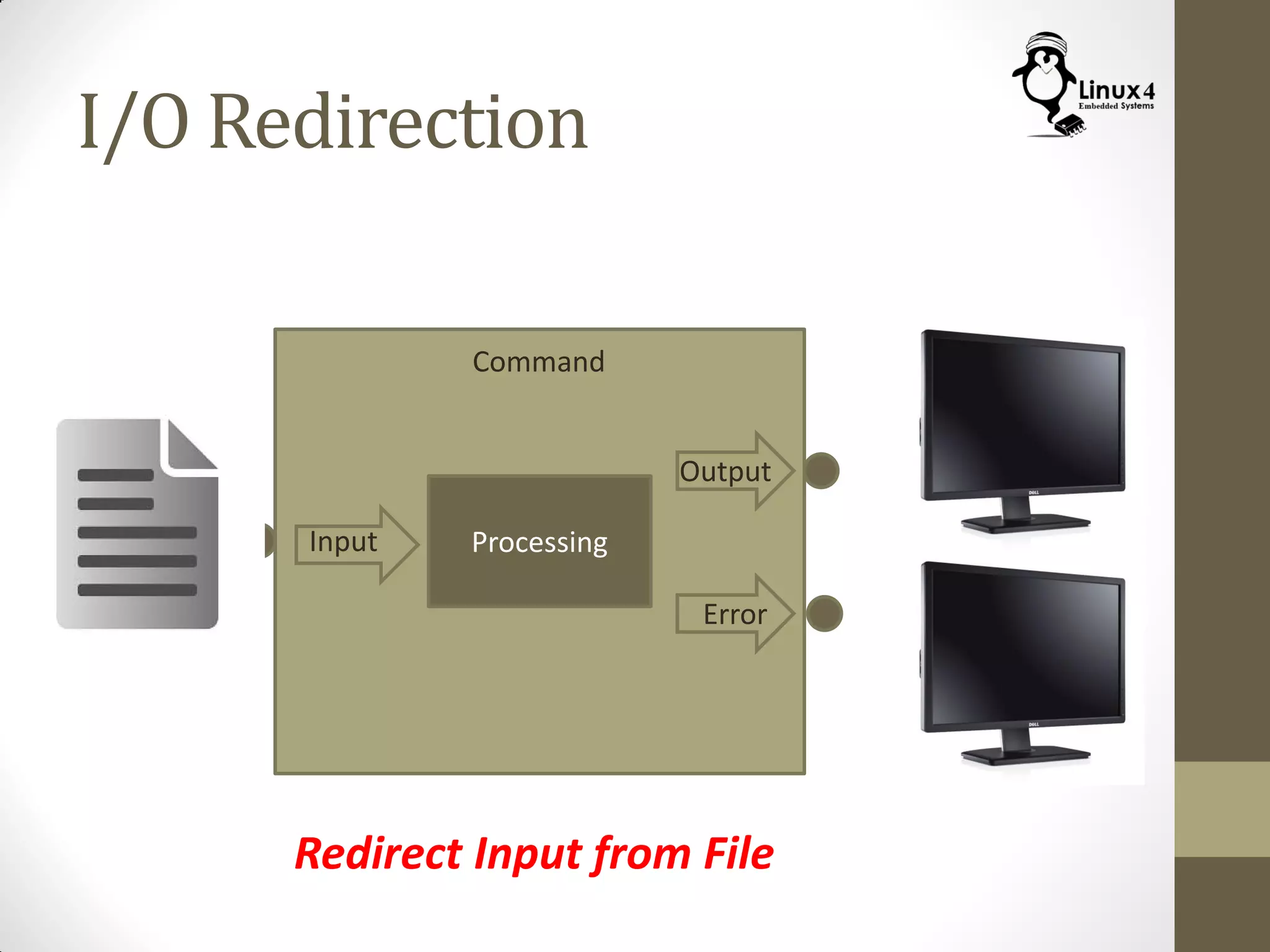
Redirect Input from File
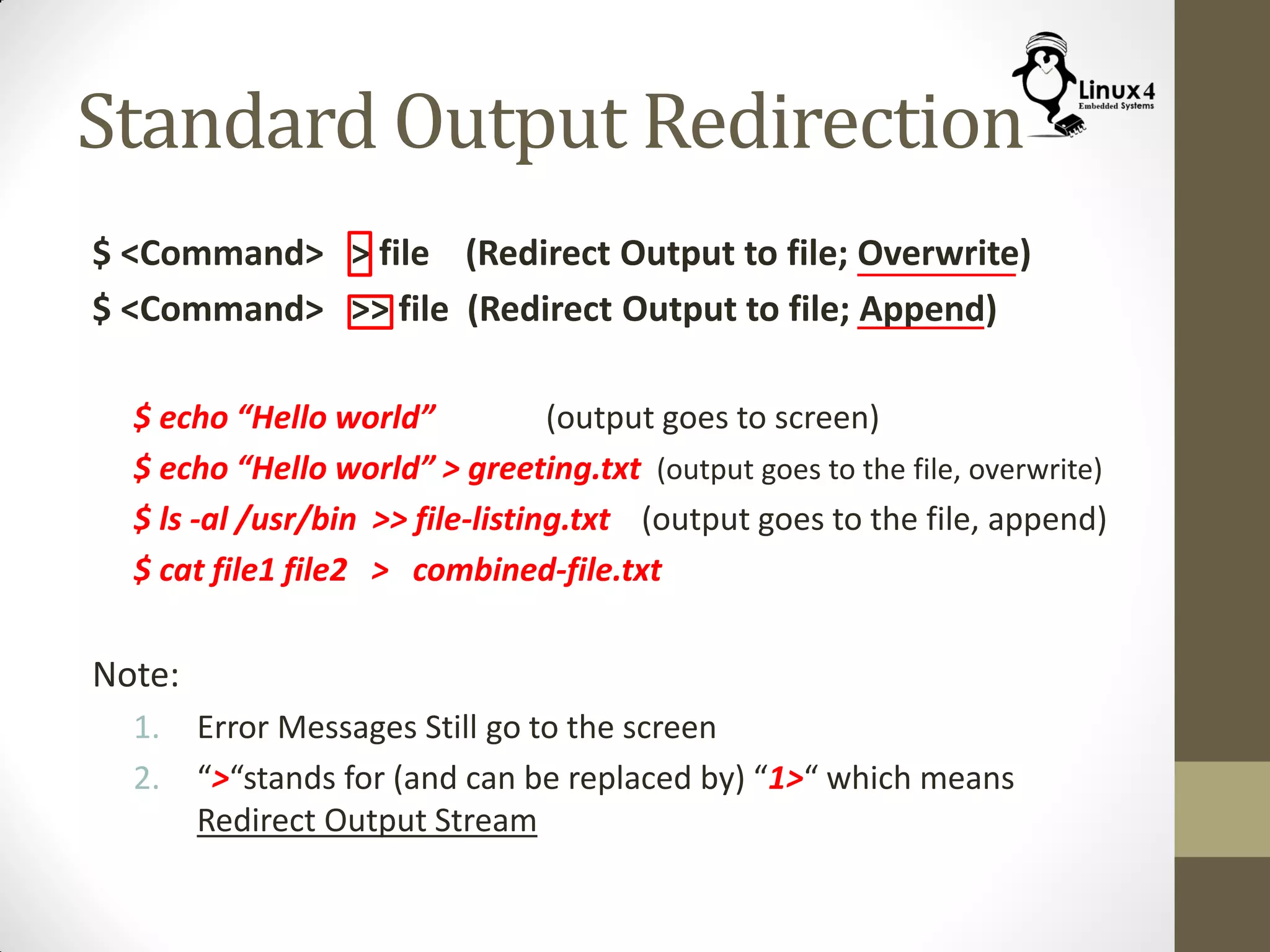
Standard Output Redirection
$ <Command> > file (Redirect Output to file; Overwrite)
$ <Command> >> file (Redirect Output to file; Append)
$ echo “Hello world” (output goes to screen)
$ echo “Hello world” > greeting.txt (output goes to the file, overwrite)
$ ls -al /usr/bin >> file-listing.txt (output goes to the file, append)
$ cat file1 file2 > combined-file.txt
Note:
1. Error Messages Still go to the screen
2. “>“stands for (and can be replaced by) “1>“ which means
Redirect Output Stream
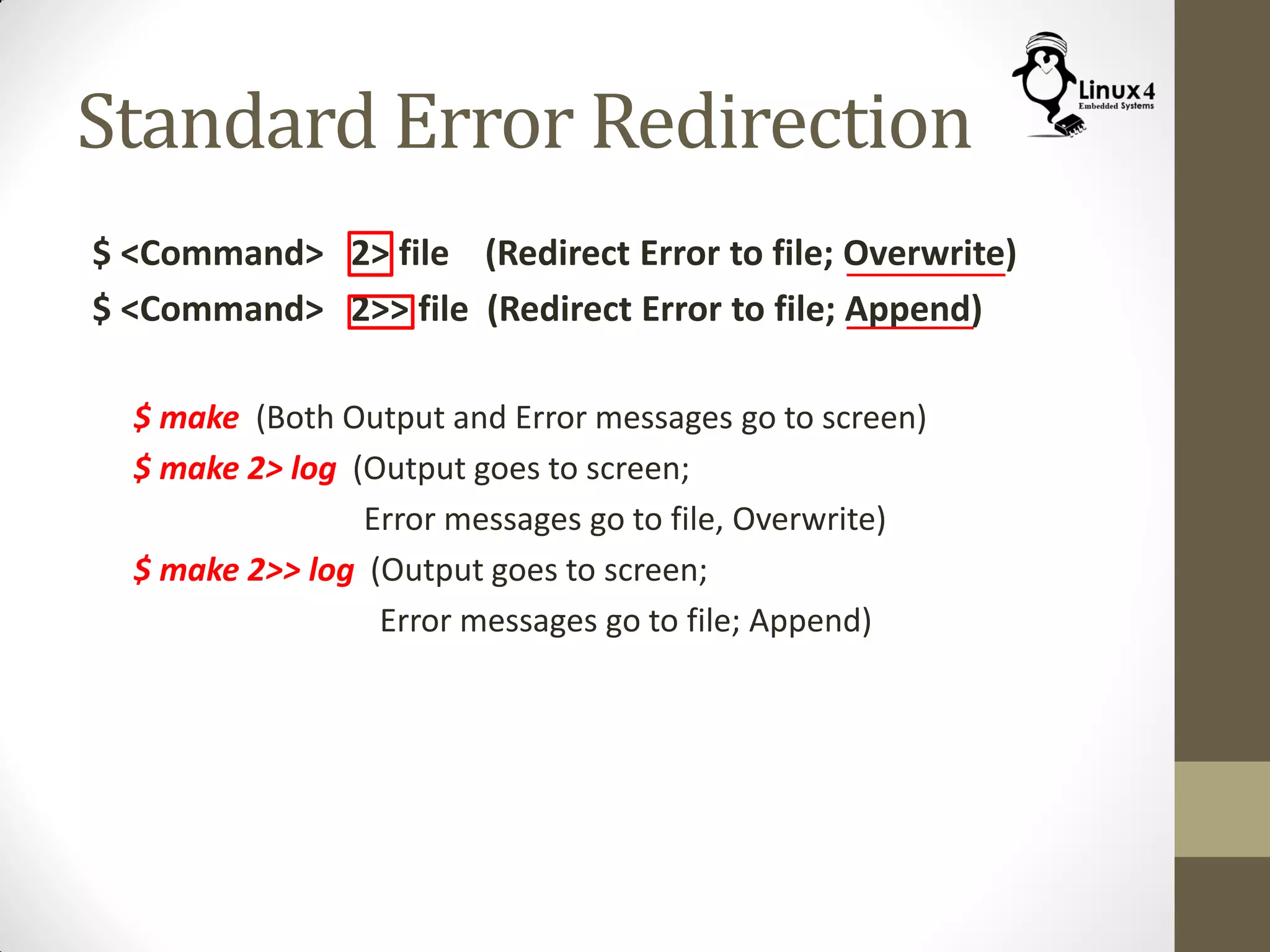
Standard Error Redirection
$ <Command> 2> file (Redirect Error to file; Overwrite)
$ <Command> 2>> file (Redirect Error to file; Append)
$ make (Both Output and Error messages go to screen)
$ make 2> log (Output goes to screen;
Error messages go to file, Overwrite)
$ make 2>> log (Output goes to screen;
Error messages go to file; Append)
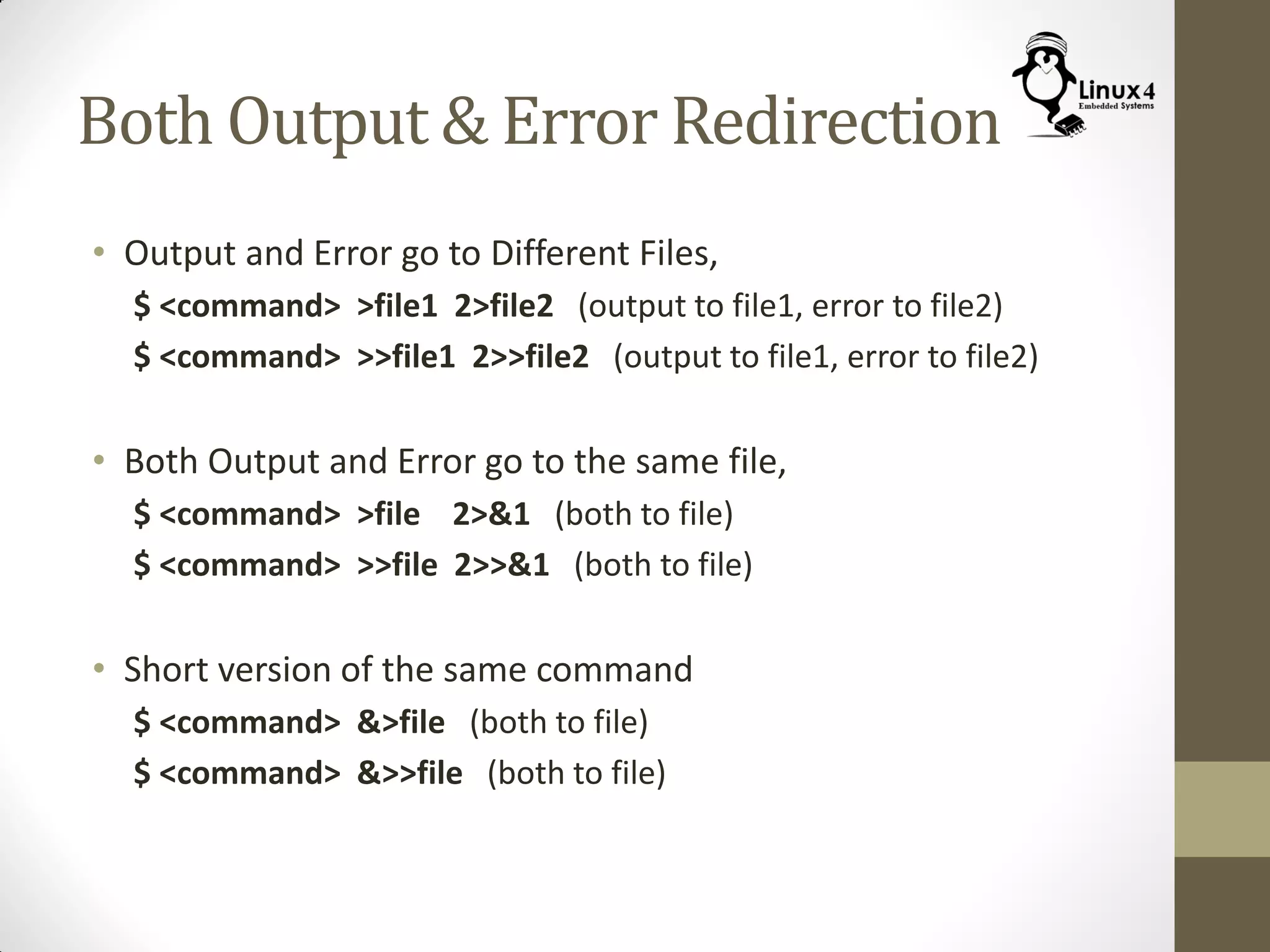
Both Output & Error Redirection
• Output and Error go to Different Files,
$ <command> >file1 2>file2 (output to file1, error to file2)
$ <command> >>file1 2>>file2 (output to file1, error to file2)
• Both Output and Error go to the same file,
$ <command> >file 2>&1 (both to file)
$ <command> >>file 2>>&1 (both to file)
• Short version of the same command
$ <command> &>file (both to file)
$ <command> &>>file (both to file)
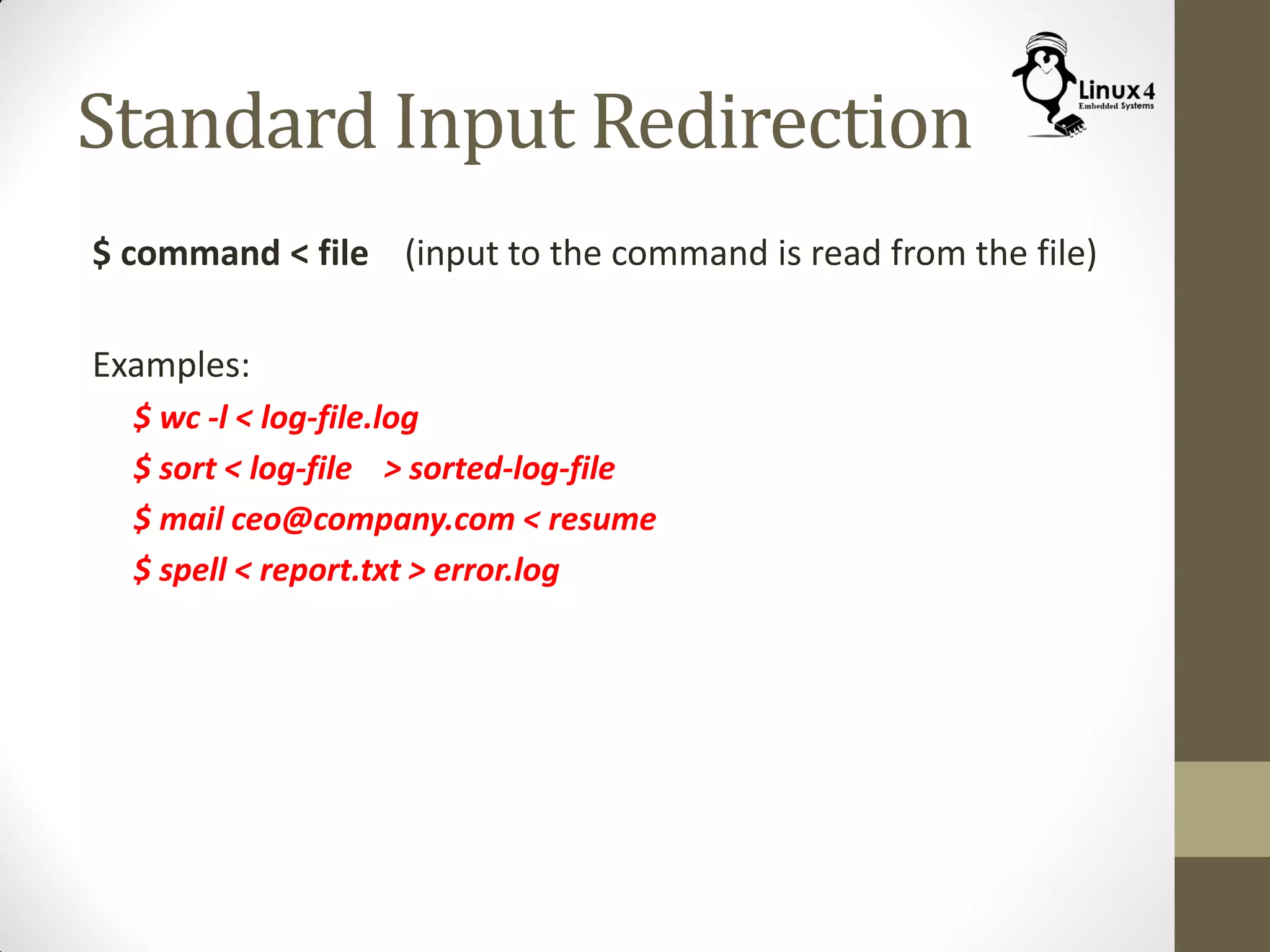
Standard Input Redirection
$ command < file (input to the command is read from the file)
Examples:
$ wc -l < log-file.log
$ sort < log-file > sorted-log-file
$ mail ceo@company.com < resume
$ spell < report.txt > error.log
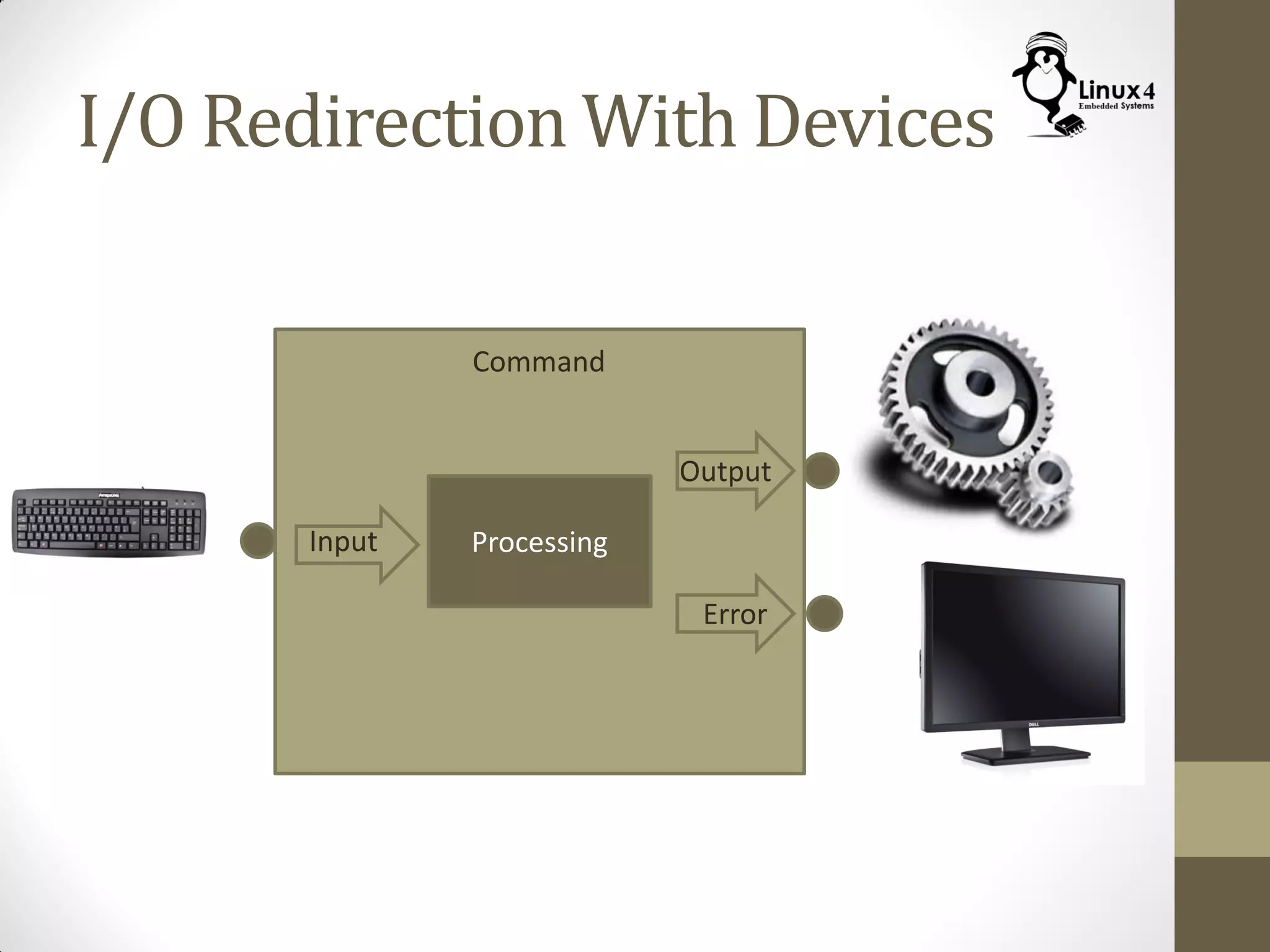
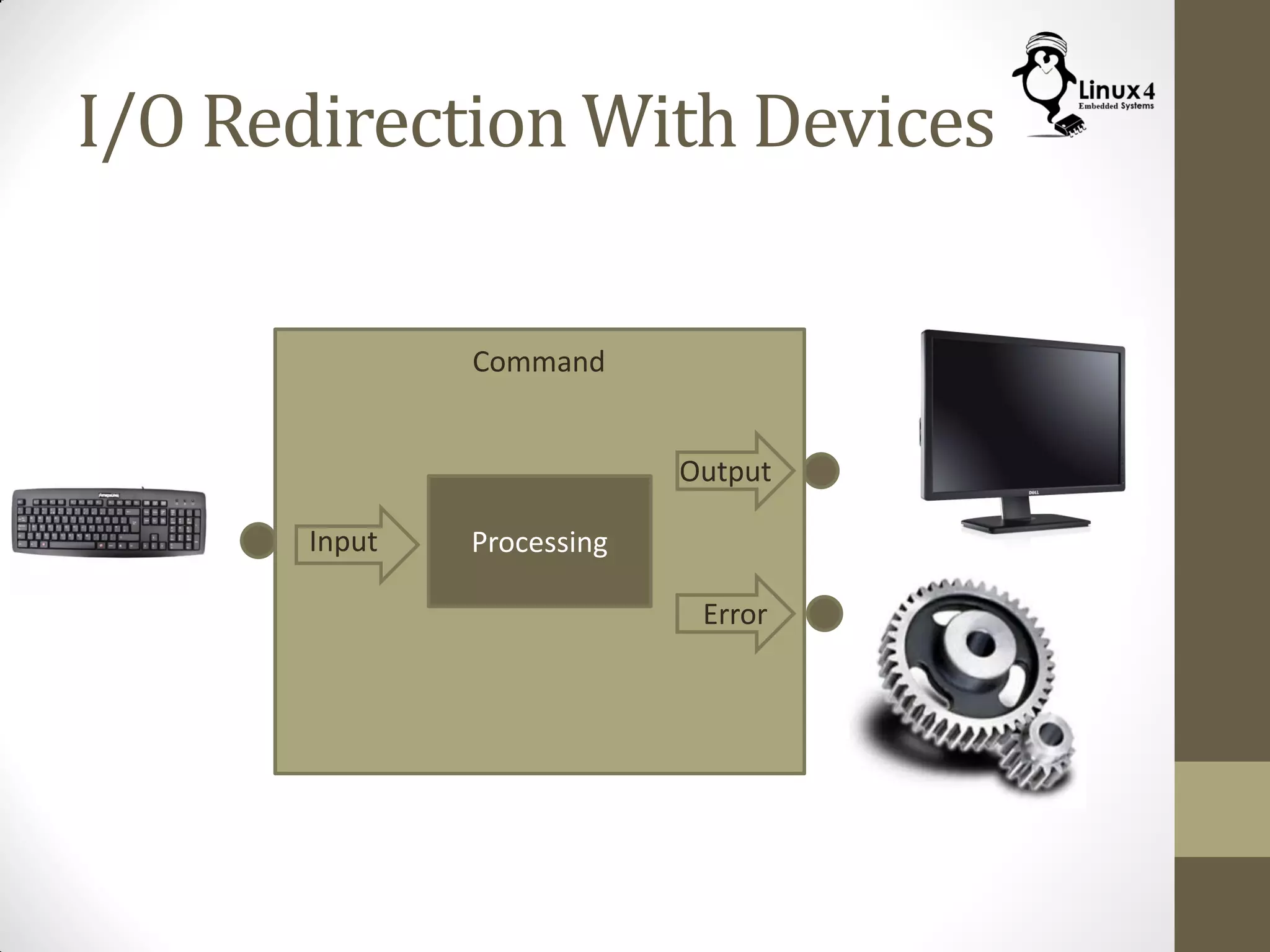
I/O Redirection With Devices
Command
ProcessingInput
Output
Error
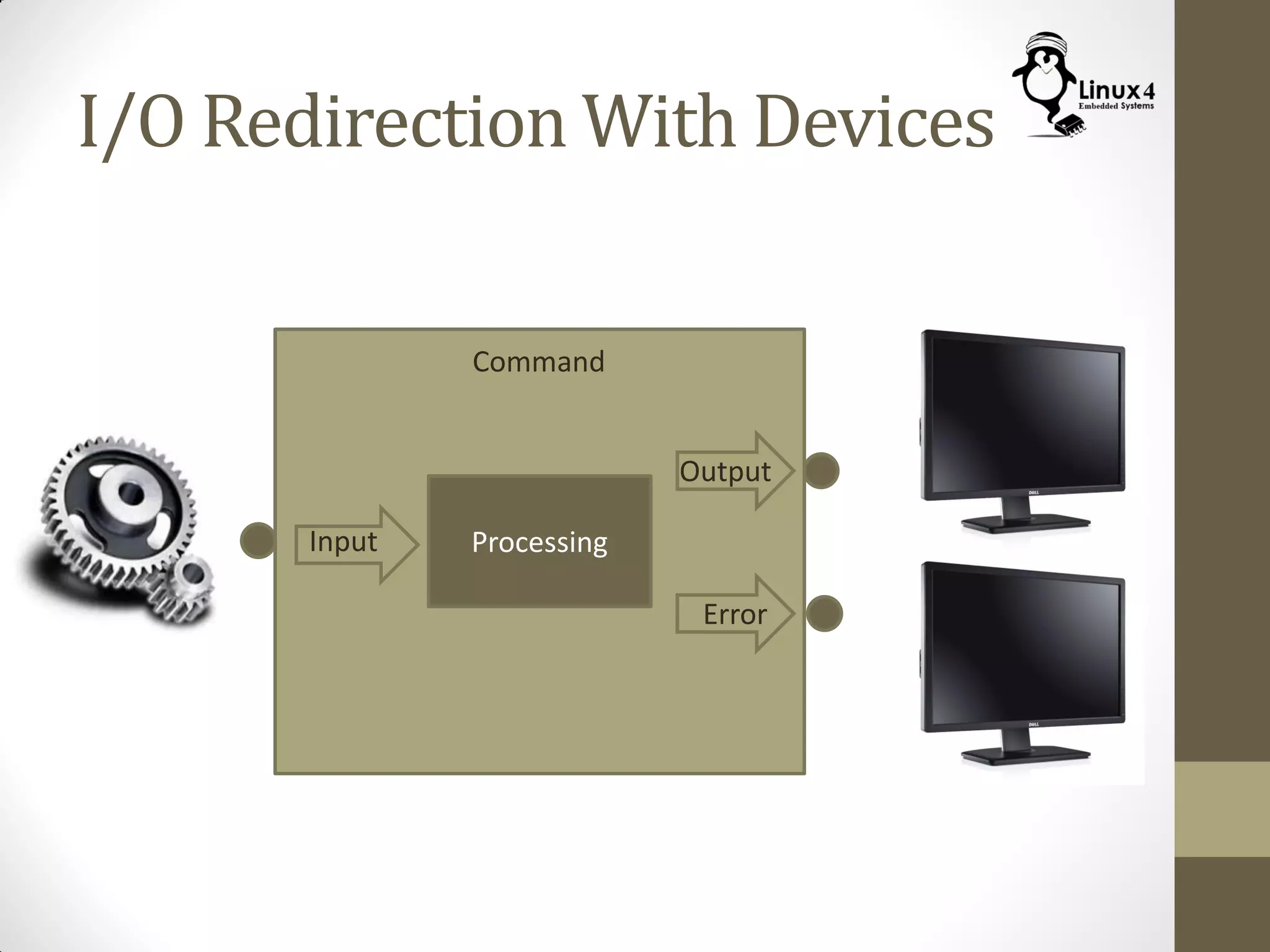
I/O Redirection With Devices
Command
ProcessingInput
Output
Error
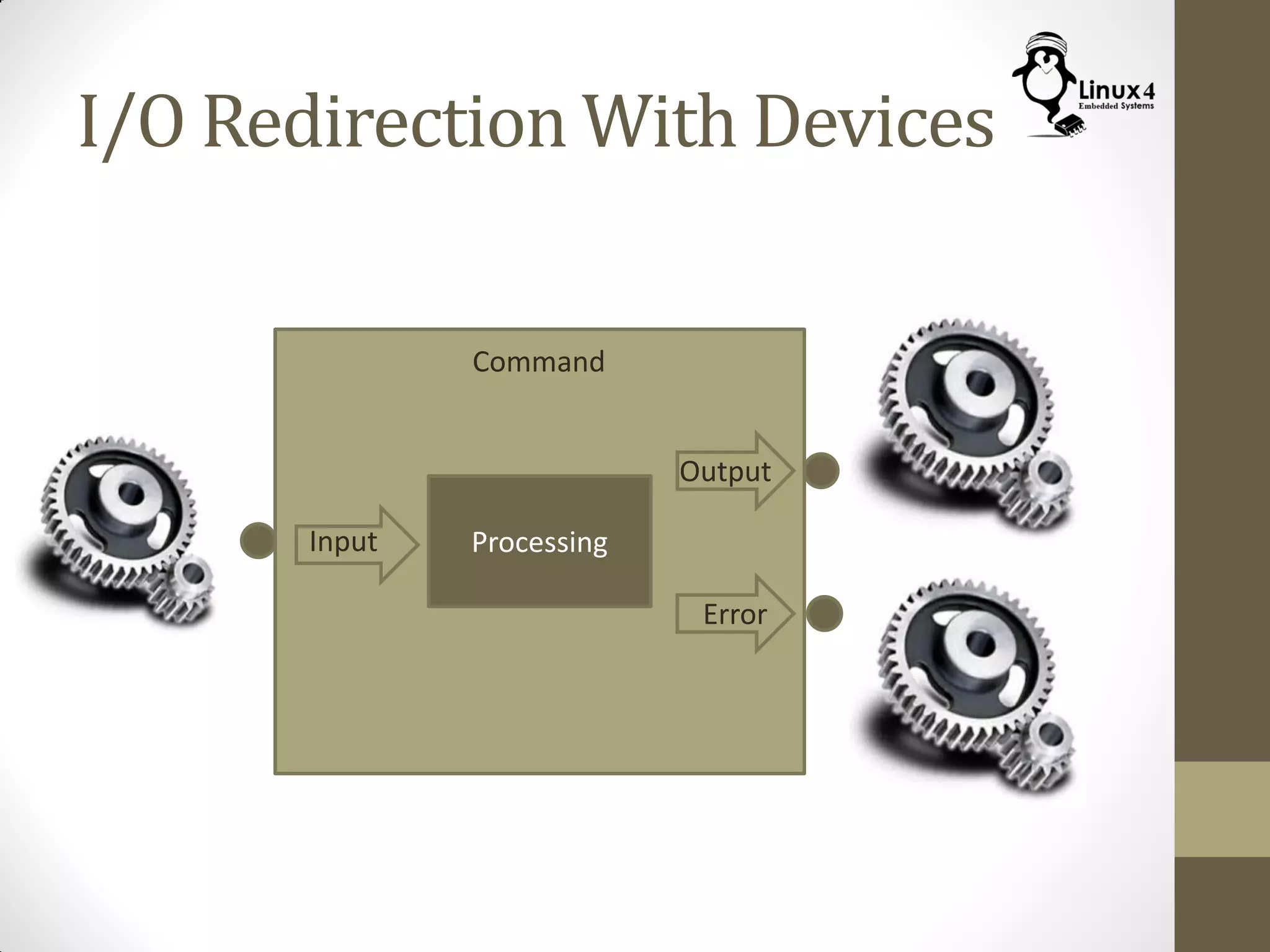
I/O Redirection With Devices
Command
ProcessingInput
Output
Error
I/O Redirection With Devices
Command
ProcessingInput
Output
Error
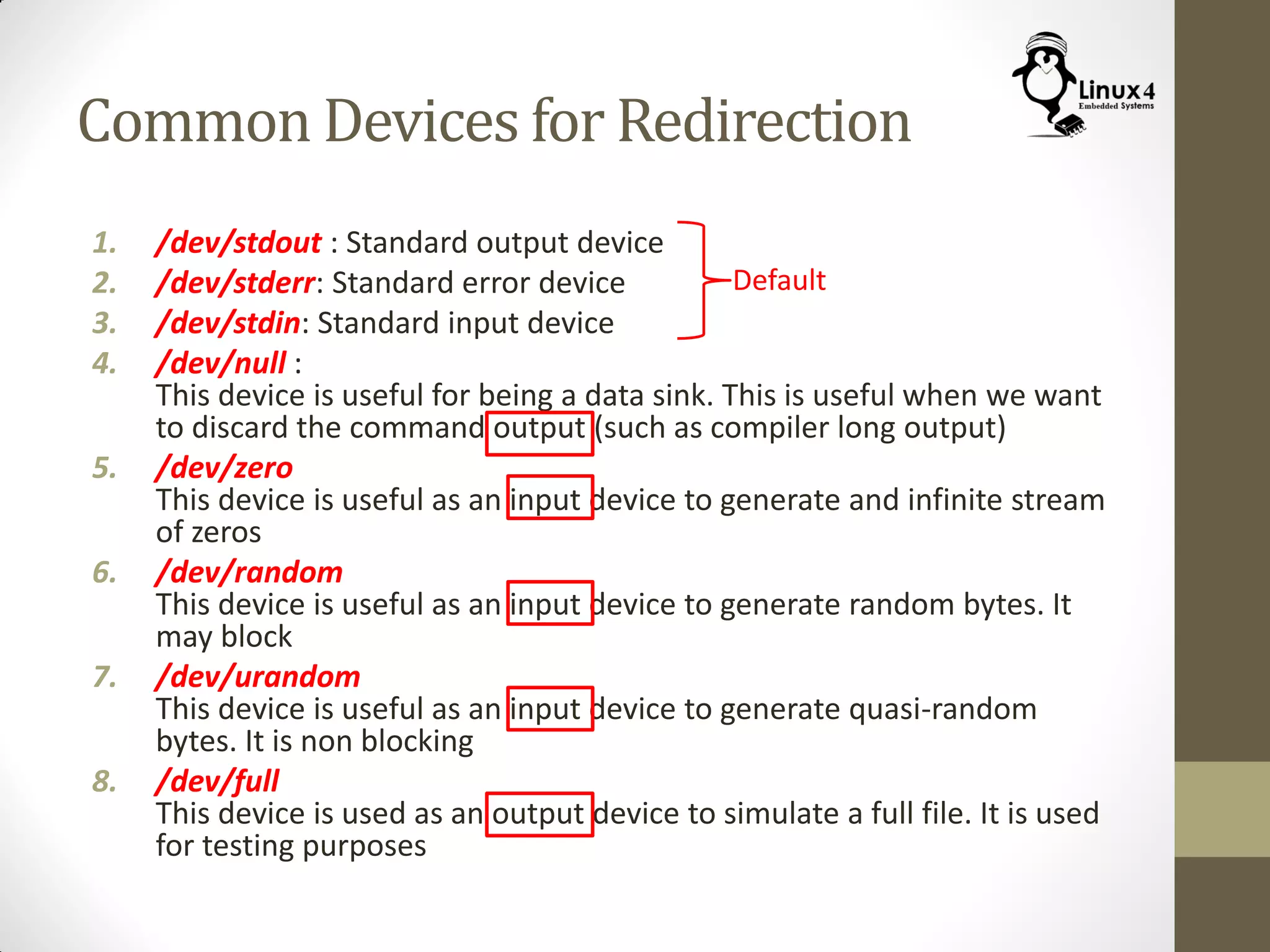
Common Devices for Redirection
1. /dev/stdout : Standard output device
2. /dev/stderr: Standard error device
3. /dev/stdin: Standard input device
4. /dev/null :
This device is useful for being a data sink. This is useful when we want
to discard the command output (such as compiler long output)
5. /dev/zero
This device is useful as an input device to generate and infinite stream
of zeros
6. /dev/random
This device is useful as an input device to generate random bytes. It
may block
7. /dev/urandom
This device is useful as an input device to generate quasi-random
bytes. It is non blocking
8. /dev/full
This device is used as an output device to simulate a full file. It is used
for testing purposes
Default
5. USING PIPES
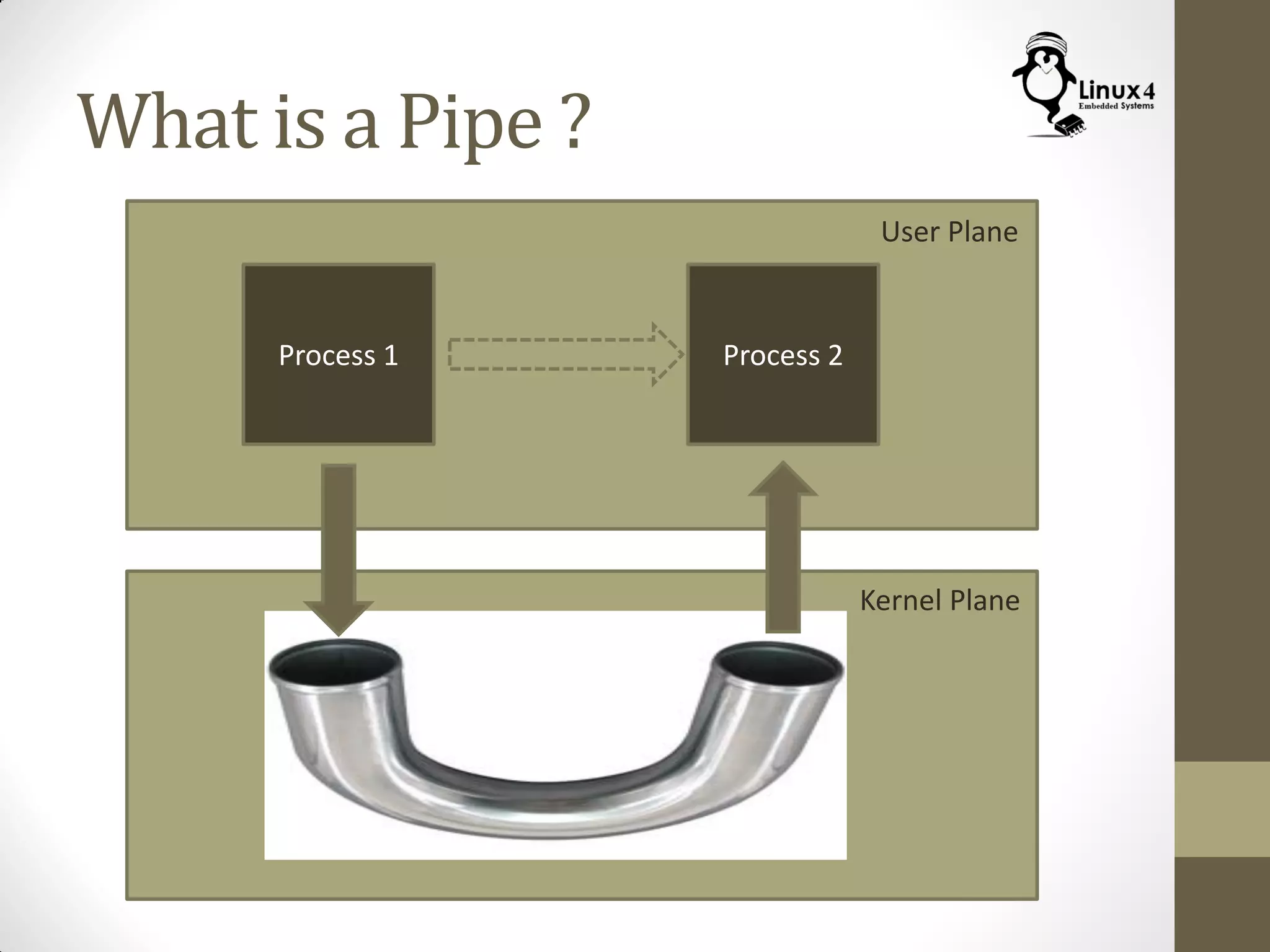
What is a Pipe ?
Process 1 Process 2
User Plane
Kernel Plane
What is a Pipe ?
• A Pipe is a mechanism in Linux Kernel that is used to enable
one process to send information to the other process
• This is called IPC (Inter Process Communication)
• A Pipe is a unidirectional mechanism, so if you need data to
flow in both directions, you will need two pipes (One for each
direction)
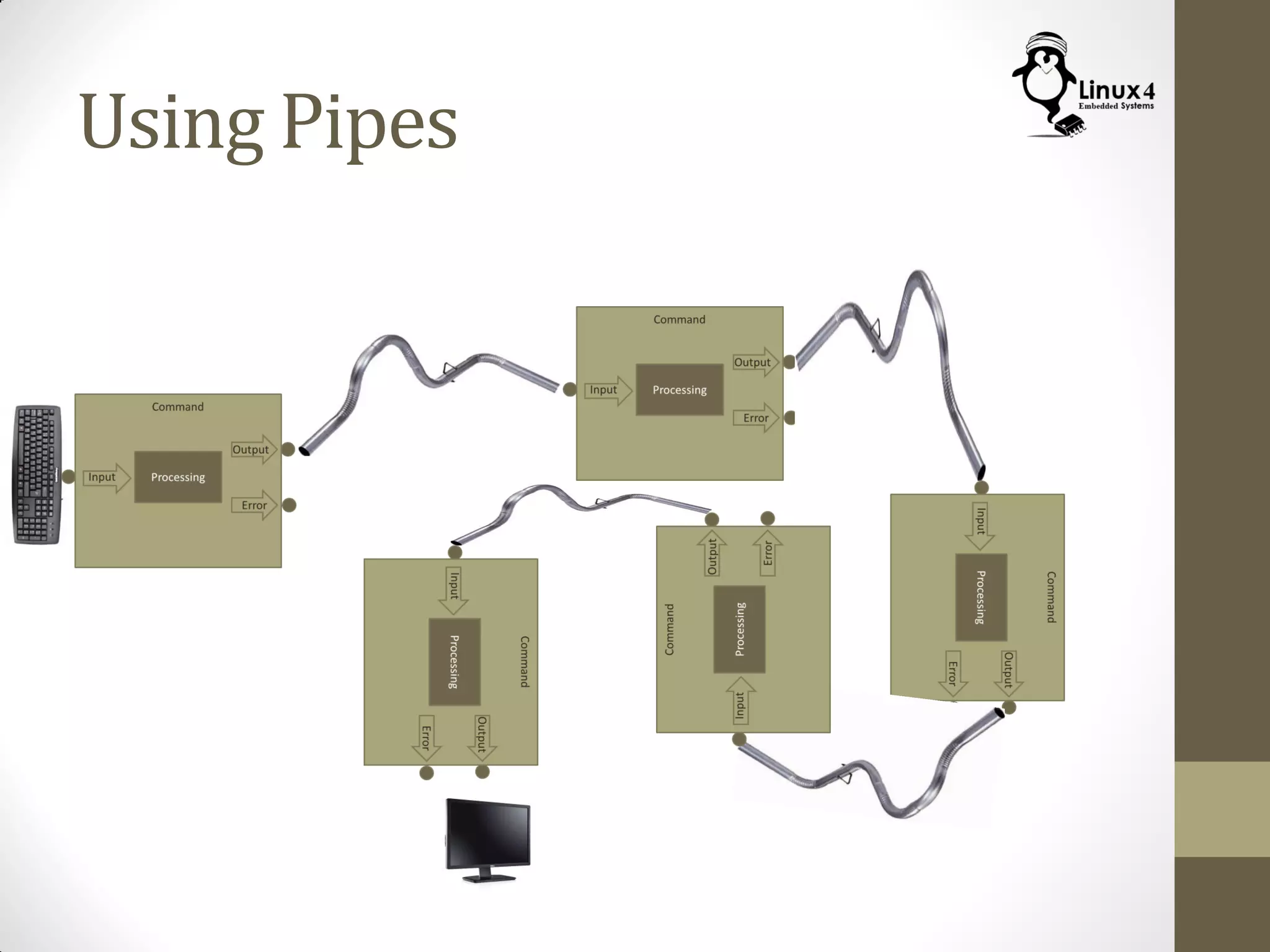
Using Pipes
Using Pipes
Using Pipes
Using Pipes
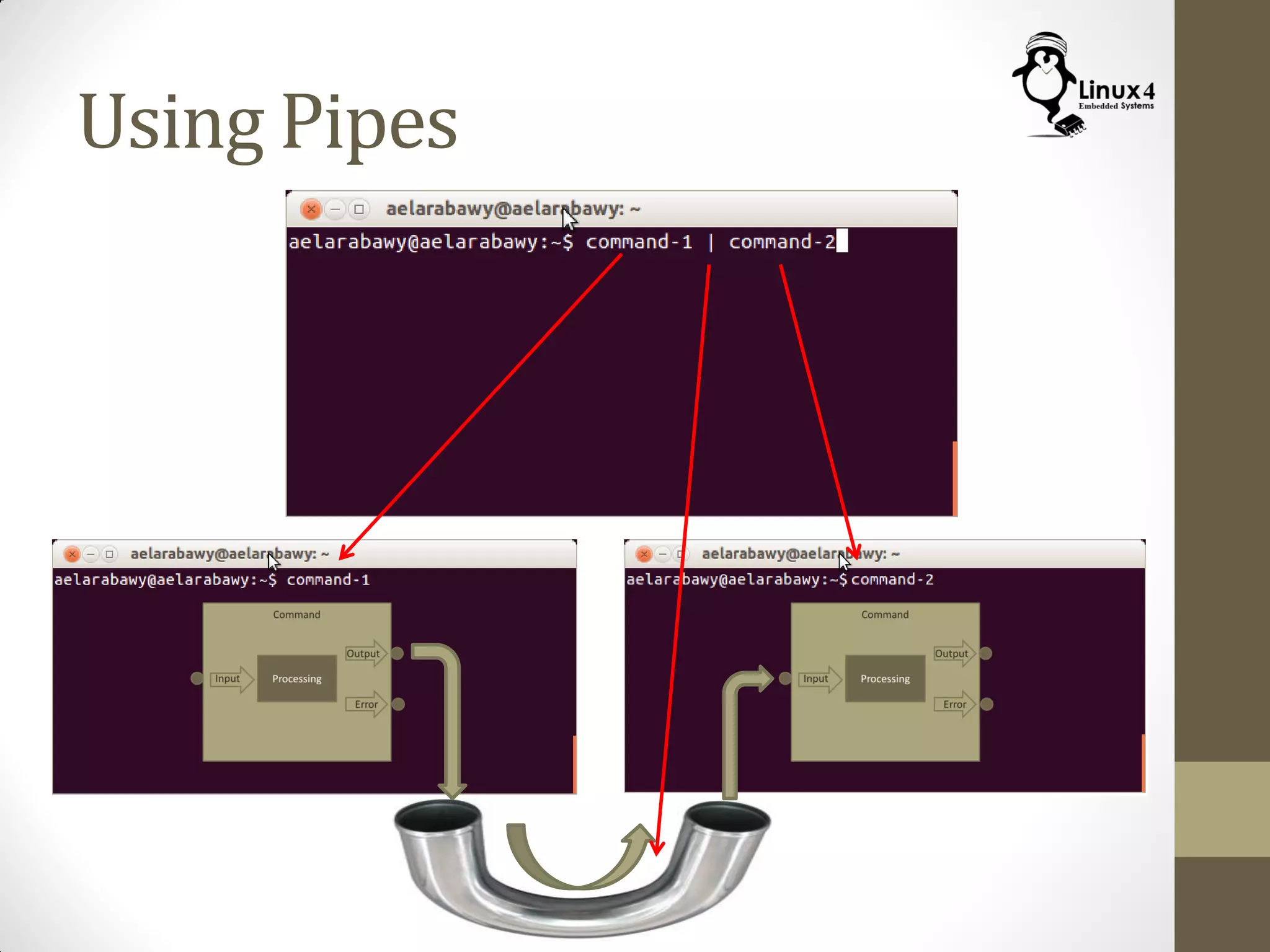
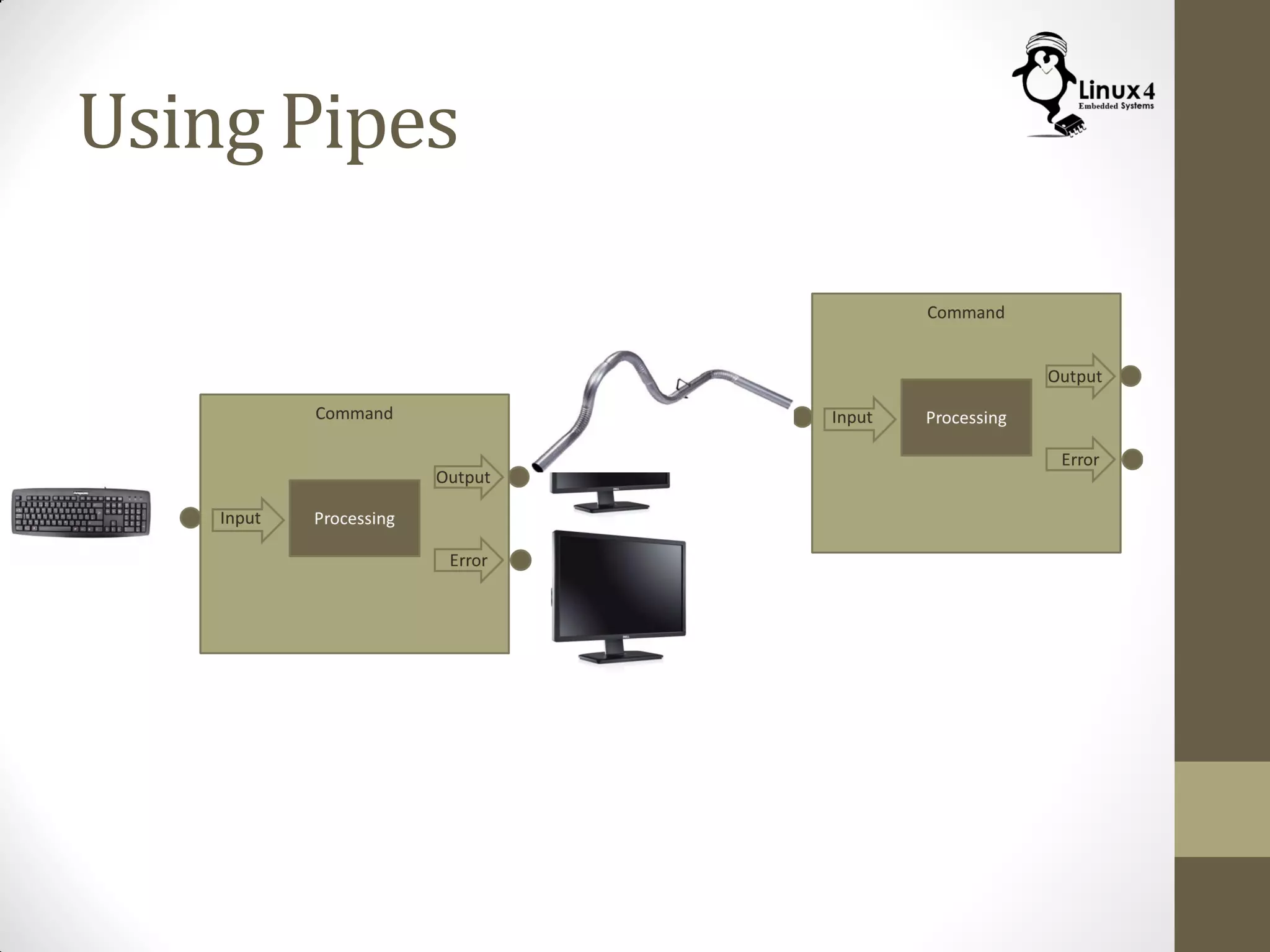
• Pipes in Linux are a method for Communication between
different processes (Inter-Process Communication)
• On the Command line Interface, we can run two commands
and connect them with a pipe, so output of one command
feeds in the input of another one
• Note that every command runs in a sub-shell of the shell
issuing it (child shell)
Using Pipes
$ <command1 > | <command2> | <command3>
• Examples:
$ cat log-file.log | grep “Error”
$ man gzip | grep -i “compress”
$ cat log-file-1.log log-file-2.log | grep -i “error”
$ cat name-list.txt | sort
$ cat * | grep -i “error” | grep -v “severe” | sort > file.log
$ cat resume | mail bill-gates@microsoft.com
More with Pipes
(tee Command)
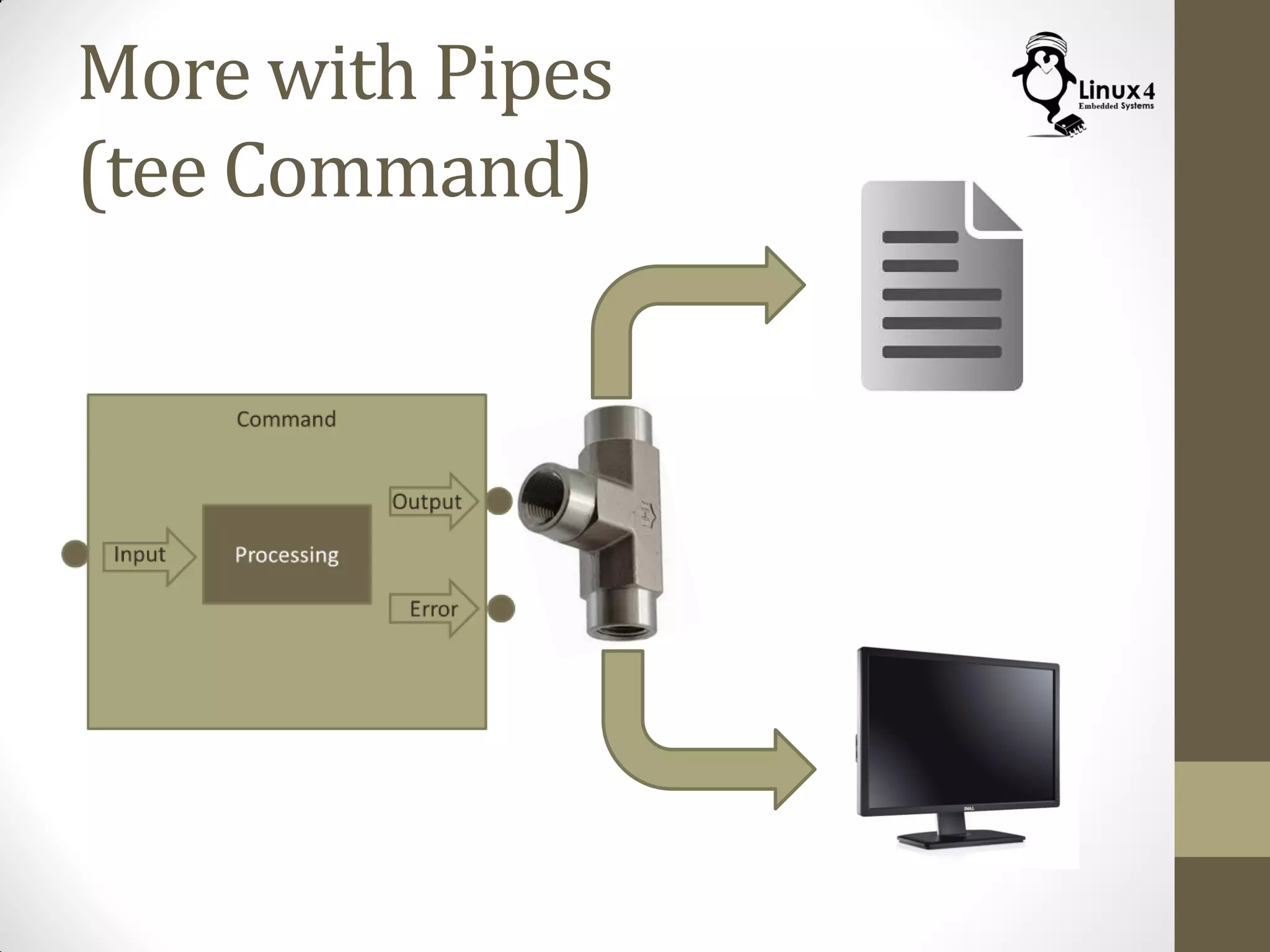
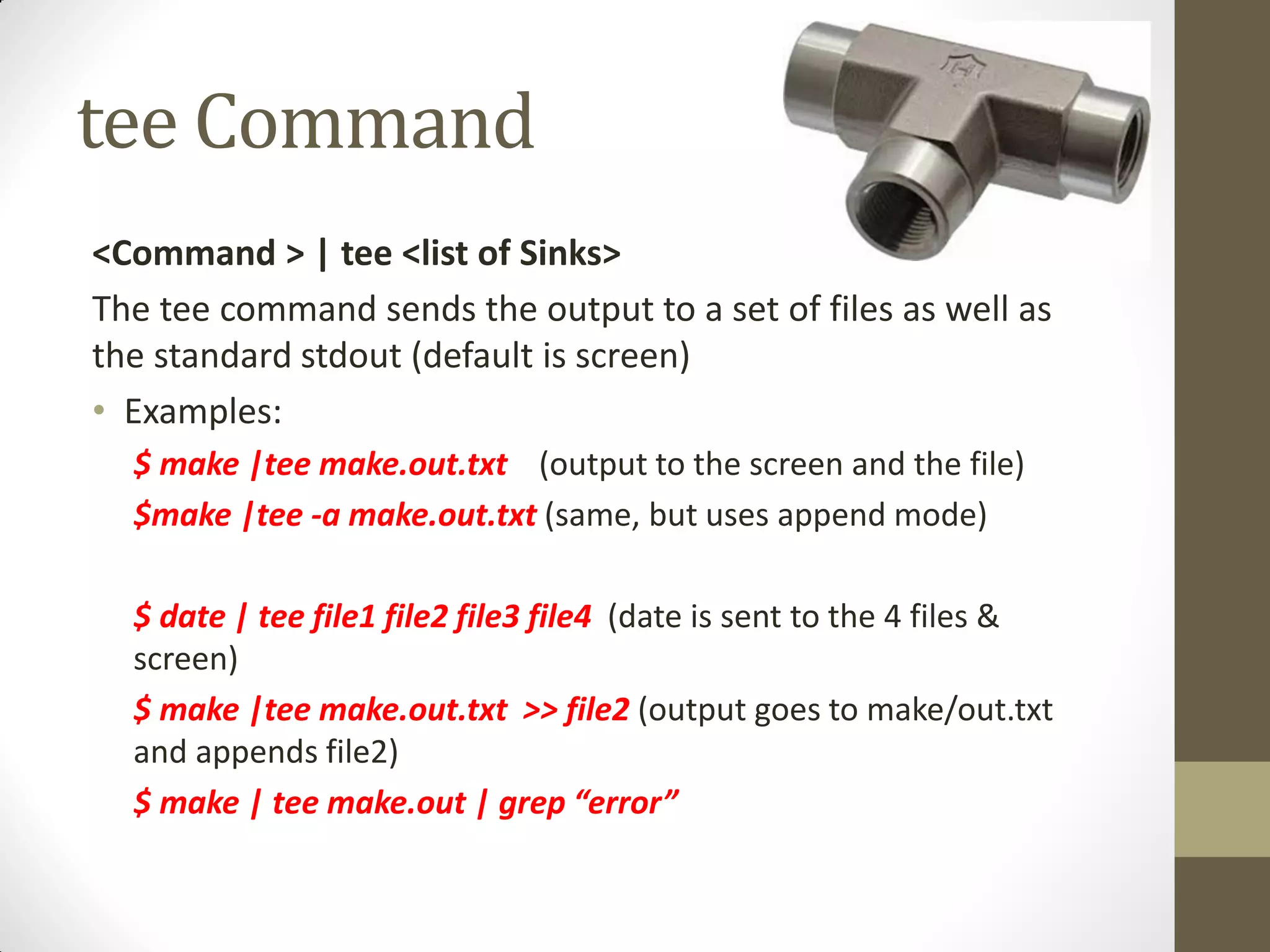
tee Command
<Command > | tee <list of Sinks>
The tee command sends the output to a set of files as well as
the standard stdout (default is screen)
• Examples:
$ make |tee make.out.txt (output to the screen and the file)
$make |tee -a make.out.txt (same, but uses append mode)
$ date | tee file1 file2 file3 file4 (date is sent to the 4 files &
screen)
$ make |tee make.out.txt >> file2 (output goes to make/out.txt
and appends file2)
$ make | tee make.out | grep “error”
More With Pipes
(yes Command)
$ yes <string> |<command>
• The command “yes” passes a string to the command prompt
• The default string is “y”
Examples:
$ yes |rm -r ~/project-folder/
$ yes “ “ |make config (pass empty string to accept defaults)
6. COMMAND ARGUMENT EXPANSION
Commands Arguments Expansion
Wild Card Expansion (*, ?, …)
• Discussed In a previous Lecture
• Applies for File and Directory names
Examples:
$ cp * ../project/
$ cat * > log-files
$ echo *
Commands Arguments Expansion
Tilde Expansion (~)
• The Tilde is expanded to the path of the user home folder
/home/<username>
Examples:
$ echo ~  /home/aelarabawy
Commands Arguments Expansion
Parameter Expansion ( $ and ${ } )
The Parameter Expansion is used to evaluate shell or
environment variables
Examples:
$ echo $PATH
$ echo ${PATH}
$ MY_NAME=TOM
$ echo “My Name Is $MY_NAME”
Commands Arguments Expansion
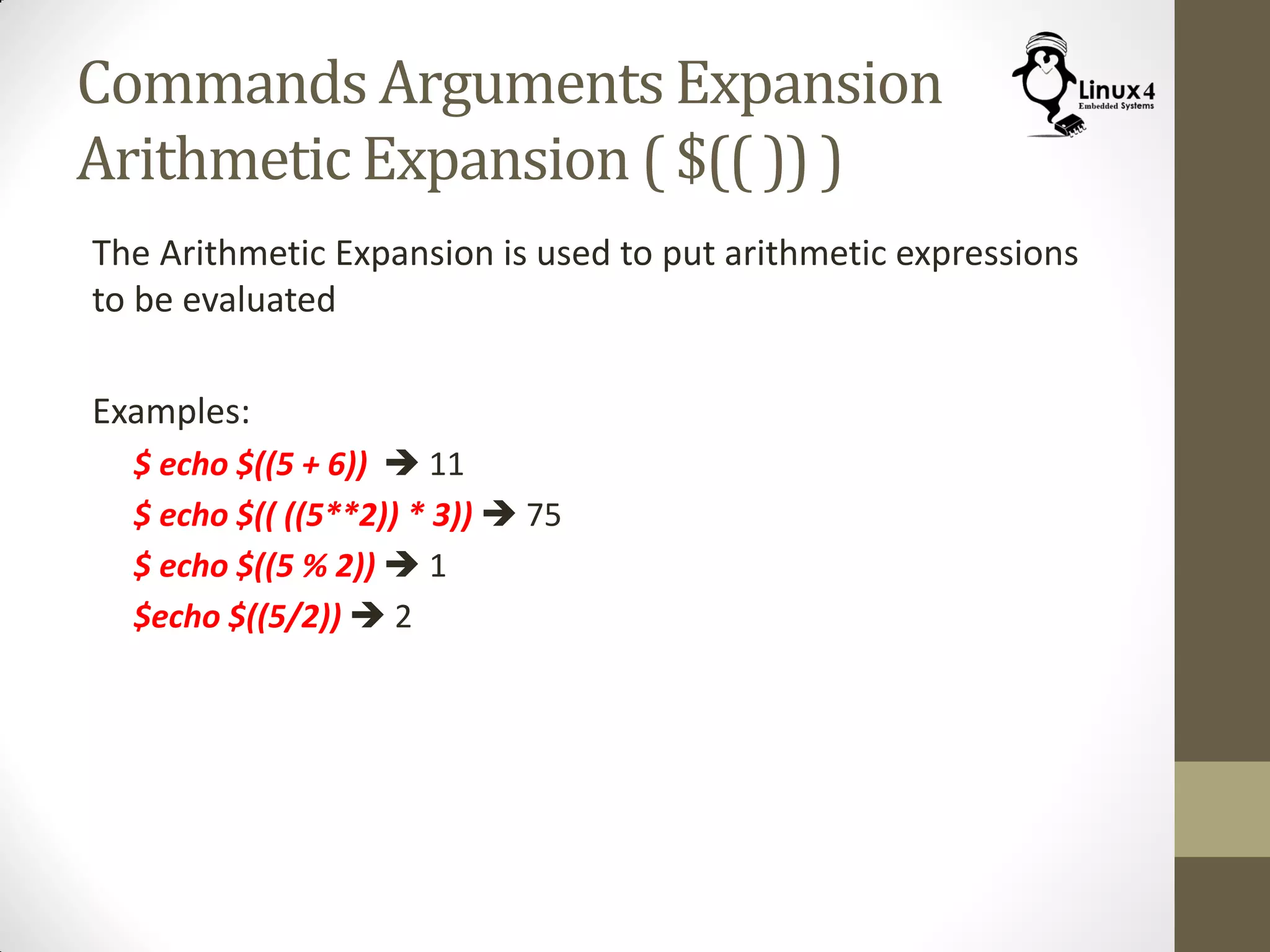
Arithmetic Expansion ( $(( )) )
The Arithmetic Expansion is used to put arithmetic expressions
to be evaluated
Examples:
$ echo $((5 + 6))  11
$ echo $(( ((5**2)) * 3))  75
$ echo $((5 % 2))  1
$echo $((5/2))  2
Commands Arguments Expansion
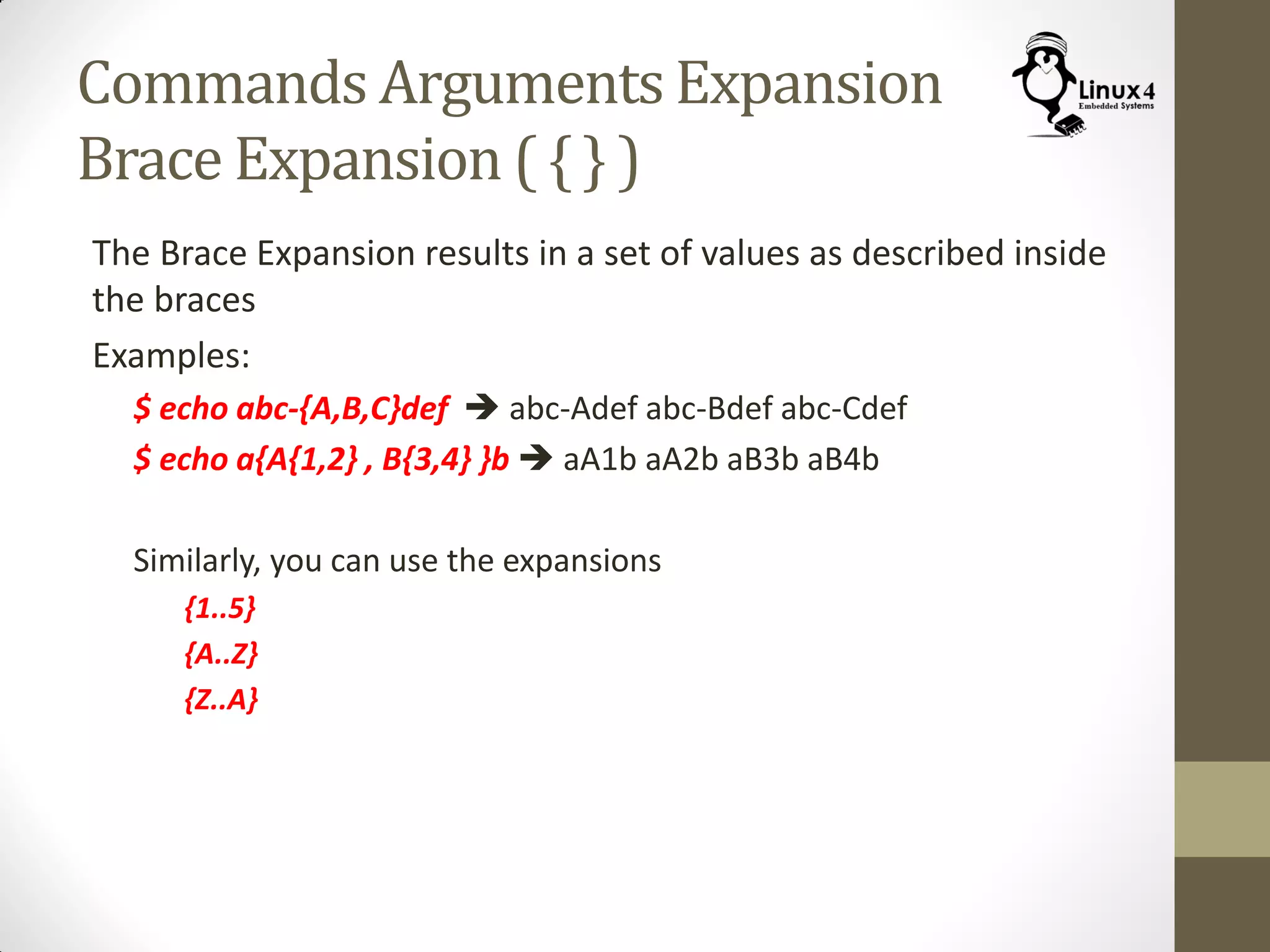
Brace Expansion ( { } )
The Brace Expansion results in a set of values as described inside
the braces
Examples:
$ echo abc-{A,B,C}def  abc-Adef abc-Bdef abc-Cdef
$ echo a{A{1,2} , B{3,4} }b  aA1b aA2b aB3b aB4b
Similarly, you can use the expansions
{1..5}
{A..Z}
{Z..A}
7. Command Argument Quoting
Commands Arguments Quoting
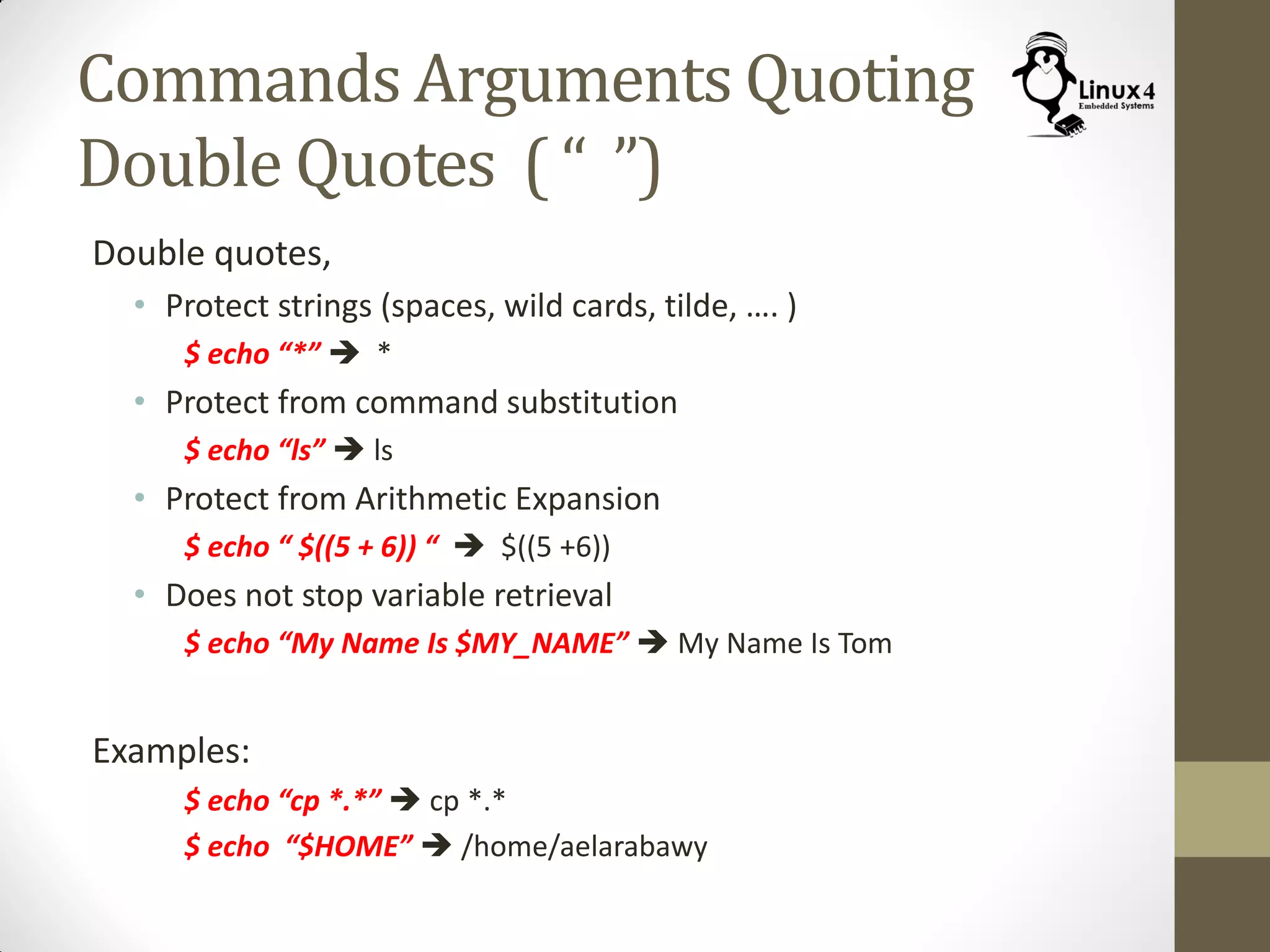
Double Quotes ( “ ”)
Double quotes,
• Protect strings (spaces, wild cards, tilde, …. )
$ echo “*”  *
• Protect from command substitution
$ echo “ls”  ls
• Protect from Arithmetic Expansion
$ echo “ $((5 + 6)) “  $((5 +6))
• Does not stop variable retrieval
$ echo “My Name Is $MY_NAME”  My Name Is Tom
Examples:
$ echo “cp *.*”  cp *.*
$ echo “$HOME”  /home/aelarabawy
Commands Arguments Quoting
Single Quotes ( ‘ ‘)
Single Quotes,
• Similar to double quotes except that it also protects variable
retrieval
Examples:
$ echo ‘$PATH’  $PATH
$ echo ‘My Name Is $MY_NAME’  My Name Is $MY_NAME
Commands Arguments Quoting
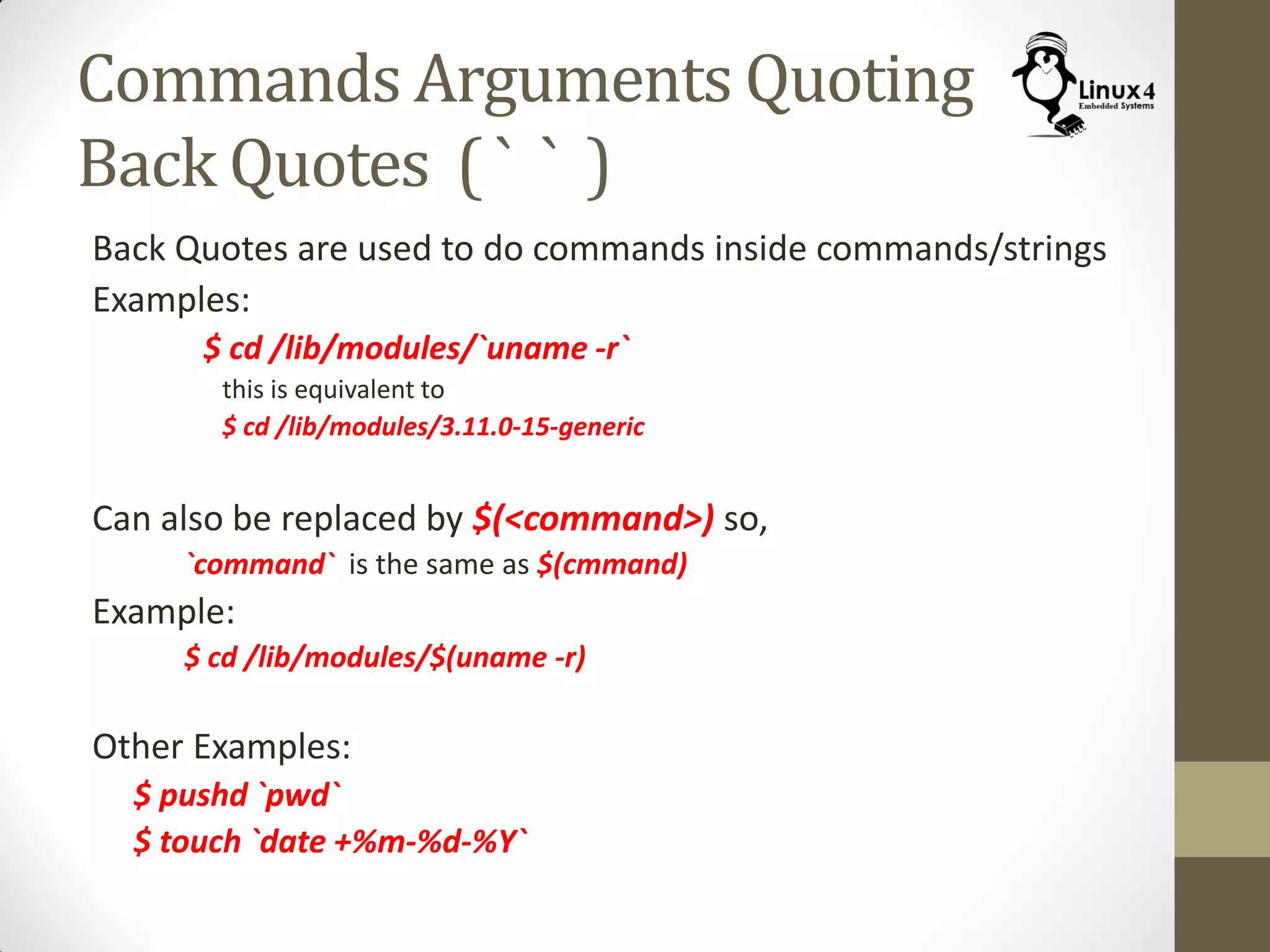
Back Quotes ( ` ` )
Back Quotes are used to do commands inside commands/strings
Examples:
$ cd /lib/modules/`uname -r`
this is equivalent to
$ cd /lib/modules/3.11.0-15-generic
Can also be replaced by $(<command>) so,
`command` is the same as $(cmmand)
Example:
$ cd /lib/modules/$(uname -r)
Other Examples:
$ pushd `pwd`
$ touch `date +%m-%d-%Y`
http://Linux4EmbeddedSystems.com

Course 102: Lecture 8: Composite Commands

  • 1.
    Linux For EmbeddedSystems ForArabs Ahmed ElArabawy Course 102: UnderstandingLinux
  • 2.
  • 3.
    Linux Command Philosophy •Linux commands follows the following philosophy, • Create small, portable, specialized programs that perform one task well • Make this program capable of receiving input from, and redirect output to, other programs • This way, Linux commands are like LEGO blocks • This philosophy has resulted in creation of a lot of small but very powerful when joined together
  • 4.
  • 5.
    I/O Streams Function StreamName Stream Descriptor Default Device Input stdin 0 Keyboard Output stdout 1 Screen Error stderr 2 Screen
  • 6.
    Composite Commands We canbuild Composite Commands through the following: • Sequential Commands • Conditional Commands • Command Loops • Input/Output Redirection • Pipes • Command Argument Expansion • Command Argument Quoting
  • 7.
  • 8.
  • 9.
    Sequential Commands We canhave multiple commands in the same line as follows $ <first Command> ; <second Command> ; <third Command> $ echo “One” ; sleep 10; echo “Two” Using sequential commands is useful when the first command takes long time to execute and we don’t want to wait until it is complete $ make ; sudo make install Note: The Sequential Commands just run after each other, they have independent Input & Output
  • 10.
  • 11.
    Conditional Commands ORing (“||”) Secondcommand will only execute if the First Returns Failure $ cat <filename> || echo “File Not Found” Used for Error Handling
  • 12.
    Conditional Commands ANDing (“&&”) Secondcommand will only execute if the First Returns Successfully $ mkdir dir1 && cd dir1 Continue as long as you are successful
  • 13.
  • 14.
    Command Loops We canbuild a loop when we want the command to execute multiple times (maybe on different files or so) Example: $ for file in *.txt > do > mv -v $file $file.old > done Loops are normally used in scripts, but sometimes it is useful to use on the command line We will discuss them in more detail in Our Bash Scripting Course
  • 15.
  • 16.
  • 17.
  • 18.
  • 19.
  • 20.
  • 21.
  • 22.
    Standard Output Redirection $<Command> > file (Redirect Output to file; Overwrite) $ <Command> >> file (Redirect Output to file; Append) $ echo “Hello world” (output goes to screen) $ echo “Hello world” > greeting.txt (output goes to the file, overwrite) $ ls -al /usr/bin >> file-listing.txt (output goes to the file, append) $ cat file1 file2 > combined-file.txt Note: 1. Error Messages Still go to the screen 2. “>“stands for (and can be replaced by) “1>“ which means Redirect Output Stream
  • 23.
    Standard Error Redirection $<Command> 2> file (Redirect Error to file; Overwrite) $ <Command> 2>> file (Redirect Error to file; Append) $ make (Both Output and Error messages go to screen) $ make 2> log (Output goes to screen; Error messages go to file, Overwrite) $ make 2>> log (Output goes to screen; Error messages go to file; Append)
  • 24.
    Both Output &Error Redirection • Output and Error go to Different Files, $ <command> >file1 2>file2 (output to file1, error to file2) $ <command> >>file1 2>>file2 (output to file1, error to file2) • Both Output and Error go to the same file, $ <command> >file 2>&1 (both to file) $ <command> >>file 2>>&1 (both to file) • Short version of the same command $ <command> &>file (both to file) $ <command> &>>file (both to file)
  • 25.
    Standard Input Redirection $command < file (input to the command is read from the file) Examples: $ wc -l < log-file.log $ sort < log-file > sorted-log-file $ mail ceo@company.com < resume $ spell < report.txt > error.log
  • 26.
    I/O Redirection WithDevices Command ProcessingInput Output Error
  • 27.
    I/O Redirection WithDevices Command ProcessingInput Output Error
  • 28.
    I/O Redirection WithDevices Command ProcessingInput Output Error
  • 29.
    I/O Redirection WithDevices Command ProcessingInput Output Error
  • 30.
    Common Devices forRedirection 1. /dev/stdout : Standard output device 2. /dev/stderr: Standard error device 3. /dev/stdin: Standard input device 4. /dev/null : This device is useful for being a data sink. This is useful when we want to discard the command output (such as compiler long output) 5. /dev/zero This device is useful as an input device to generate and infinite stream of zeros 6. /dev/random This device is useful as an input device to generate random bytes. It may block 7. /dev/urandom This device is useful as an input device to generate quasi-random bytes. It is non blocking 8. /dev/full This device is used as an output device to simulate a full file. It is used for testing purposes Default
  • 31.
  • 32.
    What is aPipe ? Process 1 Process 2 User Plane Kernel Plane
  • 33.
    What is aPipe ? • A Pipe is a mechanism in Linux Kernel that is used to enable one process to send information to the other process • This is called IPC (Inter Process Communication) • A Pipe is a unidirectional mechanism, so if you need data to flow in both directions, you will need two pipes (One for each direction)
  • 34.
  • 35.
  • 36.
  • 37.
    Using Pipes • Pipesin Linux are a method for Communication between different processes (Inter-Process Communication) • On the Command line Interface, we can run two commands and connect them with a pipe, so output of one command feeds in the input of another one • Note that every command runs in a sub-shell of the shell issuing it (child shell)
  • 38.
    Using Pipes $ <command1> | <command2> | <command3> • Examples: $ cat log-file.log | grep “Error” $ man gzip | grep -i “compress” $ cat log-file-1.log log-file-2.log | grep -i “error” $ cat name-list.txt | sort $ cat * | grep -i “error” | grep -v “severe” | sort > file.log $ cat resume | mail bill-gates@microsoft.com
  • 39.
  • 40.
    tee Command <Command >| tee <list of Sinks> The tee command sends the output to a set of files as well as the standard stdout (default is screen) • Examples: $ make |tee make.out.txt (output to the screen and the file) $make |tee -a make.out.txt (same, but uses append mode) $ date | tee file1 file2 file3 file4 (date is sent to the 4 files & screen) $ make |tee make.out.txt >> file2 (output goes to make/out.txt and appends file2) $ make | tee make.out | grep “error”
  • 41.
    More With Pipes (yesCommand) $ yes <string> |<command> • The command “yes” passes a string to the command prompt • The default string is “y” Examples: $ yes |rm -r ~/project-folder/ $ yes “ “ |make config (pass empty string to accept defaults)
  • 42.
  • 43.
    Commands Arguments Expansion WildCard Expansion (*, ?, …) • Discussed In a previous Lecture • Applies for File and Directory names Examples: $ cp * ../project/ $ cat * > log-files $ echo *
  • 44.
    Commands Arguments Expansion TildeExpansion (~) • The Tilde is expanded to the path of the user home folder /home/<username> Examples: $ echo ~  /home/aelarabawy
  • 45.
    Commands Arguments Expansion ParameterExpansion ( $ and ${ } ) The Parameter Expansion is used to evaluate shell or environment variables Examples: $ echo $PATH $ echo ${PATH} $ MY_NAME=TOM $ echo “My Name Is $MY_NAME”
  • 46.
    Commands Arguments Expansion ArithmeticExpansion ( $(( )) ) The Arithmetic Expansion is used to put arithmetic expressions to be evaluated Examples: $ echo $((5 + 6))  11 $ echo $(( ((5**2)) * 3))  75 $ echo $((5 % 2))  1 $echo $((5/2))  2
  • 47.
    Commands Arguments Expansion BraceExpansion ( { } ) The Brace Expansion results in a set of values as described inside the braces Examples: $ echo abc-{A,B,C}def  abc-Adef abc-Bdef abc-Cdef $ echo a{A{1,2} , B{3,4} }b  aA1b aA2b aB3b aB4b Similarly, you can use the expansions {1..5} {A..Z} {Z..A}
  • 48.
  • 49.
    Commands Arguments Quoting DoubleQuotes ( “ ”) Double quotes, • Protect strings (spaces, wild cards, tilde, …. ) $ echo “*”  * • Protect from command substitution $ echo “ls”  ls • Protect from Arithmetic Expansion $ echo “ $((5 + 6)) “  $((5 +6)) • Does not stop variable retrieval $ echo “My Name Is $MY_NAME”  My Name Is Tom Examples: $ echo “cp *.*”  cp *.* $ echo “$HOME”  /home/aelarabawy
  • 50.
    Commands Arguments Quoting SingleQuotes ( ‘ ‘) Single Quotes, • Similar to double quotes except that it also protects variable retrieval Examples: $ echo ‘$PATH’  $PATH $ echo ‘My Name Is $MY_NAME’  My Name Is $MY_NAME
  • 51.
    Commands Arguments Quoting BackQuotes ( ` ` ) Back Quotes are used to do commands inside commands/strings Examples: $ cd /lib/modules/`uname -r` this is equivalent to $ cd /lib/modules/3.11.0-15-generic Can also be replaced by $(<command>) so, `command` is the same as $(cmmand) Example: $ cd /lib/modules/$(uname -r) Other Examples: $ pushd `pwd` $ touch `date +%m-%d-%Y`
  • 52.