Create a backup for your
WordPress site on CPanel before
you update the WP core and
plugins and themes
For customers use web hosting from Nehemiah 9 Design
Steps
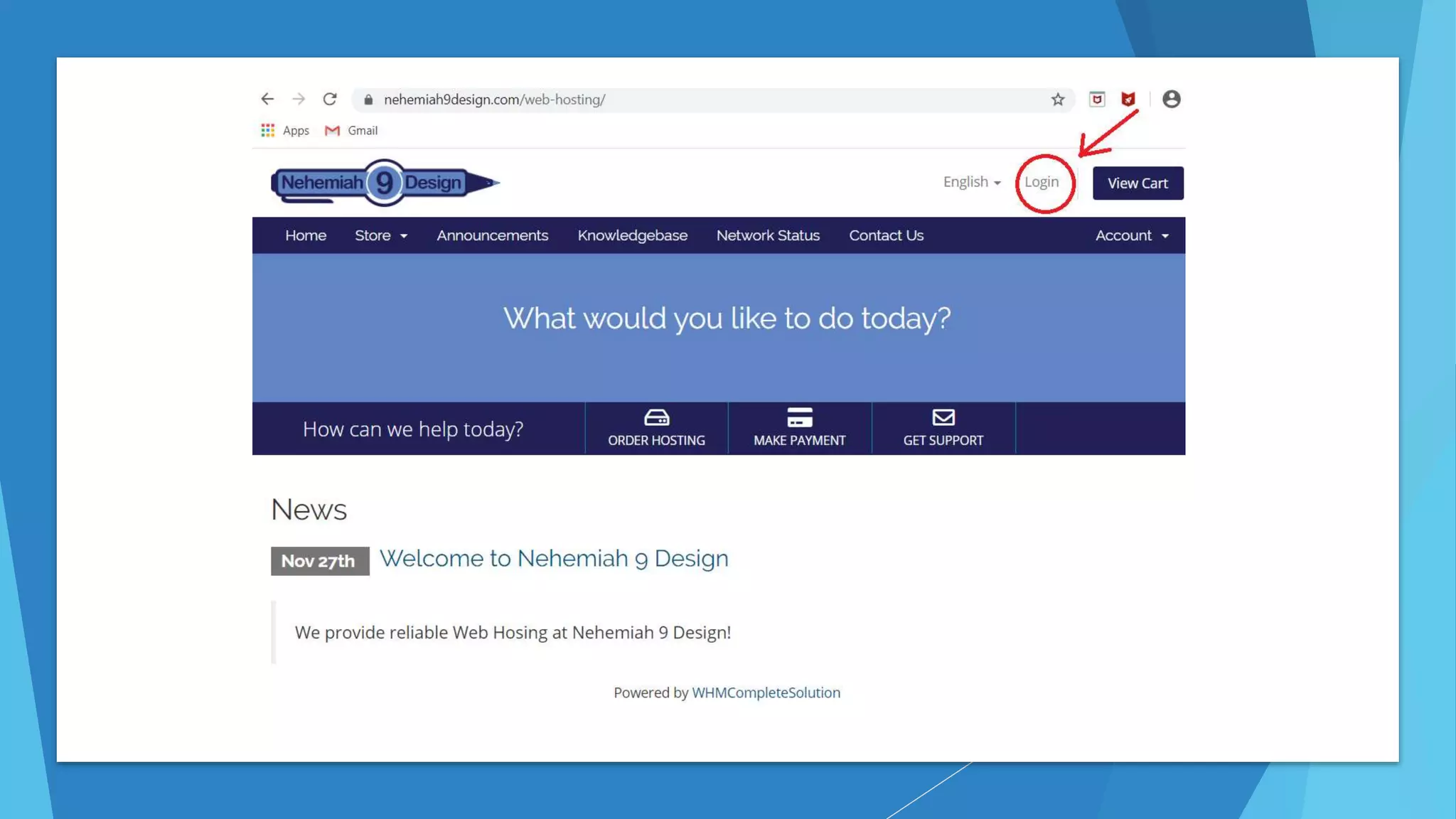
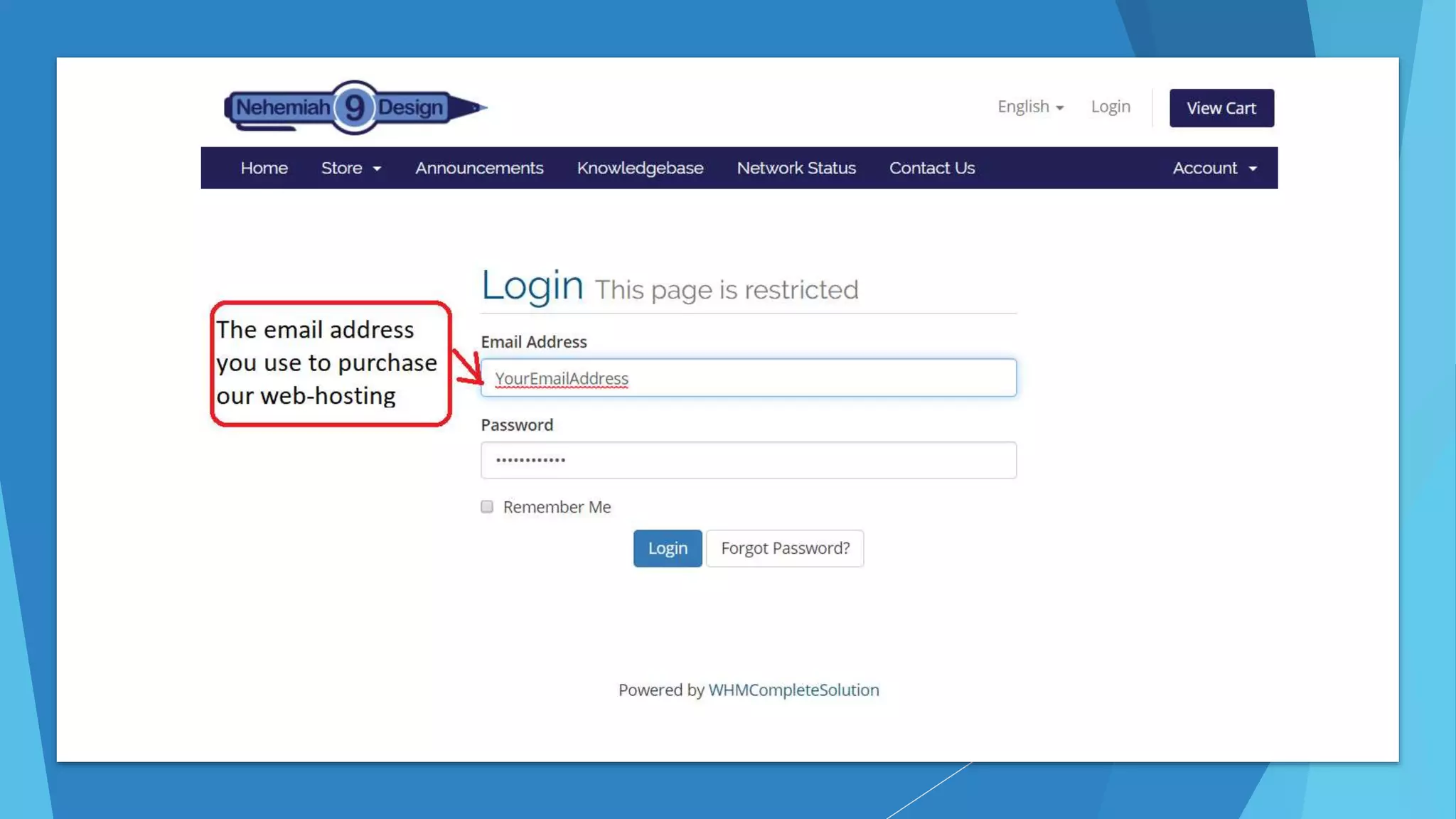
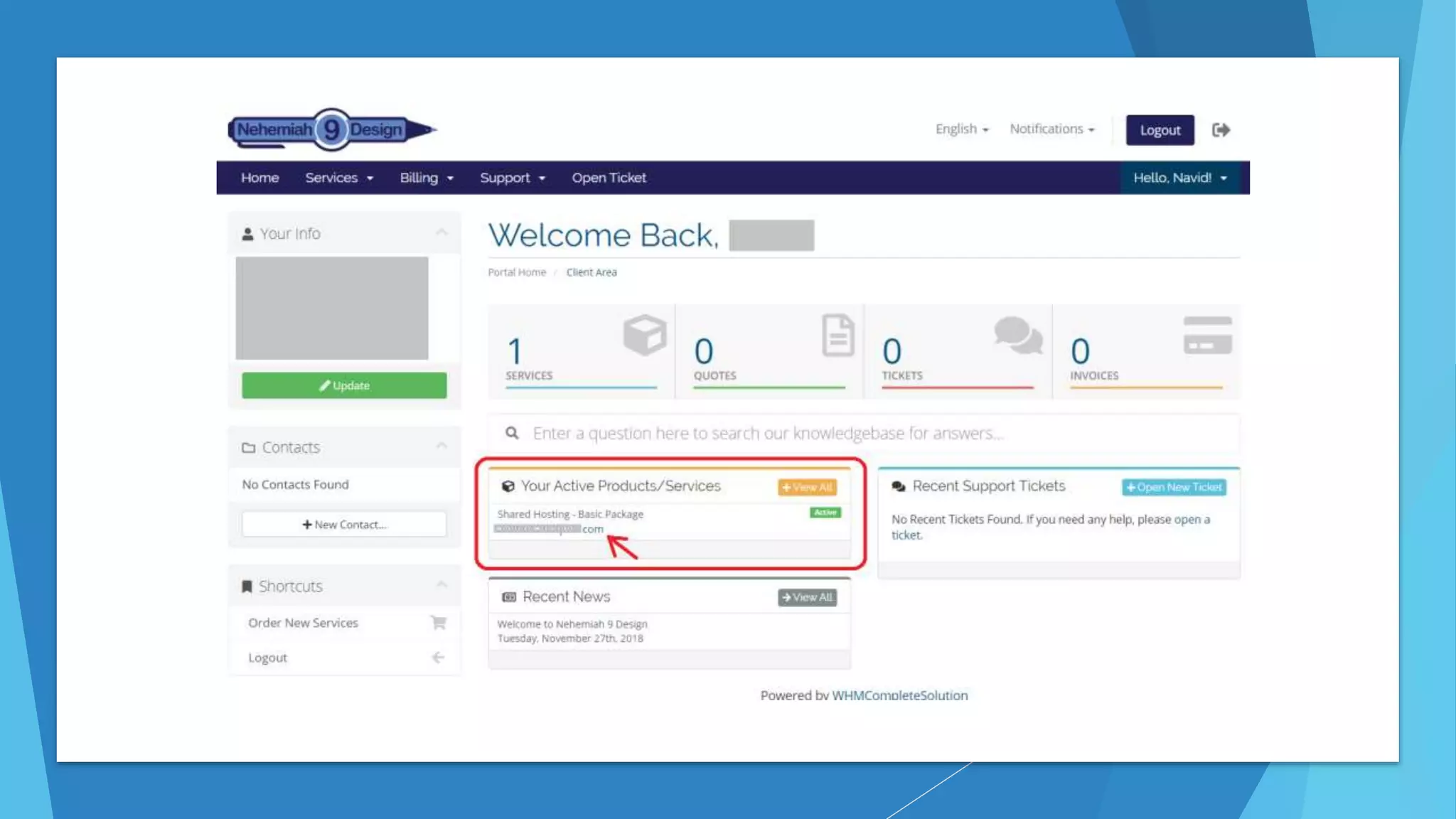
1. Log in to Nehemiah 9 Design Web Hosting
https://nehemiah9design.com/web-hosting
2. Click your domain name under “Your Active Products/Services”
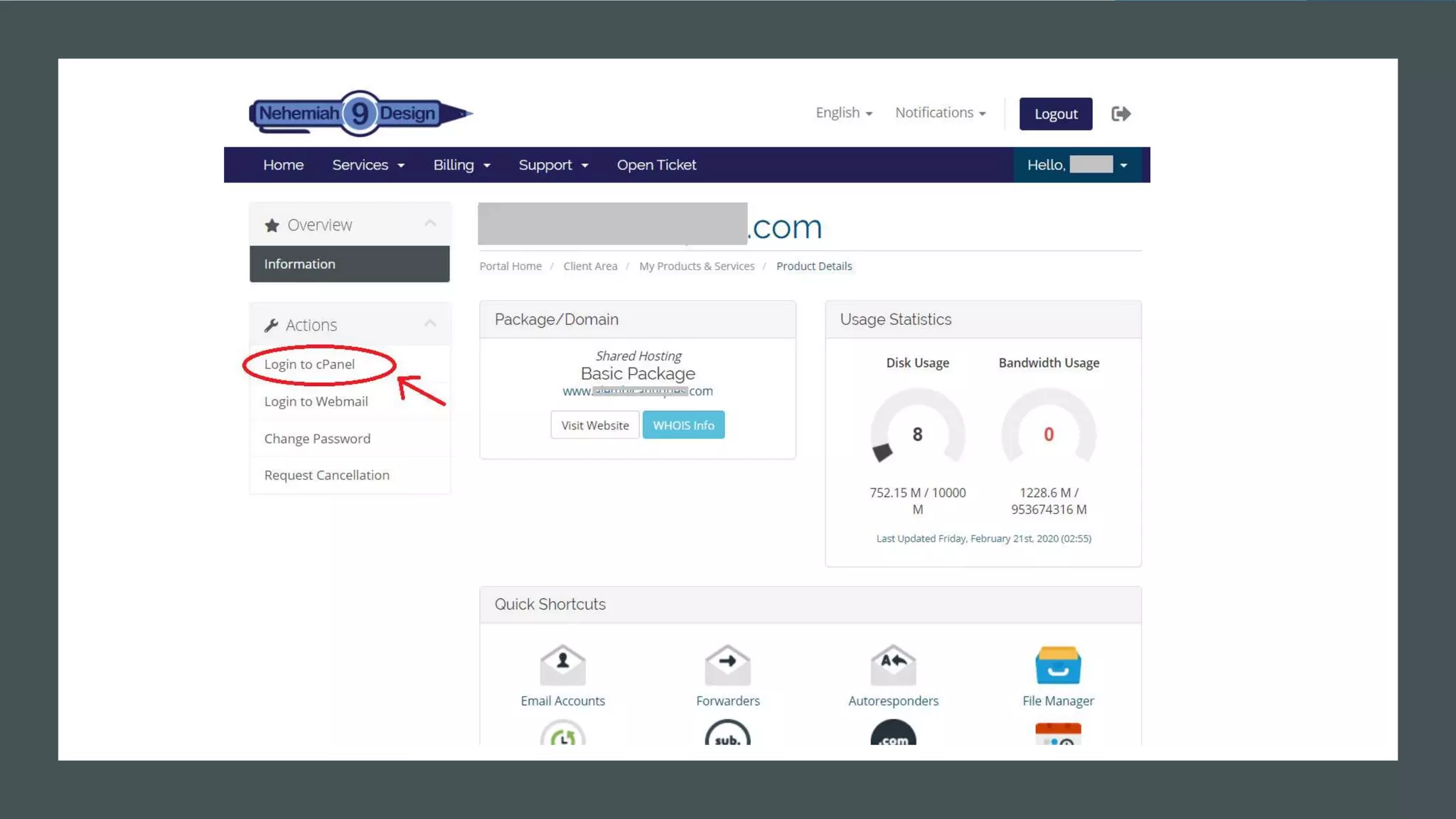
3. Click “Login to cPanel” from Actions Section
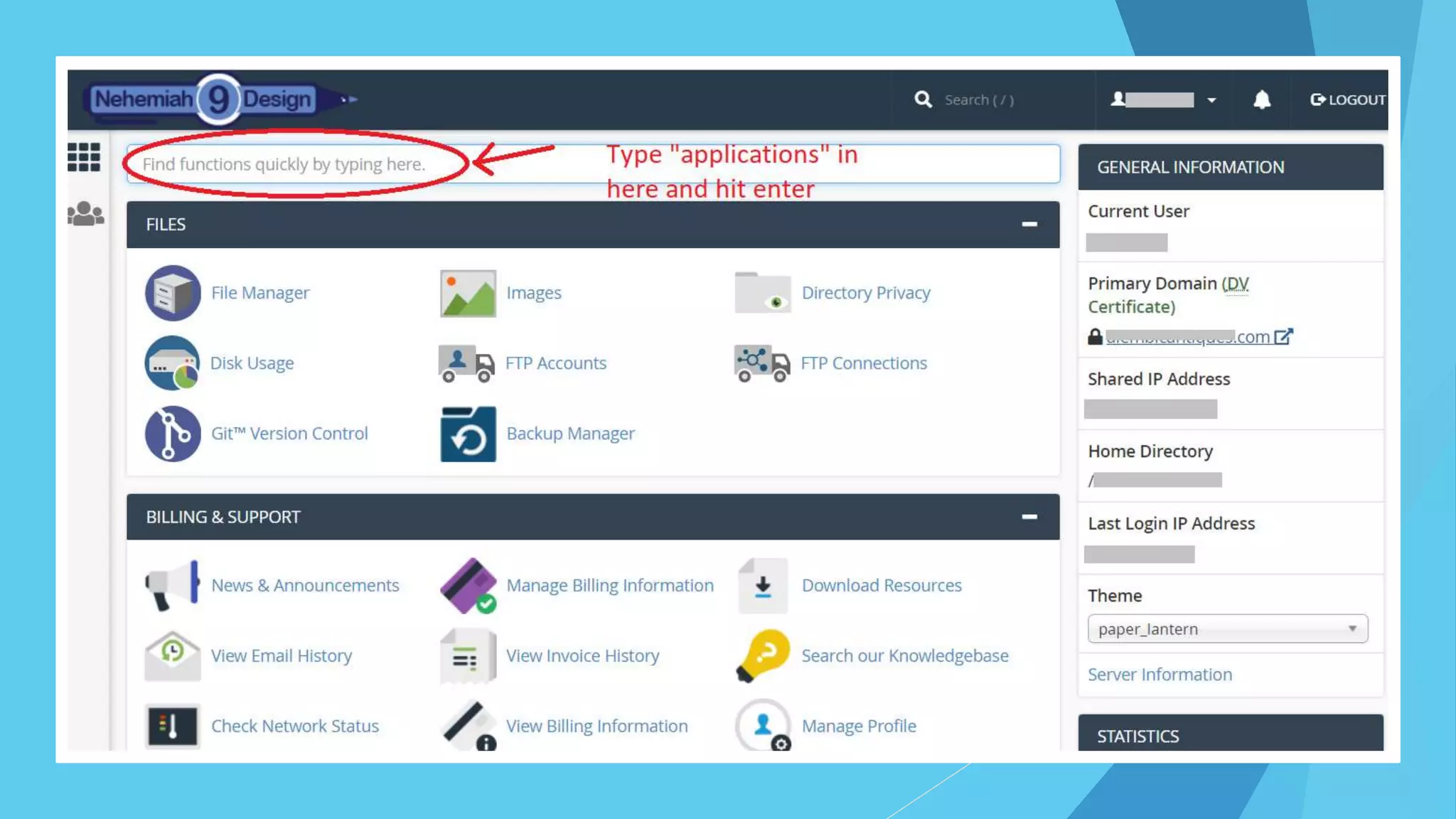
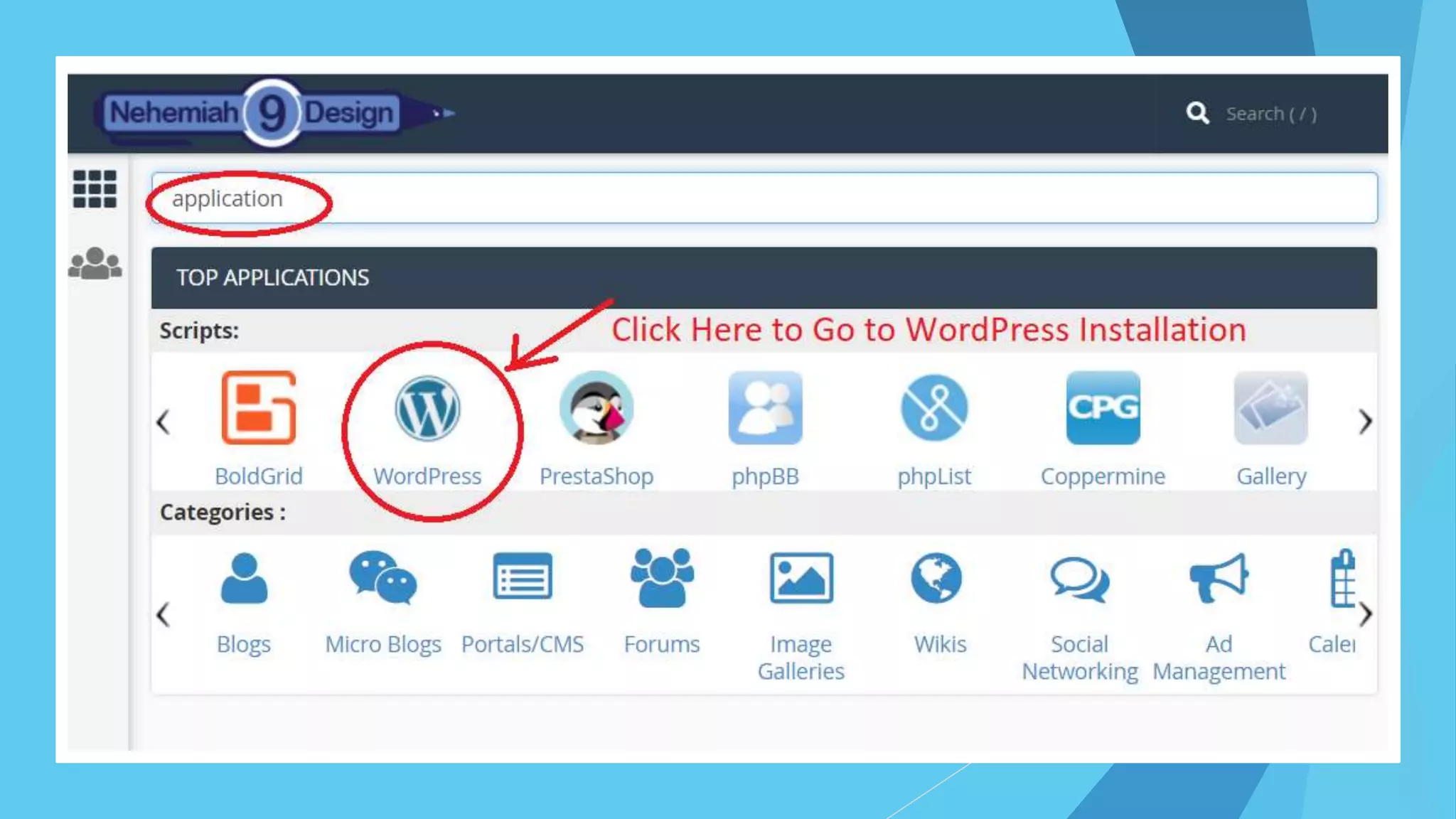
4. In CPanel find the WordPress application manage section
5. Find your WordPress Installation
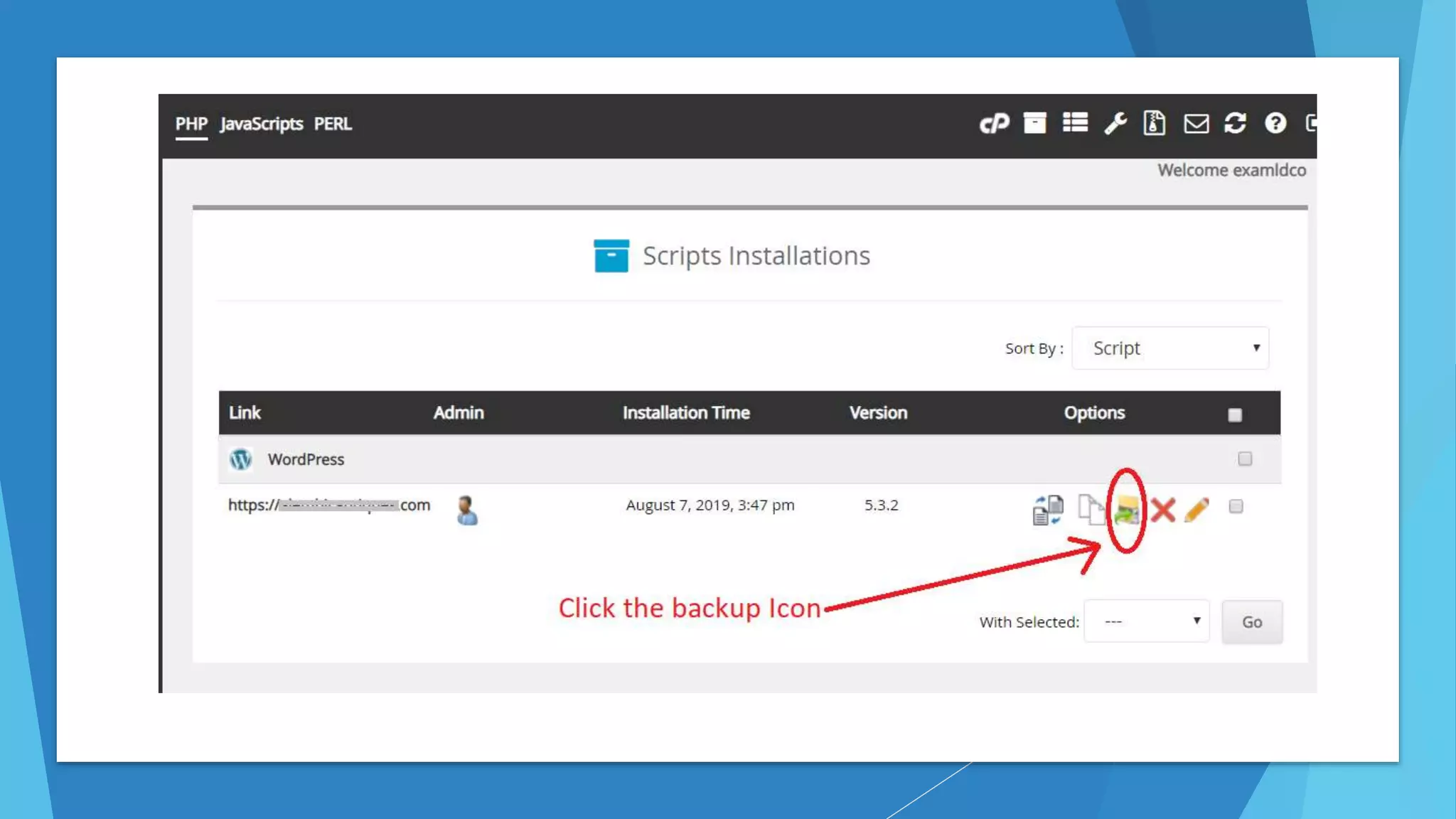
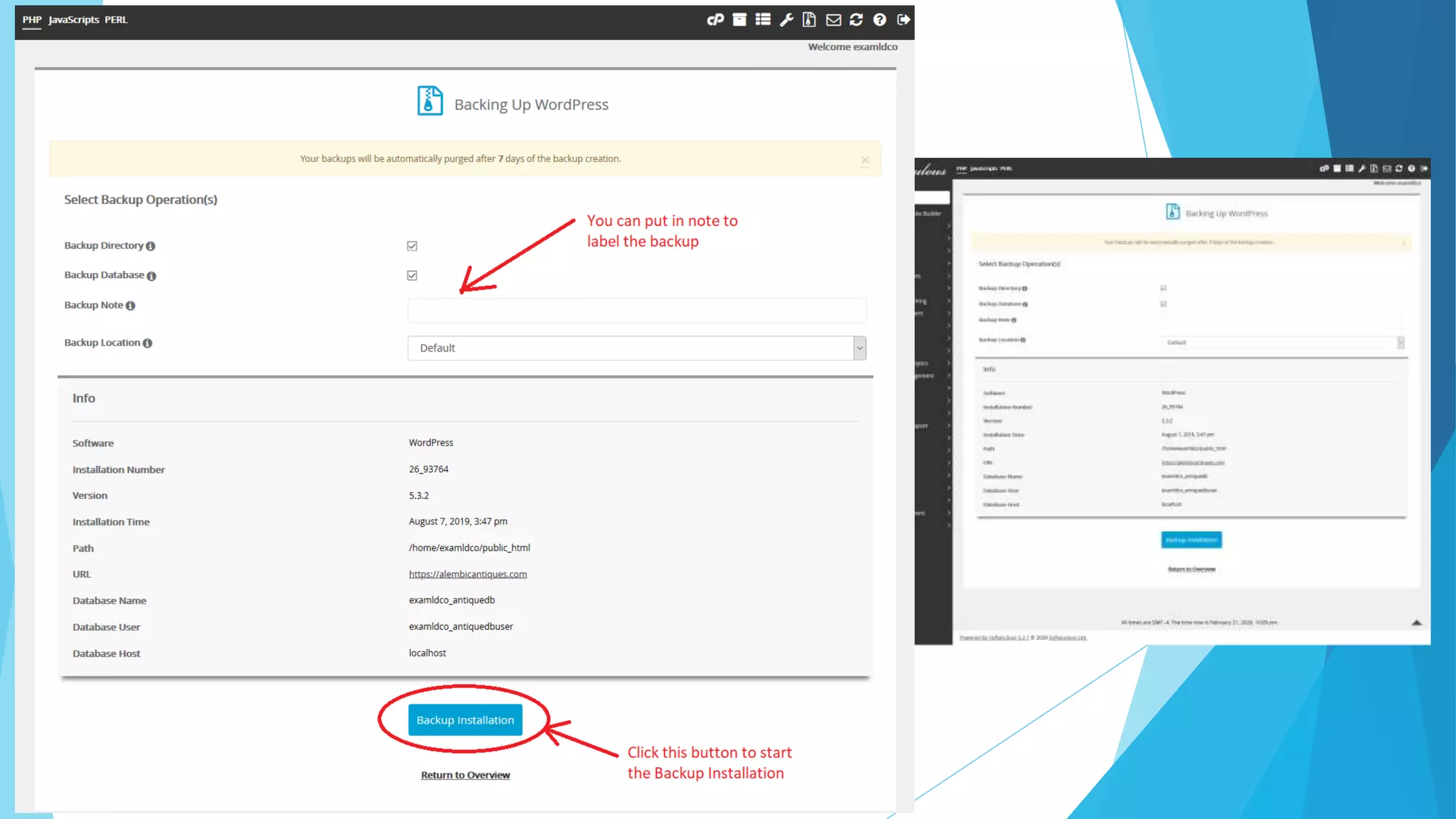
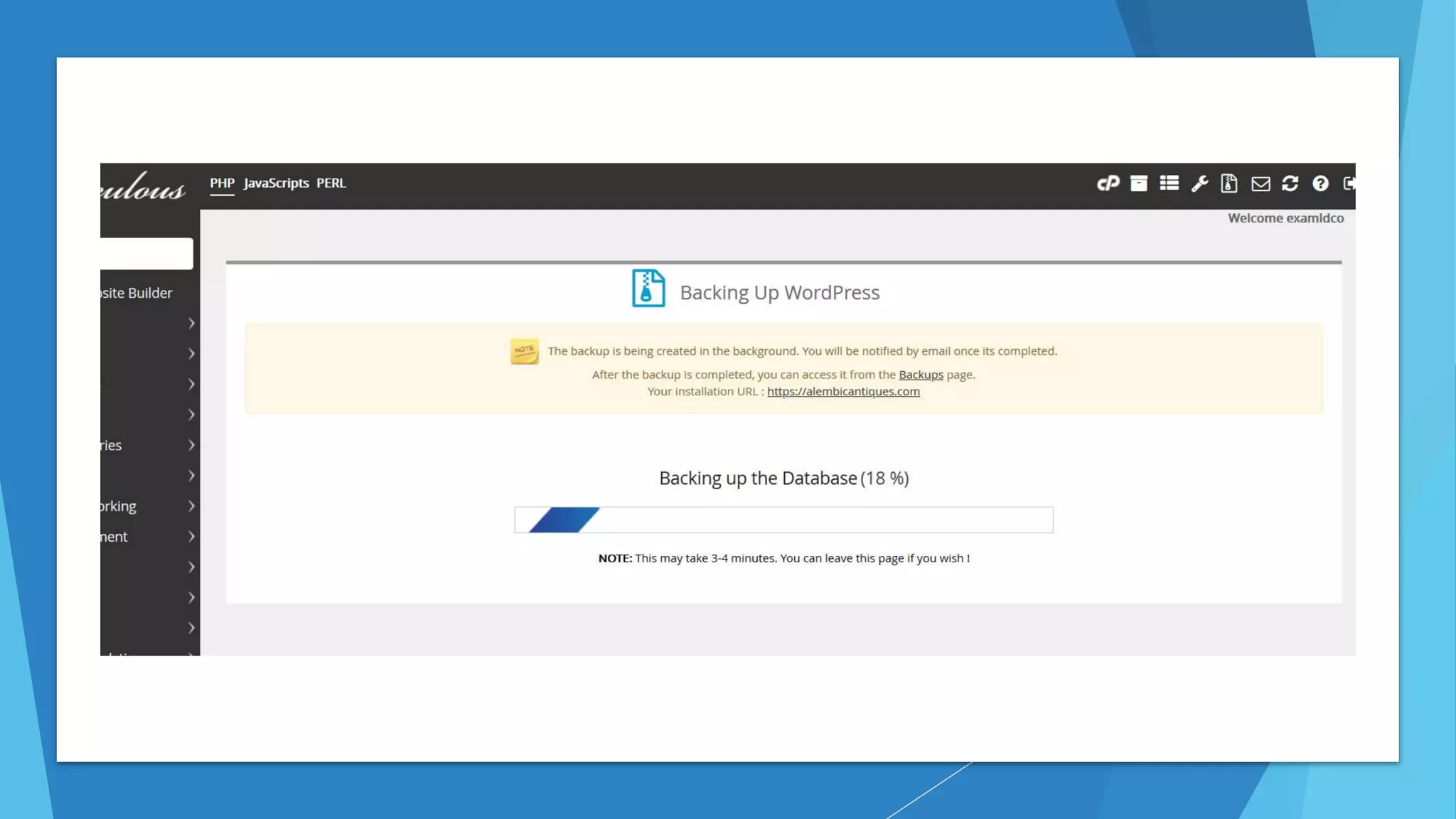
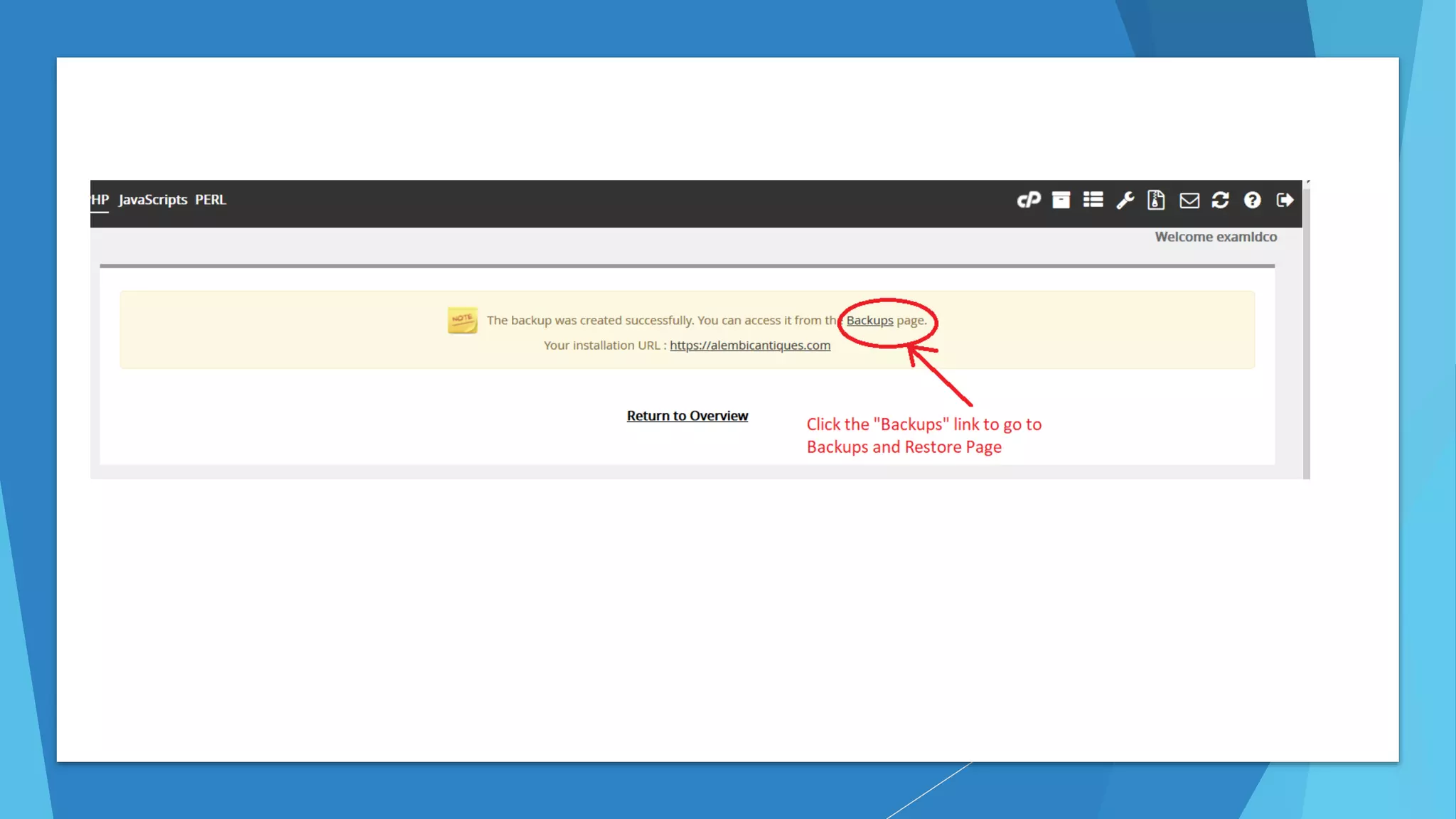
6. Click the “Backup” Icon and fill up the detail then Click the “Backup
Installation” button to Create a backup
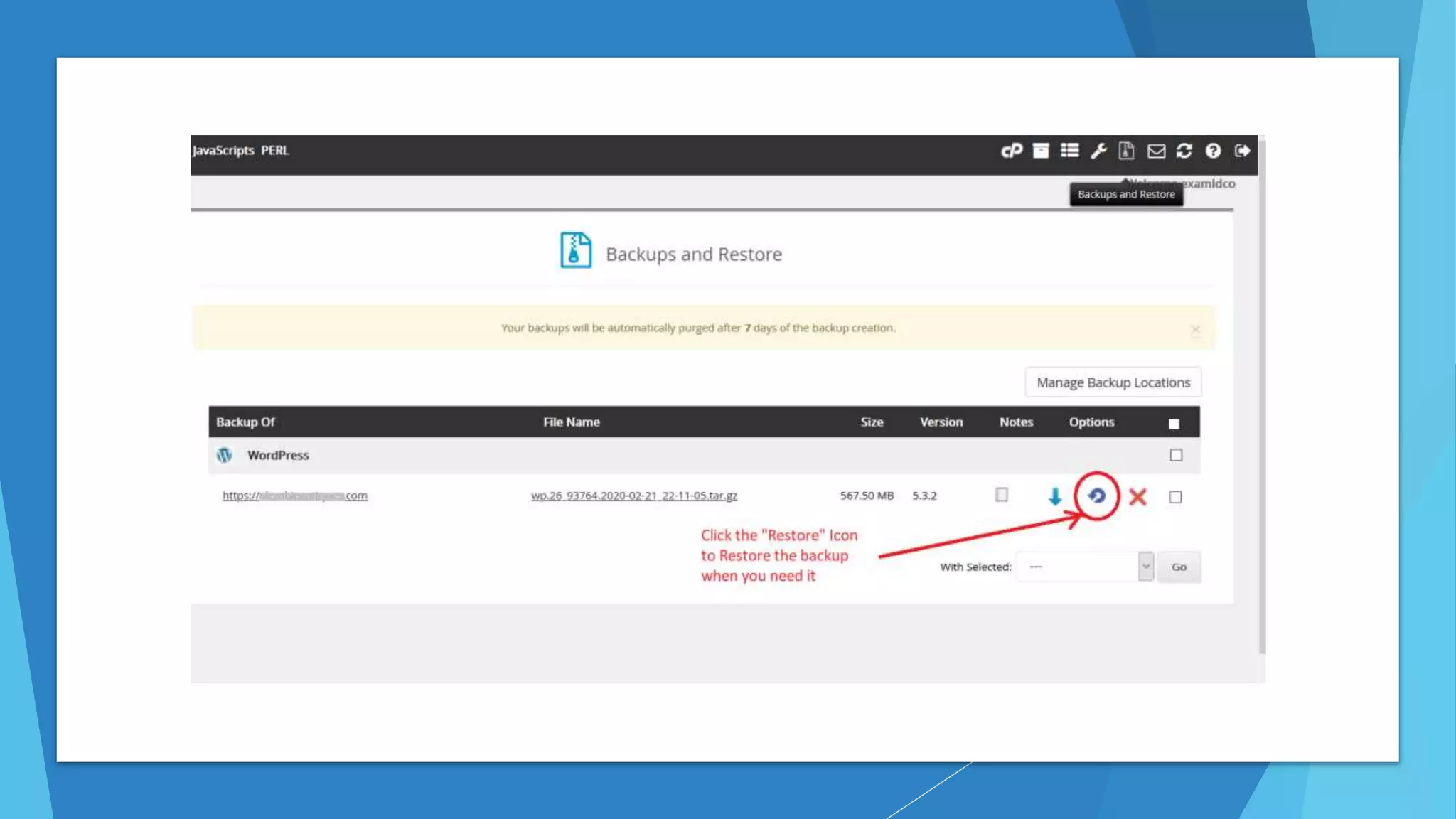
7. Click the “Restore” button to restore the backup when you need it
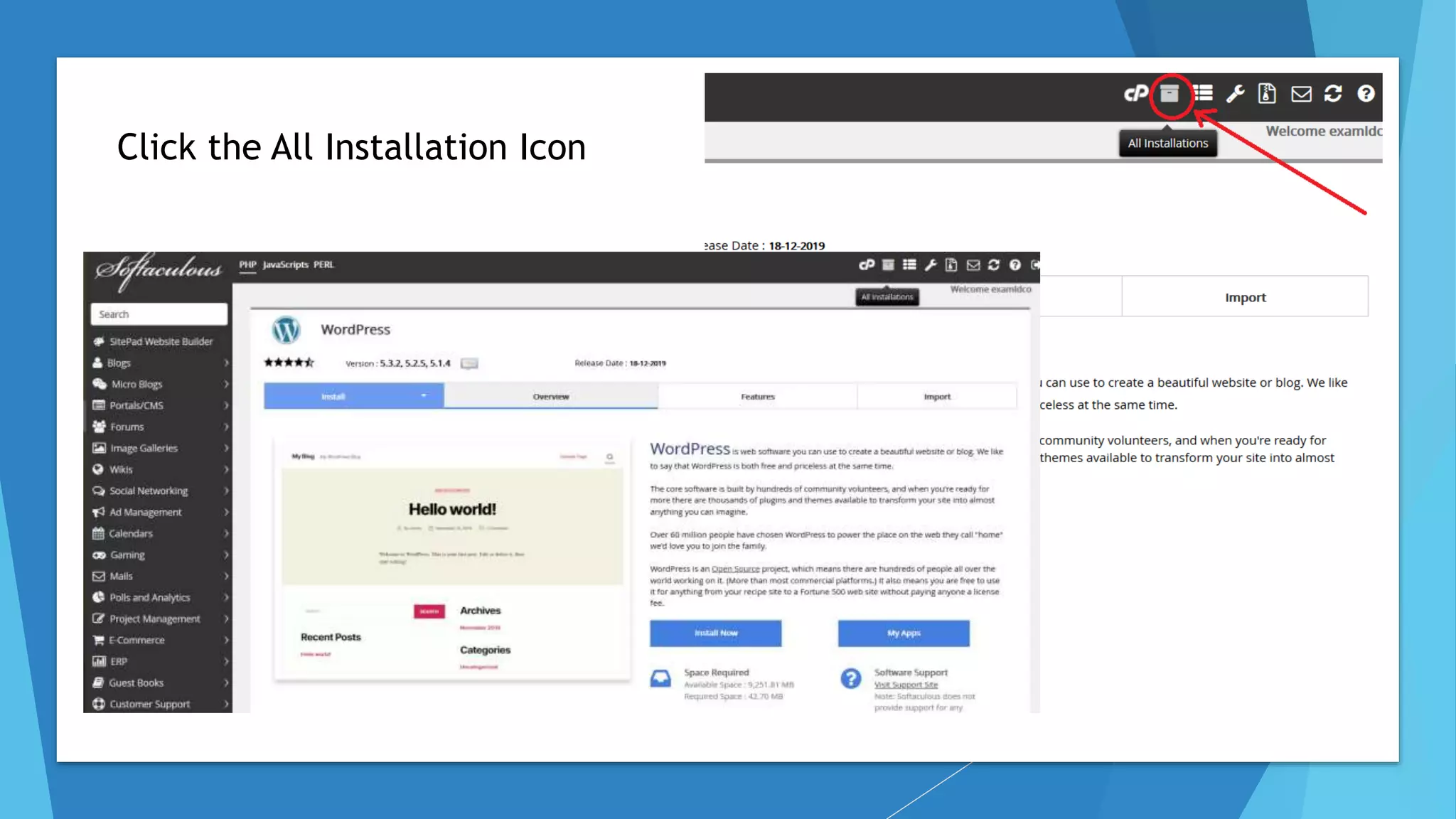
Click the All Installation Icon
Backup wordpress on CPanel

Backup wordpress on CPanel

  • 1.
    Create a backupfor your WordPress site on CPanel before you update the WP core and plugins and themes For customers use web hosting from Nehemiah 9 Design
  • 2.
    Steps 1. Log into Nehemiah 9 Design Web Hosting https://nehemiah9design.com/web-hosting 2. Click your domain name under “Your Active Products/Services” 3. Click “Login to cPanel” from Actions Section 4. In CPanel find the WordPress application manage section 5. Find your WordPress Installation 6. Click the “Backup” Icon and fill up the detail then Click the “Backup Installation” button to Create a backup 7. Click the “Restore” button to restore the backup when you need it
  • 9.
    Click the AllInstallation Icon