Homework 04, UST AIP Shape Detection and
Tracking using Contours
Mr. Saeed Ullah,
Korean Institute of Science & Technology Information (KISTI),
University of Science & Technology (UST)
Saeedonline12@gmail.com
Summary—This report presents the Shape Detection and
Tracking using Contours Method. Tools used in this project are
OpenCV 3.2 Library which is a library used for Computer Vision,
and Visual Studio 2015 (64 bit).
I. INTRODUCTION
By color separation method we could detect and track an object
but we cannot identify the shape of the object there. In this
project, I have explained that how to identify a shape and
position of an object using contours with OpenCV.
By using contours with OpenCV, you can get a sequence of
points of vertices of each white patch (White patches are
considered as polygons). As example, you will get 3 points
(vertices) for a triangle, and 4 points for quadrilaterals. So, you
can identify any polygon by the number of vertices of that
polygon. You can even identify features of polygons such as
convexity, concavity, equilateral and etc by calculating and
comparing distances between vertices.
II. OPENCV SOURCE CODE
All you need, is a binary image in which your objects should
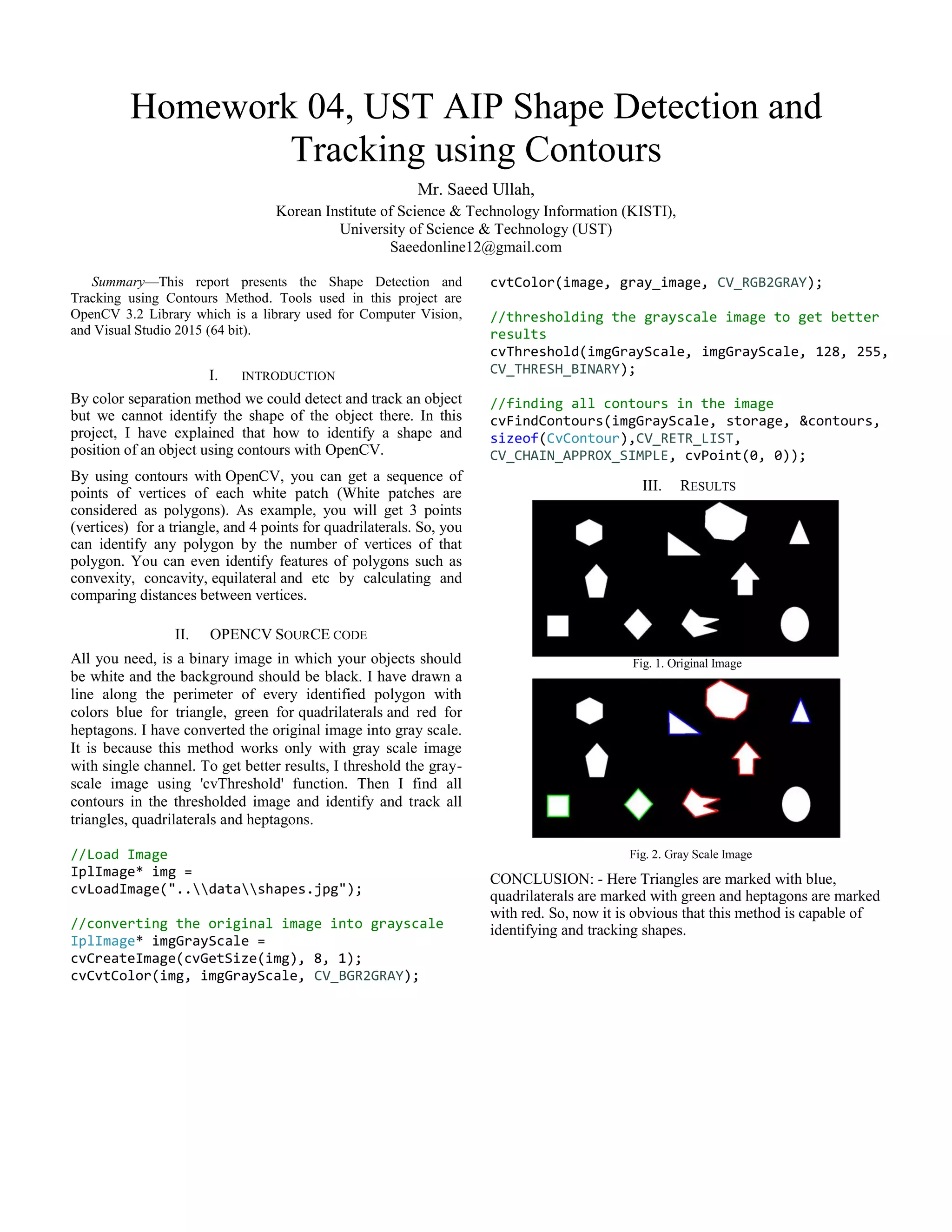
be white and the background should be black. I have drawn a
line along the perimeter of every identified polygon with
colors blue for triangle, green for quadrilaterals and red for
heptagons. I have converted the original image into gray scale.
It is because this method works only with gray scale image
with single channel. To get better results, I threshold the gray-
scale image using 'cvThreshold' function. Then I find all
contours in the thresholded image and identify and track all
triangles, quadrilaterals and heptagons.
//Load Image
IplImage* img =
cvLoadImage("..datashapes.jpg");
//converting the original image into grayscale
IplImage* imgGrayScale =
cvCreateImage(cvGetSize(img), 8, 1);
cvCvtColor(img, imgGrayScale, CV_BGR2GRAY);
cvtColor(image, gray_image, CV_RGB2GRAY);
//thresholding the grayscale image to get better
results
cvThreshold(imgGrayScale, imgGrayScale, 128, 255,
CV_THRESH_BINARY);
//finding all contours in the image
cvFindContours(imgGrayScale, storage, &contours,
sizeof(CvContour),CV_RETR_LIST,
CV_CHAIN_APPROX_SIMPLE, cvPoint(0, 0));
III. RESULTS
Fig. 1. Original Image
Fig. 2. Gray Scale Image
CONCLUSION: - Here Triangles are marked with blue,
quadrilaterals are marked with green and heptagons are marked
with red. So, now it is obvious that this method is capable of
identifying and tracking shapes.

aip shape detection and tracking using contours

  • 1.
    Homework 04, USTAIP Shape Detection and Tracking using Contours Mr. Saeed Ullah, Korean Institute of Science & Technology Information (KISTI), University of Science & Technology (UST) Saeedonline12@gmail.com Summary—This report presents the Shape Detection and Tracking using Contours Method. Tools used in this project are OpenCV 3.2 Library which is a library used for Computer Vision, and Visual Studio 2015 (64 bit). I. INTRODUCTION By color separation method we could detect and track an object but we cannot identify the shape of the object there. In this project, I have explained that how to identify a shape and position of an object using contours with OpenCV. By using contours with OpenCV, you can get a sequence of points of vertices of each white patch (White patches are considered as polygons). As example, you will get 3 points (vertices) for a triangle, and 4 points for quadrilaterals. So, you can identify any polygon by the number of vertices of that polygon. You can even identify features of polygons such as convexity, concavity, equilateral and etc by calculating and comparing distances between vertices. II. OPENCV SOURCE CODE All you need, is a binary image in which your objects should be white and the background should be black. I have drawn a line along the perimeter of every identified polygon with colors blue for triangle, green for quadrilaterals and red for heptagons. I have converted the original image into gray scale. It is because this method works only with gray scale image with single channel. To get better results, I threshold the gray- scale image using 'cvThreshold' function. Then I find all contours in the thresholded image and identify and track all triangles, quadrilaterals and heptagons. //Load Image IplImage* img = cvLoadImage("..datashapes.jpg"); //converting the original image into grayscale IplImage* imgGrayScale = cvCreateImage(cvGetSize(img), 8, 1); cvCvtColor(img, imgGrayScale, CV_BGR2GRAY); cvtColor(image, gray_image, CV_RGB2GRAY); //thresholding the grayscale image to get better results cvThreshold(imgGrayScale, imgGrayScale, 128, 255, CV_THRESH_BINARY); //finding all contours in the image cvFindContours(imgGrayScale, storage, &contours, sizeof(CvContour),CV_RETR_LIST, CV_CHAIN_APPROX_SIMPLE, cvPoint(0, 0)); III. RESULTS Fig. 1. Original Image Fig. 2. Gray Scale Image CONCLUSION: - Here Triangles are marked with blue, quadrilaterals are marked with green and heptagons are marked with red. So, now it is obvious that this method is capable of identifying and tracking shapes.