Advanced Java GUI
Programming: AWT, Swing,
and Event Handling
•Reporter
Table of Contents
Graphics
Programming in
Java
03.
Introduction to
GUI Programming
in Java
01.
Bounded Types in
Java GUI
02.
Event Handling in
Java GUI
04.
Layout
Management in
Swing
05.
Common Swing
Components
06.
Introduction to GUI
Programming in Java
01 .
What is GUI Programming?
01 02
Graphical User Interface (GUI) programming
involves creating interactive applications with
visual elements; it uses windows, buttons, and
menus to facilitate user interaction.
GUI provides a user-friendly interface, enhancing
usability and accessibility; it dramatically improves
the user experience over command-line interfaces.
Definition of GUI Importance of GUI in applications
Overview of AWT and Swing
AWT (Abstract Window
Toolkit) introduction
AWT is Java’s original GUI toolkit,
providing basic components and
platform-dependent look and feel;
it relies on native OS components.
Swing introduction
Swing is a more advanced GUI
toolkit, built on top of AWT,
offering a platform-independent
look and feel; it provides a richer
set of components and greater
flexibility.
Key Differences between
AWT and Swing
AWT components are
heavyweight, while Swing
components are lightweight;
Swing offers more customization
options and a consistent look
across platforms.
Setting up the Development Environment
Use IDEs like IntelliJ IDEA, Eclipse, or NetBeans for efficient
Java development; these provide features like code
completion and debugging tools.
Setting up Integrated Development Environment
(IDE)
Download and install the latest JDK from Oracle’s website;
configure environment variables for Java to run properly.
Installing Java Development Kit (JDK)
Bounded Types in Java GUI
02 .
Understanding Bounded Types
Definition of Bounded Types
Bounded types use generics to constrain the types that can be used
with a class or method; they enhance type safety.
Upper and Lower Bounded Types
Upper bounded types limit to subclasses of a class, while lower
bounded types limit to superclasses; this flexibility helps write more
generic code.
Using Bounded Types in GUI
01
Bounded types in Swing
components
Bounded types ensure type safety for
components; for example, ensuring
the correct data type in a JTable
column.
02
Benefits of Bounded Types in
GUIs
Bounded types reduce runtime
errors by ensuring compile-time type
checks; they facilitate more
maintainable and robust GUI
applications.
Examples of Bounded Types in GUI
Develop a generic text field that
accepts only numeric inputs using
bounded types; implement type
checking during input to prevent
errors.
01
Creating a generic GUI
component with bounded
types
Implementing data
validation using bounded
types
Use bounded types to validate data
input in forms; ensure only valid
data types are accepted, improving
data integrity.
02
Graphics Programming in
Java
03 .
Basics of Graphics in AWT and Swing
Frames provide the basic window, and
components are GUI elements like
buttons and labels; they form the
structure of the GUI.
Using Frame and Components
The `Graphics` class is the base class
for all graphics contexts; it provides
methods for drawing shapes, text, and
images.
Introduction to Graphics Class
Use `Graphics` methods to draw
rectangles, ovals, and lines;
parameters include coordinates,
width, and height.
Drawing Basic Shapes
Set colors using the `Color` class; use
predefined colors or create custom
colors using RGB values.
Working with Colors
Use the `Font` class to specify font
type, size, and style; apply fonts to
text displayed in components.
Font handling
Load images using the `ImageIO`
class and display them in
components; handle different image
formats like JPEG, PNG, and GIF.
Displaying Images
Drawing 2D Shapes, Colors, Fonts, and Images
Practical Examples of Graphics Programming
Develop an application to display images from local files;
include zoom and rotation functionalities.
Building a simple image viewer
Implement a panel where users can draw shapes using the
mouse; allow users to change colors and sizes.
Creating a custom drawing panel
Event Handling in Java GUI
04 .
Understanding Event-Driven Programming
01 02
Event-driven programming involves responding to
user actions and system events; the program waits
for events and then handles them appropriately.
Events are generated when actions occur, event
listeners listen for these events, and event
handlers process the events.
What is Event-Driven Programming? The Event Handling Process
Using Event Listeners
Implement listeners (e.g.,
`ActionListener`, `MouseListener`) to
respond to events; attach these
listeners to components.
Adapter Classes
Use adapter classes to simplify event
handling by implementing default
behavior; override only the methods
you need.
Actions
Utilize the `Action` interface to
encapsulate event-handling logic; this
allows associating actions with
multiple components.
Implementing Event Handlers
Types of Events
Respond to key presses and releases;
use `KeyListener` to capture keyboard
input.
Keyboard Events
Handle mouse clicks, mouse
movements, and mouse wheel events;
use `MouseListener` and
`MouseMotionListener`.
Mouse Events
The AWT Event Hierarchy
Overview of AWT Event Hierarchy
AWT events are organized in a hierarchy with `java.util.EventObject` as the root; understand
different event types and their relationships.
Practical Examples of Event Handling
Develop a text editor with shortcuts for common actions;
use `KeyListener` and `Actions` to handle keyboard input.
Building a simple text editor with key bindings
Implement buttons that change color or text when clicked;
use `ActionListener` to handle button clicks.
Creating interactive buttons
Layout Management in
Swing
05 .
Introduction to Layout Managers
The Role of Layout Managers
Layout managers automatically arrange components in a container;
they ensure a consistent UI across different screen sizes and
resolutions.
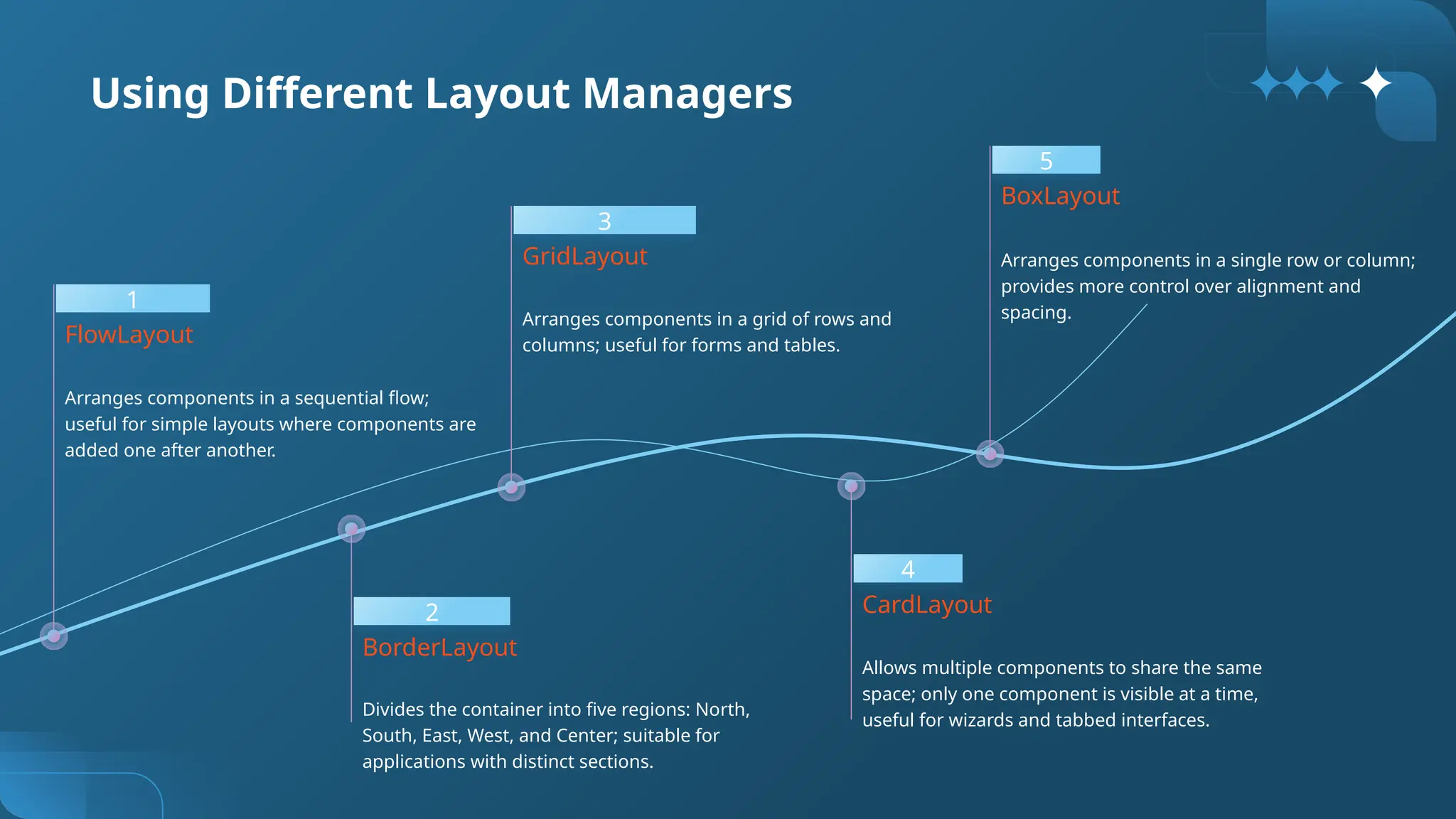
Common Layout Managers
Explore `FlowLayout`, `BorderLayout`, `GridLayout`, `CardLayout`, and
`BoxLayout`; understand their usage and behavior.
1
Arranges components in a sequential flow;
useful for simple layouts where components are
added one after another.
FlowLayout
2
Divides the container into five regions: North,
South, East, West, and Center; suitable for
applications with distinct sections.
BorderLayout
3
Arranges components in a grid of rows and
columns; useful for forms and tables.
GridLayout
4
Allows multiple components to share the same
space; only one component is visible at a time,
useful for wizards and tabbed interfaces.
CardLayout
5
Arranges components in a single row or column;
provides more control over alignment and
spacing.
BoxLayout
Using Different Layout Managers
Practical Examples of Layout Management
Create a login form with labels and
text fields using `GridLayout`;
ensure components are neatly
aligned.
01
Designing a form using
GridLayout
Building a complex UI using
multiple Layout Managers
Combine multiple layout managers
to create a sophisticated user
interface; nest panels with different
layouts for complex arrangements.
02
Common Swing
Components
06 .
Using JTextField
`JTextField` allows single-line text
input; handle text changes using
`ActionListener`.
Using JTextArea
`JTextArea` allows multi-line text
input; useful for displaying and
editing large amounts of text.
Text Fields and Text Areas
Buttons, Check Boxes, and Radio Buttons
Using JButton
`JButton` triggers an action when clicked; attach `ActionListener`
to handle button clicks.
Using JCheckBox
`JCheckBox` allows users to select or deselect options; handle
state changes using `ActionListener`.
Using JRadioButton
`JRadioButton` allows users to select one option from a group;
group radio buttons using `ButtonGroup` to ensure mutual
exclusivity.
Lists, Choices, and Scrollbars
`JScrollBar` allows users to scroll
through content; handle value
changes using
`AdjustmentListener`.
Using JScrollBar
`JList` presents a list of selectable
items; handle selection changes
using `ListSelectionListener`.
Using JList
`JComboBox` presents a dropdown
list of options; handle selection
changes using `ActionListener`.
Using JComboBox
01 02 03
Windows, Menus, and Dialog Boxes
`JFrame` provides the main
window for the application; add
components to the frame's
content pane.
Using JFrame
Create menu bars, menus, and
menu items; attach
`ActionListener` to menu items to
handle user selections.
Creating Menus with
JMenuBar, JMenu, and
JMenuItem
`JDialog` displays a modal or non-
modal dialog box; use it for
displaying messages, prompts, or
settings.
Using JDialog
Practical Examples of Swing Components
Implement basic arithmetic
operations using buttons, text
fields, and event handling;
display results in a text field.
Create a preferences window
with options that can be
toggled using check boxes;
save and load preferences
using dialog boxes.
Developing a simple
calculator
Building a preferences
window using dialog
boxes and check boxes
Conclusion
07 .
Recap of Key Concepts
Review the main points covered in the
presentation; emphasize the importance of
understanding AWT, Swing, and event handling.
Summarizing AWT and Swing
GUI programming
Further Learning Resources
Online tutorials and documentation
Refer to Oracle’s Java documentation, online tutorials, and community forums for more in-
depth information.
Q&A
Address any questions or concerns from the
audience; provide clarification and additional
examples as needed.
Open discussion for questions
and answers

Thank you for
watching.
Reporter

Advanced Java GUI Programming_ AWT, Swing, and Event Handling_AI PPT Maker.pptx

  • 1.
    Advanced Java GUI Programming:AWT, Swing, and Event Handling •Reporter
  • 2.
    Table of Contents Graphics Programmingin Java 03. Introduction to GUI Programming in Java 01. Bounded Types in Java GUI 02. Event Handling in Java GUI 04. Layout Management in Swing 05. Common Swing Components 06.
  • 3.
  • 4.
    What is GUIProgramming? 01 02 Graphical User Interface (GUI) programming involves creating interactive applications with visual elements; it uses windows, buttons, and menus to facilitate user interaction. GUI provides a user-friendly interface, enhancing usability and accessibility; it dramatically improves the user experience over command-line interfaces. Definition of GUI Importance of GUI in applications
  • 5.
    Overview of AWTand Swing AWT (Abstract Window Toolkit) introduction AWT is Java’s original GUI toolkit, providing basic components and platform-dependent look and feel; it relies on native OS components. Swing introduction Swing is a more advanced GUI toolkit, built on top of AWT, offering a platform-independent look and feel; it provides a richer set of components and greater flexibility. Key Differences between AWT and Swing AWT components are heavyweight, while Swing components are lightweight; Swing offers more customization options and a consistent look across platforms.
  • 6.
    Setting up theDevelopment Environment Use IDEs like IntelliJ IDEA, Eclipse, or NetBeans for efficient Java development; these provide features like code completion and debugging tools. Setting up Integrated Development Environment (IDE) Download and install the latest JDK from Oracle’s website; configure environment variables for Java to run properly. Installing Java Development Kit (JDK)
  • 7.
    Bounded Types inJava GUI 02 .
  • 8.
    Understanding Bounded Types Definitionof Bounded Types Bounded types use generics to constrain the types that can be used with a class or method; they enhance type safety. Upper and Lower Bounded Types Upper bounded types limit to subclasses of a class, while lower bounded types limit to superclasses; this flexibility helps write more generic code.
  • 9.
    Using Bounded Typesin GUI 01 Bounded types in Swing components Bounded types ensure type safety for components; for example, ensuring the correct data type in a JTable column. 02 Benefits of Bounded Types in GUIs Bounded types reduce runtime errors by ensuring compile-time type checks; they facilitate more maintainable and robust GUI applications.
  • 10.
    Examples of BoundedTypes in GUI Develop a generic text field that accepts only numeric inputs using bounded types; implement type checking during input to prevent errors. 01 Creating a generic GUI component with bounded types Implementing data validation using bounded types Use bounded types to validate data input in forms; ensure only valid data types are accepted, improving data integrity. 02
  • 11.
  • 12.
    Basics of Graphicsin AWT and Swing Frames provide the basic window, and components are GUI elements like buttons and labels; they form the structure of the GUI. Using Frame and Components The `Graphics` class is the base class for all graphics contexts; it provides methods for drawing shapes, text, and images. Introduction to Graphics Class
  • 13.
    Use `Graphics` methodsto draw rectangles, ovals, and lines; parameters include coordinates, width, and height. Drawing Basic Shapes Set colors using the `Color` class; use predefined colors or create custom colors using RGB values. Working with Colors Use the `Font` class to specify font type, size, and style; apply fonts to text displayed in components. Font handling Load images using the `ImageIO` class and display them in components; handle different image formats like JPEG, PNG, and GIF. Displaying Images Drawing 2D Shapes, Colors, Fonts, and Images
  • 14.
    Practical Examples ofGraphics Programming Develop an application to display images from local files; include zoom and rotation functionalities. Building a simple image viewer Implement a panel where users can draw shapes using the mouse; allow users to change colors and sizes. Creating a custom drawing panel
  • 15.
    Event Handling inJava GUI 04 .
  • 16.
    Understanding Event-Driven Programming 0102 Event-driven programming involves responding to user actions and system events; the program waits for events and then handles them appropriately. Events are generated when actions occur, event listeners listen for these events, and event handlers process the events. What is Event-Driven Programming? The Event Handling Process
  • 17.
    Using Event Listeners Implementlisteners (e.g., `ActionListener`, `MouseListener`) to respond to events; attach these listeners to components. Adapter Classes Use adapter classes to simplify event handling by implementing default behavior; override only the methods you need. Actions Utilize the `Action` interface to encapsulate event-handling logic; this allows associating actions with multiple components. Implementing Event Handlers
  • 18.
    Types of Events Respondto key presses and releases; use `KeyListener` to capture keyboard input. Keyboard Events Handle mouse clicks, mouse movements, and mouse wheel events; use `MouseListener` and `MouseMotionListener`. Mouse Events
  • 19.
    The AWT EventHierarchy Overview of AWT Event Hierarchy AWT events are organized in a hierarchy with `java.util.EventObject` as the root; understand different event types and their relationships.
  • 20.
    Practical Examples ofEvent Handling Develop a text editor with shortcuts for common actions; use `KeyListener` and `Actions` to handle keyboard input. Building a simple text editor with key bindings Implement buttons that change color or text when clicked; use `ActionListener` to handle button clicks. Creating interactive buttons
  • 21.
  • 22.
    Introduction to LayoutManagers The Role of Layout Managers Layout managers automatically arrange components in a container; they ensure a consistent UI across different screen sizes and resolutions. Common Layout Managers Explore `FlowLayout`, `BorderLayout`, `GridLayout`, `CardLayout`, and `BoxLayout`; understand their usage and behavior.
  • 23.
    1 Arranges components ina sequential flow; useful for simple layouts where components are added one after another. FlowLayout 2 Divides the container into five regions: North, South, East, West, and Center; suitable for applications with distinct sections. BorderLayout 3 Arranges components in a grid of rows and columns; useful for forms and tables. GridLayout 4 Allows multiple components to share the same space; only one component is visible at a time, useful for wizards and tabbed interfaces. CardLayout 5 Arranges components in a single row or column; provides more control over alignment and spacing. BoxLayout Using Different Layout Managers
  • 24.
    Practical Examples ofLayout Management Create a login form with labels and text fields using `GridLayout`; ensure components are neatly aligned. 01 Designing a form using GridLayout Building a complex UI using multiple Layout Managers Combine multiple layout managers to create a sophisticated user interface; nest panels with different layouts for complex arrangements. 02
  • 25.
  • 26.
    Using JTextField `JTextField` allowssingle-line text input; handle text changes using `ActionListener`. Using JTextArea `JTextArea` allows multi-line text input; useful for displaying and editing large amounts of text. Text Fields and Text Areas
  • 27.
    Buttons, Check Boxes,and Radio Buttons Using JButton `JButton` triggers an action when clicked; attach `ActionListener` to handle button clicks. Using JCheckBox `JCheckBox` allows users to select or deselect options; handle state changes using `ActionListener`. Using JRadioButton `JRadioButton` allows users to select one option from a group; group radio buttons using `ButtonGroup` to ensure mutual exclusivity.
  • 28.
    Lists, Choices, andScrollbars `JScrollBar` allows users to scroll through content; handle value changes using `AdjustmentListener`. Using JScrollBar `JList` presents a list of selectable items; handle selection changes using `ListSelectionListener`. Using JList `JComboBox` presents a dropdown list of options; handle selection changes using `ActionListener`. Using JComboBox 01 02 03
  • 29.
    Windows, Menus, andDialog Boxes `JFrame` provides the main window for the application; add components to the frame's content pane. Using JFrame Create menu bars, menus, and menu items; attach `ActionListener` to menu items to handle user selections. Creating Menus with JMenuBar, JMenu, and JMenuItem `JDialog` displays a modal or non- modal dialog box; use it for displaying messages, prompts, or settings. Using JDialog
  • 30.
    Practical Examples ofSwing Components Implement basic arithmetic operations using buttons, text fields, and event handling; display results in a text field. Create a preferences window with options that can be toggled using check boxes; save and load preferences using dialog boxes. Developing a simple calculator Building a preferences window using dialog boxes and check boxes
  • 31.
  • 32.
    Recap of KeyConcepts Review the main points covered in the presentation; emphasize the importance of understanding AWT, Swing, and event handling. Summarizing AWT and Swing GUI programming
  • 33.
    Further Learning Resources Onlinetutorials and documentation Refer to Oracle’s Java documentation, online tutorials, and community forums for more in- depth information.
  • 34.
    Q&A Address any questionsor concerns from the audience; provide clarification and additional examples as needed. Open discussion for questions and answers
  • 35.