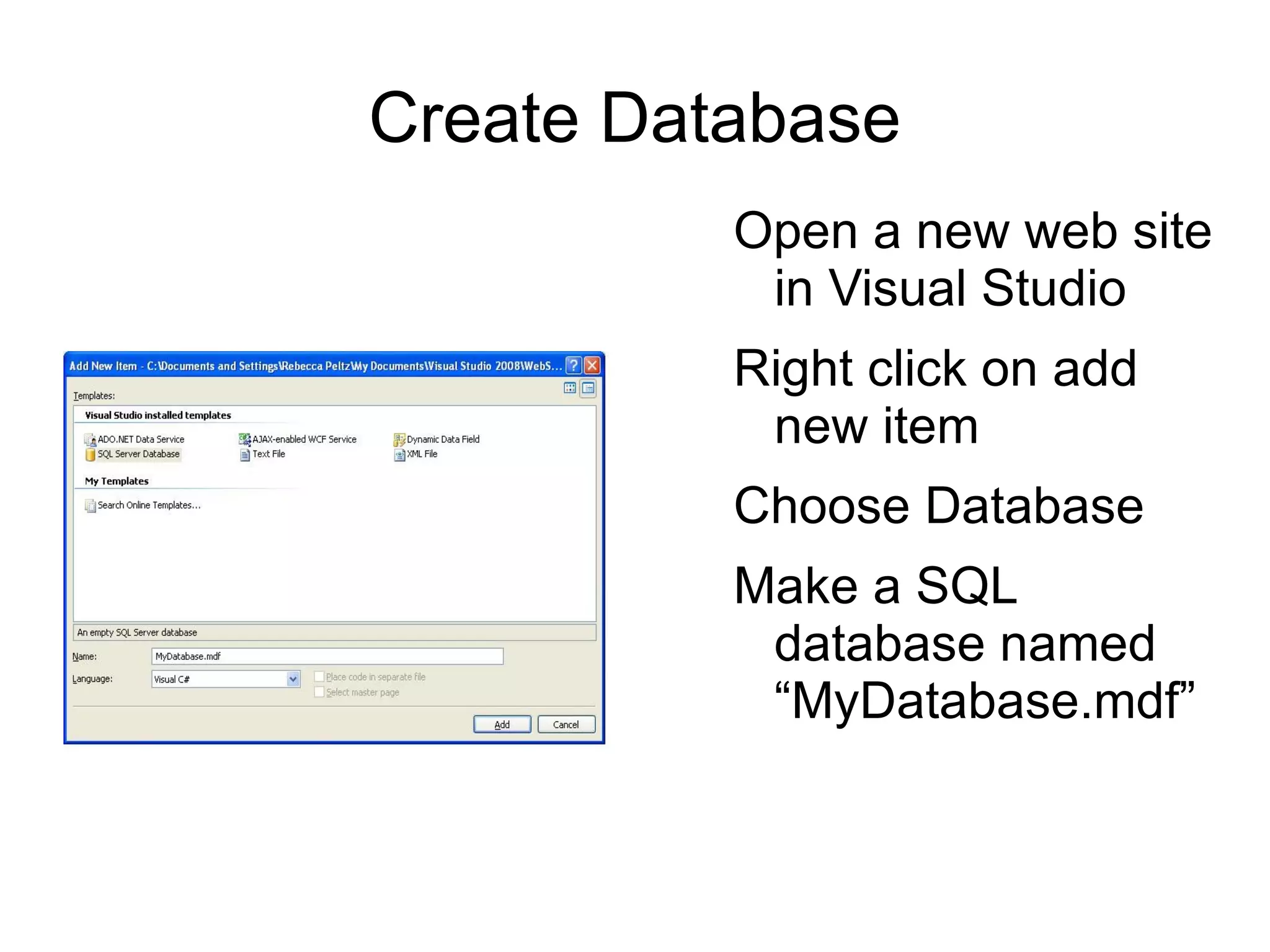
Create Database Open a new web site in Visual Studio
Right click on add new item
Choose Database
Make a SQL database named “MyDatabase.mdf”
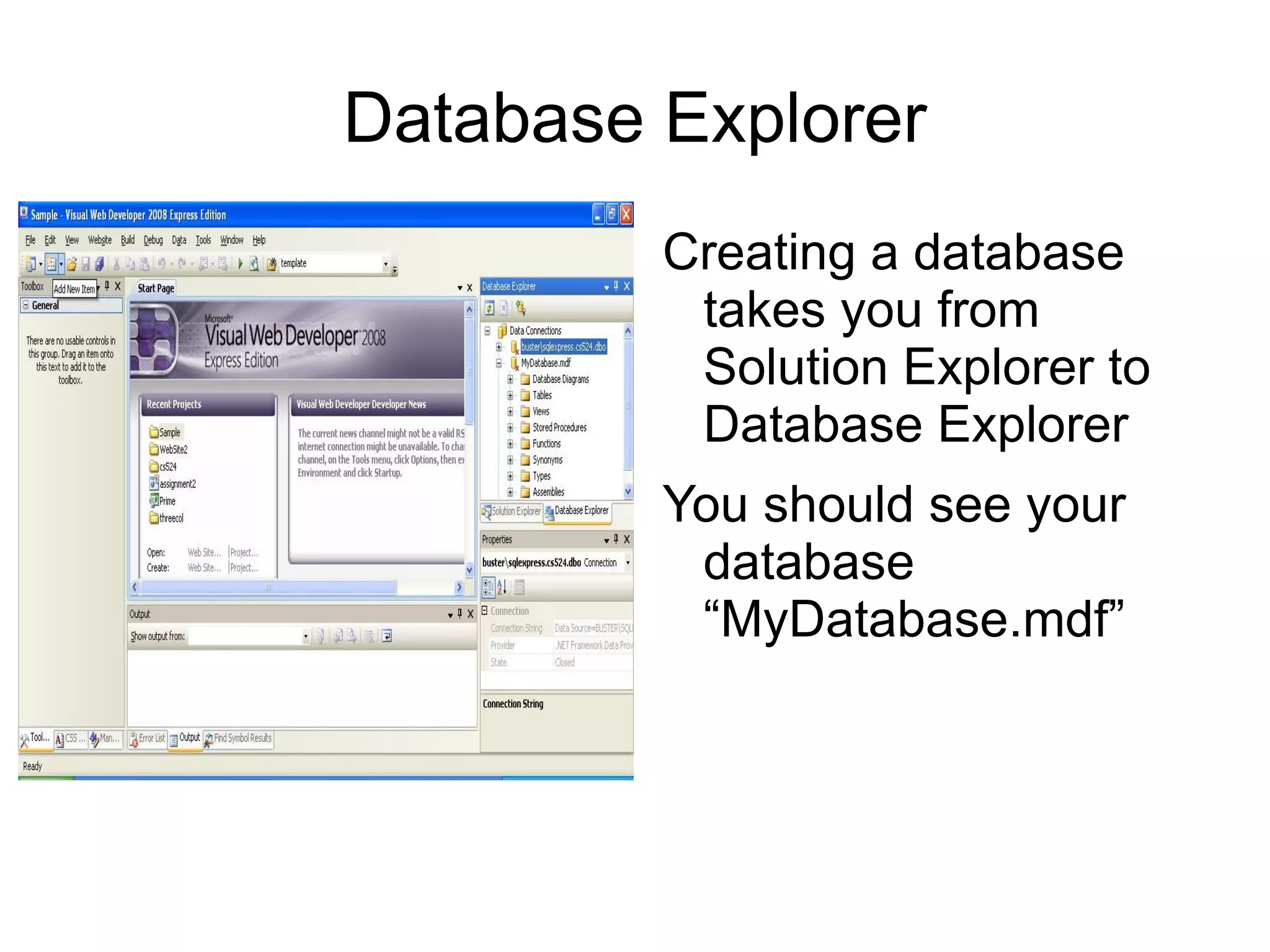
Database Explorer Creating a database takes you from Solution Explorer to Database Explorer
You should see your database “MyDatabase.mdf”
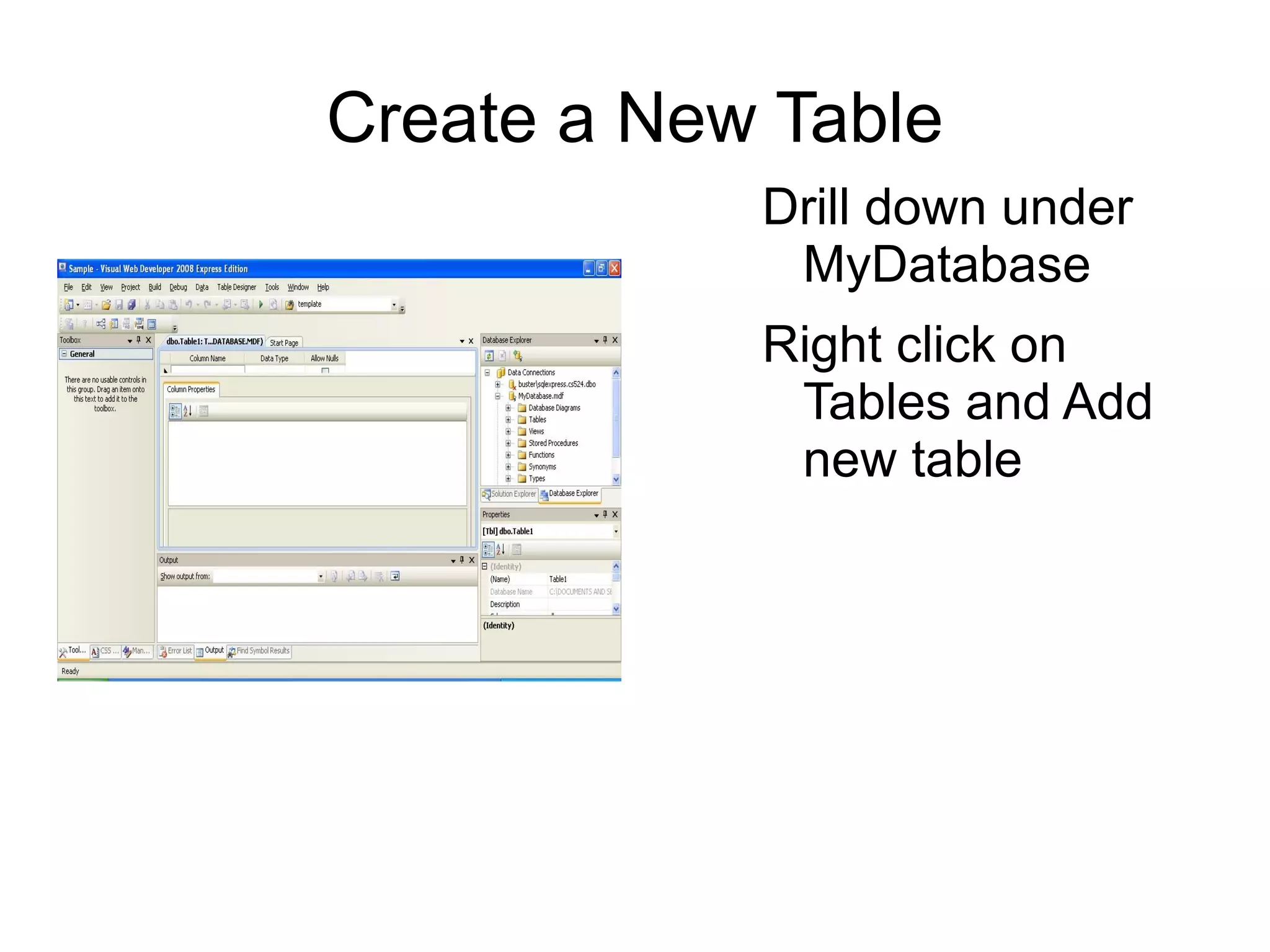
Create a New Table Drill down under MyDatabase
Right click on Tables and Add new table
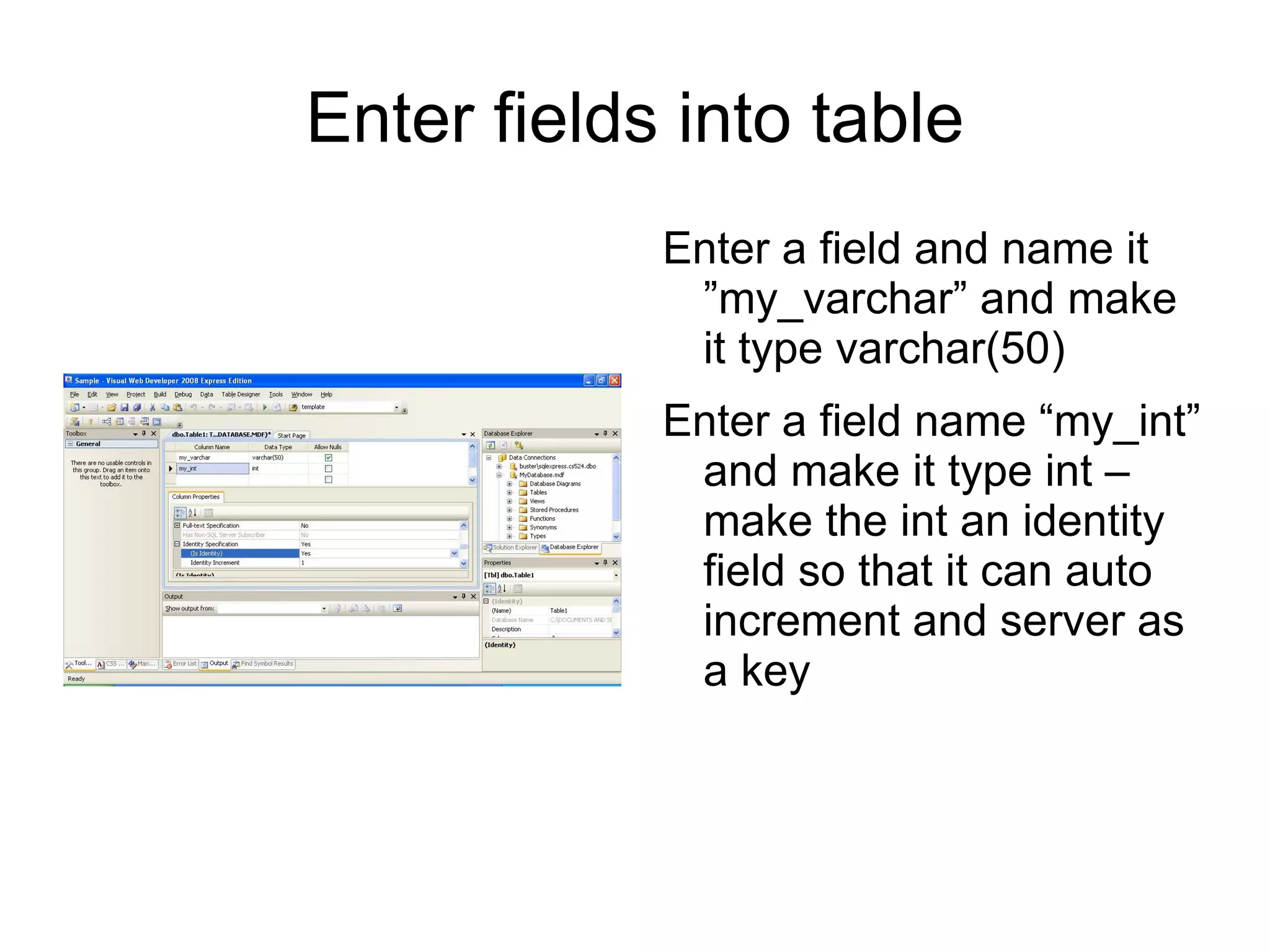
Enter fields into table Enter a field and name it ”my_varchar” and make it type varchar(50)
Enter a field name “my_int” and make it type int – make the int an identity field so that it can auto increment and server as a key
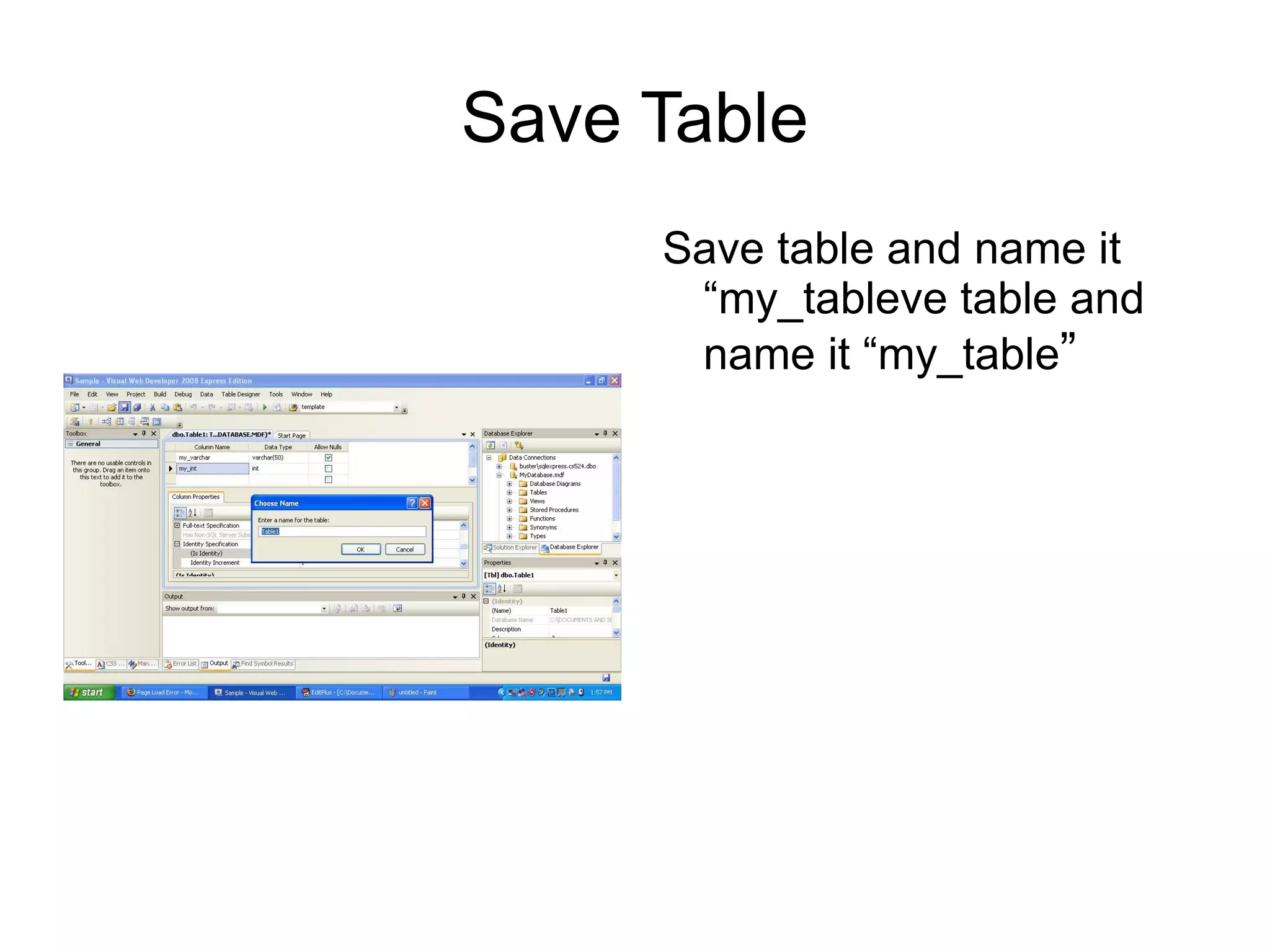
Save Table Save table and name it “my_tableve table and name it “my_table ”
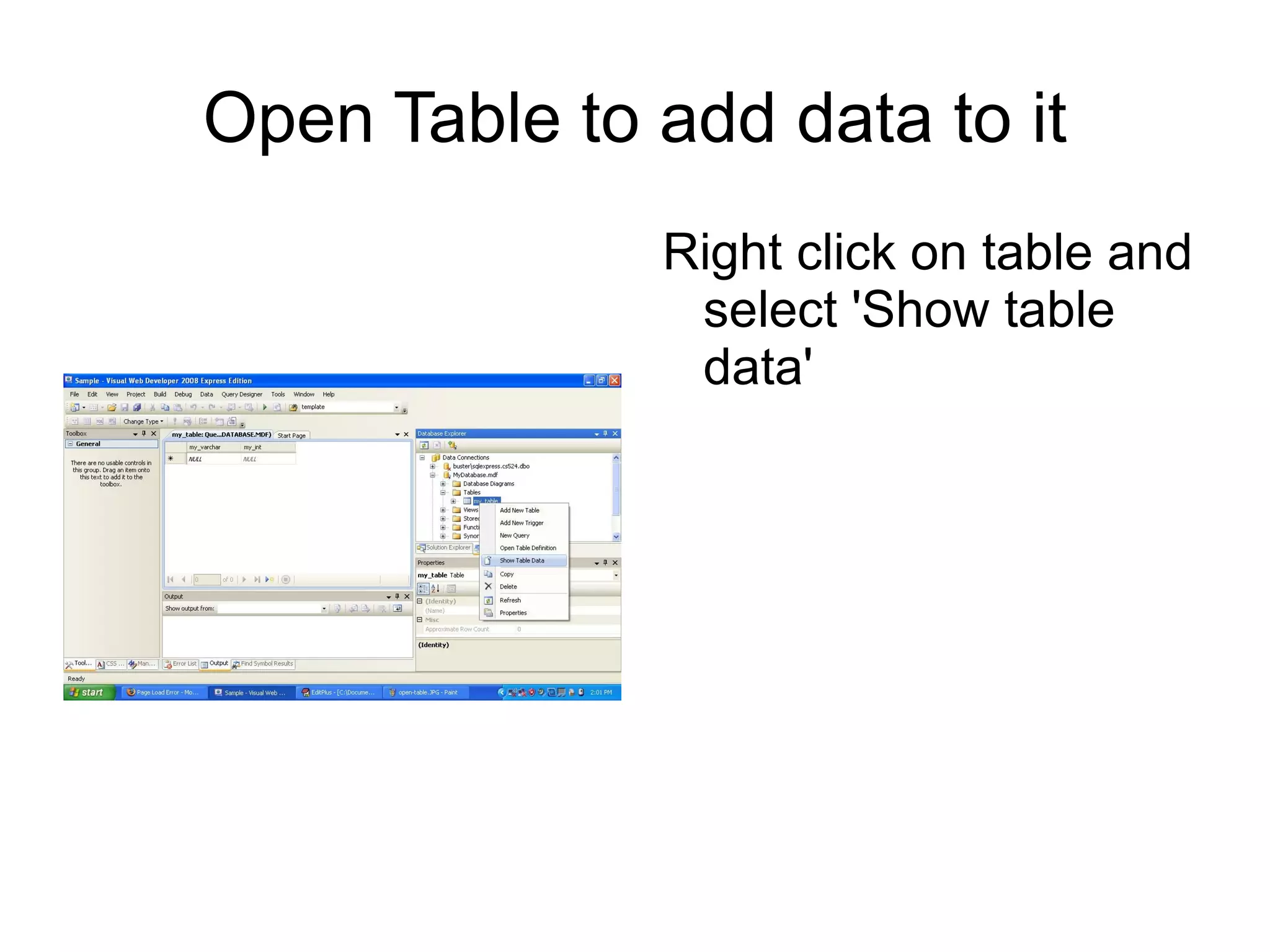
Open Table to add data to it Right click on table and select 'Show table data'
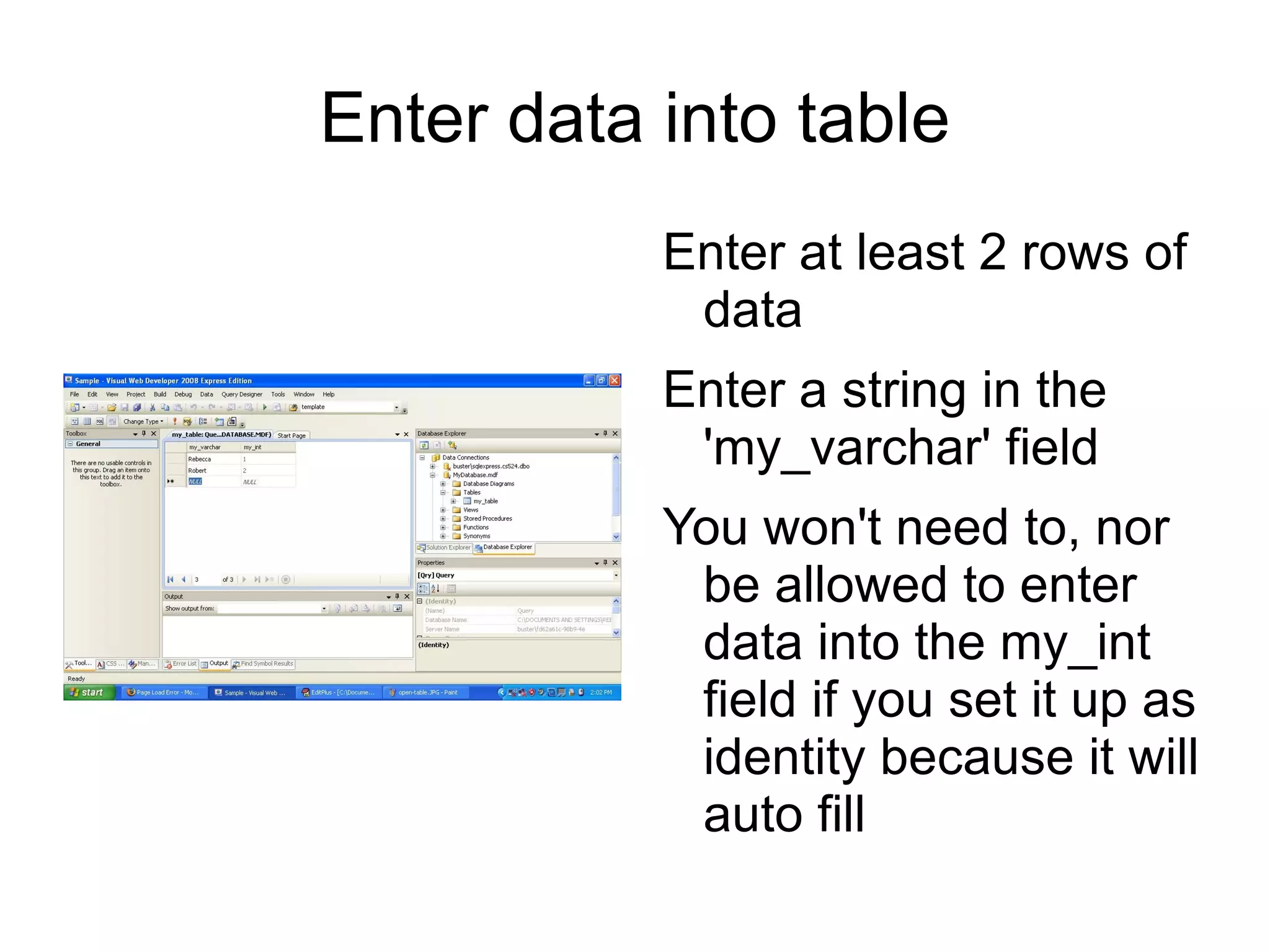
Enter data into table Enter at least 2 rows of data
Enter a string in the 'my_varchar' field
You won't need to, nor be allowed to enter data into the my_int field if you set it up as identity because it will auto fill
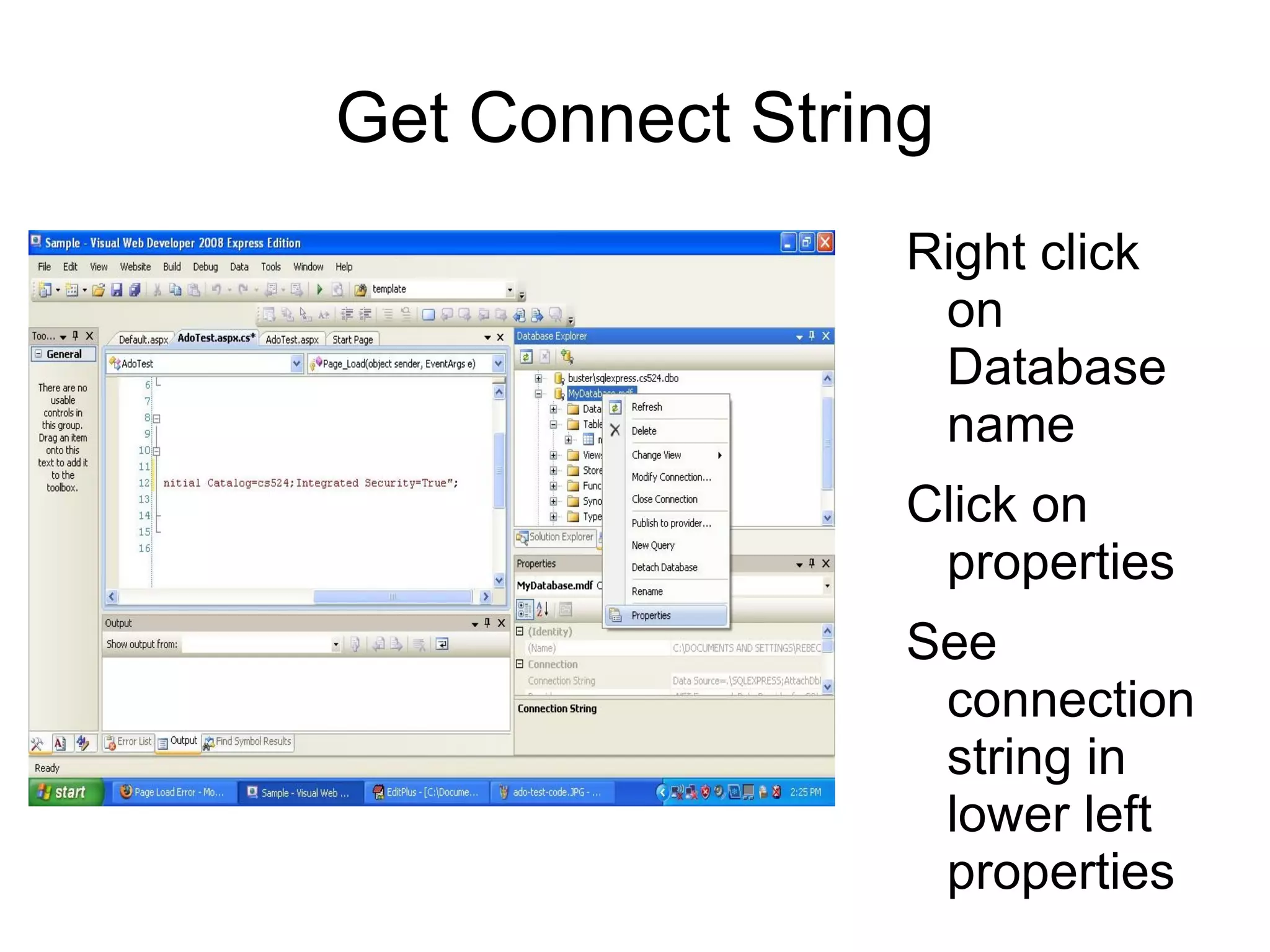
Get Connect String Right click on Database name
Click on properties
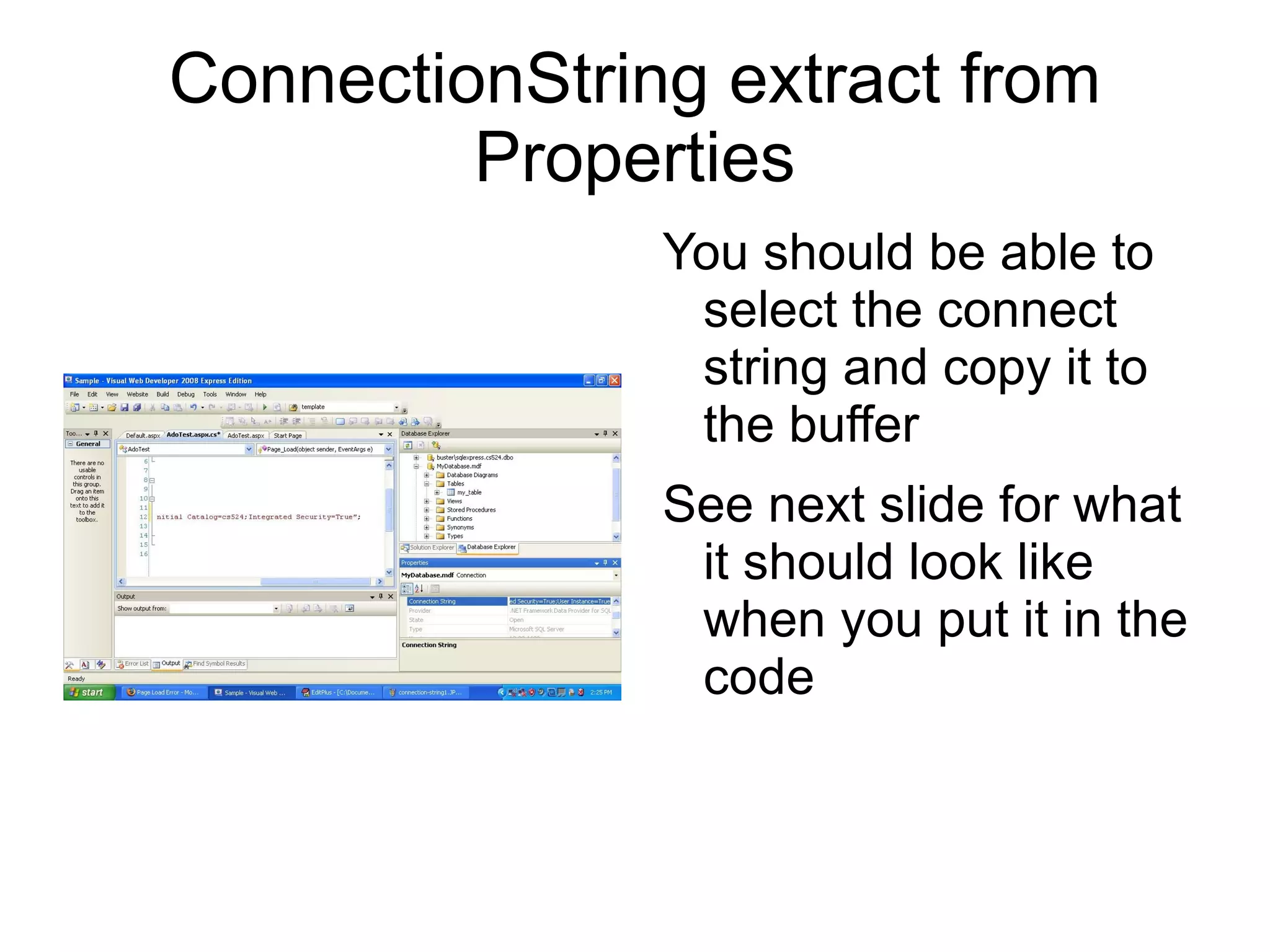
See connection string in lower left properties
ConnectionString extract from Properties You should be able to select the connect string and copy it to the buffer
See next slide for what it should look like when you put it in the code
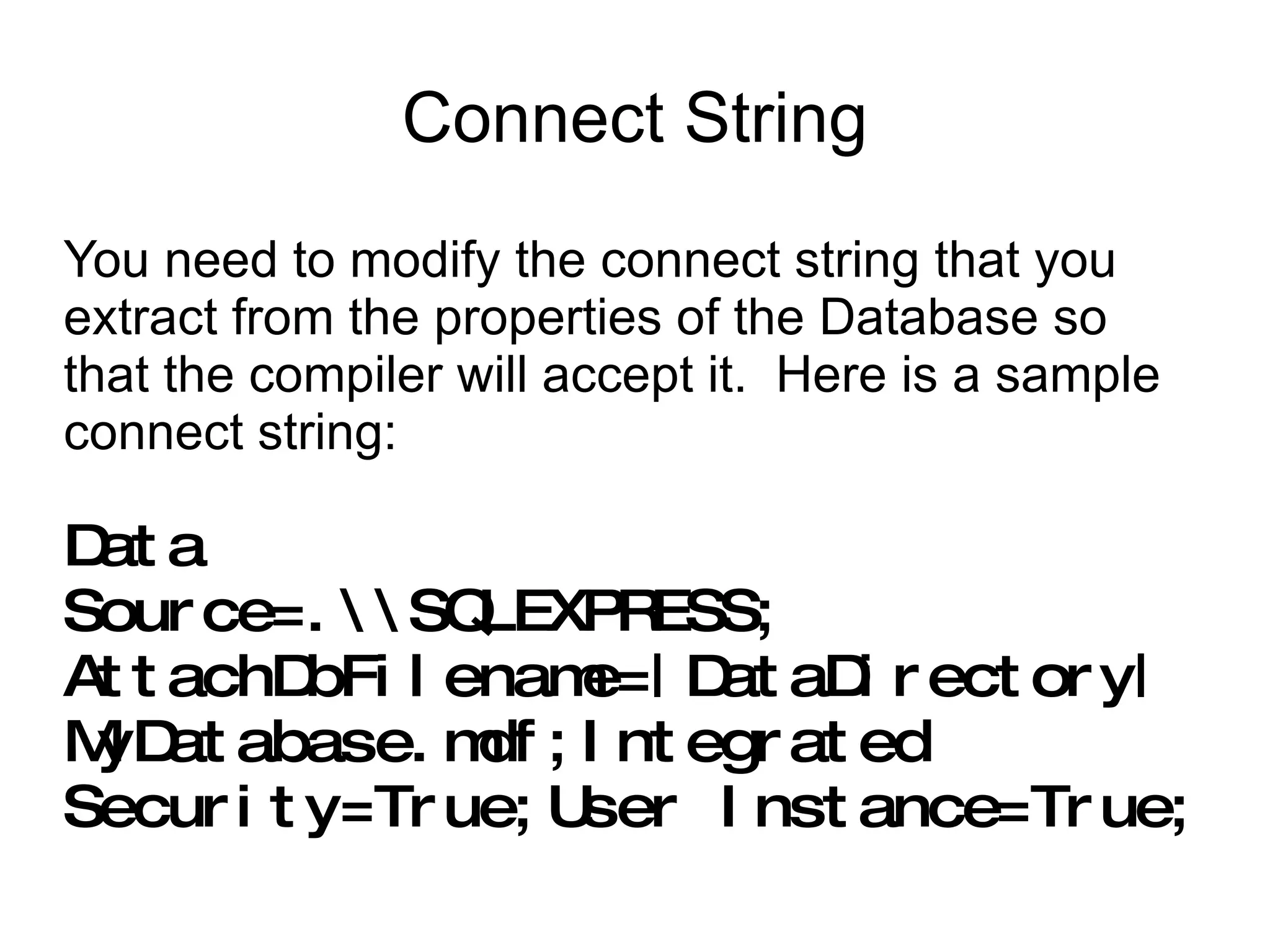
Connect String You need to modify the connect string that you extract from the properties of the Database so that the compiler will accept it.  Here is a sample connect string: Data Source=.\\SQLEXPRESS; AttachDbFilename=|DataDirectory| MyDatabase.mdf;Integrated Security=True;User Instance=True;
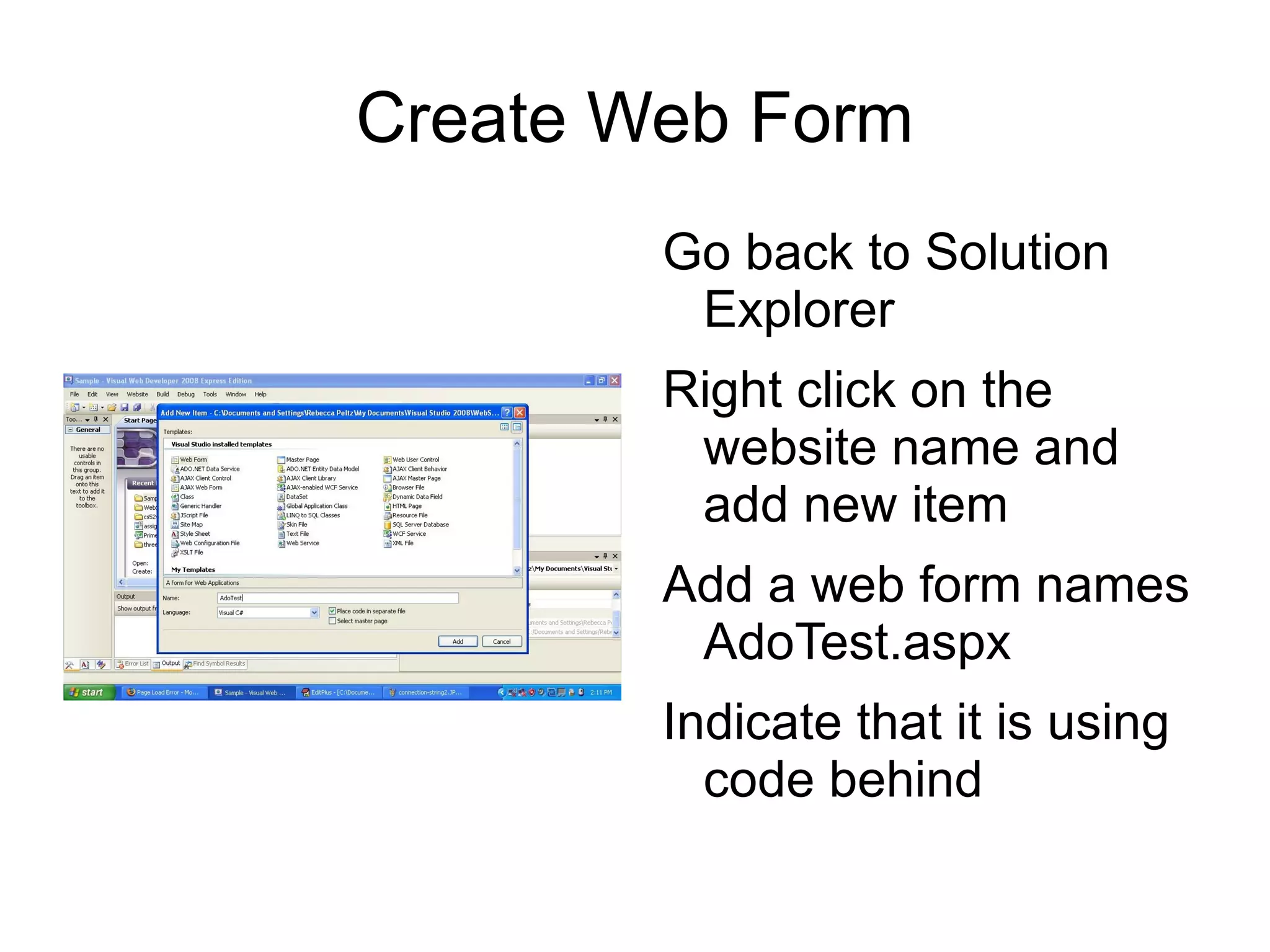
Create Web Form Go back to Solution Explorer
Right click on the website name and add new item
Add a web form names AdoTest.aspx
Indicate that it is using code behind

Ado Presentation

  • 1.
    Create Database Opena new web site in Visual Studio
  • 2.
    Right click onadd new item
  • 3.
  • 4.
    Make a SQLdatabase named “MyDatabase.mdf”
  • 5.
    Database Explorer Creatinga database takes you from Solution Explorer to Database Explorer
  • 6.
    You should seeyour database “MyDatabase.mdf”
  • 7.
    Create a NewTable Drill down under MyDatabase
  • 8.
    Right click onTables and Add new table
  • 9.
    Enter fields intotable Enter a field and name it ”my_varchar” and make it type varchar(50)
  • 10.
    Enter a fieldname “my_int” and make it type int – make the int an identity field so that it can auto increment and server as a key
  • 11.
    Save Table Savetable and name it “my_tableve table and name it “my_table ”
  • 12.
    Open Table toadd data to it Right click on table and select 'Show table data'
  • 13.
    Enter data intotable Enter at least 2 rows of data
  • 14.
    Enter a stringin the 'my_varchar' field
  • 15.
    You won't needto, nor be allowed to enter data into the my_int field if you set it up as identity because it will auto fill
  • 16.
    Get Connect StringRight click on Database name
  • 17.
  • 18.
    See connection stringin lower left properties
  • 19.
    ConnectionString extract fromProperties You should be able to select the connect string and copy it to the buffer
  • 20.
    See next slidefor what it should look like when you put it in the code
  • 21.
    Connect String Youneed to modify the connect string that you extract from the properties of the Database so that the compiler will accept it. Here is a sample connect string: Data Source=.\\SQLEXPRESS; AttachDbFilename=|DataDirectory| MyDatabase.mdf;Integrated Security=True;User Instance=True;
  • 22.
    Create Web FormGo back to Solution Explorer
  • 23.
    Right click onthe website name and add new item
  • 24.
    Add a webform names AdoTest.aspx
  • 25.
    Indicate that itis using code behind
  • 26.
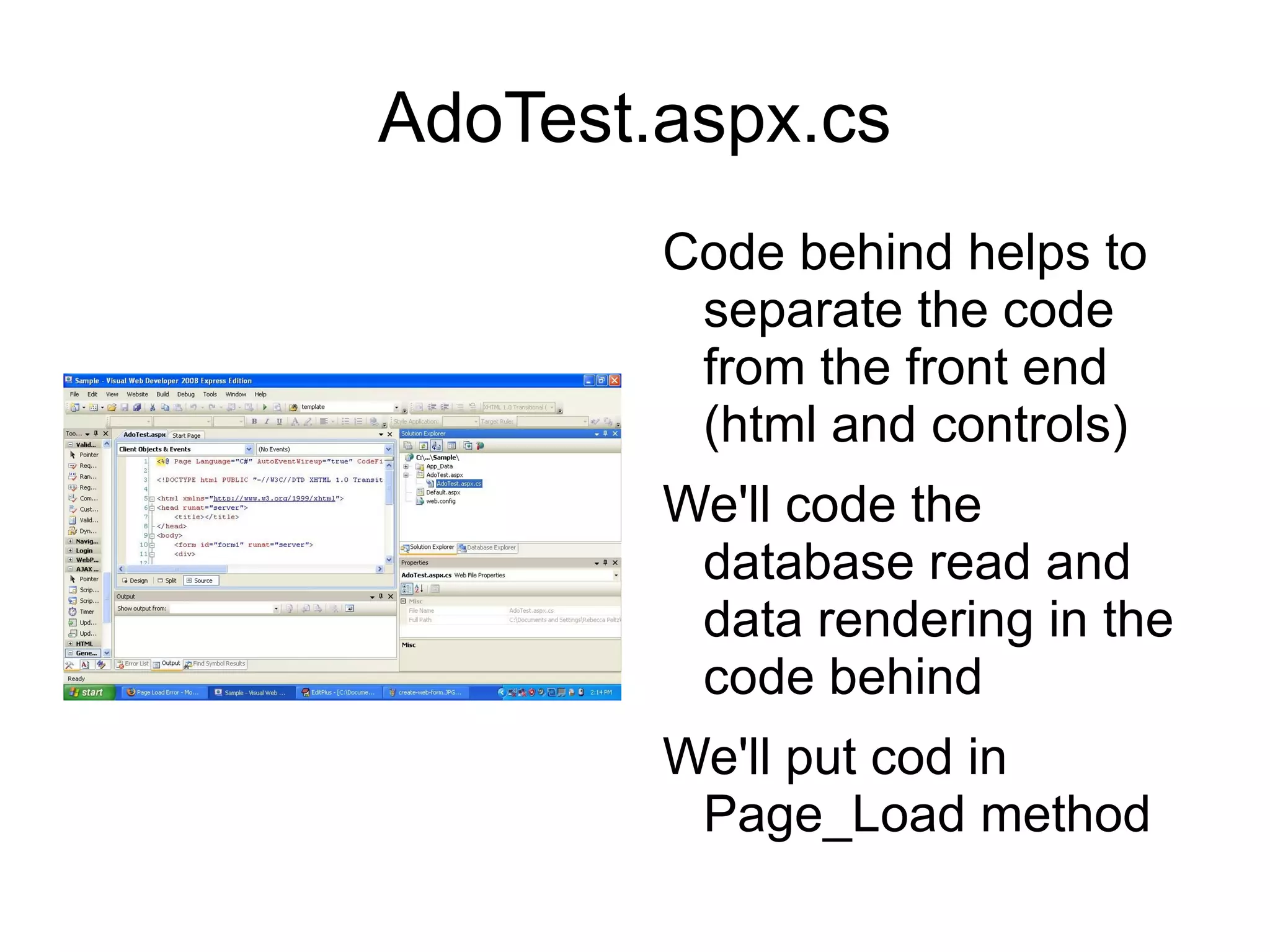
    AdoTest.aspx.cs Code behindhelps to separate the code from the front end (html and controls)
  • 27.
    We'll code thedatabase read and data rendering in the code behind
  • 28.
    We'll put codin Page_Load method
  • 29.
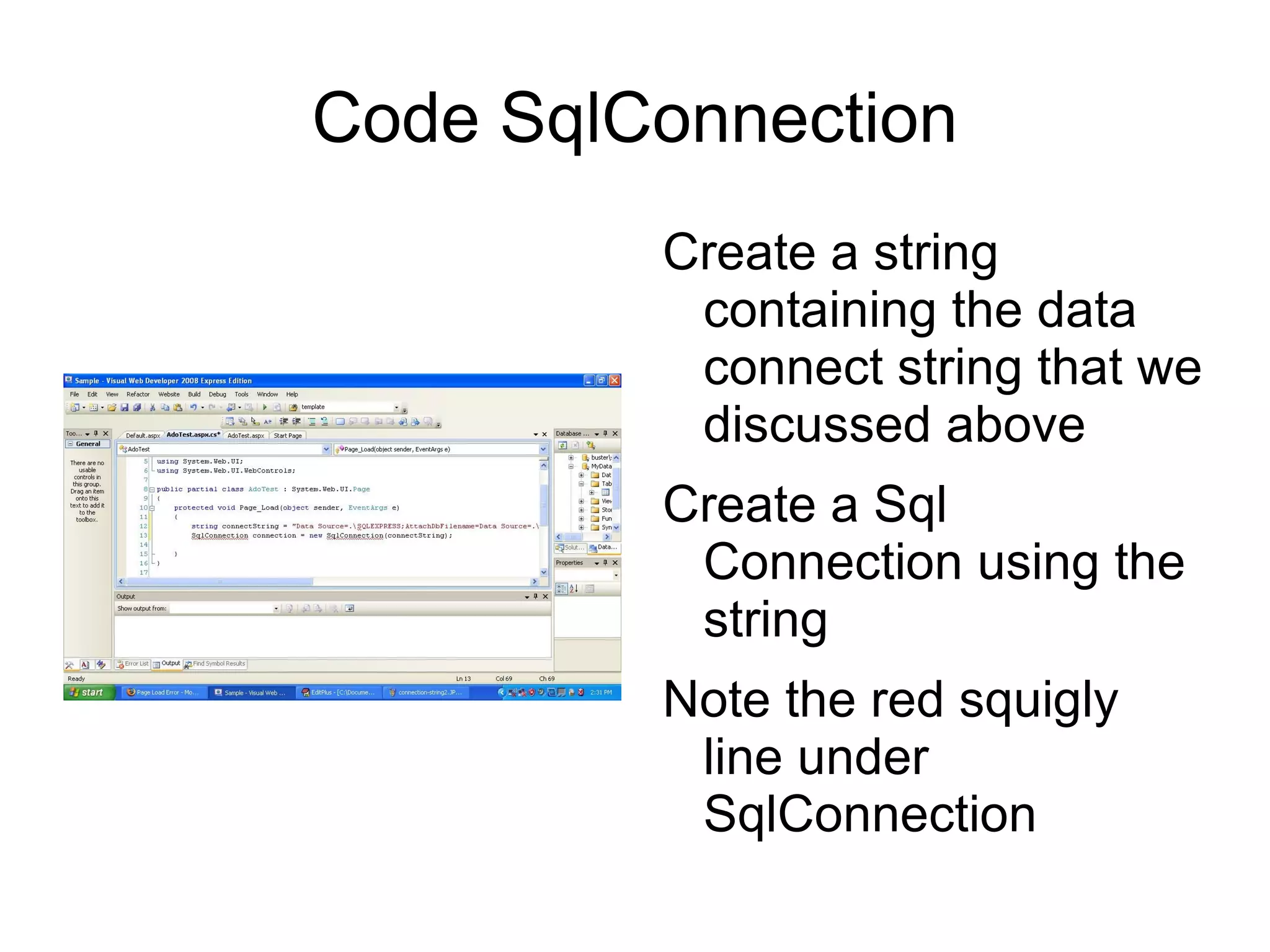
    Code SqlConnection Createa string containing the data connect string that we discussed above
  • 30.
    Create a SqlConnection using the string
  • 31.
    Note the redsquigly line under SqlConnection
  • 32.
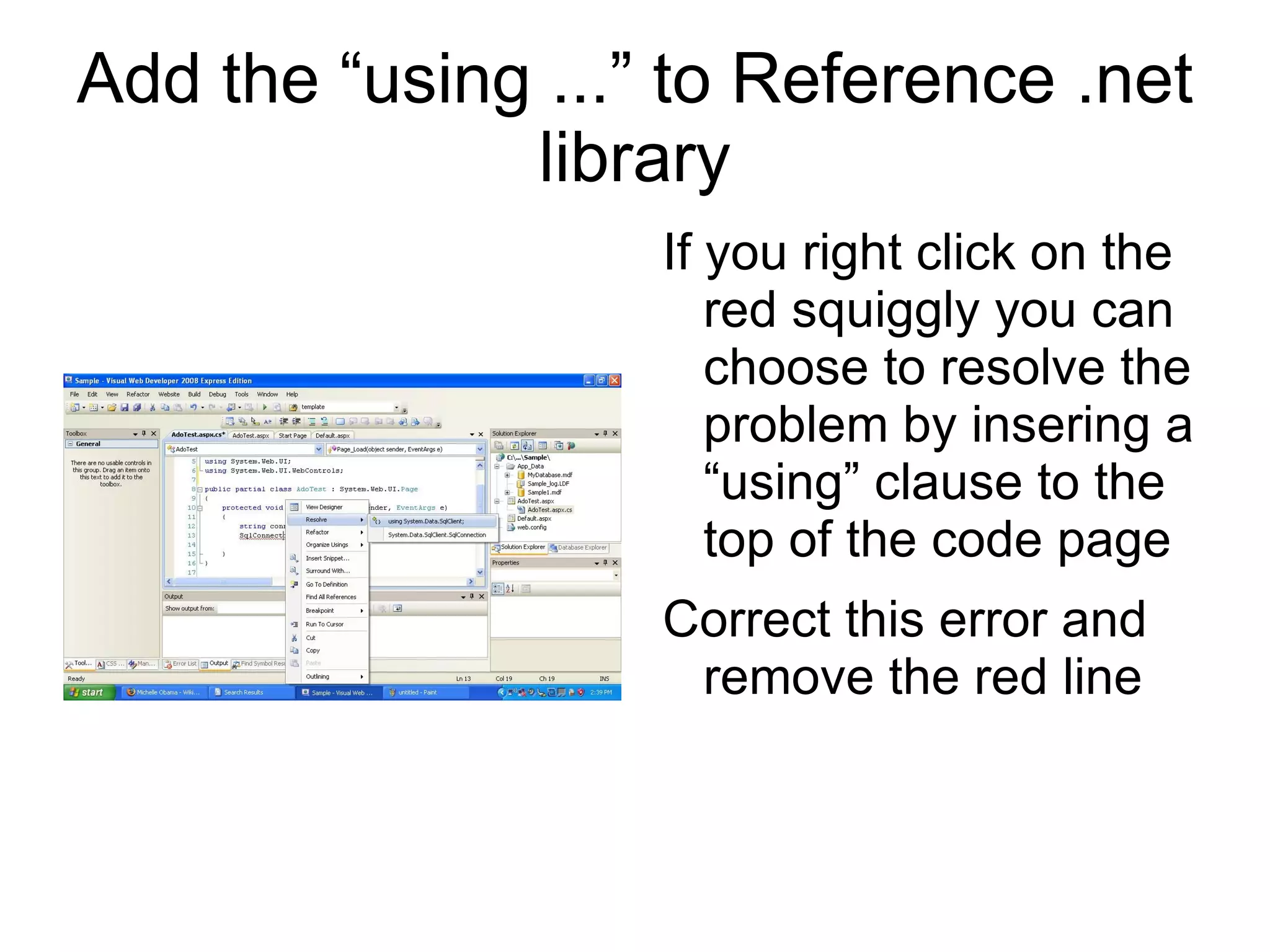
    Add the “using...” to Reference .net library If you right click on the red squiggly you can choose to resolve the problem by insering a “using” clause to the top of the code page
  • 33.
    Correct this errorand remove the red line
  • 34.
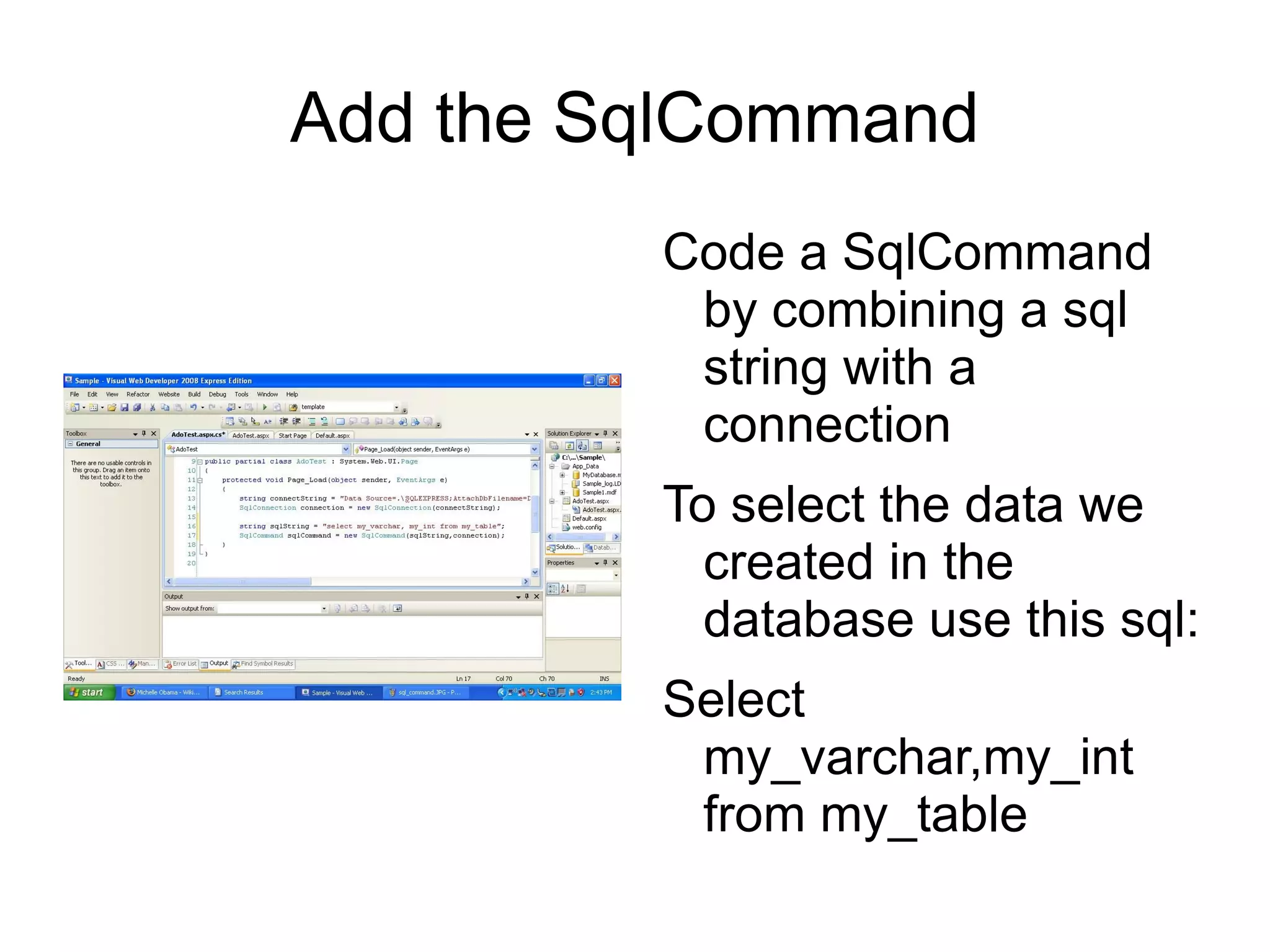
    Add the SqlCommandCode a SqlCommand by combining a sql string with a connection
  • 35.
    To select thedata we created in the database use this sql:
  • 36.
  • 37.
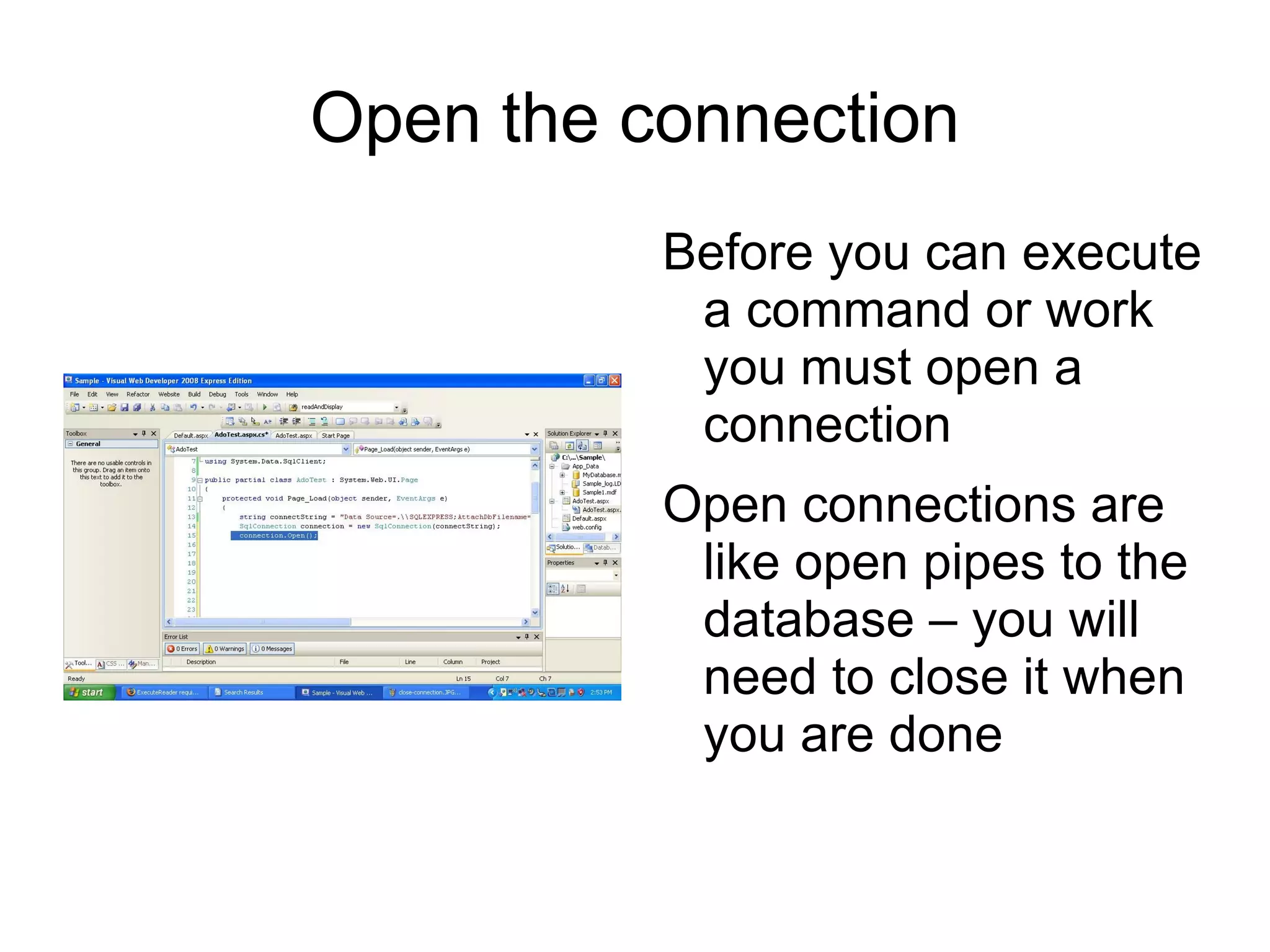
    Open the connectionBefore you can execute a command or work you must open a connection
  • 38.
    Open connections are like open pipes to the database – you will need to close it when you are done
  • 39.
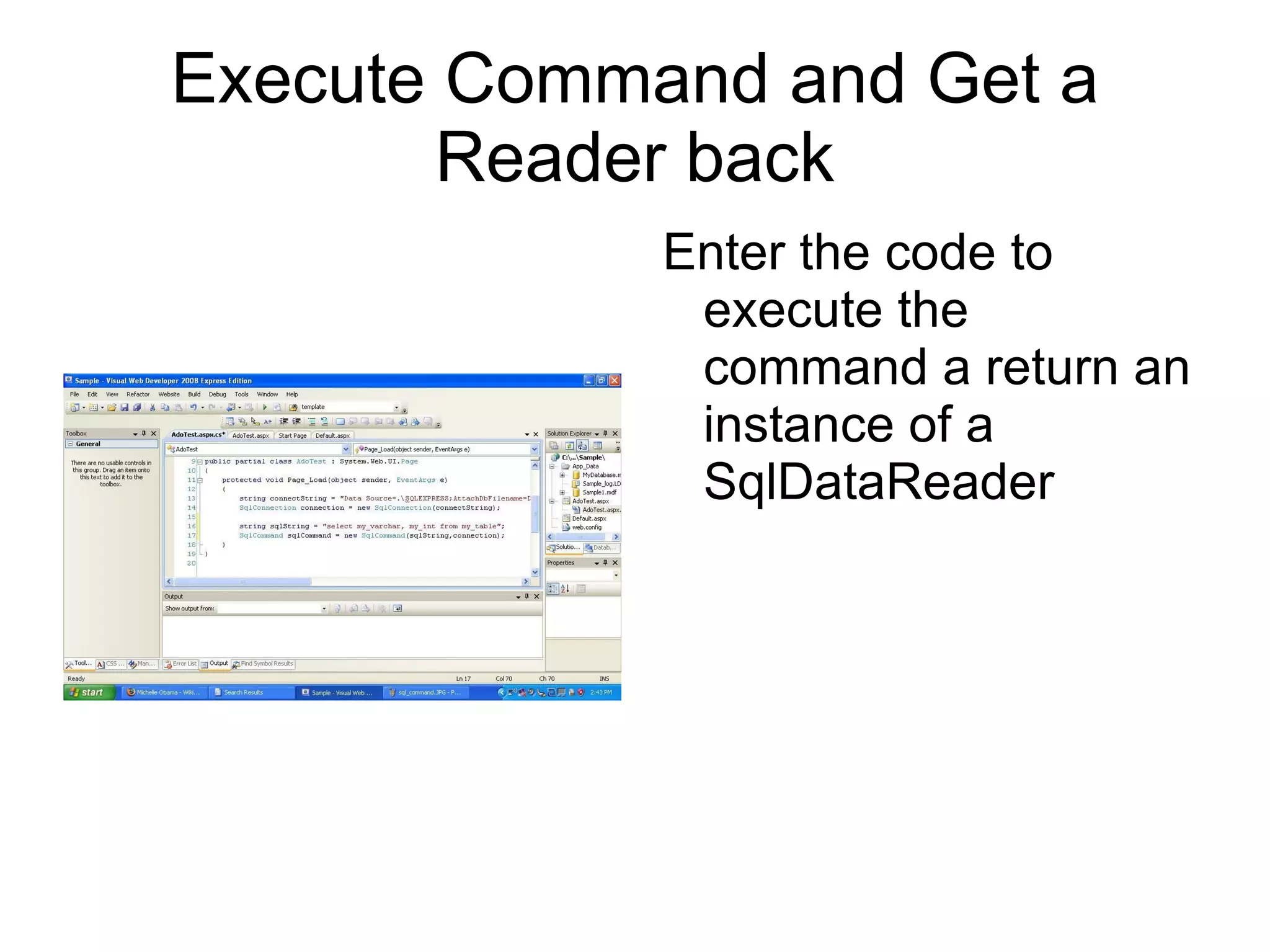
    Execute Command andGet a Reader back Enter the code to execute the command a return an instance of a SqlDataReader
  • 40.
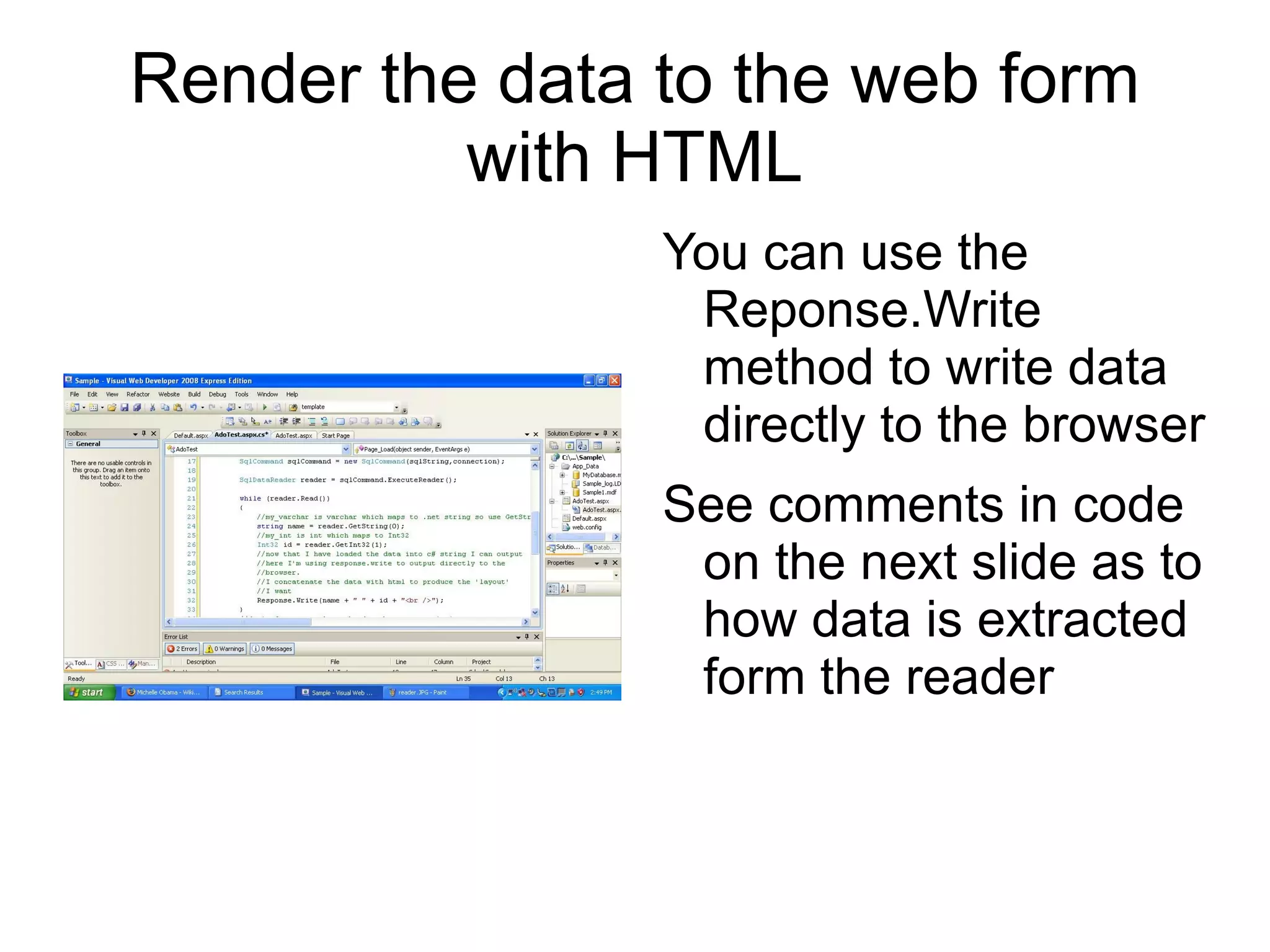
    Render the datato the web form with HTML You can use the Reponse.Write method to write data directly to the browser
  • 41.
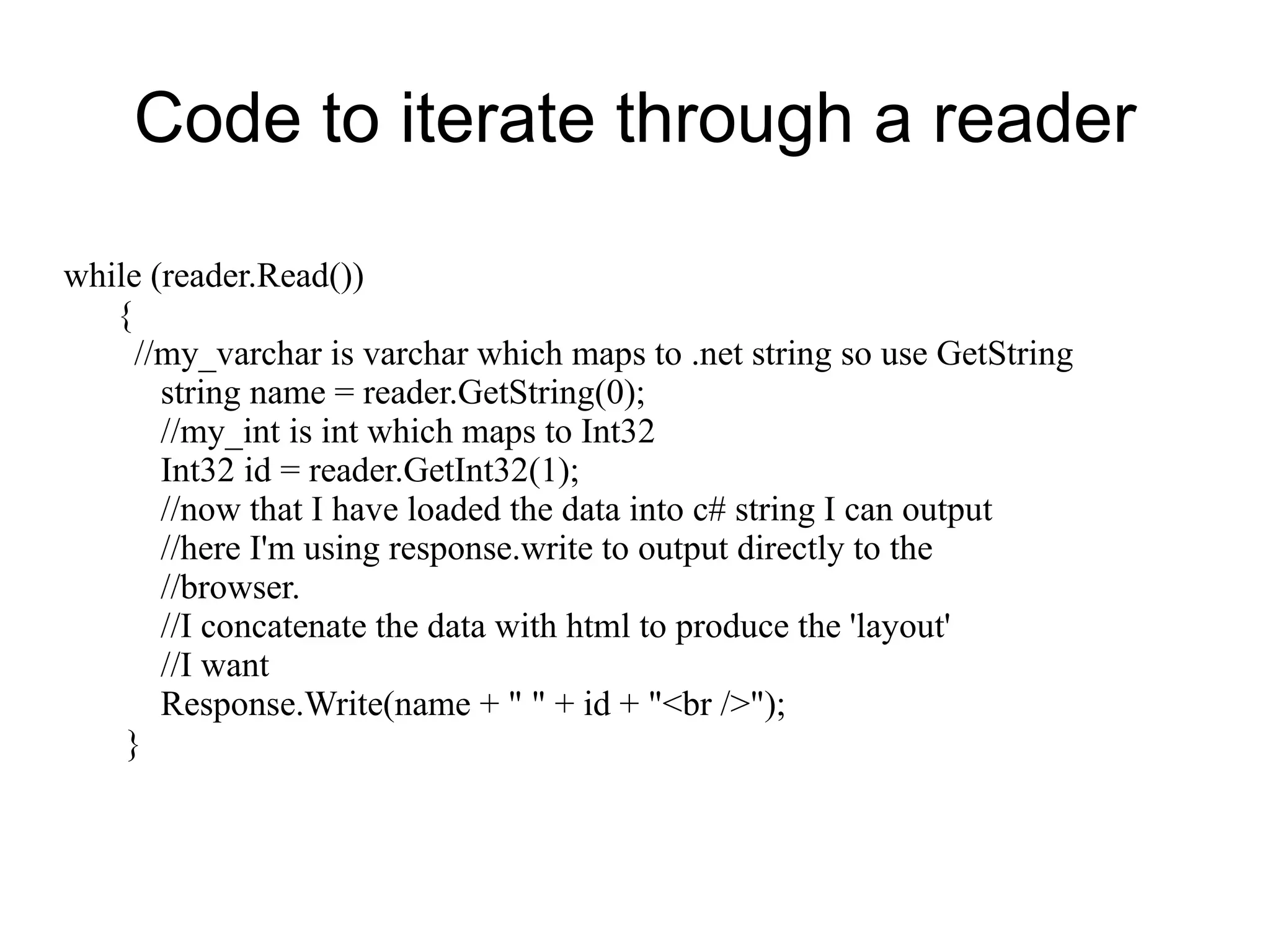
    See comments incode on the next slide as to how data is extracted form the reader
  • 42.
    Extracting Data froma SqlDataReader When you extract data from a reader, you should be aware of the data type you are extracting and how it maps to the language (.net) data types
  • 43.
    Code to iteratethrough a reader while (reader.Read()) { //my_varchar is varchar which maps to .net string so use GetString string name = reader.GetString(0); //my_int is int which maps to Int32 Int32 id = reader.GetInt32(1); //now that I have loaded the data into c# string I can output //here I'm using response.write to output directly to the //browser. //I concatenate the data with html to produce the 'layout' //I want Response.Write(name + &quot; &quot; + id + &quot;<br />&quot;); }
  • 44.
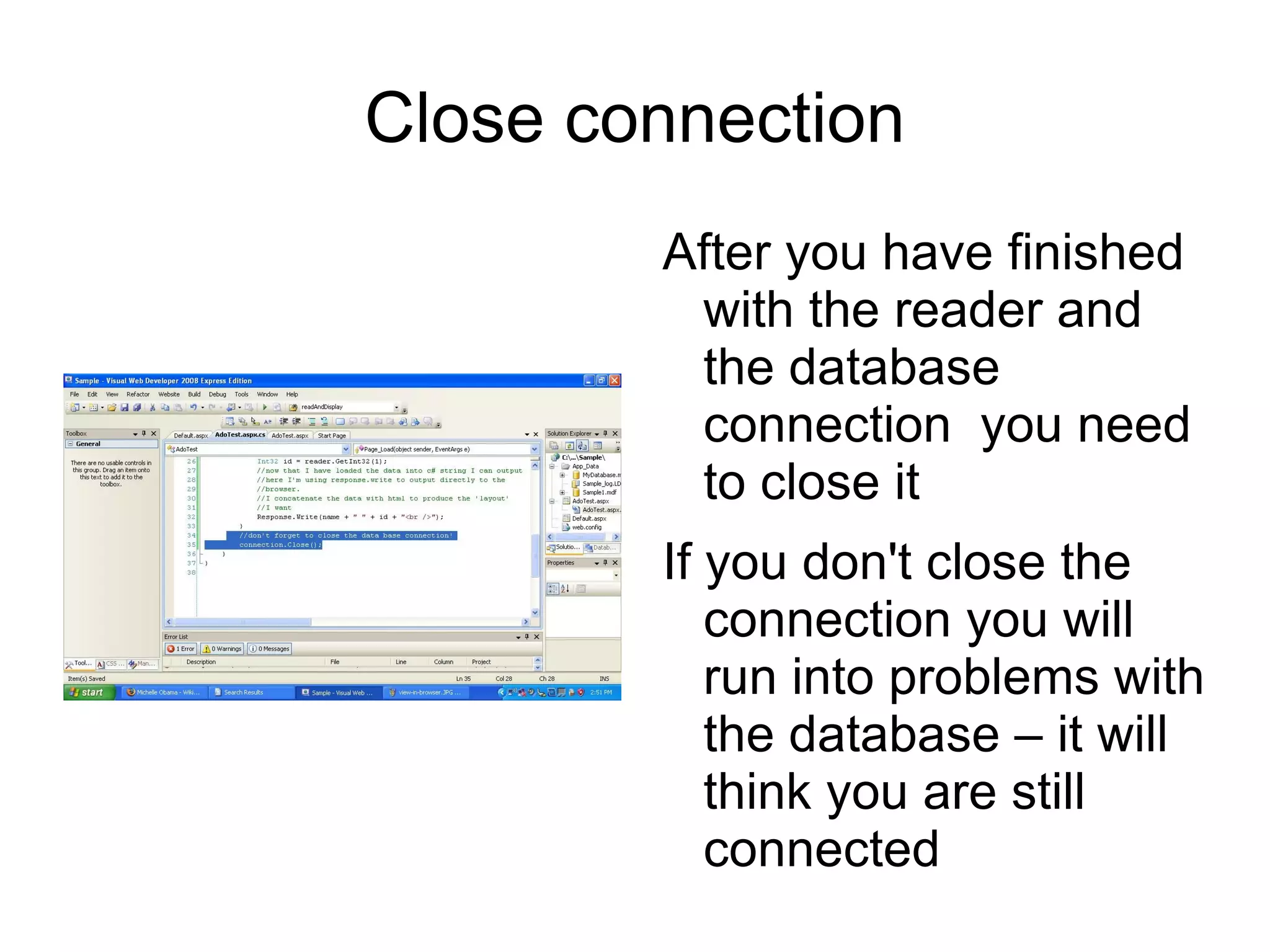
    Close connection Afteryou have finished with the reader and the database connection you need to close it
  • 45.
    If you don'tclose the connection you will run into problems with the database – it will think you are still connected
  • 46.
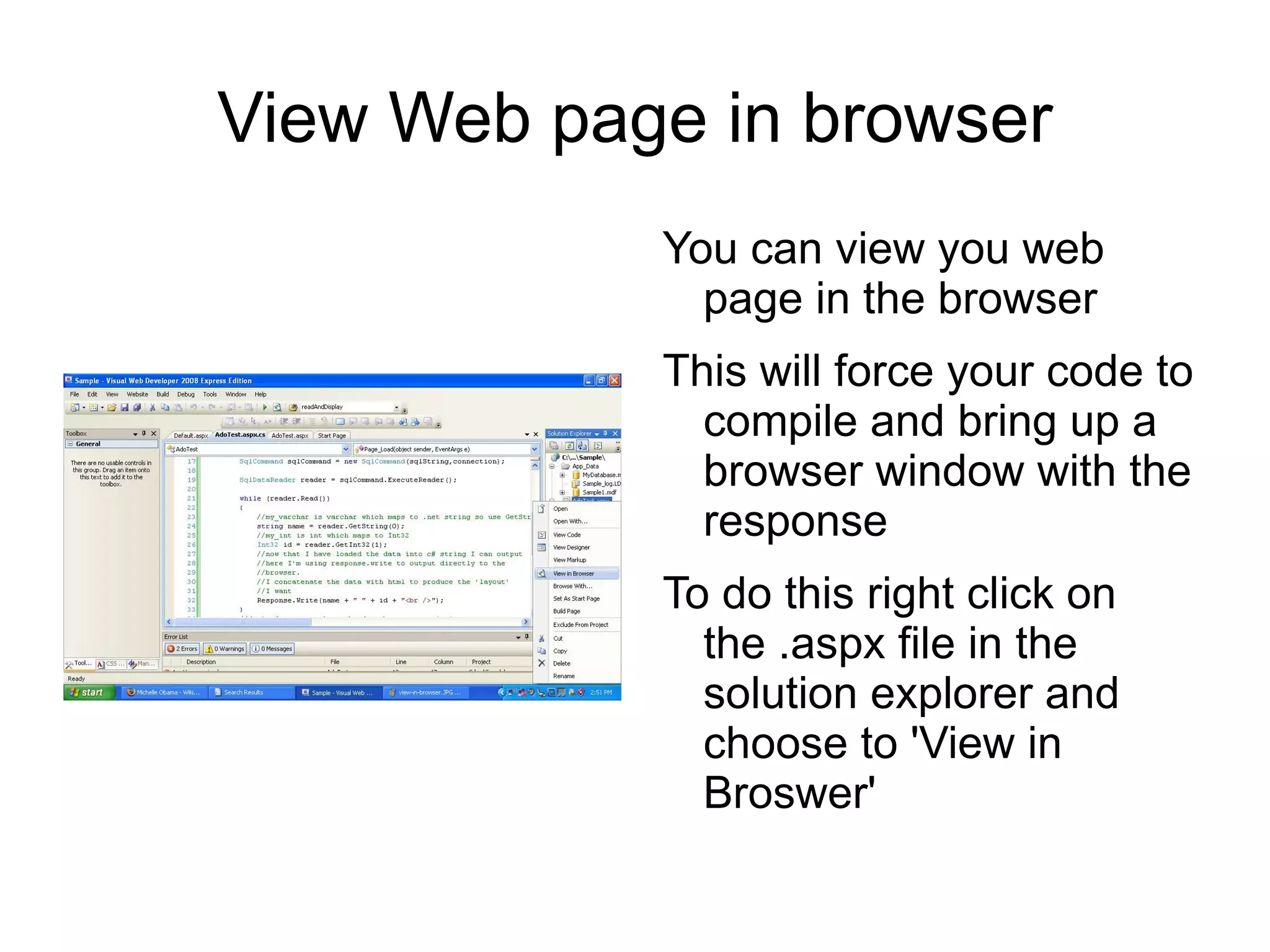
    View Web pagein browser You can view you web page in the browser
  • 47.
    This will forceyour code to compile and bring up a browser window with the response
  • 48.
    To do thisright click on the .aspx file in the solution explorer and choose to 'View in Broswer'
  • 49.
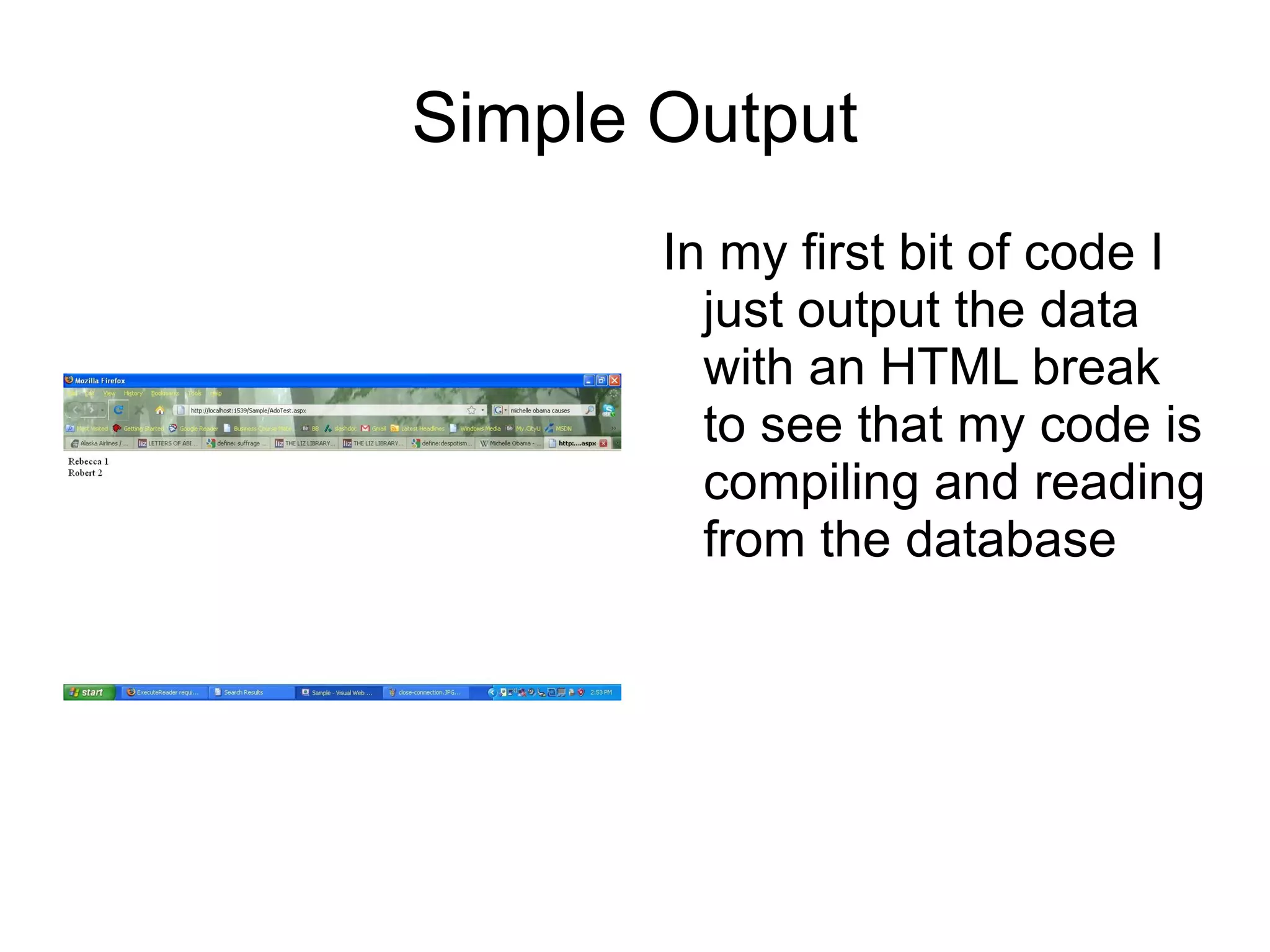
    Simple Output Inmy first bit of code I just output the data with an HTML break to see that my code is compiling and reading from the database
  • 50.
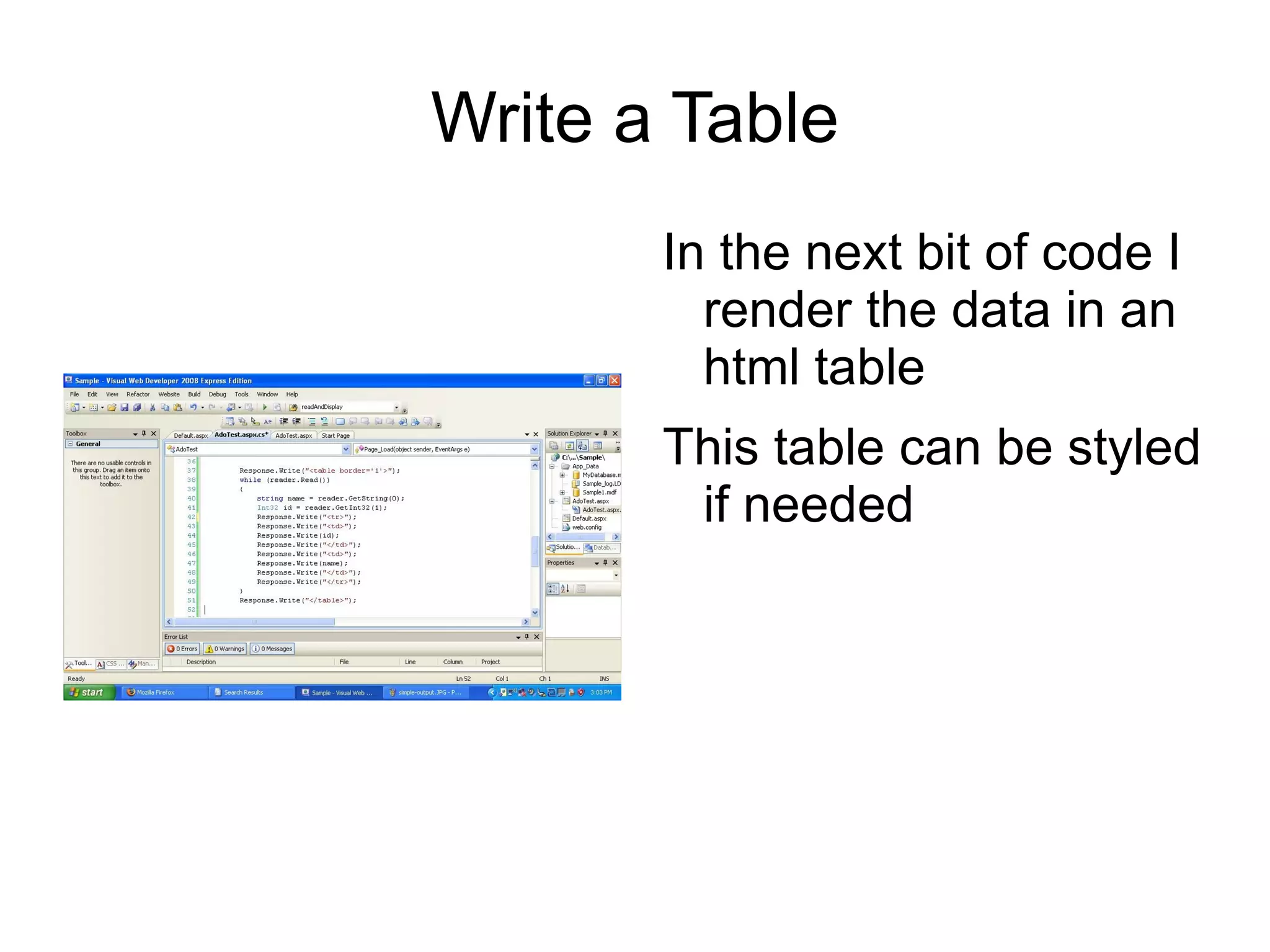
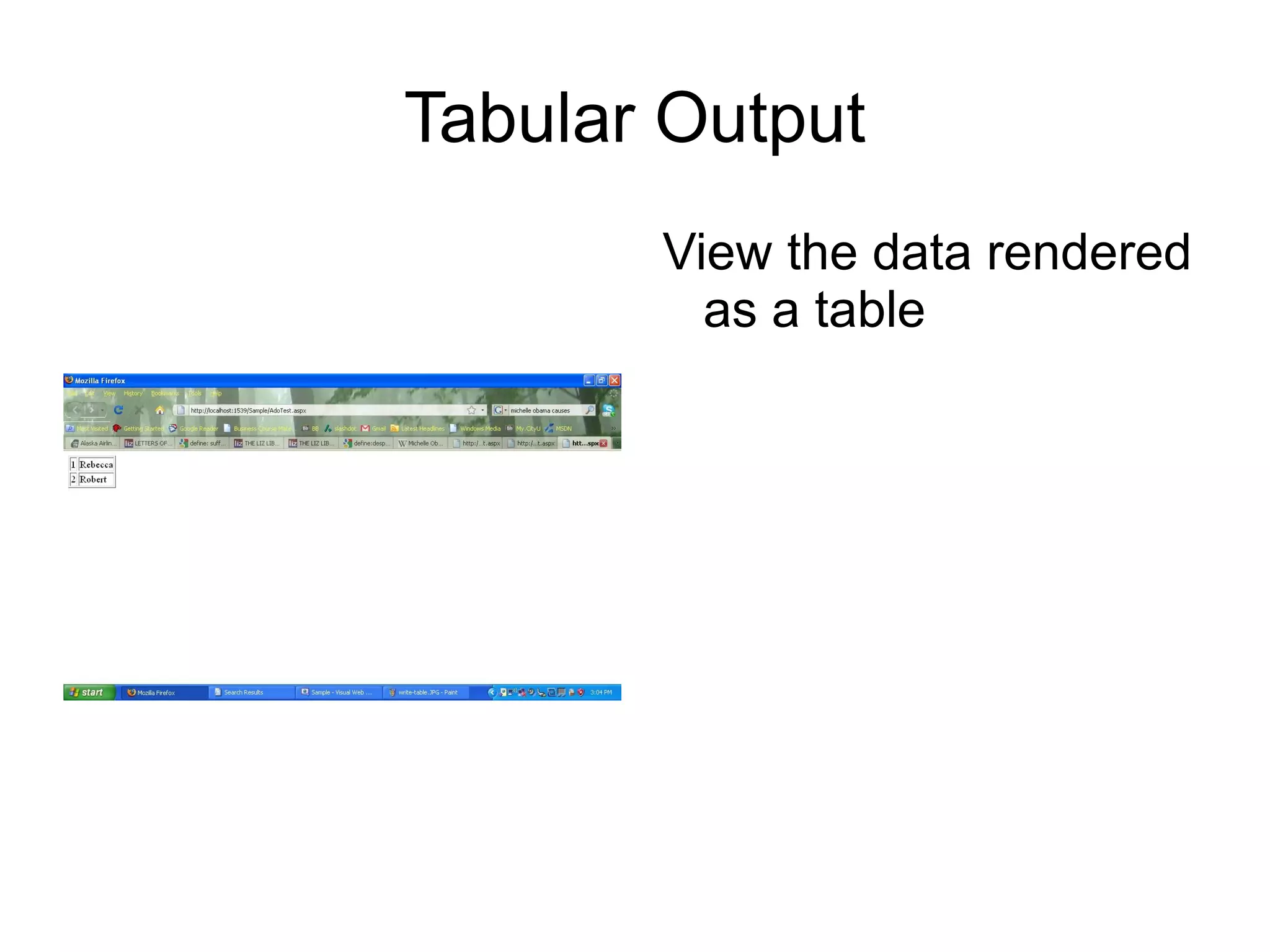
    Write a TableIn the next bit of code I render the data in an html table
  • 51.
    This table canbe styled if needed
  • 52.
    Tabular Output Viewthe data rendered as a table