Android Mobile App
Development
Lecture :
UTILIZING THE ACTION BAR Managing
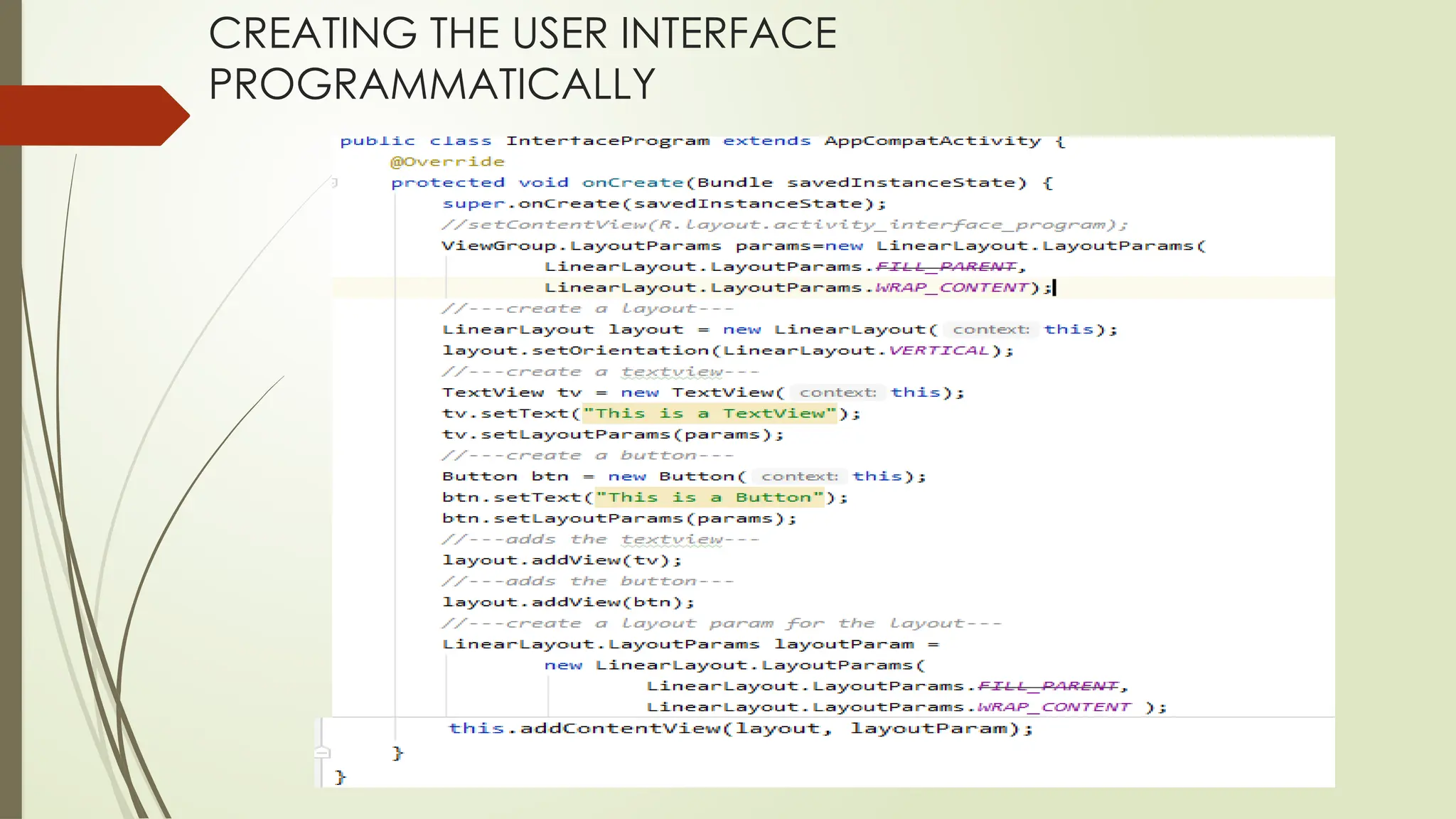
CREATING THE USER INTERFACE
PROGRAMMATICALLY
LISTENING FOR UI NOTIFICATIONS
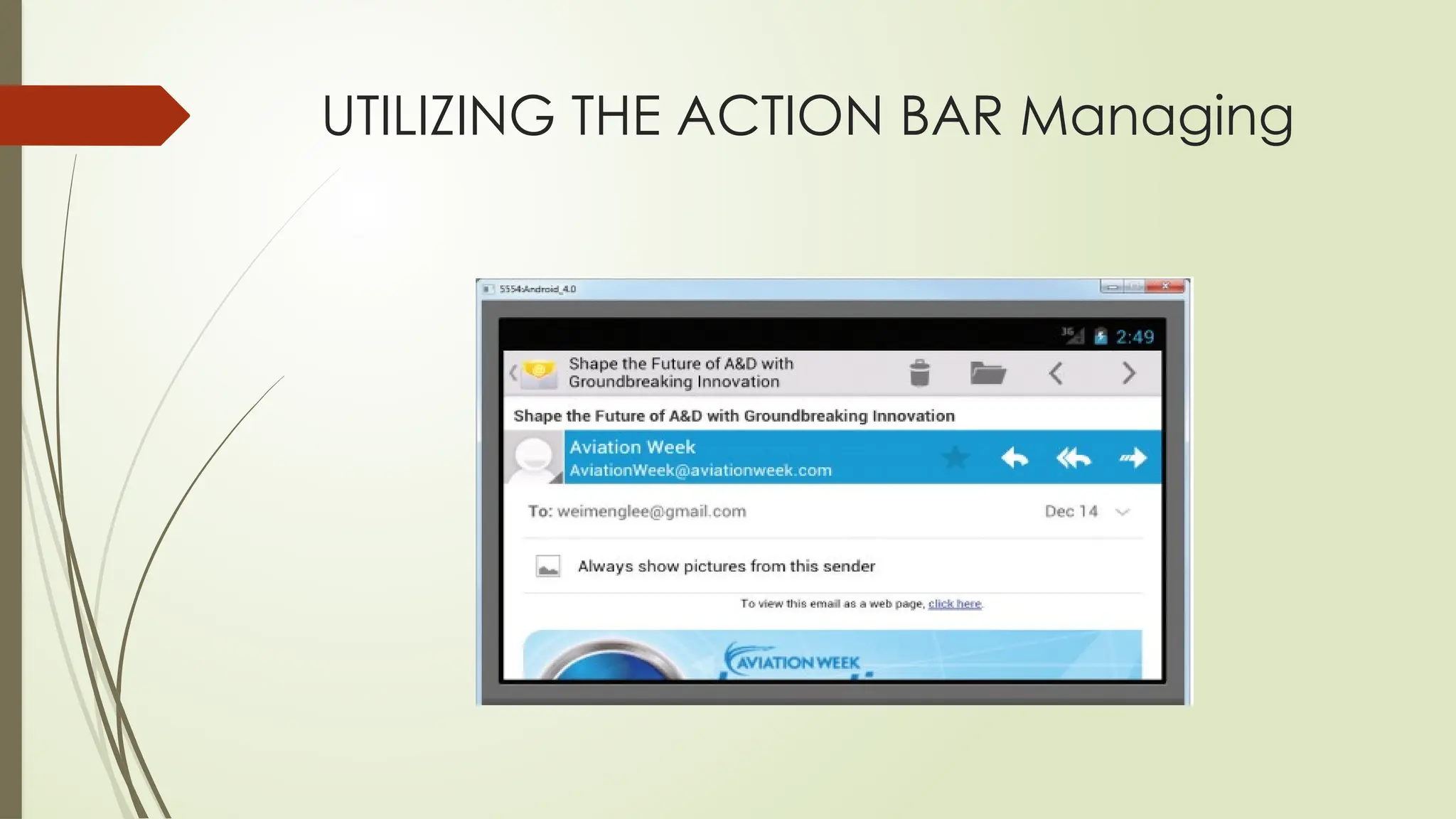
UTILIZING THE ACTION BAR Managing
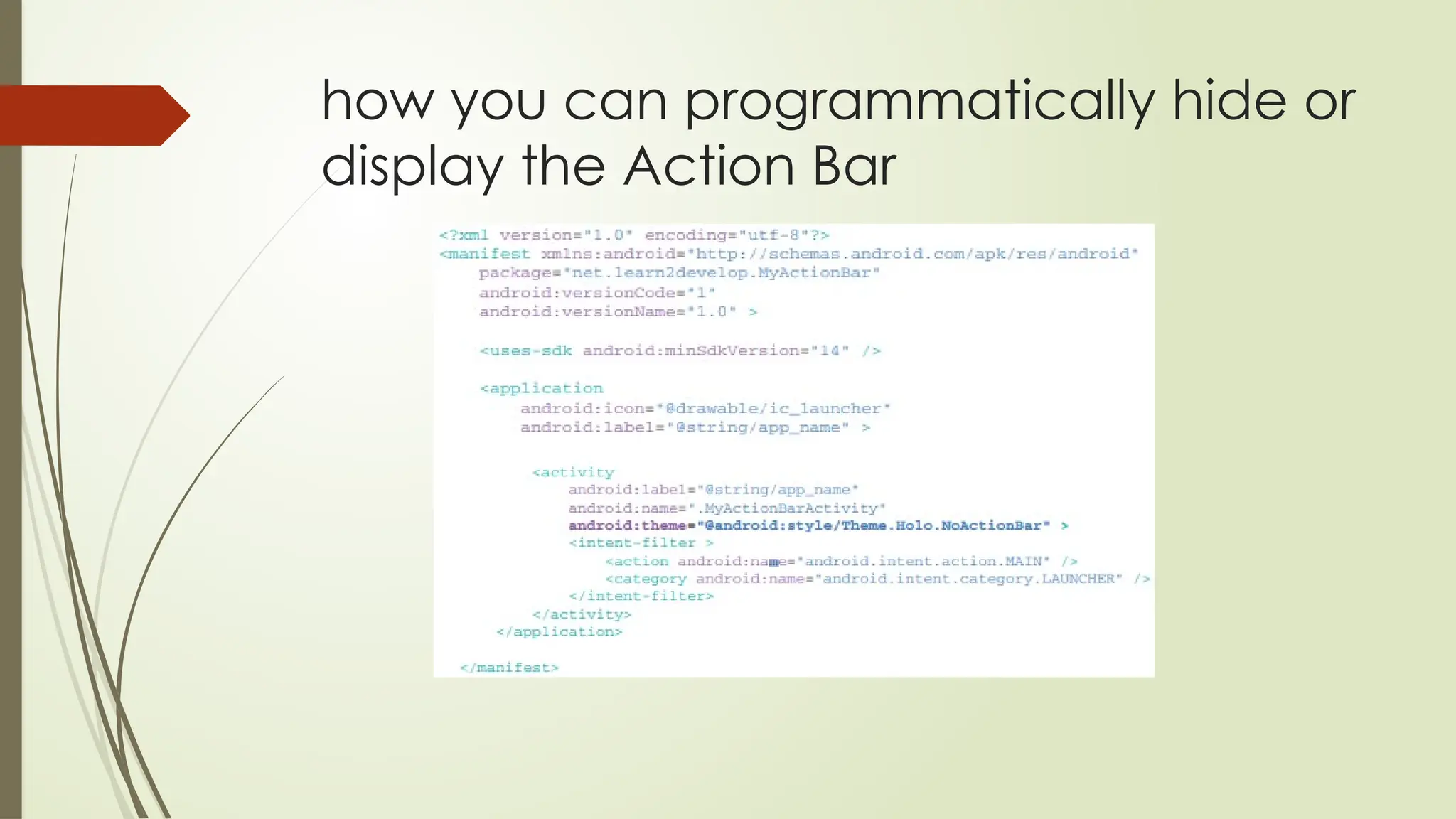
how you can programmatically hide or
display the Action Bar
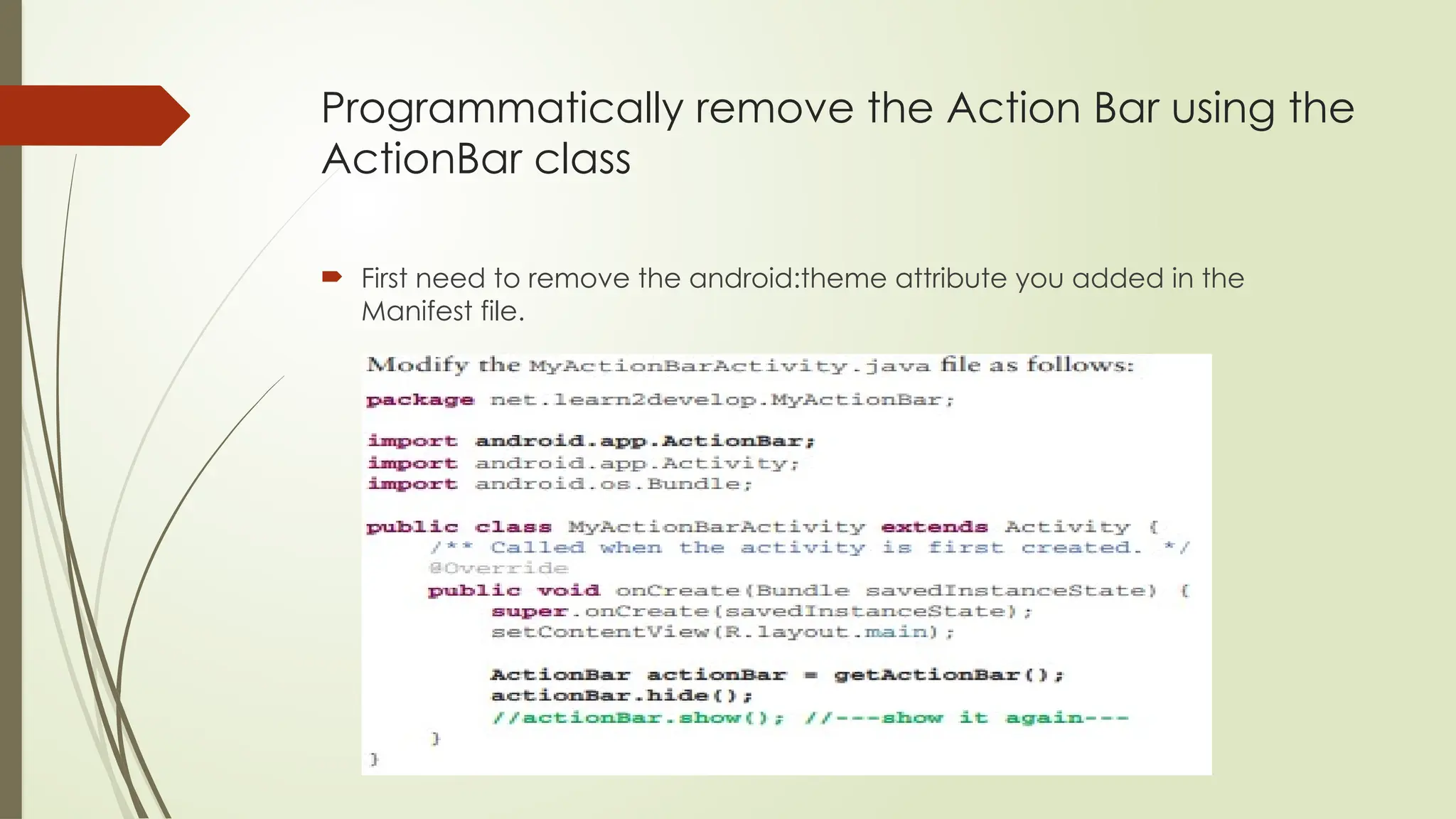
Programmatically remove the Action Bar using the
ActionBar class
 First need to remove the android:theme attribute you added in the
Manifest file.
Adding Action Items to the Action Bar
 Besides displaying the application icon and the activity title on the left of
the Action Bar, you can also display additional items on the Action Bar.
These additional items are called action items.
 Action items are shortcuts to some of the commonly performed operations
in your application.
 For example, you might be building an RSS reader application, in which
case some of the action items might be “Refresh feed,” “Delete feed” and
“Add new feed.”
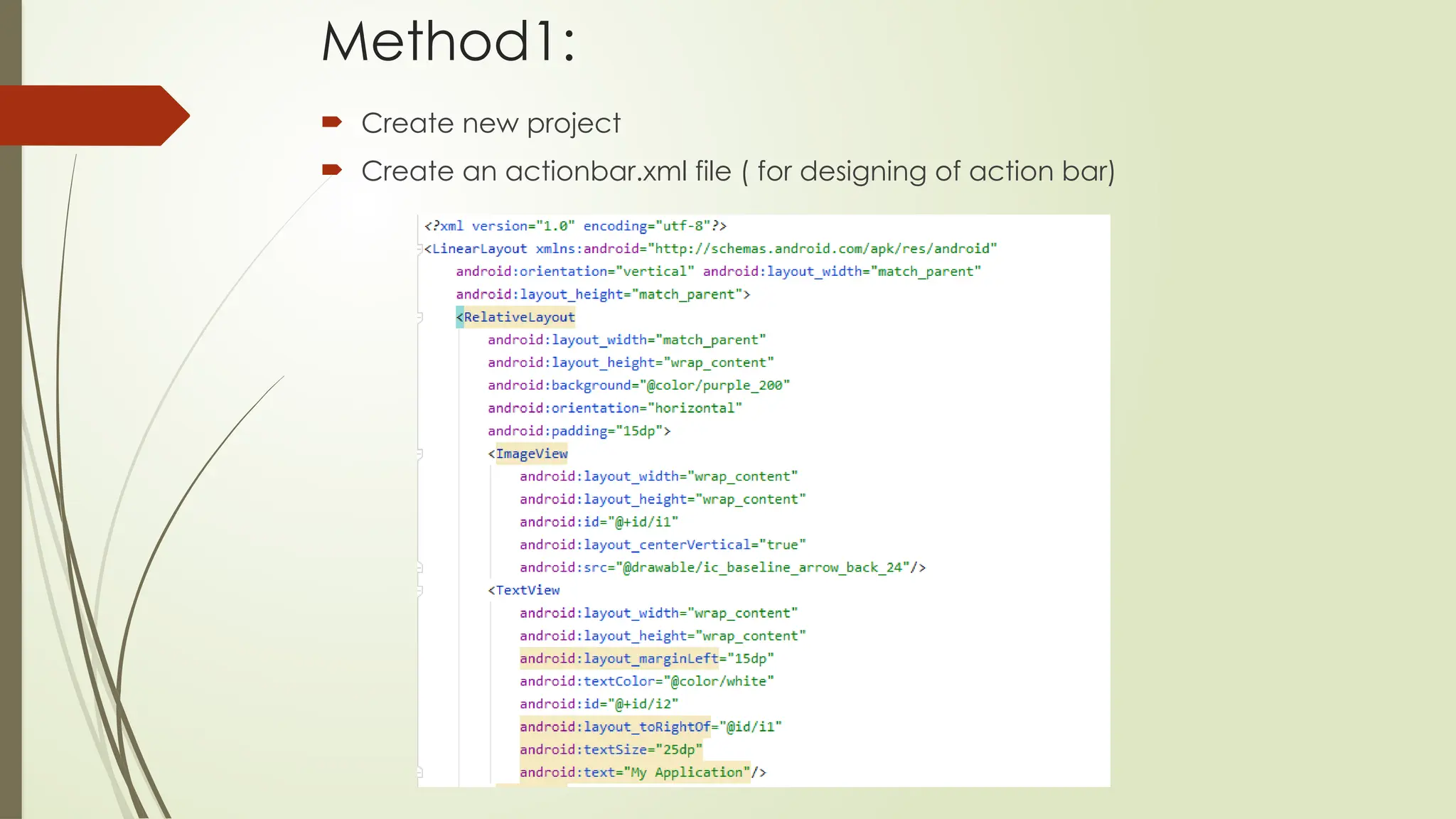
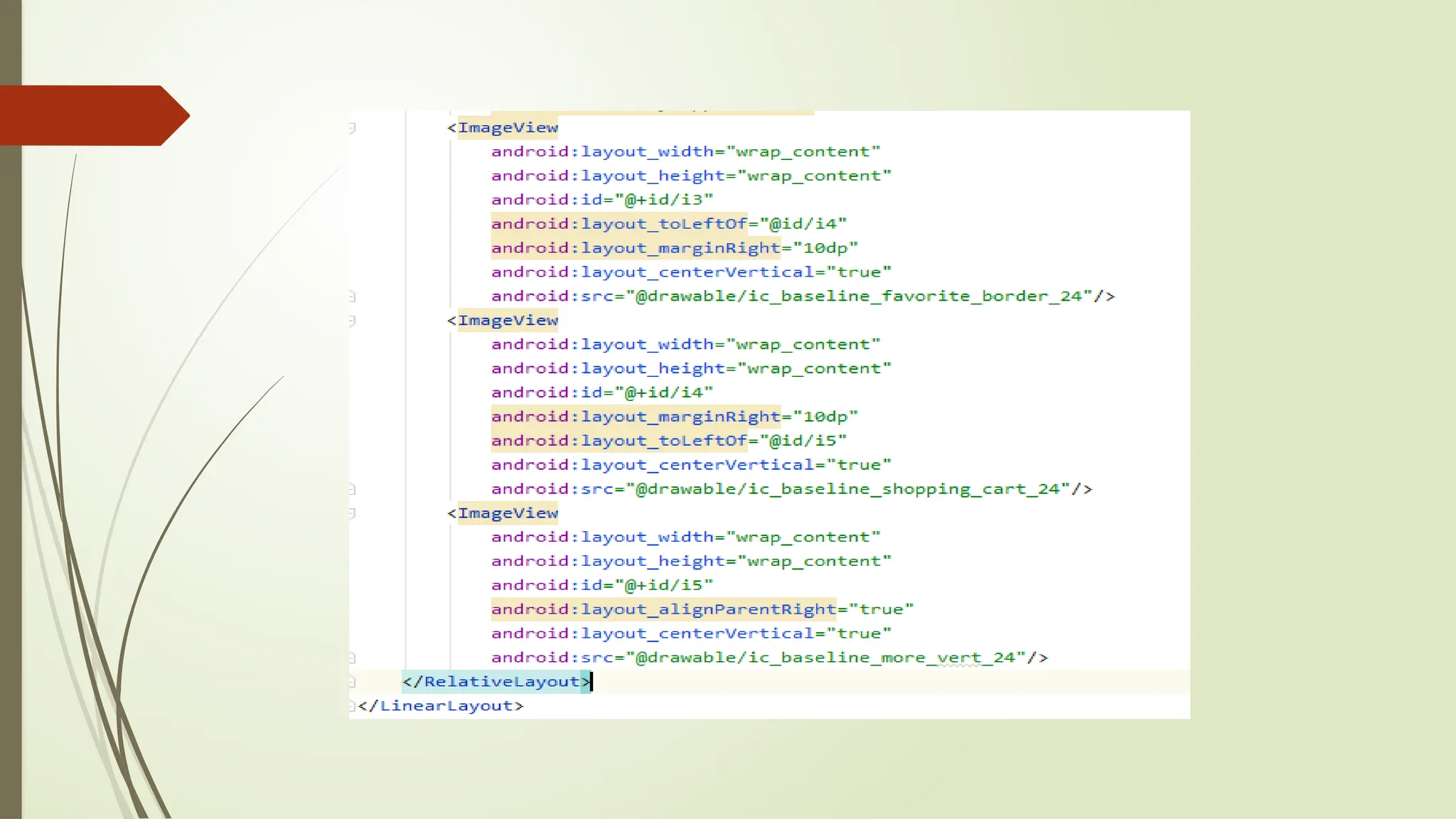
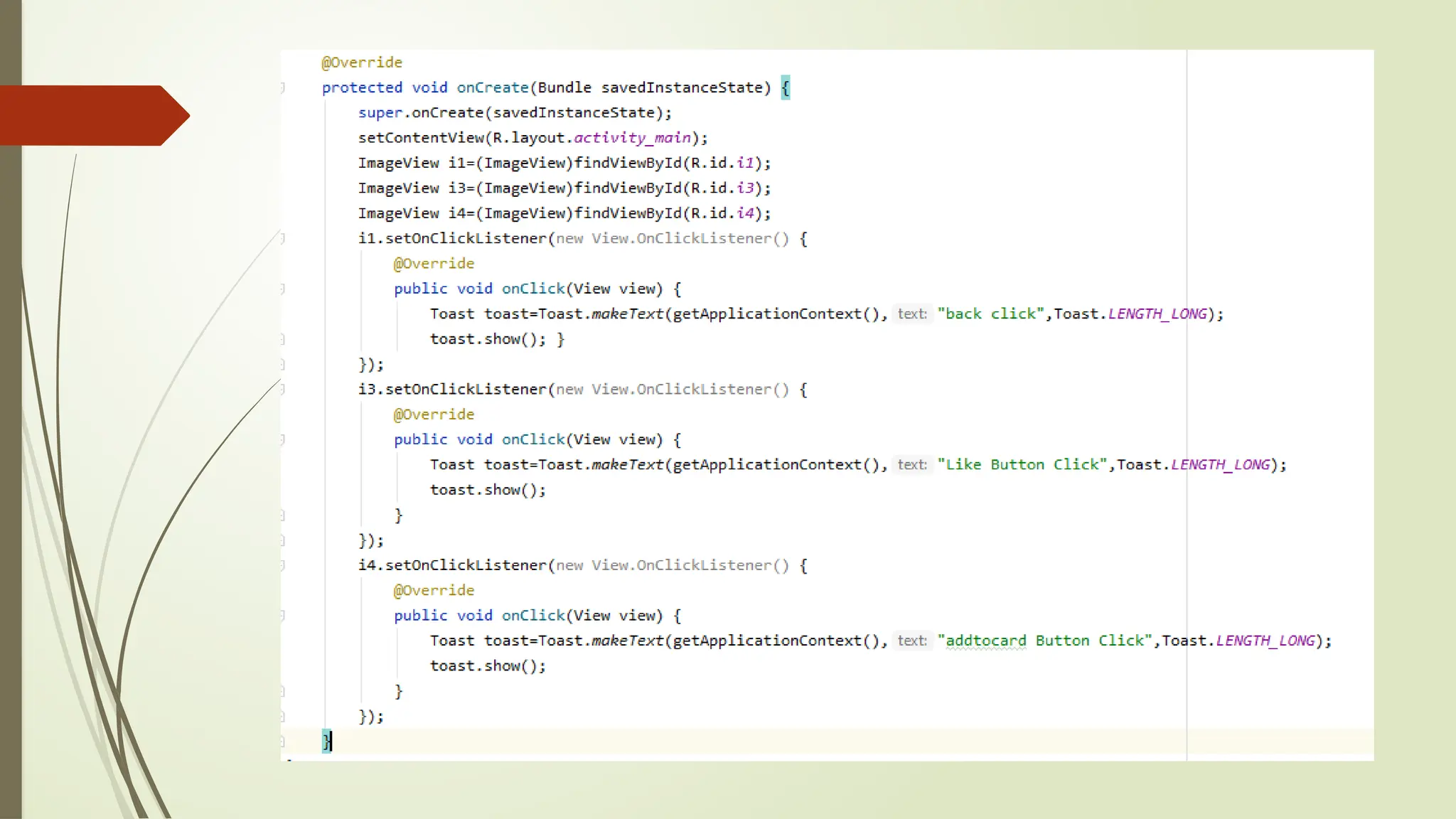
Method1:
 Create new project
 Create an actionbar.xml file ( for designing of action bar)
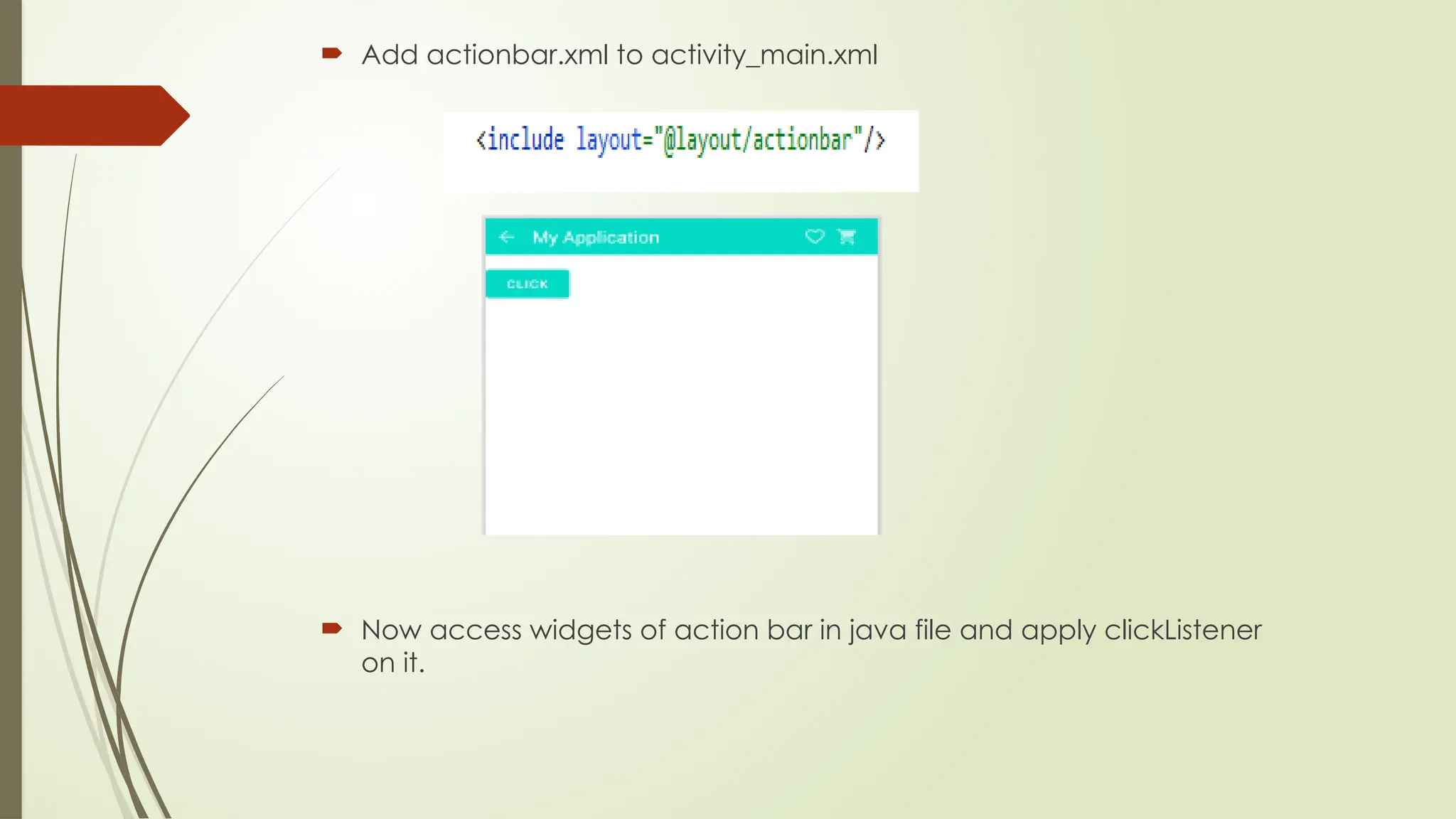
 Add actionbar.xml to activity_main.xml
 Now access widgets of action bar in java file and apply clickListener
on it.
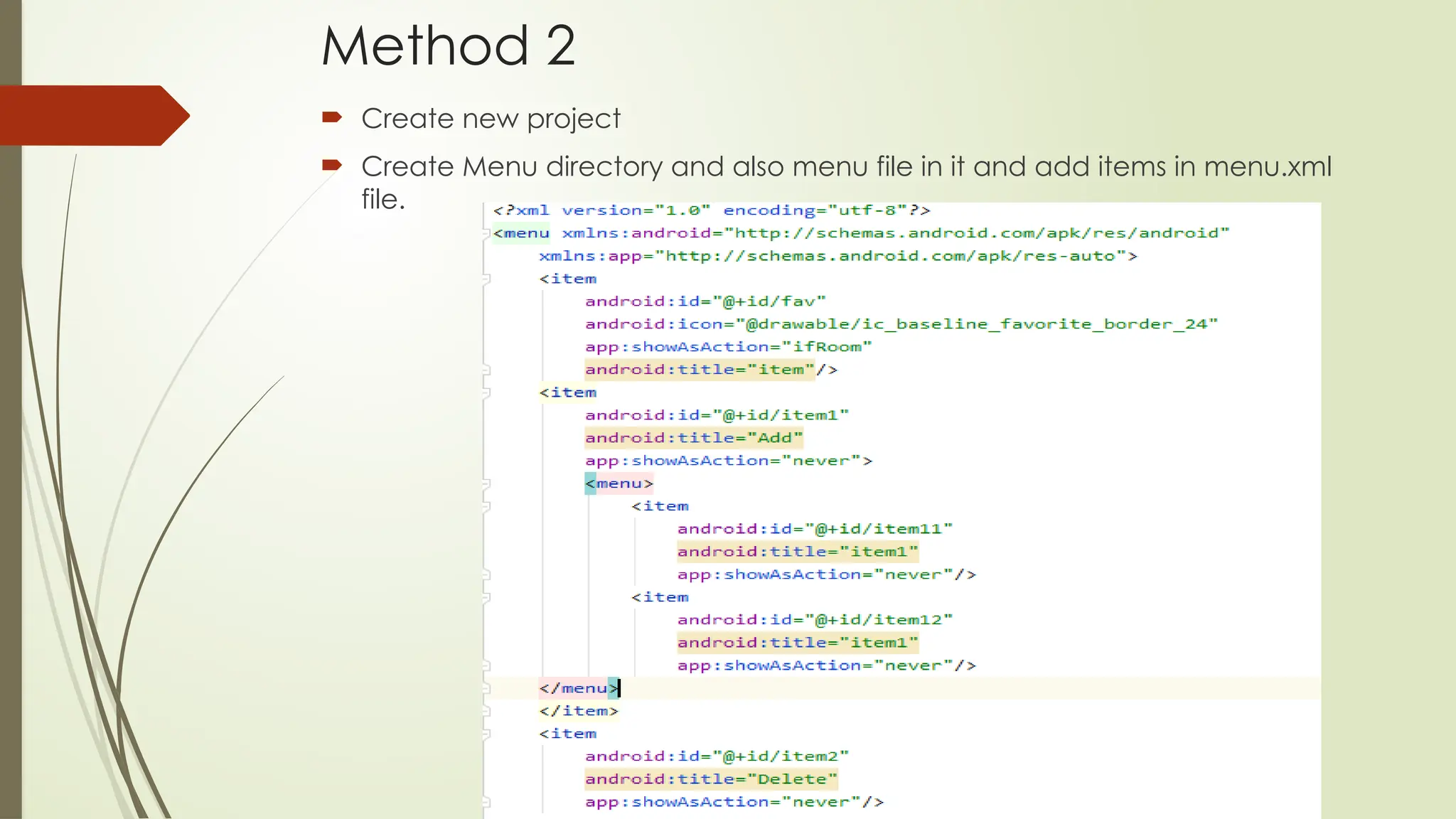
Method 2
 Create new project
 Create Menu directory and also menu file in it and add items in menu.xml
file.
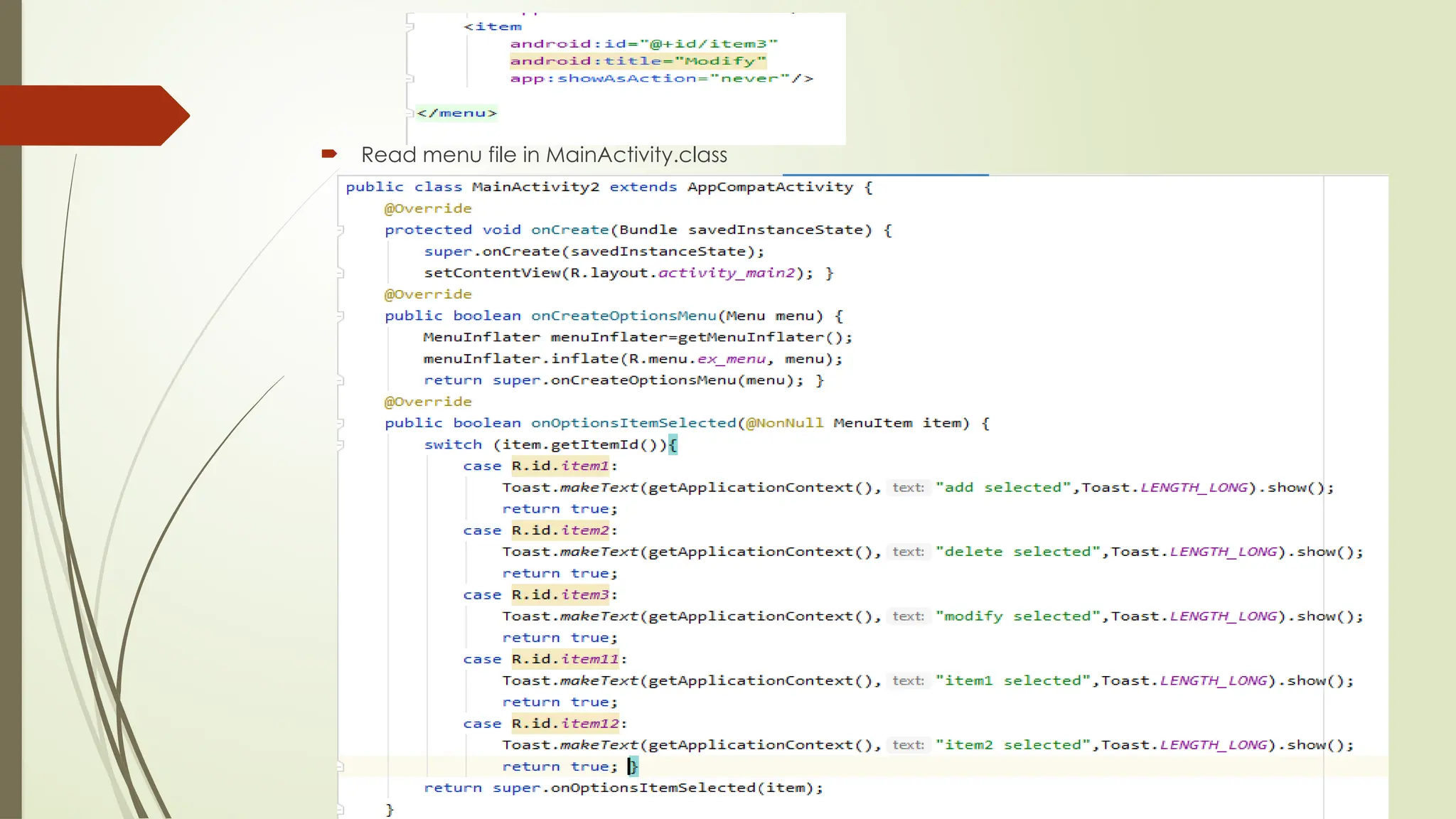
 Read menu file in MainActivity.class
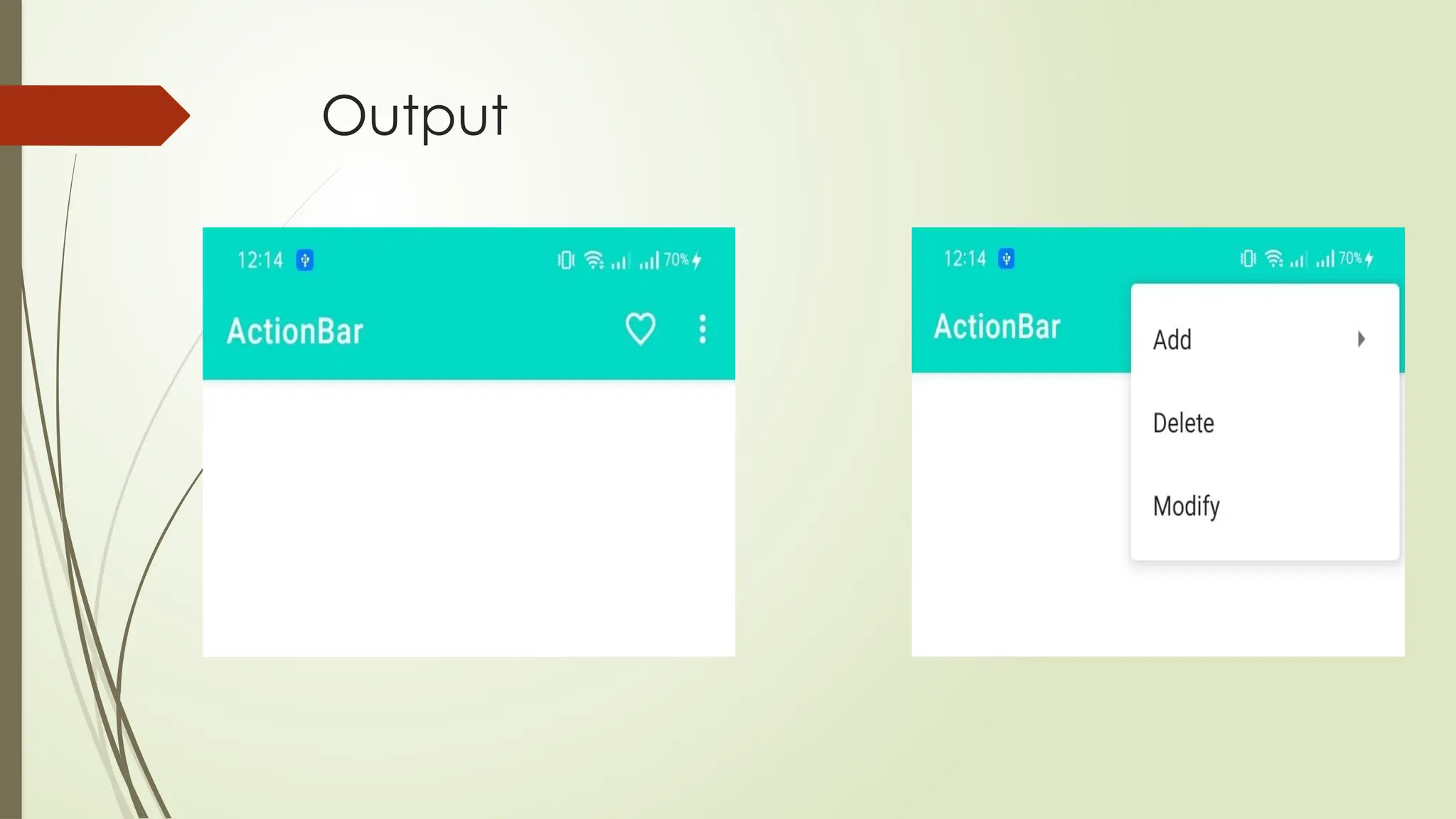
Output
CREATING THE USER INTERFACE
PROGRAMMATICALLY
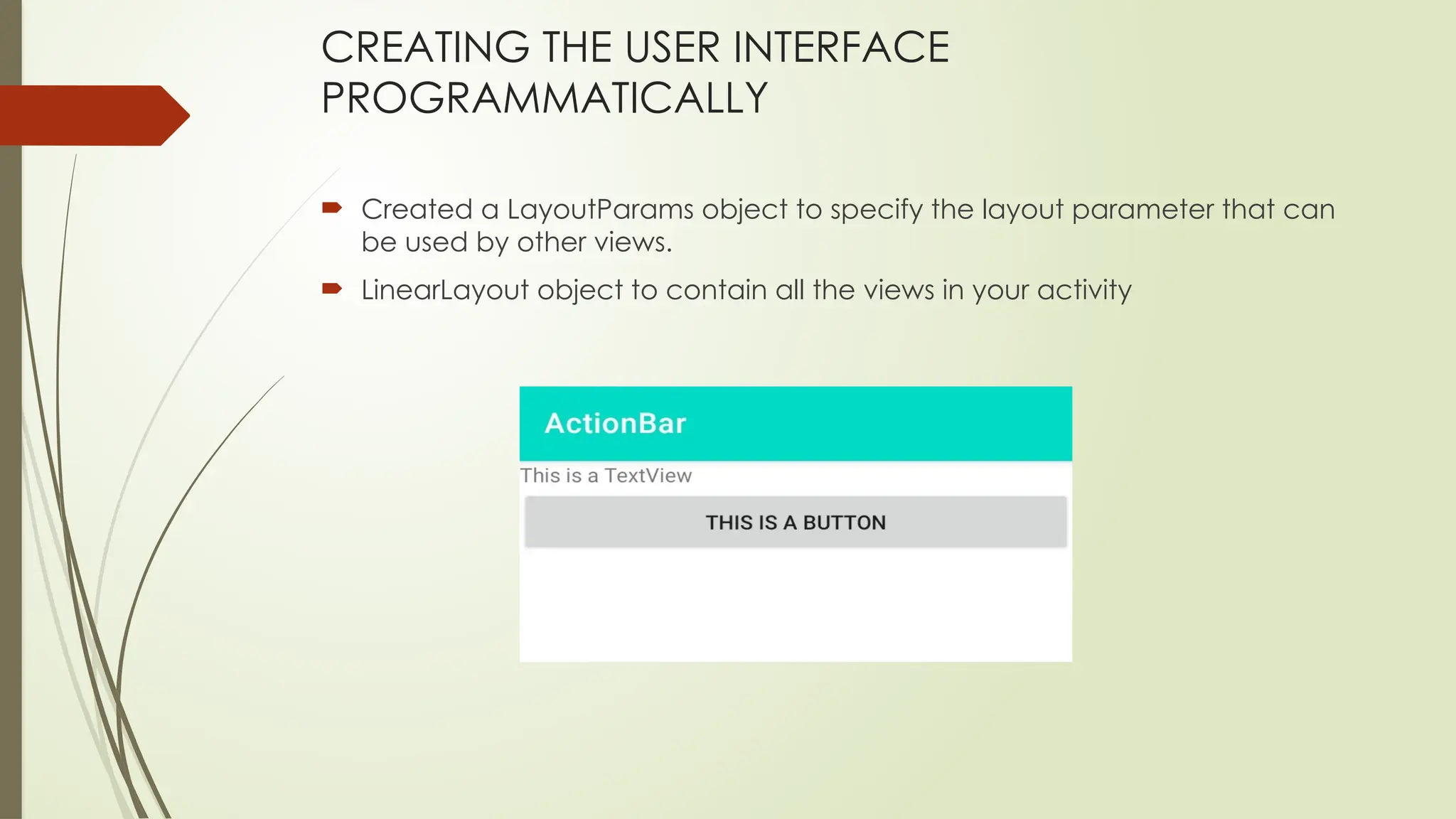
CREATING THE USER INTERFACE
PROGRAMMATICALLY
 Created a LayoutParams object to specify the layout parameter that can
be used by other views.
 LinearLayout object to contain all the views in your activity
LISTENING FOR UI NOTIFICATIONS
Users interact with your UI at two levels:
 activity level
 View level
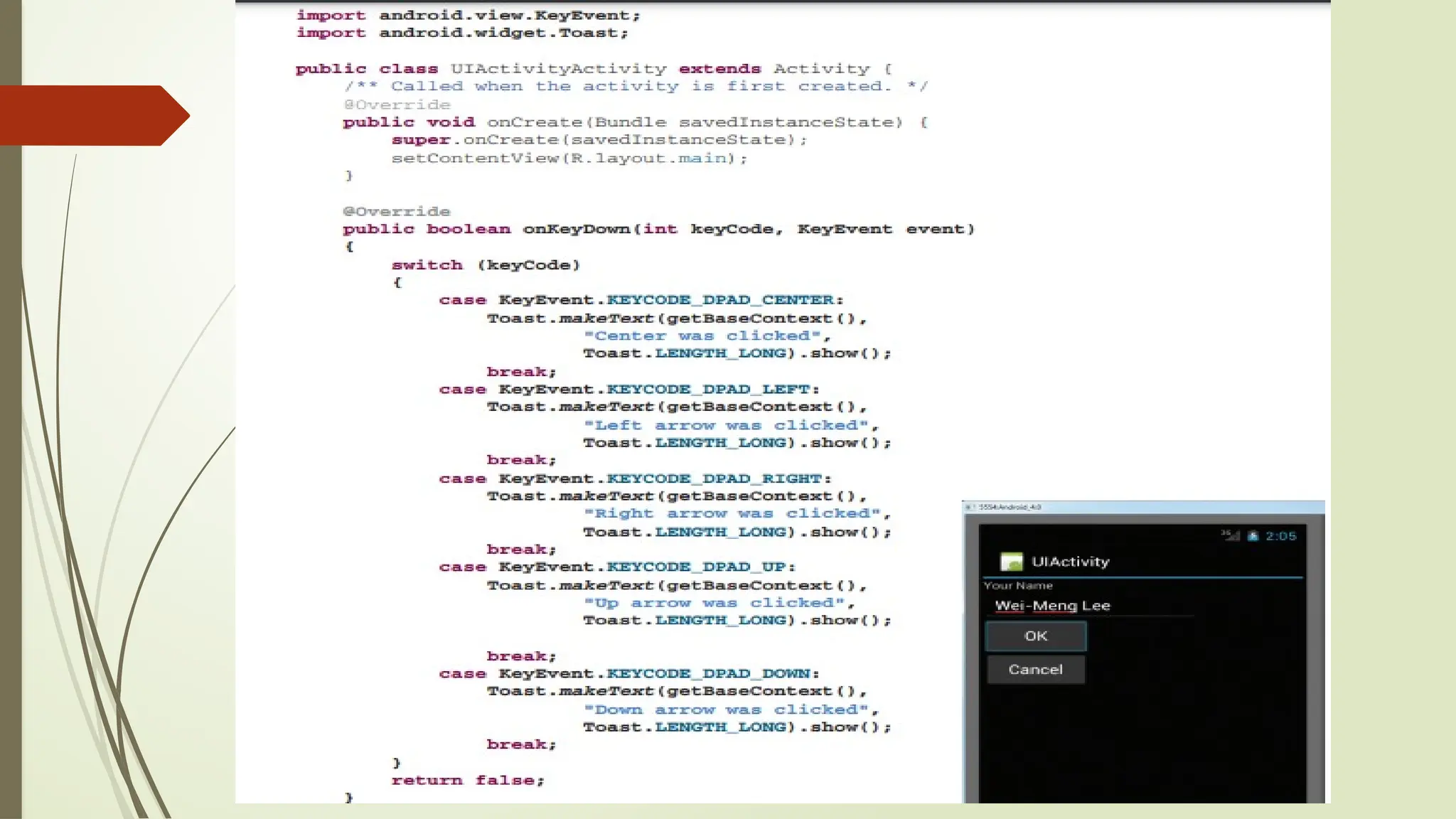
At the activity level, the Activity class exposes methods that you can override. Some
common methods that you can override in your activities include the following:
➤ onKeyDown — Called when a key was pressed and not handled by any of the
views contained within the activity
➤ onKeyUp — Called when a key was released and not handled by any of the views
contained within the activity
➤ onMenuItemSelected — Called when a panel’s menu item has been selected by
the user
➤ onMenuOpened — Called when a panel’s menu is opened by the user
Overriding Methods Defined in an
Activity
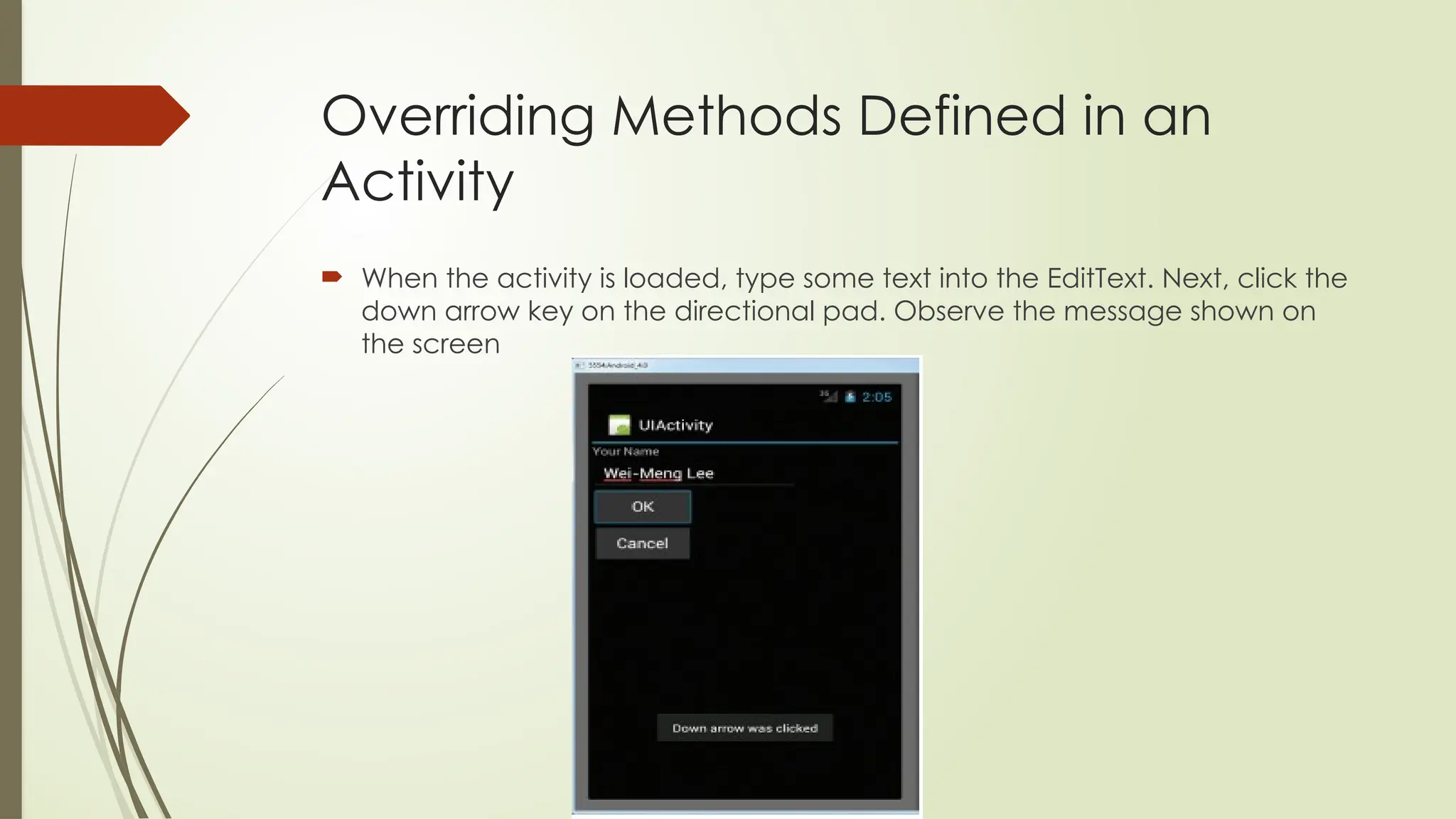
 When the activity is loaded, type some text into the EditText. Next, click the
down arrow key on the directional pad. Observe the message shown on
the screen
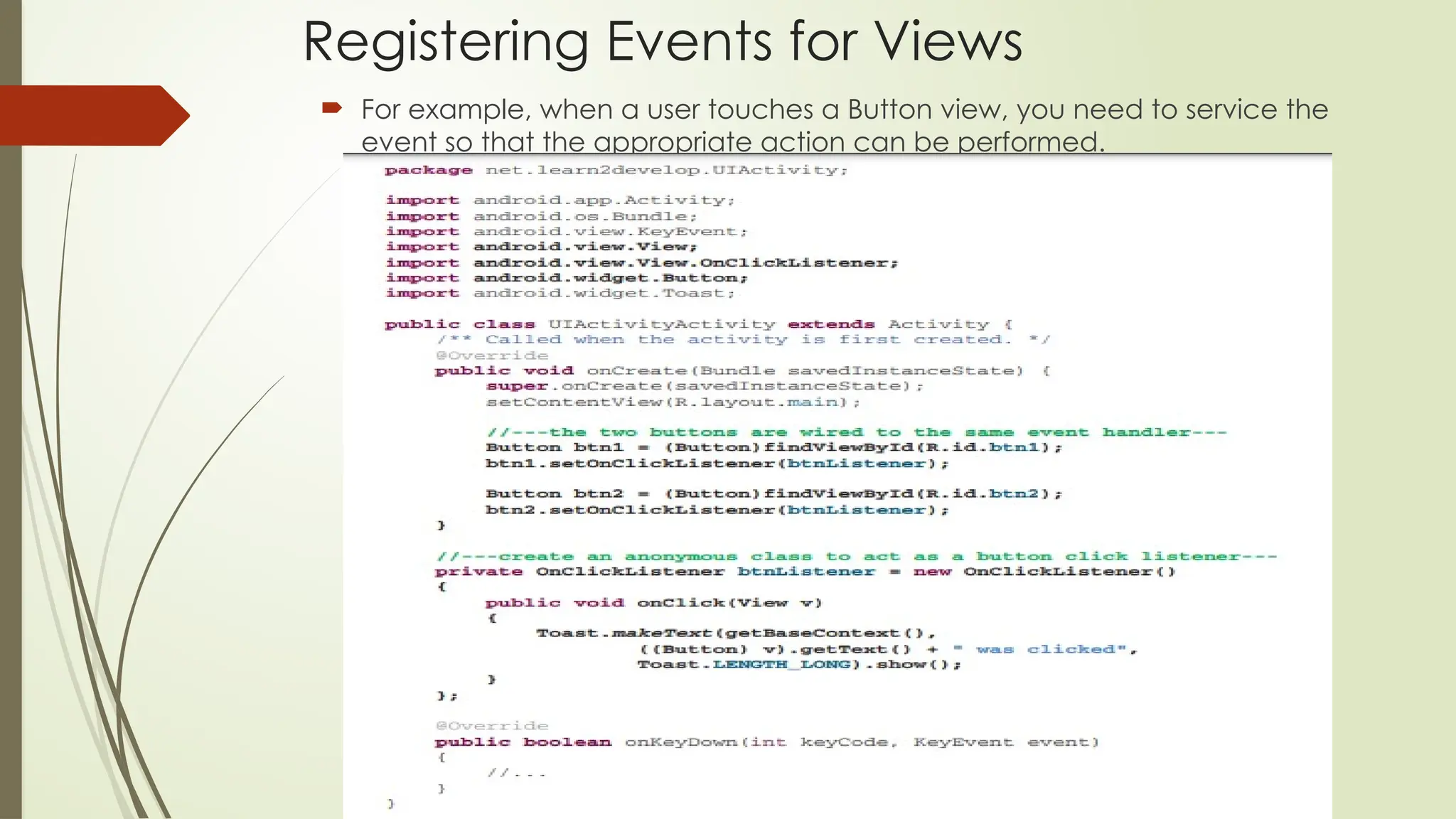
Registering Events for Views
 For example, when a user touches a Button view, you need to service the
event so that the appropriate action can be performed.
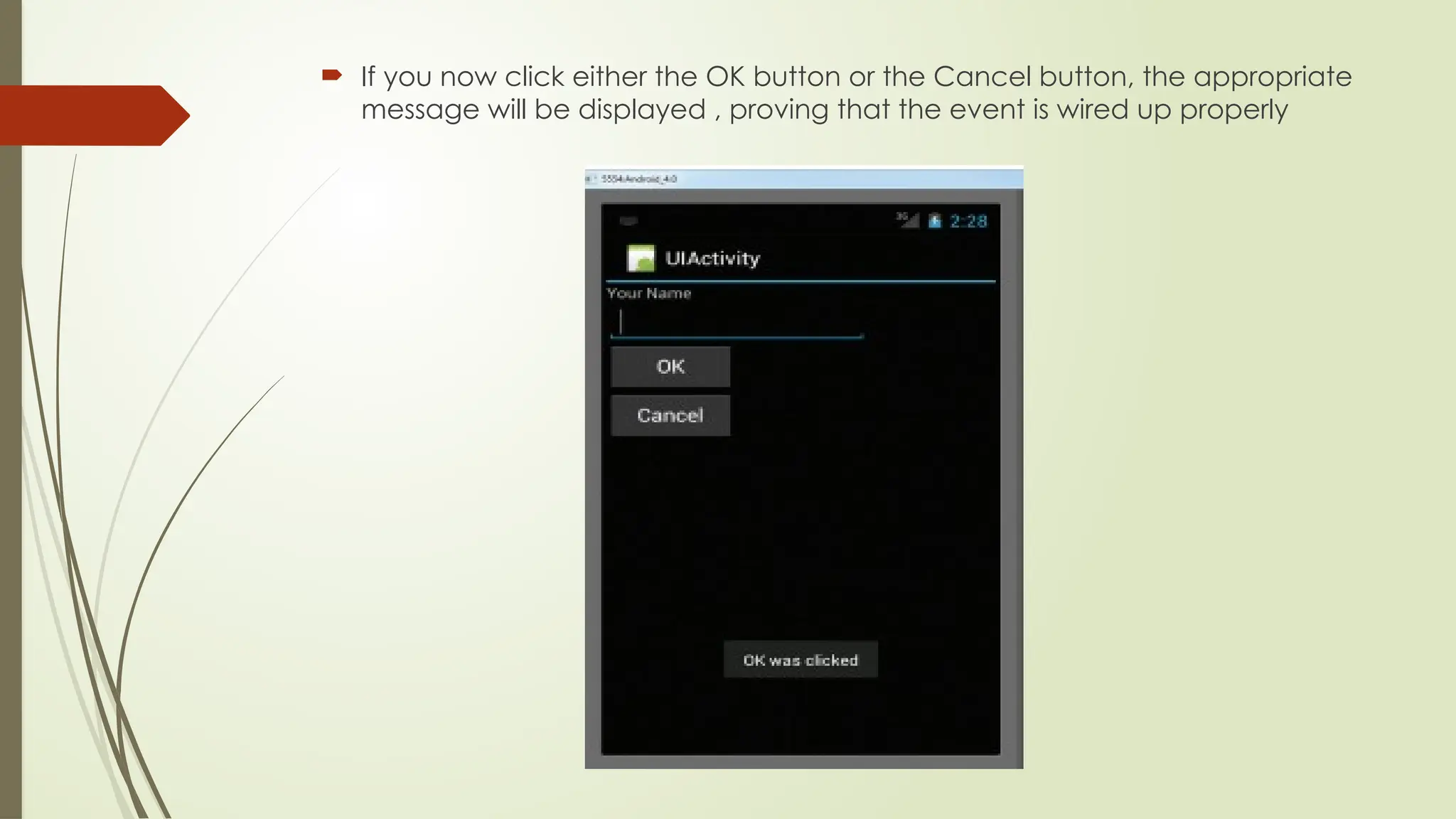
 If you now click either the OK button or the Cancel button, the appropriate
message will be displayed , proving that the event is wired up properly

actionbar in android development course.pptx

  • 1.
    Android Mobile App Development Lecture: UTILIZING THE ACTION BAR Managing CREATING THE USER INTERFACE PROGRAMMATICALLY LISTENING FOR UI NOTIFICATIONS
  • 2.
  • 3.
    how you canprogrammatically hide or display the Action Bar
  • 4.
    Programmatically remove theAction Bar using the ActionBar class  First need to remove the android:theme attribute you added in the Manifest file.
  • 5.
    Adding Action Itemsto the Action Bar  Besides displaying the application icon and the activity title on the left of the Action Bar, you can also display additional items on the Action Bar. These additional items are called action items.  Action items are shortcuts to some of the commonly performed operations in your application.  For example, you might be building an RSS reader application, in which case some of the action items might be “Refresh feed,” “Delete feed” and “Add new feed.”
  • 6.
    Method1:  Create newproject  Create an actionbar.xml file ( for designing of action bar)
  • 8.
     Add actionbar.xmlto activity_main.xml  Now access widgets of action bar in java file and apply clickListener on it.
  • 10.
    Method 2  Createnew project  Create Menu directory and also menu file in it and add items in menu.xml file.
  • 11.
     Read menufile in MainActivity.class
  • 12.
  • 13.
    CREATING THE USERINTERFACE PROGRAMMATICALLY
  • 14.
    CREATING THE USERINTERFACE PROGRAMMATICALLY  Created a LayoutParams object to specify the layout parameter that can be used by other views.  LinearLayout object to contain all the views in your activity
  • 15.
    LISTENING FOR UINOTIFICATIONS Users interact with your UI at two levels:  activity level  View level At the activity level, the Activity class exposes methods that you can override. Some common methods that you can override in your activities include the following: ➤ onKeyDown — Called when a key was pressed and not handled by any of the views contained within the activity ➤ onKeyUp — Called when a key was released and not handled by any of the views contained within the activity ➤ onMenuItemSelected — Called when a panel’s menu item has been selected by the user ➤ onMenuOpened — Called when a panel’s menu is opened by the user
  • 16.
    Overriding Methods Definedin an Activity  When the activity is loaded, type some text into the EditText. Next, click the down arrow key on the directional pad. Observe the message shown on the screen
  • 18.
    Registering Events forViews  For example, when a user touches a Button view, you need to service the event so that the appropriate action can be performed.
  • 19.
     If younow click either the OK button or the Cancel button, the appropriate message will be displayed , proving that the event is wired up properly