Image Acquisition Toolbox lets you acquire
images and video directly into MATLAB®
and Simulink® from PC-compatible imaging
hardware. You can detect hardware auto-
matically, configure hardware properties,
preview an acquisition, and acquire images
and video. With support for multiple hardware
vendors, you can use a range of imaging
devices from inexpensive Web cameras
or industrial frame grabbers to high-end
scientific cameras that meet low-light, high-
speed, and other challenging requirements.
Together, MATLAB, Image Acquisition
Toolbox, and Image Processing Toolbox
(available separately) provide a complete
environment for developing customized
imaging applications. You can acquire
images and video, visualize data, develop
processing algorithms and analysis tech-
niques, and create graphical user interfaces.
You can use Image Acquisition Toolbox
with Simulink and Video and Image
Processing Blockset (both available separately)
to simulate and model real-time embedded
imaging systems.
Acquire images and video from industry-standard hardware
Key features
■ Automatically detects image and video acquisition devices
■ 
Manages device configurations
■ 
Provides live video previewing
■ Acquires static images and continuous video
■ Enables in-the-loop image processing and analysis
■ Provides graphical user interface for working with devices
■ Supports devices for use with MATLAB and Simulink
■ Supports multiple hardware vendors
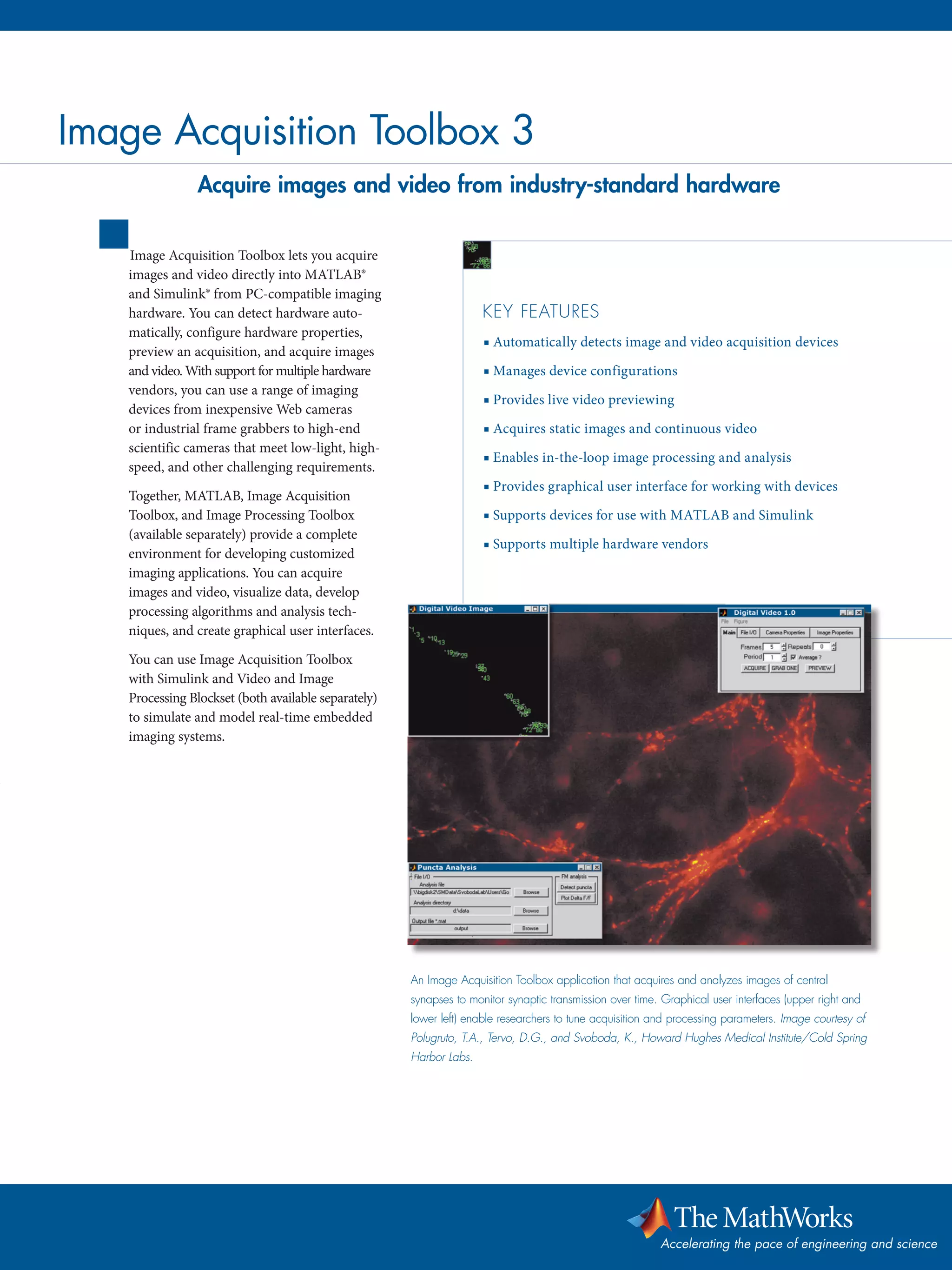
An Image Acquisition Toolbox application that acquires and analyzes images of central
synapses to monitor synaptic transmission over time. Graphical user interfaces (upper right and
lower left) enable researchers to tune acquisition and processing parameters. Image courtesy of
Polugruto, T.A., Tervo, D.G., and Svoboda, K., Howard Hughes Medical Institute/Cold Spring
Harbor Labs.
Accelerating the pace of engineering and science
Image Acquisition Toolbox 3
Working with
Image Acquisition Toolbox
Image Acquisition Toolbox helps you connect
to and configure your hardware, preview the
acquisition, and acquire and visualize image
data. You can use the toolbox from the Image
Acquisition Tool, the MATLAB command
line, or the From Video Device block within
Simulink. This lets you control your image
acquisition parameters and incorporate them
into M-scripts, applications built within
MATLAB, or Simulink models.
Within the toolbox, the Image Acquisition
Tool is a graphical user interface for working
with image and video acquisition devices
in MATLAB. With this tool, you can see
all hardware available on your PC, change
device settings, preview an acquisition,
control acquisition parameters, and acquire
image or video data. You can also record
data directly to an AVI file or export hard-
ware configuration settings to an M-file so
that you can incorporate them into other
MATLAB scripts.
Connecting to Hardware
Image Acquisition Toolbox automatically
detects compatible image and video
acquisition devices. The connection to your
devices is encapsulated as an object, pro-
viding an interface for configuration and
acquisition. You can create multiple connec-
tion objects for simultaneous acquisition
from as many devices as your PC and
imaging hardware support.
Configuring Hardware
The toolbox provides a consistent inter-
face across multiple hardware devices and
vendors, simplifying the configuration
process. You configure your hardware by
using the Image Acquisition Tool or by
modifying the properties of the object asso-
ciated with the hardware on the MATLAB
command line. The toolbox also supports
camera files from hardware vendors.
You can set base properties that are common
to all supported hardware. These can include
video format, resolution, region of interest
(ROI), and returned color space. You can
also set device-specific properties, such as
hue, saturation, brightness, frame rate, con-
trast, and video sync if your device supports
these properties.
Previewing the Acquisition
Image Acquisition Toolbox video preview
window helps you verify and optimize your
acquisition parameters. It instantly reflects
any adjustments that you make to acquisition
properties. The Image Acquisition Tool has
a built-in preview window, and you can add
one to any application built with MATLAB.
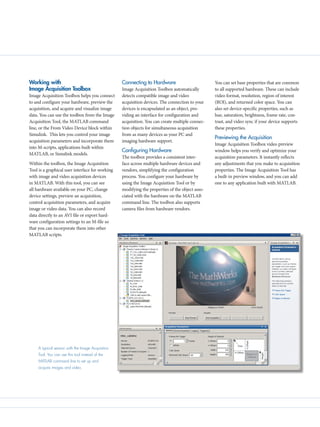
A typical session with the Image Acquisition
Tool. You can use this tool instead of the
MATLAB command line to set up and
acquire images and video.
Acquiring Image Data
Image Acquisition Toolbox can continuously
acquire image data while you are processing
the acquired data in MATLAB or Simulink.
The toolbox automatically buffers acquired
data into memory, handles memory and
buffer management, and enables acquisi-
tion from an ROI. Data can be acquired in
a wide range of data types, including signed
or unsigned 8-, 16-, and 32-bit integers and
single- or double-precision floating point.
The toolbox supports any color space pro-
vided by the image acquisition device, such as
RGB, YUV, or grayscale. Raw sensor data in a
Bayer pattern can be automatically converted
into RGB data. The toolbox supports any
frame rate and video resolution supported by
your PC and imaging hardware.
Performing Image Acquisition
in Simulink
Image Acquisition Toolbox provides a
Simulink block that captures image or video
data directly from any device supported
by the toolbox. Along with the Video and
Image Processing Blockset you can perform
simulation and verification of image or video
processing system designs with live image or
video data.
Advanced Acquisition Features
Image Acquisition Toolbox supports three
trigger types: immediate, manual, and
hardware. Hardware triggers, which are
device-specific, let you synchronize your
acquisition to an external signal.
www.mathworks.com
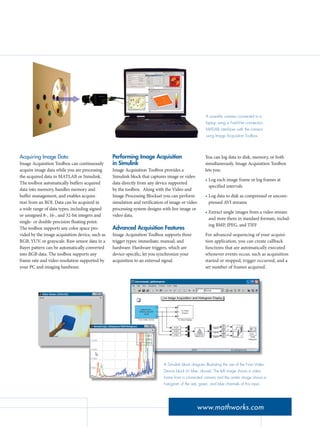
A scientific camera connected to a
laptop using a FireWire connection.
MATLAB interfaces with the camera
using Image Acquisition Toolbox.
A Simulink block diagram illustrating the use of the From Video
Device block (in blue, above). The left image shows a video
frame from a connected camera and the center image shows a
histogram of the red, green, and blue channels of this input.
You can log data to disk, memory, or both
simultaneously. Image Acquisition Toolbox
lets you:
Log each image frame or log frames at
specified intervals
Log data to disk as compressed or uncom-
pressed AVI streams
Extract single images from a video stream
and store them in standard formats, includ-
ing BMP, JPEG, and TIFF
For advanced sequencing of your acquisi-
tion application, you can create callback
functions that are automatically executed
whenever events occur, such as acquisition
started or stopped, trigger occurred, and a
set number of frames acquired.
•
•
•
Required Products
MATLAB
Related Products
Simulink. Simulation and Model-Based
Design
Image Processing Toolbox. Perform image
processing, analysis, and algorithm development
MATLAB® Compiler. Build stand-alone
executables and software components from
MATLAB code
Video and Image Processing Blockset.
Design and simulate video and image
processing systems
For more information on related products,
visit www.mathworks.com/products/imaq
Supported Hardware
Image Acquisition Toolbox supports
imaging hardware from:
DALSA Coreco
Data Translation
Hamamatsu
Matrox Imaging
National Instruments
QImaging
Thetoolboxalsosupportsthefollowinginterfaces:
FireWire imaging devices that adhere to
DCAM (IIDC 1394-based Digital Camera
Specification)
DirectX-compatible devices that include a
Windows Driver Model (WDM) or Video
for Windows (VFW) driver
Camera Link devices from the supported
hardware list
•
•
•
•
•
•
•
•
•
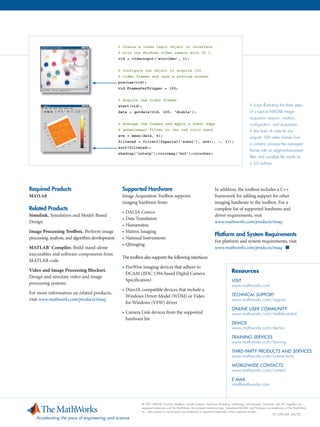
A script illustrating the three steps
of a typical MATLAB image
acquisition session: creation,
configuration, and acquisition.
A few lines of code let you
acquire 100 video frames from
a camera, process the averaged
frames with an edge-enhancement
filter, and visualize the results as
a 3-D surface.
% Create a video input object to interface
% with the Windows video camera with ID 1.
vid = videoinput(‘winvideo’, 1);
% Configure the object to acquire 100
% video frames and open a preview window.
preview(vid);
vid.FramesPerTrigger = 100;
% Acquire the video frames.
start(vid);
data = getdata(vid, 100, ‘double’);
% Average the frames and apply a Sobel edge
% enhancement filter to the red color band.
ave = mean(data, 4);
filtered = filter2(fspecial(‘sobel’), ave(:, :, 1));
surf(filtered);
shading(‘interp’);colormap(‘hot’);colorbar;
© 2007 MATLAB, Simulink, Stateflow, Handle Graphics, Real-Time Workshop, SimBiology, SimHydraulics, SimEvents, and xPC TargetBox are
registered trademarks and The MathWorks, the L-shaped membrane logo, Embedded MATLAB, and PolySpace are trademarks of The MathWorks,
Inc. Other product or brand names are trademarks or registered trademarks of their respective holders.
Resources
visit
www.mathworks.com
Technical Support
www.mathworks.com/support
Online User Community
www.mathworks.com/matlabcentral
Demos
www.mathworks.com/demos
Training Services
www.mathworks.com/training
Third-Party Products and Services
www.mathworks.com/connections
Worldwide CONTACTS
www.mathworks.com/contact
e-mail
info@mathworks.com
Accelerating the pace of engineering and science
91109v04 09/07
In addition, the toolbox includes a C++
framework for adding support for other
imaging hardware to the toolbox. For a
complete list of supported hardware and
driver requirements, visit
www.mathworks.com/products/imaq
Platform and System Requirements
For platform and system requirements, visit
www.mathworks.com/products/imaq ■

91109v04.pdf

  • 1.
    Image Acquisition Toolboxlets you acquire images and video directly into MATLAB® and Simulink® from PC-compatible imaging hardware. You can detect hardware auto- matically, configure hardware properties, preview an acquisition, and acquire images and video. With support for multiple hardware vendors, you can use a range of imaging devices from inexpensive Web cameras or industrial frame grabbers to high-end scientific cameras that meet low-light, high- speed, and other challenging requirements. Together, MATLAB, Image Acquisition Toolbox, and Image Processing Toolbox (available separately) provide a complete environment for developing customized imaging applications. You can acquire images and video, visualize data, develop processing algorithms and analysis tech- niques, and create graphical user interfaces. You can use Image Acquisition Toolbox with Simulink and Video and Image Processing Blockset (both available separately) to simulate and model real-time embedded imaging systems. Acquire images and video from industry-standard hardware Key features ■ Automatically detects image and video acquisition devices ■ Manages device configurations ■ Provides live video previewing ■ Acquires static images and continuous video ■ Enables in-the-loop image processing and analysis ■ Provides graphical user interface for working with devices ■ Supports devices for use with MATLAB and Simulink ■ Supports multiple hardware vendors An Image Acquisition Toolbox application that acquires and analyzes images of central synapses to monitor synaptic transmission over time. Graphical user interfaces (upper right and lower left) enable researchers to tune acquisition and processing parameters. Image courtesy of Polugruto, T.A., Tervo, D.G., and Svoboda, K., Howard Hughes Medical Institute/Cold Spring Harbor Labs. Accelerating the pace of engineering and science Image Acquisition Toolbox 3
  • 2.
    Working with Image AcquisitionToolbox Image Acquisition Toolbox helps you connect to and configure your hardware, preview the acquisition, and acquire and visualize image data. You can use the toolbox from the Image Acquisition Tool, the MATLAB command line, or the From Video Device block within Simulink. This lets you control your image acquisition parameters and incorporate them into M-scripts, applications built within MATLAB, or Simulink models. Within the toolbox, the Image Acquisition Tool is a graphical user interface for working with image and video acquisition devices in MATLAB. With this tool, you can see all hardware available on your PC, change device settings, preview an acquisition, control acquisition parameters, and acquire image or video data. You can also record data directly to an AVI file or export hard- ware configuration settings to an M-file so that you can incorporate them into other MATLAB scripts. Connecting to Hardware Image Acquisition Toolbox automatically detects compatible image and video acquisition devices. The connection to your devices is encapsulated as an object, pro- viding an interface for configuration and acquisition. You can create multiple connec- tion objects for simultaneous acquisition from as many devices as your PC and imaging hardware support. Configuring Hardware The toolbox provides a consistent inter- face across multiple hardware devices and vendors, simplifying the configuration process. You configure your hardware by using the Image Acquisition Tool or by modifying the properties of the object asso- ciated with the hardware on the MATLAB command line. The toolbox also supports camera files from hardware vendors. You can set base properties that are common to all supported hardware. These can include video format, resolution, region of interest (ROI), and returned color space. You can also set device-specific properties, such as hue, saturation, brightness, frame rate, con- trast, and video sync if your device supports these properties. Previewing the Acquisition Image Acquisition Toolbox video preview window helps you verify and optimize your acquisition parameters. It instantly reflects any adjustments that you make to acquisition properties. The Image Acquisition Tool has a built-in preview window, and you can add one to any application built with MATLAB. A typical session with the Image Acquisition Tool. You can use this tool instead of the MATLAB command line to set up and acquire images and video.
  • 3.
    Acquiring Image Data ImageAcquisition Toolbox can continuously acquire image data while you are processing the acquired data in MATLAB or Simulink. The toolbox automatically buffers acquired data into memory, handles memory and buffer management, and enables acquisi- tion from an ROI. Data can be acquired in a wide range of data types, including signed or unsigned 8-, 16-, and 32-bit integers and single- or double-precision floating point. The toolbox supports any color space pro- vided by the image acquisition device, such as RGB, YUV, or grayscale. Raw sensor data in a Bayer pattern can be automatically converted into RGB data. The toolbox supports any frame rate and video resolution supported by your PC and imaging hardware. Performing Image Acquisition in Simulink Image Acquisition Toolbox provides a Simulink block that captures image or video data directly from any device supported by the toolbox. Along with the Video and Image Processing Blockset you can perform simulation and verification of image or video processing system designs with live image or video data. Advanced Acquisition Features Image Acquisition Toolbox supports three trigger types: immediate, manual, and hardware. Hardware triggers, which are device-specific, let you synchronize your acquisition to an external signal. www.mathworks.com A scientific camera connected to a laptop using a FireWire connection. MATLAB interfaces with the camera using Image Acquisition Toolbox. A Simulink block diagram illustrating the use of the From Video Device block (in blue, above). The left image shows a video frame from a connected camera and the center image shows a histogram of the red, green, and blue channels of this input. You can log data to disk, memory, or both simultaneously. Image Acquisition Toolbox lets you: Log each image frame or log frames at specified intervals Log data to disk as compressed or uncom- pressed AVI streams Extract single images from a video stream and store them in standard formats, includ- ing BMP, JPEG, and TIFF For advanced sequencing of your acquisi- tion application, you can create callback functions that are automatically executed whenever events occur, such as acquisition started or stopped, trigger occurred, and a set number of frames acquired. • • •
  • 4.
    Required Products MATLAB Related Products Simulink.Simulation and Model-Based Design Image Processing Toolbox. Perform image processing, analysis, and algorithm development MATLAB® Compiler. Build stand-alone executables and software components from MATLAB code Video and Image Processing Blockset. Design and simulate video and image processing systems For more information on related products, visit www.mathworks.com/products/imaq Supported Hardware Image Acquisition Toolbox supports imaging hardware from: DALSA Coreco Data Translation Hamamatsu Matrox Imaging National Instruments QImaging Thetoolboxalsosupportsthefollowinginterfaces: FireWire imaging devices that adhere to DCAM (IIDC 1394-based Digital Camera Specification) DirectX-compatible devices that include a Windows Driver Model (WDM) or Video for Windows (VFW) driver Camera Link devices from the supported hardware list • • • • • • • • • A script illustrating the three steps of a typical MATLAB image acquisition session: creation, configuration, and acquisition. A few lines of code let you acquire 100 video frames from a camera, process the averaged frames with an edge-enhancement filter, and visualize the results as a 3-D surface. % Create a video input object to interface % with the Windows video camera with ID 1. vid = videoinput(‘winvideo’, 1); % Configure the object to acquire 100 % video frames and open a preview window. preview(vid); vid.FramesPerTrigger = 100; % Acquire the video frames. start(vid); data = getdata(vid, 100, ‘double’); % Average the frames and apply a Sobel edge % enhancement filter to the red color band. ave = mean(data, 4); filtered = filter2(fspecial(‘sobel’), ave(:, :, 1)); surf(filtered); shading(‘interp’);colormap(‘hot’);colorbar; © 2007 MATLAB, Simulink, Stateflow, Handle Graphics, Real-Time Workshop, SimBiology, SimHydraulics, SimEvents, and xPC TargetBox are registered trademarks and The MathWorks, the L-shaped membrane logo, Embedded MATLAB, and PolySpace are trademarks of The MathWorks, Inc. Other product or brand names are trademarks or registered trademarks of their respective holders. Resources visit www.mathworks.com Technical Support www.mathworks.com/support Online User Community www.mathworks.com/matlabcentral Demos www.mathworks.com/demos Training Services www.mathworks.com/training Third-Party Products and Services www.mathworks.com/connections Worldwide CONTACTS www.mathworks.com/contact e-mail info@mathworks.com Accelerating the pace of engineering and science 91109v04 09/07 In addition, the toolbox includes a C++ framework for adding support for other imaging hardware to the toolbox. For a complete list of supported hardware and driver requirements, visit www.mathworks.com/products/imaq Platform and System Requirements For platform and system requirements, visit www.mathworks.com/products/imaq ■