1
CSE 390a
Lecture 5
Intro to shell scripting
slides created by Marty Stepp, modified by Jessica Miller & Ruth Anderson
http://www.cs.washington.edu/390a/
2
Lecture summary
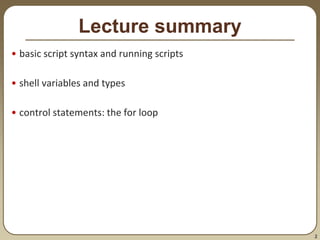
• basic script syntax and running scripts
• shell variables and types
• control statements: the for loop
3
Shell scripts
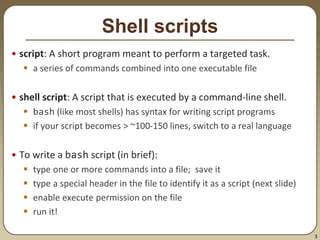
• script: A short program meant to perform a targeted task.
 a series of commands combined into one executable file
• shell script: A script that is executed by a command-line shell.
 bash (like most shells) has syntax for writing script programs
 if your script becomes > ~100-150 lines, switch to a real language
• To write a bash script (in brief):
 type one or more commands into a file; save it
 type a special header in the file to identify it as a script (next slide)
 enable execute permission on the file
 run it!
4
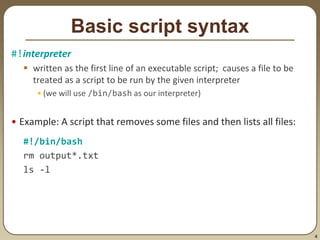
Basic script syntax
#!interpreter
 written as the first line of an executable script; causes a file to be
treated as a script to be run by the given interpreter
• (we will use /bin/bash as our interpreter)
• Example: A script that removes some files and then lists all files:
#!/bin/bash
rm output*.txt
ls -l
5
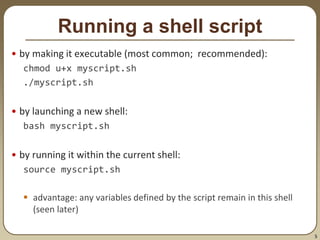
Running a shell script
• by making it executable (most common; recommended):
chmod u+x myscript.sh
./myscript.sh
• by launching a new shell:
bash myscript.sh
• by running it within the current shell:
source myscript.sh
 advantage: any variables defined by the script remain in this shell
(seen later)
6
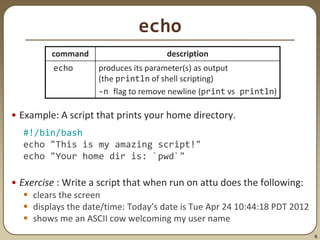
echo
• Example: A script that prints your home directory.
#!/bin/bash
echo "This is my amazing script!"
echo "Your home dir is: `pwd`"
• Exercise : Write a script that when run on attu does the following:
 clears the screen
 displays the date/time: Today’s date is Tue Apr 24 10:44:18 PDT 2012
 shows me an ASCII cow welcoming my user name
command description
echo produces its parameter(s) as output
(the println of shell scripting)
-n flag to remove newline (print vs println)
7
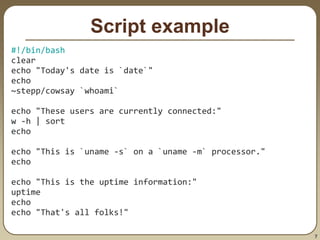
Script example
#!/bin/bash
clear
echo "Today's date is `date`"
echo
~stepp/cowsay `whoami`
echo "These users are currently connected:"
w -h | sort
echo
echo "This is `uname -s` on a `uname -m` processor."
echo
echo "This is the uptime information:"
uptime
echo
echo "That's all folks!"
8
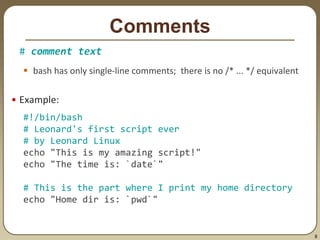
Comments
# comment text
 bash has only single-line comments; there is no /* ... */ equivalent
• Example:
#!/bin/bash
# Leonard's first script ever
# by Leonard Linux
echo "This is my amazing script!"
echo "The time is: `date`"
# This is the part where I print my home directory
echo "Home dir is: `pwd`"
9
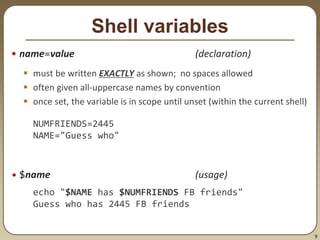
Shell variables
• name=value (declaration)
 must be written EXACTLY as shown; no spaces allowed
 often given all-uppercase names by convention
 once set, the variable is in scope until unset (within the current shell)
NUMFRIENDS=2445
NAME="Guess who"
• $name (usage)
echo "$NAME has $NUMFRIENDS FB friends"
Guess who has 2445 FB friends
10
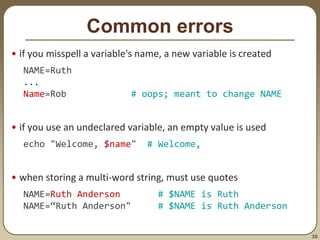
Common errors
• if you misspell a variable's name, a new variable is created
NAME=Ruth
...
Name=Rob # oops; meant to change NAME
• if you use an undeclared variable, an empty value is used
echo "Welcome, $name" # Welcome,
• when storing a multi-word string, must use quotes
NAME=Ruth Anderson # $NAME is Ruth
NAME=“Ruth Anderson" # $NAME is Ruth Anderson
11
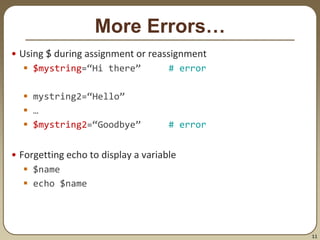
More Errors…
• Using $ during assignment or reassignment
 $mystring=“Hi there” # error
 mystring2=“Hello”
 …
 $mystring2=“Goodbye” # error
• Forgetting echo to display a variable
 $name
 echo $name
12
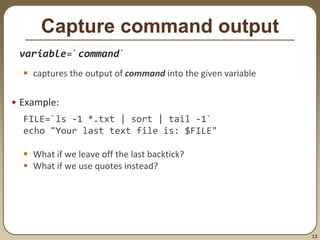
Capture command output
variable=`command`
 captures the output of command into the given variable
• Example:
FILE=`ls -1 *.txt | sort | tail -1`
echo "Your last text file is: $FILE"
 What if we leave off the last backtick?
 What if we use quotes instead?
13
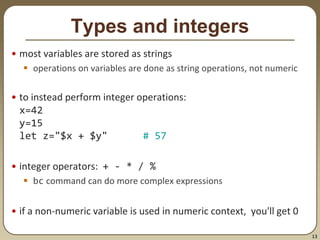
Types and integers
• most variables are stored as strings
 operations on variables are done as string operations, not numeric
• to instead perform integer operations:
x=42
y=15
let z="$x + $y" # 57
• integer operators: + - * / %
 bc command can do more complex expressions
• if a non-numeric variable is used in numeric context, you'll get 0
14
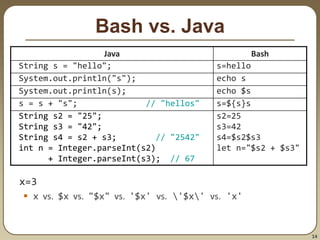
Bash vs. Java
x=3
 x vs. $x vs. "$x" vs. '$x' vs. '$x' vs. 'x'
Java Bash
String s = "hello"; s=hello
System.out.println("s"); echo s
System.out.println(s); echo $s
s = s + "s"; // "hellos" s=${s}s
String s2 = "25";
String s3 = "42";
String s4 = s2 + s3; // "2542"
int n = Integer.parseInt(s2)
+ Integer.parseInt(s3); // 67
s2=25
s3=42
s4=$s2$s3
let n="$s2 + $s3"
15
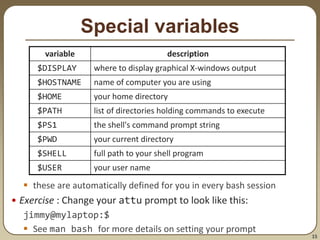
Special variables
 these are automatically defined for you in every bash session
• Exercise : Change your attu prompt to look like this:
jimmy@mylaptop:$
 See man bash for more details on setting your prompt
variable description
$DISPLAY where to display graphical X-windows output
$HOSTNAME name of computer you are using
$HOME your home directory
$PATH list of directories holding commands to execute
$PS1 the shell's command prompt string
$PWD your current directory
$SHELL full path to your shell program
$USER your user name
16
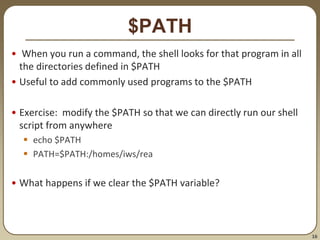
$PATH
• When you run a command, the shell looks for that program in all
the directories defined in $PATH
• Useful to add commonly used programs to the $PATH
• Exercise: modify the $PATH so that we can directly run our shell
script from anywhere
 echo $PATH
 PATH=$PATH:/homes/iws/rea
• What happens if we clear the $PATH variable?
17
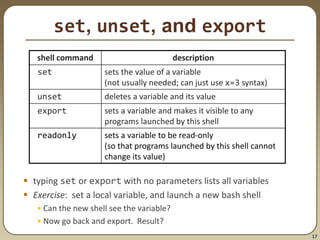
set, unset, and export
 typing set or export with no parameters lists all variables
 Exercise: set a local variable, and launch a new bash shell
• Can the new shell see the variable?
• Now go back and export. Result?
shell command description
set sets the value of a variable
(not usually needed; can just use x=3 syntax)
unset deletes a variable and its value
export sets a variable and makes it visible to any
programs launched by this shell
readonly sets a variable to be read-only
(so that programs launched by this shell cannot
change its value)
18
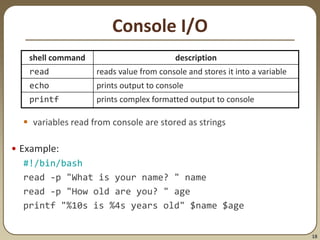
Console I/O
 variables read from console are stored as strings
• Example:
#!/bin/bash
read -p "What is your name? " name
read -p "How old are you? " age
printf "%10s is %4s years old" $name $age
shell command description
read reads value from console and stores it into a variable
echo prints output to console
printf prints complex formatted output to console
19
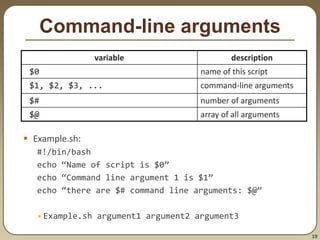
Command-line arguments
 Example.sh:
#!/bin/bash
echo “Name of script is $0”
echo “Command line argument 1 is $1”
echo “there are $# command line arguments: $@”
•Example.sh argument1 argument2 argument3
variable description
$0 name of this script
$1, $2, $3, ... command-line arguments
$# number of arguments
$@ array of all arguments
20
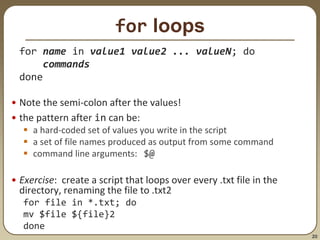
for loops
for name in value1 value2 ... valueN; do
commands
done
• Note the semi-colon after the values!
• the pattern after in can be:
 a hard-coded set of values you write in the script
 a set of file names produced as output from some command
 command line arguments: $@
• Exercise: create a script that loops over every .txt file in the
directory, renaming the file to .txt2
for file in *.txt; do
mv $file ${file}2
done
21
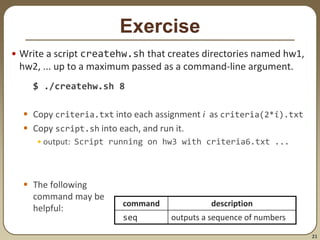
Exercise
• Write a script createhw.sh that creates directories named hw1,
hw2, ... up to a maximum passed as a command-line argument.
$ ./createhw.sh 8
 Copy criteria.txt into each assignment i as criteria(2*i).txt
 Copy script.sh into each, and run it.
• output: Script running on hw3 with criteria6.txt ...
 The following
command may be
helpful:
command description
seq outputs a sequence of numbers
22
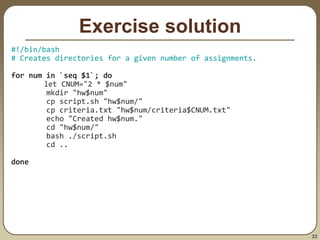
Exercise solution
#!/bin/bash
# Creates directories for a given number of assignments.
for num in `seq $1`; do
let CNUM="2 * $num"
mkdir "hw$num"
cp script.sh "hw$num/"
cp criteria.txt "hw$num/criteria$CNUM.txt"
echo "Created hw$num."
cd "hw$num/"
bash ./script.sh
cd ..
done

390aLecture05_12sp.ppt

  • 1.
    1 CSE 390a Lecture 5 Introto shell scripting slides created by Marty Stepp, modified by Jessica Miller & Ruth Anderson http://www.cs.washington.edu/390a/
  • 2.
    2 Lecture summary • basicscript syntax and running scripts • shell variables and types • control statements: the for loop
  • 3.
    3 Shell scripts • script:A short program meant to perform a targeted task.  a series of commands combined into one executable file • shell script: A script that is executed by a command-line shell.  bash (like most shells) has syntax for writing script programs  if your script becomes > ~100-150 lines, switch to a real language • To write a bash script (in brief):  type one or more commands into a file; save it  type a special header in the file to identify it as a script (next slide)  enable execute permission on the file  run it!
  • 4.
    4 Basic script syntax #!interpreter written as the first line of an executable script; causes a file to be treated as a script to be run by the given interpreter • (we will use /bin/bash as our interpreter) • Example: A script that removes some files and then lists all files: #!/bin/bash rm output*.txt ls -l
  • 5.
    5 Running a shellscript • by making it executable (most common; recommended): chmod u+x myscript.sh ./myscript.sh • by launching a new shell: bash myscript.sh • by running it within the current shell: source myscript.sh  advantage: any variables defined by the script remain in this shell (seen later)
  • 6.
    6 echo • Example: Ascript that prints your home directory. #!/bin/bash echo "This is my amazing script!" echo "Your home dir is: `pwd`" • Exercise : Write a script that when run on attu does the following:  clears the screen  displays the date/time: Today’s date is Tue Apr 24 10:44:18 PDT 2012  shows me an ASCII cow welcoming my user name command description echo produces its parameter(s) as output (the println of shell scripting) -n flag to remove newline (print vs println)
  • 7.
    7 Script example #!/bin/bash clear echo "Today'sdate is `date`" echo ~stepp/cowsay `whoami` echo "These users are currently connected:" w -h | sort echo echo "This is `uname -s` on a `uname -m` processor." echo echo "This is the uptime information:" uptime echo echo "That's all folks!"
  • 8.
    8 Comments # comment text bash has only single-line comments; there is no /* ... */ equivalent • Example: #!/bin/bash # Leonard's first script ever # by Leonard Linux echo "This is my amazing script!" echo "The time is: `date`" # This is the part where I print my home directory echo "Home dir is: `pwd`"
  • 9.
    9 Shell variables • name=value(declaration)  must be written EXACTLY as shown; no spaces allowed  often given all-uppercase names by convention  once set, the variable is in scope until unset (within the current shell) NUMFRIENDS=2445 NAME="Guess who" • $name (usage) echo "$NAME has $NUMFRIENDS FB friends" Guess who has 2445 FB friends
  • 10.
    10 Common errors • ifyou misspell a variable's name, a new variable is created NAME=Ruth ... Name=Rob # oops; meant to change NAME • if you use an undeclared variable, an empty value is used echo "Welcome, $name" # Welcome, • when storing a multi-word string, must use quotes NAME=Ruth Anderson # $NAME is Ruth NAME=“Ruth Anderson" # $NAME is Ruth Anderson
  • 11.
    11 More Errors… • Using$ during assignment or reassignment  $mystring=“Hi there” # error  mystring2=“Hello”  …  $mystring2=“Goodbye” # error • Forgetting echo to display a variable  $name  echo $name
  • 12.
    12 Capture command output variable=`command` captures the output of command into the given variable • Example: FILE=`ls -1 *.txt | sort | tail -1` echo "Your last text file is: $FILE"  What if we leave off the last backtick?  What if we use quotes instead?
  • 13.
    13 Types and integers •most variables are stored as strings  operations on variables are done as string operations, not numeric • to instead perform integer operations: x=42 y=15 let z="$x + $y" # 57 • integer operators: + - * / %  bc command can do more complex expressions • if a non-numeric variable is used in numeric context, you'll get 0
  • 14.
    14 Bash vs. Java x=3 x vs. $x vs. "$x" vs. '$x' vs. '$x' vs. 'x' Java Bash String s = "hello"; s=hello System.out.println("s"); echo s System.out.println(s); echo $s s = s + "s"; // "hellos" s=${s}s String s2 = "25"; String s3 = "42"; String s4 = s2 + s3; // "2542" int n = Integer.parseInt(s2) + Integer.parseInt(s3); // 67 s2=25 s3=42 s4=$s2$s3 let n="$s2 + $s3"
  • 15.
    15 Special variables  theseare automatically defined for you in every bash session • Exercise : Change your attu prompt to look like this: jimmy@mylaptop:$  See man bash for more details on setting your prompt variable description $DISPLAY where to display graphical X-windows output $HOSTNAME name of computer you are using $HOME your home directory $PATH list of directories holding commands to execute $PS1 the shell's command prompt string $PWD your current directory $SHELL full path to your shell program $USER your user name
  • 16.
    16 $PATH • When yourun a command, the shell looks for that program in all the directories defined in $PATH • Useful to add commonly used programs to the $PATH • Exercise: modify the $PATH so that we can directly run our shell script from anywhere  echo $PATH  PATH=$PATH:/homes/iws/rea • What happens if we clear the $PATH variable?
  • 17.
    17 set, unset, andexport  typing set or export with no parameters lists all variables  Exercise: set a local variable, and launch a new bash shell • Can the new shell see the variable? • Now go back and export. Result? shell command description set sets the value of a variable (not usually needed; can just use x=3 syntax) unset deletes a variable and its value export sets a variable and makes it visible to any programs launched by this shell readonly sets a variable to be read-only (so that programs launched by this shell cannot change its value)
  • 18.
    18 Console I/O  variablesread from console are stored as strings • Example: #!/bin/bash read -p "What is your name? " name read -p "How old are you? " age printf "%10s is %4s years old" $name $age shell command description read reads value from console and stores it into a variable echo prints output to console printf prints complex formatted output to console
  • 19.
    19 Command-line arguments  Example.sh: #!/bin/bash echo“Name of script is $0” echo “Command line argument 1 is $1” echo “there are $# command line arguments: $@” •Example.sh argument1 argument2 argument3 variable description $0 name of this script $1, $2, $3, ... command-line arguments $# number of arguments $@ array of all arguments
  • 20.
    20 for loops for namein value1 value2 ... valueN; do commands done • Note the semi-colon after the values! • the pattern after in can be:  a hard-coded set of values you write in the script  a set of file names produced as output from some command  command line arguments: $@ • Exercise: create a script that loops over every .txt file in the directory, renaming the file to .txt2 for file in *.txt; do mv $file ${file}2 done
  • 21.
    21 Exercise • Write ascript createhw.sh that creates directories named hw1, hw2, ... up to a maximum passed as a command-line argument. $ ./createhw.sh 8  Copy criteria.txt into each assignment i as criteria(2*i).txt  Copy script.sh into each, and run it. • output: Script running on hw3 with criteria6.txt ...  The following command may be helpful: command description seq outputs a sequence of numbers
  • 22.
    22 Exercise solution #!/bin/bash # Createsdirectories for a given number of assignments. for num in `seq $1`; do let CNUM="2 * $num" mkdir "hw$num" cp script.sh "hw$num/" cp criteria.txt "hw$num/criteria$CNUM.txt" echo "Created hw$num." cd "hw$num/" bash ./script.sh cd .. done