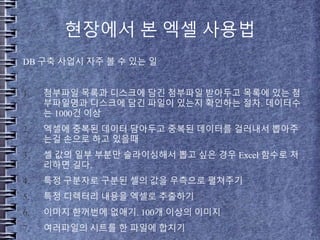
현장에서 본 엑셀사용법
DB 구축 사업시 자주 볼 수 있는 일
1. 첨부파일 목록과 디스크에 담긴 첨부파일 받아두고 목록에 있는 첨
부파일명과 디스크에 담긴 파일이 있는지 확인하는 절차. 데이터수
는 1000건 이상
2. 엑셀에 중복된 데이터 담아두고 중복된 데이터를 걸러내서 뽑아주
는걸 손으로 하고 있을때
3. 셀 값의 일부 부분만 슬라이싱해서 뽑고 싶은 경우 Excel 함수로 처
리하면 길다.
4. 특정 구분자로 구분된 셀의 값을 우측으로 펼쳐주기
5. 특정 디렉터리 내용을 엑셀로 추출하기
6. 이미지 한꺼번에 없애기. 100개 이상의 이미지
7. 여러파일의 시트를 한 파일에 합치기
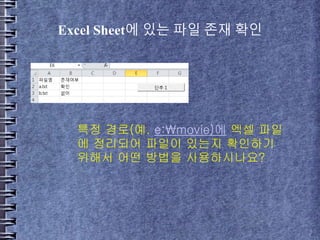
Excel Sheet에 있는파일 존재 확인
특정 경로(예. e:movie)에 엑셀 파일
에 정리되어 파일이 있는지 확인하기
위해서 어떤 방법을 사용하시나요?
5.
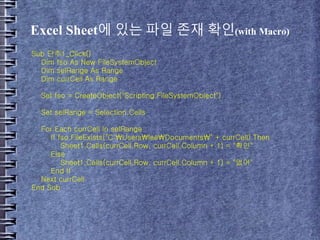
Excel Sheet에 있는파일 존재 확인(with Macro)
Sub 단추1_Click()
Dim fso As New FileSystemObject
Dim selRange As Range
Dim currCell As Range
Set fso = CreateObject("Scripting.FileSystemObject")
Set selRange = Selection.Cells
For Each currCell In selRange
If fso.FileExists("C:UsersleeDocuments" + currCell) Then
Sheet1.Cells(currCell.Row, currCell.Column + 1) = "확인"
Else
Sheet1.Cells(currCell.Row, currCell.Column + 1) = "없어"
End If
Next currCell
End Sub
6.
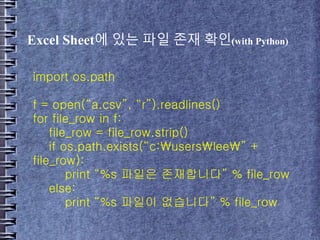
Excel Sheet에 있는파일 존재 확인(with Python)
import os.path
f = open(“a.csv”, “r”).readlines()
for file_row in f:
file_row = file_row.strip()
if os.path.exists(“c:userslee” +
file_row):
print “%s 파일은 존재합니다” % file_row
else:
print “%s 파일이 없습니다” % file_row
7.
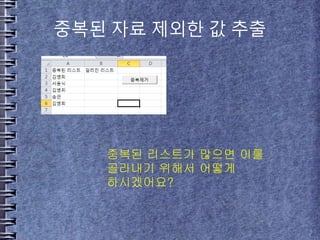
중복된 자료 제외한값 추출
중복된 리스트가 많으면 이를
골라내기 위해서 어떻게
하시겠어요?
8.
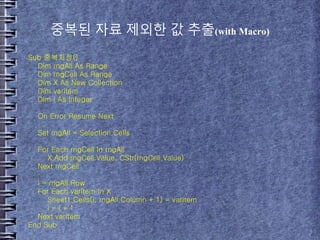
중복된 자료 제외한값 추출(with Macro)
Sub 중복지정()
Dim rngAll As Range
Dim rngCell As Range
Dim X As New Collection
Dim varItem
Dim i As Integer
On Error Resume Next
Set rngAll = Selection.Cells
For Each rngCell In rngAll
X.Add rngCell.Value, CStr(rngCell.Value)
Next rngCell
i = rngAll.Row
For Each varItem In X
Sheet1.Cells(i, rngAll.Column + 1) = varItem
i = i + 1
Next varItem
End Sub
9.
중복된 자료 제외한값 추출(with Python)
f = open(“a.csv”, “r”).readlines()
dup = []
for row in f:
row = row.strip()
if row not in dup:
dup.append(row)
print dup
10.
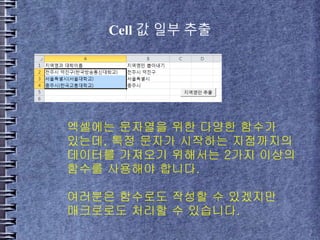
Cell 값 일부추출
엑셀에는 문자열을 위한 다양한 함수가
있는데, 특정 문자가 시작하는 지점까지의
데이터를 가져오기 위해서는 2가지 이상의
함수를 사용해야 합니다.
여러분은 함수로도 작성할 수 있겠지만
매크로로도 처리할 수 있습니다.
11.
Cell 값 일부추출(with Macro)
Sub cell_extract()
Dim rngAll As Range
Dim rngCell As Range
Dim sfpos As Integer
Set rngAll = Selection.Cells
For Each rngCell In rngAll
sfpos = InStr(rngCell, "(") - 1
Sheet1.Cells(rngCell.Row, rngCell.Column + 1) = Left(rngCell, sfpos)
Next rngCell
End Sub
12.
Cell 값 일부추출(with Python)
f = open(“a.csv”, “r”).readlines()
for row in f:
row = row.strip()
print row[:row.find("(")]
13.
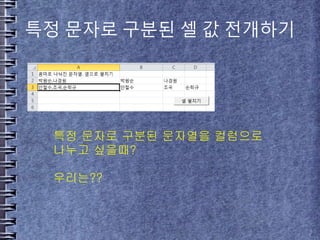
특정 문자로 구분된셀 값 전개하기
특정 문자로 구분된 문자열을 컬럼으로
나누고 싶을때?
우리는??
14.
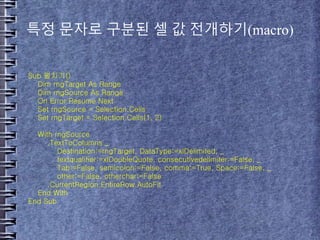
특정 문자로 구분된셀 값 전개하기(macro)
Sub 펼치기()
Dim rngTarget As Range
Dim rngSource As Range
On Error Resume Next
Set rngSource = Selection.Cells
Set rngTarget = Selection.Cells(1, 2)
With rngSource
.TextToColumns _
Destination:=rngTarget, DataType:=xlDelimited, _
textqualifier:=xlDoubleQuote, consecutivedelimiter:=False, _
Tab:=False, semicolon:=False, comma:=True, Space:=False, _
other:=False, otherchar:=False
.CurrentRegion.EntireRow.AutoFit
End With
End Sub
15.
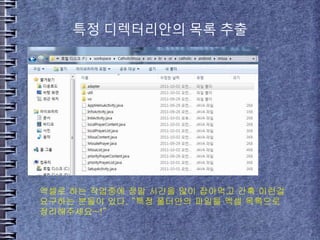
특정 디렉터리안의 목록추출
엑셀로 하는 작업중에 정말 시간을 많이 잡아먹고 간혹 이런걸
요구하는 분들이 있다. “특정 폴더안의 파일을 엑셀 목록으로
정리해주세요~!”
16.
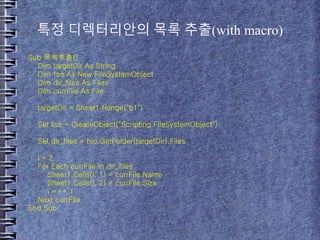
특정 디렉터리안의 목록추출(with macro)
Sub 목록추출()
Dim targetDir As String
Dim fso As New FileSystemObject
Dim dir_files As Files
Dim currFile As File
targetDir = Sheet1.Range("b1")
Set fso = CreateObject("Scripting.FileSystemObject")
Set dir_files = fso.GetFolder(targetDir).Files
i = 2
For Each currFile In dir_files
Sheet1.Cells(i, 1) = currFile.Name
Sheet1.Cells(i, 2) = currFile.Size
i = i + 1
Next currFile
End Sub
17.
특정 디렉터리안의 목록추출(with python)
import os
import stat
import glob
search_dir =
"F:workspaceCatholicMissasrckrorcatholicandroid
missa"
missa_files = glob.glob(“%s/*” % search_dir)
for item in missa_files:
if os.path.isfile(item):
print os.path.basename(item), os.stat(item)[stat.ST_SIZE]
18.
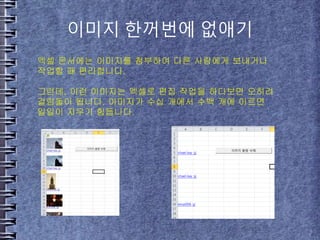
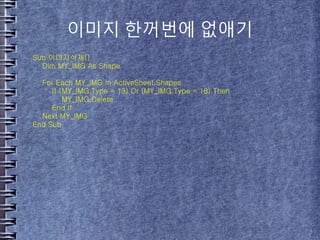
이미지 한꺼번에 없애기
엑셀문서에는 이미지를 첨부하여 다른 사람에게 보내거나
작업할 때 편리합니다.
그런데, 이런 이미지는 엑셀로 편집 작업을 하다보면 오히려
걸림돌이 됩니다. 이미지가 수십 개에서 수백 개에 이르면
일일이 지우기 힘듭니다.
19.
이미지 한꺼번에 없애기
Sub이미지삭제()
Dim MY_IMG As Shape
For Each MY_IMG In ActiveSheet.Shapes
If (MY_IMG.Type = 13) Or (MY_IMG.Type = 18) Then
MY_IMG.Delete
End If
Next MY_IMG
End Sub
20.
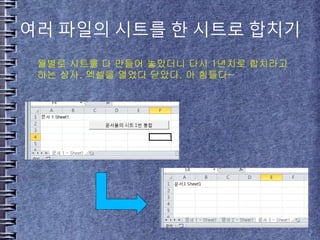
여러 파일의 시트를한 시트로 합치기
월별로 시트를 다 만들어 놓았더니 다시 1년치로 합치라고
하는 상사. 엑셀을 열었다 닫았다. 아 힘들다~
21.
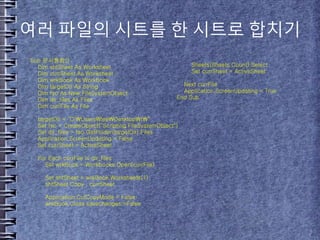
여러 파일의 시트를한 시트로 합치기
Sub 문서통합()
Dim shtSheet As Worksheet
Dim currSheet As Worksheet
Dim wrkBook As Workbook
Dim targetDir As String
Dim fso As New FileSystemObject
Dim dir_files As Files
Dim currFile As File
targetDir = "C:UsersleeDesktopt"
Set fso = CreateObject("Scripting.FileSystemObject")
Set dir_files = fso.GetFolder(targetDir).Files
Application.ScreenUpdating = False
Set currSheet = ActiveSheet
For Each currFile In dir_files
Set wrkBook = Workbooks.Open(currFile)
Set shtSheet = wrkBook.Worksheets(1)
shtSheet.Copy , currSheet
Application.CutCopyMode = False
wrkBook.Close savechanges:=False
Sheets(Sheets.Count).Select
Set currSheet = ActiveSheet
Next currFile
Application.ScreenUpdating = True
End Sub



![중복된 자료 제외한 값 추출(with Python)
f = open(“a.csv”, “r”).readlines()
dup = []
for row in f:
row = row.strip()
if row not in dup:
dup.append(row)
print dup](https://image.slidesharecdn.com/20111025officeautomationjiho-181105095720/85/20111025-Excel-VBA-9-320.jpg)

![Cell 값 일부 추출(with Python)
f = open(“a.csv”, “r”).readlines()
for row in f:
row = row.strip()
print row[:row.find("(")]](https://image.slidesharecdn.com/20111025officeautomationjiho-181105095720/85/20111025-Excel-VBA-12-320.jpg)
![특정 디렉터리안의 목록 추출(with python)
import os
import stat
import glob
search_dir =
"F:workspaceCatholicMissasrckrorcatholicandroid
missa"
missa_files = glob.glob(“%s/*” % search_dir)
for item in missa_files:
if os.path.isfile(item):
print os.path.basename(item), os.stat(item)[stat.ST_SIZE]](https://image.slidesharecdn.com/20111025officeautomationjiho-181105095720/85/20111025-Excel-VBA-17-320.jpg)




![[Swift] Tuple](https://cdn.slidesharecdn.com/ss_thumbnails/tuple-200513092237-thumbnail.jpg?width=640&height=640&fit=bounds)

![[Commit Again] 1주차 STL study](https://cdn.slidesharecdn.com/ss_thumbnails/stlstudy-141020155958-conversion-gate01-thumbnail.jpg?width=640&height=640&fit=bounds)


![[Swift] Data Structure - Heap](https://cdn.slidesharecdn.com/ss_thumbnails/swiftdatastructure-heap-200529005142-thumbnail.jpg?width=640&height=640&fit=bounds)


![[Swift] Data Structure - Queue](https://cdn.slidesharecdn.com/ss_thumbnails/swiftdatastructure-queue-200527030149-thumbnail.jpg?width=640&height=640&fit=bounds)

![[Swift] Data Structure - Array](https://cdn.slidesharecdn.com/ss_thumbnails/swiftdatastructure-array-200525090841-thumbnail.jpg?width=640&height=640&fit=bounds)


