2XApplication Server XG
                  v10.1


              Introduction• 1
URL: www.2x.com
                                                                         E-mail: info@2x.com


Information in this document is subject to change without notice. Companies, names,
and data used in examples herein are fictitious unless otherwise noted. No part of this
document may be reproduced or transmitted in any form or by any means, electronic
or mechanical, for any purpose, without the express written permission of 2X
SOFTWARE Ltd.


2X ApplicationServer is a copyright of 2X SOFTWARE Ltd.  1999-2011 2X
SOFTWARE Ltd. All rights reserved.


Version 10.1 – Last updated December 6, 2011


                                                                                   Introduction• 2
Contents
  Introduction                                                                                                                     6
                 What is 2X ApplicationServer and How Does it Work? .................................... 6
                 How Does it Work? ........................................................................................... 6
                 2X ApplicationServer System Requirements .................................................... 7

  Installing 2X ApplicationServer                                                                                                  8
                 2X ApplicationServer Services........................................................................ 12
                 Pre- Configuration MS Terminal Server Settings ............................................ 13
                 Server Settings................................................................................................ 13
                 Connection Settings ........................................................................................ 14

  Configuring 2X ApplicationServer                                                                                               16
                 Introduction to the Configuration of ApplicationServer ................................... 16
                 2X ApplicationServer Console Environment & Components .......................... 17
                 Components of the Navigation Bar ................................................................. 17
                 Console Environment ...................................................................................... 18
                 Console Environment – Basic Layout ............................................................. 19
                 Main Menu - 2X Console Settings .................................................................. 20

  2X Startup Wizard                                                                                                              23
                 Publish a Virtual Desktop ................................................................................ 24
                 Publish an Application ..................................................................................... 25
                 Publish a Desktop ........................................................................................... 27
                 Setup LoadBalancer ....................................................................................... 28

  Farm                                                                                                                           29
                 Terminal Servers ............................................................................................. 32
                 Find a Terminal Server ................................................................................... 33
                 Add a Terminal Server .................................................................................... 34
                 Editing a Terminal Server ............................................................................... 35
                 Delete a Terminal Server ................................................................................ 40
                 Server Groups ................................................................................................. 40
                 VDI Hosts ........................................................................................................ 41
                 Find a VDI Host ............................................................................................... 42
                 Add a VDI Host ............................................................................................... 43
                 Edit a Virtual Host ........................................................................................... 50
                 Delete a Virtual Host ....................................................................................... 50
                 Check Agent.................................................................................................... 51
                 VDI Virtual Guests Settings ............................................................................ 52
                 Pool Management ........................................................................................... 54
                 2X Templates .................................................................................................. 58
                 Maintenance Mode ......................................................................................... 61
                 Persistent Guests ............................................................................................ 66
                 Remote PCs .................................................................................................... 67
                 Find Remote PC‟s ........................................................................................... 68
                 Add /Delete Remote PC‟s ............................................................................... 69
                 Edit a Remote PC ........................................................................................... 70
                 Gateways ........................................................................................................ 74
                 Installing the 2X Secure Client Gateway Remotely from the
                 2X Console...................................................................................................... 75
                 2X Secure Client Gateway Properties ............................................................ 77
                 Backup Servers ............................................................................................... 92
                 Adding 2X Backup Servers ............................................................................. 93
                 Modifying 2X Backup Servers ......................................................................... 96
                 Promoting a Backup server to Master Server ................................................. 96
                 Solution Guide................................................................................................. 97


                                                                                                                   Introduction• 3
Load Balancing                                                                                                                  98
              Load Balancing ............................................................................................... 98
              Counters .......................................................................................................... 99
              Advanced Settings ........................................................................................ 100
              Tunneling Policies ......................................................................................... 101

Publishing                                                                                                                    104
              2X Publishing Wizard .................................................................................... 104
              Applications ................................................................................................... 105
              Folder ............................................................................................................ 121
              Publish Document Content ........................................................................... 142
              Publish Applications using Drag and Drop ................................................... 150
              Publish Applications Configuration ............................................................... 151
              Setup LoadBalancer ..................................................................................... 152

2X Universal Printing                                                                                                         153
              Universal Printing .......................................................................................... 153
              Fonts Management ....................................................................................... 155

2X Universal Scanning                                                                                                         156
              Universal Scanning ....................................................................................... 156
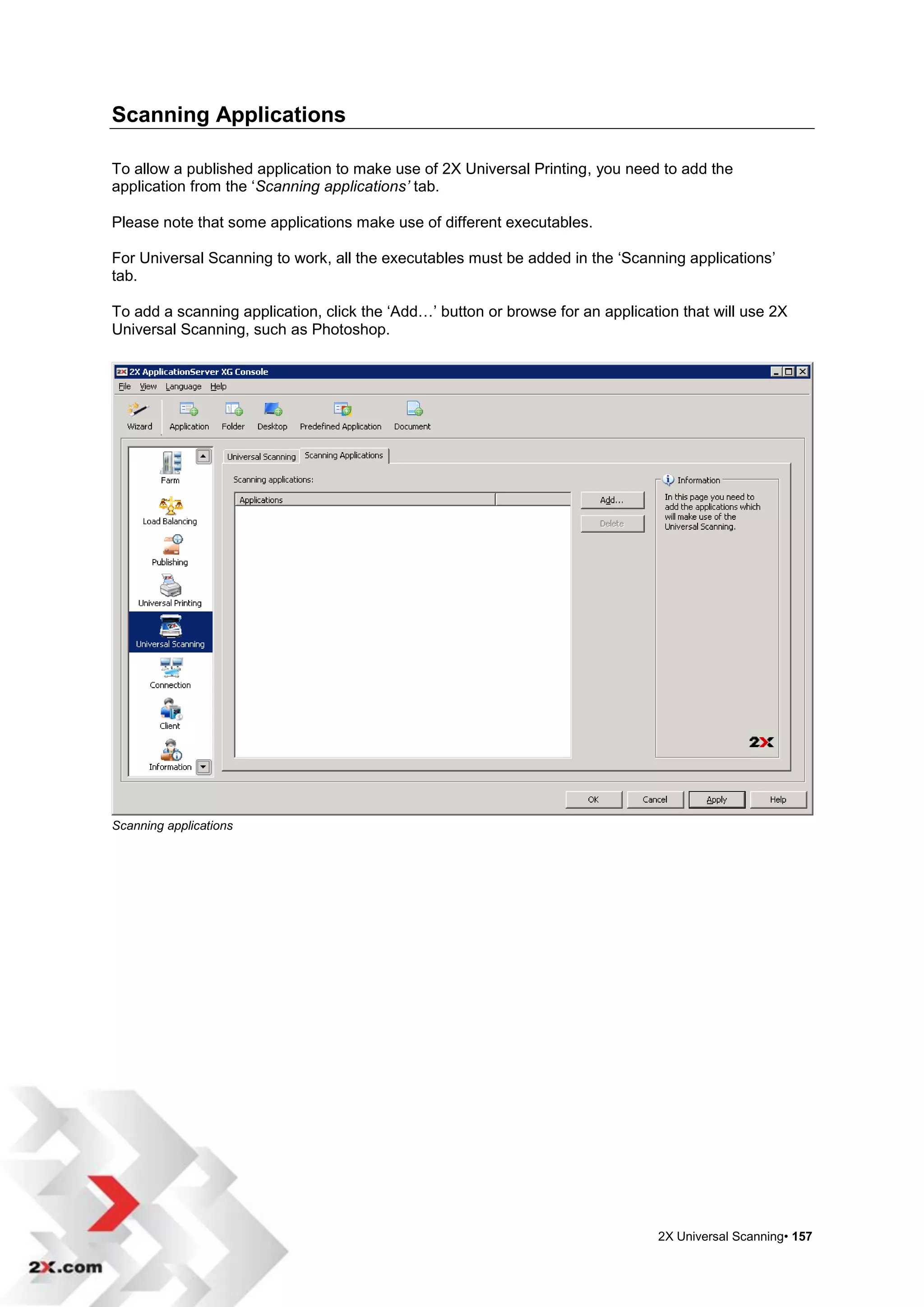
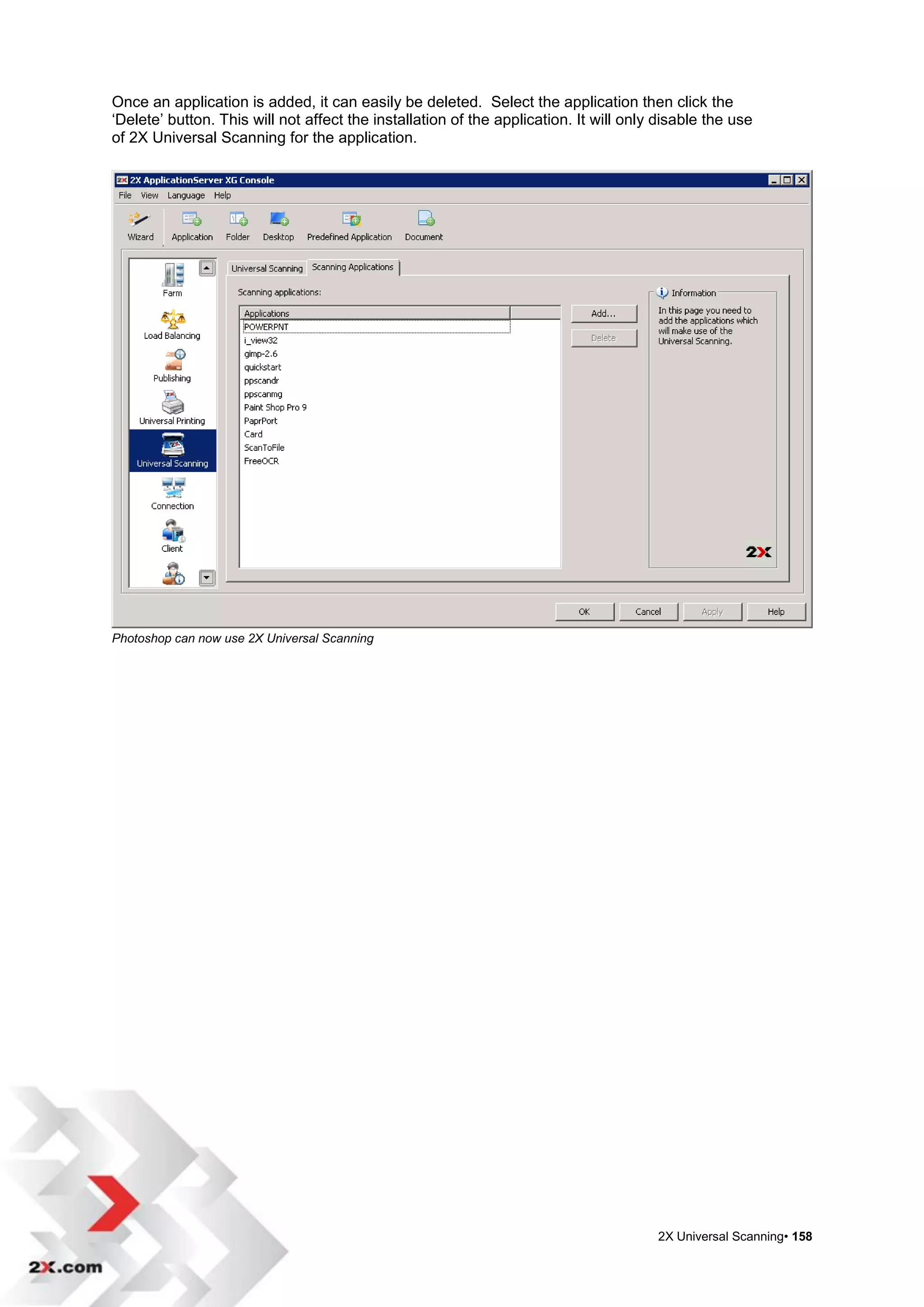
              Scanning Applications ................................................................................... 157

Connection Settings                                                                                                           159
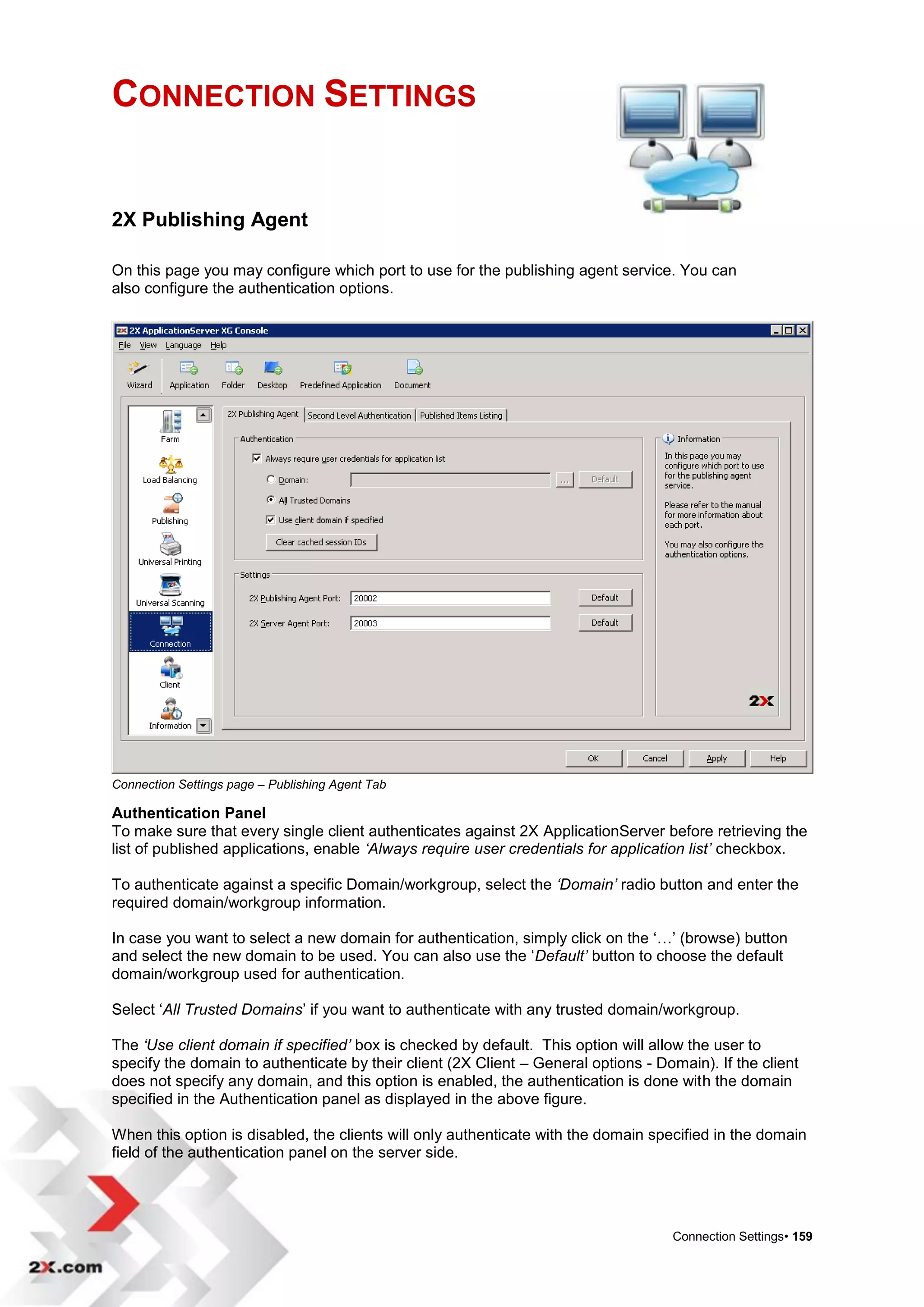
              2X Publishing Agent ...................................................................................... 159
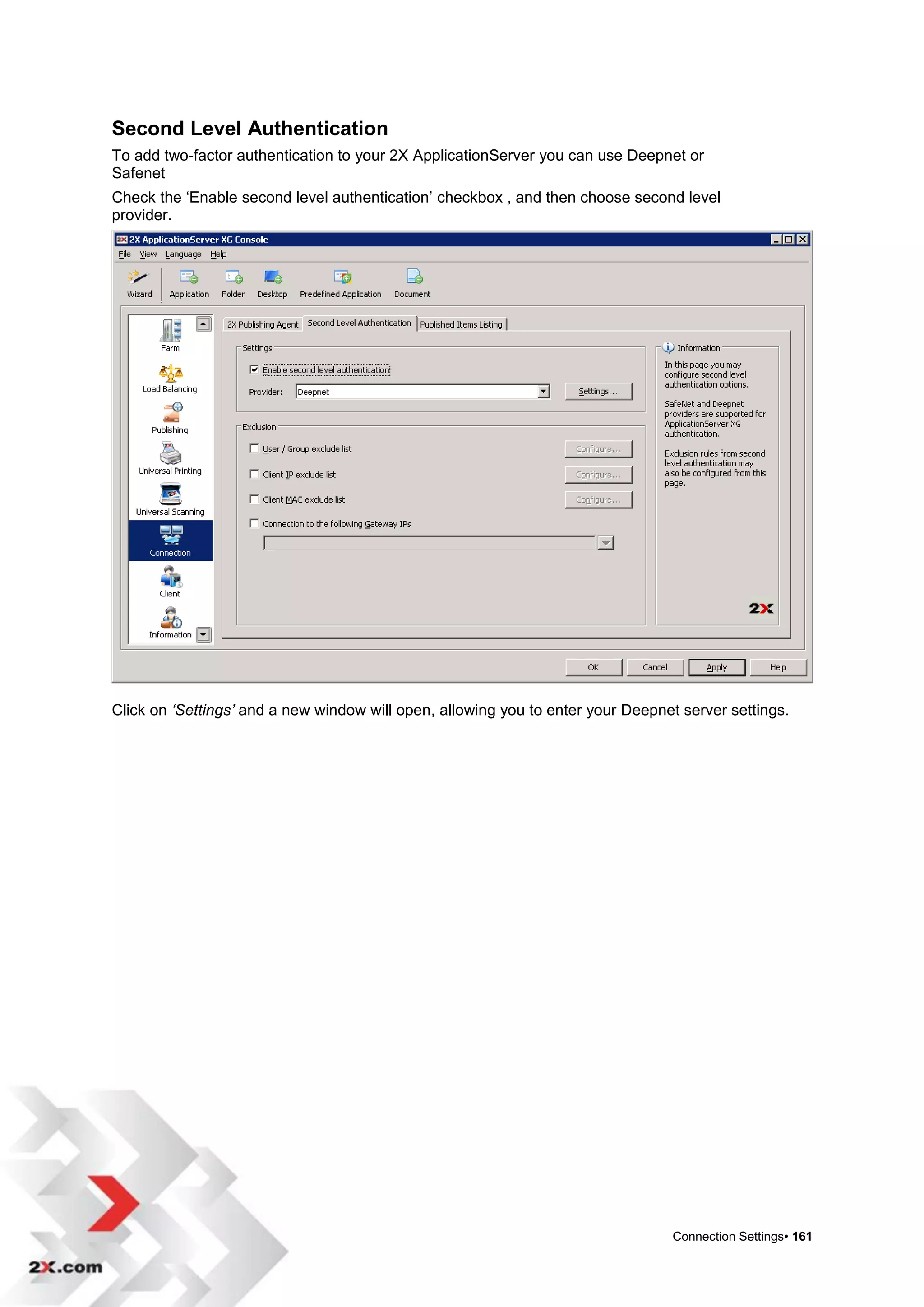
              Second Level Authentication ........................................................................ 161

Client                                                                                                                        169
              2X Client Management Tab .......................................................................... 169
              Add a 2X Client Policy .................................................................................. 170
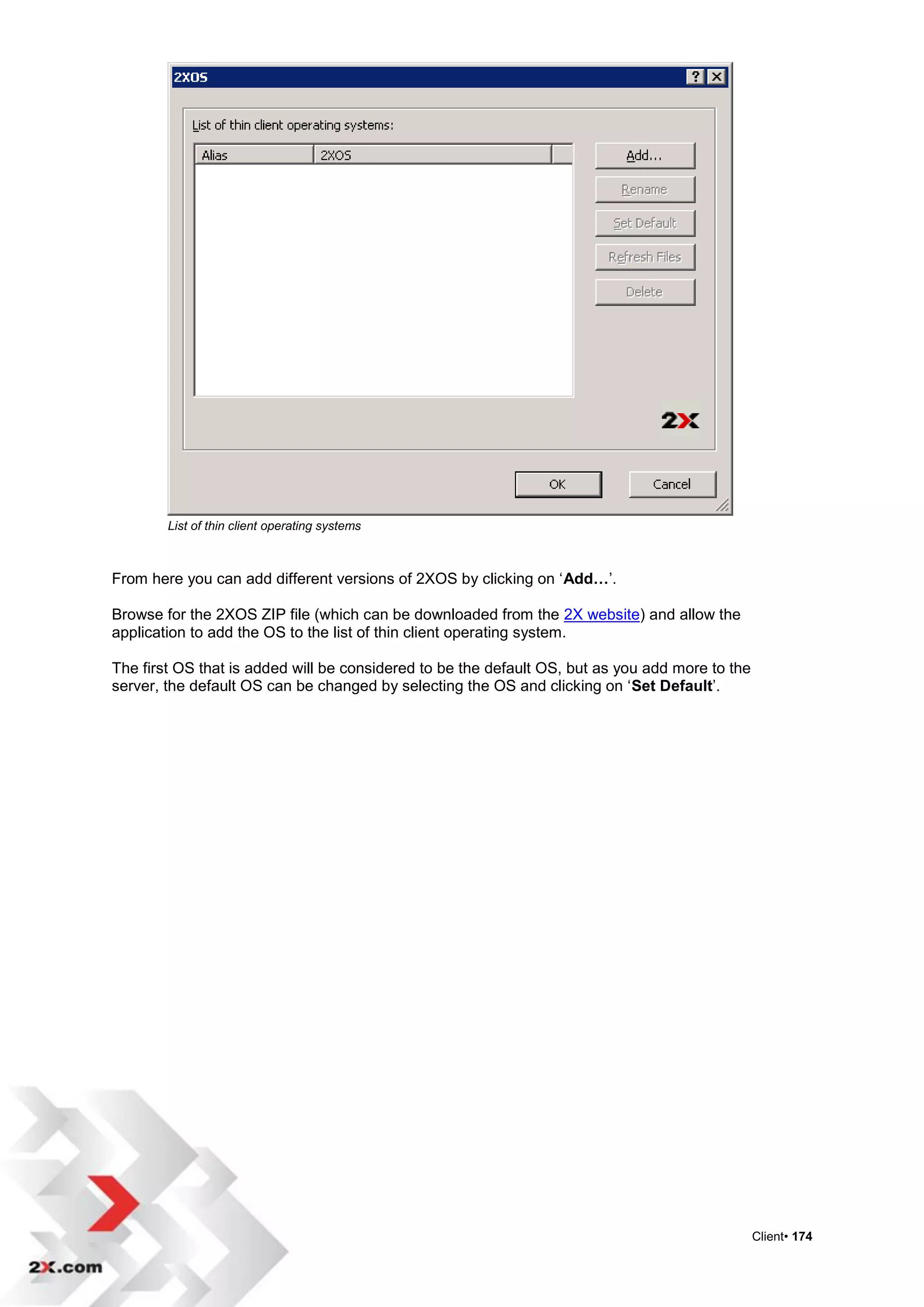
              Thin Client Installer ....................................................................................... 173
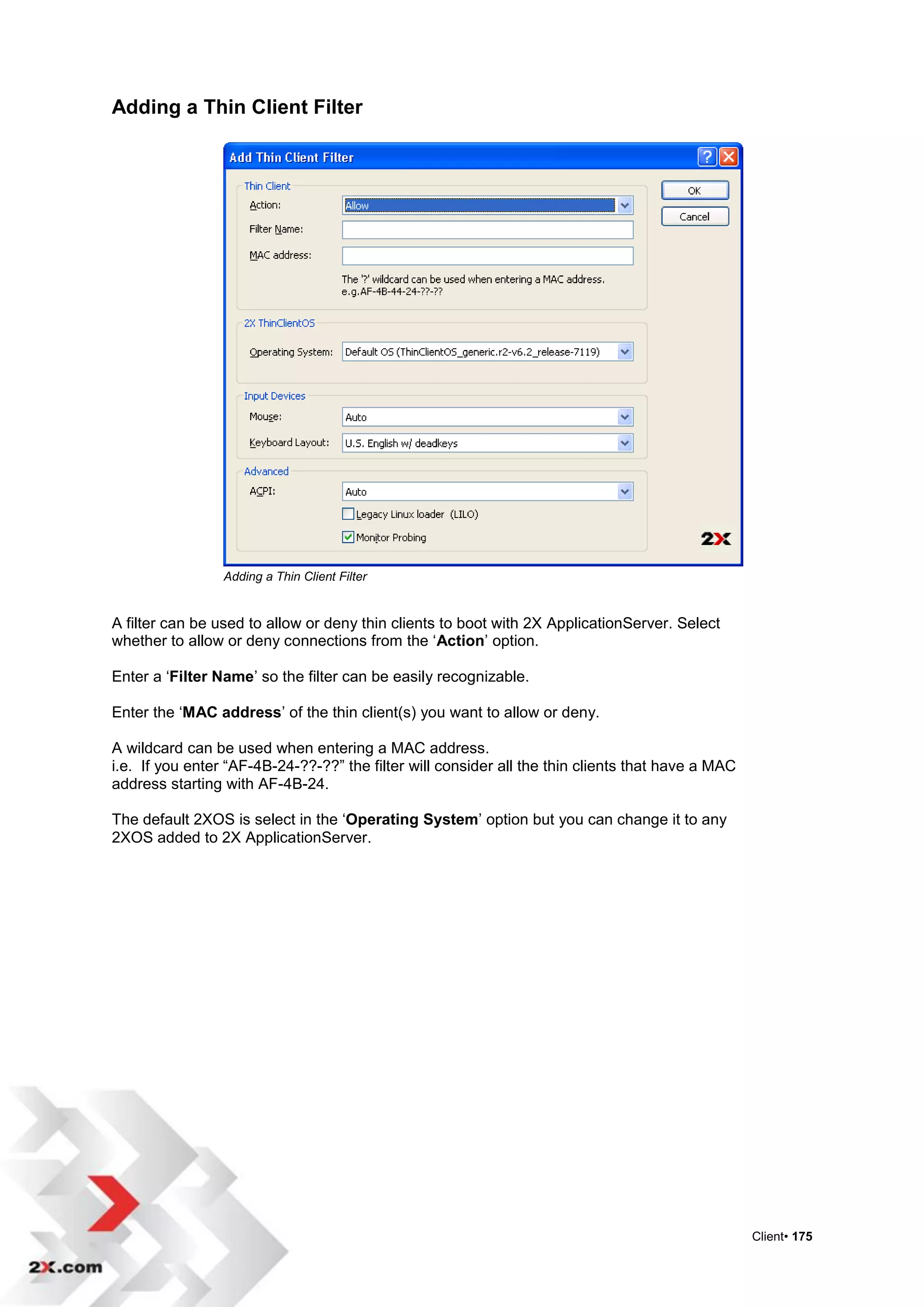
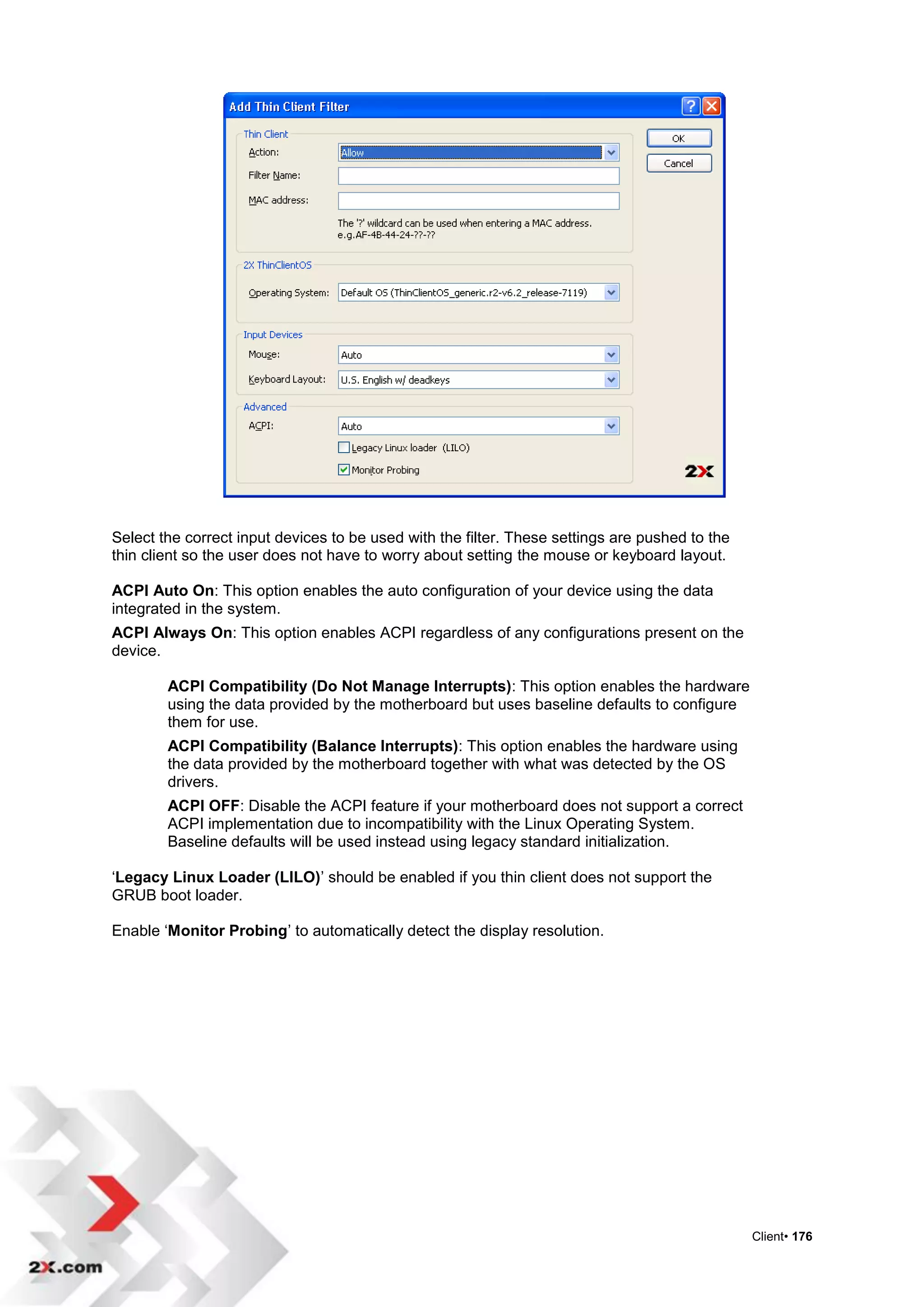
              Adding a Thin Client Filter ............................................................................. 175

Information                                                                                                                   177
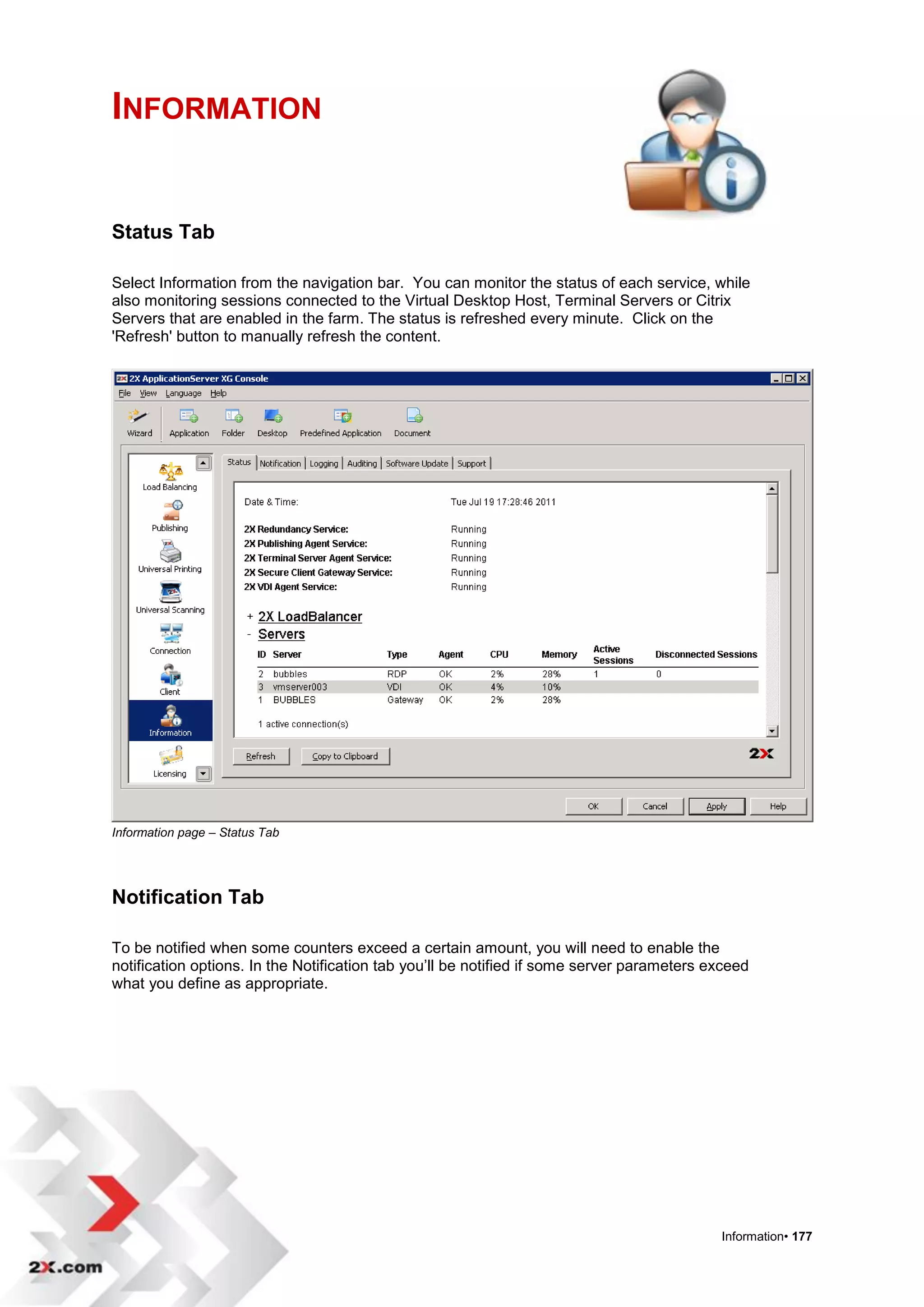
              Status Tab ..................................................................................................... 177
              Notification Tab ............................................................................................. 177
              Logging Tab .................................................................................................. 180
              Auditing Tab .................................................................................................. 181
              Software Update Tab .................................................................................... 182
              Support Tab .................................................................................................. 183

Reporting                                                                                                                     185
              Selecting a Reporting Engine ....................................................................... 185
              Using eG Innovations Reporting Engine ....................................................... 185

Licensing                                                                                                                     189

Available 2X Clients                                                                                                          191

Installing the 2X Terminal Server Agent Manually                                                                              192
              2X Terminal Server Agent System requirements ......................................... 192
              Installation Procedure ................................................................................... 192

Installing the 2X VDI Agent Manually                                                                                          197
              2X VDI Agent System requirements ............................................................. 197


                                                                                                                  Introduction• 4
Installing the 2X VDI Agent Manually ........................................................... 197

Installing the 2X Gateway Manually                                                                                        203

Installing the 2X Guest Agent Manually                                                                                    208
             2X Guest Agent System requirements ......................................................... 208
             Installing the 2X Guest Agent Manually ........................................................ 208

Installing the 2X PC Agent Manually                                                                                       213
             2X PC Agent System requirements .............................................................. 213
             Installing the 2X PC Agent Manually ............................................................ 213

2X Additional Utilities                                                                                                   218
             2XA Generator .............................................................................................. 218
             Parameters.................................................................................................... 218
             2XA Generator Examples ............................................................................. 219

Features                                                                                                                  220
             Additional Resources .................................................................................... 222

Troubleshooting and Support                                                                                               223
             Introduction ................................................................................................... 223
             Knowledgebase............................................................................................. 223
             Request Support via E-mail .......................................................................... 223
             Request Support via Phone .......................................................................... 223

About 2X                                                                                                                  224


                                                                                                               Introduction• 5
INTRODUCTION


What is 2X ApplicationServer and How Does it Work?

          2X ApplicationServer is an application that provides vendor independent
          virtual desktops and applications. Accessible from anywhere. 2X
          ApplicationServer allows you to publish full desktops and applications within
          a virtual environment, improving desktop manageability, security and
          performance.


          2X ApplicationServer extends Windows Terminal Services by using a
          customized shell and virtual channel applications using the Microsoft RDP
          protocol.


          2X ApplicationServer supports a number of different technologies, including
          Microsoft Terminal Server , VMware, Oracle VirtualBox, Microsoft Virtual
          Server, Microsoft Hyper-V, Virtual Iron, and Parallels, to allow the publishing
          of virtual applications and desktops to the 2X Client. Virtual objects are load
          balanced over all available machines while automatically releasing unused
          resources.


     How Does it Work?

          When a client requests a virtual desktop, the system finds a guest on one of
          the least loaded hosts and starts or restores the guest connection. Using
          Microsoft RDP protocol, the virtual desktop is presented to the user.


          Thin client computing is solving the growing management problem of fat
          clients (PC‟s), allowing employees to roam easily and seamlessly, improving
          performance. Companies that have migrated to a thin client environment
          consistently see huge savings on support, hardware and upgrade costs. In a
          world where energy use is an increasing concern, implementing a thin client
          environment improves energy costs as well. A study conducted by Bloor
          Research shows that "Deploying thin client technology across enterprises
          can cut costs by up to 70%".


                                                                                       Introduction• 6
2X ApplicationServer System Requirements

         2X Publishing Agent and 2X SecureClientGateway are preferably installed on
         the following operating systems: Windows 2008/R2Server/Enterprise Server;
         Windows 2003 Server/Enterprise Server; Windows 2000 Server/Advanced.


         2X Terminal Server Agent must be installed on Windows
         2008/R2Server/Enterprise Server with Terminal Services enabled; Windows
         2003 Server/Enterprise Server with Terminal Services enabled; Windows
         2000 Server/Advanced Server with Terminal Services enabled.


         2X Client is approved for the following operating systems: Windows 2000,
         Windows 2003, Windows XP, Windows Vista, Windows 7, Windows CE,
         Windows Embedded, Mac 10.5.x and above. 2X Client is now available for
         iOS (iPhone and iPad) and for Android.


         The 2X Client is also approved for the following 32-bit Linux distributions:
         Ubuntu 8.04, Ubuntu 8.10, Ubuntu 9.04, Ubuntu 9.10, OpenSuse 11.1,
         Fedora Core 9, Fedora Core 11, CentOs 5.2, VectorLinux 6.0.


         NOTE: The 30-day trial version and the full version of the application have
         the same features. After the 30-day trial period has expired, the only action
         necessary will be to enter a valid license key on the Licensing page. Re-
         installation will not be necessary. Please refer to the „Licensing‟ chapter in
         this manual for more information.


                                                                                        Introduction• 7
INSTALLING 2X APPLICATIONSERVER


   Before you run the installation procedure please make sure that you are logged on
   with administrator rights and that the system requirements are met.

   Make sure all other Window programs are closed.

   The „2XAppServer.msi‟ file can be found on our website, www.2X.com, available as
   a free download. Run the 2X ApplicationServer setup program on the machine to be
   used as your access point to your terminal servers and/or virtual hosts.

   Choose what to install according to your needs and requirements. Two common
   scenarios are the „regular gateway scenario‟ and the „direct mode scenario‟.
   For more advanced and alternative scenarios and solutions please read 2X Server
   Based Computing Guide.


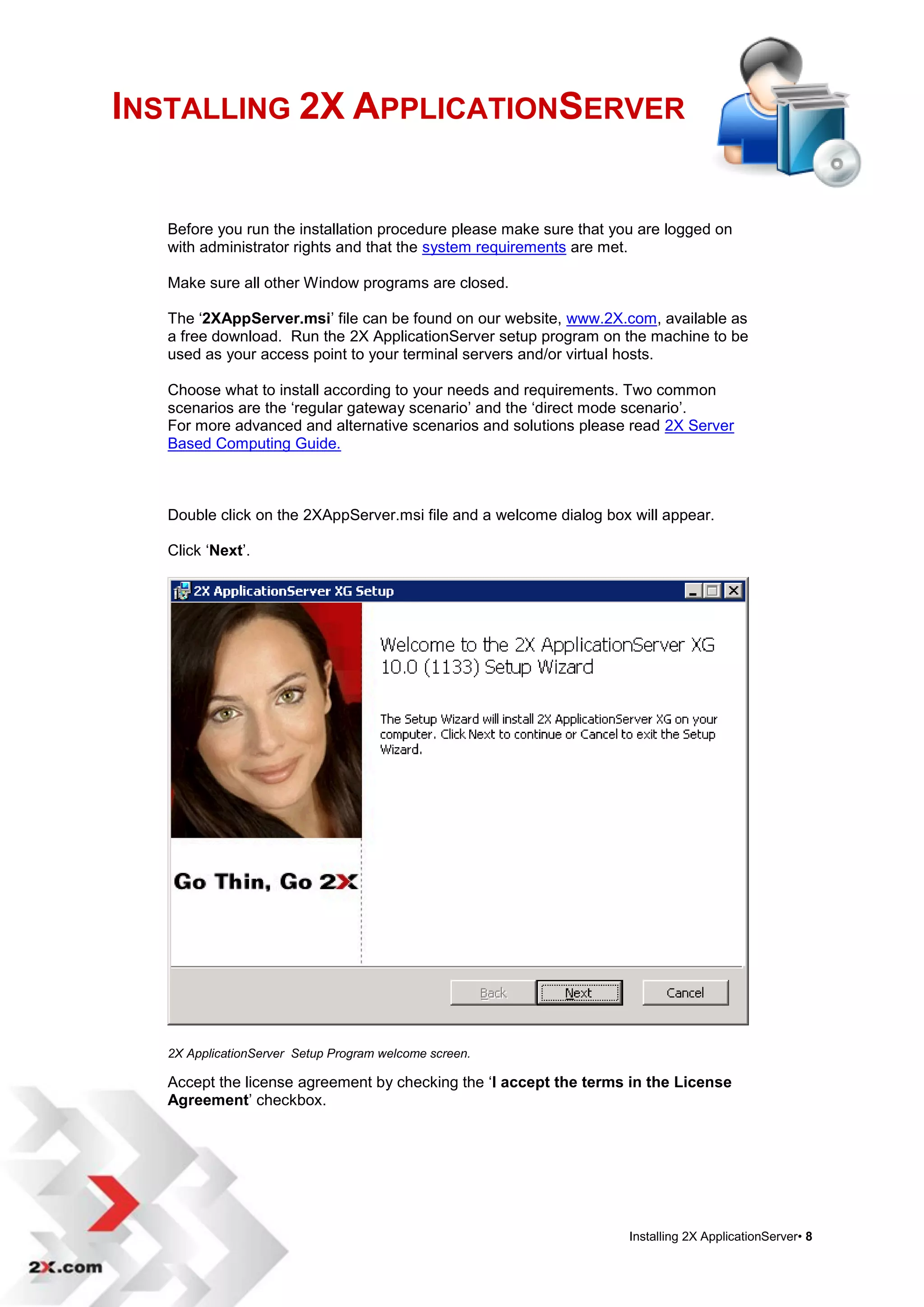
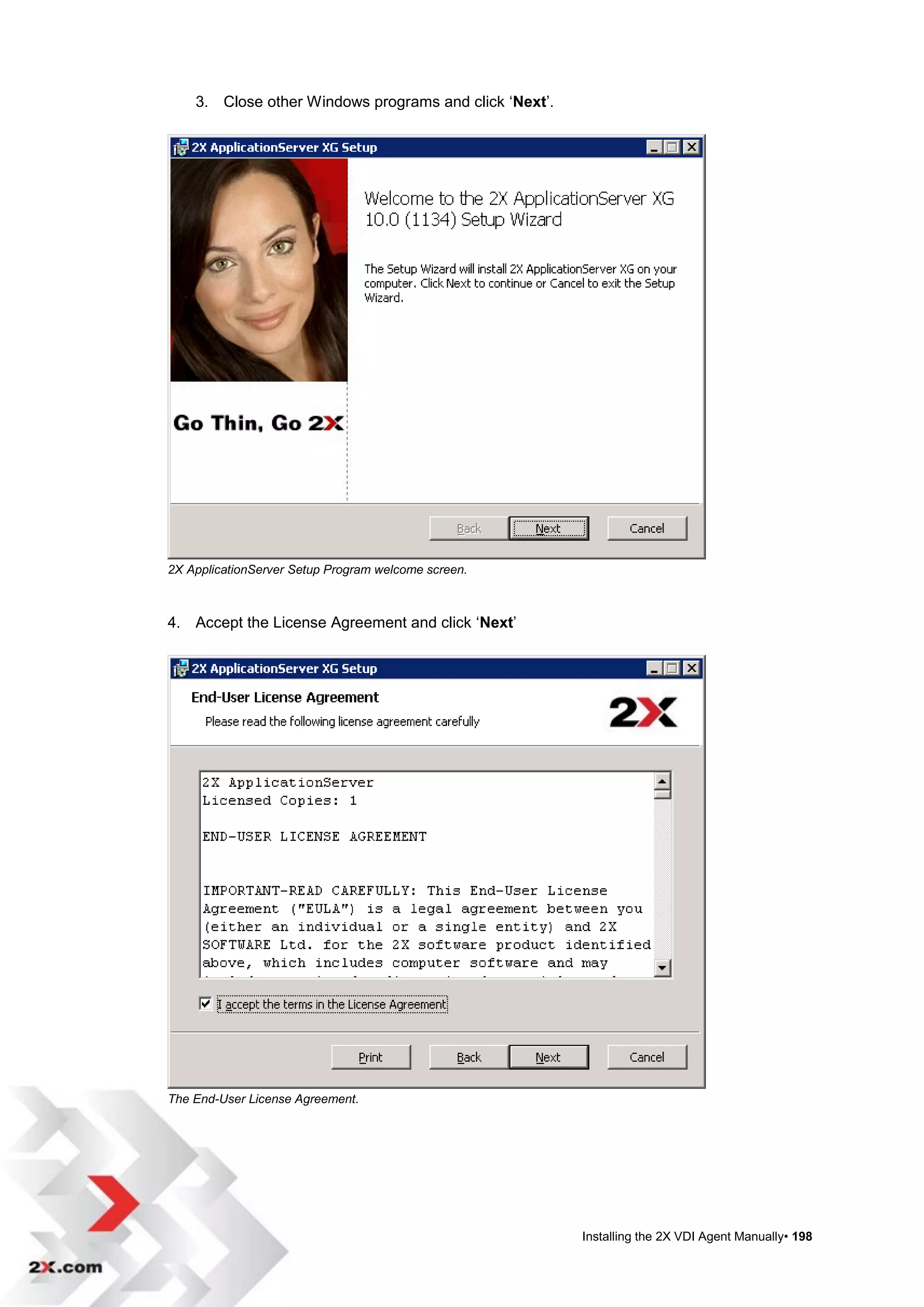
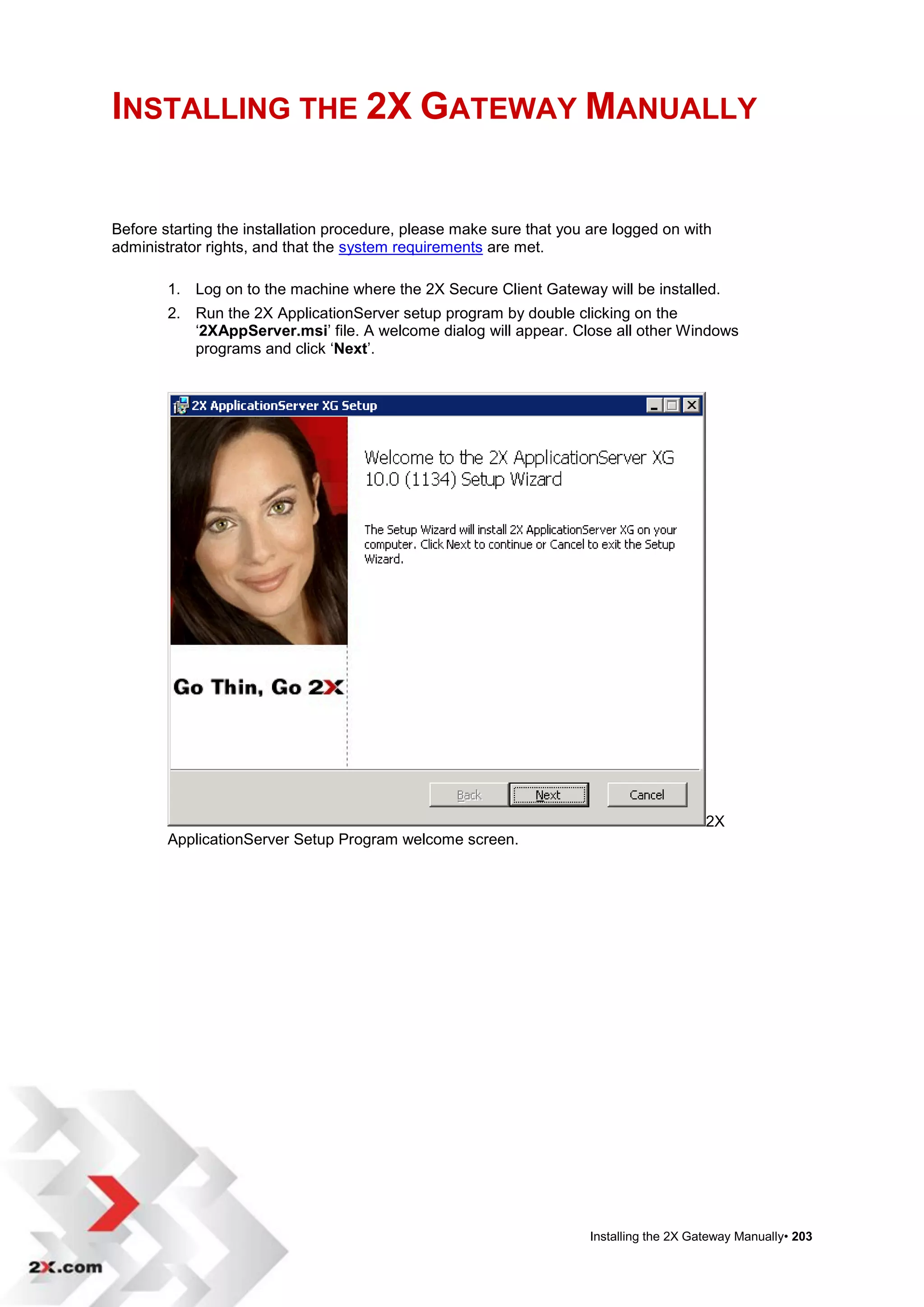
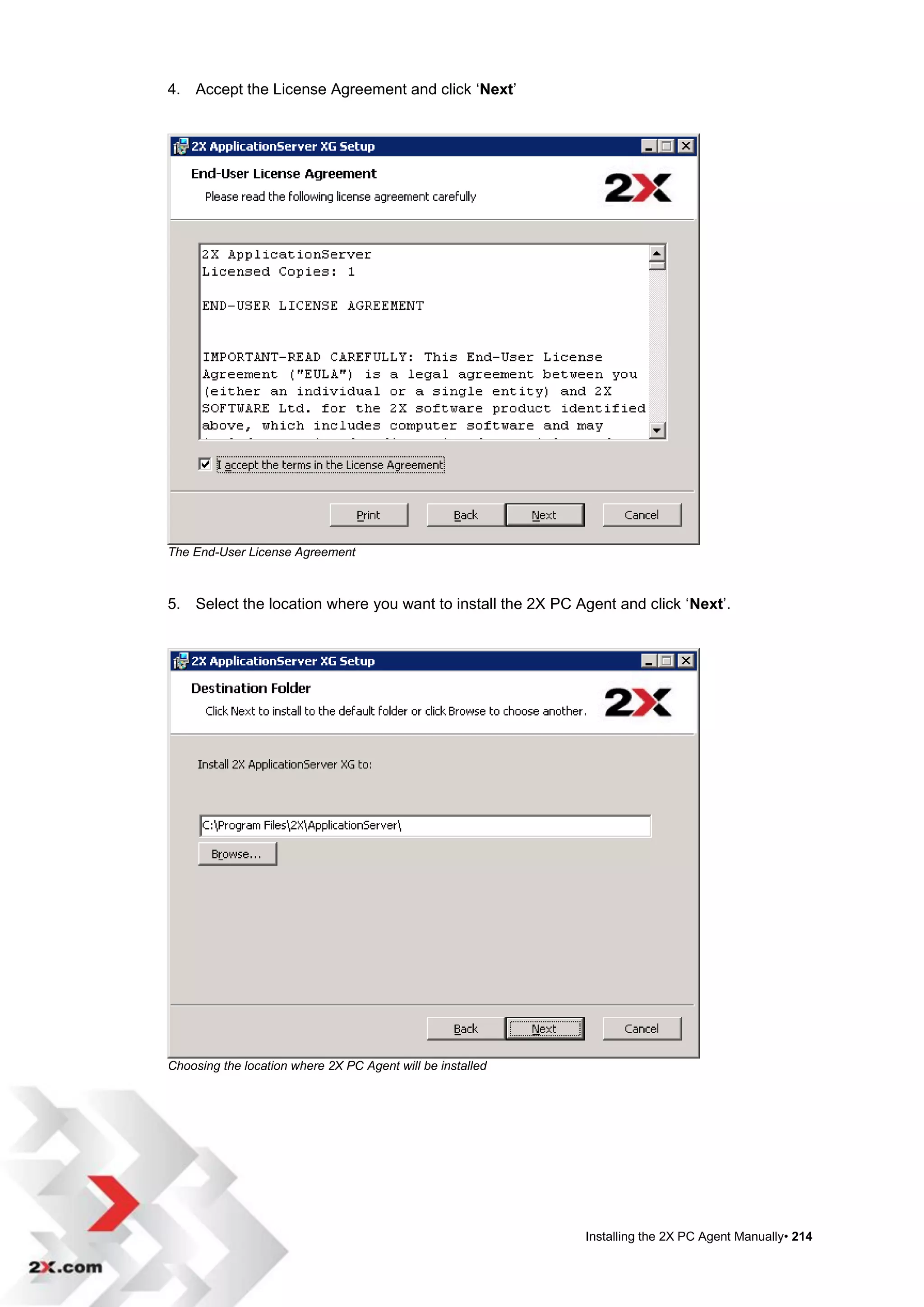
   Double click on the 2XAppServer.msi file and a welcome dialog box will appear.

   Click „Next‟.


   2X ApplicationServer Setup Program welcome screen.

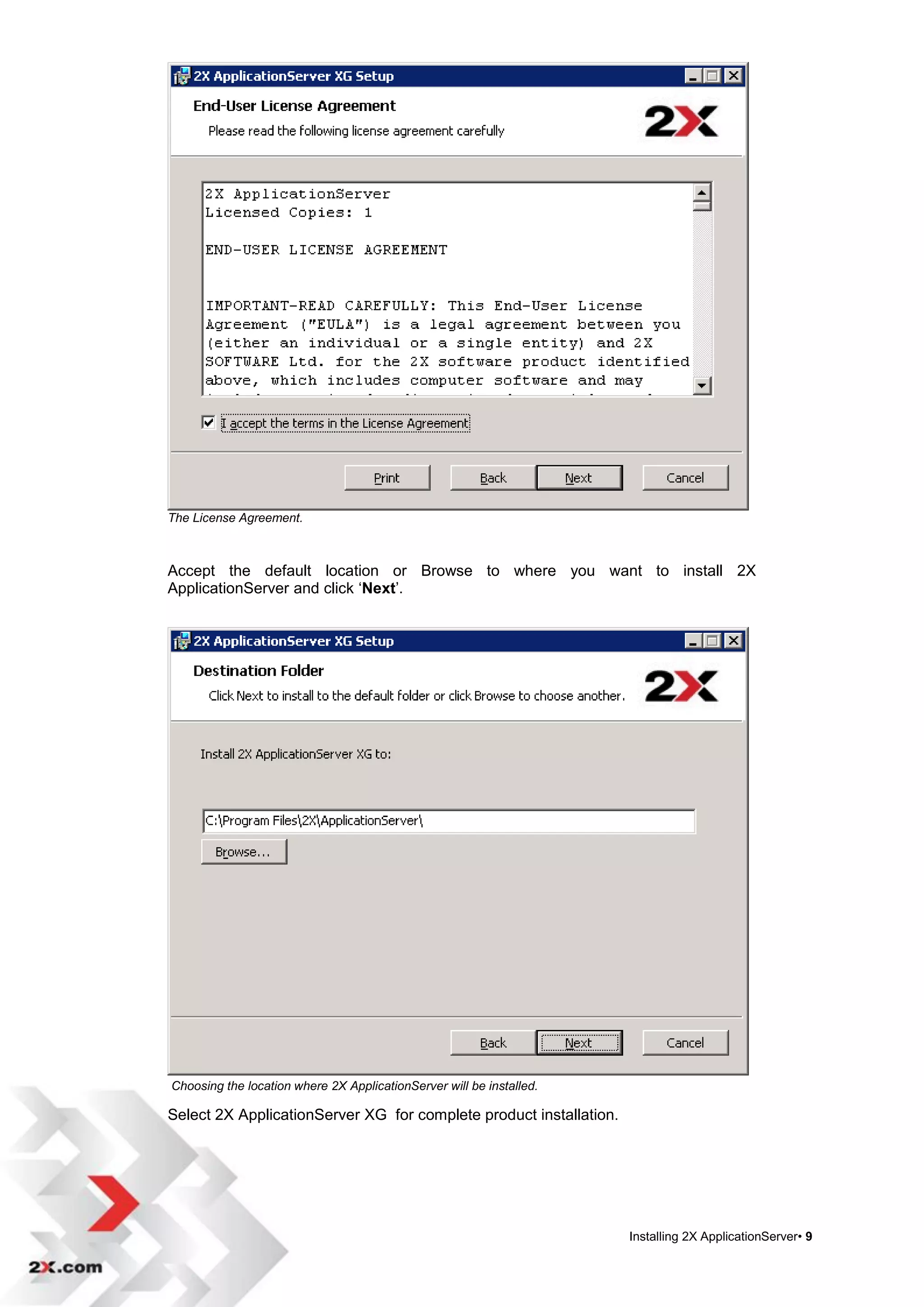
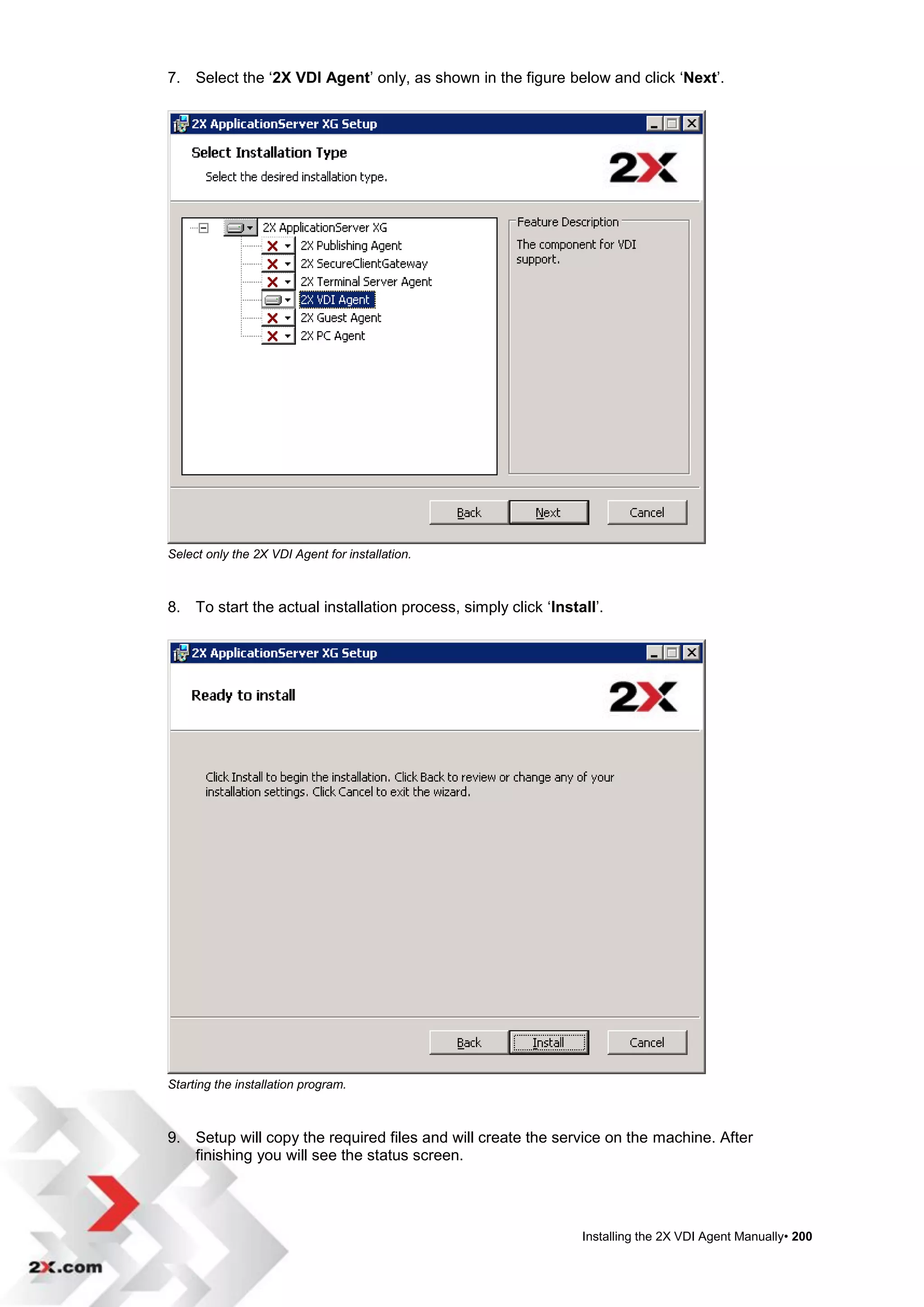
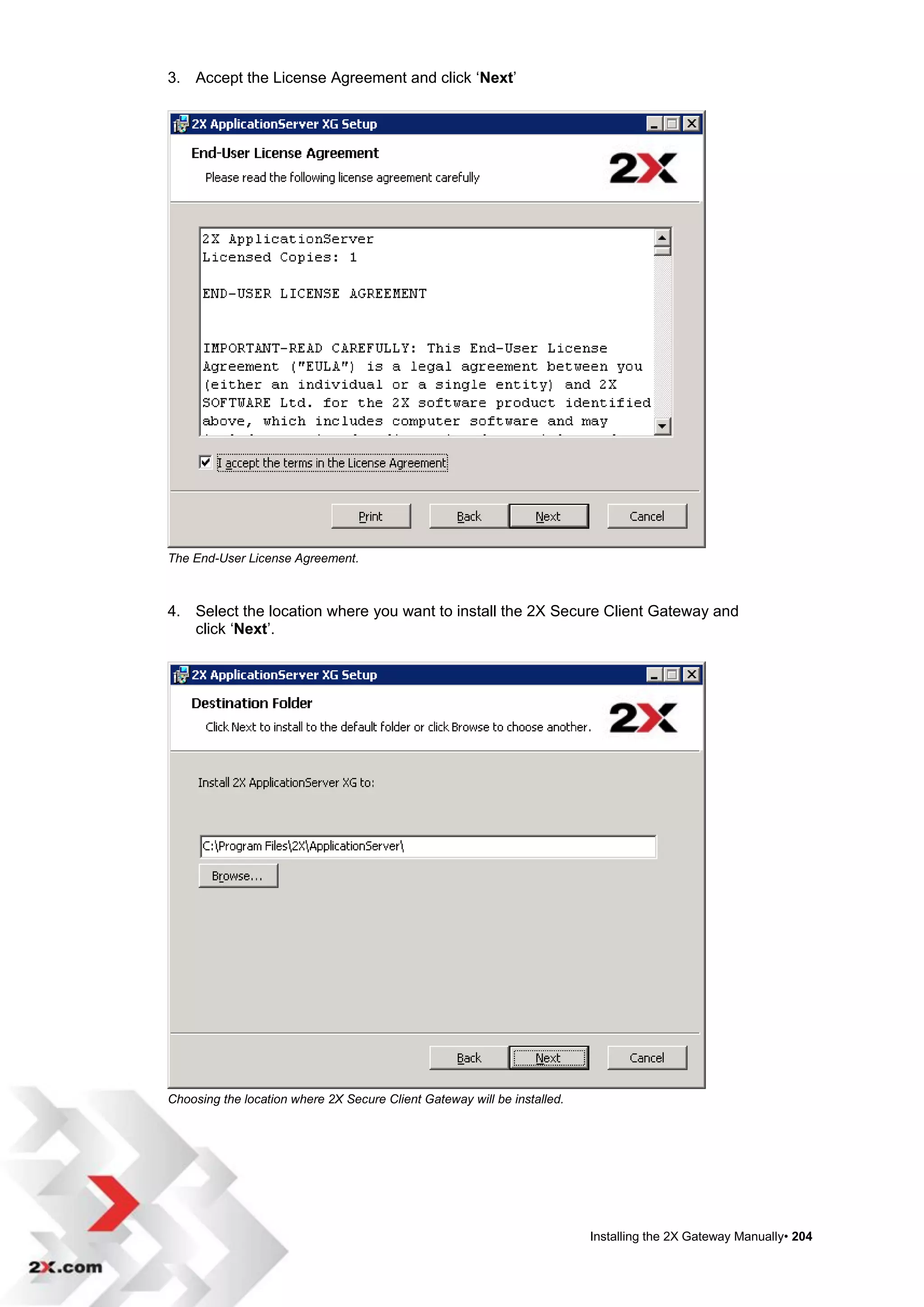
   Accept the license agreement by checking the „I accept the terms in the License
   Agreement‟ checkbox.


                                                                     Installing 2X ApplicationServer• 8
The License Agreement.


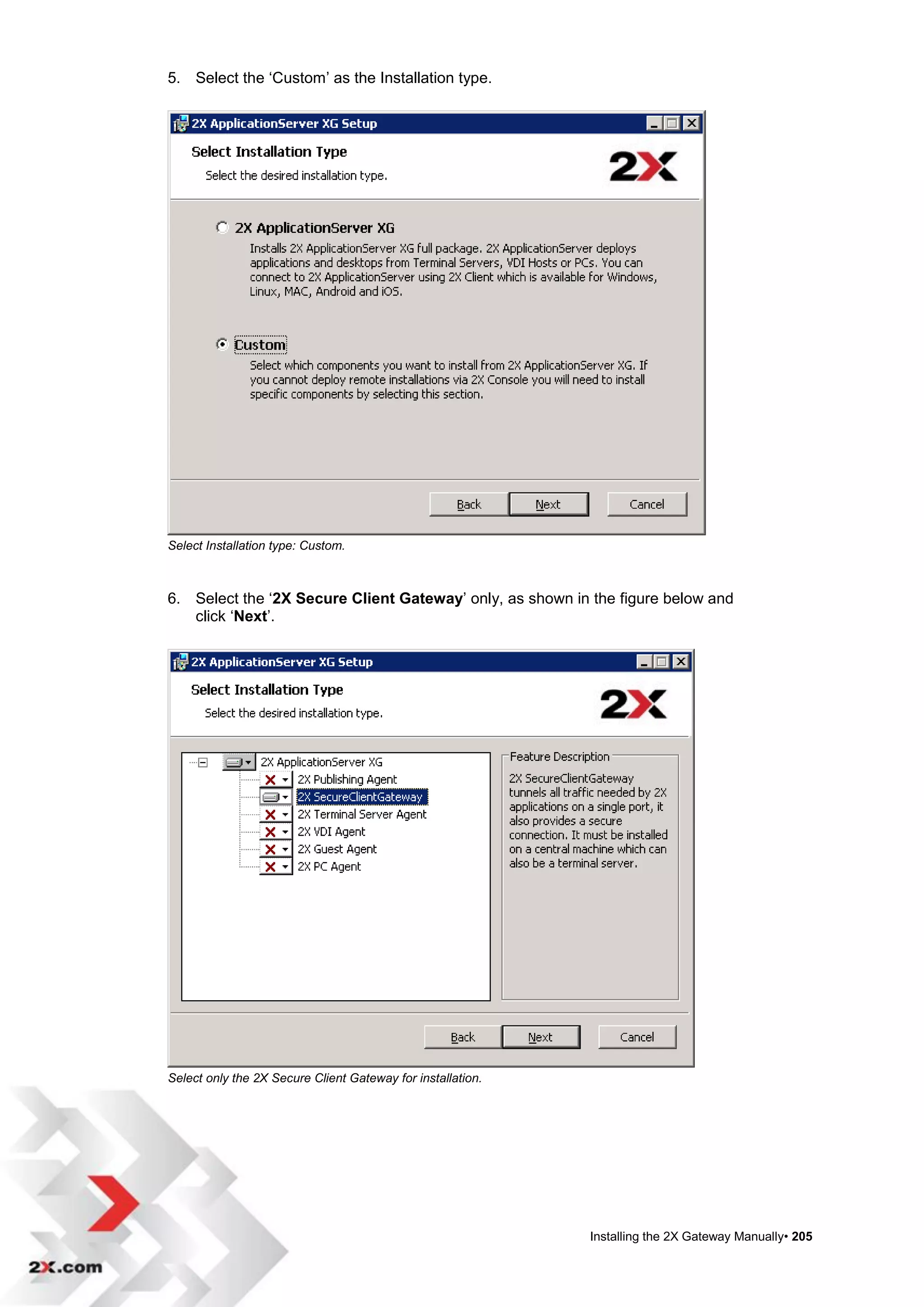
Accept the default location or Browse to where you want to install 2X
ApplicationServer and click „Next‟.


Choosing the location where 2X ApplicationServer will be installed.

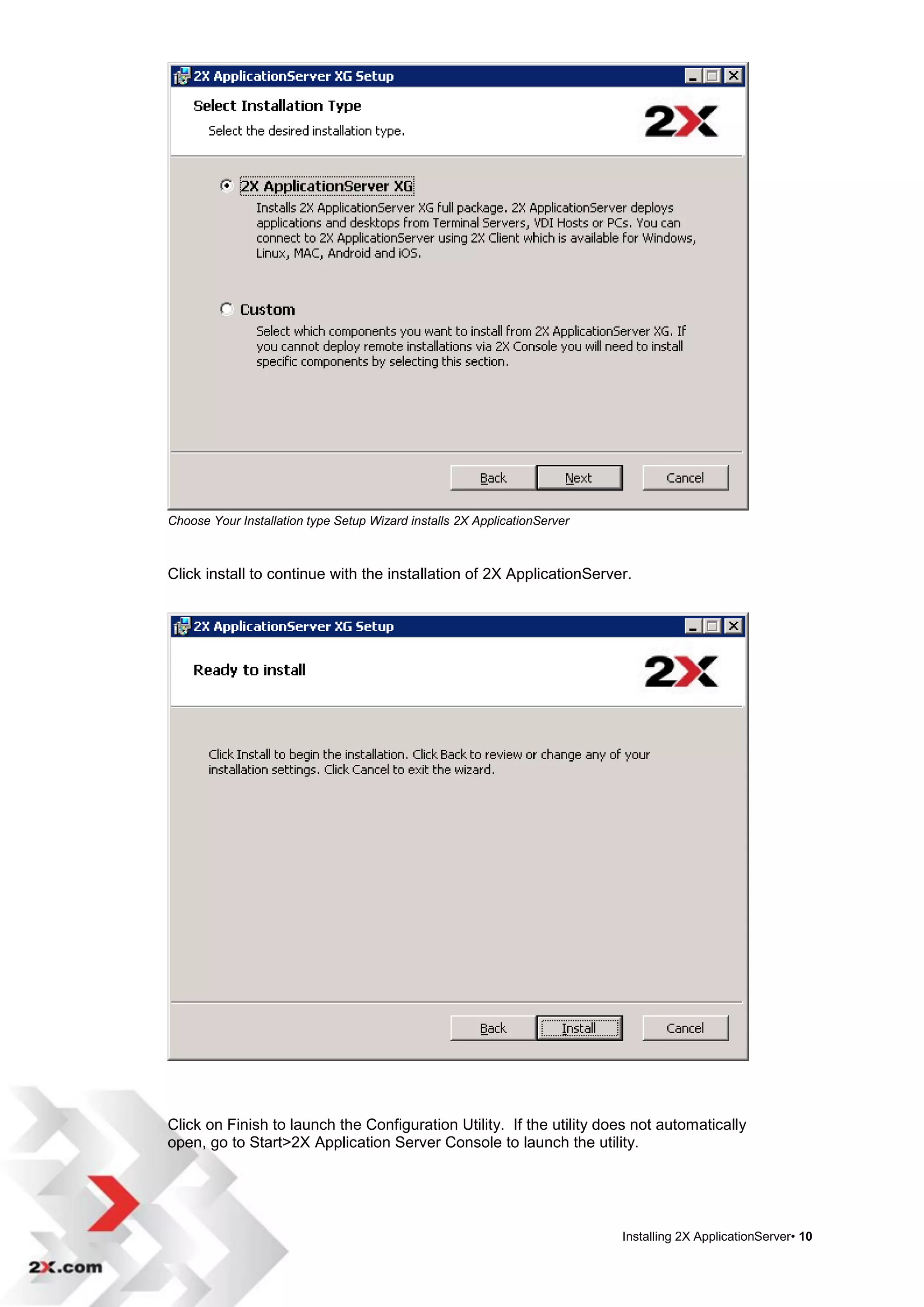
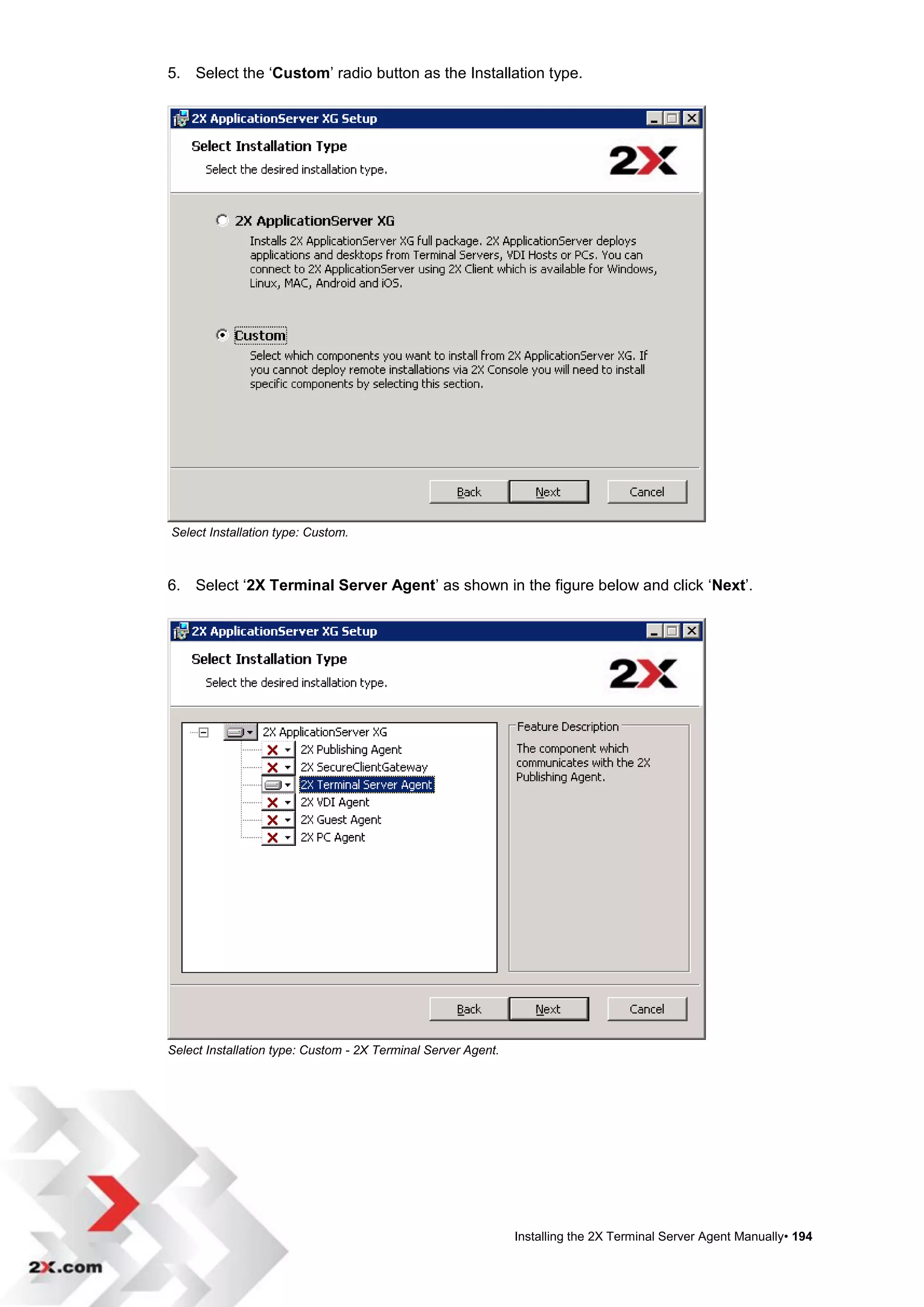
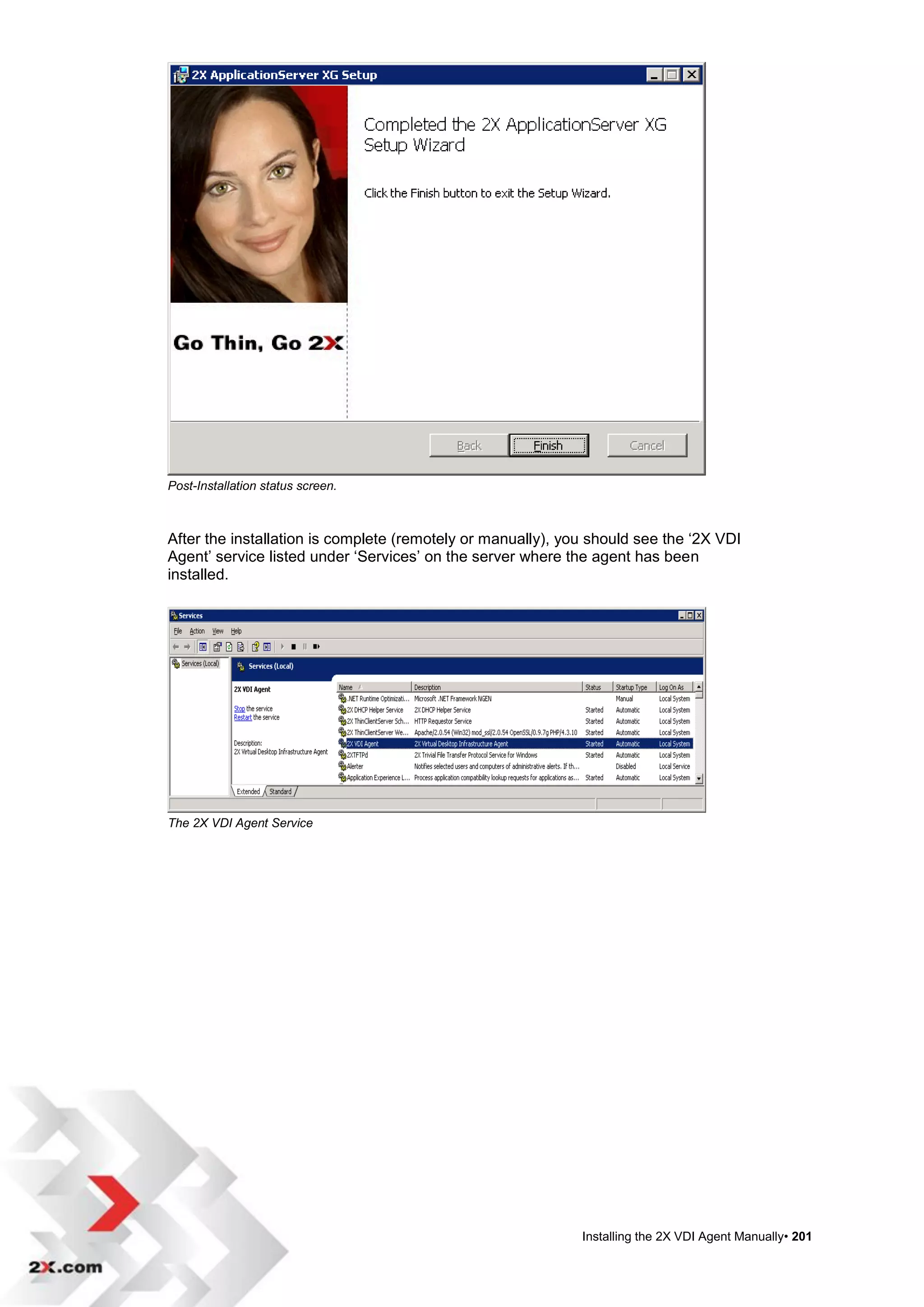
Select 2X ApplicationServer XG for complete product installation.


                                                                      Installing 2X ApplicationServer• 9
Choose Your Installation type Setup Wizard installs 2X ApplicationServer


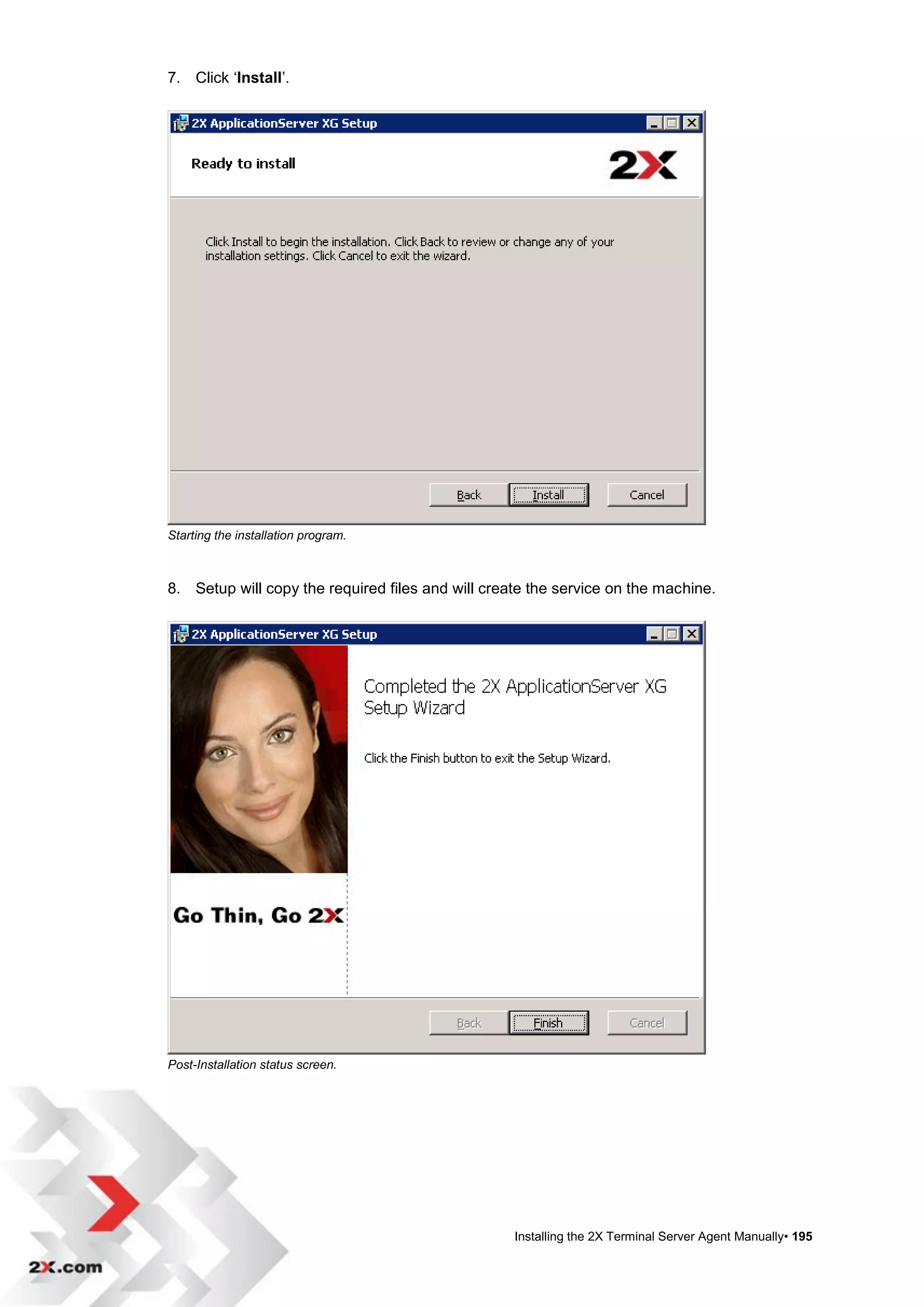
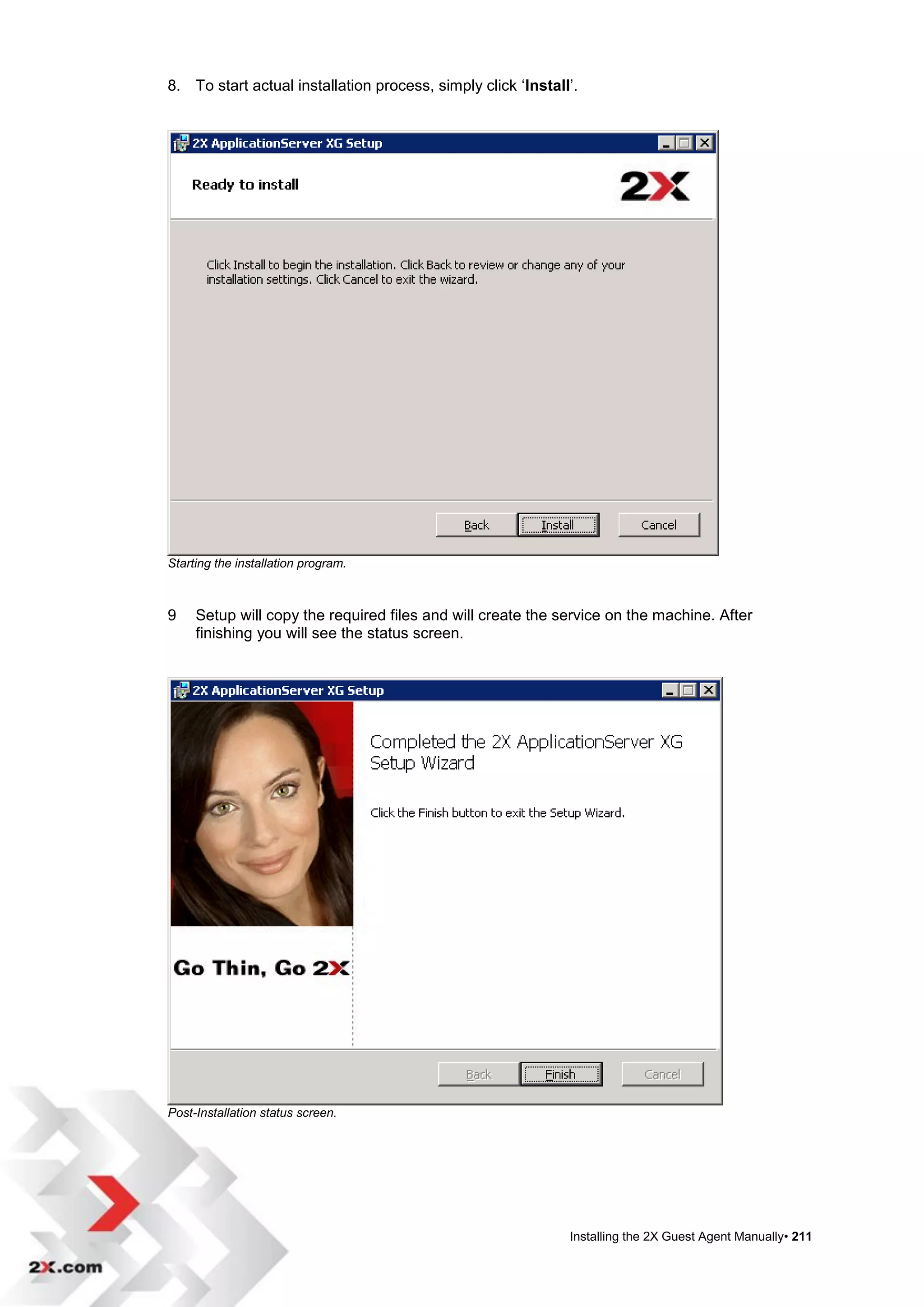
Click install to continue with the installation of 2X ApplicationServer.


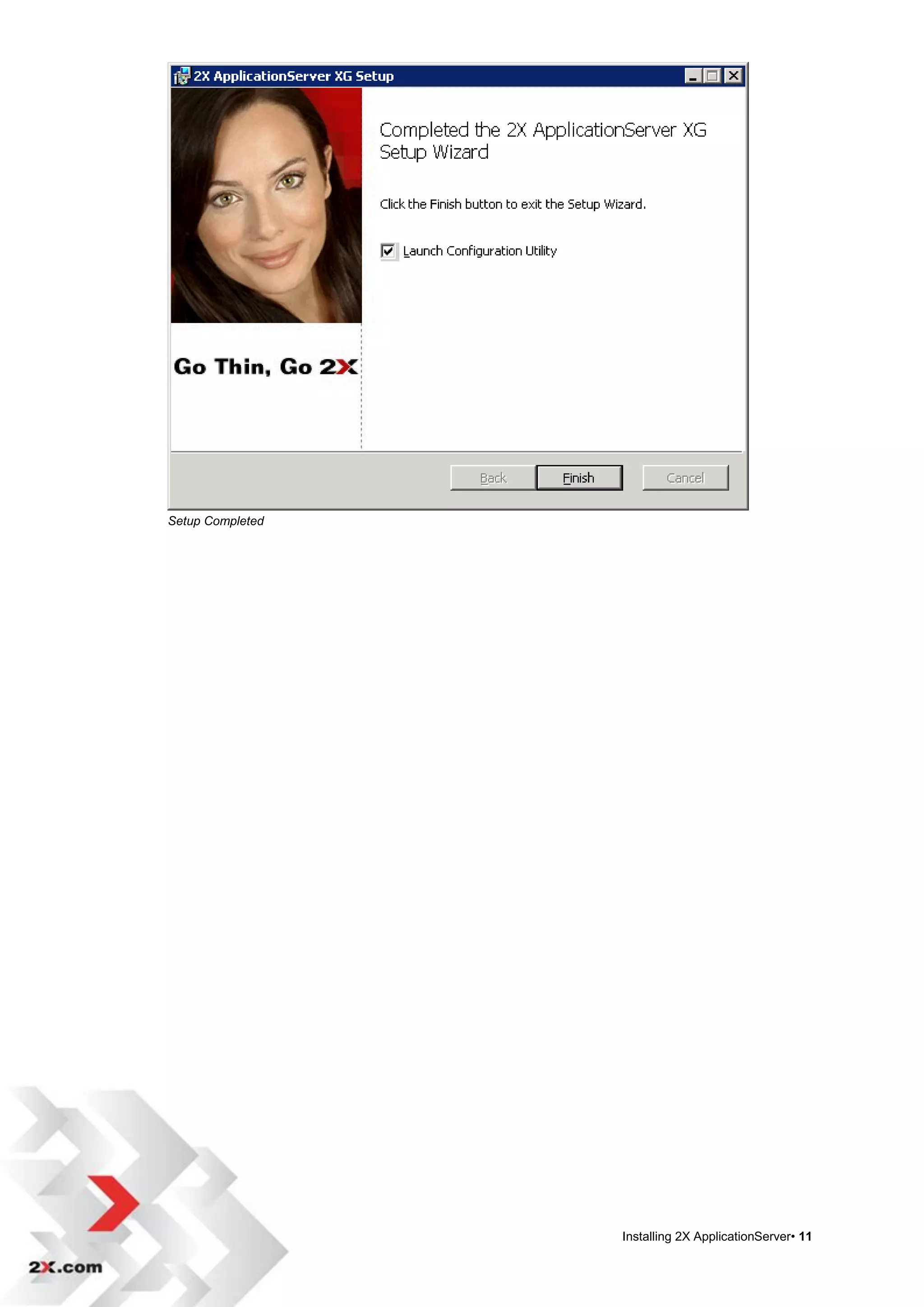
Click on Finish to launch the Configuration Utility. If the utility does not automatically
open, go to Start>2X Application Server Console to launch the utility.


                                                                           Installing 2X ApplicationServer• 10
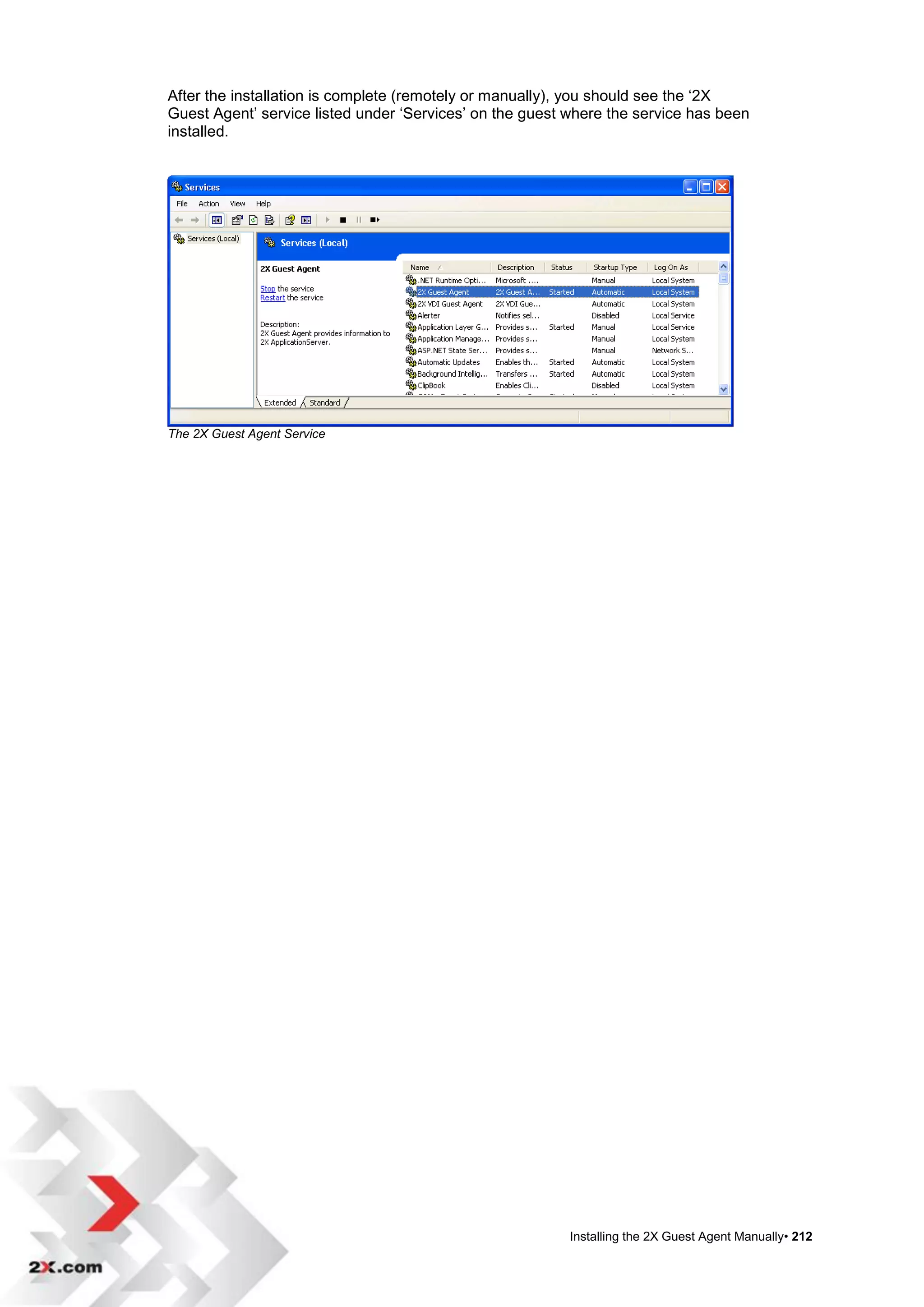
Setup Completed


                  Installing 2X ApplicationServer• 11
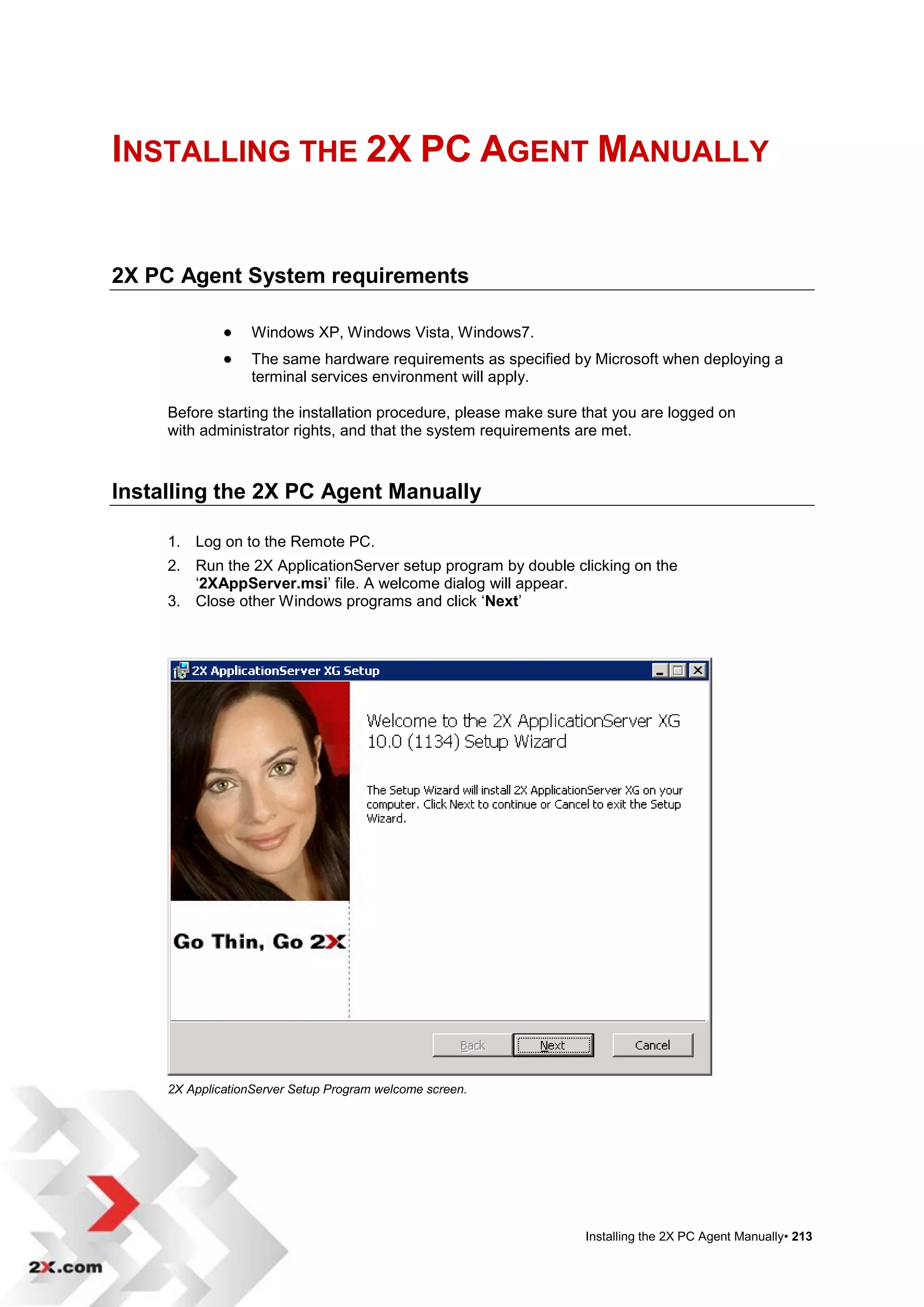
2X ApplicationServer Services

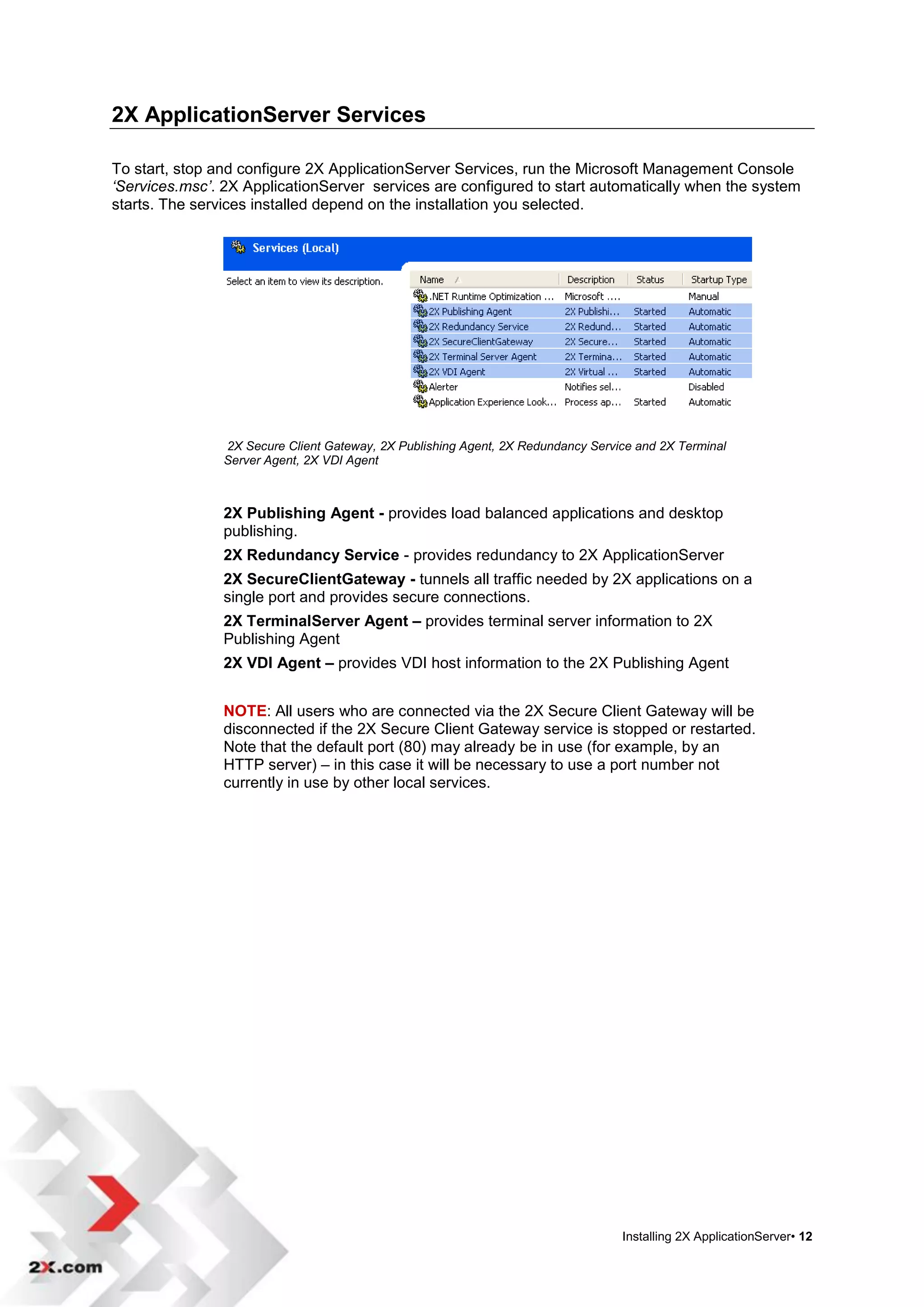
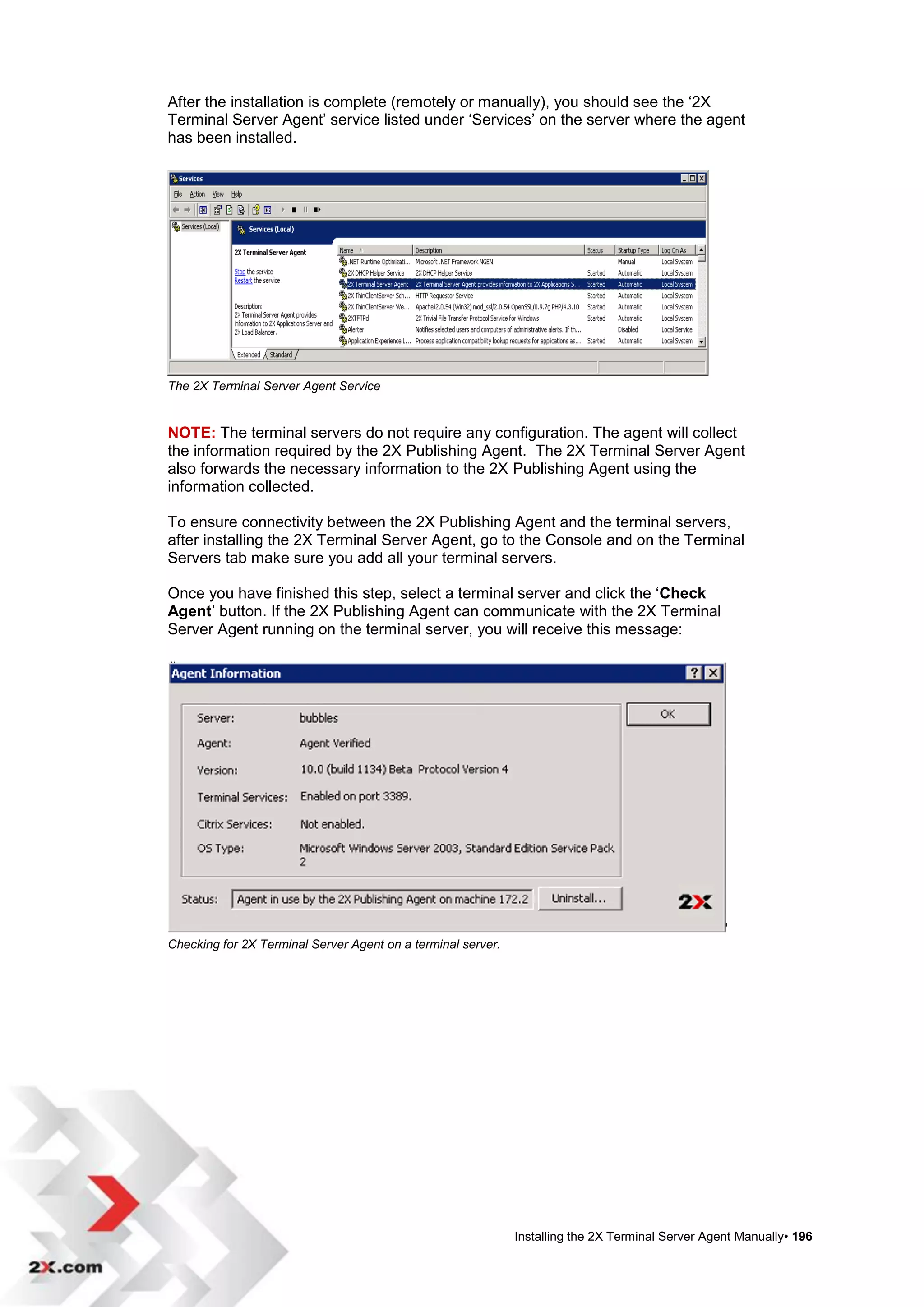
To start, stop and configure 2X ApplicationServer Services, run the Microsoft Management Console
‘Services.msc’. 2X ApplicationServer services are configured to start automatically when the system
starts. The services installed depend on the installation you selected.


                2X Secure Client Gateway, 2X Publishing Agent, 2X Redundancy Service and 2X Terminal
                Server Agent, 2X VDI Agent


                2X Publishing Agent - provides load balanced applications and desktop
                publishing.
                2X Redundancy Service - provides redundancy to 2X ApplicationServer
                2X SecureClientGateway - tunnels all traffic needed by 2X applications on a
                single port and provides secure connections.
                2X TerminalServer Agent – provides terminal server information to 2X
                Publishing Agent
                2X VDI Agent – provides VDI host information to the 2X Publishing Agent


                NOTE: All users who are connected via the 2X Secure Client Gateway will be
                disconnected if the 2X Secure Client Gateway service is stopped or restarted.
                Note that the default port (80) may already be in use (for example, by an
                HTTP server) – in this case it will be necessary to use a port number not
                currently in use by other local services.


                                                                                  Installing 2X ApplicationServer• 12
Pre- Configuration MS Terminal Server Settings

With Terminal Services Configuration, you can reconfigure the properties of the RDP-TCP
connection, including limiting the amount of time client sessions can remain active on the
server, setting protection levels for encryption, and selecting which permissions you want
users and groups to have.

Terminal Services Group Policies or Terminal Services extension to Local Users and Groups
are the settings that you use to set connection properties on a per-user basis. You can set
different session time limits for each user when you use the Terminal Services extension to
Local Users and Groups.

Use Terminal Services Configuration to set the same time limit to all users who log on using
the same server connection.


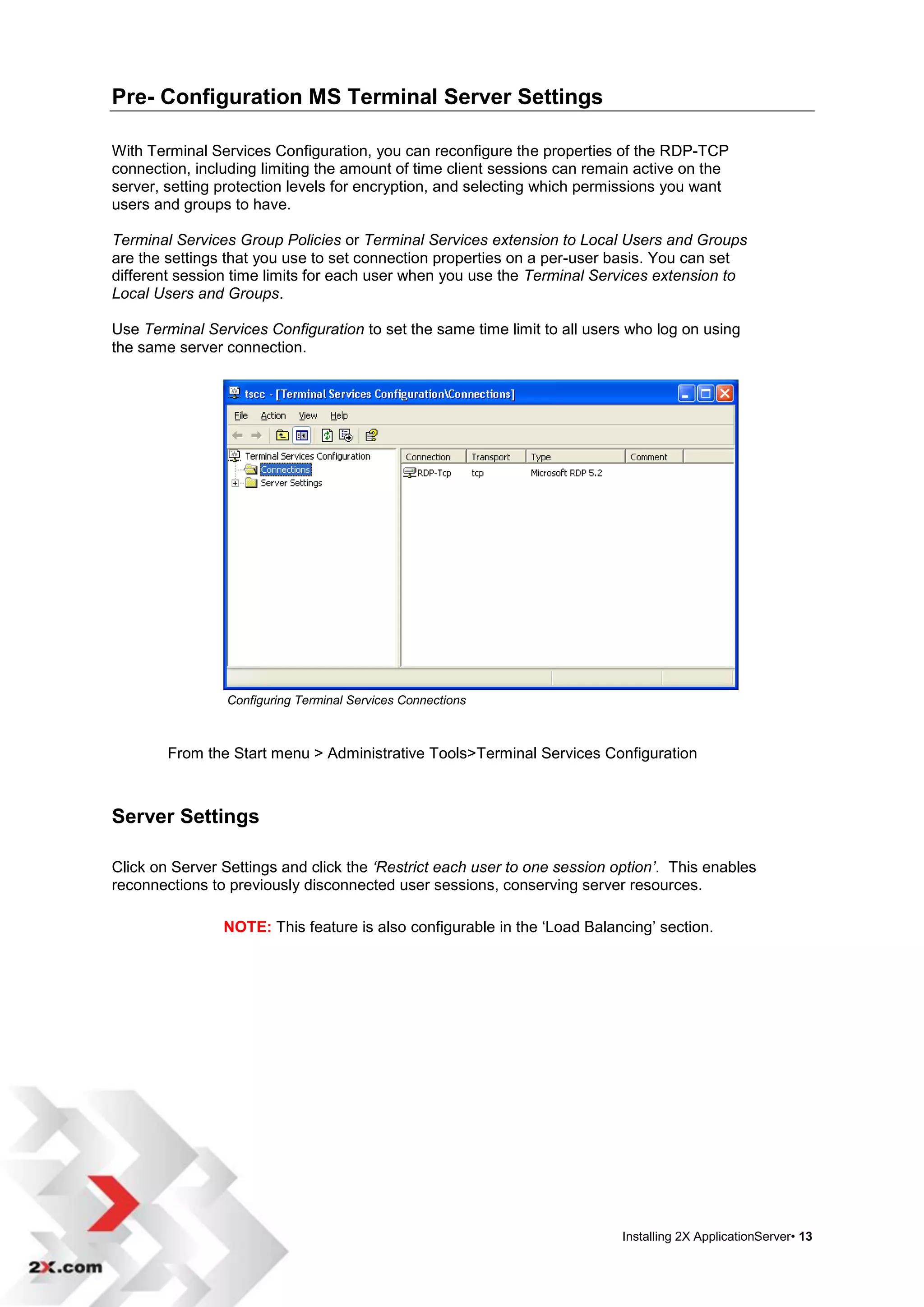
                Configuring Terminal Services Connections


        From the Start menu > Administrative Tools>Terminal Services Configuration


Server Settings

Click on Server Settings and click the ‘Restrict each user to one session option’. This enables
reconnections to previously disconnected user sessions, conserving server resources.

                NOTE: This feature is also configurable in the „Load Balancing‟ section.


                                                                           Installing 2X ApplicationServer• 13
Connection Settings

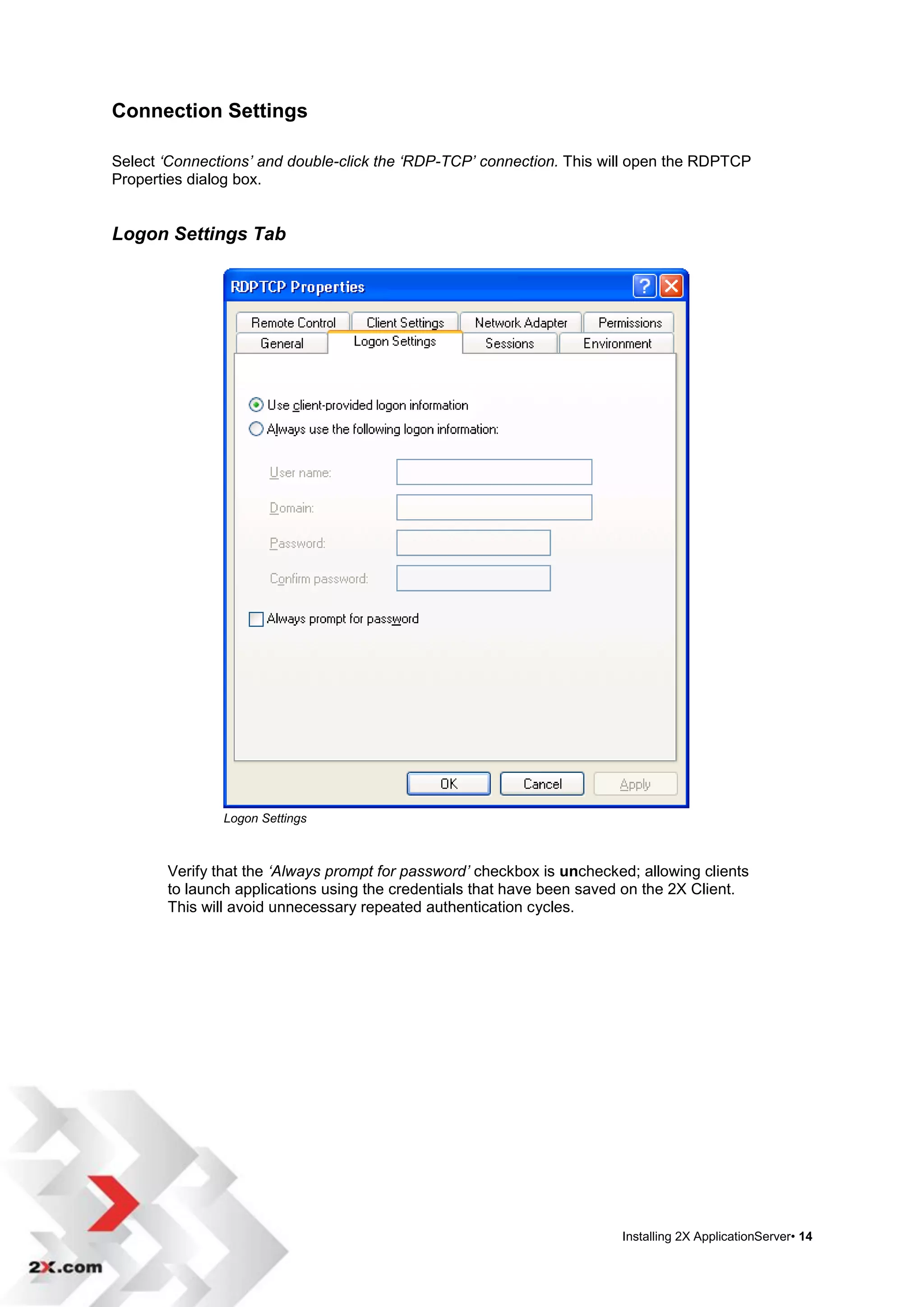
Select ‘Connections’ and double-click the ‘RDP-TCP’ connection. This will open the RDPTCP
Properties dialog box.


Logon Settings Tab


               Logon Settings


       Verify that the ‘Always prompt for password’ checkbox is unchecked; allowing clients
       to launch applications using the credentials that have been saved on the 2X Client.
       This will avoid unnecessary repeated authentication cycles.


                                                                        Installing 2X ApplicationServer• 14
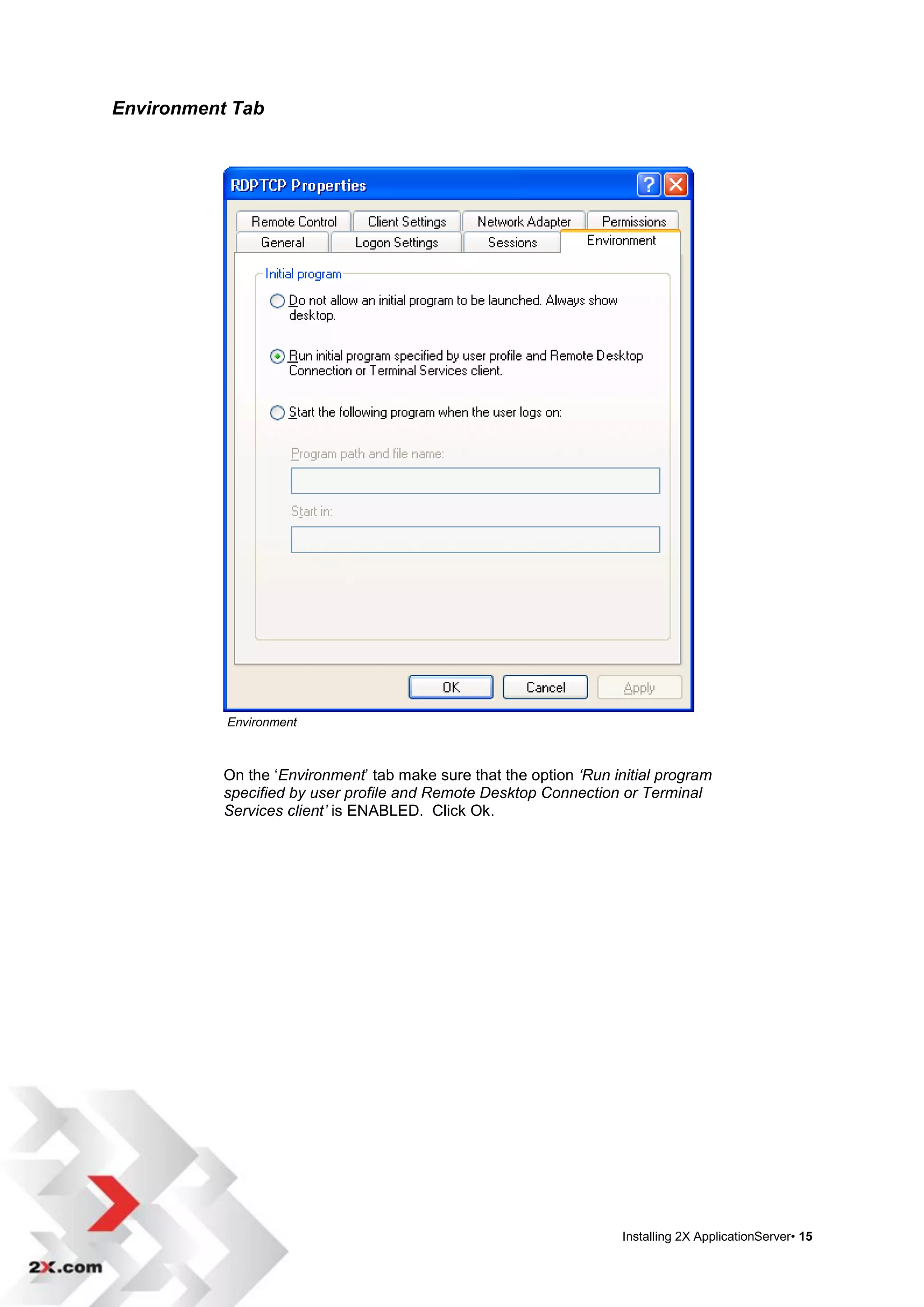
Environment Tab


           Environment


           On the „Environment‟ tab make sure that the option ‘Run initial program
           specified by user profile and Remote Desktop Connection or Terminal
           Services client’ is ENABLED. Click Ok.


                                                                    Installing 2X ApplicationServer• 15
CONFIGURING 2X APPLICATIONSERVER


Introduction to the Configuration of ApplicationServer

After you have installed 2X ApplicationServer you can now launch the 2X ApplicationServer
Console for additional configuration.


                Launching the 2X ApplicationServer Console


               To open the 2X ApplicationServer Console go to:

               Start > [All] Programs > 2X > ApplicationServer > 2X ApplicationServer
               Console


                                                                      Configuring 2X ApplicationServer• 16
2X ApplicationServer Console Environment & Components

The 2X ApplicationServer Console is a completely self-contained environment that is used to
enable Universal Printing and Scanning, publish seamless applications, also providing load
balancing to published desktop sessions and Virtual Desktop Hosts, Terminal Server and/or
Citrix sessions. Below is a brief description of each component located in the Navigation Bar.


Components of the Navigation Bar

                   Farm
                    Add Virtual Desktop Hosts, Microsoft Terminal Servers and Citrix Servers
                    to the farm.
                   Load Balancing
                    Choose the load balancing method to be used.
                   Publishing
                    Publish applications, application groups, virtual desktops and desktops.
                   Universal Printing
                    Enable Universal Printing to each Terminal Server.
                   Universal Scanning
                    Enable Universal Scanning to each Terminal Server.
                   Connection Settings
                    Configure which port to use for each service.
                   Client Settings
                    Configure and enable client settings.
                   Information
                    Find information about the modules used, enable logging, and enable
                    notification.
                   Licensing
                    Obtain or review your licensing information and license number for 2X
                    ApplicationServer products.


                                                                         Configuring 2X ApplicationServer• 17
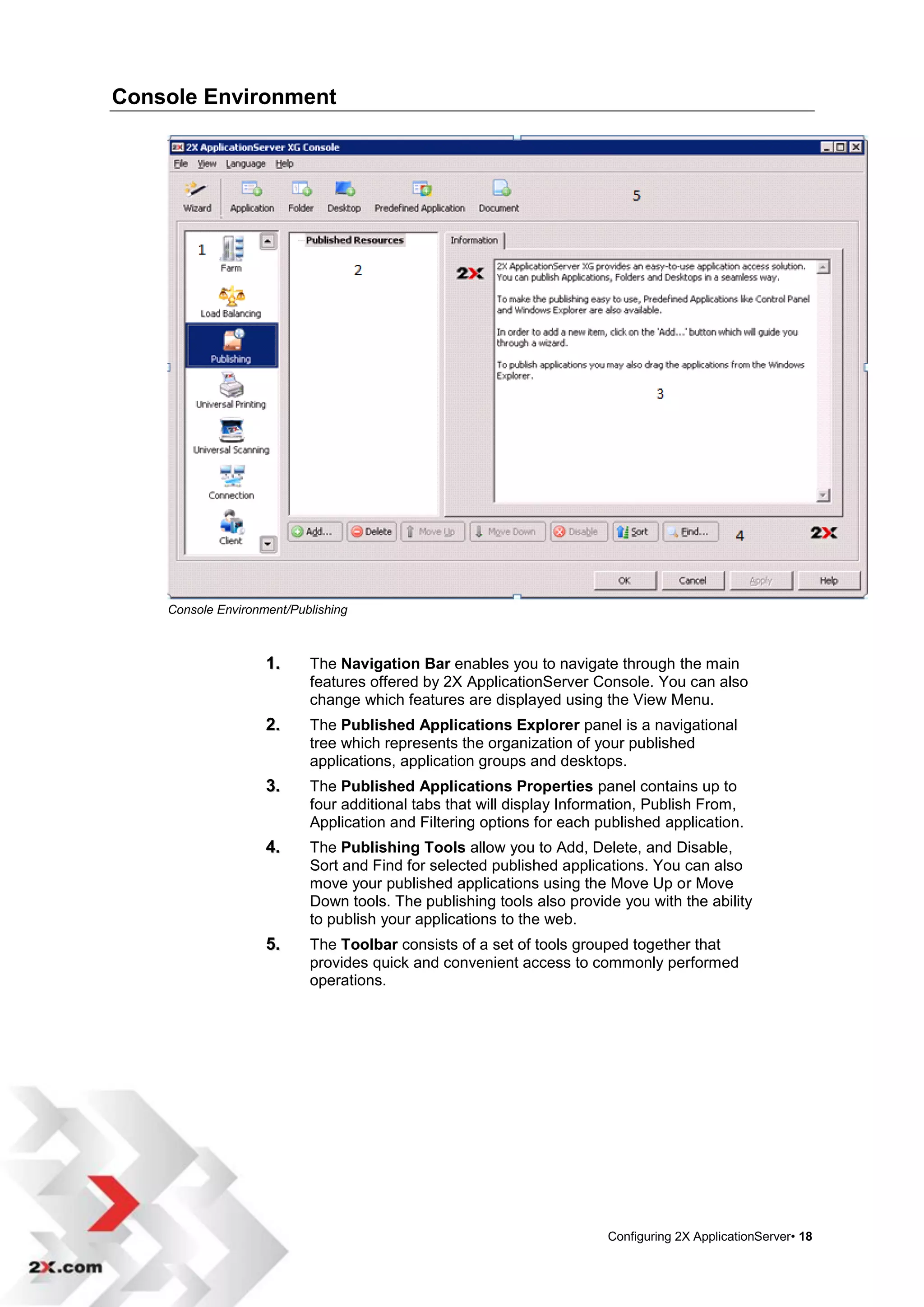
Console Environment


    Console Environment/Publishing


                    1.     The Navigation Bar enables you to navigate through the main
                           features offered by 2X ApplicationServer Console. You can also
                           change which features are displayed using the View Menu.
                    2.     The Published Applications Explorer panel is a navigational
                           tree which represents the organization of your published
                           applications, application groups and desktops.
                    3.     The Published Applications Properties panel contains up to
                           four additional tabs that will display Information, Publish From,
                           Application and Filtering options for each published application.
                    4.     The Publishing Tools allow you to Add, Delete, and Disable,
                           Sort and Find for selected published applications. You can also
                           move your published applications using the Move Up or Move
                           Down tools. The publishing tools also provide you with the ability
                           to publish your applications to the web.
                    5.     The Toolbar consists of a set of tools grouped together that
                           provides quick and convenient access to commonly performed
                           operations.


                                                                       Configuring 2X ApplicationServer• 18
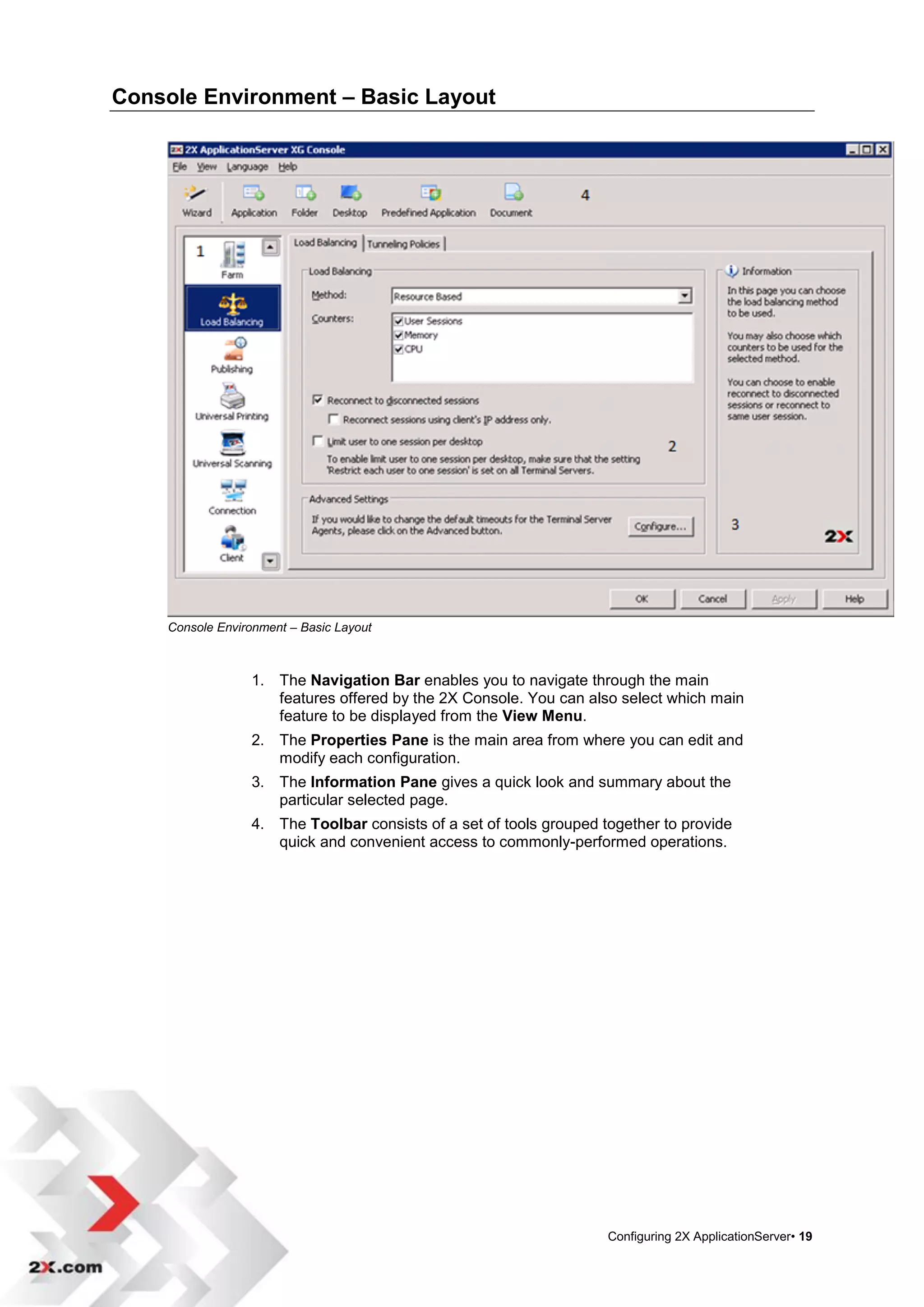
Console Environment – Basic Layout


    Console Environment – Basic Layout


                 1. The Navigation Bar enables you to navigate through the main
                    features offered by the 2X Console. You can also select which main
                    feature to be displayed from the View Menu.
                 2. The Properties Pane is the main area from where you can edit and
                    modify each configuration.
                 3. The Information Pane gives a quick look and summary about the
                    particular selected page.
                 4. The Toolbar consists of a set of tools grouped together to provide
                    quick and convenient access to commonly-performed operations.


                                                                    Configuring 2X ApplicationServer• 19
Main Menu - 2X Console Settings

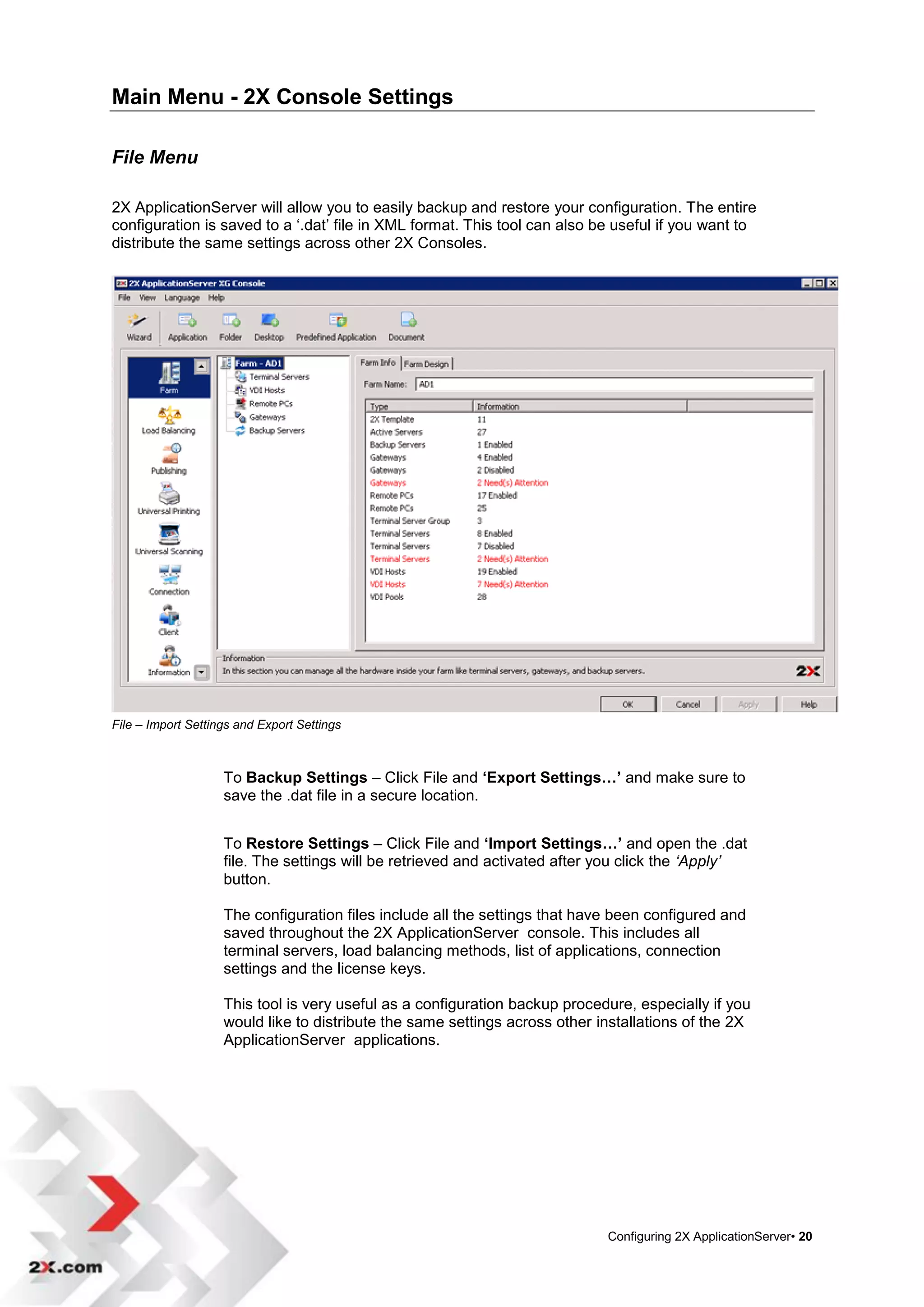
File Menu

2X ApplicationServer will allow you to easily backup and restore your configuration. The entire
configuration is saved to a „.dat‟ file in XML format. This tool can also be useful if you want to
distribute the same settings across other 2X Consoles.


File – Import Settings and Export Settings


                    To Backup Settings – Click File and ‘Export Settings…’ and make sure to
                    save the .dat file in a secure location.


                    To Restore Settings – Click File and ‘Import Settings…’ and open the .dat
                    file. The settings will be retrieved and activated after you click the ‘Apply’
                    button.

                    The configuration files include all the settings that have been configured and
                    saved throughout the 2X ApplicationServer console. This includes all
                    terminal servers, load balancing methods, list of applications, connection
                    settings and the license keys.

                    This tool is very useful as a configuration backup procedure, especially if you
                    would like to distribute the same settings across other installations of the 2X
                    ApplicationServer applications.


                                                                             Configuring 2X ApplicationServer• 20
View Menu

The View Menu enables you to navigate through the main features offered by the 2X
Console. You can also choose to view or not to view the toolbar from this menu.


Language Menu

Changing the language to your preferred language is as easy as clicking on the Language menu.
This feature allows you to change all functions in the console to your preferred language. The default
language will use the language that is configured in the Regional and Language Options.


Help Menu

        The Help menu contains several features listed below:


           Access the 2X ApplicationServer by clicking on Manual
           Online version of the manual
           Obtain contextual help about a particular field or control by clicking on
            Help>Context Help. When the mouse pointer changes to a „?‟ pointer, you are
            able to click on any item and display relevant „help‟ for that particular field or
            control. You may also use „F1‟ or click on the „Help‟ button located in the right-
            bottom corner of the console.
           To order online while you are using the console, click on „Help‟ and select ‘Order
            Online…’ A new page will open in your default browser guiding you on how to
            order this product.
           Sending a query to 2X support is as easy as clicking on the Help menu and
            selecting „Send Support Request‟. A form will load and you will be able to enter
            the details of the problem and your information.
           Version information of the product.


            NOTE: The application will automatically send your settings and the current log
            file so that 2X support can replicate your problem. You are also able to send an
            attachment with your query such as a screenshot to support your query.


                                                                          Configuring 2X ApplicationServer• 21
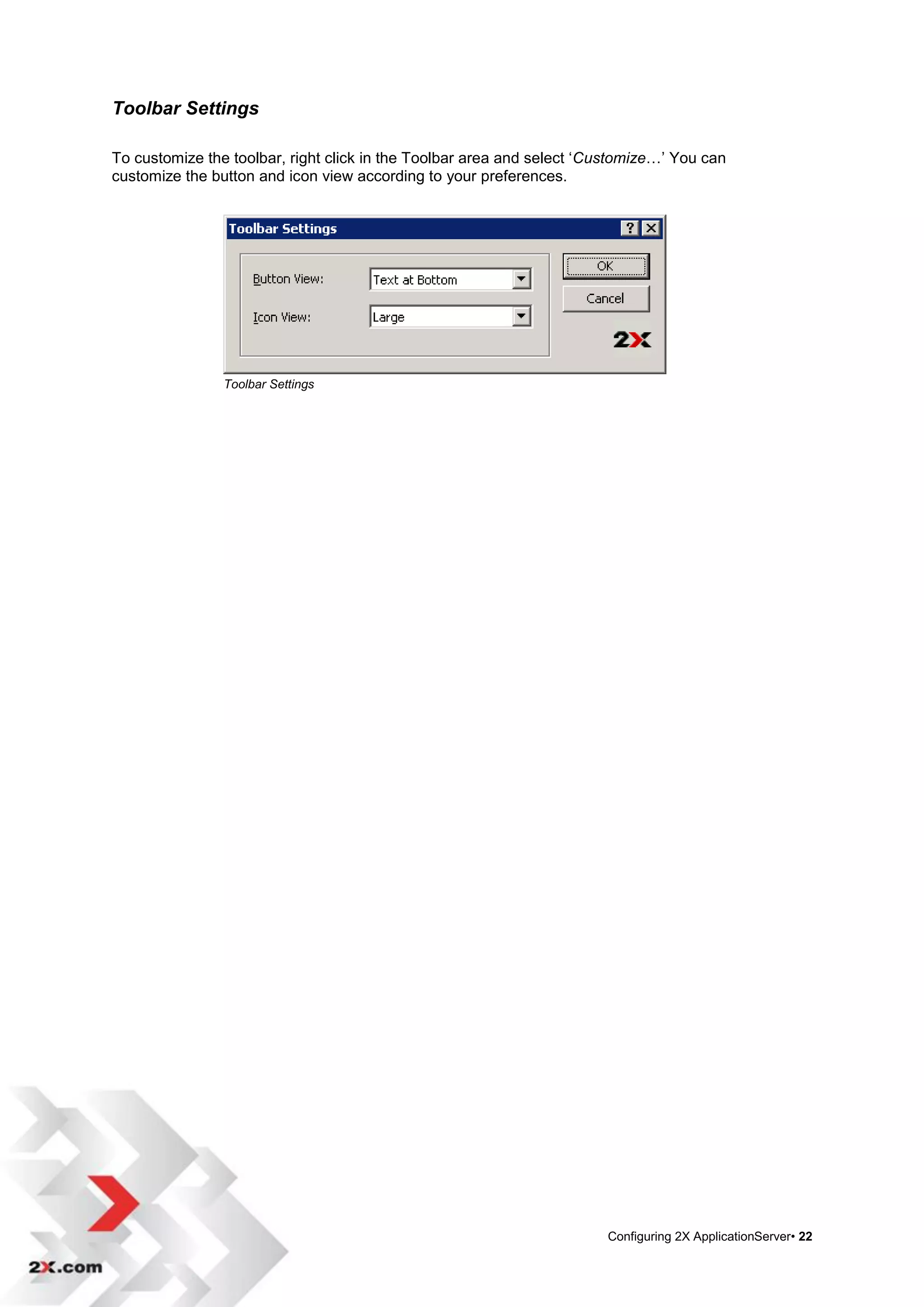
Toolbar Settings

To customize the toolbar, right click in the Toolbar area and select „Customize…‟ You can
customize the button and icon view according to your preferences.


                Toolbar Settings


                                                                       Configuring 2X ApplicationServer• 22
2X STARTUP WIZARD


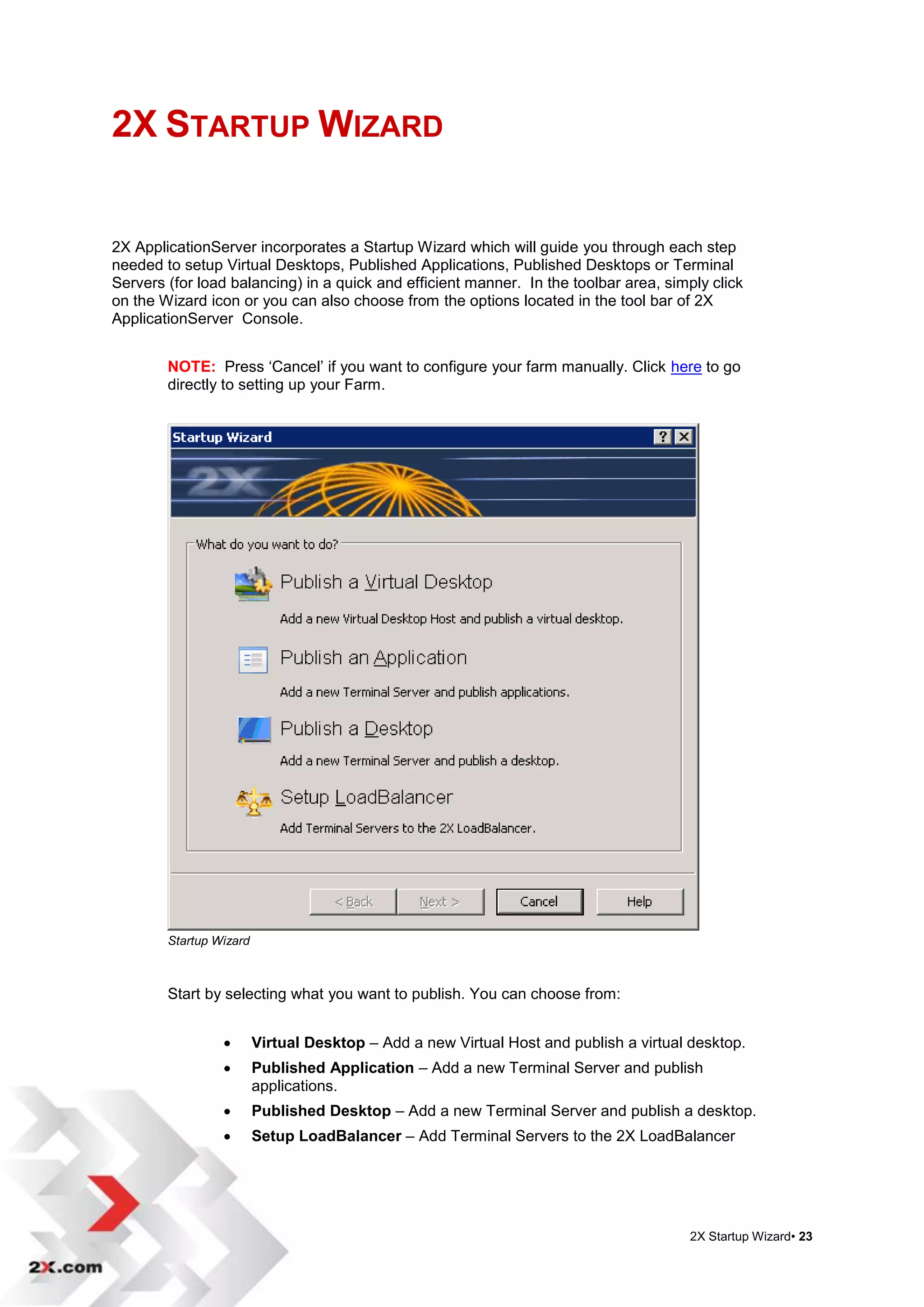
2X ApplicationServer incorporates a Startup Wizard which will guide you through each step
needed to setup Virtual Desktops, Published Applications, Published Desktops or Terminal
Servers (for load balancing) in a quick and efficient manner. In the toolbar area, simply click
on the Wizard icon or you can also choose from the options located in the tool bar of 2X
ApplicationServer Console.


        NOTE: Press „Cancel‟ if you want to configure your farm manually. Click here to go
        directly to setting up your Farm.


        Startup Wizard


        Start by selecting what you want to publish. You can choose from:


                        Virtual Desktop – Add a new Virtual Host and publish a virtual desktop.
                        Published Application – Add a new Terminal Server and publish
                         applications.
                        Published Desktop – Add a new Terminal Server and publish a desktop.
                        Setup LoadBalancer – Add Terminal Servers to the 2X LoadBalancer


                                                                                       2X Startup Wizard• 23
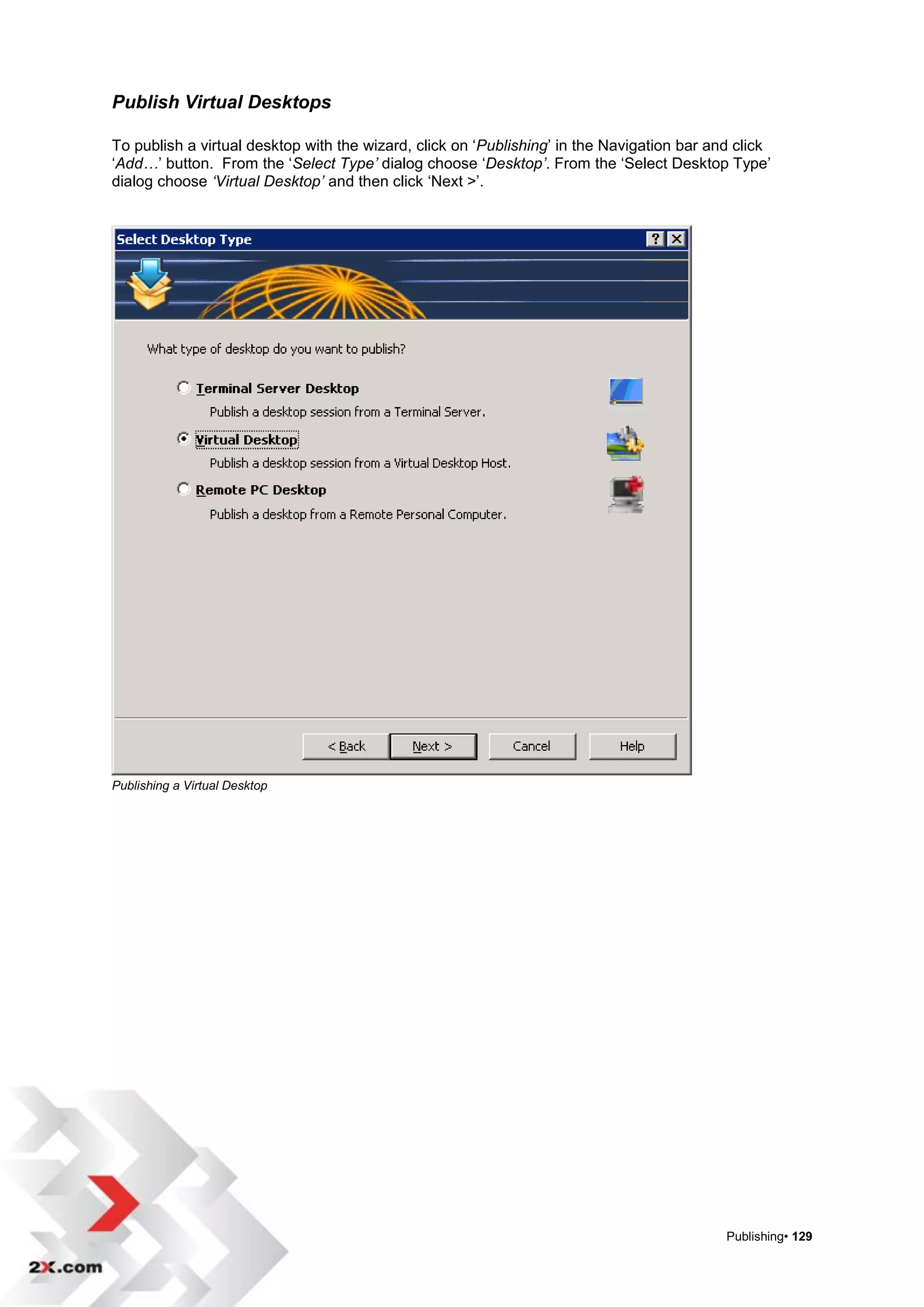
Publish a Virtual Desktop


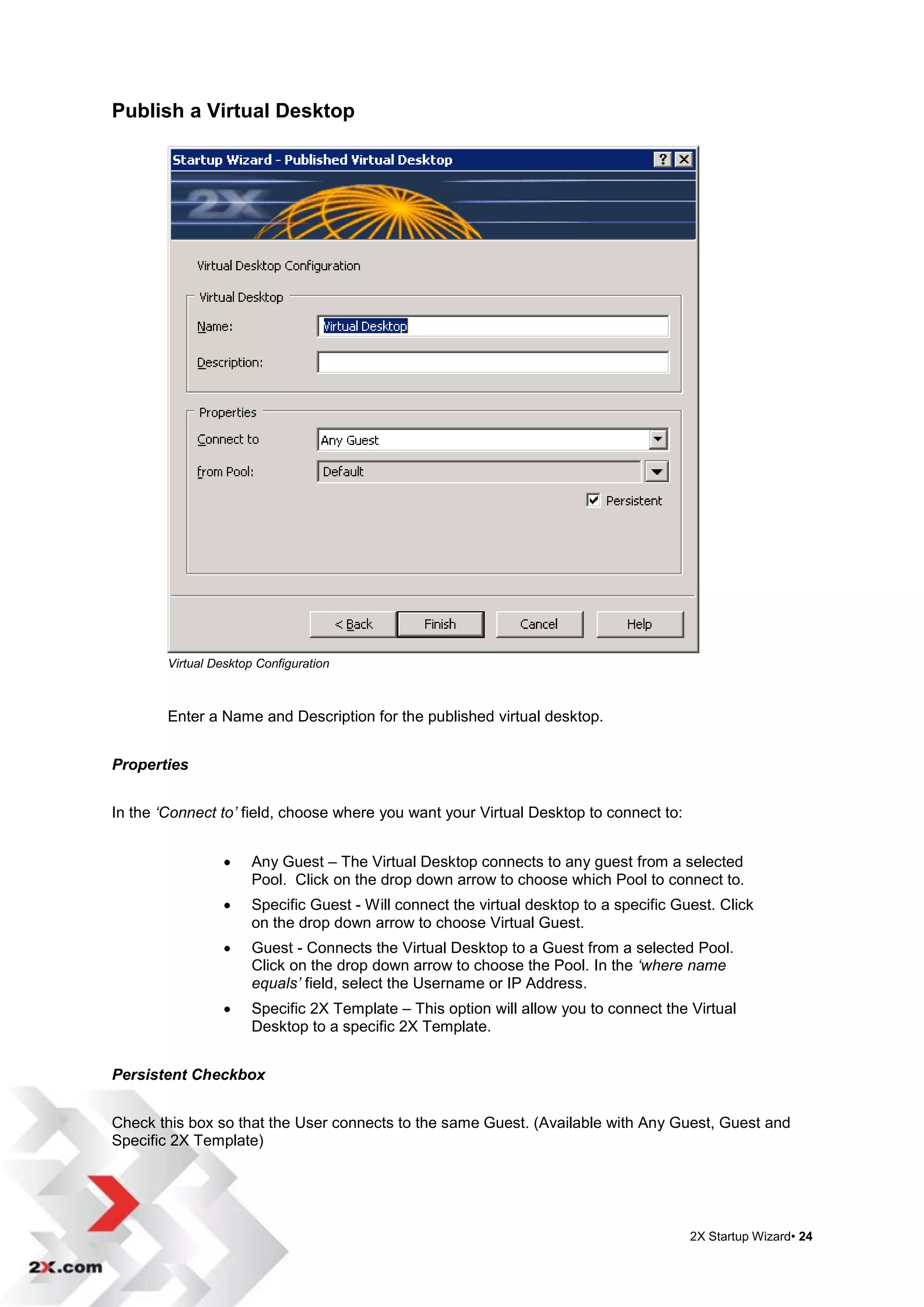
        Virtual Desktop Configuration


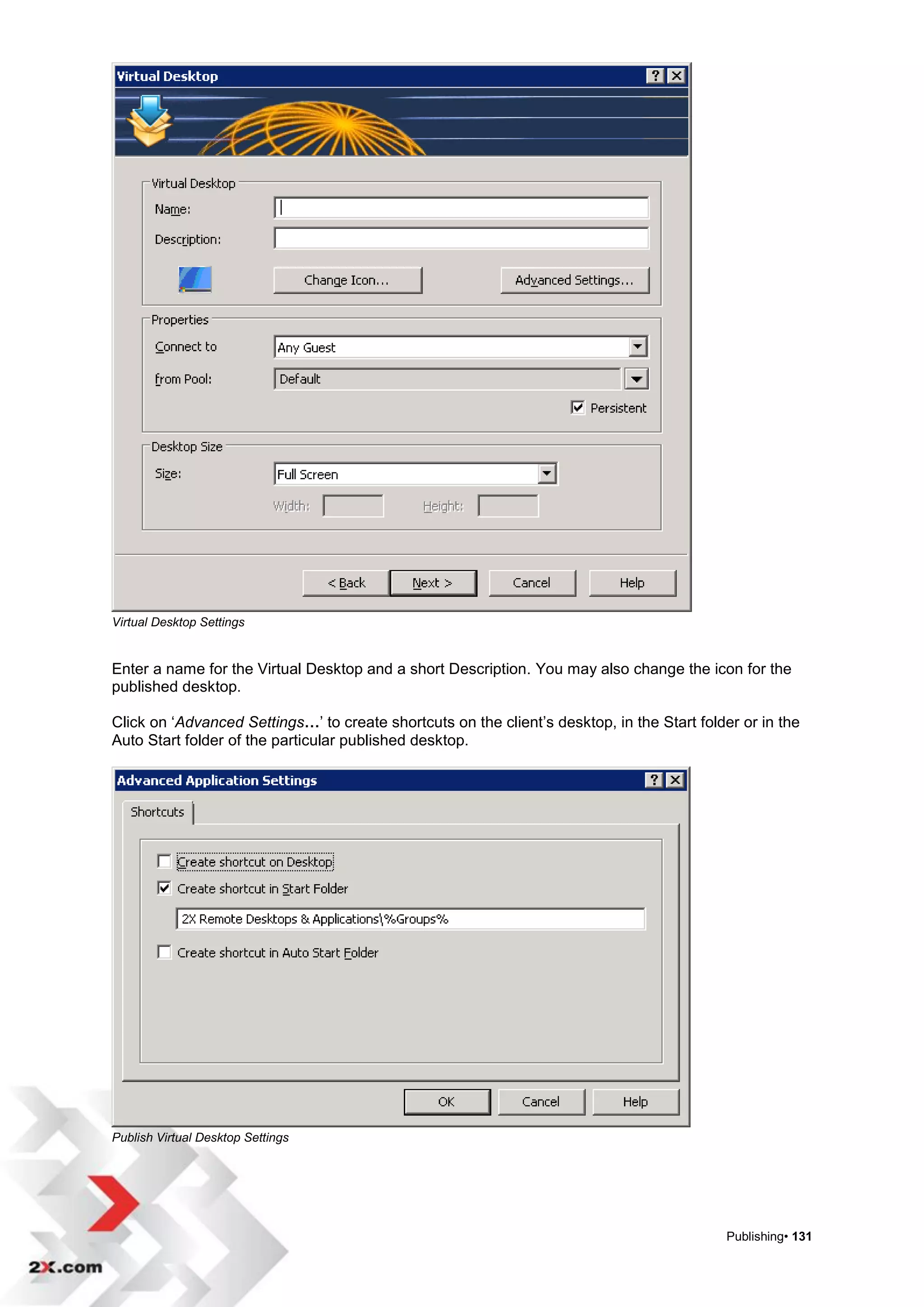
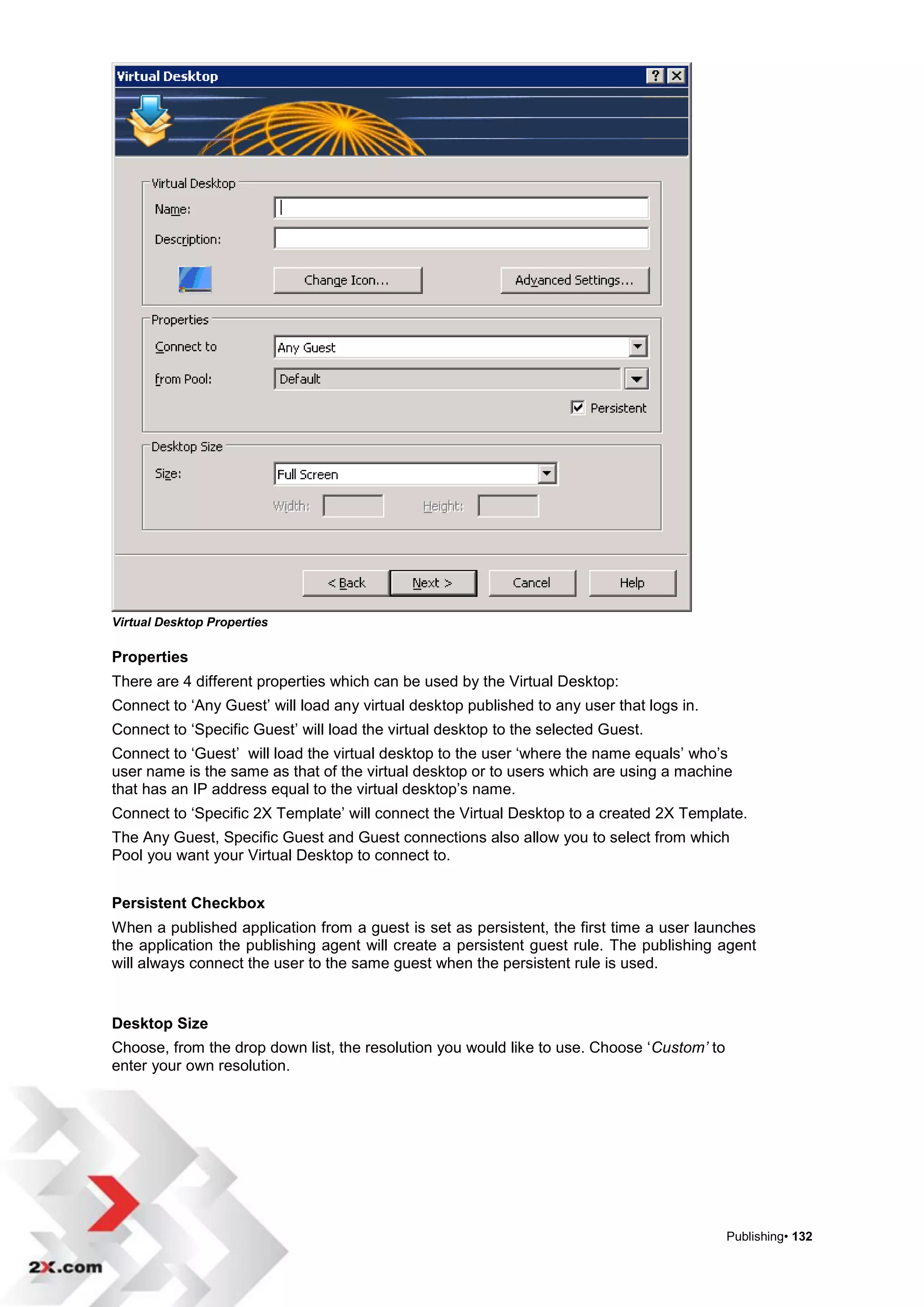
        Enter a Name and Description for the published virtual desktop.


Properties


In the ‘Connect to’ field, choose where you want your Virtual Desktop to connect to:


                      Any Guest – The Virtual Desktop connects to any guest from a selected
                       Pool. Click on the drop down arrow to choose which Pool to connect to.
                      Specific Guest - Will connect the virtual desktop to a specific Guest. Click
                       on the drop down arrow to choose Virtual Guest.
                      Guest - Connects the Virtual Desktop to a Guest from a selected Pool.
                       Click on the drop down arrow to choose the Pool. In the ‘where name
                       equals’ field, select the Username or IP Address.
                      Specific 2X Template – This option will allow you to connect the Virtual
                       Desktop to a specific 2X Template.


Persistent Checkbox


Check this box so that the User connects to the same Guest. (Available with Any Guest, Guest and
Specific 2X Template)


                                                                                         2X Startup Wizard• 24
Publish an Application

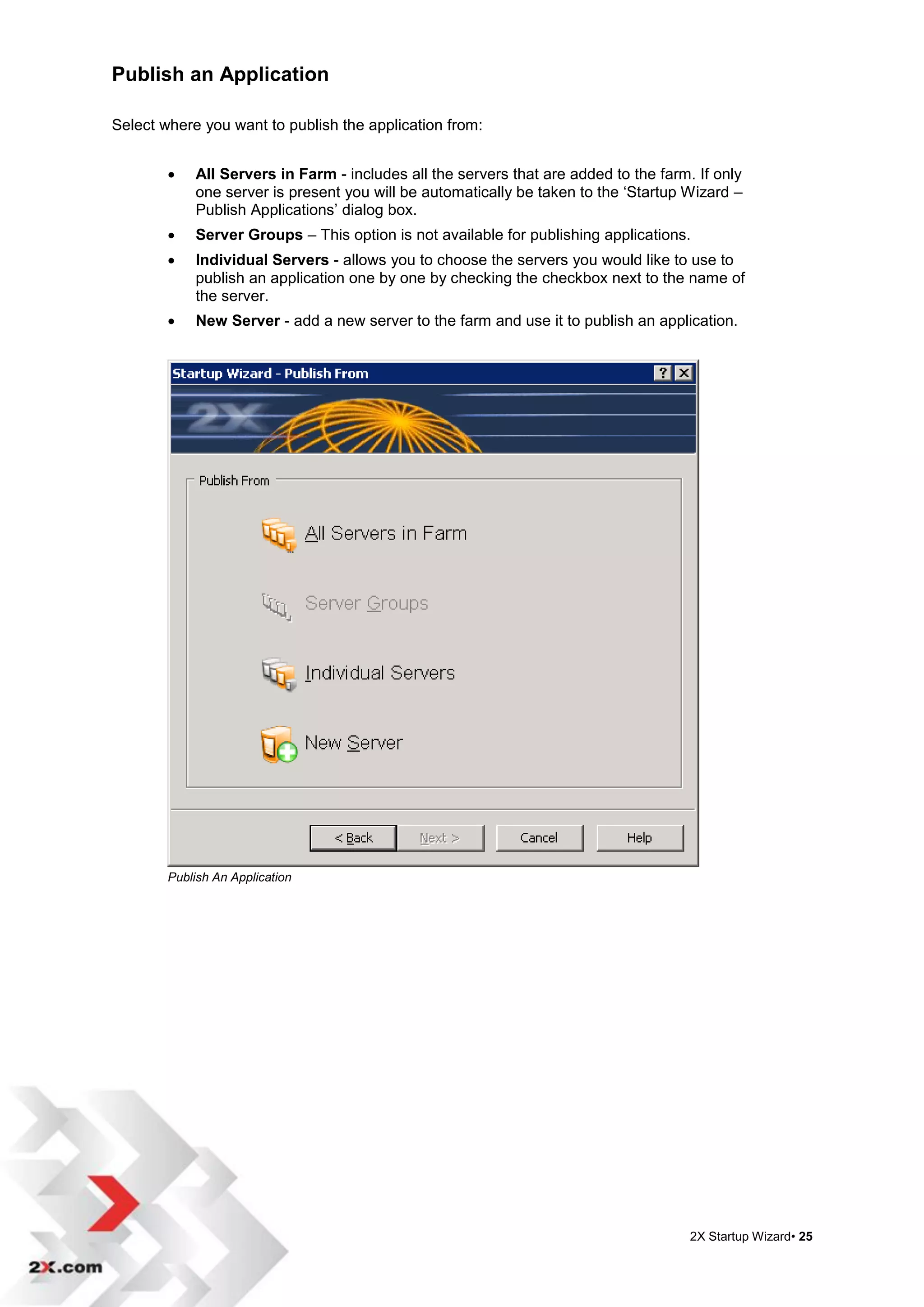
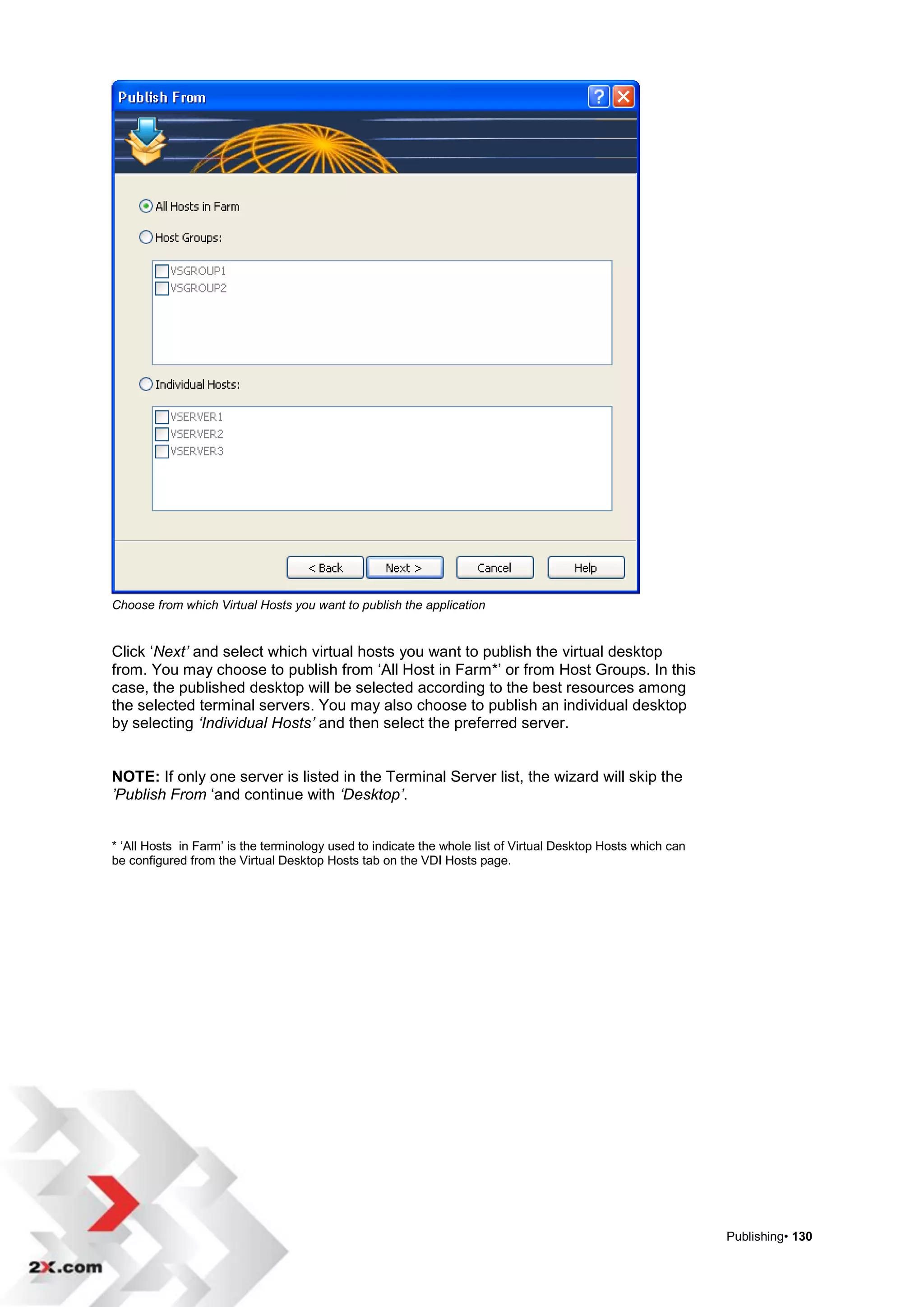
Select where you want to publish the application from:


           All Servers in Farm - includes all the servers that are added to the farm. If only
            one server is present you will be automatically be taken to the „Startup Wizard –
            Publish Applications‟ dialog box.
           Server Groups – This option is not available for publishing applications.
           Individual Servers - allows you to choose the servers you would like to use to
            publish an application one by one by checking the checkbox next to the name of
            the server.
           New Server - add a new server to the farm and use it to publish an application.


        Publish An Application


                                                                                      2X Startup Wizard• 25
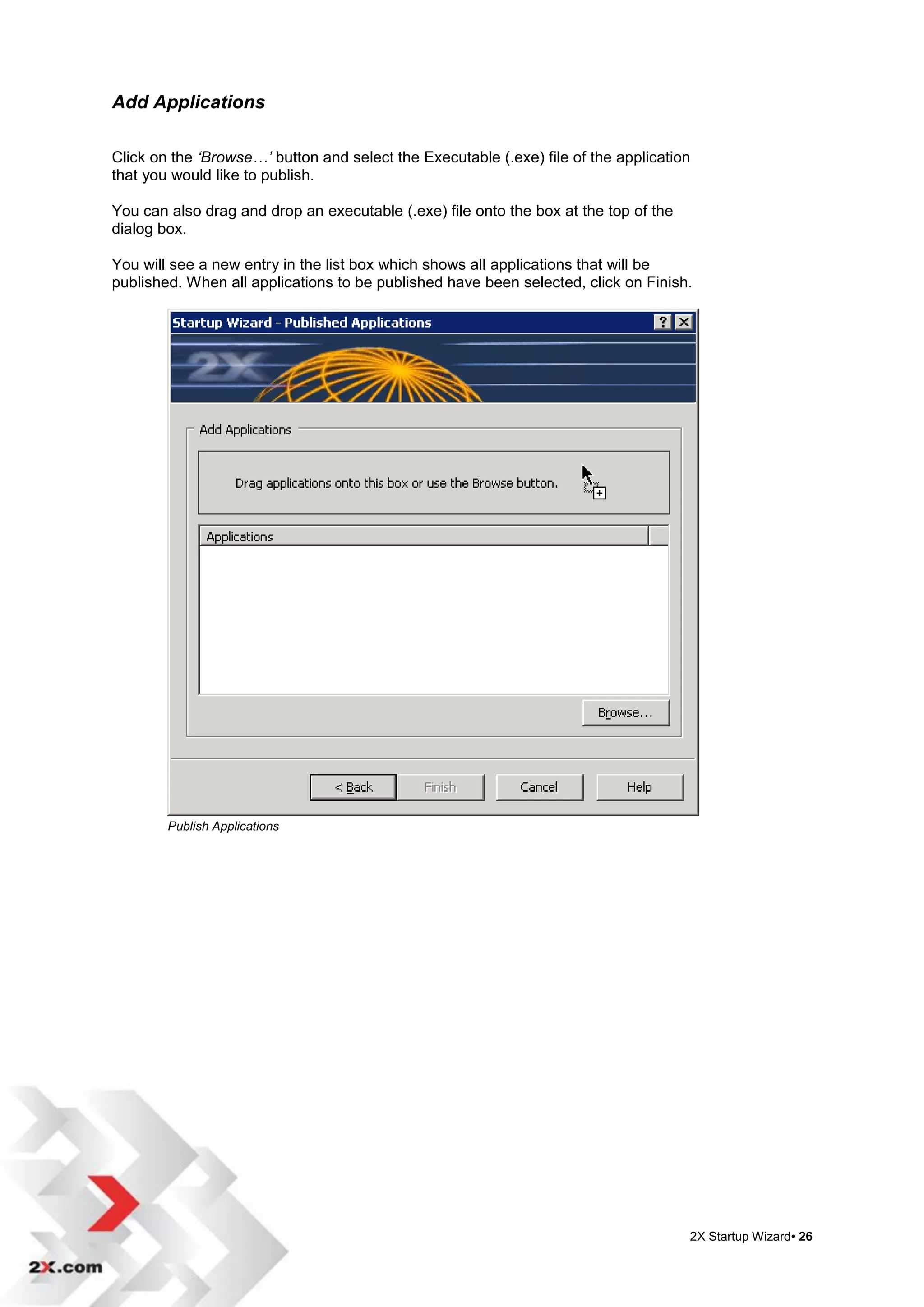
Add Applications

Click on the ‘Browse…’ button and select the Executable (.exe) file of the application
that you would like to publish.

You can also drag and drop an executable (.exe) file onto the box at the top of the
dialog box.

You will see a new entry in the list box which shows all applications that will be
published. When all applications to be published have been selected, click on Finish.


        Publish Applications


                                                                                      2X Startup Wizard• 26
Publish a Desktop

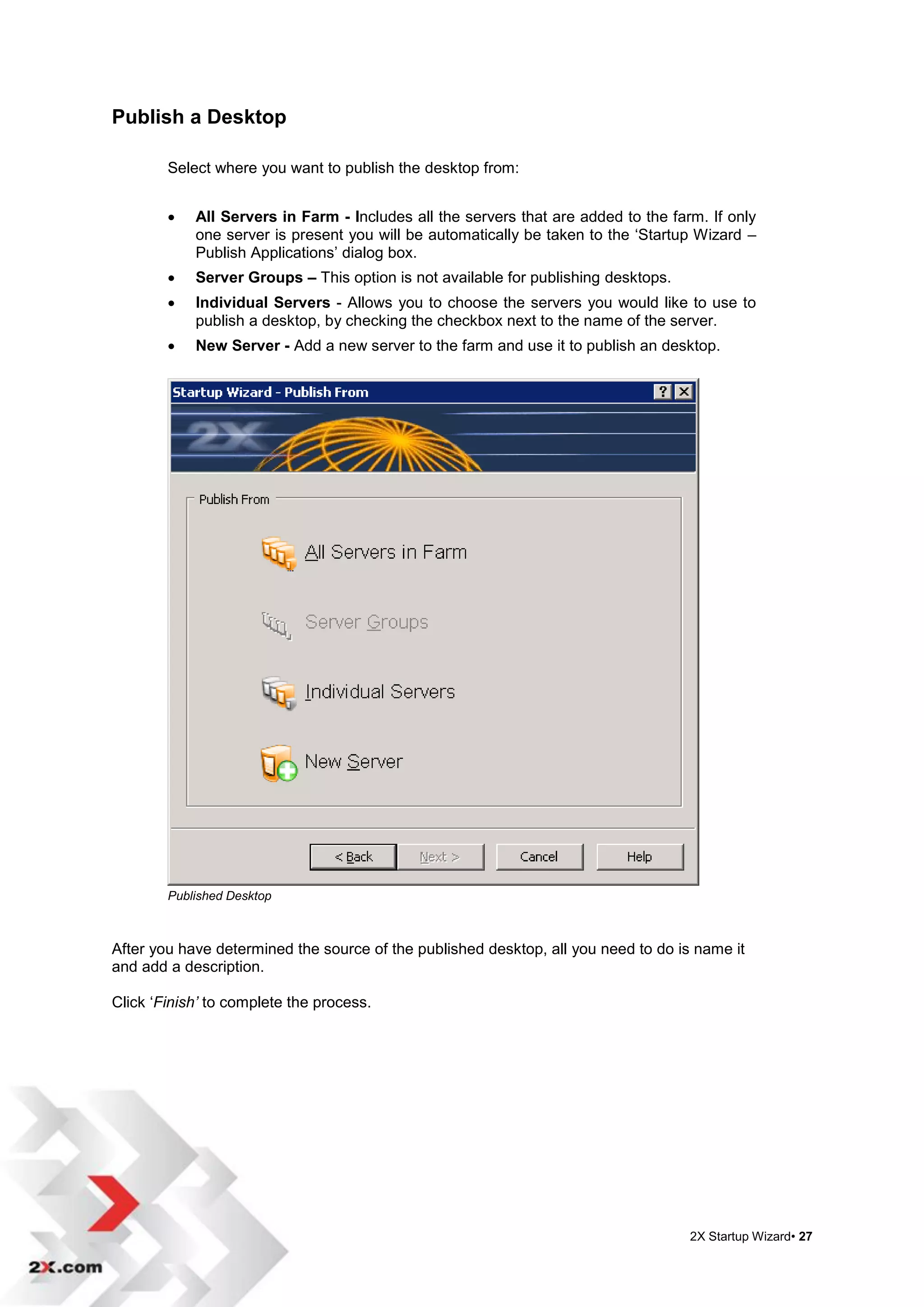
        Select where you want to publish the desktop from:


           All Servers in Farm - Includes all the servers that are added to the farm. If only
            one server is present you will be automatically be taken to the „Startup Wizard –
            Publish Applications‟ dialog box.
           Server Groups – This option is not available for publishing desktops.
           Individual Servers - Allows you to choose the servers you would like to use to
            publish a desktop, by checking the checkbox next to the name of the server.
           New Server - Add a new server to the farm and use it to publish an desktop.


        Published Desktop


After you have determined the source of the published desktop, all you need to do is name it
and add a description.

Click „Finish’ to complete the process.


                                                                                    2X Startup Wizard• 27
Setup LoadBalancer

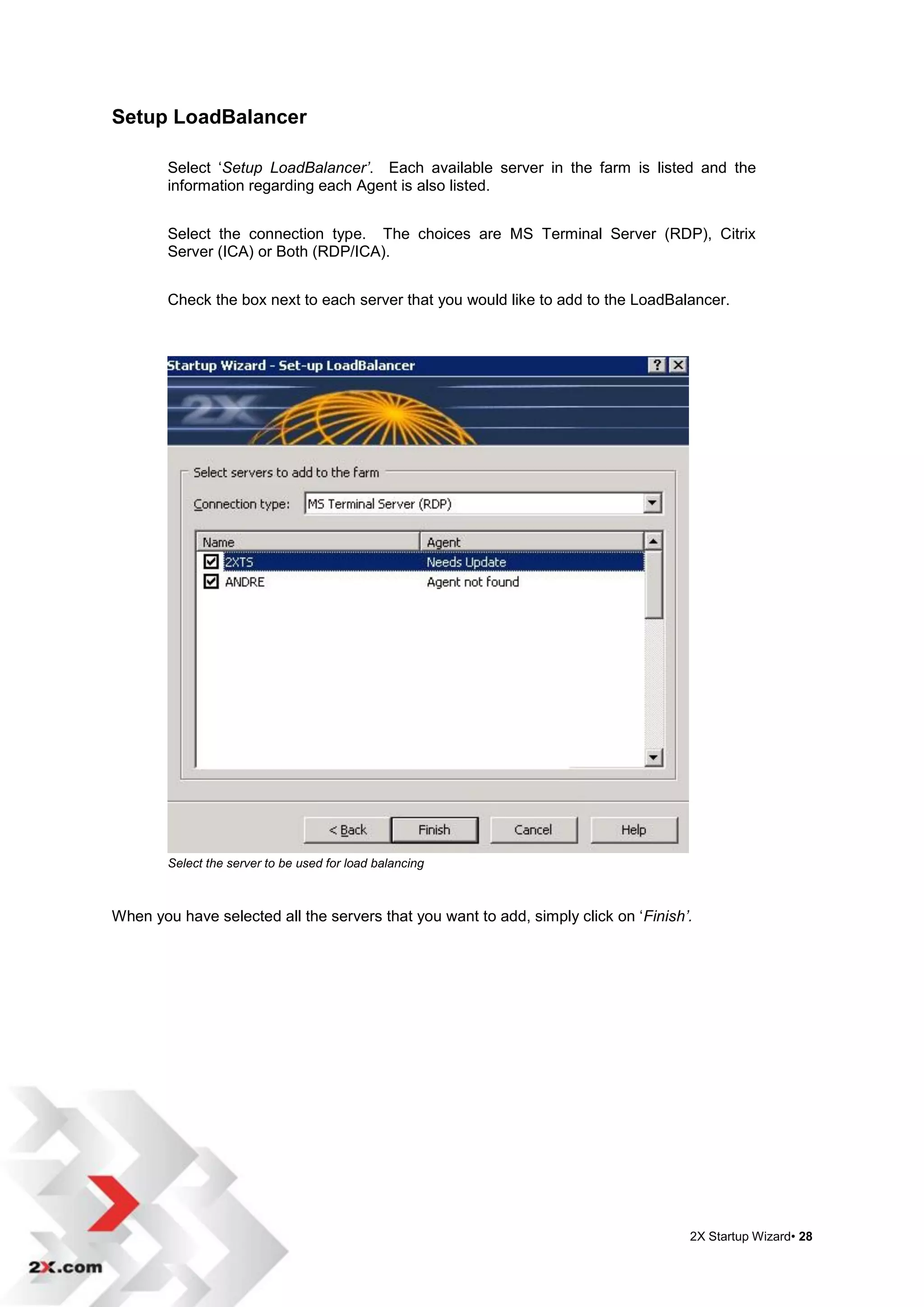
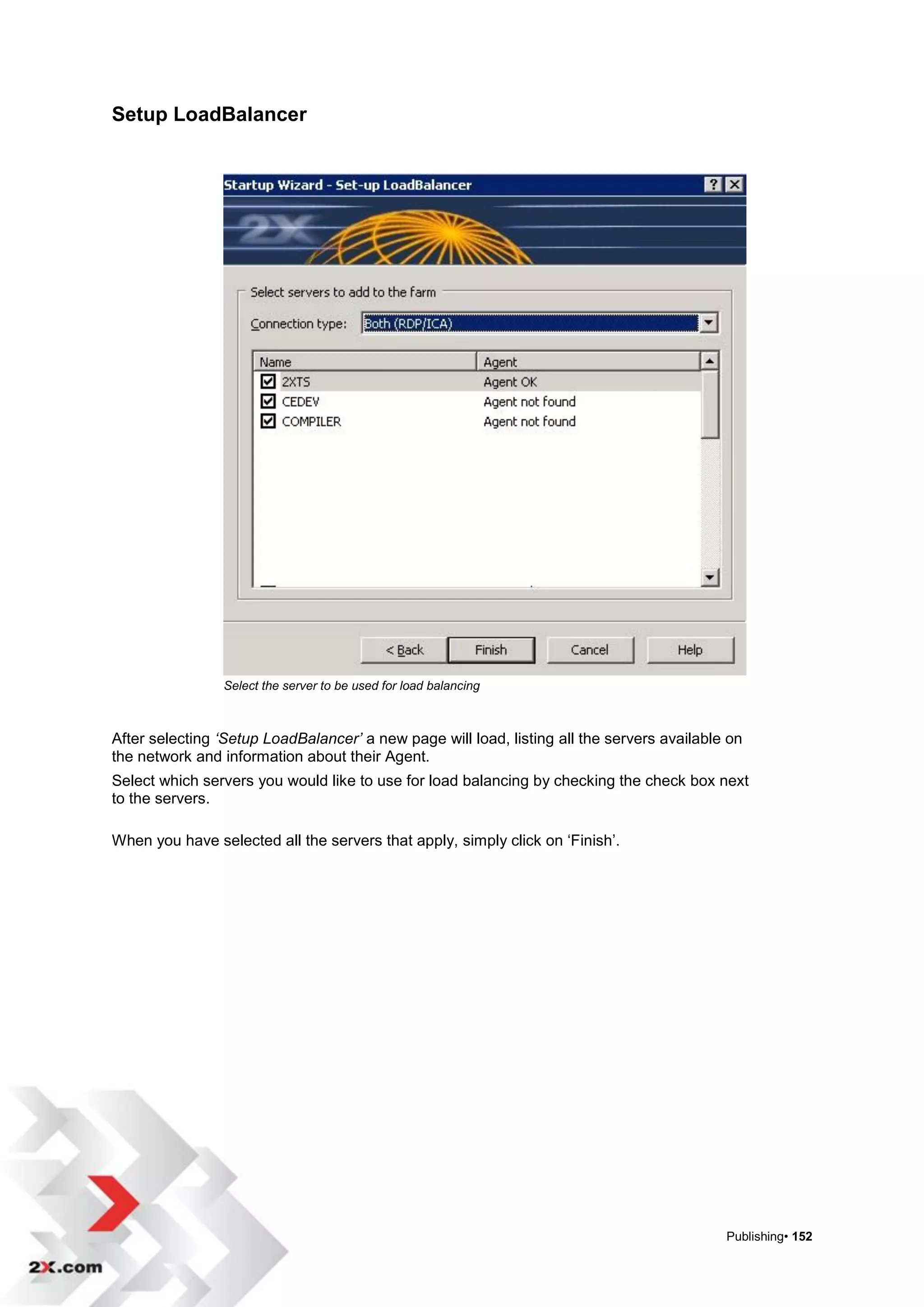
        Select „Setup LoadBalancer’. Each available server in the farm is listed and the
        information regarding each Agent is also listed.


        Select the connection type. The choices are MS Terminal Server (RDP), Citrix
        Server (ICA) or Both (RDP/ICA).


        Check the box next to each server that you would like to add to the LoadBalancer.


        Select the server to be used for load balancing


When you have selected all the servers that you want to add, simply click on „Finish’.


                                                                                     2X Startup Wizard• 28
FARM


     2X ApplicationServer provides connectivity with Multiple Farms and the ability to
     publish seamless applications or published desktops from multiple servers
     simultaneously.


Farm Info Tab
     Click on Farm in the Navigation panel. The Farm Info tab lists the amount of Active
     Servers, Backup Servers, Gateways, Remote PC‟s, Terminal Servers, VDI Hosts,
     VDI Pools and 2X Templates (not shown) in the information panel.


                                                                                           Farm• 29
Farm Design Tab
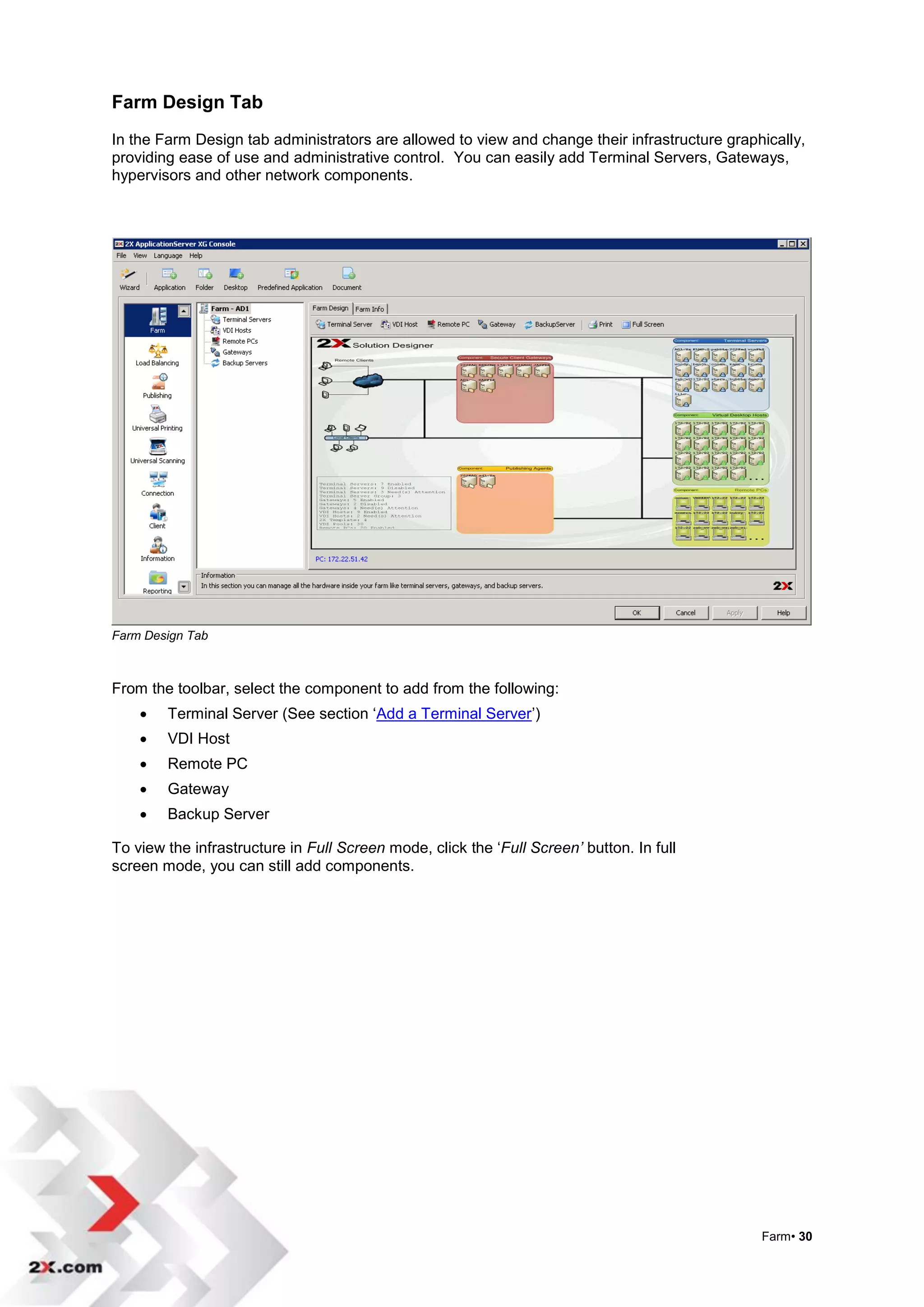
In the Farm Design tab administrators are allowed to view and change their infrastructure graphically,
providing ease of use and administrative control. You can easily add Terminal Servers, Gateways,
hypervisors and other network components.


Farm Design Tab


From the toolbar, select the component to add from the following:
       Terminal Server (See section „Add a Terminal Server‟)
       VDI Host
       Remote PC
       Gateway
       Backup Server

To view the infrastructure in Full Screen mode, click the „Full Screen’ button. In full
screen mode, you can still add components.


                                                                                               Farm• 30
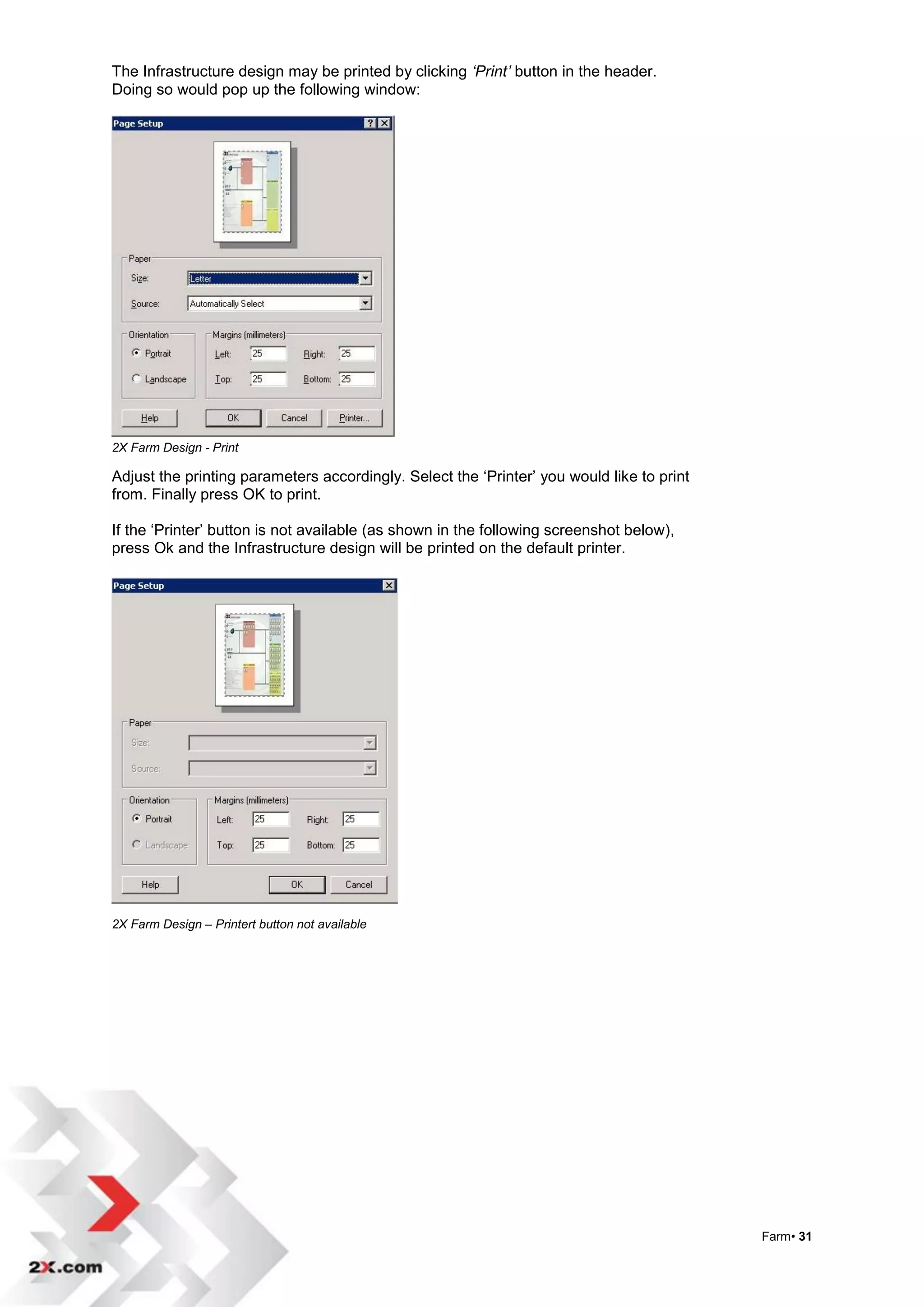
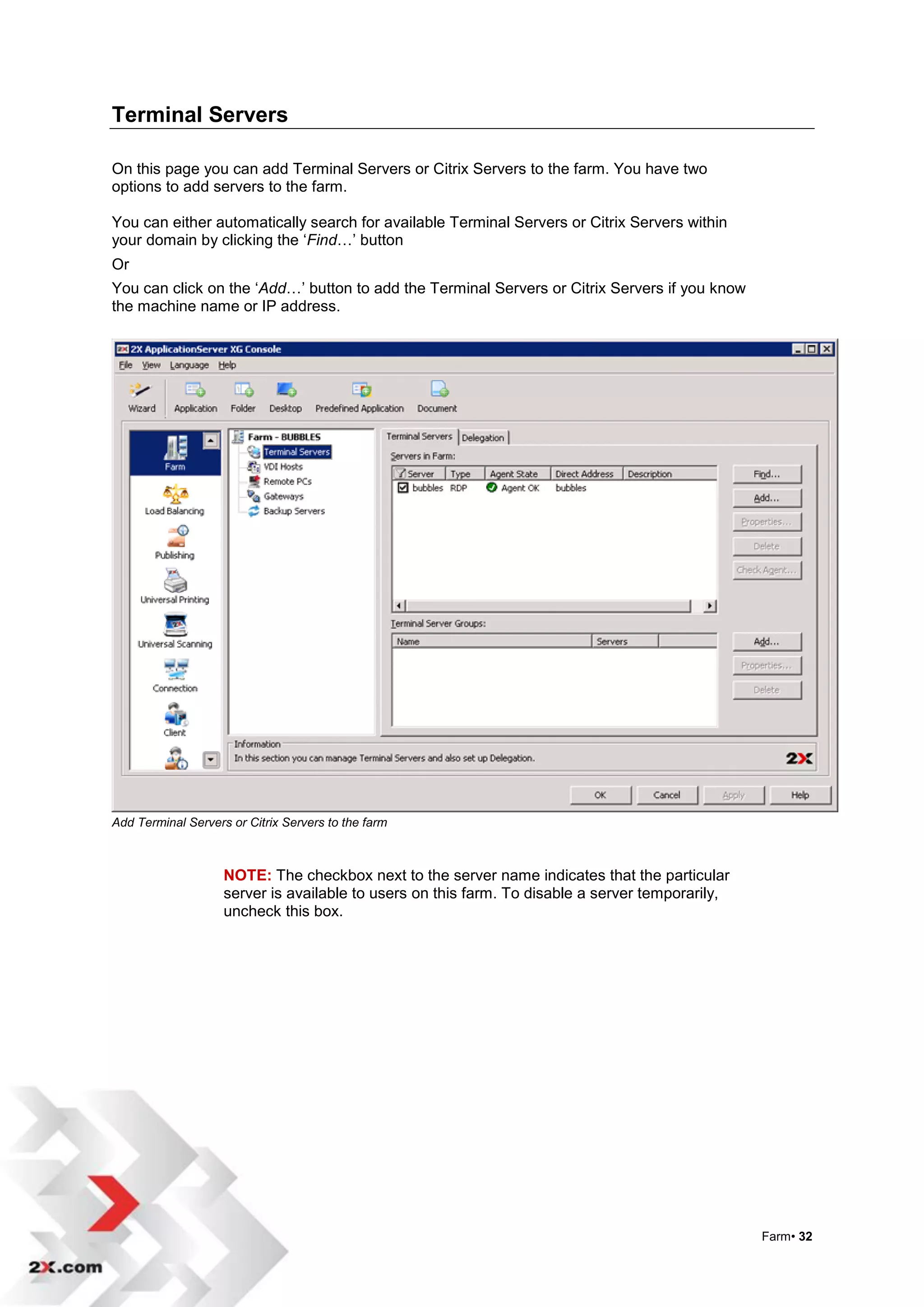
The Infrastructure design may be printed by clicking ‘Print’ button in the header.
Doing so would pop up the following window:


2X Farm Design - Print

Adjust the printing parameters accordingly. Select the „Printer‟ you would like to print
from. Finally press OK to print.

If the „Printer‟ button is not available (as shown in the following screenshot below),
press Ok and the Infrastructure design will be printed on the default printer.


2X Farm Design – Printert button not available


                                                                                           Farm• 31
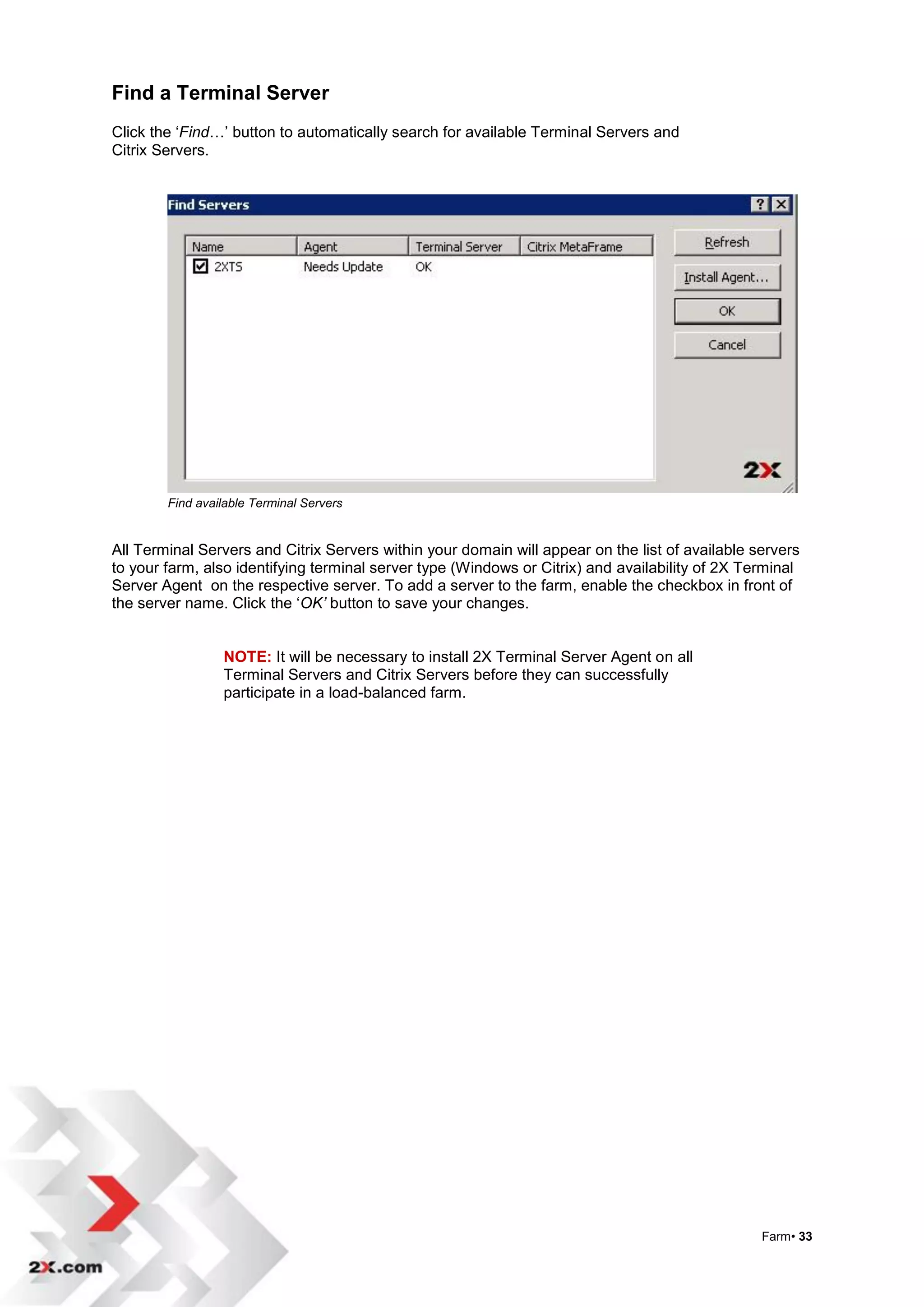
Terminal Servers

On this page you can add Terminal Servers or Citrix Servers to the farm. You have two
options to add servers to the farm.

You can either automatically search for available Terminal Servers or Citrix Servers within
your domain by clicking the „Find…‟ button
Or
You can click on the „Add…‟ button to add the Terminal Servers or Citrix Servers if you know
the machine name or IP address.


Add Terminal Servers or Citrix Servers to the farm


                    NOTE: The checkbox next to the server name indicates that the particular
                    server is available to users on this farm. To disable a server temporarily,
                    uncheck this box.


                                                                                                  Farm• 32
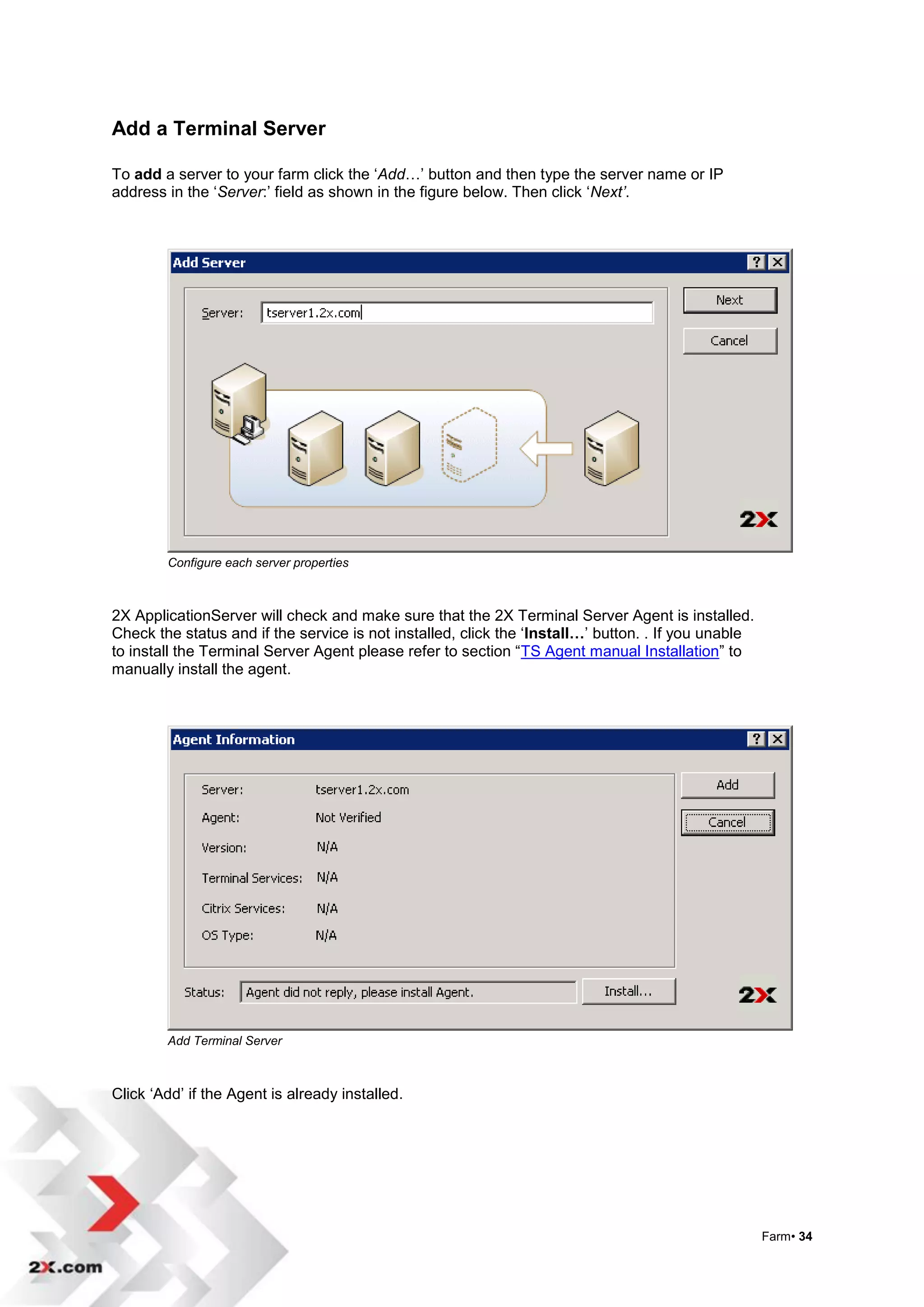
Find a Terminal Server
Click the „Find…‟ button to automatically search for available Terminal Servers and
Citrix Servers.


        Find available Terminal Servers


All Terminal Servers and Citrix Servers within your domain will appear on the list of available servers
to your farm, also identifying terminal server type (Windows or Citrix) and availability of 2X Terminal
Server Agent on the respective server. To add a server to the farm, enable the checkbox in front of
the server name. Click the „OK’ button to save your changes.


                 NOTE: It will be necessary to install 2X Terminal Server Agent on all
                 Terminal Servers and Citrix Servers before they can successfully
                 participate in a load-balanced farm.


                                                                                                 Farm• 33
Add a Terminal Server

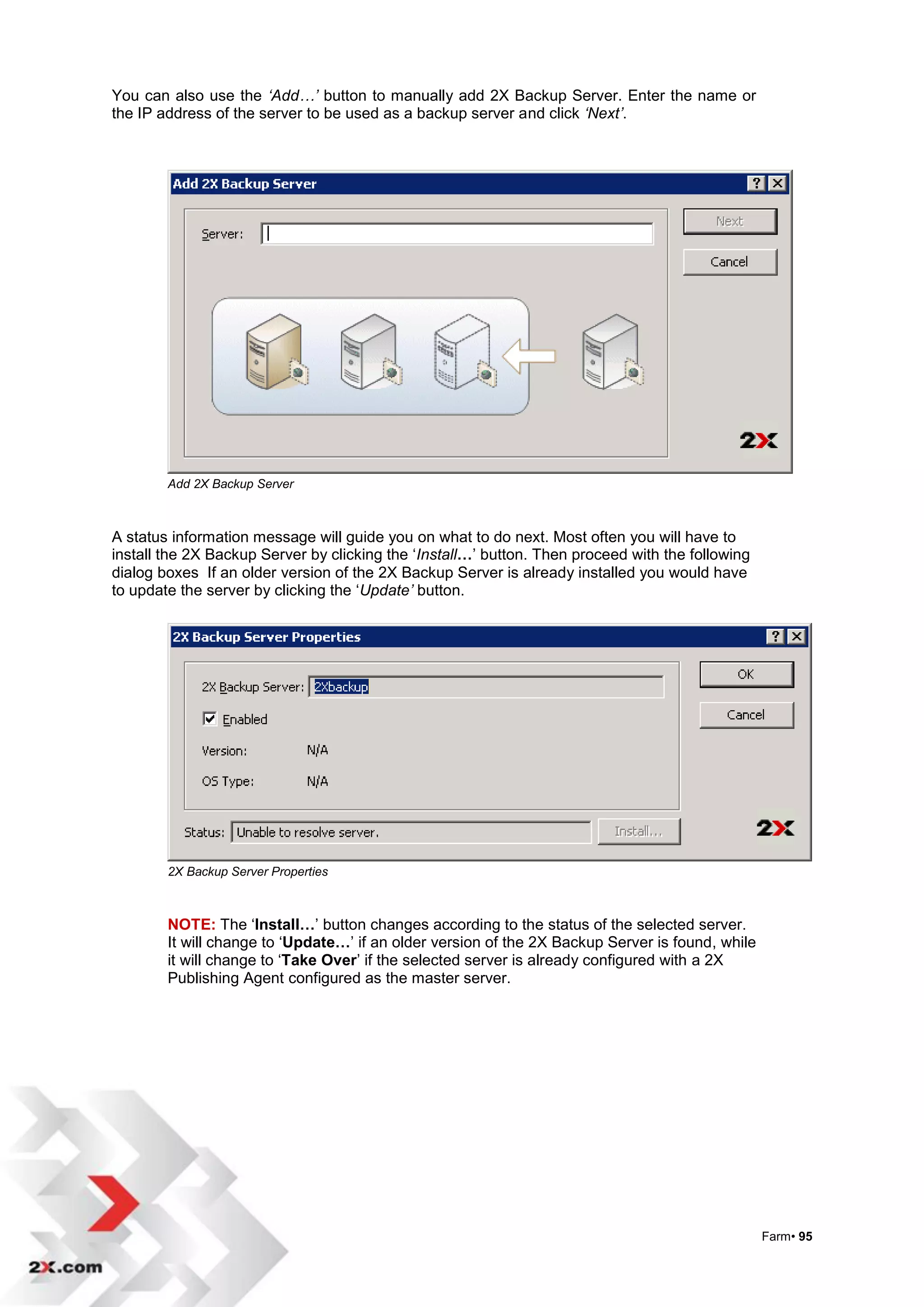
To add a server to your farm click the „Add…‟ button and then type the server name or IP
address in the „Server:‟ field as shown in the figure below. Then click „Next’.


        Configure each server properties


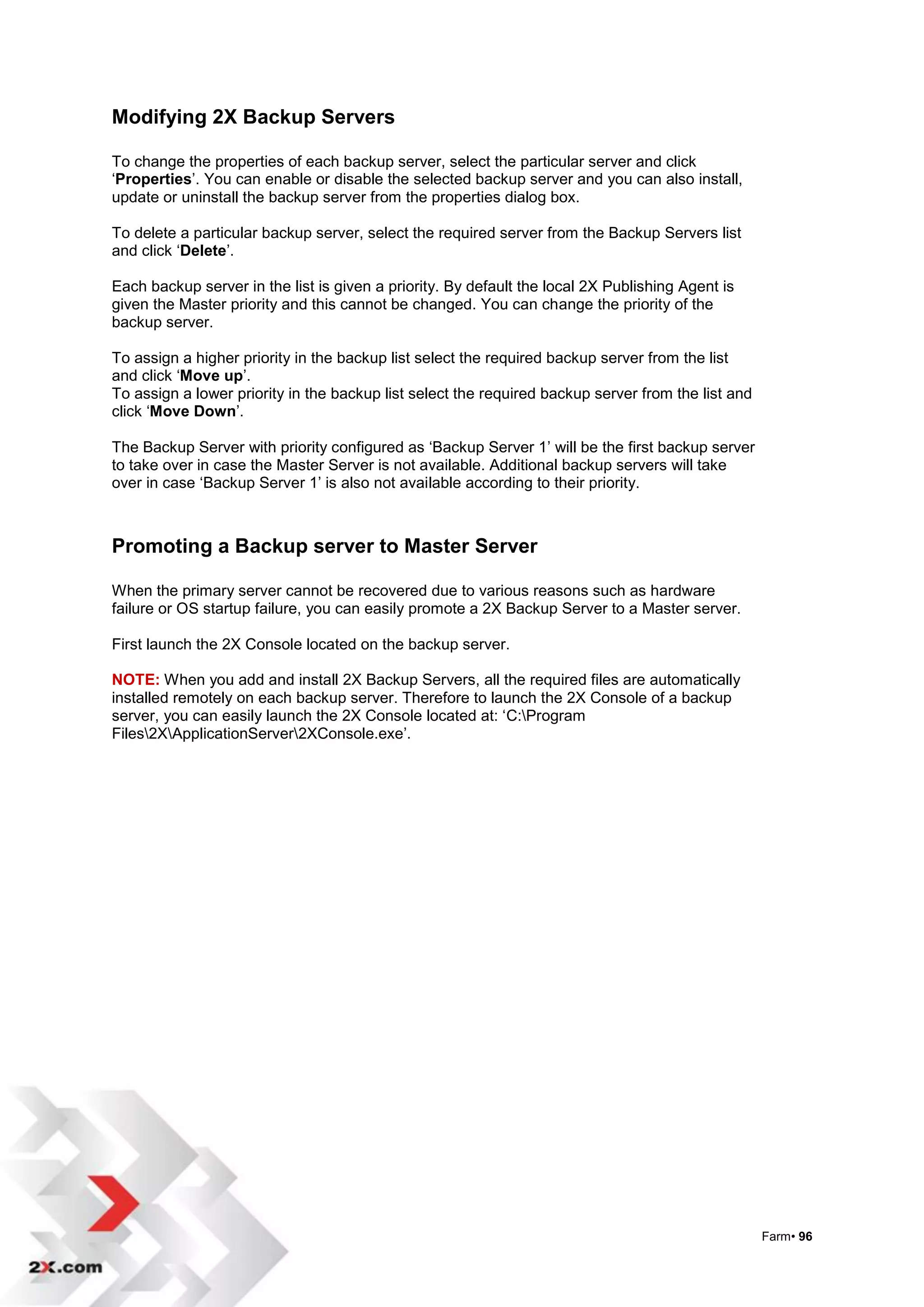
2X ApplicationServer will check and make sure that the 2X Terminal Server Agent is installed.
Check the status and if the service is not installed, click the „Install…‟ button. . If you unable
to install the Terminal Server Agent please refer to section “TS Agent manual Installation” to
manually install the agent.


        Add Terminal Server


Click „Add‟ if the Agent is already installed.


                                                                                                     Farm• 34
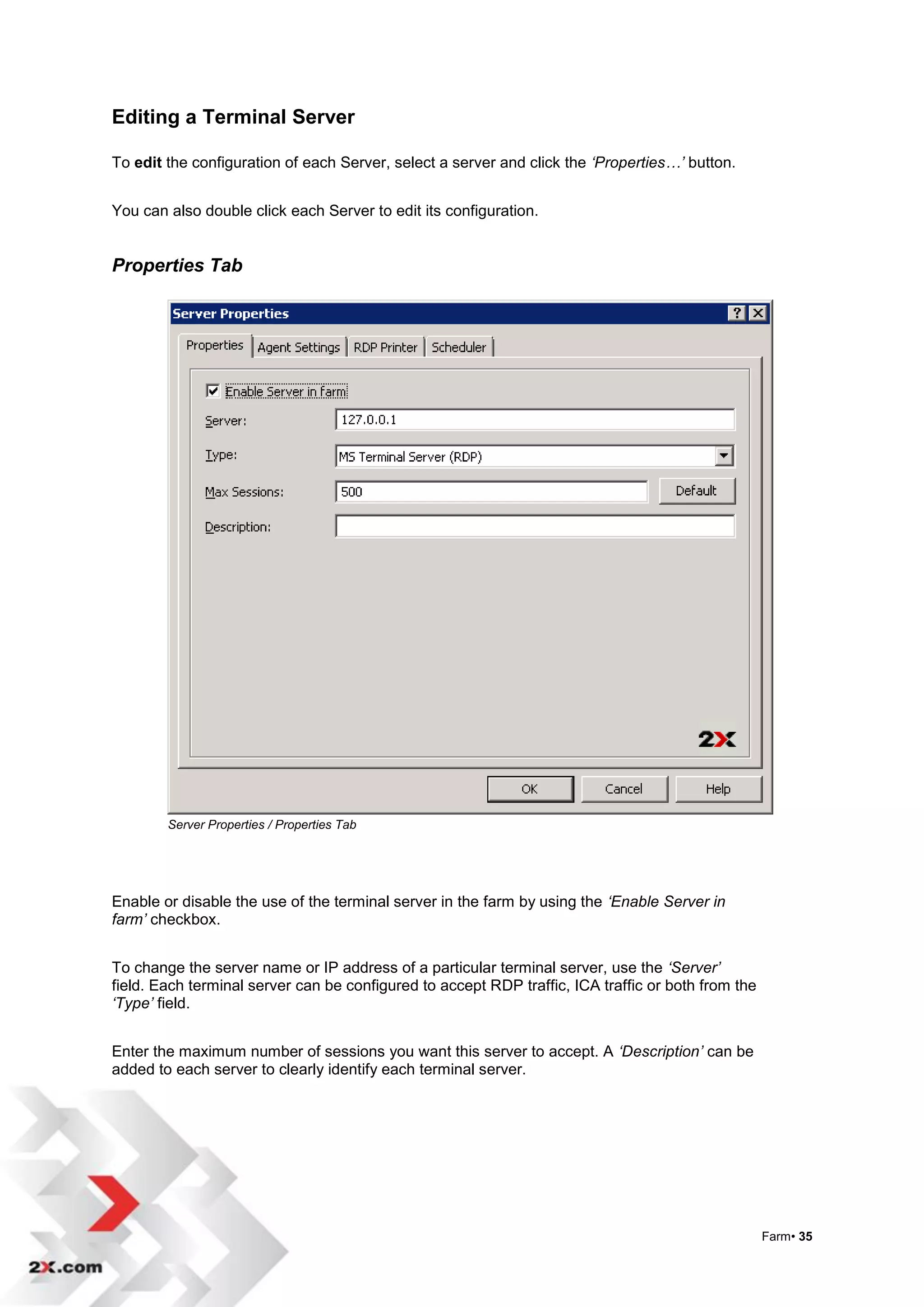
Editing a Terminal Server

To edit the configuration of each Server, select a server and click the ‘Properties…’ button.


You can also double click each Server to edit its configuration.


Properties Tab


        Server Properties / Properties Tab


Enable or disable the use of the terminal server in the farm by using the ‘Enable Server in
farm’ checkbox.


To change the server name or IP address of a particular terminal server, use the ‘Server’
field. Each terminal server can be configured to accept RDP traffic, ICA traffic or both from the
‘Type’ field.


Enter the maximum number of sessions you want this server to accept. A ‘Description’ can be
added to each server to clearly identify each terminal server.


                                                                                                    Farm• 35
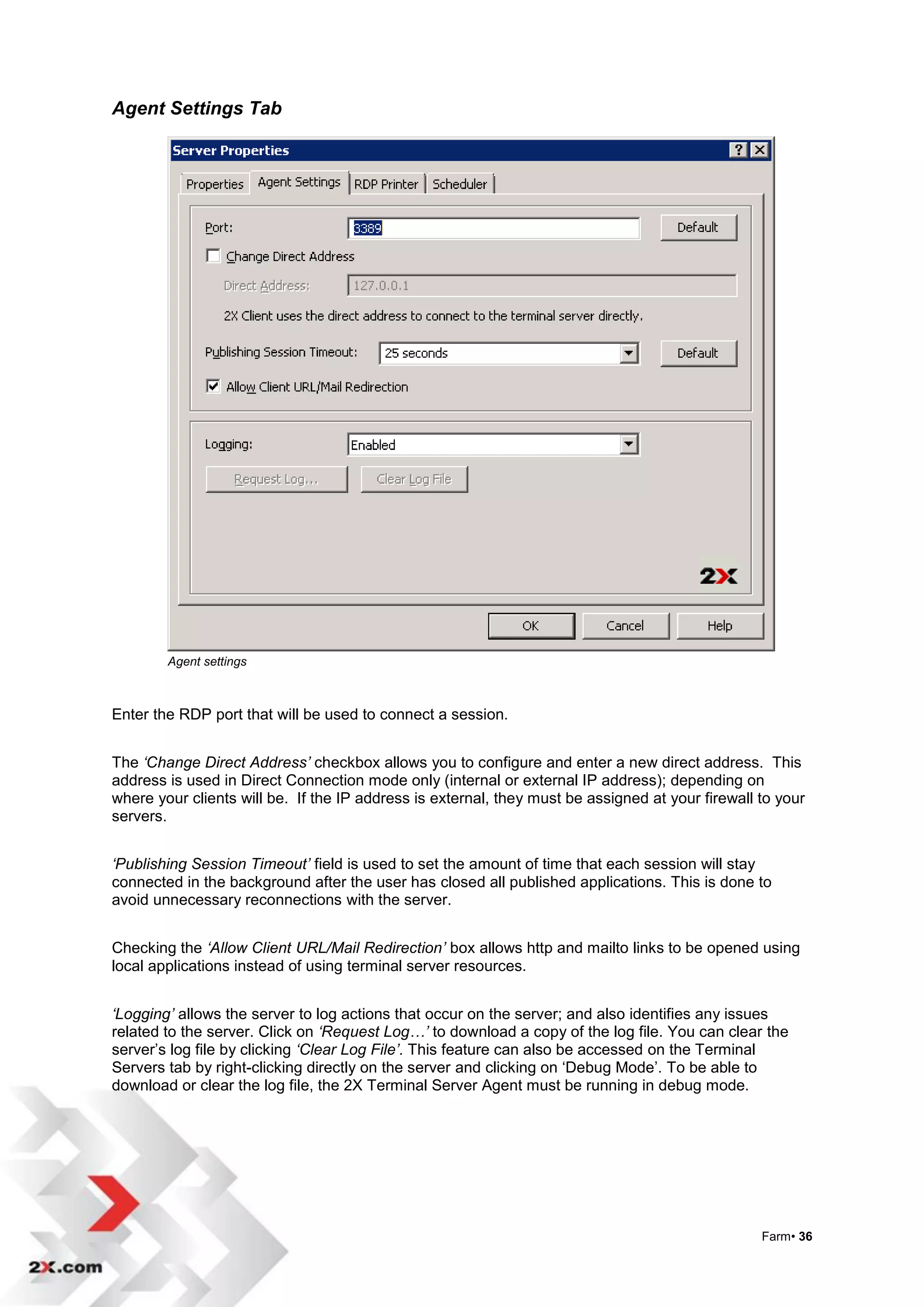
Agent Settings Tab


        Agent settings


Enter the RDP port that will be used to connect a session.


The ‘Change Direct Address’ checkbox allows you to configure and enter a new direct address. This
address is used in Direct Connection mode only (internal or external IP address); depending on
where your clients will be. If the IP address is external, they must be assigned at your firewall to your
servers.


‘Publishing Session Timeout’ field is used to set the amount of time that each session will stay
connected in the background after the user has closed all published applications. This is done to
avoid unnecessary reconnections with the server.


Checking the ‘Allow Client URL/Mail Redirection’ box allows http and mailto links to be opened using
local applications instead of using terminal server resources.


‘Logging’ allows the server to log actions that occur on the server; and also identifies any issues
related to the server. Click on ‘Request Log…’ to download a copy of the log file. You can clear the
server‟s log file by clicking ‘Clear Log File’. This feature can also be accessed on the Terminal
Servers tab by right-clicking directly on the server and clicking on „Debug Mode‟. To be able to
download or clear the log file, the 2X Terminal Server Agent must be running in debug mode.


                                                                                                  Farm• 36
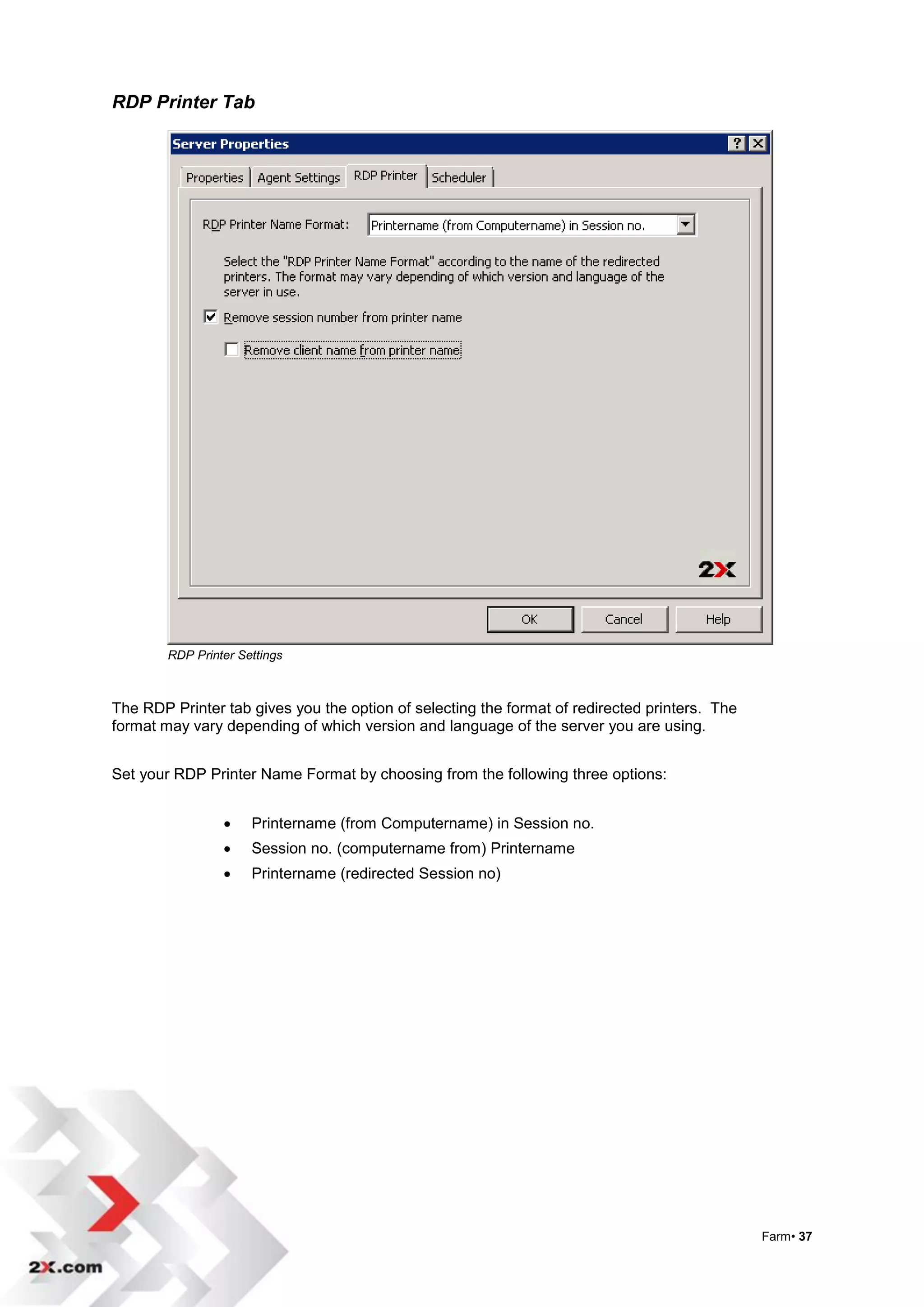
RDP Printer Tab


        RDP Printer Settings


The RDP Printer tab gives you the option of selecting the format of redirected printers. The
format may vary depending of which version and language of the server you are using.


Set your RDP Printer Name Format by choosing from the following three options:


                     Printername (from Computername) in Session no.
                     Session no. (computername from) Printername
                     Printername (redirected Session no)


                                                                                               Farm• 37
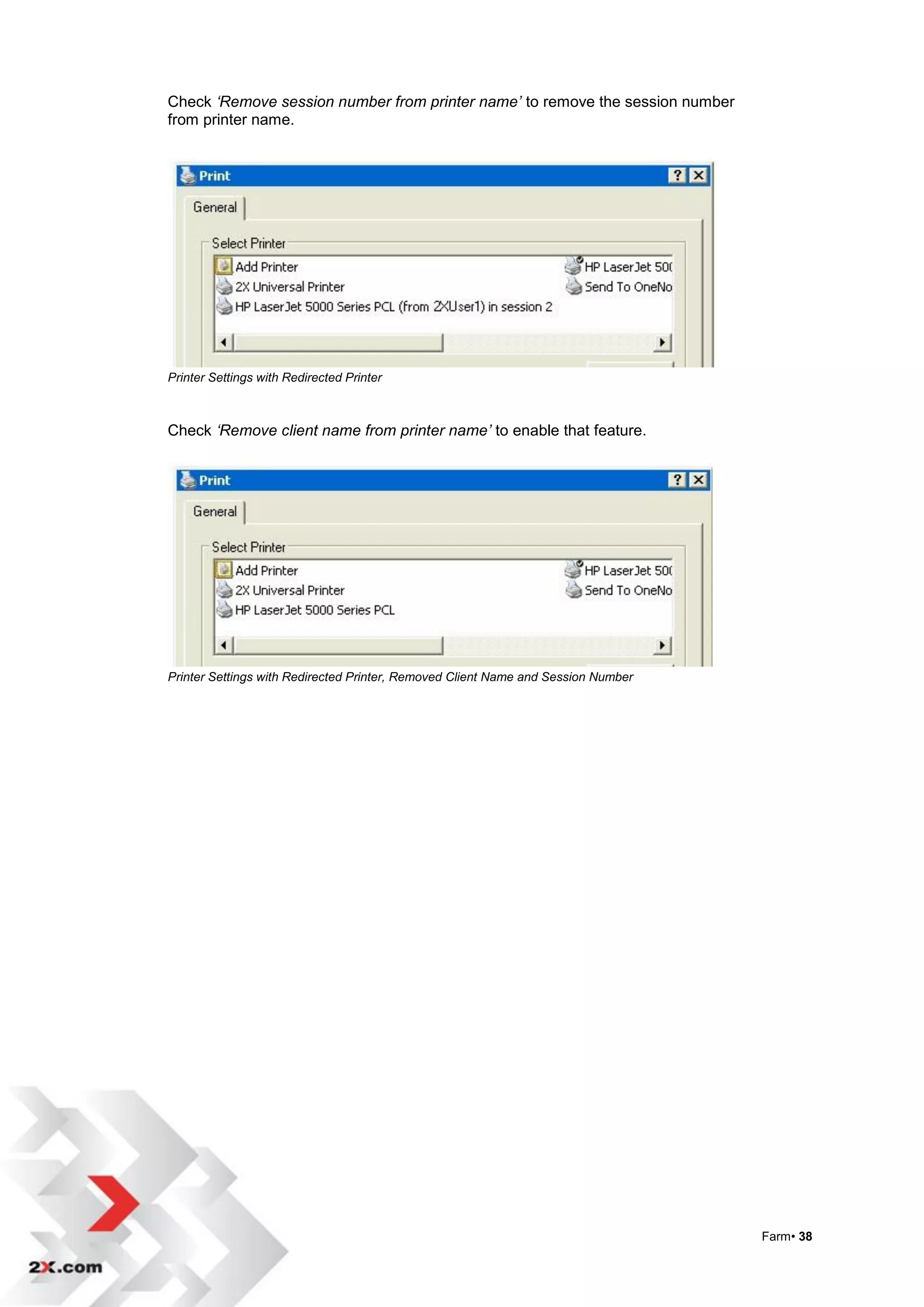
Check ‘Remove session number from printer name’ to remove the session number
from printer name.


Printer Settings with Redirected Printer


Check ‘Remove client name from printer name’ to enable that feature.


Printer Settings with Redirected Printer, Removed Client Name and Session Number


                                                                                   Farm• 38
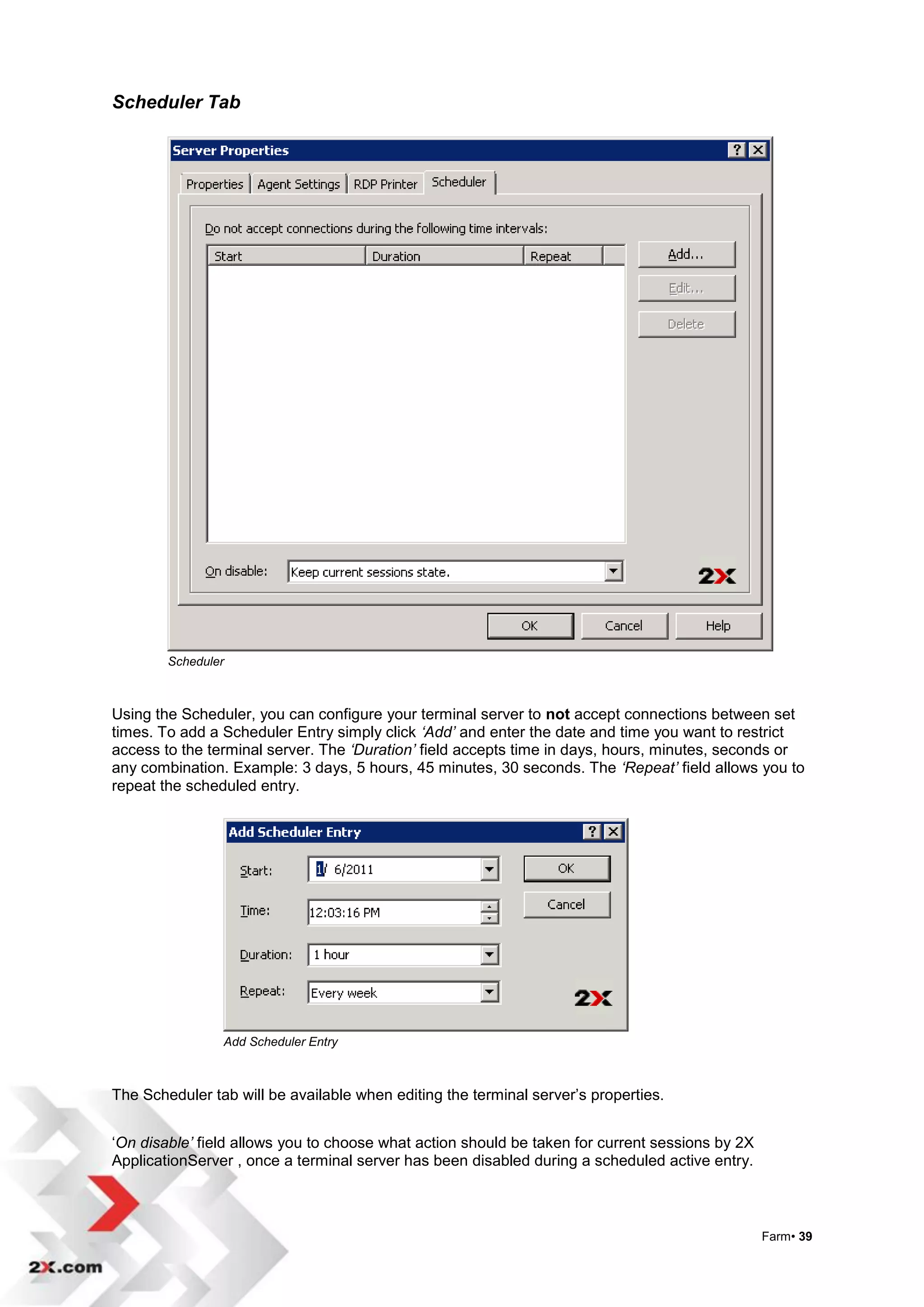
Scheduler Tab


        Scheduler


Using the Scheduler, you can configure your terminal server to not accept connections between set
times. To add a Scheduler Entry simply click ‘Add’ and enter the date and time you want to restrict
access to the terminal server. The ‘Duration’ field accepts time in days, hours, minutes, seconds or
any combination. Example: 3 days, 5 hours, 45 minutes, 30 seconds. The ‘Repeat’ field allows you to
repeat the scheduled entry.


                Add Scheduler Entry


The Scheduler tab will be available when editing the terminal server‟s properties.


„On disable’ field allows you to choose what action should be taken for current sessions by 2X
ApplicationServer , once a terminal server has been disabled during a scheduled active entry.


                                                                                                 Farm• 39
NOTE: 2X Terminal Server Agent should be installed on each terminal server added to the
        farm. 2X Terminal Server Agent collects the information required by the 2X Publishing Agent
        so that each session is able to load balance according to available resources.

        For more information on installing the Terminal Server Agent, please refer to section “TS
        Agent Manual Installation” to manually install the agent.


Delete a Terminal Server

To delete a terminal server from the farm, select the particular server and click the ‘Delete’ button.
You can also use the Delete key from the keyboard instead of using the ‘Delete’ button.

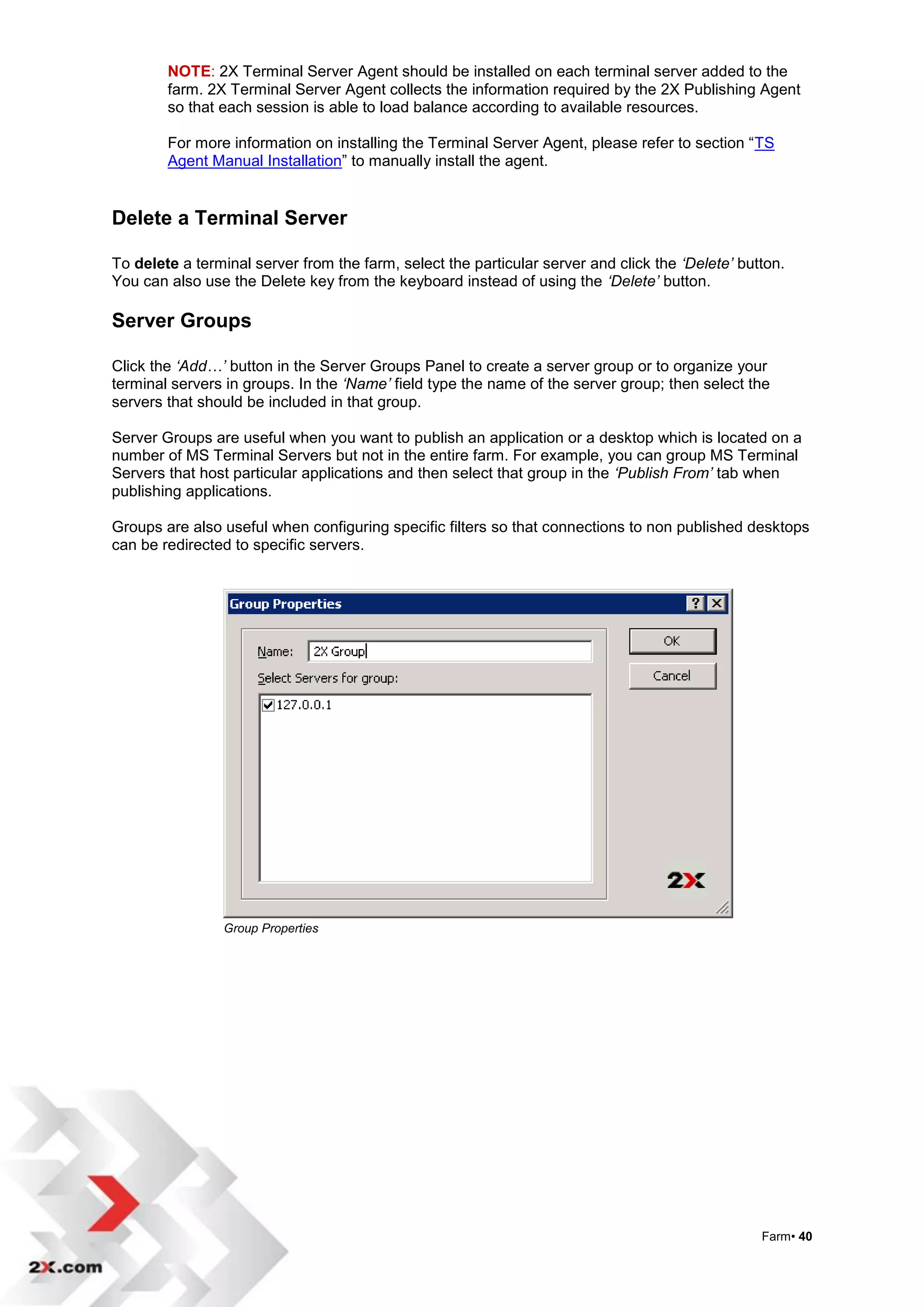
Server Groups

Click the ‘Add…’ button in the Server Groups Panel to create a server group or to organize your
terminal servers in groups. In the ‘Name’ field type the name of the server group; then select the
servers that should be included in that group.

Server Groups are useful when you want to publish an application or a desktop which is located on a
number of MS Terminal Servers but not in the entire farm. For example, you can group MS Terminal
Servers that host particular applications and then select that group in the ‘Publish From’ tab when
publishing applications.

Groups are also useful when configuring specific filters so that connections to non published desktops
can be redirected to specific servers.


                Group Properties


                                                                                                  Farm• 40
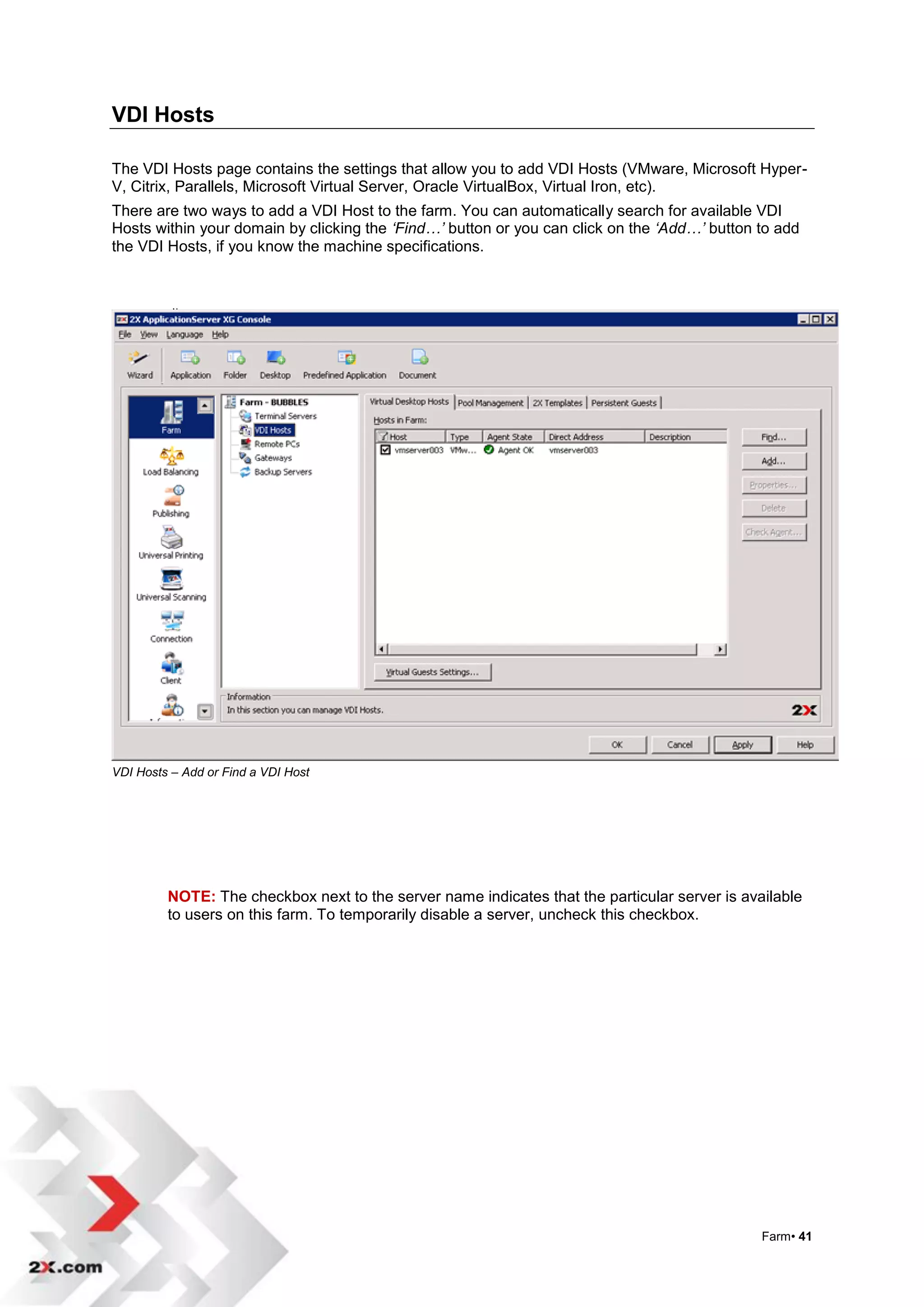
VDI Hosts

The VDI Hosts page contains the settings that allow you to add VDI Hosts (VMware, Microsoft Hyper-
V, Citrix, Parallels, Microsoft Virtual Server, Oracle VirtualBox, Virtual Iron, etc).
There are two ways to add a VDI Host to the farm. You can automatically search for available VDI
Hosts within your domain by clicking the ‘Find…’ button or you can click on the ‘Add…’ button to add
the VDI Hosts, if you know the machine specifications.


VDI Hosts – Add or Find a VDI Host


         NOTE: The checkbox next to the server name indicates that the particular server is available
         to users on this farm. To temporarily disable a server, uncheck this checkbox.


                                                                                               Farm• 41
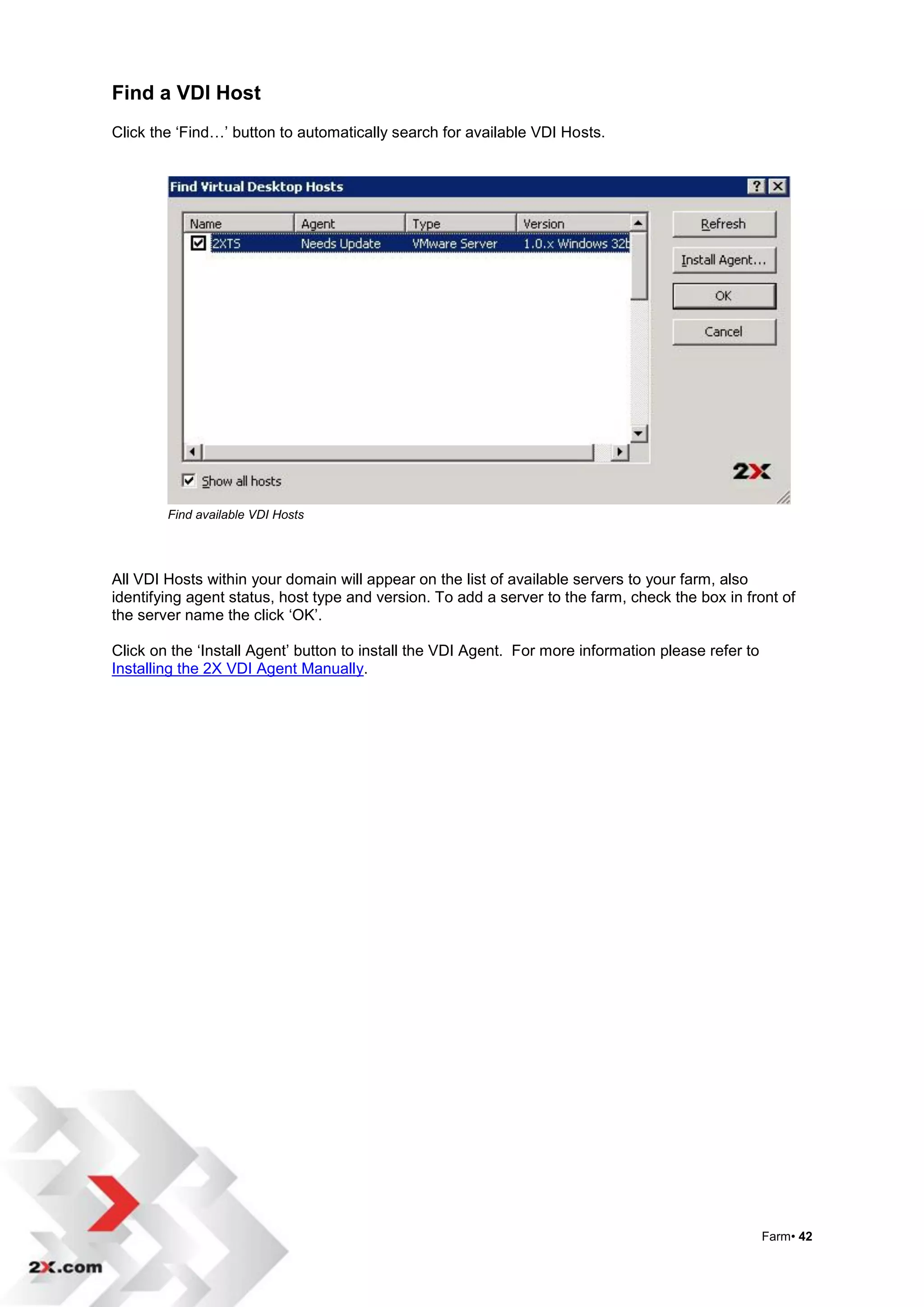
Find a VDI Host
Click the „Find…‟ button to automatically search for available VDI Hosts.


        Find available VDI Hosts


All VDI Hosts within your domain will appear on the list of available servers to your farm, also
identifying agent status, host type and version. To add a server to the farm, check the box in front of
the server name the click „OK‟.

Click on the „Install Agent‟ button to install the VDI Agent. For more information please refer to
Installing the 2X VDI Agent Manually.


                                                                                                     Farm• 42
Add a VDI Host

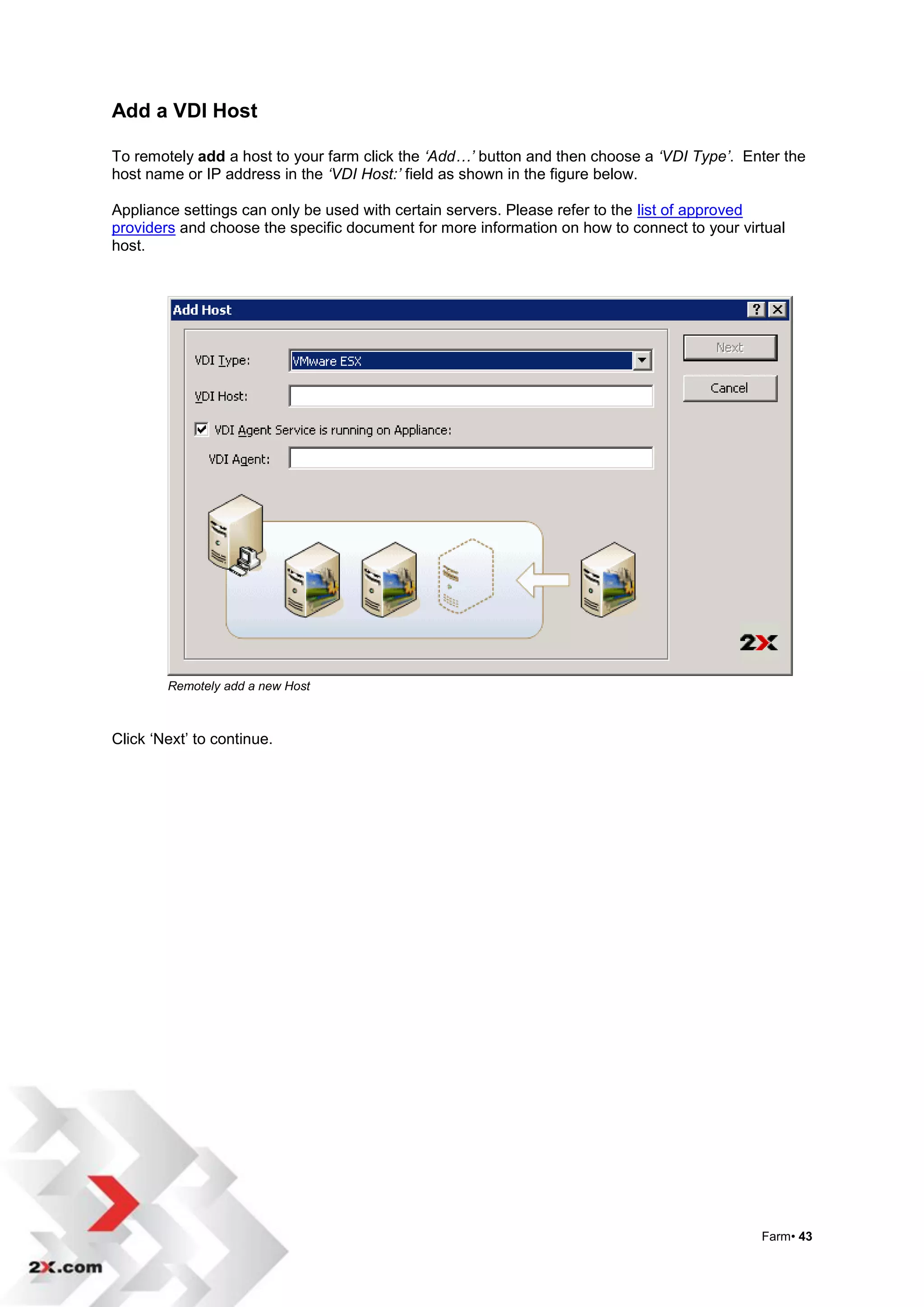
To remotely add a host to your farm click the ‘Add…’ button and then choose a ‘VDI Type’. Enter the
host name or IP address in the ‘VDI Host:’ field as shown in the figure below.

Appliance settings can only be used with certain servers. Please refer to the list of approved
providers and choose the specific document for more information on how to connect to your virtual
host.


        Remotely add a new Host


Click „Next‟ to continue.


                                                                                             Farm• 43
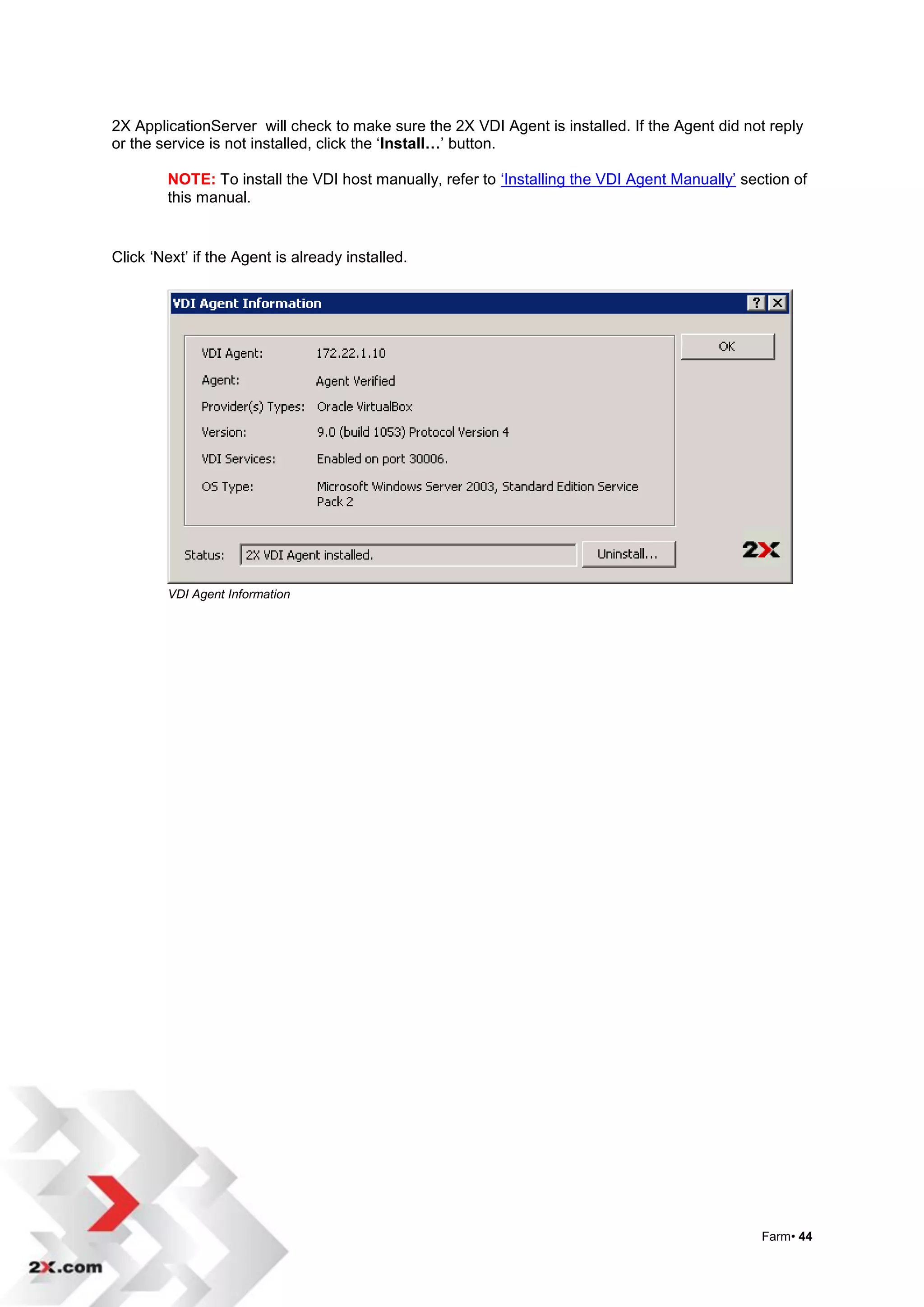
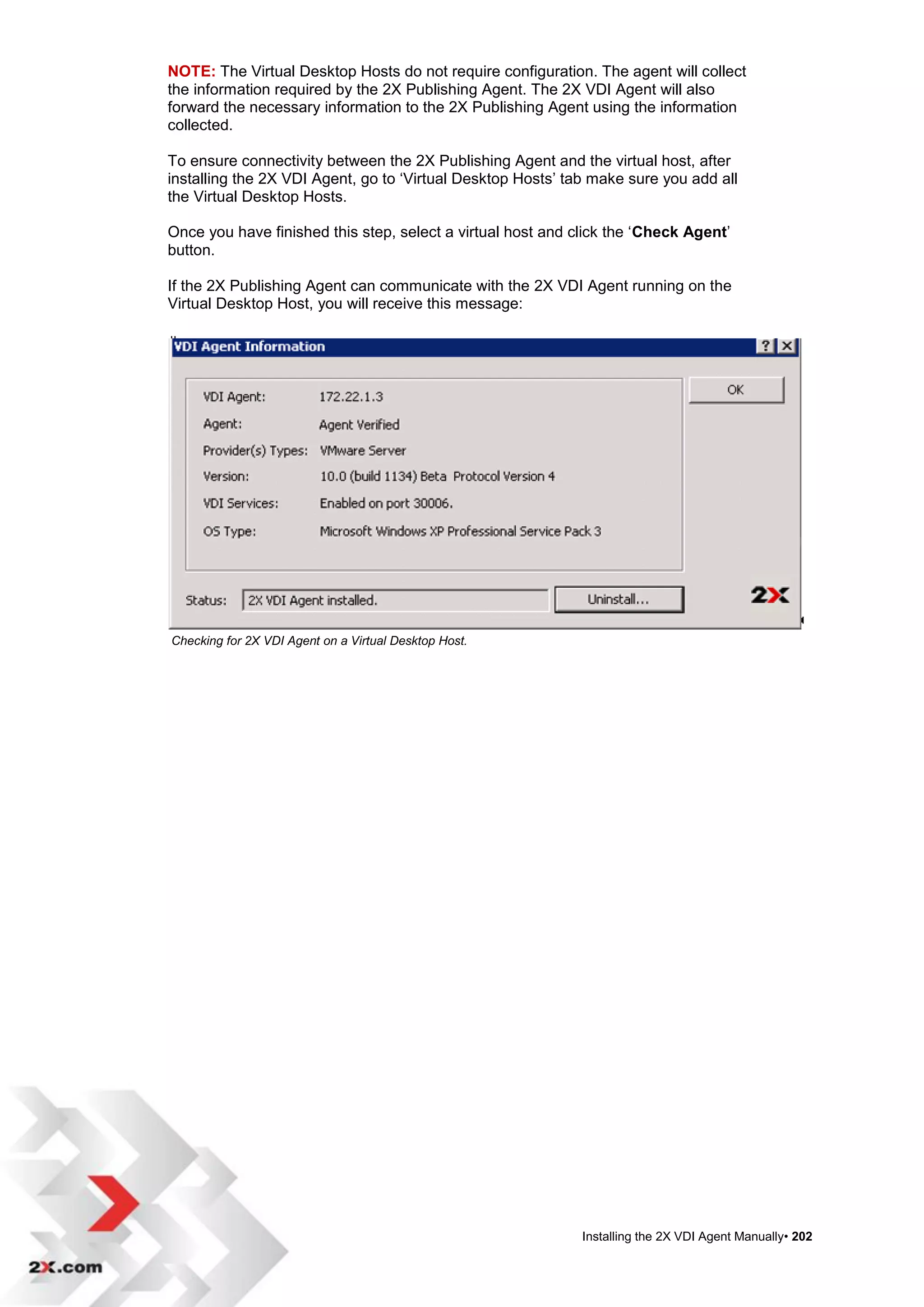
2X ApplicationServer will check to make sure the 2X VDI Agent is installed. If the Agent did not reply
or the service is not installed, click the „Install…‟ button.

        NOTE: To install the VDI host manually, refer to „Installing the VDI Agent Manually‟ section of
        this manual.


Click „Next‟ if the Agent is already installed.


        VDI Agent Information


                                                                                                Farm• 44
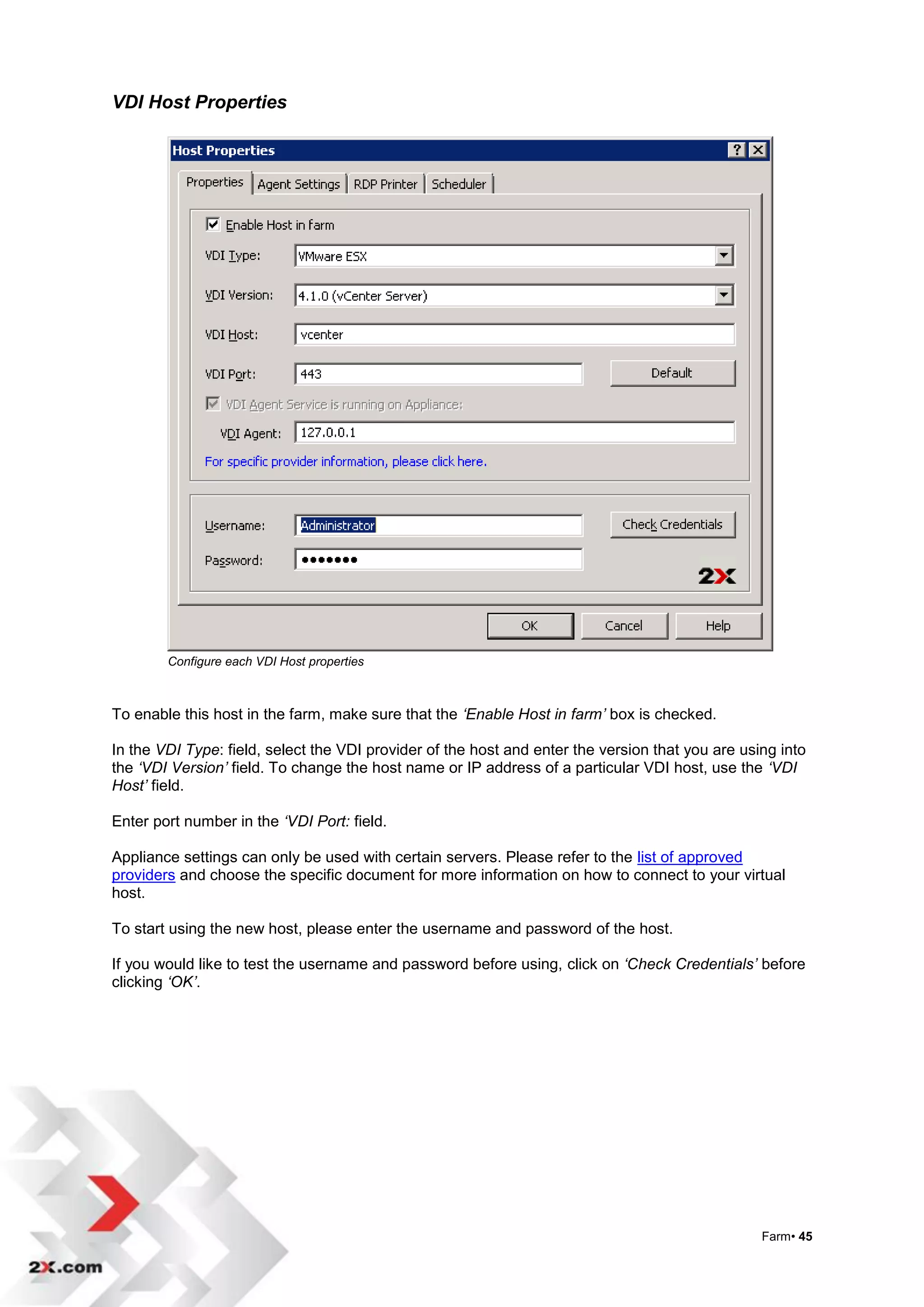
VDI Host Properties


        Configure each VDI Host properties


To enable this host in the farm, make sure that the ‘Enable Host in farm’ box is checked.

In the VDI Type: field, select the VDI provider of the host and enter the version that you are using into
the ‘VDI Version’ field. To change the host name or IP address of a particular VDI host, use the ‘VDI
Host’ field.

Enter port number in the ‘VDI Port: field.

Appliance settings can only be used with certain servers. Please refer to the list of approved
providers and choose the specific document for more information on how to connect to your virtual
host.

To start using the new host, please enter the username and password of the host.

If you would like to test the username and password before using, click on ‘Check Credentials’ before
clicking ‘OK’.


                                                                                                  Farm• 45
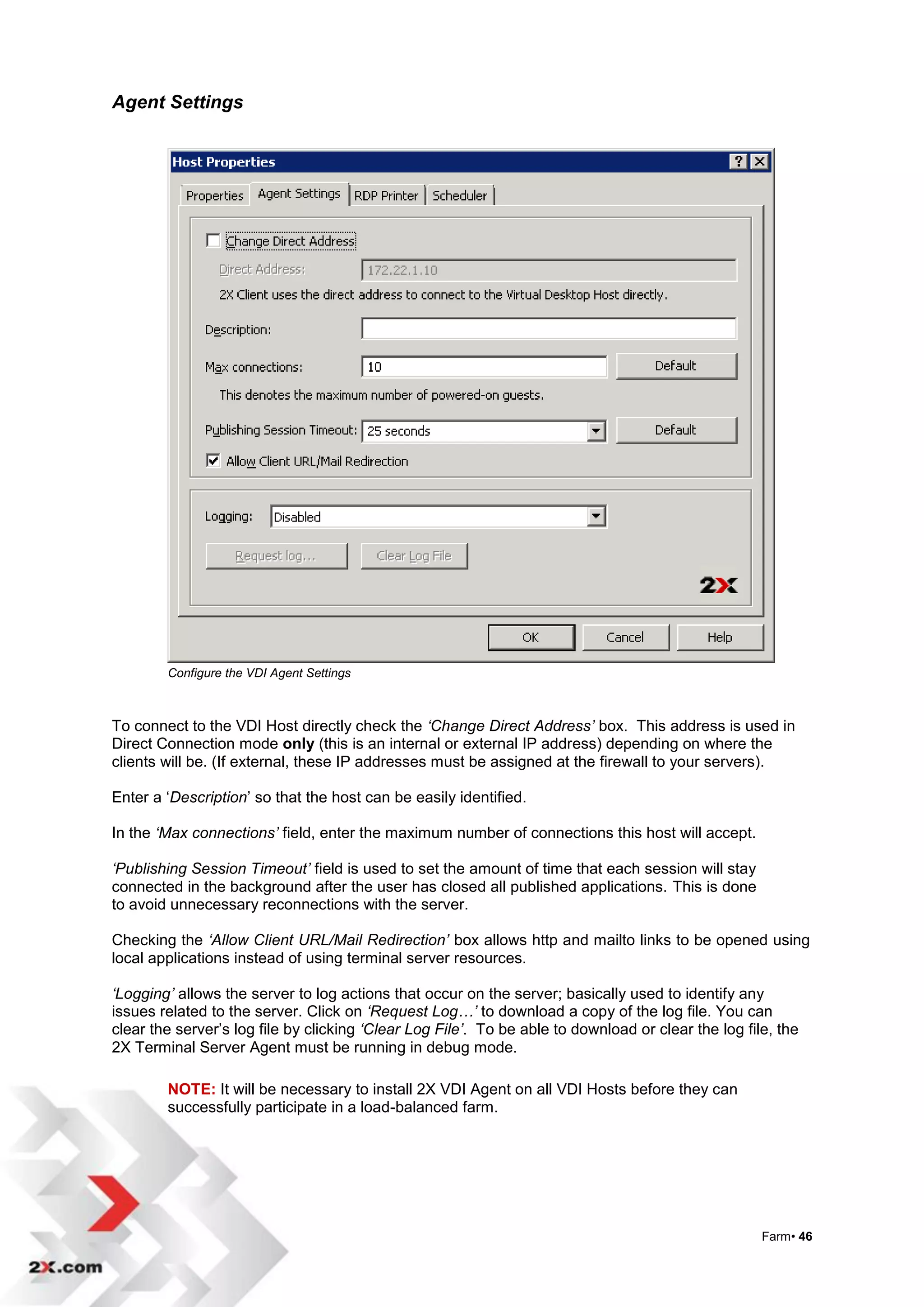
Agent Settings


        Configure the VDI Agent Settings


To connect to the VDI Host directly check the ‘Change Direct Address’ box. This address is used in
Direct Connection mode only (this is an internal or external IP address) depending on where the
clients will be. (If external, these IP addresses must be assigned at the firewall to your servers).

Enter a „Description‟ so that the host can be easily identified.

In the ‘Max connections’ field, enter the maximum number of connections this host will accept.

‘Publishing Session Timeout’ field is used to set the amount of time that each session will stay
connected in the background after the user has closed all published applications. This is done
to avoid unnecessary reconnections with the server.

Checking the ‘Allow Client URL/Mail Redirection’ box allows http and mailto links to be opened using
local applications instead of using terminal server resources.

‘Logging’ allows the server to log actions that occur on the server; basically used to identify any
issues related to the server. Click on ‘Request Log…’ to download a copy of the log file. You can
clear the server‟s log file by clicking ‘Clear Log File’. To be able to download or clear the log file, the
2X Terminal Server Agent must be running in debug mode.

        NOTE: It will be necessary to install 2X VDI Agent on all VDI Hosts before they can
        successfully participate in a load-balanced farm.


                                                                                                     Farm• 46
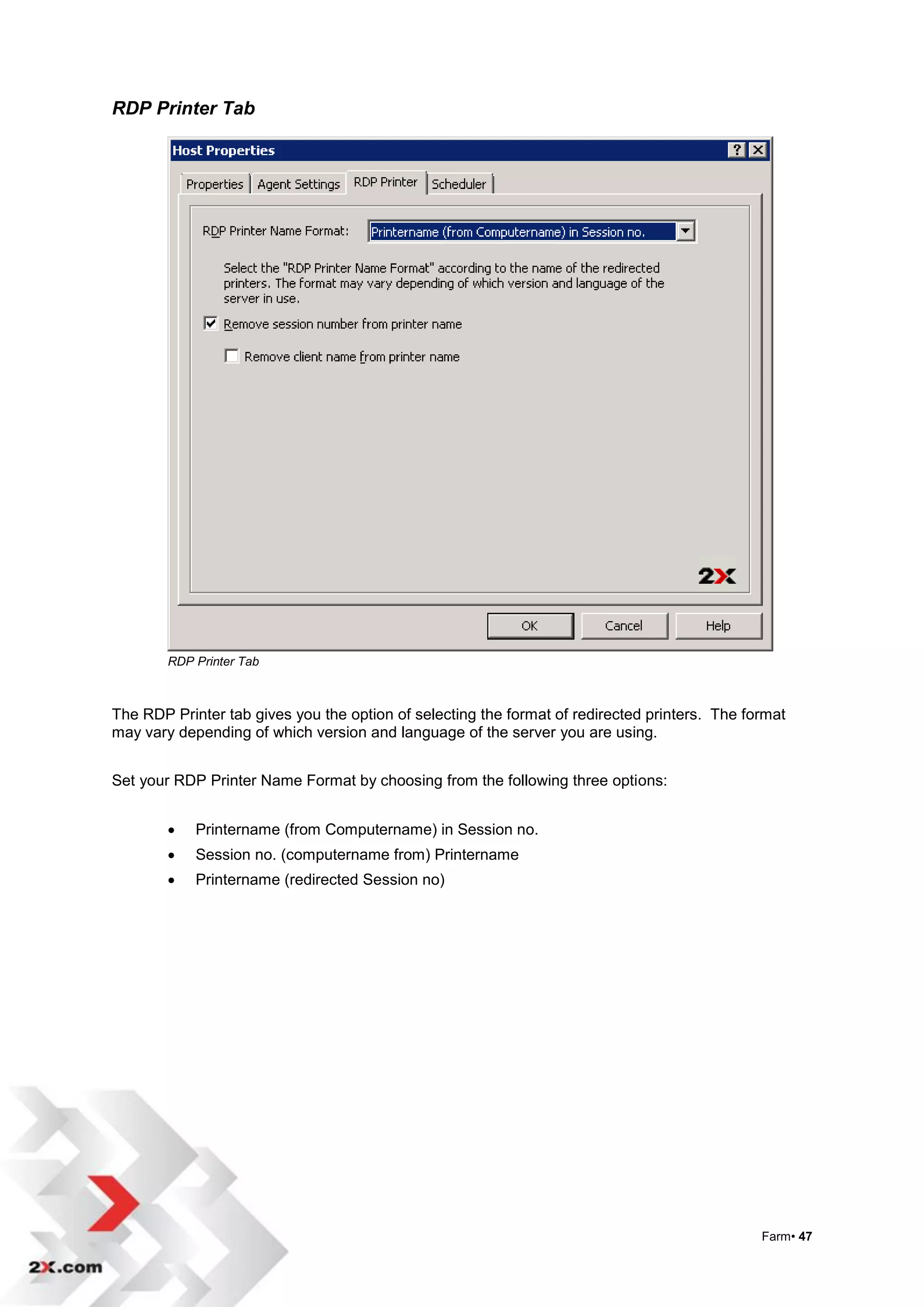
RDP Printer Tab


        RDP Printer Tab


The RDP Printer tab gives you the option of selecting the format of redirected printers. The format
may vary depending of which version and language of the server you are using.


Set your RDP Printer Name Format by choosing from the following three options:


           Printername (from Computername) in Session no.
           Session no. (computername from) Printername
           Printername (redirected Session no)


                                                                                               Farm• 47
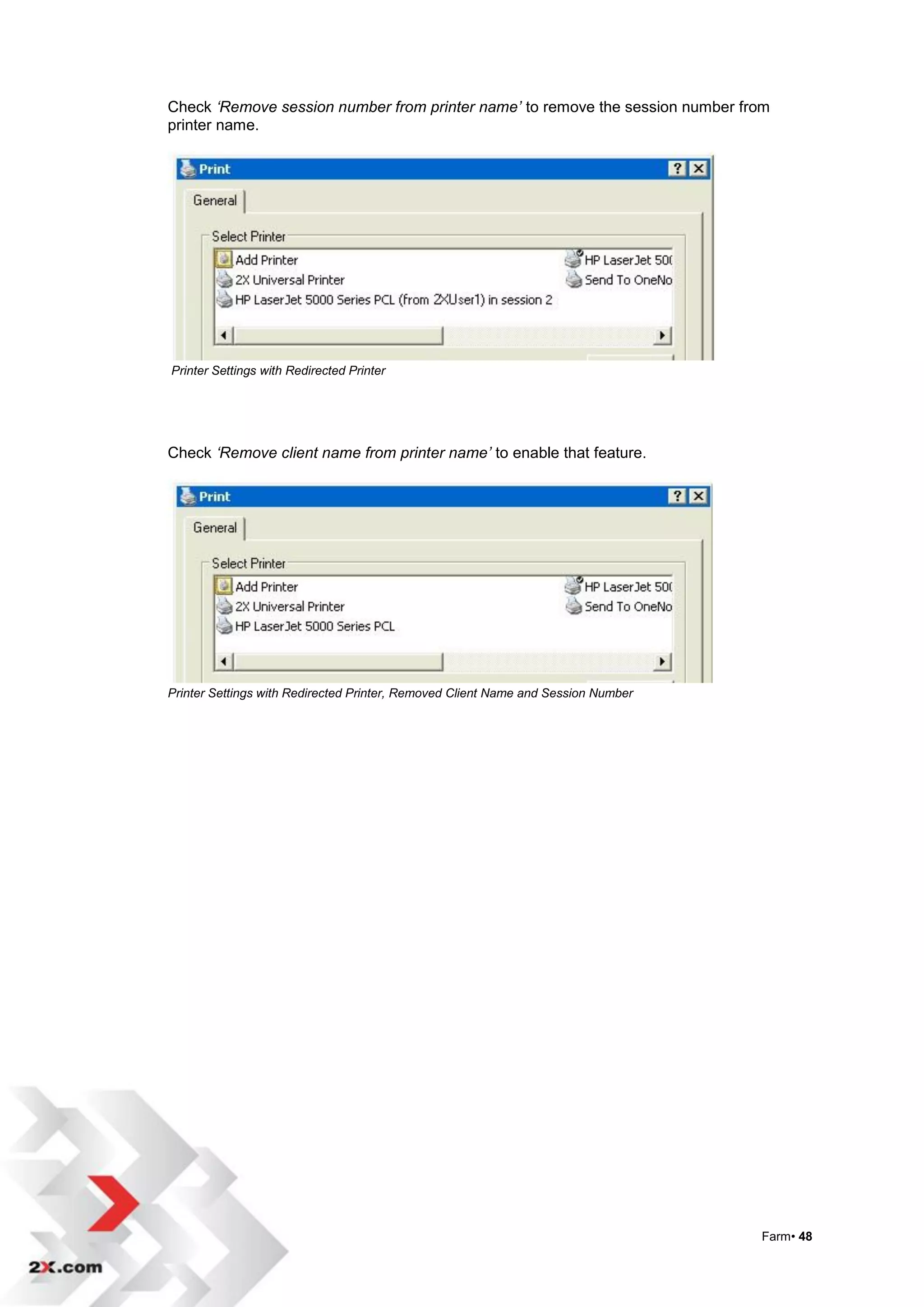
Check ‘Remove session number from printer name’ to remove the session number from
printer name.


Printer Settings with Redirected Printer


Check ‘Remove client name from printer name’ to enable that feature.


Printer Settings with Redirected Printer, Removed Client Name and Session Number


                                                                                   Farm• 48
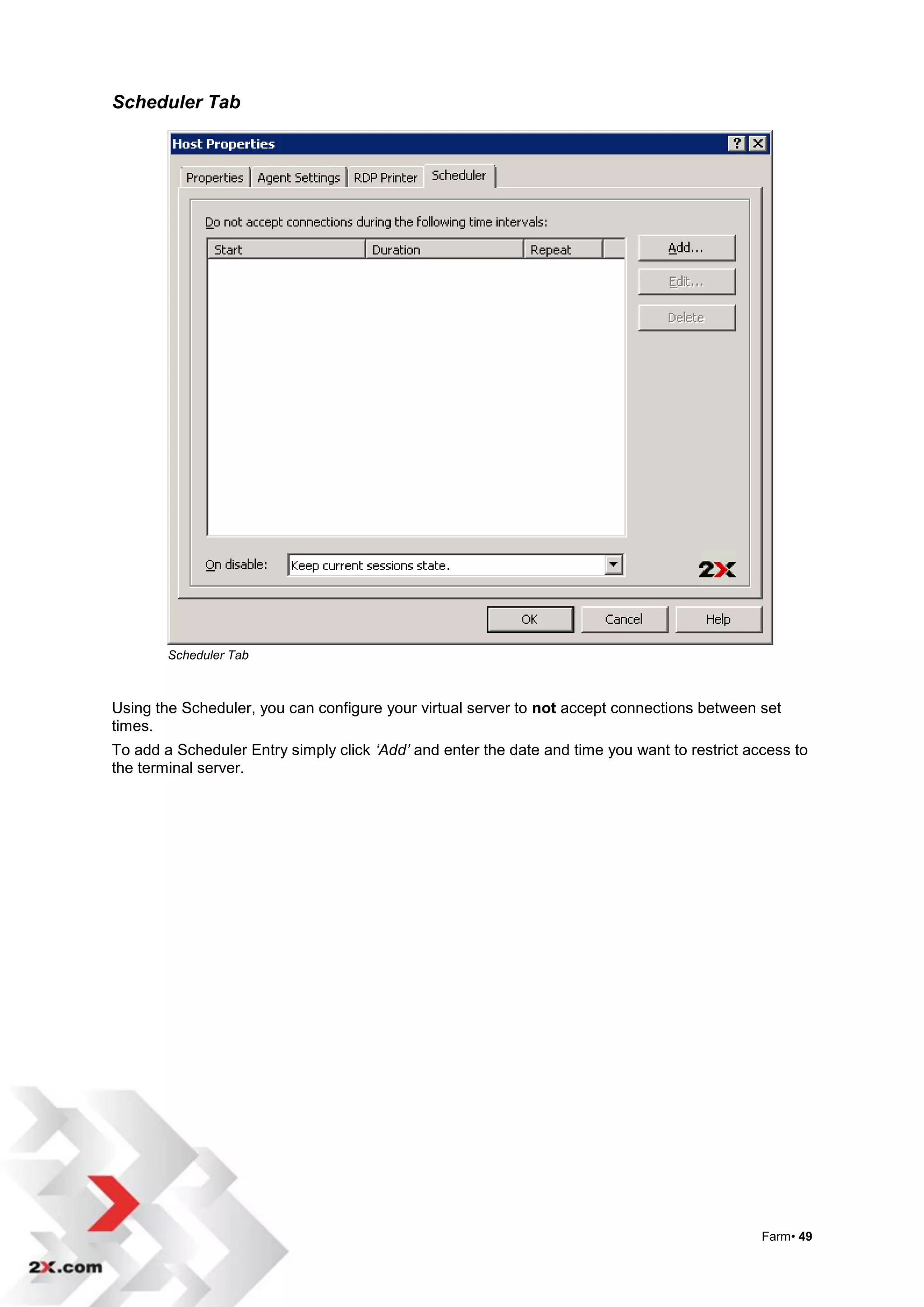
Scheduler Tab


        Scheduler Tab


Using the Scheduler, you can configure your virtual server to not accept connections between set
times.
To add a Scheduler Entry simply click ‘Add’ and enter the date and time you want to restrict access to
the terminal server.


                                                                                               Farm• 49
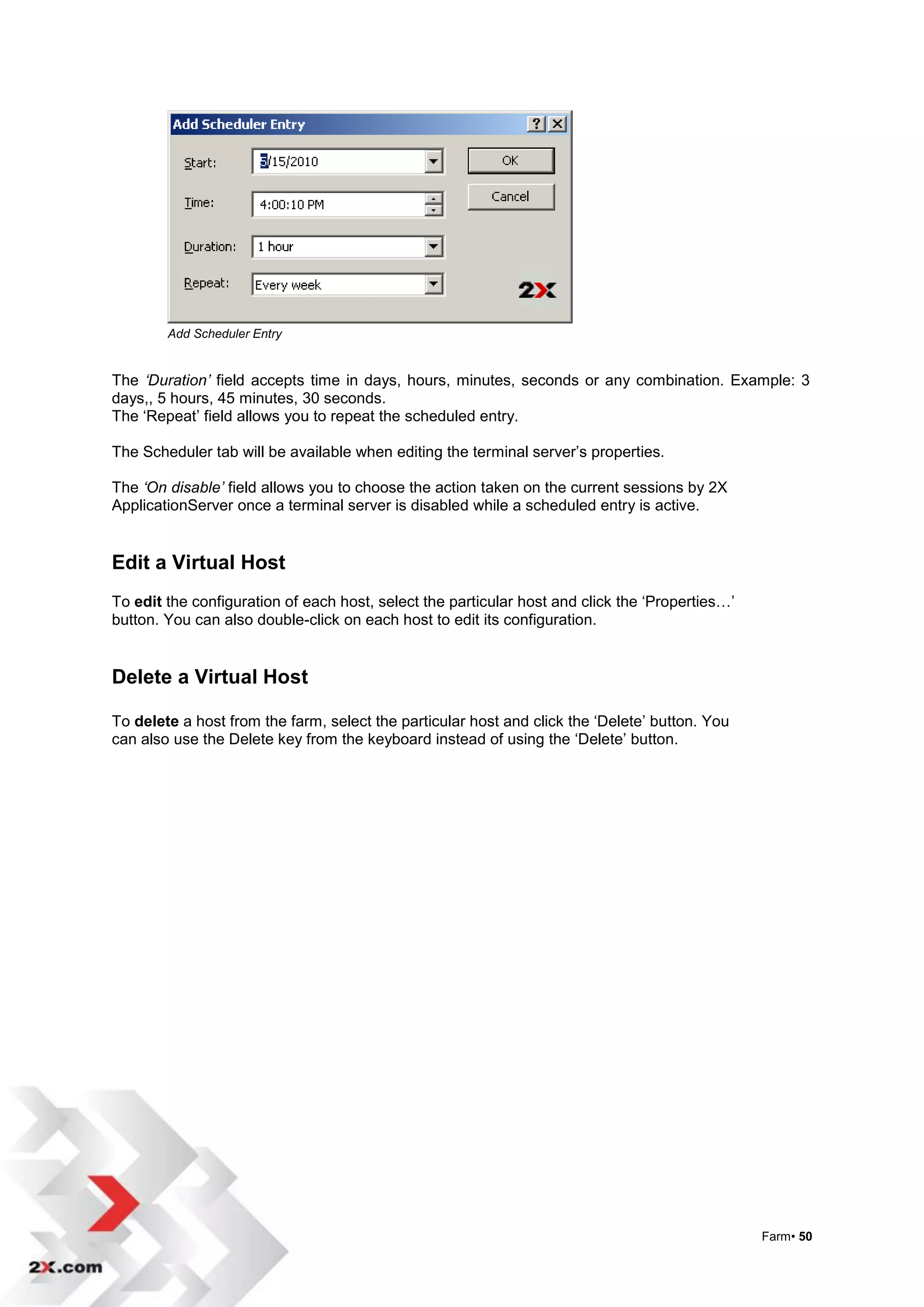
Add Scheduler Entry


The ‘Duration’ field accepts time in days, hours, minutes, seconds or any combination. Example: 3
days,, 5 hours, 45 minutes, 30 seconds.
The „Repeat‟ field allows you to repeat the scheduled entry.

The Scheduler tab will be available when editing the terminal server‟s properties.

The ‘On disable’ field allows you to choose the action taken on the current sessions by 2X
ApplicationServer once a terminal server is disabled while a scheduled entry is active.


Edit a Virtual Host
To edit the configuration of each host, select the particular host and click the „Properties…‟
button. You can also double-click on each host to edit its configuration.


Delete a Virtual Host

To delete a host from the farm, select the particular host and click the „Delete‟ button. You
can also use the Delete key from the keyboard instead of using the „Delete‟ button.


                                                                                                 Farm• 50
Check Agent

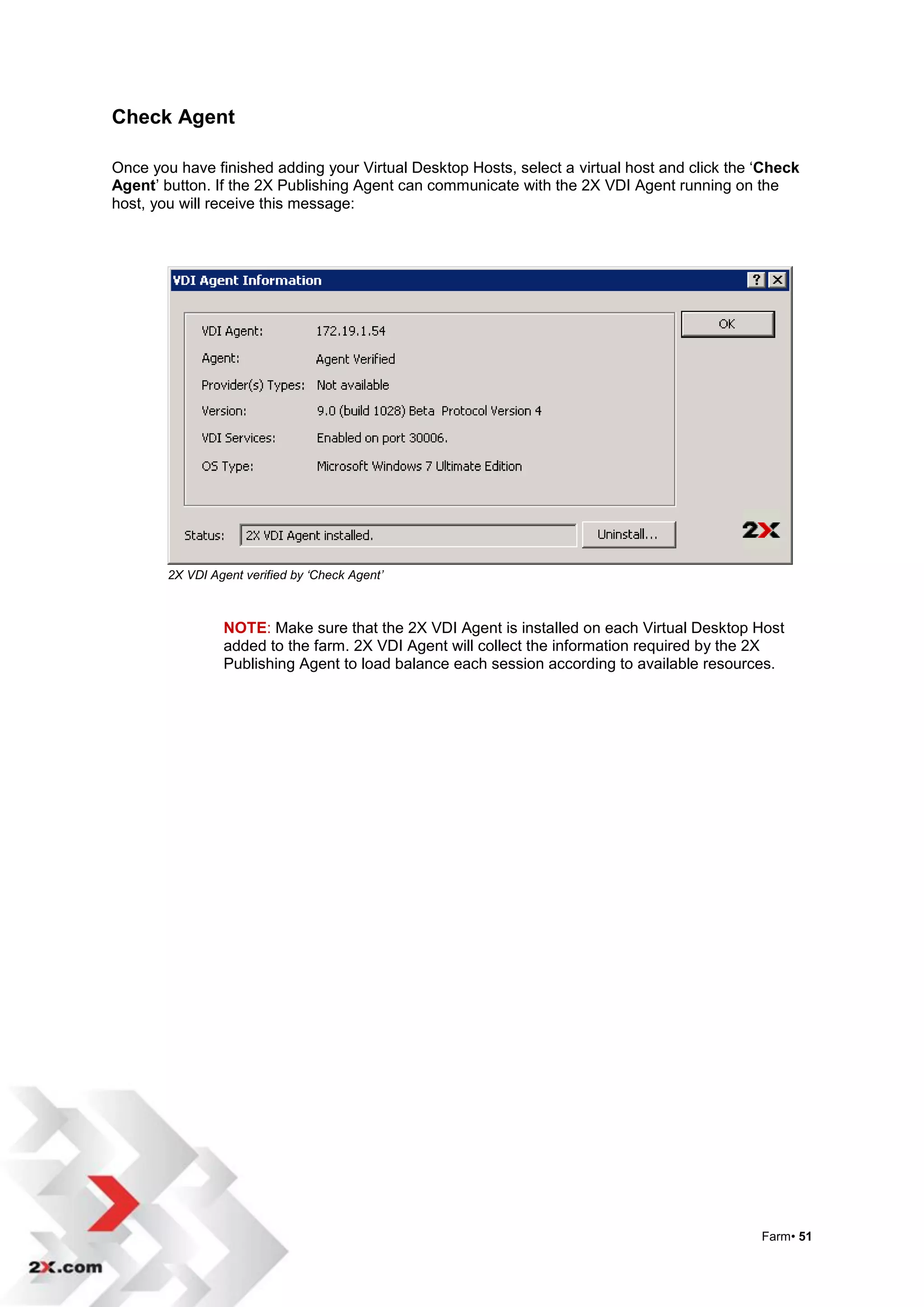
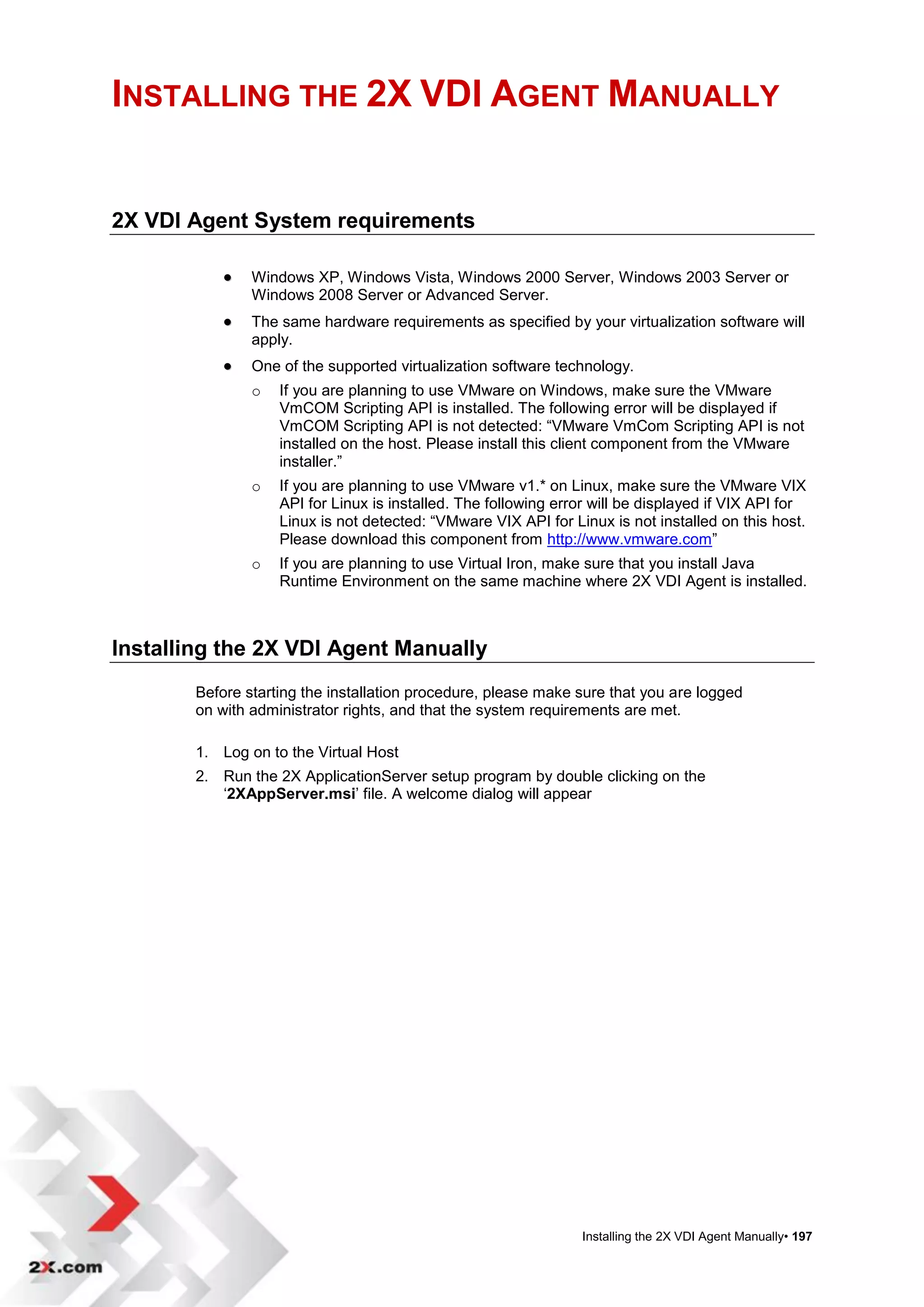
Once you have finished adding your Virtual Desktop Hosts, select a virtual host and click the „Check
Agent‟ button. If the 2X Publishing Agent can communicate with the 2X VDI Agent running on the
host, you will receive this message:


        2X VDI Agent verified by ‘Check Agent’


                 NOTE: Make sure that the 2X VDI Agent is installed on each Virtual Desktop Host
                 added to the farm. 2X VDI Agent will collect the information required by the 2X
                 Publishing Agent to load balance each session according to available resources.


                                                                                              Farm• 51
VDI Virtual Guests Settings
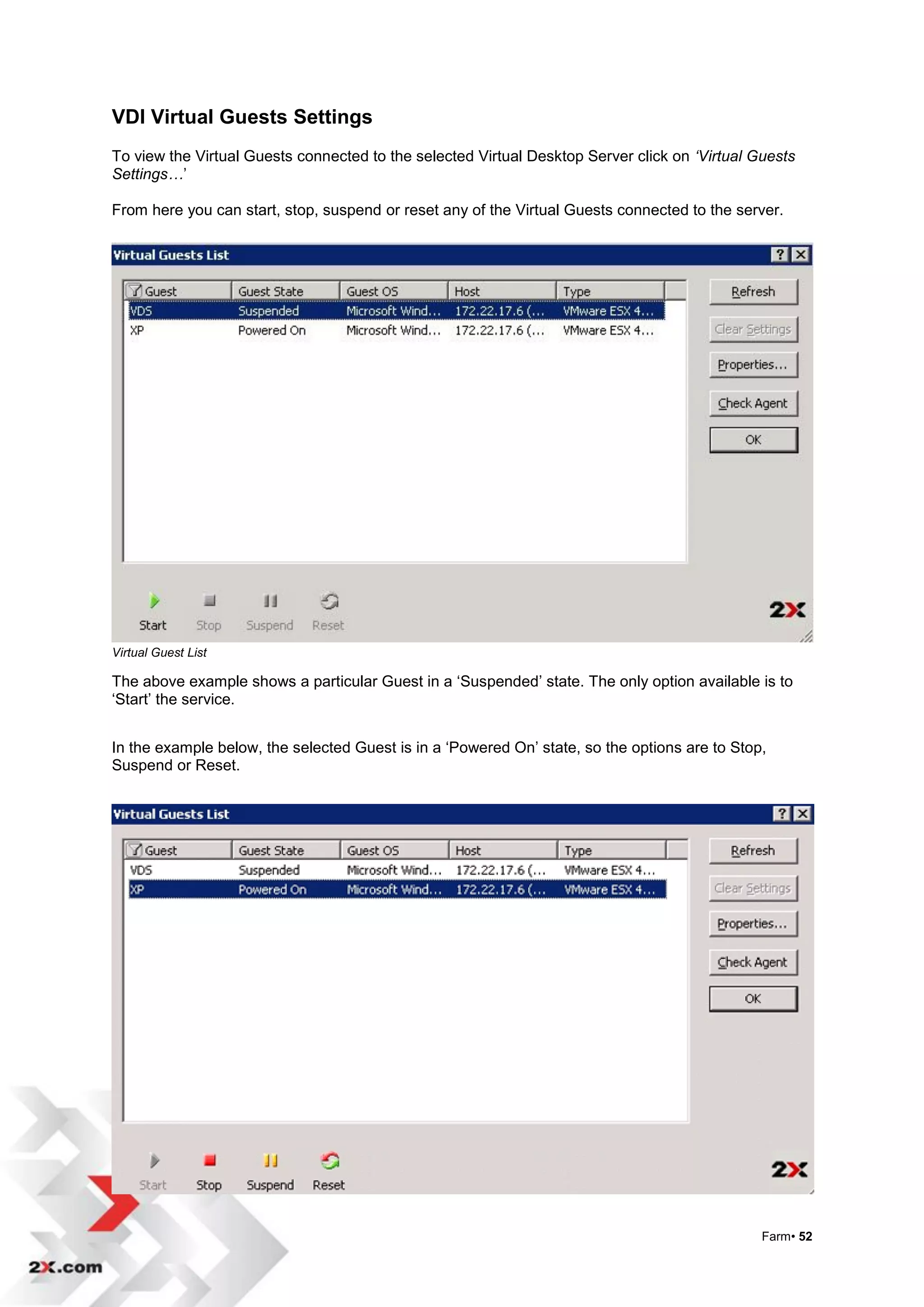
To view the Virtual Guests connected to the selected Virtual Desktop Server click on ‘Virtual Guests
Settings…‟

From here you can start, stop, suspend or reset any of the Virtual Guests connected to the server.


Virtual Guest List

The above example shows a particular Guest in a „Suspended‟ state. The only option available is to
„Start‟ the service.


In the example below, the selected Guest is in a „Powered On‟ state, so the options are to Stop,
Suspend or Reset.


                                                                                               Farm• 52
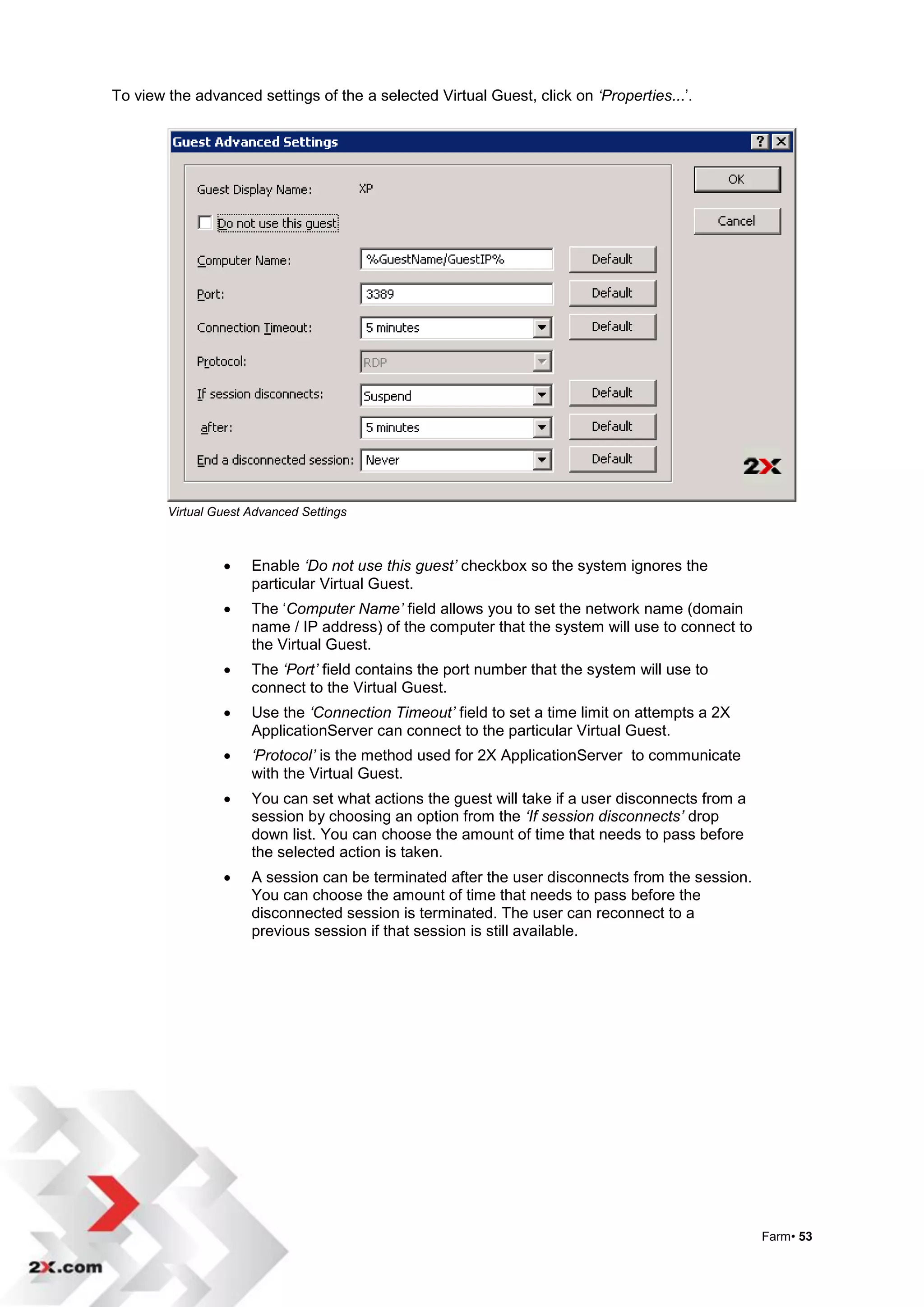
To view the advanced settings of the a selected Virtual Guest, click on ‘Properties...‟.


        Virtual Guest Advanced Settings


                     Enable ‘Do not use this guest’ checkbox so the system ignores the
                      particular Virtual Guest.
                     The „Computer Name’ field allows you to set the network name (domain
                      name / IP address) of the computer that the system will use to connect to
                      the Virtual Guest.
                     The ‘Port’ field contains the port number that the system will use to
                      connect to the Virtual Guest.
                     Use the ‘Connection Timeout’ field to set a time limit on attempts a 2X
                      ApplicationServer can connect to the particular Virtual Guest.
                     ‘Protocol’ is the method used for 2X ApplicationServer to communicate
                      with the Virtual Guest.
                     You can set what actions the guest will take if a user disconnects from a
                      session by choosing an option from the ‘If session disconnects’ drop
                      down list. You can choose the amount of time that needs to pass before
                      the selected action is taken.
                     A session can be terminated after the user disconnects from the session.
                      You can choose the amount of time that needs to pass before the
                      disconnected session is terminated. The user can reconnect to a
                      previous session if that session is still available.


                                                                                                  Farm• 53
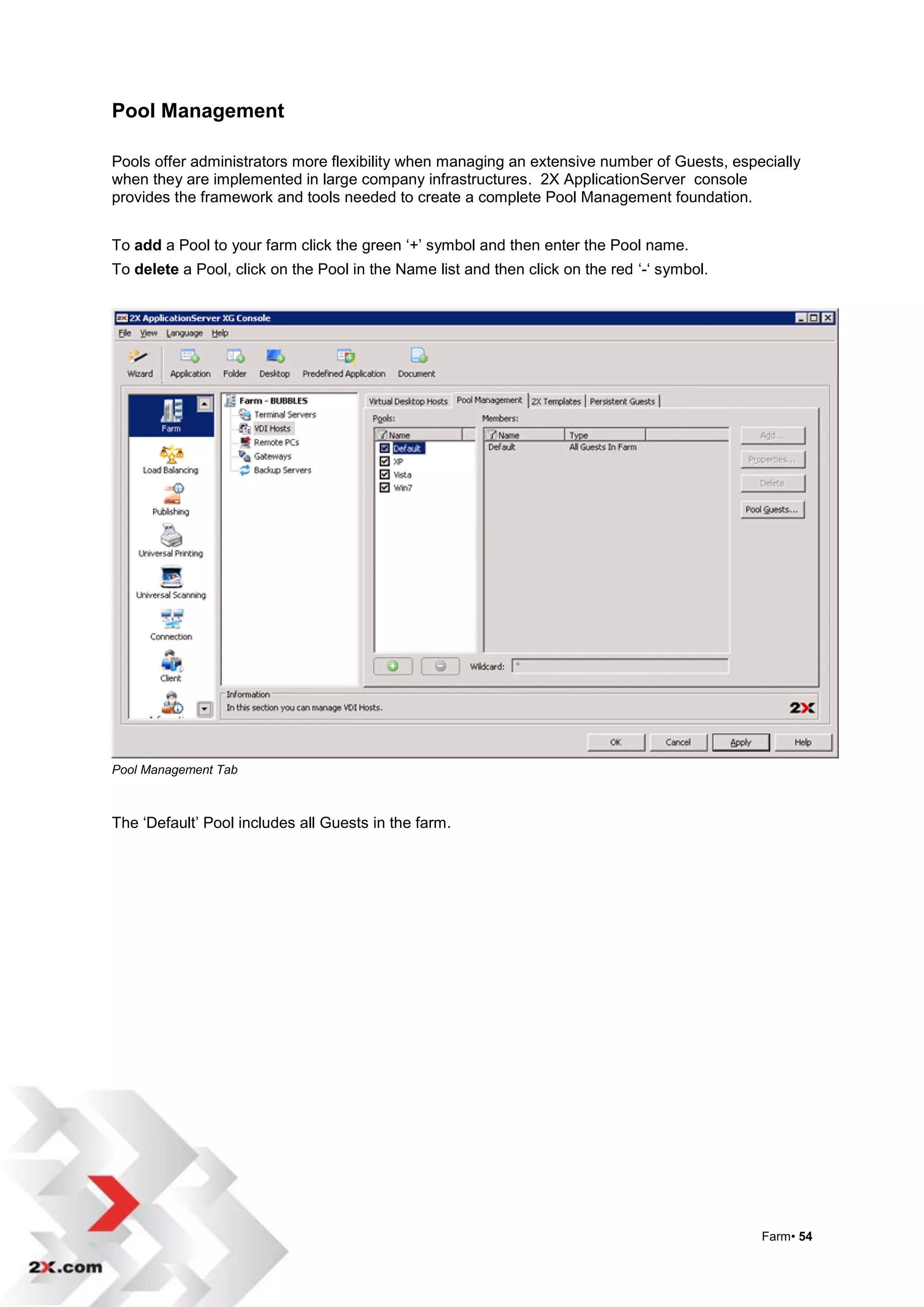
Pool Management

Pools offer administrators more flexibility when managing an extensive number of Guests, especially
when they are implemented in large company infrastructures. 2X ApplicationServer console
provides the framework and tools needed to create a complete Pool Management foundation.


To add a Pool to your farm click the green „+‟ symbol and then enter the Pool name.
To delete a Pool, click on the Pool in the Name list and then click on the red „-„ symbol.


Pool Management Tab


The „Default‟ Pool includes all Guests in the farm.


                                                                                             Farm• 54
Adding Pool Members to a Pool

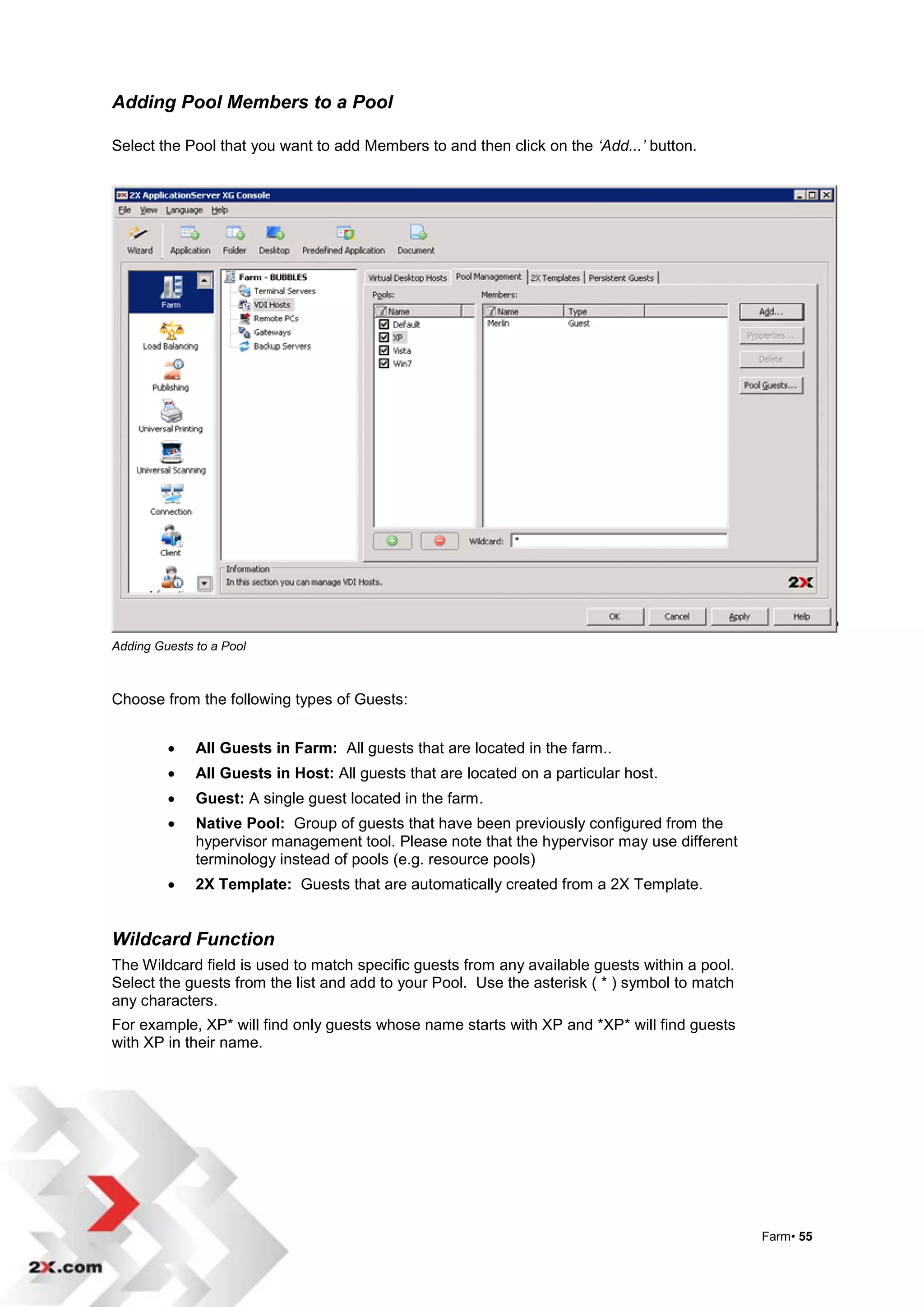
Select the Pool that you want to add Members to and then click on the ‘Add...’ button.


Adding Guests to a Pool


Choose from the following types of Guests:


             All Guests in Farm: All guests that are located in the farm..
             All Guests in Host: All guests that are located on a particular host.
             Guest: A single guest located in the farm.
             Native Pool: Group of guests that have been previously configured from the
              hypervisor management tool. Please note that the hypervisor may use different
              terminology instead of pools (e.g. resource pools)
             2X Template: Guests that are automatically created from a 2X Template.


Wildcard Function
The Wildcard field is used to match specific guests from any available guests within a pool.
Select the guests from the list and add to your Pool. Use the asterisk ( * ) symbol to match
any characters.
For example, XP* will find only guests whose name starts with XP and *XP* will find guests
with XP in their name.


                                                                                               Farm• 55
Delete a Pool Member
Select the Pool member you want removed and click on „Delete‟. The selected Guest is then deleted
from that Pool.


Pool Guests

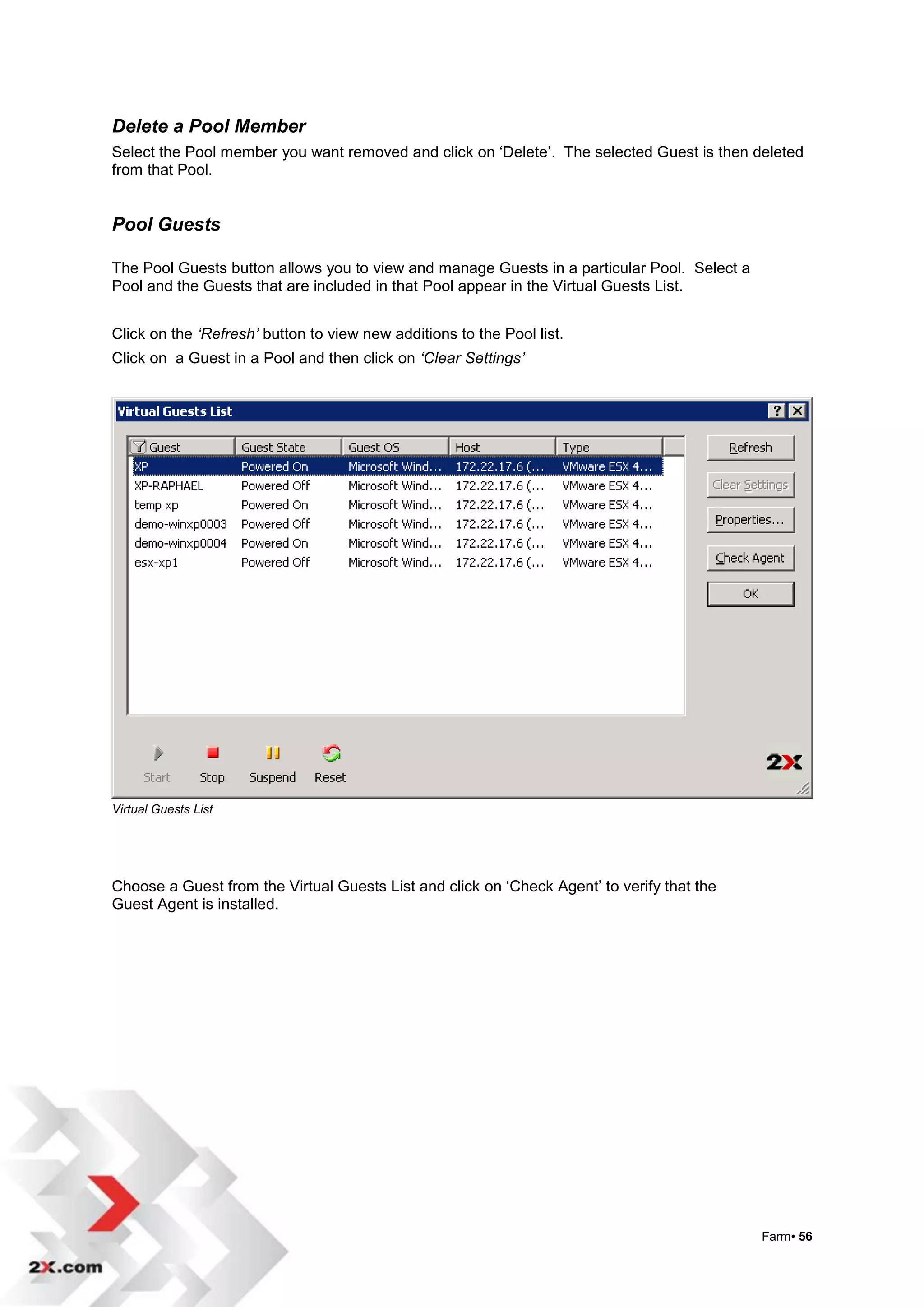
The Pool Guests button allows you to view and manage Guests in a particular Pool. Select a
Pool and the Guests that are included in that Pool appear in the Virtual Guests List.


Click on the ‘Refresh’ button to view new additions to the Pool list.
Click on a Guest in a Pool and then click on ‘Clear Settings’


Virtual Guests List


Choose a Guest from the Virtual Guests List and click on „Check Agent‟ to verify that the
Guest Agent is installed.


                                                                                             Farm• 56
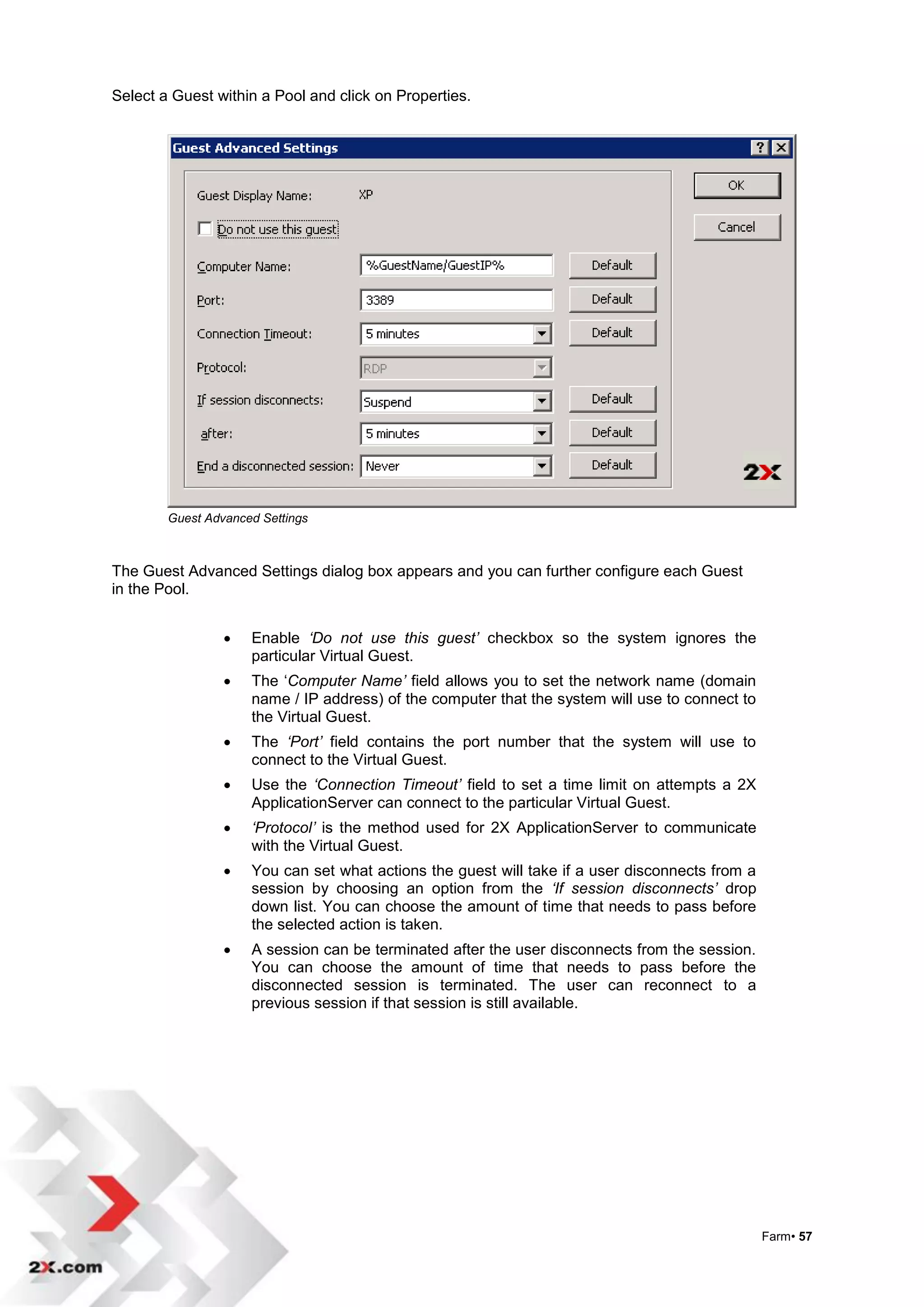
Select a Guest within a Pool and click on Properties.


        Guest Advanced Settings


The Guest Advanced Settings dialog box appears and you can further configure each Guest
in the Pool.


                    Enable ‘Do not use this guest’ checkbox so the system ignores the
                     particular Virtual Guest.
                    The „Computer Name’ field allows you to set the network name (domain
                     name / IP address) of the computer that the system will use to connect to
                     the Virtual Guest.
                    The ‘Port’ field contains the port number that the system will use to
                     connect to the Virtual Guest.
                    Use the ‘Connection Timeout’ field to set a time limit on attempts a 2X
                     ApplicationServer can connect to the particular Virtual Guest.
                    ‘Protocol’ is the method used for 2X ApplicationServer to communicate
                     with the Virtual Guest.
                    You can set what actions the guest will take if a user disconnects from a
                     session by choosing an option from the ‘If session disconnects’ drop
                     down list. You can choose the amount of time that needs to pass before
                     the selected action is taken.
                    A session can be terminated after the user disconnects from the session.
                     You can choose the amount of time that needs to pass before the
                     disconnected session is terminated. The user can reconnect to a
                     previous session if that session is still available.


                                                                                                 Farm• 57
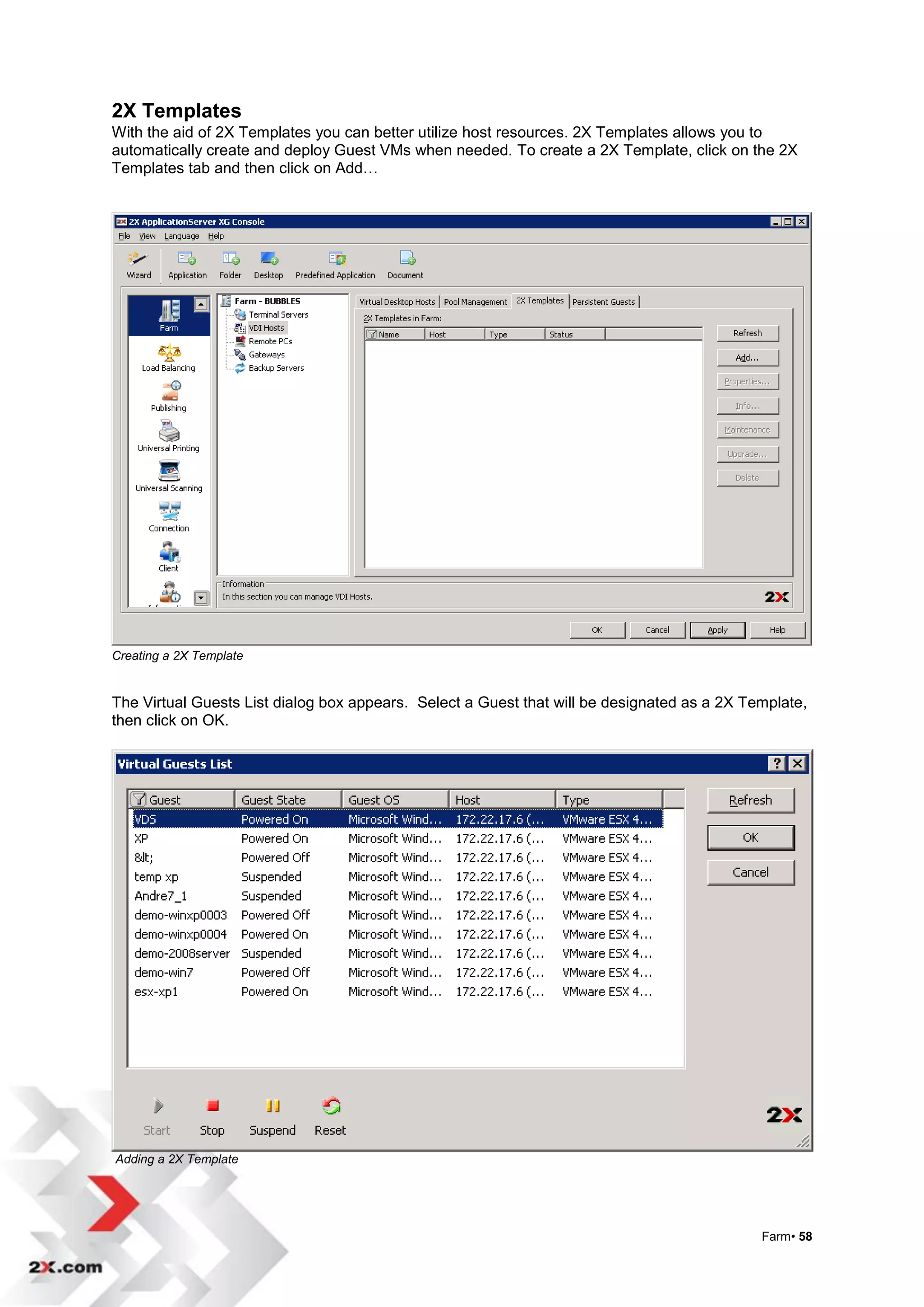
2X Templates
With the aid of 2X Templates you can better utilize host resources. 2X Templates allows you to
automatically create and deploy Guest VMs when needed. To create a 2X Template, click on the 2X
Templates tab and then click on Add…


Creating a 2X Template


The Virtual Guests List dialog box appears. Select a Guest that will be designated as a 2X Template,
then click on OK.


Adding a 2X Template


                                                                                             Farm• 58
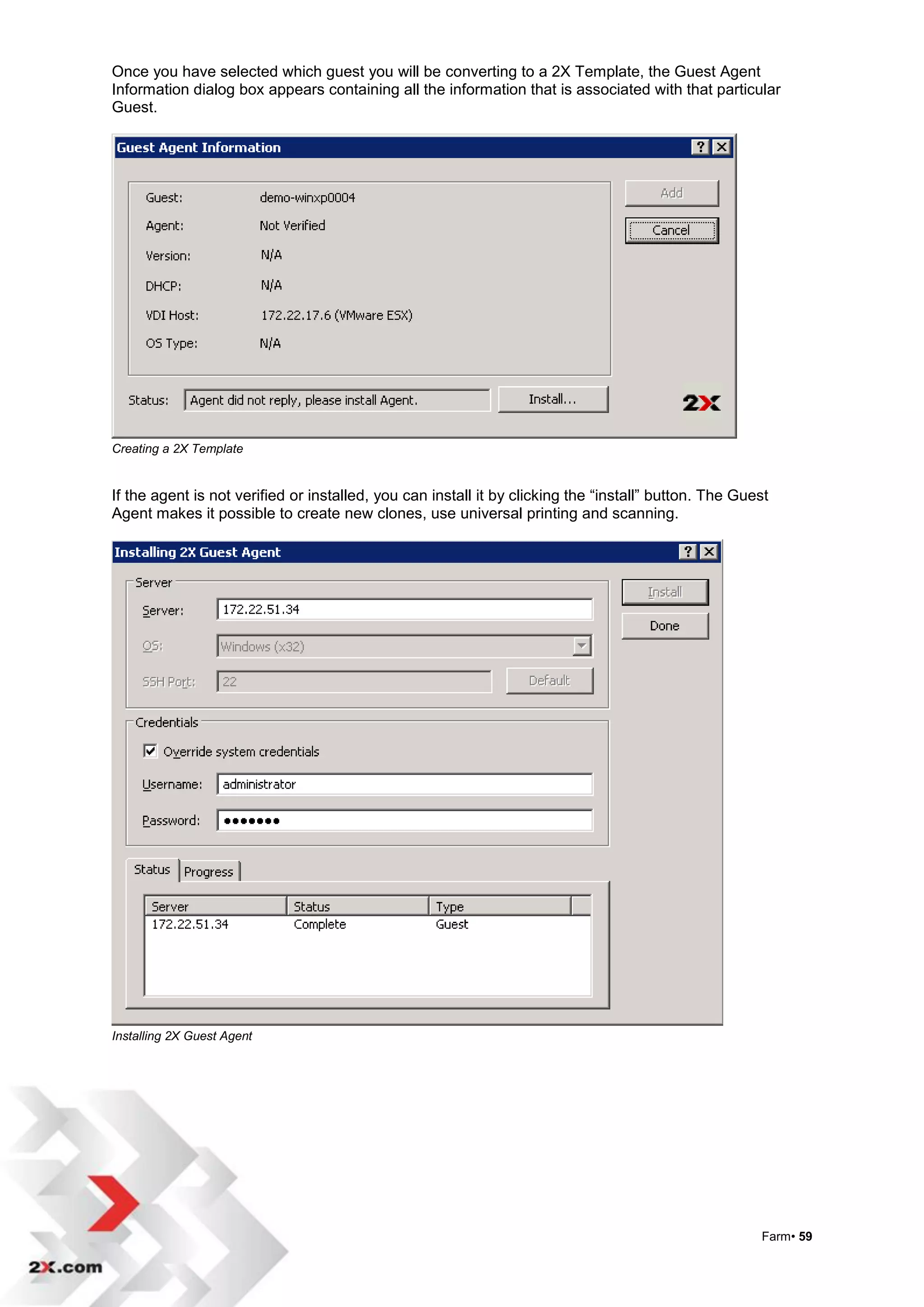
Once you have selected which guest you will be converting to a 2X Template, the Guest Agent
Information dialog box appears containing all the information that is associated with that particular
Guest.


Creating a 2X Template


If the agent is not verified or installed, you can install it by clicking the “install” button. The Guest
Agent makes it possible to create new clones, use universal printing and scanning.


Installing 2X Guest Agent


                                                                                                       Farm• 59
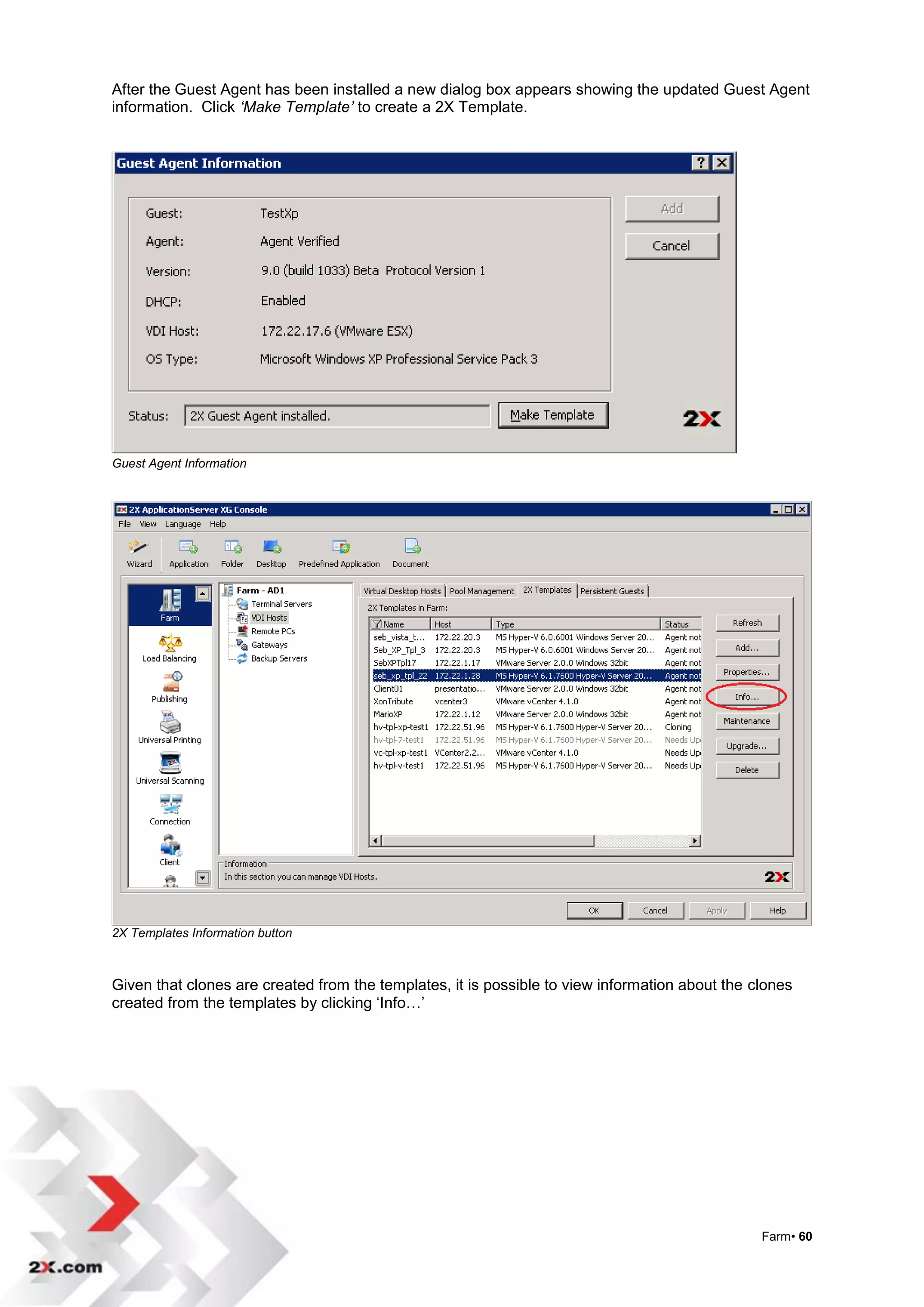
After the Guest Agent has been installed a new dialog box appears showing the updated Guest Agent
information. Click ‘Make Template’ to create a 2X Template.


Guest Agent Information


2X Templates Information button


Given that clones are created from the templates, it is possible to view information about the clones
created from the templates by clicking „Info…‟


                                                                                                Farm• 60
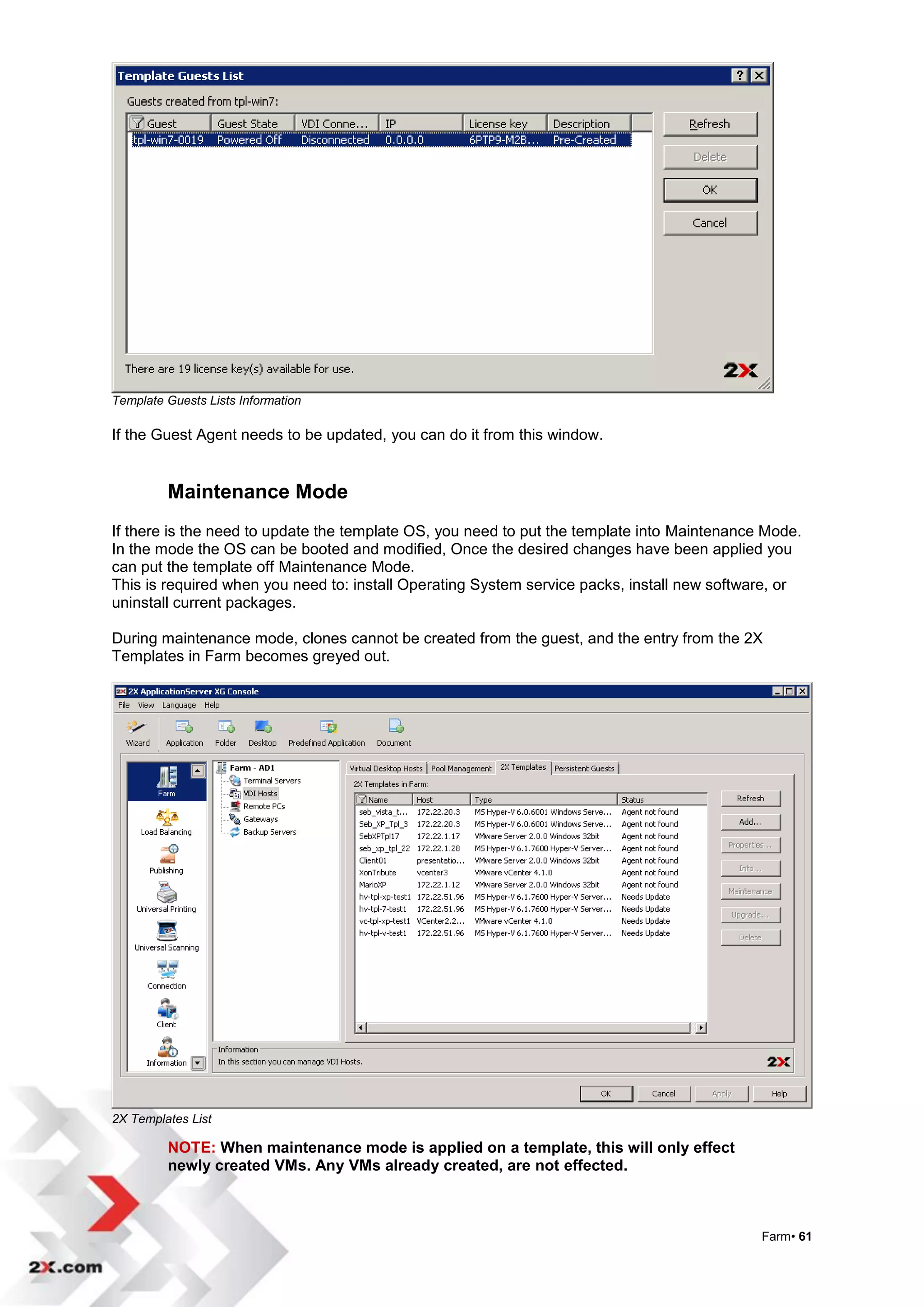
Template Guests Lists Information

If the Guest Agent needs to be updated, you can do it from this window.


         Maintenance Mode
If there is the need to update the template OS, you need to put the template into Maintenance Mode.
In the mode the OS can be booted and modified, Once the desired changes have been applied you
can put the template off Maintenance Mode.
This is required when you need to: install Operating System service packs, install new software, or
uninstall current packages.

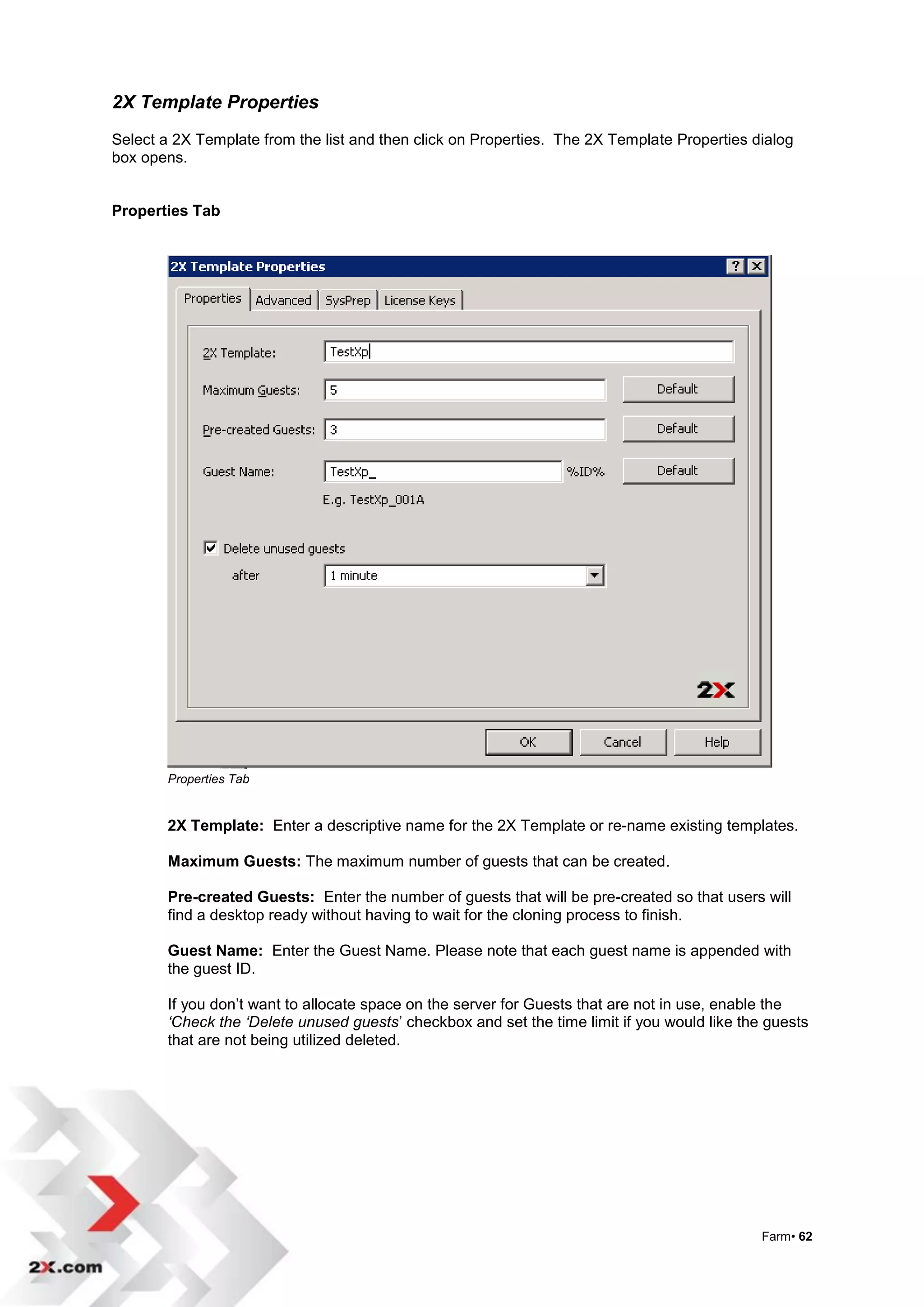
During maintenance mode, clones cannot be created from the guest, and the entry from the 2X
Templates in Farm becomes greyed out.


2X Templates List

         NOTE: When maintenance mode is applied on a template, this will only effect
         newly created VMs. Any VMs already created, are not effected.


                                                                                             Farm• 61
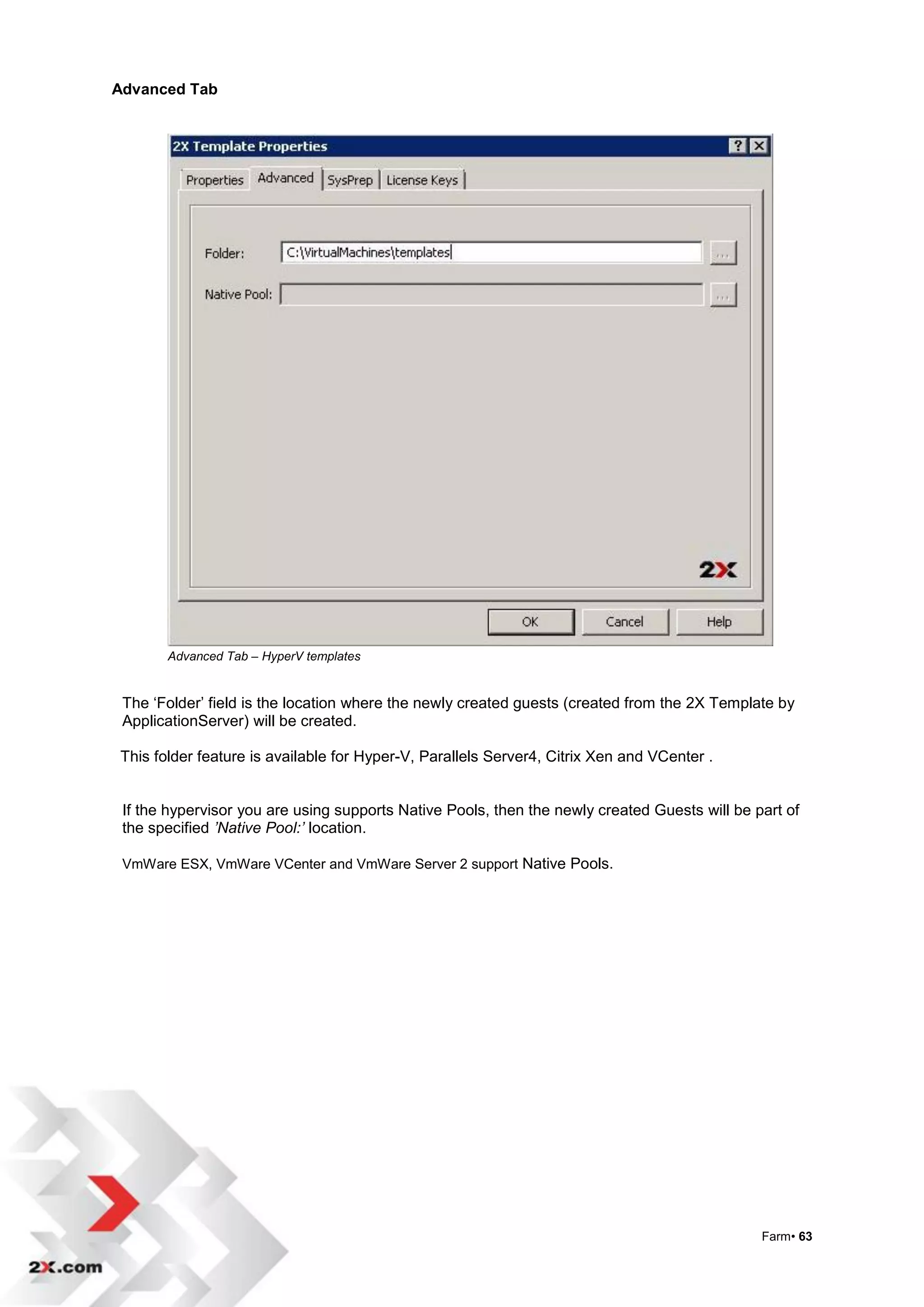
2X Template Properties
Select a 2X Template from the list and then click on Properties. The 2X Template Properties dialog
box opens.


Properties Tab


        Properties Tab


        2X Template: Enter a descriptive name for the 2X Template or re-name existing templates.

        Maximum Guests: The maximum number of guests that can be created.

        Pre-created Guests: Enter the number of guests that will be pre-created so that users will
        find a desktop ready without having to wait for the cloning process to finish.

        Guest Name: Enter the Guest Name. Please note that each guest name is appended with
        the guest ID.

        If you don‟t want to allocate space on the server for Guests that are not in use, enable the
        ‘Check the ‘Delete unused guests‟ checkbox and set the time limit if you would like the guests
        that are not being utilized deleted.


                                                                                               Farm• 62
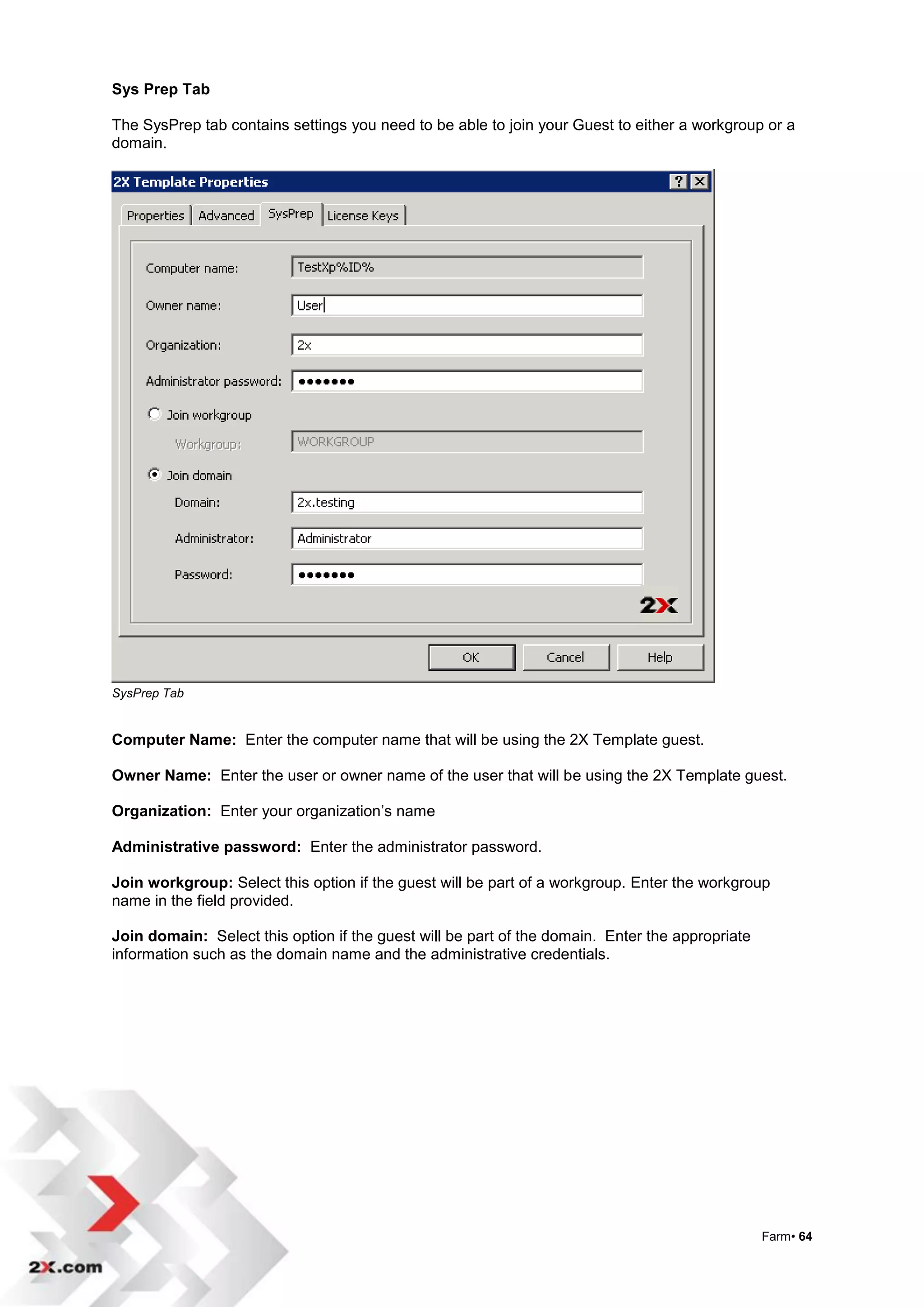
Advanced Tab


       Advanced Tab – HyperV templates


 The „Folder‟ field is the location where the newly created guests (created from the 2X Template by
 ApplicationServer) will be created.

This folder feature is available for Hyper-V, Parallels Server4, Citrix Xen and VCenter .


 If the hypervisor you are using supports Native Pools, then the newly created Guests will be part of
 the specified ’Native Pool:’ location.

 VmWare ESX, VmWare VCenter and VmWare Server 2 support Native Pools.


                                                                                               Farm• 63
Sys Prep Tab

The SysPrep tab contains settings you need to be able to join your Guest to either a workgroup or a
domain.


SysPrep Tab


Computer Name: Enter the computer name that will be using the 2X Template guest.

Owner Name: Enter the user or owner name of the user that will be using the 2X Template guest.

Organization: Enter your organization‟s name

Administrative password: Enter the administrator password.

Join workgroup: Select this option if the guest will be part of a workgroup. Enter the workgroup
name in the field provided.

Join domain: Select this option if the guest will be part of the domain. Enter the appropriate
information such as the domain name and the administrative credentials.


                                                                                                 Farm• 64
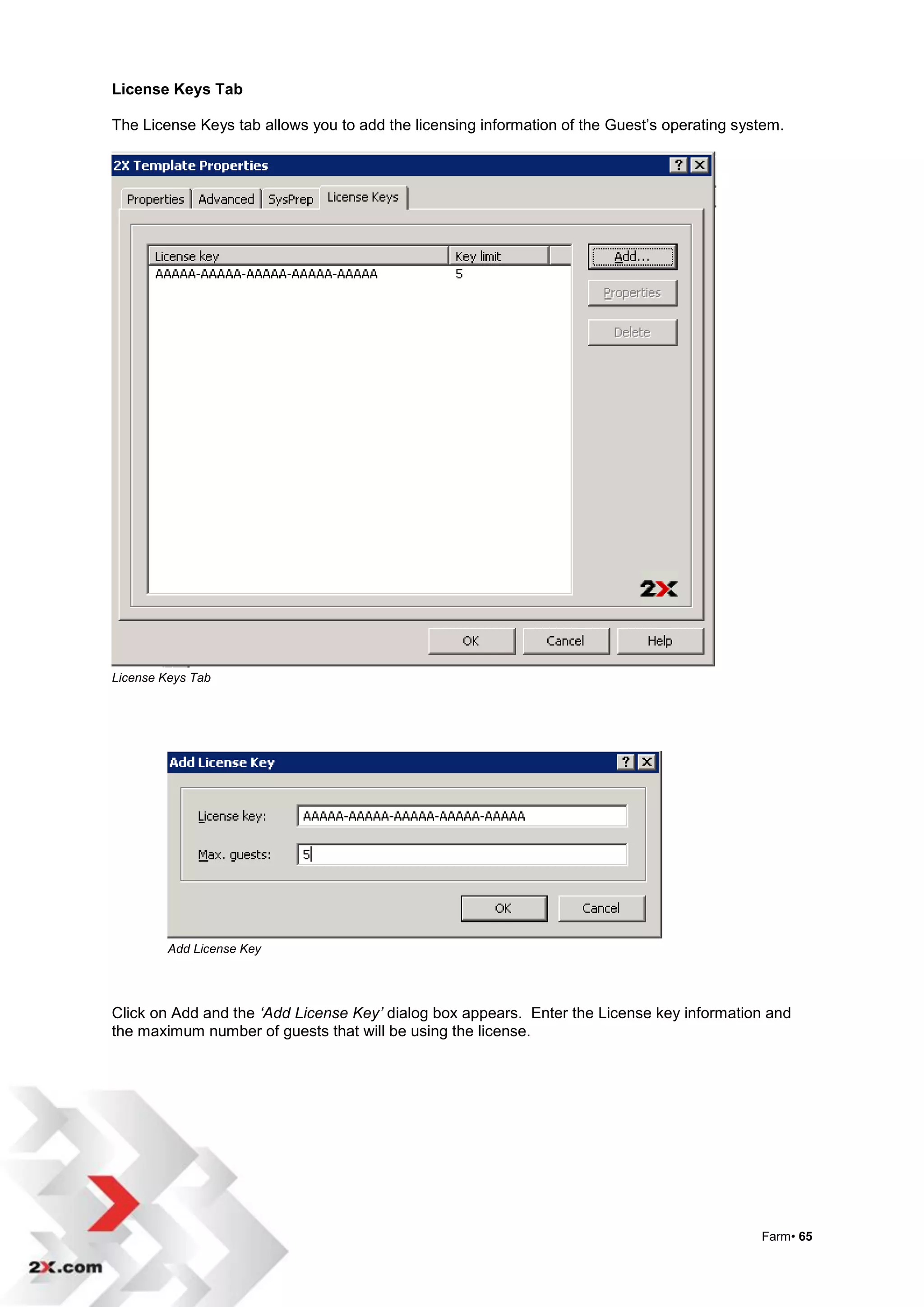
License Keys Tab

The License Keys tab allows you to add the licensing information of the Guest‟s operating system.


License Keys Tab


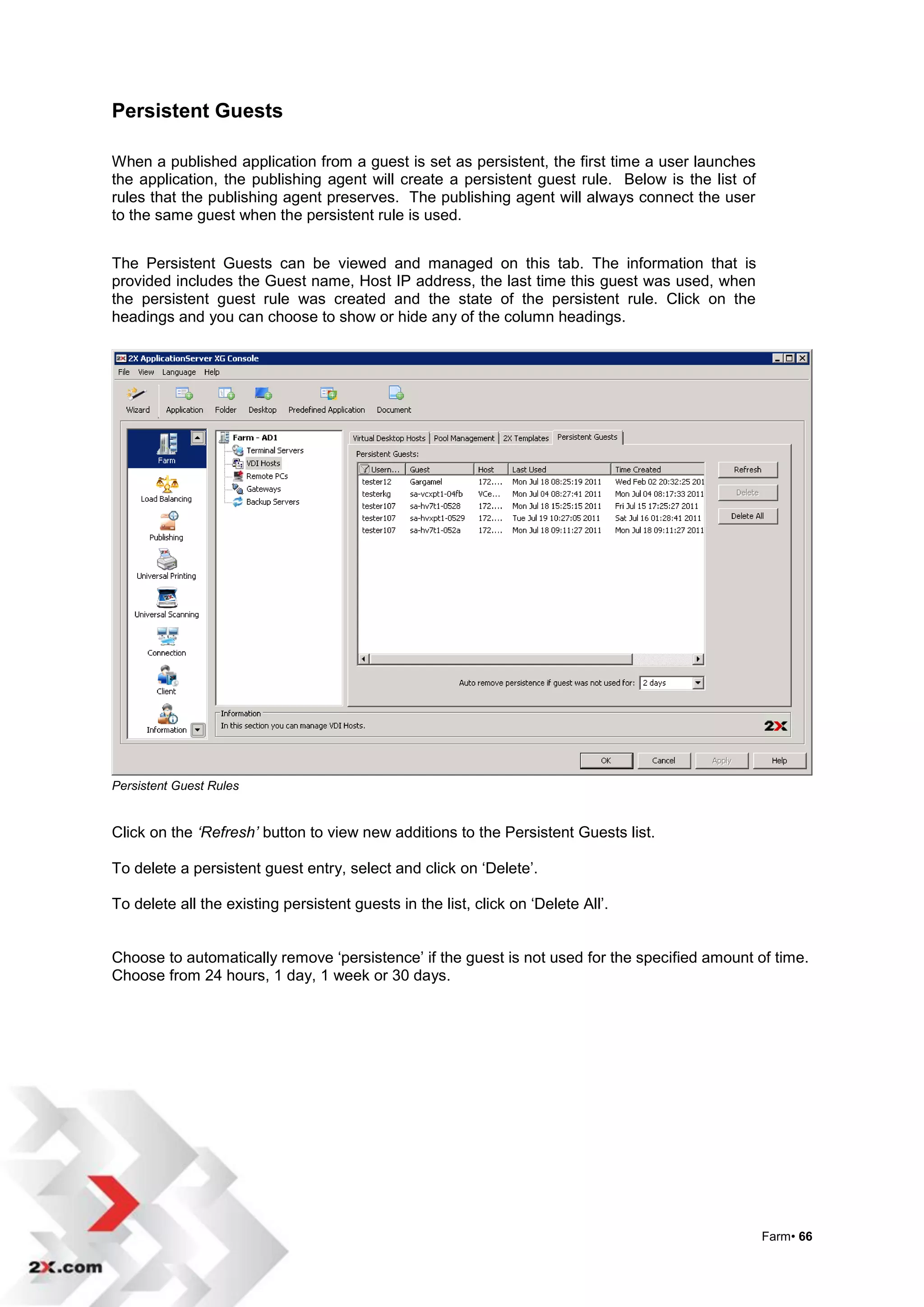
         Add License Key


Click on Add and the ‘Add License Key’ dialog box appears. Enter the License key information and
the maximum number of guests that will be using the license.


                                                                                             Farm• 65
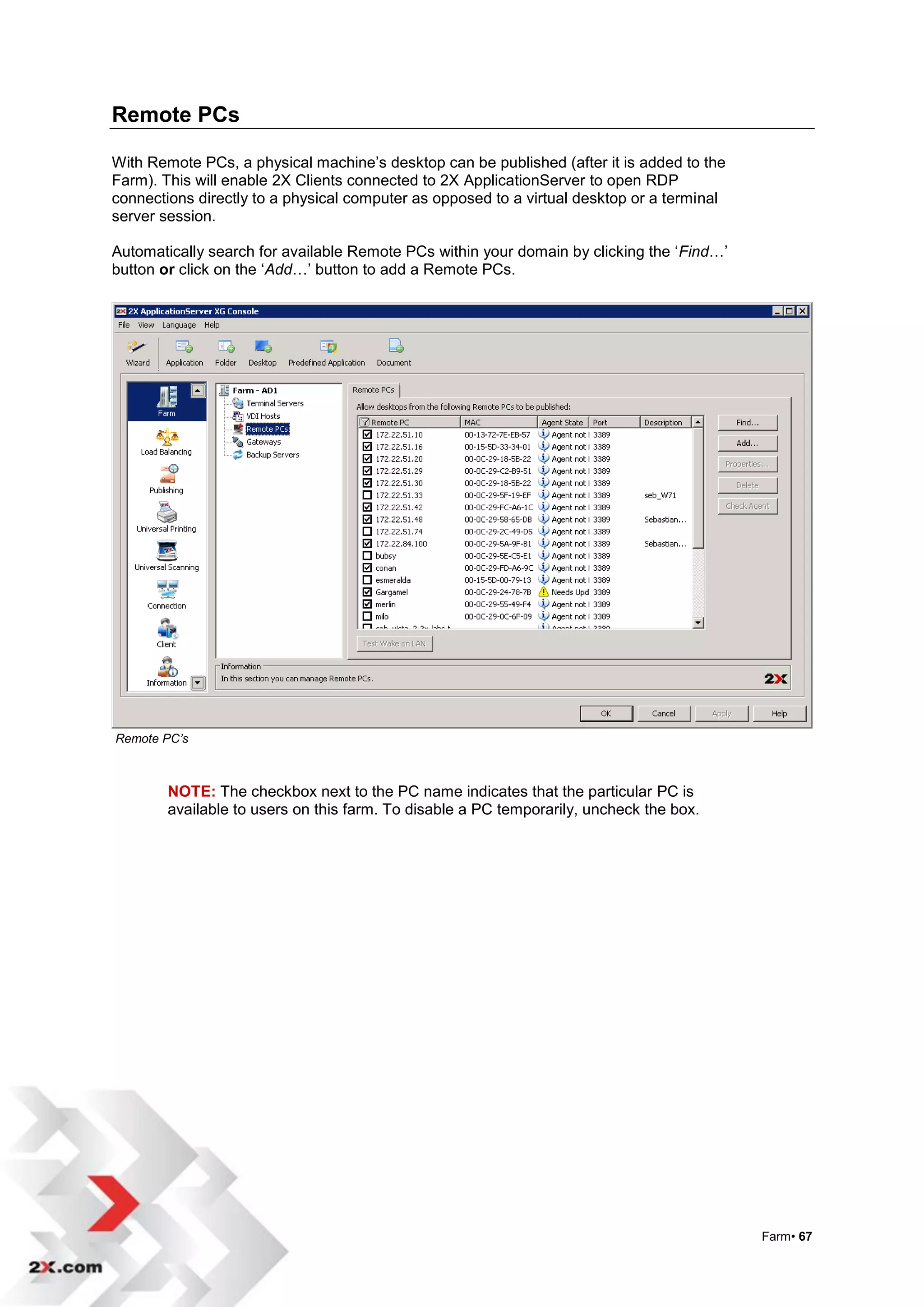
Persistent Guests

When a published application from a guest is set as persistent, the first time a user launches
the application, the publishing agent will create a persistent guest rule. Below is the list of
rules that the publishing agent preserves. The publishing agent will always connect the user
to the same guest when the persistent rule is used.


The Persistent Guests can be viewed and managed on this tab. The information that is
provided includes the Guest name, Host IP address, the last time this guest was used, when
the persistent guest rule was created and the state of the persistent rule. Click on the
headings and you can choose to show or hide any of the column headings.


Persistent Guest Rules


Click on the ‘Refresh’ button to view new additions to the Persistent Guests list.

To delete a persistent guest entry, select and click on „Delete‟.

To delete all the existing persistent guests in the list, click on „Delete All‟.


Choose to automatically remove „persistence‟ if the guest is not used for the specified amount of time.
Choose from 24 hours, 1 day, 1 week or 30 days.


                                                                                                  Farm• 66
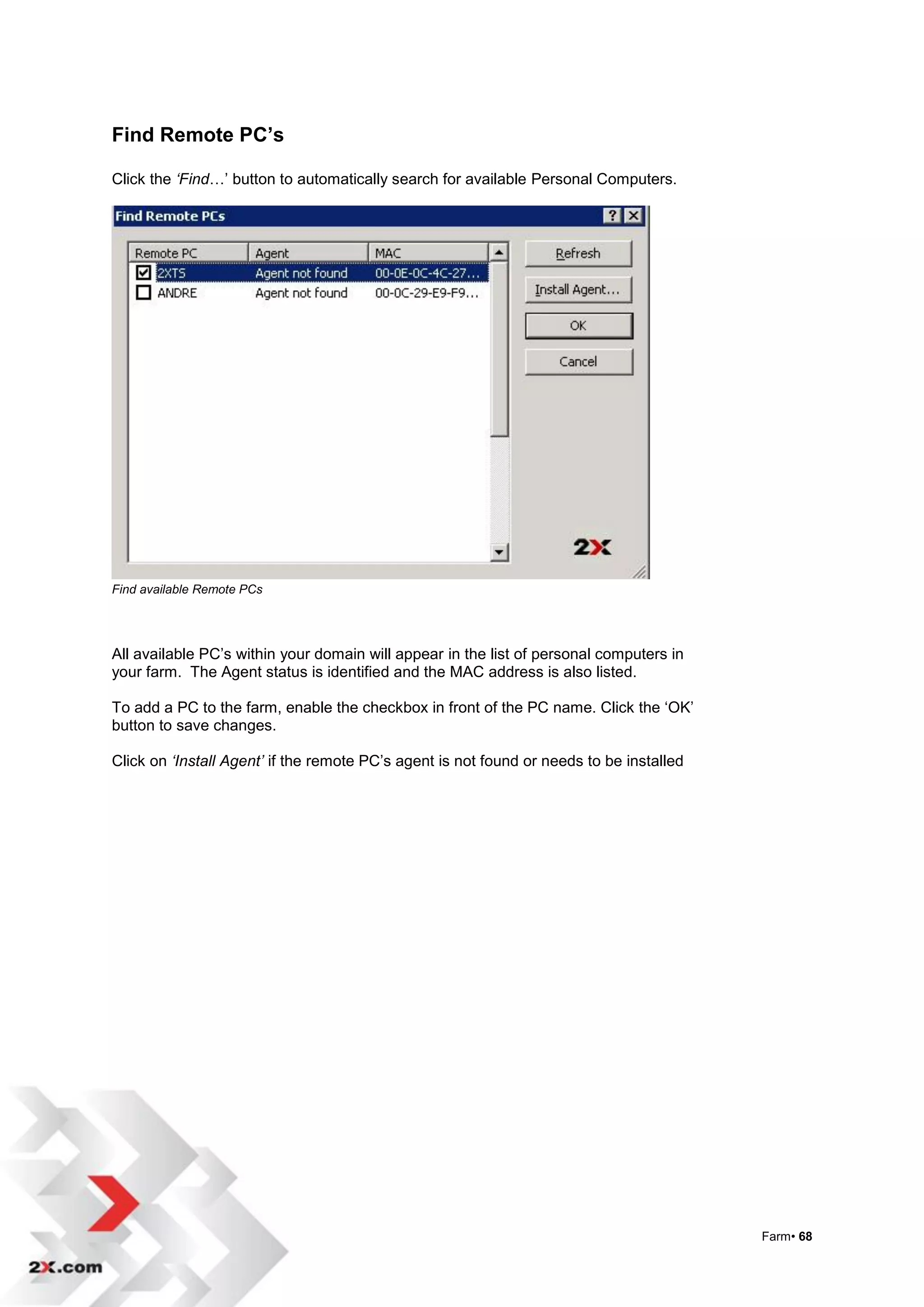
Remote PCs

With Remote PCs, a physical machine‟s desktop can be published (after it is added to the
Farm). This will enable 2X Clients connected to 2X ApplicationServer to open RDP
connections directly to a physical computer as opposed to a virtual desktop or a terminal
server session.

Automatically search for available Remote PCs within your domain by clicking the „Find…‟
button or click on the „Add…‟ button to add a Remote PCs.


Remote PC’s


        NOTE: The checkbox next to the PC name indicates that the particular PC is
        available to users on this farm. To disable a PC temporarily, uncheck the box.


                                                                                            Farm• 67
Find Remote PC’s

Click the ‘Find…‟ button to automatically search for available Personal Computers.


Find available Remote PCs


All available PC‟s within your domain will appear in the list of personal computers in
your farm. The Agent status is identified and the MAC address is also listed.

To add a PC to the farm, enable the checkbox in front of the PC name. Click the „OK‟
button to save changes.

Click on ‘Install Agent’ if the remote PC‟s agent is not found or needs to be installed


                                                                                          Farm• 68
Add /Delete Remote PC’s
To add a PC to your farm click the ‘Add…‟ button. Enter the remote PC‟s name or IP
address.


Enter the MAC address or simply click on the ‘Get MAC’ address button to add the MAC
identification.


Add an available Remote PCs


Delete Remote PCs

To delete a Remote PC, select it and click on the ‘Delete’ button. You can also use the Delete
key from the keyboard instead of using the „Delete‟ button.


                                                                                                 Farm• 69
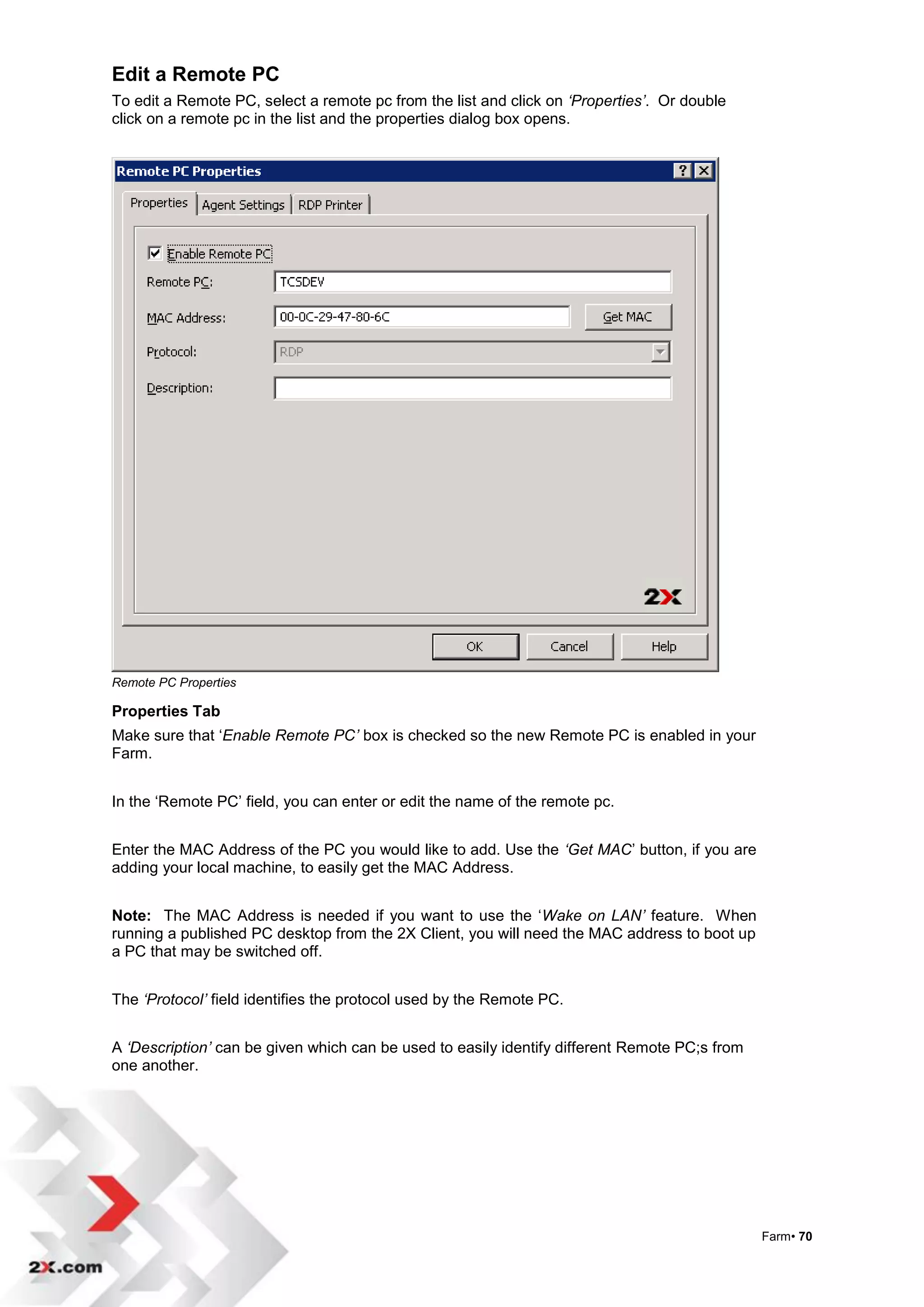
Edit a Remote PC
To edit a Remote PC, select a remote pc from the list and click on ‘Properties’. Or double
click on a remote pc in the list and the properties dialog box opens.


Remote PC Properties

Properties Tab
Make sure that „Enable Remote PC’ box is checked so the new Remote PC is enabled in your
Farm.


In the „Remote PC‟ field, you can enter or edit the name of the remote pc.


Enter the MAC Address of the PC you would like to add. Use the ‘Get MAC‟ button, if you are
adding your local machine, to easily get the MAC Address.


Note: The MAC Address is needed if you want to use the „Wake on LAN’ feature. When
running a published PC desktop from the 2X Client, you will need the MAC address to boot up
a PC that may be switched off.


The ‘Protocol’ field identifies the protocol used by the Remote PC.


A ‘Description’ can be given which can be used to easily identify different Remote PC;s from
one another.


                                                                                               Farm• 70
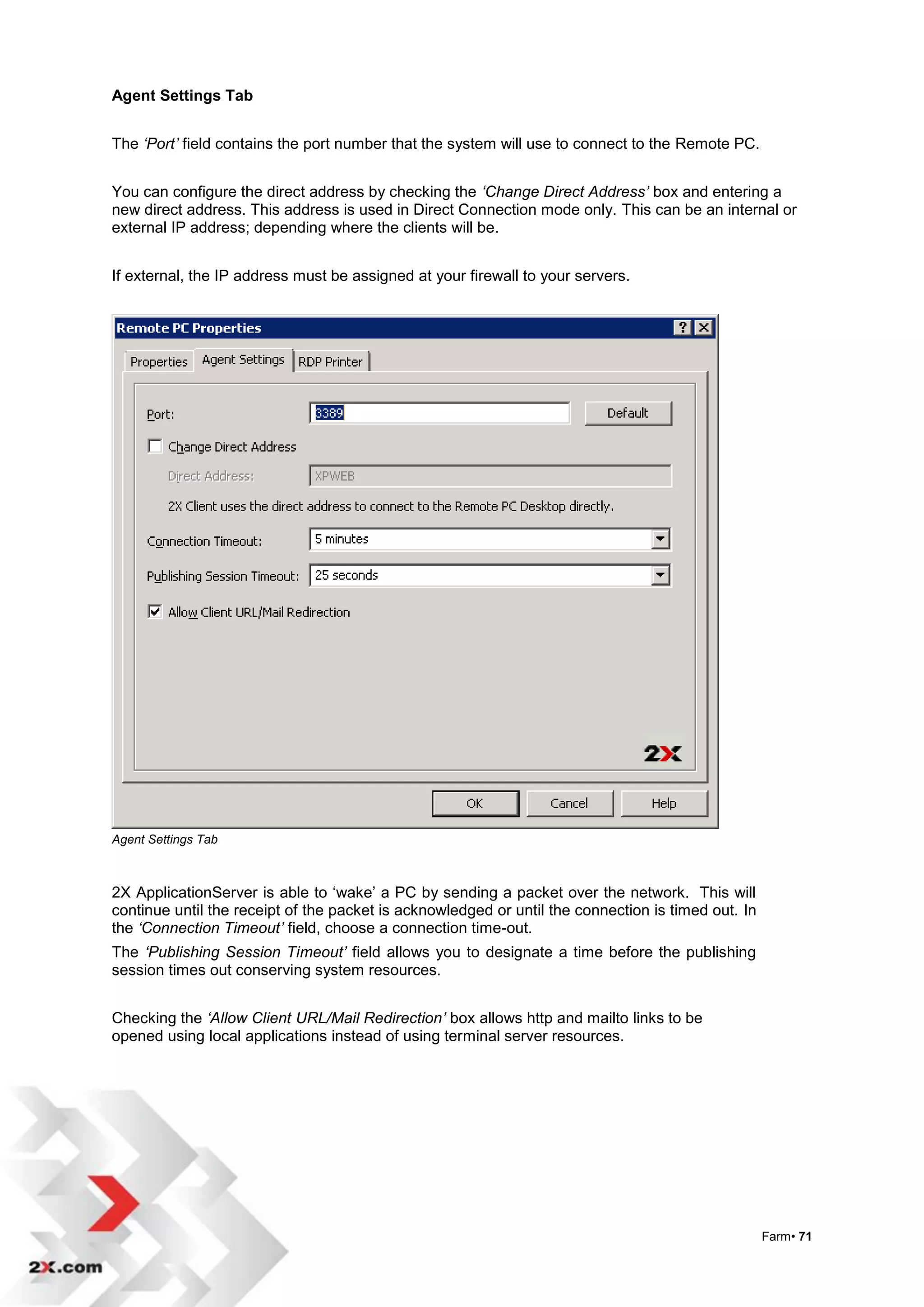
Agent Settings Tab


The ‘Port’ field contains the port number that the system will use to connect to the Remote PC.


You can configure the direct address by checking the ‘Change Direct Address’ box and entering a
new direct address. This address is used in Direct Connection mode only. This can be an internal or
external IP address; depending where the clients will be.


If external, the IP address must be assigned at your firewall to your servers.


Agent Settings Tab


2X ApplicationServer is able to „wake‟ a PC by sending a packet over the network. This will
continue until the receipt of the packet is acknowledged or until the connection is timed out. In
the ‘Connection Timeout’ field, choose a connection time-out.
The ‘Publishing Session Timeout’ field allows you to designate a time before the publishing
session times out conserving system resources.


Checking the ‘Allow Client URL/Mail Redirection’ box allows http and mailto links to be
opened using local applications instead of using terminal server resources.


                                                                                                    Farm• 71
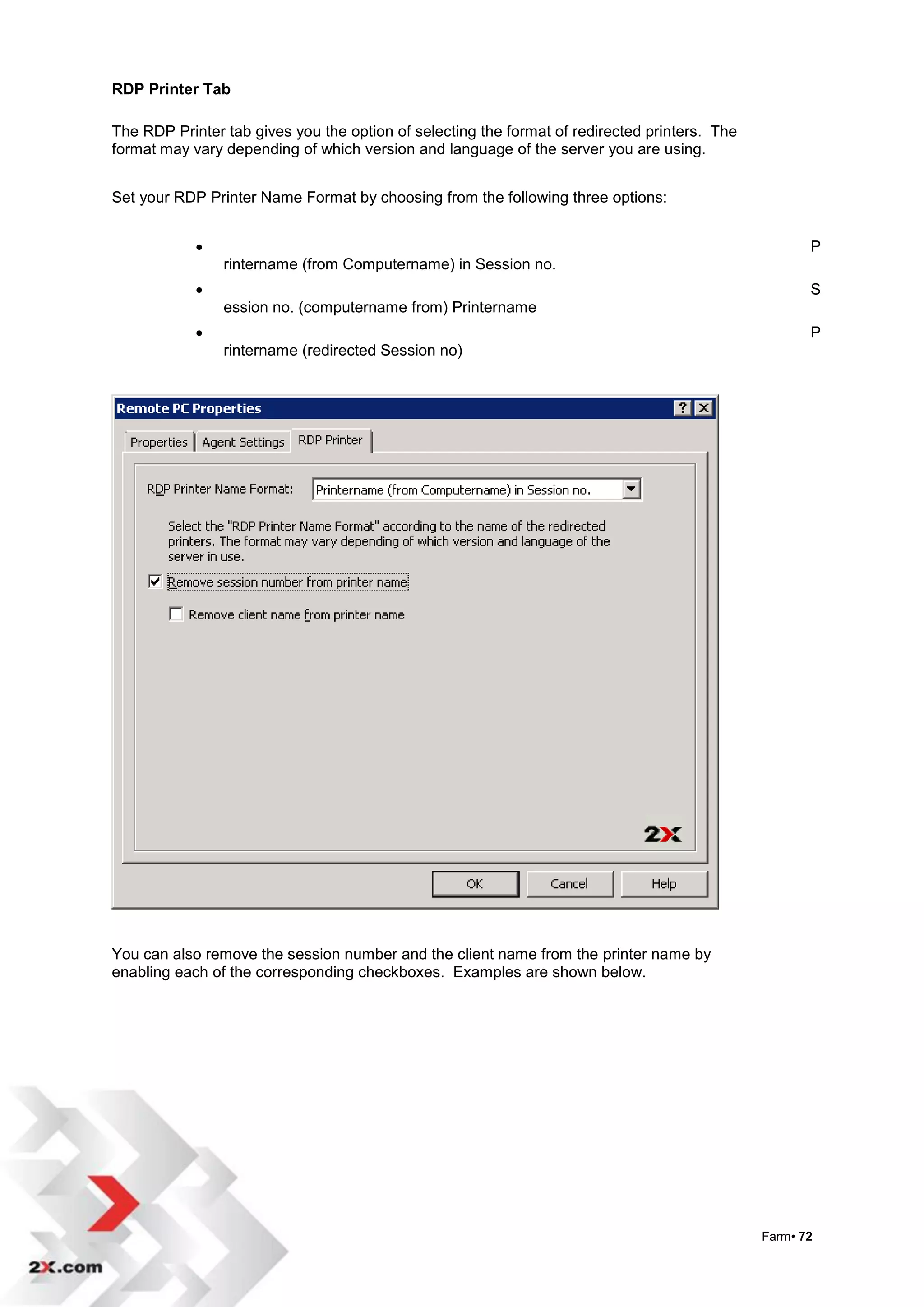
RDP Printer Tab

The RDP Printer tab gives you the option of selecting the format of redirected printers. The
format may vary depending of which version and language of the server you are using.


Set your RDP Printer Name Format by choosing from the following three options:


                                                                                                     P
                rintername (from Computername) in Session no.
                                                                                                     S
                ession no. (computername from) Printername
                                                                                                     P
                rintername (redirected Session no)


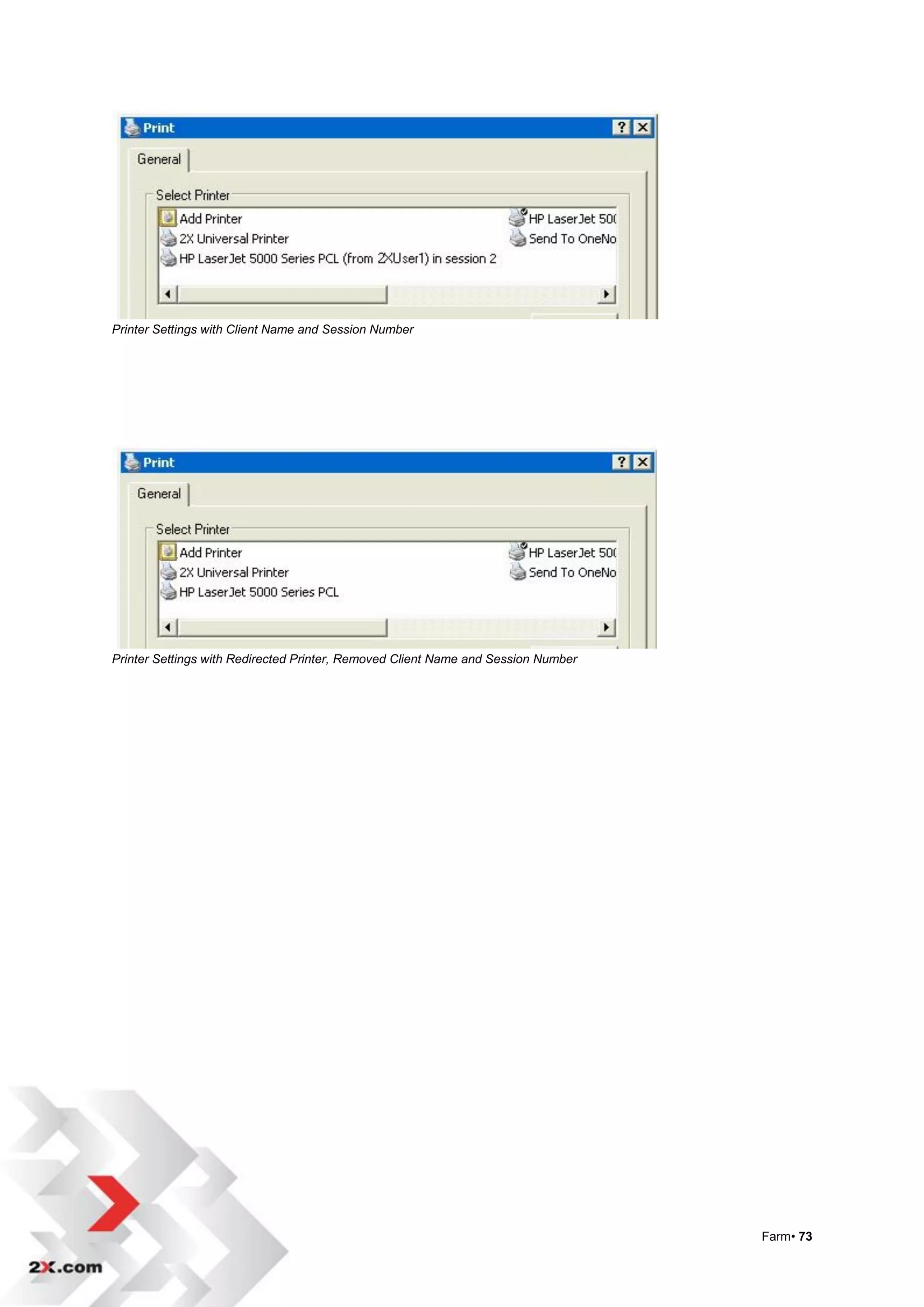
You can also remove the session number and the client name from the printer name by
enabling each of the corresponding checkboxes. Examples are shown below.


                                                                                               Farm• 72
Printer Settings with Client Name and Session Number


Printer Settings with Redirected Printer, Removed Client Name and Session Number


                                                                                   Farm• 73
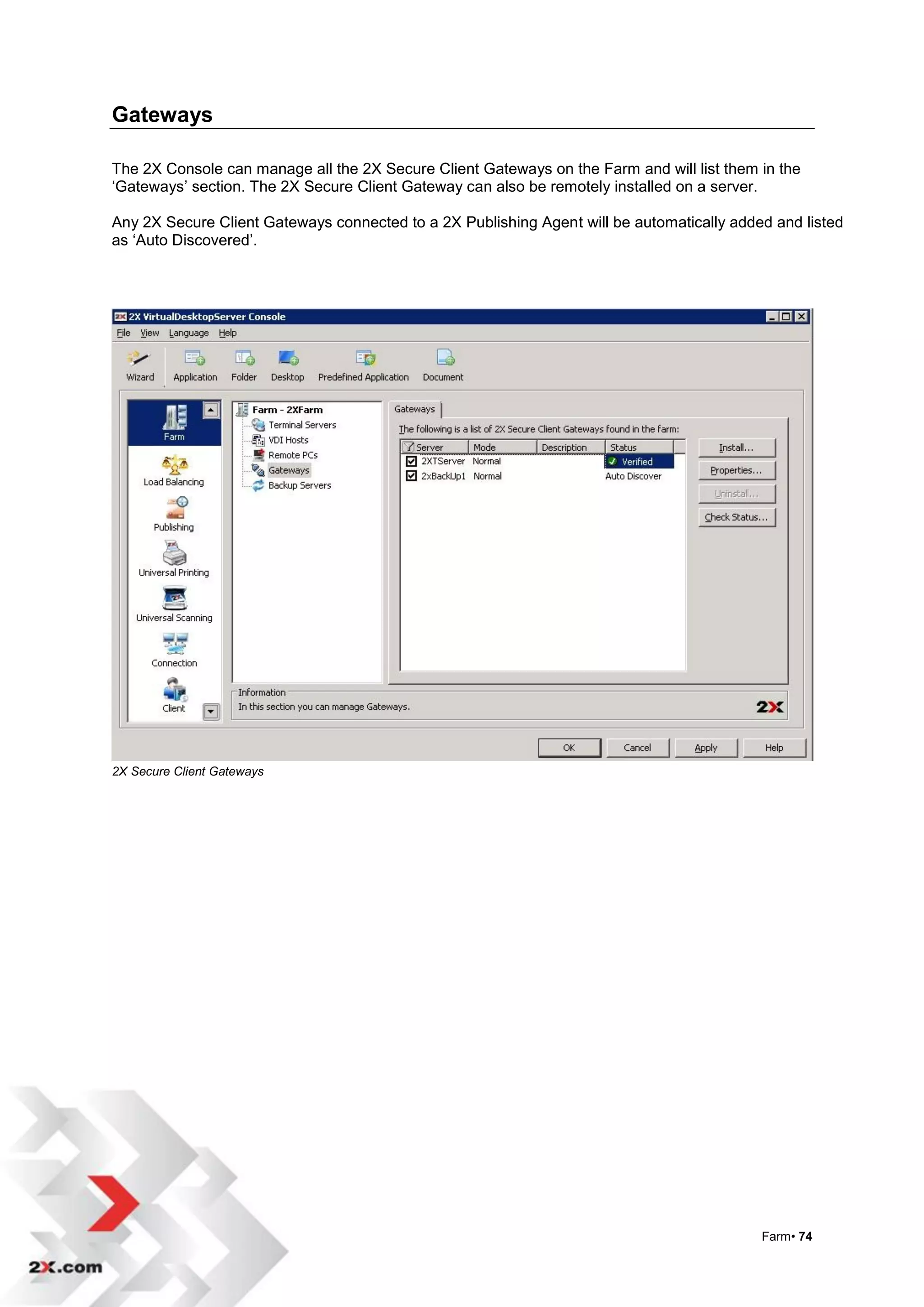
Gateways

The 2X Console can manage all the 2X Secure Client Gateways on the Farm and will list them in the
„Gateways‟ section. The 2X Secure Client Gateway can also be remotely installed on a server.

Any 2X Secure Client Gateways connected to a 2X Publishing Agent will be automatically added and listed
as „Auto Discovered‟.


2X Secure Client Gateways


                                                                                           Farm• 74
Installing the 2X Secure Client Gateway Remotely from the 2X
Console
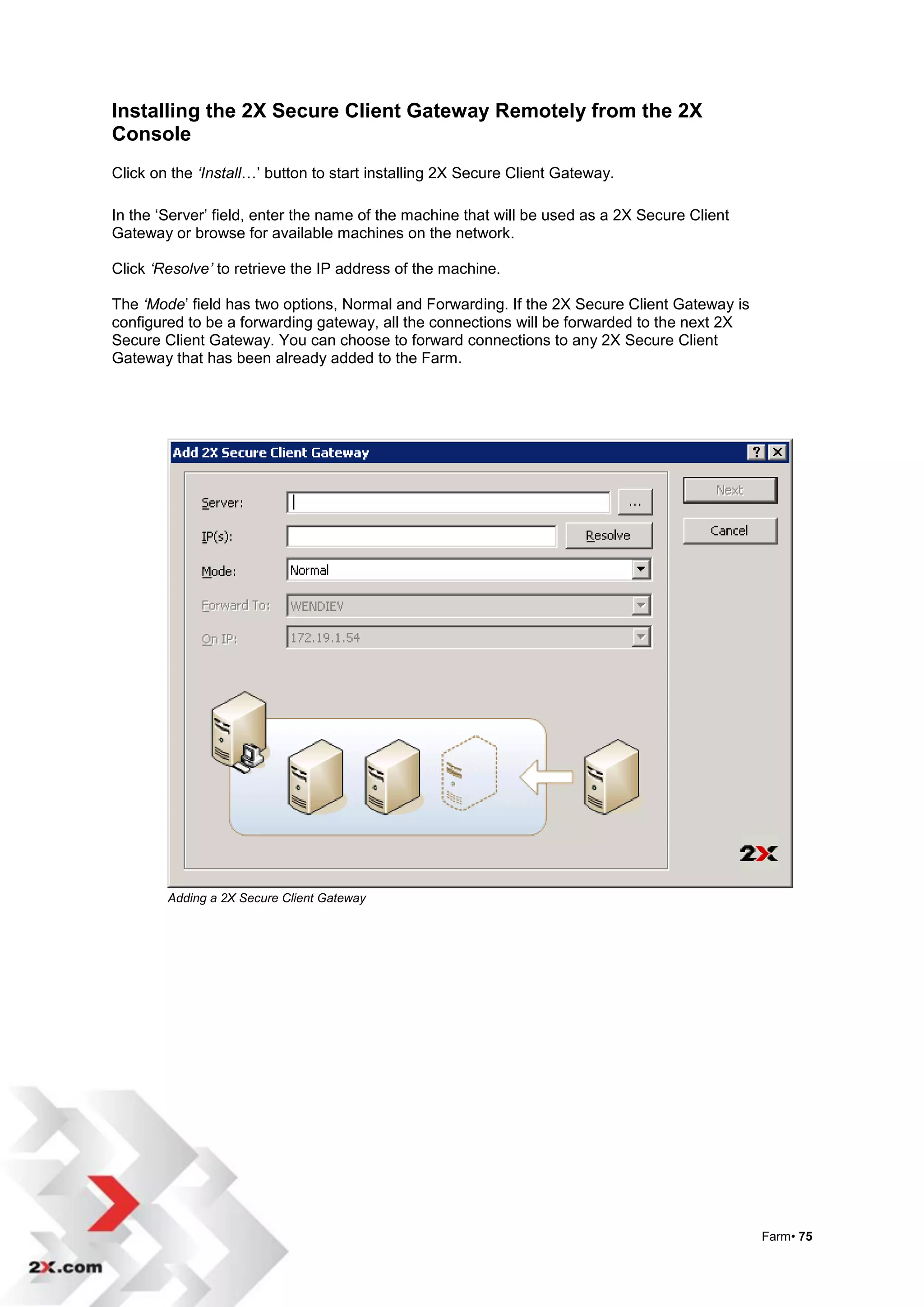
Click on the ‘Install…‟ button to start installing 2X Secure Client Gateway.

In the „Server‟ field, enter the name of the machine that will be used as a 2X Secure Client
Gateway or browse for available machines on the network.

Click ‘Resolve’ to retrieve the IP address of the machine.

The ‘Mode‟ field has two options, Normal and Forwarding. If the 2X Secure Client Gateway is
configured to be a forwarding gateway, all the connections will be forwarded to the next 2X
Secure Client Gateway. You can choose to forward connections to any 2X Secure Client
Gateway that has been already added to the Farm.


        Adding a 2X Secure Client Gateway


                                                                                               Farm• 75
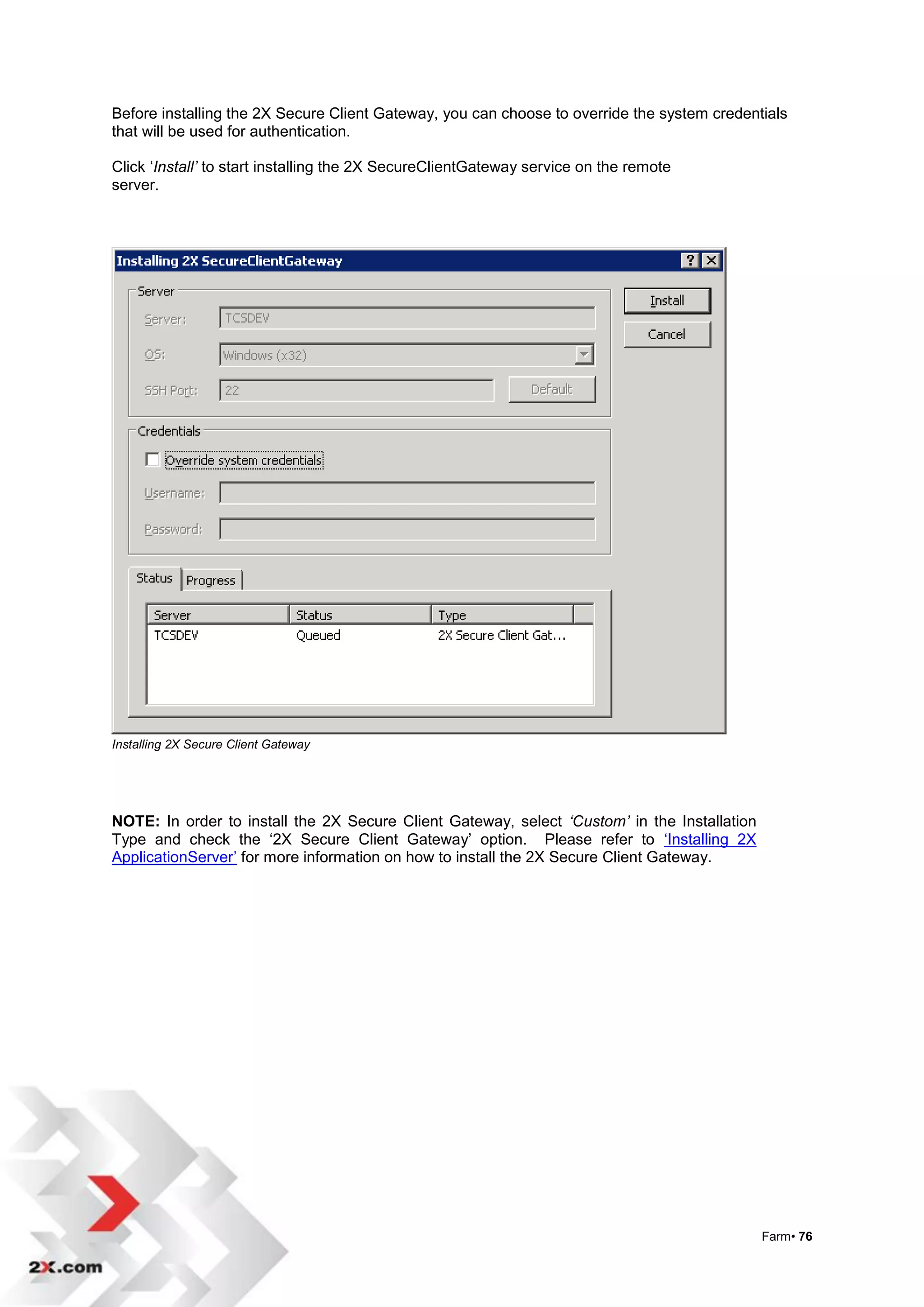
Before installing the 2X Secure Client Gateway, you can choose to override the system credentials
that will be used for authentication.

Click „Install’ to start installing the 2X SecureClientGateway service on the remote
server.


Installing 2X Secure Client Gateway


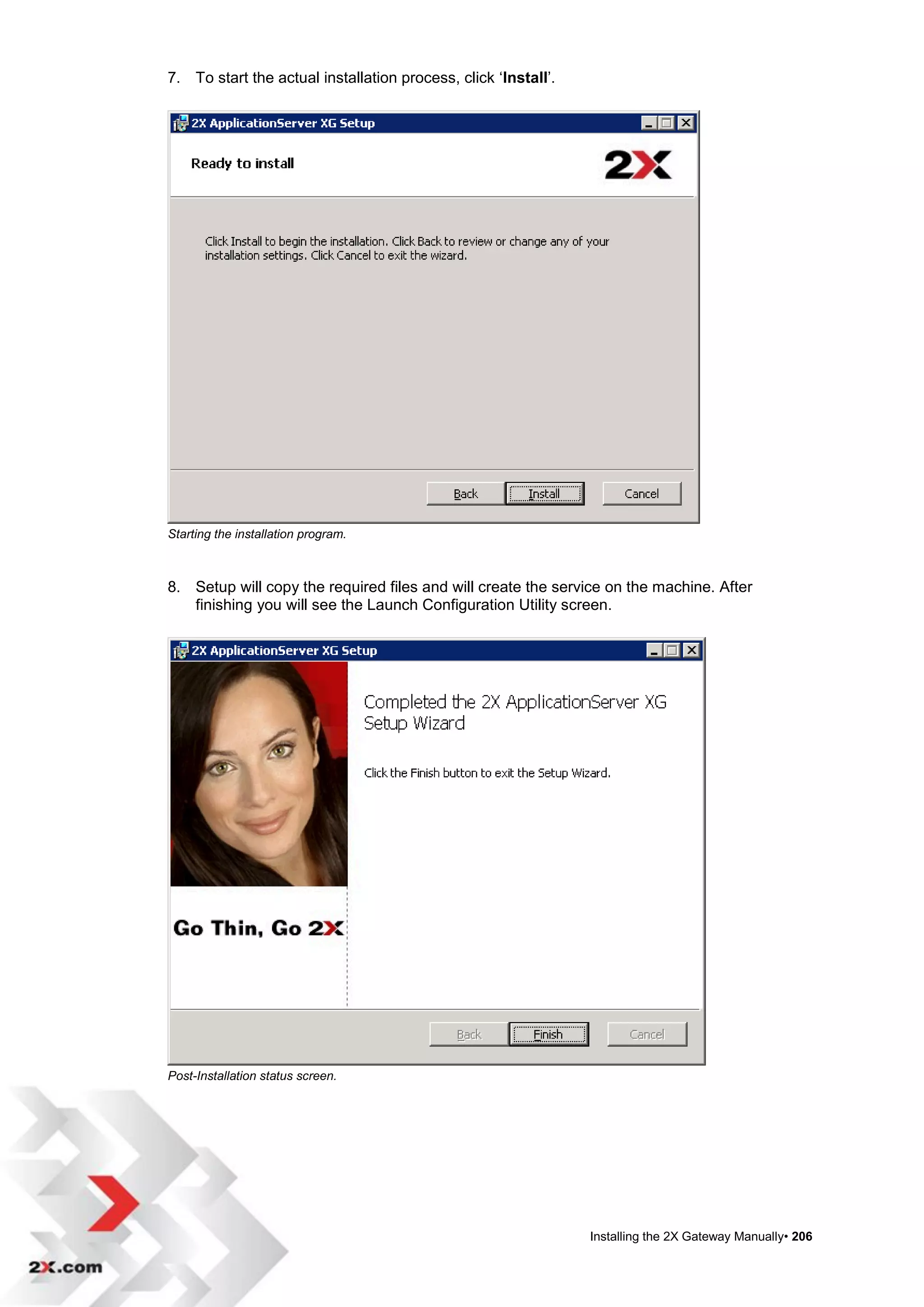
NOTE: In order to install the 2X Secure Client Gateway, select ‘Custom’ in the Installation
Type and check the „2X Secure Client Gateway‟ option. Please refer to „Installing 2X
ApplicationServer‟ for more information on how to install the 2X Secure Client Gateway.


                                                                                              Farm• 76
2X Secure Client Gateway Properties

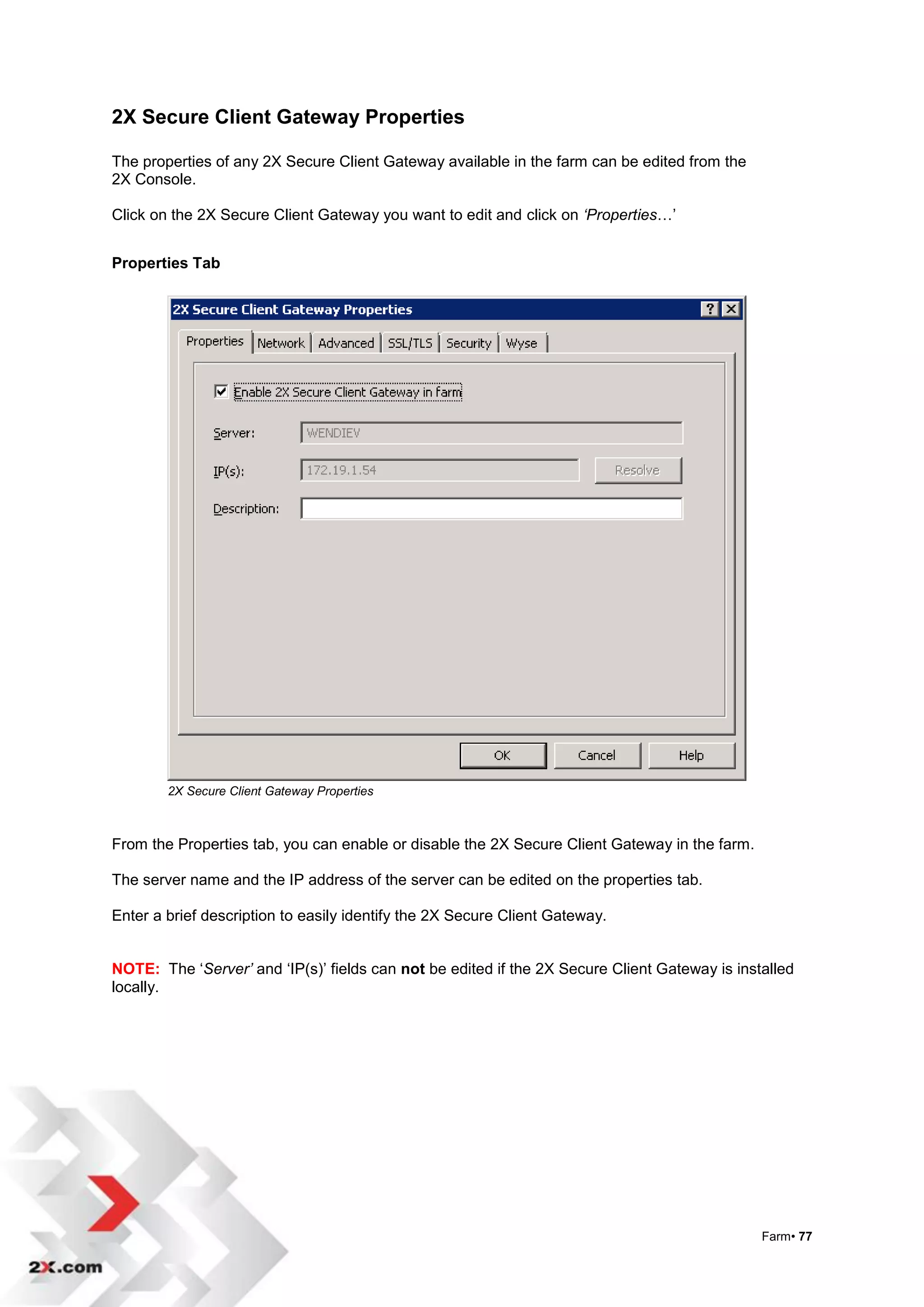
The properties of any 2X Secure Client Gateway available in the farm can be edited from the
2X Console.

Click on the 2X Secure Client Gateway you want to edit and click on ‘Properties…‟


Properties Tab


        2X Secure Client Gateway Properties


From the Properties tab, you can enable or disable the 2X Secure Client Gateway in the farm.

The server name and the IP address of the server can be edited on the properties tab.

Enter a brief description to easily identify the 2X Secure Client Gateway.


NOTE: The „Server’ and „IP(s)‟ fields can not be edited if the 2X Secure Client Gateway is installed
locally.


                                                                                               Farm• 77
Network Tab

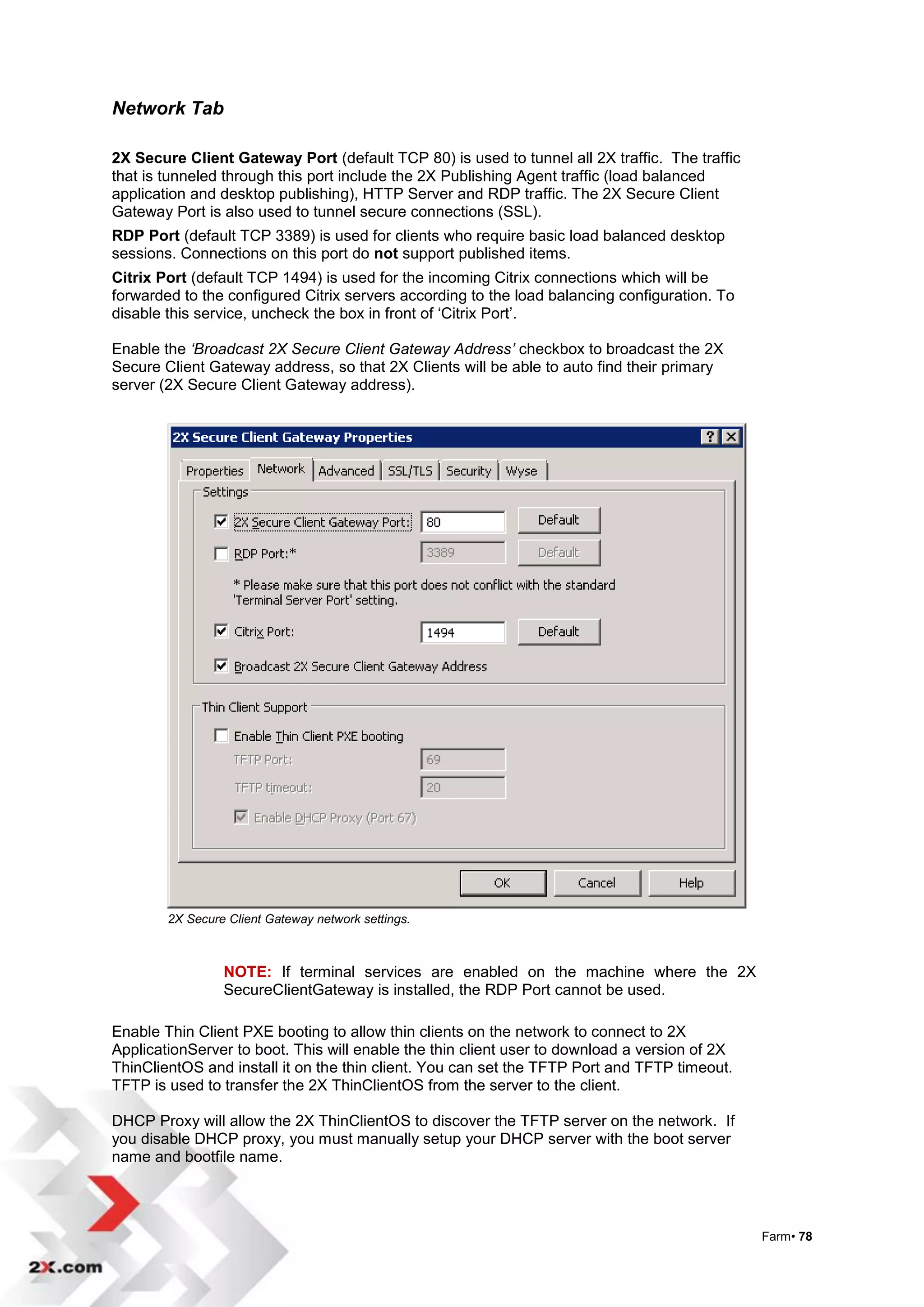
2X Secure Client Gateway Port (default TCP 80) is used to tunnel all 2X traffic. The traffic
that is tunneled through this port include the 2X Publishing Agent traffic (load balanced
application and desktop publishing), HTTP Server and RDP traffic. The 2X Secure Client
Gateway Port is also used to tunnel secure connections (SSL).
RDP Port (default TCP 3389) is used for clients who require basic load balanced desktop
sessions. Connections on this port do not support published items.
Citrix Port (default TCP 1494) is used for the incoming Citrix connections which will be
forwarded to the configured Citrix servers according to the load balancing configuration. To
disable this service, uncheck the box in front of „Citrix Port‟.

Enable the ‘Broadcast 2X Secure Client Gateway Address’ checkbox to broadcast the 2X
Secure Client Gateway address, so that 2X Clients will be able to auto find their primary
server (2X Secure Client Gateway address).


        2X Secure Client Gateway network settings.


                 NOTE: If terminal services are enabled on the machine where the 2X
                 SecureClientGateway is installed, the RDP Port cannot be used.

Enable Thin Client PXE booting to allow thin clients on the network to connect to 2X
ApplicationServer to boot. This will enable the thin client user to download a version of 2X
ThinClientOS and install it on the thin client. You can set the TFTP Port and TFTP timeout.
TFTP is used to transfer the 2X ThinClientOS from the server to the client.

DHCP Proxy will allow the 2X ThinClientOS to discover the TFTP server on the network. If
you disable DHCP proxy, you must manually setup your DHCP server with the boot server
name and bootfile name.


                                                                                               Farm• 78
Advanced Tab
2X Secure Client Gateway tunnels all 2X traffic needed by 2X applications on a single port.
This gateway service gives the System Administrator the ability to tunnel the Terminal
Servers (RDP), HTTP Server (81) and 2X Publishing (20002) over one port which by default
is configured to port 80.

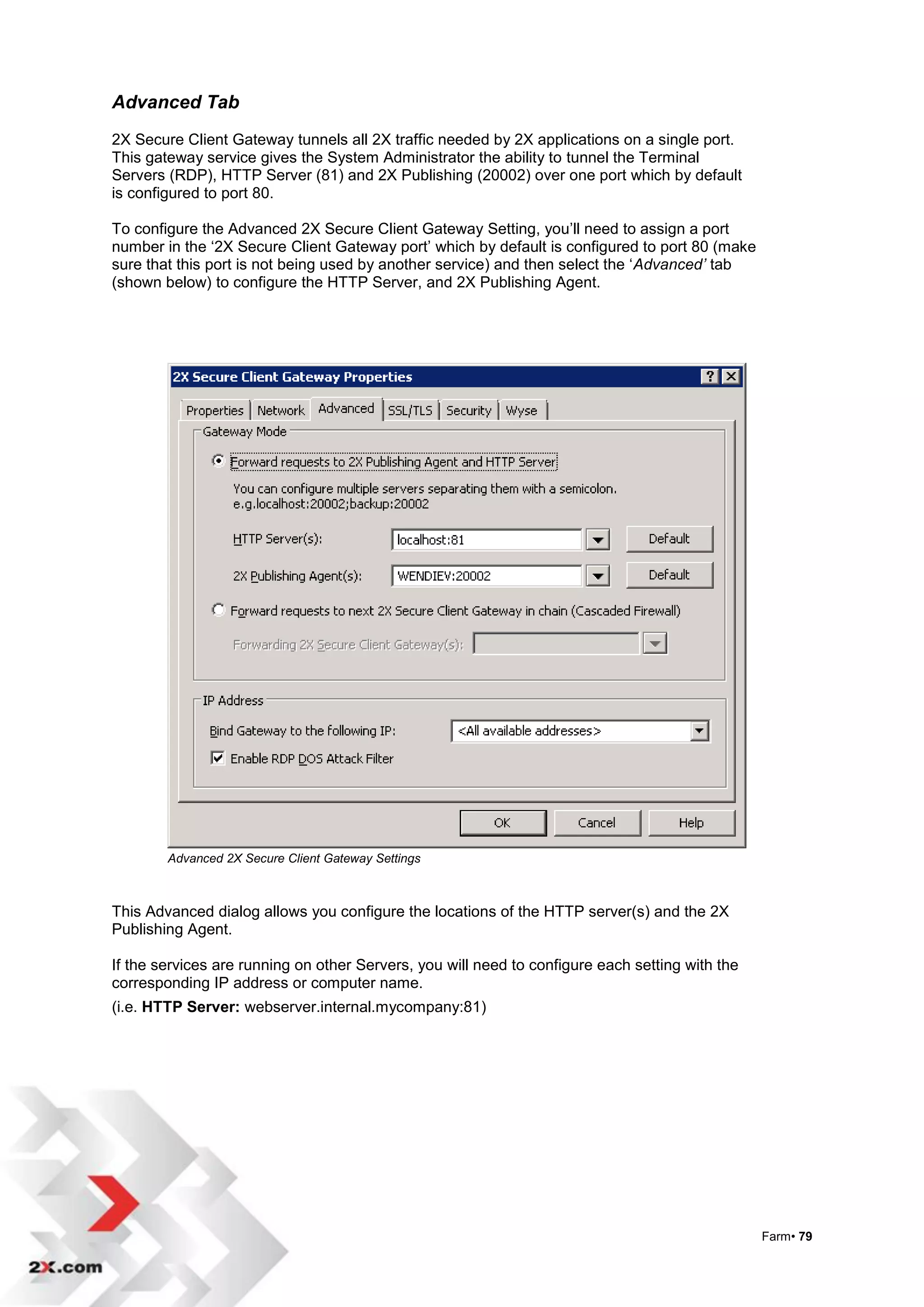
To configure the Advanced 2X Secure Client Gateway Setting, you‟ll need to assign a port
number in the „2X Secure Client Gateway port‟ which by default is configured to port 80 (make
sure that this port is not being used by another service) and then select the „Advanced’ tab
(shown below) to configure the HTTP Server, and 2X Publishing Agent.


        Advanced 2X Secure Client Gateway Settings


This Advanced dialog allows you configure the locations of the HTTP server(s) and the 2X
Publishing Agent.

If the services are running on other Servers, you will need to configure each setting with the
corresponding IP address or computer name.
(i.e. HTTP Server: webserver.internal.mycompany:81)


                                                                                                 Farm• 79
Advanced 2X Secure Client Gateway (Multiple 2X Secure Client Gateways)

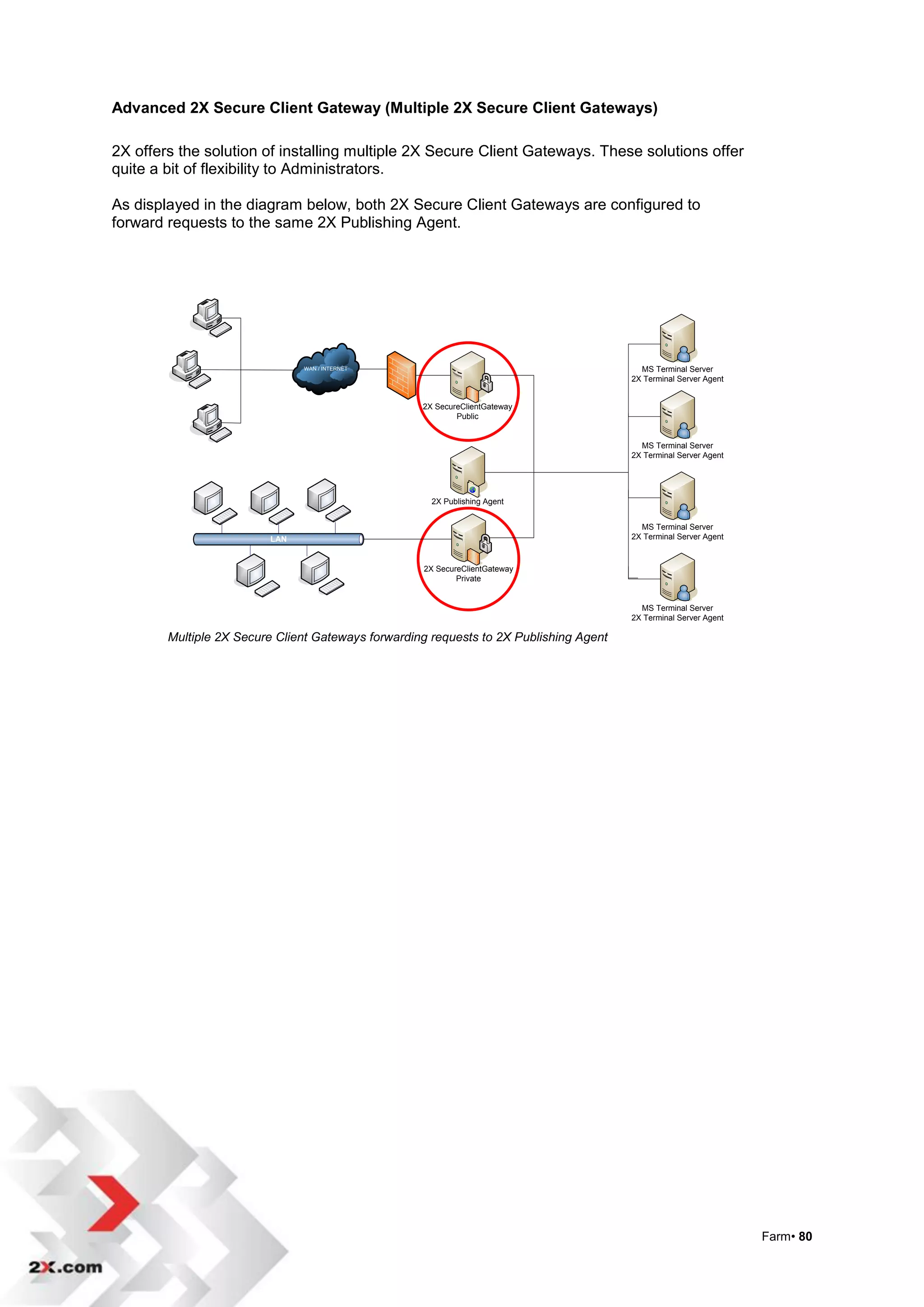
2X offers the solution of installing multiple 2X Secure Client Gateways. These solutions offer
quite a bit of flexibility to Administrators.

As displayed in the diagram below, both 2X Secure Client Gateways are configured to
forward requests to the same 2X Publishing Agent.


                               WAN / INTERNET                                             MS Terminal Server
                                                                                        2X Terminal Server Agent


                                                    2X SecureClientGateway
                                                            Public


                                                                                          MS Terminal Server
                                                                                        2X Terminal Server Agent


                                                      2X Publishing Agent


                                                                                          MS Terminal Server
                         LAN                                                            2X Terminal Server Agent


                                                    2X SecureClientGateway
                                                            Private


                                                                                          MS Terminal Server
                                                                                        2X Terminal Server Agent

        Multiple 2X Secure Client Gateways forwarding requests to 2X Publishing Agent


                                                                                                                   Farm• 80
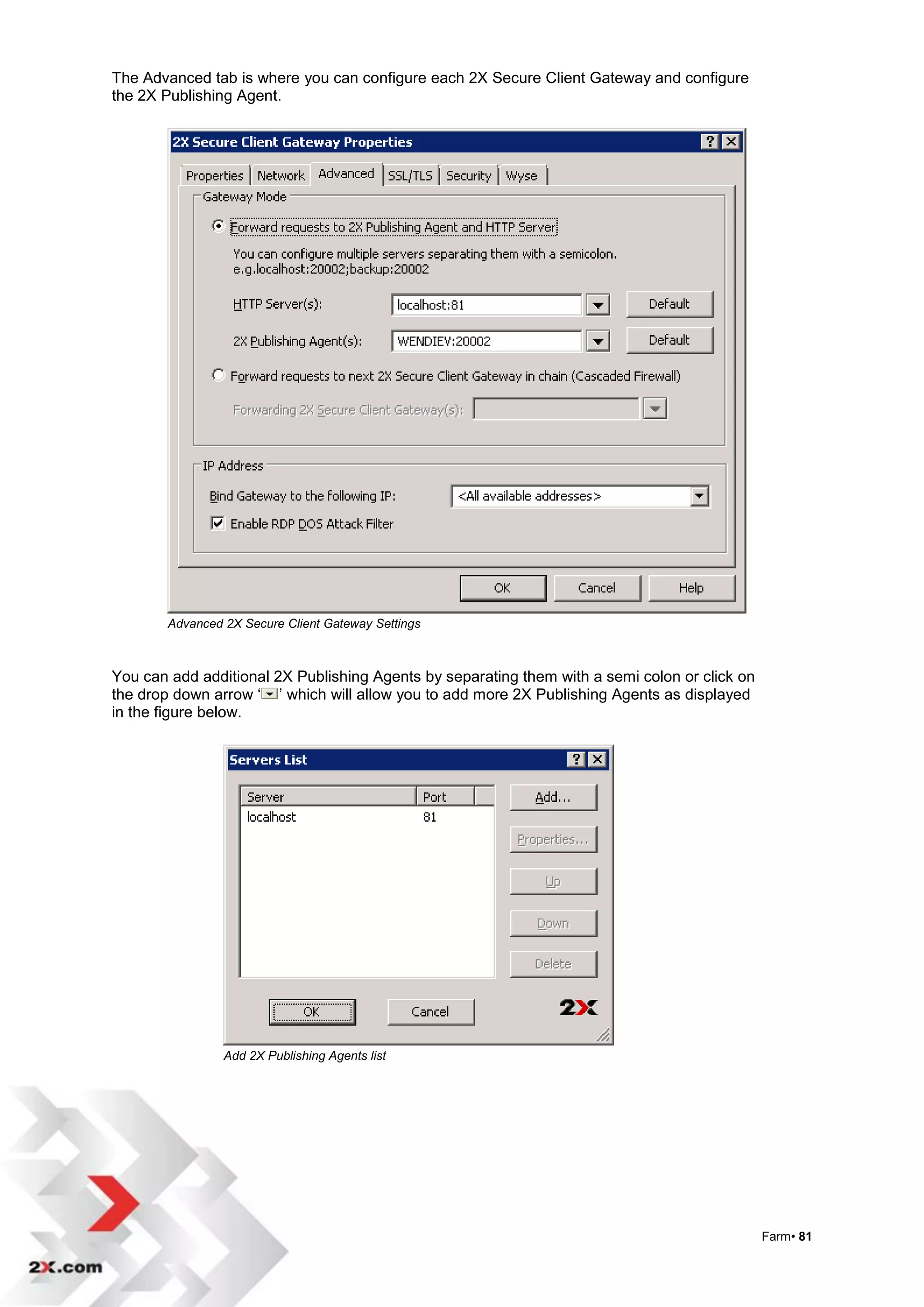
The Advanced tab is where you can configure each 2X Secure Client Gateway and configure
the 2X Publishing Agent.


       Advanced 2X Secure Client Gateway Settings


You can add additional 2X Publishing Agents by separating them with a semi colon or click on
the drop down arrow „ ‟ which will allow you to add more 2X Publishing Agents as displayed
in the figure below.


                Add 2X Publishing Agents list


                                                                                               Farm• 81
The first publishing agent in the Servers list will be used by default. In the event that the first
2X Publishing Agent fails to respond, the next 2X Publishing Agent will be used.

NOTE: 2X Terminal Server Agents cannot be assigned to multiple 2X Publishing Agents.
Therefore each 2X Publishing Agent should have a unique group of terminal servers. For
more advanced and alternative scenarios and solutions please read 2X Server Based
Computing Guide.


Advanced 2X Secure Client Gateway (Forwarding Mode)


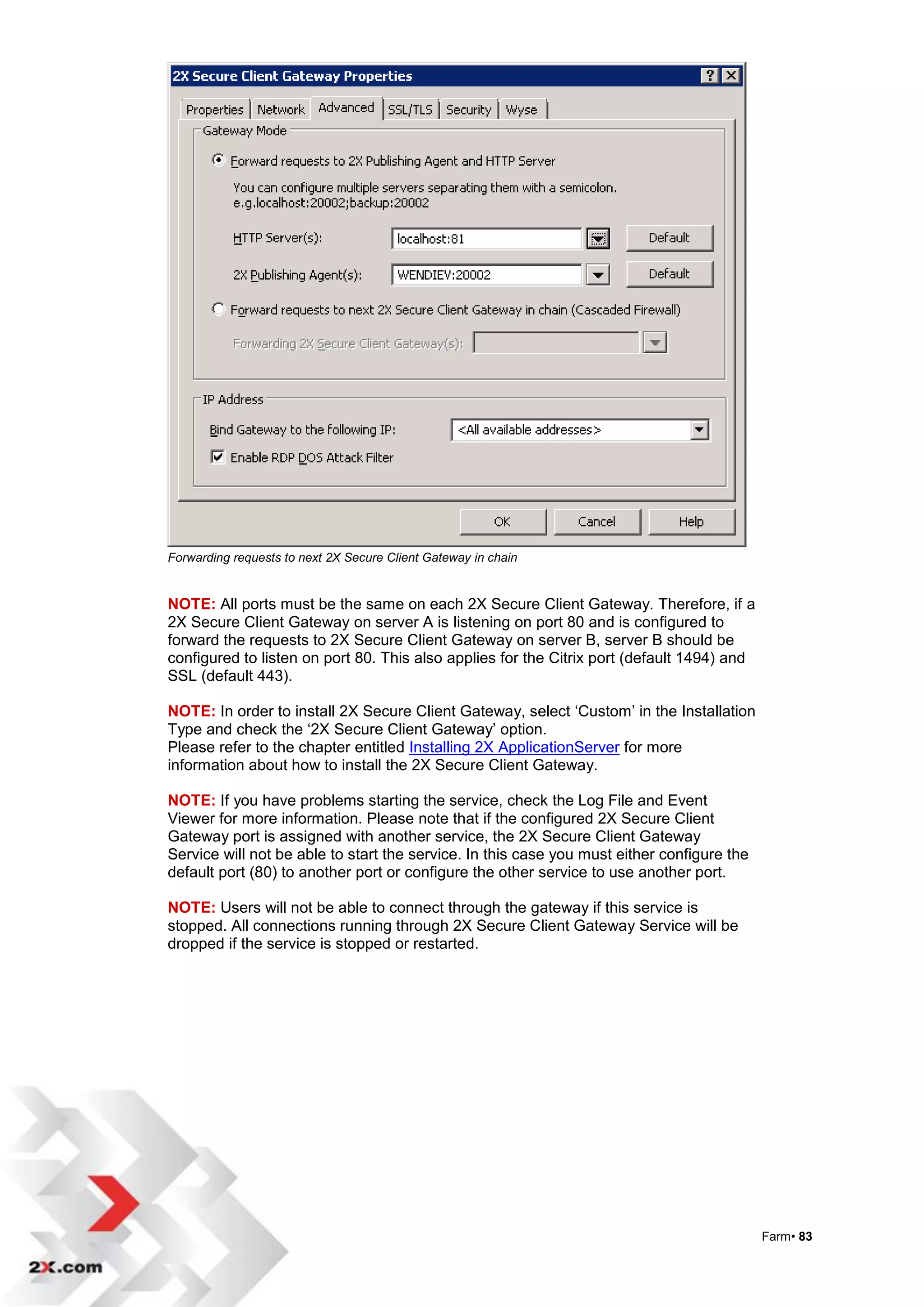
2X Secure Client Gateway can forward requests to the next 2X Secure Client Gateway in the
chain (Cascading Firewall).

With this option enabled the 2X Secure Client Gateway installed on this machine [GATEWAY
1] (port:80 by default) will forward the requests to the next 2X Secure Client Gateway
[GATEWAY 2] configured in the 'Forwarding 2X Secure Client Gateway(s) list.


                                                                                         MS Terminal Server
                                      LAN                                              2X Terminal Server Agent


                                                                                         MS Terminal Server
                                                                                       2X Terminal Server Agent
                                                               MS Windows Machine
                                                                2X Publishing Agent
                                                              2X SecureClientGateway
                                                               SSL Enabled (443/80)
                                                                     GATEWAY 2

                                                                                         MS Terminal Server
                                                                                       2X Terminal Server Agent
                     WAN / INTENRET


                                             MS Windows Machine
                                                                                         MS Terminal Server
                                            2X SecureClientGateway
                                                                                       2X Terminal Server Agent
                                             SSL Enabled (443/80)
                                               GATEWAY 1


        Scenario with forwarding requests to next 2X Secure Client Gateway in chain


                                                                                                                  Farm• 82
Forwarding requests to next 2X Secure Client Gateway in chain


NOTE: All ports must be the same on each 2X Secure Client Gateway. Therefore, if a
2X Secure Client Gateway on server A is listening on port 80 and is configured to
forward the requests to 2X Secure Client Gateway on server B, server B should be
configured to listen on port 80. This also applies for the Citrix port (default 1494) and
SSL (default 443).

NOTE: In order to install 2X Secure Client Gateway, select „Custom‟ in the Installation
Type and check the „2X Secure Client Gateway‟ option.
Please refer to the chapter entitled Installing 2X ApplicationServer for more
information about how to install the 2X Secure Client Gateway.

NOTE: If you have problems starting the service, check the Log File and Event
Viewer for more information. Please note that if the configured 2X Secure Client
Gateway port is assigned with another service, the 2X Secure Client Gateway
Service will not be able to start the service. In this case you must either configure the
default port (80) to another port or configure the other service to use another port.

NOTE: Users will not be able to connect through the gateway if this service is
stopped. All connections running through 2X Secure Client Gateway Service will be
dropped if the service is stopped or restarted.


                                                                                            Farm• 83
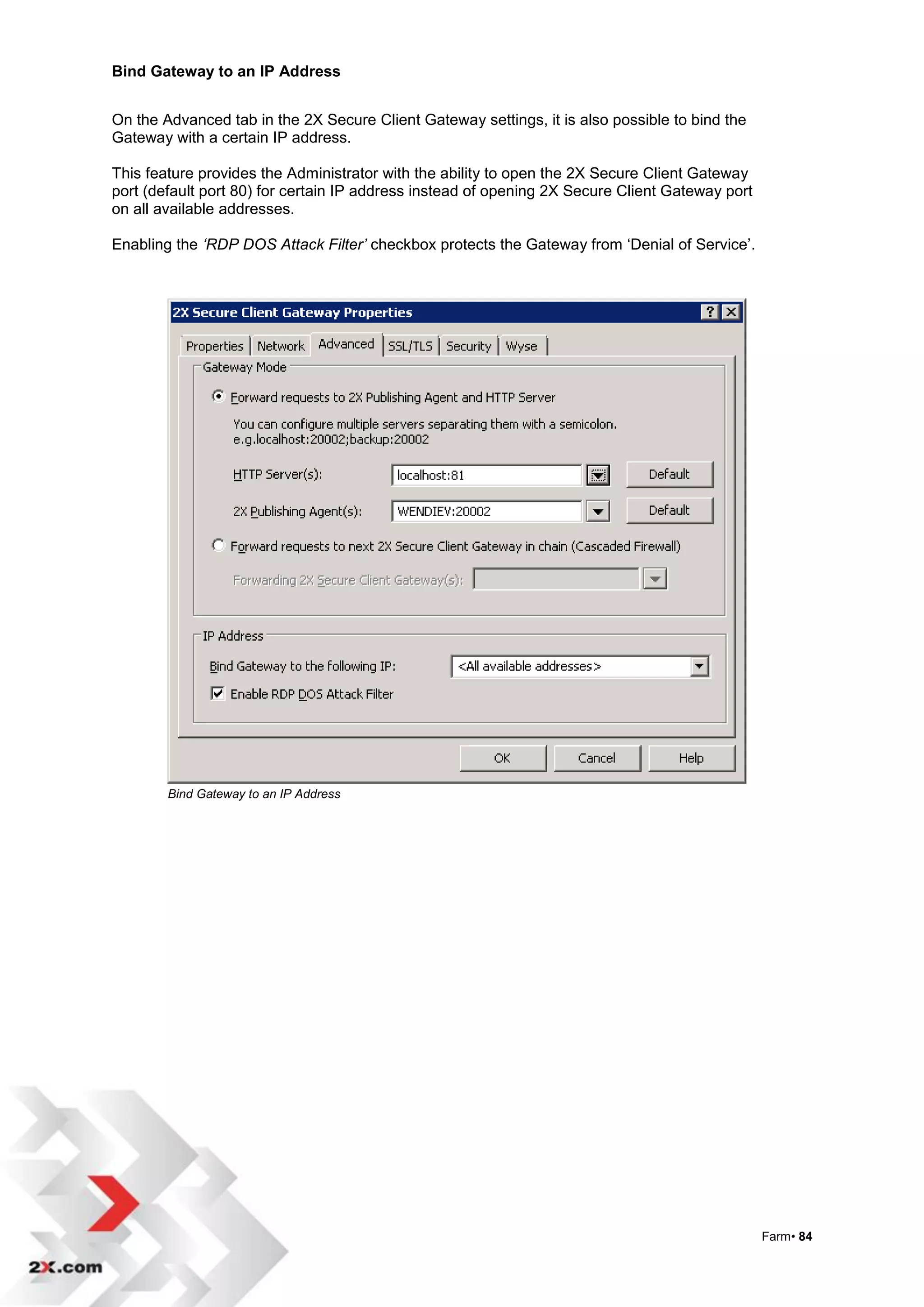
Bind Gateway to an IP Address


On the Advanced tab in the 2X Secure Client Gateway settings, it is also possible to bind the
Gateway with a certain IP address.

This feature provides the Administrator with the ability to open the 2X Secure Client Gateway
port (default port 80) for certain IP address instead of opening 2X Secure Client Gateway port
on all available addresses.

Enabling the ‘RDP DOS Attack Filter’ checkbox protects the Gateway from „Denial of Service‟.


        Bind Gateway to an IP Address


                                                                                                 Farm• 84
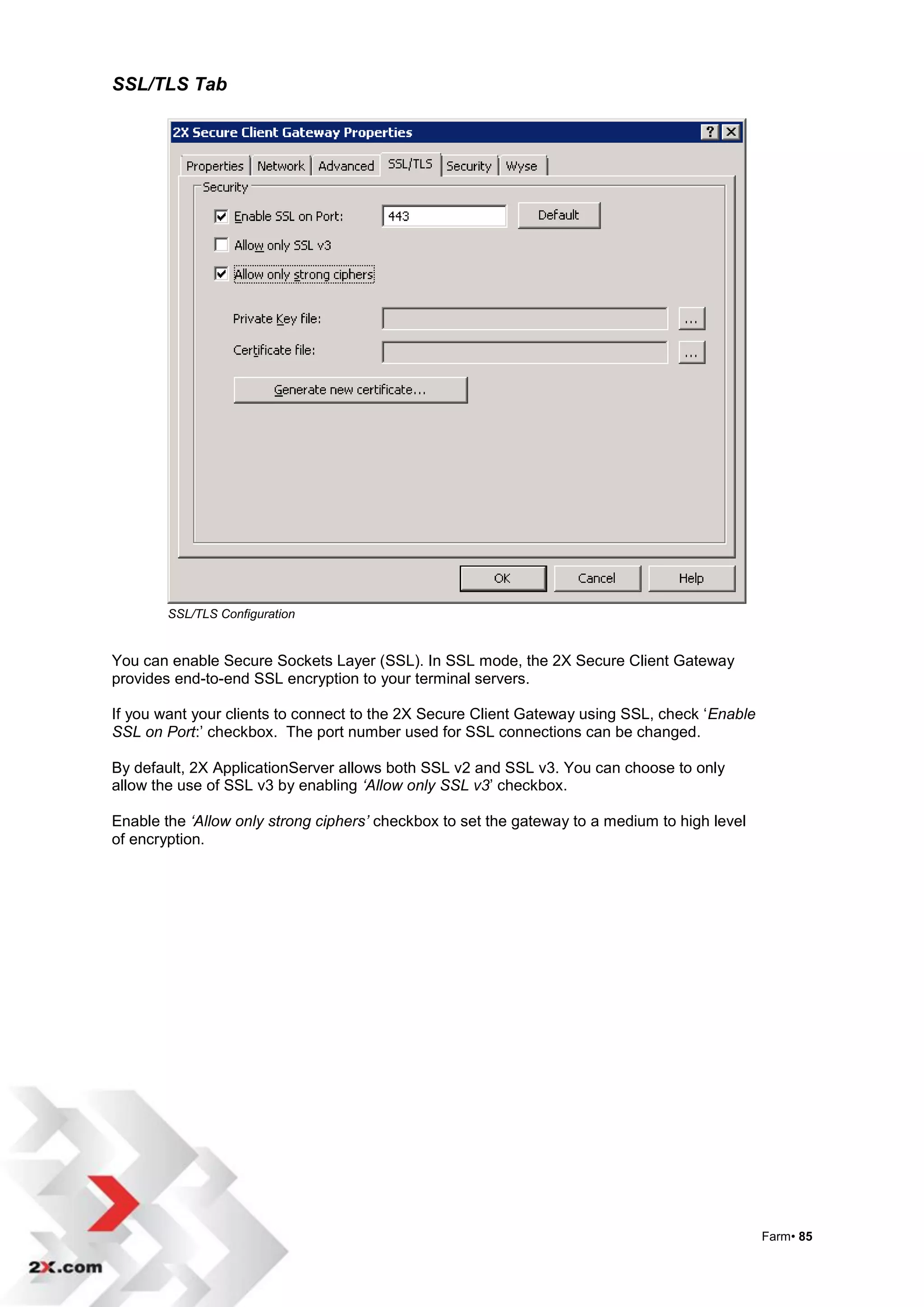
SSL/TLS Tab


        SSL/TLS Configuration


You can enable Secure Sockets Layer (SSL). In SSL mode, the 2X Secure Client Gateway
provides end-to-end SSL encryption to your terminal servers.

If you want your clients to connect to the 2X Secure Client Gateway using SSL, check „Enable
SSL on Port:‟ checkbox. The port number used for SSL connections can be changed.

By default, 2X ApplicationServer allows both SSL v2 and SSL v3. You can choose to only
allow the use of SSL v3 by enabling ‘Allow only SSL v3‟ checkbox.

Enable the ‘Allow only strong ciphers’ checkbox to set the gateway to a medium to high level
of encryption.


                                                                                               Farm• 85
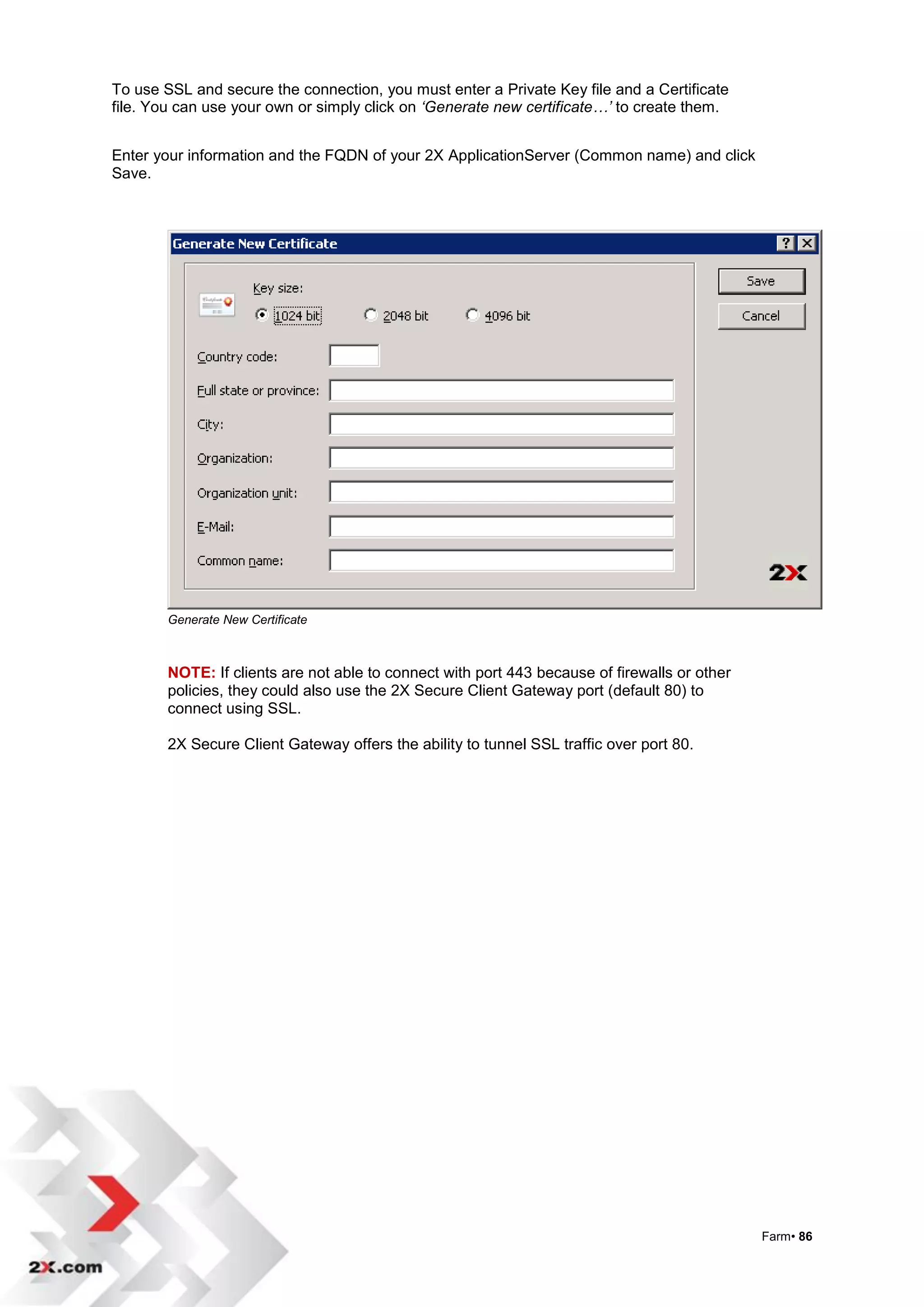
To use SSL and secure the connection, you must enter a Private Key file and a Certificate
file. You can use your own or simply click on ‘Generate new certificate…’ to create them.


Enter your information and the FQDN of your 2X ApplicationServer (Common name) and click
Save.


        Generate New Certificate


        NOTE: If clients are not able to connect with port 443 because of firewalls or other
        policies, they could also use the 2X Secure Client Gateway port (default 80) to
        connect using SSL.

        2X Secure Client Gateway offers the ability to tunnel SSL traffic over port 80.


                                                                                               Farm• 86
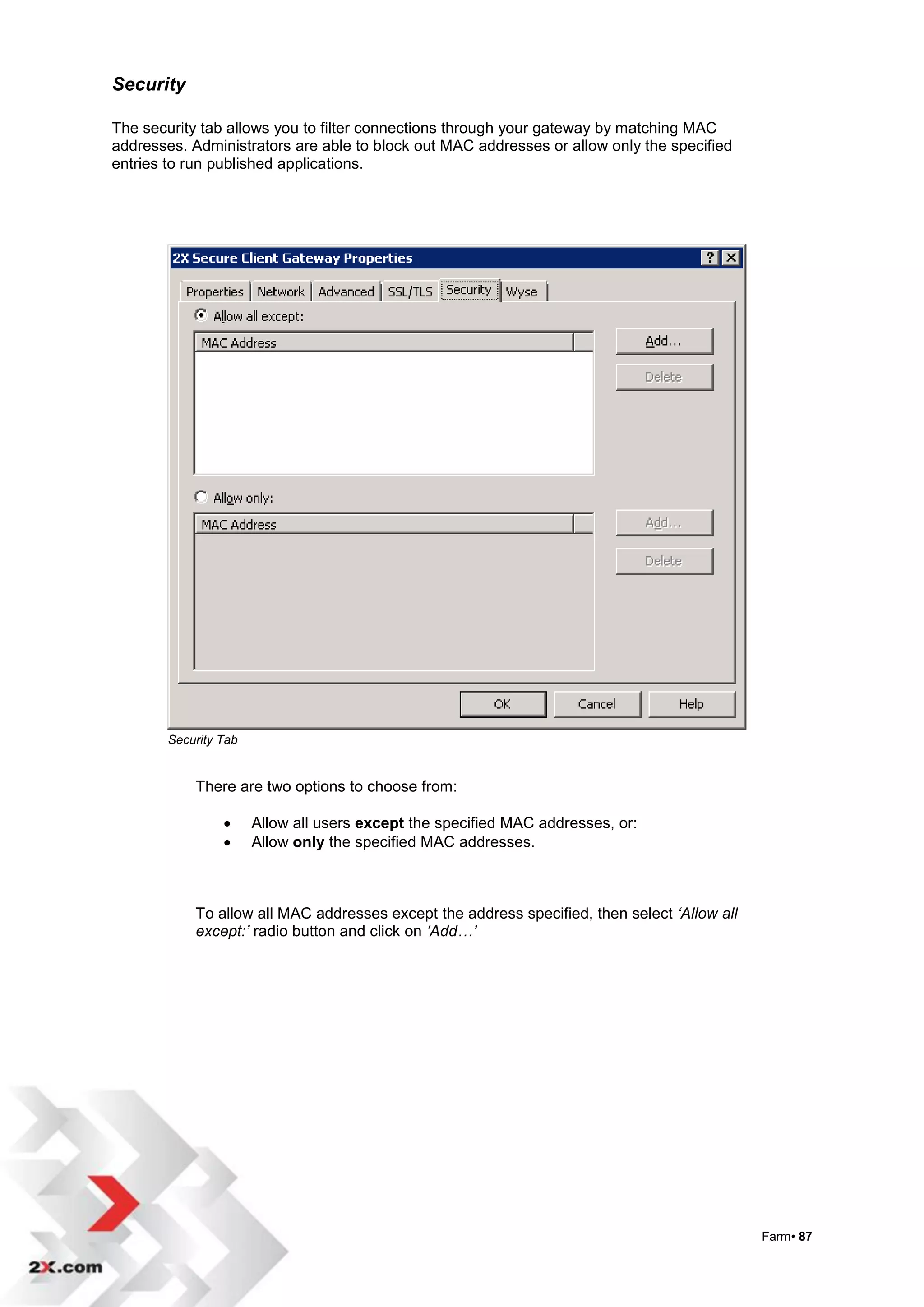
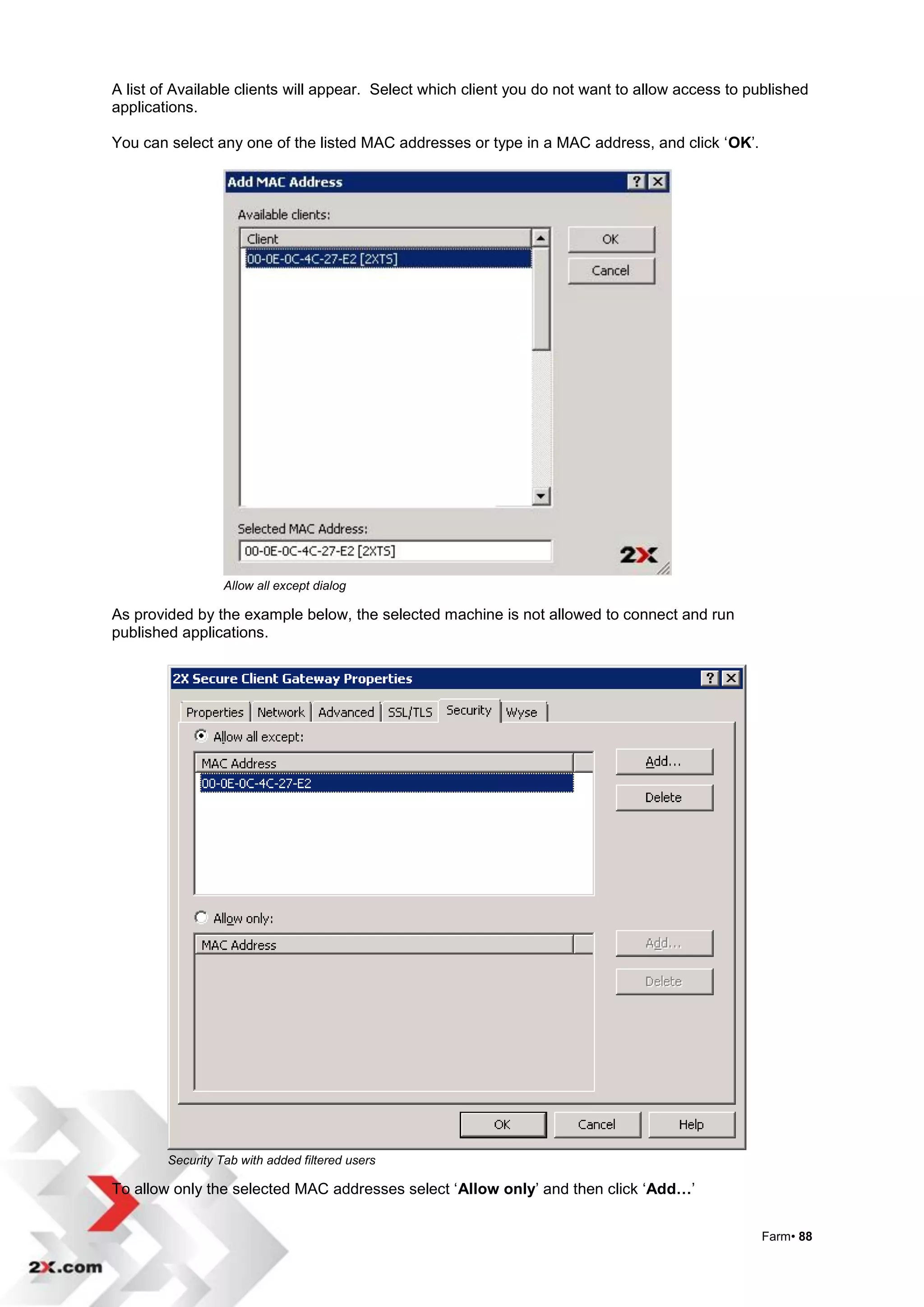
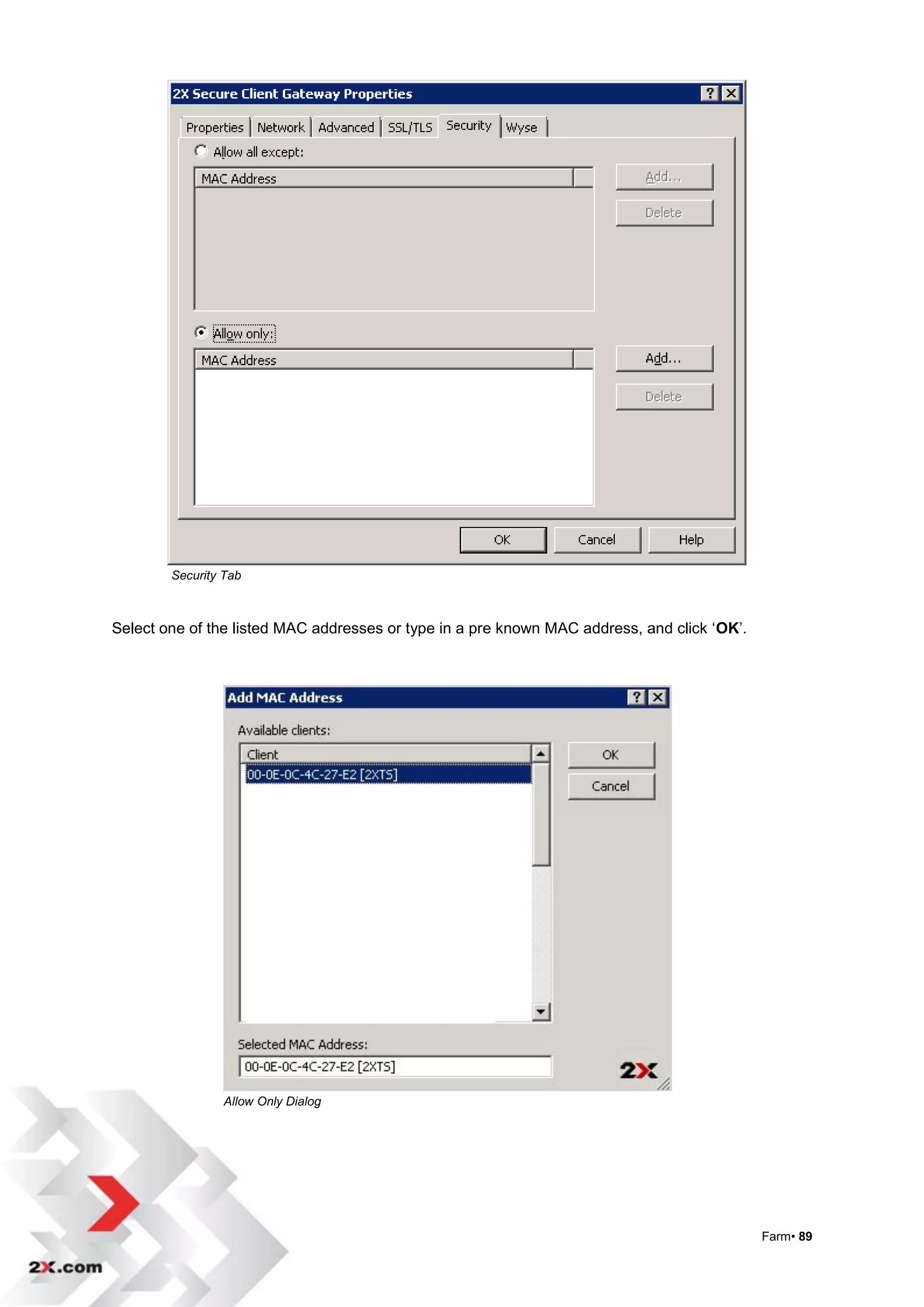
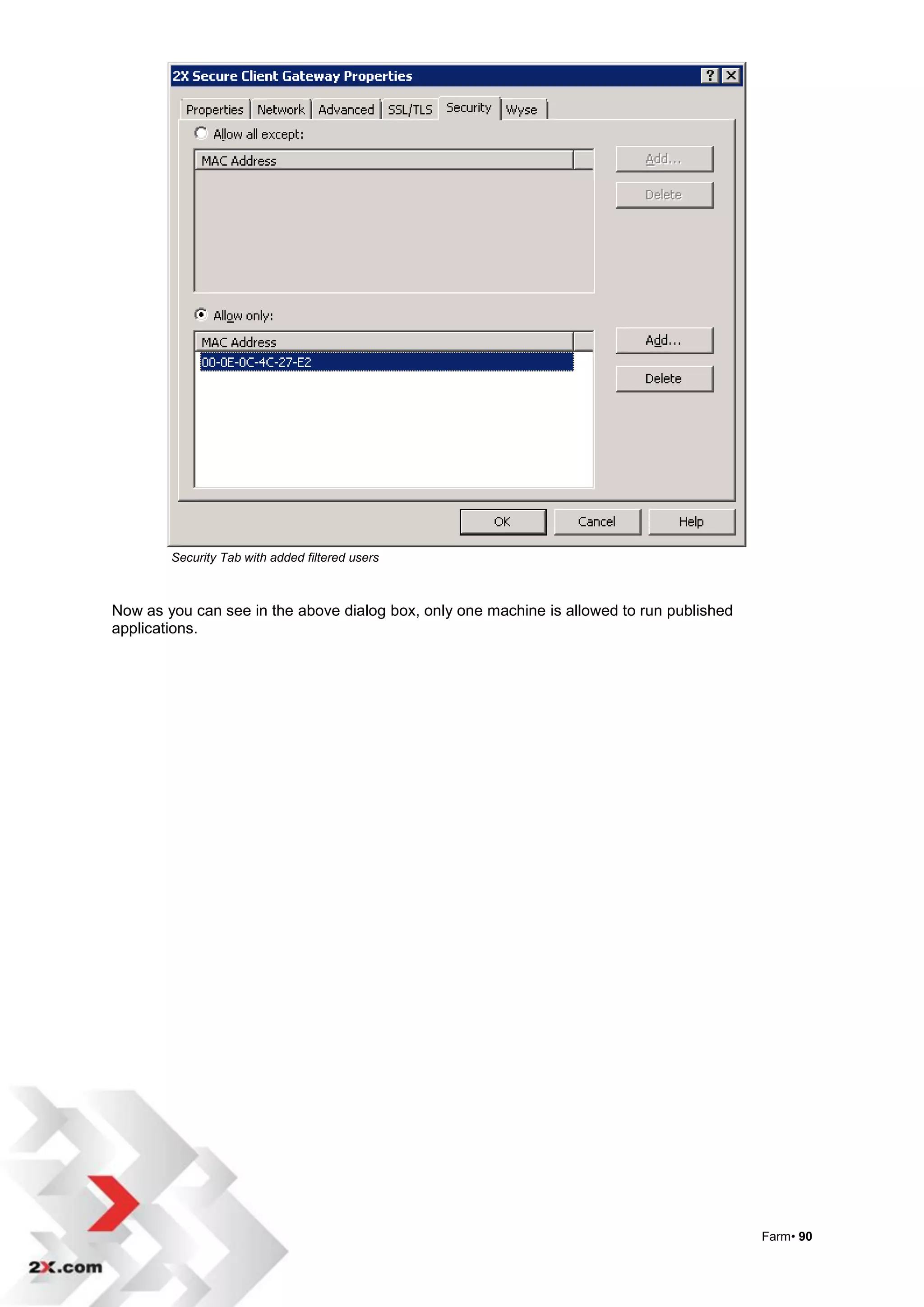
Security

The security tab allows you to filter connections through your gateway by matching MAC
addresses. Administrators are able to block out MAC addresses or allow only the specified
entries to run published applications.


        Security Tab


            There are two options to choose from:

                      Allow all users except the specified MAC addresses, or:
                      Allow only the specified MAC addresses.


            To allow all MAC addresses except the address specified, then select ‘Allow all
            except:’ radio button and click on ‘Add…’


                                                                                              Farm• 87
A list of Available clients will appear. Select which client you do not want to allow access to published
applications.

You can select any one of the listed MAC addresses or type in a MAC address, and click „OK‟.


                  Allow all except dialog

As provided by the example below, the selected machine is not allowed to connect and run
published applications.


        Security Tab with added filtered users

To allow only the selected MAC addresses select „Allow only‟ and then click „Add…‟


                                                                                                 Farm• 88
Security Tab


Select one of the listed MAC addresses or type in a pre known MAC address, and click „OK‟.


                Allow Only Dialog


                                                                                             Farm• 89
Security Tab with added filtered users


Now as you can see in the above dialog box, only one machine is allowed to run published
applications.


                                                                                           Farm• 90
Wyse


If you are using Wyse ThinClient OS and want to publish applications from 2X
ApplicationServer, check the ‘Enable Wyse ThinOS Support’ box.


The 2X Secure Client Gateway will then act as a Wyse broker.


        Wyse Tab for ThinOS Support


Click the „Test‟ button to verify your DHCP Server settings. 2X suggests that you enable SSL
on this gateway when you enable Wyse ThinOS Support.


                                                                                               Farm• 91
Backup Servers

You can add, find and configure the properties of all Backup Servers on the Farm so that if the
Master server fails, the next server in the list will take over.


        The backup servers can also be used as additional 2X Secure Client Gateways
        to evenly distribute the load on each gateway.


                                                                                MS Terminal Server
                                                                              2X Terminal Server Agent


                                                  Windows Machine
                                           2X SecureClientGateway (port 80)
                                                 2X Publishing Agent
                                             SSL Enabled over port 80/443       MS Terminal Server
                                                                              2X Terminal Server Agent


                                                                                MS Terminal Server
                                                                              2X Terminal Server Agent

                                                   Windows Machine
                                               2X Backup Publishing Agent


                                                                                MS Terminal Server
                                                                              2X Terminal Server Agent


        Redundant ApplicationServer


                 Backup Servers


                                                                                                         Farm• 92
Adding 2X Backup Servers

To add „2X Backup Servers‟ click the ‘Find…’ button. A new dialog will show the available servers in
the local domain which can be used as Backup Servers.


        Find 2X Backup Servers


When the state of the selected server is „Agent Not Found‟ it means that the 2X Publishing
Agent is not installed on the selected server. Therefore you would need to install this service.
If you choose a backup server that does not have the agent installed, the ‘Take Over’ button
changes to the ‘Install Agent…’ button.

If a 2X Publishing Agent is already in use it means that the particular server is already
configured as a master server in another farm. Taking over this server will override any
settings currently configured on the particular machine.


                                                                                                   Farm• 93
Installing 2X Backup Server


Enter administrative credentials to be able to install the 2X Publishing Agent on the selected
server which will be used as a backup server.

Click „Install’ or „Take Over’ after you‟ve entered the administrative credentials. You should
note that the service has been installed successfully if the installation is completed.

Click „Done’ when finished.

When 2X Publishing Agent is already in use one can ‘Take Over’ the server and use it as a
backup server.


                                                                                                 Farm• 94
You can also use the ‘Add…’ button to manually add 2X Backup Server. Enter the name or
the IP address of the server to be used as a backup server and click ‘Next’.


        Add 2X Backup Server


A status information message will guide you on what to do next. Most often you will have to
install the 2X Backup Server by clicking the „Install…‟ button. Then proceed with the following
dialog boxes If an older version of the 2X Backup Server is already installed you would have
to update the server by clicking the „Update’ button.


        2X Backup Server Properties


        NOTE: The „Install…‟ button changes according to the status of the selected server.
        It will change to „Update…‟ if an older version of the 2X Backup Server is found, while
        it will change to „Take Over‟ if the selected server is already configured with a 2X
        Publishing Agent configured as the master server.


                                                                                                  Farm• 95
Modifying 2X Backup Servers

To change the properties of each backup server, select the particular server and click
„Properties‟. You can enable or disable the selected backup server and you can also install,
update or uninstall the backup server from the properties dialog box.

To delete a particular backup server, select the required server from the Backup Servers list
and click „Delete‟.

Each backup server in the list is given a priority. By default the local 2X Publishing Agent is
given the Master priority and this cannot be changed. You can change the priority of the
backup server.

To assign a higher priority in the backup list select the required backup server from the list
and click „Move up‟.
To assign a lower priority in the backup list select the required backup server from the list and
click „Move Down‟.

The Backup Server with priority configured as „Backup Server 1‟ will be the first backup server
to take over in case the Master Server is not available. Additional backup servers will take
over in case „Backup Server 1‟ is also not available according to their priority.


Promoting a Backup server to Master Server

When the primary server cannot be recovered due to various reasons such as hardware
failure or OS startup failure, you can easily promote a 2X Backup Server to a Master server.

First launch the 2X Console located on the backup server.

NOTE: When you add and install 2X Backup Servers, all the required files are automatically
installed remotely on each backup server. Therefore to launch the 2X Console of a backup
server, you can easily launch the 2X Console located at: „C:Program
Files2XApplicationServer2XConsole.exe‟.


                                                                                                    Farm• 96
Promote a 2X Backup Server to a Master


Secondly, click „Promote to Master‟ button to promote the current backup server as a Master
Server. Promotion to a Master server requires a reactivation of the products which is done
automatically and requires an Internet connection.

The 2X Terminal Server Agents will use this server (previously used as a 2X Backup server)
as the new Master server.


Solution Guide

The 2X Server Based Computing Guide will help you find the tailor-made solution for your
company's IT infrastructure. Click here for a complete list of scenarios and more information
on server based computing.


                                                                                                Farm• 97
LOAD BALANCING


Load Balancing

To configure the 2X LoadBalancer, click on „Load Balancing‟ in the Navigation bar in the 2X
Console.

On the Load Balancing tab you can choose the load balancing method to be used, which
counters to be used for the selected method and you can choose to enable a reconnection to
a disconnected session or reconnect to same user sessions.


Configure load balancing properties


Resource Based Load Balancing: in this method, 2X LoadBalancer will retrieve the load
information for all terminal servers in the farm and, based on the counters chosen, will
determine the terminal server that will handle the incoming connection. Three different
counters are available:

Round Robin Load Balancing: in this method, 2X LoadBalancer will identify the next
available terminal server and forward the incoming connection accordingly, regardless of
available resources on the server.


                                                                                      Load Balancing• 98
Counters

User Sessions: This option will redirect users to the server with the least number of sessions
in use.
Memory: This option will redirect users to the server with the best free/used RAM ratio.
CPU Utilization: This option will redirect users to the server with the best free/used CPU time
ratio.

If more than one option is selected for load balancing, the 2X LoadBalancer will add the
counter ratios together, and redirect the session to the server with the most favorable
combined ratio.

The recommended setting is to enable all three options, unless there is a particular need for
one of the options available.

NOTE: It will be necessary to install 2X Terminal Server Agent on all terminal servers and
Citrix servers and/or 2X VDI Agent on all Virtual Desktop Hosts before each server can
successfully participate in a load-balanced farm.

The ‘Reconnect to disconnected sessions’ option allows the 2X Publishing Agent to redirect
an incoming user session to a previously disconnected session owned by the same user.

The „Reconnect sessions using client’s IP address only’ checkbox will need to be checked if
reconnect is by IP address.

You may also choose to reconnect active sessions by selecting „Limit User to one session per
desktop‟. Therefore if a user re-connects to a Terminal Server with an active session started
by the same user, the user will be connected to the active session.


        NOTE: To limit users to one session per desktop, make sure that the setting „Restrict
        each user to one session‟ is enabled at Terminal Servers>Terminal
        Services>configurations>Connections.


                                                                                       Load Balancing• 99
Advanced Settings

Click on the ‘Configure’ button. You can change the default timeouts for the Terminal Server
Agents. In normal scenarios, you should use the default settings


        Advanced Load Balancer Settings


Declare TS Agent dead
This option is the amount of time that the 2X Publishing Agent should wait for each
2X Terminal Server Agent before declaring that particular Agent as dead.

TS Agent Refresh Time
This option is the amount of time that the 2X Publishing Agent should re-check the
connection with each 2X Terminal Server Agent.

Enable CPU Load Balancer
The CPU Load Balancer setting plays an important role in the 2X Terminal Server
Agent. When enabled it controls the processes that are using the most CPU
resources. The 2X Terminal Server Agent is given a High base priority. If the terminal
server CPU resources begin to exceed 95%, the processes that are using the most
CPU resources are given a low priority, yet all other applications continue to operate
normally.

Click on the „Exclude List‟ button and another dialog box will open that allows you to add
Processes that will be excluded from load balancing.


                                                                                       Load Balancing• 100
Tunneling Policies

On the Tunneling Policies tab you can set specific filters so that native RDP & ICA
connections can be redirected to specific terminal server(s). Load balancing rules are useful
when assigning a group of terminal servers or a specific terminal server with a 2X Secure
Client Gateway IP. Therefore connections initiated from that particular IP will be load
balanced to a corresponding group or a particular terminal server.

         NOTE: Load Balancing Rules are applicable only to non-published desktop sessions.


Tunneling Policies Tab


Default Rule

The <Default> rule is pre-configured as the last rule which will catch all non configured
gateway IPs. By default, this rule is configured to load balance the sessions between all
servers in the farm. However, you can change the properties of this rule by selecting the
default rule and clicking on ‘Properties…’.


                                                                                      Load Balancing• 101
Add a New Rule
To add a native RDP & ICA Load Balancing Rule, click the „Add…‟ button. This will open a
new dialog as shown below. First select the IP Address for which you would like to create the
rule, then choose ‘All Servers in Farm’, ‘Server Groups’, ‘Individual Server’ or ‘None’.


Rules Properties
All Servers in Farm
All connections initiated through this interface will be load balanced between all servers in the
farm. One should note that the default rule is already pre-configured to load balance native
RDP & ICA sessions between all servers in the farm.

Server Groups
All connections initiated through this interface will be load balanced with the selected group.
One can select one or more groups to be associated with this interface as shown in the figure
below. These Terminal Server Groups can be configured on the Terminal Server page.


Native RDP&ICA Load Balancing Rule – Load Balance between Server Groups


                                                                                        Load Balancing• 102
Individual Server

All connections initiated through this interface will be load balanced with the selected
individual servers. When you select individual servers, connections initiated from the selected
interface will be load balanced with the selected terminal server.

You may also configure an IP address to be associated with just one single server.

None

All connections initiated through this IP will be denied. This option is ideal in order to deny
connections initiated from the configured gateway IP. For security reasons this setting is
useful when you want to allow connections from a certain interface.

With this option you can configure connections initiated from the specified gateway IP to not
be forwarded (load balanced) to any terminal server.


Native RDP&ICA Load Balancing Rule - Disable a 2X Secure Client Gateway IP


When you have finished configuring the rule with a particular gateway IP (interface), click „OK‟
to save the rule.

To re-configure a rule, select the particular rule and click „Properties‟.

To delete a rule, select the particular rule and click „Delete‟.

NOTE: You can create only one rule for each gateway IP.


                                                                                          Load Balancing• 103
PUBLISHING


2X Publishing Wizard

2X has made it even easier to publish applications, folders, documents and desktops, by
adding searching, sorting and the ability to duplicate published items.


New Publishing Tools


Select ‘Publishing’ from the Navigation toolbar and click the „Add…‟ button from the
Publishing tools located at the bottom of the screen. You can also right-click on any of the
Published Resources and choose from Add, Find, Duplicate, Disable and Delete to easily
manage your published resources.


Managing Published Resources


You can also select any published resource from the list and manage it using the
Information, Publish From, Application and Filtering tabs located on the main screen
of the Publishing module. Each of these functions are explained in detail in the
following pages.


                                                                                               Publishing• 104
Applications
One of the most useful features available on 2XApplicationServer is the ability to publish
seamless applications individually to your users. This means users will only see the
applications you give them access to and not a full terminal services desktop (when using
terminal services only).
After clicking on „Add‟ from the publishing tool bar, a new dialog box, ‘Select Item Type’, will
show. Choose Application and click on Next.


        2X ApplicationServer Publishing Wizard


                                                                                              Publishing• 105
Publish From…

If only one server is listed in the terminal server list, the wizard will skip the ‘Publish From’ dialog box
(shown below) and continue to ‘Application Settings’.

In the „Publish From’ dialog box you can choose which Server Groups or Individual Servers you want
your application to be published to.

You can choose to publish the application from „All Servers in Farm’ *, choose a Server Group, or
choose Individual Servers.

NOTE: If you choose to publish the application to „All Servers in Farm’ or to „Server Groups’, make
sure the application is available in all selected terminal servers.


          Choose from which Terminal Server/s you want to publish the application


* „All Servers in Farm‟ is the terminology used to indicate the whole list of terminal servers which can be configured
from the Terminal Server tab on the Terminal Servers page


                                                                                                                   Publishing• 106
Select the type of server from which you want to publish your application.


2X ApplicationServer Publishing Wizard


                                                                             Publishing• 107
Select what type of application you want to publish. Choose from a single application, an
Installed application or a predefined application such as Windows Explorer.


2X ApplicationServer - Select Application Type


                                                                                    Publishing• 108
Application Settings


The Application panel provides fields for the Name and Description of the application. The
Name and Description fields can be left blank and will be filled in automatically if you browse
to the application using the target field.


You also have the ability to specify the run mode when the published application is launched.
The options are to launch the application in a normal window, in full screen mode or
minimized.


        Application Settings


                                                                                            Publishing• 109
Click „Change Icon…‟ button to use a different icon.
Select a new icon from the executable file or from other locations by clicking on „Browse...‟.


        Application Settings – Change Icon


                                                                                            Publishing• 110
Advanced Application Settings


        Application Advanced Settings/Shortcuts


Create a shortcut on the client desktop for the application by checking the „Create shortcut on
Desktop’ box.

Create a shortcut in the client Start Menu Folder by checking „Create shortcut in Start Folder’
box.

You can specify which folder to create a shortcut in by using „‟ and the name of the folder.
For example, to create the shortcut for „MSWORD‟ in a folder called „2X Published
ItemsOffice Apps‟, you should specify „2X Published ItemsOffice Apps’.

You can also use the keyword ‘%Groups%’ to create a shortcut according to the published
groups.

Check the ‘Create shortcut in Auto Start Folder’ to create a shortcut in the start folder.


                                                                                             Publishing• 111
On the File Extensions tab you can associate file extensions on the client side with the
particular published application. Select one or more extensions to be associated with this
published application.


To add other non-default file extensions, click the „Add…‟ button and enter the file extensions
separated by a semicolon as shown in the figure above.


You can also edit and delete file extensions by clicking on the extension and then clicking
either „Edit’ or „Delete’.


Advanced Settings-Add File Extensions


                                                                                              Publishing• 112
Advanced Settings-Set Licensing


Checking the ‘Disable Session Sharing’ box will allow you to isolate every published
application to one (1) session. Every published application will have its own session
on the server. If the same application is launched twice then it will be deployed in the
same isolated session.

To publish an application and enforce a single instance of that application enable
„Allow users to start only one instance of the application‟ checkbox.

If you are trying to publish an application with a limited amount of licenses, enter the
amount of available licenses you want to publish. In the „If Limit is Exceeded’ field,
choose from the following options:


   Warn user and do not start – this option will warn the user that the number of
    licenses has been exceeded and will not publish the application.
   Warn user and start – this option will warn the user that the number of licenses
    has been exceeded and will still publish the application.
   Notify administrator and start – this option will notify the administrator that the
    number of licenses has been exceeded and will still publish the application.
   Notify user, administrator and start – this option will notify both the user and the
    administrator that the number of licenses has been exceeded and will still publish
    the application.
   Notify user, administrator and do not start – this option will notify both the user
    and the administrator that the number of licenses has been exceeded and will not
    publish the application.


                                                                                          Publishing• 113
If you need to change the default behavior of the published application on the Client, you can
modify the default color depth or the default resolution used by the client.


        Advanced Settings-Set Display settings


        NOTE: Applications which use different color depth or different resolutions will run in
        a different terminal server session.


                                                                                           Publishing• 114
Server Settings


The „Target’ field provides the location of the executable or content file which resides on the
terminal server. The target can include types such as a file, .exe files, word documents,
images, batch files, and other types of content.

„Start in’ specifies the folder that contains the original item or another related files.
Sometimes, programs need to use files from other locations. You can specify where the folder
is located so that published applications are able to locate them.

The „Parameters’ field specifies the parameters that you may pass to access a published
application.

The Server Settings offer you the ability to configure all settings mentioned above for each
terminal server. It is common for an application to be installed in different locations on each
terminal server. To configure each terminal server individually, use the drop down list in the
„Server(s)‟ field.


When the selected server is not the local machine, you can browse for applications or content
on the remote terminal server. This feature requires that the Terminal Server Agent is
installed on the selected server.


Note: This feature requires that TCP port 30004 is not blocked by any Firewall.


                                                                                             Publishing• 115
Filtering

Click on Next and the Filtering dialog box appears. If you want to publish the application to
certain users/groups, clients ,IP addresses ranges, or MAC addresses you must configure the
Filtering properties.


        Select Filtering Type


Select the filtering type by clicking on the drop down arrow in the „Select Filtering Type’ field.


                                                                                               Publishing• 116
User
Check the ‘Allow the following Users:‟ checkbox and add the usernames/groups in the dialog
‘Select Users or Groups’.

LDAP
Check ‘Use LDAP mode when adding Users & Groups’ to add users and groups in LDAP
format instead of WinNT format. Administrators can use LDAP format to filter users found in
groups within groups.


         User or Group Filtering

Client
First check the „Allow the following Clients:‟ and then select or type the Client (computer)
name in the dialog „Select Client’ as shown in the figure below.

For Client names you can use the * character as a wildcard. For example if all your computer
names start with CLIENT- simply type CLIENT-*.


         Client Filtering


                                                                                               Publishing• 117
IP Address

First check the „Allow the following IPs:‟, then click the „Add...’ button. You can select to filter a
single IP or a range of IPs.


                 IP Address Filtering


Click „Finish’ to finalize the wizard, and the application you‟ve just configured will be
generated in the „Published Applications Explorer‟ area. The options can be edited by using
the tabs in the Published Applications Properties‟ area.


MAC Address


First check the „Allow the following MACs:’, then click the ‘Add…’ button and select which
MAC addresses to allow.


                  MAC address filtering


Click ‘Finish’ to finalise the wizard, and the application being published would then be
available only to the MAC address being selected.


                                                                                                 Publishing• 118
Publish Installed Applications

An application already installed on the server can be published and used by its clients.


To publish installed applications using the wizard, click on „Publishing’ in the Navigation bar
and click „Add…‟. From the „Select Type‟ field, choose „Applications’ and then choose
„Installed Applications’.


        Installed Applications


Select which applications you would like to publish from the list of available applications
already installed on the server.


Click on „Finish’ when you have selected all the applications you want to publish.


                                                                                              Publishing• 119
Publish Predefined Applications
To publish a predefined application with the wizard, click on „Publishing’ in the Navigation bar
and then click on „Add…‟. From the ‘Select Type’ dialog field, choose „Applications‟ and then
choose „Predefined Applications’ to publish commonly used applications such as Windows
Explorer.

Predefined Applications include applications which may need special parameters to be
published over Terminal Services. Some special folders are a shell extension that usually
resides in the Control Panel.

A globally unique ID (GUID) declares these shell extensions and represents the extension
and will point to the proper DLL to run it.
In order to publish this type of application or folders, Predefined Applications pre-configured in
the 2X Console should be used to facilitate these tasks.


        Publish Predefined Applications


Using the Predefined Applications tools, you can easily publish the Control Panel, certain
Control Panel tools, the Printers and Faxes folder and even the entire explorer window.


                                                                                             Publishing• 120
Folder

To publish a Folder with the wizard, click on „Publishing‟ in the Navigation bar and click on the
„Add…‟ button. From the „Select Type‟ dialog choose „Folder‟.

Folders are useful for organizing your published applications as you facilitate the „Filtering’
options. You can configure the filtering options for a folder and the published applications for
that group will have the same filtering settings by default.


        Add Application Group


You can also enter the description and modify the icon for each application group as shown in
the above figure. Application Groups in the 2X Console will also be displayed as application
groups on the client side and on the web.


Click „Change Icon…‟ button to use a different icon.


Click on „Next’, to create certain filtering rules (User, Client, IP address) for the newly created
folder.


A published application or desktops that are listed under this folder will inherit the filtering
rules of this folder.


                                                                                                   Publishing• 121
Desktop

2X ApplicationServer allows you to publish complete desktops to your user/client.


Publish a Terminal Server Desktop
Full Desktop acts like a terminal into an actual server where you can have a remote desktop
connection.

To publish a Desktop with the wizard, click on „Publishing’ in the Navigation bar and click the
‘Add…‟ button. From the „Select Item Type‟ dialog choose „Desktop’.

Click on Next and then choose ‘Terminal Server Desktop’.


        Publish Terminal Server Desktop


                                                                                            Publishing• 122
Choose from which Virtual Hosts you want to publish the application


Click „Next’ and select which terminal server you want to publish the desktop from. You may choose
to publish a desktop from „All servers in Farm‟ or from Server Groups. In this case, the published
desktop will be selected according to the best resources among the selected terminal servers. You
may also choose to publish an individual desktop by selecting ‘Individual Servers’ and then select the
preferred server.

        * „All Hosts in Farm‟ is the terminology used to indicate the whole list of Virtual
        Desktop Hosts which can be configured from the Virtual Desktop Hosts tab on the
        VDI Hosts page.

        NOTE: If only one server is listed in the Terminal Server list, the wizard will skip the
        ’Publish From „and continue with ‘Desktop’.


                                                                                           Publishing• 123
Publish Desktop


Enter the Desktop Name and a Description for the published desktop. You may also change
the icon for the published desktop.

Click on „Advanced Settings…‟ to create shortcuts on the client‟s desktop, in the Start folder
or in the Auto Start folder of the particular published desktop.


                                                                                            Publishing• 124
Publish Desktop

The ‘Connect to console’ checkbox should be enabled to connect to the console session of
the terminal server. This options works on MS Windows 2003 Terminal Server only.

Desktop Size
Choose, from the drop down list, the resolution you would like to use. Choose „Custom‟ to be
able to enter your own resolution.


        Connect to console and Desktop Size settings


                                                                                         Publishing• 125
Filtering
Clicking on Next will display the Filtering dialog. If you want to publish the desktop to certain
users/groups, clients or IP addresses/ranges you must configure the Filtering properties.
Select the filtering type that you want by using the ‘Select Filtering Type’ drop down list as
shown in the figure below.


        Select Filtering Type

User
First check the „Allow the following Users:‟ checkbox and select the „Default Object Type‟.
Add the usernames/groups in the dialog „Select Users or Groups‟ as shown in the figure
below. Check ‘Use LDAP mode when adding Users & Groups’ to add users and groups in
LDAP format instead of WinNT format. Administrators can use LDAP format to filter users
found in groups within groups.


                                                                                            Publishing• 126
Client
First check the „Allow the following Clients:‟ and then select or type the Client (computer)
name in the dialog „Select Client‟ as shown in the figure below.


For Client names you can use the * character as a wildcard. For example if all your computer
names start with CLIENT- simply type CLIENT-*.


         Client Filtering

IP Address
First check the „Allow the following IP’s:‟, in the Select Filtering Type field and then click the
„Add...‟ button. You can select to filter a single IP or a range of IP‟s.


         IP Address Filtering


                                                                                             Publishing• 127
Click „Finish’ to finalize the wizard, and the desktop you‟ve just configured will be generated in
the „Published Desktops Explorer‟ area. The options can be edited by using the tabs in the
„Published Desktops Properties‟ area.


MAC Address


First check the „Allow the following MACs:’, then click the ‘Add…’ button and select which
MAC addresses to allow.


                  MAC address filtering


Click ‘Finish’ to finalise the wizard, and the application being published would then be
available only to the MAC address being selected.


                                                                                             Publishing• 128
Publish Virtual Desktops

To publish a virtual desktop with the wizard, click on „Publishing‟ in the Navigation bar and click
„Add…‟ button. From the „Select Type’ dialog choose „Desktop’. From the „Select Desktop Type‟
dialog choose ‘Virtual Desktop’ and then click „Next >‟.


Publishing a Virtual Desktop


                                                                                            Publishing• 129
Choose from which Virtual Hosts you want to publish the application


Click „Next’ and select which virtual hosts you want to publish the virtual desktop
from. You may choose to publish from „All Host in Farm*‟ or from Host Groups. In this
case, the published desktop will be selected according to the best resources among
the selected terminal servers. You may also choose to publish an individual desktop
by selecting ‘Individual Hosts’ and then select the preferred server.


NOTE: If only one server is listed in the Terminal Server list, the wizard will skip the
’Publish From „and continue with ‘Desktop’.


* „All Hosts in Farm‟ is the terminology used to indicate the whole list of Virtual Desktop Hosts which can
be configured from the Virtual Desktop Hosts tab on the VDI Hosts page.


                                                                                                              Publishing• 130
Virtual Desktop Settings


Enter a name for the Virtual Desktop and a short Description. You may also change the icon for the
published desktop.

Click on „Advanced Settings…‟ to create shortcuts on the client‟s desktop, in the Start folder or in the
Auto Start folder of the particular published desktop.


Publish Virtual Desktop Settings


                                                                                            Publishing• 131
Virtual Desktop Properties

Properties
There are 4 different properties which can be used by the Virtual Desktop:
Connect to „Any Guest‟ will load any virtual desktop published to any user that logs in.
Connect to „Specific Guest‟ will load the virtual desktop to the selected Guest.
Connect to „Guest‟ will load the virtual desktop to the user „where the name equals‟ who‟s
user name is the same as that of the virtual desktop or to users which are using a machine
that has an IP address equal to the virtual desktop‟s name.
Connect to „Specific 2X Template‟ will connect the Virtual Desktop to a created 2X Template.
The Any Guest, Specific Guest and Guest connections also allow you to select from which
Pool you want your Virtual Desktop to connect to.


Persistent Checkbox
When a published application from a guest is set as persistent, the first time a user launches
the application the publishing agent will create a persistent guest rule. The publishing agent
will always connect the user to the same guest when the persistent rule is used.


Desktop Size
Choose, from the drop down list, the resolution you would like to use. Choose „Custom’ to
enter your own resolution.


                                                                                            Publishing• 132
Filtering
Clicking on Next will display the Filtering dialog. If you want to publish the desktop to certain
users/groups, clients or IP addresses/ranges you must configure the Filtering properties.
Select the filtering type that you want by using the „Select Filtering Type‟ drop down list as
shown in the figure below.


Select Filtering Type


User
First check the „Allow the following Users:‟ checkbox and add the usernames/groups in the
dialog „Select Users or Groups‟ as shown in the figure below.
Check ‘Use LDAP mode when adding Users & Groups’ to add users and groups in LDAP
format instead of WinNT format.


Administrators can use LDAP format to filter users found in groups within groups.


                                                                                              Publishing• 133
User or Group Filtering


Client
First check the „Allow the following Clients:‟ and then select or type the Client (computer)
name in the dialog „Select Client‟ as shown in the figure below.


For Client names you can use the * character as a wildcard. For example if all your computer
names start with CLIENT- simply type CLIENT-*.


          Client Filtering


                                                                                       Publishing• 134
IP Address
First check the „Allow the following IP’s:‟, in the Select Filtering Type field and then click the
„Add...‟ button. You can select to filter a single IP or a range of IP‟s.


        IP Address Filtering


Click „Finish’ to finalize the wizard, and the desktop you‟ve just configured will be generated in
the „Published Desktops Explorer‟ area. The options can be edited by using the tabs in the
„Published Desktops Properties‟ area.


MAC Address


First check the „Allow the following MACs:’, then click the ‘Add…’ button and select which
MAC addresses to allow.


                   MAC address filtering


Click ‘Finish’ to finalise the wizard, and the application being published would then be
available only to the MAC address being selected.


                                                                                             Publishing• 135
Publish Remote PC Desktop

To publish a PC with the wizard, click on „Publishing‟ in the Navigation bar and then click on
the „Add…‟ button. From the „Select Type‟ dialog choose „Desktop‟. From the „Select Desktop
Type‟ dialog choose ‘Remote PC Desktop’ and click „Next >‟.


        Publishing a Remote PC Desktop


                                                                                         Publishing• 136
Remote PC Desktop
Enter the Desktop Name and a Description for the published desktop in the fields
shown. From this dialog you may also change the icon for the published desktop.


        Virtual Desktop Settings


„Advanced Settings…‟ button allows you to create shortcuts on the client‟s desktop or in the
„Start‟ menu of the particular published desktop.


                                                                                        Publishing• 137
Remote PC
Select from a Remote PC from the available list that you would like to publish. For a Remote
PC to be available, it must first be added to the Farm.

Desktop Size
Choose from the drop down list, the resolution you would like to use. Choose „Custom‟ to be
able to enter your own resolution.


        Desktop Size


                                                                                         Publishing• 138
Filtering

Clicking on Next will display the Filtering dialog. If you want to publish the desktop to certain
users/groups, clients or IP addresses/ranges you must configure the Filtering properties.
Select the filtering type that you want by using the „Select Filtering Type‟ drop down list as
shown in the figure below.


        Select Filtering Type

User
First check the „Allow the following Users:‟ checkbox and add the usernames/groups in the
dialog „Select Users or Groups‟ as shown in the figure below.


Check ‘Use LDAP mode when adding Users & Groups’ to add users and groups in LDAP
format instead of WinNT format. Administrators can use LDAP format to filter users found in
groups within groups.


                                                                                              Publishing• 139
User or Group Filtering


Client
First check the „Allow the following Clients:‟ and then select or type the Client (computer) name in the
dialog „Select Client‟ as shown in the figure below.

For Client names you can use the * character as a wildcard. For example if all your computer names
start with CLIENT- simply type CLIENT-*.


         Client Filtering


                                                                                            Publishing• 140
IP Address
First check the „Allow the following IP’s:‟, in the Select Filtering Type field and then click the
„Add...‟ button. You can select to filter a single IP or a range of IP‟s.


                 IP Address Filtering


Click „Finish’ to finalize the wizard, and the desktop you‟ve just configured will be generated in
the „Published Desktops Explorer‟ area. The options can be edited by using the tabs in the
„Published Desktops Properties‟ area.


MAC Address


First check the „Allow the following MACs:’, then click the ‘Add…’ button and select which
MAC addresses to allow.


                  MAC address filtering


Click ‘Finish’ to finalise the wizard, and the application being published would then be
available only to the MAC address being selected.


                                                                                                Publishing• 141
Publish Document Content

To publish a Document with the wizard, click on „Publishing‟ in the Navigation bar and then
click on the ‘Add…’ button.


From the „Select Type‟ dialog choose „Document’ and click on Next >.


        Publishing a Document


                                                                                          Publishing• 142
Select the type of server from which you want to publish your documents.


        Select server for publishing documents


                                                                           Publishing• 143
To publish documents such as Word and Excel spreadsheets, select the document type.
Select the content type by checking each document type in the Filters list.

You can also you can enter a Custom content type by typing in the selection in the field
provided. You can also enter a specific content type and if there is more than one, separated
by a semi-colon. i.e. text; *.texts; *.pub*.


        Publish Document Content


Choose content type and then click on Next.


                                                                                         Publishing• 144
Enter a name and a description related to the document in the fields provided. The Name
and Description fields can be left blank and will be filled in automatically if you browse for the
document using the Target field.


The ‘Run’ field allows you to specify which run mode will occur when the published application
is launched. The options are to launch the document in a normal window, in a full screen
mode or to open in a minimized window.


Click ‘Change Icon…‟ if you want the published document to use a different icon and select a
new icon from the executable file or from other locations by clicking „Browse...‟ in the Change
Icon dialog box.


        Document Settings


                                                                                              Publishing• 145
Advanced Settings
Click on the Advanced Settings button to view the Advanced Application Settings.


        Document Advanced Settings

Shortcuts Tab
To create a shortcut for the document on the desktop (client side), enable „Create shortcut on
Desktop’ checkbox.

To create shortcuts for the document in the Start Menu Folder (client side) enable the „Create
shortcut in Start Folder’ checkbox.

You can create a shortcut under certain folders by using „‟ and the name of the folder.

You can also use the keyword %Groups% to place the shortcut according to the published
groups.

Check the „Create shortcut in Auto Start Folder‟ if you would like to create a shortcut in that
location.


                                                                                             Publishing• 146
File Extensions Tab
Add/Edit/Delete or display a list of file extensions that can be associated with this particular
application and allows you to enable or disable each file extension association.


        File Extensions Tab


Licensing Tab
You can isolate every published application to one (1) session. Every application that is
published will have its own session on the server. If the same application is launched twice
then it will be deployed in the same isolated session.


If the „Disable session sharing‟ checkbox is enabled then no session sharing will occur.


        Licensing Tab

To publish an application and enforce a single instance of that application enable
‘Allow users to start only one instance of the application’.


                                                                                           Publishing• 147
In the „Concurrent licenses:‟ field, set the number of licenses that will be running concurrently.
Further configure the licenses by selecting an option in the ‘If limit is exceeded’ field.


Display Tab

The display tab will allow you to set the Color Depth and Resolution of the published
application. Click on the drop down arrows to choose best resolution for your applications.


        Display Tab


                                                                                              Publishing• 148
Server Settings
In the Server Settings you have the ability to configure the above mentioned settings for each terminal
server. It is common that an application could be installed in different locations on each terminal
server. To configure each terminal server, use the drop down list in the „Server(s)‟ field.

„Target’ is the location of the .exe file or content file which resides on the terminal server.

„Start in’ specifies the folder that contains the original item or some related files. Sometimes, programs
need to use files from specific locations. You might need to specify the folder where these files are
located so that the published application can find them.

„Parameters’ specifies the parameters that you may pass to your published application.

When the selected server is not the local machine, you can browse for applications or content
on the remote terminal server. This feature requires that the Terminal Server Agent is
installed on the selected server.


NOTE: This feature requires that TCP port 30004 is not blocked by any Firewall.

After you click „Next’, you can also create certain filtering rules (User, Client, IP address) for
the created folder. Published applications or desktops listed under this folder will inherit the
filtering rules of this folder.


                                                                                                  Publishing• 149
Publish Applications using Drag and Drop
An alternative method to publish applications is to drag an application from Windows Explorer. This
method will capture all the information related to the application and incorporate it in the Application
and Startup settings. Then you may opt to configure the ‘Publish From’ and Filtering settings from
their respective tabs. By default, drag and drop applications will be published to ‘All Farm’ and
Filtering will not be enabled. You may also configure the ‘Startup Settings’ for other servers. For more
information on how to configure each published application setting refer to the section „2X Publishing
Wizard – Application‟

To publish an application using the drag and drop feature, first select the group from the Published
Applications Explorer in order to select the Application group where you want the application to be
published.

Then open the Windows Explorer or just a normal folder and drag and drop any application or content
into the 2X Console. You may also drag and drop a whole folder with sub folders, and it will be
represented as Application groups and sub-groups in the Published Applications Explorer.


Publish Applications using Drag and Drop


                                                                                           Publishing• 150
Publish Applications Configuration


                 Applications Configuration – Information, Publish From, Application and Filtering


After you‟ve published an „Application‟, „Application Group‟, „Desktop‟, „Predefined
applications‟ or a „Virtual Desktop‟ using the Wizard or the drag and drop option, you may
choose to re-configure each selected item by using the „Published Application Properties‟
Area.

First select the item that you want to re-configure from the „Published „Applications Explorer‟
tree and then choose the appropriate tab according to your needs.

The tabs related with the published items are:

Information – A detailed summary related with the selected application.
Publish From - To select from where you want to publish the selected item.
Application – To add or modify the application name and the description related with the
selected application and an ability to configure the „Target‟, „Start in‟ and „Parameters‟ for
each Terminal Server.
Filtering – Ability to filter each application or group for certain users or computers according to
the username, client name or IP address.


For more detailed information about each tab, refer to section „2X Publishing Wizard -
Application.


                                                                                                     Publishing• 151
Setup LoadBalancer


                Select the server to be used for load balancing


After selecting ‘Setup LoadBalancer’ a new page will load, listing all the servers available on
the network and information about their Agent.
Select which servers you would like to use for load balancing by checking the check box next
to the servers.

When you have selected all the servers that apply, simply click on „Finish‟.


                                                                                            Publishing• 152
2X UNIVERSAL PRINTING


Universal Printing

When using 2X ApplicationServer, the printing process is greatly simplified by the 2X
Universal Printer, which is automatically installed when you install the agents for Terminal
Server, VDI Guest and Remote PC.

2X Universal Printing will solve most printer driver problems. If the client is using a printer
where the server does not have a suitable printer driver, the normal printing redirection will
not work. You do not need to install a specific printer driver on the server when you are using
2X Universal Printing.. The 2X Universal Printer drivers are available in 32 and 64 bit format.

Starting from 2X ApplicationServer version 10.1, you can redirect multiple printers at the same time
as opposed to the previous versions where only one printer (2X Universal Printer) was available on
each terminal server.

The administrator can choose the format of each printer name by editing the ‘Printer
rename Pattern’ text box. You can also choose to continue to work in legacy mode by
choosing <2X Universal Printer> as the printer rename pattern, in this case only the first
printer redirected by the client is utilized.


Variables


You can use any of the following variables in the “Printer Rename Pattern” text box:
%PRINTERNAME%                                        Client side printer name
%USERNAME%                                           User name connected to the server
%SESSIONID%                                          Session ID of the active session
<2X Universal Printer>                               Legacy mode (only one printer for all
                                                     users)


Choosing <DEFAULT>, the default printer pattern is used. The default pattern is
%PRINTERNAME% for %USERNAME% by 2X”.


Redirected printers are only accessible by administrators and the user who redirected the
printer.


                                                                                   2X Universal Printing• 153
Choosing <2X Universal Printer>, only one printer will be shown on the server and is available
for all users.


To enable or disable the functionality of 2X Universal Printing from each Terminal Server, VDI
Guest or Remote PC in the farm, select the Terminal Server(s), VDI Guest(s) or Remote PC‟s
and click „Enable‟. Click on „Select All‟ to facilitate 2X Universal Printing on every type.

To „Disable‟ Universal Printing, select the Terminal Server, VDI Host or Remote PC and then
click on „Disable’.


Universal Printing page to enable or disable universal printing on each Terminal Server


                                                                                          2X Universal Printing• 154
Fonts Management
To control the embedding of fonts within a print job, go to the 'EMF Properties' tab and
check/uncheck 'Embed Fonts'. By default a number of fonts will already be excluded since these are
normally available on standard Windows platforms. If the client selects „Enhanced Meta File‟ data
format for Universal Printing, you can select which fonts are embedded with the print job.

To add a new font click on the „Add‟ button and select the font which you would like to add.

To delete a font, select the font which you would like to delete from the excluded list and click the
„Delete‟ button.


Enable fonts to be embedded in EMF print jobs


                                                                                    2X Universal Printing• 155
2X UNIVERSAL SCANNING


Universal Scanning

2X Universal Scanning uses TWAIN redirection to allow any application using TWAIN
technology to use hardware connected to the client device for scanning.

With 2X Universal Scanning there is no need to install any scanner drivers on the server. Only
one scanner is shown on the server regardless of the number of users and sessions currently
in use on the terminal server. The 2X Universal Scanning drivers come in 32 and 64 bit
format.
Note: Currently only 32-bit applications are supported.

When you install the 2X Agent on any Terminal Server, VDI Agent or Remote PC, 2X
Universal Scanning is automatically installed.

To enable or disable the functionality of 2X Universal Scanning from each Terminal Server,
VDI Guest or Remote PC in the farm, select the Terminal Server(s), VDI Guest(s) or Remote
PC‟s and click „Enable‟. Click on „Select All‟ to facilitate 2X Universal Printing on every type.

To „Disable‟ Universal Scanning, select the Terminal Server, VDI Host or Remote PC and
then click on „Disable’.


Enable or Disable 2X Universal Scanning on each Terminal Server


                                                                                   2X Universal Scanning• 156
Scanning Applications

To allow a published application to make use of 2X Universal Printing, you need to add the
application from the „Scanning applications’ tab.

Please note that some applications make use of different executables.

For Universal Scanning to work, all the executables must be added in the „Scanning applications‟
tab.

To add a scanning application, click the „Add…‟ button or browse for an application that will use 2X
Universal Scanning, such as Photoshop.


Scanning applications


                                                                                2X Universal Scanning• 157
Once an application is added, it can easily be deleted. Select the application then click the
„Delete‟ button. This will not affect the installation of the application. It will only disable the use
of 2X Universal Scanning for the application.


Photoshop can now use 2X Universal Scanning


                                                                                       2X Universal Scanning• 158
CONNECTION SETTINGS


2X Publishing Agent

On this page you may configure which port to use for the publishing agent service. You can
also configure the authentication options.


Connection Settings page – Publishing Agent Tab

Authentication Panel
To make sure that every single client authenticates against 2X ApplicationServer before retrieving the
list of published applications, enable ‘Always require user credentials for application list’ checkbox.

To authenticate against a specific Domain/workgroup, select the ‘Domain’ radio button and enter the
required domain/workgroup information.

In case you want to select a new domain for authentication, simply click on the „…‟ (browse) button
and select the new domain to be used. You can also use the „Default’ button to choose the default
domain/workgroup used for authentication.

Select „All Trusted Domains‟ if you want to authenticate with any trusted domain/workgroup.

The ‘Use client domain if specified’ box is checked by default. This option will allow the user to
specify the domain to authenticate by their client (2X Client – General options - Domain). If the client
does not specify any domain, and this option is enabled, the authentication is done with the domain
specified in the Authentication panel as displayed in the above figure.

When this option is disabled, the clients will only authenticate with the domain specified in the domain
field of the authentication panel on the server side.


                                                                                    Connection Settings• 159
It is recommended that you check the ‘Always require User Credentials for application list‟, so
that all users must authenticate before acquiring the application list.


Click on the ‘Clear cached session IDs’ to clear all cached session IDs.


Make sure to click ‘Apply’ to activate the above settings.


Settings Panel
In the Settings panel on the 2X Publishing Agent tab, the 2X Publishing Agent Port (default
TCP 20002) uses a specific port to pass information about the published applications
available to its clients.
The default port is TCP 20002. Make sure the 2X Secure Client Gateway has access to this
port otherwise it will not be able to retrieve the published applications list and load balance
the application requests.

The 2X Terminal Server Agent Port (default TCP 20003) is used to communicate with the
2X Terminal Server Agents which should be installed on the terminal servers or Citrix
MetaFrame Servers. The 2X Terminal Server Agent provides information to the 2X
ApplicationServer over this port.


Settings Panel

         NOTE: In case you want to authenticate with a workstation not joined within a
         domain, you can also authenticate with the local users of the workstation.

         In order to specify authentication with a workstation, you must enter [workgroup_name] /
         [machine_name]. Therefore if you would like to authenticate against a machine named
         „SERVER1‟ that is a member of the workgroup named „WORKGROUP‟, you would have to
         enter: WORKGROUP/SERVER1 in the domain field.

         NOTE: In order to avoid user filtering problems, it is suggested to use the NetBIOS
         name instead the FQDN in the domain field.


                                                                                    Connection Settings• 160
Second Level Authentication
To add two-factor authentication to your 2X ApplicationServer you can use Deepnet or
Safenet
Check the „Enable second level authentication‟ checkbox , and then choose second level
provider.


Click on ‘Settings’ and a new window will open, allowing you to enter your Deepnet server settings.


                                                                                 Connection Settings• 161
Deepnet Settings
Connection Tab
Enter the server name and port that you saved while setting up your Authentication Server.
Click on ‘Check Connection’ to test that your Authentication Server can be reached. You can
choose to connect to your Deepnet server over SSL by checking the ‘Enable SSL’ checkbox.


        Deepnet Unified Authentication Platform: Connection Properties


Application Tab
Select the application profile that will use Deepnet to authenticate its users in the ‘Application’ field..

The „Default Domain’ fields will enable you to choose the default domain used for authentication and
when users are added. Any Deepnet user accounts imported or verified will be done so using this
default domain

The ‘Use LDAP’ checkbox should be checked if you are importing Deepnet user accounts and groups
that contain other sub-groups.


        Deepnet Unified Authentication Platform: Application Properties


                                                                                        Connection Settings• 162
The ‘Import Deepnet user accounts…’ button will automatically add the specified users/groups into the
Deepnet application.

The ‘Verify Deepnet user account names’ button checks that all the users in the Deepnet application
are in the following format: domainusername.

Users added in the format of username@domain will be automatically changed to the appropriate
format and users without a domain will have the default domain assigned to them.

The Deepnet Applications dialog allows you to choose the application which is used by 2X
ApplicationServer for authentication. You can also create an application which will be added on the
Deepnet server.

Authentication Tab


                Deepnet Unified Authentication Platform: Authentication Properties


Select how you want your users to be authenticated.
       ‘Mandatory for all users’ means that every user using the system must login using
        two-factor authentication.
       ‘Create token for Domain Authenticated Users’ will allow 2X ApplicationServer to
        automatically create software tokens for Domain Authenticated Users. Choose a
        token type from the drop down list. Note that this option only works with software
        tokens.
       ‘Use only for users with a Deepnet account’ will allow users that do not have a
        Deepnet account to use the system without having to login using two-factor
        authentication.


                                                                                     Connection Settings• 163
From the Allow Channels section, you specify what „channels‟ are available to the user to activate the
token or when requesting a Quick ID OTP.

For example, if you select Email, as the „Allow Channel‟, activation code can be sent only via Email as
shown below.


2X Client – Activate Token via E-mail channel only


                                                                                  Connection Settings• 164
Safenet Settings
2X ApplicationServer has added a second application for authentication called SafeNet. As a second
level authentication alternative, SafeNet is just as secure and easy to configure as Deepnet.


Select Safenet as your preferred Second Level Authentication provider and then click on
Settings.

SafeNet Properties

On the Connection tab, enter your OTP Service URL and then click on the „Check connection‟
button to verify url connection.


                                                                                Connection Settings• 165
On the Authentication tab, select an authentication Mode.


Modes:

        Mandatory for all users: All users use the same log on authentication.
        Create token for Domain Authenticated users: A new token is created for each
         authentication domain user
        Use only for users with a SafeNet account: Only users that have access to a SafeNet
         account will be allowed access.

TMS Web API URL: URL of the safenet server. This is required to be able to create tokens
for Domain authenticated users


User Repository: Where the authentication files reside on the server.


                                                                                Connection Settings• 166
Exclusion Panel


Second Level Authentication - Exclusion Settings


             ‘User / Group exclude list’ allows you to add users or groups within your active
              directory that will be excluded from using Deepnet Authentication.
             ‘Client IP exclude list’ allows you to add IP addresses or a range of IP addresses
              that will be excluded from using Deepnet Authentication.
             ‘Client MAC exclude list’ allows you to add MAC addresses that will be excluded
              from using Deepnet Authentication.
             ‘Connection to the following Gateway IPs’ allows you to set a Gateway where
              users connected to the Gateway will be excluded from using Deepnet
              Authentication.

         NOTE: For more information about Deepnet refer to the PDF document, ‘Setting Up
         Deepnet for 2X ApplicationServer’ by clicking here.


                                                                                     Connection Settings• 167
Published Items Listing Tab

The Published Items Listing tab allows you to configure which type and version of the clients
available are allowed to list the published items.


The „Allow published items listing from All Clients’ button will allow published items from all
clients.


Published Items Listing Tab


The „Allow published items listing only from’ selection gives the administrator the ability to
allow published items only from the specified 2X Client running the build set or higher.
For example, if the user from 2X Windows Client gets application listing from a 2X Client with
a build lower than the one specified in the text box above, the following error is seen:


Published Items Listing Tab


                                                                                      Connection Settings• 168
CLIENT


With 2X ApplicationServer you can manage the 2X Client settings for all the users on the
network that connect to any server currently in the Farm. By adding 2X Client Policies you
can group your users using different policies and push different 2X Client settings and options
to the users depending on the policy.

2X Client Management Tab

This is only available for 2X Clients installed on Windows (including Windows CE and XP
Embedded).


Information page – Client


                                                                                              Client• 169
Add a 2X Client Policy

To add a new policy, click on „Add…‟ from the 2X Client Management tab.


Adding a new 2X Client Policy


Start by giving the new policy a name in the „Policy’ field.

If you want to use LDAP to add users and groups to the policy, check „Use LDAP mode when
adding Users & Groups.

Click on „Add…‟ to add users or groups to the 2X Client Policy. Once all the users have been added,
you can configure the „Connection Properties’ and „Options‟ that will be pushed to the users‟ 2X
Client.


                                                                                           Client• 170
Please refer to the 2XClient For Windows manual for more information about how to configure the
Connection Properties for 2X Client.


Configuring the Connection Properties from the 2X Console


                                                                                          Client• 171
2X Client Policy Option


Configuring the 2X Client Options from the 2X Console


Please refer to the 2XClient For Windows manual for more information about the options available on
the 2X Client.


                                                                                           Client• 172
Thin Client Installer

2X ThinClientOS can be distributed to thin clients on the network, using 2X ApplicationServer.

Thin clients are able to connect through a 2X Secure Client Gateway to download and install
2X ThinClientOS over PXE. Make sure that PXE booting is enabled on the 2X Secure Client
Gateway.

Please refer to the „Network‟ section for more information on how to enable PXE booting for
thin clients.


Thin Client Installer


Adding a 2X ThinClient OS

Thin Client Installer must have at least one (1) 2XOS added to its list for it to be able to make the OS
available to thin clients.

To add an OS click on „Manage 2XOS…‟button.

Note: 2X ApplicationServer supports 2XOS v6.3 and above.


                                                                                                Client• 173
List of thin client operating systems


From here you can add different versions of 2XOS by clicking on „Add…‟.

Browse for the 2XOS ZIP file (which can be downloaded from the 2X website) and allow the
application to add the OS to the list of thin client operating system.

The first OS that is added will be considered to be the default OS, but as you add more to the
server, the default OS can be changed by selecting the OS and clicking on „Set Default‟.


                                                                                                 Client• 174
Adding a Thin Client Filter


                 Adding a Thin Client Filter


A filter can be used to allow or deny thin clients to boot with 2X ApplicationServer. Select
whether to allow or deny connections from the „Action‟ option.

Enter a „Filter Name‟ so the filter can be easily recognizable.

Enter the „MAC address‟ of the thin client(s) you want to allow or deny.

A wildcard can be used when entering a MAC address.
i.e. If you enter “AF-4B-24-??-??” the filter will consider all the thin clients that have a MAC
address starting with AF-4B-24.

The default 2XOS is select in the „Operating System‟ option but you can change it to any
2XOS added to 2X ApplicationServer.


                                                                                                   Client• 175
Select the correct input devices to be used with the filter. These settings are pushed to the
thin client so the user does not have to worry about setting the mouse or keyboard layout.

ACPI Auto On: This option enables the auto configuration of your device using the data
integrated in the system.
ACPI Always On: This option enables ACPI regardless of any configurations present on the
device.

        ACPI Compatibility (Do Not Manage Interrupts): This option enables the hardware
        using the data provided by the motherboard but uses baseline defaults to configure
        them for use.
        ACPI Compatibility (Balance Interrupts): This option enables the hardware using
        the data provided by the motherboard together with what was detected by the OS
        drivers.
        ACPI OFF: Disable the ACPI feature if your motherboard does not support a correct
        ACPI implementation due to incompatibility with the Linux Operating System.
        Baseline defaults will be used instead using legacy standard initialization.

„Legacy Linux Loader (LILO)‟ should be enabled if you thin client does not support the
GRUB boot loader.

Enable „Monitor Probing‟ to automatically detect the display resolution.


                                                                                                Client• 176
INFORMATION


Status Tab

Select Information from the navigation bar. You can monitor the status of each service, while
also monitoring sessions connected to the Virtual Desktop Host, Terminal Servers or Citrix
Servers that are enabled in the farm. The status is refreshed every minute. Click on the
'Refresh' button to manually refresh the content.


Information page – Status Tab


Notification Tab

To be notified when some counters exceed a certain amount, you will need to enable the
notification options. In the Notification tab you‟ll be notified if some server parameters exceed
what you define as appropriate.


                                                                                            Information• 177
Notification


You can choose any of the counters monitored by the 2X Terminal Server Agent and set the
appropriate number accordingly. For example, if you want to be notified when a terminal
server is handling more than 45 sessions simultaneously or if the terminal server has more
than 10 disconnected sessions, simply check the appropriate checkbox and set the right
amount.

Set or browse to a computer on the network that you would like 2X ApplicationServer to send
a warning message to in the Notify Options>‟Send warning message to this computer: field.
Choose a particular computer on your network and/or send a message to any email address
of your choice.

To send a message to a computer on the network, select „Send warning message to this
computer:‟ and click on „…‟ to select any of the available machines on your network.


                                                                                       Information• 178
To send an email to a predefined email address you must first setup the mailbox details.
Check the „Send Email to‟, box and type the receiver‟s email address (for example,
support@2x.com) and click on „Mailbox Setup…‟button.


                Mailbox Setup


Type in the sender address you would like to see (for example, support@2x.com)
Enter the SMTP server address to be used. If your SMTP server requires authentication when
sending emails through it, make sure you select „SMTP Server requires authentication‟ and
type in the correct username/password to be used.

You can also configure different ports for the SMTP server by append „:‟ port. (i.e.
mail.company.com:465)

To connect with an SMTP server that requires a secure connection enable „Use TLS/SSL‟
checkbox.

After you setup the Mailbox details, simply click „OK‟ and then „Send Test Email‟. The email
address you typed in the main Notification Tab should receive the test email.

To configure the notification interval for each warning message sent to a computer on the
network or by mail, type the amount of minutes in the „Notification Interval‟ field.


                                                                                           Information• 179
Logging Tab
Set the „Logging’ field to Enabled, Disabled or Enabled with extended information.

In the ‘Log File’ field, set the location of the log file to be used. This field is read only
so the user cannot set it; available for information purposes only.

The log file saves information about the incoming connections, the originating IP
address and the terminal server that was chosen.

To view the contents of the log file, click the „View Log…‟ button.

To purge the log file, click the ‘Clear Log File’ button.

It is recommended to back up the log file. This is done by checking the box next to
„Backup log file’ and then selecting the corresponding time frame.

Please note that the backup log file will be located in the same directory of the log file.


Logging Tab Settings


                                                                                                Information• 180
Auditing Tab
On this tab you can enable or disable auditing and set the location of the auditing file. The
auditing log is an important and valuable tool as it can give you information about the
sessions opened and the total time of each session.


It is recommended to backup the audit file. This is done by enabling the „Backup audit file’
checkbox. Backups can be scheduled on a daily, weekly or monthly basis.


Information Page - Auditing


Please note that the backup audit file will be located in the same directory of the audit file.


                                                                                              Information• 181
Software Update Tab

The 2X ApplicationServer Console will automatically check for updates if you have the „Check
for updates when launching 2X ApplicationServer’ box enabled.


You may also click the ‘Check Now…‟ button to check for the latest updates.


In the „Modules Information‟ field you can find information about the modules used by 2X
ApplicationServer.


This field will give you an overview of what files are installed and their current version. This is
the information that will be requested from technical support should you need to contact them.


Software Update and Modules Information


                                                                                             Information• 182
Support Tab

For further technical support queries or further information about 2X products view contact
details on this tab.


Information page - Support Tab


Click on the „Send Support Request…‟ button to contact 2X Support directly from the 2X
ApplicationServer console.

Fill in the required details; add an attachment if needed and click „Send’.

You should configure your mail settings in order to contact 2X Support from the 2X
ApplicationServer console.


                                                                                         Information• 183
You can save your support request information as a Zip file, this way you don‟t have to send
the email straight away; you can send the Zip file later on from any other machine.


       Contact 2X Support


                                                                                       Information• 184
Reporting


The reporting tab will allow the user to select and configure a „Reporting Engine‟.


Selecting a Reporting Engine
Select one of the following „Reporting Engine‟:
     eG Innovations – Integrates with eG Enterprise Server
     None – No Reporting Engine is used.


2X ApplicationServer Reporting


Using eG Innovations Reporting Engine

    1. You will need to specify the eG Server IP address or hostname.

    2. Specify the port in use by the Server..

    3. Click Download to start downloading the approved eG Agents.

    4. When the downloading agents is ready, the following window will be
       displayed, showing that all agents are available.


                                                                                      Reporting• 185
2X Application Server – eG Agent Status


    5. Click on Reporting Engine tab to continue with the configuration

    6. For additional security select SSL „Use SSL connection‟ and select ‘Allow
       trusted certificates only’.

    7. Click „Manage eG Agents for Components…‟ to start installing eG Agents.
       The window below will be shown:


Manage eG Agents


Note 1 - Only servers with 2X Terminal Server Agent or 2X Publishing Agents (or both)
installed can be managed for eG Agents. Otherwise the servers are not listed.

Note 2 – If 2X Terminal Server Agents are not verified for communication, the server becomes
disabled and eG Agents cannot be updated.


                                                                                               Reporting• 186
8. Select the Terminal Servers and click „Update agent(s)…‟. The following
        window pops up.


Installing eG Agent

     9. Click install, so that the eGAgent is pushed on the Terminal Server.


Installing Progress of eG Agent

     10. The status of the eG Agent being installed is shown.


                                                                                  Reporting• 187
Installed eG Agent on Terminal Server


    11. Press done after the installation process finishes.


                                                              Reporting• 188
LICENSING


The licensing tab will allow you to view licensing details and enter a license key.

If you have purchased a new license key, click the „Activate…‟ button.

Fill in the required details in the „License Activation‟ dialog box and click the „Activate‟ button
to activate your license key.


2X ApplicationServer licensing


2X ApplicationServer has a 30 day trial period. After 30-days you will need to activate the
product with a valid key. You can either buy a key from our ordering page or activate the
product using a free key.

Click on „Activate…‟ to start activating your product.

In order to activate the license key, fill in the required contact details and type the license in
the „License key‟ field and click „Activate‟ as shown in the figure below. To activate with a free
key, click on the „To get a free key please click here (Free key will allow you to use up to 3
connections).‟ link to get a free key, and click the „Activate‟ button.


                                                                                                Licensing• 189
When the license key is activated, you should get a dialog which states that the
license key activated successfully.


                License Activation


                          License Key activated successfully


After any activation is complete, make sure to click the 'Apply' button.

Please note that the free key will allow you to use one server with up to 3
connections.

Universal Printing and Redundancy are not available with the free version of 2X
ApplicationServer.

NOTE: 2X ApplicationServer (Ver. 8) requires a (Ver.8) license. Clients that have old
licenses may contact support to receive a (Ver.8) licenses.


                                                                                        Licensing• 190
AVAILABLE 2X CLIENTS


For more information about the installation and configuration of 2X Client, please refer to each of the
manuals and their corresponding locations listed below.


2X CLIENT                                                URL


  2X Client
    For                http://www.2x.com/virtualdesktop/client/win_manual/2XClientforWin.html
  Windows


2X Client for
                      http://www.2x.com/virtualdesktop/client/mac_manual/2XClientforMac.html
   Mac


2X Client for
                     http://www.2x.com/virtualdesktop/client/linux_manual/2XClientforLinux.html
   Linux


2X Client for
     iOS                http://www.2x.com/virtualdesktop/client/ios_manual/2XClientForiOS.html
 (iPhone &
    iPad)


2X Client for
                http://www.2x.com/virtualdesktop/client/clientandroid_manual/2XClientForAndroid.html
  Android


                                                                                    Available 2X Clients• 191
INSTALLING THE 2X TERMINAL SERVER
AGENT MANUALLY


2X Terminal Server Agent System requirements

                 Windows 2000 Server, 2003 Server or 2008 Server or Advanced Server with
                  Terminal Services enabled (in Application Mode if using Windows 2000 Server).
                 The same hardware requirements as specified by Microsoft when deploying a
                  terminal services environment will apply.

Installation Procedure
     Before starting the installation procedure, please make sure that you are logged on
     with administrator rights, and that the system requirements are met.
     1. Log on to the terminal server or Citrix Server
     2. Run the 2X Terminal Server Agent setup program by double clicking on the
        „2XAppServer.msi‟ file. A welcome dialog will appear.
     3. Close other Windows programs and click „Next‟.


     2X Terminal Server Agent Setup Program welcome screen.


                                                              Installing the 2X Terminal Server Agent Manually• 192
Accept the License Agreement and click „Next‟.


The End-User License Agreement.


4. Select the location where you want to install the 2X Terminal Server Agent and
   click „Next‟.


Choosing the location where 2X Terminal Server Agent will be installed.


                                                              Installing the 2X Terminal Server Agent Manually• 193
5. Select the „Custom‟ radio button as the Installation type.


Select Installation type: Custom.


6. Select „2X Terminal Server Agent‟ as shown in the figure below and click „Next‟.


Select Installation type: Custom - 2X Terminal Server Agent.


                                                               Installing the 2X Terminal Server Agent Manually• 194
7. Click „Install‟.


Starting the installation program.


8. Setup will copy the required files and will create the service on the machine.


Post-Installation status screen.


                                                   Installing the 2X Terminal Server Agent Manually• 195
After the installation is complete (remotely or manually), you should see the „2X
Terminal Server Agent‟ service listed under „Services‟ on the server where the agent
has been installed.


The 2X Terminal Server Agent Service


NOTE: The terminal servers do not require any configuration. The agent will collect
the information required by the 2X Publishing Agent. The 2X Terminal Server Agent
also forwards the necessary information to the 2X Publishing Agent using the
information collected.

To ensure connectivity between the 2X Publishing Agent and the terminal servers,
after installing the 2X Terminal Server Agent, go to the Console and on the Terminal
Servers tab make sure you add all your terminal servers.

Once you have finished this step, select a terminal server and click the „Check
Agent‟ button. If the 2X Publishing Agent can communicate with the 2X Terminal
Server Agent running on the terminal server, you will receive this message:


Checking for 2X Terminal Server Agent on a terminal server.


                                                              Installing the 2X Terminal Server Agent Manually• 196
INSTALLING THE 2X VDI AGENT MANUALLY


2X VDI Agent System requirements

               Windows XP, Windows Vista, Windows 2000 Server, Windows 2003 Server or
                Windows 2008 Server or Advanced Server.
               The same hardware requirements as specified by your virtualization software will
                apply.
               One of the supported virtualization software technology.
                o   If you are planning to use VMware on Windows, make sure the VMware
                    VmCOM Scripting API is installed. The following error will be displayed if
                    VmCOM Scripting API is not detected: “VMware VmCom Scripting API is not
                    installed on the host. Please install this client component from the VMware
                    installer.”
                o   If you are planning to use VMware v1.* on Linux, make sure the VMware VIX
                    API for Linux is installed. The following error will be displayed if VIX API for
                    Linux is not detected: “VMware VIX API for Linux is not installed on this host.
                    Please download this component from http://www.vmware.com”
                o   If you are planning to use Virtual Iron, make sure that you install Java
                    Runtime Environment on the same machine where 2X VDI Agent is installed.


Installing the 2X VDI Agent Manually
        Before starting the installation procedure, please make sure that you are logged
        on with administrator rights, and that the system requirements are met.

        1. Log on to the Virtual Host
        2. Run the 2X ApplicationServer setup program by double clicking on the
           „2XAppServer.msi‟ file. A welcome dialog will appear


                                                                 Installing the 2X VDI Agent Manually• 197
3. Close other Windows programs and click „Next‟.


2X ApplicationServer Setup Program welcome screen.


4. Accept the License Agreement and click „Next‟


The End-User License Agreement.


                                                        Installing the 2X VDI Agent Manually• 198
5. Select the location where you want to install the 2X VDI Agent and click „Next‟.


Choosing the location where 2X VDI Agent will be installed.


6. Select the „Custom‟ as the Installation type.


Select Installation type: Custom.


                                                              Installing the 2X VDI Agent Manually• 199
7. Select the „2X VDI Agent‟ only, as shown in the figure below and click „Next‟.


Select only the 2X VDI Agent for installation.


8. To start the actual installation process, simply click „Install‟.


Starting the installation program.


9. Setup will copy the required files and will create the service on the machine. After
   finishing you will see the status screen.


                                                                Installing the 2X VDI Agent Manually• 200
Post-Installation status screen.


After the installation is complete (remotely or manually), you should see the „2X VDI
Agent‟ service listed under „Services‟ on the server where the agent has been
installed.


The 2X VDI Agent Service


                                                             Installing the 2X VDI Agent Manually• 201
NOTE: The Virtual Desktop Hosts do not require configuration. The agent will collect
the information required by the 2X Publishing Agent. The 2X VDI Agent will also
forward the necessary information to the 2X Publishing Agent using the information
collected.

To ensure connectivity between the 2X Publishing Agent and the virtual host, after
installing the 2X VDI Agent, go to „Virtual Desktop Hosts‟ tab make sure you add all
the Virtual Desktop Hosts.

Once you have finished this step, select a virtual host and click the „Check Agent‟
button.

If the 2X Publishing Agent can communicate with the 2X VDI Agent running on the
Virtual Desktop Host, you will receive this message:


Checking for 2X VDI Agent on a Virtual Desktop Host.


                                                             Installing the 2X VDI Agent Manually• 202
INSTALLING THE 2X GATEWAY MANUALLY


Before starting the installation procedure, please make sure that you are logged on with
administrator rights, and that the system requirements are met.

        1. Log on to the machine where the 2X Secure Client Gateway will be installed.
        2. Run the 2X ApplicationServer setup program by double clicking on the
           „2XAppServer.msi‟ file. A welcome dialog will appear. Close all other Windows
           programs and click „Next‟.


                                                                                          2X
        ApplicationServer Setup Program welcome screen.


                                                                      Installing the 2X Gateway Manually• 203
3. Accept the License Agreement and click „Next‟


The End-User License Agreement.


4. Select the location where you want to install the 2X Secure Client Gateway and
   click „Next‟.


Choosing the location where 2X Secure Client Gateway will be installed.


                                                                          Installing the 2X Gateway Manually• 204
5. Select the „Custom‟ as the Installation type.


Select Installation type: Custom.


6. Select the „2X Secure Client Gateway‟ only, as shown in the figure below and
   click „Next‟.


Select only the 2X Secure Client Gateway for installation.


                                                             Installing the 2X Gateway Manually• 205
7. To start the actual installation process, click „Install‟.


Starting the installation program.


8. Setup will copy the required files and will create the service on the machine. After
   finishing you will see the Launch Configuration Utility screen.


Post-Installation status screen.


                                                                Installing the 2X Gateway Manually• 206
After the installation is complete (remotely or manually), you should see the „2X
Secure Client Gateway‟ service listed under „Services‟ on the server where the
service has been installed.


The 2X Secure Client Gateway Service


NOTE: ApplicationServer ver.8 gateways are automatically detected and can be pushed from
the 2X Console. Publishing Agents can also be pushed from the 2X Console, but this is a
procedure for creating a backup (slave) Publishing Agent.


                                                              Installing the 2X Gateway Manually• 207
INSTALLING THE 2X GUEST AGENT
MANUALLY


2X Guest Agent System requirements

                  Windows XP, Windows Vista, Windows7 and Linux.
                  The same hardware requirements as specified by Microsoft when deploying a
                   terminal services environment will apply.

Installing the 2X Guest Agent Manually
         Before starting the installation procedure, please make sure that you are logged
         on with administrator rights, and that the system requirements are met.

     1. Log on to the Virtual Guest.
     2. Run the 2X ApplicationServer setup program by double clicking on the
        „2XAppServer.msi‟ file. A welcome dialog will appear.
     3. Close other Windows programs and click „Next‟


     2X ApplicationServer Setup Program welcome screen.


                                                               Installing the 2X Guest Agent Manually• 208
4. Accept the License Agreement and click „Next‟


The End-User License Agreement


5.        Select the location where you want to install the 2X Guest Agent and click „Next‟.


Choosing the location where 2X Guest Agent will be installed


                                                               Installing the 2X Guest Agent Manually• 209
6. Select the „Custom‟ as the installation type.


Select Installation type: custom.


          7. Select the „2X Guest Agent‟ only, as shown in the figure below and click „Next‟.


          Select only the 2X Guest Agent


                                                                    Installing the 2X Guest Agent Manually• 210
8. To start actual installation process, simply click „Install‟.


Starting the installation program.


9    Setup will copy the required files and will create the service on the machine. After
     finishing you will see the status screen.


Post-Installation status screen.


                                                              Installing the 2X Guest Agent Manually• 211
After the installation is complete (remotely or manually), you should see the „2X
Guest Agent‟ service listed under „Services‟ on the guest where the service has been
installed.


The 2X Guest Agent Service


                                                          Installing the 2X Guest Agent Manually• 212
INSTALLING THE 2X PC AGENT MANUALLY


2X PC Agent System requirements

                  Windows XP, Windows Vista, Windows7.
                  The same hardware requirements as specified by Microsoft when deploying a
                   terminal services environment will apply.

     Before starting the installation procedure, please make sure that you are logged on
     with administrator rights, and that the system requirements are met.


Installing the 2X PC Agent Manually

     1. Log on to the Remote PC.
     2. Run the 2X ApplicationServer setup program by double clicking on the
        „2XAppServer.msi‟ file. A welcome dialog will appear.
     3. Close other Windows programs and click „Next‟


     2X ApplicationServer Setup Program welcome screen.


                                                                  Installing the 2X PC Agent Manually• 213
4. Accept the License Agreement and click „Next‟


The End-User License Agreement


5. Select the location where you want to install the 2X PC Agent and click „Next‟.


Choosing the location where 2X PC Agent will be installed


                                                            Installing the 2X PC Agent Manually• 214
6. Select the „Custom‟ as the installation type.


Select Installation type: custom.


7. Select the „2X PC Agent‟ only, as shown in the figure below and click „Next‟.


Select only the 2X PC Agent


                                                            Installing the 2X PC Agent Manually• 215
8. To start actual installation process, simply click „Install‟.


Starting the installation program.


9. Setup will copy the required files and will create the service on the machine. After finishing
you will see the status screen.


Post-Installation status screen.


                                                                   Installing the 2X PC Agent Manually• 216
After the installation is complete (remotely or manually), you should see the „2X PC
Agent‟ service listed under „Services‟ on the remote PC where the service has been
installed.


The 2X PC Agent Service


                                                             Installing the 2X PC Agent Manually• 217
2X ADDITIONAL UTILITIES


2XA Generator

            2XA Generator is a command line utility to create 2xa files. 2xa files contains
            the required information to launch a published item. To use 2XA Generator,
            run 2XAGen.exe [c:Program Files2XAPPLICATIONSERVER2XAGen.exe]
            in a command prompt and pass the appropriate parameters.


             Figure 1 - 2XA Generator


    Parameters

    -h                         Displays the help message
    -v                         Displays the version number
    -s    server               Primary 2X Secure Client Gateway Server
    -p    port                 2X Secure Client Gateway Port
    -a    application          Application Name
    -u    user                 User Name
    -pw   password             User's password
    -pc   password             User's password, saved as clear text
    -d    domain               Domain
    -ss   server               Secondary 2X Secure Client Gateway Server
    -pr   parameters           Application Parameters
    -o    file                 Output file


                                                                              2X Additional Utilities• 218
2XA Generator Examples

EXAMPLE 1:
2XAGen.exe -s "TSServer1" –p 80        -a "Word"


OUTPUT OF EXAMPLE 1:
<App xmlns:dt="urn:schemas-microsoft-com:datatypes">
<Connection>
         <Port dt:dt="ui4">80</Port>
         <PrimaryServer>TSServer1</PrimaryServer>
</Connection>
<Startup>
         <PublishedApp>Word</PublishedApp>
</Startup>
</App>


EXAMPLE 2:
2XAGen -s "TSServer1" -p 80 -a "Word" -u "Testuser1" –pc
"mypassword" -d "mydomain" -ss "TSServer2" –pr"C:document.doc"
-o word.2xa


OUTPUT OF EXAMPLE 2: [content of word.2xa]


<App xmlns:dt="urn:schemas-microsoft-com:datatypes">
<Connection>
         <Port dt:dt="ui4">80</Port>
         <PrimaryServer>TSServer1</PrimaryServer>
         <SecondaryServer>TSServer2</SecondaryServer>
</Connection>
<Logon>
         <Passworddt:dt="bin.base64">nqLSKZch8PVBrG5l+Iq0qQ==</Pas
sword>
         <Domain>mydomain</Domain>
         <User>Testuser1</User>
</Logon>
<Startup>
         <OverrideParams>C:document.doc</OverrideParams>
         <PublishedApp>Word</PublishedApp>
</Startup>
</App>


                                                        2X Additional Utilities• 219
FEATURES


Listed below are just some of the features that are provided and supported using
ApplicationServer (APPLICATIONSERVERAS).
For a more detailed list, including screen shots, visit our website at
http://www.2x.com/applicationserver/asfeatures.html.


2X Client
Managing 2X Client settings for all users on the network is a seamless and efficient process
using 2X ApplicationServer. You can manage the 2X Client settings for all the users on the
network that connect to any server currently in the Farm, directly from the management
console.


Universal Scanning
With 2X Universal Scanning there is no need to install any scanner drivers on the server. Any
application using TWAIN technology will be redirected to use hardware connected to the
client device for scanning.


New Publishing Wizard
2X ApplicationServer now incorporates a Publishing Wizard which will guide you through
each step needed to setup Virtual Desktops, Published Applications and Published Desktops
in the shortest amount of time possible.


Application and Desktop Publishing
2X ApplicationServer allows you to publish particular applications installed on a terminal server to the
desktop of any remote user. For example, you can tunnel an accounts package onto a user‟s local
desktop without giving the user access to a full desktop or publish a full desktop as an application on
the terminal server.


Deepnet Unified Authentication Platform
Deepnet Unified Authentication is a single integrated platform used for provisioning, managing and
verifying all types of authentication, form-factors and user credentials.
2X ApplicationServer provides this two-factor authentication using SafeID, FlashID, MobileID,
QuickID, GridID, SecureID (RSA), DigiPass (Vasco).


Native RDP Connections
Using the 2X ApplicationServer Client you can now connect to a machine running Microsoft Terminal
Server using a Remote Desktop Protocol (RDP) connection. Administrators can easily configure
desktop connections and publish applications using one tool.

Embedded Desktops
With your 2X ApplicationServer Client you can now use Embedded Desktops. This allows you to load
a number of different Virtual Desktops inside one application. Switching between multiple desktops is
as simple as clicking on a different tab.

Multiple VDI Solutions
2X ApplicationServer now supports virtual desktops published from VMware, Sun VirtualBox,
Microsoft Virtual Server, Microsoft Hyper-V, Virtual Iron, Parallels and Microsoft Terminal Server.
Virtual desktops are load balanced over the available machines while automatically releasing unused
resources.


                                                                                                   T • 220
Seamless Integration with Local Desktop & Taskbar
To the user the remote application appears exactly like a local application. Applications that are
hosted remotely will automatically show up in the local task bar and/or on the desktop. If your users
minimize a remote application, the application will minimize to the LOCAL taskbar. You can also copy
and paste between local and remote applications as well.

Greater Compatibility
2X ApplicationServer Console is compatible with Windows 2000 Server, Windows 2003 Server and
Windows 2008 Server. This means you do not need to upgrade your entire infrastructure to the latest
Windows Server platform if all you need is application publishing with Seamless Windows capabilities.

Cross Platform Support
2X ApplicationServer is an RDP based Application Publishing solution that supports both Linux and
Mac OS X clients, all with seamless Windows capabilities. Now it is easy to bring Windows
applications to all your Linux and Mac desktops.

2X Secure Client Gateway Service
2X Secure Client Gateway tunnels all traffic needed by 2X applications on a single port. You need to
open only one port on your firewall and the clients will be able to launch the published applications
through the 2X Secure Client Gateway Service.

Increased Terminal Services Performance
During the login sequence, the user (using default settings) connection request is forwarded to the
terminal server reporting the best performance index. This ensures that the users will never be
connected to a terminal server that is using all its resources (CPU, memory, etc), optimizing user
experience across the terminal server farm.

Enhanced Security
When used in SSL Gateway mode, the 2X LoadBalancer provides end-to-end SSL encryption to your
terminal servers. This not only greatly enhances security but also gives you a firewall/proxy friendly
solution with true SSL/HTTPS capabilities.

Reconnection Capabilities
When a session gets disconnected from one of the terminal servers and the user attempts to
reconnect, the 2X LoadBalancer queries all terminal servers for a disconnected session from that
particular user or IP address, then reconnects the user to the appropriate terminal server (some
conditions apply).

Universal Printing
2X ApplicationServer now incorporates a Universal Printer driver eliminating the need to manage and
install printer drivers on your terminal server. The user can print either to their default printer (local) or
have the document displayed in a PDF reader such as Acrobat Reader.

Multiple Farms
The 2X Client can now connect to multiple Farms simultaneously, allowing the use of Farms located
worldwide and even within different organizations.

Single Sign-On
Single Sign-On is a module that automates the log-in process when connecting with the 2X Secure
Client Gateway and terminal servers. Single Sign-On eliminates users having to manage and
periodically change individual passwords to access applications and data.

2X Access Portal
2X AccessPortal allows users to launch published applications and desktops from multiple farms
which are accessed through a web portal according to their filter settings.

Multiple Monitor Support
Display published applications and desktops on multiple monitors (up to 10) without the need to
upgrade to Windows 2008.


                                                                                                        T • 221
Additional Resources

For more information about the installation and configuration of 2X Client, please refer to our 2XClient
For Windows, 2XClient For Linux and 2XClient for Mac manuals located at www.2X.com.


                                                                                                  T • 222
TROUBLESHOOTING AND SUPPORT


Introduction
     The troubleshooting chapter explains how you should go about resolving issues you
     may have. The main sources of information available to users are:
                The manual – most issues can be solved by reading and referring to the
                 manual.
                The 2X support site – accessible from the 2X website. It includes a
                 knowledge base with the most frequently asked questions.
                Contacting the 2X support department by email at support@2x.com
                Contacting our support department by telephone.

Knowledgebase
     2X maintains a knowledgebase, which includes answers to most commonly asked
     problems. If you have a problem, please consult the knowledgebase first. The
     knowledgebase is continuously updated and contains the-most-up-to-date listings of
     support questions and patches.

     The knowledgebase can be found at http://www.support.2x.com

Request Support via E-mail
     If you are unable to resolve your issue after using the knowledgebase and referring to
     this manual, please contact the 2X support department.

     Contact us via e-mail, and attach any references or examples of the issue you are
     experiencing. This will enable us to solve your issue quickly and efficiently.

     You may be asked to collect some information and you may be asked a number of
     questions. Please take your time to answer these questions accurately. Without the
     proper information it will not be possible to diagnose your problem.

     We will answer your inquiry within 24 hours or less, depending on your time zone.

Request Support via Phone
     You can also contact 2X by phone for technical support. Please check our support
     website for the correct numbers to call, depending on where you are located, and for
     our hours of operation.
     http://support.2x.com


                                                                                              T • 223
ABOUT 2X


        ABOUT 2X | 2X Software Ltd - 2X - is a company developing software for the
        booming server-based computing market. Thin client computing controls skyrocketing
        PC management costs, centralizes application and desktop management, improves
        security and performance and allows users to work remotely. The company‟s product
        line includes: 2X ApplicationServer for Windows Terminal Services, 2X
        ApplicationServer, 2X LoadBalancer for Terminal Services/Citrix and 2X
        ThinClientServer. 2X is a privately held company with offices in the USA, Germany,
        France, UK, Australia and Malta. Its management team is backed by years of
        experience in developing and selling network infrastructure software. 2X is a
        Microsoft, VMware, IBM and RedHat partner. For more information visit:
        http://www.2x.com. All product and company names herein may be trademarks of
        their respective owners.


        ©2011 2X Software Ltd. All rights reserved. The information contained in this document represents the
        current view of 2X on the issues discussed as of the date of publication. Because 2X must respond to
        changing market conditions, it should not be interpreted to be a commitment on the part of 2X, and 2X
        cannot guarantee the accuracy of any information presented after the date of publication. 2X MAKES NO
        WARRANTIES, EXPRESS OR IMPLIED, IN THIS DOCUMENT. 2X, 2X ThinClientServer and 2X
        TerminalServer and their product logos are either registered trademarks or trademarks of 2X Software Ltd.
        in the United States and/or other countries. All product or company names mentioned herein may be the
        trademarks of their respective owners.


224  About 2X                                                                                        2X ApplicationServer

2 x applicationserver

  • 1.
    2XApplication Server XG v10.1 Introduction• 1
  • 2.
    URL: www.2x.com E-mail: info@2x.com Information in this document is subject to change without notice. Companies, names, and data used in examples herein are fictitious unless otherwise noted. No part of this document may be reproduced or transmitted in any form or by any means, electronic or mechanical, for any purpose, without the express written permission of 2X SOFTWARE Ltd. 2X ApplicationServer is a copyright of 2X SOFTWARE Ltd.  1999-2011 2X SOFTWARE Ltd. All rights reserved. Version 10.1 – Last updated December 6, 2011 Introduction• 2
  • 3.
    Contents Introduction 6 What is 2X ApplicationServer and How Does it Work? .................................... 6 How Does it Work? ........................................................................................... 6 2X ApplicationServer System Requirements .................................................... 7 Installing 2X ApplicationServer 8 2X ApplicationServer Services........................................................................ 12 Pre- Configuration MS Terminal Server Settings ............................................ 13 Server Settings................................................................................................ 13 Connection Settings ........................................................................................ 14 Configuring 2X ApplicationServer 16 Introduction to the Configuration of ApplicationServer ................................... 16 2X ApplicationServer Console Environment & Components .......................... 17 Components of the Navigation Bar ................................................................. 17 Console Environment ...................................................................................... 18 Console Environment – Basic Layout ............................................................. 19 Main Menu - 2X Console Settings .................................................................. 20 2X Startup Wizard 23 Publish a Virtual Desktop ................................................................................ 24 Publish an Application ..................................................................................... 25 Publish a Desktop ........................................................................................... 27 Setup LoadBalancer ....................................................................................... 28 Farm 29 Terminal Servers ............................................................................................. 32 Find a Terminal Server ................................................................................... 33 Add a Terminal Server .................................................................................... 34 Editing a Terminal Server ............................................................................... 35 Delete a Terminal Server ................................................................................ 40 Server Groups ................................................................................................. 40 VDI Hosts ........................................................................................................ 41 Find a VDI Host ............................................................................................... 42 Add a VDI Host ............................................................................................... 43 Edit a Virtual Host ........................................................................................... 50 Delete a Virtual Host ....................................................................................... 50 Check Agent.................................................................................................... 51 VDI Virtual Guests Settings ............................................................................ 52 Pool Management ........................................................................................... 54 2X Templates .................................................................................................. 58 Maintenance Mode ......................................................................................... 61 Persistent Guests ............................................................................................ 66 Remote PCs .................................................................................................... 67 Find Remote PC‟s ........................................................................................... 68 Add /Delete Remote PC‟s ............................................................................... 69 Edit a Remote PC ........................................................................................... 70 Gateways ........................................................................................................ 74 Installing the 2X Secure Client Gateway Remotely from the 2X Console...................................................................................................... 75 2X Secure Client Gateway Properties ............................................................ 77 Backup Servers ............................................................................................... 92 Adding 2X Backup Servers ............................................................................. 93 Modifying 2X Backup Servers ......................................................................... 96 Promoting a Backup server to Master Server ................................................. 96 Solution Guide................................................................................................. 97 Introduction• 3
  • 4.
    Load Balancing 98 Load Balancing ............................................................................................... 98 Counters .......................................................................................................... 99 Advanced Settings ........................................................................................ 100 Tunneling Policies ......................................................................................... 101 Publishing 104 2X Publishing Wizard .................................................................................... 104 Applications ................................................................................................... 105 Folder ............................................................................................................ 121 Publish Document Content ........................................................................... 142 Publish Applications using Drag and Drop ................................................... 150 Publish Applications Configuration ............................................................... 151 Setup LoadBalancer ..................................................................................... 152 2X Universal Printing 153 Universal Printing .......................................................................................... 153 Fonts Management ....................................................................................... 155 2X Universal Scanning 156 Universal Scanning ....................................................................................... 156 Scanning Applications ................................................................................... 157 Connection Settings 159 2X Publishing Agent ...................................................................................... 159 Second Level Authentication ........................................................................ 161 Client 169 2X Client Management Tab .......................................................................... 169 Add a 2X Client Policy .................................................................................. 170 Thin Client Installer ....................................................................................... 173 Adding a Thin Client Filter ............................................................................. 175 Information 177 Status Tab ..................................................................................................... 177 Notification Tab ............................................................................................. 177 Logging Tab .................................................................................................. 180 Auditing Tab .................................................................................................. 181 Software Update Tab .................................................................................... 182 Support Tab .................................................................................................. 183 Reporting 185 Selecting a Reporting Engine ....................................................................... 185 Using eG Innovations Reporting Engine ....................................................... 185 Licensing 189 Available 2X Clients 191 Installing the 2X Terminal Server Agent Manually 192 2X Terminal Server Agent System requirements ......................................... 192 Installation Procedure ................................................................................... 192 Installing the 2X VDI Agent Manually 197 2X VDI Agent System requirements ............................................................. 197 Introduction• 4
  • 5.
    Installing the 2XVDI Agent Manually ........................................................... 197 Installing the 2X Gateway Manually 203 Installing the 2X Guest Agent Manually 208 2X Guest Agent System requirements ......................................................... 208 Installing the 2X Guest Agent Manually ........................................................ 208 Installing the 2X PC Agent Manually 213 2X PC Agent System requirements .............................................................. 213 Installing the 2X PC Agent Manually ............................................................ 213 2X Additional Utilities 218 2XA Generator .............................................................................................. 218 Parameters.................................................................................................... 218 2XA Generator Examples ............................................................................. 219 Features 220 Additional Resources .................................................................................... 222 Troubleshooting and Support 223 Introduction ................................................................................................... 223 Knowledgebase............................................................................................. 223 Request Support via E-mail .......................................................................... 223 Request Support via Phone .......................................................................... 223 About 2X 224 Introduction• 5
  • 6.
    INTRODUCTION What is 2XApplicationServer and How Does it Work? 2X ApplicationServer is an application that provides vendor independent virtual desktops and applications. Accessible from anywhere. 2X ApplicationServer allows you to publish full desktops and applications within a virtual environment, improving desktop manageability, security and performance. 2X ApplicationServer extends Windows Terminal Services by using a customized shell and virtual channel applications using the Microsoft RDP protocol. 2X ApplicationServer supports a number of different technologies, including Microsoft Terminal Server , VMware, Oracle VirtualBox, Microsoft Virtual Server, Microsoft Hyper-V, Virtual Iron, and Parallels, to allow the publishing of virtual applications and desktops to the 2X Client. Virtual objects are load balanced over all available machines while automatically releasing unused resources. How Does it Work? When a client requests a virtual desktop, the system finds a guest on one of the least loaded hosts and starts or restores the guest connection. Using Microsoft RDP protocol, the virtual desktop is presented to the user. Thin client computing is solving the growing management problem of fat clients (PC‟s), allowing employees to roam easily and seamlessly, improving performance. Companies that have migrated to a thin client environment consistently see huge savings on support, hardware and upgrade costs. In a world where energy use is an increasing concern, implementing a thin client environment improves energy costs as well. A study conducted by Bloor Research shows that "Deploying thin client technology across enterprises can cut costs by up to 70%". Introduction• 6
  • 7.
    2X ApplicationServer SystemRequirements 2X Publishing Agent and 2X SecureClientGateway are preferably installed on the following operating systems: Windows 2008/R2Server/Enterprise Server; Windows 2003 Server/Enterprise Server; Windows 2000 Server/Advanced. 2X Terminal Server Agent must be installed on Windows 2008/R2Server/Enterprise Server with Terminal Services enabled; Windows 2003 Server/Enterprise Server with Terminal Services enabled; Windows 2000 Server/Advanced Server with Terminal Services enabled. 2X Client is approved for the following operating systems: Windows 2000, Windows 2003, Windows XP, Windows Vista, Windows 7, Windows CE, Windows Embedded, Mac 10.5.x and above. 2X Client is now available for iOS (iPhone and iPad) and for Android. The 2X Client is also approved for the following 32-bit Linux distributions: Ubuntu 8.04, Ubuntu 8.10, Ubuntu 9.04, Ubuntu 9.10, OpenSuse 11.1, Fedora Core 9, Fedora Core 11, CentOs 5.2, VectorLinux 6.0. NOTE: The 30-day trial version and the full version of the application have the same features. After the 30-day trial period has expired, the only action necessary will be to enter a valid license key on the Licensing page. Re- installation will not be necessary. Please refer to the „Licensing‟ chapter in this manual for more information. Introduction• 7
  • 8.
    INSTALLING 2X APPLICATIONSERVER Before you run the installation procedure please make sure that you are logged on with administrator rights and that the system requirements are met. Make sure all other Window programs are closed. The „2XAppServer.msi‟ file can be found on our website, www.2X.com, available as a free download. Run the 2X ApplicationServer setup program on the machine to be used as your access point to your terminal servers and/or virtual hosts. Choose what to install according to your needs and requirements. Two common scenarios are the „regular gateway scenario‟ and the „direct mode scenario‟. For more advanced and alternative scenarios and solutions please read 2X Server Based Computing Guide. Double click on the 2XAppServer.msi file and a welcome dialog box will appear. Click „Next‟. 2X ApplicationServer Setup Program welcome screen. Accept the license agreement by checking the „I accept the terms in the License Agreement‟ checkbox. Installing 2X ApplicationServer• 8
  • 9.
    The License Agreement. Acceptthe default location or Browse to where you want to install 2X ApplicationServer and click „Next‟. Choosing the location where 2X ApplicationServer will be installed. Select 2X ApplicationServer XG for complete product installation. Installing 2X ApplicationServer• 9
  • 10.
    Choose Your Installationtype Setup Wizard installs 2X ApplicationServer Click install to continue with the installation of 2X ApplicationServer. Click on Finish to launch the Configuration Utility. If the utility does not automatically open, go to Start>2X Application Server Console to launch the utility. Installing 2X ApplicationServer• 10
  • 11.
    Setup Completed Installing 2X ApplicationServer• 11
  • 12.
    2X ApplicationServer Services Tostart, stop and configure 2X ApplicationServer Services, run the Microsoft Management Console ‘Services.msc’. 2X ApplicationServer services are configured to start automatically when the system starts. The services installed depend on the installation you selected. 2X Secure Client Gateway, 2X Publishing Agent, 2X Redundancy Service and 2X Terminal Server Agent, 2X VDI Agent 2X Publishing Agent - provides load balanced applications and desktop publishing. 2X Redundancy Service - provides redundancy to 2X ApplicationServer 2X SecureClientGateway - tunnels all traffic needed by 2X applications on a single port and provides secure connections. 2X TerminalServer Agent – provides terminal server information to 2X Publishing Agent 2X VDI Agent – provides VDI host information to the 2X Publishing Agent NOTE: All users who are connected via the 2X Secure Client Gateway will be disconnected if the 2X Secure Client Gateway service is stopped or restarted. Note that the default port (80) may already be in use (for example, by an HTTP server) – in this case it will be necessary to use a port number not currently in use by other local services. Installing 2X ApplicationServer• 12
  • 13.
    Pre- Configuration MSTerminal Server Settings With Terminal Services Configuration, you can reconfigure the properties of the RDP-TCP connection, including limiting the amount of time client sessions can remain active on the server, setting protection levels for encryption, and selecting which permissions you want users and groups to have. Terminal Services Group Policies or Terminal Services extension to Local Users and Groups are the settings that you use to set connection properties on a per-user basis. You can set different session time limits for each user when you use the Terminal Services extension to Local Users and Groups. Use Terminal Services Configuration to set the same time limit to all users who log on using the same server connection. Configuring Terminal Services Connections From the Start menu > Administrative Tools>Terminal Services Configuration Server Settings Click on Server Settings and click the ‘Restrict each user to one session option’. This enables reconnections to previously disconnected user sessions, conserving server resources. NOTE: This feature is also configurable in the „Load Balancing‟ section. Installing 2X ApplicationServer• 13
  • 14.
    Connection Settings Select ‘Connections’and double-click the ‘RDP-TCP’ connection. This will open the RDPTCP Properties dialog box. Logon Settings Tab Logon Settings Verify that the ‘Always prompt for password’ checkbox is unchecked; allowing clients to launch applications using the credentials that have been saved on the 2X Client. This will avoid unnecessary repeated authentication cycles. Installing 2X ApplicationServer• 14
  • 15.
    Environment Tab Environment On the „Environment‟ tab make sure that the option ‘Run initial program specified by user profile and Remote Desktop Connection or Terminal Services client’ is ENABLED. Click Ok. Installing 2X ApplicationServer• 15
  • 16.
    CONFIGURING 2X APPLICATIONSERVER Introductionto the Configuration of ApplicationServer After you have installed 2X ApplicationServer you can now launch the 2X ApplicationServer Console for additional configuration. Launching the 2X ApplicationServer Console To open the 2X ApplicationServer Console go to: Start > [All] Programs > 2X > ApplicationServer > 2X ApplicationServer Console Configuring 2X ApplicationServer• 16
  • 17.
    2X ApplicationServer ConsoleEnvironment & Components The 2X ApplicationServer Console is a completely self-contained environment that is used to enable Universal Printing and Scanning, publish seamless applications, also providing load balancing to published desktop sessions and Virtual Desktop Hosts, Terminal Server and/or Citrix sessions. Below is a brief description of each component located in the Navigation Bar. Components of the Navigation Bar  Farm Add Virtual Desktop Hosts, Microsoft Terminal Servers and Citrix Servers to the farm.  Load Balancing Choose the load balancing method to be used.  Publishing Publish applications, application groups, virtual desktops and desktops.  Universal Printing Enable Universal Printing to each Terminal Server.  Universal Scanning Enable Universal Scanning to each Terminal Server.  Connection Settings Configure which port to use for each service.  Client Settings Configure and enable client settings.  Information Find information about the modules used, enable logging, and enable notification.  Licensing Obtain or review your licensing information and license number for 2X ApplicationServer products. Configuring 2X ApplicationServer• 17
  • 18.
    Console Environment Console Environment/Publishing 1. The Navigation Bar enables you to navigate through the main features offered by 2X ApplicationServer Console. You can also change which features are displayed using the View Menu. 2. The Published Applications Explorer panel is a navigational tree which represents the organization of your published applications, application groups and desktops. 3. The Published Applications Properties panel contains up to four additional tabs that will display Information, Publish From, Application and Filtering options for each published application. 4. The Publishing Tools allow you to Add, Delete, and Disable, Sort and Find for selected published applications. You can also move your published applications using the Move Up or Move Down tools. The publishing tools also provide you with the ability to publish your applications to the web. 5. The Toolbar consists of a set of tools grouped together that provides quick and convenient access to commonly performed operations. Configuring 2X ApplicationServer• 18
  • 19.
    Console Environment –Basic Layout Console Environment – Basic Layout 1. The Navigation Bar enables you to navigate through the main features offered by the 2X Console. You can also select which main feature to be displayed from the View Menu. 2. The Properties Pane is the main area from where you can edit and modify each configuration. 3. The Information Pane gives a quick look and summary about the particular selected page. 4. The Toolbar consists of a set of tools grouped together to provide quick and convenient access to commonly-performed operations. Configuring 2X ApplicationServer• 19
  • 20.
    Main Menu -2X Console Settings File Menu 2X ApplicationServer will allow you to easily backup and restore your configuration. The entire configuration is saved to a „.dat‟ file in XML format. This tool can also be useful if you want to distribute the same settings across other 2X Consoles. File – Import Settings and Export Settings To Backup Settings – Click File and ‘Export Settings…’ and make sure to save the .dat file in a secure location. To Restore Settings – Click File and ‘Import Settings…’ and open the .dat file. The settings will be retrieved and activated after you click the ‘Apply’ button. The configuration files include all the settings that have been configured and saved throughout the 2X ApplicationServer console. This includes all terminal servers, load balancing methods, list of applications, connection settings and the license keys. This tool is very useful as a configuration backup procedure, especially if you would like to distribute the same settings across other installations of the 2X ApplicationServer applications. Configuring 2X ApplicationServer• 20
  • 21.
    View Menu The ViewMenu enables you to navigate through the main features offered by the 2X Console. You can also choose to view or not to view the toolbar from this menu. Language Menu Changing the language to your preferred language is as easy as clicking on the Language menu. This feature allows you to change all functions in the console to your preferred language. The default language will use the language that is configured in the Regional and Language Options. Help Menu The Help menu contains several features listed below:  Access the 2X ApplicationServer by clicking on Manual  Online version of the manual  Obtain contextual help about a particular field or control by clicking on Help>Context Help. When the mouse pointer changes to a „?‟ pointer, you are able to click on any item and display relevant „help‟ for that particular field or control. You may also use „F1‟ or click on the „Help‟ button located in the right- bottom corner of the console.  To order online while you are using the console, click on „Help‟ and select ‘Order Online…’ A new page will open in your default browser guiding you on how to order this product.  Sending a query to 2X support is as easy as clicking on the Help menu and selecting „Send Support Request‟. A form will load and you will be able to enter the details of the problem and your information.  Version information of the product. NOTE: The application will automatically send your settings and the current log file so that 2X support can replicate your problem. You are also able to send an attachment with your query such as a screenshot to support your query. Configuring 2X ApplicationServer• 21
  • 22.
    Toolbar Settings To customizethe toolbar, right click in the Toolbar area and select „Customize…‟ You can customize the button and icon view according to your preferences. Toolbar Settings Configuring 2X ApplicationServer• 22
  • 23.
    2X STARTUP WIZARD 2XApplicationServer incorporates a Startup Wizard which will guide you through each step needed to setup Virtual Desktops, Published Applications, Published Desktops or Terminal Servers (for load balancing) in a quick and efficient manner. In the toolbar area, simply click on the Wizard icon or you can also choose from the options located in the tool bar of 2X ApplicationServer Console. NOTE: Press „Cancel‟ if you want to configure your farm manually. Click here to go directly to setting up your Farm. Startup Wizard Start by selecting what you want to publish. You can choose from:  Virtual Desktop – Add a new Virtual Host and publish a virtual desktop.  Published Application – Add a new Terminal Server and publish applications.  Published Desktop – Add a new Terminal Server and publish a desktop.  Setup LoadBalancer – Add Terminal Servers to the 2X LoadBalancer 2X Startup Wizard• 23
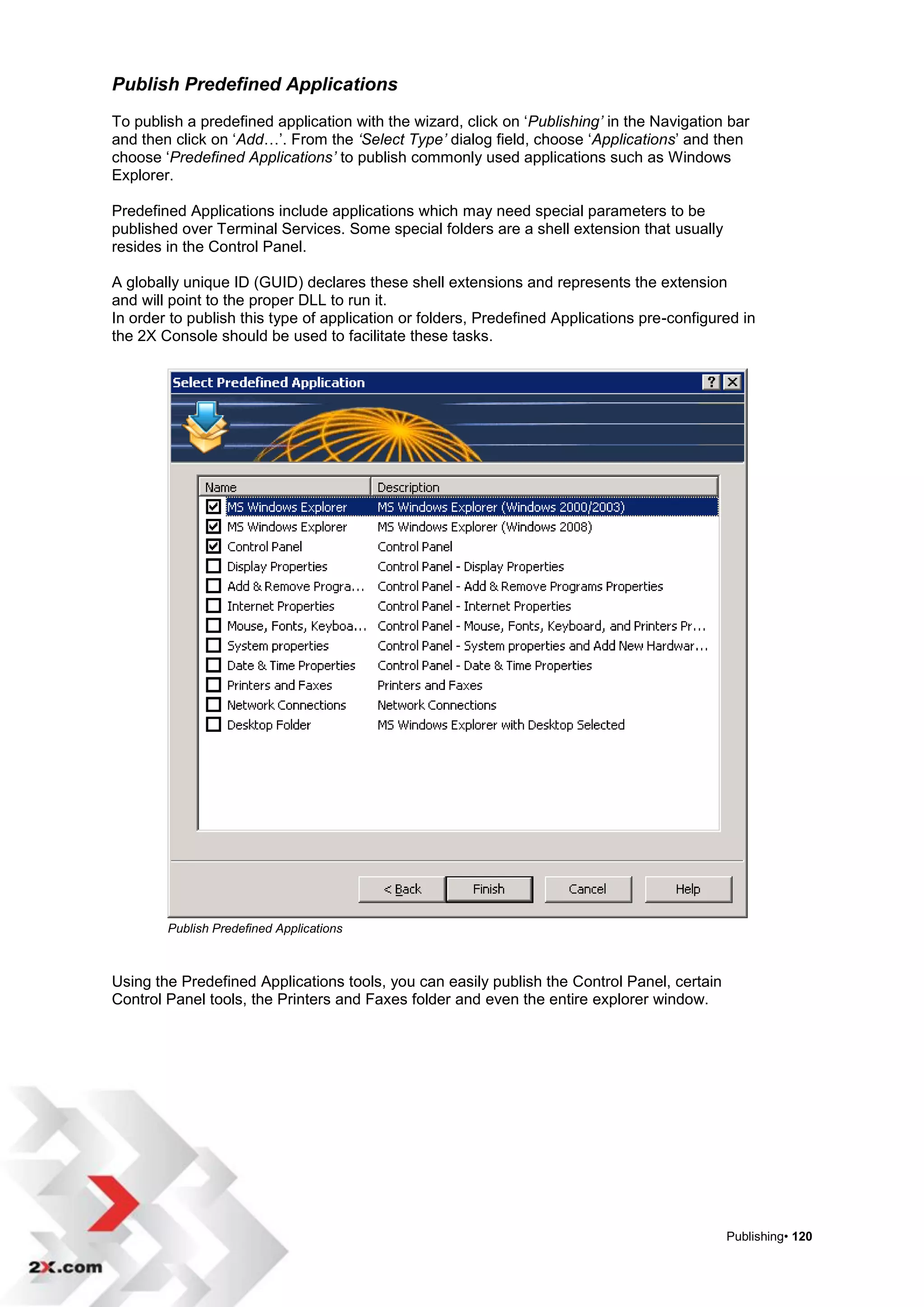
  • 24.
    Publish a VirtualDesktop Virtual Desktop Configuration Enter a Name and Description for the published virtual desktop. Properties In the ‘Connect to’ field, choose where you want your Virtual Desktop to connect to:  Any Guest – The Virtual Desktop connects to any guest from a selected Pool. Click on the drop down arrow to choose which Pool to connect to.  Specific Guest - Will connect the virtual desktop to a specific Guest. Click on the drop down arrow to choose Virtual Guest.  Guest - Connects the Virtual Desktop to a Guest from a selected Pool. Click on the drop down arrow to choose the Pool. In the ‘where name equals’ field, select the Username or IP Address.  Specific 2X Template – This option will allow you to connect the Virtual Desktop to a specific 2X Template. Persistent Checkbox Check this box so that the User connects to the same Guest. (Available with Any Guest, Guest and Specific 2X Template) 2X Startup Wizard• 24
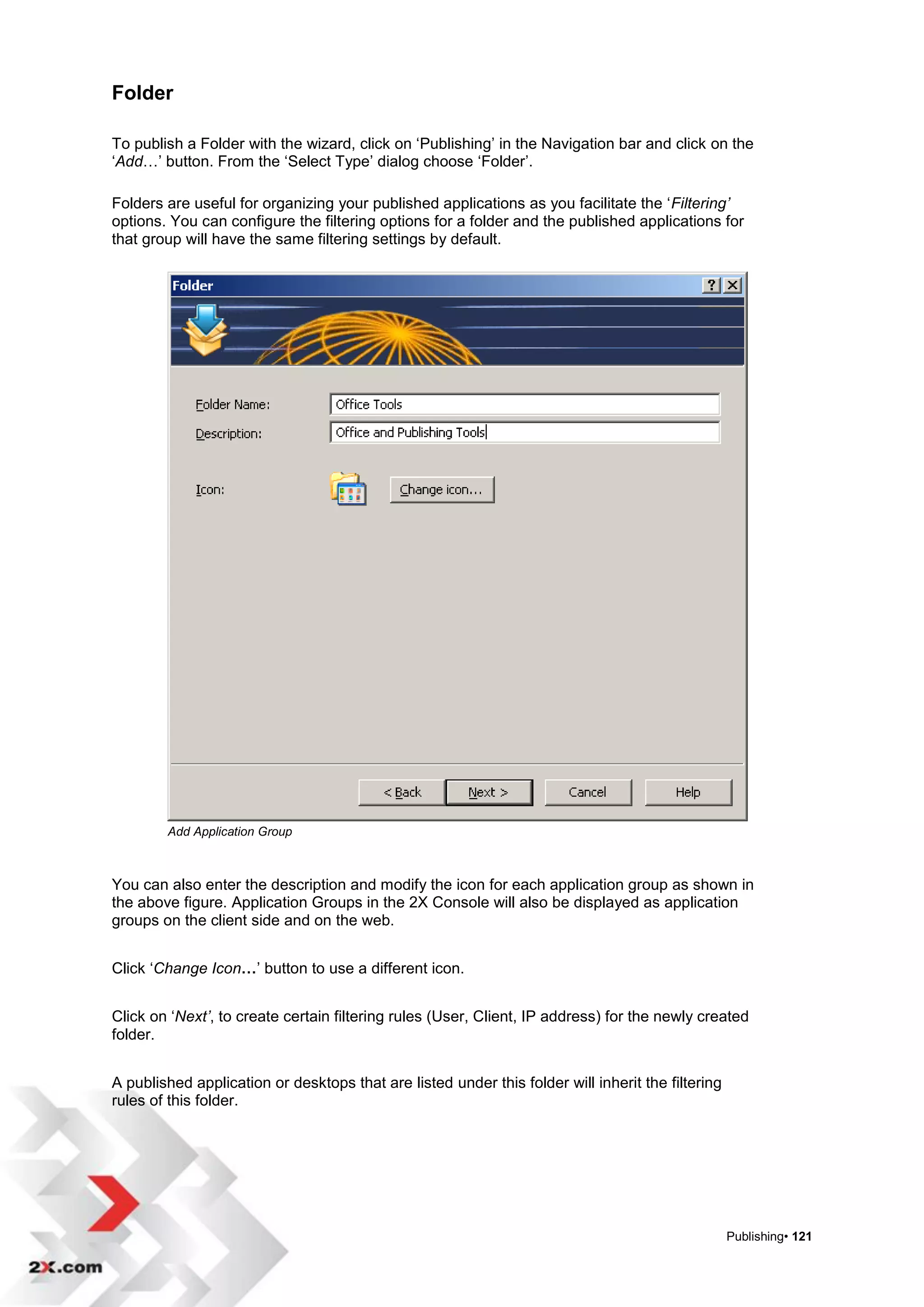
  • 25.
    Publish an Application Selectwhere you want to publish the application from:  All Servers in Farm - includes all the servers that are added to the farm. If only one server is present you will be automatically be taken to the „Startup Wizard – Publish Applications‟ dialog box.  Server Groups – This option is not available for publishing applications.  Individual Servers - allows you to choose the servers you would like to use to publish an application one by one by checking the checkbox next to the name of the server.  New Server - add a new server to the farm and use it to publish an application. Publish An Application 2X Startup Wizard• 25
  • 26.
    Add Applications Click onthe ‘Browse…’ button and select the Executable (.exe) file of the application that you would like to publish. You can also drag and drop an executable (.exe) file onto the box at the top of the dialog box. You will see a new entry in the list box which shows all applications that will be published. When all applications to be published have been selected, click on Finish. Publish Applications 2X Startup Wizard• 26
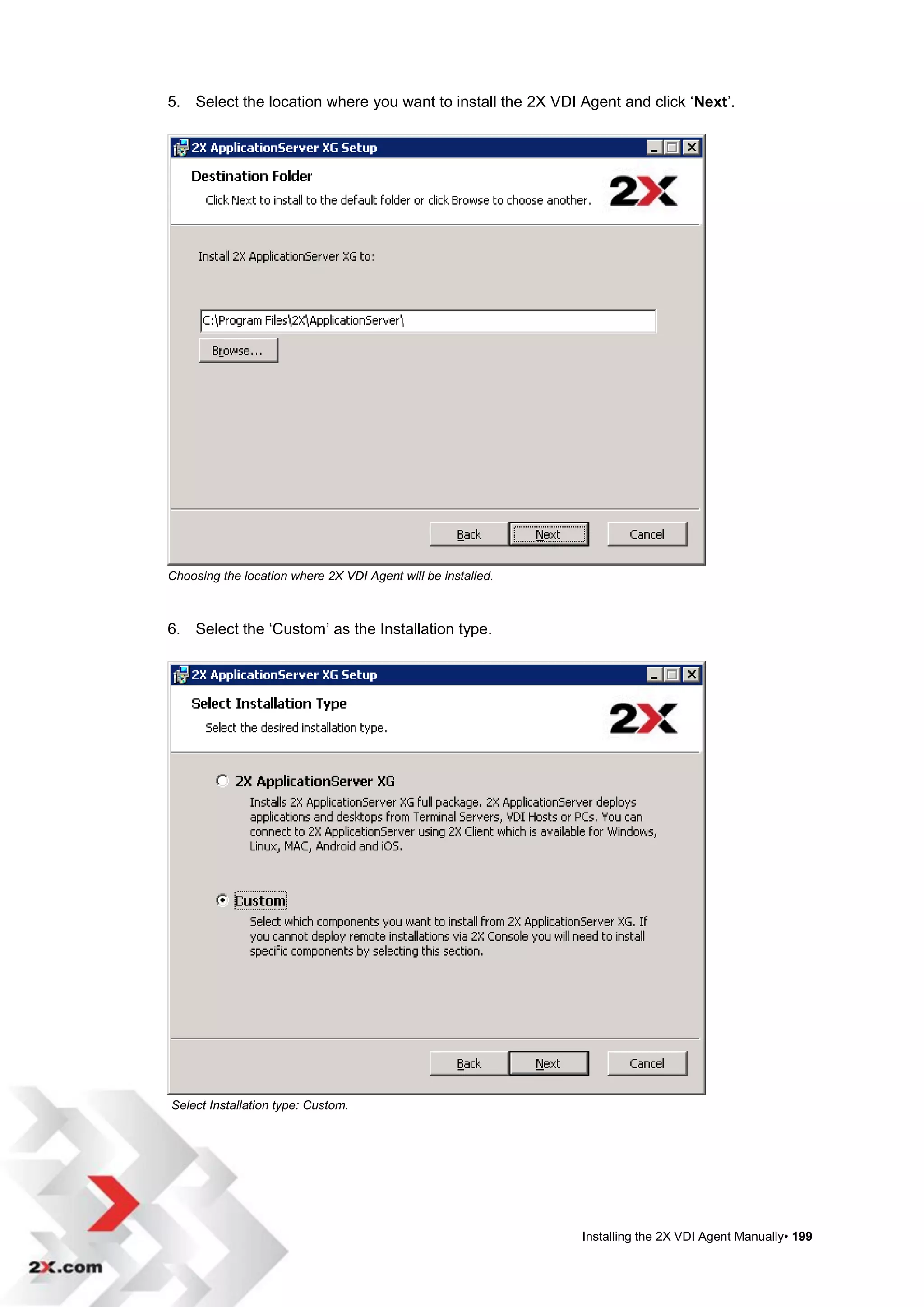
  • 27.
    Publish a Desktop Select where you want to publish the desktop from:  All Servers in Farm - Includes all the servers that are added to the farm. If only one server is present you will be automatically be taken to the „Startup Wizard – Publish Applications‟ dialog box.  Server Groups – This option is not available for publishing desktops.  Individual Servers - Allows you to choose the servers you would like to use to publish a desktop, by checking the checkbox next to the name of the server.  New Server - Add a new server to the farm and use it to publish an desktop. Published Desktop After you have determined the source of the published desktop, all you need to do is name it and add a description. Click „Finish’ to complete the process. 2X Startup Wizard• 27
  • 28.
    Setup LoadBalancer Select „Setup LoadBalancer’. Each available server in the farm is listed and the information regarding each Agent is also listed. Select the connection type. The choices are MS Terminal Server (RDP), Citrix Server (ICA) or Both (RDP/ICA). Check the box next to each server that you would like to add to the LoadBalancer. Select the server to be used for load balancing When you have selected all the servers that you want to add, simply click on „Finish’. 2X Startup Wizard• 28
  • 29.
    FARM 2X ApplicationServer provides connectivity with Multiple Farms and the ability to publish seamless applications or published desktops from multiple servers simultaneously. Farm Info Tab Click on Farm in the Navigation panel. The Farm Info tab lists the amount of Active Servers, Backup Servers, Gateways, Remote PC‟s, Terminal Servers, VDI Hosts, VDI Pools and 2X Templates (not shown) in the information panel. Farm• 29
  • 30.
    Farm Design Tab Inthe Farm Design tab administrators are allowed to view and change their infrastructure graphically, providing ease of use and administrative control. You can easily add Terminal Servers, Gateways, hypervisors and other network components. Farm Design Tab From the toolbar, select the component to add from the following:  Terminal Server (See section „Add a Terminal Server‟)  VDI Host  Remote PC  Gateway  Backup Server To view the infrastructure in Full Screen mode, click the „Full Screen’ button. In full screen mode, you can still add components. Farm• 30
  • 31.
    The Infrastructure designmay be printed by clicking ‘Print’ button in the header. Doing so would pop up the following window: 2X Farm Design - Print Adjust the printing parameters accordingly. Select the „Printer‟ you would like to print from. Finally press OK to print. If the „Printer‟ button is not available (as shown in the following screenshot below), press Ok and the Infrastructure design will be printed on the default printer. 2X Farm Design – Printert button not available Farm• 31
  • 32.
    Terminal Servers On thispage you can add Terminal Servers or Citrix Servers to the farm. You have two options to add servers to the farm. You can either automatically search for available Terminal Servers or Citrix Servers within your domain by clicking the „Find…‟ button Or You can click on the „Add…‟ button to add the Terminal Servers or Citrix Servers if you know the machine name or IP address. Add Terminal Servers or Citrix Servers to the farm NOTE: The checkbox next to the server name indicates that the particular server is available to users on this farm. To disable a server temporarily, uncheck this box. Farm• 32
  • 33.
    Find a TerminalServer Click the „Find…‟ button to automatically search for available Terminal Servers and Citrix Servers. Find available Terminal Servers All Terminal Servers and Citrix Servers within your domain will appear on the list of available servers to your farm, also identifying terminal server type (Windows or Citrix) and availability of 2X Terminal Server Agent on the respective server. To add a server to the farm, enable the checkbox in front of the server name. Click the „OK’ button to save your changes. NOTE: It will be necessary to install 2X Terminal Server Agent on all Terminal Servers and Citrix Servers before they can successfully participate in a load-balanced farm. Farm• 33
  • 34.
    Add a TerminalServer To add a server to your farm click the „Add…‟ button and then type the server name or IP address in the „Server:‟ field as shown in the figure below. Then click „Next’. Configure each server properties 2X ApplicationServer will check and make sure that the 2X Terminal Server Agent is installed. Check the status and if the service is not installed, click the „Install…‟ button. . If you unable to install the Terminal Server Agent please refer to section “TS Agent manual Installation” to manually install the agent. Add Terminal Server Click „Add‟ if the Agent is already installed. Farm• 34
  • 35.
    Editing a TerminalServer To edit the configuration of each Server, select a server and click the ‘Properties…’ button. You can also double click each Server to edit its configuration. Properties Tab Server Properties / Properties Tab Enable or disable the use of the terminal server in the farm by using the ‘Enable Server in farm’ checkbox. To change the server name or IP address of a particular terminal server, use the ‘Server’ field. Each terminal server can be configured to accept RDP traffic, ICA traffic or both from the ‘Type’ field. Enter the maximum number of sessions you want this server to accept. A ‘Description’ can be added to each server to clearly identify each terminal server. Farm• 35
  • 36.
    Agent Settings Tab Agent settings Enter the RDP port that will be used to connect a session. The ‘Change Direct Address’ checkbox allows you to configure and enter a new direct address. This address is used in Direct Connection mode only (internal or external IP address); depending on where your clients will be. If the IP address is external, they must be assigned at your firewall to your servers. ‘Publishing Session Timeout’ field is used to set the amount of time that each session will stay connected in the background after the user has closed all published applications. This is done to avoid unnecessary reconnections with the server. Checking the ‘Allow Client URL/Mail Redirection’ box allows http and mailto links to be opened using local applications instead of using terminal server resources. ‘Logging’ allows the server to log actions that occur on the server; and also identifies any issues related to the server. Click on ‘Request Log…’ to download a copy of the log file. You can clear the server‟s log file by clicking ‘Clear Log File’. This feature can also be accessed on the Terminal Servers tab by right-clicking directly on the server and clicking on „Debug Mode‟. To be able to download or clear the log file, the 2X Terminal Server Agent must be running in debug mode. Farm• 36
  • 37.
    RDP Printer Tab RDP Printer Settings The RDP Printer tab gives you the option of selecting the format of redirected printers. The format may vary depending of which version and language of the server you are using. Set your RDP Printer Name Format by choosing from the following three options:  Printername (from Computername) in Session no.  Session no. (computername from) Printername  Printername (redirected Session no) Farm• 37
  • 38.
    Check ‘Remove sessionnumber from printer name’ to remove the session number from printer name. Printer Settings with Redirected Printer Check ‘Remove client name from printer name’ to enable that feature. Printer Settings with Redirected Printer, Removed Client Name and Session Number Farm• 38
  • 39.
    Scheduler Tab Scheduler Using the Scheduler, you can configure your terminal server to not accept connections between set times. To add a Scheduler Entry simply click ‘Add’ and enter the date and time you want to restrict access to the terminal server. The ‘Duration’ field accepts time in days, hours, minutes, seconds or any combination. Example: 3 days, 5 hours, 45 minutes, 30 seconds. The ‘Repeat’ field allows you to repeat the scheduled entry. Add Scheduler Entry The Scheduler tab will be available when editing the terminal server‟s properties. „On disable’ field allows you to choose what action should be taken for current sessions by 2X ApplicationServer , once a terminal server has been disabled during a scheduled active entry. Farm• 39
  • 40.
    NOTE: 2X TerminalServer Agent should be installed on each terminal server added to the farm. 2X Terminal Server Agent collects the information required by the 2X Publishing Agent so that each session is able to load balance according to available resources. For more information on installing the Terminal Server Agent, please refer to section “TS Agent Manual Installation” to manually install the agent. Delete a Terminal Server To delete a terminal server from the farm, select the particular server and click the ‘Delete’ button. You can also use the Delete key from the keyboard instead of using the ‘Delete’ button. Server Groups Click the ‘Add…’ button in the Server Groups Panel to create a server group or to organize your terminal servers in groups. In the ‘Name’ field type the name of the server group; then select the servers that should be included in that group. Server Groups are useful when you want to publish an application or a desktop which is located on a number of MS Terminal Servers but not in the entire farm. For example, you can group MS Terminal Servers that host particular applications and then select that group in the ‘Publish From’ tab when publishing applications. Groups are also useful when configuring specific filters so that connections to non published desktops can be redirected to specific servers. Group Properties Farm• 40
  • 41.
    VDI Hosts The VDIHosts page contains the settings that allow you to add VDI Hosts (VMware, Microsoft Hyper- V, Citrix, Parallels, Microsoft Virtual Server, Oracle VirtualBox, Virtual Iron, etc). There are two ways to add a VDI Host to the farm. You can automatically search for available VDI Hosts within your domain by clicking the ‘Find…’ button or you can click on the ‘Add…’ button to add the VDI Hosts, if you know the machine specifications. VDI Hosts – Add or Find a VDI Host NOTE: The checkbox next to the server name indicates that the particular server is available to users on this farm. To temporarily disable a server, uncheck this checkbox. Farm• 41
  • 42.
    Find a VDIHost Click the „Find…‟ button to automatically search for available VDI Hosts. Find available VDI Hosts All VDI Hosts within your domain will appear on the list of available servers to your farm, also identifying agent status, host type and version. To add a server to the farm, check the box in front of the server name the click „OK‟. Click on the „Install Agent‟ button to install the VDI Agent. For more information please refer to Installing the 2X VDI Agent Manually. Farm• 42
  • 43.
    Add a VDIHost To remotely add a host to your farm click the ‘Add…’ button and then choose a ‘VDI Type’. Enter the host name or IP address in the ‘VDI Host:’ field as shown in the figure below. Appliance settings can only be used with certain servers. Please refer to the list of approved providers and choose the specific document for more information on how to connect to your virtual host. Remotely add a new Host Click „Next‟ to continue. Farm• 43
  • 44.
    2X ApplicationServer willcheck to make sure the 2X VDI Agent is installed. If the Agent did not reply or the service is not installed, click the „Install…‟ button. NOTE: To install the VDI host manually, refer to „Installing the VDI Agent Manually‟ section of this manual. Click „Next‟ if the Agent is already installed. VDI Agent Information Farm• 44
  • 45.
    VDI Host Properties Configure each VDI Host properties To enable this host in the farm, make sure that the ‘Enable Host in farm’ box is checked. In the VDI Type: field, select the VDI provider of the host and enter the version that you are using into the ‘VDI Version’ field. To change the host name or IP address of a particular VDI host, use the ‘VDI Host’ field. Enter port number in the ‘VDI Port: field. Appliance settings can only be used with certain servers. Please refer to the list of approved providers and choose the specific document for more information on how to connect to your virtual host. To start using the new host, please enter the username and password of the host. If you would like to test the username and password before using, click on ‘Check Credentials’ before clicking ‘OK’. Farm• 45
  • 46.
    Agent Settings Configure the VDI Agent Settings To connect to the VDI Host directly check the ‘Change Direct Address’ box. This address is used in Direct Connection mode only (this is an internal or external IP address) depending on where the clients will be. (If external, these IP addresses must be assigned at the firewall to your servers). Enter a „Description‟ so that the host can be easily identified. In the ‘Max connections’ field, enter the maximum number of connections this host will accept. ‘Publishing Session Timeout’ field is used to set the amount of time that each session will stay connected in the background after the user has closed all published applications. This is done to avoid unnecessary reconnections with the server. Checking the ‘Allow Client URL/Mail Redirection’ box allows http and mailto links to be opened using local applications instead of using terminal server resources. ‘Logging’ allows the server to log actions that occur on the server; basically used to identify any issues related to the server. Click on ‘Request Log…’ to download a copy of the log file. You can clear the server‟s log file by clicking ‘Clear Log File’. To be able to download or clear the log file, the 2X Terminal Server Agent must be running in debug mode. NOTE: It will be necessary to install 2X VDI Agent on all VDI Hosts before they can successfully participate in a load-balanced farm. Farm• 46
  • 47.
    RDP Printer Tab RDP Printer Tab The RDP Printer tab gives you the option of selecting the format of redirected printers. The format may vary depending of which version and language of the server you are using. Set your RDP Printer Name Format by choosing from the following three options:  Printername (from Computername) in Session no.  Session no. (computername from) Printername  Printername (redirected Session no) Farm• 47
  • 48.
    Check ‘Remove sessionnumber from printer name’ to remove the session number from printer name. Printer Settings with Redirected Printer Check ‘Remove client name from printer name’ to enable that feature. Printer Settings with Redirected Printer, Removed Client Name and Session Number Farm• 48
  • 49.
    Scheduler Tab Scheduler Tab Using the Scheduler, you can configure your virtual server to not accept connections between set times. To add a Scheduler Entry simply click ‘Add’ and enter the date and time you want to restrict access to the terminal server. Farm• 49
  • 50.
    Add Scheduler Entry The‘Duration’ field accepts time in days, hours, minutes, seconds or any combination. Example: 3 days,, 5 hours, 45 minutes, 30 seconds. The „Repeat‟ field allows you to repeat the scheduled entry. The Scheduler tab will be available when editing the terminal server‟s properties. The ‘On disable’ field allows you to choose the action taken on the current sessions by 2X ApplicationServer once a terminal server is disabled while a scheduled entry is active. Edit a Virtual Host To edit the configuration of each host, select the particular host and click the „Properties…‟ button. You can also double-click on each host to edit its configuration. Delete a Virtual Host To delete a host from the farm, select the particular host and click the „Delete‟ button. You can also use the Delete key from the keyboard instead of using the „Delete‟ button. Farm• 50
  • 51.
    Check Agent Once youhave finished adding your Virtual Desktop Hosts, select a virtual host and click the „Check Agent‟ button. If the 2X Publishing Agent can communicate with the 2X VDI Agent running on the host, you will receive this message: 2X VDI Agent verified by ‘Check Agent’ NOTE: Make sure that the 2X VDI Agent is installed on each Virtual Desktop Host added to the farm. 2X VDI Agent will collect the information required by the 2X Publishing Agent to load balance each session according to available resources. Farm• 51
  • 52.
    VDI Virtual GuestsSettings To view the Virtual Guests connected to the selected Virtual Desktop Server click on ‘Virtual Guests Settings…‟ From here you can start, stop, suspend or reset any of the Virtual Guests connected to the server. Virtual Guest List The above example shows a particular Guest in a „Suspended‟ state. The only option available is to „Start‟ the service. In the example below, the selected Guest is in a „Powered On‟ state, so the options are to Stop, Suspend or Reset. Farm• 52
  • 53.
    To view theadvanced settings of the a selected Virtual Guest, click on ‘Properties...‟. Virtual Guest Advanced Settings  Enable ‘Do not use this guest’ checkbox so the system ignores the particular Virtual Guest.  The „Computer Name’ field allows you to set the network name (domain name / IP address) of the computer that the system will use to connect to the Virtual Guest.  The ‘Port’ field contains the port number that the system will use to connect to the Virtual Guest.  Use the ‘Connection Timeout’ field to set a time limit on attempts a 2X ApplicationServer can connect to the particular Virtual Guest.  ‘Protocol’ is the method used for 2X ApplicationServer to communicate with the Virtual Guest.  You can set what actions the guest will take if a user disconnects from a session by choosing an option from the ‘If session disconnects’ drop down list. You can choose the amount of time that needs to pass before the selected action is taken.  A session can be terminated after the user disconnects from the session. You can choose the amount of time that needs to pass before the disconnected session is terminated. The user can reconnect to a previous session if that session is still available. Farm• 53
  • 54.
    Pool Management Pools offeradministrators more flexibility when managing an extensive number of Guests, especially when they are implemented in large company infrastructures. 2X ApplicationServer console provides the framework and tools needed to create a complete Pool Management foundation. To add a Pool to your farm click the green „+‟ symbol and then enter the Pool name. To delete a Pool, click on the Pool in the Name list and then click on the red „-„ symbol. Pool Management Tab The „Default‟ Pool includes all Guests in the farm. Farm• 54
  • 55.
    Adding Pool Membersto a Pool Select the Pool that you want to add Members to and then click on the ‘Add...’ button. Adding Guests to a Pool Choose from the following types of Guests:  All Guests in Farm: All guests that are located in the farm..  All Guests in Host: All guests that are located on a particular host.  Guest: A single guest located in the farm.  Native Pool: Group of guests that have been previously configured from the hypervisor management tool. Please note that the hypervisor may use different terminology instead of pools (e.g. resource pools)  2X Template: Guests that are automatically created from a 2X Template. Wildcard Function The Wildcard field is used to match specific guests from any available guests within a pool. Select the guests from the list and add to your Pool. Use the asterisk ( * ) symbol to match any characters. For example, XP* will find only guests whose name starts with XP and *XP* will find guests with XP in their name. Farm• 55
  • 56.
    Delete a PoolMember Select the Pool member you want removed and click on „Delete‟. The selected Guest is then deleted from that Pool. Pool Guests The Pool Guests button allows you to view and manage Guests in a particular Pool. Select a Pool and the Guests that are included in that Pool appear in the Virtual Guests List. Click on the ‘Refresh’ button to view new additions to the Pool list. Click on a Guest in a Pool and then click on ‘Clear Settings’ Virtual Guests List Choose a Guest from the Virtual Guests List and click on „Check Agent‟ to verify that the Guest Agent is installed. Farm• 56
  • 57.
    Select a Guestwithin a Pool and click on Properties. Guest Advanced Settings The Guest Advanced Settings dialog box appears and you can further configure each Guest in the Pool.  Enable ‘Do not use this guest’ checkbox so the system ignores the particular Virtual Guest.  The „Computer Name’ field allows you to set the network name (domain name / IP address) of the computer that the system will use to connect to the Virtual Guest.  The ‘Port’ field contains the port number that the system will use to connect to the Virtual Guest.  Use the ‘Connection Timeout’ field to set a time limit on attempts a 2X ApplicationServer can connect to the particular Virtual Guest.  ‘Protocol’ is the method used for 2X ApplicationServer to communicate with the Virtual Guest.  You can set what actions the guest will take if a user disconnects from a session by choosing an option from the ‘If session disconnects’ drop down list. You can choose the amount of time that needs to pass before the selected action is taken.  A session can be terminated after the user disconnects from the session. You can choose the amount of time that needs to pass before the disconnected session is terminated. The user can reconnect to a previous session if that session is still available. Farm• 57
  • 58.
    2X Templates With theaid of 2X Templates you can better utilize host resources. 2X Templates allows you to automatically create and deploy Guest VMs when needed. To create a 2X Template, click on the 2X Templates tab and then click on Add… Creating a 2X Template The Virtual Guests List dialog box appears. Select a Guest that will be designated as a 2X Template, then click on OK. Adding a 2X Template Farm• 58
  • 59.
    Once you haveselected which guest you will be converting to a 2X Template, the Guest Agent Information dialog box appears containing all the information that is associated with that particular Guest. Creating a 2X Template If the agent is not verified or installed, you can install it by clicking the “install” button. The Guest Agent makes it possible to create new clones, use universal printing and scanning. Installing 2X Guest Agent Farm• 59
  • 60.
    After the GuestAgent has been installed a new dialog box appears showing the updated Guest Agent information. Click ‘Make Template’ to create a 2X Template. Guest Agent Information 2X Templates Information button Given that clones are created from the templates, it is possible to view information about the clones created from the templates by clicking „Info…‟ Farm• 60
  • 61.
    Template Guests ListsInformation If the Guest Agent needs to be updated, you can do it from this window. Maintenance Mode If there is the need to update the template OS, you need to put the template into Maintenance Mode. In the mode the OS can be booted and modified, Once the desired changes have been applied you can put the template off Maintenance Mode. This is required when you need to: install Operating System service packs, install new software, or uninstall current packages. During maintenance mode, clones cannot be created from the guest, and the entry from the 2X Templates in Farm becomes greyed out. 2X Templates List NOTE: When maintenance mode is applied on a template, this will only effect newly created VMs. Any VMs already created, are not effected. Farm• 61
  • 62.
    2X Template Properties Selecta 2X Template from the list and then click on Properties. The 2X Template Properties dialog box opens. Properties Tab Properties Tab 2X Template: Enter a descriptive name for the 2X Template or re-name existing templates. Maximum Guests: The maximum number of guests that can be created. Pre-created Guests: Enter the number of guests that will be pre-created so that users will find a desktop ready without having to wait for the cloning process to finish. Guest Name: Enter the Guest Name. Please note that each guest name is appended with the guest ID. If you don‟t want to allocate space on the server for Guests that are not in use, enable the ‘Check the ‘Delete unused guests‟ checkbox and set the time limit if you would like the guests that are not being utilized deleted. Farm• 62
  • 63.
    Advanced Tab Advanced Tab – HyperV templates The „Folder‟ field is the location where the newly created guests (created from the 2X Template by ApplicationServer) will be created. This folder feature is available for Hyper-V, Parallels Server4, Citrix Xen and VCenter . If the hypervisor you are using supports Native Pools, then the newly created Guests will be part of the specified ’Native Pool:’ location. VmWare ESX, VmWare VCenter and VmWare Server 2 support Native Pools. Farm• 63
  • 64.
    Sys Prep Tab TheSysPrep tab contains settings you need to be able to join your Guest to either a workgroup or a domain. SysPrep Tab Computer Name: Enter the computer name that will be using the 2X Template guest. Owner Name: Enter the user or owner name of the user that will be using the 2X Template guest. Organization: Enter your organization‟s name Administrative password: Enter the administrator password. Join workgroup: Select this option if the guest will be part of a workgroup. Enter the workgroup name in the field provided. Join domain: Select this option if the guest will be part of the domain. Enter the appropriate information such as the domain name and the administrative credentials. Farm• 64
  • 65.
    License Keys Tab TheLicense Keys tab allows you to add the licensing information of the Guest‟s operating system. License Keys Tab Add License Key Click on Add and the ‘Add License Key’ dialog box appears. Enter the License key information and the maximum number of guests that will be using the license. Farm• 65
  • 66.
    Persistent Guests When apublished application from a guest is set as persistent, the first time a user launches the application, the publishing agent will create a persistent guest rule. Below is the list of rules that the publishing agent preserves. The publishing agent will always connect the user to the same guest when the persistent rule is used. The Persistent Guests can be viewed and managed on this tab. The information that is provided includes the Guest name, Host IP address, the last time this guest was used, when the persistent guest rule was created and the state of the persistent rule. Click on the headings and you can choose to show or hide any of the column headings. Persistent Guest Rules Click on the ‘Refresh’ button to view new additions to the Persistent Guests list. To delete a persistent guest entry, select and click on „Delete‟. To delete all the existing persistent guests in the list, click on „Delete All‟. Choose to automatically remove „persistence‟ if the guest is not used for the specified amount of time. Choose from 24 hours, 1 day, 1 week or 30 days. Farm• 66
  • 67.
    Remote PCs With RemotePCs, a physical machine‟s desktop can be published (after it is added to the Farm). This will enable 2X Clients connected to 2X ApplicationServer to open RDP connections directly to a physical computer as opposed to a virtual desktop or a terminal server session. Automatically search for available Remote PCs within your domain by clicking the „Find…‟ button or click on the „Add…‟ button to add a Remote PCs. Remote PC’s NOTE: The checkbox next to the PC name indicates that the particular PC is available to users on this farm. To disable a PC temporarily, uncheck the box. Farm• 67
  • 68.
    Find Remote PC’s Clickthe ‘Find…‟ button to automatically search for available Personal Computers. Find available Remote PCs All available PC‟s within your domain will appear in the list of personal computers in your farm. The Agent status is identified and the MAC address is also listed. To add a PC to the farm, enable the checkbox in front of the PC name. Click the „OK‟ button to save changes. Click on ‘Install Agent’ if the remote PC‟s agent is not found or needs to be installed Farm• 68
  • 69.
    Add /Delete RemotePC’s To add a PC to your farm click the ‘Add…‟ button. Enter the remote PC‟s name or IP address. Enter the MAC address or simply click on the ‘Get MAC’ address button to add the MAC identification. Add an available Remote PCs Delete Remote PCs To delete a Remote PC, select it and click on the ‘Delete’ button. You can also use the Delete key from the keyboard instead of using the „Delete‟ button. Farm• 69
  • 70.
    Edit a RemotePC To edit a Remote PC, select a remote pc from the list and click on ‘Properties’. Or double click on a remote pc in the list and the properties dialog box opens. Remote PC Properties Properties Tab Make sure that „Enable Remote PC’ box is checked so the new Remote PC is enabled in your Farm. In the „Remote PC‟ field, you can enter or edit the name of the remote pc. Enter the MAC Address of the PC you would like to add. Use the ‘Get MAC‟ button, if you are adding your local machine, to easily get the MAC Address. Note: The MAC Address is needed if you want to use the „Wake on LAN’ feature. When running a published PC desktop from the 2X Client, you will need the MAC address to boot up a PC that may be switched off. The ‘Protocol’ field identifies the protocol used by the Remote PC. A ‘Description’ can be given which can be used to easily identify different Remote PC;s from one another. Farm• 70
  • 71.
    Agent Settings Tab The‘Port’ field contains the port number that the system will use to connect to the Remote PC. You can configure the direct address by checking the ‘Change Direct Address’ box and entering a new direct address. This address is used in Direct Connection mode only. This can be an internal or external IP address; depending where the clients will be. If external, the IP address must be assigned at your firewall to your servers. Agent Settings Tab 2X ApplicationServer is able to „wake‟ a PC by sending a packet over the network. This will continue until the receipt of the packet is acknowledged or until the connection is timed out. In the ‘Connection Timeout’ field, choose a connection time-out. The ‘Publishing Session Timeout’ field allows you to designate a time before the publishing session times out conserving system resources. Checking the ‘Allow Client URL/Mail Redirection’ box allows http and mailto links to be opened using local applications instead of using terminal server resources. Farm• 71
  • 72.
    RDP Printer Tab TheRDP Printer tab gives you the option of selecting the format of redirected printers. The format may vary depending of which version and language of the server you are using. Set your RDP Printer Name Format by choosing from the following three options:  P rintername (from Computername) in Session no.  S ession no. (computername from) Printername  P rintername (redirected Session no) You can also remove the session number and the client name from the printer name by enabling each of the corresponding checkboxes. Examples are shown below. Farm• 72
  • 73.
    Printer Settings withClient Name and Session Number Printer Settings with Redirected Printer, Removed Client Name and Session Number Farm• 73
  • 74.
    Gateways The 2X Consolecan manage all the 2X Secure Client Gateways on the Farm and will list them in the „Gateways‟ section. The 2X Secure Client Gateway can also be remotely installed on a server. Any 2X Secure Client Gateways connected to a 2X Publishing Agent will be automatically added and listed as „Auto Discovered‟. 2X Secure Client Gateways Farm• 74
  • 75.
    Installing the 2XSecure Client Gateway Remotely from the 2X Console Click on the ‘Install…‟ button to start installing 2X Secure Client Gateway. In the „Server‟ field, enter the name of the machine that will be used as a 2X Secure Client Gateway or browse for available machines on the network. Click ‘Resolve’ to retrieve the IP address of the machine. The ‘Mode‟ field has two options, Normal and Forwarding. If the 2X Secure Client Gateway is configured to be a forwarding gateway, all the connections will be forwarded to the next 2X Secure Client Gateway. You can choose to forward connections to any 2X Secure Client Gateway that has been already added to the Farm. Adding a 2X Secure Client Gateway Farm• 75
  • 76.
    Before installing the2X Secure Client Gateway, you can choose to override the system credentials that will be used for authentication. Click „Install’ to start installing the 2X SecureClientGateway service on the remote server. Installing 2X Secure Client Gateway NOTE: In order to install the 2X Secure Client Gateway, select ‘Custom’ in the Installation Type and check the „2X Secure Client Gateway‟ option. Please refer to „Installing 2X ApplicationServer‟ for more information on how to install the 2X Secure Client Gateway. Farm• 76
  • 77.
    2X Secure ClientGateway Properties The properties of any 2X Secure Client Gateway available in the farm can be edited from the 2X Console. Click on the 2X Secure Client Gateway you want to edit and click on ‘Properties…‟ Properties Tab 2X Secure Client Gateway Properties From the Properties tab, you can enable or disable the 2X Secure Client Gateway in the farm. The server name and the IP address of the server can be edited on the properties tab. Enter a brief description to easily identify the 2X Secure Client Gateway. NOTE: The „Server’ and „IP(s)‟ fields can not be edited if the 2X Secure Client Gateway is installed locally. Farm• 77
  • 78.
    Network Tab 2X SecureClient Gateway Port (default TCP 80) is used to tunnel all 2X traffic. The traffic that is tunneled through this port include the 2X Publishing Agent traffic (load balanced application and desktop publishing), HTTP Server and RDP traffic. The 2X Secure Client Gateway Port is also used to tunnel secure connections (SSL). RDP Port (default TCP 3389) is used for clients who require basic load balanced desktop sessions. Connections on this port do not support published items. Citrix Port (default TCP 1494) is used for the incoming Citrix connections which will be forwarded to the configured Citrix servers according to the load balancing configuration. To disable this service, uncheck the box in front of „Citrix Port‟. Enable the ‘Broadcast 2X Secure Client Gateway Address’ checkbox to broadcast the 2X Secure Client Gateway address, so that 2X Clients will be able to auto find their primary server (2X Secure Client Gateway address). 2X Secure Client Gateway network settings. NOTE: If terminal services are enabled on the machine where the 2X SecureClientGateway is installed, the RDP Port cannot be used. Enable Thin Client PXE booting to allow thin clients on the network to connect to 2X ApplicationServer to boot. This will enable the thin client user to download a version of 2X ThinClientOS and install it on the thin client. You can set the TFTP Port and TFTP timeout. TFTP is used to transfer the 2X ThinClientOS from the server to the client. DHCP Proxy will allow the 2X ThinClientOS to discover the TFTP server on the network. If you disable DHCP proxy, you must manually setup your DHCP server with the boot server name and bootfile name. Farm• 78
  • 79.
    Advanced Tab 2X SecureClient Gateway tunnels all 2X traffic needed by 2X applications on a single port. This gateway service gives the System Administrator the ability to tunnel the Terminal Servers (RDP), HTTP Server (81) and 2X Publishing (20002) over one port which by default is configured to port 80. To configure the Advanced 2X Secure Client Gateway Setting, you‟ll need to assign a port number in the „2X Secure Client Gateway port‟ which by default is configured to port 80 (make sure that this port is not being used by another service) and then select the „Advanced’ tab (shown below) to configure the HTTP Server, and 2X Publishing Agent. Advanced 2X Secure Client Gateway Settings This Advanced dialog allows you configure the locations of the HTTP server(s) and the 2X Publishing Agent. If the services are running on other Servers, you will need to configure each setting with the corresponding IP address or computer name. (i.e. HTTP Server: webserver.internal.mycompany:81) Farm• 79
  • 80.
    Advanced 2X SecureClient Gateway (Multiple 2X Secure Client Gateways) 2X offers the solution of installing multiple 2X Secure Client Gateways. These solutions offer quite a bit of flexibility to Administrators. As displayed in the diagram below, both 2X Secure Client Gateways are configured to forward requests to the same 2X Publishing Agent. WAN / INTERNET MS Terminal Server 2X Terminal Server Agent 2X SecureClientGateway Public MS Terminal Server 2X Terminal Server Agent 2X Publishing Agent MS Terminal Server LAN 2X Terminal Server Agent 2X SecureClientGateway Private MS Terminal Server 2X Terminal Server Agent Multiple 2X Secure Client Gateways forwarding requests to 2X Publishing Agent Farm• 80
  • 81.
    The Advanced tabis where you can configure each 2X Secure Client Gateway and configure the 2X Publishing Agent. Advanced 2X Secure Client Gateway Settings You can add additional 2X Publishing Agents by separating them with a semi colon or click on the drop down arrow „ ‟ which will allow you to add more 2X Publishing Agents as displayed in the figure below. Add 2X Publishing Agents list Farm• 81
  • 82.
    The first publishingagent in the Servers list will be used by default. In the event that the first 2X Publishing Agent fails to respond, the next 2X Publishing Agent will be used. NOTE: 2X Terminal Server Agents cannot be assigned to multiple 2X Publishing Agents. Therefore each 2X Publishing Agent should have a unique group of terminal servers. For more advanced and alternative scenarios and solutions please read 2X Server Based Computing Guide. Advanced 2X Secure Client Gateway (Forwarding Mode) 2X Secure Client Gateway can forward requests to the next 2X Secure Client Gateway in the chain (Cascading Firewall). With this option enabled the 2X Secure Client Gateway installed on this machine [GATEWAY 1] (port:80 by default) will forward the requests to the next 2X Secure Client Gateway [GATEWAY 2] configured in the 'Forwarding 2X Secure Client Gateway(s) list. MS Terminal Server LAN 2X Terminal Server Agent MS Terminal Server 2X Terminal Server Agent MS Windows Machine 2X Publishing Agent 2X SecureClientGateway SSL Enabled (443/80) GATEWAY 2 MS Terminal Server 2X Terminal Server Agent WAN / INTENRET MS Windows Machine MS Terminal Server 2X SecureClientGateway 2X Terminal Server Agent SSL Enabled (443/80) GATEWAY 1 Scenario with forwarding requests to next 2X Secure Client Gateway in chain Farm• 82
  • 83.
    Forwarding requests tonext 2X Secure Client Gateway in chain NOTE: All ports must be the same on each 2X Secure Client Gateway. Therefore, if a 2X Secure Client Gateway on server A is listening on port 80 and is configured to forward the requests to 2X Secure Client Gateway on server B, server B should be configured to listen on port 80. This also applies for the Citrix port (default 1494) and SSL (default 443). NOTE: In order to install 2X Secure Client Gateway, select „Custom‟ in the Installation Type and check the „2X Secure Client Gateway‟ option. Please refer to the chapter entitled Installing 2X ApplicationServer for more information about how to install the 2X Secure Client Gateway. NOTE: If you have problems starting the service, check the Log File and Event Viewer for more information. Please note that if the configured 2X Secure Client Gateway port is assigned with another service, the 2X Secure Client Gateway Service will not be able to start the service. In this case you must either configure the default port (80) to another port or configure the other service to use another port. NOTE: Users will not be able to connect through the gateway if this service is stopped. All connections running through 2X Secure Client Gateway Service will be dropped if the service is stopped or restarted. Farm• 83
  • 84.
    Bind Gateway toan IP Address On the Advanced tab in the 2X Secure Client Gateway settings, it is also possible to bind the Gateway with a certain IP address. This feature provides the Administrator with the ability to open the 2X Secure Client Gateway port (default port 80) for certain IP address instead of opening 2X Secure Client Gateway port on all available addresses. Enabling the ‘RDP DOS Attack Filter’ checkbox protects the Gateway from „Denial of Service‟. Bind Gateway to an IP Address Farm• 84
  • 85.
    SSL/TLS Tab SSL/TLS Configuration You can enable Secure Sockets Layer (SSL). In SSL mode, the 2X Secure Client Gateway provides end-to-end SSL encryption to your terminal servers. If you want your clients to connect to the 2X Secure Client Gateway using SSL, check „Enable SSL on Port:‟ checkbox. The port number used for SSL connections can be changed. By default, 2X ApplicationServer allows both SSL v2 and SSL v3. You can choose to only allow the use of SSL v3 by enabling ‘Allow only SSL v3‟ checkbox. Enable the ‘Allow only strong ciphers’ checkbox to set the gateway to a medium to high level of encryption. Farm• 85
  • 86.
    To use SSLand secure the connection, you must enter a Private Key file and a Certificate file. You can use your own or simply click on ‘Generate new certificate…’ to create them. Enter your information and the FQDN of your 2X ApplicationServer (Common name) and click Save. Generate New Certificate NOTE: If clients are not able to connect with port 443 because of firewalls or other policies, they could also use the 2X Secure Client Gateway port (default 80) to connect using SSL. 2X Secure Client Gateway offers the ability to tunnel SSL traffic over port 80. Farm• 86
  • 87.
    Security The security taballows you to filter connections through your gateway by matching MAC addresses. Administrators are able to block out MAC addresses or allow only the specified entries to run published applications. Security Tab There are two options to choose from:  Allow all users except the specified MAC addresses, or:  Allow only the specified MAC addresses. To allow all MAC addresses except the address specified, then select ‘Allow all except:’ radio button and click on ‘Add…’ Farm• 87
  • 88.
    A list ofAvailable clients will appear. Select which client you do not want to allow access to published applications. You can select any one of the listed MAC addresses or type in a MAC address, and click „OK‟. Allow all except dialog As provided by the example below, the selected machine is not allowed to connect and run published applications. Security Tab with added filtered users To allow only the selected MAC addresses select „Allow only‟ and then click „Add…‟ Farm• 88
  • 89.
    Security Tab Select oneof the listed MAC addresses or type in a pre known MAC address, and click „OK‟. Allow Only Dialog Farm• 89
  • 90.
    Security Tab withadded filtered users Now as you can see in the above dialog box, only one machine is allowed to run published applications. Farm• 90
  • 91.
    Wyse If you areusing Wyse ThinClient OS and want to publish applications from 2X ApplicationServer, check the ‘Enable Wyse ThinOS Support’ box. The 2X Secure Client Gateway will then act as a Wyse broker. Wyse Tab for ThinOS Support Click the „Test‟ button to verify your DHCP Server settings. 2X suggests that you enable SSL on this gateway when you enable Wyse ThinOS Support. Farm• 91
  • 92.
    Backup Servers You canadd, find and configure the properties of all Backup Servers on the Farm so that if the Master server fails, the next server in the list will take over. The backup servers can also be used as additional 2X Secure Client Gateways to evenly distribute the load on each gateway. MS Terminal Server 2X Terminal Server Agent Windows Machine 2X SecureClientGateway (port 80) 2X Publishing Agent SSL Enabled over port 80/443 MS Terminal Server 2X Terminal Server Agent MS Terminal Server 2X Terminal Server Agent Windows Machine 2X Backup Publishing Agent MS Terminal Server 2X Terminal Server Agent Redundant ApplicationServer Backup Servers Farm• 92
  • 93.
    Adding 2X BackupServers To add „2X Backup Servers‟ click the ‘Find…’ button. A new dialog will show the available servers in the local domain which can be used as Backup Servers. Find 2X Backup Servers When the state of the selected server is „Agent Not Found‟ it means that the 2X Publishing Agent is not installed on the selected server. Therefore you would need to install this service. If you choose a backup server that does not have the agent installed, the ‘Take Over’ button changes to the ‘Install Agent…’ button. If a 2X Publishing Agent is already in use it means that the particular server is already configured as a master server in another farm. Taking over this server will override any settings currently configured on the particular machine. Farm• 93
  • 94.
    Installing 2X BackupServer Enter administrative credentials to be able to install the 2X Publishing Agent on the selected server which will be used as a backup server. Click „Install’ or „Take Over’ after you‟ve entered the administrative credentials. You should note that the service has been installed successfully if the installation is completed. Click „Done’ when finished. When 2X Publishing Agent is already in use one can ‘Take Over’ the server and use it as a backup server. Farm• 94
  • 95.
    You can alsouse the ‘Add…’ button to manually add 2X Backup Server. Enter the name or the IP address of the server to be used as a backup server and click ‘Next’. Add 2X Backup Server A status information message will guide you on what to do next. Most often you will have to install the 2X Backup Server by clicking the „Install…‟ button. Then proceed with the following dialog boxes If an older version of the 2X Backup Server is already installed you would have to update the server by clicking the „Update’ button. 2X Backup Server Properties NOTE: The „Install…‟ button changes according to the status of the selected server. It will change to „Update…‟ if an older version of the 2X Backup Server is found, while it will change to „Take Over‟ if the selected server is already configured with a 2X Publishing Agent configured as the master server. Farm• 95
  • 96.
    Modifying 2X BackupServers To change the properties of each backup server, select the particular server and click „Properties‟. You can enable or disable the selected backup server and you can also install, update or uninstall the backup server from the properties dialog box. To delete a particular backup server, select the required server from the Backup Servers list and click „Delete‟. Each backup server in the list is given a priority. By default the local 2X Publishing Agent is given the Master priority and this cannot be changed. You can change the priority of the backup server. To assign a higher priority in the backup list select the required backup server from the list and click „Move up‟. To assign a lower priority in the backup list select the required backup server from the list and click „Move Down‟. The Backup Server with priority configured as „Backup Server 1‟ will be the first backup server to take over in case the Master Server is not available. Additional backup servers will take over in case „Backup Server 1‟ is also not available according to their priority. Promoting a Backup server to Master Server When the primary server cannot be recovered due to various reasons such as hardware failure or OS startup failure, you can easily promote a 2X Backup Server to a Master server. First launch the 2X Console located on the backup server. NOTE: When you add and install 2X Backup Servers, all the required files are automatically installed remotely on each backup server. Therefore to launch the 2X Console of a backup server, you can easily launch the 2X Console located at: „C:Program Files2XApplicationServer2XConsole.exe‟. Farm• 96
  • 97.
    Promote a 2XBackup Server to a Master Secondly, click „Promote to Master‟ button to promote the current backup server as a Master Server. Promotion to a Master server requires a reactivation of the products which is done automatically and requires an Internet connection. The 2X Terminal Server Agents will use this server (previously used as a 2X Backup server) as the new Master server. Solution Guide The 2X Server Based Computing Guide will help you find the tailor-made solution for your company's IT infrastructure. Click here for a complete list of scenarios and more information on server based computing. Farm• 97
  • 98.
    LOAD BALANCING Load Balancing Toconfigure the 2X LoadBalancer, click on „Load Balancing‟ in the Navigation bar in the 2X Console. On the Load Balancing tab you can choose the load balancing method to be used, which counters to be used for the selected method and you can choose to enable a reconnection to a disconnected session or reconnect to same user sessions. Configure load balancing properties Resource Based Load Balancing: in this method, 2X LoadBalancer will retrieve the load information for all terminal servers in the farm and, based on the counters chosen, will determine the terminal server that will handle the incoming connection. Three different counters are available: Round Robin Load Balancing: in this method, 2X LoadBalancer will identify the next available terminal server and forward the incoming connection accordingly, regardless of available resources on the server. Load Balancing• 98
  • 99.
    Counters User Sessions: Thisoption will redirect users to the server with the least number of sessions in use. Memory: This option will redirect users to the server with the best free/used RAM ratio. CPU Utilization: This option will redirect users to the server with the best free/used CPU time ratio. If more than one option is selected for load balancing, the 2X LoadBalancer will add the counter ratios together, and redirect the session to the server with the most favorable combined ratio. The recommended setting is to enable all three options, unless there is a particular need for one of the options available. NOTE: It will be necessary to install 2X Terminal Server Agent on all terminal servers and Citrix servers and/or 2X VDI Agent on all Virtual Desktop Hosts before each server can successfully participate in a load-balanced farm. The ‘Reconnect to disconnected sessions’ option allows the 2X Publishing Agent to redirect an incoming user session to a previously disconnected session owned by the same user. The „Reconnect sessions using client’s IP address only’ checkbox will need to be checked if reconnect is by IP address. You may also choose to reconnect active sessions by selecting „Limit User to one session per desktop‟. Therefore if a user re-connects to a Terminal Server with an active session started by the same user, the user will be connected to the active session. NOTE: To limit users to one session per desktop, make sure that the setting „Restrict each user to one session‟ is enabled at Terminal Servers>Terminal Services>configurations>Connections. Load Balancing• 99
  • 100.
    Advanced Settings Click onthe ‘Configure’ button. You can change the default timeouts for the Terminal Server Agents. In normal scenarios, you should use the default settings Advanced Load Balancer Settings Declare TS Agent dead This option is the amount of time that the 2X Publishing Agent should wait for each 2X Terminal Server Agent before declaring that particular Agent as dead. TS Agent Refresh Time This option is the amount of time that the 2X Publishing Agent should re-check the connection with each 2X Terminal Server Agent. Enable CPU Load Balancer The CPU Load Balancer setting plays an important role in the 2X Terminal Server Agent. When enabled it controls the processes that are using the most CPU resources. The 2X Terminal Server Agent is given a High base priority. If the terminal server CPU resources begin to exceed 95%, the processes that are using the most CPU resources are given a low priority, yet all other applications continue to operate normally. Click on the „Exclude List‟ button and another dialog box will open that allows you to add Processes that will be excluded from load balancing. Load Balancing• 100
  • 101.
    Tunneling Policies On theTunneling Policies tab you can set specific filters so that native RDP & ICA connections can be redirected to specific terminal server(s). Load balancing rules are useful when assigning a group of terminal servers or a specific terminal server with a 2X Secure Client Gateway IP. Therefore connections initiated from that particular IP will be load balanced to a corresponding group or a particular terminal server. NOTE: Load Balancing Rules are applicable only to non-published desktop sessions. Tunneling Policies Tab Default Rule The <Default> rule is pre-configured as the last rule which will catch all non configured gateway IPs. By default, this rule is configured to load balance the sessions between all servers in the farm. However, you can change the properties of this rule by selecting the default rule and clicking on ‘Properties…’. Load Balancing• 101
  • 102.
    Add a NewRule To add a native RDP & ICA Load Balancing Rule, click the „Add…‟ button. This will open a new dialog as shown below. First select the IP Address for which you would like to create the rule, then choose ‘All Servers in Farm’, ‘Server Groups’, ‘Individual Server’ or ‘None’. Rules Properties All Servers in Farm All connections initiated through this interface will be load balanced between all servers in the farm. One should note that the default rule is already pre-configured to load balance native RDP & ICA sessions between all servers in the farm. Server Groups All connections initiated through this interface will be load balanced with the selected group. One can select one or more groups to be associated with this interface as shown in the figure below. These Terminal Server Groups can be configured on the Terminal Server page. Native RDP&ICA Load Balancing Rule – Load Balance between Server Groups Load Balancing• 102
  • 103.
    Individual Server All connectionsinitiated through this interface will be load balanced with the selected individual servers. When you select individual servers, connections initiated from the selected interface will be load balanced with the selected terminal server. You may also configure an IP address to be associated with just one single server. None All connections initiated through this IP will be denied. This option is ideal in order to deny connections initiated from the configured gateway IP. For security reasons this setting is useful when you want to allow connections from a certain interface. With this option you can configure connections initiated from the specified gateway IP to not be forwarded (load balanced) to any terminal server. Native RDP&ICA Load Balancing Rule - Disable a 2X Secure Client Gateway IP When you have finished configuring the rule with a particular gateway IP (interface), click „OK‟ to save the rule. To re-configure a rule, select the particular rule and click „Properties‟. To delete a rule, select the particular rule and click „Delete‟. NOTE: You can create only one rule for each gateway IP. Load Balancing• 103
  • 104.
    PUBLISHING 2X Publishing Wizard 2Xhas made it even easier to publish applications, folders, documents and desktops, by adding searching, sorting and the ability to duplicate published items. New Publishing Tools Select ‘Publishing’ from the Navigation toolbar and click the „Add…‟ button from the Publishing tools located at the bottom of the screen. You can also right-click on any of the Published Resources and choose from Add, Find, Duplicate, Disable and Delete to easily manage your published resources. Managing Published Resources You can also select any published resource from the list and manage it using the Information, Publish From, Application and Filtering tabs located on the main screen of the Publishing module. Each of these functions are explained in detail in the following pages. Publishing• 104
  • 105.
    Applications One of themost useful features available on 2XApplicationServer is the ability to publish seamless applications individually to your users. This means users will only see the applications you give them access to and not a full terminal services desktop (when using terminal services only). After clicking on „Add‟ from the publishing tool bar, a new dialog box, ‘Select Item Type’, will show. Choose Application and click on Next. 2X ApplicationServer Publishing Wizard Publishing• 105
  • 106.
    Publish From… If onlyone server is listed in the terminal server list, the wizard will skip the ‘Publish From’ dialog box (shown below) and continue to ‘Application Settings’. In the „Publish From’ dialog box you can choose which Server Groups or Individual Servers you want your application to be published to. You can choose to publish the application from „All Servers in Farm’ *, choose a Server Group, or choose Individual Servers. NOTE: If you choose to publish the application to „All Servers in Farm’ or to „Server Groups’, make sure the application is available in all selected terminal servers. Choose from which Terminal Server/s you want to publish the application * „All Servers in Farm‟ is the terminology used to indicate the whole list of terminal servers which can be configured from the Terminal Server tab on the Terminal Servers page Publishing• 106
  • 107.
    Select the typeof server from which you want to publish your application. 2X ApplicationServer Publishing Wizard Publishing• 107
  • 108.
    Select what typeof application you want to publish. Choose from a single application, an Installed application or a predefined application such as Windows Explorer. 2X ApplicationServer - Select Application Type Publishing• 108
  • 109.
    Application Settings The Applicationpanel provides fields for the Name and Description of the application. The Name and Description fields can be left blank and will be filled in automatically if you browse to the application using the target field. You also have the ability to specify the run mode when the published application is launched. The options are to launch the application in a normal window, in full screen mode or minimized. Application Settings Publishing• 109
  • 110.
    Click „Change Icon…‟button to use a different icon. Select a new icon from the executable file or from other locations by clicking on „Browse...‟. Application Settings – Change Icon Publishing• 110
  • 111.
    Advanced Application Settings Application Advanced Settings/Shortcuts Create a shortcut on the client desktop for the application by checking the „Create shortcut on Desktop’ box. Create a shortcut in the client Start Menu Folder by checking „Create shortcut in Start Folder’ box. You can specify which folder to create a shortcut in by using „‟ and the name of the folder. For example, to create the shortcut for „MSWORD‟ in a folder called „2X Published ItemsOffice Apps‟, you should specify „2X Published ItemsOffice Apps’. You can also use the keyword ‘%Groups%’ to create a shortcut according to the published groups. Check the ‘Create shortcut in Auto Start Folder’ to create a shortcut in the start folder. Publishing• 111
  • 112.
    On the FileExtensions tab you can associate file extensions on the client side with the particular published application. Select one or more extensions to be associated with this published application. To add other non-default file extensions, click the „Add…‟ button and enter the file extensions separated by a semicolon as shown in the figure above. You can also edit and delete file extensions by clicking on the extension and then clicking either „Edit’ or „Delete’. Advanced Settings-Add File Extensions Publishing• 112
  • 113.
    Advanced Settings-Set Licensing Checkingthe ‘Disable Session Sharing’ box will allow you to isolate every published application to one (1) session. Every published application will have its own session on the server. If the same application is launched twice then it will be deployed in the same isolated session. To publish an application and enforce a single instance of that application enable „Allow users to start only one instance of the application‟ checkbox. If you are trying to publish an application with a limited amount of licenses, enter the amount of available licenses you want to publish. In the „If Limit is Exceeded’ field, choose from the following options:  Warn user and do not start – this option will warn the user that the number of licenses has been exceeded and will not publish the application.  Warn user and start – this option will warn the user that the number of licenses has been exceeded and will still publish the application.  Notify administrator and start – this option will notify the administrator that the number of licenses has been exceeded and will still publish the application.  Notify user, administrator and start – this option will notify both the user and the administrator that the number of licenses has been exceeded and will still publish the application.  Notify user, administrator and do not start – this option will notify both the user and the administrator that the number of licenses has been exceeded and will not publish the application. Publishing• 113
  • 114.
    If you needto change the default behavior of the published application on the Client, you can modify the default color depth or the default resolution used by the client. Advanced Settings-Set Display settings NOTE: Applications which use different color depth or different resolutions will run in a different terminal server session. Publishing• 114
  • 115.
    Server Settings The „Target’field provides the location of the executable or content file which resides on the terminal server. The target can include types such as a file, .exe files, word documents, images, batch files, and other types of content. „Start in’ specifies the folder that contains the original item or another related files. Sometimes, programs need to use files from other locations. You can specify where the folder is located so that published applications are able to locate them. The „Parameters’ field specifies the parameters that you may pass to access a published application. The Server Settings offer you the ability to configure all settings mentioned above for each terminal server. It is common for an application to be installed in different locations on each terminal server. To configure each terminal server individually, use the drop down list in the „Server(s)‟ field. When the selected server is not the local machine, you can browse for applications or content on the remote terminal server. This feature requires that the Terminal Server Agent is installed on the selected server. Note: This feature requires that TCP port 30004 is not blocked by any Firewall. Publishing• 115
  • 116.
    Filtering Click on Nextand the Filtering dialog box appears. If you want to publish the application to certain users/groups, clients ,IP addresses ranges, or MAC addresses you must configure the Filtering properties. Select Filtering Type Select the filtering type by clicking on the drop down arrow in the „Select Filtering Type’ field. Publishing• 116
  • 117.
    User Check the ‘Allowthe following Users:‟ checkbox and add the usernames/groups in the dialog ‘Select Users or Groups’. LDAP Check ‘Use LDAP mode when adding Users & Groups’ to add users and groups in LDAP format instead of WinNT format. Administrators can use LDAP format to filter users found in groups within groups. User or Group Filtering Client First check the „Allow the following Clients:‟ and then select or type the Client (computer) name in the dialog „Select Client’ as shown in the figure below. For Client names you can use the * character as a wildcard. For example if all your computer names start with CLIENT- simply type CLIENT-*. Client Filtering Publishing• 117
  • 118.
    IP Address First checkthe „Allow the following IPs:‟, then click the „Add...’ button. You can select to filter a single IP or a range of IPs. IP Address Filtering Click „Finish’ to finalize the wizard, and the application you‟ve just configured will be generated in the „Published Applications Explorer‟ area. The options can be edited by using the tabs in the Published Applications Properties‟ area. MAC Address First check the „Allow the following MACs:’, then click the ‘Add…’ button and select which MAC addresses to allow. MAC address filtering Click ‘Finish’ to finalise the wizard, and the application being published would then be available only to the MAC address being selected. Publishing• 118
  • 119.
    Publish Installed Applications Anapplication already installed on the server can be published and used by its clients. To publish installed applications using the wizard, click on „Publishing’ in the Navigation bar and click „Add…‟. From the „Select Type‟ field, choose „Applications’ and then choose „Installed Applications’. Installed Applications Select which applications you would like to publish from the list of available applications already installed on the server. Click on „Finish’ when you have selected all the applications you want to publish. Publishing• 119
  • 120.
    Publish Predefined Applications Topublish a predefined application with the wizard, click on „Publishing’ in the Navigation bar and then click on „Add…‟. From the ‘Select Type’ dialog field, choose „Applications‟ and then choose „Predefined Applications’ to publish commonly used applications such as Windows Explorer. Predefined Applications include applications which may need special parameters to be published over Terminal Services. Some special folders are a shell extension that usually resides in the Control Panel. A globally unique ID (GUID) declares these shell extensions and represents the extension and will point to the proper DLL to run it. In order to publish this type of application or folders, Predefined Applications pre-configured in the 2X Console should be used to facilitate these tasks. Publish Predefined Applications Using the Predefined Applications tools, you can easily publish the Control Panel, certain Control Panel tools, the Printers and Faxes folder and even the entire explorer window. Publishing• 120
  • 121.
    Folder To publish aFolder with the wizard, click on „Publishing‟ in the Navigation bar and click on the „Add…‟ button. From the „Select Type‟ dialog choose „Folder‟. Folders are useful for organizing your published applications as you facilitate the „Filtering’ options. You can configure the filtering options for a folder and the published applications for that group will have the same filtering settings by default. Add Application Group You can also enter the description and modify the icon for each application group as shown in the above figure. Application Groups in the 2X Console will also be displayed as application groups on the client side and on the web. Click „Change Icon…‟ button to use a different icon. Click on „Next’, to create certain filtering rules (User, Client, IP address) for the newly created folder. A published application or desktops that are listed under this folder will inherit the filtering rules of this folder. Publishing• 121
  • 122.
    Desktop 2X ApplicationServer allowsyou to publish complete desktops to your user/client. Publish a Terminal Server Desktop Full Desktop acts like a terminal into an actual server where you can have a remote desktop connection. To publish a Desktop with the wizard, click on „Publishing’ in the Navigation bar and click the ‘Add…‟ button. From the „Select Item Type‟ dialog choose „Desktop’. Click on Next and then choose ‘Terminal Server Desktop’. Publish Terminal Server Desktop Publishing• 122
  • 123.
    Choose from whichVirtual Hosts you want to publish the application Click „Next’ and select which terminal server you want to publish the desktop from. You may choose to publish a desktop from „All servers in Farm‟ or from Server Groups. In this case, the published desktop will be selected according to the best resources among the selected terminal servers. You may also choose to publish an individual desktop by selecting ‘Individual Servers’ and then select the preferred server. * „All Hosts in Farm‟ is the terminology used to indicate the whole list of Virtual Desktop Hosts which can be configured from the Virtual Desktop Hosts tab on the VDI Hosts page. NOTE: If only one server is listed in the Terminal Server list, the wizard will skip the ’Publish From „and continue with ‘Desktop’. Publishing• 123
  • 124.
    Publish Desktop Enter theDesktop Name and a Description for the published desktop. You may also change the icon for the published desktop. Click on „Advanced Settings…‟ to create shortcuts on the client‟s desktop, in the Start folder or in the Auto Start folder of the particular published desktop. Publishing• 124
  • 125.
    Publish Desktop The ‘Connectto console’ checkbox should be enabled to connect to the console session of the terminal server. This options works on MS Windows 2003 Terminal Server only. Desktop Size Choose, from the drop down list, the resolution you would like to use. Choose „Custom‟ to be able to enter your own resolution. Connect to console and Desktop Size settings Publishing• 125
  • 126.
    Filtering Clicking on Nextwill display the Filtering dialog. If you want to publish the desktop to certain users/groups, clients or IP addresses/ranges you must configure the Filtering properties. Select the filtering type that you want by using the ‘Select Filtering Type’ drop down list as shown in the figure below. Select Filtering Type User First check the „Allow the following Users:‟ checkbox and select the „Default Object Type‟. Add the usernames/groups in the dialog „Select Users or Groups‟ as shown in the figure below. Check ‘Use LDAP mode when adding Users & Groups’ to add users and groups in LDAP format instead of WinNT format. Administrators can use LDAP format to filter users found in groups within groups. Publishing• 126
  • 127.
    Client First check the„Allow the following Clients:‟ and then select or type the Client (computer) name in the dialog „Select Client‟ as shown in the figure below. For Client names you can use the * character as a wildcard. For example if all your computer names start with CLIENT- simply type CLIENT-*. Client Filtering IP Address First check the „Allow the following IP’s:‟, in the Select Filtering Type field and then click the „Add...‟ button. You can select to filter a single IP or a range of IP‟s. IP Address Filtering Publishing• 127
  • 128.
    Click „Finish’ tofinalize the wizard, and the desktop you‟ve just configured will be generated in the „Published Desktops Explorer‟ area. The options can be edited by using the tabs in the „Published Desktops Properties‟ area. MAC Address First check the „Allow the following MACs:’, then click the ‘Add…’ button and select which MAC addresses to allow. MAC address filtering Click ‘Finish’ to finalise the wizard, and the application being published would then be available only to the MAC address being selected. Publishing• 128
  • 129.
    Publish Virtual Desktops Topublish a virtual desktop with the wizard, click on „Publishing‟ in the Navigation bar and click „Add…‟ button. From the „Select Type’ dialog choose „Desktop’. From the „Select Desktop Type‟ dialog choose ‘Virtual Desktop’ and then click „Next >‟. Publishing a Virtual Desktop Publishing• 129
  • 130.
    Choose from whichVirtual Hosts you want to publish the application Click „Next’ and select which virtual hosts you want to publish the virtual desktop from. You may choose to publish from „All Host in Farm*‟ or from Host Groups. In this case, the published desktop will be selected according to the best resources among the selected terminal servers. You may also choose to publish an individual desktop by selecting ‘Individual Hosts’ and then select the preferred server. NOTE: If only one server is listed in the Terminal Server list, the wizard will skip the ’Publish From „and continue with ‘Desktop’. * „All Hosts in Farm‟ is the terminology used to indicate the whole list of Virtual Desktop Hosts which can be configured from the Virtual Desktop Hosts tab on the VDI Hosts page. Publishing• 130
  • 131.
    Virtual Desktop Settings Entera name for the Virtual Desktop and a short Description. You may also change the icon for the published desktop. Click on „Advanced Settings…‟ to create shortcuts on the client‟s desktop, in the Start folder or in the Auto Start folder of the particular published desktop. Publish Virtual Desktop Settings Publishing• 131
  • 132.
    Virtual Desktop Properties Properties Thereare 4 different properties which can be used by the Virtual Desktop: Connect to „Any Guest‟ will load any virtual desktop published to any user that logs in. Connect to „Specific Guest‟ will load the virtual desktop to the selected Guest. Connect to „Guest‟ will load the virtual desktop to the user „where the name equals‟ who‟s user name is the same as that of the virtual desktop or to users which are using a machine that has an IP address equal to the virtual desktop‟s name. Connect to „Specific 2X Template‟ will connect the Virtual Desktop to a created 2X Template. The Any Guest, Specific Guest and Guest connections also allow you to select from which Pool you want your Virtual Desktop to connect to. Persistent Checkbox When a published application from a guest is set as persistent, the first time a user launches the application the publishing agent will create a persistent guest rule. The publishing agent will always connect the user to the same guest when the persistent rule is used. Desktop Size Choose, from the drop down list, the resolution you would like to use. Choose „Custom’ to enter your own resolution. Publishing• 132
  • 133.
    Filtering Clicking on Nextwill display the Filtering dialog. If you want to publish the desktop to certain users/groups, clients or IP addresses/ranges you must configure the Filtering properties. Select the filtering type that you want by using the „Select Filtering Type‟ drop down list as shown in the figure below. Select Filtering Type User First check the „Allow the following Users:‟ checkbox and add the usernames/groups in the dialog „Select Users or Groups‟ as shown in the figure below. Check ‘Use LDAP mode when adding Users & Groups’ to add users and groups in LDAP format instead of WinNT format. Administrators can use LDAP format to filter users found in groups within groups. Publishing• 133
  • 134.
    User or GroupFiltering Client First check the „Allow the following Clients:‟ and then select or type the Client (computer) name in the dialog „Select Client‟ as shown in the figure below. For Client names you can use the * character as a wildcard. For example if all your computer names start with CLIENT- simply type CLIENT-*. Client Filtering Publishing• 134
  • 135.
    IP Address First checkthe „Allow the following IP’s:‟, in the Select Filtering Type field and then click the „Add...‟ button. You can select to filter a single IP or a range of IP‟s. IP Address Filtering Click „Finish’ to finalize the wizard, and the desktop you‟ve just configured will be generated in the „Published Desktops Explorer‟ area. The options can be edited by using the tabs in the „Published Desktops Properties‟ area. MAC Address First check the „Allow the following MACs:’, then click the ‘Add…’ button and select which MAC addresses to allow. MAC address filtering Click ‘Finish’ to finalise the wizard, and the application being published would then be available only to the MAC address being selected. Publishing• 135
  • 136.
    Publish Remote PCDesktop To publish a PC with the wizard, click on „Publishing‟ in the Navigation bar and then click on the „Add…‟ button. From the „Select Type‟ dialog choose „Desktop‟. From the „Select Desktop Type‟ dialog choose ‘Remote PC Desktop’ and click „Next >‟. Publishing a Remote PC Desktop Publishing• 136
  • 137.
    Remote PC Desktop Enterthe Desktop Name and a Description for the published desktop in the fields shown. From this dialog you may also change the icon for the published desktop. Virtual Desktop Settings „Advanced Settings…‟ button allows you to create shortcuts on the client‟s desktop or in the „Start‟ menu of the particular published desktop. Publishing• 137
  • 138.
    Remote PC Select froma Remote PC from the available list that you would like to publish. For a Remote PC to be available, it must first be added to the Farm. Desktop Size Choose from the drop down list, the resolution you would like to use. Choose „Custom‟ to be able to enter your own resolution. Desktop Size Publishing• 138
  • 139.
    Filtering Clicking on Nextwill display the Filtering dialog. If you want to publish the desktop to certain users/groups, clients or IP addresses/ranges you must configure the Filtering properties. Select the filtering type that you want by using the „Select Filtering Type‟ drop down list as shown in the figure below. Select Filtering Type User First check the „Allow the following Users:‟ checkbox and add the usernames/groups in the dialog „Select Users or Groups‟ as shown in the figure below. Check ‘Use LDAP mode when adding Users & Groups’ to add users and groups in LDAP format instead of WinNT format. Administrators can use LDAP format to filter users found in groups within groups. Publishing• 139
  • 140.
    User or GroupFiltering Client First check the „Allow the following Clients:‟ and then select or type the Client (computer) name in the dialog „Select Client‟ as shown in the figure below. For Client names you can use the * character as a wildcard. For example if all your computer names start with CLIENT- simply type CLIENT-*. Client Filtering Publishing• 140
  • 141.
    IP Address First checkthe „Allow the following IP’s:‟, in the Select Filtering Type field and then click the „Add...‟ button. You can select to filter a single IP or a range of IP‟s. IP Address Filtering Click „Finish’ to finalize the wizard, and the desktop you‟ve just configured will be generated in the „Published Desktops Explorer‟ area. The options can be edited by using the tabs in the „Published Desktops Properties‟ area. MAC Address First check the „Allow the following MACs:’, then click the ‘Add…’ button and select which MAC addresses to allow. MAC address filtering Click ‘Finish’ to finalise the wizard, and the application being published would then be available only to the MAC address being selected. Publishing• 141
  • 142.
    Publish Document Content Topublish a Document with the wizard, click on „Publishing‟ in the Navigation bar and then click on the ‘Add…’ button. From the „Select Type‟ dialog choose „Document’ and click on Next >. Publishing a Document Publishing• 142
  • 143.
    Select the typeof server from which you want to publish your documents. Select server for publishing documents Publishing• 143
  • 144.
    To publish documentssuch as Word and Excel spreadsheets, select the document type. Select the content type by checking each document type in the Filters list. You can also you can enter a Custom content type by typing in the selection in the field provided. You can also enter a specific content type and if there is more than one, separated by a semi-colon. i.e. text; *.texts; *.pub*. Publish Document Content Choose content type and then click on Next. Publishing• 144
  • 145.
    Enter a nameand a description related to the document in the fields provided. The Name and Description fields can be left blank and will be filled in automatically if you browse for the document using the Target field. The ‘Run’ field allows you to specify which run mode will occur when the published application is launched. The options are to launch the document in a normal window, in a full screen mode or to open in a minimized window. Click ‘Change Icon…‟ if you want the published document to use a different icon and select a new icon from the executable file or from other locations by clicking „Browse...‟ in the Change Icon dialog box. Document Settings Publishing• 145
  • 146.
    Advanced Settings Click onthe Advanced Settings button to view the Advanced Application Settings. Document Advanced Settings Shortcuts Tab To create a shortcut for the document on the desktop (client side), enable „Create shortcut on Desktop’ checkbox. To create shortcuts for the document in the Start Menu Folder (client side) enable the „Create shortcut in Start Folder’ checkbox. You can create a shortcut under certain folders by using „‟ and the name of the folder. You can also use the keyword %Groups% to place the shortcut according to the published groups. Check the „Create shortcut in Auto Start Folder‟ if you would like to create a shortcut in that location. Publishing• 146
  • 147.
    File Extensions Tab Add/Edit/Deleteor display a list of file extensions that can be associated with this particular application and allows you to enable or disable each file extension association. File Extensions Tab Licensing Tab You can isolate every published application to one (1) session. Every application that is published will have its own session on the server. If the same application is launched twice then it will be deployed in the same isolated session. If the „Disable session sharing‟ checkbox is enabled then no session sharing will occur. Licensing Tab To publish an application and enforce a single instance of that application enable ‘Allow users to start only one instance of the application’. Publishing• 147
  • 148.
    In the „Concurrentlicenses:‟ field, set the number of licenses that will be running concurrently. Further configure the licenses by selecting an option in the ‘If limit is exceeded’ field. Display Tab The display tab will allow you to set the Color Depth and Resolution of the published application. Click on the drop down arrows to choose best resolution for your applications. Display Tab Publishing• 148
  • 149.
    Server Settings In theServer Settings you have the ability to configure the above mentioned settings for each terminal server. It is common that an application could be installed in different locations on each terminal server. To configure each terminal server, use the drop down list in the „Server(s)‟ field. „Target’ is the location of the .exe file or content file which resides on the terminal server. „Start in’ specifies the folder that contains the original item or some related files. Sometimes, programs need to use files from specific locations. You might need to specify the folder where these files are located so that the published application can find them. „Parameters’ specifies the parameters that you may pass to your published application. When the selected server is not the local machine, you can browse for applications or content on the remote terminal server. This feature requires that the Terminal Server Agent is installed on the selected server. NOTE: This feature requires that TCP port 30004 is not blocked by any Firewall. After you click „Next’, you can also create certain filtering rules (User, Client, IP address) for the created folder. Published applications or desktops listed under this folder will inherit the filtering rules of this folder. Publishing• 149
  • 150.
    Publish Applications usingDrag and Drop An alternative method to publish applications is to drag an application from Windows Explorer. This method will capture all the information related to the application and incorporate it in the Application and Startup settings. Then you may opt to configure the ‘Publish From’ and Filtering settings from their respective tabs. By default, drag and drop applications will be published to ‘All Farm’ and Filtering will not be enabled. You may also configure the ‘Startup Settings’ for other servers. For more information on how to configure each published application setting refer to the section „2X Publishing Wizard – Application‟ To publish an application using the drag and drop feature, first select the group from the Published Applications Explorer in order to select the Application group where you want the application to be published. Then open the Windows Explorer or just a normal folder and drag and drop any application or content into the 2X Console. You may also drag and drop a whole folder with sub folders, and it will be represented as Application groups and sub-groups in the Published Applications Explorer. Publish Applications using Drag and Drop Publishing• 150
  • 151.
    Publish Applications Configuration Applications Configuration – Information, Publish From, Application and Filtering After you‟ve published an „Application‟, „Application Group‟, „Desktop‟, „Predefined applications‟ or a „Virtual Desktop‟ using the Wizard or the drag and drop option, you may choose to re-configure each selected item by using the „Published Application Properties‟ Area. First select the item that you want to re-configure from the „Published „Applications Explorer‟ tree and then choose the appropriate tab according to your needs. The tabs related with the published items are: Information – A detailed summary related with the selected application. Publish From - To select from where you want to publish the selected item. Application – To add or modify the application name and the description related with the selected application and an ability to configure the „Target‟, „Start in‟ and „Parameters‟ for each Terminal Server. Filtering – Ability to filter each application or group for certain users or computers according to the username, client name or IP address. For more detailed information about each tab, refer to section „2X Publishing Wizard - Application. Publishing• 151
  • 152.
    Setup LoadBalancer Select the server to be used for load balancing After selecting ‘Setup LoadBalancer’ a new page will load, listing all the servers available on the network and information about their Agent. Select which servers you would like to use for load balancing by checking the check box next to the servers. When you have selected all the servers that apply, simply click on „Finish‟. Publishing• 152
  • 153.
    2X UNIVERSAL PRINTING UniversalPrinting When using 2X ApplicationServer, the printing process is greatly simplified by the 2X Universal Printer, which is automatically installed when you install the agents for Terminal Server, VDI Guest and Remote PC. 2X Universal Printing will solve most printer driver problems. If the client is using a printer where the server does not have a suitable printer driver, the normal printing redirection will not work. You do not need to install a specific printer driver on the server when you are using 2X Universal Printing.. The 2X Universal Printer drivers are available in 32 and 64 bit format. Starting from 2X ApplicationServer version 10.1, you can redirect multiple printers at the same time as opposed to the previous versions where only one printer (2X Universal Printer) was available on each terminal server. The administrator can choose the format of each printer name by editing the ‘Printer rename Pattern’ text box. You can also choose to continue to work in legacy mode by choosing <2X Universal Printer> as the printer rename pattern, in this case only the first printer redirected by the client is utilized. Variables You can use any of the following variables in the “Printer Rename Pattern” text box: %PRINTERNAME% Client side printer name %USERNAME% User name connected to the server %SESSIONID% Session ID of the active session <2X Universal Printer> Legacy mode (only one printer for all users) Choosing <DEFAULT>, the default printer pattern is used. The default pattern is %PRINTERNAME% for %USERNAME% by 2X”. Redirected printers are only accessible by administrators and the user who redirected the printer. 2X Universal Printing• 153
  • 154.
    Choosing <2X UniversalPrinter>, only one printer will be shown on the server and is available for all users. To enable or disable the functionality of 2X Universal Printing from each Terminal Server, VDI Guest or Remote PC in the farm, select the Terminal Server(s), VDI Guest(s) or Remote PC‟s and click „Enable‟. Click on „Select All‟ to facilitate 2X Universal Printing on every type. To „Disable‟ Universal Printing, select the Terminal Server, VDI Host or Remote PC and then click on „Disable’. Universal Printing page to enable or disable universal printing on each Terminal Server 2X Universal Printing• 154
  • 155.
    Fonts Management To controlthe embedding of fonts within a print job, go to the 'EMF Properties' tab and check/uncheck 'Embed Fonts'. By default a number of fonts will already be excluded since these are normally available on standard Windows platforms. If the client selects „Enhanced Meta File‟ data format for Universal Printing, you can select which fonts are embedded with the print job. To add a new font click on the „Add‟ button and select the font which you would like to add. To delete a font, select the font which you would like to delete from the excluded list and click the „Delete‟ button. Enable fonts to be embedded in EMF print jobs 2X Universal Printing• 155
  • 156.
    2X UNIVERSAL SCANNING UniversalScanning 2X Universal Scanning uses TWAIN redirection to allow any application using TWAIN technology to use hardware connected to the client device for scanning. With 2X Universal Scanning there is no need to install any scanner drivers on the server. Only one scanner is shown on the server regardless of the number of users and sessions currently in use on the terminal server. The 2X Universal Scanning drivers come in 32 and 64 bit format. Note: Currently only 32-bit applications are supported. When you install the 2X Agent on any Terminal Server, VDI Agent or Remote PC, 2X Universal Scanning is automatically installed. To enable or disable the functionality of 2X Universal Scanning from each Terminal Server, VDI Guest or Remote PC in the farm, select the Terminal Server(s), VDI Guest(s) or Remote PC‟s and click „Enable‟. Click on „Select All‟ to facilitate 2X Universal Printing on every type. To „Disable‟ Universal Scanning, select the Terminal Server, VDI Host or Remote PC and then click on „Disable’. Enable or Disable 2X Universal Scanning on each Terminal Server 2X Universal Scanning• 156
  • 157.
    Scanning Applications To allowa published application to make use of 2X Universal Printing, you need to add the application from the „Scanning applications’ tab. Please note that some applications make use of different executables. For Universal Scanning to work, all the executables must be added in the „Scanning applications‟ tab. To add a scanning application, click the „Add…‟ button or browse for an application that will use 2X Universal Scanning, such as Photoshop. Scanning applications 2X Universal Scanning• 157
  • 158.
    Once an applicationis added, it can easily be deleted. Select the application then click the „Delete‟ button. This will not affect the installation of the application. It will only disable the use of 2X Universal Scanning for the application. Photoshop can now use 2X Universal Scanning 2X Universal Scanning• 158
  • 159.
    CONNECTION SETTINGS 2X PublishingAgent On this page you may configure which port to use for the publishing agent service. You can also configure the authentication options. Connection Settings page – Publishing Agent Tab Authentication Panel To make sure that every single client authenticates against 2X ApplicationServer before retrieving the list of published applications, enable ‘Always require user credentials for application list’ checkbox. To authenticate against a specific Domain/workgroup, select the ‘Domain’ radio button and enter the required domain/workgroup information. In case you want to select a new domain for authentication, simply click on the „…‟ (browse) button and select the new domain to be used. You can also use the „Default’ button to choose the default domain/workgroup used for authentication. Select „All Trusted Domains‟ if you want to authenticate with any trusted domain/workgroup. The ‘Use client domain if specified’ box is checked by default. This option will allow the user to specify the domain to authenticate by their client (2X Client – General options - Domain). If the client does not specify any domain, and this option is enabled, the authentication is done with the domain specified in the Authentication panel as displayed in the above figure. When this option is disabled, the clients will only authenticate with the domain specified in the domain field of the authentication panel on the server side. Connection Settings• 159
  • 160.
    It is recommendedthat you check the ‘Always require User Credentials for application list‟, so that all users must authenticate before acquiring the application list. Click on the ‘Clear cached session IDs’ to clear all cached session IDs. Make sure to click ‘Apply’ to activate the above settings. Settings Panel In the Settings panel on the 2X Publishing Agent tab, the 2X Publishing Agent Port (default TCP 20002) uses a specific port to pass information about the published applications available to its clients. The default port is TCP 20002. Make sure the 2X Secure Client Gateway has access to this port otherwise it will not be able to retrieve the published applications list and load balance the application requests. The 2X Terminal Server Agent Port (default TCP 20003) is used to communicate with the 2X Terminal Server Agents which should be installed on the terminal servers or Citrix MetaFrame Servers. The 2X Terminal Server Agent provides information to the 2X ApplicationServer over this port. Settings Panel NOTE: In case you want to authenticate with a workstation not joined within a domain, you can also authenticate with the local users of the workstation. In order to specify authentication with a workstation, you must enter [workgroup_name] / [machine_name]. Therefore if you would like to authenticate against a machine named „SERVER1‟ that is a member of the workgroup named „WORKGROUP‟, you would have to enter: WORKGROUP/SERVER1 in the domain field. NOTE: In order to avoid user filtering problems, it is suggested to use the NetBIOS name instead the FQDN in the domain field. Connection Settings• 160
  • 161.
    Second Level Authentication Toadd two-factor authentication to your 2X ApplicationServer you can use Deepnet or Safenet Check the „Enable second level authentication‟ checkbox , and then choose second level provider. Click on ‘Settings’ and a new window will open, allowing you to enter your Deepnet server settings. Connection Settings• 161
  • 162.
    Deepnet Settings Connection Tab Enterthe server name and port that you saved while setting up your Authentication Server. Click on ‘Check Connection’ to test that your Authentication Server can be reached. You can choose to connect to your Deepnet server over SSL by checking the ‘Enable SSL’ checkbox. Deepnet Unified Authentication Platform: Connection Properties Application Tab Select the application profile that will use Deepnet to authenticate its users in the ‘Application’ field.. The „Default Domain’ fields will enable you to choose the default domain used for authentication and when users are added. Any Deepnet user accounts imported or verified will be done so using this default domain The ‘Use LDAP’ checkbox should be checked if you are importing Deepnet user accounts and groups that contain other sub-groups. Deepnet Unified Authentication Platform: Application Properties Connection Settings• 162
  • 163.
    The ‘Import Deepnetuser accounts…’ button will automatically add the specified users/groups into the Deepnet application. The ‘Verify Deepnet user account names’ button checks that all the users in the Deepnet application are in the following format: domainusername. Users added in the format of username@domain will be automatically changed to the appropriate format and users without a domain will have the default domain assigned to them. The Deepnet Applications dialog allows you to choose the application which is used by 2X ApplicationServer for authentication. You can also create an application which will be added on the Deepnet server. Authentication Tab Deepnet Unified Authentication Platform: Authentication Properties Select how you want your users to be authenticated.  ‘Mandatory for all users’ means that every user using the system must login using two-factor authentication.  ‘Create token for Domain Authenticated Users’ will allow 2X ApplicationServer to automatically create software tokens for Domain Authenticated Users. Choose a token type from the drop down list. Note that this option only works with software tokens.  ‘Use only for users with a Deepnet account’ will allow users that do not have a Deepnet account to use the system without having to login using two-factor authentication. Connection Settings• 163
  • 164.
    From the AllowChannels section, you specify what „channels‟ are available to the user to activate the token or when requesting a Quick ID OTP. For example, if you select Email, as the „Allow Channel‟, activation code can be sent only via Email as shown below. 2X Client – Activate Token via E-mail channel only Connection Settings• 164
  • 165.
    Safenet Settings 2X ApplicationServerhas added a second application for authentication called SafeNet. As a second level authentication alternative, SafeNet is just as secure and easy to configure as Deepnet. Select Safenet as your preferred Second Level Authentication provider and then click on Settings. SafeNet Properties On the Connection tab, enter your OTP Service URL and then click on the „Check connection‟ button to verify url connection. Connection Settings• 165
  • 166.
    On the Authenticationtab, select an authentication Mode. Modes:  Mandatory for all users: All users use the same log on authentication.  Create token for Domain Authenticated users: A new token is created for each authentication domain user  Use only for users with a SafeNet account: Only users that have access to a SafeNet account will be allowed access. TMS Web API URL: URL of the safenet server. This is required to be able to create tokens for Domain authenticated users User Repository: Where the authentication files reside on the server. Connection Settings• 166
  • 167.
    Exclusion Panel Second LevelAuthentication - Exclusion Settings  ‘User / Group exclude list’ allows you to add users or groups within your active directory that will be excluded from using Deepnet Authentication.  ‘Client IP exclude list’ allows you to add IP addresses or a range of IP addresses that will be excluded from using Deepnet Authentication.  ‘Client MAC exclude list’ allows you to add MAC addresses that will be excluded from using Deepnet Authentication.  ‘Connection to the following Gateway IPs’ allows you to set a Gateway where users connected to the Gateway will be excluded from using Deepnet Authentication. NOTE: For more information about Deepnet refer to the PDF document, ‘Setting Up Deepnet for 2X ApplicationServer’ by clicking here. Connection Settings• 167
  • 168.
    Published Items ListingTab The Published Items Listing tab allows you to configure which type and version of the clients available are allowed to list the published items. The „Allow published items listing from All Clients’ button will allow published items from all clients. Published Items Listing Tab The „Allow published items listing only from’ selection gives the administrator the ability to allow published items only from the specified 2X Client running the build set or higher. For example, if the user from 2X Windows Client gets application listing from a 2X Client with a build lower than the one specified in the text box above, the following error is seen: Published Items Listing Tab Connection Settings• 168
  • 169.
    CLIENT With 2X ApplicationServeryou can manage the 2X Client settings for all the users on the network that connect to any server currently in the Farm. By adding 2X Client Policies you can group your users using different policies and push different 2X Client settings and options to the users depending on the policy. 2X Client Management Tab This is only available for 2X Clients installed on Windows (including Windows CE and XP Embedded). Information page – Client Client• 169
  • 170.
    Add a 2XClient Policy To add a new policy, click on „Add…‟ from the 2X Client Management tab. Adding a new 2X Client Policy Start by giving the new policy a name in the „Policy’ field. If you want to use LDAP to add users and groups to the policy, check „Use LDAP mode when adding Users & Groups. Click on „Add…‟ to add users or groups to the 2X Client Policy. Once all the users have been added, you can configure the „Connection Properties’ and „Options‟ that will be pushed to the users‟ 2X Client. Client• 170
  • 171.
    Please refer tothe 2XClient For Windows manual for more information about how to configure the Connection Properties for 2X Client. Configuring the Connection Properties from the 2X Console Client• 171
  • 172.
    2X Client PolicyOption Configuring the 2X Client Options from the 2X Console Please refer to the 2XClient For Windows manual for more information about the options available on the 2X Client. Client• 172
  • 173.
    Thin Client Installer 2XThinClientOS can be distributed to thin clients on the network, using 2X ApplicationServer. Thin clients are able to connect through a 2X Secure Client Gateway to download and install 2X ThinClientOS over PXE. Make sure that PXE booting is enabled on the 2X Secure Client Gateway. Please refer to the „Network‟ section for more information on how to enable PXE booting for thin clients. Thin Client Installer Adding a 2X ThinClient OS Thin Client Installer must have at least one (1) 2XOS added to its list for it to be able to make the OS available to thin clients. To add an OS click on „Manage 2XOS…‟button. Note: 2X ApplicationServer supports 2XOS v6.3 and above. Client• 173
  • 174.
    List of thinclient operating systems From here you can add different versions of 2XOS by clicking on „Add…‟. Browse for the 2XOS ZIP file (which can be downloaded from the 2X website) and allow the application to add the OS to the list of thin client operating system. The first OS that is added will be considered to be the default OS, but as you add more to the server, the default OS can be changed by selecting the OS and clicking on „Set Default‟. Client• 174
  • 175.
    Adding a ThinClient Filter Adding a Thin Client Filter A filter can be used to allow or deny thin clients to boot with 2X ApplicationServer. Select whether to allow or deny connections from the „Action‟ option. Enter a „Filter Name‟ so the filter can be easily recognizable. Enter the „MAC address‟ of the thin client(s) you want to allow or deny. A wildcard can be used when entering a MAC address. i.e. If you enter “AF-4B-24-??-??” the filter will consider all the thin clients that have a MAC address starting with AF-4B-24. The default 2XOS is select in the „Operating System‟ option but you can change it to any 2XOS added to 2X ApplicationServer. Client• 175
  • 176.
    Select the correctinput devices to be used with the filter. These settings are pushed to the thin client so the user does not have to worry about setting the mouse or keyboard layout. ACPI Auto On: This option enables the auto configuration of your device using the data integrated in the system. ACPI Always On: This option enables ACPI regardless of any configurations present on the device. ACPI Compatibility (Do Not Manage Interrupts): This option enables the hardware using the data provided by the motherboard but uses baseline defaults to configure them for use. ACPI Compatibility (Balance Interrupts): This option enables the hardware using the data provided by the motherboard together with what was detected by the OS drivers. ACPI OFF: Disable the ACPI feature if your motherboard does not support a correct ACPI implementation due to incompatibility with the Linux Operating System. Baseline defaults will be used instead using legacy standard initialization. „Legacy Linux Loader (LILO)‟ should be enabled if you thin client does not support the GRUB boot loader. Enable „Monitor Probing‟ to automatically detect the display resolution. Client• 176
  • 177.
    INFORMATION Status Tab Select Informationfrom the navigation bar. You can monitor the status of each service, while also monitoring sessions connected to the Virtual Desktop Host, Terminal Servers or Citrix Servers that are enabled in the farm. The status is refreshed every minute. Click on the 'Refresh' button to manually refresh the content. Information page – Status Tab Notification Tab To be notified when some counters exceed a certain amount, you will need to enable the notification options. In the Notification tab you‟ll be notified if some server parameters exceed what you define as appropriate. Information• 177
  • 178.
    Notification You can chooseany of the counters monitored by the 2X Terminal Server Agent and set the appropriate number accordingly. For example, if you want to be notified when a terminal server is handling more than 45 sessions simultaneously or if the terminal server has more than 10 disconnected sessions, simply check the appropriate checkbox and set the right amount. Set or browse to a computer on the network that you would like 2X ApplicationServer to send a warning message to in the Notify Options>‟Send warning message to this computer: field. Choose a particular computer on your network and/or send a message to any email address of your choice. To send a message to a computer on the network, select „Send warning message to this computer:‟ and click on „…‟ to select any of the available machines on your network. Information• 178
  • 179.
    To send anemail to a predefined email address you must first setup the mailbox details. Check the „Send Email to‟, box and type the receiver‟s email address (for example, support@2x.com) and click on „Mailbox Setup…‟button. Mailbox Setup Type in the sender address you would like to see (for example, support@2x.com) Enter the SMTP server address to be used. If your SMTP server requires authentication when sending emails through it, make sure you select „SMTP Server requires authentication‟ and type in the correct username/password to be used. You can also configure different ports for the SMTP server by append „:‟ port. (i.e. mail.company.com:465) To connect with an SMTP server that requires a secure connection enable „Use TLS/SSL‟ checkbox. After you setup the Mailbox details, simply click „OK‟ and then „Send Test Email‟. The email address you typed in the main Notification Tab should receive the test email. To configure the notification interval for each warning message sent to a computer on the network or by mail, type the amount of minutes in the „Notification Interval‟ field. Information• 179
  • 180.
    Logging Tab Set the„Logging’ field to Enabled, Disabled or Enabled with extended information. In the ‘Log File’ field, set the location of the log file to be used. This field is read only so the user cannot set it; available for information purposes only. The log file saves information about the incoming connections, the originating IP address and the terminal server that was chosen. To view the contents of the log file, click the „View Log…‟ button. To purge the log file, click the ‘Clear Log File’ button. It is recommended to back up the log file. This is done by checking the box next to „Backup log file’ and then selecting the corresponding time frame. Please note that the backup log file will be located in the same directory of the log file. Logging Tab Settings Information• 180
  • 181.
    Auditing Tab On thistab you can enable or disable auditing and set the location of the auditing file. The auditing log is an important and valuable tool as it can give you information about the sessions opened and the total time of each session. It is recommended to backup the audit file. This is done by enabling the „Backup audit file’ checkbox. Backups can be scheduled on a daily, weekly or monthly basis. Information Page - Auditing Please note that the backup audit file will be located in the same directory of the audit file. Information• 181
  • 182.
    Software Update Tab The2X ApplicationServer Console will automatically check for updates if you have the „Check for updates when launching 2X ApplicationServer’ box enabled. You may also click the ‘Check Now…‟ button to check for the latest updates. In the „Modules Information‟ field you can find information about the modules used by 2X ApplicationServer. This field will give you an overview of what files are installed and their current version. This is the information that will be requested from technical support should you need to contact them. Software Update and Modules Information Information• 182
  • 183.
    Support Tab For furthertechnical support queries or further information about 2X products view contact details on this tab. Information page - Support Tab Click on the „Send Support Request…‟ button to contact 2X Support directly from the 2X ApplicationServer console. Fill in the required details; add an attachment if needed and click „Send’. You should configure your mail settings in order to contact 2X Support from the 2X ApplicationServer console. Information• 183
  • 184.
    You can saveyour support request information as a Zip file, this way you don‟t have to send the email straight away; you can send the Zip file later on from any other machine. Contact 2X Support Information• 184
  • 185.
    Reporting The reporting tabwill allow the user to select and configure a „Reporting Engine‟. Selecting a Reporting Engine Select one of the following „Reporting Engine‟:  eG Innovations – Integrates with eG Enterprise Server  None – No Reporting Engine is used. 2X ApplicationServer Reporting Using eG Innovations Reporting Engine 1. You will need to specify the eG Server IP address or hostname. 2. Specify the port in use by the Server.. 3. Click Download to start downloading the approved eG Agents. 4. When the downloading agents is ready, the following window will be displayed, showing that all agents are available. Reporting• 185
  • 186.
    2X Application Server– eG Agent Status 5. Click on Reporting Engine tab to continue with the configuration 6. For additional security select SSL „Use SSL connection‟ and select ‘Allow trusted certificates only’. 7. Click „Manage eG Agents for Components…‟ to start installing eG Agents. The window below will be shown: Manage eG Agents Note 1 - Only servers with 2X Terminal Server Agent or 2X Publishing Agents (or both) installed can be managed for eG Agents. Otherwise the servers are not listed. Note 2 – If 2X Terminal Server Agents are not verified for communication, the server becomes disabled and eG Agents cannot be updated. Reporting• 186
  • 187.
    8. Select theTerminal Servers and click „Update agent(s)…‟. The following window pops up. Installing eG Agent 9. Click install, so that the eGAgent is pushed on the Terminal Server. Installing Progress of eG Agent 10. The status of the eG Agent being installed is shown. Reporting• 187
  • 188.
    Installed eG Agenton Terminal Server 11. Press done after the installation process finishes. Reporting• 188
  • 189.
    LICENSING The licensing tabwill allow you to view licensing details and enter a license key. If you have purchased a new license key, click the „Activate…‟ button. Fill in the required details in the „License Activation‟ dialog box and click the „Activate‟ button to activate your license key. 2X ApplicationServer licensing 2X ApplicationServer has a 30 day trial period. After 30-days you will need to activate the product with a valid key. You can either buy a key from our ordering page or activate the product using a free key. Click on „Activate…‟ to start activating your product. In order to activate the license key, fill in the required contact details and type the license in the „License key‟ field and click „Activate‟ as shown in the figure below. To activate with a free key, click on the „To get a free key please click here (Free key will allow you to use up to 3 connections).‟ link to get a free key, and click the „Activate‟ button. Licensing• 189
  • 190.
    When the licensekey is activated, you should get a dialog which states that the license key activated successfully. License Activation License Key activated successfully After any activation is complete, make sure to click the 'Apply' button. Please note that the free key will allow you to use one server with up to 3 connections. Universal Printing and Redundancy are not available with the free version of 2X ApplicationServer. NOTE: 2X ApplicationServer (Ver. 8) requires a (Ver.8) license. Clients that have old licenses may contact support to receive a (Ver.8) licenses. Licensing• 190
  • 191.
    AVAILABLE 2X CLIENTS Formore information about the installation and configuration of 2X Client, please refer to each of the manuals and their corresponding locations listed below. 2X CLIENT URL 2X Client For http://www.2x.com/virtualdesktop/client/win_manual/2XClientforWin.html Windows 2X Client for http://www.2x.com/virtualdesktop/client/mac_manual/2XClientforMac.html Mac 2X Client for http://www.2x.com/virtualdesktop/client/linux_manual/2XClientforLinux.html Linux 2X Client for iOS http://www.2x.com/virtualdesktop/client/ios_manual/2XClientForiOS.html (iPhone & iPad) 2X Client for http://www.2x.com/virtualdesktop/client/clientandroid_manual/2XClientForAndroid.html Android Available 2X Clients• 191
  • 192.
    INSTALLING THE 2XTERMINAL SERVER AGENT MANUALLY 2X Terminal Server Agent System requirements  Windows 2000 Server, 2003 Server or 2008 Server or Advanced Server with Terminal Services enabled (in Application Mode if using Windows 2000 Server).  The same hardware requirements as specified by Microsoft when deploying a terminal services environment will apply. Installation Procedure Before starting the installation procedure, please make sure that you are logged on with administrator rights, and that the system requirements are met. 1. Log on to the terminal server or Citrix Server 2. Run the 2X Terminal Server Agent setup program by double clicking on the „2XAppServer.msi‟ file. A welcome dialog will appear. 3. Close other Windows programs and click „Next‟. 2X Terminal Server Agent Setup Program welcome screen. Installing the 2X Terminal Server Agent Manually• 192
  • 193.
    Accept the LicenseAgreement and click „Next‟. The End-User License Agreement. 4. Select the location where you want to install the 2X Terminal Server Agent and click „Next‟. Choosing the location where 2X Terminal Server Agent will be installed. Installing the 2X Terminal Server Agent Manually• 193
  • 194.
    5. Select the„Custom‟ radio button as the Installation type. Select Installation type: Custom. 6. Select „2X Terminal Server Agent‟ as shown in the figure below and click „Next‟. Select Installation type: Custom - 2X Terminal Server Agent. Installing the 2X Terminal Server Agent Manually• 194
  • 195.
    7. Click „Install‟. Startingthe installation program. 8. Setup will copy the required files and will create the service on the machine. Post-Installation status screen. Installing the 2X Terminal Server Agent Manually• 195
  • 196.
    After the installationis complete (remotely or manually), you should see the „2X Terminal Server Agent‟ service listed under „Services‟ on the server where the agent has been installed. The 2X Terminal Server Agent Service NOTE: The terminal servers do not require any configuration. The agent will collect the information required by the 2X Publishing Agent. The 2X Terminal Server Agent also forwards the necessary information to the 2X Publishing Agent using the information collected. To ensure connectivity between the 2X Publishing Agent and the terminal servers, after installing the 2X Terminal Server Agent, go to the Console and on the Terminal Servers tab make sure you add all your terminal servers. Once you have finished this step, select a terminal server and click the „Check Agent‟ button. If the 2X Publishing Agent can communicate with the 2X Terminal Server Agent running on the terminal server, you will receive this message: Checking for 2X Terminal Server Agent on a terminal server. Installing the 2X Terminal Server Agent Manually• 196
  • 197.
    INSTALLING THE 2XVDI AGENT MANUALLY 2X VDI Agent System requirements  Windows XP, Windows Vista, Windows 2000 Server, Windows 2003 Server or Windows 2008 Server or Advanced Server.  The same hardware requirements as specified by your virtualization software will apply.  One of the supported virtualization software technology. o If you are planning to use VMware on Windows, make sure the VMware VmCOM Scripting API is installed. The following error will be displayed if VmCOM Scripting API is not detected: “VMware VmCom Scripting API is not installed on the host. Please install this client component from the VMware installer.” o If you are planning to use VMware v1.* on Linux, make sure the VMware VIX API for Linux is installed. The following error will be displayed if VIX API for Linux is not detected: “VMware VIX API for Linux is not installed on this host. Please download this component from http://www.vmware.com” o If you are planning to use Virtual Iron, make sure that you install Java Runtime Environment on the same machine where 2X VDI Agent is installed. Installing the 2X VDI Agent Manually Before starting the installation procedure, please make sure that you are logged on with administrator rights, and that the system requirements are met. 1. Log on to the Virtual Host 2. Run the 2X ApplicationServer setup program by double clicking on the „2XAppServer.msi‟ file. A welcome dialog will appear Installing the 2X VDI Agent Manually• 197
  • 198.
    3. Close otherWindows programs and click „Next‟. 2X ApplicationServer Setup Program welcome screen. 4. Accept the License Agreement and click „Next‟ The End-User License Agreement. Installing the 2X VDI Agent Manually• 198
  • 199.
    5. Select thelocation where you want to install the 2X VDI Agent and click „Next‟. Choosing the location where 2X VDI Agent will be installed. 6. Select the „Custom‟ as the Installation type. Select Installation type: Custom. Installing the 2X VDI Agent Manually• 199
  • 200.
    7. Select the„2X VDI Agent‟ only, as shown in the figure below and click „Next‟. Select only the 2X VDI Agent for installation. 8. To start the actual installation process, simply click „Install‟. Starting the installation program. 9. Setup will copy the required files and will create the service on the machine. After finishing you will see the status screen. Installing the 2X VDI Agent Manually• 200
  • 201.
    Post-Installation status screen. Afterthe installation is complete (remotely or manually), you should see the „2X VDI Agent‟ service listed under „Services‟ on the server where the agent has been installed. The 2X VDI Agent Service Installing the 2X VDI Agent Manually• 201
  • 202.
    NOTE: The VirtualDesktop Hosts do not require configuration. The agent will collect the information required by the 2X Publishing Agent. The 2X VDI Agent will also forward the necessary information to the 2X Publishing Agent using the information collected. To ensure connectivity between the 2X Publishing Agent and the virtual host, after installing the 2X VDI Agent, go to „Virtual Desktop Hosts‟ tab make sure you add all the Virtual Desktop Hosts. Once you have finished this step, select a virtual host and click the „Check Agent‟ button. If the 2X Publishing Agent can communicate with the 2X VDI Agent running on the Virtual Desktop Host, you will receive this message: Checking for 2X VDI Agent on a Virtual Desktop Host. Installing the 2X VDI Agent Manually• 202
  • 203.
    INSTALLING THE 2XGATEWAY MANUALLY Before starting the installation procedure, please make sure that you are logged on with administrator rights, and that the system requirements are met. 1. Log on to the machine where the 2X Secure Client Gateway will be installed. 2. Run the 2X ApplicationServer setup program by double clicking on the „2XAppServer.msi‟ file. A welcome dialog will appear. Close all other Windows programs and click „Next‟. 2X ApplicationServer Setup Program welcome screen. Installing the 2X Gateway Manually• 203
  • 204.
    3. Accept theLicense Agreement and click „Next‟ The End-User License Agreement. 4. Select the location where you want to install the 2X Secure Client Gateway and click „Next‟. Choosing the location where 2X Secure Client Gateway will be installed. Installing the 2X Gateway Manually• 204
  • 205.
    5. Select the„Custom‟ as the Installation type. Select Installation type: Custom. 6. Select the „2X Secure Client Gateway‟ only, as shown in the figure below and click „Next‟. Select only the 2X Secure Client Gateway for installation. Installing the 2X Gateway Manually• 205
  • 206.
    7. To startthe actual installation process, click „Install‟. Starting the installation program. 8. Setup will copy the required files and will create the service on the machine. After finishing you will see the Launch Configuration Utility screen. Post-Installation status screen. Installing the 2X Gateway Manually• 206
  • 207.
    After the installationis complete (remotely or manually), you should see the „2X Secure Client Gateway‟ service listed under „Services‟ on the server where the service has been installed. The 2X Secure Client Gateway Service NOTE: ApplicationServer ver.8 gateways are automatically detected and can be pushed from the 2X Console. Publishing Agents can also be pushed from the 2X Console, but this is a procedure for creating a backup (slave) Publishing Agent. Installing the 2X Gateway Manually• 207
  • 208.
    INSTALLING THE 2XGUEST AGENT MANUALLY 2X Guest Agent System requirements  Windows XP, Windows Vista, Windows7 and Linux.  The same hardware requirements as specified by Microsoft when deploying a terminal services environment will apply. Installing the 2X Guest Agent Manually Before starting the installation procedure, please make sure that you are logged on with administrator rights, and that the system requirements are met. 1. Log on to the Virtual Guest. 2. Run the 2X ApplicationServer setup program by double clicking on the „2XAppServer.msi‟ file. A welcome dialog will appear. 3. Close other Windows programs and click „Next‟ 2X ApplicationServer Setup Program welcome screen. Installing the 2X Guest Agent Manually• 208
  • 209.
    4. Accept theLicense Agreement and click „Next‟ The End-User License Agreement 5. Select the location where you want to install the 2X Guest Agent and click „Next‟. Choosing the location where 2X Guest Agent will be installed Installing the 2X Guest Agent Manually• 209
  • 210.
    6. Select the„Custom‟ as the installation type. Select Installation type: custom. 7. Select the „2X Guest Agent‟ only, as shown in the figure below and click „Next‟. Select only the 2X Guest Agent Installing the 2X Guest Agent Manually• 210
  • 211.
    8. To startactual installation process, simply click „Install‟. Starting the installation program. 9 Setup will copy the required files and will create the service on the machine. After finishing you will see the status screen. Post-Installation status screen. Installing the 2X Guest Agent Manually• 211
  • 212.
    After the installationis complete (remotely or manually), you should see the „2X Guest Agent‟ service listed under „Services‟ on the guest where the service has been installed. The 2X Guest Agent Service Installing the 2X Guest Agent Manually• 212
  • 213.
    INSTALLING THE 2XPC AGENT MANUALLY 2X PC Agent System requirements  Windows XP, Windows Vista, Windows7.  The same hardware requirements as specified by Microsoft when deploying a terminal services environment will apply. Before starting the installation procedure, please make sure that you are logged on with administrator rights, and that the system requirements are met. Installing the 2X PC Agent Manually 1. Log on to the Remote PC. 2. Run the 2X ApplicationServer setup program by double clicking on the „2XAppServer.msi‟ file. A welcome dialog will appear. 3. Close other Windows programs and click „Next‟ 2X ApplicationServer Setup Program welcome screen. Installing the 2X PC Agent Manually• 213
  • 214.
    4. Accept theLicense Agreement and click „Next‟ The End-User License Agreement 5. Select the location where you want to install the 2X PC Agent and click „Next‟. Choosing the location where 2X PC Agent will be installed Installing the 2X PC Agent Manually• 214
  • 215.
    6. Select the„Custom‟ as the installation type. Select Installation type: custom. 7. Select the „2X PC Agent‟ only, as shown in the figure below and click „Next‟. Select only the 2X PC Agent Installing the 2X PC Agent Manually• 215
  • 216.
    8. To startactual installation process, simply click „Install‟. Starting the installation program. 9. Setup will copy the required files and will create the service on the machine. After finishing you will see the status screen. Post-Installation status screen. Installing the 2X PC Agent Manually• 216
  • 217.
    After the installationis complete (remotely or manually), you should see the „2X PC Agent‟ service listed under „Services‟ on the remote PC where the service has been installed. The 2X PC Agent Service Installing the 2X PC Agent Manually• 217
  • 218.
    2X ADDITIONAL UTILITIES 2XAGenerator 2XA Generator is a command line utility to create 2xa files. 2xa files contains the required information to launch a published item. To use 2XA Generator, run 2XAGen.exe [c:Program Files2XAPPLICATIONSERVER2XAGen.exe] in a command prompt and pass the appropriate parameters. Figure 1 - 2XA Generator Parameters -h Displays the help message -v Displays the version number -s server Primary 2X Secure Client Gateway Server -p port 2X Secure Client Gateway Port -a application Application Name -u user User Name -pw password User's password -pc password User's password, saved as clear text -d domain Domain -ss server Secondary 2X Secure Client Gateway Server -pr parameters Application Parameters -o file Output file 2X Additional Utilities• 218
  • 219.
    2XA Generator Examples EXAMPLE1: 2XAGen.exe -s "TSServer1" –p 80 -a "Word" OUTPUT OF EXAMPLE 1: <App xmlns:dt="urn:schemas-microsoft-com:datatypes"> <Connection> <Port dt:dt="ui4">80</Port> <PrimaryServer>TSServer1</PrimaryServer> </Connection> <Startup> <PublishedApp>Word</PublishedApp> </Startup> </App> EXAMPLE 2: 2XAGen -s "TSServer1" -p 80 -a "Word" -u "Testuser1" –pc "mypassword" -d "mydomain" -ss "TSServer2" –pr"C:document.doc" -o word.2xa OUTPUT OF EXAMPLE 2: [content of word.2xa] <App xmlns:dt="urn:schemas-microsoft-com:datatypes"> <Connection> <Port dt:dt="ui4">80</Port> <PrimaryServer>TSServer1</PrimaryServer> <SecondaryServer>TSServer2</SecondaryServer> </Connection> <Logon> <Passworddt:dt="bin.base64">nqLSKZch8PVBrG5l+Iq0qQ==</Pas sword> <Domain>mydomain</Domain> <User>Testuser1</User> </Logon> <Startup> <OverrideParams>C:document.doc</OverrideParams> <PublishedApp>Word</PublishedApp> </Startup> </App> 2X Additional Utilities• 219
  • 220.
    FEATURES Listed below arejust some of the features that are provided and supported using ApplicationServer (APPLICATIONSERVERAS). For a more detailed list, including screen shots, visit our website at http://www.2x.com/applicationserver/asfeatures.html. 2X Client Managing 2X Client settings for all users on the network is a seamless and efficient process using 2X ApplicationServer. You can manage the 2X Client settings for all the users on the network that connect to any server currently in the Farm, directly from the management console. Universal Scanning With 2X Universal Scanning there is no need to install any scanner drivers on the server. Any application using TWAIN technology will be redirected to use hardware connected to the client device for scanning. New Publishing Wizard 2X ApplicationServer now incorporates a Publishing Wizard which will guide you through each step needed to setup Virtual Desktops, Published Applications and Published Desktops in the shortest amount of time possible. Application and Desktop Publishing 2X ApplicationServer allows you to publish particular applications installed on a terminal server to the desktop of any remote user. For example, you can tunnel an accounts package onto a user‟s local desktop without giving the user access to a full desktop or publish a full desktop as an application on the terminal server. Deepnet Unified Authentication Platform Deepnet Unified Authentication is a single integrated platform used for provisioning, managing and verifying all types of authentication, form-factors and user credentials. 2X ApplicationServer provides this two-factor authentication using SafeID, FlashID, MobileID, QuickID, GridID, SecureID (RSA), DigiPass (Vasco). Native RDP Connections Using the 2X ApplicationServer Client you can now connect to a machine running Microsoft Terminal Server using a Remote Desktop Protocol (RDP) connection. Administrators can easily configure desktop connections and publish applications using one tool. Embedded Desktops With your 2X ApplicationServer Client you can now use Embedded Desktops. This allows you to load a number of different Virtual Desktops inside one application. Switching between multiple desktops is as simple as clicking on a different tab. Multiple VDI Solutions 2X ApplicationServer now supports virtual desktops published from VMware, Sun VirtualBox, Microsoft Virtual Server, Microsoft Hyper-V, Virtual Iron, Parallels and Microsoft Terminal Server. Virtual desktops are load balanced over the available machines while automatically releasing unused resources. T • 220
  • 221.
    Seamless Integration withLocal Desktop & Taskbar To the user the remote application appears exactly like a local application. Applications that are hosted remotely will automatically show up in the local task bar and/or on the desktop. If your users minimize a remote application, the application will minimize to the LOCAL taskbar. You can also copy and paste between local and remote applications as well. Greater Compatibility 2X ApplicationServer Console is compatible with Windows 2000 Server, Windows 2003 Server and Windows 2008 Server. This means you do not need to upgrade your entire infrastructure to the latest Windows Server platform if all you need is application publishing with Seamless Windows capabilities. Cross Platform Support 2X ApplicationServer is an RDP based Application Publishing solution that supports both Linux and Mac OS X clients, all with seamless Windows capabilities. Now it is easy to bring Windows applications to all your Linux and Mac desktops. 2X Secure Client Gateway Service 2X Secure Client Gateway tunnels all traffic needed by 2X applications on a single port. You need to open only one port on your firewall and the clients will be able to launch the published applications through the 2X Secure Client Gateway Service. Increased Terminal Services Performance During the login sequence, the user (using default settings) connection request is forwarded to the terminal server reporting the best performance index. This ensures that the users will never be connected to a terminal server that is using all its resources (CPU, memory, etc), optimizing user experience across the terminal server farm. Enhanced Security When used in SSL Gateway mode, the 2X LoadBalancer provides end-to-end SSL encryption to your terminal servers. This not only greatly enhances security but also gives you a firewall/proxy friendly solution with true SSL/HTTPS capabilities. Reconnection Capabilities When a session gets disconnected from one of the terminal servers and the user attempts to reconnect, the 2X LoadBalancer queries all terminal servers for a disconnected session from that particular user or IP address, then reconnects the user to the appropriate terminal server (some conditions apply). Universal Printing 2X ApplicationServer now incorporates a Universal Printer driver eliminating the need to manage and install printer drivers on your terminal server. The user can print either to their default printer (local) or have the document displayed in a PDF reader such as Acrobat Reader. Multiple Farms The 2X Client can now connect to multiple Farms simultaneously, allowing the use of Farms located worldwide and even within different organizations. Single Sign-On Single Sign-On is a module that automates the log-in process when connecting with the 2X Secure Client Gateway and terminal servers. Single Sign-On eliminates users having to manage and periodically change individual passwords to access applications and data. 2X Access Portal 2X AccessPortal allows users to launch published applications and desktops from multiple farms which are accessed through a web portal according to their filter settings. Multiple Monitor Support Display published applications and desktops on multiple monitors (up to 10) without the need to upgrade to Windows 2008. T • 221
  • 222.
    Additional Resources For moreinformation about the installation and configuration of 2X Client, please refer to our 2XClient For Windows, 2XClient For Linux and 2XClient for Mac manuals located at www.2X.com. T • 222
  • 223.
    TROUBLESHOOTING AND SUPPORT Introduction The troubleshooting chapter explains how you should go about resolving issues you may have. The main sources of information available to users are:  The manual – most issues can be solved by reading and referring to the manual.  The 2X support site – accessible from the 2X website. It includes a knowledge base with the most frequently asked questions.  Contacting the 2X support department by email at support@2x.com  Contacting our support department by telephone. Knowledgebase 2X maintains a knowledgebase, which includes answers to most commonly asked problems. If you have a problem, please consult the knowledgebase first. The knowledgebase is continuously updated and contains the-most-up-to-date listings of support questions and patches. The knowledgebase can be found at http://www.support.2x.com Request Support via E-mail If you are unable to resolve your issue after using the knowledgebase and referring to this manual, please contact the 2X support department. Contact us via e-mail, and attach any references or examples of the issue you are experiencing. This will enable us to solve your issue quickly and efficiently. You may be asked to collect some information and you may be asked a number of questions. Please take your time to answer these questions accurately. Without the proper information it will not be possible to diagnose your problem. We will answer your inquiry within 24 hours or less, depending on your time zone. Request Support via Phone You can also contact 2X by phone for technical support. Please check our support website for the correct numbers to call, depending on where you are located, and for our hours of operation. http://support.2x.com T • 223
  • 224.
    ABOUT 2X ABOUT 2X | 2X Software Ltd - 2X - is a company developing software for the booming server-based computing market. Thin client computing controls skyrocketing PC management costs, centralizes application and desktop management, improves security and performance and allows users to work remotely. The company‟s product line includes: 2X ApplicationServer for Windows Terminal Services, 2X ApplicationServer, 2X LoadBalancer for Terminal Services/Citrix and 2X ThinClientServer. 2X is a privately held company with offices in the USA, Germany, France, UK, Australia and Malta. Its management team is backed by years of experience in developing and selling network infrastructure software. 2X is a Microsoft, VMware, IBM and RedHat partner. For more information visit: http://www.2x.com. All product and company names herein may be trademarks of their respective owners. ©2011 2X Software Ltd. All rights reserved. The information contained in this document represents the current view of 2X on the issues discussed as of the date of publication. Because 2X must respond to changing market conditions, it should not be interpreted to be a commitment on the part of 2X, and 2X cannot guarantee the accuracy of any information presented after the date of publication. 2X MAKES NO WARRANTIES, EXPRESS OR IMPLIED, IN THIS DOCUMENT. 2X, 2X ThinClientServer and 2X TerminalServer and their product logos are either registered trademarks or trademarks of 2X Software Ltd. in the United States and/or other countries. All product or company names mentioned herein may be the trademarks of their respective owners. 224  About 2X 2X ApplicationServer