Java Swing
AWT to Swing
• AWT: Abstract Windowing Toolkit
• import java.awt.*
• Swing: new with Java2
• import javax.swing.*
• Extends AWT
• Tons o’ new improved components
• Standard dialog boxes, tooltips, …
• Look-and-feel, skins
• Event listeners
• API:
• http://java.sun.com/j2se/1.3/docs/api/index.html
Swing Set Demo
J2sdk/demo/jfc/SwingSet2
• Many predefined
GUI components
GUI Component API
• Java: GUI component = class
• Properties
•
• Methods
•
• Events
•
JButton
Using a GUI Component
1. Create it
• Instantiate object: b = new JButton(“press me”);
2. Configure it
• Properties: b.text = “press me”; [avoided in java]
• Methods: b.setText(“press me”);
3. Add it
• panel.add(b);
4. Listen to it
• Events: Listeners
JButton
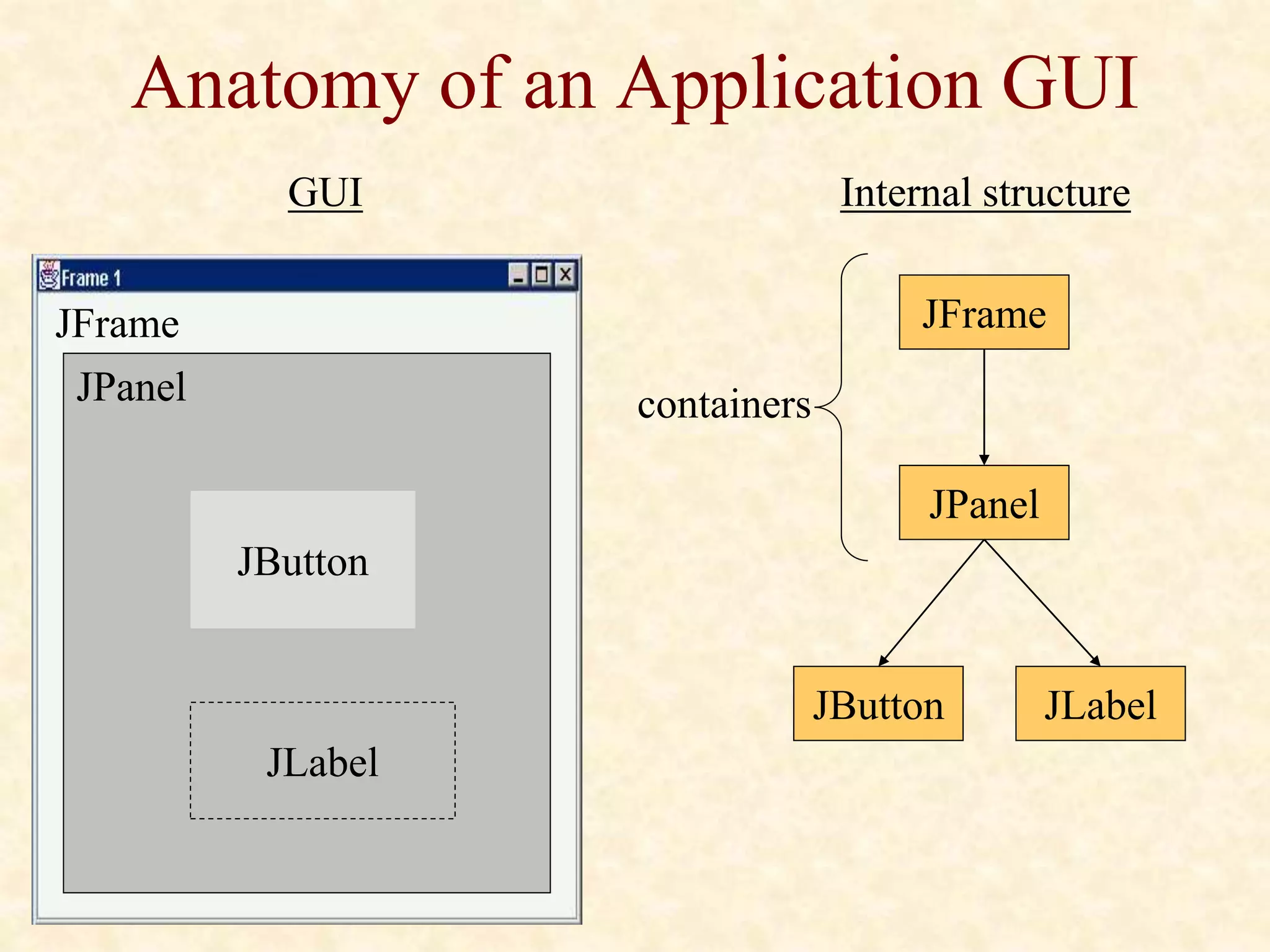
Anatomy of an Application GUI
JPanel
JButton
JFrame
JLabel
GUI Internal structure
JFrame
JPanel
JButton JLabel
containers
Using a GUI Component 2
1. Create it
2. Configure it
3. Add children (if container)
4. Add to parent (if not JFrame)
5. Listen to it
order
important
Build from bottom up
• Create:
• Frame
• Panel
• Components
• Listeners
• Add: (bottom up)
• listeners into components
• components into panel
• panel into frame
JPanel
JButton
Listener
JFrame
JLabel
Code
JFrame f = new JFrame(“title”);
JPanel p = new JPanel( );
JButton b = new JButton(“press me”);
p.add(b); // add button to panel
f.setContentPane(p); // add panel to frame
f.show();
press me
Application Code
import javax.swing.*;
class hello {
public static void main(String[] args){
JFrame f = new JFrame(“title”);
JPanel p = new JPanel();
JButton b = new JButton(“press me”);
p.add(b); // add button to panel
f.setContentPane(p); // add panel to frame
f.show();
}
}
press me
Layout Managers
• Automatically control placement of components
in a panel
• Why?
•
Layout Manager Heuristics
Left to right,
Top to bottom
c
n
s
e
w
FlowLayout GridLayout
BorderLayout
none,
programmer
sets x,y,w,h
null
One at a time
CardLayout GridBagLayout
JButton
Combinations
JButton JButton
JTextArea
Combinations
n
JPanel: BorderLayout
c
JFrame
JPanel: FlowLayout
JButton
JButton
JTextArea
Code: null layout
JFrame f = new JFrame(“title”);
JPanel p = new JPanel( );
JButton b = new JButton(“press me”);
b.setBounds(new Rectangle(10,10, 100,50));
p.setLayout(null); // x,y layout
p.add(b);
f.setContentPane(p);
press me
Code: FlowLayout
JFrame f = new JFrame(“title”);
JPanel p = new JPanel( );
FlowLayout L = new FlowLayout( );
JButton b1 = new JButton(“press me”);
JButton b2 = new JButton(“then me”);
p.setLayout(L);
p.add(b1);
p.add(b2);
f.setContentPane(p);
Set layout mgr before adding components
press me then me
Understanding what Swing Is
• Swing is a package that lets you create
applications that use a flashy Graphical User
Interface (or GUI) instead of a dull console
interface.
• The Swing API provides many different classes
for creating various types of user interface
elements.
Understanding what Swing Is
(Cont’d)
• Three classes: JFrame, JPanel, and JLabel.
These classes are part of a larger collection of
classes that are all related through inheritance.
• The Swing family tree splits at the Component
class into one group of classes that are derived
from the JComponent class, and another branch
that descends from the Window class.
The Swing Class Hierarchy
Description of Classes
• Object: All classes ultimately derive from Object, thus this class
is at the top of the tree.
• Component: represents an object that has a visual representation
that can be shown on-screen and that can interact with users.
This class defines some basic methods that are available to all
Swing classes.
Description of Classes (Cont’d)
• Container: builds on the basic visual capabilities of the
Component class by adding the ability to hold other containers.
• Window: a specialized type of container object that has a border,
a title bar, buttons that minimize, maximize, and close the
window, and that can be repositioned and possibly even resized
by the user.
Description of Classes (Cont’d)
• Frame: a type of Window that serves as the basis for Java GUI
applications. Frame is an AWT class that has been improved
upon by the JFrame class.
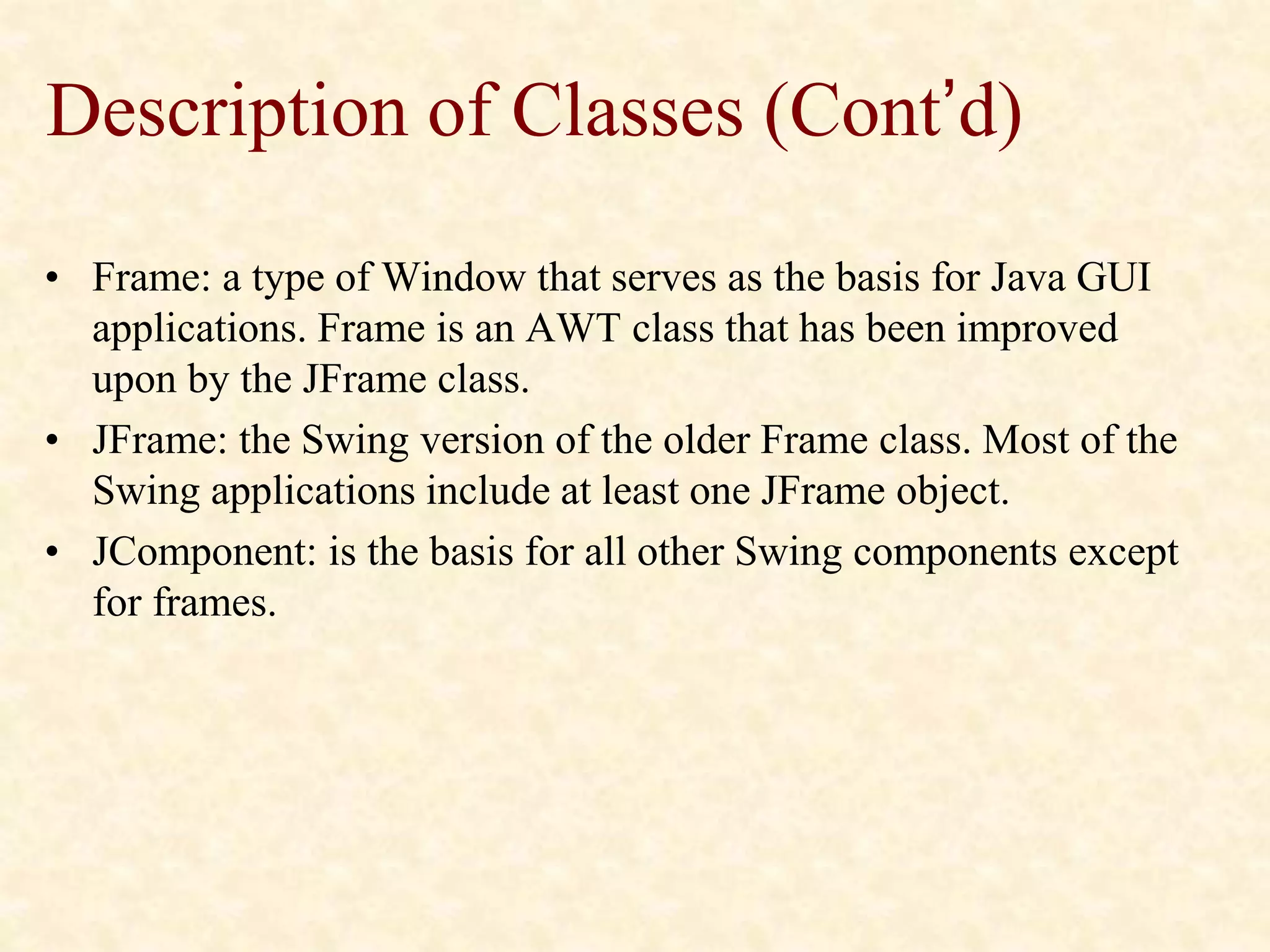
• JFrame: the Swing version of the older Frame class. Most of the
Swing applications include at least one JFrame object.
• JComponent: is the basis for all other Swing components except
for frames.
Description of Classes (Cont’d)
• JPanel: used to organize and control the layout
of other components such as labels, buttons, text
fields, etc. In most Swing applications, one or
more panels are added to a frame. Then, when
the frame is displayed, the components that
were added to its panels are made visible.
• JLabel: creates a label that displays a simple text
value.
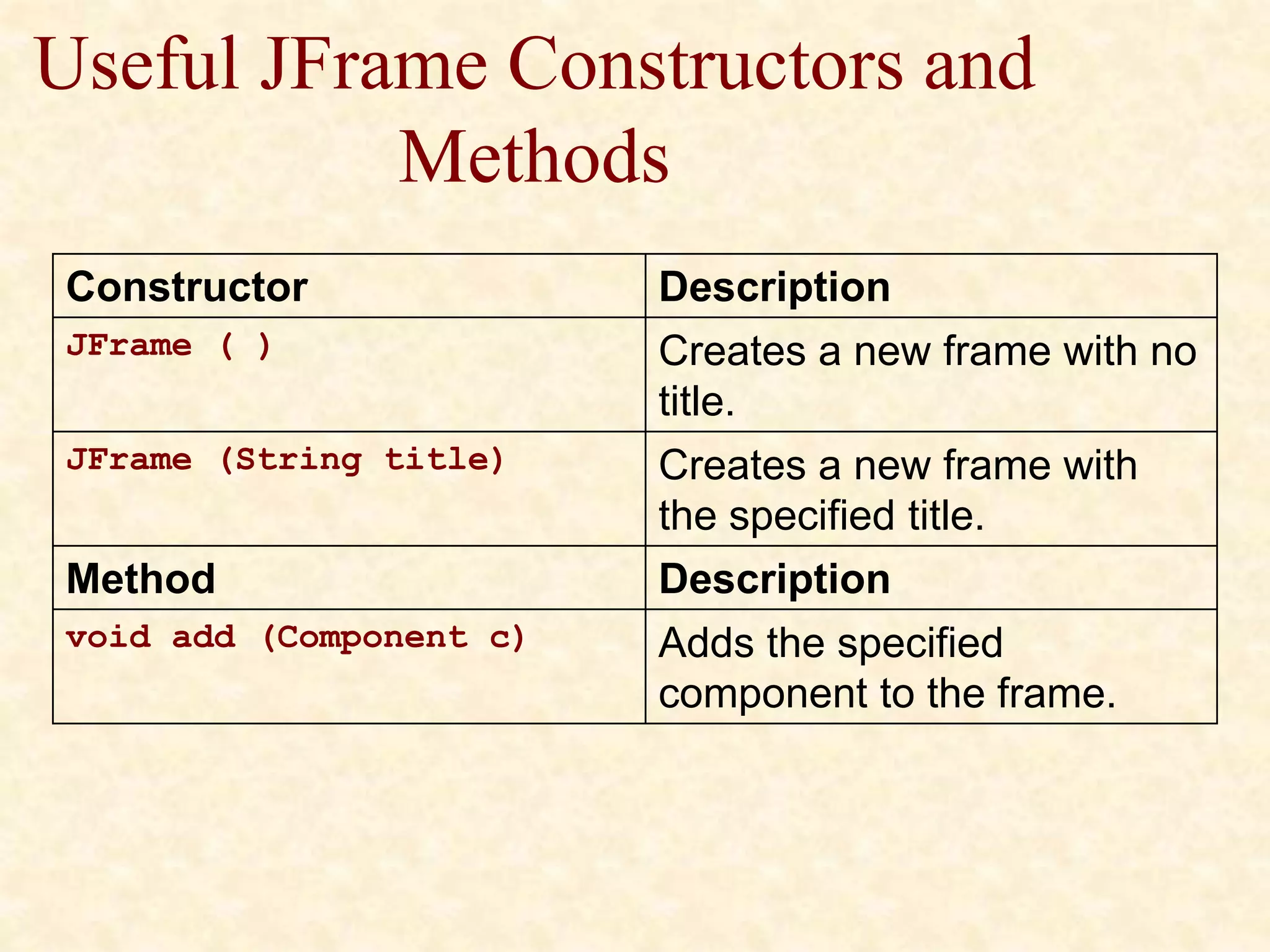
Useful JFrame Constructors and
Methods
Constructor Description
JFrame ( ) Creates a new frame with no
title.
JFrame (String title) Creates a new frame with
the specified title.
Method Description
void add (Component c) Adds the specified
component to the frame.
Useful JFrame Constructors and
Methods (Cont’d)
Method Description
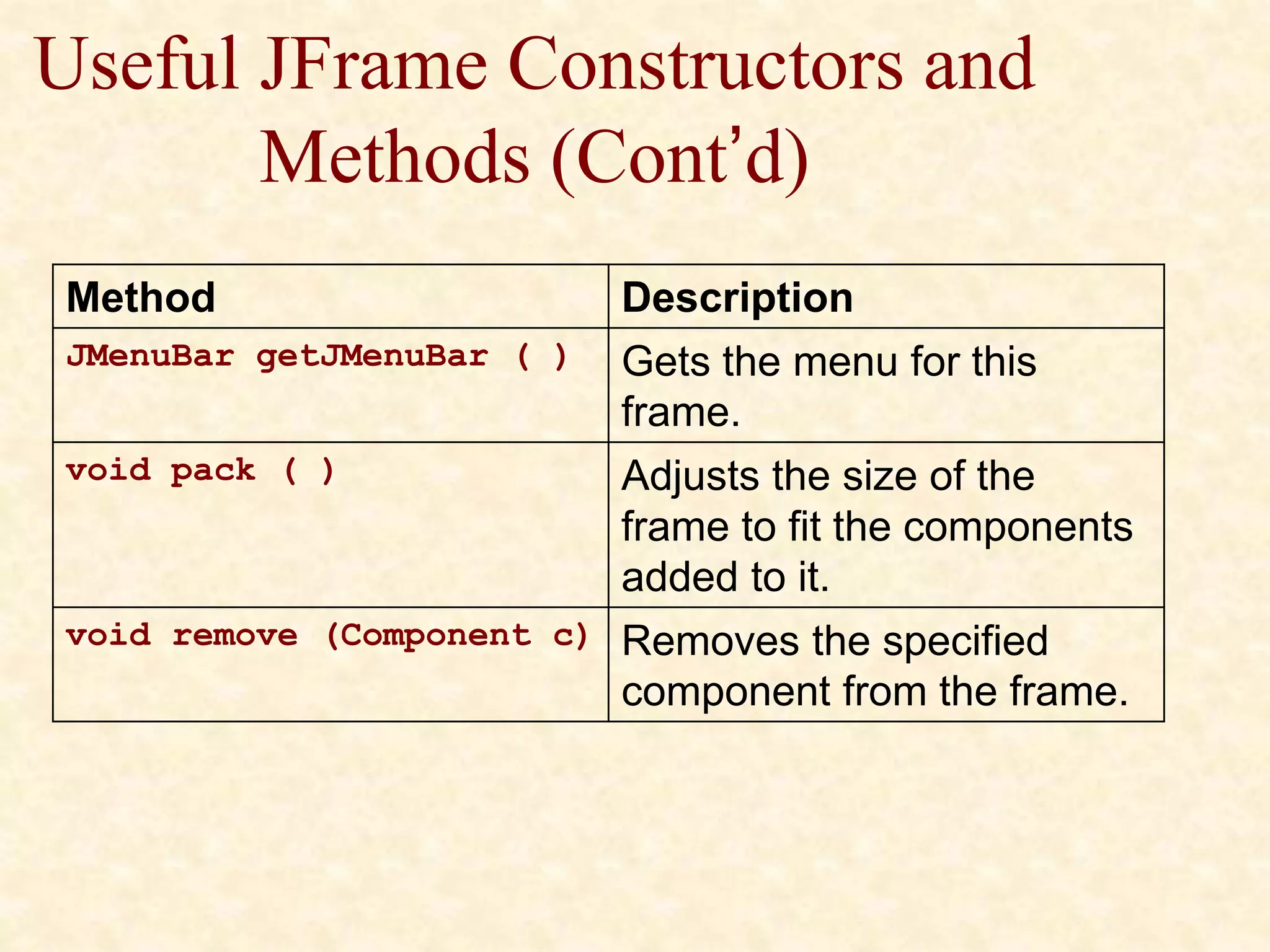
JMenuBar getJMenuBar ( ) Gets the menu for this
frame.
void pack ( ) Adjusts the size of the
frame to fit the components
added to it.
void remove (Component c) Removes the specified
component from the frame.
Useful JFrame Constructors and
Methods (Cont’d)
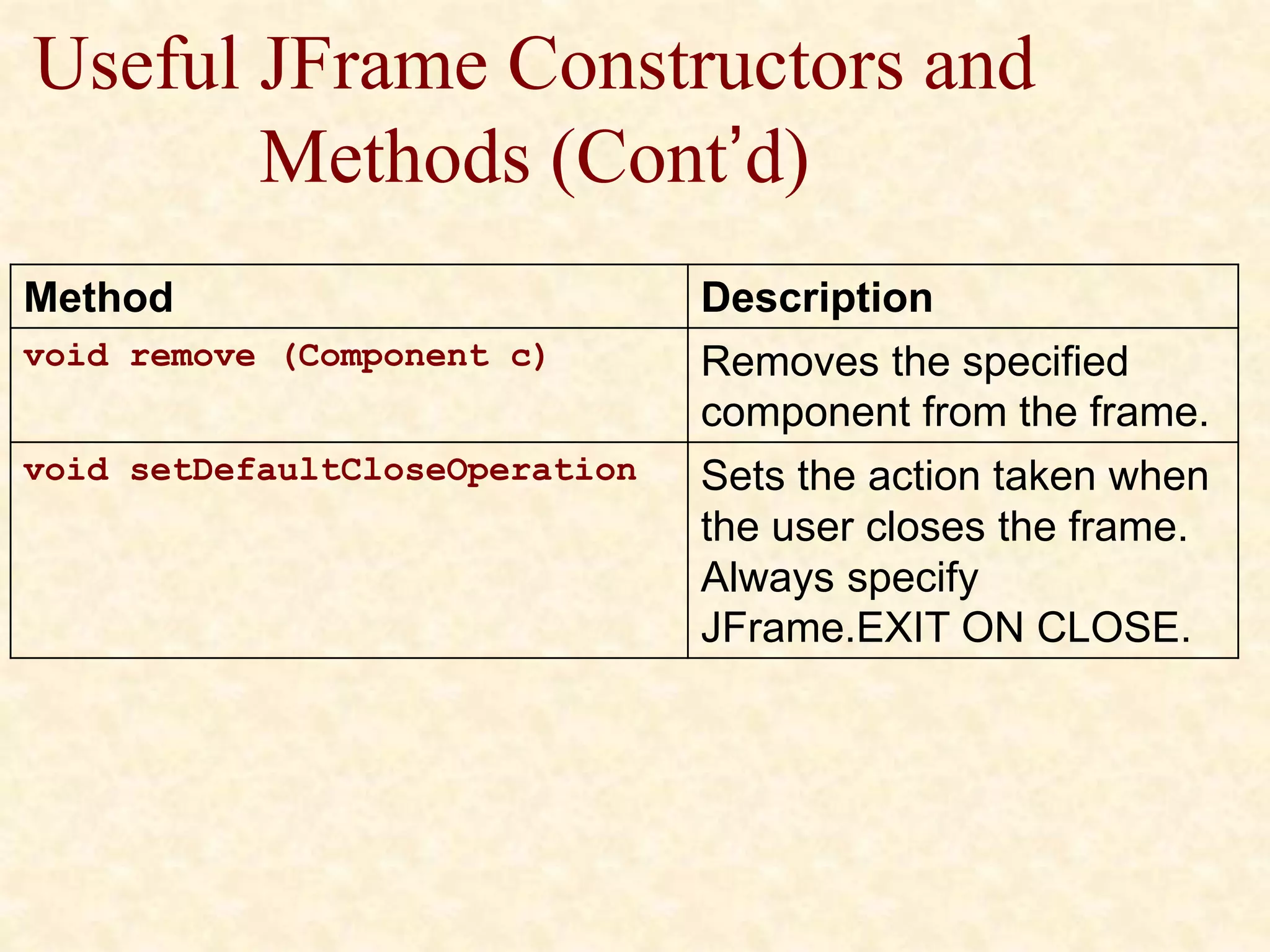
Method Description
void remove (Component c) Removes the specified
component from the frame.
void setDefaultCloseOperation Sets the action taken when
the user closes the frame.
Always specify
JFrame.EXIT ON CLOSE.
Useful JFrame Constructors and
Methods (Cont’d)
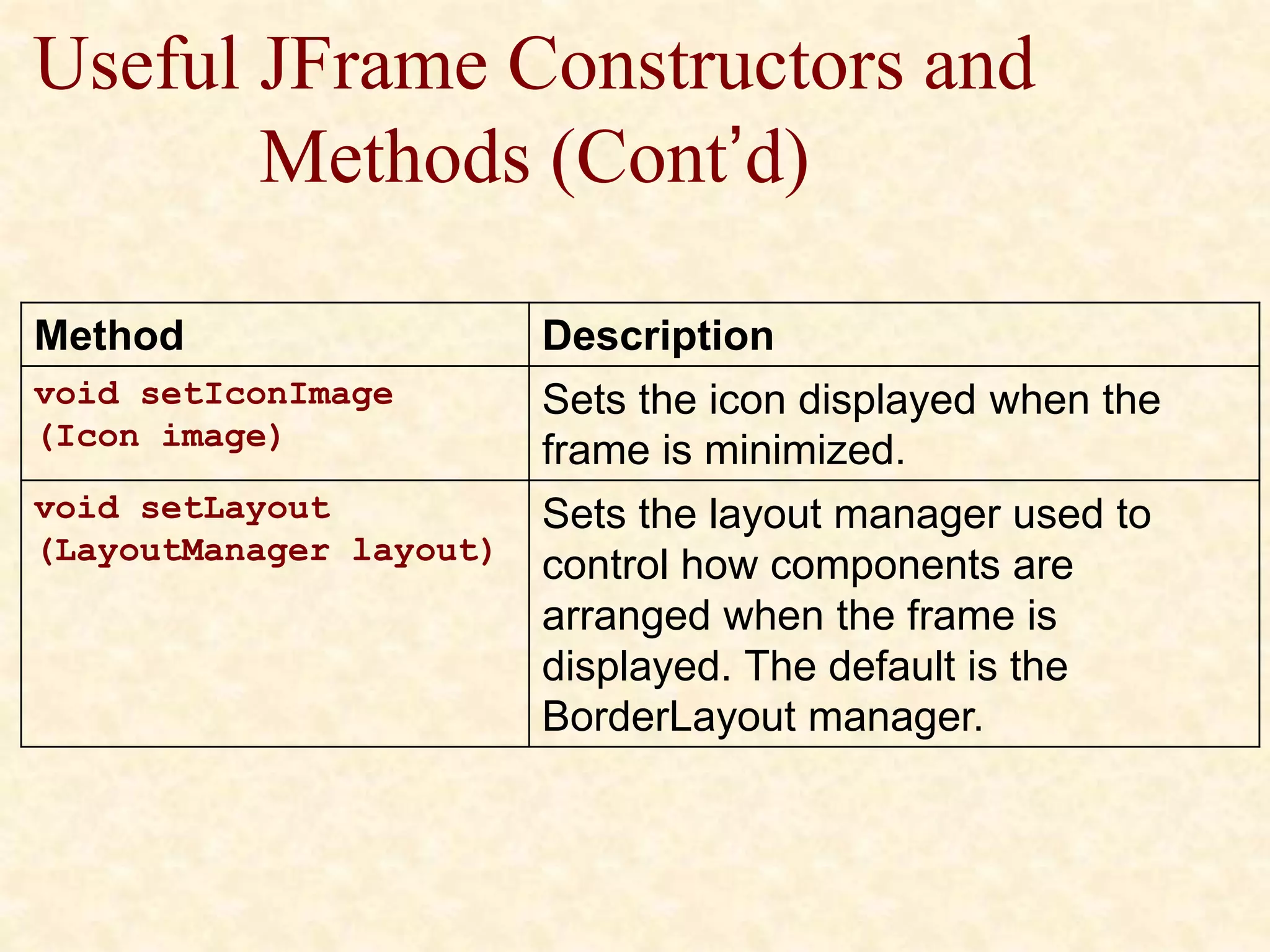
Method Description
void setIconImage
(Icon image)
Sets the icon displayed when the
frame is minimized.
void setLayout
(LayoutManager layout)
Sets the layout manager used to
control how components are
arranged when the frame is
displayed. The default is the
BorderLayout manager.
Useful JFrame Constructors and
Methods (Cont’d)
Method Description
void setLocation
(int x, int y)
Sets the x and y position of
the frame on-screen. The
top-left corner of the screen
is 0, 0.
void setLocationRelativeTo
(Component c)
Centers the frame on-screen
if the parameter is null.
Useful JFrame Constructors and
Methods (Cont’d)
Method Description
void setResizeable
(boolean value)
Sets whether or not the size of
the frame can be changed by the
user. The default setting is true
(the frame can be resized).
Useful JFrame Constructors and
Methods (Cont’d)
Method Description
void setSize (int width, int
height)
Sets the size of the frame to
the specified width and
height.
void
setJMenuBar(JMenuBarMenu)
Sets the menu for this
frame.
Using the JPanel Class
• A panel is a type of container that's designed to hold a group of
components so they can be displayed on a frame. The normal way to
display a group of controls such as text fields, labels, buttons, and
other GUI widgets is to add those controls to a panel, and then add
the panel to the frame.
• You can bypass the panel and add the controls directly to the frame
if you want, but using a separate panel to hold the frames control is
almost always a good idea.
Useful JPanel Constructors and
Methods
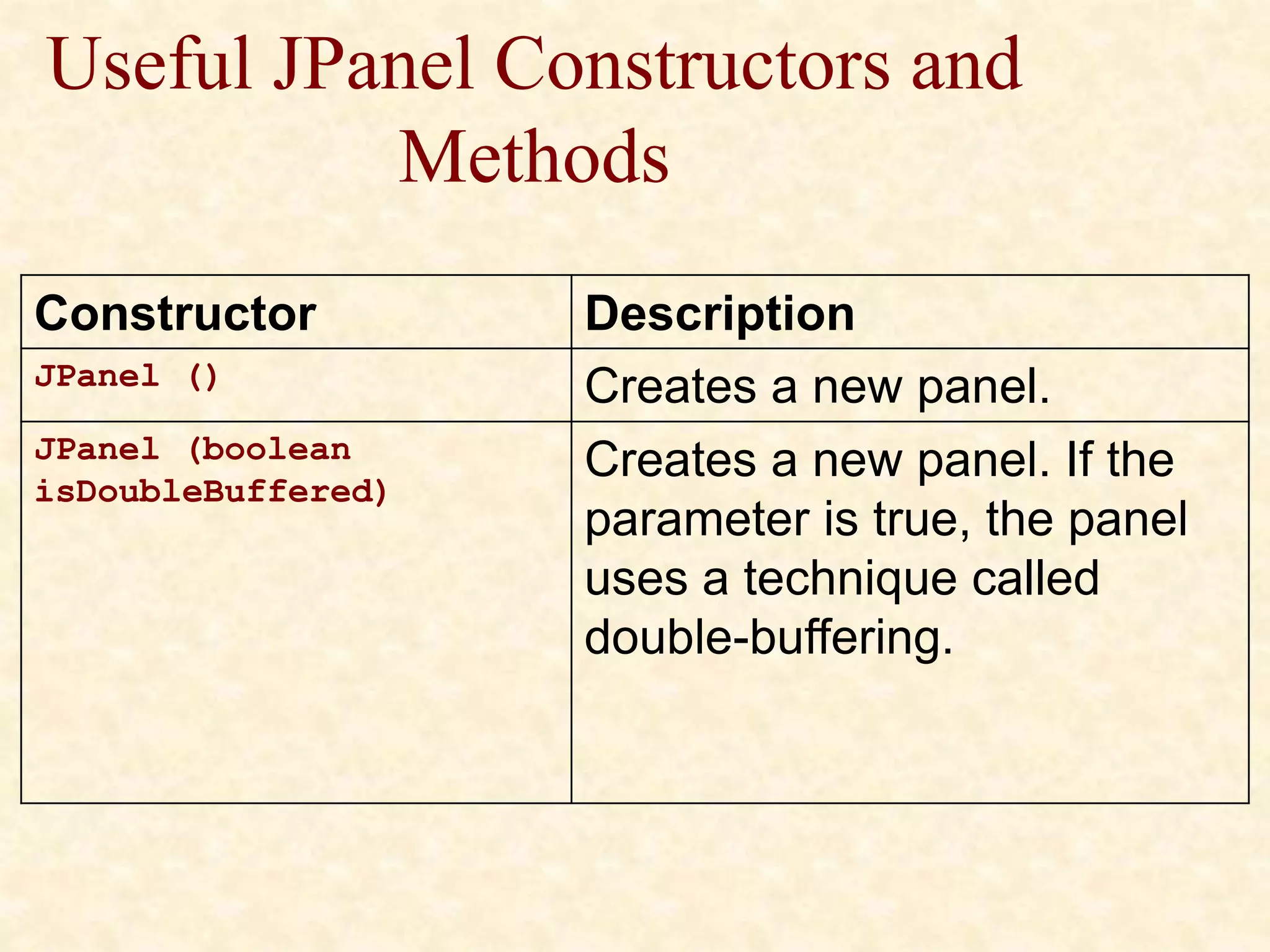
Constructor Description
JPanel () Creates a new panel.
JPanel (boolean
isDoubleBuffered)
Creates a new panel. If the
parameter is true, the panel
uses a technique called
double-buffering.
Useful JPanel Constructors and
Methods (Cont’d)
Constructor Description
JPanel (LayoutManager
layout)
Creates a new panel with
the specified layout
manager. The default
layout manager is
FIowLayout.
Useful JPanel Constructors and
Methods (Cont’d)
Method Description
void add (Component c) Adds the specified
component to the panel.
void remove (Component c) Removes the specified
component from the
panel.
Useful JPanel Constructors and
Methods (Cont’d)
Method Description
void setLayout
(LayoutManager
layout)
Sets the layout manager used to
control how components are
arranged when the panel is
displayed. The default is the
FIowLayout manager.
Useful JPanel Constructors and
Methods (Cont’d)
Method Description
void setLocation (int x,
int y)
Sets the x and y position of
the frame-screen. The top-
left corner of the screen is 0,
0.
Useful JPanel Constructors and
Methods (Cont’d)
Method Description
void setSize (int width,
int height)
Sets the size of the frame to the
specified width and height.
void setToolTipText
(String text)
Sets the tooltip text that's
displayed if the user rests the
mouse over an empty part of the
panel.
Using Labels
• A label is a component that simply displays text.
Labels are used for a variety of purposes: to
display captions for other controls such as text
fields or combo boxes, to display informational
messages, or to show the results of a calculation
or a database lookup.
Using Labels
• A label can also display an image, or it can
display both an image and some text. And you
have complete control over the appearance of the
text.
• You can specify the font, size, whether the text
is bold, italic, or underlined, what color the text
is displayed as, and so on.
Useful JLabels Constructors and
Methods
Constructor Description
JLabel ( ) Creates a new label with no
initial text.
Method Description
String getText ( ) Returns the text displayed by the
label.
void setText (String
text)
Sets the text displayed by the
label.
Useful JLabels Constructors and
Methods (Cont’d)
Method Description
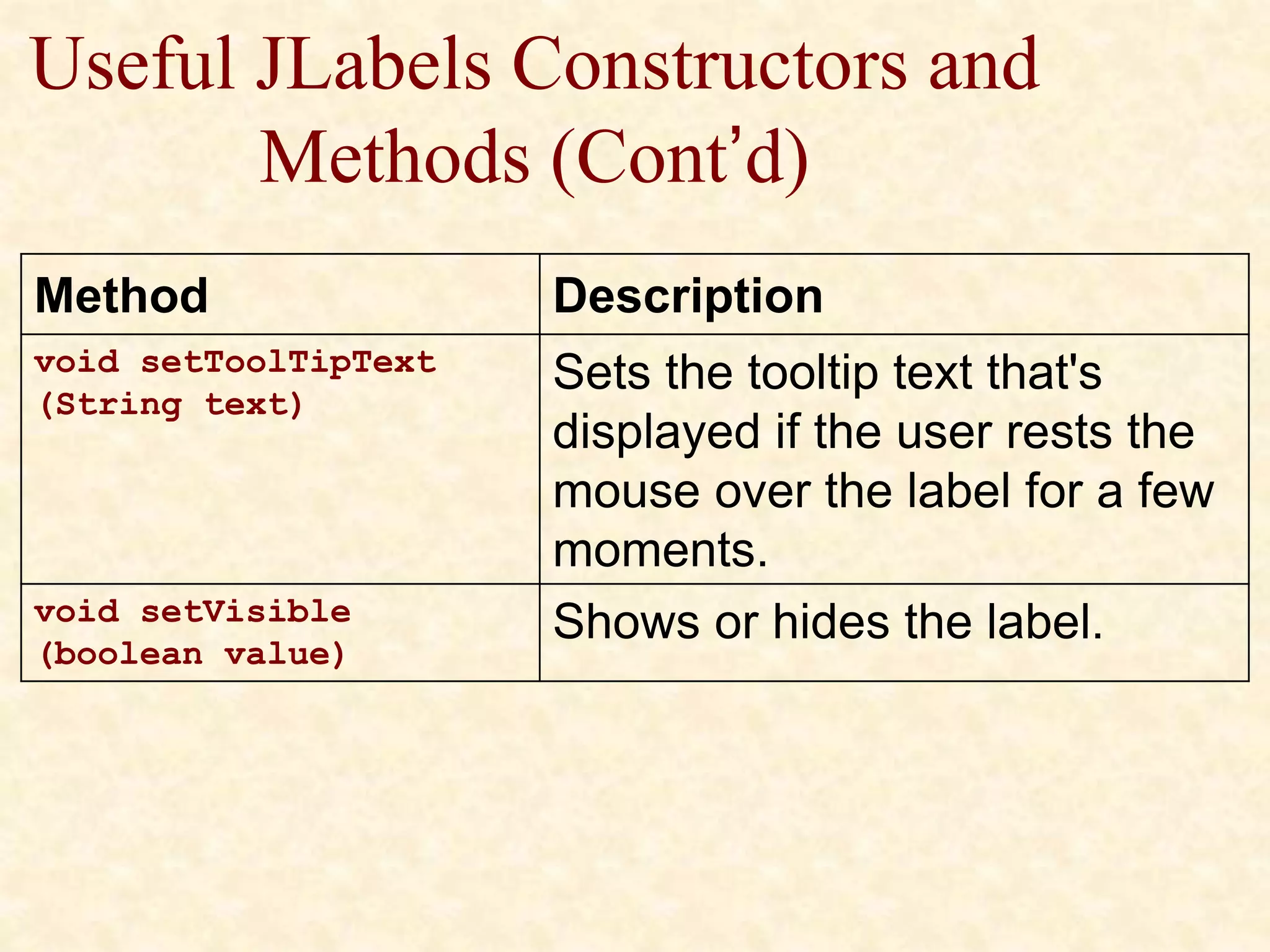
void setToolTipText
(String text)
Sets the tooltip text that's
displayed if the user rests the
mouse over the label for a few
moments.
void setVisible
(boolean value)
Shows or hides the label.
Creating Buttons
• Next to labels, the Swing component used most
is the JButton component which creates a button
the user can click.
• The constructors of the JButton class are similar
to the constructors for the JLabel class. You can
either create an empty button or a button with
text.
Useful JPanels Constructors and
Methods
Constructor Description
JButton ( ) Creates a new button
with no initial text.
JButton (String text) Creates a new button
with the specified text.
Useful JPanels Constructors and
Methods (Cont’d)
Method Description
doClick ( ) Triggers an action event for
the button as if the user
clicked it.
String getText () Returns the text displayed by
the button.
Useful JPanels Constructors and
Methods (Cont’d)
Method Description
void setBorderPainted
(boolean value)
Shows or hides the button's
border. The default setting is true
(the border is shown).
void setContentAreaFilled
(boolean value)
Specifies whether or not the
button's background should be
filled or left empty. The default
setting is true (the background is
filled in).
Useful JPanels Constructors and
Methods (Cont’d)
Method Description
void
setContentAreaFilled
(boolean value)
Specifies whether or not the
button's background should be
filled or left empty. The default
setting is true (the background is
filled in).
void setEnabled (boolean
value)
Enables or disables the button. The
default setting is true (enabled).
Useful JPanels Constructors and
Methods (Cont’d)
Method Description
void
setRolloverEnabled
(boolean value)
Enables or disables the rollover
effect, which causes the border
to get thicker when the mouse
moves over the button. The
default setting is true (rollover
effect enabled).
Useful JPanels Constructors and
Methods (Cont’d)
Method Description
void setText (String
text)
Sets the text displayed by the
button.
void setToolTipText
(String text)
Sets the tooltip text that's displayed
if the user lets the mouse rest over
the button.
void setVisible
(boolean value)
Shows or hides the button. The
default setting is true (the button is
visible).
A Word on the Layout of
Components
• The layout of components on a panel (or frame)
is controlled by a layout manager, which
determines the final placement of each
component.
• The layout manager takes the size of the
component, the size of the panel, and the
position of other nearby components into
account when it makes its decisions.
A Word on the Layout of
Components (Cont’d)
• Swing provides seven different layout managers to
choose from. Each has its own way of deciding where
each component goes.
• The default layout manager for panels is called
FlowLayout. It places components one after another in a
row, and starts a new row only when it gets to the end of
the panel (or the frame that contains it).
A Word on the Layout of
Components (Cont’d)
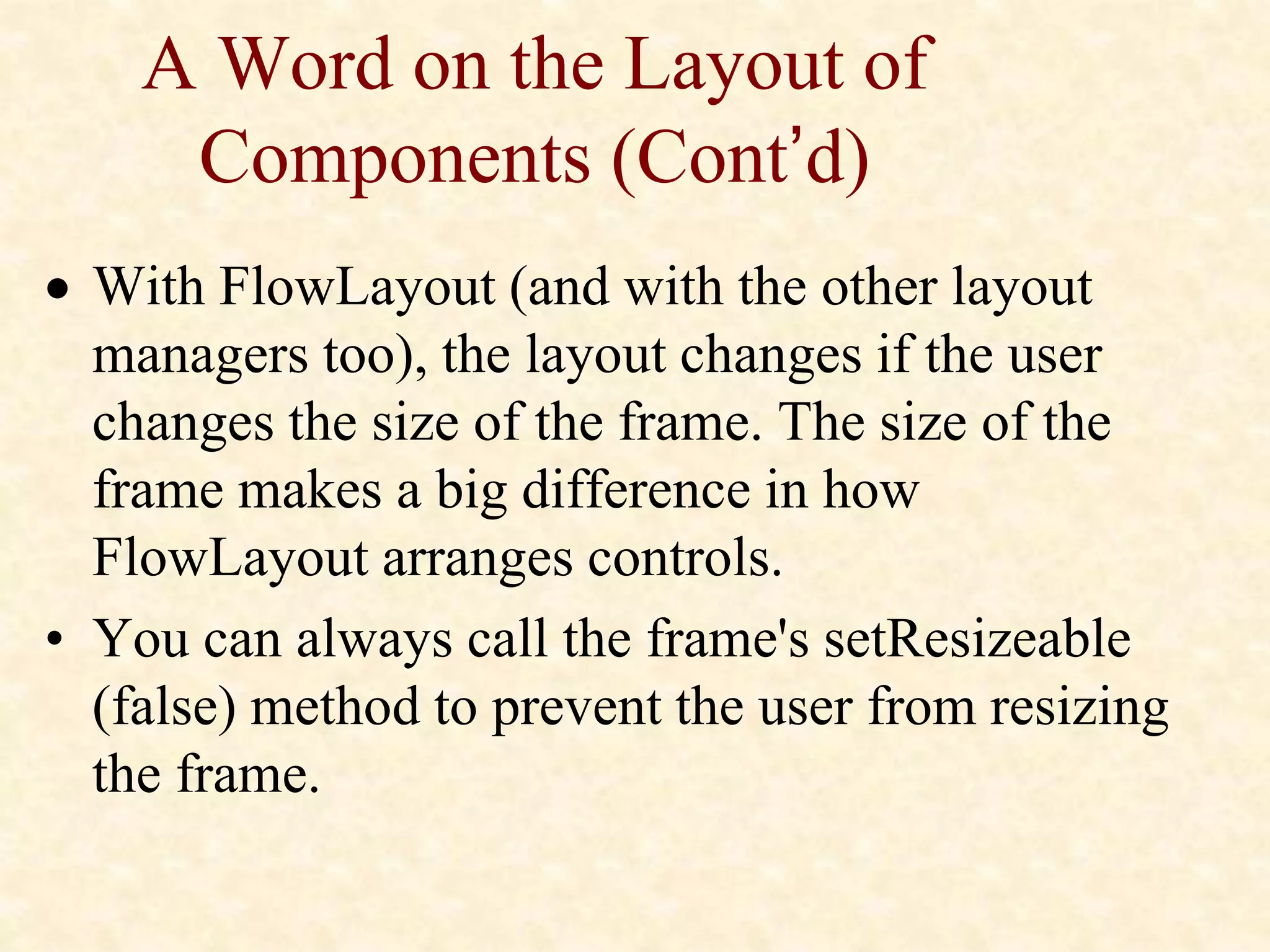
 With FlowLayout (and with the other layout
managers too), the layout changes if the user
changes the size of the frame. The size of the
frame makes a big difference in how
FlowLayout arranges controls.
• You can always call the frame's setResizeable
(false) method to prevent the user from resizing
the frame.
A Word on the Layout of
Components (Cont’d)
• For many (if not most) Swing applications, one
can use more than one panel to display the
components with each panel having a different
layout manager. With this technique, one can
create complex layouts with lots of components
arranged in any way wanted.
A Word on the Layout of
Components (Cont’d)
• If needed, one can always turn off the layout
manager altogether. To do that, call the panel's
setLayout method with null set as the parameter.
Then, use absolute positioning, which allows
setting the x and y position and the size of each
component by calling its setBounds method.

13457272.ppt

  • 1.
  • 2.
    AWT to Swing •AWT: Abstract Windowing Toolkit • import java.awt.* • Swing: new with Java2 • import javax.swing.* • Extends AWT • Tons o’ new improved components • Standard dialog boxes, tooltips, … • Look-and-feel, skins • Event listeners • API: • http://java.sun.com/j2se/1.3/docs/api/index.html
  • 3.
    Swing Set Demo J2sdk/demo/jfc/SwingSet2 •Many predefined GUI components
  • 4.
    GUI Component API •Java: GUI component = class • Properties • • Methods • • Events • JButton
  • 5.
    Using a GUIComponent 1. Create it • Instantiate object: b = new JButton(“press me”); 2. Configure it • Properties: b.text = “press me”; [avoided in java] • Methods: b.setText(“press me”); 3. Add it • panel.add(b); 4. Listen to it • Events: Listeners JButton
  • 6.
    Anatomy of anApplication GUI JPanel JButton JFrame JLabel GUI Internal structure JFrame JPanel JButton JLabel containers
  • 7.
    Using a GUIComponent 2 1. Create it 2. Configure it 3. Add children (if container) 4. Add to parent (if not JFrame) 5. Listen to it order important
  • 8.
    Build from bottomup • Create: • Frame • Panel • Components • Listeners • Add: (bottom up) • listeners into components • components into panel • panel into frame JPanel JButton Listener JFrame JLabel
  • 9.
    Code JFrame f =new JFrame(“title”); JPanel p = new JPanel( ); JButton b = new JButton(“press me”); p.add(b); // add button to panel f.setContentPane(p); // add panel to frame f.show(); press me
  • 10.
    Application Code import javax.swing.*; classhello { public static void main(String[] args){ JFrame f = new JFrame(“title”); JPanel p = new JPanel(); JButton b = new JButton(“press me”); p.add(b); // add button to panel f.setContentPane(p); // add panel to frame f.show(); } } press me
  • 11.
    Layout Managers • Automaticallycontrol placement of components in a panel • Why? •
  • 12.
    Layout Manager Heuristics Leftto right, Top to bottom c n s e w FlowLayout GridLayout BorderLayout none, programmer sets x,y,w,h null One at a time CardLayout GridBagLayout JButton
  • 13.
  • 14.
  • 15.
    Code: null layout JFramef = new JFrame(“title”); JPanel p = new JPanel( ); JButton b = new JButton(“press me”); b.setBounds(new Rectangle(10,10, 100,50)); p.setLayout(null); // x,y layout p.add(b); f.setContentPane(p); press me
  • 16.
    Code: FlowLayout JFrame f= new JFrame(“title”); JPanel p = new JPanel( ); FlowLayout L = new FlowLayout( ); JButton b1 = new JButton(“press me”); JButton b2 = new JButton(“then me”); p.setLayout(L); p.add(b1); p.add(b2); f.setContentPane(p); Set layout mgr before adding components press me then me
  • 17.
    Understanding what SwingIs • Swing is a package that lets you create applications that use a flashy Graphical User Interface (or GUI) instead of a dull console interface. • The Swing API provides many different classes for creating various types of user interface elements.
  • 18.
    Understanding what SwingIs (Cont’d) • Three classes: JFrame, JPanel, and JLabel. These classes are part of a larger collection of classes that are all related through inheritance. • The Swing family tree splits at the Component class into one group of classes that are derived from the JComponent class, and another branch that descends from the Window class.
  • 19.
    The Swing ClassHierarchy
  • 20.
    Description of Classes •Object: All classes ultimately derive from Object, thus this class is at the top of the tree. • Component: represents an object that has a visual representation that can be shown on-screen and that can interact with users. This class defines some basic methods that are available to all Swing classes.
  • 21.
    Description of Classes(Cont’d) • Container: builds on the basic visual capabilities of the Component class by adding the ability to hold other containers. • Window: a specialized type of container object that has a border, a title bar, buttons that minimize, maximize, and close the window, and that can be repositioned and possibly even resized by the user.
  • 22.
    Description of Classes(Cont’d) • Frame: a type of Window that serves as the basis for Java GUI applications. Frame is an AWT class that has been improved upon by the JFrame class. • JFrame: the Swing version of the older Frame class. Most of the Swing applications include at least one JFrame object. • JComponent: is the basis for all other Swing components except for frames.
  • 23.
    Description of Classes(Cont’d) • JPanel: used to organize and control the layout of other components such as labels, buttons, text fields, etc. In most Swing applications, one or more panels are added to a frame. Then, when the frame is displayed, the components that were added to its panels are made visible. • JLabel: creates a label that displays a simple text value.
  • 24.
    Useful JFrame Constructorsand Methods Constructor Description JFrame ( ) Creates a new frame with no title. JFrame (String title) Creates a new frame with the specified title. Method Description void add (Component c) Adds the specified component to the frame.
  • 25.
    Useful JFrame Constructorsand Methods (Cont’d) Method Description JMenuBar getJMenuBar ( ) Gets the menu for this frame. void pack ( ) Adjusts the size of the frame to fit the components added to it. void remove (Component c) Removes the specified component from the frame.
  • 26.
    Useful JFrame Constructorsand Methods (Cont’d) Method Description void remove (Component c) Removes the specified component from the frame. void setDefaultCloseOperation Sets the action taken when the user closes the frame. Always specify JFrame.EXIT ON CLOSE.
  • 27.
    Useful JFrame Constructorsand Methods (Cont’d) Method Description void setIconImage (Icon image) Sets the icon displayed when the frame is minimized. void setLayout (LayoutManager layout) Sets the layout manager used to control how components are arranged when the frame is displayed. The default is the BorderLayout manager.
  • 28.
    Useful JFrame Constructorsand Methods (Cont’d) Method Description void setLocation (int x, int y) Sets the x and y position of the frame on-screen. The top-left corner of the screen is 0, 0. void setLocationRelativeTo (Component c) Centers the frame on-screen if the parameter is null.
  • 29.
    Useful JFrame Constructorsand Methods (Cont’d) Method Description void setResizeable (boolean value) Sets whether or not the size of the frame can be changed by the user. The default setting is true (the frame can be resized).
  • 30.
    Useful JFrame Constructorsand Methods (Cont’d) Method Description void setSize (int width, int height) Sets the size of the frame to the specified width and height. void setJMenuBar(JMenuBarMenu) Sets the menu for this frame.
  • 31.
    Using the JPanelClass • A panel is a type of container that's designed to hold a group of components so they can be displayed on a frame. The normal way to display a group of controls such as text fields, labels, buttons, and other GUI widgets is to add those controls to a panel, and then add the panel to the frame. • You can bypass the panel and add the controls directly to the frame if you want, but using a separate panel to hold the frames control is almost always a good idea.
  • 32.
    Useful JPanel Constructorsand Methods Constructor Description JPanel () Creates a new panel. JPanel (boolean isDoubleBuffered) Creates a new panel. If the parameter is true, the panel uses a technique called double-buffering.
  • 33.
    Useful JPanel Constructorsand Methods (Cont’d) Constructor Description JPanel (LayoutManager layout) Creates a new panel with the specified layout manager. The default layout manager is FIowLayout.
  • 34.
    Useful JPanel Constructorsand Methods (Cont’d) Method Description void add (Component c) Adds the specified component to the panel. void remove (Component c) Removes the specified component from the panel.
  • 35.
    Useful JPanel Constructorsand Methods (Cont’d) Method Description void setLayout (LayoutManager layout) Sets the layout manager used to control how components are arranged when the panel is displayed. The default is the FIowLayout manager.
  • 36.
    Useful JPanel Constructorsand Methods (Cont’d) Method Description void setLocation (int x, int y) Sets the x and y position of the frame-screen. The top- left corner of the screen is 0, 0.
  • 37.
    Useful JPanel Constructorsand Methods (Cont’d) Method Description void setSize (int width, int height) Sets the size of the frame to the specified width and height. void setToolTipText (String text) Sets the tooltip text that's displayed if the user rests the mouse over an empty part of the panel.
  • 38.
    Using Labels • Alabel is a component that simply displays text. Labels are used for a variety of purposes: to display captions for other controls such as text fields or combo boxes, to display informational messages, or to show the results of a calculation or a database lookup.
  • 39.
    Using Labels • Alabel can also display an image, or it can display both an image and some text. And you have complete control over the appearance of the text. • You can specify the font, size, whether the text is bold, italic, or underlined, what color the text is displayed as, and so on.
  • 40.
    Useful JLabels Constructorsand Methods Constructor Description JLabel ( ) Creates a new label with no initial text. Method Description String getText ( ) Returns the text displayed by the label. void setText (String text) Sets the text displayed by the label.
  • 41.
    Useful JLabels Constructorsand Methods (Cont’d) Method Description void setToolTipText (String text) Sets the tooltip text that's displayed if the user rests the mouse over the label for a few moments. void setVisible (boolean value) Shows or hides the label.
  • 42.
    Creating Buttons • Nextto labels, the Swing component used most is the JButton component which creates a button the user can click. • The constructors of the JButton class are similar to the constructors for the JLabel class. You can either create an empty button or a button with text.
  • 43.
    Useful JPanels Constructorsand Methods Constructor Description JButton ( ) Creates a new button with no initial text. JButton (String text) Creates a new button with the specified text.
  • 44.
    Useful JPanels Constructorsand Methods (Cont’d) Method Description doClick ( ) Triggers an action event for the button as if the user clicked it. String getText () Returns the text displayed by the button.
  • 45.
    Useful JPanels Constructorsand Methods (Cont’d) Method Description void setBorderPainted (boolean value) Shows or hides the button's border. The default setting is true (the border is shown). void setContentAreaFilled (boolean value) Specifies whether or not the button's background should be filled or left empty. The default setting is true (the background is filled in).
  • 46.
    Useful JPanels Constructorsand Methods (Cont’d) Method Description void setContentAreaFilled (boolean value) Specifies whether or not the button's background should be filled or left empty. The default setting is true (the background is filled in). void setEnabled (boolean value) Enables or disables the button. The default setting is true (enabled).
  • 47.
    Useful JPanels Constructorsand Methods (Cont’d) Method Description void setRolloverEnabled (boolean value) Enables or disables the rollover effect, which causes the border to get thicker when the mouse moves over the button. The default setting is true (rollover effect enabled).
  • 48.
    Useful JPanels Constructorsand Methods (Cont’d) Method Description void setText (String text) Sets the text displayed by the button. void setToolTipText (String text) Sets the tooltip text that's displayed if the user lets the mouse rest over the button. void setVisible (boolean value) Shows or hides the button. The default setting is true (the button is visible).
  • 49.
    A Word onthe Layout of Components • The layout of components on a panel (or frame) is controlled by a layout manager, which determines the final placement of each component. • The layout manager takes the size of the component, the size of the panel, and the position of other nearby components into account when it makes its decisions.
  • 50.
    A Word onthe Layout of Components (Cont’d) • Swing provides seven different layout managers to choose from. Each has its own way of deciding where each component goes. • The default layout manager for panels is called FlowLayout. It places components one after another in a row, and starts a new row only when it gets to the end of the panel (or the frame that contains it).
  • 51.
    A Word onthe Layout of Components (Cont’d)  With FlowLayout (and with the other layout managers too), the layout changes if the user changes the size of the frame. The size of the frame makes a big difference in how FlowLayout arranges controls. • You can always call the frame's setResizeable (false) method to prevent the user from resizing the frame.
  • 52.
    A Word onthe Layout of Components (Cont’d) • For many (if not most) Swing applications, one can use more than one panel to display the components with each panel having a different layout manager. With this technique, one can create complex layouts with lots of components arranged in any way wanted.
  • 53.
    A Word onthe Layout of Components (Cont’d) • If needed, one can always turn off the layout manager altogether. To do that, call the panel's setLayout method with null set as the parameter. Then, use absolute positioning, which allows setting the x and y position and the size of each component by calling its setBounds method.