

Necto Training
Module 2: The Necto
Workboard
Objectives

  By the end of this lesson you will be able
  to:
    Describe the Workboard environment and
    components
    Navigate through the Workboard tree to
    locate the information you need
Necto Workboard Introduction
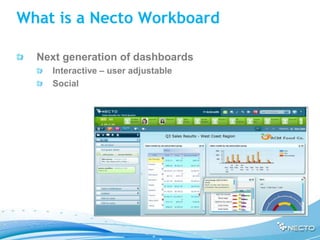
What is a Necto Workboard

  Next generation of dashboards
    Interactive – user adjustable
    Social
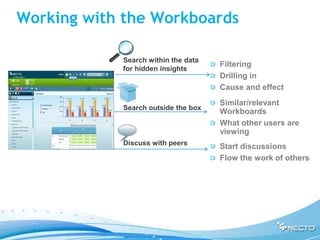
Working with the Workboards

            Search within the data
                                     Filtering
            for hidden insights
                                     Drilling in
                                     Cause and effect
                                     Similar/relevant
            Search outside the box
                                     Workboards
                                     What other users are
                                     viewing
            Discuss with peers
                                     Start discussions
                                     Flow the work of others
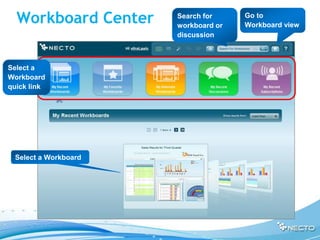
Workboard Center
Workboard Center    Search for
                      workboard or
                                     Go to
                                     Workboard view
                      discussion


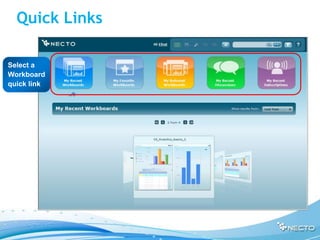
Select a
Workboard
quick link


 Select a Workboard
Quick Links

Select a
Workboard
quick link
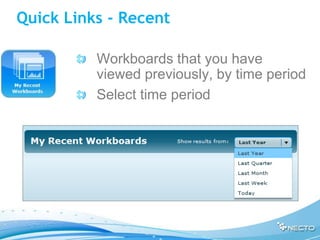
Quick Links - Recent

          Workboards that you have
          viewed previously, by time period
          Select time period
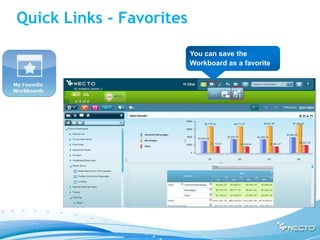
Quick Links - Favorites

                          You can save the
                          Workboard as a favorite
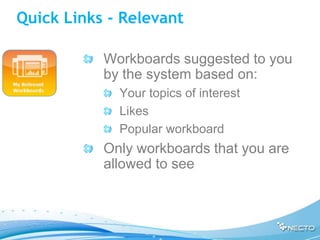
Quick Links - Relevant

           Workboards suggested to you
           by the system based on:
             Your topics of interest
             Likes
             Popular workboard
           Only workboards that you are
           allowed to see
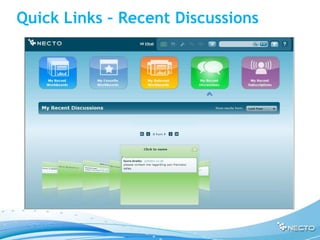
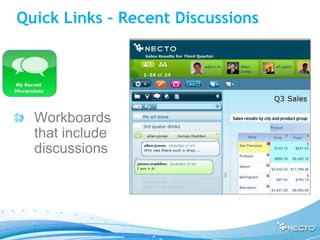
Quick Links – Recent Discussions


  Workboards
  that include
  discussions
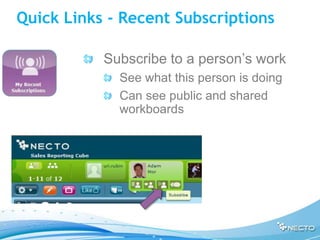
Quick Links - Recent Subscriptions

           Subscribe to a person’s work
             See what this person is doing
             Can see public and shared
             workboards
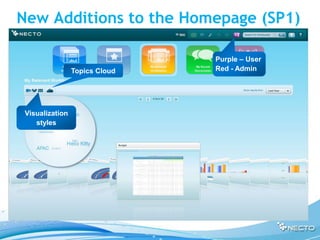
New Additions to the Homepage (SP1)

                                Purple – User
                 Topics Cloud   Red - Admin


 Visualization
    styles
Workboard Page Structure
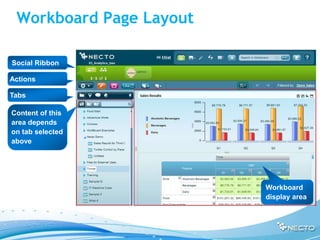
Workboard Page Layout

Social Ribbon

Actions

Tabs

Content of this
area depends
on tab selected
above


                         Workboard
                         display area
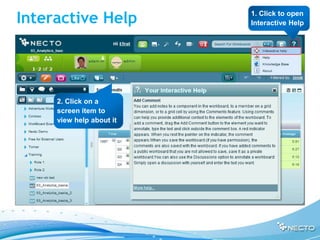
Interactive Help          1. Click to open
                          Interactive Help


     2. Click on a
     screen item to
     view help about it
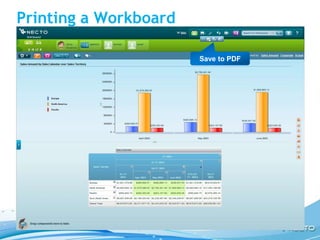
Printing a Workboard

                       Save to PDF
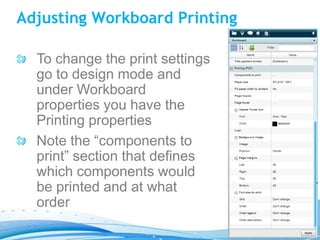
Adjusting Workboard Printing

  To change the print settings
  go to design mode and
  under Workboard
  properties you have the
  Printing properties
  Note the “components to
  print” section that defines
  which components would
  be printed and at what
  order
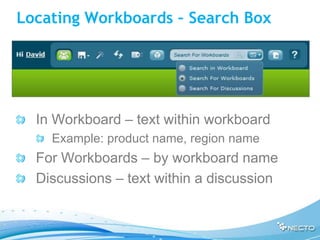
Locating Workboards – Search Box


  In Workboard – text within workboard
    Example: product name, region name
  For Workboards – by workboard name
  Discussions – text within a discussion
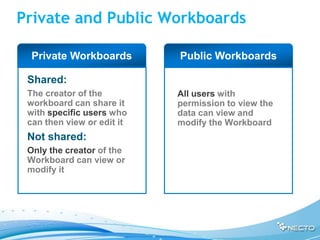
Private and Public Workboards

      Private Workboards            Public Workboards

•    Shared:
•    The creator of the         •   All users with
     workboard can share it         permission to view the
     with specific users who        data can view and
     can then view or edit it       modify the Workboard
•    Not shared:
•    Only the creator of the
     Workboard can view or
     modify it
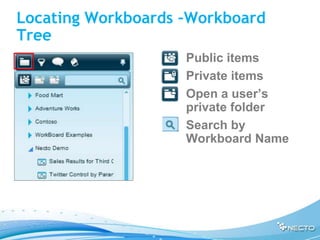
Locating Workboards –Workboard
Tree
                    Public items
                    Private items
                    Open a user’s
                    private folder
                    Search by
                    Workboard Name
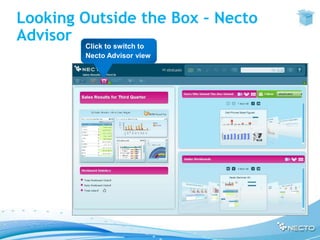
Looking Outside the Box – Necto
Advisor
        Click to switch to
        Necto Advisor view
Demonstration

  Log into the Necto application
  Go to Workboard view
  Locate a workboard on the workboard tree
  Go to the Necto Advisor
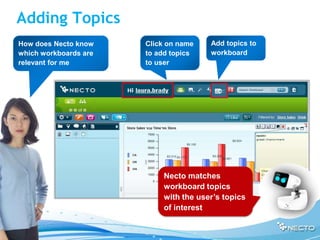
Adding Topics
How does Necto know    Click on name   Add topics to
which workboards are   to add topics   workboard
relevant for me        to user


                           Necto matches
                           workboard topics
                           with the user’s topics
                           of interest
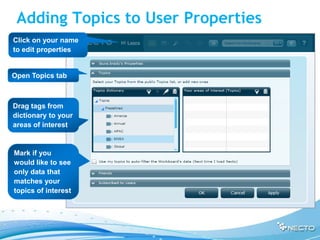
Adding Topics to User Properties
Click on your name
to edit properties


Open Topics tab


Drag tags from
dictionary to your
areas of interest


Mark if you
would like to see
only data that
matches your
topics of interest
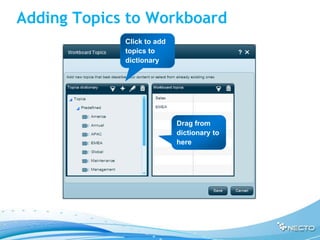
Adding Topics to Workboard
             Click to add
             topics to
             dictionary


                            Drag from
                            dictionary to
                            here
Exercise

  Log into the Necto application
  Go to Workboard view
  Locate a workboard on the workboard tree
  Add a tag to the workboard
  Go to Necto Advisor
  Go back to workboard center and
  examine the different categories
Thank you
Any Questions?

02 the necto_application_ready

  • 1.
    Necto Training Module 2:The Necto Workboard
  • 2.
    Objectives Bythe end of this lesson you will be able to: Describe the Workboard environment and components Navigate through the Workboard tree to locate the information you need
  • 3.
  • 4.
    What is aNecto Workboard Next generation of dashboards Interactive – user adjustable Social
  • 5.
    Working with theWorkboards Search within the data Filtering for hidden insights Drilling in Cause and effect Similar/relevant Search outside the box Workboards What other users are viewing Discuss with peers Start discussions Flow the work of others
  • 6.
  • 7.
    Workboard Center Search for workboard or Go to Workboard view discussion Select a Workboard quick link Select a Workboard
  • 8.
  • 9.
    Quick Links -Recent Workboards that you have viewed previously, by time period Select time period
  • 10.
    Quick Links -Favorites You can save the Workboard as a favorite
  • 11.
    Quick Links -Relevant Workboards suggested to you by the system based on: Your topics of interest Likes Popular workboard Only workboards that you are allowed to see
  • 12.
    Quick Links –Recent Discussions
  • 13.
    Quick Links –Recent Discussions Workboards that include discussions
  • 14.
    Quick Links -Recent Subscriptions Subscribe to a person’s work See what this person is doing Can see public and shared workboards
  • 15.
    New Additions tothe Homepage (SP1) Purple – User Topics Cloud Red - Admin Visualization styles
  • 16.
  • 17.
    Workboard Page Layout SocialRibbon Actions Tabs Content of this area depends on tab selected above Workboard display area
  • 18.
    Interactive Help 1. Click to open Interactive Help 2. Click on a screen item to view help about it
  • 19.
  • 20.
    Adjusting Workboard Printing To change the print settings go to design mode and under Workboard properties you have the Printing properties Note the “components to print” section that defines which components would be printed and at what order
  • 21.
    Locating Workboards –Search Box In Workboard – text within workboard Example: product name, region name For Workboards – by workboard name Discussions – text within a discussion
  • 22.
    Private and PublicWorkboards Private Workboards Public Workboards • Shared: • The creator of the • All users with workboard can share it permission to view the with specific users who data can view and can then view or edit it modify the Workboard • Not shared: • Only the creator of the Workboard can view or modify it
  • 23.
    Locating Workboards –Workboard Tree Public items Private items Open a user’s private folder Search by Workboard Name
  • 24.
    Looking Outside theBox – Necto Advisor Click to switch to Necto Advisor view
  • 25.
    Demonstration Loginto the Necto application Go to Workboard view Locate a workboard on the workboard tree Go to the Necto Advisor
  • 26.
    Adding Topics How doesNecto know Click on name Add topics to which workboards are to add topics workboard relevant for me to user Necto matches workboard topics with the user’s topics of interest
  • 27.
    Adding Topics toUser Properties Click on your name to edit properties Open Topics tab Drag tags from dictionary to your areas of interest Mark if you would like to see only data that matches your topics of interest
  • 28.
    Adding Topics toWorkboard Click to add topics to dictionary Drag from dictionary to here
  • 29.
    Exercise Loginto the Necto application Go to Workboard view Locate a workboard on the workboard tree Add a tag to the workboard Go to Necto Advisor Go back to workboard center and examine the different categories
  • 30.