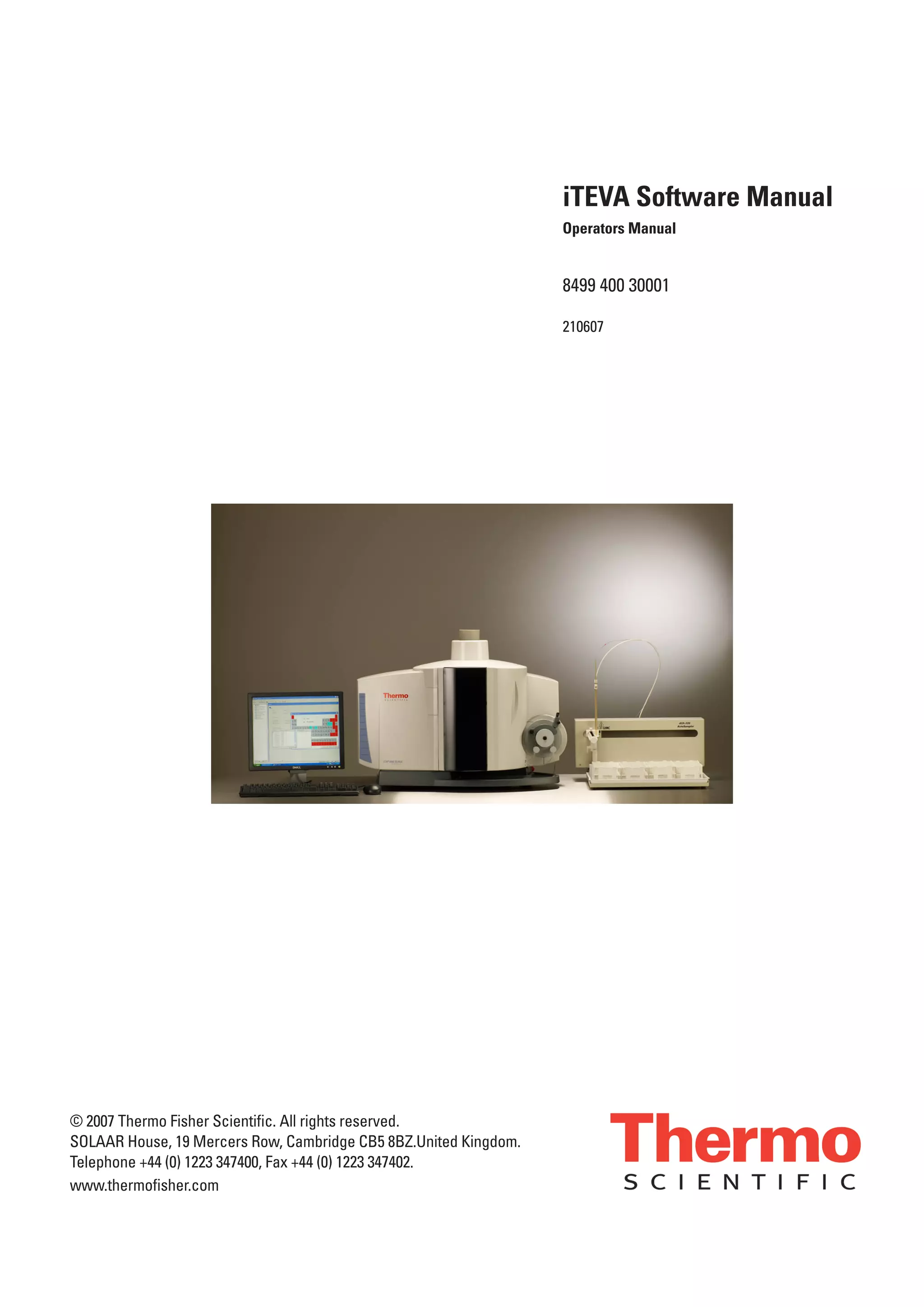
iTEVA Software Manual
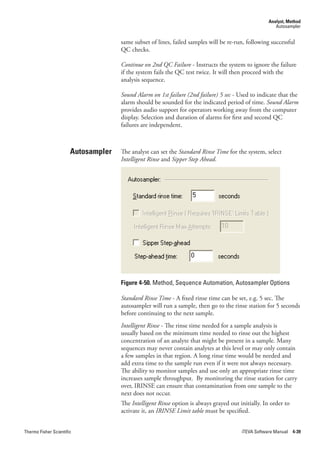
                                                                  Operators Manual


                                                                  8499 400 30001

                                                                  210607


© 2007 Thermo Fisher Scientific. All rights reserved.
SOLAAR House, 19 Mercers Row, Cambridge CB5 8BZ.United Kingdom.
Telephone +44 (0) 1223 347400, Fax +44 (0) 1223 347402.
www.thermofisher.com
This page is intentionally blank.


iTEVA Software Manual                                       Thermo Fisher Scientific
Contents
                           Chapter 1   Introduction .................................................................................................1-1
                                           iTEVA Security...................... ......................................................1-3
                                           Opening the Program ..................................................................1-5
                                       ITEVA Security Login ........................................................................1-5
                                           Conventions ................................................................................1-6


                           Chapter 2   iTEVA Control Center ................................................................................. 2-1
                                       iTEVA Control Center ......................................................................2-3
                                            The Menu Bar .............................................................................2-4
                                       File     ..............................................................................................2-4
                                            File, Log On ................................................................................2-4
                                            File, Log Off................................................................................2-4
                                            File, Print Journal ........................................................................2-5
                                            File, Journal Print Preview ...........................................................2-5
                                            File, Print Setup ..........................................................................2-5
                                            File, Page Setup ...........................................................................2-5
                                            File, Exit......................................................................................2-6
                                       View ..............................................................................................2-6
                                       Tools, Options ..................................................................................2-6
                                            Tools, Options, General ..............................................................2-7
                                            Tools, Options, Periodic Table .....................................................2-7
                                            Tools, Options, Journal ...............................................................2-8
                                            Tools, Options, Directories .......................................................2-10
                                            Tools, Options, Print Options ...................................................2-11
                                            Tools, Options, Analyst .............................................................2-11
                                            iTEVA.Security...................... ....................................................2-12
                                            Tools, Options, New Method Parameters ..................................2-12
                                            Tools/Options/Access Rights
                                                - only for iTEVA Security, not present for iTEVA.................2-13
                                            Tools, Options, Application Database .......................................2-16
                                       Database Wizard .............................................................................2-16
                                            Database Info ............................................................................2-18
                                            Create .......................................................................................2-18
                                            Backup ......................................................................................2-18
                                            Detach ......................................................................................2-18
                                            Attach .......................................................................................2-18
                                            Restore ......................................................................................2-19
                                            Users (only for iTEVA, not present for iTEVA Security) ............2-19
                                       iTEVA SQL Databases ....................................................................2-19
                                            iTEVA Security...................... ....................................................2-20
                                            Create New Database ................................................................2-21
                                            Add a New Connection .............................................................2-21
                                            Copy Methods/Results ..............................................................2-24

Thermo Fisher Scientific                                                                                           iTEVA Software Manual             iii
Contents


                                            Change Active Connection........................................................2-24
                                         Exporting/Importing/Deleting Databases ........................................2-24
                                            Deleting a Database ..................................................................2-24
                                            Editing/Deleting a Connection .................................................2-25
                                            Exporting/Importing a Database from/to another iCAP ...........2-25
                                            Database Upgrades ....................................................................2-25
                                         Tools, Instrument Options ..............................................................2-26
                                            Autosampler ..............................................................................2-26
                                            Sample Introduction .................................................................2-26
                                            Enable Drain Sensor..................................................................2-27
                                            Accessory...................................................................................2-27
                                         Help ............................................................................................2-27
                                            Help, Help Topics .....................................................................2-27
                                            Feature request / Incident form .................................................2-28
                                            Help, About iTEVA ..................................................................2-28
                                         The Tool Bar....................................................................................2-29
                                            The Workspace ..........................................................................2-29
                                            The Journal ...............................................................................2-30
                                            The Status Bar ...........................................................................2-31
                                            New Firmware dialog box..........................................................2-32


                             Chapter 3   Analyst ......................................................................................................... 3-1
                                         Analyst Window................................................................................3-3


                             Chapter 4   Analyst, Method ......................................................................................... 4-1
                                         Analyst, Method ................................................................................4-3
                                             Method Menu Bar.......................................................................4-3
                                             Method .......................................................................................4-3
                                         Create a new Method ........................................................................4-3
                                         Periodic Table, Map Editor ................................................................4-9
                                         Status ............................................................................................4-11
                                         Analysis Preferences .........................................................................4-12
                                             Sample Options ........................................................................4-13
                                             Source .......................................................................................4-13
                                             Analysis Maximum Integration Times .......................................4-14
                                         Calibration Mode ............................................................................4-15
                                         Trailing Fullframe Options ..............................................................4-17
                                         Automated Output..........................................................................4-18
                                             Automated Output, Unknowns.................................................4-19
                                             Automated Output, Standards ..................................................4-21
                                         Report Preferences ...........................................................................4-22
                                             Report Preferences, Unknowns ..................................................4-22
                                         Checks                                                                                                 4-26
                                             Check Type, QC .......................................................................4-29
                                             Check Type, Recovery ...............................................................4-31
                                             Check Type, Limit Check..........................................................4-32
                                             Check Type, Duplicate ..............................................................4-32
                                         Sequence Automation .....................................................................4-33


iv   iTEVA Software Manual                                                                                                     Thermo Fisher Scientific
Contents


                                           Initial Actions............................................................................4-34
                                           Continuing Actions ...................................................................4-35
                                           End Actions ..............................................................................4-37
                                       Global QC Properties......................................................................4-38
                                       Autosampler ....................................................................................4-39
                                       Source Settings ................................................................................4-42
                                       Internal Standards ...........................................................................4-46
                                           Selecting Internal Standards ......................................................4-47
                                           Standards ..................................................................................4-49
                                       Elements .........................................................................................4-52
                                           Elements, General .....................................................................4-53
                                           Elements, Standards ..................................................................4-56
                                           Elements, Fit .............................................................................4-58
                                           Elements, IEC ...........................................................................4-69
                                           Elements, Subarray ....................................................................4-72
                                       Method Reports ..............................................................................4-75
                                           Method, Open ..........................................................................4-76
                                       iTEVA Security ................................................................................4-80
                                       Select a Method, Sign and Audit Trail .............................................4-80
                                       iTEVA Security ................................................................................4-84
                                       Method, Sign Method .....................................................................4-84
                                           Method, Audit Trail ..................................................................4-85
                                       Toolbar............................................................................................4-85
                                       Tools ............................................................................................4-87
                                       View ............................................................................................4-89
                                       Help ............................................................................................4-90


                           Chapter 5   Analyst, Analysis ....................................................................................... 5-1
                                       Analyst, Analysis............................................................................... 5-3
                                           Tool Bar ..................................................................................... 5-3
                                           Method ...................................................................................... 5-6
                                       Run ............................................................................................. 5-8
                                           Run Full Frame .......................................................................... 5-8
                                           Time Scan ................................................................................ 5-16
                                           Run, Unknown, QC,Standard, Blank...............................................
                                                                                                                                             5-22
                                           Calibration ............................................................................... 5-29
                                       Method Workspace, Method .......................................................... 5-31
                                           Post-Process Sample ................................................................. 5-37
                                       Results ........................................................................................... 5-44
                                       Instrument ..................................................................................... 5-54
                                       Tools ........................................................................................... 5-60
                                       View ........................................................................................... 5-67
                                       Help ........................................................................................... 5-69


                           Chapter 6   Analyst, Sequence ..................................................................................... 6-1
                                       Analyst, Sequence ..............................................................................6-3


Thermo Fisher Scientific                                                                                          iTEVA Software Manual           v
Contents


                                             Sequence Menu Bar.........6-3
                                             Auto Session ....................6-4
                                             Auto-Session,New Autosampler...................................................6-4
                                             Auto-Session, New Manual6-7
                                             Run Auto-Session ..........6-10
                                         Signing Autosessions and Autosession Audit Trail ............................6-11
                                         Sequence .............................6-12
                                             Sequence Tool Bar .........6-14
                                         Autosession functions ......................................................................6-15
                                             Manipulating Auto Sessions ......................................................6-23


                             Chapter 7   Analyst, Publisher ...................................................................................... 7-1
                                         Publisher ...............................7-3 ...........................................................
                                         Publisher Workspace .........................................................................7-3
                                              To obtain a sample report: ...........................................................7-4
                                              Expanded Trend Chart with Data................................................7-6
                                              Trend Chart ................................................................................7-8
                                              Horizontal Table Report ..............................................................7-8
                                              Intensity Report ..........................................................................7-9
                                              Method Detection Limit .............................................................7-9
                                              RSD Trend Chart ......................................................................7-10
                                         Sample Report.................................................................................7-10
                                         Simple Sample Report .....................................................................7-11
                                         Vertical Table Report .......................................................................7-11
                                         File     ............................................................................................7-12
                                         View ............................................................................................7-12
                                         Tools ............................................................................................7-12
                                         Window ..........................................................................................7-12
                                         Tool Bar ..........................................................................................7-12


                             Chapter 8   iTEVA Security ............................................................................................ 8-1
                                         Introduction ......................................................................................8-1
                                         Background .......................................................................................8-3
                                             What is 21 CFR Part 11? ...........................................................8-3
                                             Access Control ............................................................................8-3
                                             User Login and Authentication ...................................................8-3
                                             Electronic Records.......................................................................8-4
                                             Electronic Signatures ..................................................................8-4
                                             Audit Trails..................................................................................8-4
                                             Event Log ....................................................................................8-4
                                         Access Control ..................................................................................8-5
                                         Granting Access Rights ......................................................................8-6
                                         Viewing the current User’s Access Rights ...........................................8-6
                                             User Login and Authentication ...................................................8-7
                                             iTEVA Security Login Process ......................................................8-8
                                             Electronic Records.......................................................................8-8
                                             Electronic Signatures ...................................................................8-9
                                         Audit Trail .......................................................................................8-13


vi   iTEVA Software Manual                                                                                                 Thermo Fisher Scientific
Contents


                           Event Logs ......................................................................................8-15
                               Information Events....................................................................8-16
                               Deleted Samples, Methods and Autosessions .............................8-16
                           Signing Samples and Sample Audit Trails ........................................8-17
                           Signing Methods and Method Audit Trail .......................................8-19
                           Signing Autosessions and Autosession Audit Trail ............................8-20


Thermo Fisher Scientific                                                                       iTEVA Software Manual         vii
Contents


           This page is intentionally blank.


viii                                           Thermo Fisher Scientific
Figures
                           Chapter 1   Figure 1-1.    iTEVA login.............................................................1-5
                                       Figure 1-2.    iTEVA Security login ...............................................1-5


                           Chapter 2   Figure 2-1.    The iTEVA Control Center window ........................2-3
                                       Figure 2-2.    The Menu Bar ..........................................................2-4
                                       Figure 2-3.    The File Menu .........................................................2-4
                                       Figure 2-4.    Page Setup Dialog Box .............................................2-5
                                       Figure 2-5.    View Menu ..............................................................2-6
                                       Figure 2-6.    Tools Menu..............................................................2-6
                                       Figure 2-7.    Tools, Options, General ...........................................2-7
                                       Figure 2-8.    Tools, Options, Periodic Table .................................2-8
                                       Figure 2-9.    Tools, Options, Journal ............................................2-9
                                       Figure 2-10.   Tools, Options, Directories ....................................2-10
                                       Figure 2-11.   Tools, Options, Print Options................................2-11
                                       Figure 2-12.   Tools, Options, Analyst..........................................2-12
                                       Figure 2-13.   Tools, Options, New Method Parameters ...............2-13
                                       Figure 2-14.   Security Administration program,
                                                          Access Control .................................................2-14
                                       Figure 2-15.   Tools, Options, Access Rights ................................2-15
                                       Figure 2-16.   Tools, Options, Application Database ....................2-16
                                       Figure 2-17.   iTEVA Database Wizard for standard (above)
                                                          and iTEVA Security (below) .............................2-17
                                       Figure 2-18.    Database Wizard ...................................................2-20
                                       Figure 2-19.    Database Wizard for iTEVA Security .....................2-21
                                       Figure 2-20.    Add a connection icon ..........................................2-21
                                       Figure 2-21.    Data Link dialog box ............................................2-22
                                       Figure 2-22.    Data link dialog box for iTEVA Security................2-23
                                       Figure 2-23.    Data link file name dialog box ..............................2-24
                                       Figure 2-24.    Change the Active Connection
                                                          dropdown menu ..............................................2-24
                                       Figure 2-25.   Edit/Add/Delete a connection icons.......................2-25
                                       Figure 2-26.   Database Upgrade dialog box .................................2-25
                                       Figure 2-27.   Tools, Instrument Options, Autosampler ...............2-26
                                       Figure 2-28.   Tools, Instrument Options,
                                                          Sample Introduction ........................................2-26
                                       Figure 2-29.   The Help Menu .....................................................2-27
                                       Figure 2-30.   The Help Feature Request Incident Form...............2-27
                                       Figure 2-31.   About iTEVA .........................................................2-28
                                       Figure 2-32.   The Tool Bar ..........................................................2-29
                                       Figure 2-33.   Journal window......................................................2-30
                                       Figure 2-34.   Status Bar...............................................................2-31
                                       Figure 2-35.   New Firmware Window .........................................2-32


Thermo Fisher Scientific                                                                           iTEVA Software Manual        ix
Figures


                            Chapter 3   Figure 3-1.    Analyst - Analysis, Method, Sequence ......................3-3


                            Chapter 4   Figure 4-1.    Method Menu Bar ...................................................4-3
                                        Figure 4-2.    Method Menu..........................................................4-3
                                        Figure 4-3.    Method Workspace ..................................................4-4
                                        Figure 4-4.    Method, Periodic Table ............................................4-5
                                        Figure 4-5.    Method, Periodic Table, Cursor information for
                                                           specific element ..................................................4-5
                                        Figure 4-6.    Method, Periodic Table, Line List display.................4-6
                                        Figure 4-7.    Method, Periodic Table, Line List/Interferences
                                                           Window .............................................................4-6
                                        Figure 4-8.    Method, Periodic Table, Selected element
                                                           displayed in aqua ...............................................4-7
                                        Figure 4-9.    Method, Periodic Table, Selected Line marked
                                                           with asterisk .......................................................4-7
                                        Figure 4-10.   Method, Status Window ..........................................4-8
                                        Figure 4-11.   Periodic Table, Map Editor ......................................4-9
                                        Figure 4-12.   Periodic Tale, Right mouse click, Edit Map,
                                                           Add Lines ........................................................4-10
                                        Figure 4-13.   Periodic Tale, Right mouse click, Add Lines,
                                                           Create ..............................................................4-10
                                        Figure 4-14.   Method Workspace, Status .....................................4-11
                                        Figure 4-15.   Status Window ......................................................4-11
                                        Figure 4-16.   Method, Analysis Preferences .................................4-12
                                        Figure 4-17.   Analysis Preferences................................................4-12
                                        Figure 4-18.   Analysis Preferences, Sample Options ....................4-13
                                        Figure 4-19.   Analysis Preferences, Source ...................................4-14
                                        Figure 4-20.   Analysis Preferences, Maximum Integration Times.4-14
                                        Figure 4-21.   Analysis Preferences, Calibration Mode ..................4-15
                                        Figure 4-22.   Analysis Preferences, Trailing Fullframe Options ....4-17
                                        Figure 4-23.   Method, Automated Output ..................................4-18
                                        Figure 4-24.   Method, Automated Output dialog .......................4-19
                                        Figure 4-25.   Method, Automated Output, Standards .................4-21
                                        Figure 4-26.   Method, Automated Output, Standards .................4-21
                                        Figure 4-27.   Method, Report Preferences ...................................4-22
                                        Figure 4-28.   Report Preferences, Unknowns ..............................4-22
                                        Figure 4-29.   Report Preferences, Unknowns, Output
                                                           and Default View .............................................4-23
                                        Figure 4-30.   Report Preferences, Unknowns,
                                                           In Concentration Output Mode, apply ............4-23
                                        Figure 4-31.    Report Preferences, Unknowns, Calculate
                                                           Correction Factor .............................................4-24
                                        Figure 4-32.    Report Preferences, Unknowns, Screen Report,
                                                           Print Report and Exported Report ...................4-25
                                        Figure 4-33.   Method, Checks.....................................................4-26
                                        Figure 4-34.   Checks Window.....................................................4-26
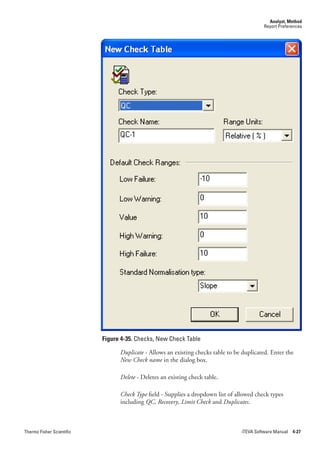
                                        Figure 4-35.   Checks, New Check Table......................................4-27
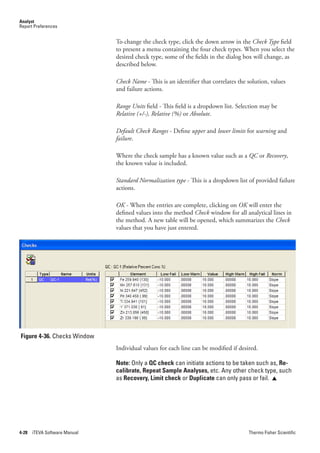
                                        Figure 4-36.   Checks Window.....................................................4-28
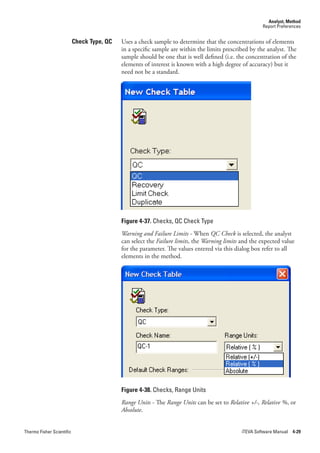
                                        Figure 4-37.   Checks, QC Check Type........................................4-29


x   iTEVA Software Manual                                                                                 Thermo Fisher Scientific
Figures


                           Figure 4-38.   Checks, Range Units ..............................................4-29
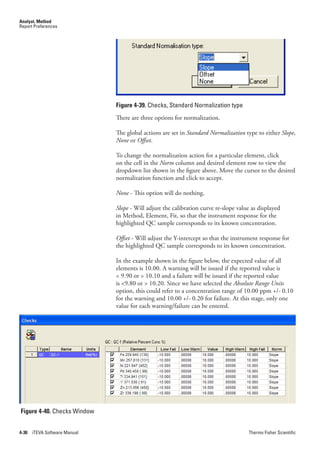
                           Figure 4-39.   Checks, Standard Normalization type ....................4-30
                           Figure 4-40.   Checks Window.....................................................4-30
                           Figure 4-41.   Check Type, Recovery ............................................4-31
                           Figure 4-42.   Check Type, Limit Check ......................................4-32
                           Figure 4-43.   Check Type, Duplicate ...........................................4-32
                           Figure 4-44.   The Method Workspace, Sequence Automation .....4-33
                           Figure 4-45.   Sequence Automation ............................................4-34
                           Figure 4-46.   Method, Sequence Automation, Initial Actions ......4-34
                           Figure 4-47.   Method, Sequence Automation,
                                             Continuing Actions .........................................4-35
                           Figure 4-48.   Method, Sequence Automation, End Actions.........4-37
                           Figure 4-50.   Method, Sequence Automation,
                                             Autosampler Options .......................................4-39
                           Figure 4-51.   Method, Sequence Automation,
                                             Check table for Intelligent Rinse ......................4-40
                           Figure 4-52.   Method, Source Settings ........................................4-42
                           Figure 4-53.   Method, Source Settings ........................................4-43
                           Figure 4-54.   Method, Source Settings, Radial Viewing Height ..4-44
                           Figure 4-55.   Method, Source Settings, Additional Gas Flow ......4-44
                           Figure 4-56.   Method, Source Settings,
                                             Laser Sample Introduction ...............................4-45
                           Figure 4-57    Method, Source Settings,
                                             SSEA Sample Introduction ..............................4-45
                           Figure 4-58.   Method, Internal Standards ...................................4-46
                           Figure 4-59.   Method, Internal Standards,
                                             Periodic Table Selection....................................4-47
                           Figure 4-60.   Method, Change Elements .....................................4-47
                           Figure 4-61.   Method, Internal Standards Selection.....................4-48
                           Figure 4-62.   Method, Standards .................................................4-49
                           Figure 4-63.   Method, Standards Window ..................................4-50
                           Figure 4-64.   Method, Standards, New Standard Dialog Box ......4-50
                           Figure 4-65.   Method, Elements..................................................4-52
                           Figure 4-66.   Method, Elements..................................................4-52
                           Figure 4-67.   Method, Elements, General ...................................4-53
                           Figure 4-68.   Elements, General, Result Labelling ......................4-54
                           Figure 4-69.   Method, Elements, General, Timing ......................4-54
                           Figure 4-70.   Method, Elements, General,
                                             Referenced Internal Standards ..........................4-55
                           Figure 4-71.   Method, Elements, General, Analytical Report ......4-55
                           Figure 4-72.   Method, Elements, Standards.................................4-56
                           Figure 4-73.   Method, Elements, Standards table ........................4-57
                           Figure 4-74.   Method, Elements, Standards, Re-Slope Standards.4-58
                           Figure 4-75.   Method, Elements, Fit ...........................................4-59
                           Figure 4-76.   Method, Elements, Fit, Line Switch
                                             and Print Limits ...............................................4-61
                           Figure 4-77.   Method, Elements, Standards,
                                             Line Switching Arrows .....................................4-61
                           Figure 4-78.   Method, Elements, Standards,
                                             Line Switching for Ca ......................................4-62


Thermo Fisher Scientific                                                           iTEVA Software Manual         xi
Figures


                                          Figure 4-79.    Method, Setting Print Limits .................................4-62
                                          Figure 4-80.    Method, Element, Fit, Advanced Options ..............4-63
                                          Figure 4-81.    Method, Elements, Fit, Details ..............................4-65
                                          Figure 4-82.    Method, Elements, Fit, Std Table ...........................4-67
                                          Figure 4-83.    Method, Elements, Fit, Right mouse click .............4-68
                                          Figure 4-84.    Method, Elements, Fit, Calibration Plot
                                                              Commands, Print (Right mouse click) .............4-68
                                          Figure 4-85.    Method, Elements, IEC .........................................4-70
                                          Figure 4-86.    Method, Elements, Subarray ..................................4-73
                                          Figure 4-87.    Right mouse click on Subarray Plot .......................4-74
                                          Figure 4-88.    Method, Method Reports ......................................4-75
                                          Figure 4-89.    Method, Method Reports, Common Report ..........4-75
                                          Figure 4-90.    Method, Open .......................................................4-76
                                          Figure 4-91.    Method Open, Select a Method Dialog Box...........4-77
                                          Figure 4-92.    Method Query .......................................................4-77
                                          Figure 4-93.    Method Query, Click Ellipsis .................................4-78
                                          Figure 4-94.    Method Open, Select a Method Dialog Box -
                                                              Show All Revisions ...........................................4-78
                                          Figure 4-95.    Select a Method, Copy To, Select a
                                                              Destination Database dialog box ......................4-79
                                          Figure 4-96.    Method Open, iTEVA Window after
                                                              Method is opened ............................................4-79
                                          Figure 4-97.    Method Open, Select a Method Dialog
                                                              Box for iTEVA Security ....................................4-80
                                          Figure 4-98.    Method Open, Sign a Method Dialog Box
                                                              for iTEVA Security ..........................................4-80
                                          Figure 4-99.    Method Open, Audit Trail for iTEVA Security .......4-81
                                          Figure 4-100.   Method, Close .......................................................4-81
                                          Figure 4-101.   Method, Save a Method Dialog Box ......................4-82
                                          Figure 4-102.   Method, Print Dialog Box......................................4-83
                                          Figure 4-103.   Method Menu for iTEVA Security..........................4-84
                                          Figure 4-104.   Method, Sign Method............................................4-84
                                          Figure 4-105.   Method, Audit Trail ...............................................4-85
                                          Figure 4-106.   Method, Tool Bar...................................................4-85
                                          Figure 4-107.   Method Tool Bar....................................................4-85
                                          Figure 4-108.   Tools Menu............................................................4-87
                                          Figure 4-109.   Tools, Options, Change Element Display Order ....4-87
                                          Figure 4-110.   Tools, Options, New Method Parameters ...............4-88
                                          Figure 4-111.   Help Menu ............................................................4-90
                                          Figure 4-112.   Help, About Analyst ..............................................4-90


                              Chapter 5   Figure 5-1.     Analysis Menu Bar ...................................................5-3
                                          Figure 5-2.     Method Tool Bar......................................................5-3
                                          Figure 5-3.     View, Subarray Plot with multiple samples displayed5-5
                                          Figure 5-4.     Method Menu..........................................................5-6
                                          Figure 5-5.     Method Menu for iTEVA Security............................5-7
                                          Figure 5-6.     Method, Sign Method..............................................5-7
                                          Figure 5-7.     Method, Audit Trail .................................................5-8
                                          Figure 5-8.     Run Menu ...............................................................5-8


xii   iTEVA Software Manual                                                                                Thermo Fisher Scientific
Figures


                           Figure 5-9.    Run, Run Fullframe .................................................5-9
                           Figure 5-10.   Run, Run Fullframe, Sample ID Information ..........5-9
                           Figure 5-11.   Run, Run Fullframe, Automated Output ...............5-10
                           Figure 5-12.   Run, Run Fullframe, Options ................................5-10
                           Figure 5-13.   Low Wavelength Fullframe Image ..........................5-11
                           Figure 5-14.   High Wavelength Fullframe Image .........................5-12
                           Figure 5-15.   Fullframe Tool Bar .................................................5-12
                           Figure 5-16.   2d Plot of Fullframe Image Region ........................5-14
                           Figure 5-17.   Line Information ...................................................5-14
                           Figure 5-18.   Analytical Element List ..........................................5-15
                           Figure 5-19.   Line List for Elements in the Method ....................5-15
                           Figure 5-20.   Fullframe Menu .....................................................5-15
                           Figure 5-21.   Run, Run Time Scan..............................................5-16
                           Figure 5-22.   Run, Run Time Scan, Sample ID Information .......5-16
                           Figure 5-23.   Run, Run Time Scan, Automated Output..............5-17
                           Figure 5-24.   Run, Run Time Scan, Acquisition Parameters ........5-17
                           Figure 5-25.   Run, Run Time Scan Options ................................5-18
                           Figure 5-26.   Run, Run Time Scan, Select Lines .........................5-18
                           Figure 5-27.   Time Scan data being acquired...............................5-19
                           Figure 5-28.   Run, Time Scan, (Right mouse click) .....................5-20
                           Figure 5-29.   Time Scan data shown as first derivative.................5-21
                           Figure 5-30.   Time Scan data with defined Gate values ...............5-21
                           Figure 5-31.   Run, Run Unknown ..............................................5-22
                           Figure 5-32.   Run, Run Unknown, Sample ID Information........5-22
                           Figure 5-33.   Run, Run Unknown, Automated Output ..............5-23
                           Figure 5-34.   Run, Run Unknown, Output mode: CONC .........5-23
                           Figure 5-35.   Run, Run Unknown, Preferences ...........................5-24
                           Figure 5-36.   Run, Run Button ...................................................5-24
                           Figure 5-37.   MSA button...........................................................5-25
                           Figure 5-38.   Run, Run Unknown, MSA ....................................5-25
                           Figure 5-39.   Run, Run Unknown, MSA, MSA Setup ................5-26
                           Figure 5-40.   Run, Select Lines Button .......................................5-27
                           Figure 5-41.   Run, Run Unknown, Select Lines ..........................5-28
                           Figure 5-42.   Run, Standardization .............................................5-28
                           Figure 5-43.   Run, Run Calibration ............................................5-29
                           Figure 5-44.   Run, Calibration, Select Lines ................................5-30
                           Figure 5-45.   Run, Start Continuous Run ...................................5-30
                           Figure 5-46.   Method, Right mouse click ....................................5-31
                           Figure 5-47.   Method Workspace, Right mouse click, Export All ......
                                                 Samples........................................................5-32
                           Figure 5-48.   Method Workspace, Right mouse click,
                                              Edit Report Option .........................................5-33
                           Figure 5-49.   Method Workspace, Right mouse click
                                              menu for iTEVA Security .................................5-33
                           Figure 5-50.   Method Workspace, Right mouse click,
                                              Sign Method dialog box ...................................5-34
                           Figure 5-51.   Method Workspace, Right mouse click,
                                              Method Audit Trail ..........................................5-34
                           Figure 5-52. Method Workspace, Right mouse click


Thermo Fisher Scientific                                                              iTEVA Software Manual     xiii
Figures


                                                 on samples ......................................................5-35
                              Figure 5-53.   Method Workspace, Right mouse click,
                                                 Sample Identification .......................................5-36
                              Figure 5-54.   Method Workspace, Right mouse click,
                                                 Recalculate Sample...........................................5-36
                              Figure 5-55.   Method Workspace, Right mouse click,
                                                 Export Sample .................................................5-37
                              Figure 5-56.   Method Workspace, Right mouse click,
                                                 Change Sample Type........................................5-37
                              Figure 5-57.   Method Workspace, Right mouse click
                                                 menu for iTEVA Security .................................5-38
                              Figure 5-58.   Method Workspace, Right mouse click,
                                                 Sign Sample .....................................................5-38
                              Figure 5-59.   Method Workspace, Right mouse click,
                                                 Audit Trail........................................................5-38
                              Figure 5-60.   Method Workspace, Right mouse click
                                                 on Fullframe ....................................................5-39
                              Figure 5-61.   Subtract Fullframe .................................................5-40
                              Figure 5-62.   Select the filename for subtraction .........................5-40
                              Figure 5-63.   Select filename for further subtraction....................5-41
                              Figure 5-64.   Resultant-2, Fullframe image .................................5-41
                              Figure 5-65.   Fullframe, Right mouse click,
                                                 Produce Sample dialog box ..............................5-42
                              Figure 5-66.   Fullframe, Right mouse click menu for
                                                 iTEVA Security .................................................5-42
                              Figure 5-67.   Fullframe, Right mouse click, Sign Sample ............5-43
                              Figure 5-68.   Fullframe, Right mouse, Audit Trail .......................5-43
                              Figure 5-69.   Results Menu .........................................................5-44
                              Figure 5-70.   Results, Typical Screen Report ...............................5-44
                              Figure 5-71.   Results, Print .........................................................5-45
                              Figure 5-72.   Results, Open ........................................................5-45
                              Figure 5-73.   Results, Open, More button ..................................5-46
                              Figure 5-74.   Results, Open, Sample Browser ..............................5-47
                              Figure 5-75.   Results, Save ..........................................................5-47
                              Figure 5-76.   Results, Export Results ...........................................5-48
                              Figure 5-77.   Results, Open Sequence .........................................5-49
                              Figure 5-78.   Results, Delete Repeat............................................5-49
                              Figure 5-79    Results, Run Recovery............................................5-50
                              Figure 5-80.   Results, Run Recovery, Analytical Report -
                                                 Recovery Check ...............................................5-51
                              Figure 5-81.   Results, Run Duplicate ..........................................5-51
                              Figure 5-82.   Results, Run Duplicate, Analytical Report -
                                                 Duplicate Check ..............................................5-52
                              Figure 5-83.   Select/Deselect Lines ..............................................5-52
                              Figure 5-84.   Results, QC Actions...............................................5-53
                              Figure 5-85.   Results, QC Actions, Autocalc IECs ......................5-53
                              Figure 5-86.   Calculated KI IEC factor displayed in
                                                 Method, Elements, IECs .................................5-54
                              Figure 5-87.   Instrument Menu...................................................5-54
                              Figure 5-88.   Instrument, ICP Control Panel ..............................5-55


xiv   iTEVA Software Manual                                                                    Thermo Fisher Scientific
Figures


                                       Figure 5-89.    Instrument, ICP Control Panel and
                                                           Instrument Status.............................................5-55
                                       Figure 5-90.    Instrument, Perform Auto Peak..............................5-57
                                       Figure 5-91.    Auto Peak Warning dialog box ...............................5-58
                                       Figure 5-92.    Instrument, Torch Alignment ................................5-59
                                       Figure 5-93.    Instrument, Optimise Source .................................5-59
                                       Figure 5-94.    Tools Menu............................................................5-60
                                       Figure 5-95.    Tools, Example of a Wavelength Line Library ........5-61
                                       Figure 5-96.    Tools, Line Library, Right-click ..............................5-62
                                       Figure 5-97.    Tools, Wavelength Line Library,
                                                           Edit BEC and Detection Limit ........................5-63
                                       Figure 5-98.    Tools, Archive Fullframe Data................................5-63
                                       Figure 5-99.    Tools, Archive Fullframe Data, Sample Browser .....5-64
                                       Figure 5-100.   Tools, Archive Fullframe Data, insert
                                                           media window .................................................5-64
                                       Figure 5-101.   Tools, Archive Fullframe Data, Select Drive
                                                           and Volume Label ............................................5-65
                                       Figure 5-102.   Tools, Archive Fullframe Data, finish .....................5-65
                                       Figure 5-103.   Tools, Options .......................................................5-66
                                       Figure 5-104.   View Menu ............................................................5-67
                                       Figure 5-105.   View, Single Sample view .......................................5-67
                                       Figure 5-106.   View, Multiple Sample Presentation .......................5-68
                                       Figure 5-107.   Help, About Analyst ..............................................5-69
                                       Figure 5-108.   View, Subarray Plot with multiple
                                                           samples displayed .............................................5-70


                                       Figure 6-1.     Sequence Menu Bar .................................................6-3
                           Chapter 6   Figure 6-2.     Auto-Session Menu ..................................................6-4
                                       Figure 6-3.     Auto-Session, New Autosampler ..............................6-4
                                       Figure 6-4.     Auto-Session, New Autosampler dialog box .............6-5
                                       Figure 6-5.     New Autosampler, New Sequence dialog box ...........6-5
                                       Figure 6-6.     Auto Session, New Autosampler dialog box .............6-6
                                       Figure 6-7.     Auto-session Menu ..................................................6-7
                                       Figure 6-8.     Auto-Session, New Manual Dialog box ....................6-8
                                       Figure 6-9.     Auto-Session, New Manual prompt .........................6-8
                                       Figure 6-10.    The iTEVA Window Sequence Tab ........................6-10
                                       Figure 6-11.    Sample List ............................................................6-11
                                       Figure 6-12.    Auto-Session menu for iTEVA Security ..................6-11
                                       Figure 6-13.    Auto-Session, Sign .................................................6-12
                                       Figure 6-14.    Auto-Session, Audit Trail .......................................6-12
                                       Figure 6-15.    Sequence Menu......................................................6-12
                                       Figure 6-16.    Sequence, Add .......................................................6-13
                                       Figure 6-17.    Sequence, New Sequence .......................................6-13
                                       Figure 6-18.    Sequence, Remove ...............................................6-14
                                       Figure 6-19.    The Sequence Tool Bar ...........................................6-14
                                       Figure 6-20.    Halt Auto-Session dialog box .................................6-15
                                       Figure 6-21.    Assigning Sample Positions (Right mouse click) .....6-16
                                       Figure 6-22.    Auto-Locate Sample Positions ................................6-17
                                       Figure 6-23.    Unlocate, Right mouse click ..................................6-18


Thermo Fisher Scientific                                                                           iTEVA Software Manual        xv
Figures


                                          Figure 6-24.   Sample U:1 position empty....................................6-18
                                          Figure 6-25.   Sample relocated to position 42 .............................6-19
                                          Figure 6-26.   Sample List showing relocation of sample
                                                            position 42.......................................................6-19
                                          Figure 6-27.   The Add Samples Dialog Box .................................6-20
                                          Figure 6-28.   Sample List ............................................................6-20
                                          Figure 6-29.   Sample List, Calculate Correction Factor ...............6-21
                                          Figure 6-30.   Import Warning Dialog Box ..................................6-22


                                          Figure 7-1.    The Publisher Window.............................................7-3
                                          Figure 7-2.    Publisher, Sample Query ..........................................7-4
                              Chapter 7   Figure 7-3.    Workspace selection .................................................7-4
                                          Figure 7-5.    Publisher, Sample report display window .................7-5
                                          Figure 7-4.    Publisher, Sample Browser dialog box ......................7-5
                                          Figure 7-6.    Publisher, Export Dialog Box ...................................7-6
                                          Figure 7-7.    Publisher, Trend Chart Parameters ...........................7-6
                                          Figure 7-8.    Publisher, Expanded Trend Chart with Data ............7-7
                                          Figure 7-9.    Publisher, Trend Chart .............................................7-8
                                          Figure 7-10.   Publisher, Horizontal Table ......................................7-8
                                          Figure 7-11.   Publisher, Intensity Report .......................................7-9
                                          Figure 7-12.   Publisher, Method Detection Limit Report ..............7-9
                                          Figure 7-13.   Publisher, RSD Trend Chart ..................................7-10
                                          Figure 7-14.   Publisher, Sample Report .......................................7-10
                                          Figure 7-15.   Publisher, Simple Sample Report ...........................7-11
                                          Figure 7-16.   Publisher, Vertical Table Report..............................7-11
                                          Figure 7-17.   File Menu ..............................................................7-12
                                          Figure 7-18.   View Menu ............................................................7-12
                                          Figure 7-19.   Tools Menu............................................................7-12
                                          Figure 7-20.   Window Menu ......................................................7-13
                                          Figure 7-21.   Tool Bar .................................................................7-13


                                          Figure 8-1.    iTEVA Access Control Window ...............................8-5
                                          Figure 8-2.    iTEVA Access Rights Window .................................8-7
                              Chapter 8   Figure 8-3.    New Users Window ...............................................8-10
                                          Figure 8-4.    Default Signatures..................................................8-10
                                          Figure 8-5.    Sign Sample Window .............................................8-12
                                          Figure 8-6.    Sign Method Window............................................8-12
                                          Figure 8-7.    Sign Autosession Window .....................................8-13
                                          Figure 8-8.    Audit Trail Window ...............................................8-13
                                          Figure 8-9.    Event Viewer Window ...........................................8-15
                                          Figure 8-10.   Event Properties Window.......................................8-15
                                          Figure 8-11.   Security Administration Window ...........................8-16
                                          Figure 8-12.   Sign Sample Window .............................................8-17
                                          Figure 8-13.   Sign Audit Trail Window .......................................8-18
                                          Figure 8-14.   Sign Method Window............................................8-19
                                          Figure 8-15.   Sign Method, Audit Trail Window .........................8-19
                                          Figure 8-16.   Auto-Session menu for iTEVA.Security ..................8-20


xvi   iTEVA Software Manual                                                                                 Thermo Fisher Scientific
Figures


                           Figure 8-17.   Auto-Session, Sign .................................................8-20
                           Figure 8-18.   Auto-Session, Audit Trail .......................................8-21


Thermo Fisher Scientific                                                          iTEVA Software Manual       xvii
Figures


          This page is intentionally blank.


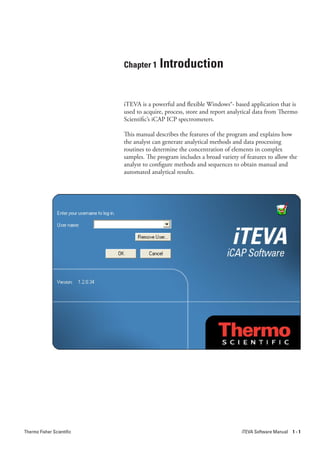
xviii                                         Thermo Fisher Scientific
Chapter 1     Introduction

                           iTEVA is a powerful and flexible Windows®- based application that is
                           used to acquire, process, store and report analytical data from Thermo
                           Scientific’s iCAP ICP spectrometers.

                           This manual describes the features of the program and explains how
                           the analyst can generate analytical methods and data processing
                           routines to determine the concentration of elements in complex
                           samples. The program includes a broad variety of features to allow the
                           analyst to configure methods and sequences to obtain manual and
                           automated analytical results.


Thermo Fisher Scientific                                                  iTEVA Software Manual   1-1
Introduction


                              This page is intentionally blank.


1 - 2 iTEVA Software Manual                                       Thermo Fisher Scientific
Introduction
                                                                                                     iTEVA Security


                    iTEVA Security   iTEVA Security is a separate iTEVA software package designed with
                                     FDA, title 21 of the Code of Federal Regulations, part 11 (21 CFR, 11
                                     pertains to electronic records and electronic signatures) in mind and
                                     is thus constructed to keep visible audit trails of all actions that occur
                                     within iTEVA and impact data integrity. Whilst the vast majority
                                     of iTEVA.Security uses the same functionality as iTEVA, where it is
                                     different, the iTEVA.Security.settings will be indicated at the end of the
                                     page, or on a stand alone page where applicable.


Thermo Fisher Scientific                                                             iTEVA Software Manual     1-3
Introduction


                              This page is intentionally blank.


1 - 4 iTEVA Software Manual                                       Thermo Fisher Scientific
Introduction
                                                                                                 Opening the Program


         Opening the Program            To open iTEVA:
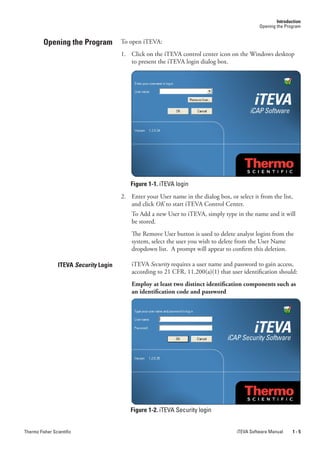
                                        1. Click on the iTEVA control center icon on the Windows desktop
                                           to present the iTEVA login dialog box.


                                           Figure 1-1. iTEVA login
                                        2. Enter your User name in the dialog box, or select it from the list,
                                           and click OK to start iTEVA Control Center.
                                            To Add a new User to iTEVA, simply type in the name and it will
                                            be stored.
                                            The Remove User button is used to delete analyst logins from the
                                            system, select the user you wish to delete from the User Name
                                            dropdown list. A prompt will appear to confirm this deletion.

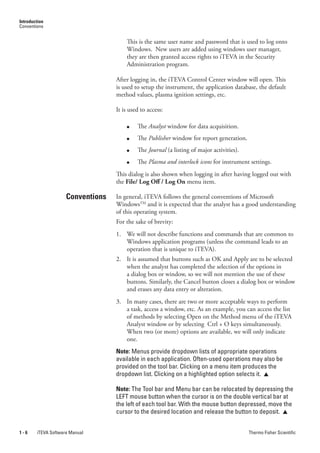
                 ITEVA Security Login       iTEVA Security requires a user name and password to gain access,
                                            according to 21 CFR, 11.200(a)(1) that user identification should:
                                            Employ at least two distinct identification components such as
                                            an identification code and password


                                           Figure 1-2. iTEVA Security login


Thermo Fisher Scientific                                                               iTEVA Software Manual     1-5
Introduction
Conventions


                                       This is the same user name and password that is used to log onto
                                       Windows. New users are added using windows user manager,
                                       they are then granted access rights to iTEVA in the Security
                                       Administration program.

                                   After logging in, the iTEVA Control Center window will open. This
                                   is used to setup the instrument, the application database, the default
                                   method values, plasma ignition settings, etc.

                                   It is used to access:

                                       ●    The Analyst window for data acquisition.
                                       ●    The.Publisher.window for report generation.
                                       ●    The Journal.(a listing of major activities).
                                       ●    The Plasma.and.interlock.icons for instrument settings.
                                   This dialog is also shown when logging in after having logged out with
                                   the File/ Log Off / Log On menu item.

                     Conventions   In general, iTEVA follows the general conventions of Microsoft
                                   WindowsTM and it is expected that the analyst has a good understanding
                                   of this operating system.
                                   For the sake of brevity:
                                   1. We will not describe functions and commands that are common to
                                      Windows application programs (unless the command leads to an
                                      operation that is unique to iTEVA).
                                   2. It is assumed that buttons such as OK and Apply are to be selected
                                      when the analyst has completed the selection of the options in
                                      a dialog box or window, so we will not mention the use of these
                                      buttons. Similarly, the Cancel button closes a dialog box or window
                                      and erases any data entry or alteration.
                                   3. In many cases, there are two or more acceptable ways to perform
                                      a task, access a window, etc. As an example, you can access the list
                                      of methods by selecting Open on the Method menu of the iTEVA
                                      Analyst window or by selecting Ctrl + O keys simultaneously.
                                      When two (or more) options are available, we will only indicate
                                      one.
                                   Note: Menus provide dropdown lists of appropriate operations
                                   available in each application. Often-used operations may also be
                                   provided on the tool bar. Clicking on a menu item produces the
                                   dropdown list. Clicking on a highlighted option selects it. 

                                   Note: The Tool bar and Menu bar can be relocated by depressing the
                                   LEFT mouse button when the cursor is on the double vertical bar at
                                   the left of each tool bar. With the mouse button depressed, move the
                                   cursor to the desired location and release the button to deposit. 


1-6     iTEVA Software Manual                                                              Thermo Fisher Scientific
Chapter 2   iTEVA Control Center


Thermo Fisher Scientific                             iTEVA Software Manual 2-1
iTEVA Control Center


                              This page is intentionally blank.


  2-2 iTEVA Software Manual                                       Thermo Fisher Scientific
iTEVA Control Center


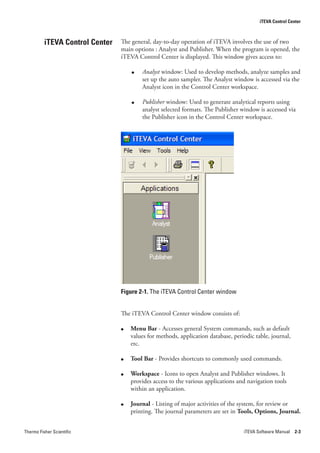
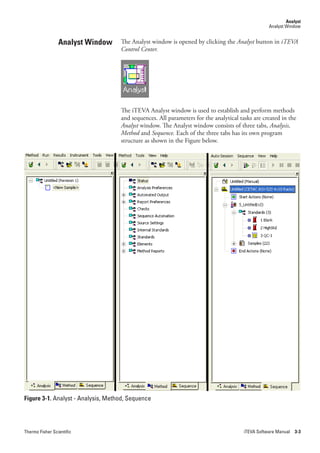
          iTEVA Control Center   The general, day-to-day operation of iTEVA involves the use of two
                                 main options : Analyst and Publisher. When the program is opened, the
                                 iTEVA Control Center is displayed. This window gives access to:

                                     ●   Analyst window: Used to develop methods, analyze samples and
                                         set up the auto sampler. The Analyst window is accessed via the
                                         Analyst icon in the Control Center workspace.

                                     ●   Publisher window: Used to generate analytical reports using
                                         analyst selected formats. The Publisher window is accessed via
                                         the Publisher icon in the Control Center workspace.


                                 Figure 2-1. The iTEVA Control Center window


                                 The iTEVA Control Center window consists of:

                                 ●   Menu Bar - Accesses general System commands, such as default
                                     values for methods, application database, periodic table, journal,
                                     etc.

                                 ●   Tool Bar - Provides shortcuts to commonly used commands.

                                 ●   Workspace - Icons to open Analyst and Publisher windows. It
                                     provides access to the various applications and navigation tools
                                     within an application.

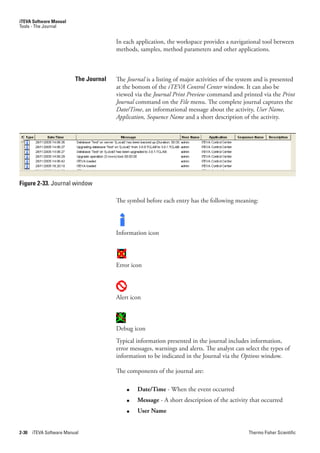
                                 ●   Journal - Listing of major activities of the system, for review or
                                     printing. The journal parameters are set in Tools, Options, Journal.


Thermo Fisher Scientific                                                           iTEVA Software Manual 2-3
iTEVA Software Manual
File


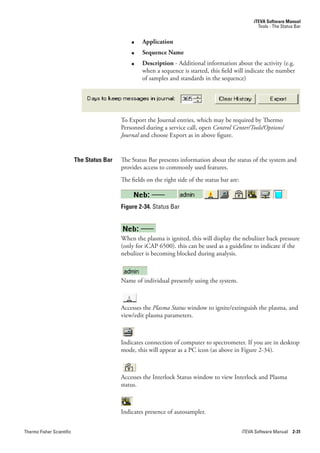
                                          ●   Status Bar - Indicates the status of the system and provides brief
                                              information about a command when the cursor is placed over it.
                                              The status bar provides detail on the current operation selected and
                                              instrument conditions such as plasma, interlocks, autosampler and
                                              communications.


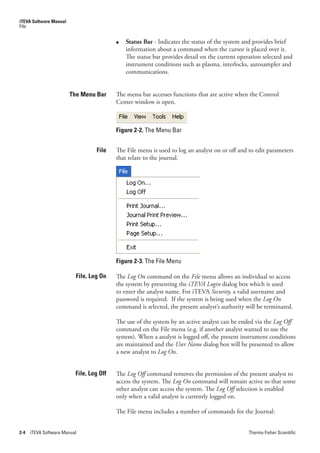
                        The Menu Bar      The menu bar accesses functions that are active when the Control
                                          Center window is open.


                                          Figure 2-2. The Menu Bar


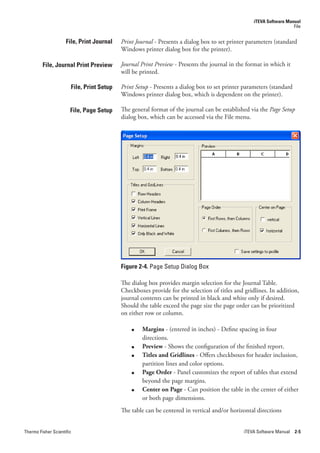
                                  File    The File menu is used to log an analyst on or off and to edit parameters
                                          that relate to the journal.


                                          Figure 2-3. The File Menu

                          File, Log On    The Log.On command on the File menu allows an individual to access
                                          the system by presenting the iTEVA.Login dialog box which is used
                                          to enter the analyst name. For iTEVA Security, a valid username and
                                          password is required. If the system is being used when the Log.On
                                          command is selected, the present analyst’s authority will be terminated.

                                          The use of the system by an active analyst can be ended via the Log.Off.
                                          command on the File menu (e.g. if another analyst wanted to use the
                                          system). When a analyst is logged off, the present instrument conditions
                                          are maintained and the User.Name dialog box will be presented to allow
                                          a new analyst to Log.On.


                          File, Log Off   The Log.Off command removes the permission of the present analyst to
                                          access the system. The Log.On command will remain active so that some
                                          other analyst can access the system. The Log.Off selection is enabled
                                          only when a valid analyst is currently logged on.

                                          The File menu includes a number of commands for the Journal:


2-4   iTEVA Software Manual                                                                     Thermo Fisher Scientific
iTEVA Software Manual
                                                                                                                    File


                     File, Print Journal   Print.Journal - Presents a dialog box to set printer parameters (standard
                                           Windows printer dialog box for the printer).

         File, Journal Print Preview       Journal.Print.Preview - Presents the journal in the format in which it
                                           will be printed.

                       File, Print Setup   Print.Setup - Presents a dialog box to set printer parameters (standard
                                           Windows printer dialog box, which is dependent on the printer).

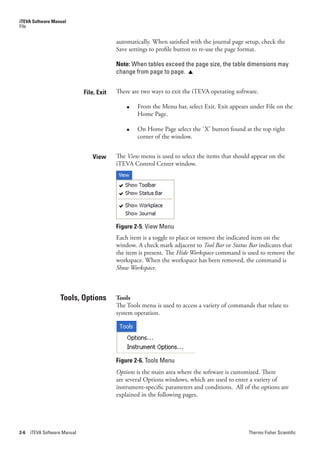
                       File, Page Setup    The general format of the journal can be established via the Page.Setup
                                           dialog box, which can be accessed via the File menu.


                                           Figure 2-4. Page Setup Dialog Box

                                           The dialog box provides margin selection for the Journal Table.
                                           Checkboxes provide for the selection of titles and gridlines. In addition,
                                           journal contents can be printed in black and white only if desired.
                                           Should the table exceed the page size the page order can be prioritized
                                           on either row or column.

                                               ●   Margins - (entered in inches) - Define spacing in four
                                                   directions.
                                               ●   Preview - Shows the configuration of the finished report.
                                               ●   Titles and Gridlines - Offers checkboxes for header inclusion,
                                                   partition lines and color options.
                                               ●   Page Order - Panel customizes the report of tables that extend
                                                   beyond the page margins.
                                               ●   Center on Page - Can position the table in the center of either
                                                   or both page dimensions.
                                           The table can be centered in vertical and/or horizontal directions


Thermo Fisher Scientific                                                                      iTEVA Software Manual 2-5
iTEVA Software Manual
File


                                           automatically. When satisfied with the journal page setup, check the
                                           Save settings to profile button to re-use the page format.

                                           Note: When tables exceed the page size, the table dimensions may
                                           change from page to page. 


                              File, Exit   There are two ways to exit the iTEVA operating software.

                                               ●   From the Menu bar, select Exit. Exit appears under File on the
                                                   Home Page.

                                               ●   On Home Page select the `X’ button found at the top right
                                                   corner of the window.


                                 View      The View menu is used to select the items that should appear on the
                                           iTEVA Control Center window.


                                           Figure 2-5. View Menu
                                           Each item is a toggle to place or remove the indicated item on the
                                           window. A check mark adjacent to Tool.Bar or Status.Bar indicates that
                                           the item is present. The Hide.Workspace command is used to remove the
                                           workspace. When the workspace has been removed, the command is
                                           Show.Workspace.


                   Tools, Options          Tools
                                           The Tools menu is used to access a variety of commands that relate to
                                           system operation.


                                           Figure 2-6. Tools Menu
                                           Options is the main area where the software is customized. There
                                           are several Options windows, which are used to enter a variety of
                                           instrument-specific parameters and conditions. All of the options are
                                           explained in the following pages.


2-6   iTEVA Software Manual                                                                     Thermo Fisher Scientific
iTEVA Software Manual
                                                                                                             Tools


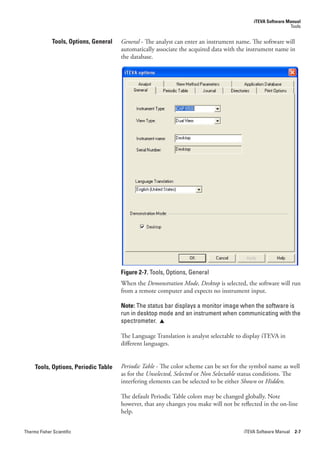
              Tools, Options, General   General - The analyst can enter an instrument name. The software will
                                        automatically associate the acquired data with the instrument name in
                                        the database.


                                        Figure 2-7. Tools, Options, General
                                        When the Demonstration.Mode,.Desktop is selected, the software will run
                                        from a remote computer and expects no instrument input.

                                        Note: The status bar displays a monitor image when the software is
                                        run in desktop mode and an instrument when communicating with the
                                        spectrometer. 

                                        The Language Translation is analyst selectable to display iTEVA in
                                        different languages.


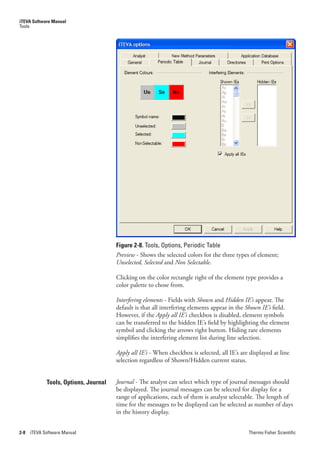
     Tools, Options, Periodic Table     Periodic.Table.- The color scheme can be set for the symbol name as well
                                        as for the Unselected,.Selected or Non.Selectable status conditions. The
                                        interfering elements can be selected to be either Shown or Hidden.

                                        The default Periodic Table colors may be changed globally. Note
                                        however, that any changes you make will not be reflected in the on-line
                                        help.


Thermo Fisher Scientific                                                                 iTEVA Software Manual 2-7
iTEVA Software Manual
Tools


                                       Figure 2-8. Tools, Options, Periodic Table
                                       Preview - Shows the selected colors for the three types of element;
                                       Unselected,.Selected and Non.Selectable.

                                       Clicking on the color rectangle right of the element type provides a
                                       color palette to chose from.

                                       Interfering.elements - Fields with Shown and Hidden.IE’s appear. The
                                       default is that all interfering elements appear in the Shown.IE’s field.
                                       However, if the Apply.all.IE’s.checkbox is disabled, element symbols
                                       can be transferred to the hidden IE’s field by highlighting the element
                                       symbol and clicking the arrows right button. Hiding rare elements
                                       simplifies the interfering element list during line selection.

                                       Apply.all.IE’s - When checkbox is selected, all IE’s are displayed at line
                                       selection regardless of Shown/Hidden current status.


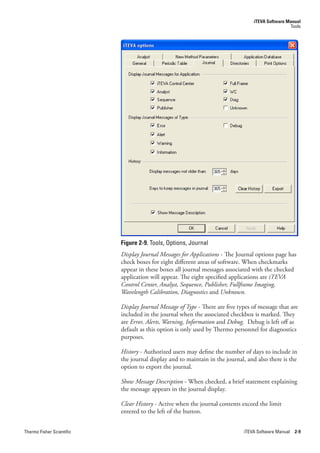
             Tools, Options, Journal   Journal.- The analyst can select which type of journal messages should
                                       be displayed. The journal messages can be selected for display for a
                                       range of applications, each of them is analyst selectable. The length of
                                       time for the messages to be displayed can be selected as number of days
                                       in the history display.


2-8   iTEVA Software Manual                                                                    Thermo Fisher Scientific
iTEVA Software Manual
                                                                                                  Tools


                           Figure 2-9. Tools, Options, Journal
                           Display.Journal.Messages.for.Applications - The Journal options page has
                           check boxes for eight different areas of software. When checkmarks
                           appear in these boxes all journal messages associated with the checked
                           application will appear. The eight specified applications are iTEVA.
                           Control.Center,.Analyst,.Sequence,.Publisher,.Fullframe.Imaging,.
                           Wavelength.Calibration,.Diagnostics.and.Unknown.

                           Display.Journal.Message.of.Type - There are five types of message that are
                           included in the journal when the associated checkbox is marked. They
                           are Error,.Alerts,.Warning,.Information.and.Debug. Debug is left off as
                           default as this option is only used by Thermo personnel for diagnostics
                           purposes.

                           History - Authorized users may define the number of days to include in
                           the journal display and to maintain in the journal, and also there is the
                           option to export the journal.

                           Show.Message.Description - When checked, a brief statement explaining
                           the message appears in the journal display.

                           Clear.History - Active when the journal contents exceed the limit
                           entered to the left of the button.


Thermo Fisher Scientific                                                      iTEVA Software Manual 2-9
iTEVA Software Manual
Tools


                                       Export - To export the journal (this may be required when logging
                                       a service call with Thermo). On clicking Export, the journal is
                                       automatically exported as a text file to

                                                   C:Program FilesThermoiTEVAExport.


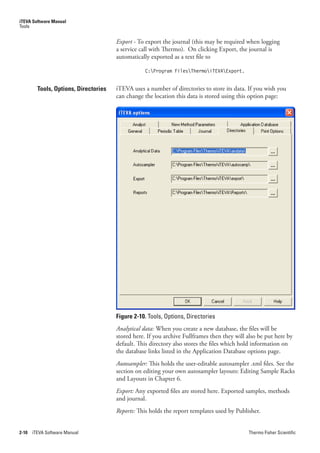
         Tools, Options, Directories   iTEVA uses a number of directories to store its data. If you wish you
                                       can change the location this data is stored using this option page:


                                       Figure 2-10. Tools, Options, Directories
                                       Analytical.data: When you create a new database, the files will be
                                       stored here. If you archive Fullframes then they will also be put here by
                                       default. This directory also stores the files which hold information on
                                       the database links listed in the Application Database options page.
                                       Autosampler: This holds the user-editable autosampler .xml files. See the
                                       section on editing your own autosampler layouts: Editing Sample Racks
                                       and Layouts in Chapter 6.
                                       Export: Any exported files are stored here. Exported samples, methods
                                       and journal.
                                       Reports:.This holds the report templates used by Publisher.


2-10   iTEVA Software Manual                                                                 Thermo Fisher Scientific
iTEVA Software Manual
                                                                                                                 Tools


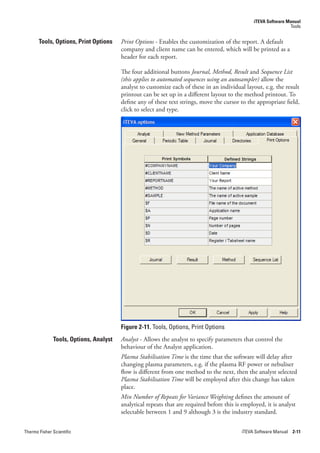
       Tools, Options, Print Options    Print.Options - Enables the customization of the report. A default
                                        company and client name can be entered, which will be printed as a
                                        header for each report.

                                        The four additional buttons Journal,.Method,.Result and.Sequence.List.
                                        (this.applies.to.automated.sequences.using.an.autosampler) allow the
                                        analyst to customize each of these in an individual layout, e.g. the result
                                        printout can be set up in a different layout to the method printout. To
                                        define any of these text strings, move the cursor to the appropriate field,
                                        click to select and type.


                                        Figure 2-11. Tools, Options, Print Options
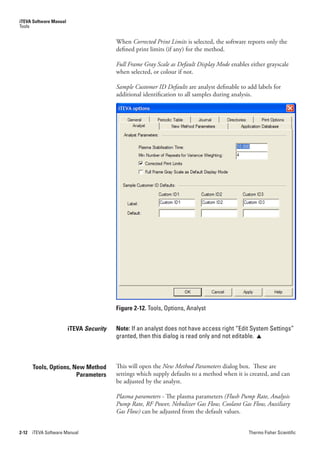
              Tools, Options, Analyst   Analyst.- Allows the analyst to specify parameters that control the
                                        behaviour of the Analyst application.
                                        Plasma.Stabilisation.Time is the time that the software will delay after
                                        changing plasma parameters, e.g. if the plasma RF power or nebuliser
                                        flow is different from one method to the next, then the analyst selected
                                        Plasma.Stabilisation.Time will be employed after this change has taken
                                        place.
                                        Min.Number.of.Repeats.for.Variance.Weighting.defines the amount of
                                        analytical repeats that are required before this is employed, it is analyst
                                        selectable between 1 and 9 although 3 is the industry standard.


Thermo Fisher Scientific                                                                   iTEVA Software Manual 2-11
iTEVA Software Manual
Tools


                                         When Corrected.Print.Limits is selected, the software reports only the
                                         defined print limits (if any) for the method.

                                         Full.Frame.Gray.Scale.as.Default.Display.Mode enables either grayscale
                                         when selected, or colour if not.

                                         Sample.Customer.ID.Defaults are analyst definable to add labels for
                                         additional identification to all samples during analysis.


                                         Figure 2-12. Tools, Options, Analyst


                        iTEVA Security   Note: If an analyst does not have access right “Edit System Settings”
                                         granted, then this dialog is read only and not editable. 


       Tools, Options, New Method        This will open the New.Method.Parameters dialog box. These are
                        Parameters       settings which supply defaults to a method when it is created, and can
                                         be adjusted by the analyst.

                                         Plasma.parameters - The plasma parameters (Flush.Pump.Rate,.Analysis.
                                         Pump.Rate,.RF.Power,.Nebulizer.Gas.Flow,.Coolant.Gas.Flow,.Auxiliary.
                                         Gas.Flow) can be adjusted from the default values.


2-12   iTEVA Software Manual                                                                   Thermo Fisher Scientific
iTEVA Software Manual
                                                                                                              Tools


                                      Print.Units.-.Print Units can be specified (typically ppm).

                                      Calibration.Conc.Weighting.Zero.Factor,.Calibration.Var.Weighting.Zero.
                                      Factor - Values can be entered.


                                      Figure 2-13. Tools, Options, New Method Parameters


                                      Note: Any parameters changed here will be reflected in Analyst/
                                      Tools/Options as they perform the same function. 


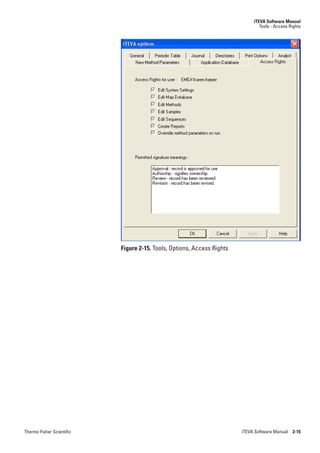
   Tools, Options, Access Rights -    The access rights that are displayed in Control Center/Tools/Options
          (only for iTEVA Security)   reflect an accumulation of rights that exist for the current user, resulting
                                      from the rights that have been explicitly granted to that user’s own
                                      log in account and the rights that the user has inherited through
                                      membership of Windows groups. This section is not editable from
                                      iTEVA Security and is provided for information only. Any changes to
                                      access rights must be made by an administrator or equivalent in the
                                      separate program Security Administration.

                                      Access Rights are assigned in the Security Administration program and
                                      allow iTEVA Security users to perform various functions as described
                                      overleaf.


Thermo Fisher Scientific                                                                 iTEVA Software Manual 2-13
iTEVA Software Manual
           Tools - Access Rights


                       Figure 2-14. Security Administration program, Access Control

                                         Run iTEVA Security
                                         Allows the user to login to iTEVA Security..

                                         Edit System Settings
                                         This allows the analyst to edit the plasma parameters, change the new
                                         method parameters, perform auto peak, torch alignment and source
                                         optimisation.
                                         Edit Map Database
                                         Allows the analyst to add new elements to the line library, edit existing
                                         wavelengths and make them available for analysis.

                                         Edit Methods
                                         Allows the analyst to edit, delete, create methods.

                                         Edit Samples
                                         Allows the analyst to edit samples e.g. change background points, delete
                                         repeats etc.

                                         Edit Sequences
                                         Allows the analyst to edit, delete and create sequences.

                                         Create Reports
                                         Allows the analyst to access Publisher.

                                         Override Method Parameters on Run
                                         Allows the analyst to change the number of repeats, flush time,
                                         correction factor, check table use, collection and storage of full frame
                                         and export options from sample to sample, rather than using the
                                         method parameters.


2-14   iTEVA Software Manual                                                                    Thermo Fisher Scientific
iTEVA Software Manual
                                                                                Tools - Access Rights


                           Figure 2-15. Tools, Options, Access Rights


Thermo Fisher Scientific                                                iTEVA Software Manual 2-15
iTEVA Software Manual
Tools - Application Database


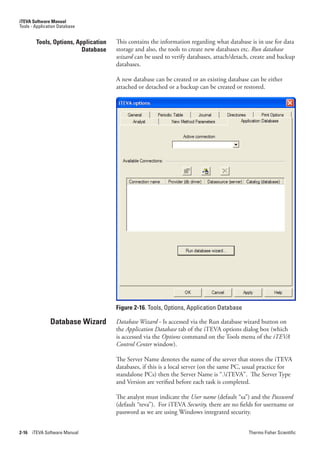
        Tools, Options, Application   This contains the information regarding what database is in use for data
                          Database    storage and also, the tools to create new databases etc. Run.database.
                                      wizard can be used to verify databases, attach/detach, create and backup
                                      databases.

                                      A new database can be created or an existing database can be either
                                      attached or detached or a backup can be created or restored.


                                      Figure 2-16. Tools, Options, Application Database

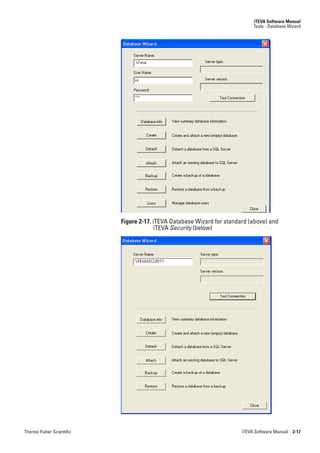
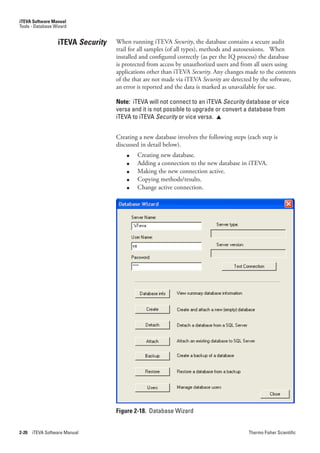
               Database Wizard        Database.Wizard - Is accessed via the Run database wizard button on
                                      the Application.Database tab of the iTEVA options dialog box (which
                                      is accessed via the Options command on the Tools menu of the.iTEVA.
                                      Control.Center.window).

                                      The Server Name denotes the name of the server that stores the iTEVA
                                      databases, if this is a local server (on the same PC, usual practice for
                                      standalone PCs) then the Server Name is “.iTEVA”. The Server Type
                                      and Version are verified before each task is completed.

                                      The analyst must indicate the User.name (default “sa”) and the Password.
                                      (default “teva”). For iTEVA Security, there are no fields for username or
                                      password as we are using Windows integrated security.


2-16   iTEVA Software Manual                                                                Thermo Fisher Scientific
iTEVA Software Manual
                                                                             Tools - Database Wizard


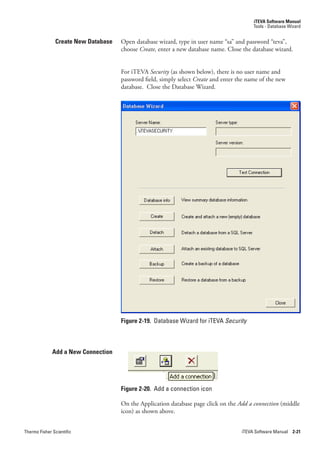
                           Figure 2-17. iTEVA Database Wizard for standard (above) and
                                         iTEVA Security (below)


Thermo Fisher Scientific                                                iTEVA Software Manual 2-17
iTEVA Software Manual
Tools - Database Wizard


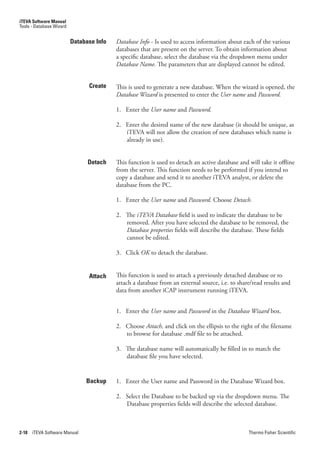
                          Database Info   Database.Info - Is used to access information about each of the various
                                          databases that are present on the server. To obtain information about
                                          a specific database, select the database via the dropdown menu under
                                          Database.Name. The parameters that are displayed cannot be edited.


                                Create    This is used to generate a new database. When the wizard is opened, the
                                          Database.Wizard is presented to enter the User.name and Password.

                                          1. Enter the User.name and Password.

                                          2. Enter the desired name of the new database (it should be unique, as
                                             iTEVA will not allow the creation of new databases which name is
                                             already in use).


                                Detach    This function is used to detach an active database and will take it offline
                                          from the server. This function needs to be performed if you intend to
                                          copy a database and send it to another iTEVA analyst, or delete the
                                          database from the PC.

                                          1. Enter the User.name and Password. Choose Detach.

                                          2. The iTEVA.Database field is used to indicate the database to be
                                             removed. After you have selected the database to be removed, the
                                             Database.properties fields will describe the database. These fields
                                             cannot be edited.

                                          3. Click OK to detach the database.


                                Attach    This function is used to attach a previously detached database or to
                                          attach a database from an external source, i.e. to share/read results and
                                          data from another iCAP instrument running iTEVA.


                                          1. Enter the User.name and Password in the Database.Wizard box.

                                          2. Choose Attach, and click on the ellipsis to the right of the filename
                                             to browse for database .mdf file to be attached.

                                          3. The database name will automatically be filled in to match the
                                             database file you have selected.


                               Backup     1. Enter the User name and Password in the Database Wizard box.

                                          2. Select the Database to be backed up via the dropdown menu. The
                                             Database properties fields will describe the selected database.


2-18   iTEVA Software Manual                                                                     Thermo Fisher Scientific
iTEVA Software Manual
                                                                                              Tools - Database Wizard


                                       3. Click OK.to present the backup location dialog box, which is
                                          used to select the path for the backup. Click OK and a prompt is
                                          displayed asking for confirmation before proceeding. Select Yes if
                                          you want to continue with the backup and a full backup will be
                                          performed. It is recommended that the selected backup path is not
                                          on the local disk.


                           Restore     This function is used to restore backups of a database for use.

                                       1. Select the database from the dropdown menu.

                                       2. Click OK and select the location of the backup file that you wish to
                                          restore.

                                       3. A warning will be displayed to advise you that the restored backup
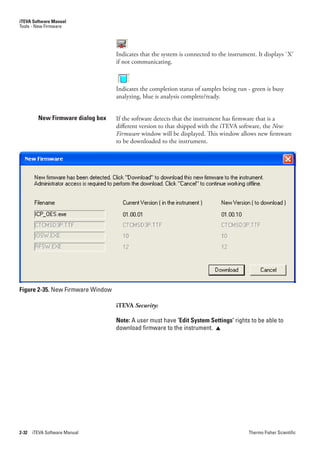
                                          version of the database will be used and will only contain data up to
                                          the date that it was backed up. Click Yes.to proceed.


                               Users   Users.wizard - Is used to enter a new password for a analyst.
                    (only for iTEVA,
    not present for iTEVA Security)    1. Select the name of the analyst for whom you want to modify the
                                          password.

                                       2. Enter the old password and new password; then verify the new
                                          password.


         iTEVA SQL Databases           iTEVA analytical data and methods are stored in a user-selected
                                       database. This allows the analyst to save and recall data according
                                       to a number of criteria that have been setup in the formation of the
                                       database. iTEVA databases may be managed either using Microsoft SQL
                                       Server Express (provided with your iTEVA installation), or by Microsoft
                                       SQL Server (a fully featured database management application).
                                       iTEVA allows data storage up to the capacity of the available storage
                                       space. However, SQL Express databases have a limited database file
                                       size of 4GB (approximately 70,000 sample records, or 3,000 Sample
                                       Records with associated Fullframe images), so it may be necessary to
                                       create new databases from time to time and to establish a connection to
                                       each database. iTEVA will give a warning at 0.5GB (500MB) before the
                                       database size limit is reached. SQL Server databases have no such size
                                       limitation.
                                       Data that is stored in an iTEVA database includes the method, sample
                                       results and the sequence used to collect the data. The database can be
                                       established on the workstation that is used to control the spectrometer
                                       or on a separate workstation. You can conserve database space by not
                                       storing Fullframe images with each sample.


Thermo Fisher Scientific                                                                 iTEVA Software Manual 2-19
iTEVA Software Manual
Tools - Database Wizard


                  iTEVA Security   When running iTEVA Security, the database contains a secure audit
                                   trail for all samples (of all types), methods and autosessions. When
                                   installed and configured correctly (as per the IQ process) the database
                                   is protected from access by unauthorized users and from all users using
                                   applications other than iTEVA Security. Any changes made to the contents
                                   of the that are not made via iTEVA Security.are detected by the software,
                                   an error is reported and the data is marked as unavailable for use.

                                   Note: iTEVA will not connect to an iTEVA Security database or vice
                                   versa and it is not possible to upgrade or convert a database from
                                   iTEVA to iTEVA Security or vice versa. 


                                   Creating a new database involves the following steps (each step is
                                   discussed in detail below).
                                       ●   Creating new database.
                                       ●   Adding a connection to the new database in iTEVA.
                                       ●   Making the new connection active.
                                       ●   Copying methods/results.
                                       ●   Change active connection.


                                   Figure 2-18. Database Wizard


2-20   iTEVA Software Manual                                                             Thermo Fisher Scientific
iTEVA Software Manual
                                                                                          Tools - Database Wizard


               Create New Database   Open database wizard, type in user name “sa” and password “teva”,
                                     choose Create, enter a new database name. Close the database wizard.


                                     For iTEVA Security.(as shown below), there is no user name and
                                     password field, simply select Create and enter the name of the new
                                     database. Close the Database Wizard.


                                     Figure 2-19. Database Wizard for iTEVA Security


              Add a New Connection


                                     Figure 2-20. Add a connection icon

                                     On the Application database page click on the Add.a.connection.(middle
                                     icon) as shown above.


Thermo Fisher Scientific                                                             iTEVA Software Manual 2-21
iTEVA Software Manual
Tools - Database Wizard


                               Enter the server name as “.iTEVA” if connecting to a local server, or
                               select the network server from the dropdown menu.

                               The user name is “sa”and the password “teva”.


                               Figure 2-21. Data Link dialog box


2-22   iTEVA Software Manual                                                         Thermo Fisher Scientific
iTEVA Software Manual
                                                                                   Tools - Database Wizard


                           In iTEVA.Security.(as shown below), the data link properties dialog
                           should be filled in with the server name .iTEVASECURITY if
                           attempting to connect to a database hosted locally by SQL Server
                           Express on the same computer as iTEVA Security is running. Otherwise
                           the name of the network server should be selected from the list.


                           Figure 2-22. Data link dialog box for iTEVA Security
                           For iTEVA Security (as shown above) should select ‘Use Windows NT
                           Integrated Security’ as opposed to ‘Use a specific name and password’.
                           Select the newly created database from the dropdown menu.
                           A prompt then appears for a Data link file name (connection) name,
                           [see Figure 2-23 overleaf ] for ease of use it should relate to the database
                           name. Click.OK to accept new connection name.


Thermo Fisher Scientific                                                      iTEVA Software Manual 2-23
iTEVA Software Manual
Tools - Database Wizard


                                       Figure 2-23. Data link file name dialog box

               Copy Methods/Results     To copy existing methods into a new database (which will be empty of
                                       results and methods), open Analyst. This will open up the methods page
                                       automatically, and from here, highlight the method to copy, choose the
                                       Copy to button and select the new database name from the dropdown
                                       menu.

                                       To copy results into a new database (or any database), use Results/
                                       Open and select the required data, choose Copy to and select the
                                       required database name from the dropdown menu. When all methods/
                                       results have been copied you require, close Analyst and return to Tools,
                                       Options, Application Database.

                                       Note: When results are copied, a copy of the method that they were
                                       stored with is automatically copied. 


          Change Active Connection     This option is used when the analyst is changing from one database to
                                       another, e.g. when looking back at some old data on a different database
                                       or attaching a newly created database.


                                       Figure 2-24. Change the Active Connection dropdown menu

                                        On the application database page, use the dropdown menu on the
                                       active connection to choose the new connection.
                                       Click Apply - The new database and connection will now store all new
                                       results/methods generated.

       Deleting/Exporting/Importing/   Deleting a Database
                          Databases    Deletion of databases may be required in order to free up space on the
                                       PC. This is done by Detaching the database as described above and
                                       deleting the associated .ldf, .mdf and .udl files from
                                                  C:/Program files/Thermo/iTEVA/Andata.
                                       The connections for those databases may then be deleted as described
                                       overleaf.


2-24    iTEVA Software Manual                                                               Thermo Fisher Scientific
iTEVA Software Manual
                                                                                            Tools - Database Wizard


     Editing/Deleting a Connection


                                      Figure 2-25. Edit/Add/Delete a connection icons
                                      To edit a connection, highlight it from the Available Connections
                                      and select the Edit.the.Connection icon (first icon above) and edit the
                                      parameters from the Data Link Properties dialog box. To delete an
                                      unused connection, select it from the Available Connections and choose
                                      the Delete.the.Connection icon (third icon above) and confirm the
                                      deletion.

                                      Exporting/Importing a Database from/to another iCAP
                                      iTEVA and iTEVA Security databases may be detached and attached
                                      to any instance of iTEVA or iTEVA Security. Please note that only
                                      iTEVA databases are compatible with iTEVA and only iTEVA Security
                                      databases are compatible with iTEVA Security. This feature is very
                                      useful for transferring data from site to site or for examining data off
                                      line.


                  Database Upgrades   If the database you are trying to connect to was created with a previous
                                      version of iTEVA, you will see the following dialog. Users are advised
                                      to check the Backup.before.upgrading box and specify a valid backup
                                      pathway before upgrading any database. When the upgrade progress bar
                                      is complete and the database upgraded, it is available for use.


                             Figure 2-26. Database Upgrade dialog box


Thermo Fisher Scientific                                                               iTEVA Software Manual 2-25
iTEVA Software Manual
Tools - Instrument Options


  Tools, Instrument Options                Presents a dialog box to allowing the analyst to change the Autosampler.
                             Autosampler   Type.and COM.Port. There are options for the AIM1250, various CE-
                                           TAC models and Gilson autosamplers. When the autosampler is con-
                                           nected, the analyst must choose the correct model from the dropdown
                                           menu and verify the COM port being used.
                                           In Desktop mode, the Auto.Sampler.Emulation is used to simulate the
                                           autosampler actions.


                                           Figure 2-27. Tools, Instrument Options, Autosampler

                 Sample Introduction       If you have a 6500 Series ICAP then the Sample Introduction feature
                                           will be available. The settings can be edited on this page:


                                           Figure 2-28. Tools, Instrument Options, Sample Introduction


2-26   iTEVA Software Manual                                                                    Thermo Fisher Scientific
iTEVA Software Manual
                                                                                                            Tools - Help


                 Enable Drain Sensor     This option allows the analyst to enable/disable the drain sensor for
                                         accessories that do not require it, e.g. laser, SSEA, ultrasonic nebuliser
                                         or hydride accessory (any accessory that does not have a drain actively
                                         pumping liquid waste via the instrument peristaltic pump).


                           Accessory     The analyst must specify the Accessory being used, such as SSEA and
                                         Laser. If an external accessory that is not listed is connected, the analyst
                                         must choose the Custom Device option which will enable the Input and
                                         Output Trigger options. From here the analyst can choose the options
                                         specific to that device.
                                         If an SSEA is specified then the COM port will need to be selected
                                         so that iTEVA can communicate with it to send it the frequency and
                                         power settings ( See Method,.Source.Settings.).

                                         Note: Please note that this feature is only available for iCAP 6500
                                         Series ICP Emission Spectrometers. 


                                Help     The Help menu provides access to useful information for the analyst.


                                         Figure 2-29. The Help Menu

                     Help, Help Topics   Help.Topics - This provides on-line help, where all aspects of the iTEVA
                                         software is described.


                                         Figure 2-30. The Help Feature Request Incident Form


Thermo Fisher Scientific                                                                    iTEVA Software Manual 2-27
iTEVA Software Manual
Tools - Help


   Feature request / Incident form     Feature.request/incident.form - This automatically recalls all the variables
                                       of the instrument, for example the software version, instrument type,
                                       firmware, etc.

                                       Using this will enable Thermo to obtain all relevant information about
                                       your type of instrument to process the feature request or incident form
                                       correctly.


                   Help, About iTEVA   About.iTEVA - This will display the software and firmware version
                                       currently installed on the system. This information can be useful when
                                       discussing issues with Thermo personnel.

                                       The GUID number is a unique number, which is generated during the
                                       software installation.

                                       The purpose of this GUID is to allow the generation of a new
                                       ThermoService password for service engineers to access diagnostic
                                       software installed with iTEVA. The engineer will contact Thermo
                                       who will request the value of the GUID and use it to generate a new
                                       password for them.


                                       Figure 2-31. About iTEVA


                                       Note: On-line Help for a given topic can be accessed via the F1 key.          


2-28   iTEVA Software Manual                                                                    Thermo Fisher Scientific
iTEVA Software Manual
                                                                                                        Tools - The Tool Bar


                           The Tool Bar    The Tool Bar includes a series of icons to rapidly access various
                                           functions.


                                           Figure 2-32. The Tool Bar


                                           Home.Page - Not active on this page (this is the home page)


                                           Back - Not active on this page (this is the home page)


                                           Next.Page - Not active on this page (use the workspace)


                                           Print.Journal


                                           Show.(Hide).Journal


                                           About.iTEVA


                           The Workspace   The Workspace presents two icons:


                                           Analyst - Used to access the iTEVA Analyst window and the Select a
                                           Method dialog box. To collect, process and report data.


                                           Publisher.- Used to generate reports using the analytical data.


Thermo Fisher Scientific                                                                     iTEVA Software Manual 2-29
iTEVA Software Manual
Tools - The Journal


                                        In each application, the workspace provides a navigational tool between
                                        methods, samples, method parameters and other applications.


                          The Journal   The Journal is a listing of major activities of the system and is presented
                                        at the bottom of the iTEVA.Control.Center window. It can also be
                                        viewed via the Journal.Print.Preview command and printed via the Print.
                                        Journal command on the File.menu. The complete journal captures the
                                        Date/Time, an informational message about the activity, User.Name,.
                                        Application,.Sequence.Name and a short description of the activity.


Figure 2-33. Journal window

                                        The symbol before each entry has the following meaning:


                                        Information icon


                                        Error icon


                                        Alert icon


                                        Debug icon
                                        Typical information presented in the journal includes information,
                                        error messages, warnings and alerts. The analyst can select the types of
                                        information to be indicated in the Journal via the Options window.

                                        The components of the journal are:

                                            ●   Date/Time - When the event occurred
                                            ●   Message - A short description of the activity that occurred
                                            ●   User Name


2-30   iTEVA Software Manual                                                                   Thermo Fisher Scientific
iTEVA Software Manual
                                                                                                         Tools - The Status Bar


                                                ●    Application
                                                ●    Sequence Name
                                                ●    Description - Additional information about the activity (e.g.
                                                     when a sequence is started, this field will indicate the number
                                                     of samples and standards in the sequence)


                                            To Export the Journal entries, which may be required by Thermo
                                            Personnel during a service call, open Control.Center/Tools/Options/
                                            Journal and choose Export as in above figure.


                           The Status Bar   The Status Bar presents information about the status of the system and
                                            provides access to commonly used features.
                                            The fields on the right side of the status bar are:


                                            Figure 2-34. Status Bar


                                            When the plasma is ignited, this will display the nebulizer back pressure
                                            (only for iCAP 6500). this can be used as a guideline to indicate if the
                                            nebulizer is becoming blocked during analysis.


                                            Name of individual presently using the system.


                                            Accesses the Plasma.Status.window to ignite/extinguish the plasma, and
                                            view/edit plasma parameters.


                                            Indicates connection of computer to spectrometer. If you are in desktop
                                            mode, this will appear as a PC icon (as above in Figure 2-34).


                                            Accesses the Interlock Status window to view Interlock and Plasma
                                            status.


                                            Indicates presence of autosampler.


Thermo Fisher Scientific                                                                          iTEVA Software Manual 2-31
iTEVA Software Manual
Tools - New Firmware


                                   Indicates that the system is connected to the instrument. It displays `X’
                                   if not communicating.


                                   Indicates the completion status of samples being run - green is busy
                                   analyzing, blue is analysis complete/ready.


         New Firmware dialog box   If the software detects that the instrument has firmware that is a
                                   different version to that shipped with the iTEVA software, the New.
                                   Firmware window will be displayed. This window allows new firmware
                                   to be downloaded to the instrument.


Figure 2-35. New Firmware Window

                                   iTEVA Security:

                                   Note: A user must have ‘Edit System Settings’ rights to be able to
                                   download firmware to the instrument. 


2-32   iTEVA Software Manual                                                             Thermo Fisher Scientific
Chapter 3   Analyst


Thermo Fisher Scientific                         iTEVA Software Manual 3-1
Analyst


                            This page is intentionally blank.


3-2 iTEVA Software Manual                                       Thermo Fisher Scientific
Analyst
                                                                                                  Analyst Window


                 Analyst Window     The Analyst window is opened by clicking the Analyst button in iTEVA.
                                    Control.Center.


                                    The iTEVA Analyst window is used to establish and perform methods
                                    and sequences. All parameters for the analytical tasks are created in the
                                    Analyst window. The Analyst window consists of three tabs, Analysis,.
                                    Method.and.Sequence. Each of the three tabs has its own program
                                    structure as shown in the Figure below.


Figure 3-1. Analyst - Analysis, Method, Sequence


Thermo Fisher Scientific                                                               iTEVA Software Manual 3-3
Analyst
Method


                              Three tabs are presented in the workspace:

                              Analysis - Displays the analyses to be performed and those which are
                              yet to be performed in the present session. A detailed discussion of the
                              Analysis tab is presented in Chapter 5.

                              Method - Enables the analyst to either create new methods or edit
                              existing ones. It is used to access the various components of the
                              analytical method that is to be used to analyze samples, process data
                              and report data. A detailed discussion of the Method tab is presented in
                              Chapter 4.

                              Sequence - Controls the functions of the autosampler and the setup of
                              the automated sessions. It displays the sequence(s) to be performed in
                              the present automated session. A detailed discussion of the Sequence.tab
                              is presented in Chapter 6.

                              When Analyst.opens, it displays the method directory to allow the
                              analyst to open a method.
                              The commands on the menu bar, the general format of the workspace
                              and the data space are different for each of the tabs and are discussed in
                              detail in the referenced chapters. The buttons and menus are active or
                              inactive depending on the current status within the Analyst.


                              Analysis


                              Method


                              Sequence


3-4   iTEVA Software Manual                                                          Thermo Fisher Scientific
Chapter 4   Analyst, Method


Thermo Fisher Scientific                           iTEVA Software Manual   4-1
Analyst, Method


                            This page is intentionally blank.


4-2 iTEVA Software Manual                                       Thermo Fisher Scientific
Analyst, Method
                                                                                                            Method


                 Analyst, Method      A method contains the parameters that define the specific protocol for
                                      a given quantitative analysis (e.g. the lines to be used, instrumental
                                      parameters, information about the standards to be used, etc.). Sequence
                                      actions are incorporated into the method to determine how a series of
                                      samples are analyzed using an autosampler.

                                      In addition to the analysis parameters, the method enables various
                                      storage options for data, print options and report preferences.


                    Method Menu Bar   Once the Method tab has been clicked, the Menu bar will be displayed,
                                      showing further options for Method,.Tools,.View.and.Help.


                                      Figure 4-1. Method Menu Bar


                            Method


                                      Figure 4-2. Method Menu


                Create a new Method   The initial step in establishing a new method is to select the elements
                                      that will be used in the analysis method. When you select New on
                                      the Method menu of the iTEVA.Analyst window, a periodic table is
                                      presented so that the elements/lines can be selected.

                                      The Method.Workspace.is provided to assist the analyst in establishing/
                                      editing a method. The contents of the Data Display Area changes
                                      depending on which entry in the method Workspace has been selected.
                                      A description of each entry is described in the section Method.Reports.


Thermo Fisher Scientific                                                                iTEVA Software Manual 4-3
Analyst, Method
Method New


                              Figure 4-3. Method Workspace


                              Each entry on the Method tab leads to one (or more) options, used
                              to describe a discrete aspect of the overall analytical procedure. For
                              Automated.Output.and.Report.Preferences, an option is provided for each
                              sample type.(Unknowns,.QC.Standards,.Blanks,.Standards,.Recoveries,.
                              Spikes.and.Time.Scans).

                              Note: Although the method is changed as soon as you change a
                              parameter, we suggest that you save the method before using it. If
                              you attempt to close an edited method, a dialog box will be presented
                              asking if you want to save the changes. 


4-4   iTEVA Software Manual                                                       Thermo Fisher Scientific
Analyst, Method
                                                                                           Method New


                           Note: All elements shown in a gray box can be selected for analyses.
                           The elements in the red boxes cannot be analyzed. 


                               Figure 4-4. Method, Periodic Table

                           1. Move the cursor to the first element to be selected (elements with a
                              light gray field can be selected). As you move the cursor, a pop-up
                              box will be presented. It displays the wavelength and order of each
                              line currently available for the element beneath the cursor. Any
                              current method lines are indicated with an asterisk *.


                               Figure 4-5. Method, Periodic Table, Cursor information for
                                            specific element

                           2. Click on the element to select the lines to be used for the analysis of
                              this element.


Thermo Fisher Scientific                                                     iTEVA Software Manual 4-5
Analyst, Method
Method New


                                  Figure 4-6. Method, Periodic Table, Line List display

                                  For some elements, several analytical wavelengths are displayed
                                  in descending order of relative intensity. Usually, one of the
                                  wavelengths is more sensitive, and performs better (improved
                                  precision and detection limits) than the others for particular
                                  applications.

                                  If a green tick appears on the wavelength symbol     , this means
                                  that the wavelength has been finely adjusted during an Auto Peak
                                  Adjust.

                              3. Click on the analytical line that you want to use. A table of nearby
                                 interferences for the selected line will be presented.


                                  Figure 4-7. Method, Periodic Table, Line List/Interferences
                                              Window

                              4. Use the list of interferences to decide whether to use the selected
                                 wavelength.
                              5. Double click on the analytical line. The checkbox will be activated
                                 (a checkmark will also be placed over the selected icon).


4-6   iTEVA Software Manual                                                         Thermo Fisher Scientific
Analyst, Method
                                                                                             Method New


                           6. Click OK to accept the line. The periodic table will be reactivated
                              to select another element. The color of the selected element will be
                              indicated in aqua.


                               Figure 4-8. Method, Periodic Table, Selected element
                                           displayed in aqua

                               The selected line will be indicated by an asterisk (if the cursor is
                               placed on the element).


                               Figure 4-9. Method, Periodic Table, Selected Line marked
                                            with asterisk

                           Note: It is possible to select more than one analytical line for an
                           element by double clicking on them, for example to check for
                           interferences. 


Thermo Fisher Scientific                                                       iTEVA Software Manual 4-7
Analyst, Method
Method New


                                        After all elements have been selected, click OK. The Method tab will be
                                        presented in the workspace and the Status window will be presented.
                                        The method could now be used for an analytical run.

                                        Note: The analyst can add further wavelengths to each element using
                                        the right click Edit Map function. This is explained in Periodic Table,
                                        Map Editor [overleaf]. Initially, only the default wavelength selection
                                        is displayed. 


                         Figure 4-10. Method, Status Window


                                        If you want to remove an element from a method:

                                        1. Click on the Periodic.Table.icon to present the table .

                                        2. Click on the element to be removed to present the Line.List/
                                           Interferences window.

                                        3. Remove the checkmark by double clicking from the Select.Element.
                                           field and press OK or uncheck the Select.Element box to deselect all
                                           wavelengths for the element.


4-8   iTEVA Software Manual                                                                   Thermo Fisher Scientific
Analyst, Method
                                                                                                    Method New


         Periodic Table, Map Editor   Right mouse clicking on an element in the periodic table opens the
                                      following menu. The example below displays the Map Editor for
                                      Strontium (Sr)...


Figure 4-11. Periodic Table, Map Editor


                                      Edit.map.for.Sr... - Opens the map editor, where the Wavelength.&.
                                      Order,.Wavelength.Range,.Column,.Row,.Peak.Status,.Relative.Intensity are
                                      displayed. The analyst can select the elements which should be Available.
                                      for.Analysis or to Auto.Select.for.New.Method.


Thermo Fisher Scientific                                                               iTEVA Software Manual 4-9
Analyst, Method
Method New


                                      Add.Lines.- Clicking on Add.Lines opens a dialog box to add an available
                                      line from the Element.Line.Library.to the selected lines.


Figure 4-12. Periodic Tale, Right mouse click, Edit Map, Add Lines

                                      Create - Clicking on.Create.opens a dialog box to add a new line to the
                                      element line library, Edit map.


Figure 4-13. Periodic Tale, Right mouse click, Add Lines, Create


                                      Properties - Opens the Periodic.Table properties dialog box. See Chapter
                                      2,.Tools,.Periodic.Table for more details.


4-10   iTEVA Software Manual                                                                Thermo Fisher Scientific
Analyst, Method
                                                                                                  Method New


                           Status   Provides the Method.Name,.Revision.and.Instrument names as well
                                    as the Current.Status, the dates the method was created,.modified.and
                                    standardized,.the.Number.of.Elements.and Wavelengths selected for the
                                    method. Specific comments can be added to the Notes section.


                                    Figure 4-14. Method Workspace, Status


Figure 4-15. Status Window


Thermo Fisher Scientific                                                            iTEVA Software Manual 4-11
Analyst, Method
Method New


        Analysis Preferences        The Analysis.Preferences option is used to define all of the analytical
                                    parameters for the method.


                                    Figure 4-16. Method, Analysis Preferences


Figure 4-17. Analysis Preferences


4-12   iTEVA Software Manual                                                                 Thermo Fisher Scientific
Analyst, Method
                                                                                                            Method New


                           Sample Options


                                            Figure 4-18. Analysis Preferences, Sample Options
                                            Number.of.Repeats - The number of times that a given sample should be
                                            analyzed (range = 1 to 99), typically 3 repeats.

                                            Delay.Time - Additional delay time between sample insertion and
                                            acquisition of data (range 0-1000 sec). The delay time is generally only
                                            used for solid sample introduction systems, such as spark emission or
                                            laser ablation. The delay time is in addition to the uptake (flush) time.
                                            It is only enabled when a different sample introduction is selected in the
                                            Control.Center.at Instrument.Options/Sample.Introduction.

                                            Sample.Flush.Time.- Period of time that the sample flush solution
                                            should be used (range 0-1000 sec). It defines the uptake time for the
                                            solution to reach the plasma.

                                            Analysis.Mode.- Can be toggled between Speed.and Precision. Speed.mode
                                            is a unique mode of analysis which analyzes all radial/high wavelength
                                            elements for all replicates, then all axial/low wavelength elements for all
                                            replicates e.g. for a 3 replicate method with Ca393 and Al167 they are
                                            analyzed as follows: Ca393 replicate 1,2,3. Al167 replicate 1,2,3. Speed
                                            mode of analysis saves time as it removes the need for settle times when
                                            switching from one plasma view to the other, and time savings of up to
                                            30% can be achieved. Precision mode is the traditional analysis mode,
                                            which is per replicate, so for the same method the analysis sequence
                                            would be: Ca 393 replicate 1, Al167 replicate 1, Ca 393 replicate 2,
                                            Al167 replicate 2, Ca 393 replicate 3, Al167 replicate 3.

                                            Note: These two options are only available for iCAP 6500 Series
                                            Emission Spectrometers, the 6300 Series uses the traditional
                                            Precision mode for analysis. 


                                  Source    Sample.Introduction - The menu lists the sample introduction options
                                            that are available. On systems with an external accessory such as a Laser
                                            connected, the drop down menu will include this option. (To enable
                                            accessories, the analyst must ensure that they are correctly set up on
                                            Control.Center/Tools/Instrument.Options/Sample.Introduction).


Thermo Fisher Scientific                                                                      iTEVA Software Manual 4-13
Analyst, Method
Method New


                                       Figure 4-19. Analysis Preferences, Source

                                       Plasma View - Auto View, Axial, Radial and Line Selection are the
                                       available options. On a Duo system, the default is Axial. Autoview
                                       allows the software to decide which wavelengths to run on what view,
                                       (it defaults to all lines below 234nm are analyzed Axial and all lines
                                       above are analyzed Radial). When using a Radial iCAP, only Radial will
                                       be available. If Line.Selection is chosen, the analyst must then click Set..
                                       This displays the method wavelengths and the default view. The analyst
                                       may then use the Move key to change wavelengths from one view to
                                       another.
                                       Auto-Increment.Sample.Names - If this option is selected, the Sample.
                                       Name for consecutive samples will be automatically incremented
                                       (e.g.Soil1, Soil2, Soil3, etc.).

                                       Use.Sample.Weight.Corrections - Enables sample weights to be entered
                                       and the correction factor applied.

                  Analysis Maximum
                   Integration Times


                                       Figure 4-20. Analysis Preferences, Maximum Integration Times

                                       The maximum analysis integration time is the longest period in seconds
                                       that the signal will be collected prior to processing. Depending on
                                       instrument configuration and analytical wavelengths selected in the
                                       method, up to four separate maximum integration periods may be
                                       required.

                                       Analysis.Maximum.Integration.Times.(Seconds) - range 0.1 to 1000, can
                                       be set for Axial.and.Radial.view.


4-14   iTEVA Software Manual                                                                   Thermo Fisher Scientific
Analyst, Method
                                                                                                 Calibration Mode


                                   Low.Wavelength.Range - range 1 to 120.

                                   High.Wavelength.Range - range 1 to 120.

                                   For typical applications, a reasonable starting point is 15 seconds for the
                                   low wavelength range, and 5 seconds for the high wavelength range.


                Calibration Mode


                                   Figure 4-21. Analysis Preferences, Calibration Mode

                                   The Calibration.Mode field is used to select the desired type of
                                   calibration that should be used in the method.

                                   Concentration.mode compares instrument response to standards of
                                   known concentration. Instrument response typically is corrected
                                   for background and may additionally be corrected using an internal
                                   standard or inter-element correction. In addition, there are two
                                   special calibration modes.

                                   These are called Concentration.Ratio.and.Summation.to.100%. These
                                   may be used to analyze samples for ALL elements present. The results
                                   must always add up to 100 percent. In essence, the whole sample
                                   becomes its own internal standard.

                                   Typically, when these methods are used, only one line for each
                                   element will be used, as the concentrations are reasonably well known.
                                   If a wide concentration range is expected, line switching can be used.
                                   Multiple lines can also be used and, in some special circumstances,
                                   this can provide improved accuracy. iTEVA uses a special algorithm
                                   which rejects any lines reporting errors, then averages the valid lines if
                                   multiple lines are reported in either of these two modes.

                                   The calibration mode is selected in the method within the Analysis.
                                   Preference.Window. The selected calibration mode appears in the field
                                   to the left of the options bar. Using the dropdown menu displays the
                                   options. Moving the cursor to each option will highlight that option
                                   and a left-click will insert the option as the selected calibration mode.

                                   Concentration.- The concentration of each element in the calibration
                                   standards is entered.


Thermo Fisher Scientific                                                              iTEVA Software Manual 4-15
Analyst, Method
Concentration Ratio


                               Concentration.Ratio.- The concentration of each element is indicated
                               with reference to the internal standard. The base element is the sole
                               internal standard for the method and the sum of all of the element
                               concentrations must be 100%. If this requirement is not met, the
                               method will default to Concentration Mode.

                               To use the Concentration.Ratio mode, a Standards.Table is created which
                               uses a Base.Concentration. This appears with a value of 100 percent. The
                               major element in the material is omitted from the list of elements in the
                               standard. This major element is designated as the Internal.Standard.

                               When inserting the concentrations of the various elements, the
                               value for the Base is reduced, so that the total always adds to
                               100%. After inserting all element concentrations (other than the
                               major constituent), the Base.Concentration should equal the major
                               constituent concentration. If not, there may be a small concentration
                               of undetermined species present. These undetermined elements should
                               constitute less than 1% of total composition (preferably less than
                               0.1%). Provision is made for the inclusion of a “residual concentration”;
                               this residual is an approximation of the concentration of undetermined
                               species.
                               Thus:
                               C[is] + C[a] + C[b] + ... = 100% - C[r]

                               Where: C[is] is the concentration of the Internal Standard element
                               C[a], C[b], ... are concentrations of elements a, b, ...
                               C[r] is the residual concentration (if any)
                               If both sides of the equation are now divided by C(is), the result is:
                               1 + CR[a] + CR[b] + ... = 100 - C[r]C[is]


                               Where CR[a], CR[b], ... are Concentration Ratios of elements a, b, ...

                               Remember that the calibration curve is now relating SIR to
                               concentration ratio; i.e., the value obtained in each case when the
                               concentration of each element in the Standard is divided by the Base.
                               Concentration, or the concentration of the Internal.Standard element:
                               CR [a] = C[a]/C[is]
                               During analysis, the instrument determines intensity ratio values, which
                               are then related to concentration ratios calculated from a calibration
                               curve which has been established in concentration ratio mode. The
                               equation above may then be solved for C[is], the Internal.Standard.
                               Concentration.
                               Once this is known, The equation may be solved for all the individual
                               element concentrations.


4-16   iTEVA Software Manual                                                              Thermo Fisher Scientific
Analyst, Method
                                                                                   Trailing Fullframe Options


                              Summation.to.100% - The standard concentrations for all elements add
                              up to 100% including the base element. If this requirement is not met,
                              the method will default to Concentration.mode.

                              Note: The Summation to 100% is generally used in the metals industry
                              where the major elements have to be measured as well as the minors
                              and traces. 


 Trailing Fullframe Options


                              Figure 4-22. Analysis Preferences, Trailing Fullframe Options

                              A Fullframe image determines all elements in your sample, from
                              this you can produce semi-quantitative analysis on major and minor
                              components. Fullframe can also be used to determine the presence of
                              contaminants or to look for unexpected constituents in your sample.

                              When the elements to be determined are identified, you can simply
                              create a new method using suitable lines. The line selection process is
                              important, to eliminate possible spectral interferences and to match
                              concentration to instrument dynamic range. For each line selected, one
                              or two background correction points should be established.

                              Intelli-Frame - Selecting Intelli-Frame will enable automated integration
                              time calculation which intelligently integrates all element signals
                              to ensure that they are read/analyzed correctly and will yield semi-
                              quantitative results within 20% of the fully quantitative analyses.

                              Note: In the Method, Analysis Preferences the analyst only decides
                              to either set the integration times for the Fullframe automatically via
                              Intelli-Frame or manually. In order to perform and save the Fullframe,
                              the analyst MUST select Acquire and save Trailing Fullframe to
                              Database, from Automated Output. 

                              Maximum.Integration.Time - Period of time to integrate data using the
                              Fullframe (Range 0.1 to 1000 sec).

                              WL.Range - Indicates if low, high or both ranges should be used. To
                              gain the complete spectral picture of your sample, both a High and a
                              Low Wavelength Fullframe is required.


Thermo Fisher Scientific                                                       iTEVA Software Manual 4-17
Analyst, Method
Automated Output


              Automated Output   The formats of the Automated.Output tabs are identical for each sample
                                 type except for standards. The tab for each sample type includes an
                                 Apply.to.all.Sample.Types button to copy a template from one sample
                                 type to another.

                                 Note: If desired, the settings can be overridden using the Run dialog
                                 box, which is presented when a sample is to be run. This is not
                                 applicable for iTEVA Security unless the user has been granted the
                                 Access Right “Override Method Parameters on Run”. 


                                 Figure 4-23. Method, Automated Output

                                 There are different types of samples which can be run:


                                 Unknowns - These are the samples to be analyzed.


                                 QC.Standards.- Quality control check samples.


                                 Blanks - These are blank samples, not the calibration blanks. Every
                                 time a sample blank is analyzed, all following unknowns will have this
                                 value subtracted from them until the next sample blank is analyzed. To
                                 enable this function, the Blank.Subtraction must be ticked in Method/
                                 Report.Preferences. This can be applied post run via right click on the
                                 samples and selecting Edit.Report.Options.


4-18   iTEVA Software Manual                                                          Thermo Fisher Scientific
Analyst, Method
                                                                                                Automated Output


                                 Standards - Calibration standards to generate the calibration graphs.


                                 Recoveries - Recoveries are samples analyzed and checked against stored
                                 values.


                                 Spikes - Spikes can be used for Standard Addition.


                                 TimeScans.- TimeScans are used for transient signals and often with
                                 accessories like the Laser.

                                 If you want to use the same output format for all sample types, click the
                                 Apply.to.All.Sample.Types button. For each of the solutions the analyst
                                 can set up a different template.


    Automated Output, Unknowns   The Automated.Output.for.Unknowns tab is accessed via the Automated.
                                 Output command on the Method menu. It is used to indicate the
                                 location(s) to which the data is to be sent. A window is presented for
                                 each type of sample, as different output formats might be used for each
                                 sample type.


                                 Figure 4-24. Method, Automated Output dialog
                                 Print.results - Prints results automatically after each analysis. If Print.
                                 results is not selected, the analyst can print the results at any time after
                                 the analysis. Data will be printed using the format selected in the
                                 Method, Report Preferences window and the general print format for
                                 the Print.Options tab of the iTEVA.Options dialog box.
                                 Acquire.and.save.trailing.Fullframe.to.database - If this option is selected,
                                 the Fullframe will be performed and the data will be stored. First, the


Thermo Fisher Scientific                                                             iTEVA Software Manual 4-19
Analyst, Method
Automated Output


                               selected wavelength(s) will be analyzed and afterwards the Fullframe will
                               be taken.
                               Export.results.to.comma-delimited.text.file - Automatic export function.
                               The data will be exported after each sample. As soon as Export.results is
                               activated, the analyst can type in a Filename in the Export.Information.
                               There are two options available for the files, Append or Overwrite.
                               The data will be exported to a file using the name Append/Overwrite
                               selection described below.
                               Export.Filename.- This field is used to indicate the filename to be used
                               to store the data as a text file. The file will be stored in the directory
                               indicated in the Options tab of the iTEVA.Options dialog box. Sample
                               results can be converted to comma delimited information and sent to
                               remote destinations and the contents viewed using text or spreadsheet
                               software. Such exported results are convenient for transmission to
                               laboratory information management systems (LIMS).
                               A checkmark in the box next to “Export.Results.to.a.Comma.Delimited.
                               Text.File” will automatically convert each result to a text file, with each
                               field separated by commas. The data is then inserted into the export
                               filename displayed in the field at the bottom of the Automated.Output.
                               Screen.
                               The default storage mode for Export.Results is Append.
                               Append - If the Append selection is chosen, the data will be added to the
                               existing file.
                               Overwrite - If the Overwrite option is selected, data presently in the file
                               will be overwritten.
                               Note: At time of analysis, each Run dialog box provides a checkbox
                               for immediate selection of the auto-export feature. Run time selection
                               of the auto-export feature is limited to append mode only. The
                               filename found in the current method’s Automated Output will be
                               used. 
                               Save.results.to.database.- This field is used to indicate if you would like to
                               store the data from the method. You can indicate the library you would
                               like to save results to by creating a new one or using an existing library.
                               To create a new library, type the name in the field; to select an existing
                               library, access the dropdown menu.

                               Apply.to.all.Sample.Types - Is used if you want to copy what you have
                               selected for a given sample type to all sample types.

                               Note: An Intelli-Frame image requires more than 1 MB of disk space.
                               This option is not normally used for the analysis of routine samples,
                               because of storage limitations. 
                               Note: The analyst can set up different templates for each sample
                               type. The data for each individual sample type can be stored in a
                               different Library. New libraries are created by simply typing the new
                               name in the Library text field. 


4-20   iTEVA Software Manual                                                            Thermo Fisher Scientific
Analyst, Method
                                                                                                 Automated Output


     Automated Output, Standards   The template is only slightly different for Calibration.Standards, where
                                   a Report can be automatically created after the calibration graphs have
                                   been generated.


                                   Figure 4-25. Method, Automated Output, Standards


                                   Figure 4-26. Method, Automated Output, Standards
                                   After.calibration,.automatically.print.a.calibration.plot.report?.- Check
                                   this box for automatic print.
                                   Include.standards.read.back - To include standards read back values, click
                                   the box.

                                   Note: The analyst can always print the report afterwards via the
                                   Method, Print Options, if the option was not selected. 


Thermo Fisher Scientific                                                               iTEVA Software Manual 4-21
Analyst, Method
Report Preferences


            Report Preferences   The Report.Preferences selection includes a tab for each sample type
                                 (Unknowns,.QC.Standards,.Blanks,.Standards,.Recoveries and Spikes).
                                 Each tab is used to indicate the type of information that should be
                                 reported/stored for that sample type. The format for each sample type is
                                 identical, but not all options are available for all sample types.


                                 Figure 4-27. Method, Report Preferences
                                 The Report.Preferences tabs are used for indicating the type of
                                 information to be presented for each type of sample. As described
                                 below, there are small differences for each sample type.


  Report Preferences, Unknowns   The Report.Preferences for.Unknowns tab is used to select the type of


                                 Figure 4-28. Report Preferences, Unknowns


4-22   iTEVA Software Manual                                                            Thermo Fisher Scientific
Analyst, Method
                                                                                       Report Preferences


                           information to be presented on the screen, on the written report and to
                           be exported.

                           Output Mode


                           Figure 4-29. Report Preferences, Unknowns, Output and Default View

                           Output.Mode - Used to indicate the nature of the data output as
                           Intensity,.Intensity.Ratio,.Standardized.Intensity.Ratio.and.Concentration.

                           Default.View - Used to indicate what data should be output Results.for.
                           all.Lines.or.Element.Averages.

                           In Concentration Output Mode, apply


                           Figure 4-30. Report Preferences, Unknowns, In Concentration Output
                                         Mode, apply
                           The In.Concentration.Mode.Output, apply fields are used to indicate how
                           data should be treated when Concentration is selected as the Output.
                           Mode. In Concentration.Output.Mode, the following options can be
                           applied:

                           Print.Limits,.Significant.Figures,.Blank.Subtraction,.Line.Switching
                           and IECS.
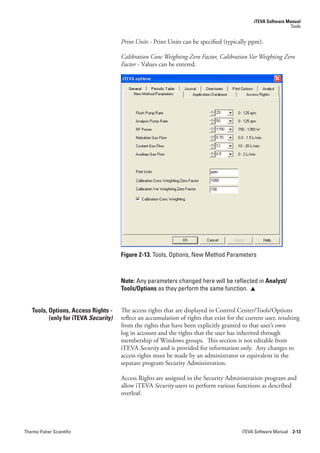
                           Note: The various options that are required should be indicated with
                           a checkmark. If Limit Checking is selected, the dropdown menu will
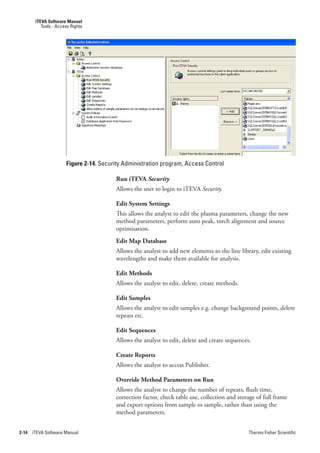
                           list the Limit Checks that are incorporated in the method. This field is
                           not active if an output mode other than concentration is selected. 

                           Correction.Factor - If the correction factor is not a known or exact factor,
                           e.g. Factor 10, the analyst can click on the Question.Mark button, which
                           will open a new dialog box to calculate the correction factor.


Thermo Fisher Scientific                                                      iTEVA Software Manual 4-23
Analyst, Method
Report Preferences


                               Figure 4-31. Report Preferences, Unknowns, Calculate Correction
                                            Factor
                               Correction.Factor.Components.- Values can be entered, such as the
                               Sample.Weight, Nominal.Weight, Initial.Volume, Final.Volume and
                               Adjustment.Factor. This is particularly useful when working with oxides,
                               carbonates, etc., to display a final/total concentration.

                               Limit.Checking - If the analyst would like to carry out limit checking,
                               the box must be checked and the appropriate Limit.Check table selected.

                               Note: The Limit Check table is created in Method, Checks.     


4-24   iTEVA Software Manual                                                        Thermo Fisher Scientific
Analyst, Method
                                                                                         Report Preferences


                           Screen Report, Print Report and Exported Report.


                           Figure 4-32. Report Preferences, Unknowns, Screen Report, Print
                                        Report and Exported Report
                           The Screen.Report, Printed.Report and Exported.Report fields are used to
                           indicate the information to be included in the various reports.

                           The analyst can select which of the following options should be
                           included:
                           Average,.Statistics,.Repeats,.Errors,.Wavelength,.Int.Std..ref,.Print.units and
                           Checks.


                           Report Preferences, QC Standards
                           The Report.Preferences.for.QC.Standards tab is similar to that for
                           Unknowns except that the only Output.Mode selection is Concentration.
                           The Limit.Checking feature in the In.Concentration.Mode.Output, apply
                           field is disabled.

                           Report Preferences, Blanks
                           The Report.Preferences for.Blanks tab is similar to that for unknowns
                           except that the only Output.Mode selection is Concentration.

                           Report Preferences, Standards
                           The Report.Preferences.for.Standards tab is similar to that for Unknowns
                           except that the only Output.Mode selection is Intensity.Ratio and the
                           In.Concentration.Output Mode field selections are not active. The Print.
                           Units and Checks options are not available in the Report.Options fields.

                           Report Preferences, Recoveries
                           The Report.Preferences.for.Recoveries tab is similar to that for Unknowns
                           except that the only Output.Mode selection is Concentration.

                           Report Preferences, Spikes
                           The Report.Preferences for Spikes tab is similar to that for Unknowns
                           except that the only Output.Mode selection is Intensity.Ratio and the
                           In.Concentration.Mode.Output field selections are not active. The print
                           units field is required and the Checks are not available in the Report.
                           Options fields.


Thermo Fisher Scientific                                                        iTEVA Software Manual 4-25
Analyst, Method
Checks


                               Checks   The Checks window is used to create Quality.Control.Check tables,
                                        Recoveries tables, Limit Check tables and Duplicate.Check tables, which
                                        can be incorporated into the method.


                                        Figure 4-33. Method, Checks
                                        These tables are used to set limits for various activities. As an example, a
                                        Quality.Control.Limit table is used to indicate the acceptable range for a
                                        QC sample, and to indicate the limits for a warning or failure.

                                        The general protocol for entering parameters for the various check types
                                        is similar for each of the four protocols. The Checks window, is used to
                                        select the check type to be established and to enter the parameters. This
                                        window is opened by selecting Checks on the Method Workspace.


                                        Figure 4-34. Checks Window

                                        Checks window - Supplies three buttons for creating new checks,
                                        duplicating checks and deleting existing checks.

                                        New - To establish a new check protocol, click New to present the New.
                                        Check.Table dialog box. The default Check.Type is QC and the default
                                        Check.Name is QC-1.


4-26   iTEVA Software Manual                                                                    Thermo Fisher Scientific
Analyst, Method
                                                                                           Report Preferences


                           Figure 4-35. Checks, New Check Table

                                 Duplicate - Allows an existing checks table to be duplicated. Enter the
                                 New.Check.name in the dialog box.

                                 Delete - Deletes an existing check table.

                                 Check.Type field - Supplies a dropdown list of allowed check types
                                 including QC,.Recovery, Limit.Check and Duplicates.


Thermo Fisher Scientific                                                          iTEVA Software Manual 4-27
Analyst
Report Preferences


                               To change the check type, click the down arrow in the Check.Type field
                               to present a menu containing the four check types. When you select the
                               desired check type, some of the fields in the dialog box will change, as
                               described below.

                               Check.Name - This is an identifier that correlates the solution, values
                               and failure actions.

                               Range.Units field - This field is a dropdown list. Selection may be
                               Relative (+/-),.Relative.(%) or Absolute.

                               Default.Check.Ranges - Define upper and lower.limits for warning and
                               failure.

                               Where the check sample has a known value such as a QC or Recovery,
                               the known value is included.

                               Standard.Normalization.type - This is a dropdown list of provided failure
                               actions.

                               OK - When the entries are complete, clicking on OK will enter the
                               defined values into the method Check window for all analytical lines in
                               the method. A new table will be opened, which summarizes the Check
                               values that you have just entered.


Figure 4-36. Checks Window
                               Individual values for each line can be modified if desired.

                               Note: Only a QC check can initiate actions to be taken such as, Re-
                               calibrate, Repeat Sample Analyses, etc. Any other check type, such
                               as Recovery, Limit check or Duplicate can only pass or fail. 


4-28   iTEVA Software Manual                                                          Thermo Fisher Scientific
Analyst, Method
                                                                                                       Report Preferences


                           Check Type, QC   Uses a check sample to determine that the concentrations of elements
                                            in a specific sample are within the limits prescribed by the analyst. The
                                            sample should be one that is well defined (i.e. the concentration of the
                                            elements of interest is known with a high degree of accuracy) but it
                                            need not be a standard.


                                            Figure 4-37. Checks, QC Check Type
                                            Warning.and.Failure.Limits.- When QC.Check is selected, the analyst
                                            can select the Failure.limits, the Warning.limits and the expected value
                                            for the parameter. The values entered via this dialog box refer to all
                                            elements in the method.


                                            Figure 4-38. Checks, Range Units
                                            Range.Units.- The Range.Units can be set to Relative.+/-,.Relative.%, or
                                            Absolute.


Thermo Fisher Scientific                                                                      iTEVA Software Manual 4-29
Analyst, Method
Report Preferences


                               Figure 4-39. Checks, Standard Normalization type
                               There are three options for normalization.

                               The global actions are set in Standard.Normalization type to either Slope,
                               None or Offset.

                               To change the normalization action for a particular element, click
                               on the cell in the Norm column and desired element row to view the
                               dropdown list shown in the figure above. Move the cursor to the desired
                               normalization function and click to accept.

                               None - This option will do nothing.

                               Slope - Will adjust the calibration curve re-slope value as displayed
                               in Method, Element, Fit, so that the instrument response for the
                               highlighted QC sample corresponds to its known concentration.

                               Offset - Will adjust the Y-intercept so that the instrument response for
                               the highlighted QC sample corresponds to its known concentration.

                               In the example shown in the figure below, the expected value of all
                               elements is 10.00. A warning will be issued if the reported value is
                               < 9.90 or > 10.10 and a failure will be issued if the reported value
                               is <9.80 or > 10.20. Since we have selected the Absolute.Range.Units
                               option, this could refer to a concentration range of 10.00 ppm +/- 0.10
                               for the warning and 10.00 +/- 0.20 for failure. At this stage, only one
                               value for each warning/failure can be entered.


Figure 4-40. Checks Window


4-30   iTEVA Software Manual                                                          Thermo Fisher Scientific
Analyst, Method
                                                                                                 Report Preferences


                                      Note: This window is used to set specific values for each element
                                      or remove an element from the test. You can click in the table matrix
                                      itself and the values can be edited for each individual element. 

                                      Note: Within the Method Checks, the analyst sets up the criteria
                                      for passing or failing. Please note that the Actions to be taken if a
                                      QC sample fails during an automated run are chosen in the Method,
                                      Sequence Automation. 

                                      To remove an element from the check, remove the checkmark from the
                                      first column.

                                      To change the Failure, Warning or Value fields, click the field and enter
                                      the desired value.


               Check Type, Recovery   This is a type of quality control check in which an unknown sample
                                      is spiked (an additional concentration of the element(s) of interest is
                                      added and then reanalyzed). The analytical result should be the original
                                      result plus the concentration of the added spike (the spike is then said
                                      to be “100 % recovered”). In theory, any interference of a spectral or
                                      chemical nature will cause the recovery of the spike to deviate (either
                                      positively or negatively) from the ideal of 100 %.


                                      Figure 4-41. Check Type, Recovery
                                      When Recovery is selected on the New.Check.Table dialog box, the
                                      Default.Check.Range fields are Low.Failure,.Low.Warning,.Spike,.High.
                                      Warning and High.Failure. The range units are the same as for a QC
                                      check. Selection of parameters in the Checks dialog box is identical to
                                      that for QC.check, except for the Std.Normalization type. The Spike.
                                      value is the concentration of the element(s) of interest that was added to
                                      the sample.
                                      To use the recovery function, you must first analyze an unknown, then
                                      select Results/Run.Recovery and select the appropriate recovery check
                                      table from the dropdown menu.


Thermo Fisher Scientific                                                                iTEVA Software Manual 4-31
Analyst, Method
Report Preferences


            Check Type, Limit Check    These are applied to unknown samples. A limit check table contains a
                                       list of elements along with a high and low acceptable result for each. A
                                       result which falls above its high limit check, or below its low limit check
                                       will be flagged. For example, if the high limit is set at the High.Standard
                                       concentration, then a decision to dilute the sample can be made based
                                       upon high results.


                                       Figure 4-42. Check Type, Limit Check

                                       When Limit.Check is selected on the New.Check.Table dialog box, the
                                       Default.Check.Range fields are Low.Failure,.Low.Warning,.High.Warning
                                       and High.Failure. The Range units are the same as for a QC.check.

                                       Selection of parameters in the Checks dialog box is identical to that for
                                       QC check.

                                       Note: The Limit Check table can be activated for use in Method,
                                       Report Preferences. 

               Check Type, Duplicate   This is used to determine if two (or more) analyses of a given sample
                                       provide the same analytical result within a user-specified tolerance.


                                       Figure 4-43. Check Type, Duplicate


Thermo Fisher Scientific                                                                 iTEVA Software Manual 4-32
Analyst, Method
                                                                                          Report Preferences


                               When Duplicate is selected on the New.Check.Table dialog box, the
                               Default.Check.Range fields are Low.Failure,.Low.Warning,.High.Warning
                               and High.Failure. The Range units are the same as for a QC check.
                               Selection of parameters in the Checks dialog box is identical to that for
                               QC check.

                               Note: To use the duplicate function, you must first analyze an
                               unknown, then select Results, Run Duplicate and select the
                               appropriate duplicate check table from the dropdown menu. 


        Sequence Automation    Sequence.Automation refers to the addition of a series of steps before,
                               during or after an analysis.


                               Figure 4-44. The Method Workspace, Sequence Automation

                               The Sequence.Automation feature is used to indicate the checks that
                               should be performed during an automated analysis and to indicate
                               the desired action if the test is not passed. A check can be performed
                               before, during or after a sequence is performed. The general protocol for
                               selecting Initial.Actions, Continuing.Actions and End.Actions is identical
                               (but the activities differ).

                               Operations which qualify the sample preparation, standards, method
                               and instrument may be required for every sequence of samples run and,
                               if so, should be completed under Initial.Actions operations. Blanks,
                               calibration checks, and recoveries are continuing actions that need to be
                               run frequently throughout the entire sequence of samples to ensure the
                               instrument is operating constantly within control.


4-33   iTEVA Software Manual                                                          Thermo Fisher Scientific
Analyst, Method
Sequence Automation


Figure 4-45. Sequence Automation

                        Initial Actions


                                          Figure 4-46. Method, Sequence Automation, Initial Actions


4-34   iTEVA Software Manual                                                                Thermo Fisher Scientific
Analyst, Method
                                                                                               Sequence Automation


                                       To establish an Initial.Action:

                                       1. Click Add.Action to activate the next open line of the Initial.Actions
                                          field.
                                          Clicking on the Add button will add another entry into the
                                          Continuing.Actions table.

                                       2. Click on the Operation field to present a menu that includes the
                                          available operations (Calibrate,.Standardize) and select the desired
                                          operation.
                                       3. Click on the Failure.Action field to present a menu that includes the
                                          available options (None and Halt) and select the desired option.

                                       Remove.Action - When one of the actions in a panel is highlighted
                                       (click to select), the Remove.Action button becomes active. Clicking
                                       on the Remove.Action button will remove the highlighted action from
                                       the associated panel only. Placing the cursor on the number column
                                       changes the cursor to a black arrow. The black arrow can be used with
                                       Control and Shift keys to remove multiple actions.

                                       Note: If the operation fails (e.g. the system cannot be calibrated
                                       within defined limits) during the execution of the sequence and the
                                       selected Failure Action is Halt, the sequence will stop. 


                  Continuing Actions


                                       Figure 4-47. Method, Sequence Automation, Continuing Actions
                                       Continuing.Actions - The Continuing.Actions field is used to enter
                                       operations to be performed during the sequence. Continuing.Actions
                                       have an application frequency that appears in the column labelled


Thermo Fisher Scientific                                                                iTEVA Software Manual 4-35
Analyst, Method
Sequence Automation


                               Frequency. In the example displayed above QC-1 would be analyzed
                               after the 10th, 20th, 30th, etc. samples. Additionally, QC-1 would be
                               analyzed once after the last sample, regardless of the total number of
                               samples in the sequence.

                               QC samples are defined for each method in Method,.Checks. To change
                               an operation, click on it under Operation, move the cursor to the
                               desired action in the dropdown list, and click to select it.

                               The roles of the Operation and Failure.Action fields are similar to that for
                               Initial. The Frequency column is used to indicate the interval between
                               the each performance of the operation. As an example, if 10 is chosen,
                               the system will perform the desired operation after every 10 samples.

                               Note: Frequency defines how many samples are analyzed between
                               the QC samples. As a default, the frequency is set to 10, therefore the
                               QC sample will be run after every 10 samples. 

                               The only check operations that can be performed during a sequence are
                               QC.methods and the failure options are None and Normalize.

                               In case of a QC failure, the analyst can select one of the following
                               actions:

                               None - The sequence will continue operating. It flags the results but
                               otherwise ignores the failure, continuing the sequence.

                               Normalize - Normalizes as per the options set in the check table. The
                               system will change the report for samples that were run since the last
                               QC sample and continue. As an example, if the QC value for Fe was
                               increased by 0.13% since the last QC sample, the concentration of Fe
                               for all unknowns since the last QC check will be multiplied by 1.0013.


                               Note: Normalize has three options: none, offset and slope. This
                               function is defined separately for each analytical line in Method,
                               Checks. 

                               Note: During normalization, the concentrations from a QC standard
                               may be used to make a correction to one of the standardization
                               coefficients. A correction may be made to the standardization slope
                               or intercept, but not to both. This procedure may be viewed as a
                               single point re-standardization. Any time that a normalization is
                               performed, the coefficients are first reset to 1 (slope) and 0 (intercept)
                               before the new normalization factor is applied. That is, factors are
                               not repeatedly applied on top of previous factors. The normalization
                               method to use may be selected on an element-specific basis. 

                               Normalize,.Re-run.samples - Re-run all samples that were run since the
                               last acceptable QC check was run.


4-36   iTEVA Software Manual                                                           Thermo Fisher Scientific
Analyst, Method
                                                                                                     Sequence Automation


                                         Standardize - Re-run the standard and generate a revised concentration/
                                         system response curve. Standardize will run the re-slope standards, if
                                         defined in Method,.Elements,.Standards. When the method has no re-
                                         slope standards defined, the full calibration standards will be re-run.

                                         Standardize,.Recheck.QC - Re-run the standard to generate a revised
                                         concentration/system response curve and then run the QC sample.

                                         Standardize,.Recheck.QC,.Re-run.Samples - Re-run the standard,
                                         generate a revised concentration/system response curve, then run the
                                         QC sample and then re-run all samples that were analyzed since the last
                                         QC sample.

                                         Halt - Stops sequence after failure occurs.

                                         Note: Where the selection contains more than one failure action,
                                         each action will be performed in the displayed order. 


                           End Actions


                                         Figure 4-48. Method, Sequence Automation, End Actions
                                         End.Actions - These are identical to the Initial.Actions field and the only
                                         operations that can be performed are QC methods. The failure options
                                         are:

                                         None - There is no further action and the sequence is closed.

                                         Invalidate.all.Results - Will invalidate the affected analytical results for
                                         the samples in the sequence.

                                         Halt - Stops sequence after failure occurs.


Thermo Fisher Scientific                                                                      iTEVA Software Manual 4-37
Analyst, Method
QC Properties


          Global QC Properties


                                 Figure 4-49. Method, Sequence Automation, Global QC Properties

                                 Global.QC.Properties - The Global.QC.Properties field is used to indicate
                                 what constitutes a failure and what the system should do when a failure
                                 is observed.

                                 Number.of.Failed.Lines.to.Fail.a.QC.Sample - If the analytical protocol
                                 is such that the failure of one (or more) lines is acceptable, enter the
                                 number of lines that must fail before a failure is reported. For example,
                                 the analyst can define that a QC failure is only reported when four lines
                                 fail. In this case, the run would continue if less than four wavelengths
                                 have failed.

                                 Maximum.QC.visits.per.tube location- During operation of a sequence,
                                 this is the maximum number of times that a QC standard can be
                                 withdrawn from the tube. The allowed number of QC visits per tube
                                 avoids running out of QC solution during an automated run.

                                 Restandardize.QC.failed.lines.only - The QC sample should be run again,
                                 but only data for the lines that originally failed should be reported. It
                                 will perform the failure actions on the subset of failed lines only. For the


4-38   iTEVA Software Manual                                                             Thermo Fisher Scientific
Analyst, Method
                                                                                                       Autosampler


                                     same subset of lines, failed samples will be re-run, following successful
                                     QC checks.

                                     Continue.on.2nd.QC.Failure - Instructs the system to ignore the failure
                                     if the system fails the QC test twice. It will then proceed with the
                                     analysis sequence.

                                     Sound.Alarm.on.1st.failure.(2nd.failure).5.sec - Used to indicate that the
                                     alarm should be sounded for the indicated period of time. Sound.Alarm
                                     provides audio support for operators working away from the computer
                                     display. Selection and duration of alarms for first and second QC
                                     failures are independent.


                       Autosampler   The analyst can set the Standard.Rinse.Time for the system, select
                                     Intelligent.Rinse and Sipper.Step.Ahead.


                                     Figure 4-50. Method, Sequence Automation, Autosampler Options

                                     Standard.Rinse.Time - A fixed rinse time can be set, e.g. 5 sec. The
                                     autosampler will run a sample, then go to the rinse station for 5 seconds
                                     before continuing to the next sample.
                                     Intelligent.Rinse - The rinse time needed for a sample analysis is
                                     usually based on the minimum time needed to rinse out the highest
                                     concentration of an analyte that might be present in a sample. Many
                                     sequences may never contain analytes at this level or may only contain
                                     a few samples in that region. A long rinse time would be needed and
                                     add extra time to the sample run even if it were not always necessary.
                                     The ability to monitor samples and use only an appropriate rinse time
                                     increases sample throughput. By monitoring the rinse station for carry
                                     over, IRINSE can ensure that contamination from one sample to the
                                     next does not occur.
                                     The Intelligent.Rinse option is always grayed out initially. In order to
                                     activate it, an IRINSE.Limit.table must be specified.


Thermo Fisher Scientific                                                                iTEVA Software Manual 4-39

01

  • 1.
    iTEVA Software Manual Operators Manual 8499 400 30001 210607 © 2007 Thermo Fisher Scientific. All rights reserved. SOLAAR House, 19 Mercers Row, Cambridge CB5 8BZ.United Kingdom. Telephone +44 (0) 1223 347400, Fax +44 (0) 1223 347402. www.thermofisher.com
  • 2.
    This page isintentionally blank. iTEVA Software Manual Thermo Fisher Scientific
  • 3.
    Contents Chapter 1 Introduction .................................................................................................1-1 iTEVA Security...................... ......................................................1-3 Opening the Program ..................................................................1-5 ITEVA Security Login ........................................................................1-5 Conventions ................................................................................1-6 Chapter 2 iTEVA Control Center ................................................................................. 2-1 iTEVA Control Center ......................................................................2-3 The Menu Bar .............................................................................2-4 File ..............................................................................................2-4 File, Log On ................................................................................2-4 File, Log Off................................................................................2-4 File, Print Journal ........................................................................2-5 File, Journal Print Preview ...........................................................2-5 File, Print Setup ..........................................................................2-5 File, Page Setup ...........................................................................2-5 File, Exit......................................................................................2-6 View ..............................................................................................2-6 Tools, Options ..................................................................................2-6 Tools, Options, General ..............................................................2-7 Tools, Options, Periodic Table .....................................................2-7 Tools, Options, Journal ...............................................................2-8 Tools, Options, Directories .......................................................2-10 Tools, Options, Print Options ...................................................2-11 Tools, Options, Analyst .............................................................2-11 iTEVA.Security...................... ....................................................2-12 Tools, Options, New Method Parameters ..................................2-12 Tools/Options/Access Rights - only for iTEVA Security, not present for iTEVA.................2-13 Tools, Options, Application Database .......................................2-16 Database Wizard .............................................................................2-16 Database Info ............................................................................2-18 Create .......................................................................................2-18 Backup ......................................................................................2-18 Detach ......................................................................................2-18 Attach .......................................................................................2-18 Restore ......................................................................................2-19 Users (only for iTEVA, not present for iTEVA Security) ............2-19 iTEVA SQL Databases ....................................................................2-19 iTEVA Security...................... ....................................................2-20 Create New Database ................................................................2-21 Add a New Connection .............................................................2-21 Copy Methods/Results ..............................................................2-24 Thermo Fisher Scientific iTEVA Software Manual iii
  • 4.
    Contents Change Active Connection........................................................2-24 Exporting/Importing/Deleting Databases ........................................2-24 Deleting a Database ..................................................................2-24 Editing/Deleting a Connection .................................................2-25 Exporting/Importing a Database from/to another iCAP ...........2-25 Database Upgrades ....................................................................2-25 Tools, Instrument Options ..............................................................2-26 Autosampler ..............................................................................2-26 Sample Introduction .................................................................2-26 Enable Drain Sensor..................................................................2-27 Accessory...................................................................................2-27 Help ............................................................................................2-27 Help, Help Topics .....................................................................2-27 Feature request / Incident form .................................................2-28 Help, About iTEVA ..................................................................2-28 The Tool Bar....................................................................................2-29 The Workspace ..........................................................................2-29 The Journal ...............................................................................2-30 The Status Bar ...........................................................................2-31 New Firmware dialog box..........................................................2-32 Chapter 3 Analyst ......................................................................................................... 3-1 Analyst Window................................................................................3-3 Chapter 4 Analyst, Method ......................................................................................... 4-1 Analyst, Method ................................................................................4-3 Method Menu Bar.......................................................................4-3 Method .......................................................................................4-3 Create a new Method ........................................................................4-3 Periodic Table, Map Editor ................................................................4-9 Status ............................................................................................4-11 Analysis Preferences .........................................................................4-12 Sample Options ........................................................................4-13 Source .......................................................................................4-13 Analysis Maximum Integration Times .......................................4-14 Calibration Mode ............................................................................4-15 Trailing Fullframe Options ..............................................................4-17 Automated Output..........................................................................4-18 Automated Output, Unknowns.................................................4-19 Automated Output, Standards ..................................................4-21 Report Preferences ...........................................................................4-22 Report Preferences, Unknowns ..................................................4-22 Checks 4-26 Check Type, QC .......................................................................4-29 Check Type, Recovery ...............................................................4-31 Check Type, Limit Check..........................................................4-32 Check Type, Duplicate ..............................................................4-32 Sequence Automation .....................................................................4-33 iv iTEVA Software Manual Thermo Fisher Scientific
  • 5.
    Contents Initial Actions............................................................................4-34 Continuing Actions ...................................................................4-35 End Actions ..............................................................................4-37 Global QC Properties......................................................................4-38 Autosampler ....................................................................................4-39 Source Settings ................................................................................4-42 Internal Standards ...........................................................................4-46 Selecting Internal Standards ......................................................4-47 Standards ..................................................................................4-49 Elements .........................................................................................4-52 Elements, General .....................................................................4-53 Elements, Standards ..................................................................4-56 Elements, Fit .............................................................................4-58 Elements, IEC ...........................................................................4-69 Elements, Subarray ....................................................................4-72 Method Reports ..............................................................................4-75 Method, Open ..........................................................................4-76 iTEVA Security ................................................................................4-80 Select a Method, Sign and Audit Trail .............................................4-80 iTEVA Security ................................................................................4-84 Method, Sign Method .....................................................................4-84 Method, Audit Trail ..................................................................4-85 Toolbar............................................................................................4-85 Tools ............................................................................................4-87 View ............................................................................................4-89 Help ............................................................................................4-90 Chapter 5 Analyst, Analysis ....................................................................................... 5-1 Analyst, Analysis............................................................................... 5-3 Tool Bar ..................................................................................... 5-3 Method ...................................................................................... 5-6 Run ............................................................................................. 5-8 Run Full Frame .......................................................................... 5-8 Time Scan ................................................................................ 5-16 Run, Unknown, QC,Standard, Blank............................................... 5-22 Calibration ............................................................................... 5-29 Method Workspace, Method .......................................................... 5-31 Post-Process Sample ................................................................. 5-37 Results ........................................................................................... 5-44 Instrument ..................................................................................... 5-54 Tools ........................................................................................... 5-60 View ........................................................................................... 5-67 Help ........................................................................................... 5-69 Chapter 6 Analyst, Sequence ..................................................................................... 6-1 Analyst, Sequence ..............................................................................6-3 Thermo Fisher Scientific iTEVA Software Manual v
  • 6.
    Contents Sequence Menu Bar.........6-3 Auto Session ....................6-4 Auto-Session,New Autosampler...................................................6-4 Auto-Session, New Manual6-7 Run Auto-Session ..........6-10 Signing Autosessions and Autosession Audit Trail ............................6-11 Sequence .............................6-12 Sequence Tool Bar .........6-14 Autosession functions ......................................................................6-15 Manipulating Auto Sessions ......................................................6-23 Chapter 7 Analyst, Publisher ...................................................................................... 7-1 Publisher ...............................7-3 ........................................................... Publisher Workspace .........................................................................7-3 To obtain a sample report: ...........................................................7-4 Expanded Trend Chart with Data................................................7-6 Trend Chart ................................................................................7-8 Horizontal Table Report ..............................................................7-8 Intensity Report ..........................................................................7-9 Method Detection Limit .............................................................7-9 RSD Trend Chart ......................................................................7-10 Sample Report.................................................................................7-10 Simple Sample Report .....................................................................7-11 Vertical Table Report .......................................................................7-11 File ............................................................................................7-12 View ............................................................................................7-12 Tools ............................................................................................7-12 Window ..........................................................................................7-12 Tool Bar ..........................................................................................7-12 Chapter 8 iTEVA Security ............................................................................................ 8-1 Introduction ......................................................................................8-1 Background .......................................................................................8-3 What is 21 CFR Part 11? ...........................................................8-3 Access Control ............................................................................8-3 User Login and Authentication ...................................................8-3 Electronic Records.......................................................................8-4 Electronic Signatures ..................................................................8-4 Audit Trails..................................................................................8-4 Event Log ....................................................................................8-4 Access Control ..................................................................................8-5 Granting Access Rights ......................................................................8-6 Viewing the current User’s Access Rights ...........................................8-6 User Login and Authentication ...................................................8-7 iTEVA Security Login Process ......................................................8-8 Electronic Records.......................................................................8-8 Electronic Signatures ...................................................................8-9 Audit Trail .......................................................................................8-13 vi iTEVA Software Manual Thermo Fisher Scientific
  • 7.
    Contents Event Logs ......................................................................................8-15 Information Events....................................................................8-16 Deleted Samples, Methods and Autosessions .............................8-16 Signing Samples and Sample Audit Trails ........................................8-17 Signing Methods and Method Audit Trail .......................................8-19 Signing Autosessions and Autosession Audit Trail ............................8-20 Thermo Fisher Scientific iTEVA Software Manual vii
  • 8.
    Contents This page is intentionally blank. viii Thermo Fisher Scientific
  • 9.
    Figures Chapter 1 Figure 1-1. iTEVA login.............................................................1-5 Figure 1-2. iTEVA Security login ...............................................1-5 Chapter 2 Figure 2-1. The iTEVA Control Center window ........................2-3 Figure 2-2. The Menu Bar ..........................................................2-4 Figure 2-3. The File Menu .........................................................2-4 Figure 2-4. Page Setup Dialog Box .............................................2-5 Figure 2-5. View Menu ..............................................................2-6 Figure 2-6. Tools Menu..............................................................2-6 Figure 2-7. Tools, Options, General ...........................................2-7 Figure 2-8. Tools, Options, Periodic Table .................................2-8 Figure 2-9. Tools, Options, Journal ............................................2-9 Figure 2-10. Tools, Options, Directories ....................................2-10 Figure 2-11. Tools, Options, Print Options................................2-11 Figure 2-12. Tools, Options, Analyst..........................................2-12 Figure 2-13. Tools, Options, New Method Parameters ...............2-13 Figure 2-14. Security Administration program, Access Control .................................................2-14 Figure 2-15. Tools, Options, Access Rights ................................2-15 Figure 2-16. Tools, Options, Application Database ....................2-16 Figure 2-17. iTEVA Database Wizard for standard (above) and iTEVA Security (below) .............................2-17 Figure 2-18. Database Wizard ...................................................2-20 Figure 2-19. Database Wizard for iTEVA Security .....................2-21 Figure 2-20. Add a connection icon ..........................................2-21 Figure 2-21. Data Link dialog box ............................................2-22 Figure 2-22. Data link dialog box for iTEVA Security................2-23 Figure 2-23. Data link file name dialog box ..............................2-24 Figure 2-24. Change the Active Connection dropdown menu ..............................................2-24 Figure 2-25. Edit/Add/Delete a connection icons.......................2-25 Figure 2-26. Database Upgrade dialog box .................................2-25 Figure 2-27. Tools, Instrument Options, Autosampler ...............2-26 Figure 2-28. Tools, Instrument Options, Sample Introduction ........................................2-26 Figure 2-29. The Help Menu .....................................................2-27 Figure 2-30. The Help Feature Request Incident Form...............2-27 Figure 2-31. About iTEVA .........................................................2-28 Figure 2-32. The Tool Bar ..........................................................2-29 Figure 2-33. Journal window......................................................2-30 Figure 2-34. Status Bar...............................................................2-31 Figure 2-35. New Firmware Window .........................................2-32 Thermo Fisher Scientific iTEVA Software Manual ix
  • 10.
    Figures Chapter 3 Figure 3-1. Analyst - Analysis, Method, Sequence ......................3-3 Chapter 4 Figure 4-1. Method Menu Bar ...................................................4-3 Figure 4-2. Method Menu..........................................................4-3 Figure 4-3. Method Workspace ..................................................4-4 Figure 4-4. Method, Periodic Table ............................................4-5 Figure 4-5. Method, Periodic Table, Cursor information for specific element ..................................................4-5 Figure 4-6. Method, Periodic Table, Line List display.................4-6 Figure 4-7. Method, Periodic Table, Line List/Interferences Window .............................................................4-6 Figure 4-8. Method, Periodic Table, Selected element displayed in aqua ...............................................4-7 Figure 4-9. Method, Periodic Table, Selected Line marked with asterisk .......................................................4-7 Figure 4-10. Method, Status Window ..........................................4-8 Figure 4-11. Periodic Table, Map Editor ......................................4-9 Figure 4-12. Periodic Tale, Right mouse click, Edit Map, Add Lines ........................................................4-10 Figure 4-13. Periodic Tale, Right mouse click, Add Lines, Create ..............................................................4-10 Figure 4-14. Method Workspace, Status .....................................4-11 Figure 4-15. Status Window ......................................................4-11 Figure 4-16. Method, Analysis Preferences .................................4-12 Figure 4-17. Analysis Preferences................................................4-12 Figure 4-18. Analysis Preferences, Sample Options ....................4-13 Figure 4-19. Analysis Preferences, Source ...................................4-14 Figure 4-20. Analysis Preferences, Maximum Integration Times.4-14 Figure 4-21. Analysis Preferences, Calibration Mode ..................4-15 Figure 4-22. Analysis Preferences, Trailing Fullframe Options ....4-17 Figure 4-23. Method, Automated Output ..................................4-18 Figure 4-24. Method, Automated Output dialog .......................4-19 Figure 4-25. Method, Automated Output, Standards .................4-21 Figure 4-26. Method, Automated Output, Standards .................4-21 Figure 4-27. Method, Report Preferences ...................................4-22 Figure 4-28. Report Preferences, Unknowns ..............................4-22 Figure 4-29. Report Preferences, Unknowns, Output and Default View .............................................4-23 Figure 4-30. Report Preferences, Unknowns, In Concentration Output Mode, apply ............4-23 Figure 4-31. Report Preferences, Unknowns, Calculate Correction Factor .............................................4-24 Figure 4-32. Report Preferences, Unknowns, Screen Report, Print Report and Exported Report ...................4-25 Figure 4-33. Method, Checks.....................................................4-26 Figure 4-34. Checks Window.....................................................4-26 Figure 4-35. Checks, New Check Table......................................4-27 Figure 4-36. Checks Window.....................................................4-28 Figure 4-37. Checks, QC Check Type........................................4-29 x iTEVA Software Manual Thermo Fisher Scientific
  • 11.
    Figures Figure 4-38. Checks, Range Units ..............................................4-29 Figure 4-39. Checks, Standard Normalization type ....................4-30 Figure 4-40. Checks Window.....................................................4-30 Figure 4-41. Check Type, Recovery ............................................4-31 Figure 4-42. Check Type, Limit Check ......................................4-32 Figure 4-43. Check Type, Duplicate ...........................................4-32 Figure 4-44. The Method Workspace, Sequence Automation .....4-33 Figure 4-45. Sequence Automation ............................................4-34 Figure 4-46. Method, Sequence Automation, Initial Actions ......4-34 Figure 4-47. Method, Sequence Automation, Continuing Actions .........................................4-35 Figure 4-48. Method, Sequence Automation, End Actions.........4-37 Figure 4-50. Method, Sequence Automation, Autosampler Options .......................................4-39 Figure 4-51. Method, Sequence Automation, Check table for Intelligent Rinse ......................4-40 Figure 4-52. Method, Source Settings ........................................4-42 Figure 4-53. Method, Source Settings ........................................4-43 Figure 4-54. Method, Source Settings, Radial Viewing Height ..4-44 Figure 4-55. Method, Source Settings, Additional Gas Flow ......4-44 Figure 4-56. Method, Source Settings, Laser Sample Introduction ...............................4-45 Figure 4-57 Method, Source Settings, SSEA Sample Introduction ..............................4-45 Figure 4-58. Method, Internal Standards ...................................4-46 Figure 4-59. Method, Internal Standards, Periodic Table Selection....................................4-47 Figure 4-60. Method, Change Elements .....................................4-47 Figure 4-61. Method, Internal Standards Selection.....................4-48 Figure 4-62. Method, Standards .................................................4-49 Figure 4-63. Method, Standards Window ..................................4-50 Figure 4-64. Method, Standards, New Standard Dialog Box ......4-50 Figure 4-65. Method, Elements..................................................4-52 Figure 4-66. Method, Elements..................................................4-52 Figure 4-67. Method, Elements, General ...................................4-53 Figure 4-68. Elements, General, Result Labelling ......................4-54 Figure 4-69. Method, Elements, General, Timing ......................4-54 Figure 4-70. Method, Elements, General, Referenced Internal Standards ..........................4-55 Figure 4-71. Method, Elements, General, Analytical Report ......4-55 Figure 4-72. Method, Elements, Standards.................................4-56 Figure 4-73. Method, Elements, Standards table ........................4-57 Figure 4-74. Method, Elements, Standards, Re-Slope Standards.4-58 Figure 4-75. Method, Elements, Fit ...........................................4-59 Figure 4-76. Method, Elements, Fit, Line Switch and Print Limits ...............................................4-61 Figure 4-77. Method, Elements, Standards, Line Switching Arrows .....................................4-61 Figure 4-78. Method, Elements, Standards, Line Switching for Ca ......................................4-62 Thermo Fisher Scientific iTEVA Software Manual xi
  • 12.
    Figures Figure 4-79. Method, Setting Print Limits .................................4-62 Figure 4-80. Method, Element, Fit, Advanced Options ..............4-63 Figure 4-81. Method, Elements, Fit, Details ..............................4-65 Figure 4-82. Method, Elements, Fit, Std Table ...........................4-67 Figure 4-83. Method, Elements, Fit, Right mouse click .............4-68 Figure 4-84. Method, Elements, Fit, Calibration Plot Commands, Print (Right mouse click) .............4-68 Figure 4-85. Method, Elements, IEC .........................................4-70 Figure 4-86. Method, Elements, Subarray ..................................4-73 Figure 4-87. Right mouse click on Subarray Plot .......................4-74 Figure 4-88. Method, Method Reports ......................................4-75 Figure 4-89. Method, Method Reports, Common Report ..........4-75 Figure 4-90. Method, Open .......................................................4-76 Figure 4-91. Method Open, Select a Method Dialog Box...........4-77 Figure 4-92. Method Query .......................................................4-77 Figure 4-93. Method Query, Click Ellipsis .................................4-78 Figure 4-94. Method Open, Select a Method Dialog Box - Show All Revisions ...........................................4-78 Figure 4-95. Select a Method, Copy To, Select a Destination Database dialog box ......................4-79 Figure 4-96. Method Open, iTEVA Window after Method is opened ............................................4-79 Figure 4-97. Method Open, Select a Method Dialog Box for iTEVA Security ....................................4-80 Figure 4-98. Method Open, Sign a Method Dialog Box for iTEVA Security ..........................................4-80 Figure 4-99. Method Open, Audit Trail for iTEVA Security .......4-81 Figure 4-100. Method, Close .......................................................4-81 Figure 4-101. Method, Save a Method Dialog Box ......................4-82 Figure 4-102. Method, Print Dialog Box......................................4-83 Figure 4-103. Method Menu for iTEVA Security..........................4-84 Figure 4-104. Method, Sign Method............................................4-84 Figure 4-105. Method, Audit Trail ...............................................4-85 Figure 4-106. Method, Tool Bar...................................................4-85 Figure 4-107. Method Tool Bar....................................................4-85 Figure 4-108. Tools Menu............................................................4-87 Figure 4-109. Tools, Options, Change Element Display Order ....4-87 Figure 4-110. Tools, Options, New Method Parameters ...............4-88 Figure 4-111. Help Menu ............................................................4-90 Figure 4-112. Help, About Analyst ..............................................4-90 Chapter 5 Figure 5-1. Analysis Menu Bar ...................................................5-3 Figure 5-2. Method Tool Bar......................................................5-3 Figure 5-3. View, Subarray Plot with multiple samples displayed5-5 Figure 5-4. Method Menu..........................................................5-6 Figure 5-5. Method Menu for iTEVA Security............................5-7 Figure 5-6. Method, Sign Method..............................................5-7 Figure 5-7. Method, Audit Trail .................................................5-8 Figure 5-8. Run Menu ...............................................................5-8 xii iTEVA Software Manual Thermo Fisher Scientific
  • 13.
    Figures Figure 5-9. Run, Run Fullframe .................................................5-9 Figure 5-10. Run, Run Fullframe, Sample ID Information ..........5-9 Figure 5-11. Run, Run Fullframe, Automated Output ...............5-10 Figure 5-12. Run, Run Fullframe, Options ................................5-10 Figure 5-13. Low Wavelength Fullframe Image ..........................5-11 Figure 5-14. High Wavelength Fullframe Image .........................5-12 Figure 5-15. Fullframe Tool Bar .................................................5-12 Figure 5-16. 2d Plot of Fullframe Image Region ........................5-14 Figure 5-17. Line Information ...................................................5-14 Figure 5-18. Analytical Element List ..........................................5-15 Figure 5-19. Line List for Elements in the Method ....................5-15 Figure 5-20. Fullframe Menu .....................................................5-15 Figure 5-21. Run, Run Time Scan..............................................5-16 Figure 5-22. Run, Run Time Scan, Sample ID Information .......5-16 Figure 5-23. Run, Run Time Scan, Automated Output..............5-17 Figure 5-24. Run, Run Time Scan, Acquisition Parameters ........5-17 Figure 5-25. Run, Run Time Scan Options ................................5-18 Figure 5-26. Run, Run Time Scan, Select Lines .........................5-18 Figure 5-27. Time Scan data being acquired...............................5-19 Figure 5-28. Run, Time Scan, (Right mouse click) .....................5-20 Figure 5-29. Time Scan data shown as first derivative.................5-21 Figure 5-30. Time Scan data with defined Gate values ...............5-21 Figure 5-31. Run, Run Unknown ..............................................5-22 Figure 5-32. Run, Run Unknown, Sample ID Information........5-22 Figure 5-33. Run, Run Unknown, Automated Output ..............5-23 Figure 5-34. Run, Run Unknown, Output mode: CONC .........5-23 Figure 5-35. Run, Run Unknown, Preferences ...........................5-24 Figure 5-36. Run, Run Button ...................................................5-24 Figure 5-37. MSA button...........................................................5-25 Figure 5-38. Run, Run Unknown, MSA ....................................5-25 Figure 5-39. Run, Run Unknown, MSA, MSA Setup ................5-26 Figure 5-40. Run, Select Lines Button .......................................5-27 Figure 5-41. Run, Run Unknown, Select Lines ..........................5-28 Figure 5-42. Run, Standardization .............................................5-28 Figure 5-43. Run, Run Calibration ............................................5-29 Figure 5-44. Run, Calibration, Select Lines ................................5-30 Figure 5-45. Run, Start Continuous Run ...................................5-30 Figure 5-46. Method, Right mouse click ....................................5-31 Figure 5-47. Method Workspace, Right mouse click, Export All ...... Samples........................................................5-32 Figure 5-48. Method Workspace, Right mouse click, Edit Report Option .........................................5-33 Figure 5-49. Method Workspace, Right mouse click menu for iTEVA Security .................................5-33 Figure 5-50. Method Workspace, Right mouse click, Sign Method dialog box ...................................5-34 Figure 5-51. Method Workspace, Right mouse click, Method Audit Trail ..........................................5-34 Figure 5-52. Method Workspace, Right mouse click Thermo Fisher Scientific iTEVA Software Manual xiii
  • 14.
    Figures on samples ......................................................5-35 Figure 5-53. Method Workspace, Right mouse click, Sample Identification .......................................5-36 Figure 5-54. Method Workspace, Right mouse click, Recalculate Sample...........................................5-36 Figure 5-55. Method Workspace, Right mouse click, Export Sample .................................................5-37 Figure 5-56. Method Workspace, Right mouse click, Change Sample Type........................................5-37 Figure 5-57. Method Workspace, Right mouse click menu for iTEVA Security .................................5-38 Figure 5-58. Method Workspace, Right mouse click, Sign Sample .....................................................5-38 Figure 5-59. Method Workspace, Right mouse click, Audit Trail........................................................5-38 Figure 5-60. Method Workspace, Right mouse click on Fullframe ....................................................5-39 Figure 5-61. Subtract Fullframe .................................................5-40 Figure 5-62. Select the filename for subtraction .........................5-40 Figure 5-63. Select filename for further subtraction....................5-41 Figure 5-64. Resultant-2, Fullframe image .................................5-41 Figure 5-65. Fullframe, Right mouse click, Produce Sample dialog box ..............................5-42 Figure 5-66. Fullframe, Right mouse click menu for iTEVA Security .................................................5-42 Figure 5-67. Fullframe, Right mouse click, Sign Sample ............5-43 Figure 5-68. Fullframe, Right mouse, Audit Trail .......................5-43 Figure 5-69. Results Menu .........................................................5-44 Figure 5-70. Results, Typical Screen Report ...............................5-44 Figure 5-71. Results, Print .........................................................5-45 Figure 5-72. Results, Open ........................................................5-45 Figure 5-73. Results, Open, More button ..................................5-46 Figure 5-74. Results, Open, Sample Browser ..............................5-47 Figure 5-75. Results, Save ..........................................................5-47 Figure 5-76. Results, Export Results ...........................................5-48 Figure 5-77. Results, Open Sequence .........................................5-49 Figure 5-78. Results, Delete Repeat............................................5-49 Figure 5-79 Results, Run Recovery............................................5-50 Figure 5-80. Results, Run Recovery, Analytical Report - Recovery Check ...............................................5-51 Figure 5-81. Results, Run Duplicate ..........................................5-51 Figure 5-82. Results, Run Duplicate, Analytical Report - Duplicate Check ..............................................5-52 Figure 5-83. Select/Deselect Lines ..............................................5-52 Figure 5-84. Results, QC Actions...............................................5-53 Figure 5-85. Results, QC Actions, Autocalc IECs ......................5-53 Figure 5-86. Calculated KI IEC factor displayed in Method, Elements, IECs .................................5-54 Figure 5-87. Instrument Menu...................................................5-54 Figure 5-88. Instrument, ICP Control Panel ..............................5-55 xiv iTEVA Software Manual Thermo Fisher Scientific
  • 15.
    Figures Figure 5-89. Instrument, ICP Control Panel and Instrument Status.............................................5-55 Figure 5-90. Instrument, Perform Auto Peak..............................5-57 Figure 5-91. Auto Peak Warning dialog box ...............................5-58 Figure 5-92. Instrument, Torch Alignment ................................5-59 Figure 5-93. Instrument, Optimise Source .................................5-59 Figure 5-94. Tools Menu............................................................5-60 Figure 5-95. Tools, Example of a Wavelength Line Library ........5-61 Figure 5-96. Tools, Line Library, Right-click ..............................5-62 Figure 5-97. Tools, Wavelength Line Library, Edit BEC and Detection Limit ........................5-63 Figure 5-98. Tools, Archive Fullframe Data................................5-63 Figure 5-99. Tools, Archive Fullframe Data, Sample Browser .....5-64 Figure 5-100. Tools, Archive Fullframe Data, insert media window .................................................5-64 Figure 5-101. Tools, Archive Fullframe Data, Select Drive and Volume Label ............................................5-65 Figure 5-102. Tools, Archive Fullframe Data, finish .....................5-65 Figure 5-103. Tools, Options .......................................................5-66 Figure 5-104. View Menu ............................................................5-67 Figure 5-105. View, Single Sample view .......................................5-67 Figure 5-106. View, Multiple Sample Presentation .......................5-68 Figure 5-107. Help, About Analyst ..............................................5-69 Figure 5-108. View, Subarray Plot with multiple samples displayed .............................................5-70 Figure 6-1. Sequence Menu Bar .................................................6-3 Chapter 6 Figure 6-2. Auto-Session Menu ..................................................6-4 Figure 6-3. Auto-Session, New Autosampler ..............................6-4 Figure 6-4. Auto-Session, New Autosampler dialog box .............6-5 Figure 6-5. New Autosampler, New Sequence dialog box ...........6-5 Figure 6-6. Auto Session, New Autosampler dialog box .............6-6 Figure 6-7. Auto-session Menu ..................................................6-7 Figure 6-8. Auto-Session, New Manual Dialog box ....................6-8 Figure 6-9. Auto-Session, New Manual prompt .........................6-8 Figure 6-10. The iTEVA Window Sequence Tab ........................6-10 Figure 6-11. Sample List ............................................................6-11 Figure 6-12. Auto-Session menu for iTEVA Security ..................6-11 Figure 6-13. Auto-Session, Sign .................................................6-12 Figure 6-14. Auto-Session, Audit Trail .......................................6-12 Figure 6-15. Sequence Menu......................................................6-12 Figure 6-16. Sequence, Add .......................................................6-13 Figure 6-17. Sequence, New Sequence .......................................6-13 Figure 6-18. Sequence, Remove ...............................................6-14 Figure 6-19. The Sequence Tool Bar ...........................................6-14 Figure 6-20. Halt Auto-Session dialog box .................................6-15 Figure 6-21. Assigning Sample Positions (Right mouse click) .....6-16 Figure 6-22. Auto-Locate Sample Positions ................................6-17 Figure 6-23. Unlocate, Right mouse click ..................................6-18 Thermo Fisher Scientific iTEVA Software Manual xv
  • 16.
    Figures Figure 6-24. Sample U:1 position empty....................................6-18 Figure 6-25. Sample relocated to position 42 .............................6-19 Figure 6-26. Sample List showing relocation of sample position 42.......................................................6-19 Figure 6-27. The Add Samples Dialog Box .................................6-20 Figure 6-28. Sample List ............................................................6-20 Figure 6-29. Sample List, Calculate Correction Factor ...............6-21 Figure 6-30. Import Warning Dialog Box ..................................6-22 Figure 7-1. The Publisher Window.............................................7-3 Figure 7-2. Publisher, Sample Query ..........................................7-4 Chapter 7 Figure 7-3. Workspace selection .................................................7-4 Figure 7-5. Publisher, Sample report display window .................7-5 Figure 7-4. Publisher, Sample Browser dialog box ......................7-5 Figure 7-6. Publisher, Export Dialog Box ...................................7-6 Figure 7-7. Publisher, Trend Chart Parameters ...........................7-6 Figure 7-8. Publisher, Expanded Trend Chart with Data ............7-7 Figure 7-9. Publisher, Trend Chart .............................................7-8 Figure 7-10. Publisher, Horizontal Table ......................................7-8 Figure 7-11. Publisher, Intensity Report .......................................7-9 Figure 7-12. Publisher, Method Detection Limit Report ..............7-9 Figure 7-13. Publisher, RSD Trend Chart ..................................7-10 Figure 7-14. Publisher, Sample Report .......................................7-10 Figure 7-15. Publisher, Simple Sample Report ...........................7-11 Figure 7-16. Publisher, Vertical Table Report..............................7-11 Figure 7-17. File Menu ..............................................................7-12 Figure 7-18. View Menu ............................................................7-12 Figure 7-19. Tools Menu............................................................7-12 Figure 7-20. Window Menu ......................................................7-13 Figure 7-21. Tool Bar .................................................................7-13 Figure 8-1. iTEVA Access Control Window ...............................8-5 Figure 8-2. iTEVA Access Rights Window .................................8-7 Chapter 8 Figure 8-3. New Users Window ...............................................8-10 Figure 8-4. Default Signatures..................................................8-10 Figure 8-5. Sign Sample Window .............................................8-12 Figure 8-6. Sign Method Window............................................8-12 Figure 8-7. Sign Autosession Window .....................................8-13 Figure 8-8. Audit Trail Window ...............................................8-13 Figure 8-9. Event Viewer Window ...........................................8-15 Figure 8-10. Event Properties Window.......................................8-15 Figure 8-11. Security Administration Window ...........................8-16 Figure 8-12. Sign Sample Window .............................................8-17 Figure 8-13. Sign Audit Trail Window .......................................8-18 Figure 8-14. Sign Method Window............................................8-19 Figure 8-15. Sign Method, Audit Trail Window .........................8-19 Figure 8-16. Auto-Session menu for iTEVA.Security ..................8-20 xvi iTEVA Software Manual Thermo Fisher Scientific
  • 17.
    Figures Figure 8-17. Auto-Session, Sign .................................................8-20 Figure 8-18. Auto-Session, Audit Trail .......................................8-21 Thermo Fisher Scientific iTEVA Software Manual xvii
  • 18.
    Figures This page is intentionally blank. xviii Thermo Fisher Scientific
  • 19.
    Chapter 1 Introduction iTEVA is a powerful and flexible Windows®- based application that is used to acquire, process, store and report analytical data from Thermo Scientific’s iCAP ICP spectrometers. This manual describes the features of the program and explains how the analyst can generate analytical methods and data processing routines to determine the concentration of elements in complex samples. The program includes a broad variety of features to allow the analyst to configure methods and sequences to obtain manual and automated analytical results. Thermo Fisher Scientific iTEVA Software Manual 1-1
  • 20.
    Introduction This page is intentionally blank. 1 - 2 iTEVA Software Manual Thermo Fisher Scientific
  • 21.
    Introduction iTEVA Security iTEVA Security iTEVA Security is a separate iTEVA software package designed with FDA, title 21 of the Code of Federal Regulations, part 11 (21 CFR, 11 pertains to electronic records and electronic signatures) in mind and is thus constructed to keep visible audit trails of all actions that occur within iTEVA and impact data integrity. Whilst the vast majority of iTEVA.Security uses the same functionality as iTEVA, where it is different, the iTEVA.Security.settings will be indicated at the end of the page, or on a stand alone page where applicable. Thermo Fisher Scientific iTEVA Software Manual 1-3
  • 22.
    Introduction This page is intentionally blank. 1 - 4 iTEVA Software Manual Thermo Fisher Scientific
  • 23.
    Introduction Opening the Program Opening the Program To open iTEVA: 1. Click on the iTEVA control center icon on the Windows desktop to present the iTEVA login dialog box. Figure 1-1. iTEVA login 2. Enter your User name in the dialog box, or select it from the list, and click OK to start iTEVA Control Center. To Add a new User to iTEVA, simply type in the name and it will be stored. The Remove User button is used to delete analyst logins from the system, select the user you wish to delete from the User Name dropdown list. A prompt will appear to confirm this deletion. ITEVA Security Login iTEVA Security requires a user name and password to gain access, according to 21 CFR, 11.200(a)(1) that user identification should: Employ at least two distinct identification components such as an identification code and password Figure 1-2. iTEVA Security login Thermo Fisher Scientific iTEVA Software Manual 1-5
  • 24.
    Introduction Conventions This is the same user name and password that is used to log onto Windows. New users are added using windows user manager, they are then granted access rights to iTEVA in the Security Administration program. After logging in, the iTEVA Control Center window will open. This is used to setup the instrument, the application database, the default method values, plasma ignition settings, etc. It is used to access: ● The Analyst window for data acquisition. ● The.Publisher.window for report generation. ● The Journal.(a listing of major activities). ● The Plasma.and.interlock.icons for instrument settings. This dialog is also shown when logging in after having logged out with the File/ Log Off / Log On menu item. Conventions In general, iTEVA follows the general conventions of Microsoft WindowsTM and it is expected that the analyst has a good understanding of this operating system. For the sake of brevity: 1. We will not describe functions and commands that are common to Windows application programs (unless the command leads to an operation that is unique to iTEVA). 2. It is assumed that buttons such as OK and Apply are to be selected when the analyst has completed the selection of the options in a dialog box or window, so we will not mention the use of these buttons. Similarly, the Cancel button closes a dialog box or window and erases any data entry or alteration. 3. In many cases, there are two or more acceptable ways to perform a task, access a window, etc. As an example, you can access the list of methods by selecting Open on the Method menu of the iTEVA Analyst window or by selecting Ctrl + O keys simultaneously. When two (or more) options are available, we will only indicate one. Note: Menus provide dropdown lists of appropriate operations available in each application. Often-used operations may also be provided on the tool bar. Clicking on a menu item produces the dropdown list. Clicking on a highlighted option selects it.  Note: The Tool bar and Menu bar can be relocated by depressing the LEFT mouse button when the cursor is on the double vertical bar at the left of each tool bar. With the mouse button depressed, move the cursor to the desired location and release the button to deposit.  1-6 iTEVA Software Manual Thermo Fisher Scientific
  • 25.
    Chapter 2 iTEVA Control Center Thermo Fisher Scientific iTEVA Software Manual 2-1
  • 26.
    iTEVA Control Center This page is intentionally blank. 2-2 iTEVA Software Manual Thermo Fisher Scientific
  • 27.
    iTEVA Control Center iTEVA Control Center The general, day-to-day operation of iTEVA involves the use of two main options : Analyst and Publisher. When the program is opened, the iTEVA Control Center is displayed. This window gives access to: ● Analyst window: Used to develop methods, analyze samples and set up the auto sampler. The Analyst window is accessed via the Analyst icon in the Control Center workspace. ● Publisher window: Used to generate analytical reports using analyst selected formats. The Publisher window is accessed via the Publisher icon in the Control Center workspace. Figure 2-1. The iTEVA Control Center window The iTEVA Control Center window consists of: ● Menu Bar - Accesses general System commands, such as default values for methods, application database, periodic table, journal, etc. ● Tool Bar - Provides shortcuts to commonly used commands. ● Workspace - Icons to open Analyst and Publisher windows. It provides access to the various applications and navigation tools within an application. ● Journal - Listing of major activities of the system, for review or printing. The journal parameters are set in Tools, Options, Journal. Thermo Fisher Scientific iTEVA Software Manual 2-3
  • 28.
    iTEVA Software Manual File ● Status Bar - Indicates the status of the system and provides brief information about a command when the cursor is placed over it. The status bar provides detail on the current operation selected and instrument conditions such as plasma, interlocks, autosampler and communications. The Menu Bar The menu bar accesses functions that are active when the Control Center window is open. Figure 2-2. The Menu Bar File The File menu is used to log an analyst on or off and to edit parameters that relate to the journal. Figure 2-3. The File Menu File, Log On The Log.On command on the File menu allows an individual to access the system by presenting the iTEVA.Login dialog box which is used to enter the analyst name. For iTEVA Security, a valid username and password is required. If the system is being used when the Log.On command is selected, the present analyst’s authority will be terminated. The use of the system by an active analyst can be ended via the Log.Off. command on the File menu (e.g. if another analyst wanted to use the system). When a analyst is logged off, the present instrument conditions are maintained and the User.Name dialog box will be presented to allow a new analyst to Log.On. File, Log Off The Log.Off command removes the permission of the present analyst to access the system. The Log.On command will remain active so that some other analyst can access the system. The Log.Off selection is enabled only when a valid analyst is currently logged on. The File menu includes a number of commands for the Journal: 2-4 iTEVA Software Manual Thermo Fisher Scientific
  • 29.
    iTEVA Software Manual File File, Print Journal Print.Journal - Presents a dialog box to set printer parameters (standard Windows printer dialog box for the printer). File, Journal Print Preview Journal.Print.Preview - Presents the journal in the format in which it will be printed. File, Print Setup Print.Setup - Presents a dialog box to set printer parameters (standard Windows printer dialog box, which is dependent on the printer). File, Page Setup The general format of the journal can be established via the Page.Setup dialog box, which can be accessed via the File menu. Figure 2-4. Page Setup Dialog Box The dialog box provides margin selection for the Journal Table. Checkboxes provide for the selection of titles and gridlines. In addition, journal contents can be printed in black and white only if desired. Should the table exceed the page size the page order can be prioritized on either row or column. ● Margins - (entered in inches) - Define spacing in four directions. ● Preview - Shows the configuration of the finished report. ● Titles and Gridlines - Offers checkboxes for header inclusion, partition lines and color options. ● Page Order - Panel customizes the report of tables that extend beyond the page margins. ● Center on Page - Can position the table in the center of either or both page dimensions. The table can be centered in vertical and/or horizontal directions Thermo Fisher Scientific iTEVA Software Manual 2-5
  • 30.
    iTEVA Software Manual File automatically. When satisfied with the journal page setup, check the Save settings to profile button to re-use the page format. Note: When tables exceed the page size, the table dimensions may change from page to page.  File, Exit There are two ways to exit the iTEVA operating software. ● From the Menu bar, select Exit. Exit appears under File on the Home Page. ● On Home Page select the `X’ button found at the top right corner of the window. View The View menu is used to select the items that should appear on the iTEVA Control Center window. Figure 2-5. View Menu Each item is a toggle to place or remove the indicated item on the window. A check mark adjacent to Tool.Bar or Status.Bar indicates that the item is present. The Hide.Workspace command is used to remove the workspace. When the workspace has been removed, the command is Show.Workspace. Tools, Options Tools The Tools menu is used to access a variety of commands that relate to system operation. Figure 2-6. Tools Menu Options is the main area where the software is customized. There are several Options windows, which are used to enter a variety of instrument-specific parameters and conditions. All of the options are explained in the following pages. 2-6 iTEVA Software Manual Thermo Fisher Scientific
  • 31.
    iTEVA Software Manual Tools Tools, Options, General General - The analyst can enter an instrument name. The software will automatically associate the acquired data with the instrument name in the database. Figure 2-7. Tools, Options, General When the Demonstration.Mode,.Desktop is selected, the software will run from a remote computer and expects no instrument input. Note: The status bar displays a monitor image when the software is run in desktop mode and an instrument when communicating with the spectrometer.  The Language Translation is analyst selectable to display iTEVA in different languages. Tools, Options, Periodic Table Periodic.Table.- The color scheme can be set for the symbol name as well as for the Unselected,.Selected or Non.Selectable status conditions. The interfering elements can be selected to be either Shown or Hidden. The default Periodic Table colors may be changed globally. Note however, that any changes you make will not be reflected in the on-line help. Thermo Fisher Scientific iTEVA Software Manual 2-7
  • 32.
    iTEVA Software Manual Tools Figure 2-8. Tools, Options, Periodic Table Preview - Shows the selected colors for the three types of element; Unselected,.Selected and Non.Selectable. Clicking on the color rectangle right of the element type provides a color palette to chose from. Interfering.elements - Fields with Shown and Hidden.IE’s appear. The default is that all interfering elements appear in the Shown.IE’s field. However, if the Apply.all.IE’s.checkbox is disabled, element symbols can be transferred to the hidden IE’s field by highlighting the element symbol and clicking the arrows right button. Hiding rare elements simplifies the interfering element list during line selection. Apply.all.IE’s - When checkbox is selected, all IE’s are displayed at line selection regardless of Shown/Hidden current status. Tools, Options, Journal Journal.- The analyst can select which type of journal messages should be displayed. The journal messages can be selected for display for a range of applications, each of them is analyst selectable. The length of time for the messages to be displayed can be selected as number of days in the history display. 2-8 iTEVA Software Manual Thermo Fisher Scientific
  • 33.
    iTEVA Software Manual Tools Figure 2-9. Tools, Options, Journal Display.Journal.Messages.for.Applications - The Journal options page has check boxes for eight different areas of software. When checkmarks appear in these boxes all journal messages associated with the checked application will appear. The eight specified applications are iTEVA. Control.Center,.Analyst,.Sequence,.Publisher,.Fullframe.Imaging,. Wavelength.Calibration,.Diagnostics.and.Unknown. Display.Journal.Message.of.Type - There are five types of message that are included in the journal when the associated checkbox is marked. They are Error,.Alerts,.Warning,.Information.and.Debug. Debug is left off as default as this option is only used by Thermo personnel for diagnostics purposes. History - Authorized users may define the number of days to include in the journal display and to maintain in the journal, and also there is the option to export the journal. Show.Message.Description - When checked, a brief statement explaining the message appears in the journal display. Clear.History - Active when the journal contents exceed the limit entered to the left of the button. Thermo Fisher Scientific iTEVA Software Manual 2-9
  • 34.
    iTEVA Software Manual Tools Export - To export the journal (this may be required when logging a service call with Thermo). On clicking Export, the journal is automatically exported as a text file to C:Program FilesThermoiTEVAExport. Tools, Options, Directories iTEVA uses a number of directories to store its data. If you wish you can change the location this data is stored using this option page: Figure 2-10. Tools, Options, Directories Analytical.data: When you create a new database, the files will be stored here. If you archive Fullframes then they will also be put here by default. This directory also stores the files which hold information on the database links listed in the Application Database options page. Autosampler: This holds the user-editable autosampler .xml files. See the section on editing your own autosampler layouts: Editing Sample Racks and Layouts in Chapter 6. Export: Any exported files are stored here. Exported samples, methods and journal. Reports:.This holds the report templates used by Publisher. 2-10 iTEVA Software Manual Thermo Fisher Scientific
  • 35.
    iTEVA Software Manual Tools Tools, Options, Print Options Print.Options - Enables the customization of the report. A default company and client name can be entered, which will be printed as a header for each report. The four additional buttons Journal,.Method,.Result and.Sequence.List. (this.applies.to.automated.sequences.using.an.autosampler) allow the analyst to customize each of these in an individual layout, e.g. the result printout can be set up in a different layout to the method printout. To define any of these text strings, move the cursor to the appropriate field, click to select and type. Figure 2-11. Tools, Options, Print Options Tools, Options, Analyst Analyst.- Allows the analyst to specify parameters that control the behaviour of the Analyst application. Plasma.Stabilisation.Time is the time that the software will delay after changing plasma parameters, e.g. if the plasma RF power or nebuliser flow is different from one method to the next, then the analyst selected Plasma.Stabilisation.Time will be employed after this change has taken place. Min.Number.of.Repeats.for.Variance.Weighting.defines the amount of analytical repeats that are required before this is employed, it is analyst selectable between 1 and 9 although 3 is the industry standard. Thermo Fisher Scientific iTEVA Software Manual 2-11
  • 36.
    iTEVA Software Manual Tools When Corrected.Print.Limits is selected, the software reports only the defined print limits (if any) for the method. Full.Frame.Gray.Scale.as.Default.Display.Mode enables either grayscale when selected, or colour if not. Sample.Customer.ID.Defaults are analyst definable to add labels for additional identification to all samples during analysis. Figure 2-12. Tools, Options, Analyst iTEVA Security Note: If an analyst does not have access right “Edit System Settings” granted, then this dialog is read only and not editable.  Tools, Options, New Method This will open the New.Method.Parameters dialog box. These are Parameters settings which supply defaults to a method when it is created, and can be adjusted by the analyst. Plasma.parameters - The plasma parameters (Flush.Pump.Rate,.Analysis. Pump.Rate,.RF.Power,.Nebulizer.Gas.Flow,.Coolant.Gas.Flow,.Auxiliary. Gas.Flow) can be adjusted from the default values. 2-12 iTEVA Software Manual Thermo Fisher Scientific
  • 37.
    iTEVA Software Manual Tools Print.Units.-.Print Units can be specified (typically ppm). Calibration.Conc.Weighting.Zero.Factor,.Calibration.Var.Weighting.Zero. Factor - Values can be entered. Figure 2-13. Tools, Options, New Method Parameters Note: Any parameters changed here will be reflected in Analyst/ Tools/Options as they perform the same function.  Tools, Options, Access Rights - The access rights that are displayed in Control Center/Tools/Options (only for iTEVA Security) reflect an accumulation of rights that exist for the current user, resulting from the rights that have been explicitly granted to that user’s own log in account and the rights that the user has inherited through membership of Windows groups. This section is not editable from iTEVA Security and is provided for information only. Any changes to access rights must be made by an administrator or equivalent in the separate program Security Administration. Access Rights are assigned in the Security Administration program and allow iTEVA Security users to perform various functions as described overleaf. Thermo Fisher Scientific iTEVA Software Manual 2-13
  • 38.
    iTEVA Software Manual Tools - Access Rights Figure 2-14. Security Administration program, Access Control Run iTEVA Security Allows the user to login to iTEVA Security.. Edit System Settings This allows the analyst to edit the plasma parameters, change the new method parameters, perform auto peak, torch alignment and source optimisation. Edit Map Database Allows the analyst to add new elements to the line library, edit existing wavelengths and make them available for analysis. Edit Methods Allows the analyst to edit, delete, create methods. Edit Samples Allows the analyst to edit samples e.g. change background points, delete repeats etc. Edit Sequences Allows the analyst to edit, delete and create sequences. Create Reports Allows the analyst to access Publisher. Override Method Parameters on Run Allows the analyst to change the number of repeats, flush time, correction factor, check table use, collection and storage of full frame and export options from sample to sample, rather than using the method parameters. 2-14 iTEVA Software Manual Thermo Fisher Scientific
  • 39.
    iTEVA Software Manual Tools - Access Rights Figure 2-15. Tools, Options, Access Rights Thermo Fisher Scientific iTEVA Software Manual 2-15
  • 40.
    iTEVA Software Manual Tools- Application Database Tools, Options, Application This contains the information regarding what database is in use for data Database storage and also, the tools to create new databases etc. Run.database. wizard can be used to verify databases, attach/detach, create and backup databases. A new database can be created or an existing database can be either attached or detached or a backup can be created or restored. Figure 2-16. Tools, Options, Application Database Database Wizard Database.Wizard - Is accessed via the Run database wizard button on the Application.Database tab of the iTEVA options dialog box (which is accessed via the Options command on the Tools menu of the.iTEVA. Control.Center.window). The Server Name denotes the name of the server that stores the iTEVA databases, if this is a local server (on the same PC, usual practice for standalone PCs) then the Server Name is “.iTEVA”. The Server Type and Version are verified before each task is completed. The analyst must indicate the User.name (default “sa”) and the Password. (default “teva”). For iTEVA Security, there are no fields for username or password as we are using Windows integrated security. 2-16 iTEVA Software Manual Thermo Fisher Scientific
  • 41.
    iTEVA Software Manual Tools - Database Wizard Figure 2-17. iTEVA Database Wizard for standard (above) and iTEVA Security (below) Thermo Fisher Scientific iTEVA Software Manual 2-17
  • 42.
    iTEVA Software Manual Tools- Database Wizard Database Info Database.Info - Is used to access information about each of the various databases that are present on the server. To obtain information about a specific database, select the database via the dropdown menu under Database.Name. The parameters that are displayed cannot be edited. Create This is used to generate a new database. When the wizard is opened, the Database.Wizard is presented to enter the User.name and Password. 1. Enter the User.name and Password. 2. Enter the desired name of the new database (it should be unique, as iTEVA will not allow the creation of new databases which name is already in use). Detach This function is used to detach an active database and will take it offline from the server. This function needs to be performed if you intend to copy a database and send it to another iTEVA analyst, or delete the database from the PC. 1. Enter the User.name and Password. Choose Detach. 2. The iTEVA.Database field is used to indicate the database to be removed. After you have selected the database to be removed, the Database.properties fields will describe the database. These fields cannot be edited. 3. Click OK to detach the database. Attach This function is used to attach a previously detached database or to attach a database from an external source, i.e. to share/read results and data from another iCAP instrument running iTEVA. 1. Enter the User.name and Password in the Database.Wizard box. 2. Choose Attach, and click on the ellipsis to the right of the filename to browse for database .mdf file to be attached. 3. The database name will automatically be filled in to match the database file you have selected. Backup 1. Enter the User name and Password in the Database Wizard box. 2. Select the Database to be backed up via the dropdown menu. The Database properties fields will describe the selected database. 2-18 iTEVA Software Manual Thermo Fisher Scientific
  • 43.
    iTEVA Software Manual Tools - Database Wizard 3. Click OK.to present the backup location dialog box, which is used to select the path for the backup. Click OK and a prompt is displayed asking for confirmation before proceeding. Select Yes if you want to continue with the backup and a full backup will be performed. It is recommended that the selected backup path is not on the local disk. Restore This function is used to restore backups of a database for use. 1. Select the database from the dropdown menu. 2. Click OK and select the location of the backup file that you wish to restore. 3. A warning will be displayed to advise you that the restored backup version of the database will be used and will only contain data up to the date that it was backed up. Click Yes.to proceed. Users Users.wizard - Is used to enter a new password for a analyst. (only for iTEVA, not present for iTEVA Security) 1. Select the name of the analyst for whom you want to modify the password. 2. Enter the old password and new password; then verify the new password. iTEVA SQL Databases iTEVA analytical data and methods are stored in a user-selected database. This allows the analyst to save and recall data according to a number of criteria that have been setup in the formation of the database. iTEVA databases may be managed either using Microsoft SQL Server Express (provided with your iTEVA installation), or by Microsoft SQL Server (a fully featured database management application). iTEVA allows data storage up to the capacity of the available storage space. However, SQL Express databases have a limited database file size of 4GB (approximately 70,000 sample records, or 3,000 Sample Records with associated Fullframe images), so it may be necessary to create new databases from time to time and to establish a connection to each database. iTEVA will give a warning at 0.5GB (500MB) before the database size limit is reached. SQL Server databases have no such size limitation. Data that is stored in an iTEVA database includes the method, sample results and the sequence used to collect the data. The database can be established on the workstation that is used to control the spectrometer or on a separate workstation. You can conserve database space by not storing Fullframe images with each sample. Thermo Fisher Scientific iTEVA Software Manual 2-19
  • 44.
    iTEVA Software Manual Tools- Database Wizard iTEVA Security When running iTEVA Security, the database contains a secure audit trail for all samples (of all types), methods and autosessions. When installed and configured correctly (as per the IQ process) the database is protected from access by unauthorized users and from all users using applications other than iTEVA Security. Any changes made to the contents of the that are not made via iTEVA Security.are detected by the software, an error is reported and the data is marked as unavailable for use. Note: iTEVA will not connect to an iTEVA Security database or vice versa and it is not possible to upgrade or convert a database from iTEVA to iTEVA Security or vice versa.  Creating a new database involves the following steps (each step is discussed in detail below). ● Creating new database. ● Adding a connection to the new database in iTEVA. ● Making the new connection active. ● Copying methods/results. ● Change active connection. Figure 2-18. Database Wizard 2-20 iTEVA Software Manual Thermo Fisher Scientific
  • 45.
    iTEVA Software Manual Tools - Database Wizard Create New Database Open database wizard, type in user name “sa” and password “teva”, choose Create, enter a new database name. Close the database wizard. For iTEVA Security.(as shown below), there is no user name and password field, simply select Create and enter the name of the new database. Close the Database Wizard. Figure 2-19. Database Wizard for iTEVA Security Add a New Connection Figure 2-20. Add a connection icon On the Application database page click on the Add.a.connection.(middle icon) as shown above. Thermo Fisher Scientific iTEVA Software Manual 2-21
  • 46.
    iTEVA Software Manual Tools- Database Wizard Enter the server name as “.iTEVA” if connecting to a local server, or select the network server from the dropdown menu. The user name is “sa”and the password “teva”. Figure 2-21. Data Link dialog box 2-22 iTEVA Software Manual Thermo Fisher Scientific
  • 47.
    iTEVA Software Manual Tools - Database Wizard In iTEVA.Security.(as shown below), the data link properties dialog should be filled in with the server name .iTEVASECURITY if attempting to connect to a database hosted locally by SQL Server Express on the same computer as iTEVA Security is running. Otherwise the name of the network server should be selected from the list. Figure 2-22. Data link dialog box for iTEVA Security For iTEVA Security (as shown above) should select ‘Use Windows NT Integrated Security’ as opposed to ‘Use a specific name and password’. Select the newly created database from the dropdown menu. A prompt then appears for a Data link file name (connection) name, [see Figure 2-23 overleaf ] for ease of use it should relate to the database name. Click.OK to accept new connection name. Thermo Fisher Scientific iTEVA Software Manual 2-23
  • 48.
    iTEVA Software Manual Tools- Database Wizard Figure 2-23. Data link file name dialog box Copy Methods/Results To copy existing methods into a new database (which will be empty of results and methods), open Analyst. This will open up the methods page automatically, and from here, highlight the method to copy, choose the Copy to button and select the new database name from the dropdown menu. To copy results into a new database (or any database), use Results/ Open and select the required data, choose Copy to and select the required database name from the dropdown menu. When all methods/ results have been copied you require, close Analyst and return to Tools, Options, Application Database. Note: When results are copied, a copy of the method that they were stored with is automatically copied.  Change Active Connection This option is used when the analyst is changing from one database to another, e.g. when looking back at some old data on a different database or attaching a newly created database. Figure 2-24. Change the Active Connection dropdown menu On the application database page, use the dropdown menu on the active connection to choose the new connection. Click Apply - The new database and connection will now store all new results/methods generated. Deleting/Exporting/Importing/ Deleting a Database Databases Deletion of databases may be required in order to free up space on the PC. This is done by Detaching the database as described above and deleting the associated .ldf, .mdf and .udl files from C:/Program files/Thermo/iTEVA/Andata. The connections for those databases may then be deleted as described overleaf. 2-24 iTEVA Software Manual Thermo Fisher Scientific
  • 49.
    iTEVA Software Manual Tools - Database Wizard Editing/Deleting a Connection Figure 2-25. Edit/Add/Delete a connection icons To edit a connection, highlight it from the Available Connections and select the Edit.the.Connection icon (first icon above) and edit the parameters from the Data Link Properties dialog box. To delete an unused connection, select it from the Available Connections and choose the Delete.the.Connection icon (third icon above) and confirm the deletion. Exporting/Importing a Database from/to another iCAP iTEVA and iTEVA Security databases may be detached and attached to any instance of iTEVA or iTEVA Security. Please note that only iTEVA databases are compatible with iTEVA and only iTEVA Security databases are compatible with iTEVA Security. This feature is very useful for transferring data from site to site or for examining data off line. Database Upgrades If the database you are trying to connect to was created with a previous version of iTEVA, you will see the following dialog. Users are advised to check the Backup.before.upgrading box and specify a valid backup pathway before upgrading any database. When the upgrade progress bar is complete and the database upgraded, it is available for use. Figure 2-26. Database Upgrade dialog box Thermo Fisher Scientific iTEVA Software Manual 2-25
  • 50.
    iTEVA Software Manual Tools- Instrument Options Tools, Instrument Options Presents a dialog box to allowing the analyst to change the Autosampler. Autosampler Type.and COM.Port. There are options for the AIM1250, various CE- TAC models and Gilson autosamplers. When the autosampler is con- nected, the analyst must choose the correct model from the dropdown menu and verify the COM port being used. In Desktop mode, the Auto.Sampler.Emulation is used to simulate the autosampler actions. Figure 2-27. Tools, Instrument Options, Autosampler Sample Introduction If you have a 6500 Series ICAP then the Sample Introduction feature will be available. The settings can be edited on this page: Figure 2-28. Tools, Instrument Options, Sample Introduction 2-26 iTEVA Software Manual Thermo Fisher Scientific
  • 51.
    iTEVA Software Manual Tools - Help Enable Drain Sensor This option allows the analyst to enable/disable the drain sensor for accessories that do not require it, e.g. laser, SSEA, ultrasonic nebuliser or hydride accessory (any accessory that does not have a drain actively pumping liquid waste via the instrument peristaltic pump). Accessory The analyst must specify the Accessory being used, such as SSEA and Laser. If an external accessory that is not listed is connected, the analyst must choose the Custom Device option which will enable the Input and Output Trigger options. From here the analyst can choose the options specific to that device. If an SSEA is specified then the COM port will need to be selected so that iTEVA can communicate with it to send it the frequency and power settings ( See Method,.Source.Settings.). Note: Please note that this feature is only available for iCAP 6500 Series ICP Emission Spectrometers.  Help The Help menu provides access to useful information for the analyst. Figure 2-29. The Help Menu Help, Help Topics Help.Topics - This provides on-line help, where all aspects of the iTEVA software is described. Figure 2-30. The Help Feature Request Incident Form Thermo Fisher Scientific iTEVA Software Manual 2-27
  • 52.
    iTEVA Software Manual Tools- Help Feature request / Incident form Feature.request/incident.form - This automatically recalls all the variables of the instrument, for example the software version, instrument type, firmware, etc. Using this will enable Thermo to obtain all relevant information about your type of instrument to process the feature request or incident form correctly. Help, About iTEVA About.iTEVA - This will display the software and firmware version currently installed on the system. This information can be useful when discussing issues with Thermo personnel. The GUID number is a unique number, which is generated during the software installation. The purpose of this GUID is to allow the generation of a new ThermoService password for service engineers to access diagnostic software installed with iTEVA. The engineer will contact Thermo who will request the value of the GUID and use it to generate a new password for them. Figure 2-31. About iTEVA Note: On-line Help for a given topic can be accessed via the F1 key.  2-28 iTEVA Software Manual Thermo Fisher Scientific
  • 53.
    iTEVA Software Manual Tools - The Tool Bar The Tool Bar The Tool Bar includes a series of icons to rapidly access various functions. Figure 2-32. The Tool Bar Home.Page - Not active on this page (this is the home page) Back - Not active on this page (this is the home page) Next.Page - Not active on this page (use the workspace) Print.Journal Show.(Hide).Journal About.iTEVA The Workspace The Workspace presents two icons: Analyst - Used to access the iTEVA Analyst window and the Select a Method dialog box. To collect, process and report data. Publisher.- Used to generate reports using the analytical data. Thermo Fisher Scientific iTEVA Software Manual 2-29
  • 54.
    iTEVA Software Manual Tools- The Journal In each application, the workspace provides a navigational tool between methods, samples, method parameters and other applications. The Journal The Journal is a listing of major activities of the system and is presented at the bottom of the iTEVA.Control.Center window. It can also be viewed via the Journal.Print.Preview command and printed via the Print. Journal command on the File.menu. The complete journal captures the Date/Time, an informational message about the activity, User.Name,. Application,.Sequence.Name and a short description of the activity. Figure 2-33. Journal window The symbol before each entry has the following meaning: Information icon Error icon Alert icon Debug icon Typical information presented in the journal includes information, error messages, warnings and alerts. The analyst can select the types of information to be indicated in the Journal via the Options window. The components of the journal are: ● Date/Time - When the event occurred ● Message - A short description of the activity that occurred ● User Name 2-30 iTEVA Software Manual Thermo Fisher Scientific
  • 55.
    iTEVA Software Manual Tools - The Status Bar ● Application ● Sequence Name ● Description - Additional information about the activity (e.g. when a sequence is started, this field will indicate the number of samples and standards in the sequence) To Export the Journal entries, which may be required by Thermo Personnel during a service call, open Control.Center/Tools/Options/ Journal and choose Export as in above figure. The Status Bar The Status Bar presents information about the status of the system and provides access to commonly used features. The fields on the right side of the status bar are: Figure 2-34. Status Bar When the plasma is ignited, this will display the nebulizer back pressure (only for iCAP 6500). this can be used as a guideline to indicate if the nebulizer is becoming blocked during analysis. Name of individual presently using the system. Accesses the Plasma.Status.window to ignite/extinguish the plasma, and view/edit plasma parameters. Indicates connection of computer to spectrometer. If you are in desktop mode, this will appear as a PC icon (as above in Figure 2-34). Accesses the Interlock Status window to view Interlock and Plasma status. Indicates presence of autosampler. Thermo Fisher Scientific iTEVA Software Manual 2-31
  • 56.
    iTEVA Software Manual Tools- New Firmware Indicates that the system is connected to the instrument. It displays `X’ if not communicating. Indicates the completion status of samples being run - green is busy analyzing, blue is analysis complete/ready. New Firmware dialog box If the software detects that the instrument has firmware that is a different version to that shipped with the iTEVA software, the New. Firmware window will be displayed. This window allows new firmware to be downloaded to the instrument. Figure 2-35. New Firmware Window iTEVA Security: Note: A user must have ‘Edit System Settings’ rights to be able to download firmware to the instrument.  2-32 iTEVA Software Manual Thermo Fisher Scientific
  • 57.
    Chapter 3 Analyst Thermo Fisher Scientific iTEVA Software Manual 3-1
  • 58.
    Analyst This page is intentionally blank. 3-2 iTEVA Software Manual Thermo Fisher Scientific
  • 59.
    Analyst Analyst Window Analyst Window The Analyst window is opened by clicking the Analyst button in iTEVA. Control.Center. The iTEVA Analyst window is used to establish and perform methods and sequences. All parameters for the analytical tasks are created in the Analyst window. The Analyst window consists of three tabs, Analysis,. Method.and.Sequence. Each of the three tabs has its own program structure as shown in the Figure below. Figure 3-1. Analyst - Analysis, Method, Sequence Thermo Fisher Scientific iTEVA Software Manual 3-3
  • 60.
    Analyst Method Three tabs are presented in the workspace: Analysis - Displays the analyses to be performed and those which are yet to be performed in the present session. A detailed discussion of the Analysis tab is presented in Chapter 5. Method - Enables the analyst to either create new methods or edit existing ones. It is used to access the various components of the analytical method that is to be used to analyze samples, process data and report data. A detailed discussion of the Method tab is presented in Chapter 4. Sequence - Controls the functions of the autosampler and the setup of the automated sessions. It displays the sequence(s) to be performed in the present automated session. A detailed discussion of the Sequence.tab is presented in Chapter 6. When Analyst.opens, it displays the method directory to allow the analyst to open a method. The commands on the menu bar, the general format of the workspace and the data space are different for each of the tabs and are discussed in detail in the referenced chapters. The buttons and menus are active or inactive depending on the current status within the Analyst. Analysis Method Sequence 3-4 iTEVA Software Manual Thermo Fisher Scientific
  • 61.
    Chapter 4 Analyst, Method Thermo Fisher Scientific iTEVA Software Manual 4-1
  • 62.
    Analyst, Method This page is intentionally blank. 4-2 iTEVA Software Manual Thermo Fisher Scientific
  • 63.
    Analyst, Method Method Analyst, Method A method contains the parameters that define the specific protocol for a given quantitative analysis (e.g. the lines to be used, instrumental parameters, information about the standards to be used, etc.). Sequence actions are incorporated into the method to determine how a series of samples are analyzed using an autosampler. In addition to the analysis parameters, the method enables various storage options for data, print options and report preferences. Method Menu Bar Once the Method tab has been clicked, the Menu bar will be displayed, showing further options for Method,.Tools,.View.and.Help. Figure 4-1. Method Menu Bar Method Figure 4-2. Method Menu Create a new Method The initial step in establishing a new method is to select the elements that will be used in the analysis method. When you select New on the Method menu of the iTEVA.Analyst window, a periodic table is presented so that the elements/lines can be selected. The Method.Workspace.is provided to assist the analyst in establishing/ editing a method. The contents of the Data Display Area changes depending on which entry in the method Workspace has been selected. A description of each entry is described in the section Method.Reports. Thermo Fisher Scientific iTEVA Software Manual 4-3
  • 64.
    Analyst, Method Method New Figure 4-3. Method Workspace Each entry on the Method tab leads to one (or more) options, used to describe a discrete aspect of the overall analytical procedure. For Automated.Output.and.Report.Preferences, an option is provided for each sample type.(Unknowns,.QC.Standards,.Blanks,.Standards,.Recoveries,. Spikes.and.Time.Scans). Note: Although the method is changed as soon as you change a parameter, we suggest that you save the method before using it. If you attempt to close an edited method, a dialog box will be presented asking if you want to save the changes.  4-4 iTEVA Software Manual Thermo Fisher Scientific
  • 65.
    Analyst, Method Method New Note: All elements shown in a gray box can be selected for analyses. The elements in the red boxes cannot be analyzed.  Figure 4-4. Method, Periodic Table 1. Move the cursor to the first element to be selected (elements with a light gray field can be selected). As you move the cursor, a pop-up box will be presented. It displays the wavelength and order of each line currently available for the element beneath the cursor. Any current method lines are indicated with an asterisk *. Figure 4-5. Method, Periodic Table, Cursor information for specific element 2. Click on the element to select the lines to be used for the analysis of this element. Thermo Fisher Scientific iTEVA Software Manual 4-5
  • 66.
    Analyst, Method Method New Figure 4-6. Method, Periodic Table, Line List display For some elements, several analytical wavelengths are displayed in descending order of relative intensity. Usually, one of the wavelengths is more sensitive, and performs better (improved precision and detection limits) than the others for particular applications. If a green tick appears on the wavelength symbol , this means that the wavelength has been finely adjusted during an Auto Peak Adjust. 3. Click on the analytical line that you want to use. A table of nearby interferences for the selected line will be presented. Figure 4-7. Method, Periodic Table, Line List/Interferences Window 4. Use the list of interferences to decide whether to use the selected wavelength. 5. Double click on the analytical line. The checkbox will be activated (a checkmark will also be placed over the selected icon). 4-6 iTEVA Software Manual Thermo Fisher Scientific
  • 67.
    Analyst, Method Method New 6. Click OK to accept the line. The periodic table will be reactivated to select another element. The color of the selected element will be indicated in aqua. Figure 4-8. Method, Periodic Table, Selected element displayed in aqua The selected line will be indicated by an asterisk (if the cursor is placed on the element). Figure 4-9. Method, Periodic Table, Selected Line marked with asterisk Note: It is possible to select more than one analytical line for an element by double clicking on them, for example to check for interferences.  Thermo Fisher Scientific iTEVA Software Manual 4-7
  • 68.
    Analyst, Method Method New After all elements have been selected, click OK. The Method tab will be presented in the workspace and the Status window will be presented. The method could now be used for an analytical run. Note: The analyst can add further wavelengths to each element using the right click Edit Map function. This is explained in Periodic Table, Map Editor [overleaf]. Initially, only the default wavelength selection is displayed.  Figure 4-10. Method, Status Window If you want to remove an element from a method: 1. Click on the Periodic.Table.icon to present the table . 2. Click on the element to be removed to present the Line.List/ Interferences window. 3. Remove the checkmark by double clicking from the Select.Element. field and press OK or uncheck the Select.Element box to deselect all wavelengths for the element. 4-8 iTEVA Software Manual Thermo Fisher Scientific
  • 69.
    Analyst, Method Method New Periodic Table, Map Editor Right mouse clicking on an element in the periodic table opens the following menu. The example below displays the Map Editor for Strontium (Sr)... Figure 4-11. Periodic Table, Map Editor Edit.map.for.Sr... - Opens the map editor, where the Wavelength.&. Order,.Wavelength.Range,.Column,.Row,.Peak.Status,.Relative.Intensity are displayed. The analyst can select the elements which should be Available. for.Analysis or to Auto.Select.for.New.Method. Thermo Fisher Scientific iTEVA Software Manual 4-9
  • 70.
    Analyst, Method Method New Add.Lines.- Clicking on Add.Lines opens a dialog box to add an available line from the Element.Line.Library.to the selected lines. Figure 4-12. Periodic Tale, Right mouse click, Edit Map, Add Lines Create - Clicking on.Create.opens a dialog box to add a new line to the element line library, Edit map. Figure 4-13. Periodic Tale, Right mouse click, Add Lines, Create Properties - Opens the Periodic.Table properties dialog box. See Chapter 2,.Tools,.Periodic.Table for more details. 4-10 iTEVA Software Manual Thermo Fisher Scientific
  • 71.
    Analyst, Method Method New Status Provides the Method.Name,.Revision.and.Instrument names as well as the Current.Status, the dates the method was created,.modified.and standardized,.the.Number.of.Elements.and Wavelengths selected for the method. Specific comments can be added to the Notes section. Figure 4-14. Method Workspace, Status Figure 4-15. Status Window Thermo Fisher Scientific iTEVA Software Manual 4-11
  • 72.
    Analyst, Method Method New Analysis Preferences The Analysis.Preferences option is used to define all of the analytical parameters for the method. Figure 4-16. Method, Analysis Preferences Figure 4-17. Analysis Preferences 4-12 iTEVA Software Manual Thermo Fisher Scientific
  • 73.
    Analyst, Method Method New Sample Options Figure 4-18. Analysis Preferences, Sample Options Number.of.Repeats - The number of times that a given sample should be analyzed (range = 1 to 99), typically 3 repeats. Delay.Time - Additional delay time between sample insertion and acquisition of data (range 0-1000 sec). The delay time is generally only used for solid sample introduction systems, such as spark emission or laser ablation. The delay time is in addition to the uptake (flush) time. It is only enabled when a different sample introduction is selected in the Control.Center.at Instrument.Options/Sample.Introduction. Sample.Flush.Time.- Period of time that the sample flush solution should be used (range 0-1000 sec). It defines the uptake time for the solution to reach the plasma. Analysis.Mode.- Can be toggled between Speed.and Precision. Speed.mode is a unique mode of analysis which analyzes all radial/high wavelength elements for all replicates, then all axial/low wavelength elements for all replicates e.g. for a 3 replicate method with Ca393 and Al167 they are analyzed as follows: Ca393 replicate 1,2,3. Al167 replicate 1,2,3. Speed mode of analysis saves time as it removes the need for settle times when switching from one plasma view to the other, and time savings of up to 30% can be achieved. Precision mode is the traditional analysis mode, which is per replicate, so for the same method the analysis sequence would be: Ca 393 replicate 1, Al167 replicate 1, Ca 393 replicate 2, Al167 replicate 2, Ca 393 replicate 3, Al167 replicate 3. Note: These two options are only available for iCAP 6500 Series Emission Spectrometers, the 6300 Series uses the traditional Precision mode for analysis.  Source Sample.Introduction - The menu lists the sample introduction options that are available. On systems with an external accessory such as a Laser connected, the drop down menu will include this option. (To enable accessories, the analyst must ensure that they are correctly set up on Control.Center/Tools/Instrument.Options/Sample.Introduction). Thermo Fisher Scientific iTEVA Software Manual 4-13
  • 74.
    Analyst, Method Method New Figure 4-19. Analysis Preferences, Source Plasma View - Auto View, Axial, Radial and Line Selection are the available options. On a Duo system, the default is Axial. Autoview allows the software to decide which wavelengths to run on what view, (it defaults to all lines below 234nm are analyzed Axial and all lines above are analyzed Radial). When using a Radial iCAP, only Radial will be available. If Line.Selection is chosen, the analyst must then click Set.. This displays the method wavelengths and the default view. The analyst may then use the Move key to change wavelengths from one view to another. Auto-Increment.Sample.Names - If this option is selected, the Sample. Name for consecutive samples will be automatically incremented (e.g.Soil1, Soil2, Soil3, etc.). Use.Sample.Weight.Corrections - Enables sample weights to be entered and the correction factor applied. Analysis Maximum Integration Times Figure 4-20. Analysis Preferences, Maximum Integration Times The maximum analysis integration time is the longest period in seconds that the signal will be collected prior to processing. Depending on instrument configuration and analytical wavelengths selected in the method, up to four separate maximum integration periods may be required. Analysis.Maximum.Integration.Times.(Seconds) - range 0.1 to 1000, can be set for Axial.and.Radial.view. 4-14 iTEVA Software Manual Thermo Fisher Scientific
  • 75.
    Analyst, Method Calibration Mode Low.Wavelength.Range - range 1 to 120. High.Wavelength.Range - range 1 to 120. For typical applications, a reasonable starting point is 15 seconds for the low wavelength range, and 5 seconds for the high wavelength range. Calibration Mode Figure 4-21. Analysis Preferences, Calibration Mode The Calibration.Mode field is used to select the desired type of calibration that should be used in the method. Concentration.mode compares instrument response to standards of known concentration. Instrument response typically is corrected for background and may additionally be corrected using an internal standard or inter-element correction. In addition, there are two special calibration modes. These are called Concentration.Ratio.and.Summation.to.100%. These may be used to analyze samples for ALL elements present. The results must always add up to 100 percent. In essence, the whole sample becomes its own internal standard. Typically, when these methods are used, only one line for each element will be used, as the concentrations are reasonably well known. If a wide concentration range is expected, line switching can be used. Multiple lines can also be used and, in some special circumstances, this can provide improved accuracy. iTEVA uses a special algorithm which rejects any lines reporting errors, then averages the valid lines if multiple lines are reported in either of these two modes. The calibration mode is selected in the method within the Analysis. Preference.Window. The selected calibration mode appears in the field to the left of the options bar. Using the dropdown menu displays the options. Moving the cursor to each option will highlight that option and a left-click will insert the option as the selected calibration mode. Concentration.- The concentration of each element in the calibration standards is entered. Thermo Fisher Scientific iTEVA Software Manual 4-15
  • 76.
    Analyst, Method Concentration Ratio Concentration.Ratio.- The concentration of each element is indicated with reference to the internal standard. The base element is the sole internal standard for the method and the sum of all of the element concentrations must be 100%. If this requirement is not met, the method will default to Concentration Mode. To use the Concentration.Ratio mode, a Standards.Table is created which uses a Base.Concentration. This appears with a value of 100 percent. The major element in the material is omitted from the list of elements in the standard. This major element is designated as the Internal.Standard. When inserting the concentrations of the various elements, the value for the Base is reduced, so that the total always adds to 100%. After inserting all element concentrations (other than the major constituent), the Base.Concentration should equal the major constituent concentration. If not, there may be a small concentration of undetermined species present. These undetermined elements should constitute less than 1% of total composition (preferably less than 0.1%). Provision is made for the inclusion of a “residual concentration”; this residual is an approximation of the concentration of undetermined species. Thus: C[is] + C[a] + C[b] + ... = 100% - C[r] Where: C[is] is the concentration of the Internal Standard element C[a], C[b], ... are concentrations of elements a, b, ... C[r] is the residual concentration (if any) If both sides of the equation are now divided by C(is), the result is: 1 + CR[a] + CR[b] + ... = 100 - C[r]C[is] Where CR[a], CR[b], ... are Concentration Ratios of elements a, b, ... Remember that the calibration curve is now relating SIR to concentration ratio; i.e., the value obtained in each case when the concentration of each element in the Standard is divided by the Base. Concentration, or the concentration of the Internal.Standard element: CR [a] = C[a]/C[is] During analysis, the instrument determines intensity ratio values, which are then related to concentration ratios calculated from a calibration curve which has been established in concentration ratio mode. The equation above may then be solved for C[is], the Internal.Standard. Concentration. Once this is known, The equation may be solved for all the individual element concentrations. 4-16 iTEVA Software Manual Thermo Fisher Scientific
  • 77.
    Analyst, Method Trailing Fullframe Options Summation.to.100% - The standard concentrations for all elements add up to 100% including the base element. If this requirement is not met, the method will default to Concentration.mode. Note: The Summation to 100% is generally used in the metals industry where the major elements have to be measured as well as the minors and traces.  Trailing Fullframe Options Figure 4-22. Analysis Preferences, Trailing Fullframe Options A Fullframe image determines all elements in your sample, from this you can produce semi-quantitative analysis on major and minor components. Fullframe can also be used to determine the presence of contaminants or to look for unexpected constituents in your sample. When the elements to be determined are identified, you can simply create a new method using suitable lines. The line selection process is important, to eliminate possible spectral interferences and to match concentration to instrument dynamic range. For each line selected, one or two background correction points should be established. Intelli-Frame - Selecting Intelli-Frame will enable automated integration time calculation which intelligently integrates all element signals to ensure that they are read/analyzed correctly and will yield semi- quantitative results within 20% of the fully quantitative analyses. Note: In the Method, Analysis Preferences the analyst only decides to either set the integration times for the Fullframe automatically via Intelli-Frame or manually. In order to perform and save the Fullframe, the analyst MUST select Acquire and save Trailing Fullframe to Database, from Automated Output.  Maximum.Integration.Time - Period of time to integrate data using the Fullframe (Range 0.1 to 1000 sec). WL.Range - Indicates if low, high or both ranges should be used. To gain the complete spectral picture of your sample, both a High and a Low Wavelength Fullframe is required. Thermo Fisher Scientific iTEVA Software Manual 4-17
  • 78.
    Analyst, Method Automated Output Automated Output The formats of the Automated.Output tabs are identical for each sample type except for standards. The tab for each sample type includes an Apply.to.all.Sample.Types button to copy a template from one sample type to another. Note: If desired, the settings can be overridden using the Run dialog box, which is presented when a sample is to be run. This is not applicable for iTEVA Security unless the user has been granted the Access Right “Override Method Parameters on Run”.  Figure 4-23. Method, Automated Output There are different types of samples which can be run: Unknowns - These are the samples to be analyzed. QC.Standards.- Quality control check samples. Blanks - These are blank samples, not the calibration blanks. Every time a sample blank is analyzed, all following unknowns will have this value subtracted from them until the next sample blank is analyzed. To enable this function, the Blank.Subtraction must be ticked in Method/ Report.Preferences. This can be applied post run via right click on the samples and selecting Edit.Report.Options. 4-18 iTEVA Software Manual Thermo Fisher Scientific
  • 79.
    Analyst, Method Automated Output Standards - Calibration standards to generate the calibration graphs. Recoveries - Recoveries are samples analyzed and checked against stored values. Spikes - Spikes can be used for Standard Addition. TimeScans.- TimeScans are used for transient signals and often with accessories like the Laser. If you want to use the same output format for all sample types, click the Apply.to.All.Sample.Types button. For each of the solutions the analyst can set up a different template. Automated Output, Unknowns The Automated.Output.for.Unknowns tab is accessed via the Automated. Output command on the Method menu. It is used to indicate the location(s) to which the data is to be sent. A window is presented for each type of sample, as different output formats might be used for each sample type. Figure 4-24. Method, Automated Output dialog Print.results - Prints results automatically after each analysis. If Print. results is not selected, the analyst can print the results at any time after the analysis. Data will be printed using the format selected in the Method, Report Preferences window and the general print format for the Print.Options tab of the iTEVA.Options dialog box. Acquire.and.save.trailing.Fullframe.to.database - If this option is selected, the Fullframe will be performed and the data will be stored. First, the Thermo Fisher Scientific iTEVA Software Manual 4-19
  • 80.
    Analyst, Method Automated Output selected wavelength(s) will be analyzed and afterwards the Fullframe will be taken. Export.results.to.comma-delimited.text.file - Automatic export function. The data will be exported after each sample. As soon as Export.results is activated, the analyst can type in a Filename in the Export.Information. There are two options available for the files, Append or Overwrite. The data will be exported to a file using the name Append/Overwrite selection described below. Export.Filename.- This field is used to indicate the filename to be used to store the data as a text file. The file will be stored in the directory indicated in the Options tab of the iTEVA.Options dialog box. Sample results can be converted to comma delimited information and sent to remote destinations and the contents viewed using text or spreadsheet software. Such exported results are convenient for transmission to laboratory information management systems (LIMS). A checkmark in the box next to “Export.Results.to.a.Comma.Delimited. Text.File” will automatically convert each result to a text file, with each field separated by commas. The data is then inserted into the export filename displayed in the field at the bottom of the Automated.Output. Screen. The default storage mode for Export.Results is Append. Append - If the Append selection is chosen, the data will be added to the existing file. Overwrite - If the Overwrite option is selected, data presently in the file will be overwritten. Note: At time of analysis, each Run dialog box provides a checkbox for immediate selection of the auto-export feature. Run time selection of the auto-export feature is limited to append mode only. The filename found in the current method’s Automated Output will be used.  Save.results.to.database.- This field is used to indicate if you would like to store the data from the method. You can indicate the library you would like to save results to by creating a new one or using an existing library. To create a new library, type the name in the field; to select an existing library, access the dropdown menu. Apply.to.all.Sample.Types - Is used if you want to copy what you have selected for a given sample type to all sample types. Note: An Intelli-Frame image requires more than 1 MB of disk space. This option is not normally used for the analysis of routine samples, because of storage limitations.  Note: The analyst can set up different templates for each sample type. The data for each individual sample type can be stored in a different Library. New libraries are created by simply typing the new name in the Library text field.  4-20 iTEVA Software Manual Thermo Fisher Scientific
  • 81.
    Analyst, Method Automated Output Automated Output, Standards The template is only slightly different for Calibration.Standards, where a Report can be automatically created after the calibration graphs have been generated. Figure 4-25. Method, Automated Output, Standards Figure 4-26. Method, Automated Output, Standards After.calibration,.automatically.print.a.calibration.plot.report?.- Check this box for automatic print. Include.standards.read.back - To include standards read back values, click the box. Note: The analyst can always print the report afterwards via the Method, Print Options, if the option was not selected.  Thermo Fisher Scientific iTEVA Software Manual 4-21
  • 82.
    Analyst, Method Report Preferences Report Preferences The Report.Preferences selection includes a tab for each sample type (Unknowns,.QC.Standards,.Blanks,.Standards,.Recoveries and Spikes). Each tab is used to indicate the type of information that should be reported/stored for that sample type. The format for each sample type is identical, but not all options are available for all sample types. Figure 4-27. Method, Report Preferences The Report.Preferences tabs are used for indicating the type of information to be presented for each type of sample. As described below, there are small differences for each sample type. Report Preferences, Unknowns The Report.Preferences for.Unknowns tab is used to select the type of Figure 4-28. Report Preferences, Unknowns 4-22 iTEVA Software Manual Thermo Fisher Scientific
  • 83.
    Analyst, Method Report Preferences information to be presented on the screen, on the written report and to be exported. Output Mode Figure 4-29. Report Preferences, Unknowns, Output and Default View Output.Mode - Used to indicate the nature of the data output as Intensity,.Intensity.Ratio,.Standardized.Intensity.Ratio.and.Concentration. Default.View - Used to indicate what data should be output Results.for. all.Lines.or.Element.Averages. In Concentration Output Mode, apply Figure 4-30. Report Preferences, Unknowns, In Concentration Output Mode, apply The In.Concentration.Mode.Output, apply fields are used to indicate how data should be treated when Concentration is selected as the Output. Mode. In Concentration.Output.Mode, the following options can be applied: Print.Limits,.Significant.Figures,.Blank.Subtraction,.Line.Switching and IECS. Note: The various options that are required should be indicated with a checkmark. If Limit Checking is selected, the dropdown menu will list the Limit Checks that are incorporated in the method. This field is not active if an output mode other than concentration is selected.  Correction.Factor - If the correction factor is not a known or exact factor, e.g. Factor 10, the analyst can click on the Question.Mark button, which will open a new dialog box to calculate the correction factor. Thermo Fisher Scientific iTEVA Software Manual 4-23
  • 84.
    Analyst, Method Report Preferences Figure 4-31. Report Preferences, Unknowns, Calculate Correction Factor Correction.Factor.Components.- Values can be entered, such as the Sample.Weight, Nominal.Weight, Initial.Volume, Final.Volume and Adjustment.Factor. This is particularly useful when working with oxides, carbonates, etc., to display a final/total concentration. Limit.Checking - If the analyst would like to carry out limit checking, the box must be checked and the appropriate Limit.Check table selected. Note: The Limit Check table is created in Method, Checks.  4-24 iTEVA Software Manual Thermo Fisher Scientific
  • 85.
    Analyst, Method Report Preferences Screen Report, Print Report and Exported Report. Figure 4-32. Report Preferences, Unknowns, Screen Report, Print Report and Exported Report The Screen.Report, Printed.Report and Exported.Report fields are used to indicate the information to be included in the various reports. The analyst can select which of the following options should be included: Average,.Statistics,.Repeats,.Errors,.Wavelength,.Int.Std..ref,.Print.units and Checks. Report Preferences, QC Standards The Report.Preferences.for.QC.Standards tab is similar to that for Unknowns except that the only Output.Mode selection is Concentration. The Limit.Checking feature in the In.Concentration.Mode.Output, apply field is disabled. Report Preferences, Blanks The Report.Preferences for.Blanks tab is similar to that for unknowns except that the only Output.Mode selection is Concentration. Report Preferences, Standards The Report.Preferences.for.Standards tab is similar to that for Unknowns except that the only Output.Mode selection is Intensity.Ratio and the In.Concentration.Output Mode field selections are not active. The Print. Units and Checks options are not available in the Report.Options fields. Report Preferences, Recoveries The Report.Preferences.for.Recoveries tab is similar to that for Unknowns except that the only Output.Mode selection is Concentration. Report Preferences, Spikes The Report.Preferences for Spikes tab is similar to that for Unknowns except that the only Output.Mode selection is Intensity.Ratio and the In.Concentration.Mode.Output field selections are not active. The print units field is required and the Checks are not available in the Report. Options fields. Thermo Fisher Scientific iTEVA Software Manual 4-25
  • 86.
    Analyst, Method Checks Checks The Checks window is used to create Quality.Control.Check tables, Recoveries tables, Limit Check tables and Duplicate.Check tables, which can be incorporated into the method. Figure 4-33. Method, Checks These tables are used to set limits for various activities. As an example, a Quality.Control.Limit table is used to indicate the acceptable range for a QC sample, and to indicate the limits for a warning or failure. The general protocol for entering parameters for the various check types is similar for each of the four protocols. The Checks window, is used to select the check type to be established and to enter the parameters. This window is opened by selecting Checks on the Method Workspace. Figure 4-34. Checks Window Checks window - Supplies three buttons for creating new checks, duplicating checks and deleting existing checks. New - To establish a new check protocol, click New to present the New. Check.Table dialog box. The default Check.Type is QC and the default Check.Name is QC-1. 4-26 iTEVA Software Manual Thermo Fisher Scientific
  • 87.
    Analyst, Method Report Preferences Figure 4-35. Checks, New Check Table Duplicate - Allows an existing checks table to be duplicated. Enter the New.Check.name in the dialog box. Delete - Deletes an existing check table. Check.Type field - Supplies a dropdown list of allowed check types including QC,.Recovery, Limit.Check and Duplicates. Thermo Fisher Scientific iTEVA Software Manual 4-27
  • 88.
    Analyst Report Preferences To change the check type, click the down arrow in the Check.Type field to present a menu containing the four check types. When you select the desired check type, some of the fields in the dialog box will change, as described below. Check.Name - This is an identifier that correlates the solution, values and failure actions. Range.Units field - This field is a dropdown list. Selection may be Relative (+/-),.Relative.(%) or Absolute. Default.Check.Ranges - Define upper and lower.limits for warning and failure. Where the check sample has a known value such as a QC or Recovery, the known value is included. Standard.Normalization.type - This is a dropdown list of provided failure actions. OK - When the entries are complete, clicking on OK will enter the defined values into the method Check window for all analytical lines in the method. A new table will be opened, which summarizes the Check values that you have just entered. Figure 4-36. Checks Window Individual values for each line can be modified if desired. Note: Only a QC check can initiate actions to be taken such as, Re- calibrate, Repeat Sample Analyses, etc. Any other check type, such as Recovery, Limit check or Duplicate can only pass or fail.  4-28 iTEVA Software Manual Thermo Fisher Scientific
  • 89.
    Analyst, Method Report Preferences Check Type, QC Uses a check sample to determine that the concentrations of elements in a specific sample are within the limits prescribed by the analyst. The sample should be one that is well defined (i.e. the concentration of the elements of interest is known with a high degree of accuracy) but it need not be a standard. Figure 4-37. Checks, QC Check Type Warning.and.Failure.Limits.- When QC.Check is selected, the analyst can select the Failure.limits, the Warning.limits and the expected value for the parameter. The values entered via this dialog box refer to all elements in the method. Figure 4-38. Checks, Range Units Range.Units.- The Range.Units can be set to Relative.+/-,.Relative.%, or Absolute. Thermo Fisher Scientific iTEVA Software Manual 4-29
  • 90.
    Analyst, Method Report Preferences Figure 4-39. Checks, Standard Normalization type There are three options for normalization. The global actions are set in Standard.Normalization type to either Slope, None or Offset. To change the normalization action for a particular element, click on the cell in the Norm column and desired element row to view the dropdown list shown in the figure above. Move the cursor to the desired normalization function and click to accept. None - This option will do nothing. Slope - Will adjust the calibration curve re-slope value as displayed in Method, Element, Fit, so that the instrument response for the highlighted QC sample corresponds to its known concentration. Offset - Will adjust the Y-intercept so that the instrument response for the highlighted QC sample corresponds to its known concentration. In the example shown in the figure below, the expected value of all elements is 10.00. A warning will be issued if the reported value is < 9.90 or > 10.10 and a failure will be issued if the reported value is <9.80 or > 10.20. Since we have selected the Absolute.Range.Units option, this could refer to a concentration range of 10.00 ppm +/- 0.10 for the warning and 10.00 +/- 0.20 for failure. At this stage, only one value for each warning/failure can be entered. Figure 4-40. Checks Window 4-30 iTEVA Software Manual Thermo Fisher Scientific
  • 91.
    Analyst, Method Report Preferences Note: This window is used to set specific values for each element or remove an element from the test. You can click in the table matrix itself and the values can be edited for each individual element.  Note: Within the Method Checks, the analyst sets up the criteria for passing or failing. Please note that the Actions to be taken if a QC sample fails during an automated run are chosen in the Method, Sequence Automation.  To remove an element from the check, remove the checkmark from the first column. To change the Failure, Warning or Value fields, click the field and enter the desired value. Check Type, Recovery This is a type of quality control check in which an unknown sample is spiked (an additional concentration of the element(s) of interest is added and then reanalyzed). The analytical result should be the original result plus the concentration of the added spike (the spike is then said to be “100 % recovered”). In theory, any interference of a spectral or chemical nature will cause the recovery of the spike to deviate (either positively or negatively) from the ideal of 100 %. Figure 4-41. Check Type, Recovery When Recovery is selected on the New.Check.Table dialog box, the Default.Check.Range fields are Low.Failure,.Low.Warning,.Spike,.High. Warning and High.Failure. The range units are the same as for a QC check. Selection of parameters in the Checks dialog box is identical to that for QC.check, except for the Std.Normalization type. The Spike. value is the concentration of the element(s) of interest that was added to the sample. To use the recovery function, you must first analyze an unknown, then select Results/Run.Recovery and select the appropriate recovery check table from the dropdown menu. Thermo Fisher Scientific iTEVA Software Manual 4-31
  • 92.
    Analyst, Method Report Preferences Check Type, Limit Check These are applied to unknown samples. A limit check table contains a list of elements along with a high and low acceptable result for each. A result which falls above its high limit check, or below its low limit check will be flagged. For example, if the high limit is set at the High.Standard concentration, then a decision to dilute the sample can be made based upon high results. Figure 4-42. Check Type, Limit Check When Limit.Check is selected on the New.Check.Table dialog box, the Default.Check.Range fields are Low.Failure,.Low.Warning,.High.Warning and High.Failure. The Range units are the same as for a QC.check. Selection of parameters in the Checks dialog box is identical to that for QC check. Note: The Limit Check table can be activated for use in Method, Report Preferences.  Check Type, Duplicate This is used to determine if two (or more) analyses of a given sample provide the same analytical result within a user-specified tolerance. Figure 4-43. Check Type, Duplicate Thermo Fisher Scientific iTEVA Software Manual 4-32
  • 93.
    Analyst, Method Report Preferences When Duplicate is selected on the New.Check.Table dialog box, the Default.Check.Range fields are Low.Failure,.Low.Warning,.High.Warning and High.Failure. The Range units are the same as for a QC check. Selection of parameters in the Checks dialog box is identical to that for QC check. Note: To use the duplicate function, you must first analyze an unknown, then select Results, Run Duplicate and select the appropriate duplicate check table from the dropdown menu.  Sequence Automation Sequence.Automation refers to the addition of a series of steps before, during or after an analysis. Figure 4-44. The Method Workspace, Sequence Automation The Sequence.Automation feature is used to indicate the checks that should be performed during an automated analysis and to indicate the desired action if the test is not passed. A check can be performed before, during or after a sequence is performed. The general protocol for selecting Initial.Actions, Continuing.Actions and End.Actions is identical (but the activities differ). Operations which qualify the sample preparation, standards, method and instrument may be required for every sequence of samples run and, if so, should be completed under Initial.Actions operations. Blanks, calibration checks, and recoveries are continuing actions that need to be run frequently throughout the entire sequence of samples to ensure the instrument is operating constantly within control. 4-33 iTEVA Software Manual Thermo Fisher Scientific
  • 94.
    Analyst, Method Sequence Automation Figure4-45. Sequence Automation Initial Actions Figure 4-46. Method, Sequence Automation, Initial Actions 4-34 iTEVA Software Manual Thermo Fisher Scientific
  • 95.
    Analyst, Method Sequence Automation To establish an Initial.Action: 1. Click Add.Action to activate the next open line of the Initial.Actions field. Clicking on the Add button will add another entry into the Continuing.Actions table. 2. Click on the Operation field to present a menu that includes the available operations (Calibrate,.Standardize) and select the desired operation. 3. Click on the Failure.Action field to present a menu that includes the available options (None and Halt) and select the desired option. Remove.Action - When one of the actions in a panel is highlighted (click to select), the Remove.Action button becomes active. Clicking on the Remove.Action button will remove the highlighted action from the associated panel only. Placing the cursor on the number column changes the cursor to a black arrow. The black arrow can be used with Control and Shift keys to remove multiple actions. Note: If the operation fails (e.g. the system cannot be calibrated within defined limits) during the execution of the sequence and the selected Failure Action is Halt, the sequence will stop.  Continuing Actions Figure 4-47. Method, Sequence Automation, Continuing Actions Continuing.Actions - The Continuing.Actions field is used to enter operations to be performed during the sequence. Continuing.Actions have an application frequency that appears in the column labelled Thermo Fisher Scientific iTEVA Software Manual 4-35
  • 96.
    Analyst, Method Sequence Automation Frequency. In the example displayed above QC-1 would be analyzed after the 10th, 20th, 30th, etc. samples. Additionally, QC-1 would be analyzed once after the last sample, regardless of the total number of samples in the sequence. QC samples are defined for each method in Method,.Checks. To change an operation, click on it under Operation, move the cursor to the desired action in the dropdown list, and click to select it. The roles of the Operation and Failure.Action fields are similar to that for Initial. The Frequency column is used to indicate the interval between the each performance of the operation. As an example, if 10 is chosen, the system will perform the desired operation after every 10 samples. Note: Frequency defines how many samples are analyzed between the QC samples. As a default, the frequency is set to 10, therefore the QC sample will be run after every 10 samples.  The only check operations that can be performed during a sequence are QC.methods and the failure options are None and Normalize. In case of a QC failure, the analyst can select one of the following actions: None - The sequence will continue operating. It flags the results but otherwise ignores the failure, continuing the sequence. Normalize - Normalizes as per the options set in the check table. The system will change the report for samples that were run since the last QC sample and continue. As an example, if the QC value for Fe was increased by 0.13% since the last QC sample, the concentration of Fe for all unknowns since the last QC check will be multiplied by 1.0013. Note: Normalize has three options: none, offset and slope. This function is defined separately for each analytical line in Method, Checks.  Note: During normalization, the concentrations from a QC standard may be used to make a correction to one of the standardization coefficients. A correction may be made to the standardization slope or intercept, but not to both. This procedure may be viewed as a single point re-standardization. Any time that a normalization is performed, the coefficients are first reset to 1 (slope) and 0 (intercept) before the new normalization factor is applied. That is, factors are not repeatedly applied on top of previous factors. The normalization method to use may be selected on an element-specific basis.  Normalize,.Re-run.samples - Re-run all samples that were run since the last acceptable QC check was run. 4-36 iTEVA Software Manual Thermo Fisher Scientific
  • 97.
    Analyst, Method Sequence Automation Standardize - Re-run the standard and generate a revised concentration/ system response curve. Standardize will run the re-slope standards, if defined in Method,.Elements,.Standards. When the method has no re- slope standards defined, the full calibration standards will be re-run. Standardize,.Recheck.QC - Re-run the standard to generate a revised concentration/system response curve and then run the QC sample. Standardize,.Recheck.QC,.Re-run.Samples - Re-run the standard, generate a revised concentration/system response curve, then run the QC sample and then re-run all samples that were analyzed since the last QC sample. Halt - Stops sequence after failure occurs. Note: Where the selection contains more than one failure action, each action will be performed in the displayed order.  End Actions Figure 4-48. Method, Sequence Automation, End Actions End.Actions - These are identical to the Initial.Actions field and the only operations that can be performed are QC methods. The failure options are: None - There is no further action and the sequence is closed. Invalidate.all.Results - Will invalidate the affected analytical results for the samples in the sequence. Halt - Stops sequence after failure occurs. Thermo Fisher Scientific iTEVA Software Manual 4-37
  • 98.
    Analyst, Method QC Properties Global QC Properties Figure 4-49. Method, Sequence Automation, Global QC Properties Global.QC.Properties - The Global.QC.Properties field is used to indicate what constitutes a failure and what the system should do when a failure is observed. Number.of.Failed.Lines.to.Fail.a.QC.Sample - If the analytical protocol is such that the failure of one (or more) lines is acceptable, enter the number of lines that must fail before a failure is reported. For example, the analyst can define that a QC failure is only reported when four lines fail. In this case, the run would continue if less than four wavelengths have failed. Maximum.QC.visits.per.tube location- During operation of a sequence, this is the maximum number of times that a QC standard can be withdrawn from the tube. The allowed number of QC visits per tube avoids running out of QC solution during an automated run. Restandardize.QC.failed.lines.only - The QC sample should be run again, but only data for the lines that originally failed should be reported. It will perform the failure actions on the subset of failed lines only. For the 4-38 iTEVA Software Manual Thermo Fisher Scientific
  • 99.
    Analyst, Method Autosampler same subset of lines, failed samples will be re-run, following successful QC checks. Continue.on.2nd.QC.Failure - Instructs the system to ignore the failure if the system fails the QC test twice. It will then proceed with the analysis sequence. Sound.Alarm.on.1st.failure.(2nd.failure).5.sec - Used to indicate that the alarm should be sounded for the indicated period of time. Sound.Alarm provides audio support for operators working away from the computer display. Selection and duration of alarms for first and second QC failures are independent. Autosampler The analyst can set the Standard.Rinse.Time for the system, select Intelligent.Rinse and Sipper.Step.Ahead. Figure 4-50. Method, Sequence Automation, Autosampler Options Standard.Rinse.Time - A fixed rinse time can be set, e.g. 5 sec. The autosampler will run a sample, then go to the rinse station for 5 seconds before continuing to the next sample. Intelligent.Rinse - The rinse time needed for a sample analysis is usually based on the minimum time needed to rinse out the highest concentration of an analyte that might be present in a sample. Many sequences may never contain analytes at this level or may only contain a few samples in that region. A long rinse time would be needed and add extra time to the sample run even if it were not always necessary. The ability to monitor samples and use only an appropriate rinse time increases sample throughput. By monitoring the rinse station for carry over, IRINSE can ensure that contamination from one sample to the next does not occur. The Intelligent.Rinse option is always grayed out initially. In order to activate it, an IRINSE.Limit.table must be specified. Thermo Fisher Scientific iTEVA Software Manual 4-39