HOW TO INSTALL
AND UPDATE
DRIVERS IN
LIVE PC GEEKS
Live PC Geeks is provider of on-demand technical
support and is not affiliated with any third party brand
unless specified.
To get any type of technical help or support call us on
our Toll Free number
+1-800-244-8809
INSTALLING DRIVERS THROUGH
WINDOWS UPDATE
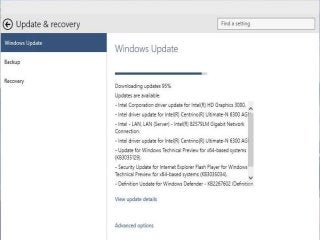
Windows update is the premier starting point to resolve
most common driver issues you might experience
immediately after installing windows 10.
Simply launch it from Start>Settings>Update and
Recovery and click check for updates.
Immediately Windows Update will detect your system
configuration and download all the appropriate drivers
for your system.
INSTALL DRIVERS USING DEVICE
MANAGER
If your driver was not detected or installed by
windows update, you can try installing the driver
manually if you have a compatible version.
Press windows key + X
Click Device Manager
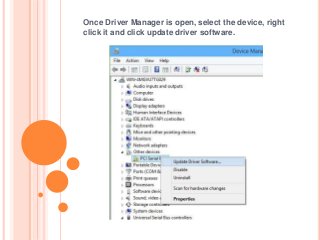
Once Driver Manager is open, select the device, right
click it and click update driver software.
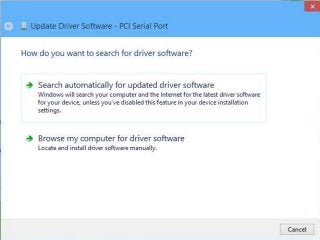
This will launch update driver software wizard, which
present two options.
1. Search automatically for updated driver software
-> Its possible windows might have the driver
software if you have not checked it yet, if its taking
too long, then next option is usually the best.
2. Browse my computer for driver software
-> If there is a compatible driver and you already
have the driver files, then all you need to do is point
to it and windows automatically install it for you.
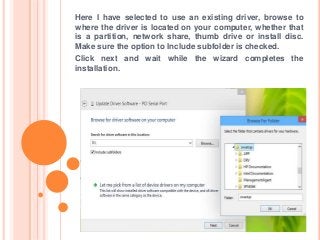
Here I have selected to use an existing driver, browse to
where the driver is located on your computer, whether that
is a partition, network share, thumb drive or install disc.
Make sure the option to Include subfolder is checked.
Click next and wait while the wizard completes the
installation.
USING COMPATIBILITY MODE TO
RESOLVE DRIVER PROBLEMS
If both windows update, drivers update proves
unsuccessful, the next option is Troubleshoot
Compatibility. Troubleshoot Compatibility provides a
simple way to make older drivers work under modern
versions of windows by making the driver believe that
it is being installed on a supported version of
windows.
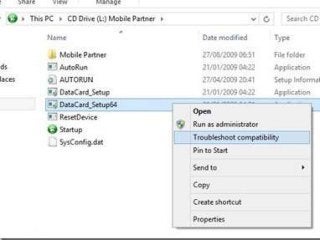
First thing you need to do is point where the setup
files are located. If you are installing from thumb drive
or CD/DVD. Launch fire explorer and open the location
where the setup files are stored. Right Click the setup
file for the program, this can be designated as
setup.exe or something similar. Click Troubleshoot
compatibility
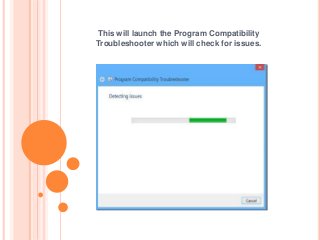
This will launch the Program Compatibility
Troubleshooter which will check for issues.
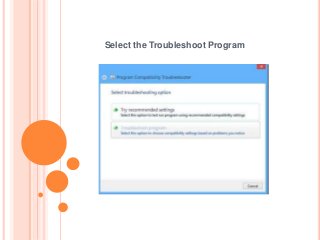
Select the Troubleshoot Program
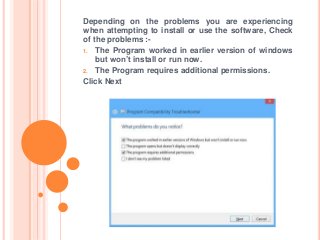
Depending on the problems you are experiencing
when attempting to install or use the software, Check
of the problems :-
1. The Program worked in earlier version of windows
but won’t install or run now.
2. The Program requires additional permissions.
Click Next
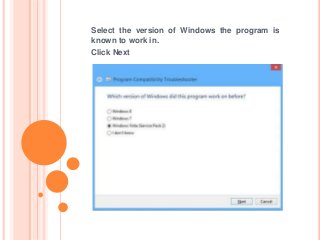
Select the version of Windows the program is
known to work in.
Click Next
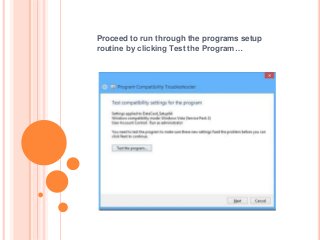
Proceed to run through the programs setup
routine by clicking Test the Program…
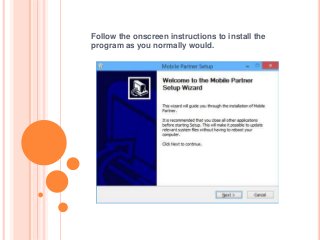
Follow the onscreen instructions to install the
program as you normally would.
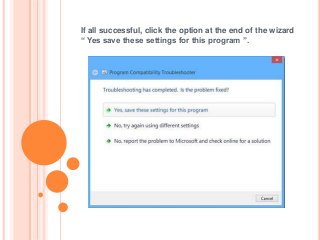
If all successful, click the option at the end of the wizard
“ Yes save these settings for this program ”.
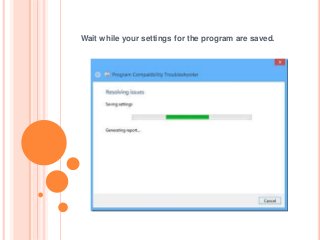
Wait while your settings for the program are saved.
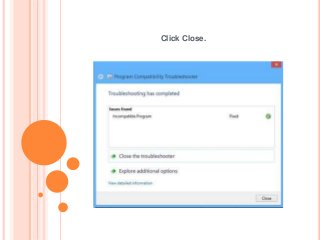
Click Close.
THANK YOU
CALL US TOLL FREE
+1-800-244-8809
FOR BEST SUPPORT EXPERIENCE
WWW.LIVEPCGEEKS.US

How to install and update drivers in windows 10

  • 1.
    HOW TO INSTALL ANDUPDATE DRIVERS IN
  • 2.
    LIVE PC GEEKS LivePC Geeks is provider of on-demand technical support and is not affiliated with any third party brand unless specified. To get any type of technical help or support call us on our Toll Free number +1-800-244-8809
  • 3.
    INSTALLING DRIVERS THROUGH WINDOWSUPDATE Windows update is the premier starting point to resolve most common driver issues you might experience immediately after installing windows 10. Simply launch it from Start>Settings>Update and Recovery and click check for updates. Immediately Windows Update will detect your system configuration and download all the appropriate drivers for your system.
  • 5.
    INSTALL DRIVERS USINGDEVICE MANAGER If your driver was not detected or installed by windows update, you can try installing the driver manually if you have a compatible version. Press windows key + X Click Device Manager
  • 6.
    Once Driver Manageris open, select the device, right click it and click update driver software.
  • 7.
    This will launchupdate driver software wizard, which present two options. 1. Search automatically for updated driver software -> Its possible windows might have the driver software if you have not checked it yet, if its taking too long, then next option is usually the best. 2. Browse my computer for driver software -> If there is a compatible driver and you already have the driver files, then all you need to do is point to it and windows automatically install it for you.
  • 9.
    Here I haveselected to use an existing driver, browse to where the driver is located on your computer, whether that is a partition, network share, thumb drive or install disc. Make sure the option to Include subfolder is checked. Click next and wait while the wizard completes the installation.
  • 10.
    USING COMPATIBILITY MODETO RESOLVE DRIVER PROBLEMS If both windows update, drivers update proves unsuccessful, the next option is Troubleshoot Compatibility. Troubleshoot Compatibility provides a simple way to make older drivers work under modern versions of windows by making the driver believe that it is being installed on a supported version of windows. First thing you need to do is point where the setup files are located. If you are installing from thumb drive or CD/DVD. Launch fire explorer and open the location where the setup files are stored. Right Click the setup file for the program, this can be designated as setup.exe or something similar. Click Troubleshoot compatibility
  • 12.
    This will launchthe Program Compatibility Troubleshooter which will check for issues.
  • 13.
  • 14.
    Depending on theproblems you are experiencing when attempting to install or use the software, Check of the problems :- 1. The Program worked in earlier version of windows but won’t install or run now. 2. The Program requires additional permissions. Click Next
  • 15.
    Select the versionof Windows the program is known to work in. Click Next
  • 16.
    Proceed to runthrough the programs setup routine by clicking Test the Program…
  • 17.
    Follow the onscreeninstructions to install the program as you normally would.
  • 18.
    If all successful,click the option at the end of the wizard “ Yes save these settings for this program ”.
  • 19.
    Wait while yoursettings for the program are saved.
  • 20.
  • 21.
    THANK YOU CALL USTOLL FREE +1-800-244-8809 FOR BEST SUPPORT EXPERIENCE WWW.LIVEPCGEEKS.US