Complete Guide To
The
SHORTCUTS
YEK DRAOB
POWERPOINT
Presentations take a lot of time. There’s just no
getting around that. There’s planning, creating the
content, organizing it, designing the actual
presentation and preparing to deliver it. Anything
that can save some of that time is a blessing for
any professional, or generally, for any human being
tasked with doing this. Luckily for all of us, there
are a number of PowerPoint shortcuts that can
help shave off a large portion of time. In fact there
are so many, that they’re very hard to remember
so we’ll list the ones that we think are most useful. shortcut
If you’re a person who likes to use shortcuts, this
will be a great resource to absorb and remember. If
you haven’t been using shortcuts, there’s not time
like the present to get started. Using shortcuts is a
great way to eliminate many micro-decisions and
mental stops that you have to go through every
time you add or move something around. These
shortcuts are a perfect match for Microsoft Office
2016 but they can also be used with other Office
versions, with very few exceptions.
For efficiency purposes, we’ve grouped our
PowerPoint shortcuts into the essential stages of
a presentation, which are creation and delivery.
for creating a presentation
SHiftORTCtrlUAlTS
Let’s go through some of the most common actions
you would normally do when creating a presentation
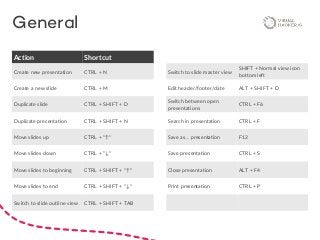
General
Action Shortcut
Create new presentation CTRL + N
Create a new slide CTRL + M
Duplicate slide CTRL + SHIFT + D
Duplicate presentation CTRL + SHIFT + N
Move slides up CTRL + “↑”
Move slides down CTRL + “↓”
Move slides to beginning CTRL + SHIFT + “↑”
Move slides to end CTRL + SHIFT + “↓”
Switch to slide outline view CTRL + SHIFT + TAB
Switch to slide master view
SHIFT + Normal view icon
bottom left
Edit header/footer/date ALT + SHIFT + D
Switch between open
presentations
CTRL + F6
Search in presentation CTRL + F
Save as... presentation F12
Save presentation CTRL + S
Close presentation ALT + F4
Print presentation CTRL + P
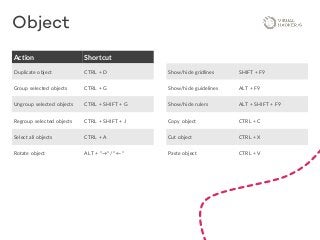
Object
Action Shortcut
Duplicate object CTRL + D
Group selected objects CTRL + G
Ungroup selected objects CTRL + SHIFT + G
Regroup selected objects CTRL + SHIFT + J
Select all objects CTRL + A
Rotate object ALT + “→” /” ←”
Show/hide gridlines SHIFT + F9
Show/hide guidelines ALT + F9
Show/hide rulers ALT + SHIFT + F9
Copy object CTRL + C
Cut object CTRL + X
Paste object CTRL + V
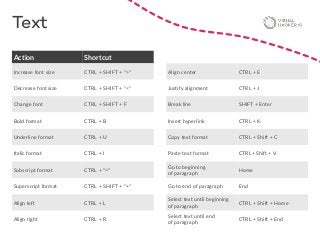
Text
Action Shortcut
Increase font size CTRL + SHIFT + ”>”
Decrease font size CTRL + SHIFT + “<”
Change font CTRL + SHIFT + F
Bold format CTRL + B
Underline format CTRL + U
Italic format CTRL + I
Subscript format CTRL + “=”
Superscript format CTRL + SHIFT + “+”
Align left CTRL + L
Align right CTRL + R
Align center CTRL + E
Justify alignment CTRL + J
Break line SHIFT + Enter
Insert hyperlink CTRL + K
Copy text format CTRL + Shift + C
Paste text format CTRL+ Shift + V
Go to beginning
of paragraph
Home
Go to end of paragraph End
Select text until beginning
of paragraph
CTRL + Shift + Home
Select text until end
of paragraph
CTRL + Shift + End
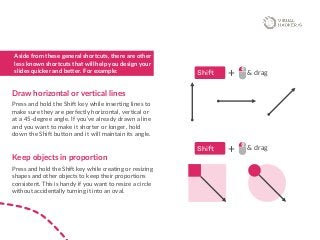
Draw horizontal or vertical lines
Press and hold the Shift key while inserting lines to
make sure they are perfectly horizontal, vertical or
at a 45-degree angle. If you’ve already drawn a line
and you want to make it shorter or longer, hold
down the Shift button and it will maintain its angle.
Keep objects in proportion
Press and hold the Shift key while creating or resizing
shapes and other objects to keep their proportions
consistent. This is handy if you want to resize a circle
without accidentally turning it into an oval.
Aside from these general shortcuts, there are other
less known shortcuts that will help you design your
slides quicker and better. For example: Shift + & drag
Shift + & drag
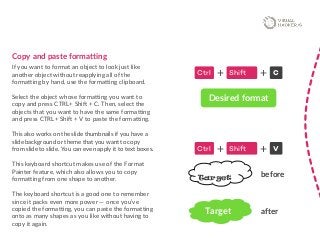
Copy and paste formatting
If you want to format an object to look just like
another object without reapplying all of the
formatting by hand, use the formatting clipboard.
Select the object whose formatting you want to
copy and press CTRL+ Shift + C. Then, select the
objects that you want to have the same formatting
and press CTRL+ Shift + V to paste the formatting.
This also works on the slide thumbnails if you have a
slide background or theme that you want to copy
from slide to slide. You can even apply it to text boxes.
This keyboard shortcut makes use of the Format
Painter feature, which also allows you to copy
formatting from one shape to another.
The keyboard shortcut is a good one to remember
since it packs even more power — once you’ve
copied the formatting, you can paste the formatting
onto as many shapes as you like without having to
copy it again.
Ctrl Shift C+ +
Ctrl Shift V+ +
Target
Desired format
Target
before
after
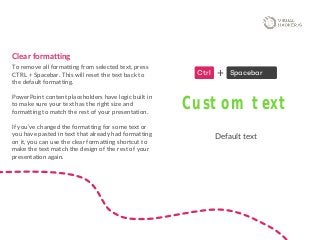
Clear formatting
To remove all formatting from selected text, press
CTRL + Spacebar. This will reset the text back to
the default formatting.
PowerPoint content placeholders have logic built in
to make sure your text has the right size and
formatting to match the rest of your presentation.
If you’ve changed the formatting for some text or
you have pasted in text that already had formatting
on it, you can use the clear formatting shortcut to
make the text match the design of the rest of your
presentation again.
Ctrl Spacebar+
Custom text
Default text
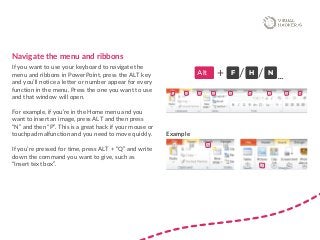
Navigate the menu and ribbons
If you want to use your keyboard to navigate the
menu and ribbons in PowerPoint, press the ALT key
and you’ll notice a letter or number appear for every
function in the menu. Press the one you want to use
and that window will open.
For example, if you’re in the Home menu and you
want to insert an image, press ALT and then press
“N” and then “P”. This is a great hack if your mouse or
touchpad malfunction and you need to move quickly.
If you’re pressed for time, press ALT + “Q” and write
down the command you want to give, such as
“Insert text box”.
Alt F+ H N
…/ /
Example
Download the full guide here:
http://bit.ly/2zdPmyn
REQUEST FREE QUOTEProfessional visual design for presentations,
infographics, business documents, pitch
decks, sales reports and eBooks. visualhackers.com
REQUEST FREE QUOTE

The Complete Guide To PowerPoint Keyboard Shortcuts

  • 1.
  • 2.
    Presentations take alot of time. There’s just no getting around that. There’s planning, creating the content, organizing it, designing the actual presentation and preparing to deliver it. Anything that can save some of that time is a blessing for any professional, or generally, for any human being tasked with doing this. Luckily for all of us, there are a number of PowerPoint shortcuts that can help shave off a large portion of time. In fact there are so many, that they’re very hard to remember so we’ll list the ones that we think are most useful. shortcut
  • 3.
    If you’re aperson who likes to use shortcuts, this will be a great resource to absorb and remember. If you haven’t been using shortcuts, there’s not time like the present to get started. Using shortcuts is a great way to eliminate many micro-decisions and mental stops that you have to go through every time you add or move something around. These shortcuts are a perfect match for Microsoft Office 2016 but they can also be used with other Office versions, with very few exceptions. For efficiency purposes, we’ve grouped our PowerPoint shortcuts into the essential stages of a presentation, which are creation and delivery.
  • 4.
    for creating apresentation SHiftORTCtrlUAlTS Let’s go through some of the most common actions you would normally do when creating a presentation
  • 5.
    General Action Shortcut Create newpresentation CTRL + N Create a new slide CTRL + M Duplicate slide CTRL + SHIFT + D Duplicate presentation CTRL + SHIFT + N Move slides up CTRL + “↑” Move slides down CTRL + “↓” Move slides to beginning CTRL + SHIFT + “↑” Move slides to end CTRL + SHIFT + “↓” Switch to slide outline view CTRL + SHIFT + TAB Switch to slide master view SHIFT + Normal view icon bottom left Edit header/footer/date ALT + SHIFT + D Switch between open presentations CTRL + F6 Search in presentation CTRL + F Save as... presentation F12 Save presentation CTRL + S Close presentation ALT + F4 Print presentation CTRL + P
  • 6.
    Object Action Shortcut Duplicate objectCTRL + D Group selected objects CTRL + G Ungroup selected objects CTRL + SHIFT + G Regroup selected objects CTRL + SHIFT + J Select all objects CTRL + A Rotate object ALT + “→” /” ←” Show/hide gridlines SHIFT + F9 Show/hide guidelines ALT + F9 Show/hide rulers ALT + SHIFT + F9 Copy object CTRL + C Cut object CTRL + X Paste object CTRL + V
  • 7.
    Text Action Shortcut Increase fontsize CTRL + SHIFT + ”>” Decrease font size CTRL + SHIFT + “<” Change font CTRL + SHIFT + F Bold format CTRL + B Underline format CTRL + U Italic format CTRL + I Subscript format CTRL + “=” Superscript format CTRL + SHIFT + “+” Align left CTRL + L Align right CTRL + R Align center CTRL + E Justify alignment CTRL + J Break line SHIFT + Enter Insert hyperlink CTRL + K Copy text format CTRL + Shift + C Paste text format CTRL+ Shift + V Go to beginning of paragraph Home Go to end of paragraph End Select text until beginning of paragraph CTRL + Shift + Home Select text until end of paragraph CTRL + Shift + End
  • 8.
    Draw horizontal orvertical lines Press and hold the Shift key while inserting lines to make sure they are perfectly horizontal, vertical or at a 45-degree angle. If you’ve already drawn a line and you want to make it shorter or longer, hold down the Shift button and it will maintain its angle. Keep objects in proportion Press and hold the Shift key while creating or resizing shapes and other objects to keep their proportions consistent. This is handy if you want to resize a circle without accidentally turning it into an oval. Aside from these general shortcuts, there are other less known shortcuts that will help you design your slides quicker and better. For example: Shift + & drag Shift + & drag
  • 9.
    Copy and pasteformatting If you want to format an object to look just like another object without reapplying all of the formatting by hand, use the formatting clipboard. Select the object whose formatting you want to copy and press CTRL+ Shift + C. Then, select the objects that you want to have the same formatting and press CTRL+ Shift + V to paste the formatting. This also works on the slide thumbnails if you have a slide background or theme that you want to copy from slide to slide. You can even apply it to text boxes. This keyboard shortcut makes use of the Format Painter feature, which also allows you to copy formatting from one shape to another. The keyboard shortcut is a good one to remember since it packs even more power — once you’ve copied the formatting, you can paste the formatting onto as many shapes as you like without having to copy it again. Ctrl Shift C+ + Ctrl Shift V+ + Target Desired format Target before after
  • 10.
    Clear formatting To removeall formatting from selected text, press CTRL + Spacebar. This will reset the text back to the default formatting. PowerPoint content placeholders have logic built in to make sure your text has the right size and formatting to match the rest of your presentation. If you’ve changed the formatting for some text or you have pasted in text that already had formatting on it, you can use the clear formatting shortcut to make the text match the design of the rest of your presentation again. Ctrl Spacebar+ Custom text Default text
  • 11.
    Navigate the menuand ribbons If you want to use your keyboard to navigate the menu and ribbons in PowerPoint, press the ALT key and you’ll notice a letter or number appear for every function in the menu. Press the one you want to use and that window will open. For example, if you’re in the Home menu and you want to insert an image, press ALT and then press “N” and then “P”. This is a great hack if your mouse or touchpad malfunction and you need to move quickly. If you’re pressed for time, press ALT + “Q” and write down the command you want to give, such as “Insert text box”. Alt F+ H N …/ / Example
  • 12.
    Download the fullguide here: http://bit.ly/2zdPmyn REQUEST FREE QUOTEProfessional visual design for presentations, infographics, business documents, pitch decks, sales reports and eBooks. visualhackers.com REQUEST FREE QUOTE