How to rotatea video using GOM Player
GOM is an all-in-one media player that plays just about anything you
toss on it. It comes with its own codec system that supports all popular
audio and video formats. Besides playing audios/videos, it offers a wide
array of customization options that enhances your media playing
experience.
Here s a step-to-step guide of how to rotate your videos using GOM
Media Player:
Step 1: Launch GOM Media Player
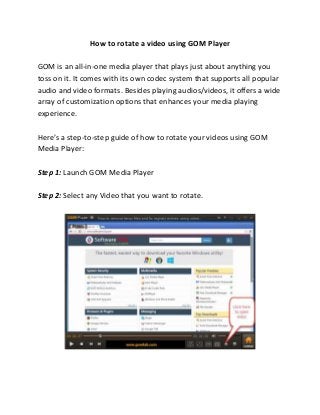
Step 2: Select any Video that you want to rotate.
2.
Step 3: Rotateyour videos in different ways. Your videos can be rotated
in clockwise by 90, 180 and 270 degrees.
There are three ways to rotate a video in GOM Player:
1. The first and the easiest way to rotate a video is making use of
keyboard shortcuts.
Shortcut Key - Ctrl + Shift + S
At 90 degree Rotation
This shortcut key will cycle through the rotation process one by one.
That means the video you are watching will be at default settings at
first, but once you hit [Ctrl] + [Shift] + [S] shortcut key - it will rotate to
90 degrees.
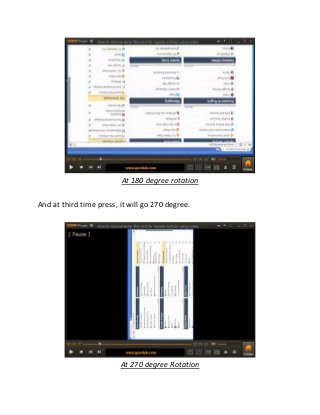
Again pressing the shortcut key will enable the 180 degree rotation of
the video.
3.
At 180 degreerotation
And at third time press, it will go 270 degree.
At 270 degree Rotation
4.
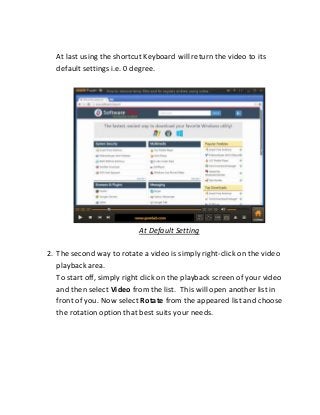
At last usingthe shortcut Keyboard will return the video to its
default settings i.e. 0 degree.
At Default Setting
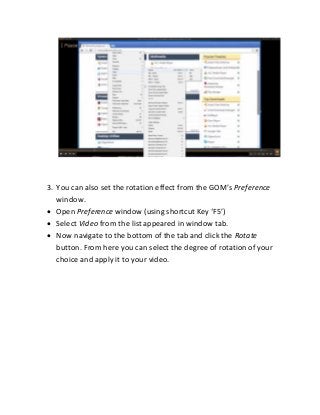
2. The second way to rotate a video is simply right-click on the video
playback area.
To start off, simply right click on the playback screen of your video
and then select Video from the list. This will open another list in
front of you. Now select Rotate from the appeared list and choose
the rotation option that best suits your needs.
5.
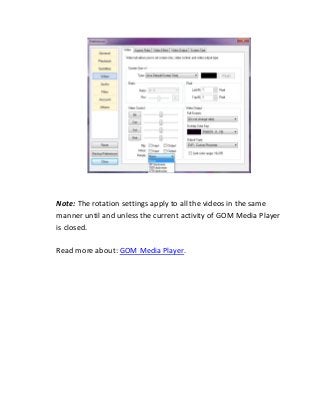
3. You canalso set the rotatio effect fro the GOM s Preference
window.
Open Preference wi dow usi g shortcut Key F5
Select Video from the list appeared in window tab.
Now navigate to the bottom of the tab and click the Rotate
button. From here you can select the degree of rotation of your
choice and apply it to your video.
6.
Note: The rotationsettings apply to all the videos in the same
manner until and unless the current activity of GOM Media Player
is closed.
Read more about: GOM Media Player.
![Step 3: Rotate your videos in different ways. Your videos can be rotated
in clockwise by 90, 180 and 270 degrees.
There are three ways to rotate a video in GOM Player:
1. The first and the easiest way to rotate a video is making use of
keyboard shortcuts.
Shortcut Key - Ctrl + Shift + S
At 90 degree Rotation
This shortcut key will cycle through the rotation process one by one.
That means the video you are watching will be at default settings at
first, but once you hit [Ctrl] + [Shift] + [S] shortcut key - it will rotate to
90 degrees.
Again pressing the shortcut key will enable the 180 degree rotation of
the video.](https://image.slidesharecdn.com/how-to-rotate-a-video-using-gom-player-160613123406/85/How-to-rotate-a-video-using-gom-player-2-320.jpg?cb=1465821952)