



Step-by-step Pictorial
• Although any photo online is never
completely safe, there is a way to
make photos on G+ more private.
• You can share photos of family and
friends without them getting reshared
to friends of friends of friends you
don’t even know.
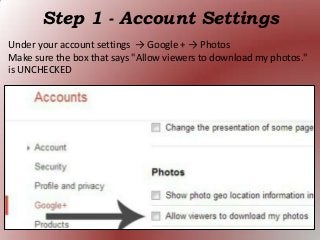
Step 1 - Account Settings
Under your account settings → Google + → Photos
Make sure the box that says "Allow viewers to download my photos."
is UNCHECKED
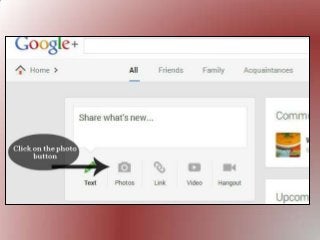
On Google Plus Home Page
Step 2 – Create new post
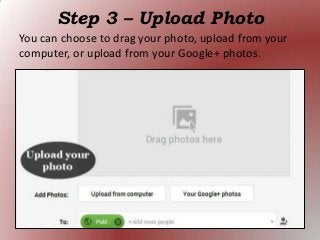
Step 3 – Upload Photo
You can choose to drag your photo, upload from your
computer, or upload from your Google+ photos.
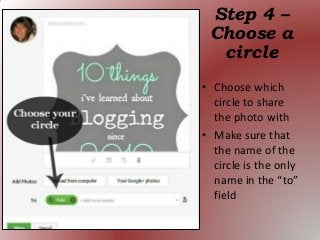
• Choose which
circle to share
the photo with
• Make sure that
the name of the
circle is the only
name in the “to”
field
Step 4 –
Choose a
circle
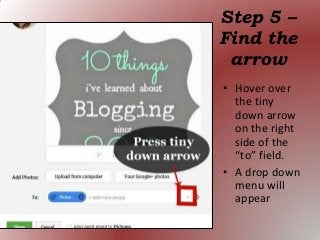
• Hover over
the tiny
down arrow
on the right
side of the
“to” field.
• A drop down
menu will
appear
Step 5 –
Find the
arrow
Step 6 – Disable reshares
Highlight where it says disable reshares. This way, no one can reshare a
photo you wanted to keep private. The other nice thing is that people
can't mention anyone in comments who isn’t in your chosen circle.
That’s it! Now you can feel
more confident about sharing
pictures.
I probably won’t share pictures with you though 
You can follow me on G+
by clicking the picture below.

How to keep photos private on Google Plus

  • 2.
    Step-by-step Pictorial • Althoughany photo online is never completely safe, there is a way to make photos on G+ more private. • You can share photos of family and friends without them getting reshared to friends of friends of friends you don’t even know.
  • 3.
    Step 1 -Account Settings Under your account settings → Google + → Photos Make sure the box that says "Allow viewers to download my photos." is UNCHECKED
  • 4.
    On Google PlusHome Page Step 2 – Create new post
  • 6.
    Step 3 –Upload Photo You can choose to drag your photo, upload from your computer, or upload from your Google+ photos.
  • 7.
    • Choose which circleto share the photo with • Make sure that the name of the circle is the only name in the “to” field Step 4 – Choose a circle
  • 8.
    • Hover over thetiny down arrow on the right side of the “to” field. • A drop down menu will appear Step 5 – Find the arrow
  • 9.
    Step 6 –Disable reshares Highlight where it says disable reshares. This way, no one can reshare a photo you wanted to keep private. The other nice thing is that people can't mention anyone in comments who isn’t in your chosen circle.
  • 10.
    That’s it! Nowyou can feel more confident about sharing pictures.
  • 11.
    I probably won’tshare pictures with you though  You can follow me on G+ by clicking the picture below.