Installing DIAG drivers for Moto G 
And configuration for Reliance CDMA 
By ::Hitesh::
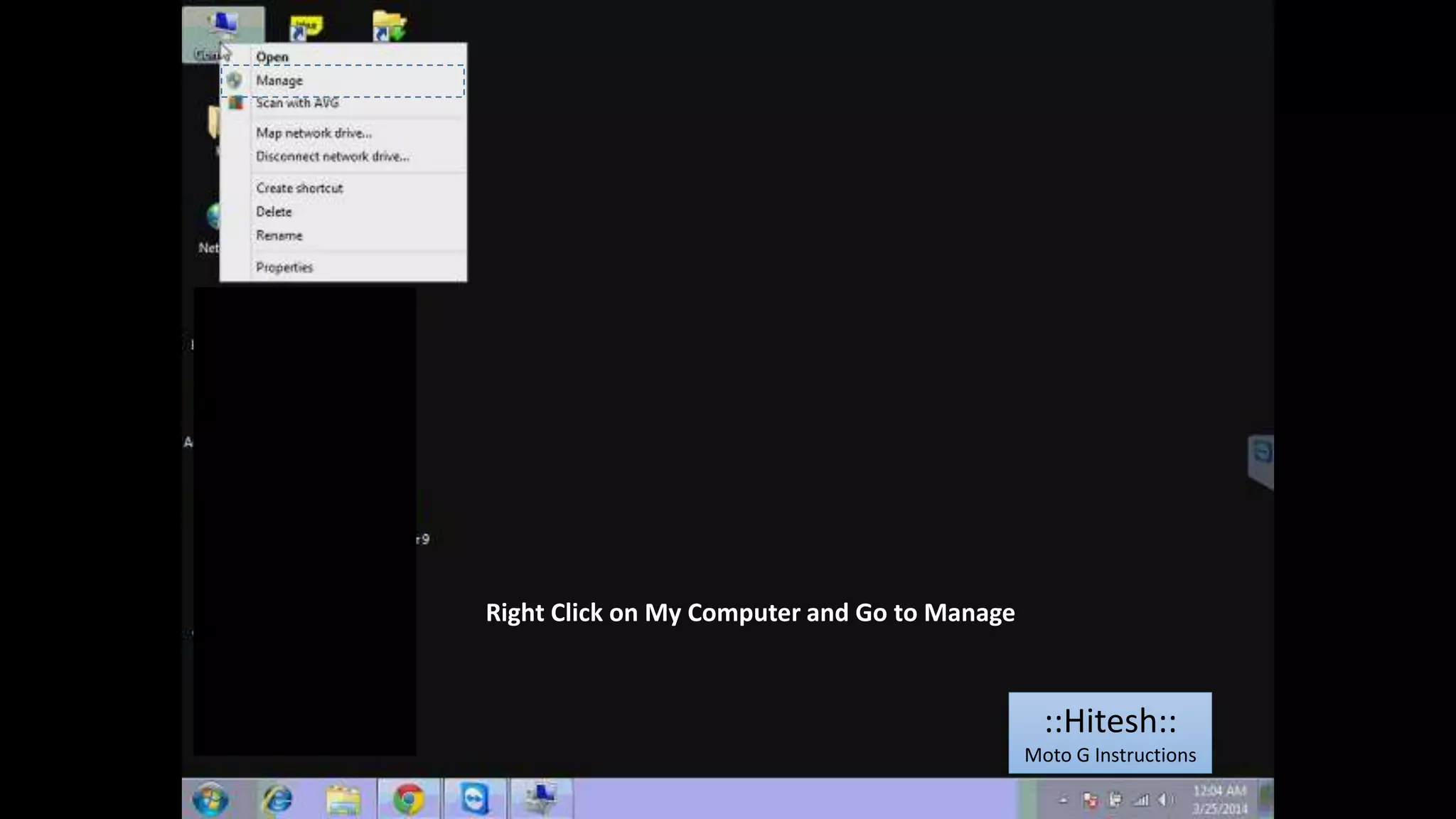
Right Click on My Computer and Go to Manage 
::Hitesh:: 
Moto G Instructions
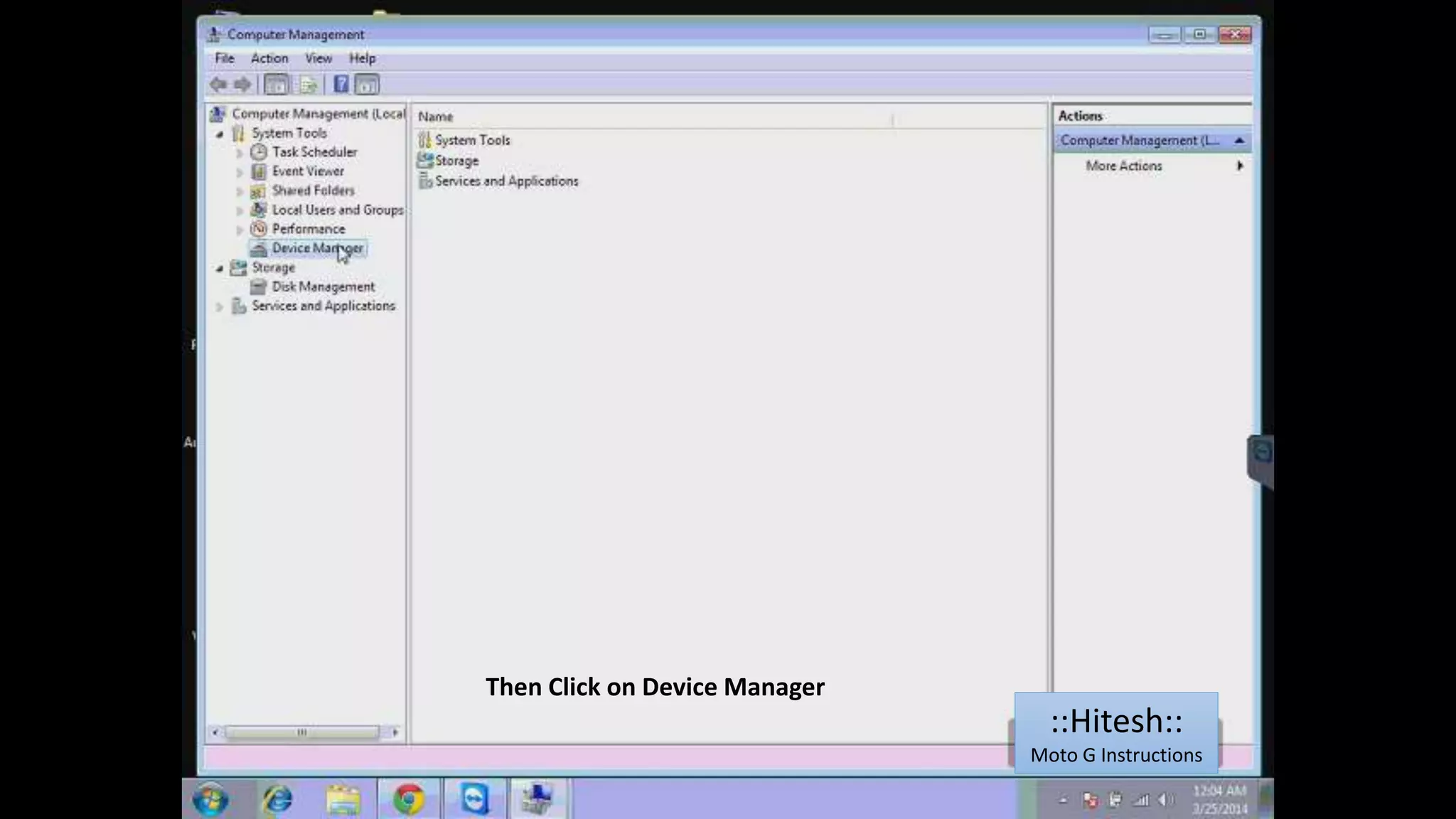
Then Click on Device Manager 
::Hitesh:: 
Moto G Instructions
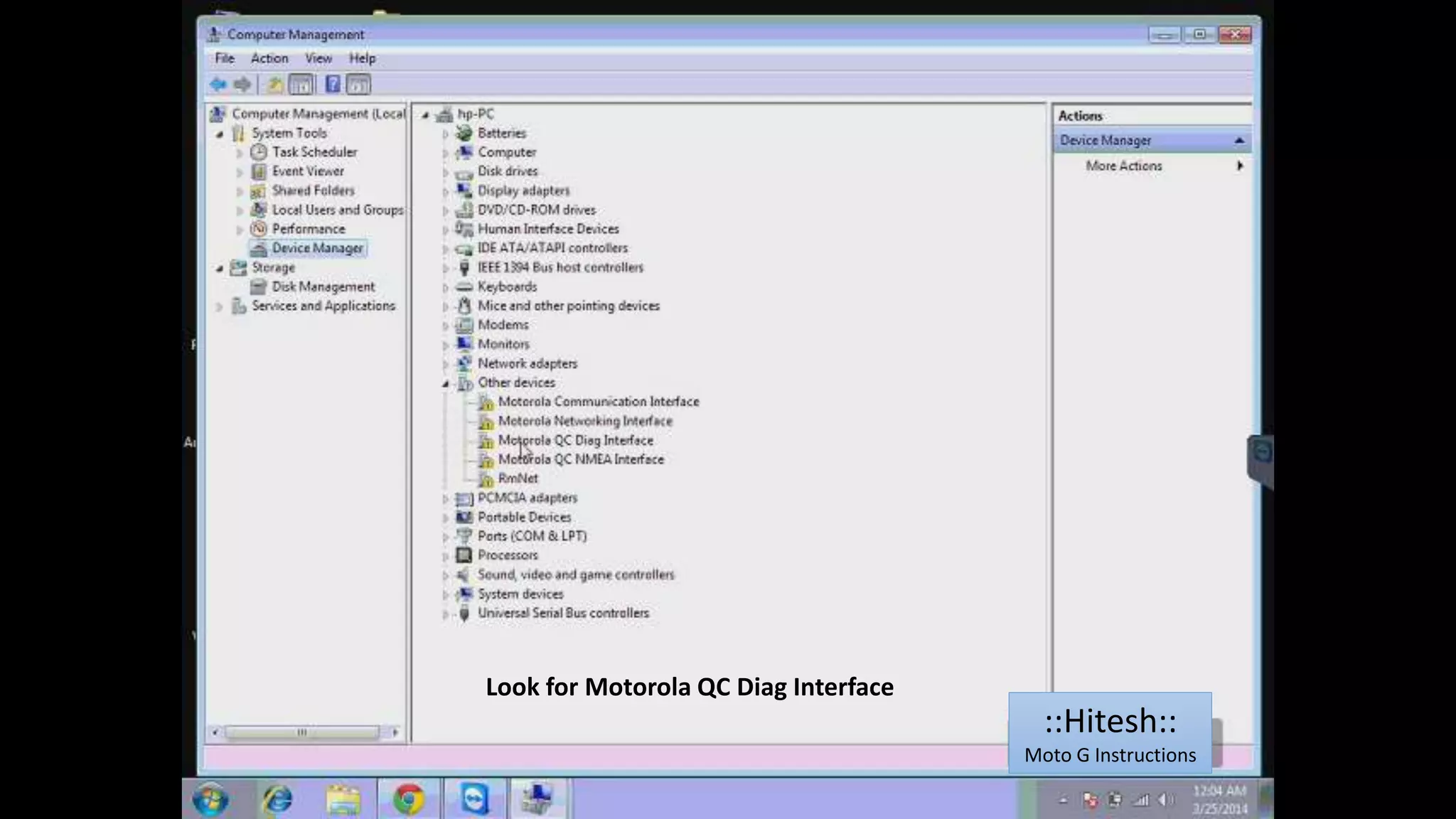
Look for Motorola QC Diag Interface 
::Hitesh:: 
Moto G Instructions
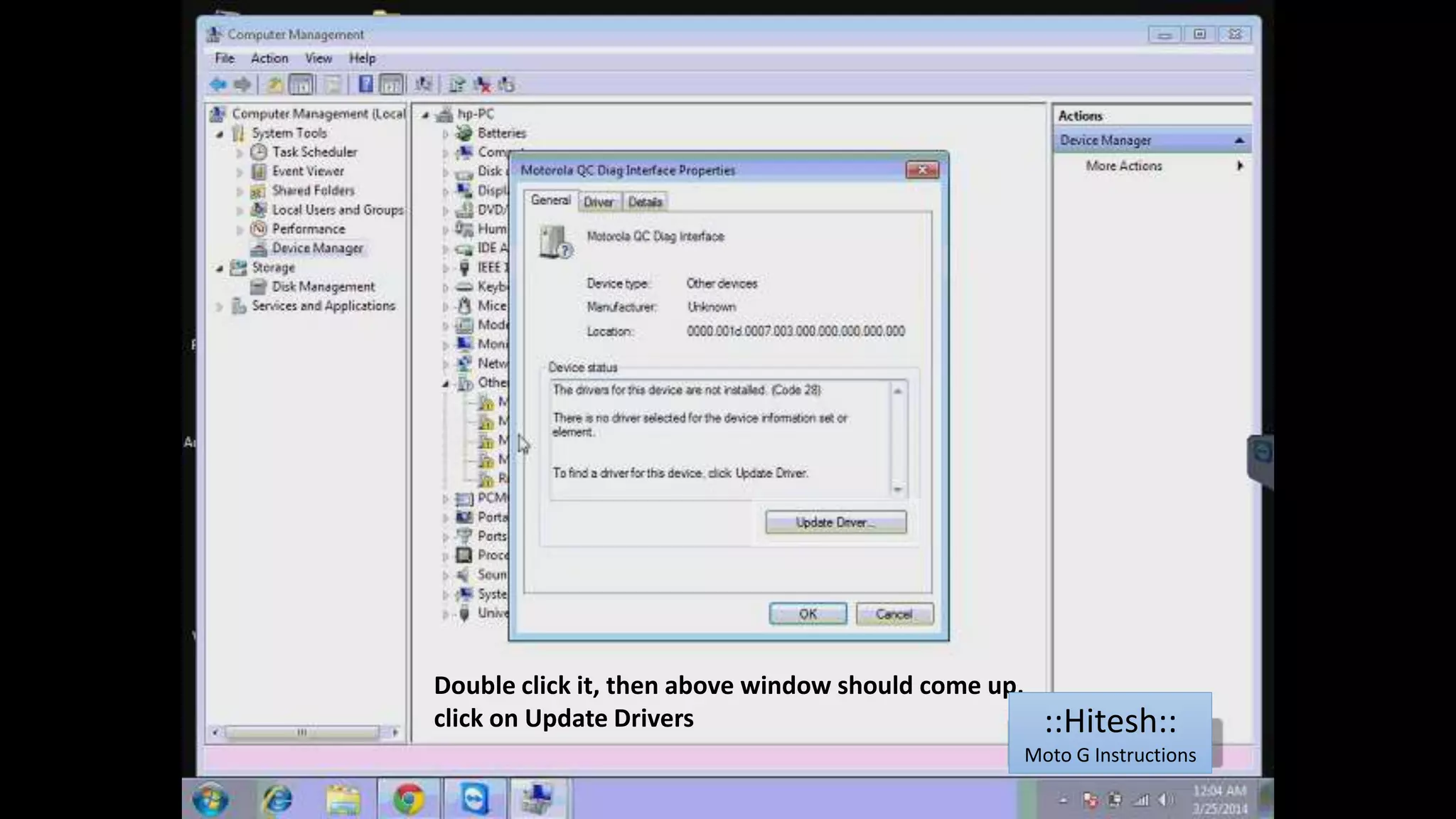
Double click it, then above window should come up, 
click on Update Drivers ::Hitesh:: 
Moto G Instructions
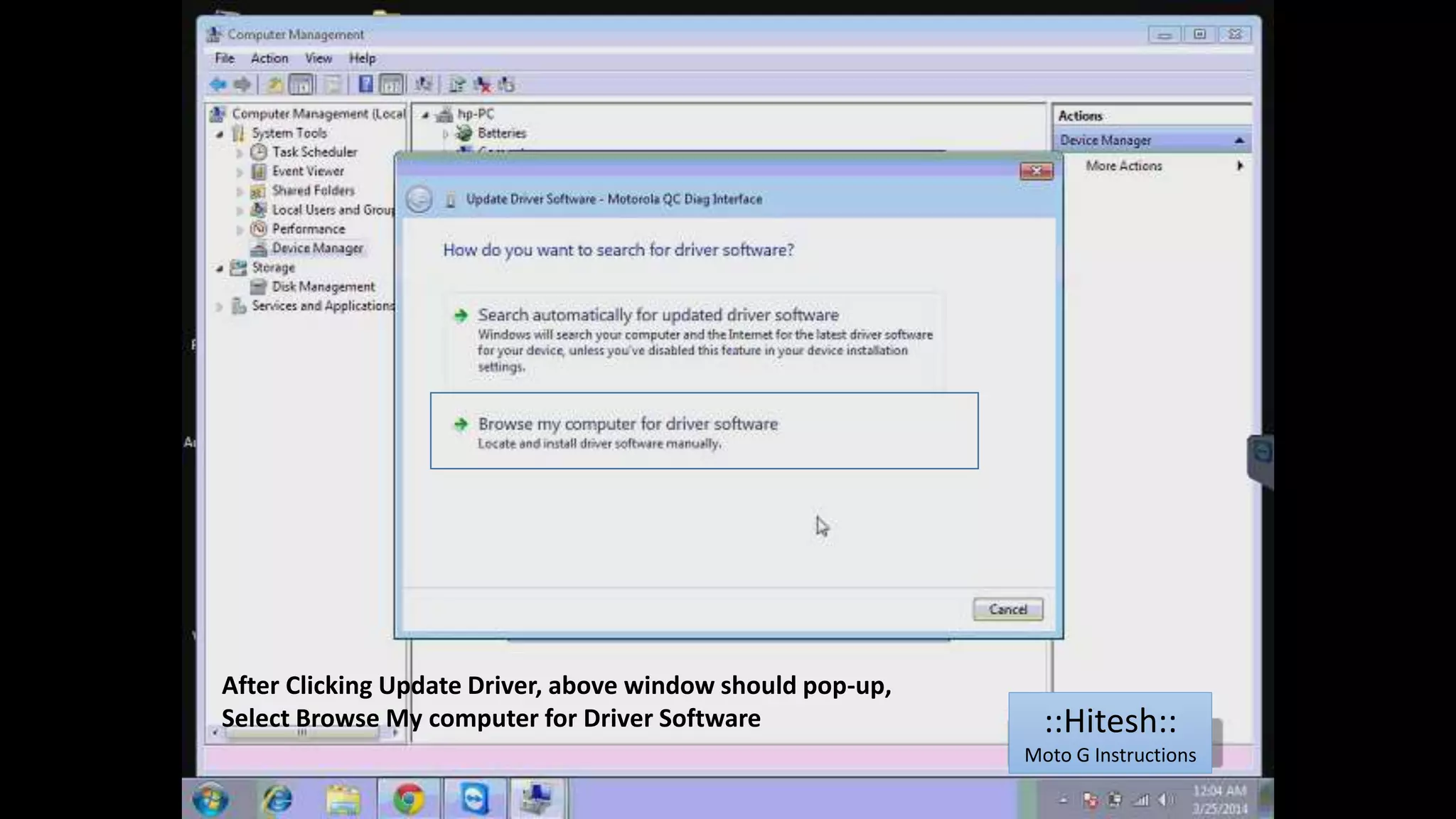
After Clicking Update Driver, above window should pop-up, 
Select Browse My computer for Driver Software ::Hitesh:: 
Moto G Instructions
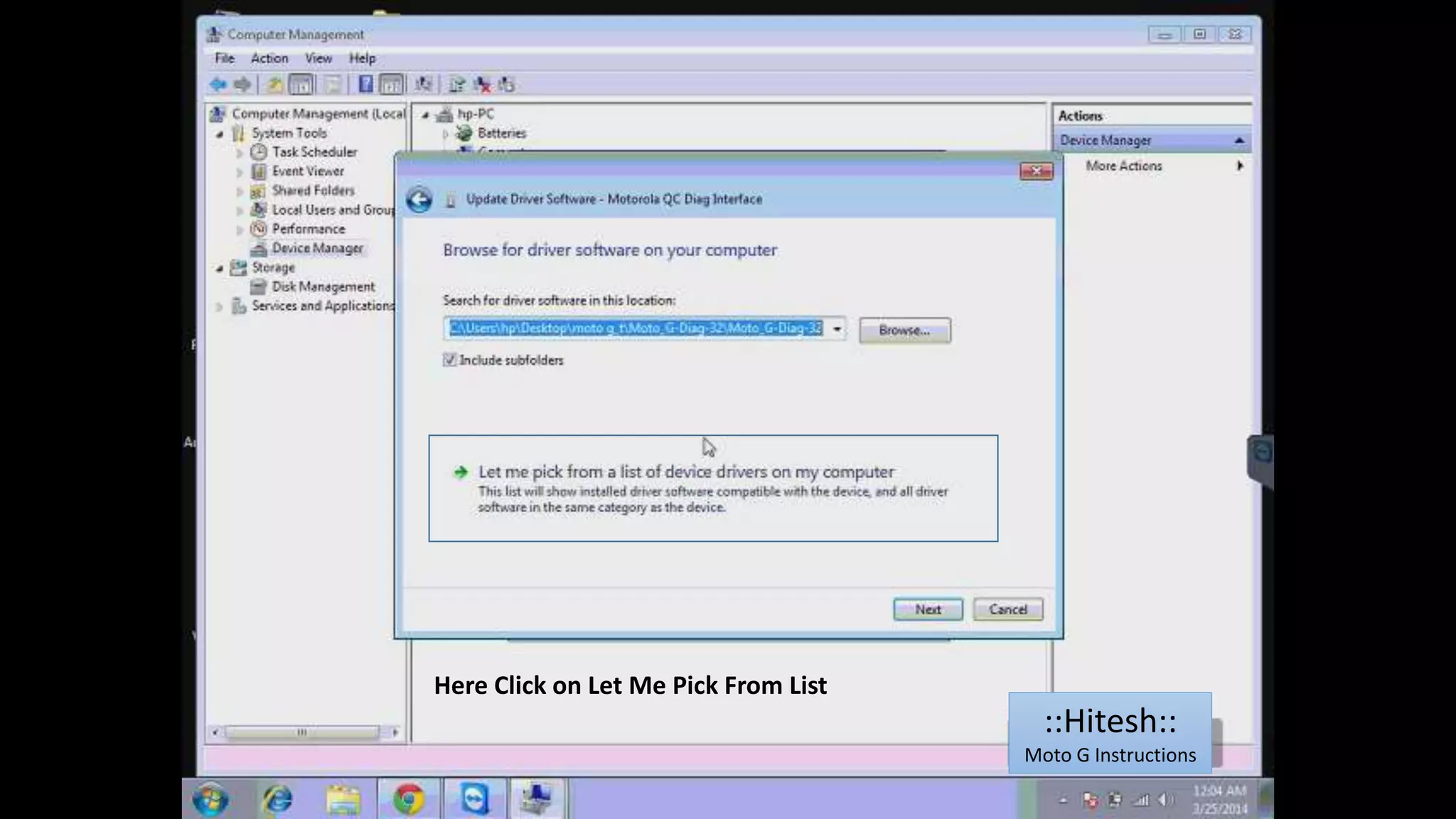
Here Click on Let Me Pick From List 
::Hitesh:: 
Moto G Instructions
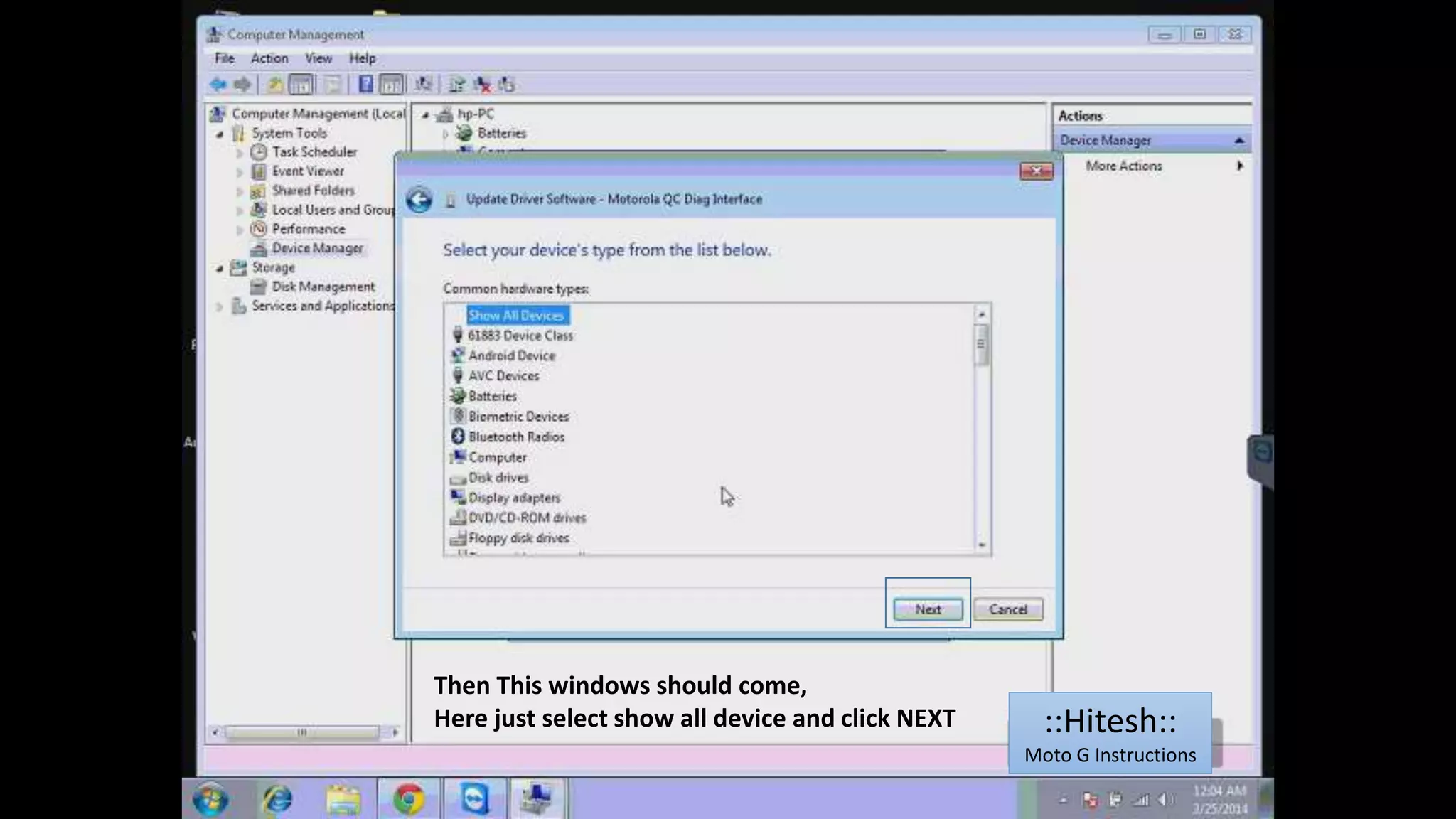
Then This windows should come, 
Here just select show all device and click NEXT ::Hitesh:: 
Moto G Instructions
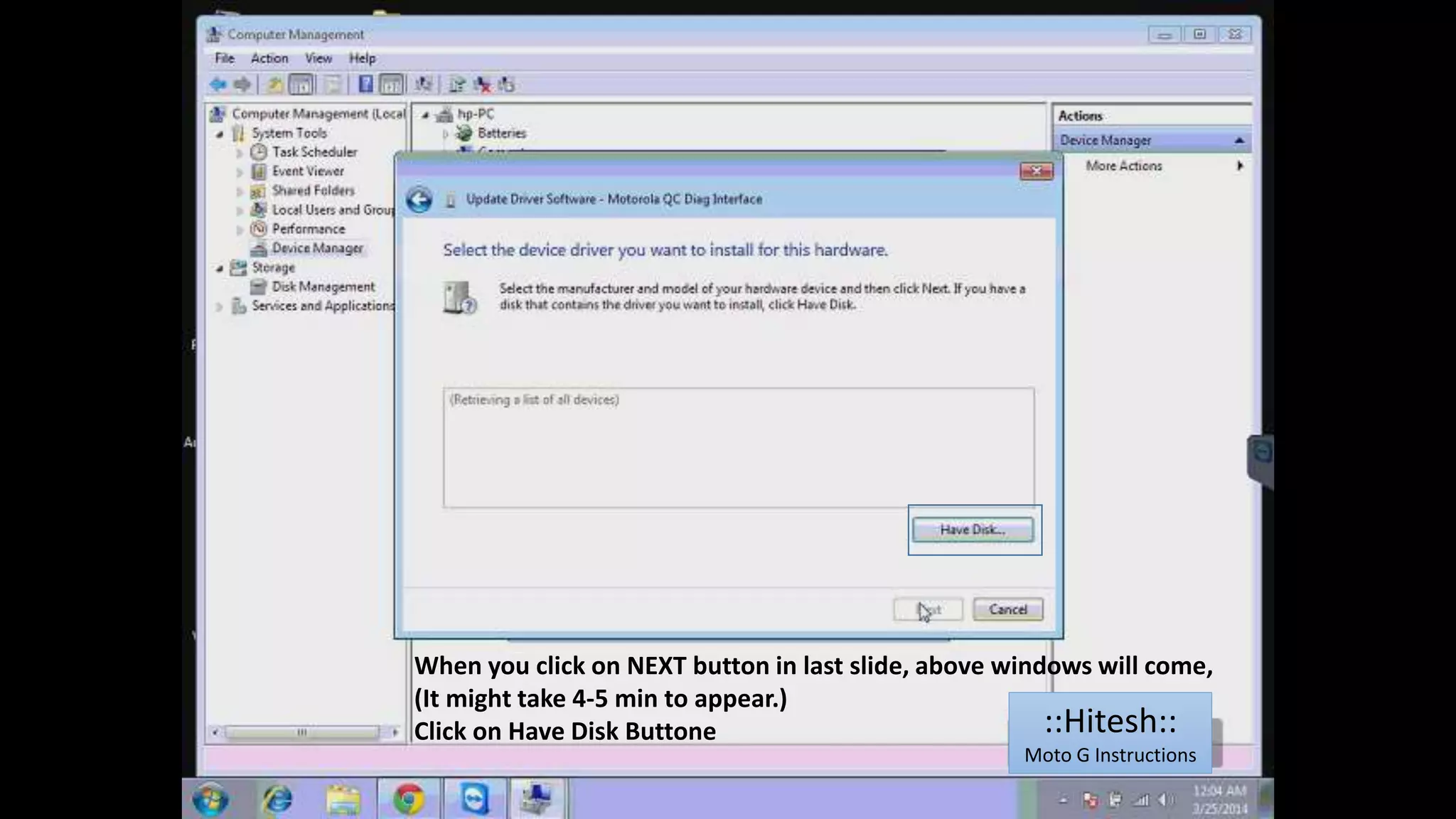
When you click on NEXT button in last slide, above windows will come, 
(It might take 4-5 min to appear.) 
Click on Have Disk Buttone ::Hitesh:: 
Moto G Instructions
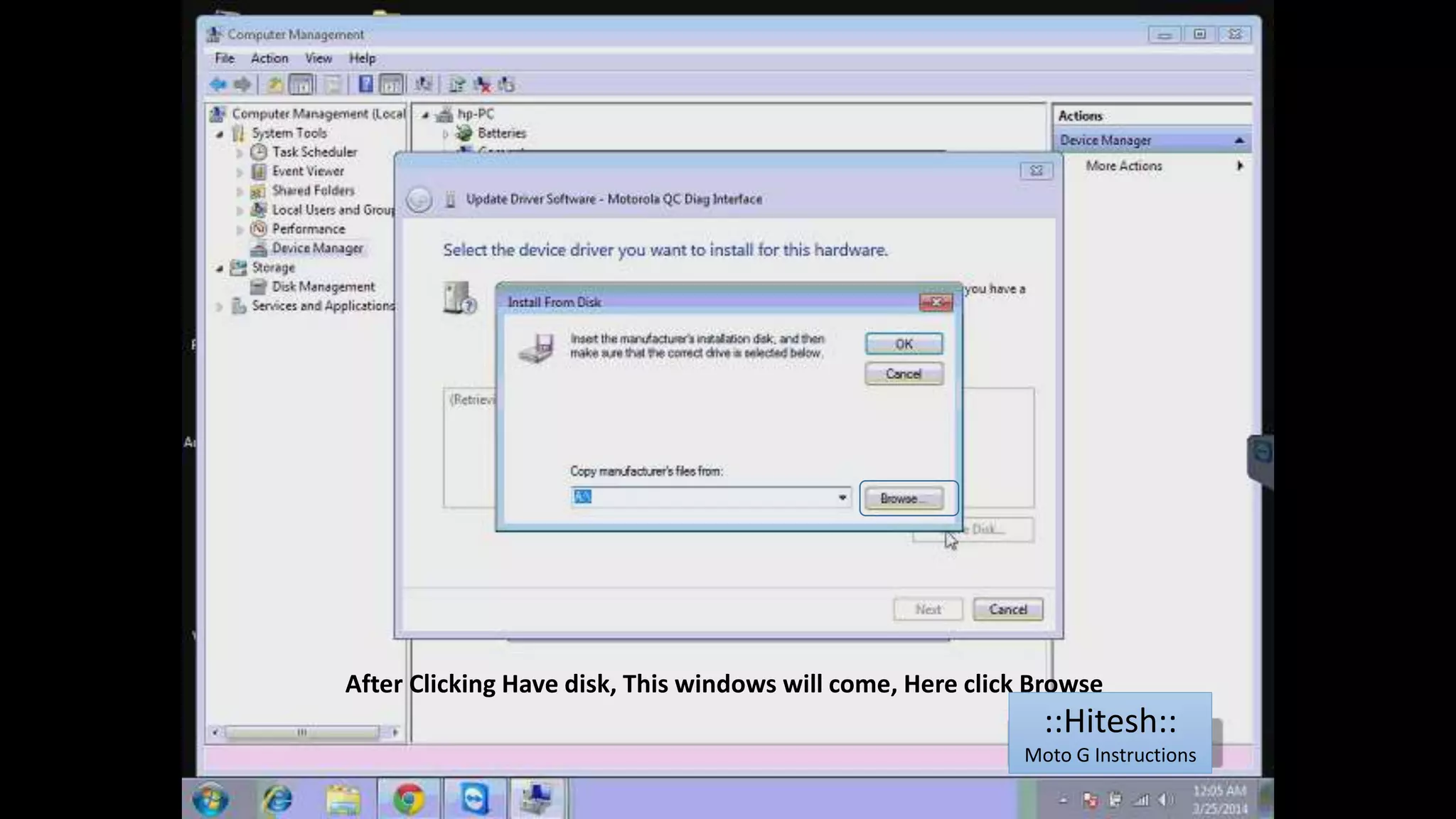
After Clicking Have disk, This windows will come, Here click Browse 
::Hitesh:: 
Moto G Instructions
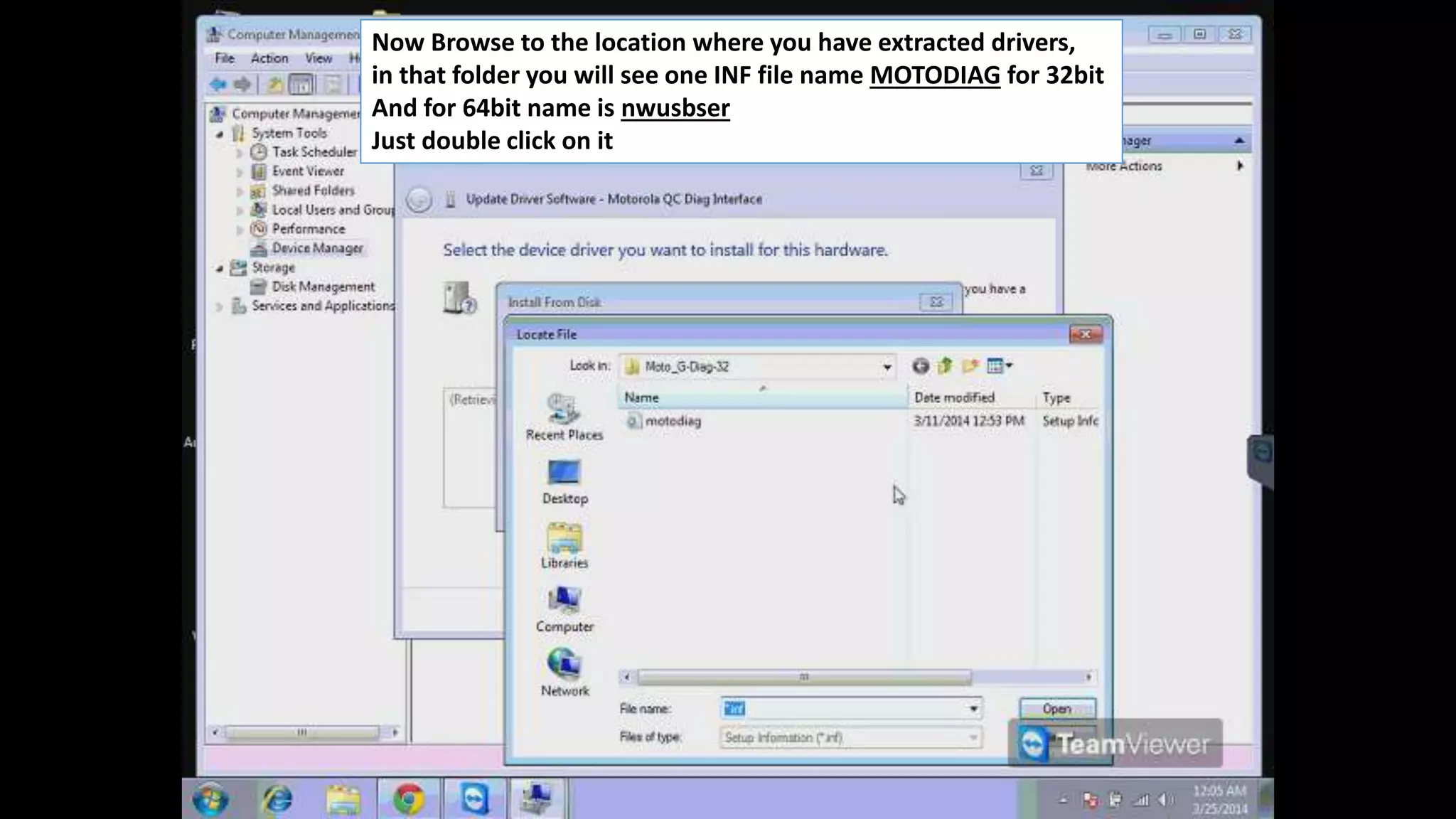
Now Browse to the location where you have extracted drivers, 
in that folder you will see one INF file name MOTODIAG for 32bit 
And for 64bit name is nwusbser 
Just double click on it
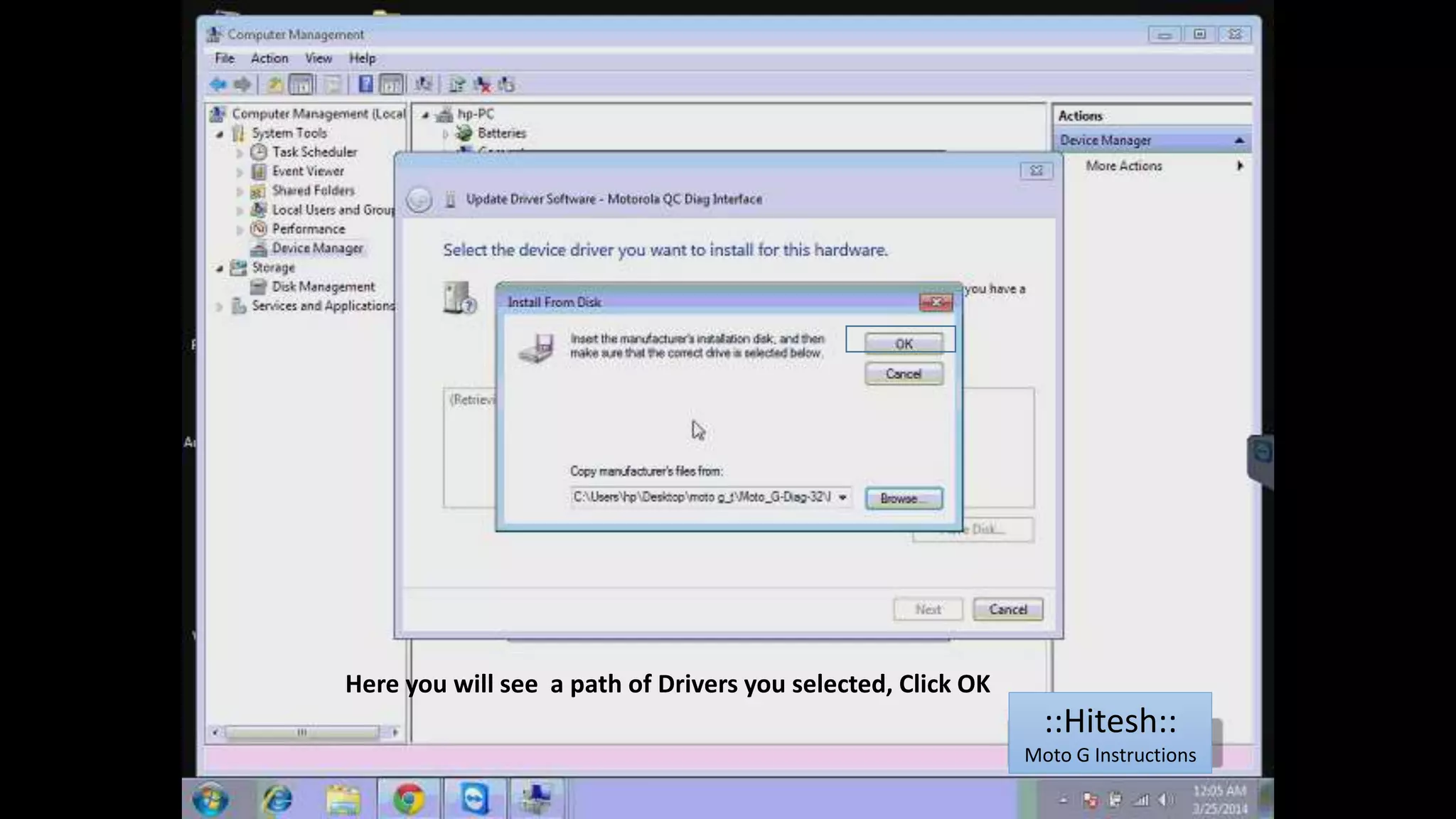
Here you will see a path of Drivers you selected, Click OK 
::Hitesh:: 
Moto G Instructions
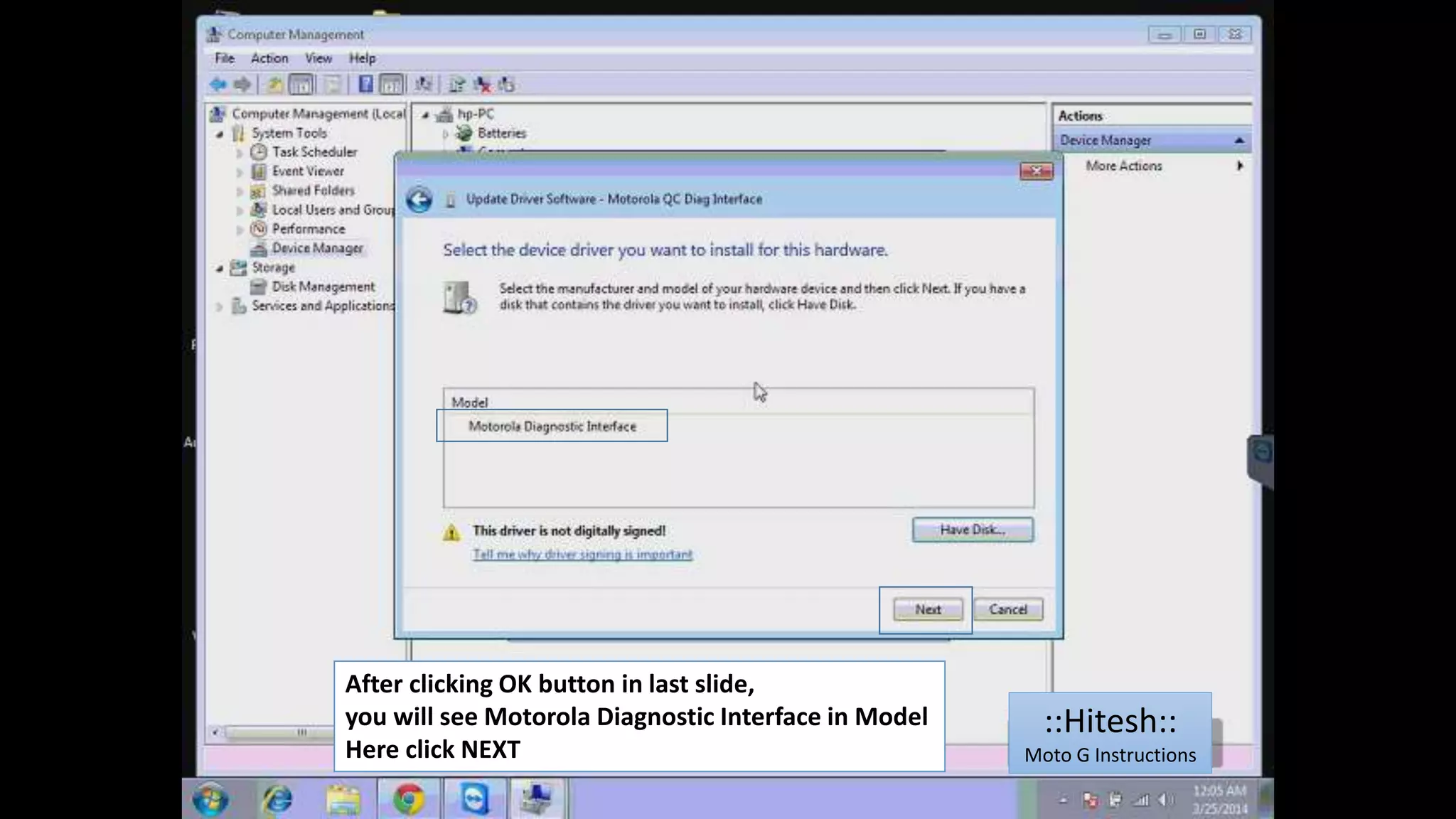
After clicking OK button in last slide, 
you will see Motorola Diagnostic Interface in Model 
Here click NEXT 
::Hitesh:: 
Moto G Instructions
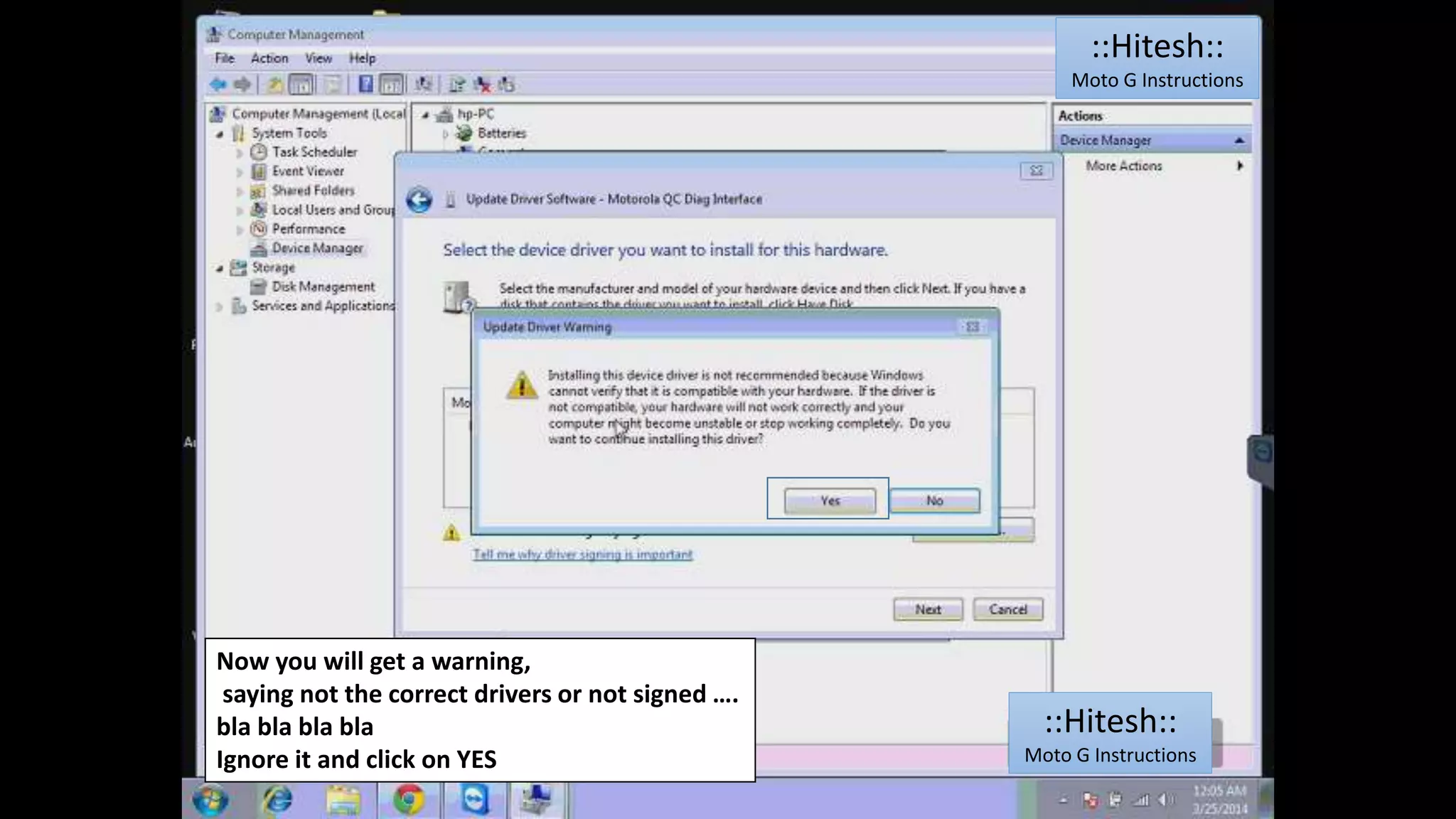
Now you will get a warning, 
saying not the correct drivers or not signed …. 
bla bla bla bla 
Ignore it and click on YES 
::Hitesh:: 
Moto G Instructions 
::Hitesh:: 
Moto G Instructions
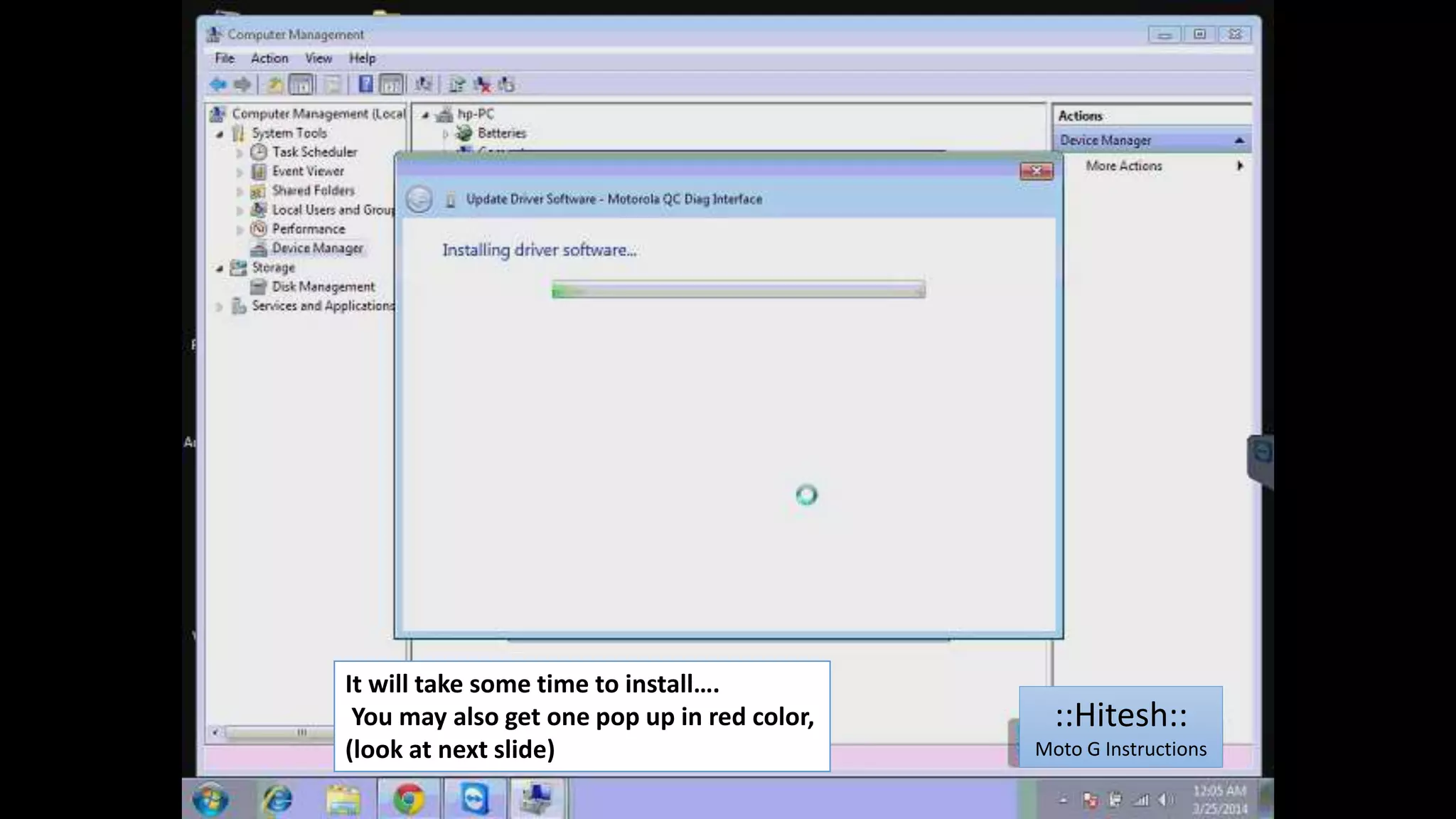
It will take some time to install…. 
You may also get one pop up in red color, 
(look at next slide) 
::Hitesh:: 
Moto G Instructions
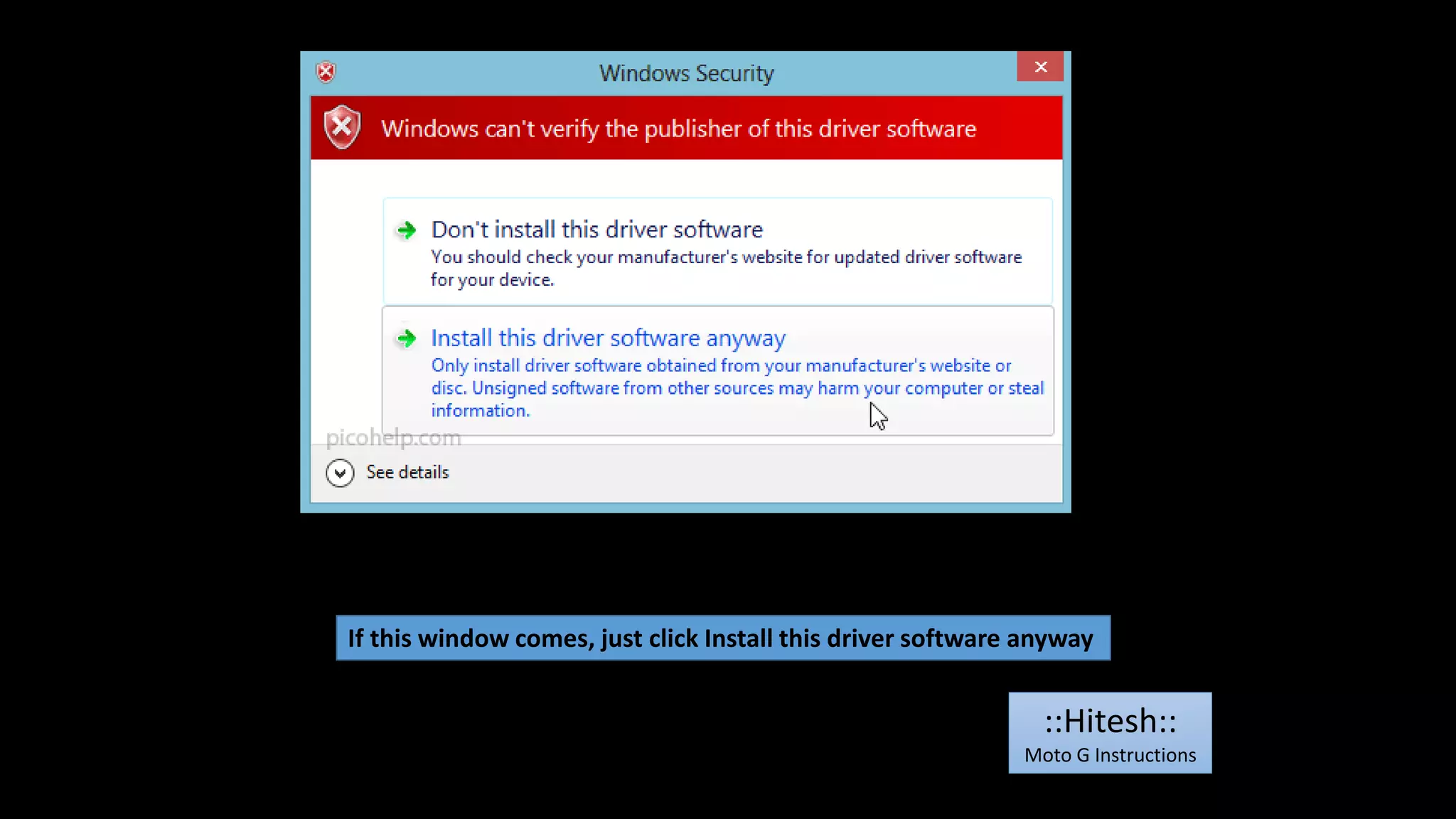
If this window comes, just click Install this driver software anyway 
::Hitesh:: 
Moto G Instructions
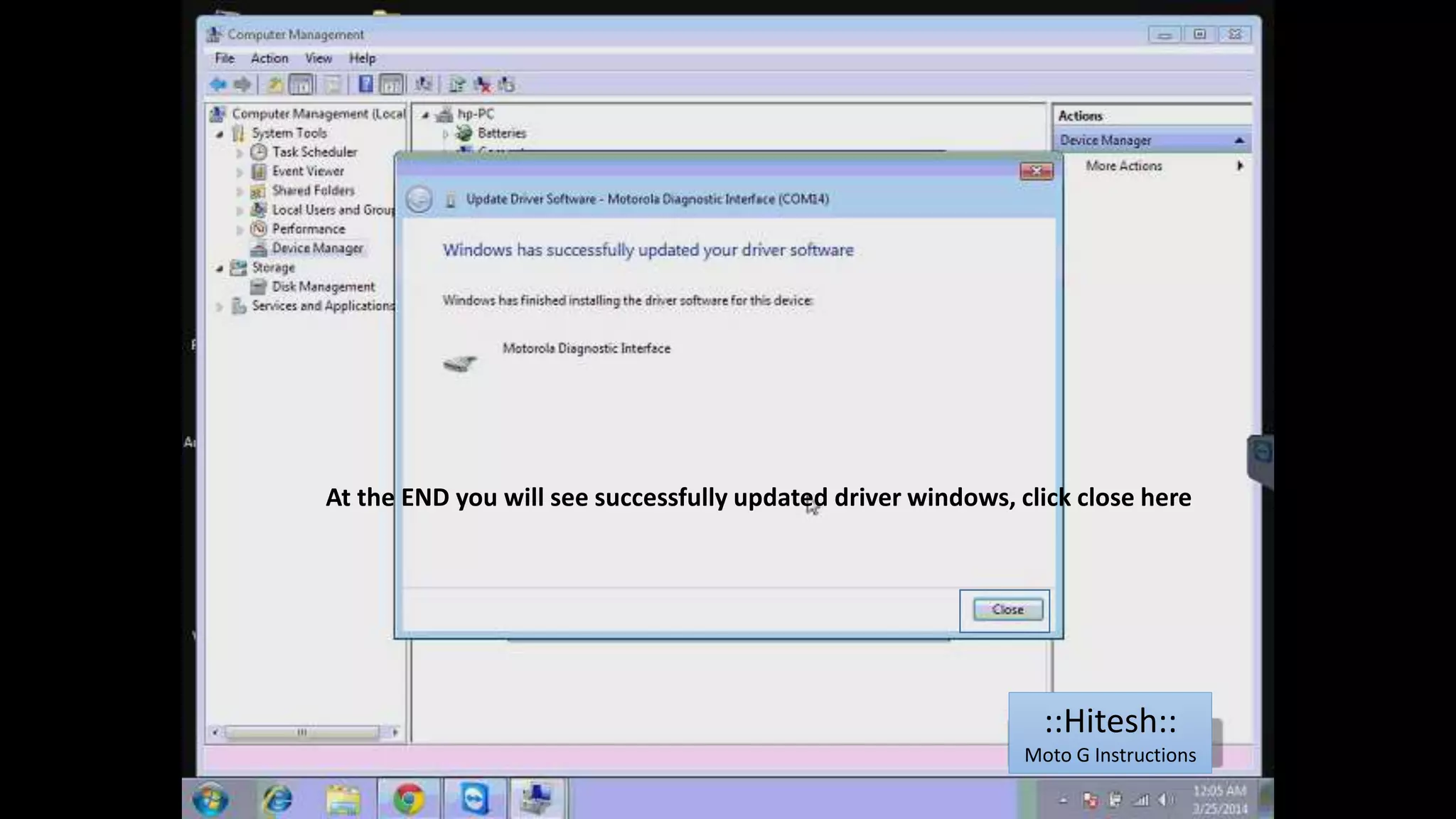
At the END you will see successfully updated driver windows, click close here 
::Hitesh:: 
Moto G Instructions
Close all the windows, and come to device manager (computer management] 
Now you can see Motorola Diag port no in PORTS, 
note down your port no. ::Hitesh:: 
Moto G Instructions
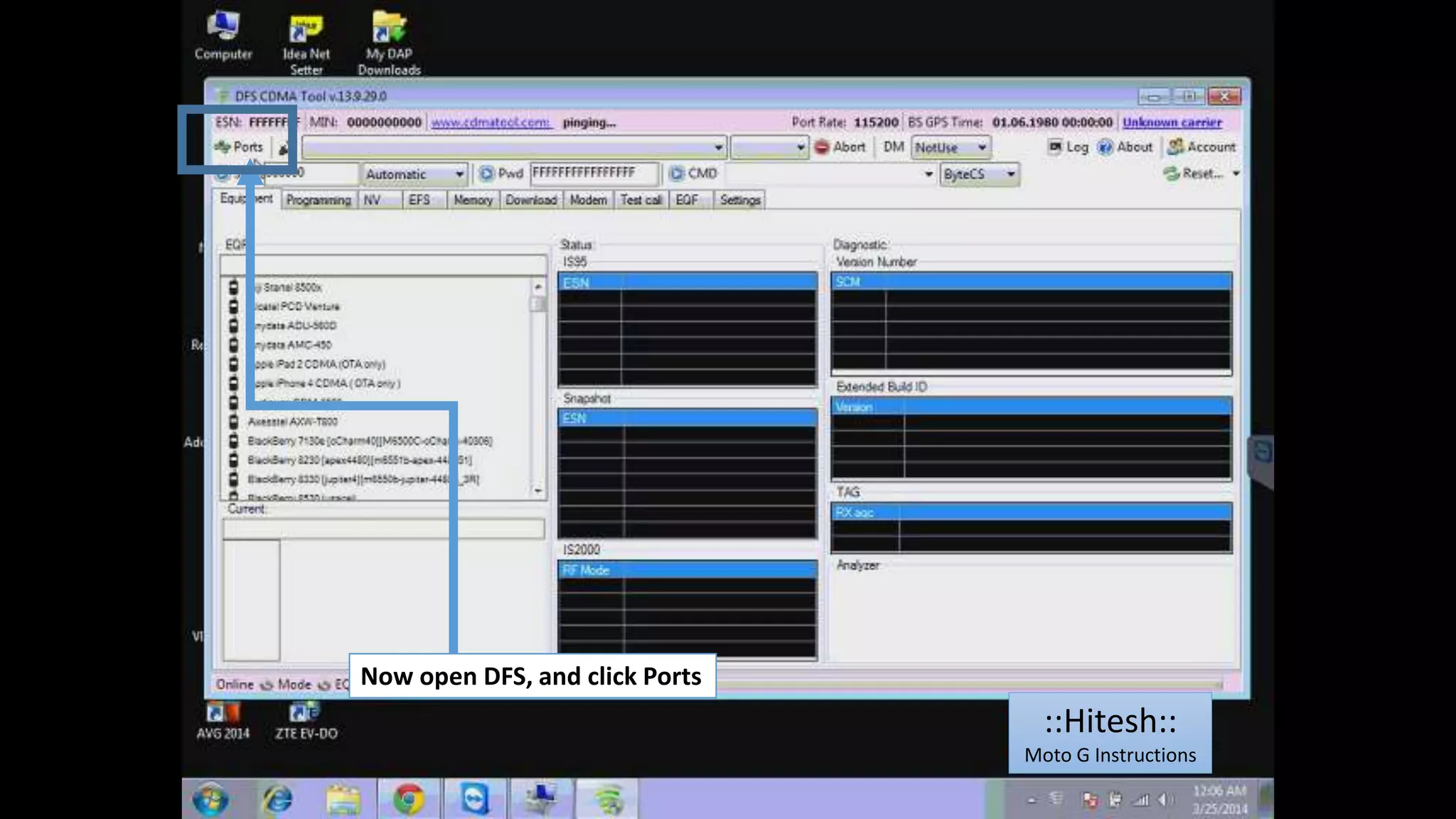
Now open DFS, and click Ports 
::Hitesh:: 
Moto G Instructions
1 
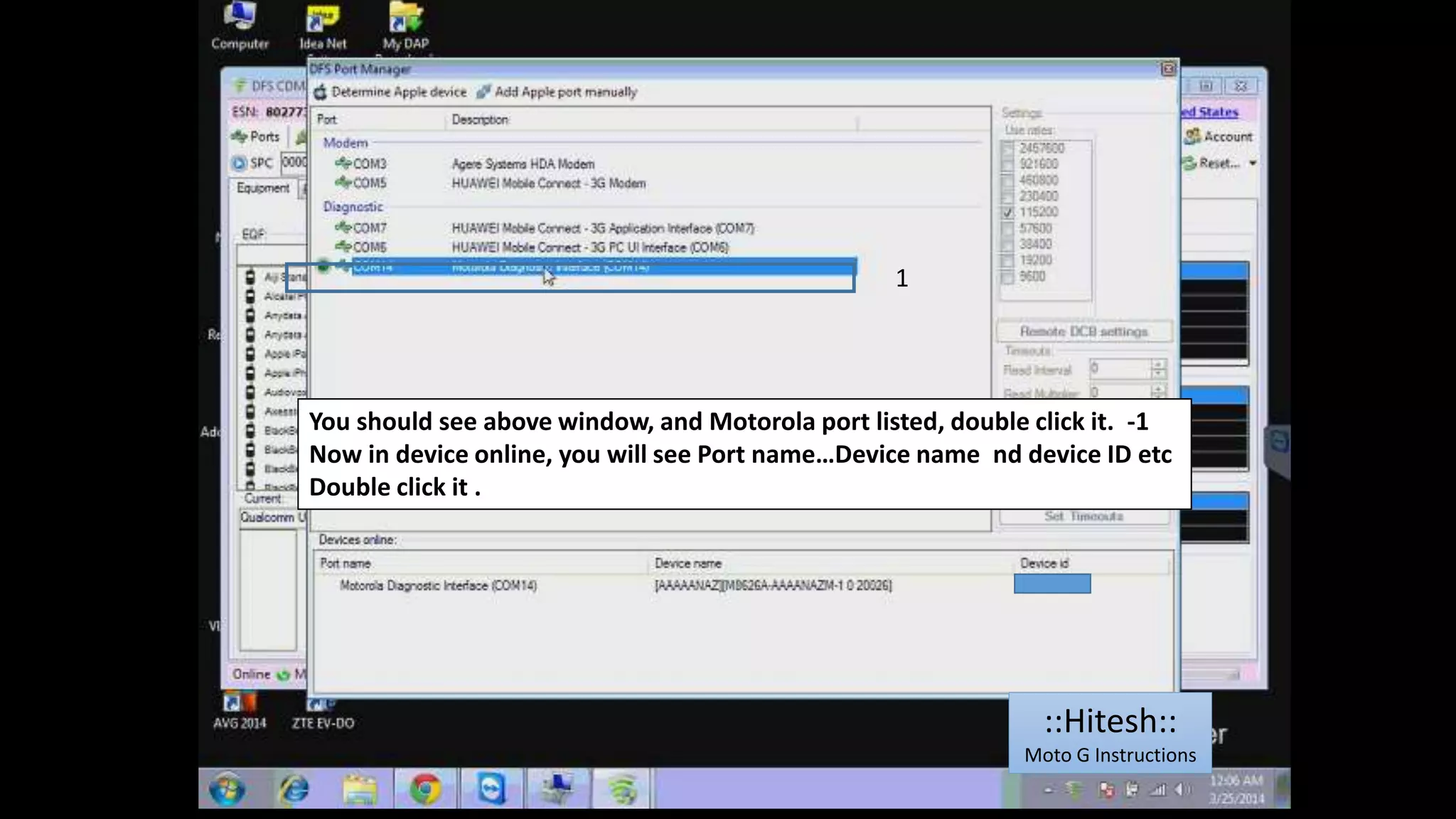
You should see above window, and Motorola port listed, double click it. -1 
Now in device online, you will see Port name…Device name nd device ID etc 
Double click it . 
::Hitesh:: 
Moto G Instructions
::Hitesh:: 
Moto G Instructions 
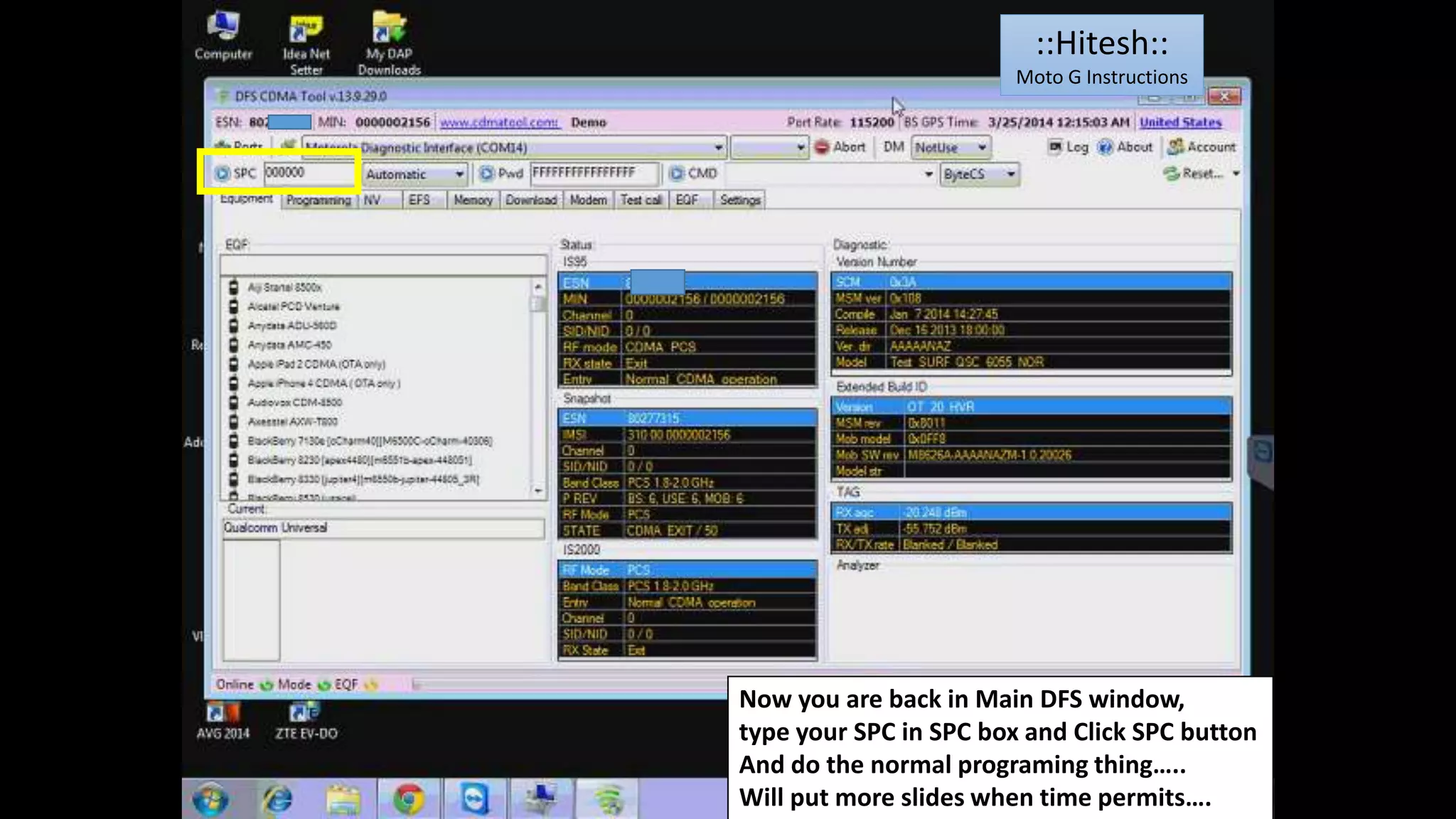
Now you are back in Main DFS window, 
type your SPC in SPC box and Click SPC button 
And do the normal programing thing….. 
Will put more slides when time permits….
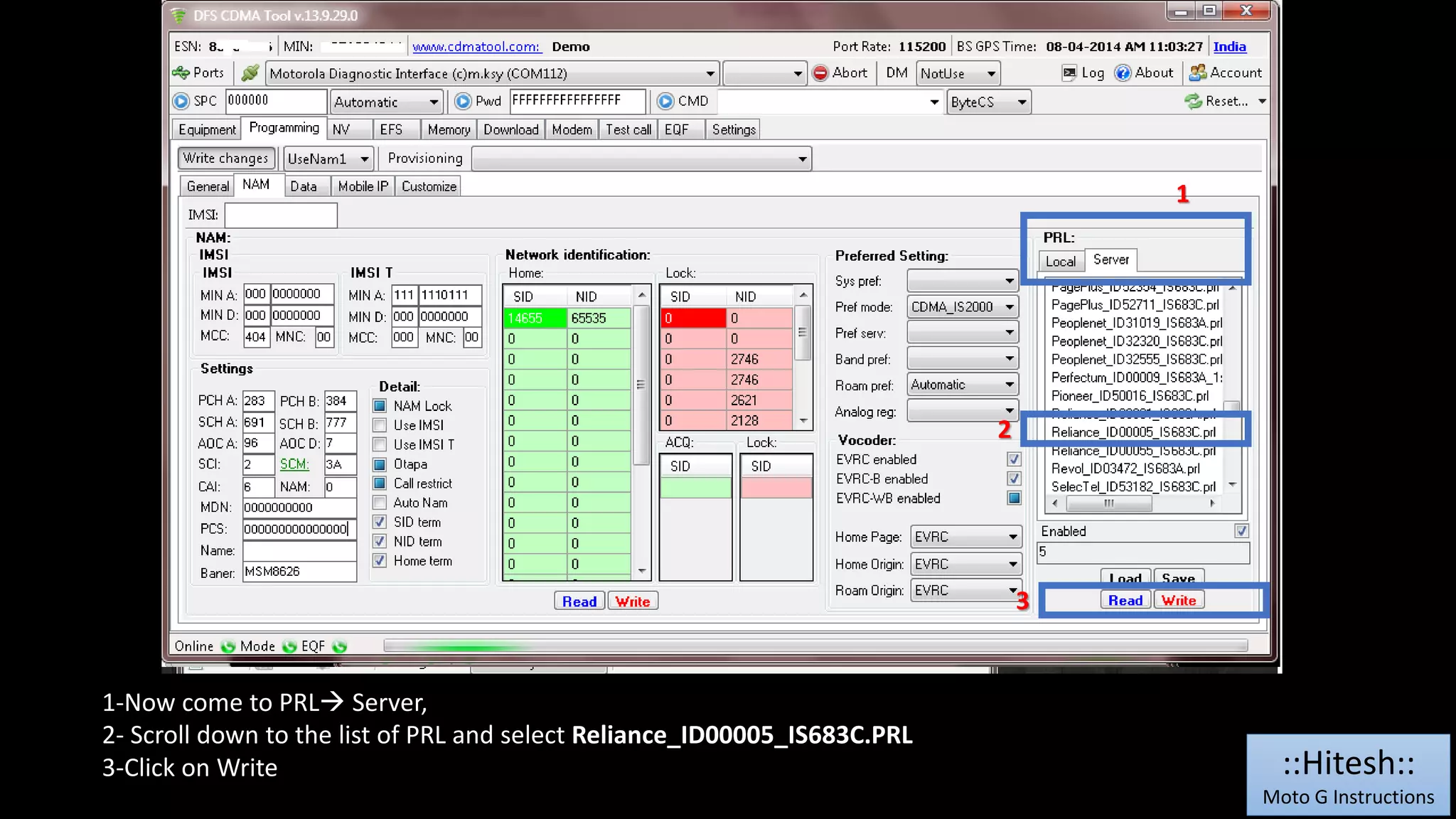
1-Now come to PRL Server, 
2- Scroll down to the list of PRL and select Reliance_ID00005_IS683C.PRL 
3-Click on Write 
1 
2 
3 
::Hitesh:: 
Moto G Instructions
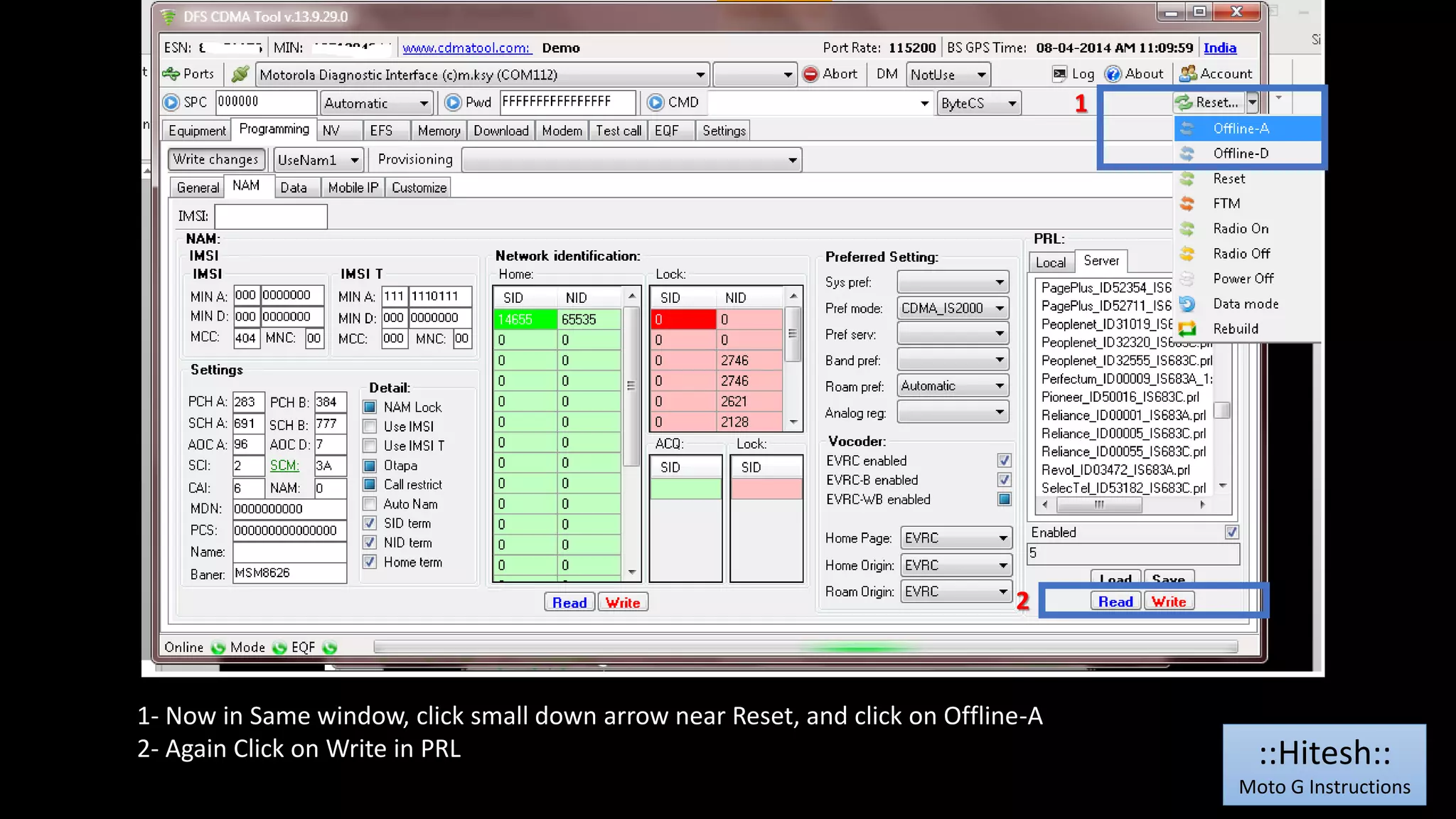
2 
1- Now in Same window, click small down arrow near Reset, and click on Offline-A 
2- Again Click on Write in PRL 
1 
::Hitesh:: 
Moto G Instructions
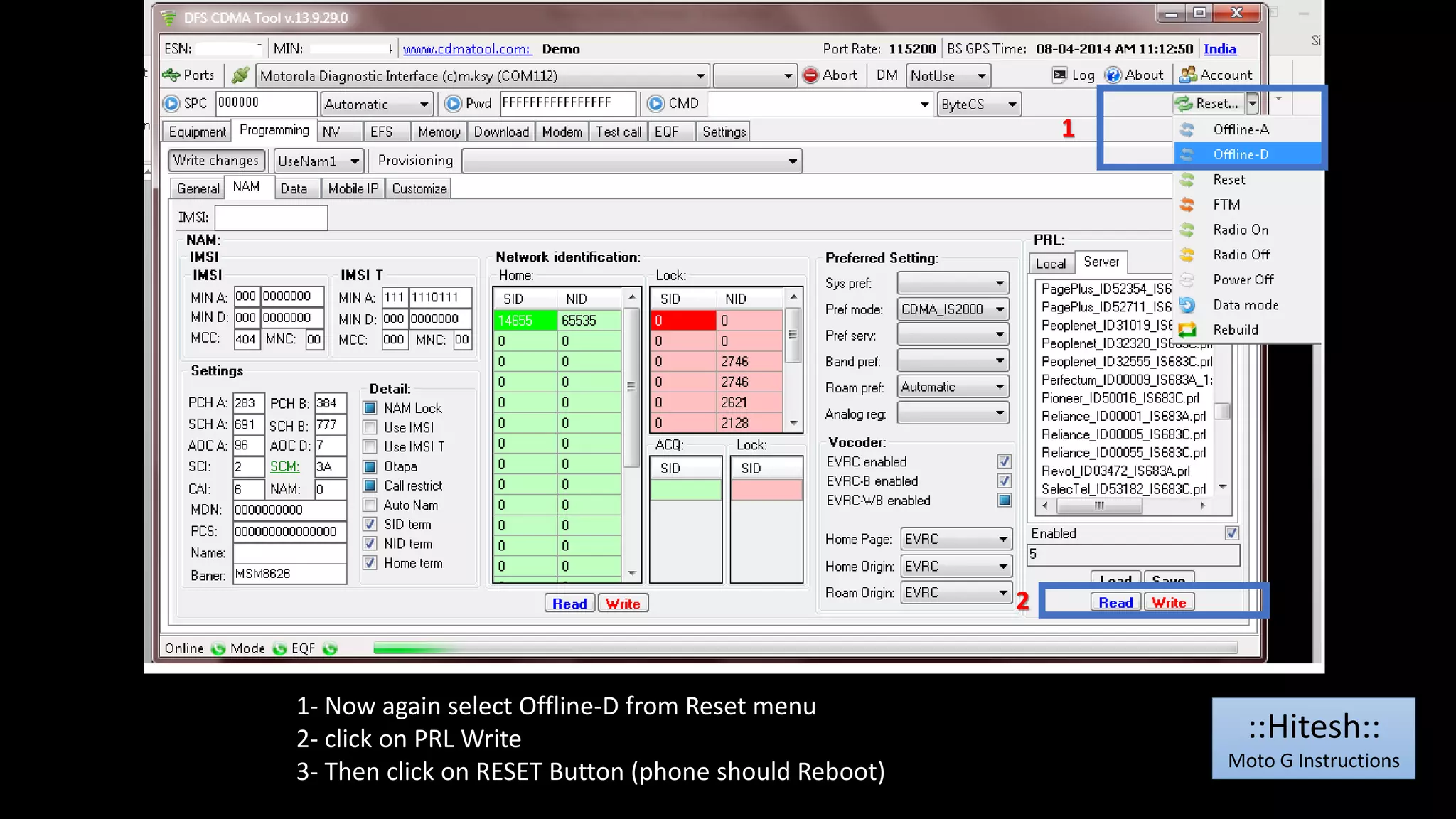
1- Now again select Offline-D from Reset menu 
2- click on PRL Write 
3- Then click on RESET Button (phone should Reboot) 
1 
2 
::Hitesh:: 
Moto G Instructions
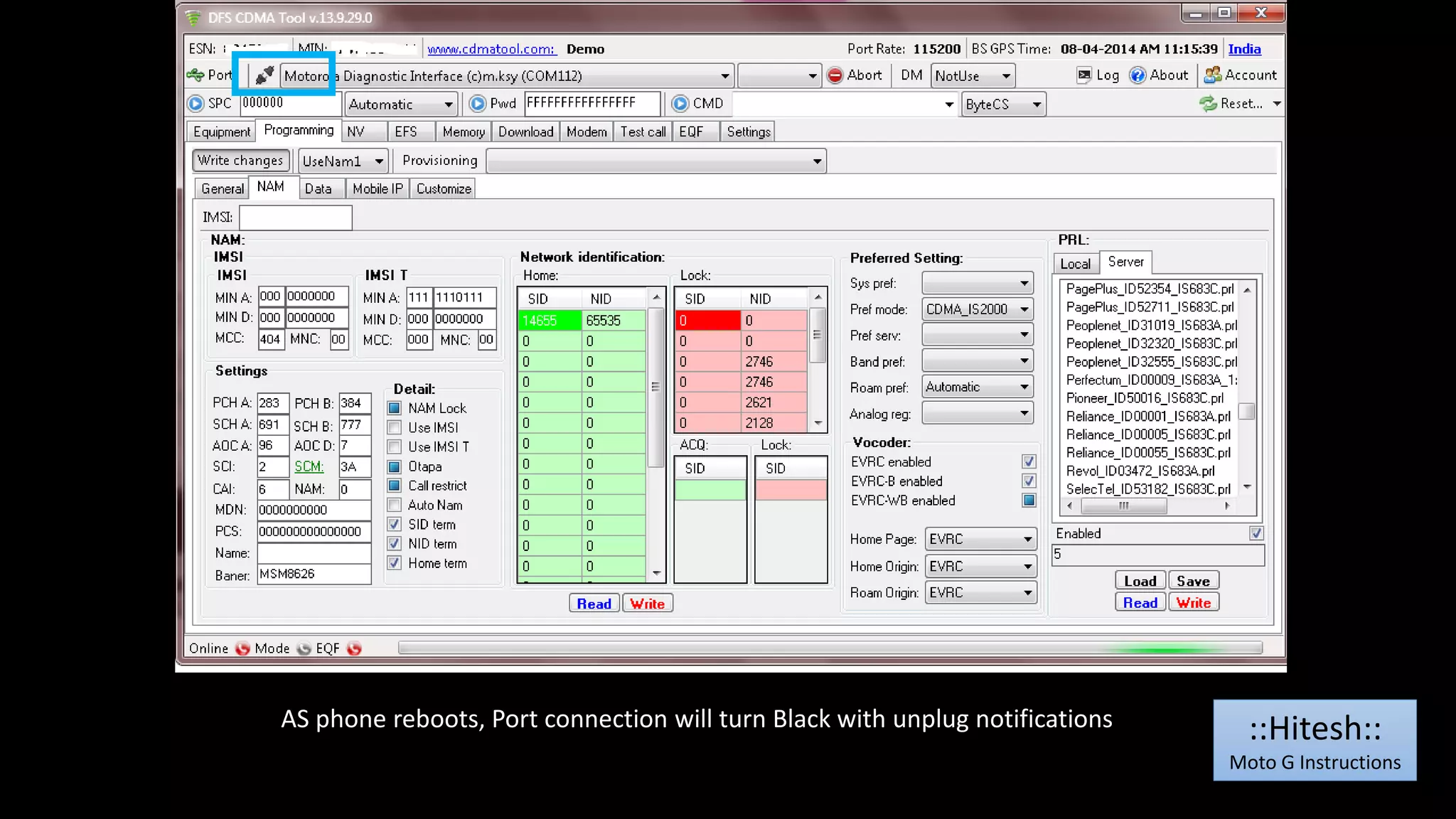
AS phone reboots, Port connection will turn Black with unplug notifications ::Hitesh:: 
Moto G Instructions
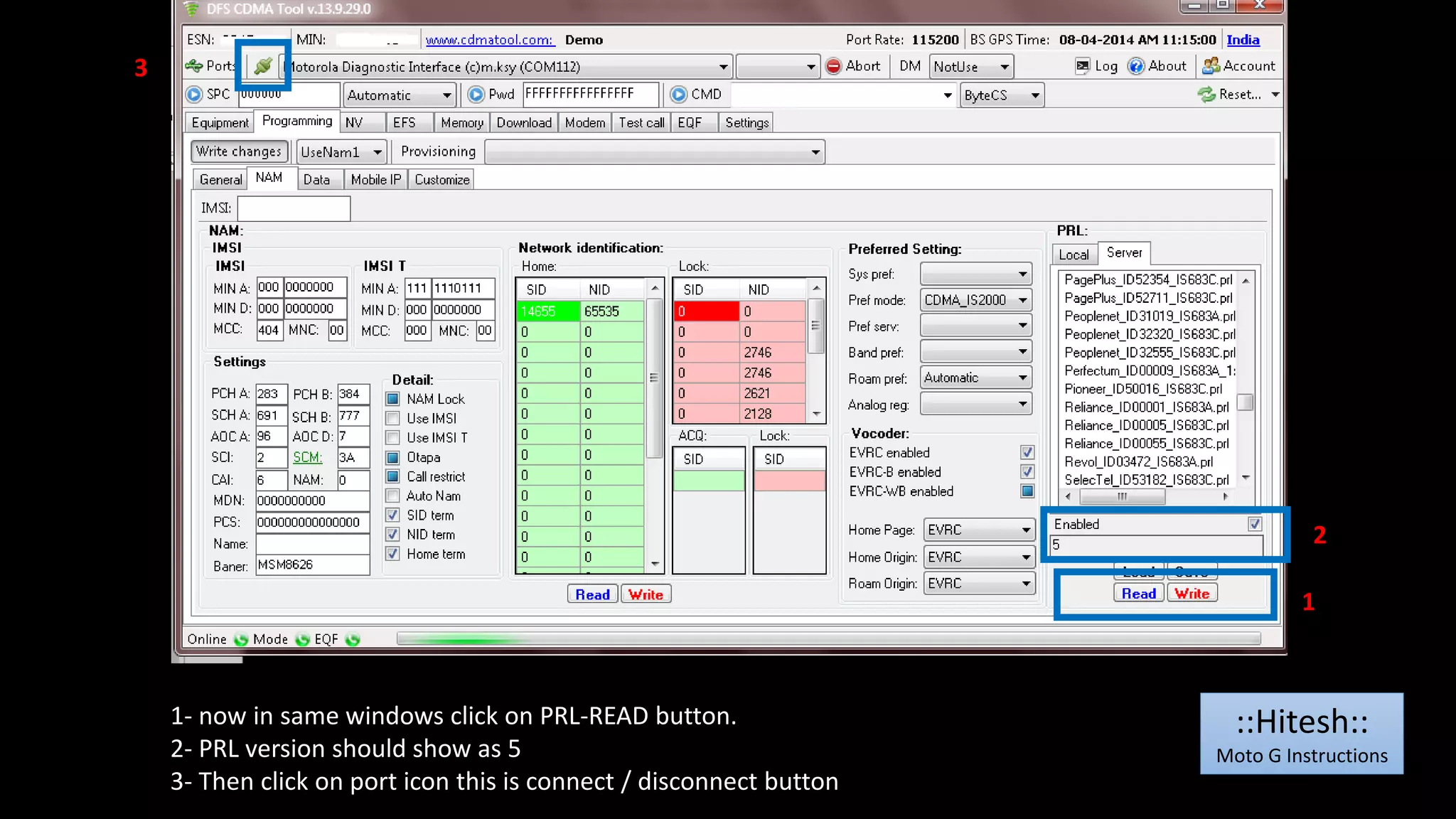
1- now in same windows click on PRL-READ button. 
2- PRL version should show as 5 
3- Then click on port icon this is connect / disconnect button 
2 
1 
3 
::Hitesh:: 
Moto G Instructions
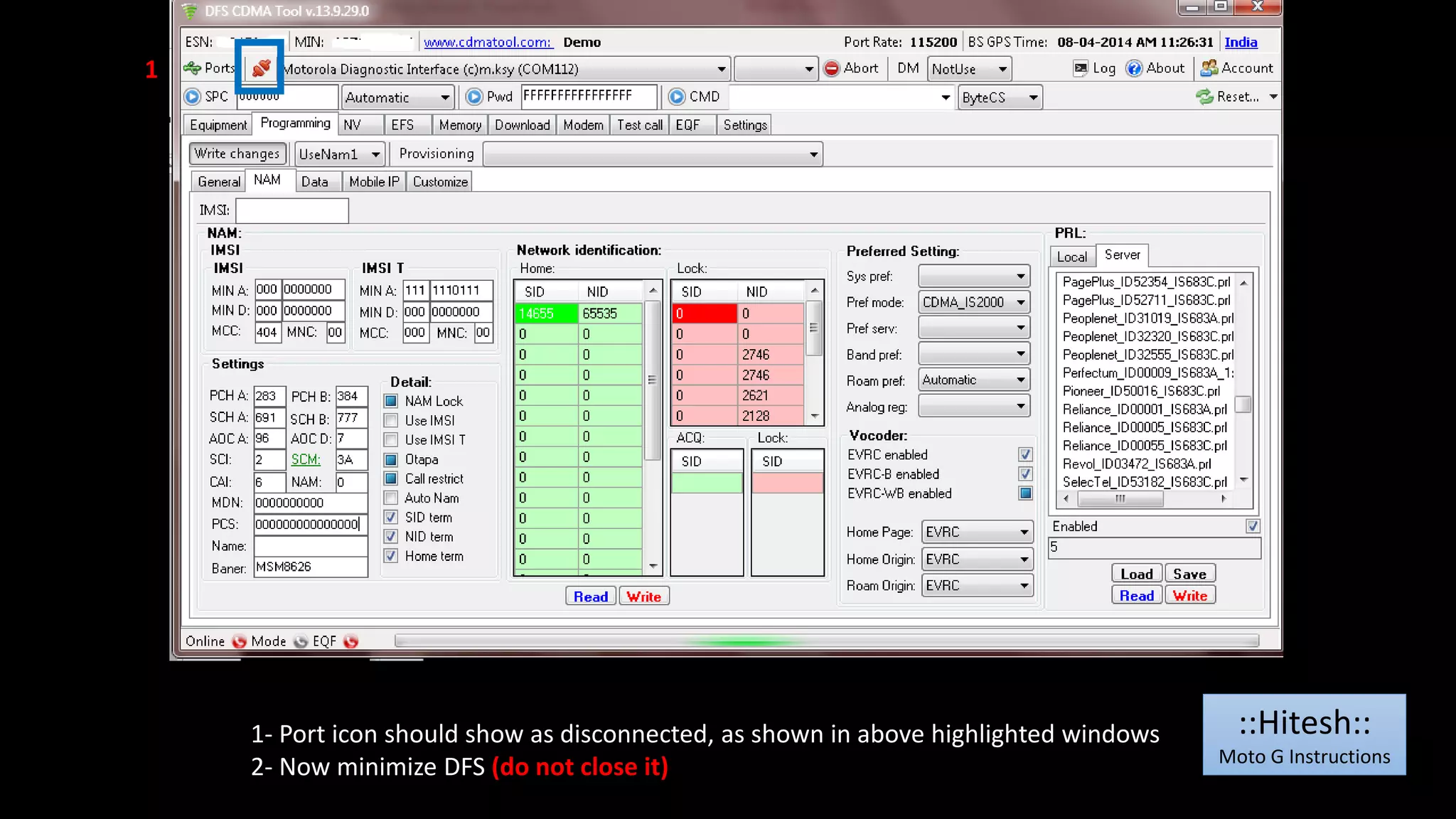
1- Port icon should show as disconnected, as shown in above highlighted windows 
2- Now minimize DFS (do not close it) 
1 
::Hitesh:: 
Moto G Instructions
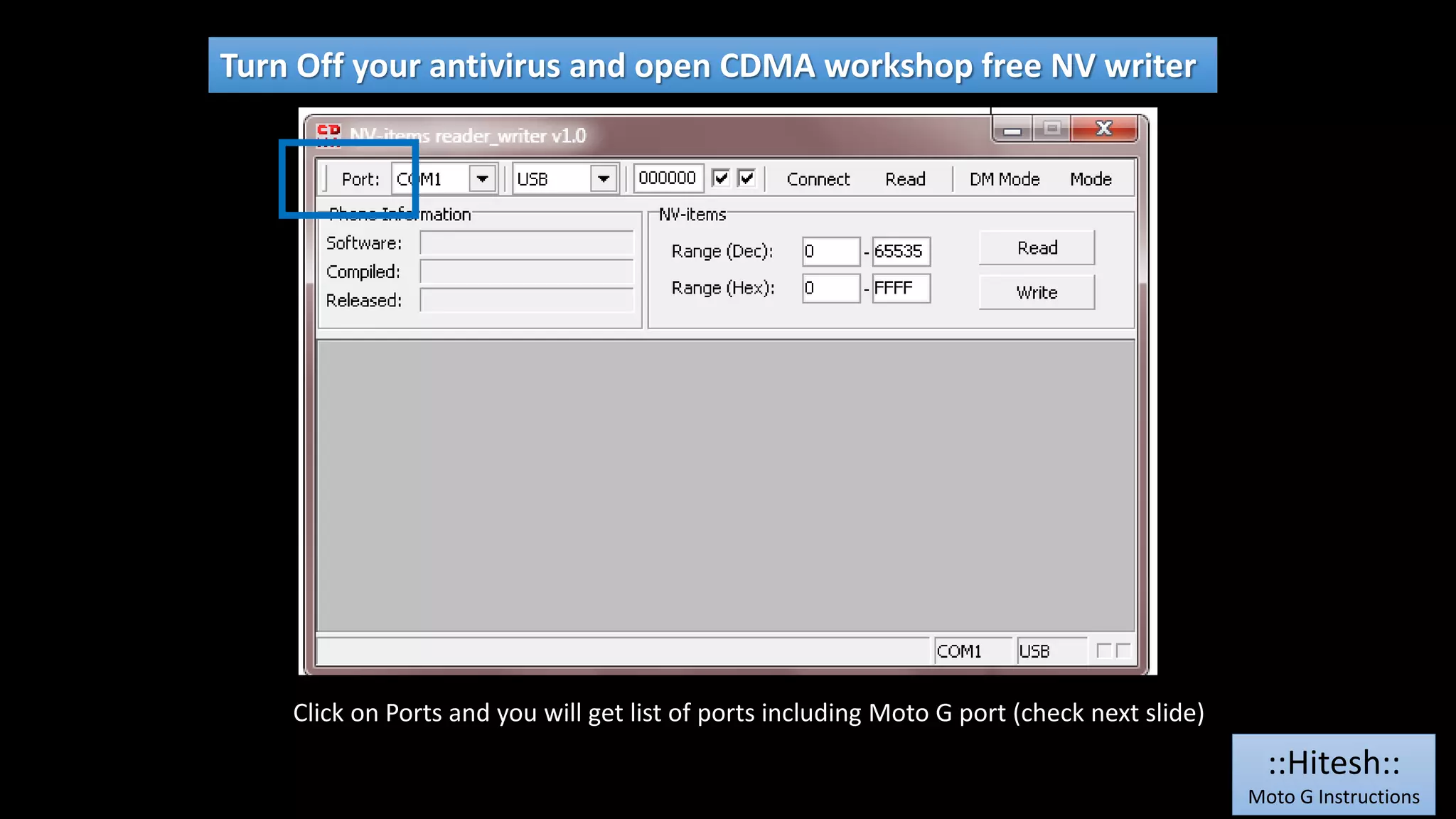
Turn Off your antivirus and open CDMA workshop free NV writer 
Click on Ports and you will get list of ports including Moto G port (check next slide) 
::Hitesh:: 
Moto G Instructions
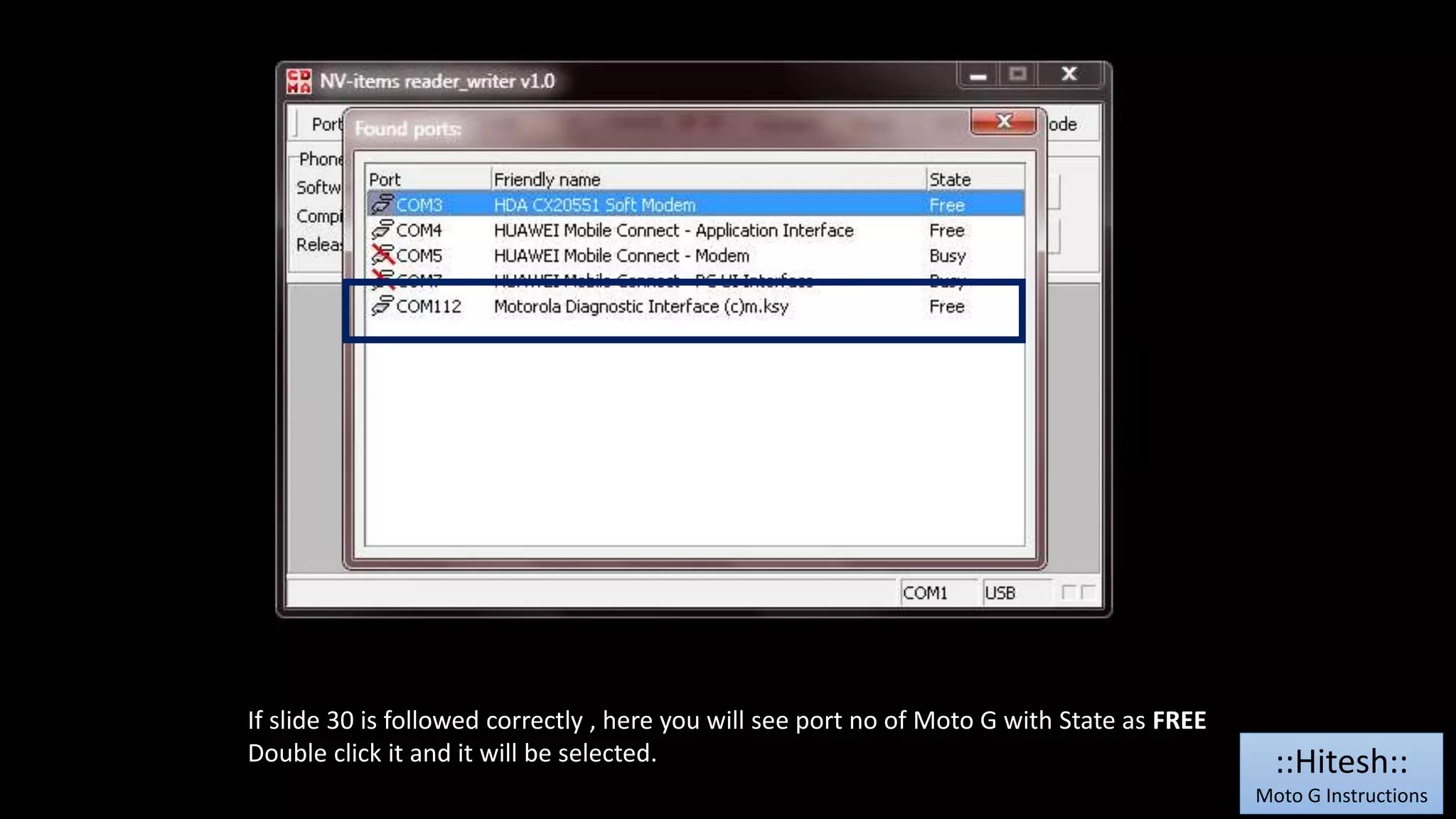
If slide 30 is followed correctly , here you will see port no of Moto G with State as FREE 
Double click it and it will be selected. ::Hitesh:: 
Moto G Instructions
1 
2 3 
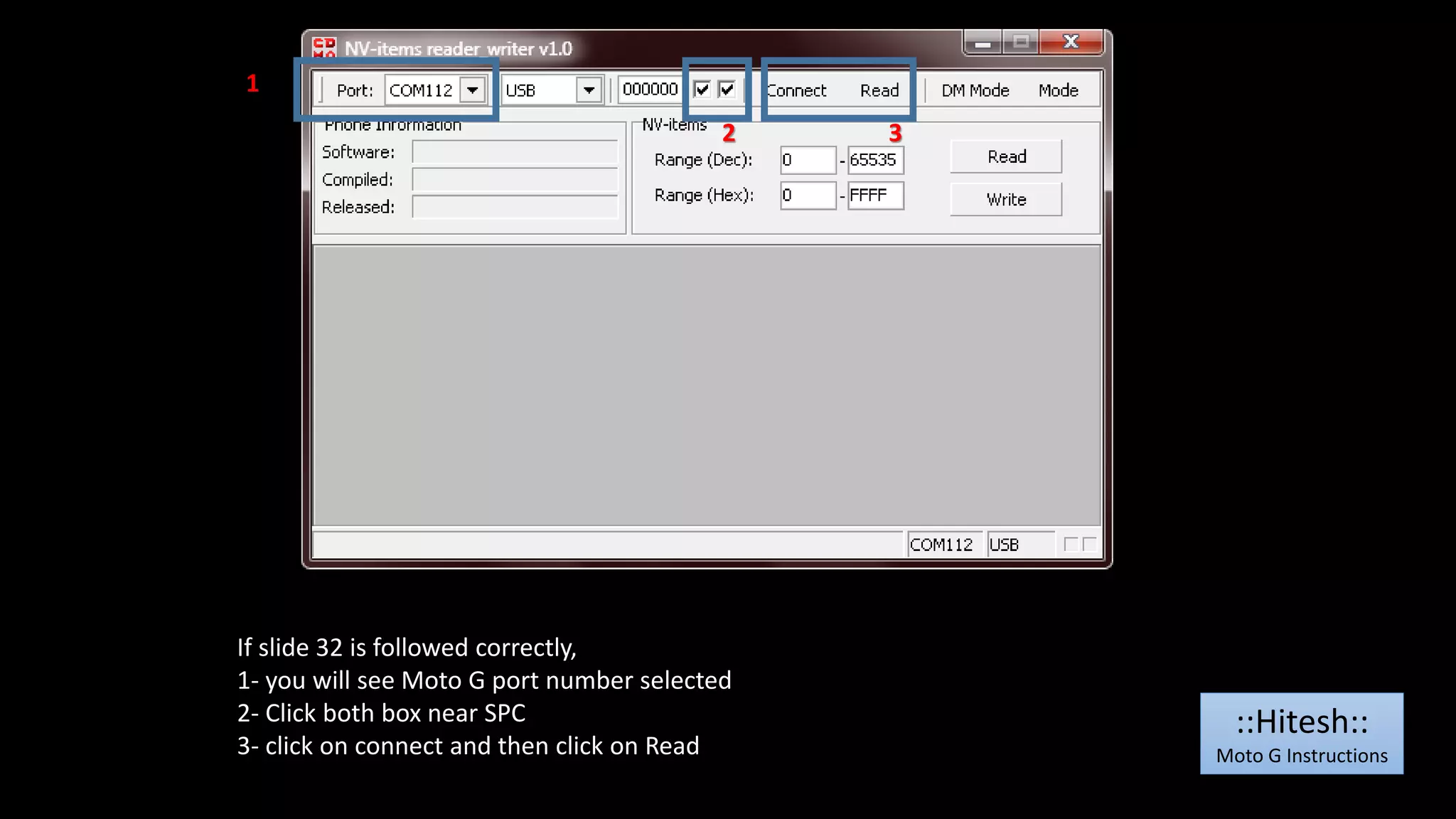
If slide 32 is followed correctly, 
1- you will see Moto G port number selected 
2- Click both box near SPC 
3- click on connect and then click on Read 
::Hitesh:: 
Moto G Instructions
1 
2 
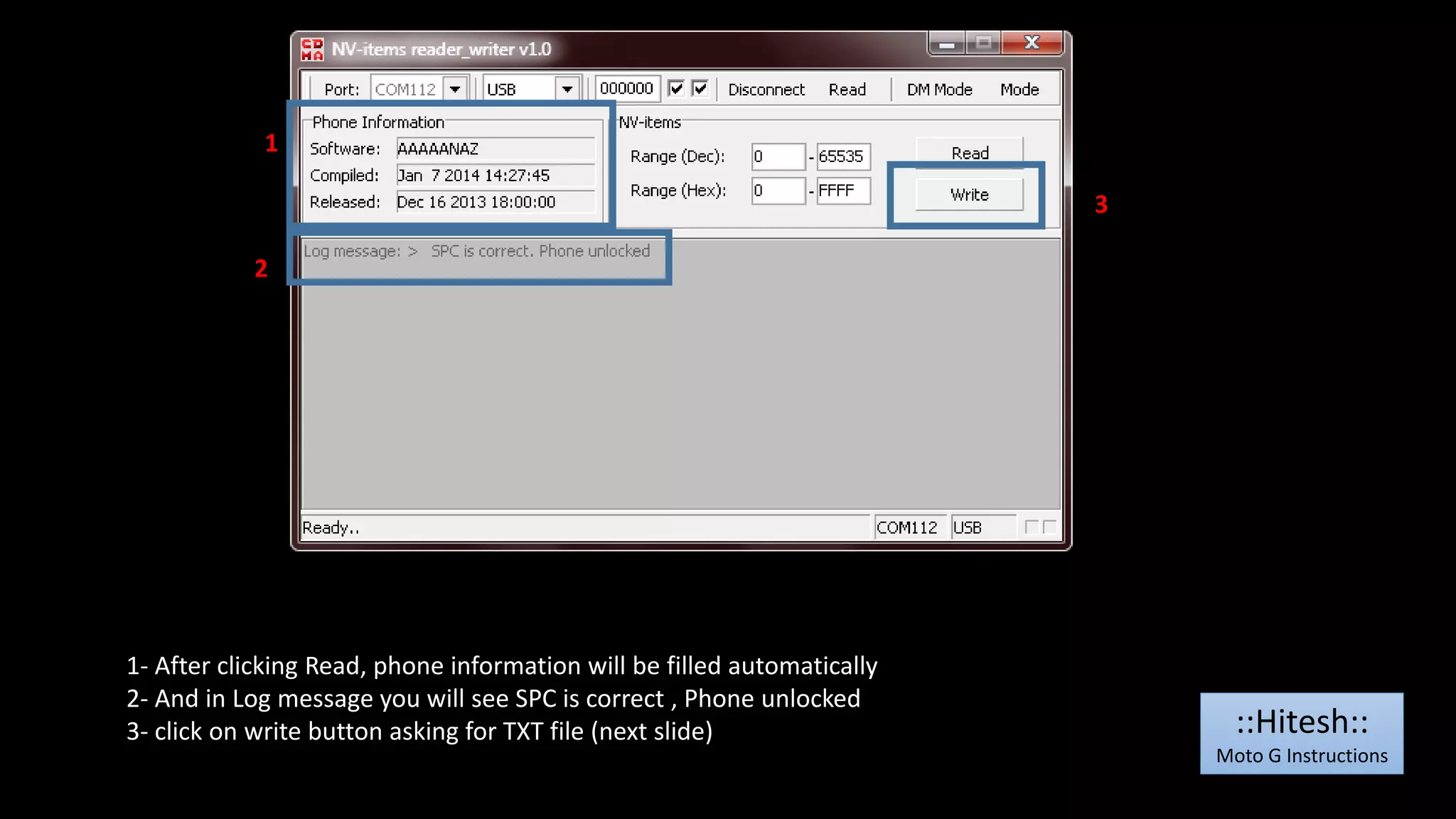
1- After clicking Read, phone information will be filled automatically 
2- And in Log message you will see SPC is correct , Phone unlocked 
3- click on write button asking for TXT file (next slide) 
3 
::Hitesh:: 
Moto G Instructions
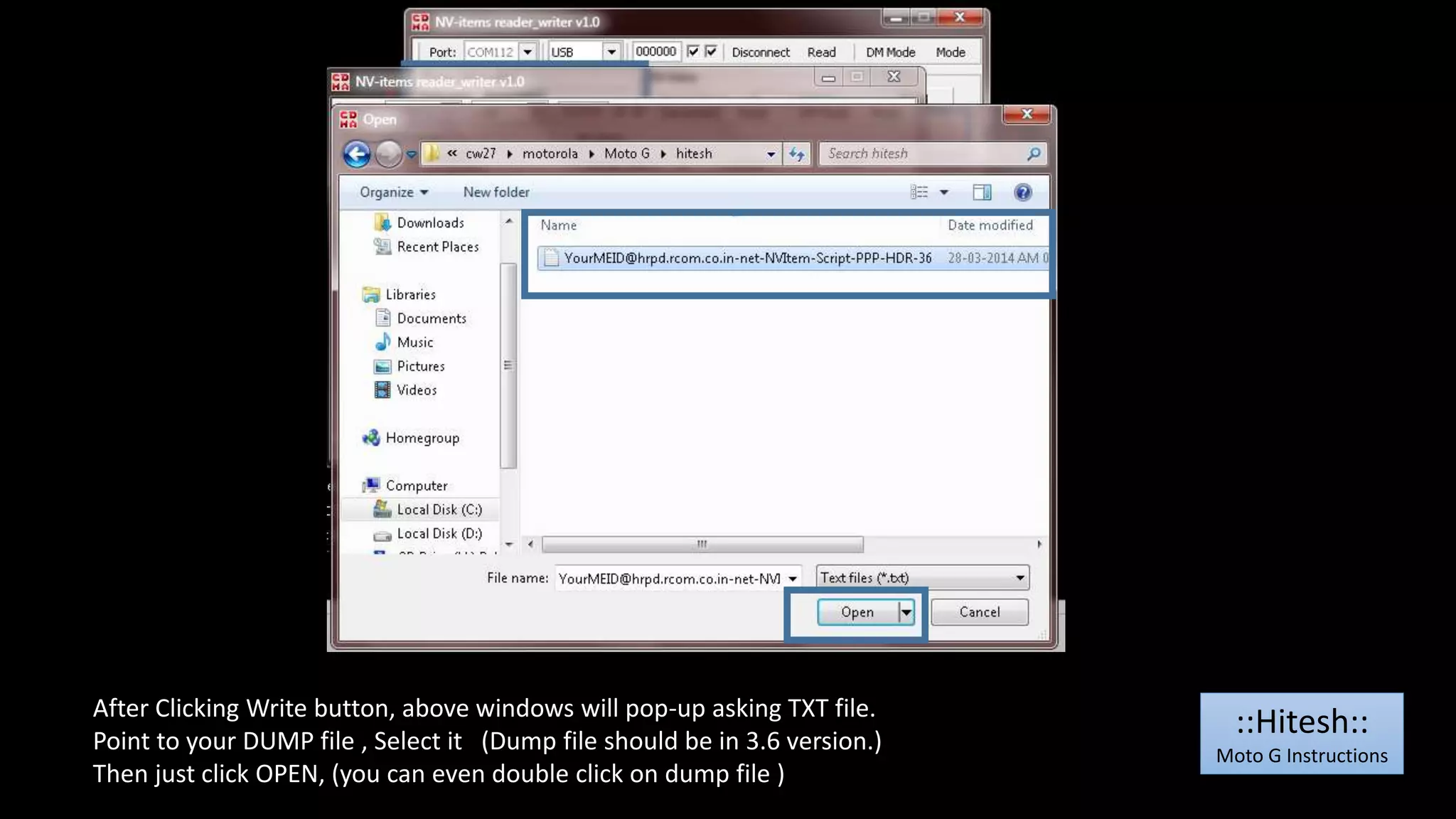
After Clicking Write button, above windows will pop-up asking TXT file. 
Point to your DUMP file , Select it (Dump file should be in 3.6 version.) 
Then just click OPEN, (you can even double click on dump file ) 
::Hitesh:: 
Moto G Instructions
1 
2 
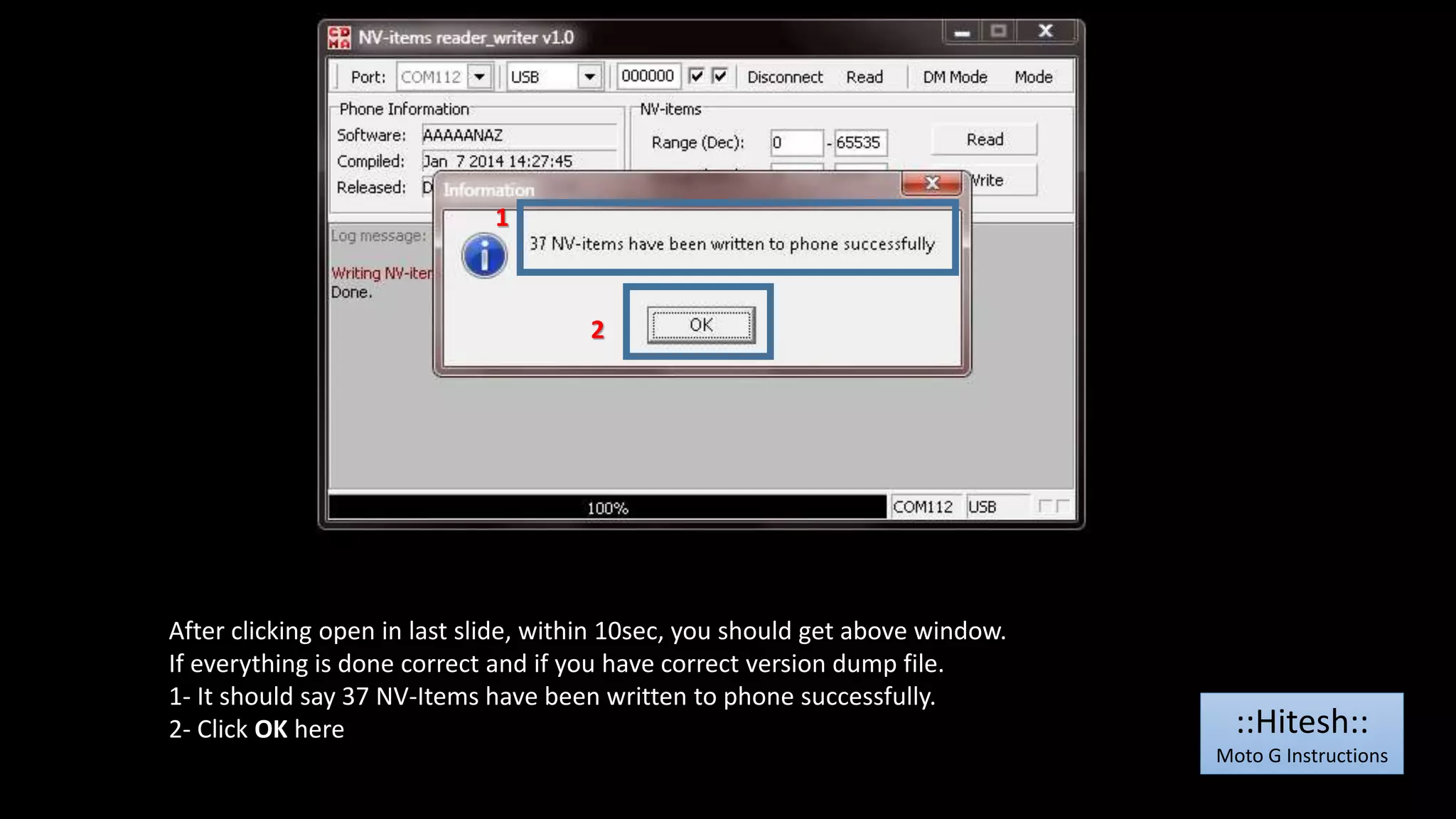
After clicking open in last slide, within 10sec, you should get above window. 
If everything is done correct and if you have correct version dump file. 
1- It should say 37 NV-Items have been written to phone successfully. 
2- Click OK here 
::Hitesh:: 
Moto G Instructions
1 
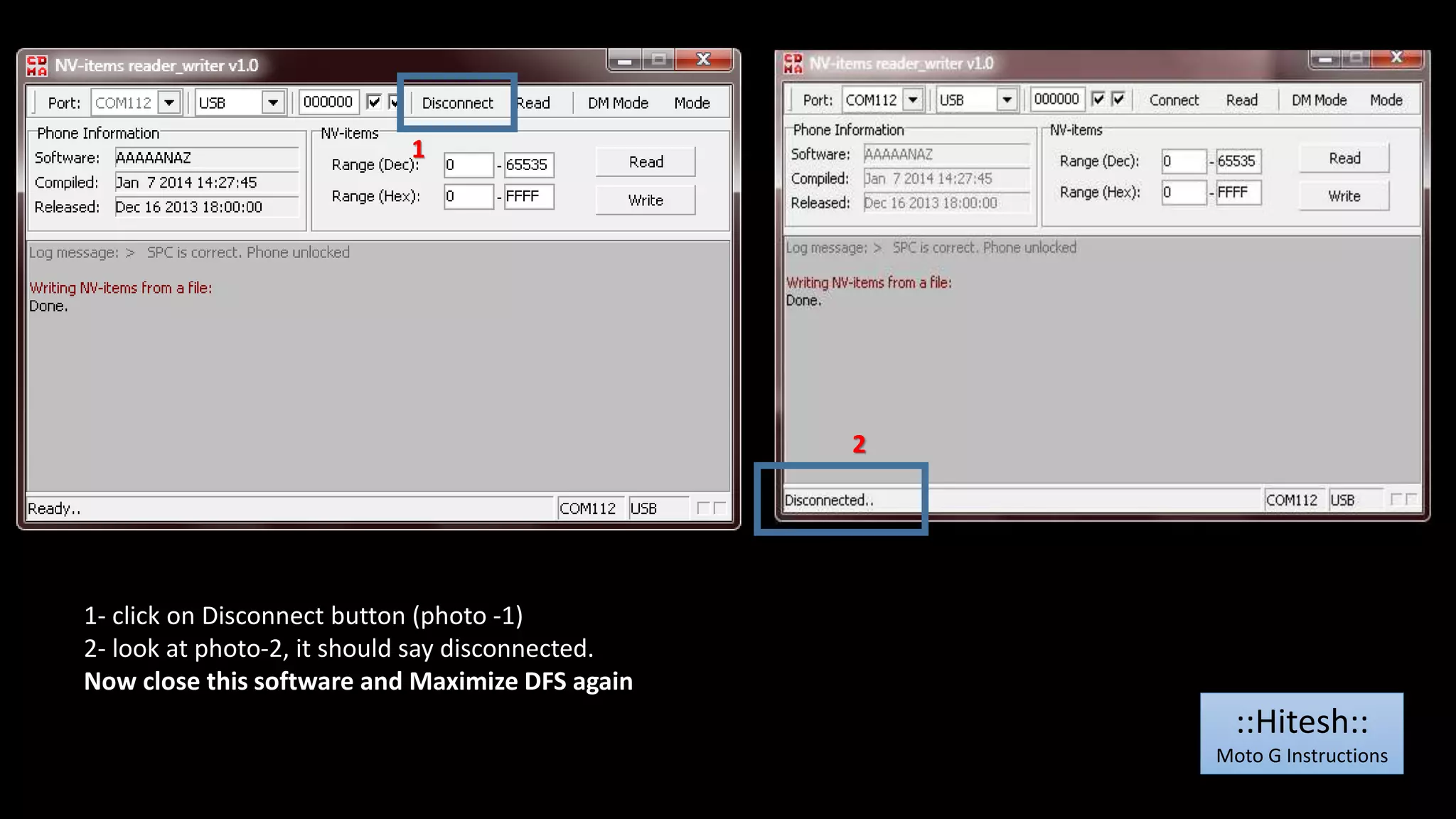
1- click on Disconnect button (photo -1) 
2- look at photo-2, it should say disconnected. 
Now close this software and Maximize DFS again 
2 
::Hitesh:: 
Moto G Instructions
1 
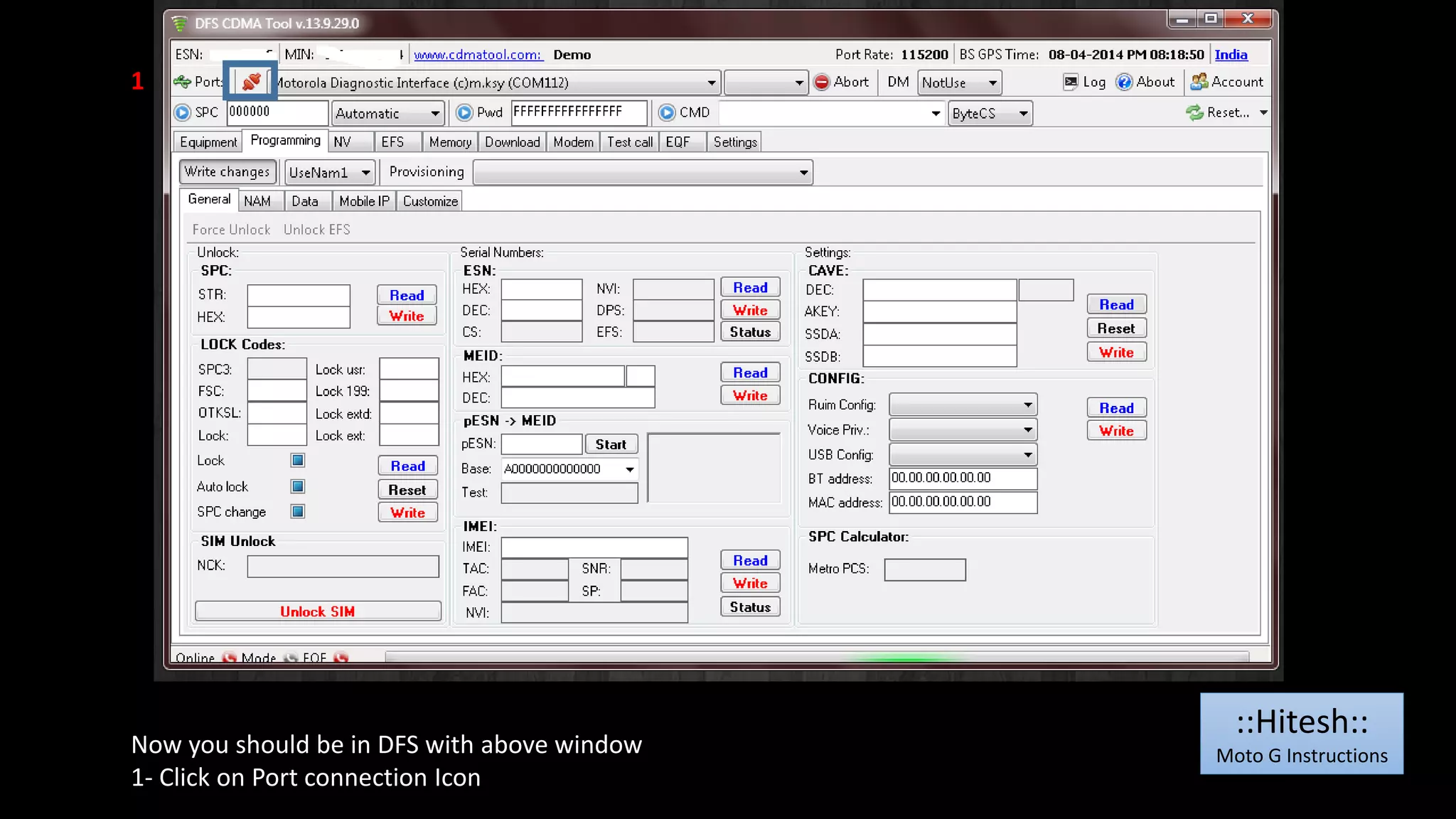
Now you should be in DFS with above window 
1- Click on Port connection Icon 
::Hitesh:: 
Moto G Instructions
1 
2 
1- After clicking Port connection, it should show connected 
2- SPC box should have 6 Zero, Now click on SPC button, [Here log should show device unlocked] 
::Hitesh:: 
Moto G Instructions
1 
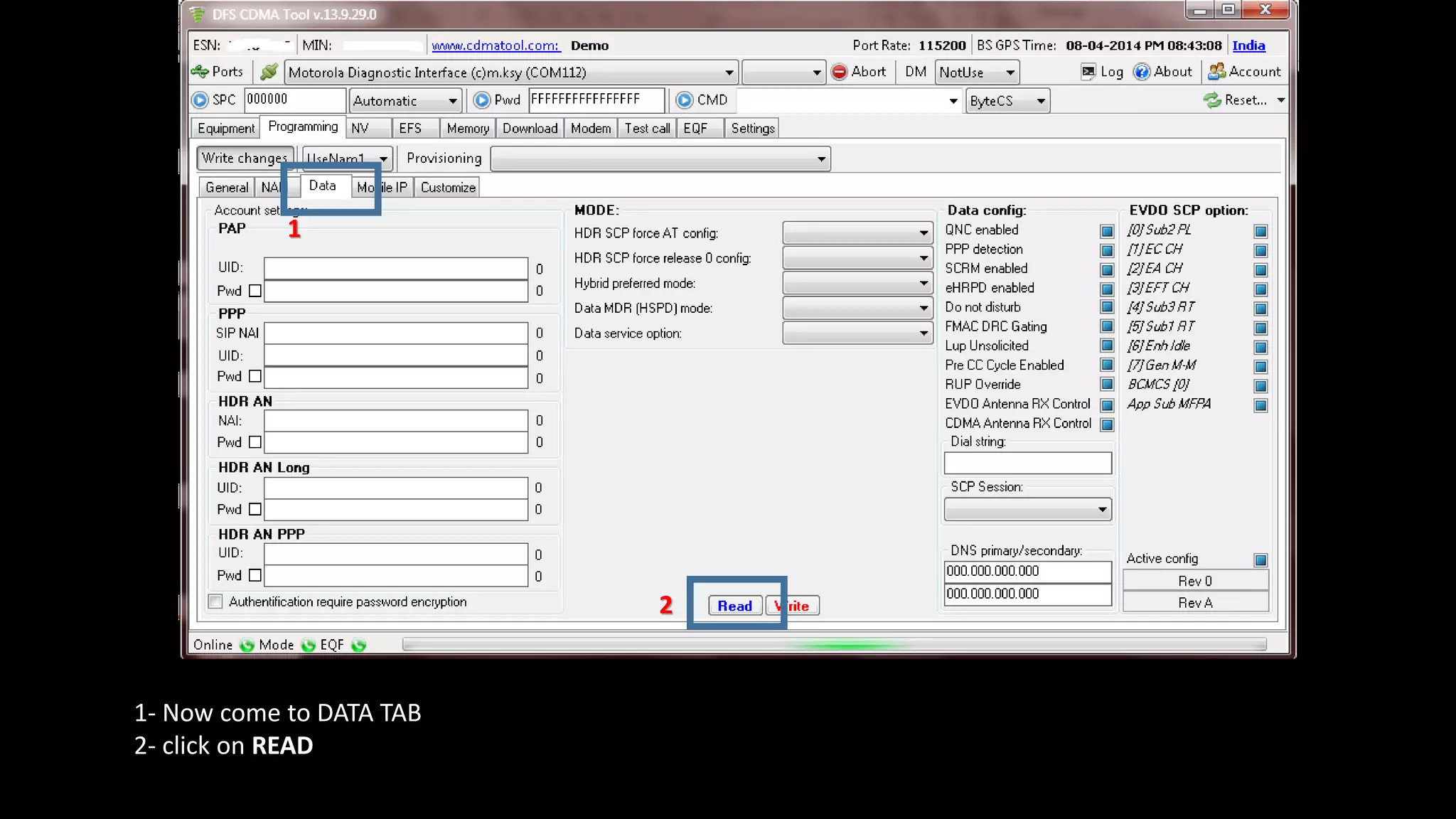
1- Now come to DATA TAB 
2- click on READ 
2
After Clicking READ, It should look like above window 
Box no 3-4 should show NET 
Box no -6 & 8 should show HDR user ID [yourMEID@hrpd.rcom.co.in] 
::Hitesh:: 
Moto G Instructions
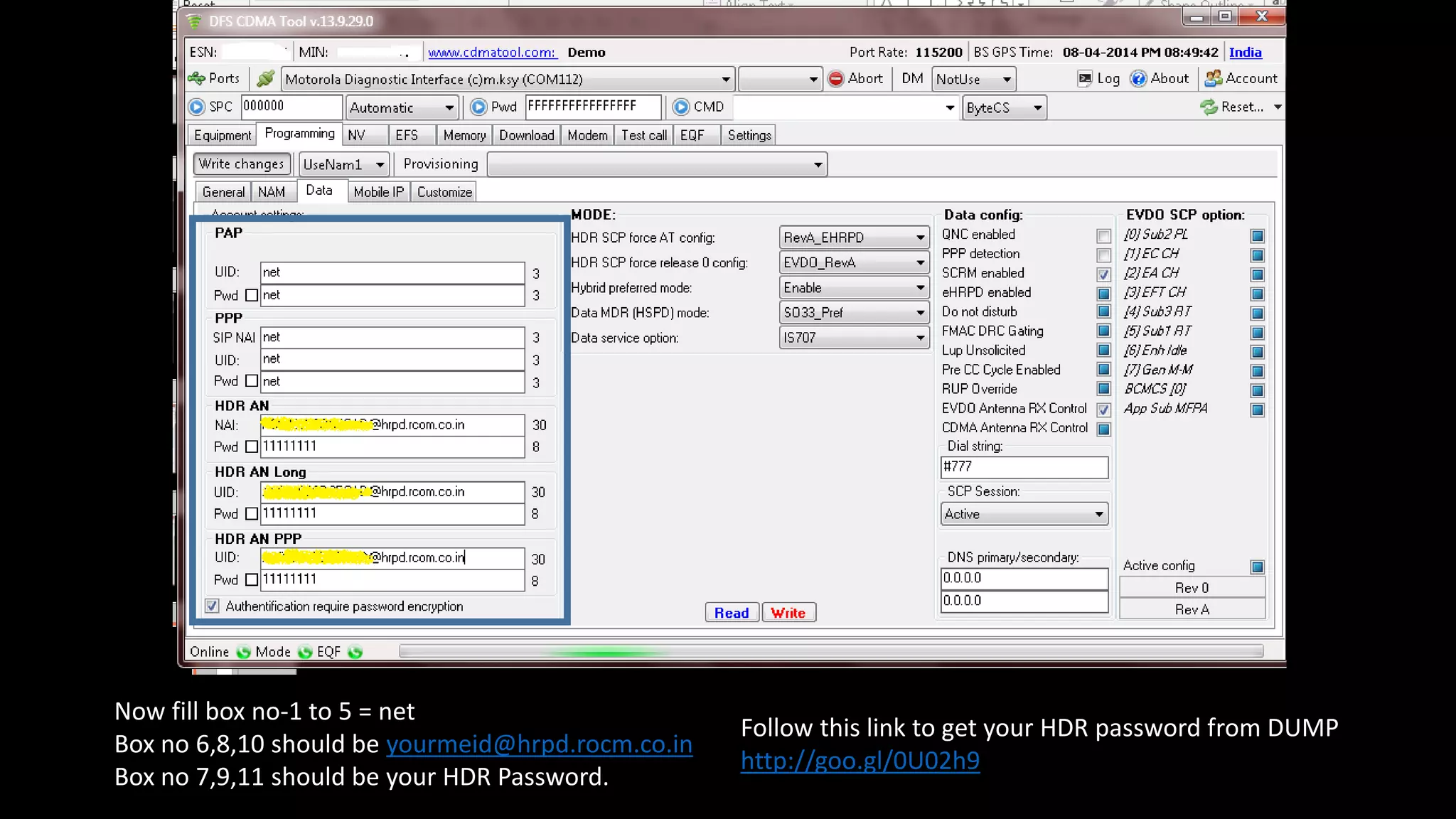
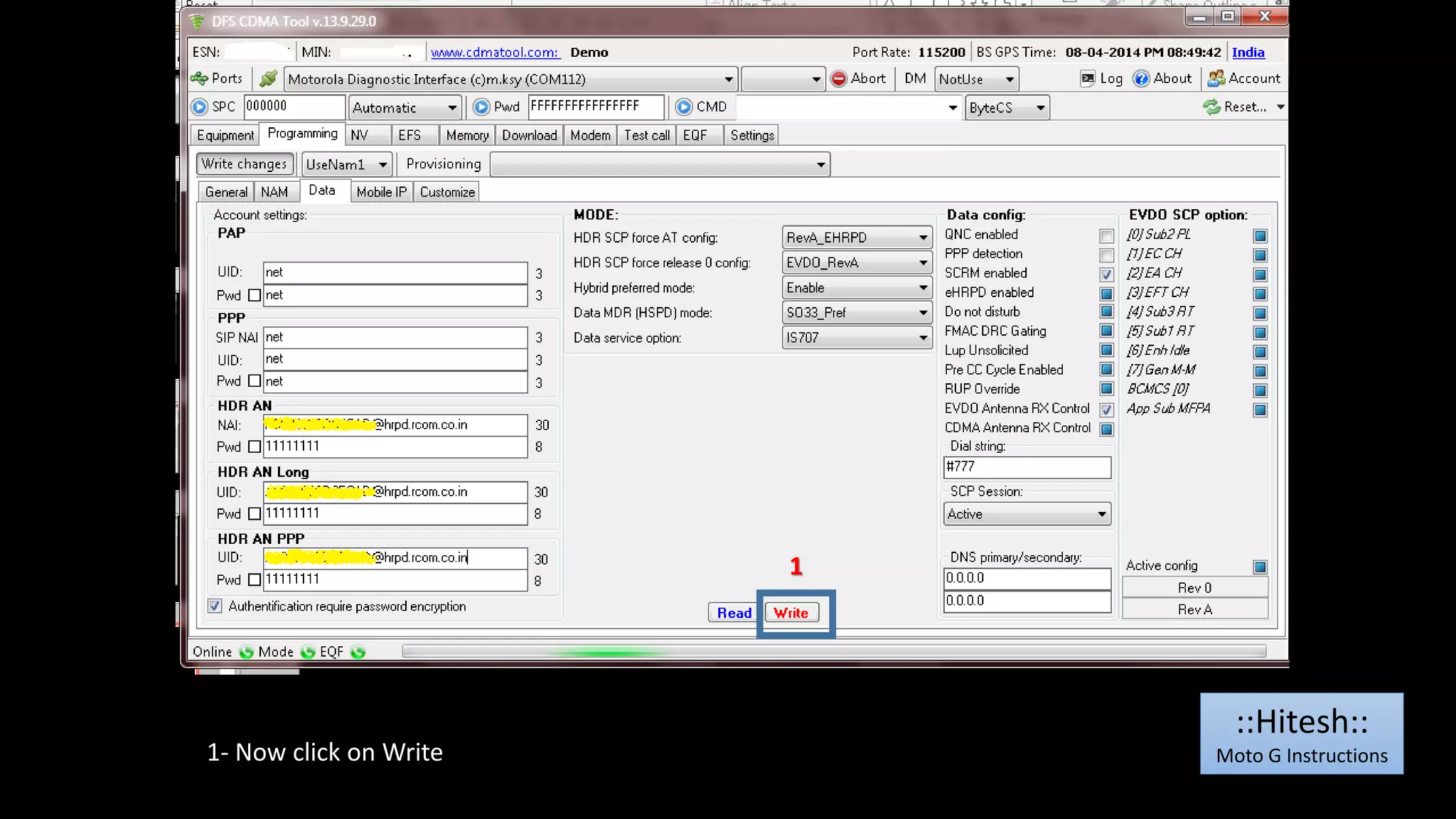
Now fill box no-1 to 5 = net 
Box no 6,8,10 should be yourmeid@hrpd.rocm.co.in 
Box no 7,9,11 should be your HDR Password. 
Follow this link to get your HDR password from DUMP 
http://goo.gl/0U02h9
1- Now click on Write 
1 
::Hitesh:: 
Moto G Instructions
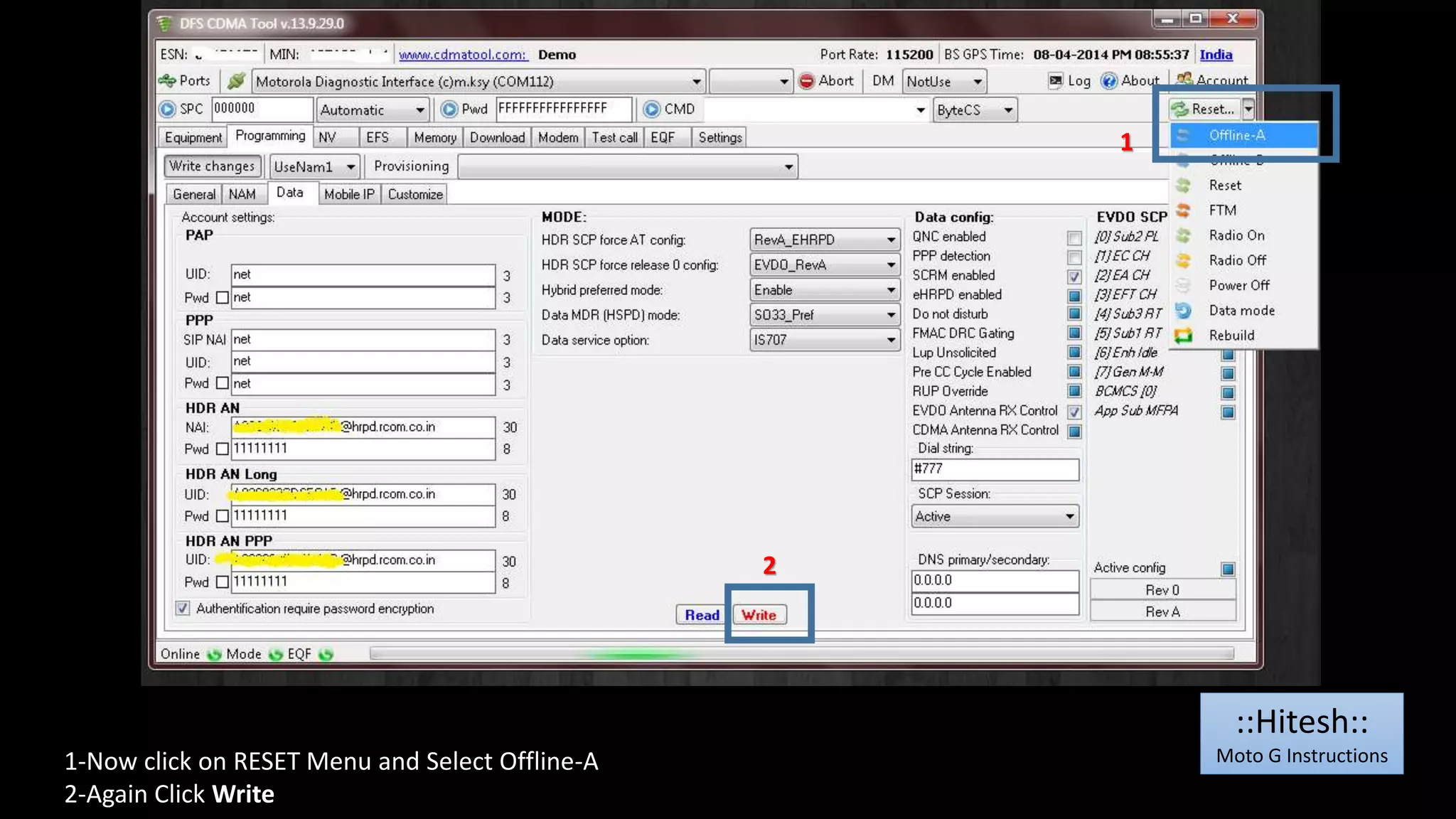
1-Now click on RESET Menu and Select Offline-A 
2-Again Click Write 
1 
2 
::Hitesh:: 
Moto G Instructions
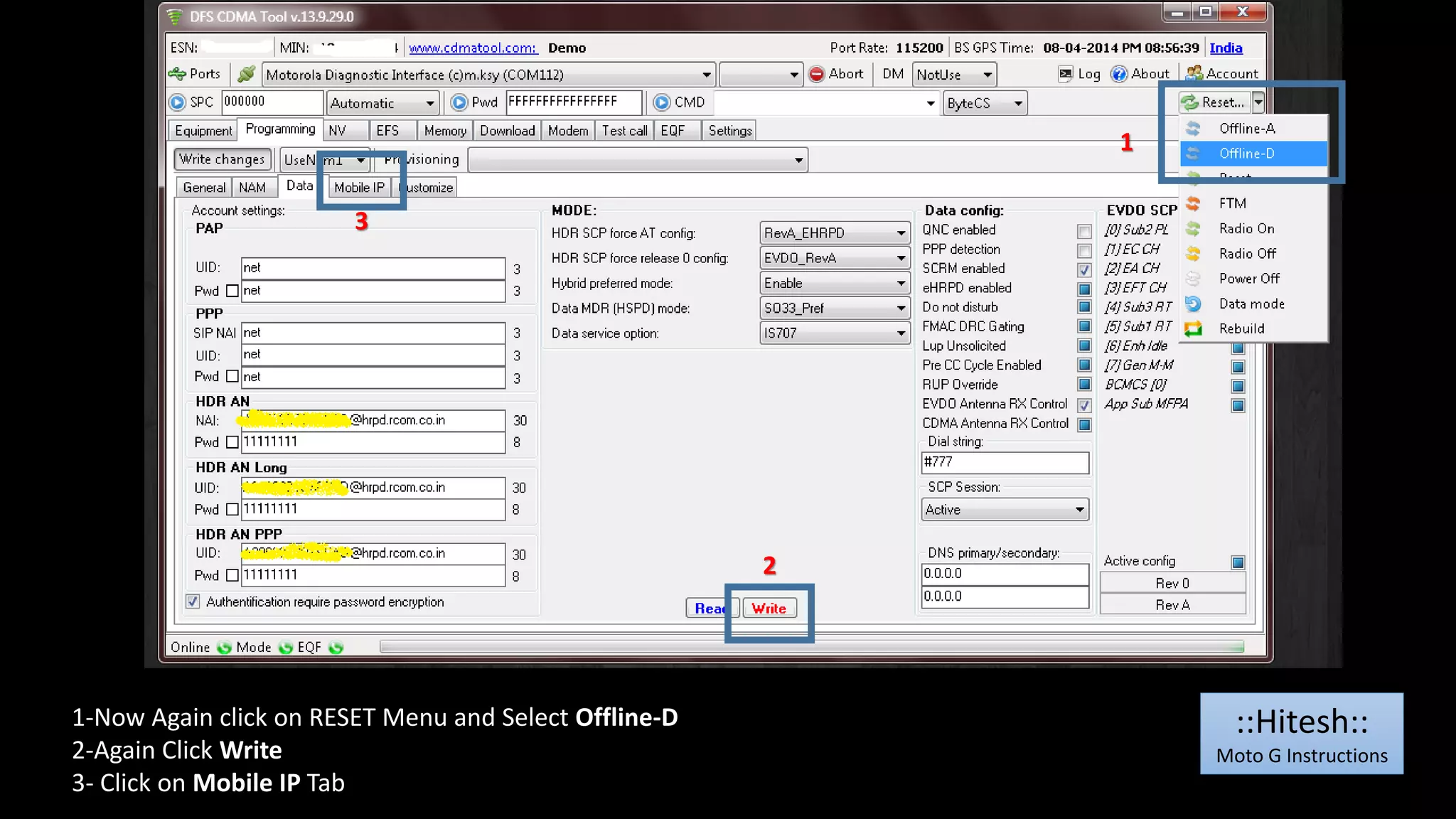
1-Now Again click on RESET Menu and Select Offline-D 
2-Again Click Write 
3- Click on Mobile IP Tab 
1 
2 
3 
::Hitesh:: 
Moto G Instructions
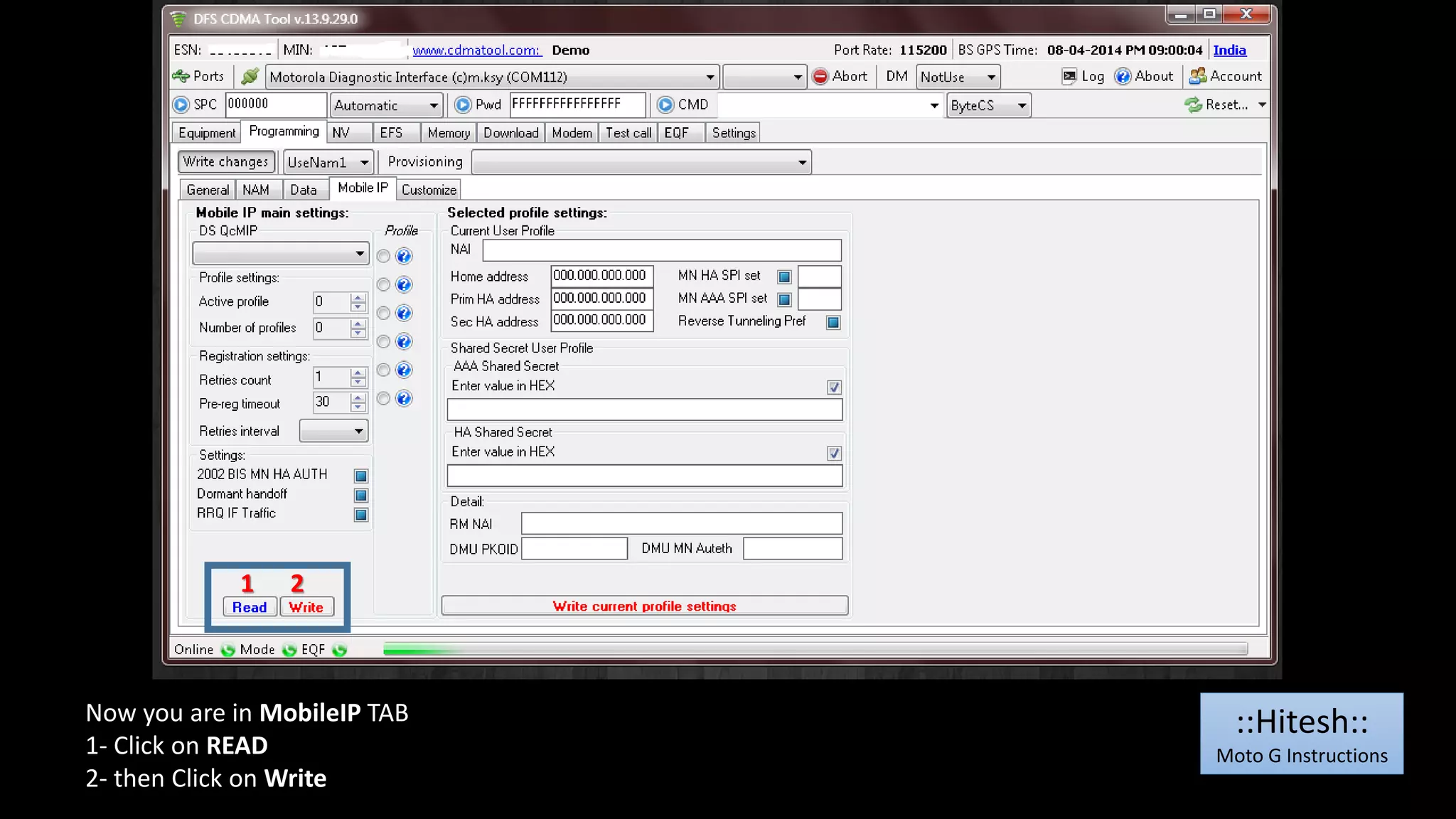
1 2 
Now you are in MobileIP TAB 
1- Click on READ 
2- then Click on Write 
::Hitesh:: 
Moto G Instructions
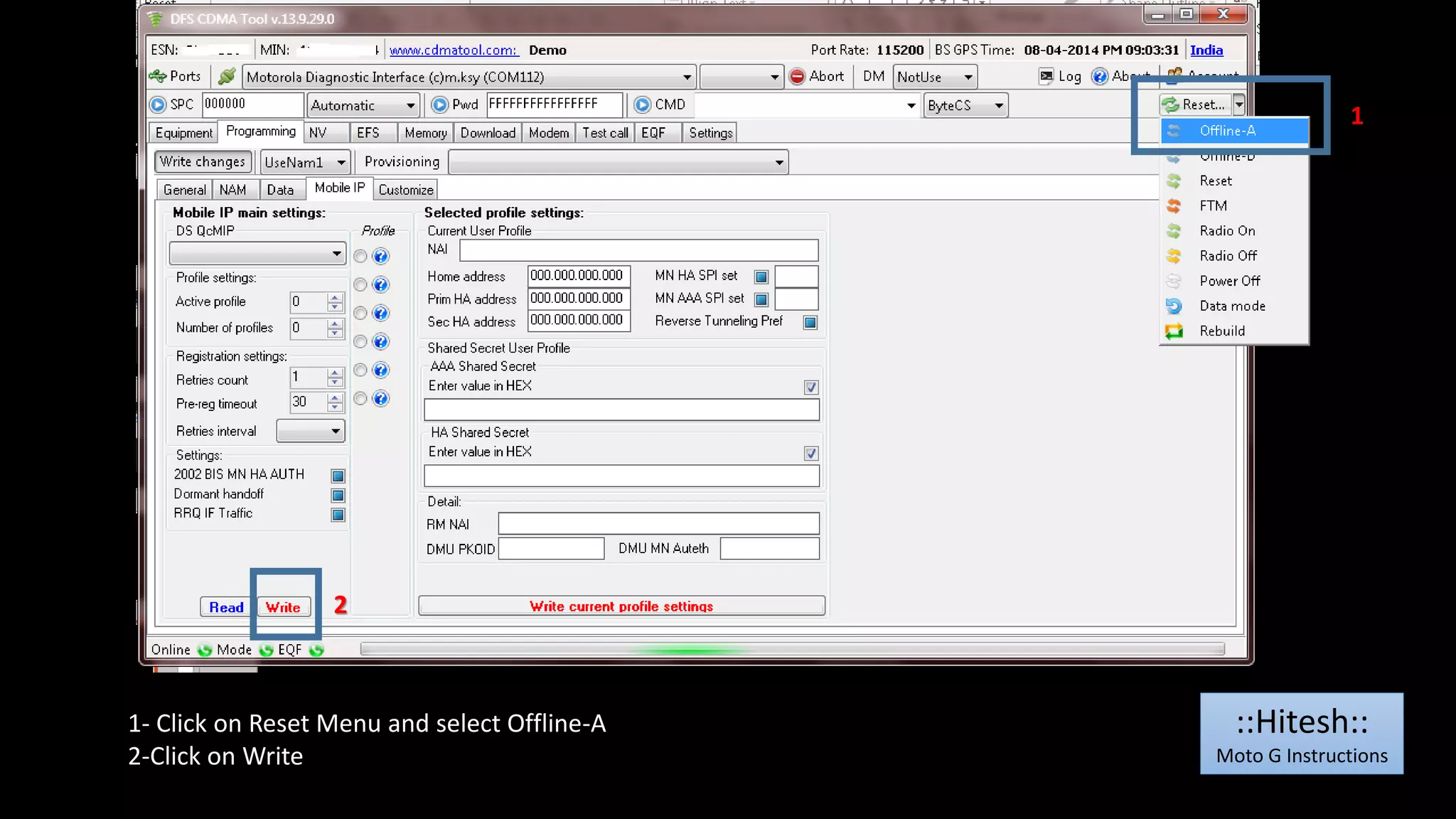
1- Click on Reset Menu and select Offline-A 
2-Click on Write 
1 
2 
::Hitesh:: 
Moto G Instructions
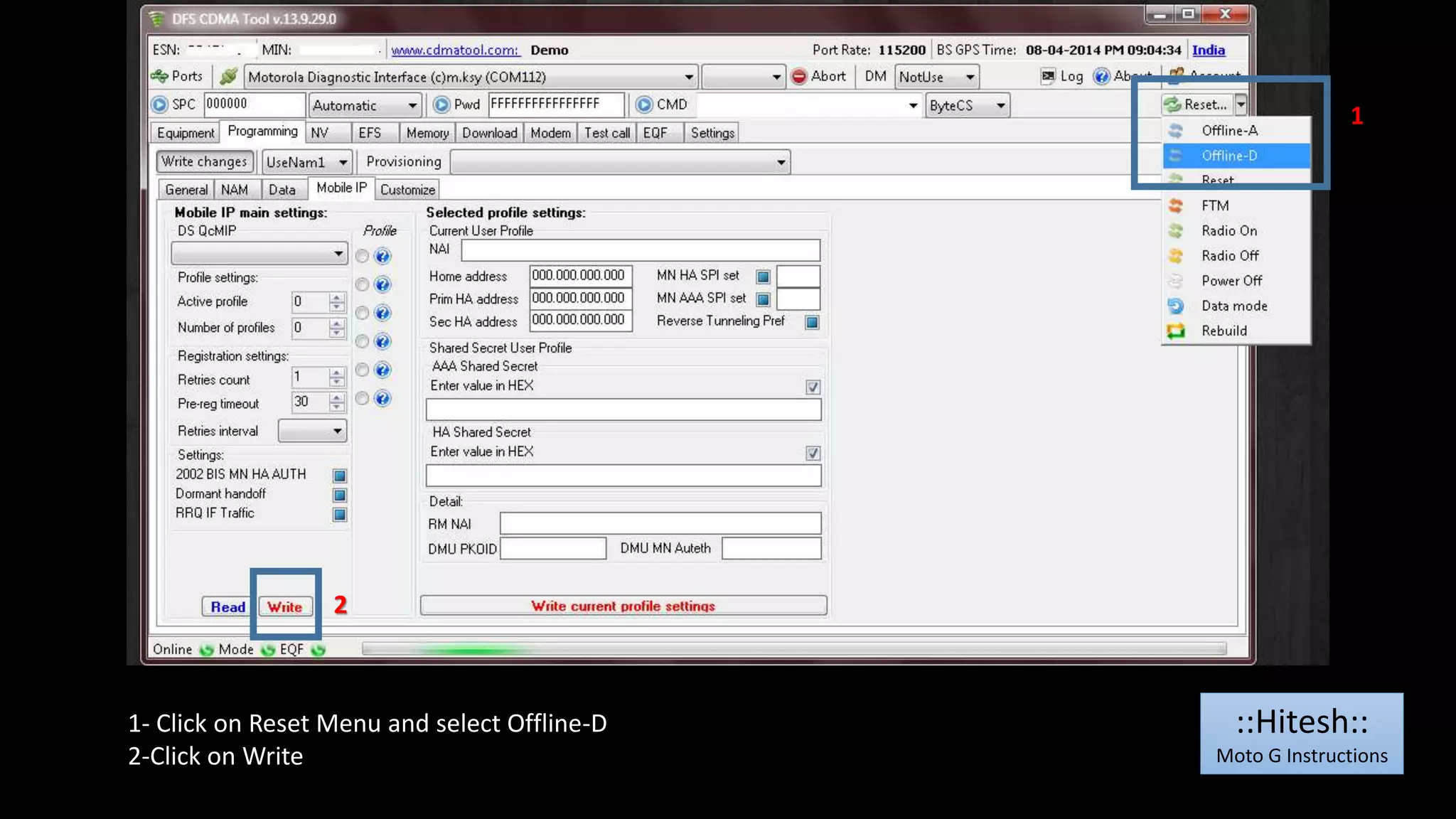
1- Click on Reset Menu and select Offline-D 
2-Click on Write 
1 
2 
::Hitesh:: 
Moto G Instructions
1 
1- Click on RESET , [Now phone should reboot] 
Wait till phone is booted fully. Don’t close DFS yet. 
::Hitesh:: 
Moto G Instructions
1 
3 
2 
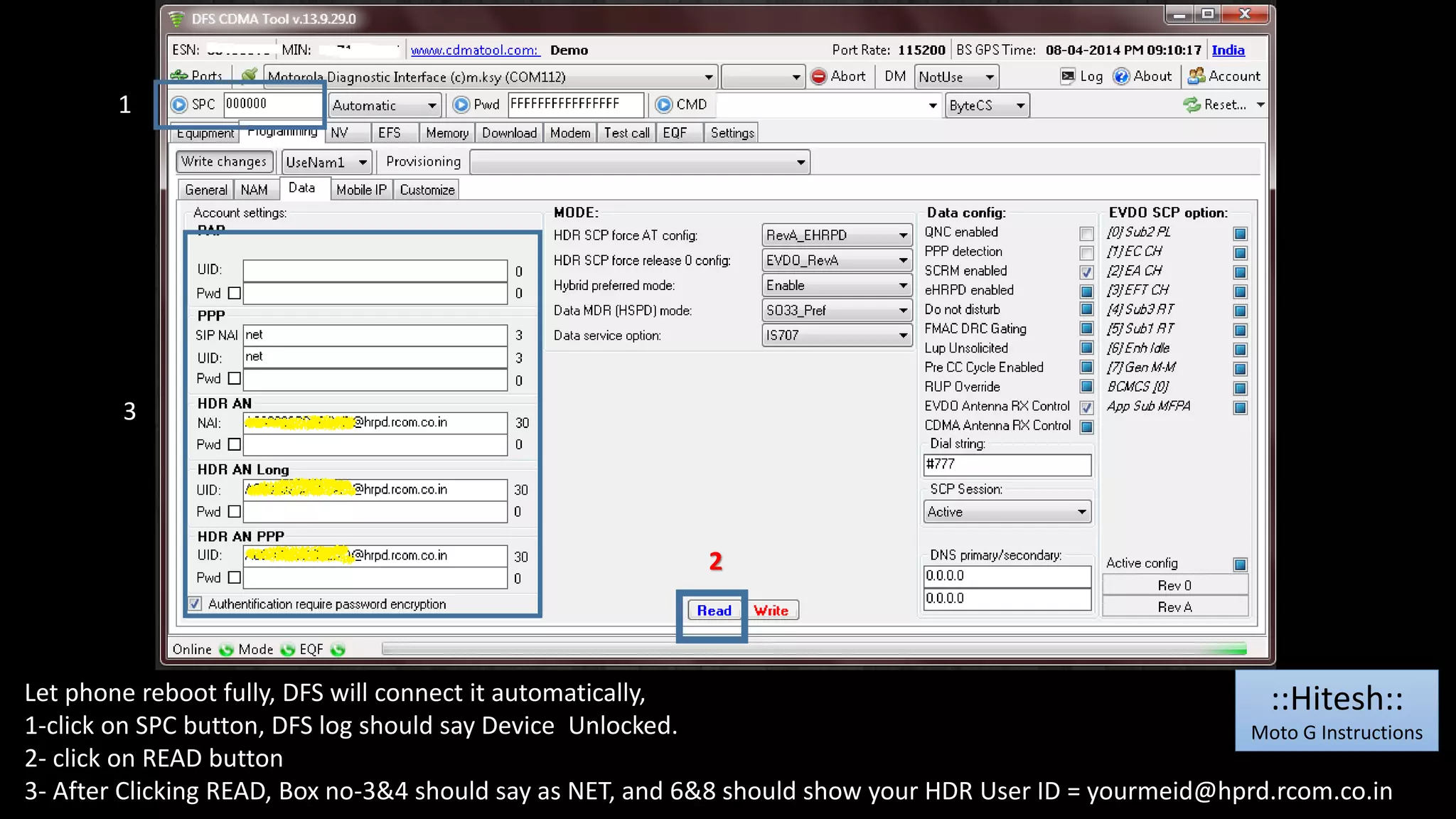
Let phone reboot fully, DFS will connect it automatically, 
1-click on SPC button, DFS log should say Device Unlocked. 
2- click on READ button 
3- After Clicking READ, Box no-3&4 should say as NET, and 6&8 should show your HDR User ID = yourmeid@hprd.rcom.co.in 
::Hitesh:: 
Moto G Instructions
Now remove USB cable from phone 
Reboot the phone 
And you are DONE with full programing for Reliance CDMA 
Thanks 
By 
::Hitesh:: 
::Hitesh:: 
Moto G Instructions

Moto g prl_data_reliance

  • 1.
    Installing DIAG driversfor Moto G And configuration for Reliance CDMA By ::Hitesh::
  • 2.
    Right Click onMy Computer and Go to Manage ::Hitesh:: Moto G Instructions
  • 3.
    Then Click onDevice Manager ::Hitesh:: Moto G Instructions
  • 4.
    Look for MotorolaQC Diag Interface ::Hitesh:: Moto G Instructions
  • 5.
    Double click it,then above window should come up, click on Update Drivers ::Hitesh:: Moto G Instructions
  • 6.
    After Clicking UpdateDriver, above window should pop-up, Select Browse My computer for Driver Software ::Hitesh:: Moto G Instructions
  • 7.
    Here Click onLet Me Pick From List ::Hitesh:: Moto G Instructions
  • 8.
    Then This windowsshould come, Here just select show all device and click NEXT ::Hitesh:: Moto G Instructions
  • 9.
    When you clickon NEXT button in last slide, above windows will come, (It might take 4-5 min to appear.) Click on Have Disk Buttone ::Hitesh:: Moto G Instructions
  • 10.
    After Clicking Havedisk, This windows will come, Here click Browse ::Hitesh:: Moto G Instructions
  • 11.
    Now Browse tothe location where you have extracted drivers, in that folder you will see one INF file name MOTODIAG for 32bit And for 64bit name is nwusbser Just double click on it
  • 12.
    Here you willsee a path of Drivers you selected, Click OK ::Hitesh:: Moto G Instructions
  • 13.
    After clicking OKbutton in last slide, you will see Motorola Diagnostic Interface in Model Here click NEXT ::Hitesh:: Moto G Instructions
  • 14.
    Now you willget a warning, saying not the correct drivers or not signed …. bla bla bla bla Ignore it and click on YES ::Hitesh:: Moto G Instructions ::Hitesh:: Moto G Instructions
  • 15.
    It will takesome time to install…. You may also get one pop up in red color, (look at next slide) ::Hitesh:: Moto G Instructions
  • 16.
    If this windowcomes, just click Install this driver software anyway ::Hitesh:: Moto G Instructions
  • 17.
    At the ENDyou will see successfully updated driver windows, click close here ::Hitesh:: Moto G Instructions
  • 18.
    Close all thewindows, and come to device manager (computer management] Now you can see Motorola Diag port no in PORTS, note down your port no. ::Hitesh:: Moto G Instructions
  • 19.
    Now open DFS,and click Ports ::Hitesh:: Moto G Instructions
  • 20.
    1 You shouldsee above window, and Motorola port listed, double click it. -1 Now in device online, you will see Port name…Device name nd device ID etc Double click it . ::Hitesh:: Moto G Instructions
  • 21.
    ::Hitesh:: Moto GInstructions Now you are back in Main DFS window, type your SPC in SPC box and Click SPC button And do the normal programing thing….. Will put more slides when time permits….
  • 22.
    1-Now come toPRL Server, 2- Scroll down to the list of PRL and select Reliance_ID00005_IS683C.PRL 3-Click on Write 1 2 3 ::Hitesh:: Moto G Instructions
  • 23.
    2 1- Nowin Same window, click small down arrow near Reset, and click on Offline-A 2- Again Click on Write in PRL 1 ::Hitesh:: Moto G Instructions
  • 24.
    1- Now againselect Offline-D from Reset menu 2- click on PRL Write 3- Then click on RESET Button (phone should Reboot) 1 2 ::Hitesh:: Moto G Instructions
  • 25.
    AS phone reboots,Port connection will turn Black with unplug notifications ::Hitesh:: Moto G Instructions
  • 26.
    1- now insame windows click on PRL-READ button. 2- PRL version should show as 5 3- Then click on port icon this is connect / disconnect button 2 1 3 ::Hitesh:: Moto G Instructions
  • 27.
    1- Port iconshould show as disconnected, as shown in above highlighted windows 2- Now minimize DFS (do not close it) 1 ::Hitesh:: Moto G Instructions
  • 28.
    Turn Off yourantivirus and open CDMA workshop free NV writer Click on Ports and you will get list of ports including Moto G port (check next slide) ::Hitesh:: Moto G Instructions
  • 29.
    If slide 30is followed correctly , here you will see port no of Moto G with State as FREE Double click it and it will be selected. ::Hitesh:: Moto G Instructions
  • 30.
    1 2 3 If slide 32 is followed correctly, 1- you will see Moto G port number selected 2- Click both box near SPC 3- click on connect and then click on Read ::Hitesh:: Moto G Instructions
  • 31.
    1 2 1-After clicking Read, phone information will be filled automatically 2- And in Log message you will see SPC is correct , Phone unlocked 3- click on write button asking for TXT file (next slide) 3 ::Hitesh:: Moto G Instructions
  • 32.
    After Clicking Writebutton, above windows will pop-up asking TXT file. Point to your DUMP file , Select it (Dump file should be in 3.6 version.) Then just click OPEN, (you can even double click on dump file ) ::Hitesh:: Moto G Instructions
  • 33.
    1 2 Afterclicking open in last slide, within 10sec, you should get above window. If everything is done correct and if you have correct version dump file. 1- It should say 37 NV-Items have been written to phone successfully. 2- Click OK here ::Hitesh:: Moto G Instructions
  • 34.
    1 1- clickon Disconnect button (photo -1) 2- look at photo-2, it should say disconnected. Now close this software and Maximize DFS again 2 ::Hitesh:: Moto G Instructions
  • 35.
    1 Now youshould be in DFS with above window 1- Click on Port connection Icon ::Hitesh:: Moto G Instructions
  • 36.
    1 2 1-After clicking Port connection, it should show connected 2- SPC box should have 6 Zero, Now click on SPC button, [Here log should show device unlocked] ::Hitesh:: Moto G Instructions
  • 37.
    1 1- Nowcome to DATA TAB 2- click on READ 2
  • 38.
    After Clicking READ,It should look like above window Box no 3-4 should show NET Box no -6 & 8 should show HDR user ID [yourMEID@hrpd.rcom.co.in] ::Hitesh:: Moto G Instructions
  • 39.
    Now fill boxno-1 to 5 = net Box no 6,8,10 should be yourmeid@hrpd.rocm.co.in Box no 7,9,11 should be your HDR Password. Follow this link to get your HDR password from DUMP http://goo.gl/0U02h9
  • 40.
    1- Now clickon Write 1 ::Hitesh:: Moto G Instructions
  • 41.
    1-Now click onRESET Menu and Select Offline-A 2-Again Click Write 1 2 ::Hitesh:: Moto G Instructions
  • 42.
    1-Now Again clickon RESET Menu and Select Offline-D 2-Again Click Write 3- Click on Mobile IP Tab 1 2 3 ::Hitesh:: Moto G Instructions
  • 43.
    1 2 Nowyou are in MobileIP TAB 1- Click on READ 2- then Click on Write ::Hitesh:: Moto G Instructions
  • 44.
    1- Click onReset Menu and select Offline-A 2-Click on Write 1 2 ::Hitesh:: Moto G Instructions
  • 45.
    1- Click onReset Menu and select Offline-D 2-Click on Write 1 2 ::Hitesh:: Moto G Instructions
  • 46.
    1 1- Clickon RESET , [Now phone should reboot] Wait till phone is booted fully. Don’t close DFS yet. ::Hitesh:: Moto G Instructions
  • 47.
    1 3 2 Let phone reboot fully, DFS will connect it automatically, 1-click on SPC button, DFS log should say Device Unlocked. 2- click on READ button 3- After Clicking READ, Box no-3&4 should say as NET, and 6&8 should show your HDR User ID = yourmeid@hprd.rcom.co.in ::Hitesh:: Moto G Instructions
  • 48.
    Now remove USBcable from phone Reboot the phone And you are DONE with full programing for Reliance CDMA Thanks By ::Hitesh:: ::Hitesh:: Moto G Instructions