+
Content
Design
Getting the
Most
from your
Dawn Pedersen | WordCamp Sacramento 2015
Content
and
Images
+
Beautiful Content
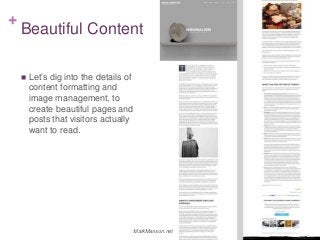
 Let’s dig into the details of
content formatting and
image management, to
create beautiful pages and
posts that visitors actually
want to read.
MarkManson.net
+
Writing and Formatting Text
+
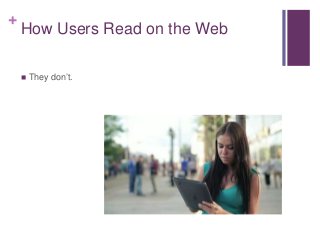
How Users Read on the Web
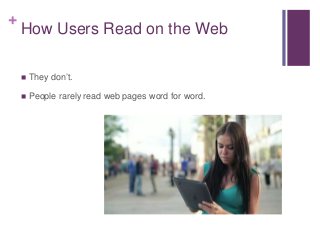
 They don’t.
+
How Users Read on the Web
 They don’t.
 People rarely read web pages word for word.
+
How Users Read on the Web
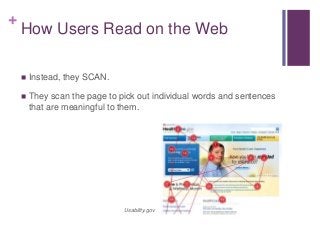
 Instead, they SCAN.
 They scan the page to pick out individual words and sentences
that are meaningful to them.
Usability.gov
+
How Users Read on the Web
 If you write text that is scannable, your users will read your
page faster.
 They will retain your message better.
 They will have a better experience on your site.
+
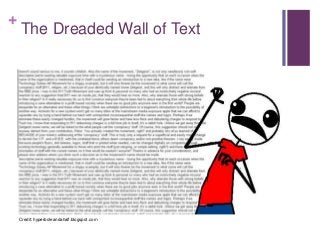
The Dreaded Wall of Text
Credit: hyperboleandahalf.blogspot.com
+
The Dreaded Wall of Text
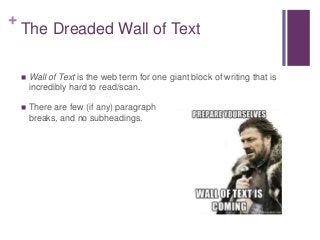
 Wall of Text is the web term for one giant block of writing that is
incredibly hard to read/scan.
 There are few (if any) paragraph
breaks, and no subheadings.
+
Tips for Scannable Text
 Use the inverted pyramid.
 Write simply.
 Limit yourself to one idea per paragraph.
 Break texts into lists.
 Use headings and subheadings.
 Highlight keywords.
Let’s take a look at each of these…
+
Use the Inverted Pyramid
Writing and Formatting Text
+
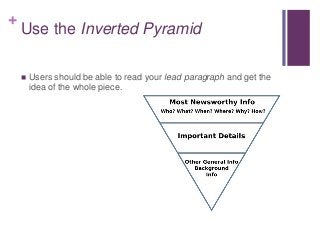
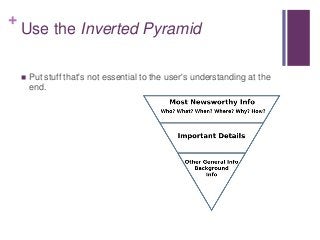
Use the Inverted Pyramid
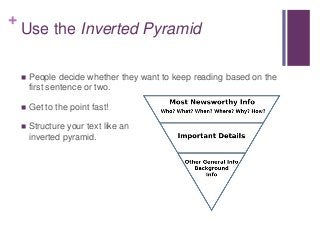
 People decide whether they want to keep reading based on the
first sentence or two.
 Get to the point fast!
 Structure your text like an
inverted pyramid.
+
Use the Inverted Pyramid
 Users should be able to read your lead paragraph and get the
idea of the whole piece.
+
Use the Inverted Pyramid
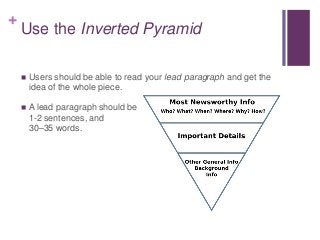
 Users should be able to read your lead paragraph and get the
idea of the whole piece.
 A lead paragraph should be
1-2 sentences, and
30–35 words.
+
Use the Inverted Pyramid
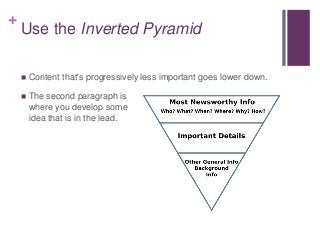
 Content that's progressively less important goes lower down.
 The second paragraph is
where you develop some
idea that is in the lead.
+
Use the Inverted Pyramid
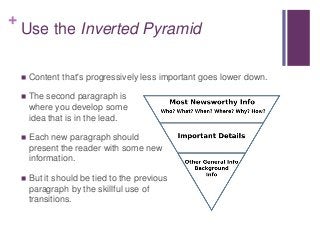
 Content that's progressively less important goes lower down.
 The second paragraph is
where you develop some
idea that is in the lead.
 Each new paragraph should
present the reader with some new
information.
 But it should be tied to the previous
paragraph by the skillful use of
transitions.
+
Use the Inverted Pyramid
 Put stuff that's not essential to the user's understanding at the
end.
+
Write Simply
Writing and Formatting Text
+
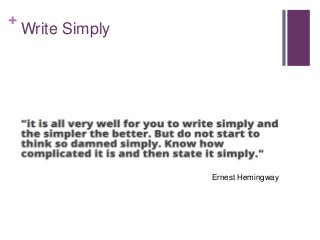
Write Simply
Ernest Hemingway
+
Write Simply
 If your text is clear and concise, your users will spend less time
reading—and will be happier.
 Use vocabulary that is easy to follow.
 Avoid jargon and clever wordplay. Explain jargon if you must
use it.
 Get to the point quickly with:
 Short words and phrases
 Concise 2- to 3-sentence paragraphs
+
Write Simply
 Use about half of the word count you might use for printed text.
 Take out the fluff and the unnecessary, paring the content down
to an understandable minimum.
 Reduce flowery parts of speech like adjectives and adverbs.
 Replace passive phrases with active phrases.
+
Write Simply
 Never center text on the page. That’s harder to read.
 When you're done, re-read your copy. If you can't work out
what it says, what hope do your users have of understanding
it?
 Limit yourself to one idea per paragraph. This helps you stick to
shorter chunks of text.
 Put keywords at the beginning and end of paragraphs, where
people pay the most attention.
+
Write Simply
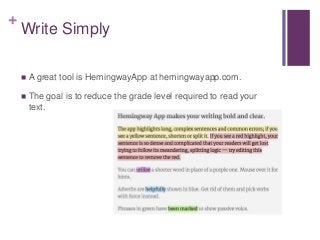
 A great tool is HemingwayApp at hemingwayapp.com.
 The goal is to reduce the grade level required to read your
text.
+
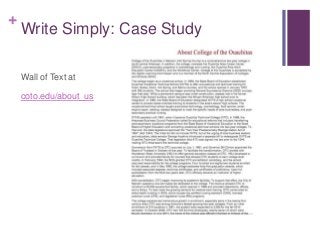
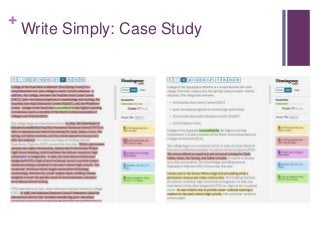
Write Simply: Case Study
Wall of Text at
coto.edu/about_us
+
Write Simply: Case Study
+
Break Texts into Lists
Writing and Formatting Text
+
Break Texts into Lists
 Lists make text even more scannable.
 They break up large blocks of text into smaller chunks that are
easier to read.
 They give the user's eye something to lock onto when they
scan the page.
 If you find you are using a lot of commas within a sentence,
consider a bulleted list instead.
+
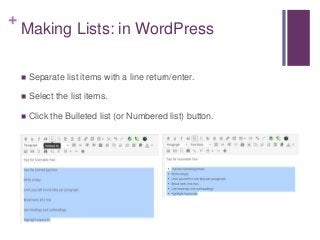
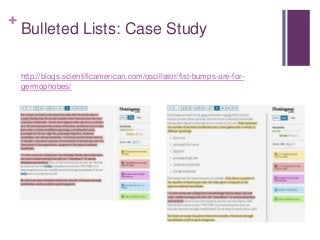
Making Lists: in WordPress
 Separate list items with a line return/enter.
 Select the list items.
 Click the Bulleted list (or Numbered list) button.
+
Bulleted Lists: Case Study
http://blogs.scientificamerican.com/oscillator/fist-bumps-are-for-
germophobes/
+
Headings and Subheadings
Writing and Formatting Text
+
Headings and Subheadings
 Headings are a great way to make a long sequence of
paragraphs easier to scan.
 Headings announce exactly what the chunk of text is about.
 This lets your user decide whether they want to invest their
time in reading that bit.
+
Headings and Subheadings
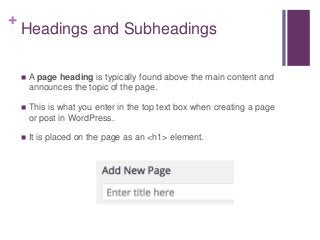
 A page heading is typically found above the main content and
announces the topic of the page.
 This is what you enter in the top text box when creating a page
or post in WordPress.
 It is placed on the page as an <h1> element.
+
Headings and Subheadings
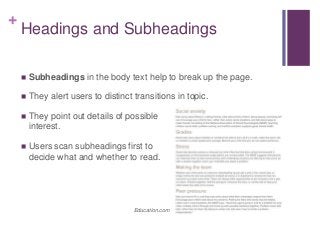
 Subheadings in the body text help to break up the page.
 They alert users to distinct transitions in topic.
 They point out details of possible
interest.
 Users scan subheadings first to
decide what and whether to read.
Education.com
+
Headings and Subheadings
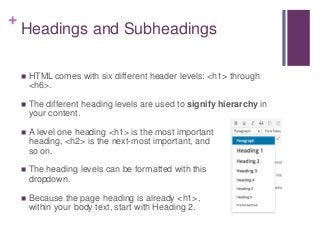
 HTML comes with six different header levels: <h1> through
<h6>.
 The different heading levels are used to signify hierarchy in
your content.
 A level one heading <h1> is the most important
heading, <h2> is the next-most important, and
so on.
 The heading levels can be formatted with this
dropdown.
 Because the page heading is already <h1>,
within your body text, start with Heading 2.
+
Headings and Subheadings
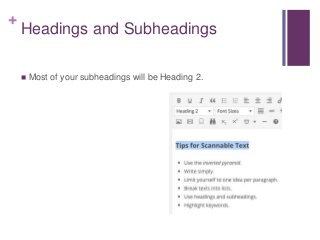
 Most of your subheadings will be Heading 2.
+
Headings and Subheadings
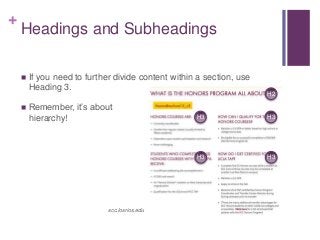
 If you need to further divide content within a section, use
Heading 3.
 Remember, it’s about
hierarchy!
H2
H3
H3
H3
H3
scc.losrios.edu
+
Highlight Keywords
Writing and Formatting Text
+
Highlight Keywords
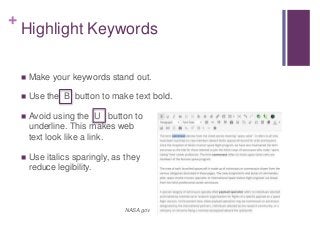
 Make your keywords stand out.
 Use the B button to make text bold.
 Avoid using the U button to
underline. This makes web
text look like a link.
 Use italics sparingly, as they
reduce legibility.
NASA.gov
+
A Few More Text Styling
Issues
Writing and Formatting Text
+
Blockquotes
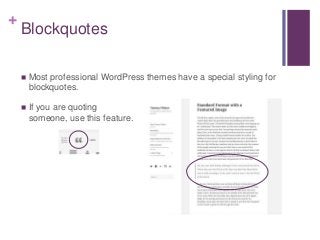
 Most professional WordPress themes have a special styling for
blockquotes.
 If you are quoting
someone, use this feature.
+
Widows
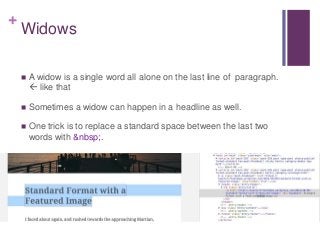
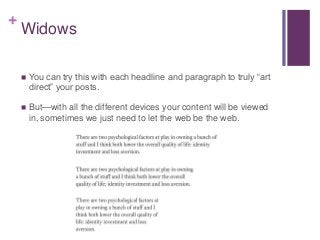
 A widow is a single word all alone on the last line of paragraph.
 like that
 Sometimes a widow can happen in a headline as well.
 One trick is to replace a standard space between the last two
words with &nbsp;.
+
Widows
 You can try this with each headline and paragraph to truly “art
direct” your posts.
 But—with all the different devices your content will be viewed
in, sometimes we just need to let the web be the web.
+
Excerpts
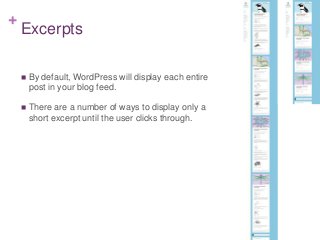
 By default, WordPress will display each entire
post in your blog feed.
 There are a number of ways to display only a
short excerpt until the user clicks through.
+
Excerpts
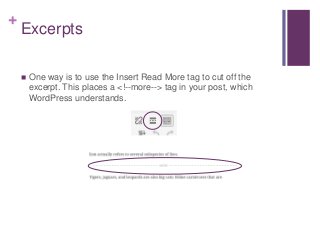
 One way is to use the Insert Read More tag to cut off the
excerpt. This places a <!--more--> tag in your post, which
WordPress understands.
+
Excerpts
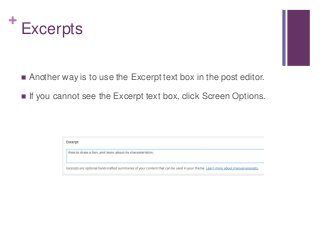
 Another way is to use the Excerpt text box in the post editor.
 If you cannot see the Excerpt text box, click Screen Options.
+
Excerpts
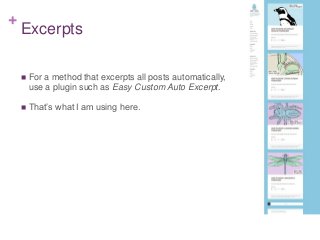
 For a method that excerpts all posts automatically,
use a plugin such as Easy Custom Auto Excerpt.
 That’s what I am using here.
+
Link to Your Other Content
 Be sure to include links to old blog posts in your new blog
posts.
 It keeps users moving through your site.
 It helps continue to make older content useful.
+
Using Images
+
Large Featured Images
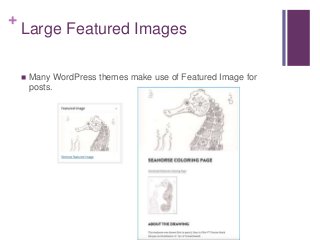
 Many WordPress themes make use of Featured Image for
posts.
+
Large Featured Images
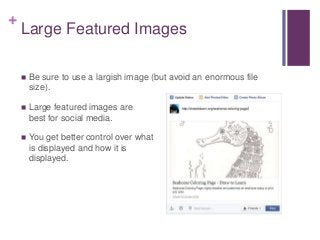
 Be sure to use a largish image (but avoid an enormous file
size).
 Large featured images are
best for social media.
 You get better control over what
is displayed and how it is
displayed.
+
Optimizing Images
 Begin with the best quality image you can manage.
 BUT…!
+
Optimizing Images
 Optimize your image BEFORE you upload it to WordPress.
 For example, don’t
upload a 2000px wide
image, if it’s only going
to appear in a 300px
wide side bar or 740px
wide content area.
+
Optimizing Images
 Plugins such as EWWW Image
Optimizer can further reduce
image file size once an image
is uploaded (automatically!)
+
Image Placement
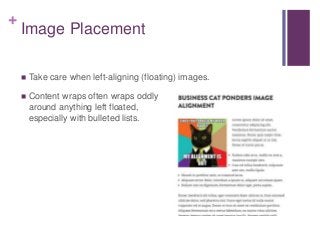
 Take care when left-aligning (floating) images.
 Content wraps often wraps oddly
around anything left floated,
especially with bulleted lists.
+
Image Placement
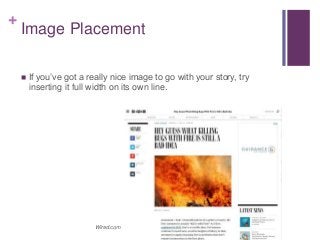
 If you’ve got a really nice image to go with your story, try
inserting it full width on its own line.
Wired.com
+
Image Placement
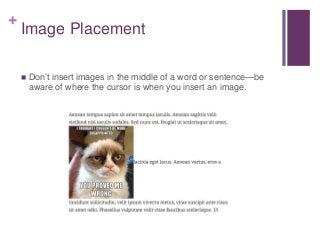
 Don’t insert images in the middle of a word or sentence—be
aware of where the cursor is when you insert an image.
+
Using Captions
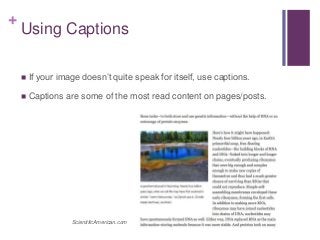
 If your image doesn’t quite speak for itself, use captions.
 Captions are some of the most read content on pages/posts.
ScientificAmerican.com
+
Clip Art
 Just don’t.
 It’s usually poor quality, overused, and simply inappropriate.
+
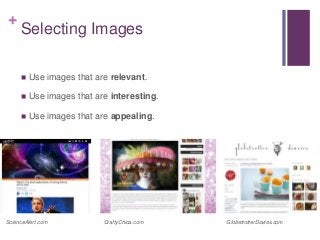
Selecting Images
 Use images that are relevant.
 Use images that are interesting.
 Use images that are appealing.
ScienceAlert.com CraftyChica.com GlobetrotterDiaries.com
+
Thank you!
Dawn Pedersen
BlueLobsterWeb.com
@bluelobsterweb

CONTENT DESIGN: GETTING THE MOST FROM YOUR CONTENT AND IMAGES

  • 1.
    + Content Design Getting the Most from your DawnPedersen | WordCamp Sacramento 2015 Content and Images
  • 2.
    + Beautiful Content  Let’sdig into the details of content formatting and image management, to create beautiful pages and posts that visitors actually want to read. MarkManson.net
  • 3.
  • 4.
    + How Users Readon the Web  They don’t.
  • 5.
    + How Users Readon the Web  They don’t.  People rarely read web pages word for word.
  • 6.
    + How Users Readon the Web  Instead, they SCAN.  They scan the page to pick out individual words and sentences that are meaningful to them. Usability.gov
  • 7.
    + How Users Readon the Web  If you write text that is scannable, your users will read your page faster.  They will retain your message better.  They will have a better experience on your site.
  • 8.
    + The Dreaded Wallof Text Credit: hyperboleandahalf.blogspot.com
  • 9.
    + The Dreaded Wallof Text  Wall of Text is the web term for one giant block of writing that is incredibly hard to read/scan.  There are few (if any) paragraph breaks, and no subheadings.
  • 10.
    + Tips for ScannableText  Use the inverted pyramid.  Write simply.  Limit yourself to one idea per paragraph.  Break texts into lists.  Use headings and subheadings.  Highlight keywords. Let’s take a look at each of these…
  • 11.
    + Use the InvertedPyramid Writing and Formatting Text
  • 12.
    + Use the InvertedPyramid  People decide whether they want to keep reading based on the first sentence or two.  Get to the point fast!  Structure your text like an inverted pyramid.
  • 13.
    + Use the InvertedPyramid  Users should be able to read your lead paragraph and get the idea of the whole piece.
  • 14.
    + Use the InvertedPyramid  Users should be able to read your lead paragraph and get the idea of the whole piece.  A lead paragraph should be 1-2 sentences, and 30–35 words.
  • 15.
    + Use the InvertedPyramid  Content that's progressively less important goes lower down.  The second paragraph is where you develop some idea that is in the lead.
  • 16.
    + Use the InvertedPyramid  Content that's progressively less important goes lower down.  The second paragraph is where you develop some idea that is in the lead.  Each new paragraph should present the reader with some new information.  But it should be tied to the previous paragraph by the skillful use of transitions.
  • 17.
    + Use the InvertedPyramid  Put stuff that's not essential to the user's understanding at the end.
  • 18.
  • 19.
  • 20.
    + Write Simply  Ifyour text is clear and concise, your users will spend less time reading—and will be happier.  Use vocabulary that is easy to follow.  Avoid jargon and clever wordplay. Explain jargon if you must use it.  Get to the point quickly with:  Short words and phrases  Concise 2- to 3-sentence paragraphs
  • 21.
    + Write Simply  Useabout half of the word count you might use for printed text.  Take out the fluff and the unnecessary, paring the content down to an understandable minimum.  Reduce flowery parts of speech like adjectives and adverbs.  Replace passive phrases with active phrases.
  • 22.
    + Write Simply  Nevercenter text on the page. That’s harder to read.  When you're done, re-read your copy. If you can't work out what it says, what hope do your users have of understanding it?  Limit yourself to one idea per paragraph. This helps you stick to shorter chunks of text.  Put keywords at the beginning and end of paragraphs, where people pay the most attention.
  • 23.
    + Write Simply  Agreat tool is HemingwayApp at hemingwayapp.com.  The goal is to reduce the grade level required to read your text.
  • 24.
    + Write Simply: CaseStudy Wall of Text at coto.edu/about_us
  • 25.
  • 26.
    + Break Texts intoLists Writing and Formatting Text
  • 27.
    + Break Texts intoLists  Lists make text even more scannable.  They break up large blocks of text into smaller chunks that are easier to read.  They give the user's eye something to lock onto when they scan the page.  If you find you are using a lot of commas within a sentence, consider a bulleted list instead.
  • 28.
    + Making Lists: inWordPress  Separate list items with a line return/enter.  Select the list items.  Click the Bulleted list (or Numbered list) button.
  • 29.
    + Bulleted Lists: CaseStudy http://blogs.scientificamerican.com/oscillator/fist-bumps-are-for- germophobes/
  • 30.
  • 31.
    + Headings and Subheadings Headings are a great way to make a long sequence of paragraphs easier to scan.  Headings announce exactly what the chunk of text is about.  This lets your user decide whether they want to invest their time in reading that bit.
  • 32.
    + Headings and Subheadings A page heading is typically found above the main content and announces the topic of the page.  This is what you enter in the top text box when creating a page or post in WordPress.  It is placed on the page as an <h1> element.
  • 33.
    + Headings and Subheadings Subheadings in the body text help to break up the page.  They alert users to distinct transitions in topic.  They point out details of possible interest.  Users scan subheadings first to decide what and whether to read. Education.com
  • 34.
    + Headings and Subheadings HTML comes with six different header levels: <h1> through <h6>.  The different heading levels are used to signify hierarchy in your content.  A level one heading <h1> is the most important heading, <h2> is the next-most important, and so on.  The heading levels can be formatted with this dropdown.  Because the page heading is already <h1>, within your body text, start with Heading 2.
  • 35.
    + Headings and Subheadings Most of your subheadings will be Heading 2.
  • 36.
    + Headings and Subheadings If you need to further divide content within a section, use Heading 3.  Remember, it’s about hierarchy! H2 H3 H3 H3 H3 scc.losrios.edu
  • 37.
  • 38.
    + Highlight Keywords  Makeyour keywords stand out.  Use the B button to make text bold.  Avoid using the U button to underline. This makes web text look like a link.  Use italics sparingly, as they reduce legibility. NASA.gov
  • 39.
    + A Few MoreText Styling Issues Writing and Formatting Text
  • 40.
    + Blockquotes  Most professionalWordPress themes have a special styling for blockquotes.  If you are quoting someone, use this feature.
  • 41.
    + Widows  A widowis a single word all alone on the last line of paragraph.  like that  Sometimes a widow can happen in a headline as well.  One trick is to replace a standard space between the last two words with &nbsp;.
  • 42.
    + Widows  You cantry this with each headline and paragraph to truly “art direct” your posts.  But—with all the different devices your content will be viewed in, sometimes we just need to let the web be the web.
  • 43.
    + Excerpts  By default,WordPress will display each entire post in your blog feed.  There are a number of ways to display only a short excerpt until the user clicks through.
  • 44.
    + Excerpts  One wayis to use the Insert Read More tag to cut off the excerpt. This places a <!--more--> tag in your post, which WordPress understands.
  • 45.
    + Excerpts  Another wayis to use the Excerpt text box in the post editor.  If you cannot see the Excerpt text box, click Screen Options.
  • 46.
    + Excerpts  For amethod that excerpts all posts automatically, use a plugin such as Easy Custom Auto Excerpt.  That’s what I am using here.
  • 47.
    + Link to YourOther Content  Be sure to include links to old blog posts in your new blog posts.  It keeps users moving through your site.  It helps continue to make older content useful.
  • 48.
  • 49.
    + Large Featured Images Many WordPress themes make use of Featured Image for posts.
  • 50.
    + Large Featured Images Be sure to use a largish image (but avoid an enormous file size).  Large featured images are best for social media.  You get better control over what is displayed and how it is displayed.
  • 51.
    + Optimizing Images  Beginwith the best quality image you can manage.  BUT…!
  • 52.
    + Optimizing Images  Optimizeyour image BEFORE you upload it to WordPress.  For example, don’t upload a 2000px wide image, if it’s only going to appear in a 300px wide side bar or 740px wide content area.
  • 53.
    + Optimizing Images  Pluginssuch as EWWW Image Optimizer can further reduce image file size once an image is uploaded (automatically!)
  • 54.
    + Image Placement  Takecare when left-aligning (floating) images.  Content wraps often wraps oddly around anything left floated, especially with bulleted lists.
  • 55.
    + Image Placement  Ifyou’ve got a really nice image to go with your story, try inserting it full width on its own line. Wired.com
  • 56.
    + Image Placement  Don’tinsert images in the middle of a word or sentence—be aware of where the cursor is when you insert an image.
  • 57.
    + Using Captions  Ifyour image doesn’t quite speak for itself, use captions.  Captions are some of the most read content on pages/posts. ScientificAmerican.com
  • 58.
    + Clip Art  Justdon’t.  It’s usually poor quality, overused, and simply inappropriate.
  • 59.
    + Selecting Images  Useimages that are relevant.  Use images that are interesting.  Use images that are appealing. ScienceAlert.com CraftyChica.com GlobetrotterDiaries.com
  • 60.