SolidWorks Best Practices for Efficient CAD Modeling and File Management
Comprehensive guide on SolidWorks file management, part modeling, assembly optimization, hardware recommendations, and system maintenance for improved CAD performance and collaboration.
File Management
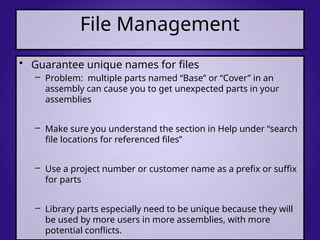
• Guaranteeunique names for files
– Problem: multiple parts named “Base” or “Cover” in an
assembly can cause you to get unexpected parts in your
assemblies
– Make sure you understand the section in Help under “search
file locations for referenced files”
– Use a project number or customer name as a prefix or suffix
for parts
– Library parts especially need to be unique because they will
be used by more users in more assemblies, with more
potential conflicts.
File Management
• SharingInformation
– Problem: Multiple users accessing files across network.
Access problems, read/write problems
– Really, use a PDM system. PDMWorks is cheap and works
well. If you need cheap, also look at DBWorks.
– Read/Write and access problems are going to be pretty
tedious to resolve using manual file management.
– On large assemblies, without PDM, network traffic can
become a performance problem.
–
8.
File Management
• SharingInformation
– If you can’t use a PDM system, at least work on files locally
on your own computer. This increases speed and stability,
but may cause problems with having different versions of
files available on the network.
– If you have to work across a network, don’t double click files
from Windows Explorer to open them from the network.
This leaves a journal file in the file location which must
constantly be written to. Use the Open dialog.
– Use Custom Properties. If you do drawings or make BOMs,
or weldments or PDM, custom properties will help you
identify, find, sort, track your parts, and will also help other
downstream applications such as MRP
9.
File Management
• Toolbox
–Problem: Screws without proper configurations come in at
default size, getting descriptions and materials added as
custom properties is extremely tedious
– Toolbox 2007 will address “huge screws”
– The only way to mass populate the descriptions as custom
properties is to create all Toolbox size configs, then create a
Design Table, and use Excel to mass populate descriptions.
Copy sections of the table to make new material fasteners.
– Best Solution: Make your own library, based on TB, and then
turn TB off. Things will improve significantly in 2007.
10.
File Management
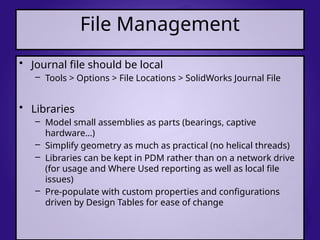
• Journalfile should be local
– Tools > Options > File Locations > SolidWorks Journal File
• Libraries
– Model small assemblies as parts (bearings, captive
hardware…)
– Simplify geometry as much as practical (no helical threads)
– Libraries can be kept in PDM rather than on a network drive
(for usage and Where Used reporting as well as local file
issues)
– Pre-populate with custom properties and configurations
driven by Design Tables for ease of change
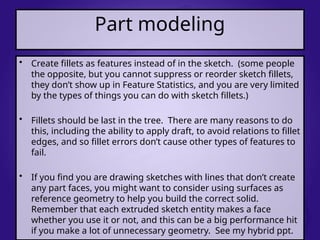
Part modeling
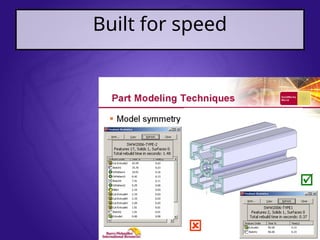
• Createfillets as features instead of in the sketch. (some people
the opposite, but you cannot suppress or reorder sketch fillets,
they don’t show up in Feature Statistics, and you are very limited
by the types of things you can do with sketch fillets.)
• Fillets should be last in the tree. There are many reasons to do
this, including the ability to apply draft, to avoid relations to fillet
edges, and so fillet errors don’t cause other types of features to
fail.
• If you find you are drawing sketches with lines that don’t create
any part faces, you might want to consider using surfaces as
reference geometry to help you build the correct solid.
Remember that each extruded sketch entity makes a face
whether you use it or not, and this can be a big performance hit
if you make a lot of unnecessary geometry. See my hybrid ppt.
Built for speed
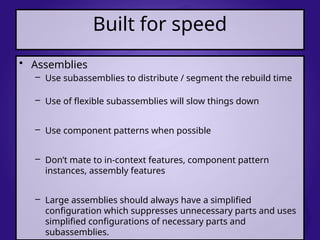
•Assemblies
– Use subassemblies to distribute / segment the rebuild time
– Use of flexible subassemblies will slow things down
– Use component patterns when possible
– Don’t mate to in-context features, component pattern
instances, assembly features
– Large assemblies should always have a simplified
configuration which suppresses unnecessary parts and uses
simplified configurations of necessary parts and
subassemblies.
Built for speed
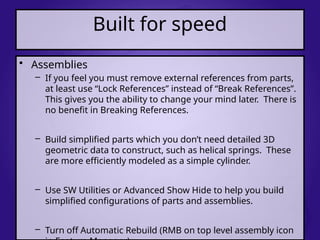
•Assemblies
– If you feel you must remove external references from parts,
at least use “Lock References” instead of “Break References”.
This gives you the ability to change your mind later. There is
no benefit in Breaking References.
– Build simplified parts which you don’t need detailed 3D
geometric data to construct, such as helical springs. These
are more efficiently modeled as a simple cylinder.
– Use SW Utilities or Advanced Show Hide to help you build
simplified configurations of parts and assemblies.
– Turn off Automatic Rebuild (RMB on top level assembly icon
18.
Built for speed
•Assemblies
– Resolve all feature and mate conflicts / errors
– Don’t mate to features which are eliminated in a
configuration
– If you use patterns to make holes in a part, use a component
pattern to put the fasteners in rather than mating them one
at a time
– Unless it is causing problems with dynamic assembly motion,
do not make all 3 mates to fully define hardware such as
bolts.
19.
Built for speed
•Assemblies
– Combine several components into a pattern to avoid
duplicate patterns
– Use Display States instead of configurations for visualization
only (Display States are much faster)
interface
• Save graphicsarea space
– Use hotkeys for the most frequently used functions, and
remove them from your toolbar
– Use hotkeys for functions burried deep in the menus (View >
Modify > Section View)
– Use the Command Manager and flyout toolbars to
consolidate space (see my “Getting the most of the interface”
ppt)
– Place the Task Pane on the left side of the screen to cover the
Feature Manager when it is open
23.
Hardware
• If youmake your living with this stuff, you ought to
set yourself up for success. Wasting time for a
model to rebuild is just throwing money down the
drain.
• Get an approved video card. Really.
– Red is not approved
– Yellow is not approved
– Green is approved
– Get an nVidia FX Quadro 550 or higher
– ATI Fire GL will work, but is slower than the Quadros
– SLi is probably overkill
24.
Hardware
• Processors
– Ihave a desktop with an AMD FX 57 (single core) and a
laptop with an AMD X2 4800+ (dual core)
– For some things, the single is faster, for some things the
dual is faster.
– Dual core is definitely better for Cosmos, Photoworks,
Assemblies, etc.
– Single core seems to excel at individual very complex parts
– I really believe that AMD is the way to go due to speed,
power usage and cost
25.
Hardware
• Memory
– Thesedays, you need 1 Gb of memory just to show up
– 2 Gb is enough for most applications, aside from FEA and
very large assemblies
– Once you go past a certain limit, you will need to be using
a 64 bit OS and the 64 bit version of SW in order to make
use of more than 3 Gb of RAM
– Increased RAM is the only reason to use 64 bit at this point
26.
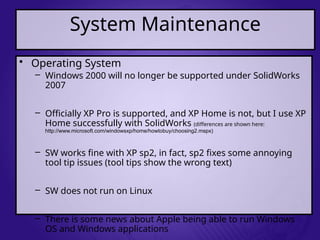
System Maintenance
• OperatingSystem
– Windows 2000 will no longer be supported under SolidWorks
2007
– Officially XP Pro is supported, and XP Home is not, but I use XP
Home successfully with SolidWorks (differences are shown here:
http://www.microsoft.com/windowsxp/home/howtobuy/choosing2.mspx)
– SW works fine with XP sp2, in fact, sp2 fixes some annoying
tool tip issues (tool tips show the wrong text)
– SW does not run on Linux
– There is some news about Apple being able to run Windows
OS and Windows applications
27.
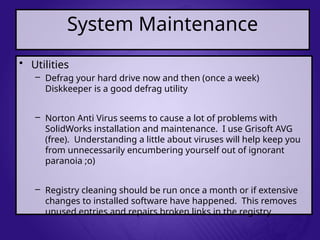
System Maintenance
• Utilities
–Defrag your hard drive now and then (once a week)
Diskkeeper is a good defrag utility
– Norton Anti Virus seems to cause a lot of problems with
SolidWorks installation and maintenance. I use Grisoft AVG
(free). Understanding a little about viruses will help keep you
from unnecessarily encumbering yourself out of ignorant
paranoia ;o)
– Registry cleaning should be run once a month or if extensive
changes to installed software have happened. This removes
unused entries and repairs broken links in the registry.
28.
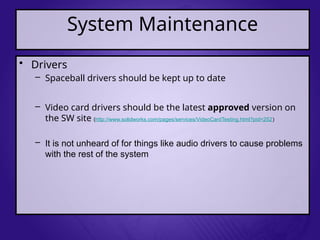
• Drivers
– Spaceballdrivers should be kept up to date
– Video card drivers should be the latest approved version on
the SW site (http://www.solidworks.com/pages/services/VideoCardTesting.html?pid=252)
– It is not unheard of for things like audio drivers to cause problems
with the rest of the system
System Maintenance
29.
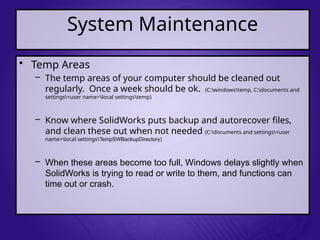
• Temp Areas
–The temp areas of your computer should be cleaned out
regularly. Once a week should be ok. (C:windowstemp, C:documents and
settings<user name>local settingstemp)
– Know where SolidWorks puts backup and autorecover files,
and clean these out when not needed (C:documents and settings<user
name>local settingsTempSWBackupDirectory)
– When these areas become too full, Windows delays slightly when
SolidWorks is trying to read or write to them, and functions can
time out or crash.
System Maintenance