CHAPTER 2
OpenShot Video Editor
Complete Question Bank - Recreated Study Edition
Prepared by CA Suvidha Chaplot
20
Question Types
160+
Questions
Yes
Answers Included
Ready
Exam Practice
A clean, exam-focused workbook redesigned for quick
revision. It includes very short answers, blanks, true/false,
MCQs, case questions, reasoning, application, diagrams,
flowcharts, and competency-based practice.
OpenShot Project Extension: .osp
Shortcut Focus: Ctrl+N | Ctrl+F | Ctrl+Z |
F11
OpenShot Video Editor - Complete Question Bank Prepared by CA Suvidha Chaplot
Chapter 2 - OpenShot Video Editor Page 2 Exam Ready | Answers Included
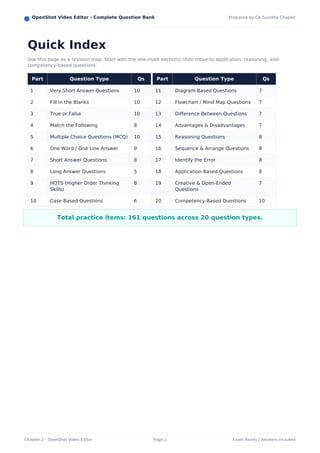
Quick Index
Use this page as a revision map. Start with the one-mark sections, then move to application, reasoning, and
competency-based questions.
Part Question Type Qs
1 Very Short Answer Questions 10
2 Fill in the Blanks 10
3 True or False 10
4 Match the Following 8
5 Multiple Choice Questions (MCQ) 10
6 One Word / One Line Answer 9
7 Short Answer Questions 8
8 Long Answer Questions 5
9 HOTS (Higher Order Thinking
Skills)
8
10 Case-Based Questions 6
Part Question Type Qs
11 Diagram-Based Questions 7
12 Flowchart / Mind Map Questions 7
13 Difference Between Questions 7
14 Advantages & Disadvantages 7
15 Reasoning Questions 8
16 Sequence & Arrange Questions 8
17 Identify the Error 8
18 Application-Based Questions 8
19 Creative & Open-Ended
Questions
7
20 Competency-Based Questions 10
Total practice items: 161 questions across 20 question types.
OpenShot Video Editor - Complete Question Bank Prepared by CA Suvidha Chaplot
Chapter 2 - OpenShot Video Editor Page 3 Exam Ready | Answers Included
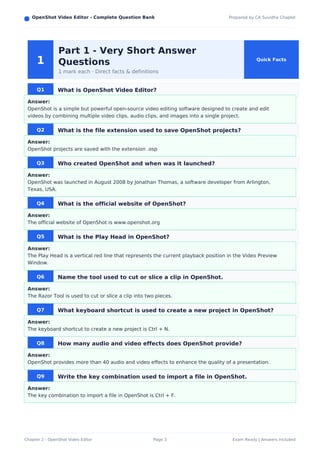
1
Part 1 - Very Short Answer
Questions
1 mark each · Direct facts & definitions
Quick Facts
Q1 What is OpenShot Video Editor?
Answer:
OpenShot is a simple but powerful open-source video editing software designed to create and edit
videos by combining multiple video clips, audio clips, and images into a single project.
Q2 What is the file extension used to save OpenShot projects?
Answer:
OpenShot projects are saved with the extension .osp
Q3 Who created OpenShot and when was it launched?
Answer:
OpenShot was launched in August 2008 by Jonathan Thomas, a software developer from Arlington,
Texas, USA.
Q4 What is the official website of OpenShot?
Answer:
The official website of OpenShot is www.openshot.org
Q5 What is the Play Head in OpenShot?
Answer:
The Play Head is a vertical red line that represents the current playback position in the Video Preview
Window.
Q6 Name the tool used to cut or slice a clip in OpenShot.
Answer:
The Razor Tool is used to cut or slice a clip into two pieces.
Q7 What keyboard shortcut is used to create a new project in OpenShot?
Answer:
The keyboard shortcut to create a new project is Ctrl + N.
Q8 How many audio and video effects does OpenShot provide?
Answer:
OpenShot provides more than 40 audio and video effects to enhance the quality of a presentation.
Q9 Write the key combination used to import a file in OpenShot.
Answer:
The key combination to import a file in OpenShot is Ctrl + F.
OpenShot Video Editor - Complete Question Bank Prepared by CA Suvidha Chaplot
Chapter 2 - OpenShot Video Editor Page 4 Exam Ready | Answers Included
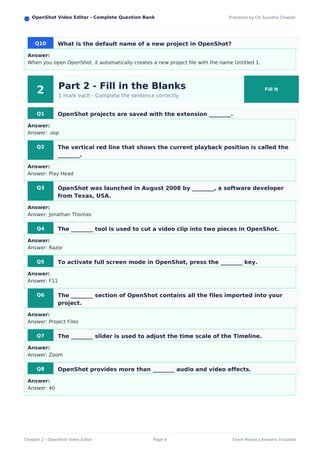
Q10 What is the default name of a new project in OpenShot?
Answer:
When you open OpenShot, it automatically creates a new project file with the name Untitled 1.
2 Part 2 - Fill in the Blanks
1 mark each · Complete the sentence correctly
Fill It
Q1 OpenShot projects are saved with the extension ________.
Answer:
Answer: .osp
Q2 The vertical red line that shows the current playback position is called the
________.
Answer:
Answer: Play Head
Q3 OpenShot was launched in August 2008 by ________, a software developer
from Texas, USA.
Answer:
Answer: Jonathan Thomas
Q4 The ________ tool is used to cut a video clip into two pieces in OpenShot.
Answer:
Answer: Razor
Q5 To activate full screen mode in OpenShot, press the ________ key.
Answer:
Answer: F11
Q6 The ________ section of OpenShot contains all the files imported into your
project.
Answer:
Answer: Project Files
Q7 The ________ slider is used to adjust the time scale of the Timeline.
Answer:
Answer: Zoom
Q8 OpenShot provides more than ________ audio and video effects.
Answer:
Answer: 40
OpenShot Video Editor - Complete Question Bank Prepared by CA Suvidha Chaplot
Chapter 2 - OpenShot Video Editor Page 5 Exam Ready | Answers Included
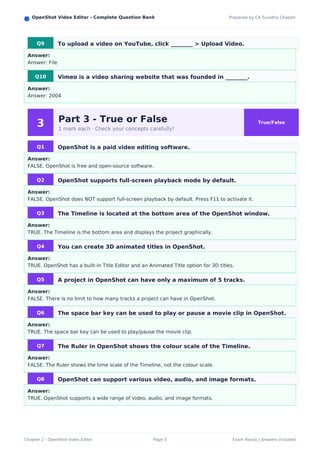
Q9 To upload a video on YouTube, click ________ > Upload Video.
Answer:
Answer: File
Q10 Vimeo is a video sharing website that was founded in ________.
Answer:
Answer: 2004
3 Part 3 - True or False
1 mark each · Check your concepts carefully!
True/False
Q1 OpenShot is a paid video editing software.
Answer:
FALSE. OpenShot is free and open-source software.
Q2 OpenShot supports full-screen playback mode by default.
Answer:
FALSE. OpenShot does NOT support full-screen playback by default. Press F11 to activate it.
Q3 The Timeline is located at the bottom area of the OpenShot window.
Answer:
TRUE. The Timeline is the bottom area and displays the project graphically.
Q4 You can create 3D animated titles in OpenShot.
Answer:
TRUE. OpenShot has a built-in Title Editor and an Animated Title option for 3D titles.
Q5 A project in OpenShot can have only a maximum of 5 tracks.
Answer:
FALSE. There is no limit to how many tracks a project can have in OpenShot.
Q6 The space bar key can be used to play or pause a movie clip in OpenShot.
Answer:
TRUE. The space bar key can be used to play/pause the movie clip.
Q7 The Ruler in OpenShot shows the colour scale of the Timeline.
Answer:
FALSE. The Ruler shows the time scale of the Timeline, not the colour scale.
Q8 OpenShot can support various video, audio, and image formats.
Answer:
TRUE. OpenShot supports a wide range of video, audio, and image formats.
OpenShot Video Editor - Complete Question Bank Prepared by CA Suvidha Chaplot
Chapter 2 - OpenShot Video Editor Page 6 Exam Ready | Answers Included
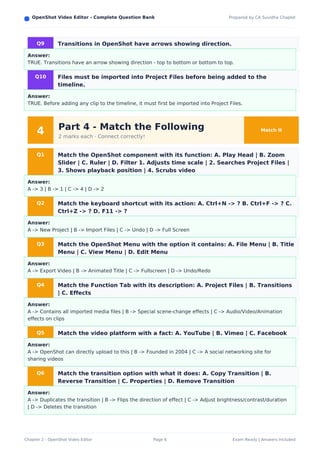
Q9 Transitions in OpenShot have arrows showing direction.
Answer:
TRUE. Transitions have an arrow showing direction - top to bottom or bottom to top.
Q10 Files must be imported into Project Files before being added to the
timeline.
Answer:
TRUE. Before adding any clip to the timeline, it must first be imported into Project Files.
4 Part 4 - Match the Following
2 marks each · Connect correctly!
Match It
Q1 Match the OpenShot component with its function: A. Play Head | B. Zoom
Slider | C. Ruler | D. Filter 1. Adjusts time scale | 2. Searches Project Files |
3. Shows playback position | 4. Scrubs video
Answer:
A -> 3 | B -> 1 | C -> 4 | D -> 2
Q2 Match the keyboard shortcut with its action: A. Ctrl+N -> ? B. Ctrl+F -> ? C.
Ctrl+Z -> ? D. F11 -> ?
Answer:
A -> New Project | B -> Import Files | C -> Undo | D -> Full Screen
Q3 Match the OpenShot Menu with the option it contains: A. File Menu | B. Title
Menu | C. View Menu | D. Edit Menu
Answer:
A -> Export Video | B -> Animated Title | C -> Fullscreen | D -> Undo/Redo
Q4 Match the Function Tab with its description: A. Project Files | B. Transitions
| C. Effects
Answer:
A -> Contains all imported media files | B -> Special scene-change effects | C -> Audio/Video/Animation
effects on clips
Q5 Match the video platform with a fact: A. YouTube | B. Vimeo | C. Facebook
Answer:
A -> OpenShot can directly upload to this | B -> Founded in 2004 | C -> A social networking site for
sharing videos
Q6 Match the transition option with what it does: A. Copy Transition | B.
Reverse Transition | C. Properties | D. Remove Transition
Answer:
A -> Duplicates the transition | B -> Flips the direction of effect | C -> Adjust brightness/contrast/duration
| D -> Deletes the transition
OpenShot Video Editor - Complete Question Bank Prepared by CA Suvidha Chaplot
Chapter 2 - OpenShot Video Editor Page 7 Exam Ready | Answers Included
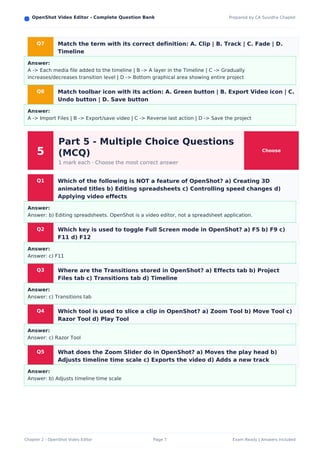
Q7 Match the term with its correct definition: A. Clip | B. Track | C. Fade | D.
Timeline
Answer:
A -> Each media file added to the timeline | B -> A layer in the Timeline | C -> Gradually
increases/decreases transition level | D -> Bottom graphical area showing entire project
Q8 Match toolbar icon with its action: A. Green button | B. Export Video icon | C.
Undo button | D. Save button
Answer:
A -> Import Files | B -> Export/save video | C -> Reverse last action | D -> Save the project
5
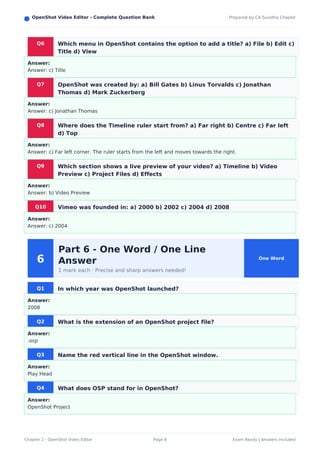
Part 5 - Multiple Choice Questions
(MCQ)
1 mark each · Choose the most correct answer
Choose
Q1 Which of the following is NOT a feature of OpenShot? a) Creating 3D
animated titles b) Editing spreadsheets c) Controlling speed changes d)
Applying video effects
Answer:
Answer: b) Editing spreadsheets. OpenShot is a video editor, not a spreadsheet application.
Q2 Which key is used to toggle Full Screen mode in OpenShot? a) F5 b) F9 c)
F11 d) F12
Answer:
Answer: c) F11
Q3 Where are the Transitions stored in OpenShot? a) Effects tab b) Project
Files tab c) Transitions tab d) Timeline
Answer:
Answer: c) Transitions tab
Q4 Which tool is used to slice a clip in OpenShot? a) Zoom Tool b) Move Tool c)
Razor Tool d) Play Tool
Answer:
Answer: c) Razor Tool
Q5 What does the Zoom Slider do in OpenShot? a) Moves the play head b)
Adjusts timeline time scale c) Exports the video d) Adds a new track
Answer:
Answer: b) Adjusts timeline time scale
OpenShot Video Editor - Complete Question Bank Prepared by CA Suvidha Chaplot
Chapter 2 - OpenShot Video Editor Page 8 Exam Ready | Answers Included
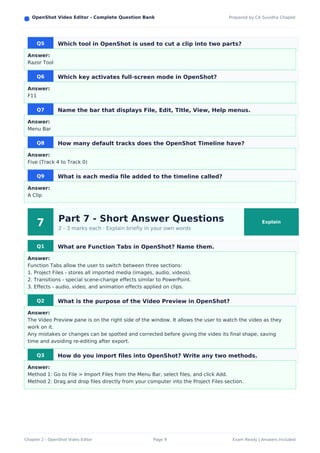
Q6 Which menu in OpenShot contains the option to add a title? a) File b) Edit c)
Title d) View
Answer:
Answer: c) Title
Q7 OpenShot was created by: a) Bill Gates b) Linus Torvalds c) Jonathan
Thomas d) Mark Zuckerberg
Answer:
Answer: c) Jonathan Thomas
Q8 Where does the Timeline ruler start from? a) Far right b) Centre c) Far left
d) Top
Answer:
Answer: c) Far left corner. The ruler starts from the left and moves towards the right.
Q9 Which section shows a live preview of your video? a) Timeline b) Video
Preview c) Project Files d) Effects
Answer:
Answer: b) Video Preview
Q10 Vimeo was founded in: a) 2000 b) 2002 c) 2004 d) 2008
Answer:
Answer: c) 2004
6
Part 6 - One Word / One Line
Answer
1 mark each · Precise and sharp answers needed!
One Word
Q1 In which year was OpenShot launched?
Answer:
2008
Q2 What is the extension of an OpenShot project file?
Answer:
.osp
Q3 Name the red vertical line in the OpenShot window.
Answer:
Play Head
Q4 What does OSP stand for in OpenShot?
Answer:
OpenShot Project
OpenShot Video Editor - Complete Question Bank Prepared by CA Suvidha Chaplot
Chapter 2 - OpenShot Video Editor Page 9 Exam Ready | Answers Included
Q5 Which tool in OpenShot is used to cut a clip into two parts?
Answer:
Razor Tool
Q6 Which key activates full-screen mode in OpenShot?
Answer:
F11
Q7 Name the bar that displays File, Edit, Title, View, Help menus.
Answer:
Menu Bar
Q8 How many default tracks does the OpenShot Timeline have?
Answer:
Five (Track 4 to Track 0)
Q9 What is each media file added to the timeline called?
Answer:
A Clip
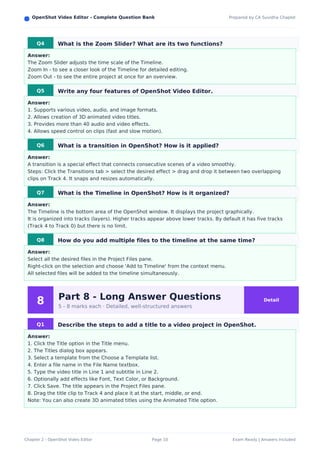
7 Part 7 - Short Answer Questions
2 - 3 marks each · Explain briefly in your own words
Explain
Q1 What are Function Tabs in OpenShot? Name them.
Answer:
Function Tabs allow the user to switch between three sections:
1. Project Files - stores all imported media (images, audio, videos).
2. Transitions - special scene-change effects similar to PowerPoint.
3. Effects - audio, video, and animation effects applied on clips.
Q2 What is the purpose of the Video Preview in OpenShot?
Answer:
The Video Preview pane is on the right side of the window. It allows the user to watch the video as they
work on it.
Any mistakes or changes can be spotted and corrected before giving the video its final shape, saving
time and avoiding re-editing after export.
Q3 How do you import files into OpenShot? Write any two methods.
Answer:
Method 1: Go to File > Import Files from the Menu Bar, select files, and click Add.
Method 2: Drag and drop files directly from your computer into the Project Files section.
OpenShot Video Editor - Complete Question Bank Prepared by CA Suvidha Chaplot
Chapter 2 - OpenShot Video Editor Page 10 Exam Ready | Answers Included
Q4 What is the Zoom Slider? What are its two functions?
Answer:
The Zoom Slider adjusts the time scale of the Timeline.
Zoom In - to see a closer look of the Timeline for detailed editing.
Zoom Out - to see the entire project at once for an overview.
Q5 Write any four features of OpenShot Video Editor.
Answer:
1. Supports various video, audio, and image formats.
2. Allows creation of 3D animated video titles.
3. Provides more than 40 audio and video effects.
4. Allows speed control on clips (fast and slow motion).
Q6 What is a transition in OpenShot? How is it applied?
Answer:
A transition is a special effect that connects consecutive scenes of a video smoothly.
Steps: Click the Transitions tab > select the desired effect > drag and drop it between two overlapping
clips on Track 4. It snaps and resizes automatically.
Q7 What is the Timeline in OpenShot? How is it organized?
Answer:
The Timeline is the bottom area of the OpenShot window. It displays the project graphically.
It is organized into tracks (layers). Higher tracks appear above lower tracks. By default it has five tracks
(Track 4 to Track 0) but there is no limit.
Q8 How do you add multiple files to the timeline at the same time?
Answer:
Select all the desired files in the Project Files pane.
Right-click on the selection and choose 'Add to Timeline' from the context menu.
All selected files will be added to the timeline simultaneously.
8 Part 8 - Long Answer Questions
5 - 8 marks each · Detailed, well-structured answers
Detail
Q1 Describe the steps to add a title to a video project in OpenShot.
Answer:
1. Click the Title option in the Title menu.
2. The Titles dialog box appears.
3. Select a template from the Choose a Template list.
4. Enter a file name in the File Name textbox.
5. Type the video title in Line 1 and subtitle in Line 2.
6. Optionally add effects like Font, Text Color, or Background.
7. Click Save. The title appears in the Project Files pane.
8. Drag the title clip to Track 4 and place it at the start, middle, or end.
Note: You can also create 3D animated titles using the Animated Title option.
OpenShot Video Editor - Complete Question Bank Prepared by CA Suvidha Chaplot
Chapter 2 - OpenShot Video Editor Page 11 Exam Ready | Answers Included
Q2 Explain the components of the OpenShot interface in detail.
Answer:
1. Title Bar - Displays the application name and project name at the top.
2. Menu Bar - Below the title bar; contains File, Edit, Title, View, and Help.
3. Toolbar - Icons for create, open, save, undo, redo, import, and export.
4. Function Tabs - Switch between Project Files, Transitions, and Effects.
5. Video Preview - Right side area to watch the video while editing.
6. Edit Toolbar - Toggle buttons for editing, trimming, and splitting clips.
7. Zoom Slider - Adjusts the time scale of the Timeline.
8. Play Head - Vertical red line showing current playback position.
9. Ruler - Shows the time scale; dragging along it scrubs the video.
10. Timeline - Bottom area showing the project graphically with tracks.
11. Filter - Search box to find items in the Project Files pane.
Q3 Explain the steps to export a video in OpenShot.
Answer:
1. Click File menu and choose Export Video (or click the Export Video icon on the toolbar).
2. The Export Video dialog box appears.
3. Choose the desired format from the Profile drop-down list.
4. Click the Export Video button.
5. An export progress bar appears at the bottom of the dialog box.
6. Once done, the video is saved and ready for sharing on YouTube, Vimeo, etc.
Q4 Describe all the operations you can perform on a Transition in OpenShot.
Answer:
Apply: Drag a transition from the Transitions tab and drop it between two clips on Track 4.
Copy: Right-click the transition -> select Copy.
Reverse: Right-click -> select Reverse Transition to flip the direction of effect.
Properties: Right-click -> Properties -> adjust brightness, contrast, duration, etc.
Remove: Right-click -> select Remove Transition to delete it.
Fade: Use Fade In / Fade Out to gradually increase or decrease the transition level.
Q5 Write the complete process of creating a video project in OpenShot from
start to finish.
Answer:
Step 1: Create New Project - Press Ctrl+N or File > New Project.
Step 2: Import Files - Use File > Import Files or drag & drop into Project Files.
Step 3: Arrange on Timeline - Drag files from Project Files to Track 4.
Step 4: Apply Transitions - Click Transitions tab, drag effects between clips.
Step 5: Add Video Effects - Click Effects tab > Video tab, drag onto clips.
Step 6: Move / Slice Clips - Use Move tool to reposition; Razor tool to trim.
Step 7: Add Title - Title menu > Title, type title and save, drag to timeline.
Step 8: Preview - Watch in Video Preview pane and make corrections.
Step 9: Export - File > Export Video, choose format, and export.
OpenShot Video Editor - Complete Question Bank Prepared by CA Suvidha Chaplot
Chapter 2 - OpenShot Video Editor Page 12 Exam Ready | Answers Included
9
Part 9 - HOTS (Higher Order
Thinking Skills)
Think deeper! · Logic, reasoning & application
Think
Q1 If you accidentally slice a clip at the wrong point using the Razor tool, what
would be the best way to recover?
Answer:
The best recovery is to immediately press Ctrl + Z (Undo).
OpenShot's Undo feature reverses the last action, restoring the clip to its original state.
This is why saving frequently using Ctrl + S is a good habit while editing.
Q2 Why do you think higher tracks in OpenShot display video above lower
tracks?
Answer:
OpenShot works like layers in a stack - like papers placed on top of each other.
Higher tracks appear visually on top of lower tracks.
This allows overlays, watermarks, and titles to appear over the main video without replacing it -
enabling complex, multi-layered compositions.
Q3 What would happen if there was no Video Preview section in OpenShot?
Answer:
Editors would have to export the video every time to check their work - wasting huge amounts of time.
Mistakes like wrong transitions, out-of-sync audio, or incorrect clip order would only be discovered after
export.
The Video Preview makes editing efficient by providing real-time feedback.
Q4 Why is it important to import files into Project Files before adding them to
the Timeline?
Answer:
Importing organizes all media in one central library (Project Files) so OpenShot can reference them.
Without importing, OpenShot would not know where the files are stored, causing missing-file errors.
Project Files acts as a media library for the entire project.
Q5 OpenShot allows speed control on video clips. How would this be useful in a
sports highlight video?
Answer:
Slow motion - to replay a key goal or catch dramatically, letting viewers appreciate the skill involved.
Fast motion - to quickly move through less important moments like warm-ups.
This makes the video dynamic, engaging, and professionally presented.
OpenShot Video Editor - Complete Question Bank Prepared by CA Suvidha Chaplot
Chapter 2 - OpenShot Video Editor Page 13 Exam Ready | Answers Included
Q6 If a transition auto-resizes when dropped between two overlapping clips,
what does this tell us?
Answer:
It shows OpenShot is a smart, user-friendly editor.
Auto-resizing eliminates the need for the user to manually measure or adjust the transition.
This saves time, reduces errors, and ensures a professional-looking scene change without technical
expertise.
Q7 Predict what would happen if the Play Head did not exist in OpenShot.
Answer:
Without the Play Head, users would have no way to know exactly where in the video they currently are.
They could not accurately place effects, transitions, or titles at specific time points.
Precise editing would become nearly impossible - the Play Head is the editor's cursor in time.
Q8 Why is OpenShot described as 'simple but powerful'? Do you agree? Justify
your answer.
Answer:
Yes, OpenShot is rightly described as simple but powerful.
Simple - its interface has easy drag & drop, clear tabs, and straightforward menus.
Powerful - it offers 3D animated titles, 40+ effects, multi-track editing, speed control, transitions, and
export to multiple platforms.
It gives professional results without requiring professional expertise.
10 Part 10 - Case-Based Questions
Read the situation, then answer thoughtfully
Case Study
Q1 Priya is making a birthday video for her grandmother using photos, a song,
and short video clips. She wants smooth scene changes, her grandmother's
name at the beginning, and plans to upload it to YouTube. Which OpenShot
features should she use?
Answer:
- Import all photos, clips, and the song using File > Import Files.
- Arrange them on the Timeline by dragging to tracks.
- Apply Transitions between clips for smooth scene changes.
- Use the Title Editor to add her grandmother's name at the start.
- Upload the video using File > Upload Video to share on YouTube.
Q2 Rahul exported his video but scenes look abrupt and disconnected, and the
video lacks a professional title. What two OpenShot features should he use?
Answer:
Transitions - drag transition effects from the Transitions tab between clips for smooth connections.
Title Editor - use Title menu > Title (or Animated Title for 3D) to create a professional opening title.
OpenShot Video Editor - Complete Question Bank Prepared by CA Suvidha Chaplot
Chapter 2 - OpenShot Video Editor Page 14 Exam Ready | Answers Included
Q3 Ananya is editing a school documentary and has a 10-minute raw video. She
only needs a 2-minute segment from the middle. Which tool should she use
and describe the steps.
Answer:
She should use the Razor Tool.
Steps: Select the Razor Tool from the Edit Toolbar.
Click on the clip at the start of the 2-minute segment to slice it.
Click again at the end of the 2-minute segment.
This creates three separate segments - delete the unwanted first and last pieces.
Q4 Vikram applied a transition but it looks wrong - the effect is going in the
wrong direction. What should he do?
Answer:
Vikram should right-click on the transition in the timeline and choose Reverse Transition from the
context menu.
This flips the direction of the effect without needing to delete and reapply it.
Q5 Meera wants: an animated title, background music, and a slow-motion clip
at the end. How can OpenShot help her?
Answer:
Animated Title - use Title menu > Animated Title to create a 3D animated opening title.
Background Music - import the audio file and place it on a separate audio track.
Slow Motion - use OpenShot's speed control feature to slow down the final clip.
Q6 Ravi saved his file but doesn't know the extension. What will it be and what
does it stand for?
Answer:
The project file will be saved with the extension .osp
It stands for OpenShot Project - the default format used to save all OpenShot project data.
11 Part 11 - Diagram-Based Questions
Label, identify, and describe visual components
Diagram
Q1 Draw a neat labelled diagram of the OpenShot Video Editor window and
label any 6 components.
Answer:
Students should draw a window and label:
Title Bar (top) | Menu Bar (below title) | Toolbar (below menu)
Function Tabs (left panel) | Video Preview (right panel) | Timeline (bottom area)
Bonus: Play Head (red vertical line in timeline) | Zoom Slider
OpenShot Video Editor - Complete Question Bank Prepared by CA Suvidha Chaplot
Chapter 2 - OpenShot Video Editor Page 15 Exam Ready | Answers Included
Q2 In the OpenShot window, where is the Video Preview section located?
Describe it.
Answer:
The Video Preview is located on the right side of the OpenShot window.
It displays a live preview screen of the current video frame.
Its size can be modified by clicking and dragging the handles around it.
Q3 What does the Play Head look like in the Timeline and what does it
represent?
Answer:
The Play Head appears as a vertical red line running from the top to the bottom of the Timeline.
It represents the current playback position - wherever the Play Head is placed, that exact frame is
shown in the Video Preview window.
Q4 Identify and describe the three areas visible in the Function Tabs panel of
OpenShot.
Answer:
1. Project Files - shows all imported media (images, audio, videos) for the project.
2. Transitions - shows a list of available scene-change transition effects.
3. Effects - shows audio, video, and animation effects applicable to clips.
Q5 Describe the default track arrangement visible in the OpenShot Timeline.
Answer:
By default, the OpenShot Timeline has five tracks named Track 4 (topmost) down to Track 0 (lowest).
Higher-numbered tracks display video and images above the lower-numbered tracks.
There is no limit to how many tracks can be added.
Q6 Where is the Ruler located in OpenShot and what purpose does it serve?
Answer:
The Ruler is located along the top of the Timeline.
It shows the time scale of the project.
Dragging along the ruler scrubs the video - a fast, rough way to preview the project by jumping to
different time positions.
Q7 What does the Toolbar in OpenShot contain?
Answer:
The Toolbar is a horizontal row of icons located below the Menu Bar.
It contains icons for: New, Open, Save, Undo, Redo, Import Files (green button), and Export Video.
These allow common tasks to be done quickly without opening the menus.
12
Part 12 - Flowchart / Mind Map
Questions
Show sequence, steps, and connections visually
Flowchart
OpenShot Video Editor - Complete Question Bank Prepared by CA Suvidha Chaplot
Chapter 2 - OpenShot Video Editor Page 16 Exam Ready | Answers Included
Q1 Draw a flowchart showing the complete process of creating and exporting a
video project in OpenShot.
Answer:
START -> Open OpenShot -> Create New Project (Ctrl+N) -> Import Files ->
Arrange Clips on Timeline -> Apply Transitions -> Add Video Effects ->
Slice/Move Clips -> Add Title -> Preview Video -> Export Video -> END
Q2 Draw a flowchart showing the steps to apply a transition in OpenShot.
Answer:
START -> Click Transitions Tab -> Browse available effects -> Select desired transition ->
Drag and drop between two overlapping clips on Track 4 ->
Transition snaps and resizes automatically -> Preview in Video Preview -> END
Q3 Create a mind map showing all the features of OpenShot Video Editor.
Answer:
Central node: OpenShot Features
Branches: Supports multiple formats | Multiple tracks | Resize/trim/cut clips
3D animated titles | Advanced Timeline (drag, drop, zoom) | Key frame animation
Speed control (fast/slow) | 40+ audio/video effects | Export to multiple platforms | Free & open source
Q4 Draw a flowchart showing the steps to slice a clip using the Razor Tool.
Answer:
START -> Select Razor Tool from Edit Toolbar -> Move pointer over clip in Timeline ->
Pointer changes to razor shape -> Click at the start cut point ->
Click at the end cut point -> Clip divided into two pieces -> END
Q5 Draw a mind map showing all the components of the OpenShot interface.
Answer:
Central node: OpenShot Interface
Branches: Title Bar | Menu Bar | Toolbar | Function Tabs (Project Files / Transitions / Effects)
Video Preview | Edit Toolbar | Zoom Slider | Play Head | Ruler | Timeline | Filter
Q6 Draw a flowchart to show how to add a title to a video in OpenShot.
Answer:
START -> Click Title Menu -> Click Title option -> Titles dialog box opens ->
Choose a template -> Enter File Name -> Type title in Line 1 & subtitle in Line 2 ->
Add effects if needed -> Click Save -> Drag title clip to Track 4 -> END
Q7 Show a flowchart for importing and arranging files on the timeline.
Answer:
START -> Open OpenShot -> File > Import Files -> Select files -> Click Add ->
Files appear in Project Files pane -> Select file from Project Files ->
Drag file to Track 4 on Timeline -> Repeat for all files -> END
OpenShot Video Editor - Complete Question Bank Prepared by CA Suvidha Chaplot
Chapter 2 - OpenShot Video Editor Page 17 Exam Ready | Answers Included
13
Part 13 - Difference Between
Questions
Compare and contrast key concepts clearly
Compare
Q1 Write the difference between Transitions and Effects in OpenShot.
Answer:
Transitions: Connect consecutive clips/scenes | Placed between two clips | Transitions Tab | Similar to
PowerPoint transitions
Effects: Enhance or alter a single clip | Dropped directly on a clip | Effects Tab | Filters/overlays on
media
Q2 Differentiate between Zoom In and Zoom Out in OpenShot.
Answer:
Zoom In: Shows a closer view of the Timeline for precise, detailed editing.
Zoom Out: Shows the entire project at once for an overview of all clips.
Q3 Write the difference between the Move tool and the Razor tool in OpenShot.
Answer:
Move Tool: Moves a clip to a new location; pointer changes to a hand shape.
Razor Tool: Cuts/slices a clip into two pieces; pointer changes to a razor/dotted line.
Q4 Differentiate between Title and Animated Title in OpenShot.
Answer:
Title: Static/still title | Simple flat text | Title menu > Title
Animated Title: 3D animated title | More impressive with 3D motion | Title menu > Animated Title
Q5 Differentiate between the Ruler and the Play Head in OpenShot.
Answer:
Ruler: Horizontal scale at top of timeline | Shows the time scale | Dragging scrubs video.
Play Head: Vertical red line | Shows current playback position | Moves to show current frame in preview.
Q6 Write the difference between Fade In and Fade Out in OpenShot.
Answer:
Fade In: Gradual increase in transition level | Used at the beginning of a clip.
Fade Out: Gradual decrease in transition level | Used at the end of a clip.
Q7 Differentiate between the Title Bar and the Menu Bar in OpenShot.
Answer:
Title Bar: Topmost part of the window | Displays application name and project name.
Menu Bar: Below the Title Bar | Displays File, Edit, Title, View, and Help menus for all commands.
OpenShot Video Editor - Complete Question Bank Prepared by CA Suvidha Chaplot
Chapter 2 - OpenShot Video Editor Page 18 Exam Ready | Answers Included
14
Part 14 - Advantages &
Disadvantages
Think both sides of every coin!
Pros & Cons
Q1 Write any four advantages of using OpenShot Video Editor.
Answer:
1. It is free and open-source - anyone can use it without paying.
2. Supports a wide range of video, audio, and image formats.
3. Allows creation of 3D animated titles for professional videos.
4. Provides more than 40 effects to enhance video quality.
5. Videos can be directly exported or uploaded to YouTube and Vimeo.
Q2 Write any two limitations/disadvantages of OpenShot Video Editor.
Answer:
1. OpenShot does not support full-screen playback by default (must press F11).
2. It may not have as many advanced features as professional paid editors like Adobe Premiere Pro.
Q3 What are the advantages of the Video Preview pane in OpenShot?
Answer:
1. Allows users to watch the video while editing - saving time.
2. Mistakes can be corrected immediately before final export.
3. Transitions and effects can be previewed in real time.
4. The pane size can be adjusted by dragging its handles.
Q4 What are the advantages of using Transitions in a video?
Answer:
1. Makes scene changes smooth and visually appealing.
2. Adds professional quality to the video.
3. Adds connectivity between consecutive clips, making the story flow naturally.
4. Various transition styles allow creative expression.
Q5 Write the advantages of using the Timeline in OpenShot.
Answer:
1. Provides a graphical overview of the entire project at once.
2. Allows drag and drop of clips for easy arrangement.
3. Multiple tracks allow layering of video, audio, and images.
4. Supports zoom to work in detail or see the big picture.
5. Every clip and transition is visible, making the project easy to manage.
Q6 What are the advantages of using 3D animated titles in OpenShot?
Answer:
1. Makes a video more impressive and eye-catching.
2. Gives videos a professional, broadcast-quality look.
3. Helps to instantly communicate the topic or mood of the video.
4. Created easily using OpenShot's built-in Animated Title editor - no extra software needed.
OpenShot Video Editor - Complete Question Bank Prepared by CA Suvidha Chaplot
Chapter 2 - OpenShot Video Editor Page 19 Exam Ready | Answers Included
Q7 What are the advantages of exporting videos from OpenShot to multiple
platforms?
Answer:
1. Videos can be shared on social media like YouTube, Facebook, Vimeo, and Flickr.
2. Videos can be exported in formats compatible with smartphones and the web.
3. Ensures the video reaches a wider audience easily.
4. Different export formats mean the video suits different devices and screen sizes.
15 Part 15 - Reasoning Questions
'Why' and 'How' - Give reasons for every answer!
Reason
Q1 Why is the Video Preview pane considered an important advantage in
OpenShot?
Answer:
Because it allows users to watch the video in real time while editing.
Any mistake or modification can be spotted and corrected immediately, without exporting the video first.
This saves time and ensures high-quality output.
Q2 Why must files be imported into Project Files before adding them to the
Timeline?
Answer:
Because OpenShot needs to register and organize all media in a central library before it can reference
them.
Without importing, the software would not know where the files are stored, causing missing media
errors.
Q3 Why are higher-numbered tracks placed above lower-numbered tracks in
the OpenShot Timeline?
Answer:
Because OpenShot uses a layering system - like stacking papers.
Higher tracks appear visually on top, allowing overlays, titles, and watermarks to sit above the main
video without replacing it.
Q4 Why is OpenShot called open-source software?
Answer:
Because its source code is publicly available - anyone can view, modify, and distribute it freely.
This means it is free to use and the community can contribute to improving it.
Q5 Why does OpenShot's Razor Tool change the mouse pointer to a
razor/dotted line shape?
Answer:
The pointer changes to indicate the Razor Tool is active and the next click will cut the clip at that exact
point.
The visual cue prevents accidental cuts - the user can clearly see where the cut will happen before
clicking.
OpenShot Video Editor - Complete Question Bank Prepared by CA Suvidha Chaplot
Chapter 2 - OpenShot Video Editor Page 20 Exam Ready | Answers Included
Q6 Why does a transition automatically resize itself when dropped where two
clips overlap?
Answer:
OpenShot is designed to be user-friendly.
By auto-resizing to fit the overlap region, it ensures the effect plays smoothly over exactly the duration of
the overlap, eliminating manual resizing and preventing gaps.
Q7 Why is OpenShot a good choice for students to create school projects?
Answer:
OpenShot is free, easy to use, and feature-rich.
Students can create professional-looking videos with transitions, titles, and effects without any cost.
It supports multiple formats, can export to YouTube, and allows 3D titles - making projects stand out
without professional skills.
Q8 Give a reason: why does the Timeline ruler start from the far left and move
to the right?
Answer:
Because time flows from left to right in the natural reading direction.
Starting from the left (time = 0) and moving right represents chronological order, making it intuitive for
editors to understand which clip appears first, second, and so on.
16
Part 16 - Sequence & Arrange
Questions
Put the steps in the correct order!
Sequence
Q1 Arrange in correct order to create a new project: a) A new project file opens
b) Press Ctrl+N or click File > New Project c) Open OpenShot Video Editor
Answer:
Correct Order: c -> b -> a
Q2 Arrange the steps to add a file to the Timeline: a) Drag file to Track 4 b)
Import the file c) Select file from Project Files d) Clip is added to Timeline
Answer:
Correct Order: b -> c -> a -> d
Q3 Arrange the steps to export a video: a) Choose format from Profile b) Click
File > Export Video c) Export Video dialog opens d) Click Export Video
button e) Progress bar appears
Answer:
Correct Order: b -> c -> a -> d -> e
Q4 Arrange the steps to apply a video effect: a) Drag effect onto clip b) Click
Video tab c) Choose desired effect d) Click Effects tab
Answer:
Correct Order: d -> b -> c -> a
OpenShot Video Editor - Complete Question Bank Prepared by CA Suvidha Chaplot
Chapter 2 - OpenShot Video Editor Page 21 Exam Ready | Answers Included
Q5 Arrange the steps to set properties of a transition: a) Type value and press
Enter b) Right-click the transition c) Properties pane appears d) Select
property e) Choose Properties from menu
Answer:
Correct Order: b -> e -> c -> d -> a
Q6 Arrange the steps to open an existing project: a) Select the project file b)
Click Open button c) Click File > Open Project d) Open Project dialog opens
Answer:
Correct Order: c -> d -> a -> b
Q7 Arrange the steps to add a title in OpenShot: a) Drag title clip to Track 4 b)
Click Save c) Select a template d) Click Title menu > Title e) Type title in
Line 1 f) Titles dialog box appears
Answer:
Correct Order: d -> f -> c -> e -> b -> a
Q8 Arrange the steps to slice a clip using the Razor Tool: a) Click again at the
end point b) Pointer changes to razor shape c) Select Razor Tool d) Move
pointer over clip e) Click at the start cut point
Answer:
Correct Order: c -> d -> b -> e -> a
17 Part 17 - Identify the Error
Spot the mistake in each statement and correct it!
Find Error
Q1 "The Zoom Slider is used to move the Play Head to a new position on the
timeline."
Answer:
Error: 'move the Play Head'
Correction: The Zoom Slider is used to adjust the time scale of the Timeline (Zoom In / Zoom Out). The
Play Head is a separate element.
Q2 "OpenShot projects are saved with the extension .mov"
Answer:
Error: '.mov'
Correction: OpenShot projects are saved with the extension .osp (not .mov, which is a video format).
Q3 "The Play Head is a horizontal blue line representing the current playback
position."
Answer:
Error: 'horizontal blue line'
Correction: The Play Head is a vertical red line.
OpenShot Video Editor - Complete Question Bank Prepared by CA Suvidha Chaplot
Chapter 2 - OpenShot Video Editor Page 22 Exam Ready | Answers Included
Q4 "OpenShot was created by Bill Gates in 2008."
Answer:
Error: 'Bill Gates'
Correction: OpenShot was created by Jonathan Thomas in 2008.
Q5 "A project in OpenShot can have a maximum of 5 tracks only."
Answer:
Error: 'maximum of 5 tracks only'
Correction: There is no limit to how many tracks a project can have in OpenShot.
Q6 "The Ruler in OpenShot shows the colour scale of the Timeline."
Answer:
Error: 'colour scale'
Correction: The Ruler shows the time scale of the Timeline.
Q7 "Ctrl + F is the keyboard shortcut used to create a new project in
OpenShot."
Answer:
Error: 'Ctrl + F for new project'
Correction: Ctrl + F is used to import files. The shortcut to create a new project is Ctrl + N.
Q8 "Effects in OpenShot are placed between two clips, just like transitions."
Answer:
Error: 'Effects are placed between two clips'
Correction: Effects are dragged and dropped directly onto a clip. It is Transitions that are placed
between two clips.
18
Part 18 - Application-Based
Questions
Apply your knowledge to real-life situations!
Apply
Q1 Your school asked you to make a documentary about Independence Day.
Which tool will you use to remove an unwanted segment from the middle of
a clip?
Answer:
I will use the Razor Tool.
Select it from the Edit Toolbar, click on the clip at the start of the unwanted segment, then click again at
the end.
This divides the clip into three segments - delete the unwanted middle piece.
OpenShot Video Editor - Complete Question Bank Prepared by CA Suvidha Chaplot
Chapter 2 - OpenShot Video Editor Page 23 Exam Ready | Answers Included
Q2 You want to make a photo slideshow of your family trip with smooth scene
changes. Which OpenShot feature would you use and how?
Answer:
I would use Transitions.
After importing and arranging the photos on the timeline, click the Transitions tab, choose an effect, and
drag it to the area where two photos overlap on Track 4.
The transition will create a smooth, cinematic change from one photo to the next.
Q3 You are making a product commercial and want the company name to
appear dramatically at the start. Which two options in OpenShot will help?
Answer:
1. Animated Title (from Title menu) - to create a dramatic 3D animated display of the company name.
2. Fade In - to make the title appear gradually and smoothly at the start of the video.
Q4 You want to see a detailed view of just 10 seconds of your 5-minute video
while editing. Which feature helps?
Answer:
I would use the Zoom Slider and choose Zoom In.
This magnifies the 10-second section of the Timeline, making precise editing much easier.
Q5 You created a great video for YouTube but your friend wants a copy on his
phone too. How does OpenShot help?
Answer:
1. Upload directly to YouTube using File > Upload Video.
2. Export the video in a smartphone-compatible format using File > Export Video, then choose the
appropriate format from the Profile drop-down.
OpenShot supports exporting for smartphones and the web.
Q6 While editing a cricket match video, you want to replay the winning six in
slow motion. Which OpenShot feature allows this?
Answer:
OpenShot's Speed Control feature allows controlling speed changes on video clips.
Use the slow motion option to slow down the clip of the winning six, creating a dramatic, impactful
replay.
Q7 You are editing a long video and want to quickly jump to a specific point
without pressing play. How?
Answer:
Drag along the Ruler at the top of the Timeline.
This is called scrubbing - a fast, rough way to preview the project by jumping to any time position
instantly.
Q8 Your birthday party video has 30 clips. How can you quickly search for a
specific clip in the Project Files pane?
Answer:
Use the Filter section in OpenShot.
Type a few letters of the clip's filename in the Filter search box, and OpenShot will instantly display only
matching results in the Project Files pane.
OpenShot Video Editor - Complete Question Bank Prepared by CA Suvidha Chaplot
Chapter 2 - OpenShot Video Editor Page 24 Exam Ready | Answers Included
19
Part 19 - Creative & Open-Ended
Questions
Express your imagination - there's no single right answer!
Create
Q1 Imagine you are a film director. How would you use OpenShot to create a
short film about your school?
Answer:
I would collect video clips and photos of classrooms, the playground, and school events.
Import them all into OpenShot and arrange them on the Timeline in story order.
Add transitions for smooth flow, use 3D Animated Titles for the opening ('Our School Story'),
add background music on a separate audio track, use slow motion during special moments,
and finally export and upload to YouTube to share with parents.
Q2 If OpenShot did not have the Timeline feature, how would video editing
change? What problems would arise?
Answer:
Without the Timeline, editing would become nearly impossible.
You'd have no visual map - no way to see which clip comes first, how long each lasts, or where
transitions go.
It would be like solving a puzzle without seeing the picture.
Editors would work blindly, leading to jumbled clip order, misaligned audio, and no precision in placing
effects.
Q3 Design your own ideal video editing project using OpenShot. What would
you make and which features would you use?
Answer:
I would create a travel memory video of my family trip to the hills.
Features I'd use: photos arranged with beautiful transitions, an animated 3D title 'Mountains of Memory',
background music on a separate audio track, slow motion for the sunrise clip,
Fade In at the start and Fade Out at the end, and export in HD format.
I'd upload it to YouTube and share it with my grandparents who couldn't come on the trip.
Q4 Why do you think video editing skills like OpenShot are important for
students today?
Answer:
In today's digital world, video is everywhere - YouTube, Instagram, and school projects.
Learning OpenShot teaches students to express ideas creatively, organize content logically, and
communicate powerfully.
It builds technical skills, creativity, and confidence.
A student who can make a beautiful video has a huge advantage in school projects, competitions, and
future careers.
OpenShot Video Editor - Complete Question Bank Prepared by CA Suvidha Chaplot
Chapter 2 - OpenShot Video Editor Page 25 Exam Ready | Answers Included
Q5 If you had to teach a younger student how to use OpenShot for the first
time, what are the 5 most important things you would tell them?
Answer:
1. Always import files first before adding them to the timeline.
2. Save your project often using Ctrl+S so you don't lose your work.
3. Use the Video Preview to check your video before exporting.
4. If you make a mistake, press Ctrl+Z to undo it instantly.
5. Have fun! Start with a simple photo slideshow and add features one by one.
Q6 How would the world of school education change if every student knew how
to use video editing software like OpenShot?
Answer:
Students would create video projects instead of just written reports - making learning more engaging
and creative.
Science experiments could be documented as videos, history lessons as mini-documentaries, and
poetry as visual performances.
Teachers would receive more expressive, thoughtful work.
Students would develop both technical and creative skills highly valued in the modern world.
Q7 Imagine you have to use OpenShot to make a video that could win a school
competition. What would be your strategy?
Answer:
Plan the story first, then gather the best possible photos and video clips.
Use a powerful 3D Animated Title to grab attention from the first second.
Apply smooth, elegant transitions - just enough, not too many.
Add an emotional background song that fits the mood.
Use slow motion for the most impactful moment and end with a Fade Out.
The key is - every second should serve a purpose.
20
Part 20 - Competency-Based
Questions
Real-world thinking, decision making & interpretation
Compete
Q1 Arjun applied a transition effect but it looks wrong - the scene fades in
when it should fade out. What should he do?
Answer:
Arjun should right-click on the transition in the timeline and choose Reverse Transition from the context
menu.
This flips the direction of the effect - from fade-in to fade-out - without needing to delete and reapply
it.
Q2 Simran notices that when she plays her video, clips seem too fast and hard
to follow. What feature should she adjust?
Answer:
Simran should use OpenShot's Speed Control feature to slow down the playback speed of the individual
clips.
Alternatively, she could increase the duration of clips on the timeline to give them more screen time.
OpenShot Video Editor - Complete Question Bank Prepared by CA Suvidha Chaplot
Chapter 2 - OpenShot Video Editor Page 26 Exam Ready | Answers Included
Q3 Dev needs to place a company logo watermark over the entire video. On
which track should he place it and why?
Answer:
Dev should place the logo on a higher-numbered track (e.g., Track 4) stretched across the full timeline.
Since higher tracks display above lower tracks, the logo will appear as an overlay on top of all video
content - functioning as a watermark throughout.
Q4 Neha cannot find one of her imported clips in the Project Files pane. There
are over 50 files. What should she do?
Answer:
Neha should use the Filter feature in OpenShot.
By typing a few letters of the missing clip's filename in the Filter search box, OpenShot will instantly
display only matching results, saving her from scrolling through all 50 files manually.
Q5 A teacher asked Kavya to submit both the editable project file AND the final
exported video. What formats will each be saved in?
Answer:
Editable project file: .osp (OpenShot Project) - can be reopened in OpenShot for changes.
Exported video: .mp4 or another format chosen from the Profile drop-down during export - the final
playable video file.
Q6 Rohan keeps accidentally losing his progress because his computer shuts
down unexpectedly. What should he do?
Answer:
Rohan should regularly save his project using the Save button on the toolbar or by pressing Ctrl + S.
OpenShot saves projects as .osp files which preserve all editing progress.
Saving after every major change ensures minimal work is lost even if the computer shuts down.
Q7 Pooja wants: (a) the couple's names in a beautiful title, (b) music
throughout the video, (c) smooth scene changes. Name the exact OpenShot
feature for each.
Answer:
a) Animated Title (Title menu > Animated Title) - 3D animated display of the couple's names.
b) Audio track on the Timeline - import the music file and drag it to a separate audio track running the
full length.
c) Transitions (Transitions tab) - drag and drop transition effects between every pair of clips.
Q8 During an exam, a student writes: "To activate full screen in OpenShot,
press F5." Is this correct? What is the correct answer?
Answer:
No, this is incorrect.
The correct answer is: To activate full screen mode in OpenShot, press F11 (or go to View >
Fullscreen).
To return to normal mode, press F11 again. F5 is not the correct shortcut.
OpenShot Video Editor - Complete Question Bank Prepared by CA Suvidha Chaplot
Chapter 2 - OpenShot Video Editor Page 27 Exam Ready | Answers Included
Q9 A student wants to share her video only with family on Vimeo. Is this
possible? What is Vimeo?
Answer:
Yes, this is possible. She can export the video from OpenShot and manually upload it to Vimeo.
Vimeo is a video sharing website where users can upload, share, and manage their videos.
It was founded in 2004 and allows privacy settings to share videos only with specific people.
Q10 During an OpenShot session, a student finds the Transitions section
appears blank. What should they click, and what three tabs are available
under Effects?
Answer:
The student should click the Transitions tab in the Function Tabs area to find transition effects.
Under the Effects tab, there are three sub-tabs:
1. Show All - displays all effects
2. Video - shows only video effects
3. Audio - shows only audio effects
OpenShot Video Editor - Complete Question Bank Prepared by CA Suvidha Chaplot
Chapter 2 - OpenShot Video Editor Page 28 Exam Ready | Answers Included
End of Question Bank
Prepared by CA Suvidha Chaplot
Revise shortcuts, interface components, timeline tools, transitions, effects,
titles, and export steps before your exam.