Download to read offline
- 1 / 16

- 2 / 16
- 3 / 16
- 4 / 16
- 5 / 16
- 6 / 16
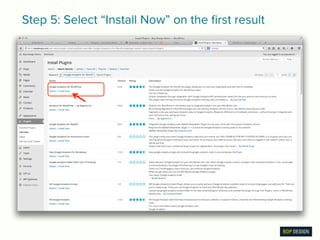
- 7 / 16
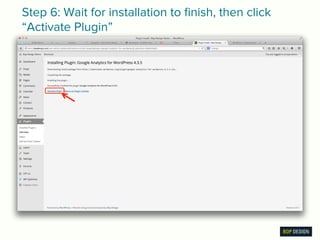
- 8 / 16
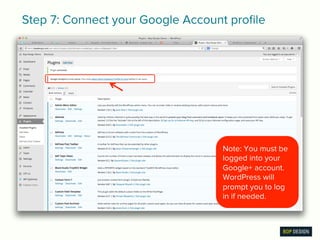
- 9 / 16
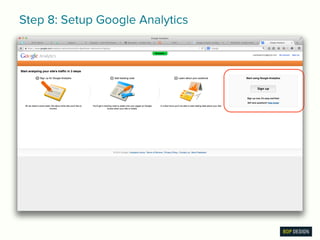
- 10 / 16
- 11 / 16
- 12 / 16
- 13 / 16
- 14 / 16
- 15 / 16

- 16 / 16


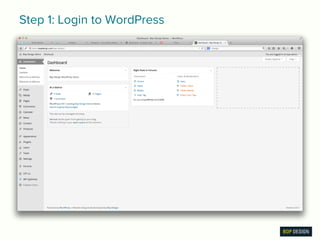
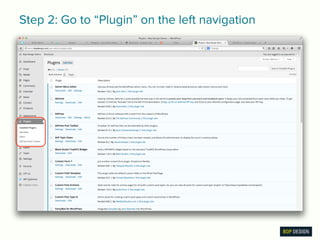
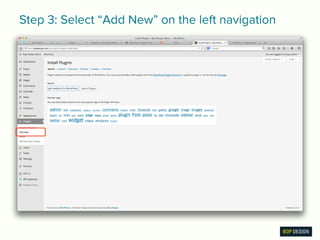
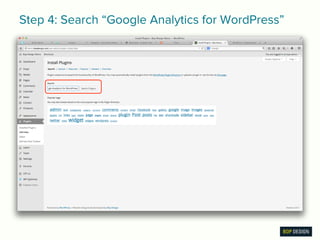
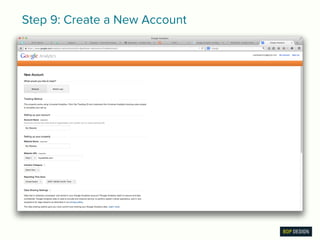
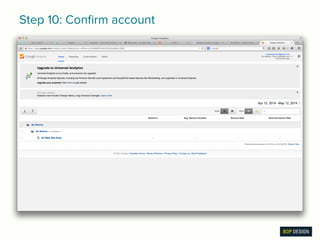
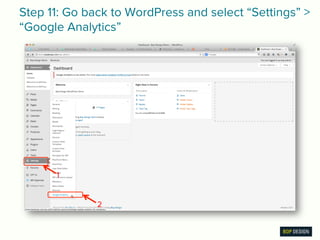
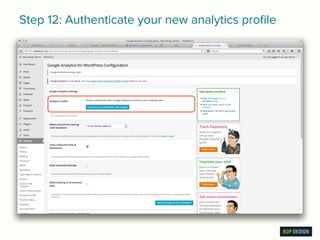
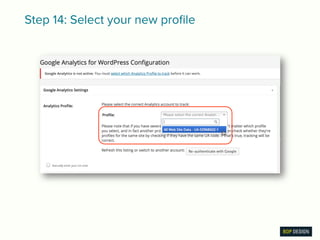
This document provides a step-by-step guide on installing Google Analytics on a WordPress website, from logging into WordPress to authenticating your Google Analytics profile. It includes specific actions such as adding a plugin and setting up a new account. Additionally, it offers a link to a free guide for beginners about essential website performance metrics.


