Comprehensive Introduction to Computers: Hardware, Software, and Storage Devices for Beginners
1.
INTRODUCTION TO COMPUTERS– TERM ONE
2026
These class notes are prepared in line with the approved Scheme of Work for
Term One (2026) at Mporokoso Trades Training Institute. The notes are designed
to be simple, practical, and easy to follow for beginners, while remaining
academically sound and aligned with ICDL Module 1 and TEVET expectations.
2.
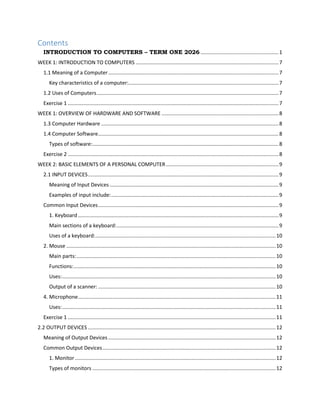
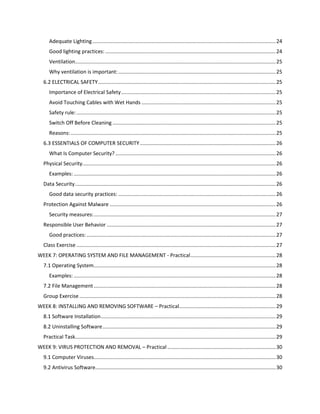
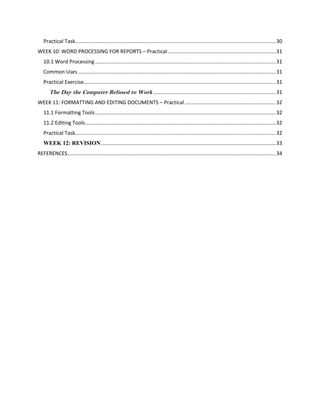
Contents
INTRODUCTION TO COMPUTERS– TERM ONE 2026 ......................................................1
WEEK 1: INTRODUCTION TO COMPUTERS ...................................................................................................7
1.1 Meaning of a Computer......................................................................................................................7
Key characteristics of a computer:........................................................................................................7
1.2 Uses of Computers..............................................................................................................................7
Exercise 1 ..................................................................................................................................................7
WEEK 1: OVERVIEW OF HARDWARE AND SOFTWARE .................................................................................8
1.3 Computer Hardware ...........................................................................................................................8
1.4 Computer Software.............................................................................................................................8
Types of software:.................................................................................................................................8
Exercise 2 ..................................................................................................................................................8
WEEK 2: BASIC ELEMENTS OF A PERSONAL COMPUTER..............................................................................9
2.1 INPUT DEVICES....................................................................................................................................9
Meaning of Input Devices .....................................................................................................................9
Examples of input include:....................................................................................................................9
Common Input Devices.............................................................................................................................9
1. Keyboard...........................................................................................................................................9
Main sections of a keyboard:................................................................................................................9
Uses of a keyboard:.............................................................................................................................10
2. Mouse .................................................................................................................................................10
Main parts:..........................................................................................................................................10
Functions:............................................................................................................................................10
Uses:....................................................................................................................................................10
Output of a scanner: ...........................................................................................................................10
4. Microphone.........................................................................................................................................11
Uses:....................................................................................................................................................11
Exercise 1 ................................................................................................................................................11
2.2 OUTPUT DEVICES ..................................................................................................................................12
Meaning of Output Devices ....................................................................................................................12
Common Output Devices........................................................................................................................12
1. Monitor ...........................................................................................................................................12
Types of monitors ...............................................................................................................................12
3.
Uses:....................................................................................................................................................12
2. Printer .................................................................................................................................................12
Typesof printers:................................................................................................................................13
Uses:....................................................................................................................................................13
3. Speakers..............................................................................................................................................13
Uses:....................................................................................................................................................13
4. Projector..............................................................................................................................................14
Uses:....................................................................................................................................................14
Exercise 2 ................................................................................................................................................14
Practical Exercise.....................................................................................................................................14
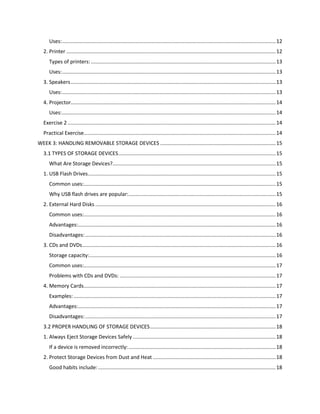
WEEK 3: HANDLING REMOVABLE STORAGE DEVICES ................................................................................15
3.1 TYPES OF STORAGE DEVICES.............................................................................................................15
What Are Storage Devices?.................................................................................................................15
1. USB Flash Drives..................................................................................................................................15
Common uses:.....................................................................................................................................15
Why USB flash drives are popular:......................................................................................................15
2. External Hard Disks .............................................................................................................................16
Common uses:.....................................................................................................................................16
Advantages:.........................................................................................................................................16
Disadvantages:....................................................................................................................................16
3. CDs and DVDs......................................................................................................................................16
Storage capacity:.................................................................................................................................16
Common uses:.....................................................................................................................................17
Problems with CDs and DVDs: ............................................................................................................17
4. Memory Cards.....................................................................................................................................17
Examples:............................................................................................................................................17
Advantages:.........................................................................................................................................17
Disadvantages:....................................................................................................................................17
3.2 PROPER HANDLING OF STORAGE DEVICES.......................................................................................18
1. Always Eject Storage Devices Safely ...................................................................................................18
If a device is removed incorrectly:......................................................................................................18
2. Protect Storage Devices from Dust and Heat .....................................................................................18
Good habits include:...........................................................................................................................18
4.
3. Scan StorageDevices for Viruses ........................................................................................................18
Good practice:.....................................................................................................................................18
Class Exercise ..........................................................................................................................................19
Group Assignment ..................................................................................................................................19
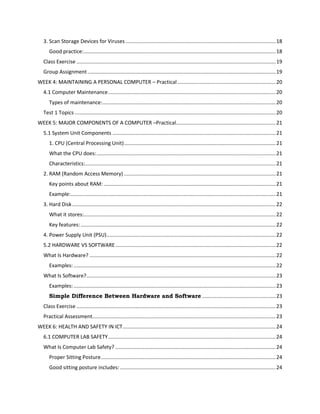
WEEK 4: MAINTAINING A PERSONAL COMPUTER – Practical ....................................................................20
4.1 Computer Maintenance....................................................................................................................20
Types of maintenance:........................................................................................................................20
Test 1 Topics ...........................................................................................................................................20
WEEK 5: MAJOR COMPONENTS OF A COMPUTER –Practical.....................................................................21
5.1 System Unit Components .................................................................................................................21
1. CPU (Central Processing Unit).........................................................................................................21
What the CPU does:............................................................................................................................21
Characteristics:....................................................................................................................................21
2. RAM (Random Access Memory) .........................................................................................................21
Key points about RAM: .......................................................................................................................21
Example:..............................................................................................................................................21
3. Hard Disk.............................................................................................................................................22
What it stores:.....................................................................................................................................22
Key features: .......................................................................................................................................22
4. Power Supply Unit (PSU).....................................................................................................................22
5.2 HARDWARE VS SOFTWARE...............................................................................................................22
What Is Hardware? .................................................................................................................................22
Examples:............................................................................................................................................22
What Is Software?...................................................................................................................................23
Examples:............................................................................................................................................23
Simple Difference Between Hardware and Software ...................................................23
Class Exercise ..........................................................................................................................................23
Practical Assessment...............................................................................................................................23
WEEK 6: HEALTH AND SAFETY IN ICT..........................................................................................................24
6.1 COMPUTER LAB SAFETY....................................................................................................................24
What Is Computer Lab Safety? ...............................................................................................................24
Proper Sitting Posture.........................................................................................................................24
Good sitting posture includes:............................................................................................................24
5.
Adequate Lighting...............................................................................................................................24
Good lightingpractices: ......................................................................................................................24
Ventilation...........................................................................................................................................25
Why ventilation is important:.............................................................................................................25
6.2 ELECTRICAL SAFETY...........................................................................................................................25
Importance of Electrical Safety...........................................................................................................25
Avoid Touching Cables with Wet Hands .............................................................................................25
Safety rule:..........................................................................................................................................25
Switch Off Before Cleaning .................................................................................................................25
Reasons:..............................................................................................................................................25
6.3 ESSENTIALS OF COMPUTER SECURITY..............................................................................................26
What Is Computer Security? ...............................................................................................................26
Physical Security......................................................................................................................................26
Examples:............................................................................................................................................26
Data Security...........................................................................................................................................26
Good data security practices: .............................................................................................................26
Protection Against Malware ...................................................................................................................26
Security measures:..............................................................................................................................27
Responsible User Behavior .....................................................................................................................27
Good practices:...................................................................................................................................27
Class Exercise ..........................................................................................................................................27
WEEK 7: OPERATING SYSTEM AND FILE MANAGEMENT - Practical...........................................................28
7.1 Operating System..............................................................................................................................28
Examples:............................................................................................................................................28
7.2 File Management ..............................................................................................................................28
Group Exercise........................................................................................................................................28
WEEK 8: INSTALLING AND REMOVING SOFTWARE – Practical...................................................................29
8.1 Software Installation.........................................................................................................................29
8.2 Uninstalling Software........................................................................................................................29
Practical Task...........................................................................................................................................29
WEEK 9: VIRUS PROTECTION AND REMOVAL – Practical ...........................................................................30
9.1 Computer Viruses..............................................................................................................................30
9.2 Antivirus Software.............................................................................................................................30
6.
Practical Task...........................................................................................................................................30
WEEK 10:WORD PROCESSING FOR REPORTS – Practical...........................................................................31
10.1 Word Processing .............................................................................................................................31
Common Uses.........................................................................................................................................31
Practical Exercise.....................................................................................................................................31
The Day the Computer Refused to Work.....................................................................................31
WEEK 11: FORMATTING AND EDITING DOCUMENTS – Practical...............................................................32
11.1 Formatting Tools.............................................................................................................................32
11.2 Editing Tools....................................................................................................................................32
Practical Task...........................................................................................................................................32
WEEK 12: REVISION.........................................................................................................................33
REFERENCES................................................................................................................................................34
7.
WEEK 1: INTRODUCTIONTO COMPUTERS
1.1 Meaning of a Computer
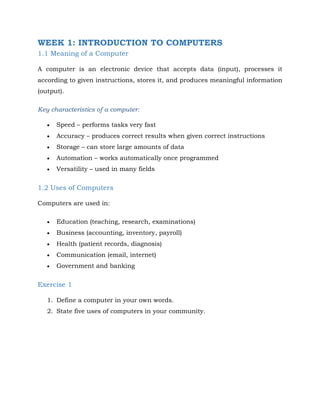
A computer is an electronic device that accepts data (input), processes it
according to given instructions, stores it, and produces meaningful information
(output).
Key characteristics of a computer:
Speed – performs tasks very fast
Accuracy – produces correct results when given correct instructions
Storage – can store large amounts of data
Automation – works automatically once programmed
Versatility – used in many fields
1.2 Uses of Computers
Computers are used in:
Education (teaching, research, examinations)
Business (accounting, inventory, payroll)
Health (patient records, diagnosis)
Communication (email, internet)
Government and banking
Exercise 1
1. Define a computer in your own words.
2. State five uses of computers in your community.
8.
WEEK 1: OVERVIEWOF HARDWARE AND SOFTWARE
1.3 Computer Hardware
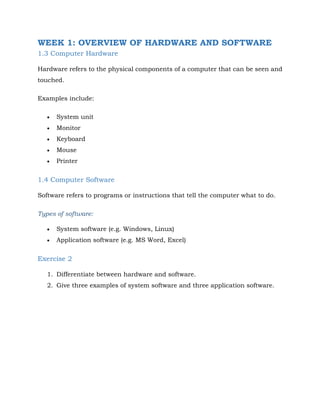
Hardware refers to the physical components of a computer that can be seen and
touched.
Examples include:
System unit
Monitor
Keyboard
Mouse
Printer
1.4 Computer Software
Software refers to programs or instructions that tell the computer what to do.
Types of software:
System software (e.g. Windows, Linux)
Application software (e.g. MS Word, Excel)
Exercise 2
1. Differentiate between hardware and software.
2. Give three examples of system software and three application software.
9.
WEEK 2: BASICELEMENTS OF A PERSONAL
COMPUTER
2.1 INPUT DEVICES
Meaning of Input Devices
Input devices are hardware components used to enter data, instructions, or
commands into a computer for processing. Without input devices, a computer
cannot receive information from the user.
Examples of input include:
Text
Numbers
Images
Sound
Commands
Common Input Devices
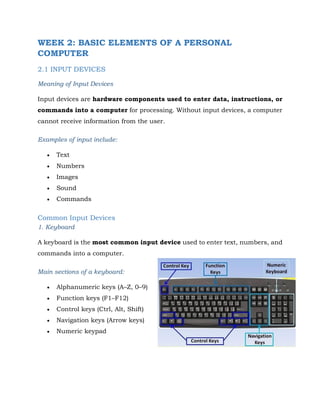
1. Keyboard
A keyboard is the most common input device used to enter text, numbers, and
commands into a computer.
Main sections of a keyboard:
Alphanumeric keys (A–Z, 0–9)
Function keys (F1–F12)
Control keys (Ctrl, Alt, Shift)
Navigation keys (Arrow keys)
Numeric keypad
10.
Uses of akeyboard:
Typing documents
Entering passwords
Issuing commands
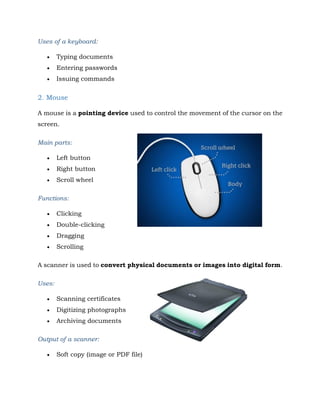
2. Mouse
A mouse is a pointing device used to control the movement of the cursor on the
screen.
Main parts:
Left button
Right button
Scroll wheel
Functions:
Clicking
Double-clicking
Dragging
Scrolling
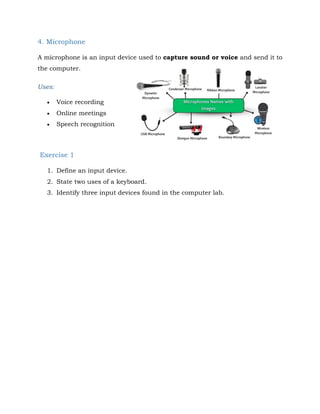
A scanner is used to convert physical documents or images into digital form.
Uses:
Scanning certificates
Digitizing photographs
Archiving documents
Output of a scanner:
Soft copy (image or PDF file)
11.
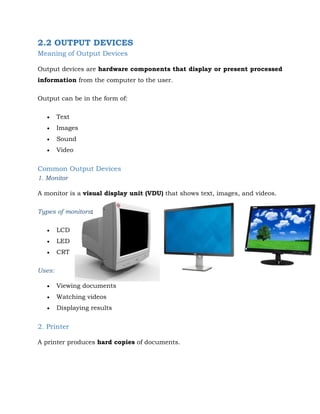
4. Microphone
A microphoneis an input device used to capture sound or voice and send it to
the computer.
Uses:
Voice recording
Online meetings
Speech recognition
Exercise 1
1. Define an input device.
2. State two uses of a keyboard.
3. Identify three input devices found in the computer lab.
12.
2.2 OUTPUT DEVICES
Meaningof Output Devices
Output devices are hardware components that display or present processed
information from the computer to the user.
Output can be in the form of:
Text
Images
Sound
Video
Common Output Devices
1. Monitor
A monitor is a visual display unit (VDU) that shows text, images, and videos.
Types of monitors:
LCD
LED
CRT
Uses:
Viewing documents
Watching videos
Displaying results
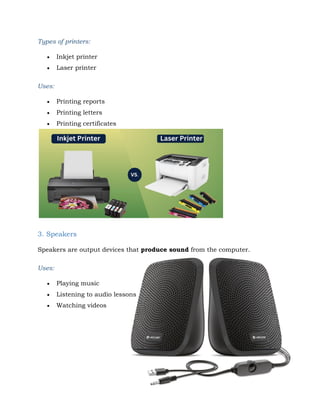
2. Printer
A printer produces hard copies of documents.
13.
Types of printers:
Inkjet printer
Laser printer
Uses:
Printing reports
Printing letters
Printing certificates
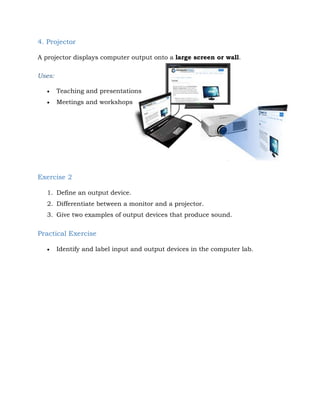
3. Speakers
Speakers are output devices that produce sound from the computer.
Uses:
Playing music
Listening to audio lessons
Watching videos
14.
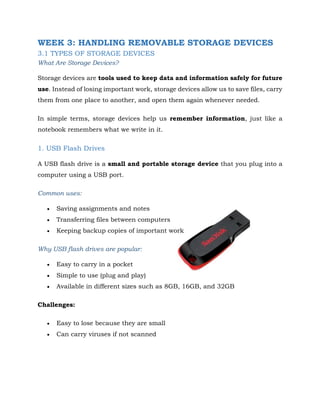
4. Projector
A projectordisplays computer output onto a large screen or wall.
Uses:
Teaching and presentations
Meetings and workshops
Exercise 2
1. Define an output device.
2. Differentiate between a monitor and a projector.
3. Give two examples of output devices that produce sound.
Practical Exercise
Identify and label input and output devices in the computer lab.
15.
WEEK 3: HANDLINGREMOVABLE STORAGE DEVICES
3.1 TYPES OF STORAGE DEVICES
What Are Storage Devices?
Storage devices are tools used to keep data and information safely for future
use. Instead of losing important work, storage devices allow us to save files, carry
them from one place to another, and open them again whenever needed.
In simple terms, storage devices help us remember information, just like a
notebook remembers what we write in it.
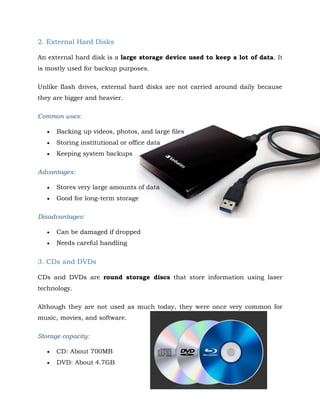
1. USB Flash Drives
A USB flash drive is a small and portable storage device that you plug into a
computer using a USB port.
Common uses:
Saving assignments and notes
Transferring files between computers
Keeping backup copies of important work
Why USB flash drives are popular:
Easy to carry in a pocket
Simple to use (plug and play)
Available in different sizes such as 8GB, 16GB, and 32GB
Challenges:
Easy to lose because they are small
Can carry viruses if not scanned
16.
2. External HardDisks
An external hard disk is a large storage device used to keep a lot of data. It
is mostly used for backup purposes.
Unlike flash drives, external hard disks are not carried around daily because
they are bigger and heavier.
Common uses:
Backing up videos, photos, and large files
Storing institutional or office data
Keeping system backups
Advantages:
Stores very large amounts of data
Good for long-term storage
Disadvantages:
Can be damaged if dropped
Needs careful handling
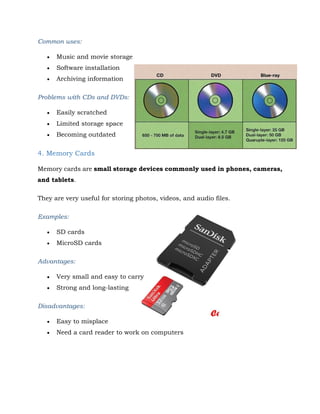
3. CDs and DVDs
CDs and DVDs are round storage discs that store information using laser
technology.
Although they are not used as much today, they were once very common for
music, movies, and software.
Storage capacity:
CD: About 700MB
DVD: About 4.7GB
17.
Common uses:
Musicand movie storage
Software installation
Archiving information
Problems with CDs and DVDs:
Easily scratched
Limited storage space
Becoming outdated
4. Memory Cards
Memory cards are small storage devices commonly used in phones, cameras,
and tablets.
They are very useful for storing photos, videos, and audio files.
Examples:
SD cards
MicroSD cards
Advantages:
Very small and easy to carry
Strong and long-lasting
Disadvantages:
Easy to misplace
Need a card reader to work on computers
18.
3.2 PROPER HANDLINGOF STORAGE DEVICES
Taking good care of storage devices helps to protect data and increase the life
of the device.
1. Always Eject Storage Devices Safely
Before removing a storage device from a computer, always select “Eject” or
“Safely Remove Hardware.”
This allows the computer to finish saving files properly.
If a device is removed incorrectly:
Files may be damaged
Data may be lost
2. Protect Storage Devices from Dust and Heat
Dust and heat are enemies of storage devices.
Good habits include:
Keeping devices in protective covers
Avoiding direct sunlight
Not placing devices near fire or water
These simple actions help devices last longer.
3. Scan Storage Devices for Viruses
Storage devices can easily carry viruses from one computer to another.
Good practice:
Always scan storage devices before opening files
Use updated antivirus software
19.
Avoid openingunknown files
This protects both the device and the computer.
Class Exercise
1. In your own words, explain what a storage device is.
2. State two differences between a USB flash drive and an external hard disk.
3. Mention three good practices for handling storage devices.
Group Assignment
Discuss the advantages and disadvantages of USB flash drives.
20.
WEEK 4: MAINTAININGA PERSONAL COMPUTER –
Practical
4.1 Computer Maintenance
Computer maintenance refers to activities done to keep the computer in good
working condition.
Types of maintenance:
Hardware maintenance (cleaning, servicing)
Software maintenance (updates, antivirus)
Test 1 Topics
Introduction to computers
Hardware and software
Storage devices
21.
WEEK 5: MAJORCOMPONENTS OF A COMPUTER –
Practical
5.1 System Unit Components
1. CPU (Central Processing Unit)
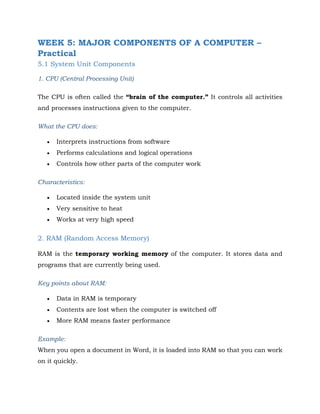
The CPU is often called the “brain of the computer.” It controls all activities
and processes instructions given to the computer.
What the CPU does:
Interprets instructions from software
Performs calculations and logical operations
Controls how other parts of the computer work
Characteristics:
Located inside the system unit
Very sensitive to heat
Works at very high speed
2. RAM (Random Access Memory)
RAM is the temporary working memory of the computer. It stores data and
programs that are currently being used.
Key points about RAM:
Data in RAM is temporary
Contents are lost when the computer is switched off
More RAM means faster performance
Example:
When you open a document in Word, it is loaded into RAM so that you can work
on it quickly.
22.
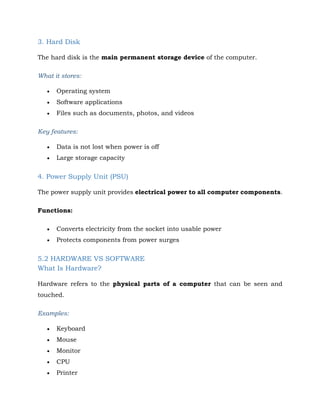
3. Hard Disk
Thehard disk is the main permanent storage device of the computer.
What it stores:
Operating system
Software applications
Files such as documents, photos, and videos
Key features:
Data is not lost when power is off
Large storage capacity
4. Power Supply Unit (PSU)
The power supply unit provides electrical power to all computer components.
Functions:
Converts electricity from the socket into usable power
Protects components from power surges
5.2 HARDWARE VS SOFTWARE
What Is Hardware?
Hardware refers to the physical parts of a computer that can be seen and
touched.
Examples:
Keyboard
Mouse
Monitor
CPU
Printer
23.
What Is Software?
Softwarerefers to the programs and instructions that tell the hardware what
to do.
Examples:
Windows
Linux
Microsoft Word
Excel
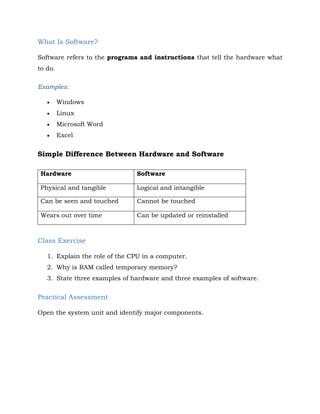
Simple Difference Between Hardware and Software
Hardware Software
Physical and tangible Logical and intangible
Can be seen and touched Cannot be touched
Wears out over time Can be updated or reinstalled
Class Exercise
1. Explain the role of the CPU in a computer.
2. Why is RAM called temporary memory?
3. State three examples of hardware and three examples of software.
Practical Assessment
Open the system unit and identify major components.
24.
WEEK 6: HEALTHAND SAFETY IN ICT
6.1 COMPUTER LAB SAFETY
What Is Computer Lab Safety?
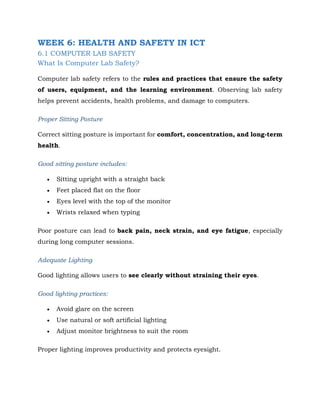
Computer lab safety refers to the rules and practices that ensure the safety
of users, equipment, and the learning environment. Observing lab safety
helps prevent accidents, health problems, and damage to computers.
Proper Sitting Posture
Correct sitting posture is important for comfort, concentration, and long-term
health.
Good sitting posture includes:
Sitting upright with a straight back
Feet placed flat on the floor
Eyes level with the top of the monitor
Wrists relaxed when typing
Poor posture can lead to back pain, neck strain, and eye fatigue, especially
during long computer sessions.
Adequate Lighting
Good lighting allows users to see clearly without straining their eyes.
Good lighting practices:
Avoid glare on the screen
Use natural or soft artificial lighting
Adjust monitor brightness to suit the room
Proper lighting improves productivity and protects eyesight.
25.
Ventilation
Ventilation ensures thatthe computer lab has fresh air circulation.
Why ventilation is important:
Prevents overheating of computers
Keeps users comfortable
Reduces dust buildup
Fans, windows, or air-conditioning systems help maintain a healthy
environment.
6.2 ELECTRICAL SAFETY
Importance of Electrical Safety
Computers use electricity, and careless handling of electrical components
can cause serious accidents, including electric shock or equipment damage.
Avoid Touching Cables with Wet Hands
Water conducts electricity and can cause electric shock.
Safety rule:
Always ensure hands are dry before touching cables, plugs, or sockets
Keep liquids away from computers and power outlets
Switch Off Before Cleaning
Before cleaning any computer equipment, the power should be switched off and
unplugged.
Reasons:
Prevents electric shock
Protects internal components
26.
Reduces therisk of short circuits
This is a simple habit that prevents many lab accidents.
6.3 ESSENTIALS OF COMPUTER SECURITY
What Is Computer Security?
Computer security involves protecting computers, data, and systems from
unauthorized access, damage, or loss. Security is both a technical and
personal responsibility.
Physical Security
Physical security protects the actual computer equipment.
Examples:
Locking computer labs after use
Restricting unauthorized access
Proper handling of hardware
Data Security
Data security ensures that information stored on computers is protected.
Good data security practices:
Using strong passwords
Backing up important files
Logging out after use
Protection Against Malware
Malware includes viruses, worms, and spyware that harm computers.
27.
Security measures:
Installingantivirus software
Regularly updating systems
Scanning removable storage devices
Responsible User Behavior
Users play a key role in security.
Good practices:
Avoid downloading unknown software
Do not share passwords
Report suspicious activities
Class Exercise
1. Explain why proper sitting posture is important in a computer lab.
2. State two electrical safety rules in a computer lab.
3. List three essential computer security practices.
28.
WEEK 7: OPERATINGSYSTEM AND FILE
MANAGEMENT - Practical
7.1 Operating System
An operating system is software that manages computer hardware and software
resources.
Examples:
Windows
Linux
7.2 File Management
Creating folders
Saving files
Renaming and deleting files
Group Exercise
Create folders for different subjects and save files appropriately.
29.
WEEK 8: INSTALLINGAND REMOVING SOFTWARE –
Practical
8.1 Software Installation
Steps include:
Checking system requirements
Running installer
8.2 Uninstalling Software
Use Control Panel or system settings.
Practical Task
Install and uninstall a sample application.
30.
WEEK 9: VIRUSPROTECTION AND REMOVAL –
Practical
9.1 Computer Viruses
A computer virus is a malicious program that damages data and systems.
9.2 Antivirus Software
Detects
Prevents
Removes viruses
Practical Task
Run a full system scan using antivirus software.
31.
WEEK 10: WORDPROCESSING FOR REPORTS –
Practical
10.1 Word Processing
Word processing involves creating, editing, and formatting documents.
Common Uses
Letters
Reports
Assignments
Practical Exercise
Type the passage below using MS Word.
The Day the Computer Refused to Work
One morning, James switched on the computer and said, “Good morning.”
The computer did not reply, but it froze.
James clicked the mouse. Nothing happened.
He clicked again. Still nothing.
James whispered, “Please work.”
The computer remained silent but showed an error message.
Frustrated, James called his friend Mary.
Mary looked at the screen and asked, “Did you switch on the power?”
James checked and smiled.
The computer started working immediately.
From that day, James always checks the power first and greets the computer later.
32.
WEEK 11: FORMATTINGAND EDITING DOCUMENTS –
Practical
11.1 Formatting Tools
Fonts
Alignment
Line spacing
11.2 Editing Tools
Spell check
Grammar check
Headers and footers
Practical Task
Format a document with header, footer, and page numbers.
33.
WEEK 12: REVISION
Review all topics
Mock examinations
Question and answer sessions
34.
REFERENCES
1. International ComputerDriving Licence (ICDL). (2022). ICDL Module 1:
Computer Essentials. ICDL Foundation.
2. Shelly, G. B., & Vermaat, M. E. (2019). Discovering Computers: Technology
in a Connected World. Cengage Learning.
3. Norton, P. (2017). Introduction to Computers. McGraw-Hill Education.
4. TEVETA. (2020). Computer Studies Syllabus. Technical Education,
Vocational and Entrepreneurship Training Authority, Zambia.
5. Williams, B. K., & Sawyer, S. C. (2018). Using Information Technology: A
Practical Introduction to Computers & Communications. McGraw-Hill
Education.
6. Microsoft Learn. (2023). Basic Computer Concepts and File Management.
Microsoft Corporation.