PrintFriendly makes your website look great when printed, and saves paper and ink. It cleans and optimizes webpages before printing, plus you can remove-images, change text-size, and save as PDF.
Print Friendly &PDF for WordPress.com
Now you can add the one-and-only Print Friendly & PDF button to your WordPress.com website!
PrintFriendly makes your website look great when printed, and saves paper and ink. It cleans and
optimizes webpages before printing, plus you can remove-images, change text-size, and save as PDF. It's
free, and easy to add to WordPress.com. Learn more about Print Friendly & PDF.
These instructions are for WordPress.com, not to be confused with WordPress.org. If you're using
WordPress.org for self-hosted and hosted WordPress sites, you can get the PrintFriendly Plugin for
WordPress.org.
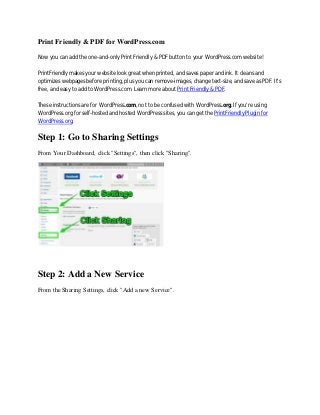
Step 1: Go to Sharing Settings
From Your Dashboard, click "Settings", then click "Sharing".
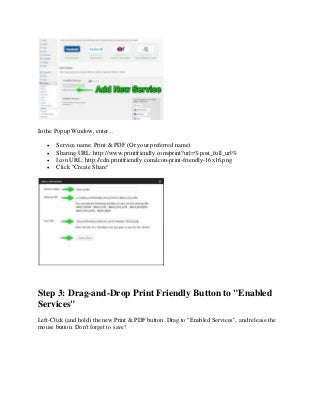
Step 2: Add a New Service
From the Sharing Settings, click "Add a new Service".
2.
In the PopupWindow, enter...
Service name: Print & PDF (Or your preferred name)
Sharing URL: http://www.printfriendly.com/print?url=%post_full_url%
Icon URL: http://cdn.printfriendly.com/icon-print-friendly-16x16.png
Click "Create Share"
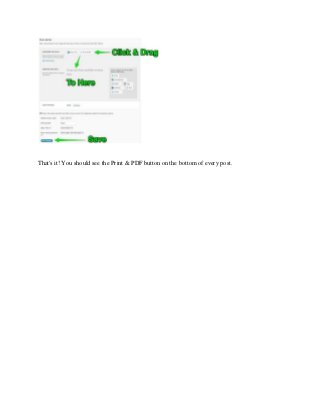
Step 3: Drag-and-Drop Print Friendly Button to "Enabled
Services"
Left-Click (and hold) the new Print & PDF button. Drag to "Enabled Services", and release the
mouse button. Don't forget to save!
3.
That's it! Youshould see the Print & PDF button on the bottom of every post.


![Vibe Coding vs. Spec-Driven Development [Free Meetup]](https://cdn.slidesharecdn.com/ss_thumbnails/vibecodingvsspecdrivendevelopment-251209105622-43f455e7-thumbnail.jpg?width=640&height=640&fit=bounds)


