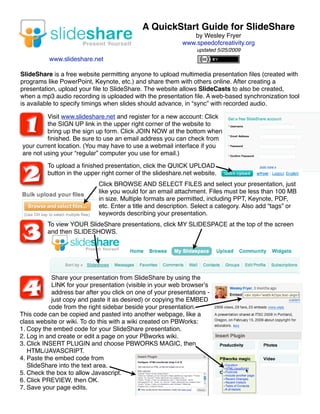
1. A QuickStart Guide for SlideShare
by Wesley Fryer
www.speedofcreativity.org
updated 5/25/2009
www.slideshare.net
SlideShare is a free website permitting anyone to upload multimedia presentation files (created with
programs like PowerPoint, Keynote, etc.) and share them with others online. After creating a
presentation, upload your file to SlideShare. The website allows SlideCasts to also be created,
when a mp3 audio recording is uploaded with the presentation file. A web-based synchronization tool
is available to specify timings when slides should advance, in “sync” with recorded audio.
Visit www.slideshare.net and register for a new account: Click
the SIGN UP link in the upper right corner of the website to
bring up the sign up form. Click JOIN NOW at the bottom when
finished. Be sure to use an email address you can check from
your current location. (You may have to use a webmail interface if you
are not using your “regular” computer you use for email.)
To upload a finished presentation, click the QUICK UPLOAD
button in the upper right corner of the slideshare.net website.
Click BROWSE AND SELECT FILES and select your presentation, just
like you would for an email attachment. Files must be less than 100 MB
in size. Multiple formats are permitted, including PPT, Keynote, PDF,
etc. Enter a title and description. Select a category. Also add “tags” or
keywords describing your presentation.
To view YOUR SlideShare presentations, click MY SLIDESPACE at the top of the screen
and then SLIDESHOWS.
Share your presentation from SlideShare by using the
LINK for your presentation (visible in your web browserʼs
address bar after you click on one of your presentations -
just copy and paste it as desired) or copying the EMBED
code from the right sidebar beside your presentation.
This code can be copied and pasted into another webpage, like a
class website or wiki. To do this with a wiki created on PBWorks:
1. Copy the embed code for your SlideShare presentation.
2. Log in and create or edit a page on your PBworks wiki.
3. Click INSERT PLUGIN and choose PBWORKS MAGIC, then
HTML/JAVASCRIPT.
4. Paste the embed code from
SlideShare into the text area.
5. Check the box to allow Javascript.
6. Click PREVIEW, then OK.
7. Save your page edits.